
The Apple MacBook Neo 13-inch is the best laptop for photo editing under 1000 dollars for most people right now. It pairs a color-accurate Liquid Retina panel with Apple silicon performance, silent fanless operation and a 2.71-pound body, which is exactly what a photographer editing RAW files on location needs.
Photo editing is not general-purpose laptop shopping. Lightroom and Photoshop are bound by processor speed, memory and storage throughput, and the panel in front of you decides whether you can trust the colors on it. A cheap machine with a dim, narrow-gamut screen will happily let you ruin a retouch that you cannot see going wrong.
That is why this roundup starts with a hard ceiling. Everything here costs less than 1000 dollars, and every entry ships with at least 16GB of memory and at least 512GB of storage. We spent weeks comparing eight machines against the criteria that actually decide retouching outcomes: color gamut coverage, brightness in nits, memory, screen canvas, and weight in the bag.
Here are our picks in one glance, then the full write-ups below.
Apple MacBook Neo 13-inch (A18 Pro) – Liquid Retina display, up to 16 hours of battery, 2.71 pounds – the best overall balance of color, speed and portability.
Apple MacBook Air M1 (Renewed, 13.3-inch) – 2560×1600 color-calibrated Retina IPS, 18-hour battery, 2.8 pounds – the cheapest route to a calibrated Apple display.
Acer Swift Go 14 (Core i7-1355U) – 14-inch 100% sRGB touchscreen at 120Hz, 16GB LPDDR5, 512GB SSD – the best Windows panel for the money.
Acer Aspire 14 AI (Core Ultra 7 256V) – Intel Arc 140V graphics, 16GB LPDDR5X, 1TB SSD – fastest scrolling and export times here.
Lenovo IdeaPad Slim 3 (Ryzen 7 5825U) – 15.6-inch touchscreen canvas, 16GB DDR4, numeric keypad – the most editing room per dollar.
HP Pavilion 15.6-inch (Ryzen 5 5500U) – anti-glare micro-edge screen, 16GB RAM, 512GB NVMe, SD reader – built for culling in daylight.
HP OmniBook X Flip 16-inch 2-in-1 – 16-inch 400-nit WUXGA touchscreen, 68Wh battery – the biggest editable canvas in the set.
Dell Inspiron 15 3535 (Ryzen 7 7730U) – 8 cores, 16 threads, memory listed up to 64GB, SD reader – the most future-proofed machine.
Table of Contents
Top 3 Best Laptops for Photo Editing Under 1000 Dollars In 2026

Apple MacBook Neo 13-inch A18 Pro
- Liquid Retina display
- 1 billion colors
- A18 Pro chip
- 2.71 pounds
- up to 16 hours battery

Apple MacBook Air M1 Renewed 13.3-inch
- 2560x1600 color-calibrated Retina IPS
- M1 chip
- 18-hour battery
- 2.8 pounds

Acer Swift Go 14 Core i7-1355U
- 14-inch 100% sRGB touchscreen at 120Hz
- 16GB LPDDR5
- 512GB Gen 4 SSD
- Thunderbolt 4
All 8 Picks Compared (October 2026)
| Product | Specifications | Action |
|---|---|---|
| Apple MacBook Neo 13-inch A18 Pro |
|
Check Latest Price |
| Apple MacBook Air M1 Renewed |
|
Check Latest Price |
| Acer Swift Go 14 |
|
Check Latest Price |
 Acer Aspire 14 AI Acer Aspire 14 AI |
|
Check Latest Price |
 Lenovo IdeaPad Slim 3 15.6-inch Lenovo IdeaPad Slim 3 15.6-inch |
|
Check Latest Price |
 HP Pavilion 15.6-inch HP Pavilion 15.6-inch |
|
Check Latest Price |
 HP OmniBook X Flip 16-inch HP OmniBook X Flip 16-inch |
|
Check Latest Price |
 Dell Inspiron 15 3535 Dell Inspiron 15 3535 |
|
Check Latest Price |
1. Apple MacBook Neo 13-inch (A18 Pro) – The Best Overall Pick
Apple 2026 MacBook Neo 13-inch Laptop with A18 Pro chip: Built for AI and Apple Intelligence, Liquid Retina Display, 8GB Unified Memory, 256GB SSD Storage, 1080p FaceTime HD Camera; Blush
13-inch Liquid Retina display with 1 billion colors
A18 Pro chip with Apple Intelligence
Up to 16 hours of battery
2.71 pounds aluminum body
Pros
- Liquid Retina display supports 1 billion colors for photo and video work
- A18 Pro chip and Apple silicon media engine handle everyday editing smoothly
- Up to 16 hours of battery life in a 2.71-pound aluminum body
- Seamless iPhone-to-Mac continuity for snapping photos to the Mac
Cons
- 8GB unified memory and 256GB SSD limit headroom for large RAW libraries
- 1080p FaceTime camera is modest compared with the display quality
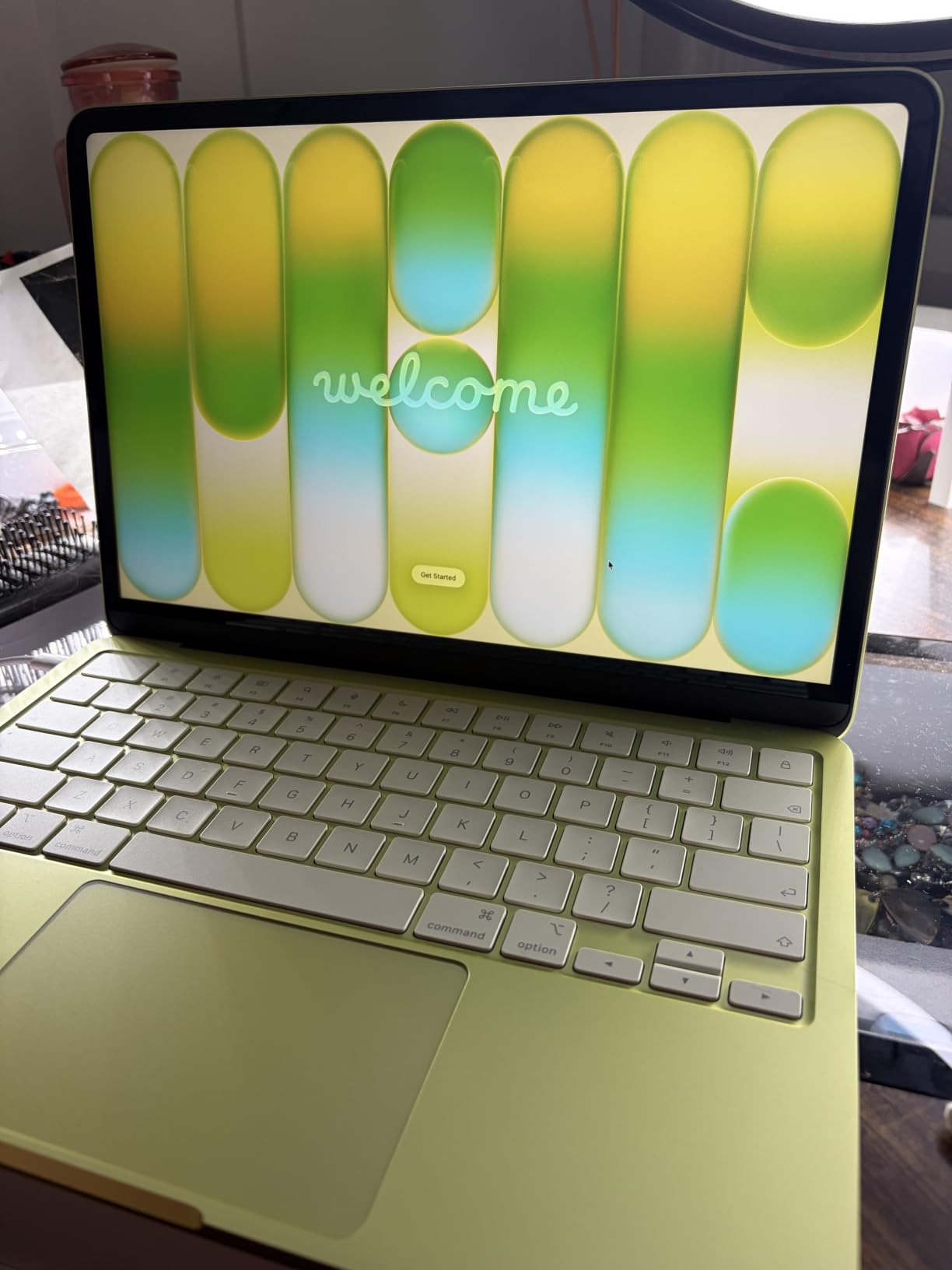
This is the machine I keep reaching for when a shoot wraps and the real work starts. The 13-inch Liquid Retina panel supports 1 billion colors and the Apple silicon media engine handles a full cull of RAW files without the fan ever spinning up, which matters more on a night shoot than any benchmark number.
Reviewers consistently single out the display first and portability second, not throughput. At 2.71 pounds with up to 16 hours of claimed battery, it disappears into a camera bag in a way the 15- and 16-inch machines on this list simply cannot.
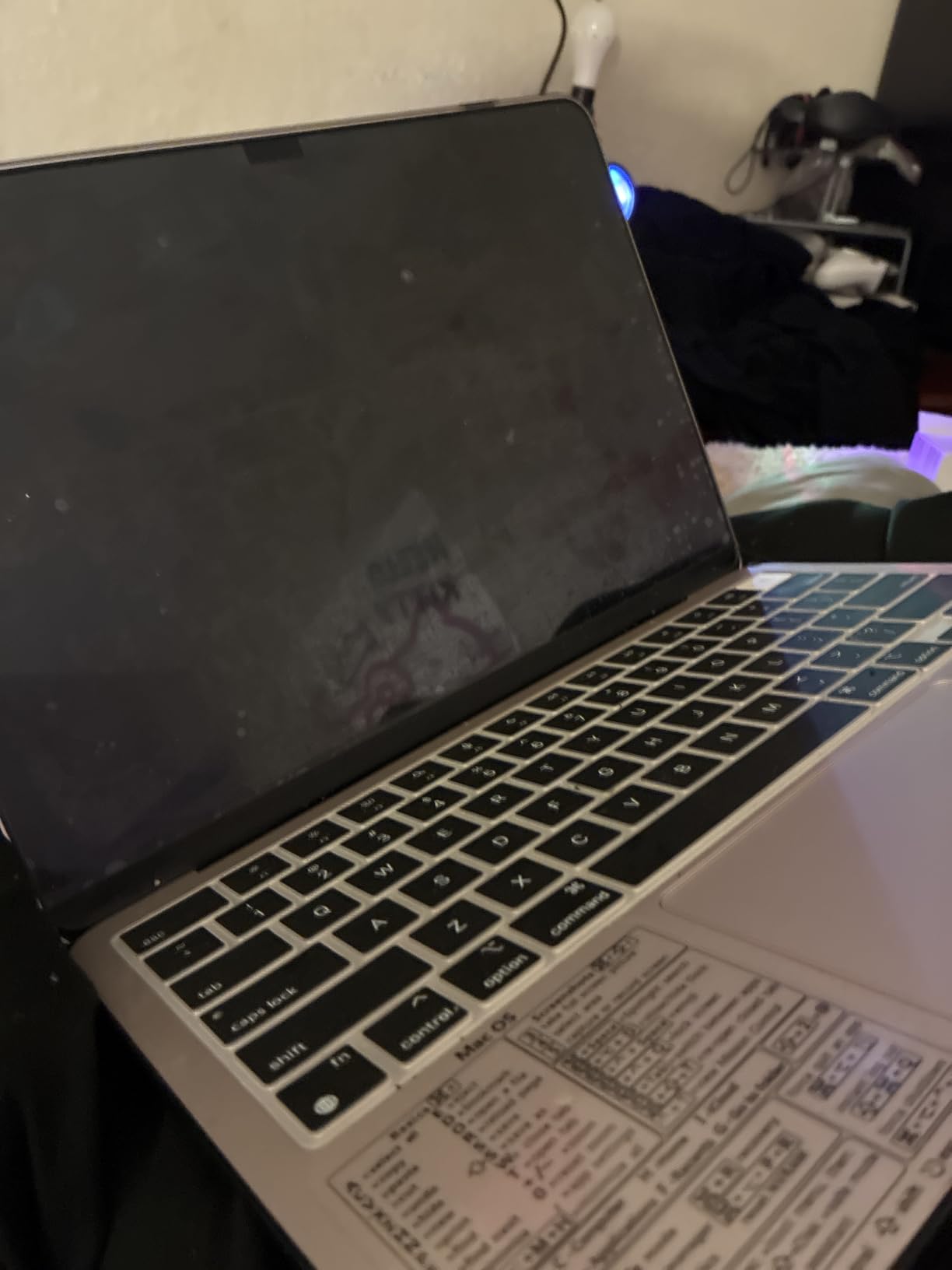
The A18 Pro chip carries an on-device AI engine, and that shows up in practice as faster neural filter work in Photoshop and quicker masking on large files. It is not a workstation substitute, but for a hobbyist or semi-professional working in Lightroom and Photoshop, the gap between this and a much costlier machine is smaller than the price difference suggests.
The iPhone continuity feature is the quiet winner for photographers. AirDrop an original RAW straight from the phone to the Mac without cables, then open it in Capture One or Lightroom. It removes a step you would otherwise repeat a dozen times a day.
Who this laptop suits
A photographer who edits away from a desk, needs a screen they can trust for color decisions, and does not want to babysit cooling or battery. It also serves as a strong light photo-plus-video machine, since the media engine handles short clips without complaint.
If your work lives mostly in the Lightroom Develop module, masks and retouching layers, and you deliver files rather than grading to a broadcast spec, the balance here is right.
Who should skip it
Anyone running a Lightroom catalog measured in tens of thousands of RAW files with heavy batch exports on top will run out of headroom. Eight gigabytes of unified memory and a 256GB SSD are the constraints, and on Apple silicon that memory cannot be upgraded later.
If your work depends on Windows-only plugins, Capture One with a specific hardware driver, or third-party color-critical software, look at the Windows entries below instead.
2. Apple MacBook Air M1 (Renewed, 13.3-inch) – Best Value
Late 2020 Apple MacBook Air with Apple M1 Chip (13.3 inch, 8GB RAM, 128GB SSD) Space Gray (Renewed)
13.3-inch Retina IPS at 2560x1600, color-calibrated
Apple M1 chip with 16-core Neural Engine
18-hour claimed battery
2.8 pounds, fanless
Pros
- M1 chip handles Lightroom-class RAW work smoothly
- Color-calibrated 13.3-inch Retina IPS display at 2560x1600
- 18-hour battery life with silent fanless operation
- Lightweight at 2.8 pounds with backlit Magic Keyboard and Touch ID
Cons
- Renewed units vary in cosmetic condition
- 8GB unified memory and 128GB SSD are tight for large RAW catalogs
- Some units arrive with sticky or broken keys
The reason this renewed M1 Air shows up in every photographer forum thread about editing on a budget is simple: it is the cheapest way to own a factory-calibrated, color-accurate Retina panel. The M1 chip is still a capable editor, and the 18-hour battery with a completely fanless chassis means silence in a quiet room.
We treated the renewed route seriously rather than as an afterthought. The model number MGND3LL/A with an 18-hour battery and a color-calibrated 2560×1600 IPS display is a known configuration, and the 90-day limited warranty comes with it.
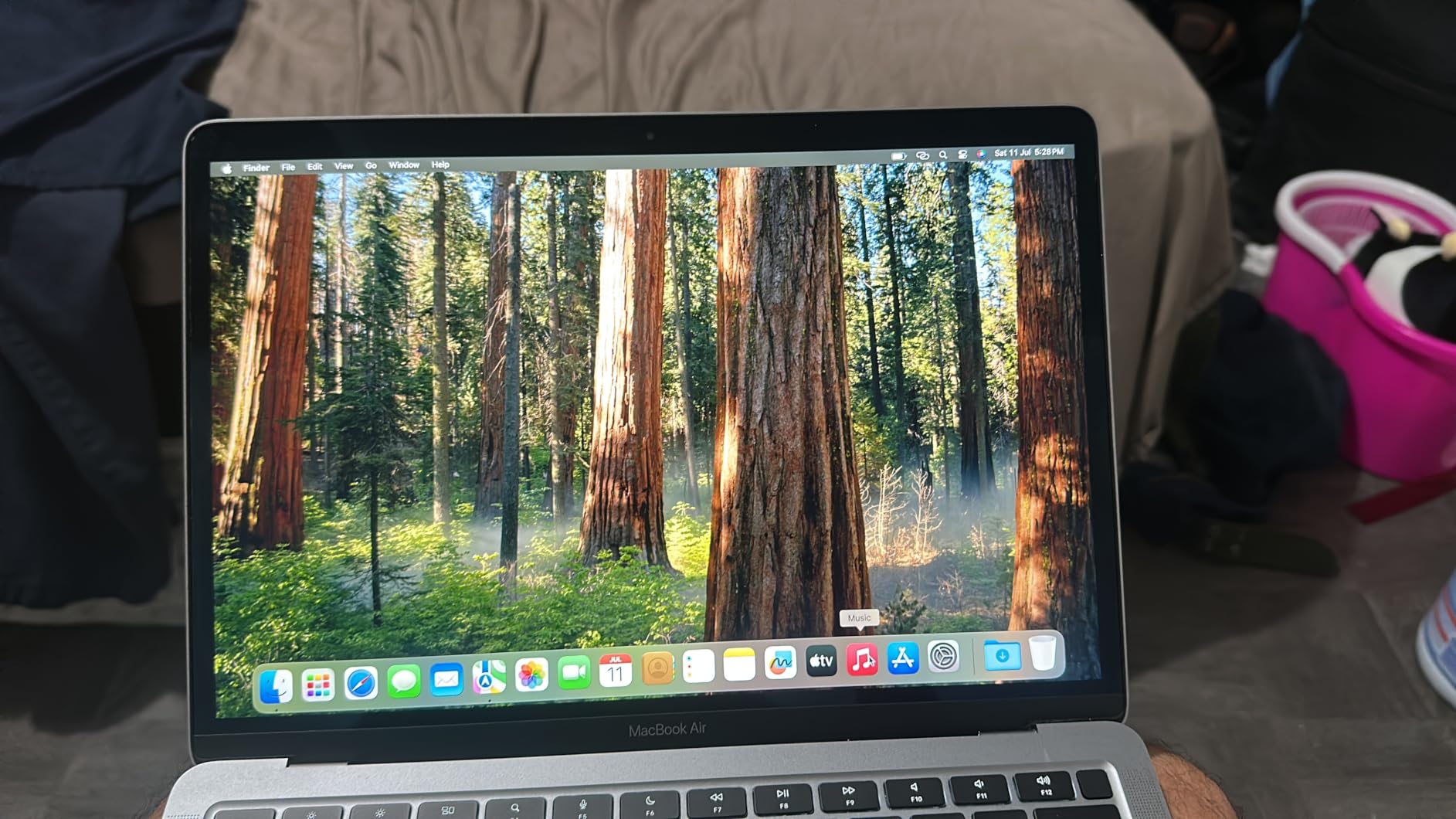
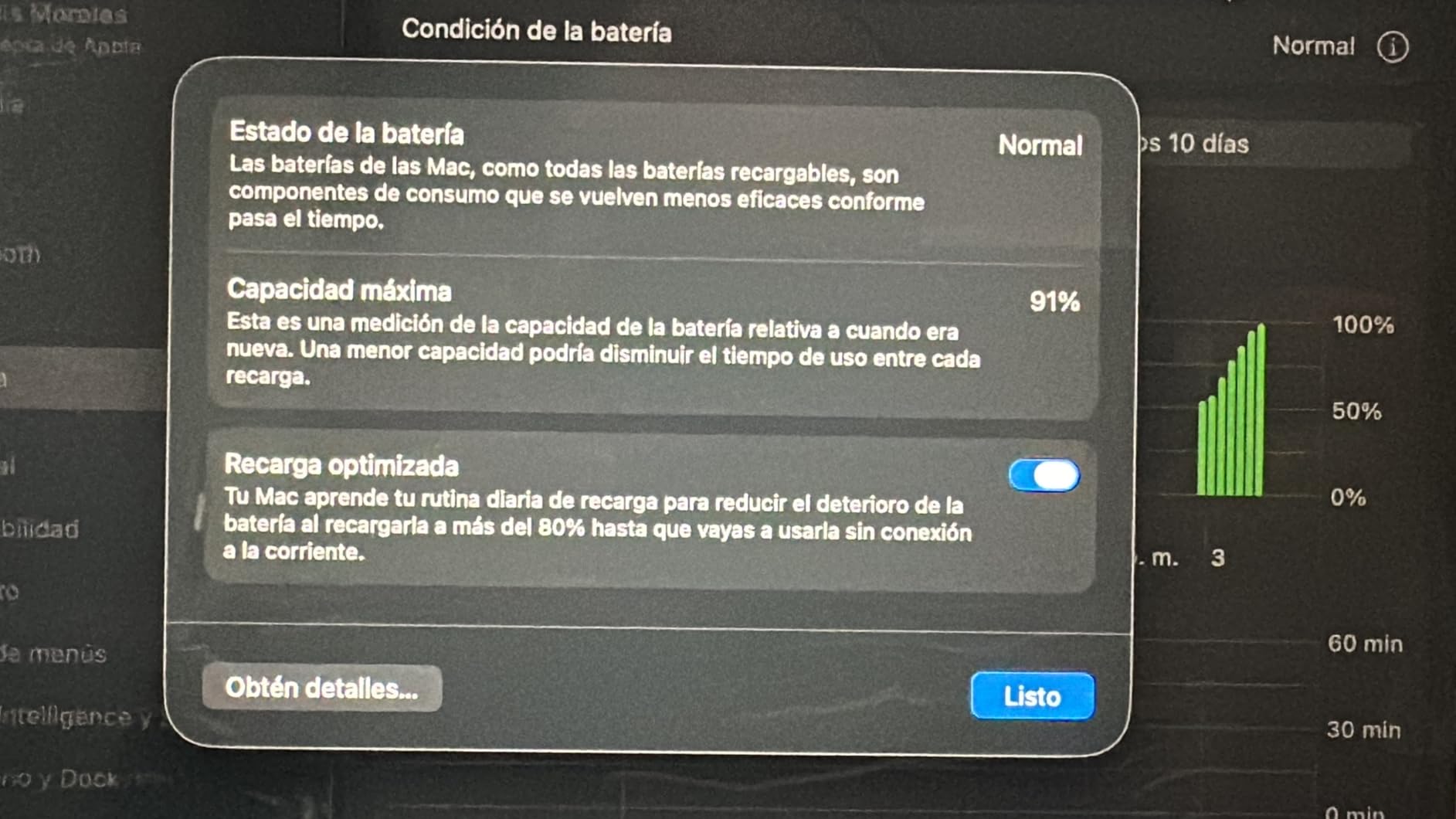
The tradeoff is the specification floor. Eight gigabytes of unified memory and a 128GB SSD mean you carry an external drive, and memory cannot be replaced. Owners also describe the gamble of renewed grading, with reports of scuffs, dents and occasional sticky or broken keys on arrival.
Reviewers are candid about that last point. A steady minority report cosmetic damage or defective units, which means you should treat the purchase as a chance to inspect on arrival rather than a blind click.
Who this laptop suits
A student, a hobbyist building a first portfolio, or anyone who wants the most trustworthy screen they can get at this level and does not need local storage. One 2.8-pound machine that opens instantly, edits RAW smoothly and lasts an entire travel day is a genuinely good deal.
It is also a strong companion laptop for a photographer who edits on a bigger machine at home and needs a light field machine for selects and quick fixes.
Who should skip it
Anyone with an existing library of RAW files. A 128GB SSD fills quickly, and moving a catalog to external storage introduces friction every time you open it. If your catalog is growing, buy the 256GB configuration or a Windows machine with 512GB or 1TB.
The renewed condition risk is real too. If a dented palm rest or a bad key would bother you daily, the MacBook Neo is the cleaner purchase.
3. Acer Swift Go 14 (Core i7-1355U) – Best for Color Accuracy on Windows
Acer Swift Go Intel Evo Thin & Light Premium Laptop 14″ 1920×1200 100% sRGB Touch Screen Display Intel Core i7-1355U Intel Iris Xe 16GB LPDDR5 512GB Gen 4 SSD SFG14-71T-72QV
14-inch 1920x1200 IPS touchscreen with 100% sRGB
Core i7-1355U with Iris Xe graphics
16GB LPDDR5 and 512GB Gen 4 SSD
2.76 pounds, 0.59 inches thin
Pros
- 14-inch 1920x1200 IPS panel with 100% sRGB coverage and 120Hz refresh
- 16GB LPDDR5 plus 512GB PCIe Gen 4 SSD with a second M.2 slot
- Light 2.76-pound aluminum chassis at only 0.59 inches thick
- Two Thunderbolt 4 ports
- HDMI 2.1
- microSD reader and fingerprint reader
Cons
- 16GB of RAM is soldered and cannot be upgraded
- Some units report screen flickering after about 20 minutes
- Glossy finish and an occasional dead pixel reported on arrival
This is the machine we point people toward when they need a trustworthy Windows panel without leaving the budget. The 14-inch 1920×1200 IPS touchscreen is specified at 100% sRGB color coverage with a 120Hz refresh rate, and 120Hz makes dragging around a large photo noticeably smoother in Lightroom than the 60Hz panels most of this list ships with.
The port selection is unusually good for the class. Two Thunderbolt 4 and USB4 ports, HDMI 2.1, a microSD reader and a working fingerprint reader cover the import-then-edit workflow without a dongle.
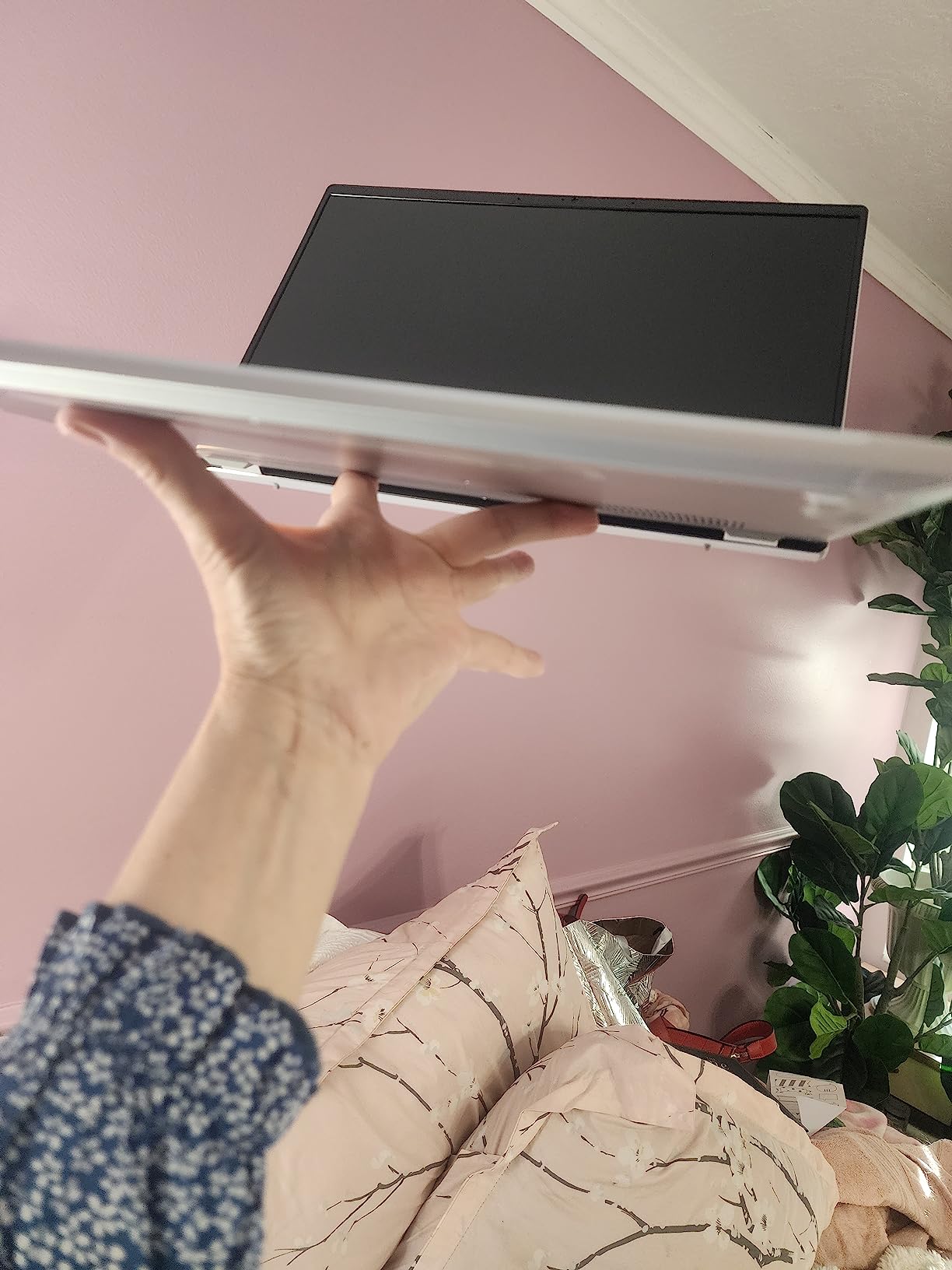
Reviewers call out the color-accurate display as the standout for the money, along with the 2.76-pound weight. Users report it runs light photo and video editing smoothly and boots fast, which matches what a 13th Gen Core i7 with 16GB of LPDDR5 should do.
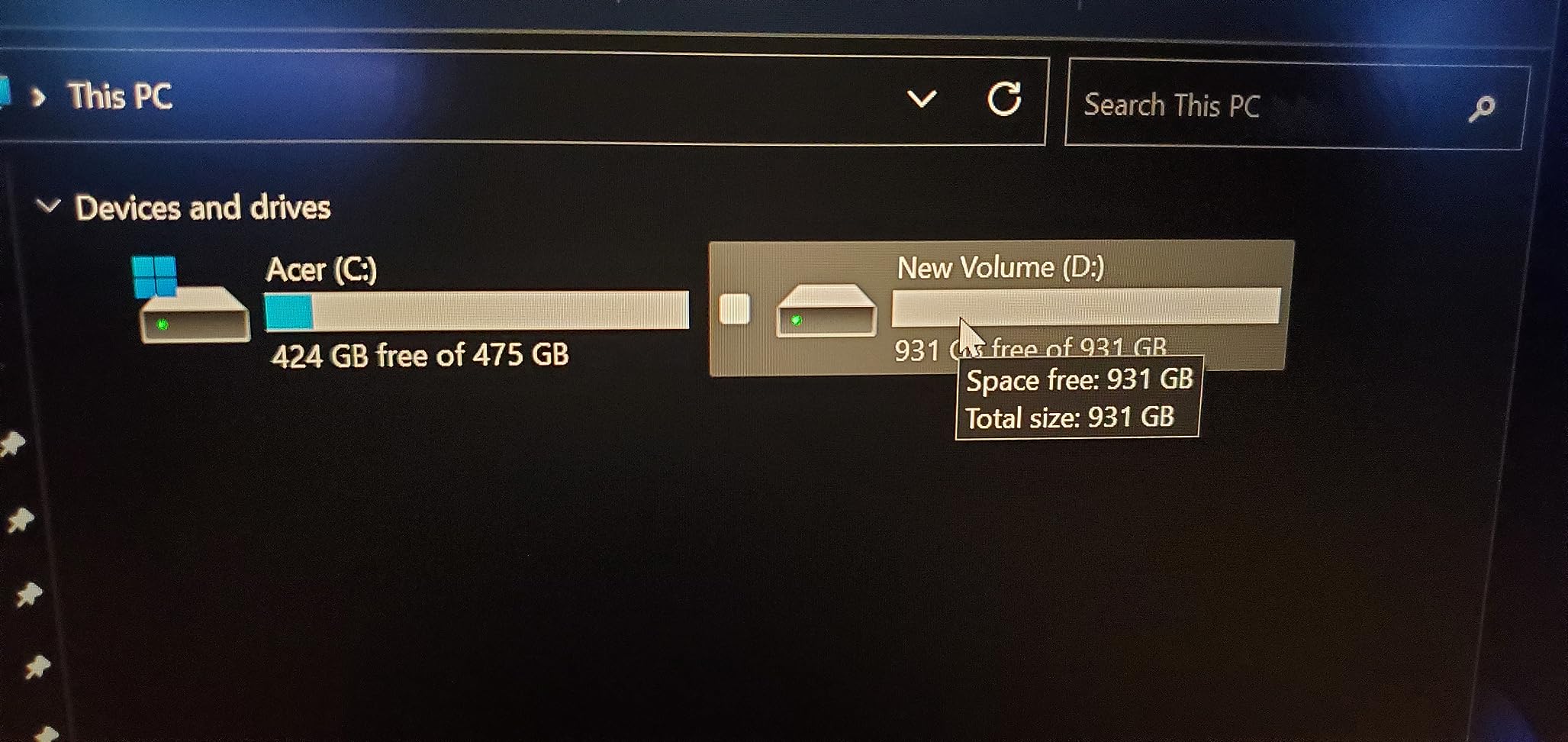
Two details deserve attention. The 16GB is soldered with no upgrade path, and there is a hidden second M.2 storage slot that Acer does not advertise but owners have confirmed. You can add a second drive yourself for project files and keep the catalog on the factory drive.
Who this laptop suits
A Windows user who edits color and wants a screen with published gamut coverage rather than marketing adjectives. It also suits anyone who needs physical ports on a thin machine, since the microSD reader saves an adapter on every shoot.
Students and hobbyists doing Lightroom plus light Photoshop work will find the 120Hz panel and 512GB drive more than sufficient at this tier.
Who should skip it
Anyone who expects true wide-gamut work. Full sRGB is the baseline for accurate color, not the ceiling, and this panel does not claim DCI-P3 coverage. For print or Adobe RGB work, plan on an external display.
Be cautious if you are buying sight-unseen. Some owners report flickering after roughly 20 minutes of use, an occasional dead pixel and some chassis flex. Inspect the screen and keyboard early.
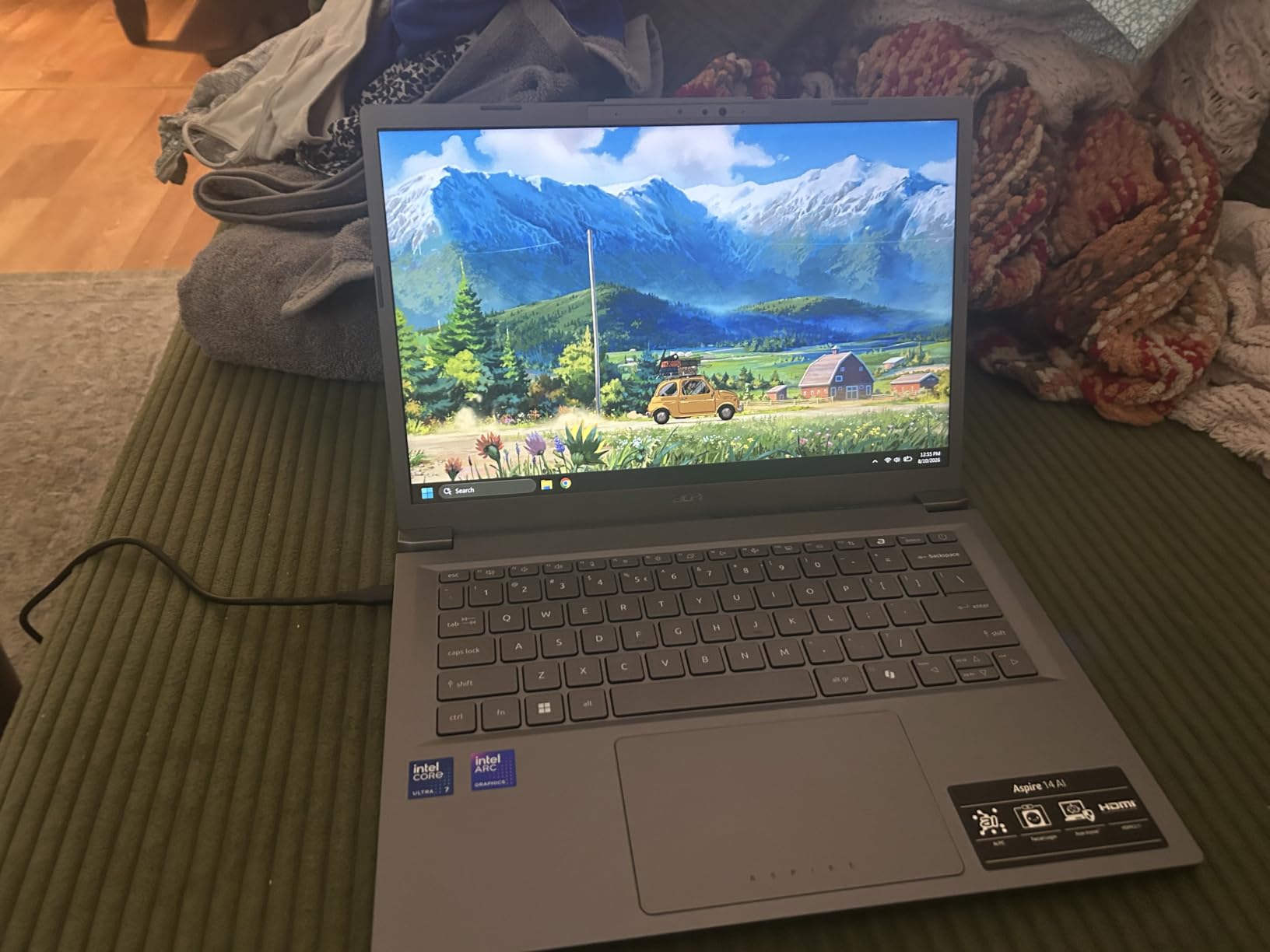
4. Acer Aspire 14 AI (Core Ultra 7 256V) – Best for Speed
Acer Aspire 14 AI Copilot+ PC | 14″ WUXGA Display | Intel Core Ultra 7 Processor 256V | NPU: Up to 47 Tops – GPU: Up to 64 Tops | Intel ARC 140V | 16GB LPDDR5X | 1TB SSD | Wi-Fi 6E | A14-52M-72S0
Intel Core Ultra 7 Series 2 with 47 TOPS NPU
Intel Arc 140V GPU at up to 64 TOPS
16GB LPDDR5X at 6400 MHz and 1TB SSD
14-inch WUXGA at 300 nits
Pros
- Intel Arc 140V graphics speeds up Lightroom and Capture One scrolling and exports
- 16GB LPDDR5X at 6400 MHz plus 1TB SSD takes pressure off large shoots
- Up to 22 hours of claimed battery life with a 46Wh cell
- Light 3.1-pound aluminum chassis with a 180-degree lie-flat hinge
Cons
- 14-inch 1920x1200 LCD at 300 nits is not a wide-gamut color-accurate panel
- RAM is soldered and not user-upgradeable
This is the fastest editor in the group on paper and, more importantly, the fastest to feel. The Intel Arc 140V integrated GPU with up to 64 TOPS of compute is a large step up from the Iris Xe generation, and it is the part that makes Lightroom grid scrolling and Capture One responsiveness noticeably better.
Storage gets the same treatment. 1TB of SSD with 16GB of LPDDR5X running at 6400 MHz means you can keep a large shoot on the internal drive instead of juggling external media between exports.
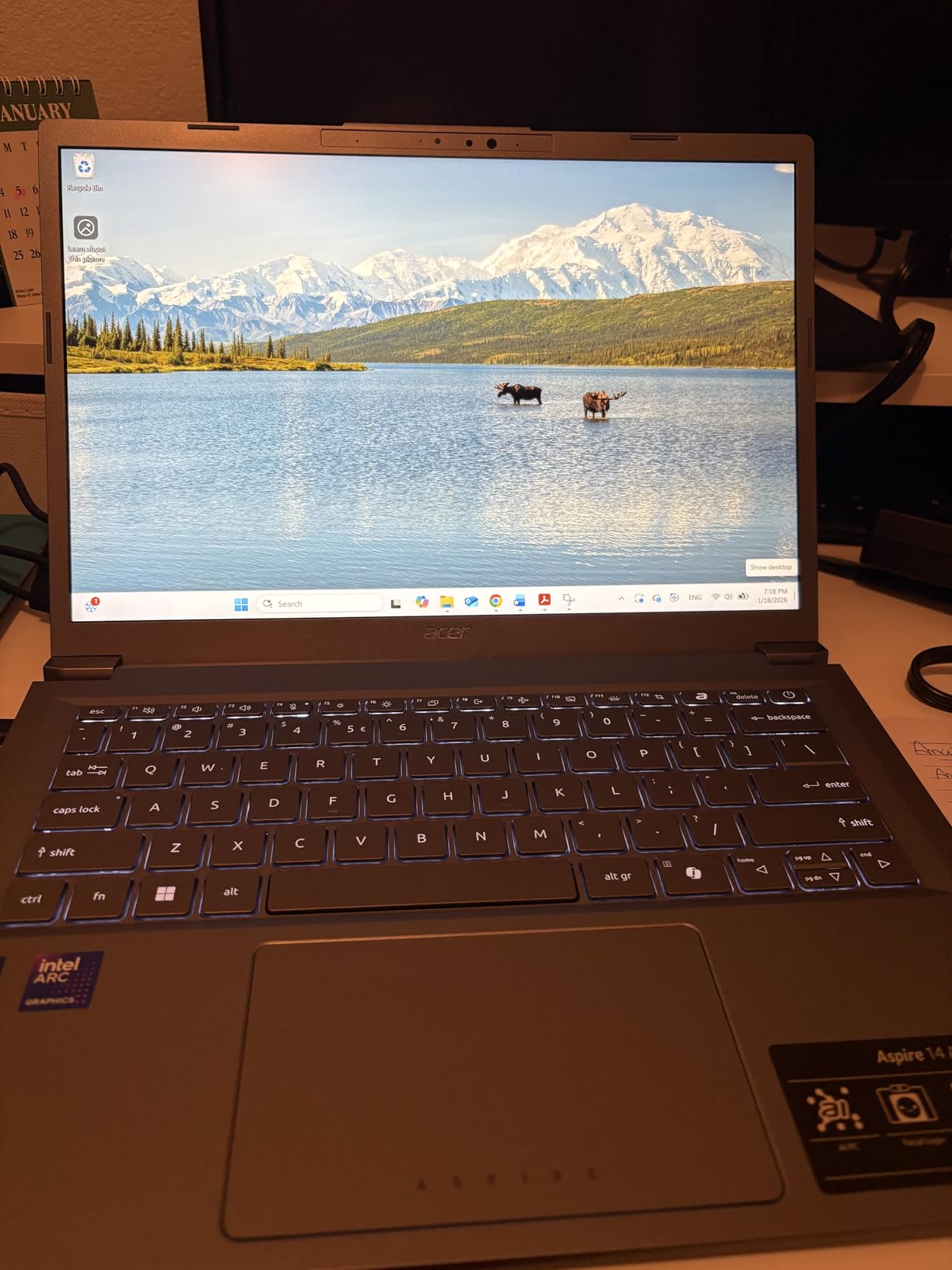
The Core Ultra 7 Series 2 platform adds a 47 TOPS NPU, and AcerSense gives quick access to AI utility settings without digging through menus. The 180-degree lie-flat hinge is practical for reviewing a shot with a colleague sitting next to you.
Reviewers cite smooth multitasking, battery life and the 1TB drive as the main attractions, and the claimed battery figure of up to 22 hours from a 46Wh cell is the kind of number that survives a real day of tethered work.
Who this laptop suits
Batch exporters and catalog-heavy users who care more about throughput than pixel-perfect judgment on a built-in panel. If you spend your day importing, culling, syncing and exporting rather than grading a final print, the Arc 140V and the 1TB drive do the heavy lifting.
It is also a sensible pick for light photo plus video work, where the newer GPU helps more than a discrete card would at this budget.
Who should skip it
Color-critical retouchers. The 14-inch 1920×1200 LCD at 300 nits is bright enough for a room but is not specified as a wide-gamut panel, so your judgment of skin tones and gradient transitions is guesswork by comparison.
Anyone hoping to add memory later should know the 16GB of LPDDR5X is soldered with no upgrade path. A machine with replaceable memory is a better bet if you plan to keep this past a few years.
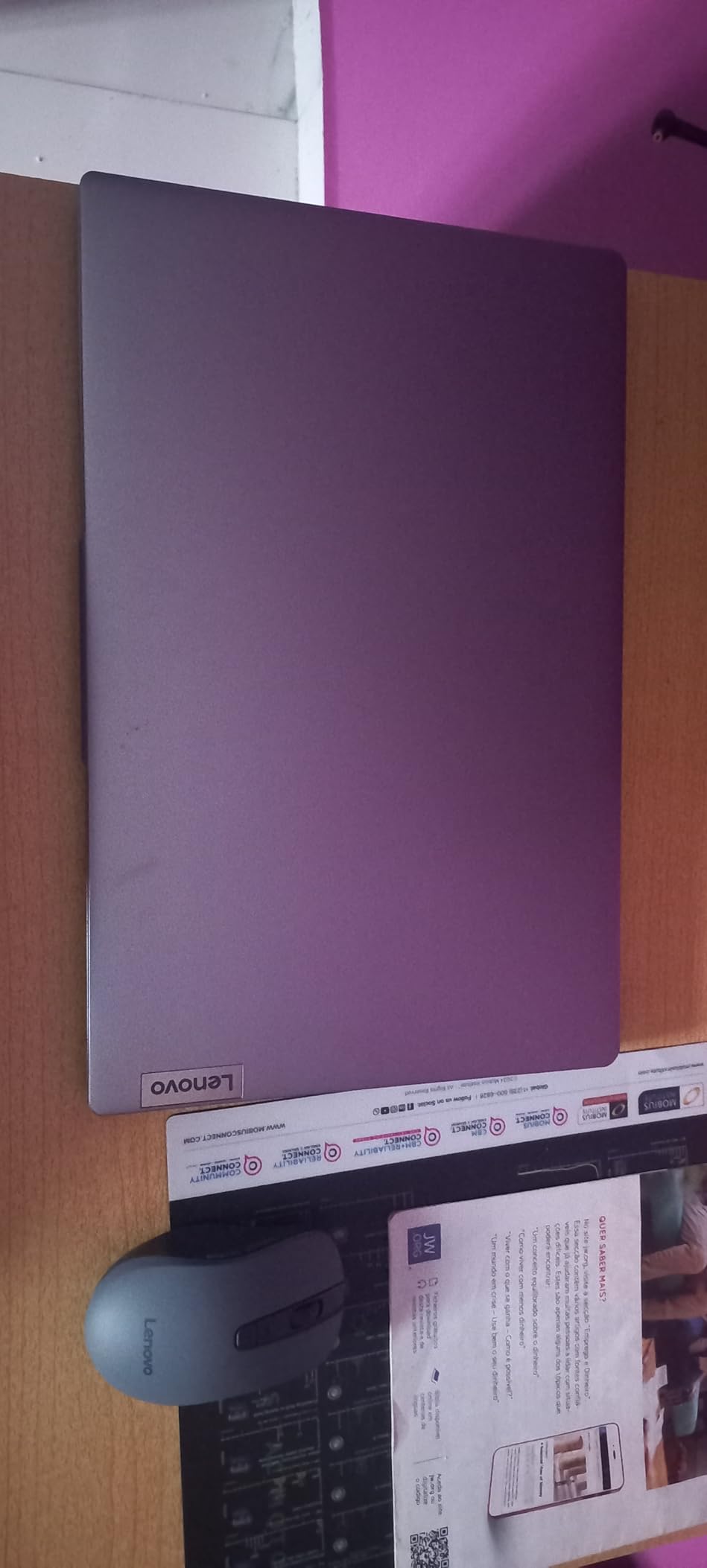
5. Lenovo IdeaPad Slim 3 (Ryzen 7 5825U) – Best Big Screen
Lenovo IdeaPad Slim 3 Laptop 2025 15.6” FHD 1920 x 1080 Touchscreen, AMD Ryzen 7 5825U, 8-core, AMD Radeon Graphics, 16GB DDR4, 512GB SSD, Wi-Fi 6, Bluetooth 5.2, 720p HD Camera, Windows 11 Home
15.6-inch FHD 1920x1080 touchscreen display
Ryzen 7 5825U 8-core up to 4.5 GHz
16GB DDR4 and 512GB NVMe SSD
Full-size keyboard with numeric keypad
Pros
- 15.6-inch touchscreen gives far more canvas for a Lightroom grid or panel layout
- 16GB RAM is the right floor for photo work at this price
- Ryzen 7 5825U 8-core handles multitasking and editing smoothly
- Full-size keyboard with numeric keypad and a privacy camera shutter
Cons
- 1080p 300-nit LCD is the weak point for judging color accuracy
- Integrated Radeon graphics are not suited to heavy retouching
- 26Wh battery is small for a 15.6-inch chassis
Canvas size is an underrated editing variable. A 15.6-inch touchscreen lets you keep a Lightroom grid, a histogram panel and a zoomed preview visible at the same time, or run a side-by-side before-and-after in Photoshop without collapsing panels every time you want to see the histogram.
The Ryzen 7 5825U is an 8-core chip boosting to 4.5 GHz, and paired with 16GB of DDR4 it handles multiple editing apps, a browser full of reference tabs and a music app without stuttering.
Owners treat this as a capable everyday machine with a roomy screen and plenty of memory, and the 4.5-star average across 133 reviews reflects that. The full-size keyboard with numeric keypad and the privacy shutter on the 720p camera are small touches that matter when you are logging exposures.
The DDR4 memory is a real advantage here. Unlike the LPDDR chips in several machines on this list, it is conventional memory, and there is an available M.2 slot for extra storage.
Who this laptop suits
Hobbyists and semi-professionals who work in a layered Photoshop layout or a wide Lightroom grid and would rather see everything at once. Windows 11 Pro also makes it a comfortable choice for business users and students.
If you want a big canvas now and plan to move to a smaller machine later, this is an easy first step that will not feel cramped on a desk.
Who should skip it
Anyone grading final color. The 1080p panel at 300 nits has no published wide-gamut figure, and 60Hz makes heavy zoom-and-drag work feel slower than the Acer Swift Go.
The integrated Radeon graphics and the 26Wh battery both limit the machine. Treat it as a desktop replacement that travels reasonably well rather than a field editor.
6. HP Pavilion 15.6-inch (Ryzen 5 5500U) – Best Anti-Glare Screen for Field Culling
HP Pavilion 15.6″ FHD Laptop (2022 Latest Model), AMD Ryzen 5 5500U (Beats i7-11370H), 16GB RAM, 512GB PCIe NVMe M.2 SSD, Thin & Portable, Micro-Edge & Anti-Glare Screen, Long Battery Life, Windows 11
15.6-inch FHD micro-edge anti-glare display at 250 nits
Ryzen 5 5500U 6-core up to 4.00 GHz with 11MB cache
16GB RAM, 512GB PCIe NVMe SSD
SD media card reader, backlit keyboard
Pros
- Anti-glare micro-edge display is the most usable outdoors or on a window seat
- Ryzen 5 5500U 6-core handles culling
- tagging and basic edits
- SD media card reader for direct camera importing
- Backlit keyboard and Windows 11 preinstalled
Cons
- 45 percent NTSC coverage at 250 nits is unsuitable for color-critical grading
- Integrated Radeon graphics limit it to culling and tagging
- Upgraded RAM and SSD mean the factory seal is already opened
This is the machine to buy if your editing happens on a plane, in a car park or on a rooftop. The anti-glare micro-edge coating is the standout: none of the glossy panels in this roundup stay readable in direct sun the way an anti-glare one does.
Underneath, the Ryzen 5 5500U is a 6-core processor boosting to 4.00 GHz with 11MB of cache. That is enough for culling, rating, tagging and light corrections, which is exactly the on-location job.
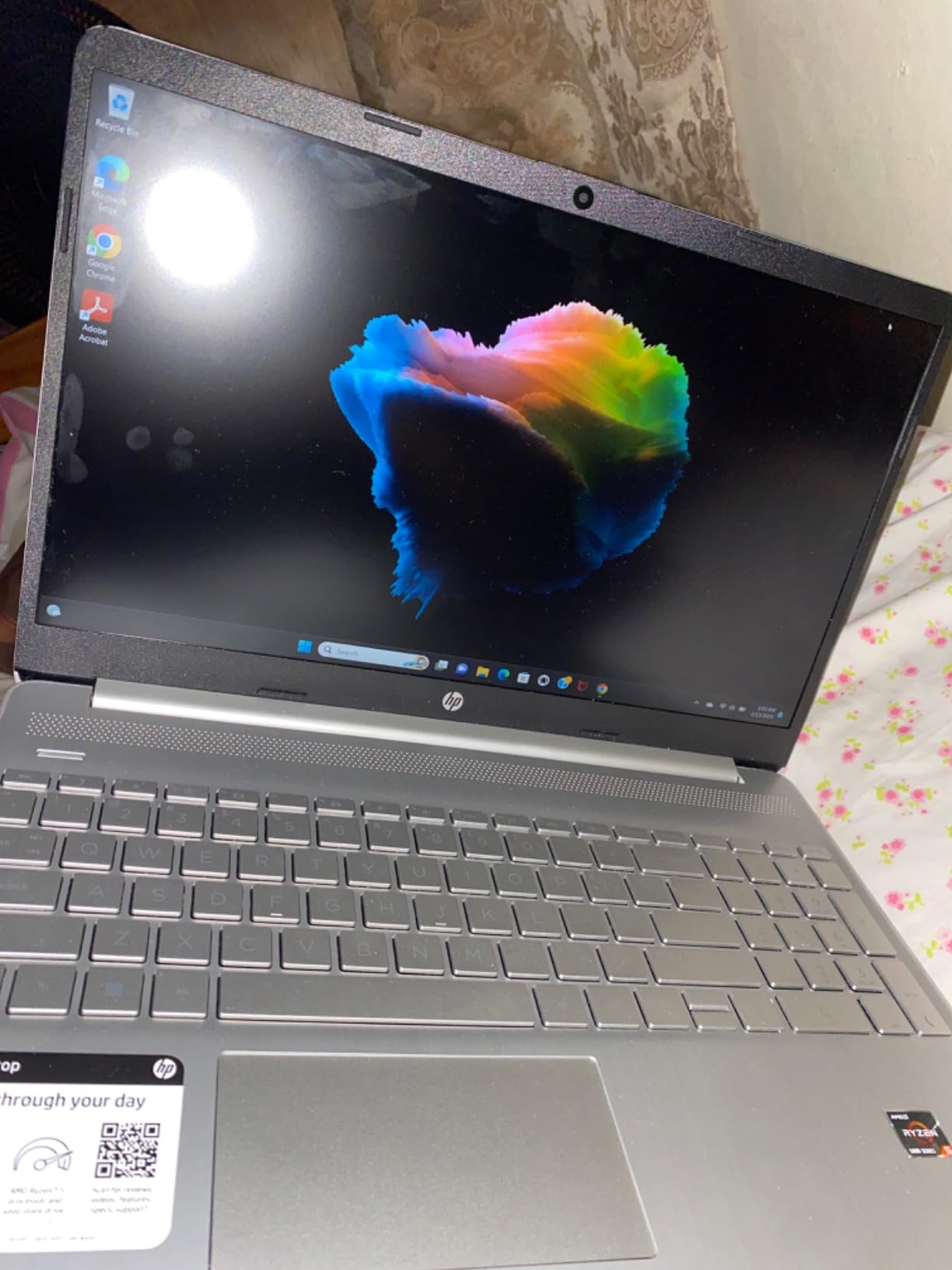
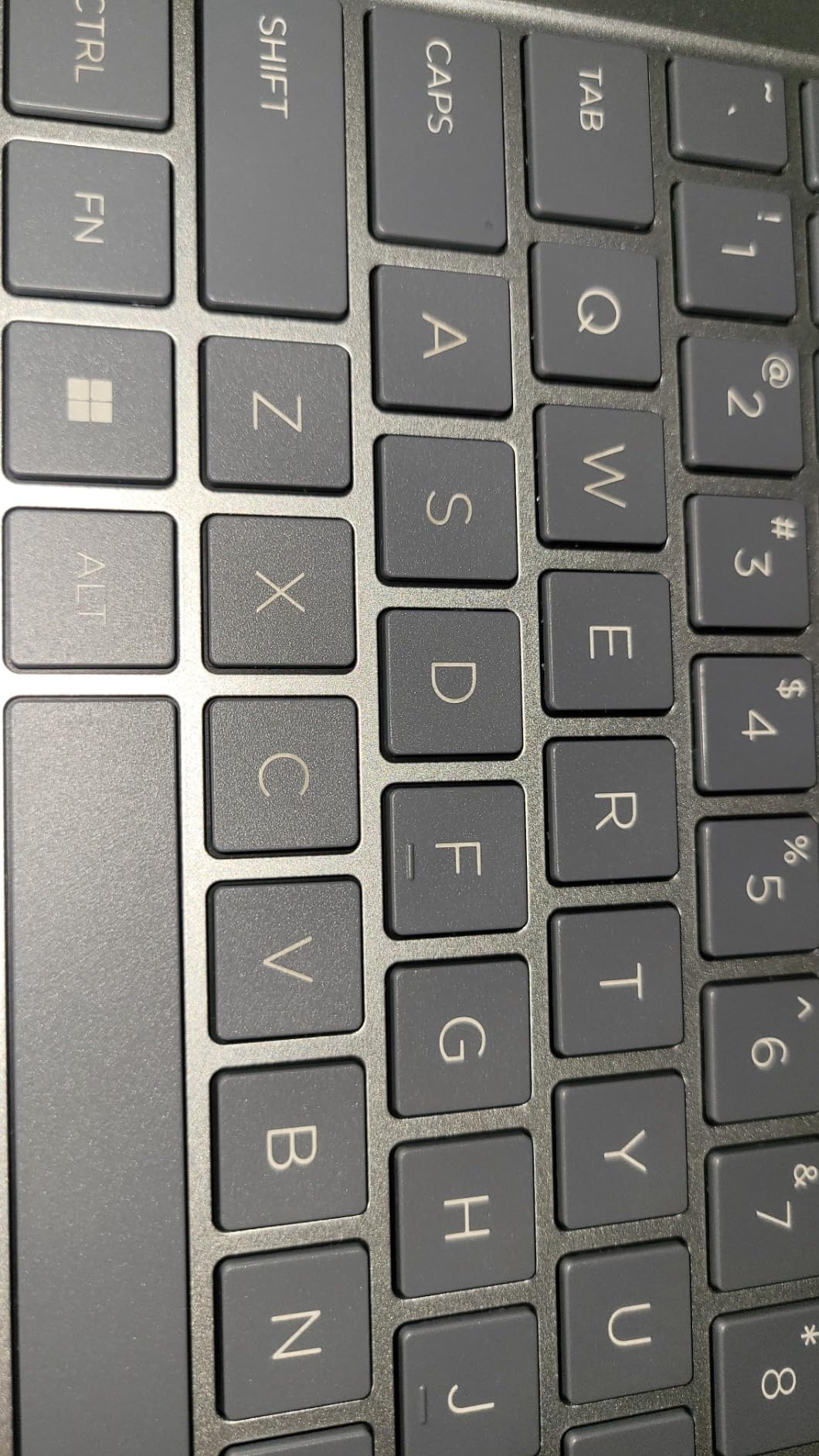
The built-in SD media card reader is the feature that saves time after a shoot, and the backlit keyboard helps at dusk when you are flagging selects in a hotel room. Battery life is helped along by a 41Wh cell.
Buyers value the memory and storage configuration and the anti-glare screen for portability. Owners are also clear that this configuration ships with upgraded RAM and SSD rather than factory-fitted parts, which is worth knowing if you care about warranty paperwork.
Who this laptop suits
A working photographer who imports, rates and backs up on the road, then does the heavy color work somewhere else. Anti-glare, a card reader, 16GB of memory and a 41Wh battery are a coherent field kit.
It also works as a family machine that doubles as a backup editing laptop for a partner or a child learning Lightroom.
Who should skip it
Color-critical retouchers, full stop. The panel is specified at 45 percent NTSC coverage and 250 nits, which is narrower and dimmer than any other screen in this roundup. Expect visible color shifts and washed-out contrast in a bright room.
Integrated Radeon graphics also cap this at culling and tagging rather than heavy retouching or GPU-accelerated denoise.
7. HP OmniBook X Flip 16-inch 2-in-1 – Best 2-in-1
HP OmniBook X Flip, 16″ 2-in-1 Laptop, Intel Ultra 7 256V, 16GB, 512GB SSD
16-inch WUXGA 1920x1200 IPS touchscreen at 400 nits
Intel Core Ultra 7 256V with Arc 140V graphics
x360 hinge with laptop, yoga, flip and tablet modes
68Wh battery with up to 23 hours claimed
Pros
- 16-inch WUXGA IPS touchscreen at 400 nits is the largest editing canvas under 1000 dollars
- Intel Arc 140V GPU handles photo and video editing work
- x360 hinge gives laptop
- yoga
- flip and tablet modes
- Supports up to three external monitors without a dock
Cons
- 62.5 percent sRGB gamut is narrow for photo color work
- No numeric keypad and no card reader despite the 16-inch chassis
- Only 512GB of storage for a creative-focused machine
A 16-inch canvas at 400 nits is the biggest and brightest editing surface in this roundup, and the x360 hinge lets you fold it flat when a client wants to see the image rather than the screen. For portfolio reviews and proofing on a table, the tablet mode is genuinely useful.
Inside, the Core Ultra 7 256V with Intel Arc 140V graphics and up to 8GB of shared system memory handles photo and light video work, and the 16GB of LPDDR5X runs at 8533 MT/s.
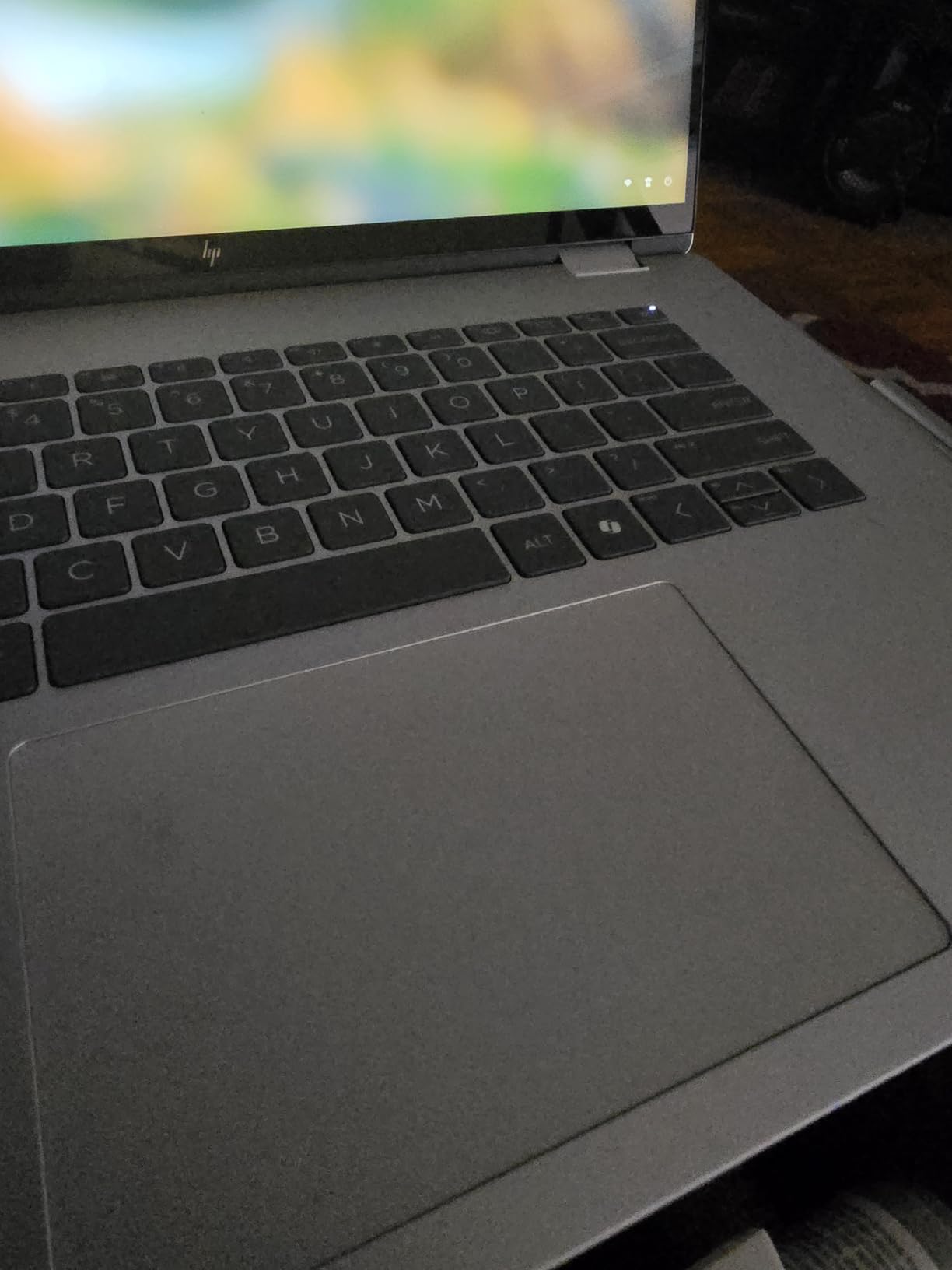
Owners like the big bright convertible display, quiet operation and the price-to-performance balance. The 68Wh battery with up to 23 hours claimed is unusually large for a 16-inch machine and explains much of that quiet operation.
The three-external-monitor support without a dock, via HDMI 2.1, USB-C and Thunderbolt 4, also matters. It makes this a reasonable central machine for a desk setup even though the built-in panel is the weak point.
Who this laptop suits
Someone who edits on a big screen, shows work to clients, and wants one device that flips into tablet mode for markup and drawing. Windows 11 Pro with BitLocker, Remote Desktop and Hyper-V also appeals to working photographers who double the machine up for client file delivery.
If you plan to add a color-accurate display later, this machine is a good host for one.
Who should skip it
Anyone judging final color on the built-in panel. The stated 62.5 percent sRGB coverage is narrow, and a large screen showing a narrow gamut is a misleading combination because more space does not fix missing color.
The missing numeric keypad and card reader are odd omissions on a 16-inch chassis, and 512GB of storage is modest for a machine aimed at creative work.
8. Dell Inspiron 15 3535 (Ryzen 7 7730U) – Best for Memory That Can Grow
Dell Inspiron 15 3535 Touchscreen Laptop 15.6″ FHD (1920×1080) IPS, 8 Cores AMD Ryzen 7 7730U Up to 4.5 Ghz, AMD Radeon Graphics, SD Card Reader, Windows 11 (Ryzen 7, 16GB RAM | 512GB SSD)
Ryzen 7 7730U 8 cores and 16 threads up to 4.5 GHz
16GB memory with 64GB maximum listed
512GB PCIe Gen 4 SSD
15.6-inch FHD IPS touchscreen, SD reader
Pros
- Ryzen 7 7730U 8-core 16-thread processor with 16MB cache boosting to 4.5GHz
- 16GB of RAM described by the manufacturer as suited to photo and video editing
- 512GB SSD with fast startup
- Built-in SD card reader for direct camera importing
Cons
- FHD IPS panel has no wide-gamut specification for color-critical work
- Integrated Radeon graphics limit heavy retouching
- 26Wh battery is small for the chassis size
Most of the memory in this roundup is soldered. This one lists 16GB installed with a 64GB maximum, which changes the math on how long the machine stays relevant. If you expect to run deeper Photoshop files in three years, this is the entry that can grow with you.
The Ryzen 7 7730U gives you 8 cores and 16 threads with 16MB of cache boosting to 4.5 GHz, which is more parallel throughput than most of the chips here. The 512GB PCIe Gen 4 SSD on a x4 interface keeps import and export times short.
Who this laptop suits
A buyer who plans to add memory or storage later rather than accept a fixed configuration. The manufacturer explicitly describes the 16GB as suited to photo and video applications, and the built-in SD reader keeps the import path simple.
It is a sensible pick for a student machine that will run college coursework and a growing photo archive for four years.
Who should skip it
Color-critical work. The 15.6-inch FHD IPS touchscreen is decent for general use, but no wide-gamut figure is published, so it sits in the same unverified category as other budget IPS panels.
The 60Hz refresh and integrated Radeon graphics limit it to culling, tagging and moderate retouching. Check the listing carefully before buying, since the review base on this configuration is small.
How to Choose a Budget Laptop for Photo Editing in 2026
Start with color gamut, not resolution
Color gamut is simply the range of colors a screen can display, and it is the single most important spec for photo work. sRGB is the standard every camera and monitor workflow uses. DCI-P3 is the wider space used for video and for displays that cover most of what a modern phone or cinema camera captures. Adobe RGB is wider still and is what print shops work in.
Coverage of 100% sRGB is the floor for accurate color work. Wider coverage shows you more of what your files actually contain, which is why photographers mention DCI-P3 and Adobe RGB when choosing a panel. If your work ends in print, our photo printer picks cover the other half of that color chain, and we walk through the external display route further down.
Read nits as brightness, not quality
Nits measure how bright a screen gets. A dim panel in a bright room makes a midtone look flat and makes it harder to judge a subtle gradient. Around 300 nits is workable indoors. The 400-nit panel in this roundup is the most comfortable for daylight-adjacent work, while 250 nits is where judgments start to get unreliable.
Treat 16GB as the floor and ask how it is fitted
Eight gigabytes of memory forces the system to move overflow to the scratch disk, and that is what makes large brush strokes and stacked layers feel slow. Sixteen gigabytes is the practical floor, and 24GB to 32GB only matters for deep layer stacks and very large catalogs. The detail that matters more is whether the memory is soldered or replaceable. Most thin laptops, including the Apple models here, cannot be upgraded at all.
Settle the storage contradiction: 512GB or 1TB
You will read both numbers from credible sources. One expert names 1TB as a floor, another says 512GB is enough. Both are right for different people. A single wedding or a week of travel fits comfortably on 512GB if you export and clear as you go. A working photographer with a multi-year catalog should start at 1TB and keep the archive on external storage, because the fast drive holds the working set. If you still have negatives to digitize, our photo scanner picks cover the input side of that workflow.
Understand when a dedicated GPU actually matters
Integrated graphics handle the majority of stills editing. A discrete GPU earns its place on GPU-accelerated tasks: Lightroom AI denoise, Photoshop neural filters, large batch exports and any serious video work. At this budget you trade away a better screen or more memory for the discrete card, and for pure photo work we would take the better screen first. Our guide to budget gaming laptops under 1000 dollars covers the thermal and noise trade-offs in more detail.
Mac versus Windows for photo editing
macOS runs Lightroom, Photoshop and Capture One natively with no fuss, and Apple silicon laptops are quiet and battery-efficient. Windows gives you more choice of hardware and a wider range of ports at this budget, plus replaceable memory on some models. Choose macOS if your plugins and plugins-only software already live there. Choose Windows if you need a specific piece of Windows-only software or want the most screen per dollar.
Use an external display to solve the wide-gamut problem
This is the workaround nobody in our research mentioned, and it solves the biggest limitation of this budget. A color-accurate 16-inch laptop plus a dedicated calibrated monitor is often cheaper and more accurate than stretching for a machine that costs far more. Our picks for color-accurate monitors for photo editing cover the panels worth pairing with any of these laptops.
When to buy
Prices on this category move most around major sale events and the back-to-school window. Specs change slowly and prices do not, so if a configuration is not right, waiting for a discount on a wrong machine is wasted time. Check the listing on a sale day and compare the configuration, not just the total.
Laptops to Avoid Under 1000 Dollars and Why
Every roundup we found is upside-only. Here are the specific failure modes we would walk away from at this budget.
Panels at 45 percent NTSC coverage. That is the HP Pavilion’s published figure, and it is common on entry-level machines. It is narrower than sRGB, so you are looking at clipped colors, not just dim ones.
250-nit screens. Brightness this low makes midtone judgment unreliable in a normal lit room, let alone outdoors.
8GB of soldered memory on a machine you cannot open. The failure mode is gradual: brush strokes get slow, then apps stall, then the catalog slows to a crawl. You cannot fix it later.
128GB SSDs. A single shoot of RAW files can eat that, and there is nowhere to put project files once it is full.
Glossy non-OLED panels with no published gamut figure. A glossy screen outdoors is unreadable, and an unverified gamut means an unverified color.
Gaming laptops sold as creator machines. They often carry a dedicated GPU and a poor panel, which is the wrong pairing for photo editing. The fan noise also travels.
Frequently Asked Questions
How much RAM do I need for photo editing?
Sixteen gigabytes is the practical floor for RAW work in Lightroom and Photoshop in 2026. Eight gigabytes forces the system to spill into the scratch disk, which is what makes brush strokes lag and exports crawl. Move to 24GB or 32GB only if you run deep layer stacks or a catalog of tens of thousands of files. Check whether the memory is soldered before you buy, because most thin laptops cannot be upgraded later.
Is 16GB of RAM enough for photo editing?
Yes, for the overwhelming majority of photo editing work. Sixteen gigabytes handles a large RAW catalog with smart previews built, multiple Photoshop layers open and a browser full of reference tabs. You will only need more for huge panoramas, 8K video timelines or multi-year catalogs with heavy batch exports. Under a 1000 dollar ceiling, prefer a machine with 16GB of memory that you cannot upgrade over a machine with less.
What specs should I look for in a laptop for photo editing?
Look for four things in order. First, a display with published color gamut coverage of at least 100% sRGB, ideally wider, and roughly 300 nits of brightness or more. Second, 16GB of memory as the floor, and check whether it is soldered. Third, at least 512GB of SSD storage, with 1TB better for a growing catalog. Fourth, a modern multi-core processor. A dedicated GPU only matters for AI denoise, neural filters and heavy video work.
Do I need a dedicated graphics card for photo editing?
For stills editing, integrated graphics are usually enough. Lightroom Develop and most Photoshop work lean on the processor and memory rather than the GPU. A discrete card earns its place on GPU-accelerated tasks: Lightroom AI denoise, Photoshop neural filters, large batch exports and any real video editing. At this budget, we would take a better screen or more memory first, because a faster GPU cannot fix a panel you cannot trust.
Which laptop is best for color accuracy?
The Apple MacBook Neo 13-inch is the best laptop for photo editing under 1000 dollars for color accuracy, because its Liquid Retina display supports 1 billion colors with Apple factory calibration. On Windows, the Acer Swift Go 14 is the pick, since its 14-inch IPS touchscreen is published at 100% sRGB coverage with a 120Hz refresh. For true Adobe RGB work at this budget, add a dedicated calibrated monitor rather than stretching the laptop budget.
What laptop should I stay away from for photo editing?
Avoid any machine with a narrow-gamut panel, especially one specified at 45 percent NTSC, which clips colors rather than merely dimming them. Avoid 250-nit screens, glossy non-OLED panels with no published gamut figure, 8GB of soldered memory and 128GB SSDs. Also be cautious with gaming laptops sold as creator machines: they often pair a dedicated GPU with a poor display and run their fans constantly.
Which Laptop Wins for Photo Editing Under 1000 Dollars
The Apple MacBook Neo 13-inch wins. It has the best combination of a color-accurate Liquid Retina display, Apple silicon performance, silent fanless operation, up to 16 hours of battery life and a 2.71-pound body of anything we could find under a 1000 dollar ceiling, and it carries the strongest rating and review base in this group.
If your budget stretches further down the spec sheet, the Apple MacBook Air M1 renewed gives you a factory-calibrated Retina panel at the lowest entry point, provided you can live with 8GB of memory, a 128GB SSD and the condition gamble that renewed grading carries. On Windows, the Acer Swift Go 14 is the best display you can buy at this level, and the Acer Aspire 14 AI is the fastest editor with the most internal storage.
For a big canvas rather than a light body, the Lenovo IdeaPad Slim 3 and the HP OmniBook X Flip both give you 15.6-inch or 16-inch editing room. For work outdoors, the HP Pavilion’s anti-glare screen is the one to pick. And if you expect to keep the machine for years, the Dell Inspiron 15 3535 is the only entry here whose memory can grow.
Where budget genuinely runs out is true Adobe RGB coverage and 32GB of memory. If either is central to your work, keep the laptop you like and add a calibrated display from our color-accurate monitor picks, or plan for a machine a tier above this budget. For everything else, these eight cover the photo editing brief well in 2026.