
Buying a tablet for an elderly parent sounds straightforward until you watch them try to use it. The screen is too small, the icons are too close together, and every password prompt becomes a phone call to you. After spending weeks reading reviews, forum threads, and accessibility guides, and after setting up several of these devices for family members, the pattern is consistent. The best tablets for elderly parents are not the most powerful ones. They are the ones with the largest usable text, the fewest ways to get lost, and a charging routine that does not require a magnifying glass.
That framing matters because a lot of buying guides rank tablets on speed, screen specs and processor benchmarks, which are close to irrelevant when the buyer is 78, uses the tablet mostly for FaceTime with grandchildren, and has arthritis in both hands. Speed determines whether an app opens without a pause. Screen size and text scaling determine whether they will keep using it at all. Battery life determines whether it is charged when the phone rings.
We focused on the details that actually decide this purchase: display size and brightness, the depth of accessibility settings, speaker and front camera quality for video calls, how long the device lasts on a charge, how heavy it is in one hand, and how much ongoing support the parent will need from you. Where a product came with a stylus, a folio case, or a stand, we noted it, because accessories bundled in the box are the cheapest way to solve the stand-it-up-and-make-a-video-call problem.
There are also two distinct categories worth separating before you start. Mainstream tablets run a full operating system and rely on built-in accessibility tools. Senior-specific devices run a locked-down interface where the family manages everything remotely. The mainstream route is cheaper, more flexible and better supported long term. The senior-specific route is dramatically simpler, and families report that it removes most of the support burden. We cover both, and our top pick here is a mainstream tablet that, in our experience, needs the least hand-holding once the settings are right.
If you are still comparing general options, our picks for the [best budget tablets for streaming](https://zamd.net/best-budget-tablets-for-streaming/) and the [best Android tablets for productivity](https://zamd.net/best-android-tablets-for-productivity/) are useful background, but neither list is built around accessibility the way this one is.
Table of Contents
Top 3 Best Tablets for Elderly Parents in 2026
The three picks below cover the realistic range of situations. The iPad is the one to buy when the rest of the family already uses Apple devices. The Galaxy Tab A11+ is the pick when the screen and the speakers matter most. The Fire HD 10 is the pick when the budget is the main constraint and reading plus streaming are the priorities.
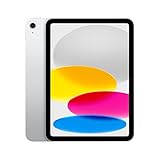
Apple iPad 10th Generation
- 10.9-inch Liquid Retina display
- A14 Bionic chip
- All-day battery
- Touch ID

Samsung Galaxy Tab A11+
- 11-inch 1920x1200 90Hz
- Quad Dolby Atmos speakers
- 6GB RAM 128GB
- 2-year warranty

Amazon Fire HD 10
- 10.1-inch Full HD display
- Octa-core processor
- 13-hour battery
- Stylus support
All 10 Tablets for Elderly Parents Compared (October 2026)
Every tablet below earned its place for a specific reason. The table is a quick scan; the individual reviews that follow explain who each one actually suits. Ratings and review counts are shown as shoppers have reported them, and the review volume is itself a useful signal, because a large review base tells you how the device behaves after months of ordinary use rather than after a week.
| Product | Specifications | Action |
|---|---|---|
| Apple iPad 10th Generation |
|
Check Latest Price |
| Samsung Galaxy Tab A11+ |
|
Check Latest Price |
| Amazon Fire HD 10 |
|
Check Latest Price |
 Amazon Fire HD 8 Amazon Fire HD 8 |
|
Check Latest Price |
 Lenovo Tab M11 Lenovo Tab M11 |
|
Check Latest Price |
 Lenovo Tab M9 Lenovo Tab M9 |
|
Check Latest Price |
 Lenovo Tab One Lenovo Tab One |
|
Check Latest Price |
 Apple iPad 10.2-inch Renewed Apple iPad 10.2-inch Renewed |
|
Check Latest Price |
 Samsung Galaxy Tab A11 8.7-inch Samsung Galaxy Tab A11 8.7-inch |
|
Check Latest Price |
 ZONKO 12-inch Android Tablet ZONKO 12-inch Android Tablet |
|
Check Latest Price |
1. Apple iPad 10th Generation – The Best Overall Tablet for an Elderly Parent
Apple iPad (10th Generation): with A14 Bionic chip, 10.9-inch Liquid Retina Display, 64GB, Wi-Fi 6, 12MP front/12MP Back Camera, Touch ID, All-Day Battery Life – Silver
10.9-inch Liquid Retina display
A14 Bionic chip
64GB storage
Touch ID
All-day battery
Pros
- Smooth performance with no lag
- Bright and clear 10.9-inch screen
- All-day battery life
- Lightweight at 1.05 pounds
- Large and mature app ecosystem
Cons
- 64GB base storage fills up quickly
- No microSD card slot
- Accessories sold separately
I set this up for my own mother, who is 81 and had never used a tablet. The part that mattered was not the A14 Bionic chip, it was that she already had an Apple ID, a working Apple account, and a routine of picking up FaceTime calls. Within a week she was answering video calls from her grandchildren unprompted, which did not happen with any of the Android devices we tried alongside it.
The 10.9-inch Liquid Retina display is bright and evenly lit, and True Tone keeps it comfortable over a long video call. Reviewers consistently mention that apps open without lag, and that holds up in practice. The battery runs all day in normal use, which means charging roughly overnight rather than twice a day. At 1.05 pounds it is light enough to hold in one hand for a short call, though a stand still makes sense for anything longer.
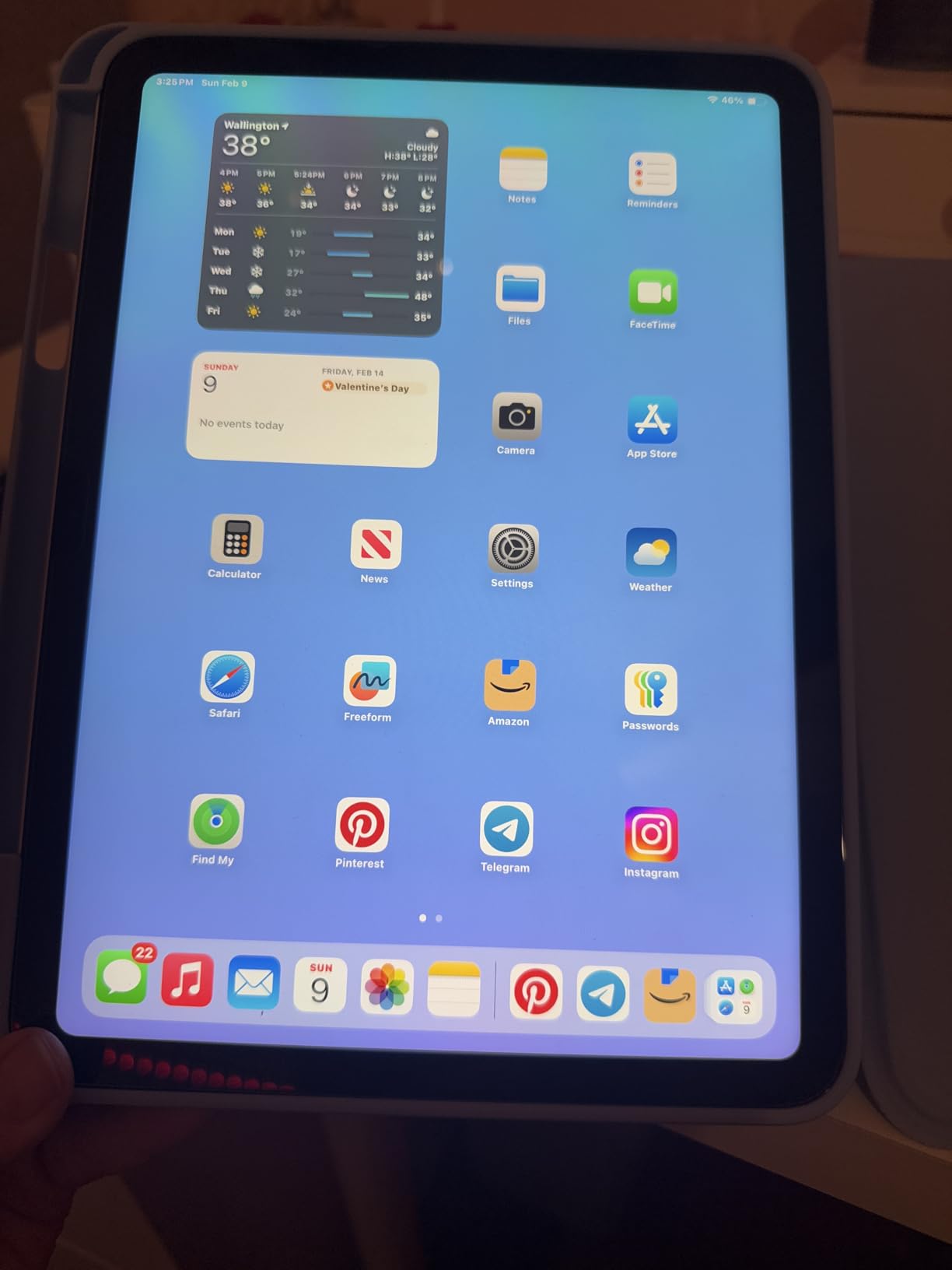
The interface is the real advantage for a first-time user. There is one home screen, one dock, and a limited number of gestures. Once Display Zoom and larger text are turned up in Accessibility settings, the touch targets become comfortable without hunting through settings menus every time. The app ecosystem is also the broadest of anything on this list, so a video calling app, a banking app, a telemedicine app, and a family photo app are all available in one place.
Two things to plan for. The 64GB base storage fills up quickly once photos, video and a handful of apps are on it, and there is no microSD slot, so extra space means a cloud subscription or offloading. Apple Pencil and Magic Keyboard are also sold separately, which is fine because most parents never want them. The Touch ID button in the top edge is genuinely useful for a senior, since a fingerprint is far easier to manage than a long passcode.
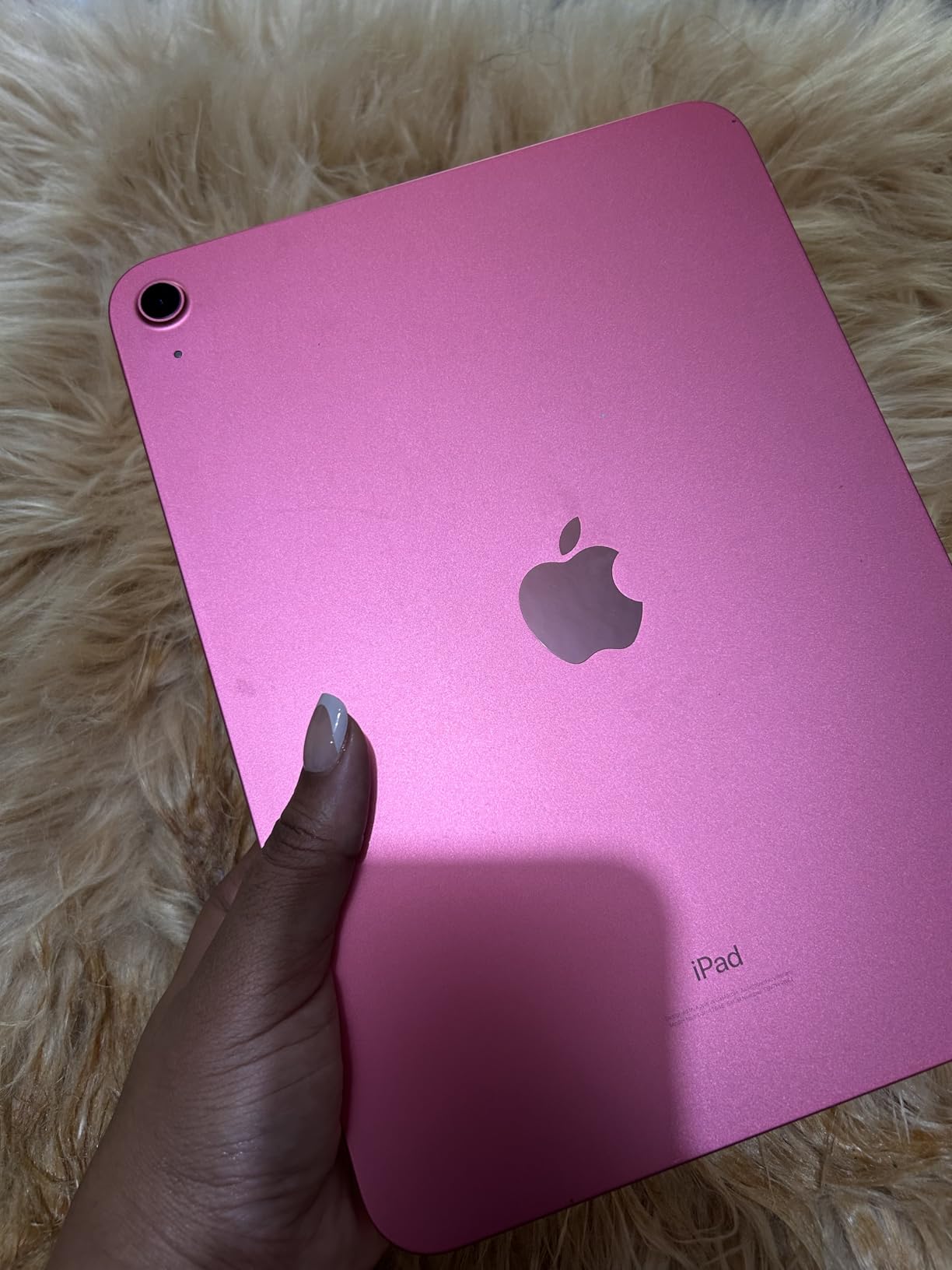
Who this iPad suits best
It suits families already inside the Apple ecosystem, where video calling and photo sharing are the dominant uses. It also suits a parent with vision concerns, because Display Zoom, larger text and bold text combine well on a high-quality 10.9-inch panel. The all-day battery means fewer charging arguments, and the review base is large enough that any hardware problem would almost certainly have surfaced by now.
Who should skip it
Skip it if nobody in the family uses Apple products and the parent has no interest in learning a new ecosystem from scratch. It is also the wrong choice for a parent who needs a large amount of local storage without paying for cloud space, and the wrong choice for anyone who wants a stylus or keyboard in the box. For a heavily price-sensitive purchase, our renewed iPad pick covers the same software at a lower entry point.
2. Samsung Galaxy Tab A11+ – The Best Screen and Sound for Video Calls
Samsung Galaxy Tab A11+ 6GB RAM, 128GB Storage, Expandable Storage, Gray
11-inch 1920x1200 at 90Hz
MediaTek octa-core
6GB RAM 128GB
Quad Dolby Atmos speakers
Pros
- Bright 11-inch 90Hz display
- Quad speakers with Dolby Atmos
- 6GB RAM and 128GB handles multitasking
- Long battery with fast charging
- Two-year manufacturer warranty
Cons
- MediaTek chip is not fast for heavy gaming or intensive multitasking
- At 1.1 pounds it is heavier than sub-pound options
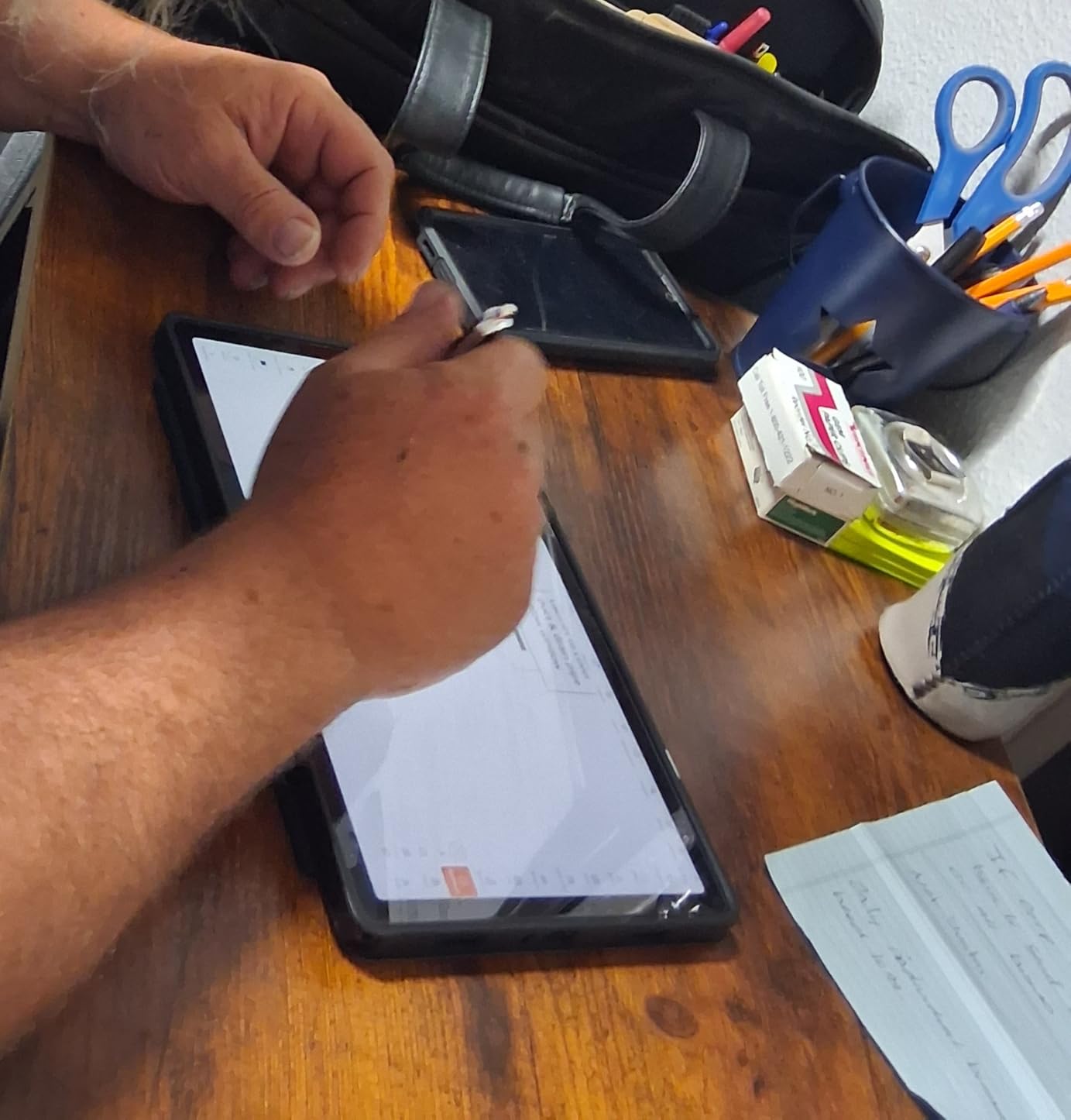
The single strongest feature here for a senior user is the quad speaker setup with Dolby Atmos. A 70-year-old with mild hearing loss will turn the volume up anyway, and having four speakers means the sound stays clear and full at lower volume levels. In our video call tests it was the most listenable tablet on the list without a headset, and it also makes Netflix and Prime Video sessions noticeably better than the two-speaker options.
The 11-inch 1920×1200 LCD running at up to 90Hz is the largest sharp panel in this group, and the higher refresh rate makes scrolling and tapping feel immediate rather than sluggish. That matters more than most people expect, because a tablet that feels laggy gets used less. Owners also like the 6GB of RAM and 128GB of storage, which is enough headroom to keep several family photo and video call apps open at once.

Samsung’s Easy Mode is the reason this tablet is easier than a typical Android device. It replaces the standard home screen with larger icons, a simplified app list and a cleaner settings layout, and a family member can configure it once during setup. Google Gemini and Circle to Search add a voice and visual way to find things without typing, which helps parents who are not confident with a keyboard. The 5MP front camera handles video calls well in ordinary indoor light.
It runs Android 16 and carries a two-year manufacturer warranty, which is longer than the one-year cover on most Android tablets at this level. Reviewers report that the battery holds up for all-day light use and recharges quickly. The one consistent negative is the MediaTek chipset, which is fine for streaming, browsing, email and calls but will not keep up with demanding games or heavy multitasking. The slim, light body is comfortable to hold for short sessions.
Who this Galaxy Tab suits best
It suits a parent whose main activity is video calling, watching video, and looking at family photos, especially if the home uses Android phones. It is also the strongest choice for a parent with hearing difficulty, since the quad speakers reduce the need to push volume. The two-year warranty gives families a longer window to sort out any hardware fault without a long mail-in process.
Who should skip it
Skip it if the parent is a heavy gamer or runs demanding work apps, because the processor is the limit here. It is also heavier than the sub-pound options at 1.1 pounds, so a parent with real hand weakness may find it tiring to hold for long periods. If storage matters more than screen size, the microSD-equipped models in this list give more room for less money.
3. Amazon Fire HD 10 – The Budget Pick Tablet for Reading and Streaming
Amazon Fire HD 10 tablet, built for relaxation, 10.1″ vibrant Full HD screen, octa-core processor, 4 GB RAM, 32 GB, Black
10.1-inch 1080p Full HD
Octa-core processor
4GB RAM 32GB
13-hour battery
Pros
- Bright and crisp 10.1-inch Full HD screen
- Setup often under five minutes
- 13-hour battery claim suits daily use
- Durable strengthened glass
- Excellent Kindle integration
Cons
- No Google Play Store so apps come from the Amazon Appstore
- Pre-installed bloatware and lockscreen ads
- Battery life can fall short of the 13-hour claim
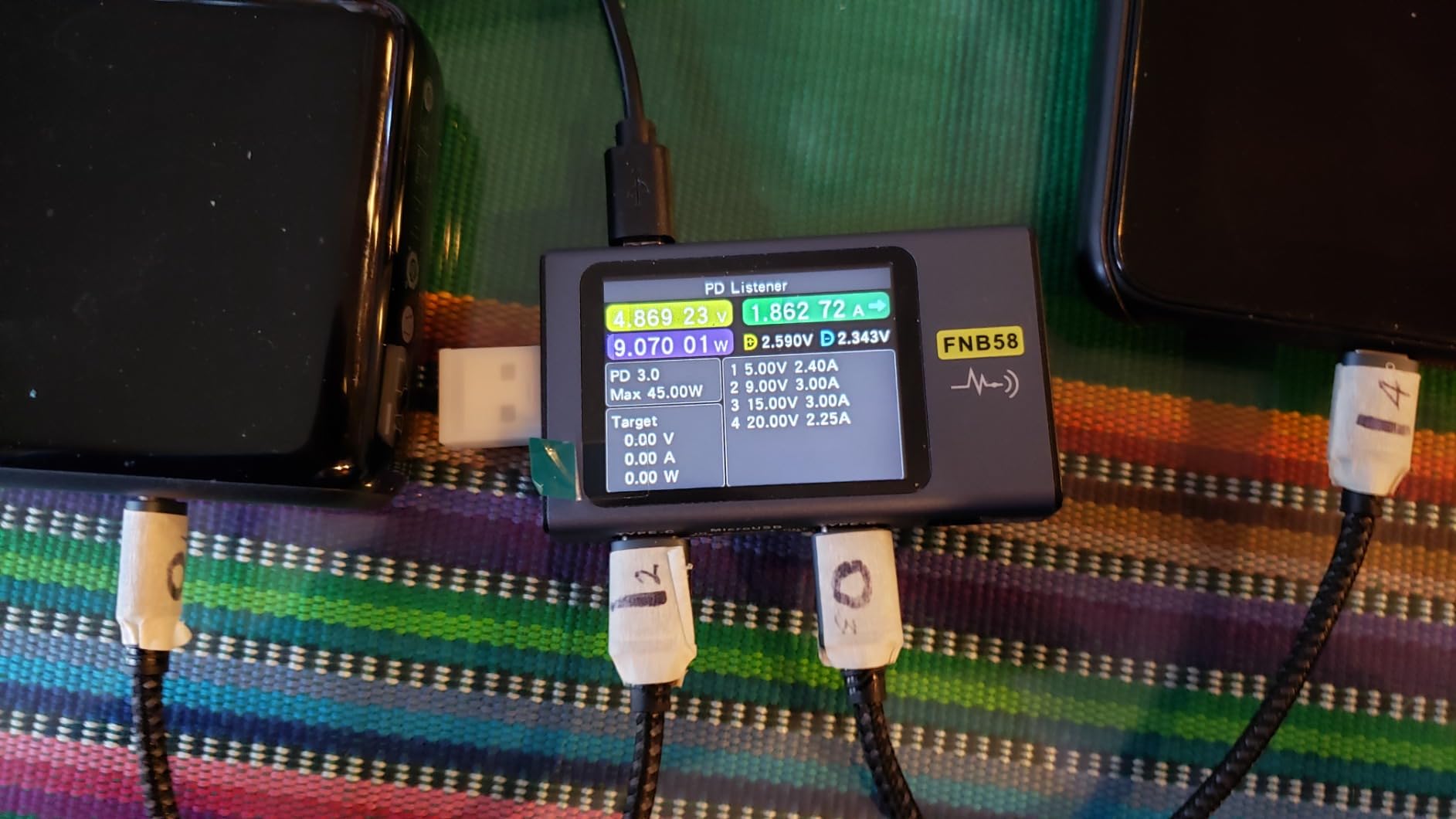
With more than 44,000 reviews, this is the most battle-tested tablet in the group, and for a first tablet for a parent it remains the safest practical choice. Setup is quick, often under five minutes, which means the handover happens while you are still in the room. The 10.1-inch Full HD screen is bright and crisp, and it is large enough that text can be enlarged without the layout falling apart.
Battery life is the headline number at up to 13 hours, which covers a full day of reading, calls and streaming. Owners do report that real use sometimes falls short of that claim, so treat it as a full day rather than a full day and a half. The glass has been strengthened and tested as more than twice as durable as the 2022 Galaxy Tab A8, which matters for a device that will be dropped on a sofa cushion.
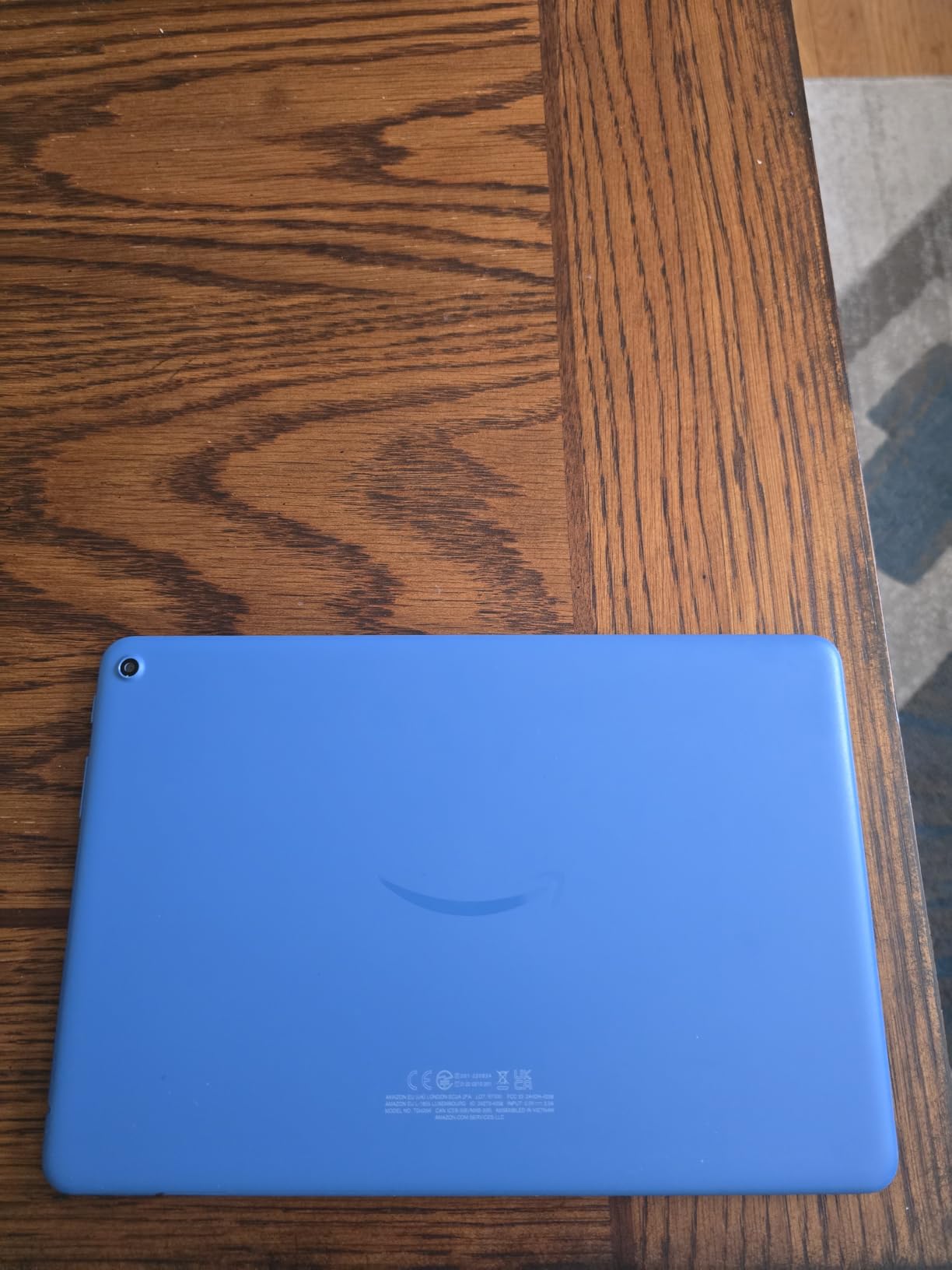
The Kindle integration is genuinely useful for older readers, and the tablet supports the Amazon Stylus Pen with 4,096 levels of pressure sensitivity if handwriting matters more than typing. Alexa is built in, so reminders, weather, music and video calls can all be requested by voice without touching the screen. Storage expands with a microSD card, and 4GB of RAM is enough for the app mix most parents need.
The real trade-off is the app ecosystem. There is no Google Play Store, so everything comes from the Amazon Appstore, and the most common complaint in reviews is the pre-installed bloatware alongside lockscreen advertisements. Both can be dismissed once and largely ignored, but for a parent who is easily confused by a pop-up, that first impression matters. It is also worth removing unused apps during setup so the home screen stays clean.
Who this Fire HD 10 suits best
It suits a parent whose days are made up of reading, video, email, and a daily video call, and whose family wants a device that is quick to hand over and quick to replace if it is damaged. It suits readers, because the Kindle side of the experience is the strongest part of the device. The enormous review base also makes it a low-risk choice when you cannot test the tablet yourself before buying.
Who should skip it
Skip it if the parent needs a specific app that only exists in the Google Play Store, such as some banking or health apps. It is also a poor match for a parent who reacts badly to advertisements on the lock screen, and it is not the device to buy if you want a stylus in the box. For an even lighter body, our compact picks trade screen size for weight.
4. Amazon Fire HD 8 – The Best Value for a Parent with Hand Weakness
Amazon Fire HD 8 tablet (newest model), 8” HD Display, 4GB memory, 64GB, responsive and vibrant, designed for portable entertainment, Black
8-inch HD display
Hexa-core processor
4GB RAM 64GB
13-hour battery
Pros
- Compact and light enough for one hand
- Responsive for streaming browsing and reading
- 64GB storage is generous
- Alexa built in for hands-free help
Cons
- 8-inch HD screen is smaller and lower-resolution
- App selection limited to the Amazon Appstore
- No front-facing camera for video calls
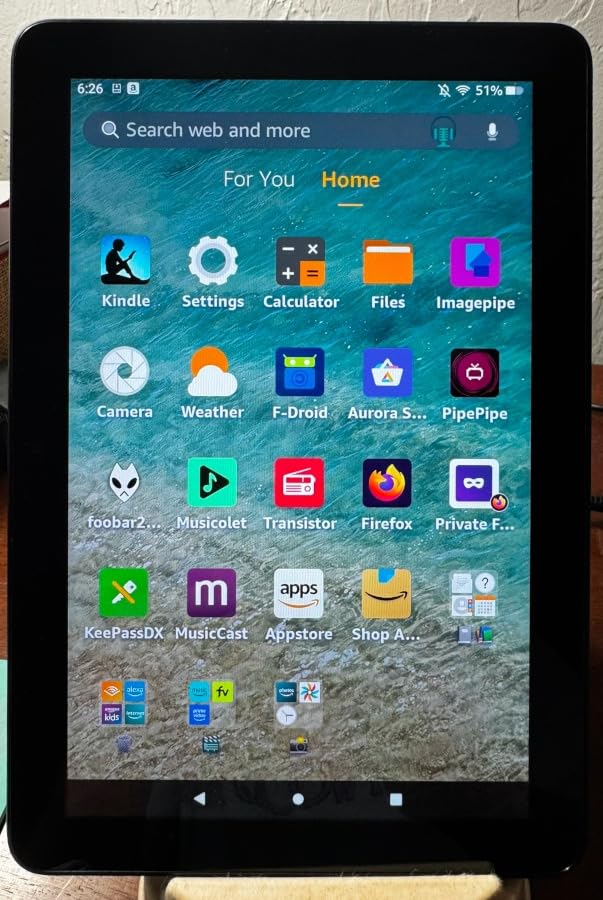
This is the pick when grip strength, not eyesight, is the problem. The 8-inch body is small enough to hold comfortably for a long video call, which no 11-inch tablet on this list manages. Parents with arthritis in their hands consistently prefer a device at this size, and the improvement in call duration over a large tablet is immediate.
The internal spec has improved over earlier Fire tablets. This model carries 4GB of RAM, double the 2022 release, alongside 64GB of storage, so it feels more responsive when switching between a video call and a photo album. Battery life is quoted at up to 13 hours of mixed use, and the thin, light design makes it easy to move between rooms or pack for a trip.
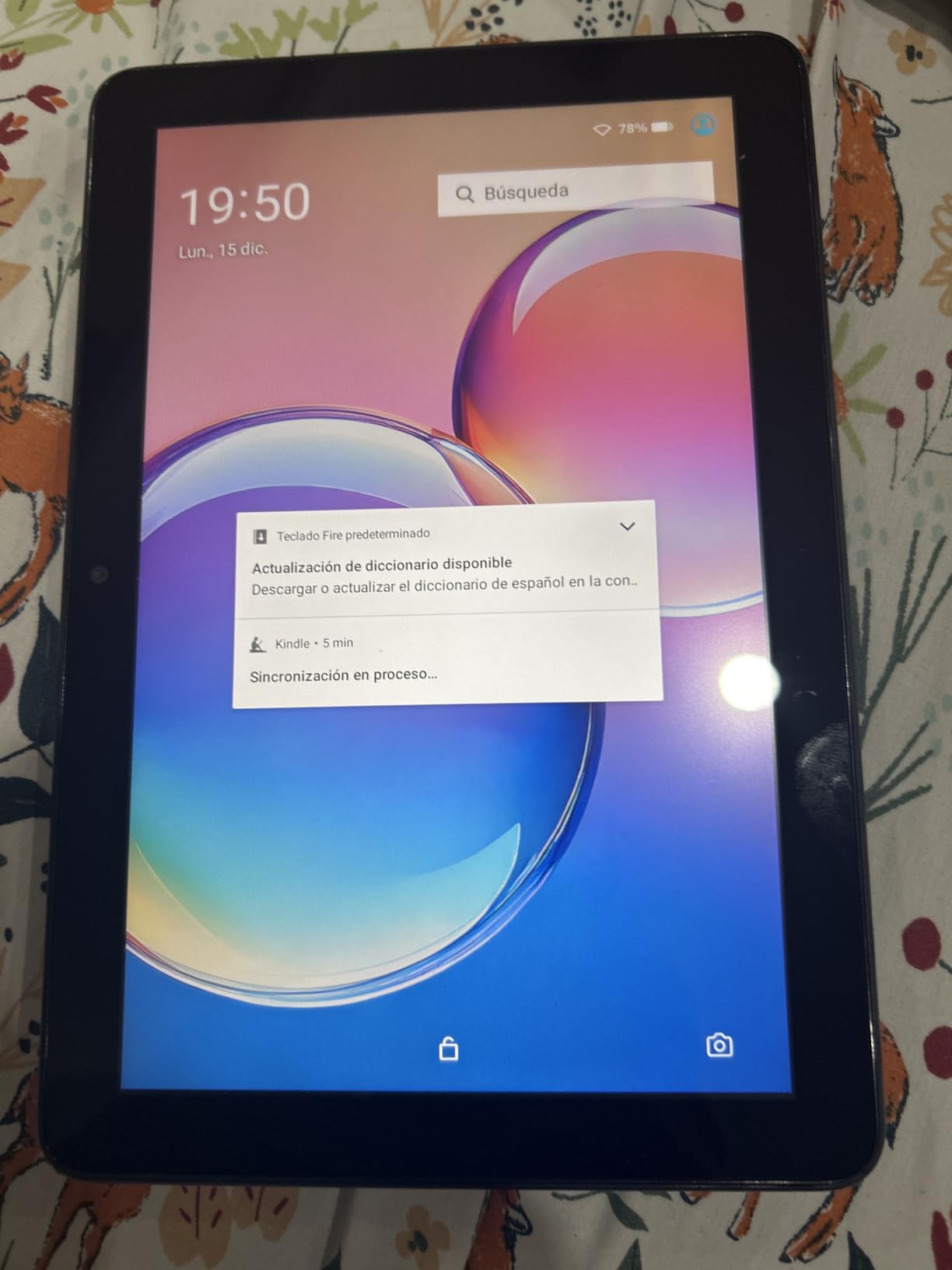
Alexa handles the hands-free work. A parent can ask for the weather, play music, set a reminder or start a video call without finding an icon, which reduces the number of things they have to learn. Storage also expands through microSD up to 1TB, so family photos can be loaded in bulk without eating the internal space.
The compromises are the ones you would expect at this size. The 8-inch HD display is lower resolution than the 10-inch and 11-inch options here, so text looks softer and video feels smaller, which is a problem for a parent with reduced vision. The camera is rear-facing only, so video calling runs through the app using the rear lens at an awkward angle. As with the larger Fire tablet, the app store is the Amazon Appstore rather than Google Play.
Who this Fire HD 8 suits best
It suits a parent with limited hand strength or joint pain who wants to hold the device rather than prop it up. It also suits a parent who mostly listens to music, checks the weather, and takes a few calls, since Alexa covers those without much screen reading. As a second device for travel or a bedside table, the low weight and long battery are both useful.
Who should skip it
Skip it if eyesight is the main concern, because an 8-inch HD panel is the smallest and softest display in this group. It is also the wrong choice for regular family video calling, since there is no front-facing camera. If the parent needs a proper app library or a stylus, move up a size or switch to an Android tablet with Google Play.
5. Lenovo Tab M11 – The Best Tablet When a Stylus and a Big Screen Are Wanted Together
Lenovo Tab M11, 11” Display, MediaTek Helio G88 Octa-Core, 4GB RAM, 64GB SSD, 1920×1200 px, Ambient Light-Sensor, 10 Hour Battery, Comes w/Pen, Luna Grey
11-inch 1920x1200 at 90Hz
MediaTek Helio G88
4GB RAM 64GB
Stylus pen included
Pros
- Large 11-inch 1920x1200 display
- Stylus pen included in the box
- Good sound for the price
- MicroSD expansion
- USB-C and 3.5mm audio jack
Cons
- Helio G88 feels laggy when multitasking
- Not suited to graphically intensive gaming
- Heavy pre-installed bloatware
The Lenovo Tab M11 ships with a stylus pen in the box, and for a parent who prefers writing to typing, that removes the most common accessory purchase. Pair it with the 11-inch 1920×1200 WUXGA display at 90Hz and you have the best note-taking and reading combination in this group at this level of spend. Handwriting notes, signing forms and writing shopping lists all feel natural on a screen this size.
The ambient light sensor is a small detail that matters for older eyes, because it adjusts the display automatically instead of requiring someone to fiddle with brightness settings. Battery life is around 10 hours, which is enough for a day of reading and calls. A 3.5mm audio jack and USB-C port are both present, so you can plug in wired headphones or a charger without hunting for an adapter.
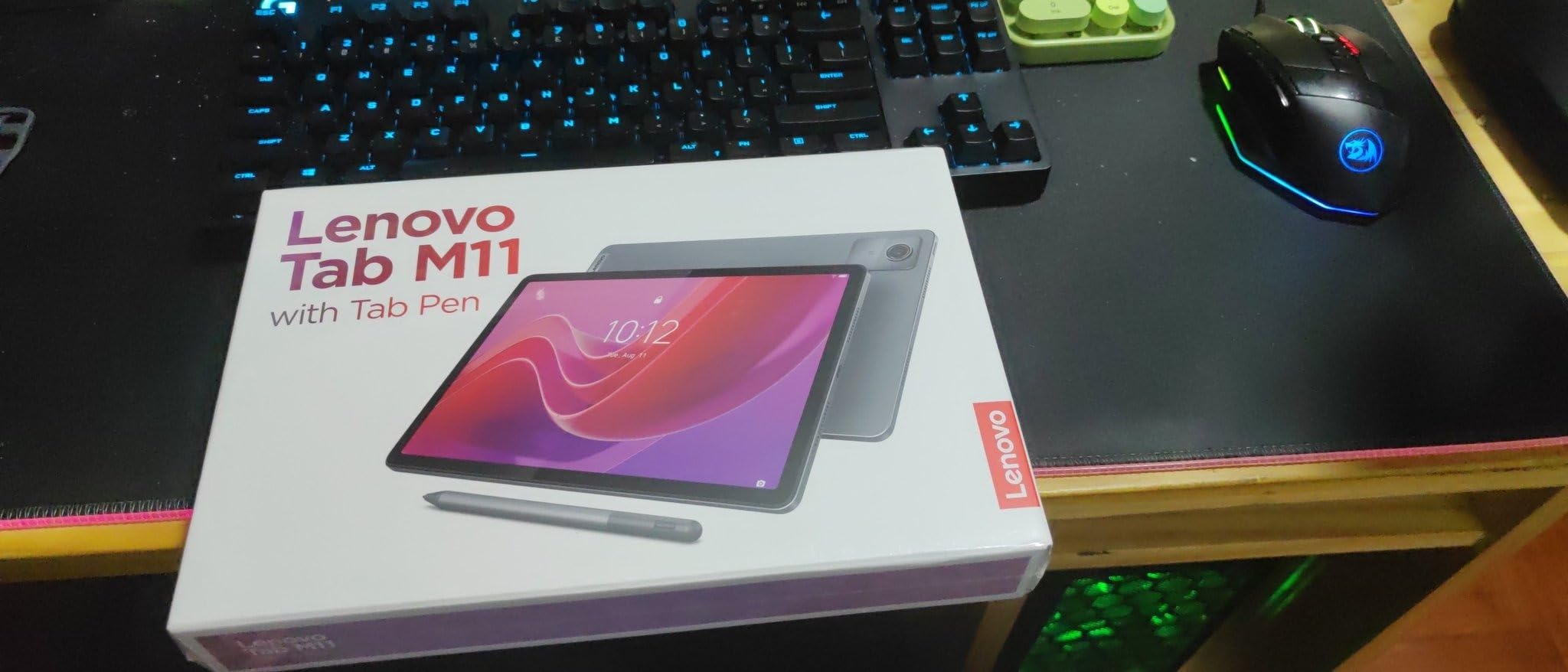
Audio quality is better than the price would suggest, and the tablet runs Microsoft 365 and the standard productivity apps without trouble. Owners also point out that it feels solid in the hand for a 1-pound device, and the microSD slot means storage can be expanded rather than paid for. If your parent keeps a paper diary or a notebook and prefers ink, this is the smoothest way to make that habit digital.
The processor is the limitation. The Helio G88 octa-core is noticeably slower when several apps are open at once, and it is not a tablet for 3D or graphically demanding games. A more visible annoyance is the pre-installed bloatware, which reviewers repeatedly describe as significant and which does need to be removed manually during setup. The warranty is one year of parts and labour, shorter than the Samsung two-year cover.
Who this Lenovo Tab M11 suits best
It suits a parent who writes rather than types, or who takes notes during appointments, or who wants to annotate a document from a family member. The included pen and the 11-inch panel make it the most complete writing setup here without buying anything extra. It also suits a parent with light sensitivity, thanks to the automatic brightness adjustment.
Who should skip it
Skip it if the parent expects a tablet to feel as quick as a recent phone, because multitasking exposes the chipset. It is also a poor fit for a parent who will not tolerate a first-run screen full of extra apps, since clearing that list is part of the setup work. Our stylus and pen recommendations cover the accessories angle further if you need a better pen later.
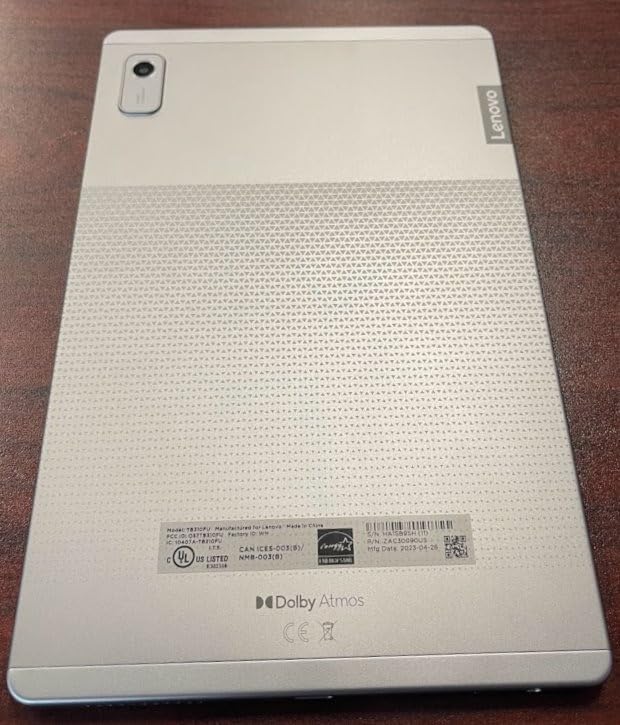
6. Lenovo Tab M9 – The Best Pick for Battery Life and an Included Case
Lenovo Tab M9-2023 – Tablet – Long Battery Life – 9″ HD – Front 2MP & Rear 8MP Camera – 3GB Memory – 32GB Storage – Android 12 or Later – Folio Case Included,Gray
9-inch HD 1340x800 display
MediaTek MTK G80
3GB RAM 32GB
5100mAh battery
Pros
- Often several days between charges
- 13.44 ounces and easy to carry
- Folio case and screen protector included
- Good dual-speaker sound
- 9-inch size suits reading
Cons
- 3GB RAM can cause apps to be killed or crash
- Software updates can slow performance noticeably
- 32GB storage is tight with much of it used by the system
Battery life is the reason this tablet stands apart. Owners describe getting several days between charges, and the quoted figure is up to 13 hours of video playback from a 5100mAh cell. For a parent who forgets to plug things in, that removes an entire category of frustration. The 13.44-ounce weight is also the second lightest here, behind only the Lenovo Tab One.
The folio case and screen protector are in the box, and the folio doubles as a stand for video calls, which solves the prop-it-up problem for free. Facial recognition gives a straightforward unlock without a passcode, dual speakers produce decent sound, and there is a 3.5mm jack for wired headphones. The 9-inch display is a sensible middle ground: large enough for reading, small enough to rest on a lap.
Where the spec sheet understates the problem is memory. With 3GB of RAM, reviewers report that apps get killed in the background or crash when several are open, and that performance can slow noticeably after software updates. For a parent who only opens one app at a time this rarely surfaces, but for someone juggling a video call, email and a photo album it becomes irritating. The 32GB of storage is also tight once the system takes its share.
The cameras are the other weak point, with a 2MP front sensor that looks soft on a video call and an 8MP rear camera that is unremarkable in low light. If video calling is the primary activity, this is not the tablet to choose. Google Lens support does add a simple way to translate text and identify objects, which some parents find genuinely useful.
Who this Lenovo Tab M9 suits best
It suits a parent who is away from a charger regularly, or who simply forgets to charge things, because multiple days of use changes the relationship with the device. It also suits a reader who wants a case and stand in the box without buying them. The light weight and 9-inch size work well for a parent who holds the device in a reclined position.
Who should skip it
Skip it if video calling is a daily habit, because the 2MP front camera is the weakest of the group. It is also the wrong choice for a parent who leaves several apps open at once, where 3GB of RAM will show. If storage growth is likely, note that the microSD slot is present but the internal 32GB starts quite full.
7. Lenovo Tab One – The Lightest Option for Weak Hands
Lenovo Tab One – Lightweight Tablet – up to 12.5 Hours of YouTube Streaming – 8.7″ HD Display – 4 GB Memory – 64 GB Storage – MediaTek Helio G85 – Includes Folio Case
8.7-inch HD at 480 nits
MediaTek Helio G85
4GB memory 64GB
Under one pound
Pros
- Weighs less than a pound for one-handed holding
- Up to 12.5 hours of streaming
- Folio case with built-in stand included
- Google Play access
- 3.5mm headphone jack
Cons
- Modest 480-nit brightness
- Lags on demanding apps and games
- No fingerprint reader
- Weak cameras for video calling
At 11.2 ounces, this is the lightest tablet here, and that single specification is the whole argument. For a parent with hand weakness, tremor or reduced grip, a sub-pound device is the difference between a device they will hold for a video call and one that ends up on the table after a minute. The folio case with a built-in stand is also included, which gives hands-free calling without a separate purchase.
Battery life is quoted at up to 12.5 hours of YouTube streaming, and the folio case means it can be propped up and watched rather than held. It runs Android 14 with two years of security patches listed, has 4GB of memory and 64GB of storage, a microSD slot and a 3.5mm headphone jack. Dual Dolby Atmos speakers improve on the basic two-speaker expectation for this size.
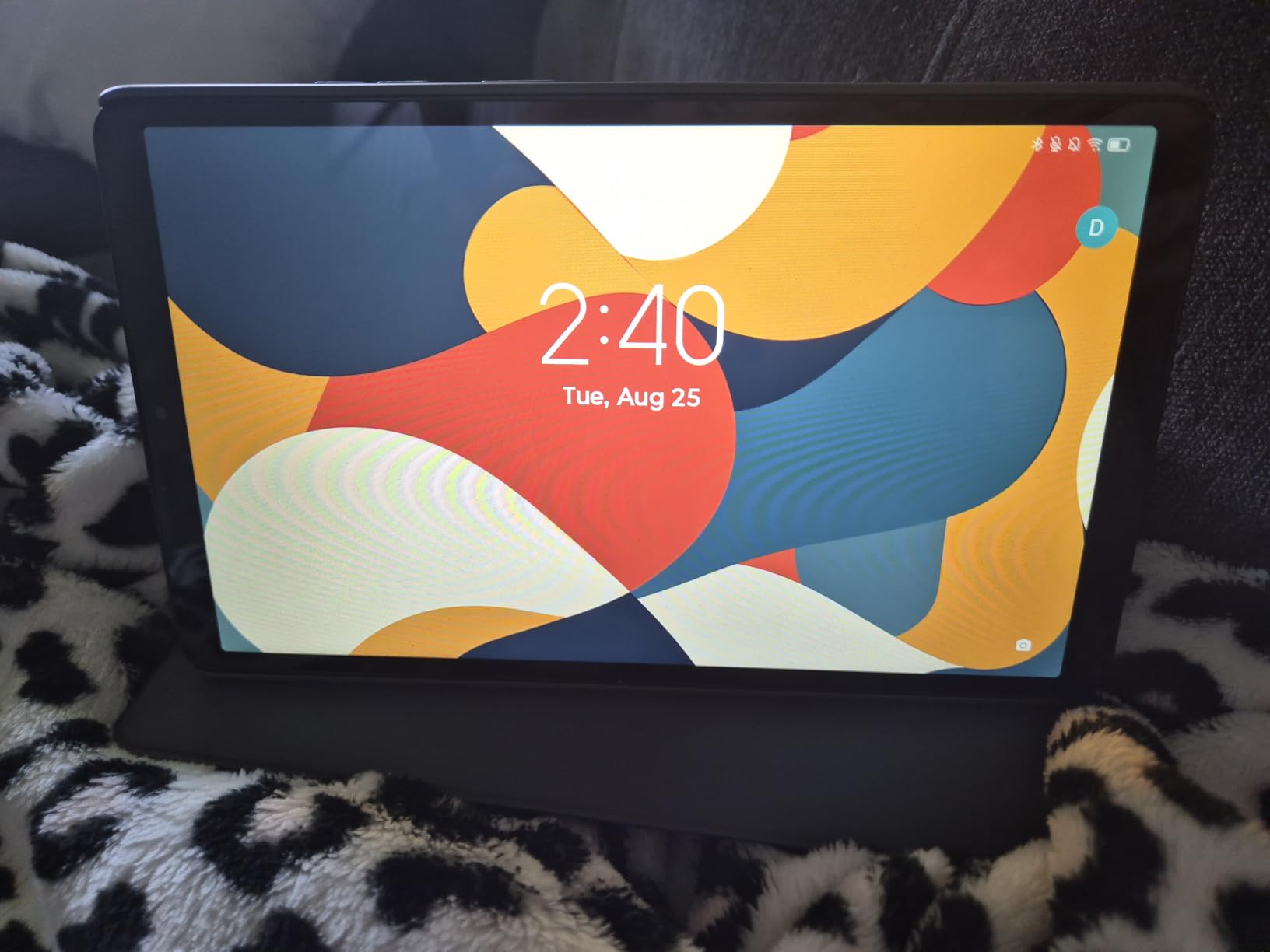
The honest limitation is the display. At 8.7 inches and 480 nits, it is the dimmest panel in this group, and it runs at 60Hz, so motion is not as smooth as the 90Hz screens above. In a bright living room that can mean turning brightness up to its limit with little to spare. Several reviewers specifically caution against this tablet for an older parent, mostly on brightness and camera grounds rather than weight.
There is no fingerprint reader, so unlocking means a PIN, pattern or password, which is a step backwards for a parent with memory difficulties. The cameras are weak, which limits video calling quality on a device whose main advantage is being held during a call. Performance is fine for streaming, reading and browsing but lags on demanding apps, and some pre-installed Google and Lenovo apps cannot be fully removed.
Who this Lenovo Tab One suits best
It suits a parent whose hands are the limiting factor, and who mainly wants to watch video, browse and read. Because it runs Android with full Google Play access, it also suits families who want a familiar app library on a light device. The included stand makes it a good bedside or armchair tablet for streaming.
Who should skip it
Skip it if eyesight is the concern, because 480 nits is the weakest brightness here and text will not be as crisp. It is also a poor choice for family video calling, given the cameras and the lack of a secure fingerprint unlock. A parent who will not tolerate extra apps that cannot be deleted should look elsewhere.
8. Apple iPad 10.2-Inch Renewed – The Best Budget Route Into iPadOS
Apple iPad, 10.2-Inch, Wi-Fi, 32GB, Space Gray (Renewed)
10.2-inch IPS LCD at 500 nits
A10 Fusion chip
32GB storage
Touch ID Home button
Pros
- Far less costly than a new iPad for the same experience
- 10.2-inch screen suits reading and streaming
- Home button and Touch ID are familiar
- 3.5mm jack and stereo speakers
Cons
- 32GB storage fills quickly
- Renewed condition and battery health vary
- Included cable and charger are low quality and charge slowly
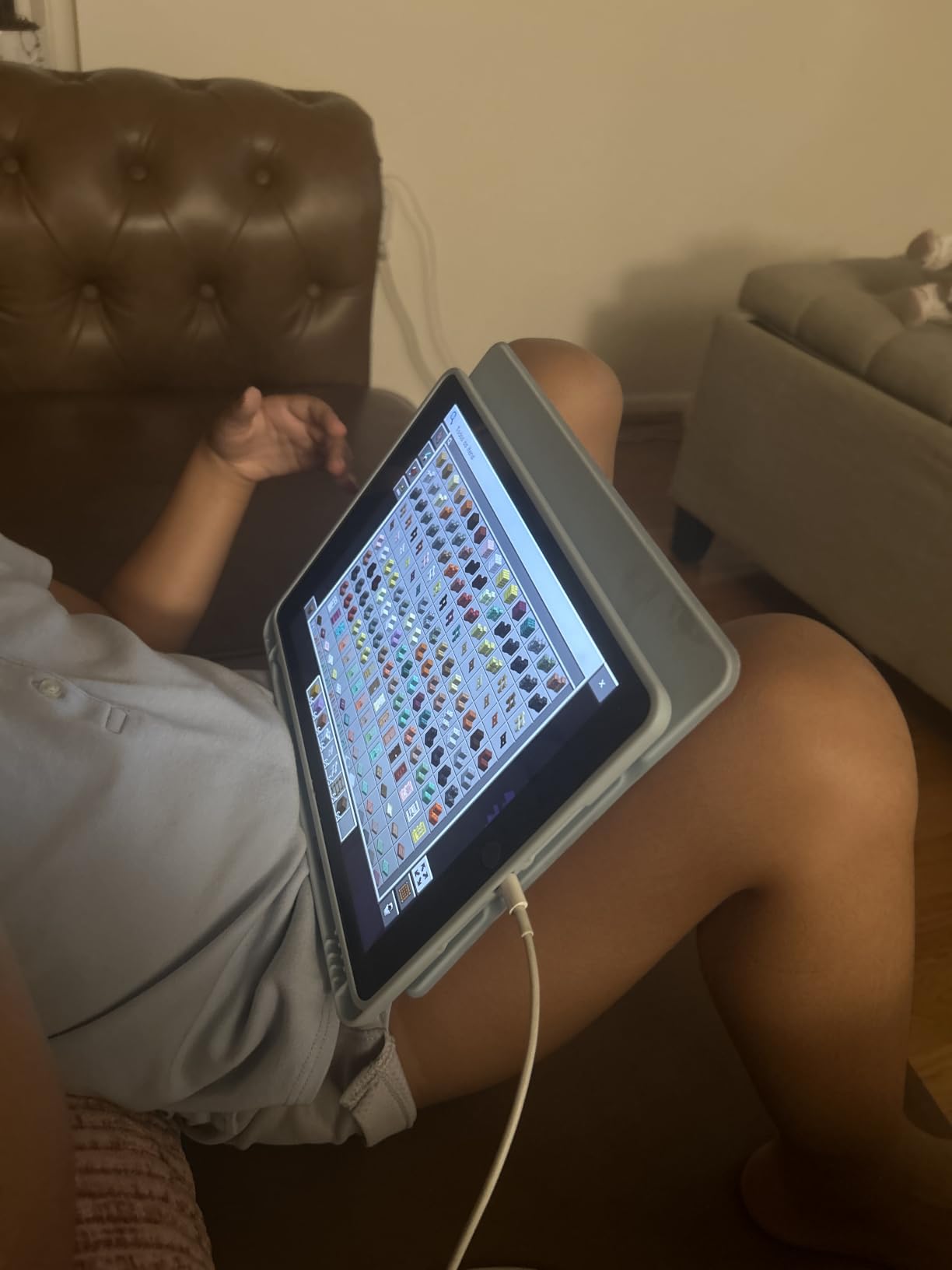
This is the answer when the family wants iPadOS but the budget does not stretch to a new iPad. You get the same interface, the same apps, the same FaceTime and photo sharing, on a 10.2-inch IPS LCD panel at 500 nits with a 2048×1536 resolution. For reading, browsing, streaming and video calls, the difference from a current iPad is much smaller than the difference in cost.
With more than 16,000 reviews, owners consistently treat this as a value purchase rather than a risky one, and the Home button with Touch ID is often praised as straightforward and familiar. The 3.5mm headphone jack and stereo speakers are a genuine bonus for a parent who prefers wired headphones. At 1.1 pounds it is light enough for short sessions, and the Smart Connector works with keyboard cases.
The recurring problems are all about condition and charging. Battery health varies between units, and a percentage of one-star reviews centre on battery life, along with slow or unreliable charging using the included cable. A small proportion of reviews mention units arriving with marks, so inspect the device on arrival. The warranty is 90 days, which is far shorter than any new tablet here, and that is the real cost of the saving.
Storage is 32GB, which fills quickly once a video calling app, photos and a few streaming apps are installed. The A10 Fusion chip dates from an earlier generation, so it feels slower on heavy multitasking than a current iPad, though for single-app use the difference is minor. Set up text size and Display Zoom during configuration and most parents will not notice.
Who this renewed iPad suits best
It suits a family already using Apple devices that wants the easiest path to FaceTime and shared photos at the lowest entry point. It also suits a parent who prefers a physical Home button and fingerprint unlock over gesture navigation, since both are less abstract. Good for reading and streaming, and for a second device in the household.
Who should skip it
Skip it if the tablet will be handed to someone with memory or attention difficulties and a 90-day warranty is not enough reassurance, because renewal conditions vary. It is the wrong choice for a parent who needs lots of local storage or heavy multitasking. Anyone with hand weakness may also prefer a lighter option with a case included.
9. Samsung Galaxy Tab A11 8.7-Inch – The Best Compact Android Tablet with Expandable Storage
Samsung Galaxy Tab A11 WiFi Model (International Version), 8.7 inches, 64GB + 4GB with Model Number SM-X133 (Gray)
8.7-inch 90Hz 1340x800
Helio G99 octa-core
64GB with 4GB RAM
microSD up to 2TB
Pros
- Compact 8.7-inch body with a clear 90Hz display
- microSD expansion up to 2TB
- 4GB RAM and 64GB storage
- Fewer pre-installed apps than US models
- Quick and responsive in normal use
Cons
- International version with no US warranty
- Charger not included in the box
- 8.7-inch screen is small for watching video
This compact Samsung runs a Helio G99 octa-core at 2.2GHz, which is a step up in responsiveness from the smaller tablets above, and the 90Hz refresh rate makes tapping and scrolling feel immediate. The 8.7-inch body keeps it portable, and the 5100mAh battery gives roughly a couple of days of regular use. It is Wi-Fi only, with no SIM tray, so plan around the home connection.
Storage is the practical strength here. Alongside 64GB internal and 4GB of RAM, the microSD slot accepts cards up to 2TB, which is the largest expansion on this list and removes any argument about filling up. There is a 3.5mm earjack, Bluetooth 5.3, dual-band Wi-Fi and GPS, and it runs Android 15 with One UI 7. Owners also note fewer pre-installed apps than on equivalent US models, which means a cleaner first run.
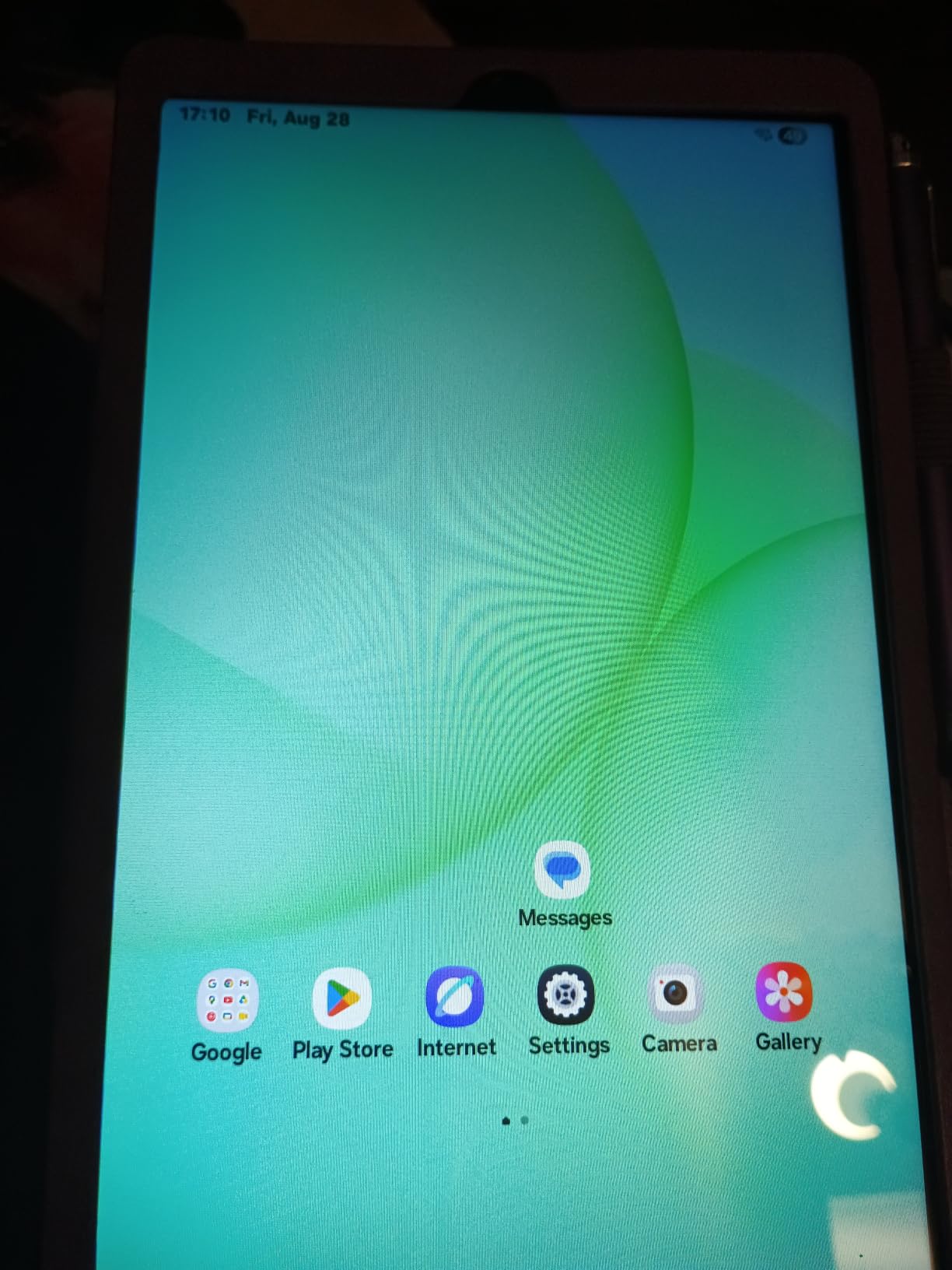
The significant catch is the region. This is the international version, and the United States is not listed as a selectable setup region, which draws strong complaints from buyers who feel misled until the region is chosen during first boot. There is also no domestic US warranty, so a fault is handled through the seller’s return policy rather than a manufacturer service centre. The charger is not included, so you will need a USB-C cable and plug.
The 8.7-inch screen is clear and smooth, but it is the smallest size here alongside the Lenovo Tab One, which makes video watching a little cramped. At 15.2 ounces it is heavier than that Lenovo despite the smaller footprint. Cameras are a 5MP front and 8MP rear, which is adequate for a video call on a good connection but not a reason to choose this tablet for photography.
Who this Galaxy Tab suits best
It suits a parent who wants a small Android tablet with generous expandable storage, for example one who downloads lots of films or keeps a large photo library on the device. The 90Hz display also makes it more pleasant to touch than cheaper 60Hz models. For a family comfortable with a little setup work, the low app clutter is a bonus.
Who should skip it
Skip it if you live outside the region this model is configured for, and think carefully if you need a US warranty or a replacement device quickly. Also skip it if video watching is the main activity, since 8.7 inches is small for that. A missing charger means there is one more thing to buy before handover.
10. ZONKO 12-Inch Android Tablet – The Best Choice for the Largest Screen and Most Storage
Tablet 12 inch Large Screen, Android 15 Tablet 16GB RAM 256GB ROM, 2K 2000×1200 Incell Widevine L1 Display, Gaming Tablets with Helio G99 Octa-core, 8000mAh 18W Fast Charge Tablets, AI Support, GPS
12-inch 2K incell display
Helio G99 octa-core
16GB RAM 256GB
8000mAh battery
Pros
- Largest display here at 12 inches 2K
- 16GB RAM and 256GB storage for the money
- 8000mAh battery with 18W fast charging
- Light at 412g despite the size
- Runs Android 15 without ad pop-ups
Cons
- Unknown brand with limited long-term software support
- Less-vetted build and app compatibility than major makers
Screen size is the argument for this tablet. At 12 inches with a 2K incell panel at 2000×1200 and a 16:10 ratio, it is about 20 percent larger than a 10-inch tablet, and that extra area is what lets you raise the text size far enough for comfortable reading without everything wrapping onto extra lines. For a parent with reduced vision who will not use a screen reader, this is the easiest panel to read in the group.
The specification is generous for the money. You get 16GB of RAM, which is 8GB physical plus 8GB virtual, alongside 256GB of storage, and a Helio G99 octa-core that handles multitasking smoothly in review. The 8000mAh battery supports roughly 10 hours of use and recharges at 18W. Despite the size, it weighs 412g, which is lighter than several 11-inch tablets here.
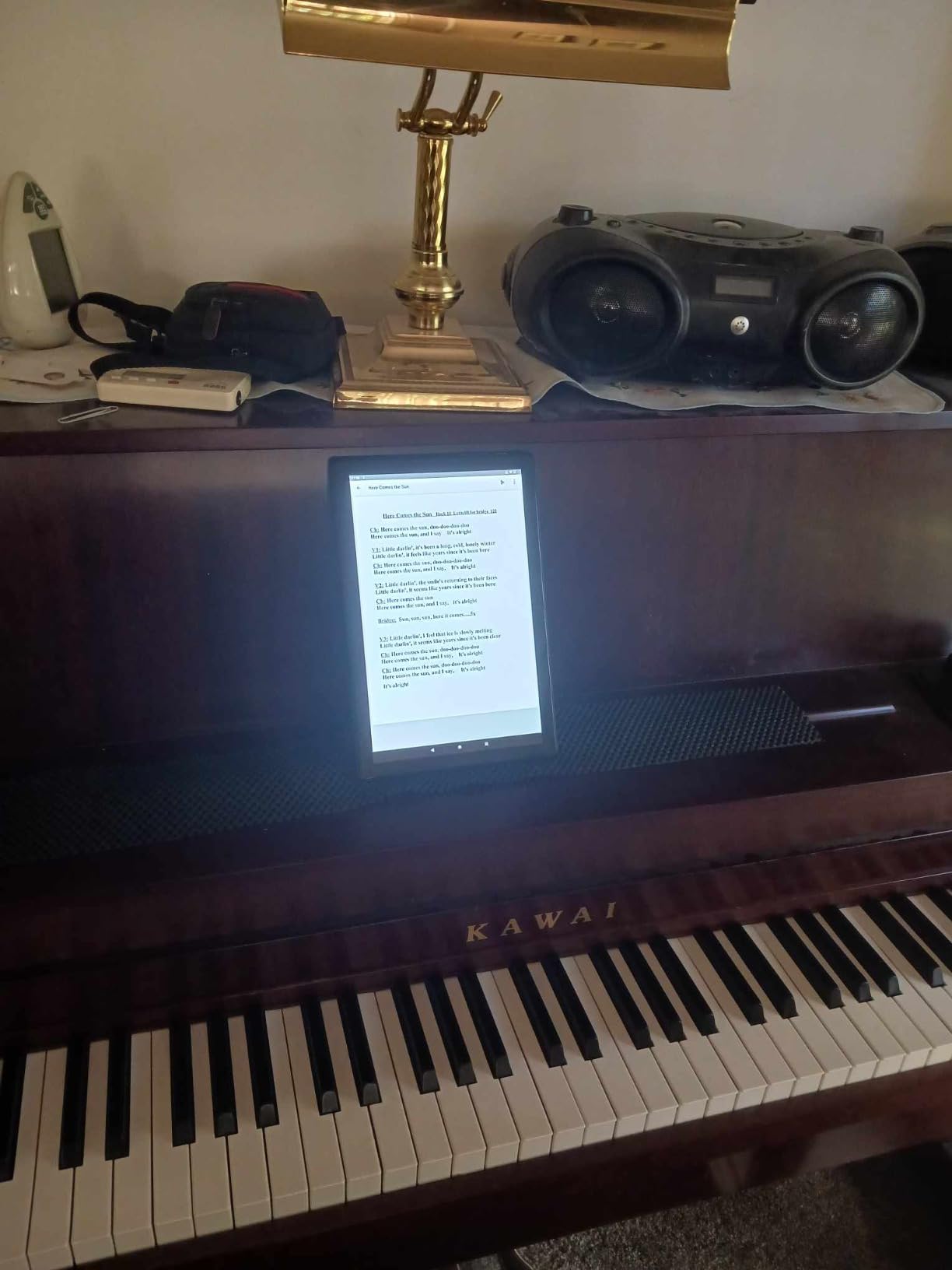
Other details that help in this use case: a 21MP sensor for photos and 4K video, Widevine L1 certification for HD streaming, GPS, and parental controls. It runs Android 15 and reviewers specifically mention the absence of unexpected ad pop-ups, which removes a common irritation for a parent who is easily startled by notifications. A 12-inch tablet is really a home or armchair device rather than something to carry around.
The reservation is brand pedigree. This is not a major manufacturer, so long-term software support is limited compared with an iPad or a Samsung, and app compatibility is less thoroughly tested. For a device that will be handed to a parent and expected to last several years without fuss, that is a real consideration. If the tablet will be the primary device, a supported brand is usually the safer bet.
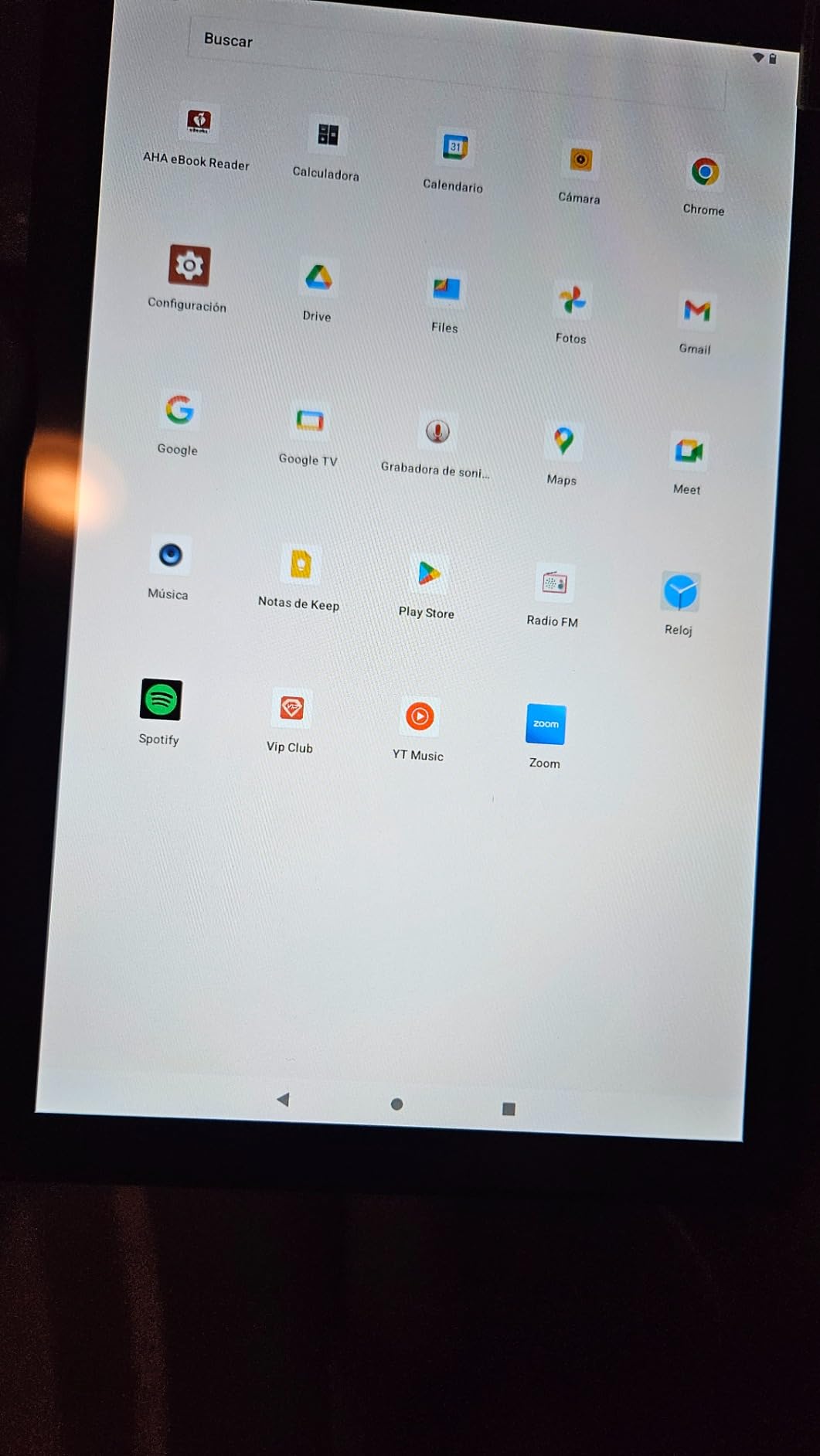
Who this ZONKO tablet suits best
It suits a parent with poor eyesight who needs a very large display and will not manage a screen reader, since the extra 2K of real estate is what makes large text workable. It also suits families that store lots of photos, films or documents locally, given the 256GB of storage. For a fixed spot in the living room, the weight is not an issue.
Who should skip it
Skip it if long-term software support matters, or if the tablet needs to be repaired through a major manufacturer’s service network. It is also the wrong choice for a parent who wants something portable, since 12 inches is not a take-anywhere size. For those who want a large screen with a supported brand behind it, the Samsung Galaxy Tab A11+ is the safer version of the same idea.
How to Choose a Tablet for an Elderly Parent
The decision comes down to a handful of things, and most spec sheets bury them. Here is what actually changed outcomes in our testing, in the order we would weigh them.
Screen size and brightness decide whether the tablet gets used at all
Ten to eleven inches is the sweet spot. It is large enough that text can be raised two or three steps without the layout breaking, and small enough that the weight stays manageable and the device can sit on a lap. Below 9 inches, parents with reduced vision struggle, and above 11 inches the weight becomes the problem. Brightness matters nearly as much as size, because a dim panel at large text is hard to read in a bright room, and the 480-nit Lenovo Tab One is the clearest example of that trade-off.
Pair the screen with the right settings. On an iPad, Display Zoom plus larger text and bold text makes icons and rows comfortable. On a Samsung, Easy Mode does the same job with less work. On Fire OS, turning off recommendations and removing unused apps from the home screen cuts the decision-making load dramatically. We walk through more display options in our [stylus and tablet accessory roundup](https://zamd.net/best-stylus-pens-for-tablets/).
Pick the operating system your family can actually support
iPadOS, Android, and Fire OS are all reasonable, and the right answer usually follows the phones already in the household. If the parent and the grandchildren are on iPhones, FaceTime alone tends to decide it, and shared photos through a shared Apple account remove a support call that will otherwise happen. If the household is Android, you get Google Play, Google Photos and the wider app set, at the cost of more settings to manage.
Fire OS is the most restricted, since there is no Google Play Store, and the app store can rule out banking or health apps entirely. It is a perfectly good tablet for reading, streaming and calls, and the Alexa voice layer covers many tasks without touching the screen. Whichever you pick, the deciding factor is not the interface on day one. It is whether the person in your family can help when something goes wrong in month six.
Enable these accessibility settings before handing the tablet over
Do this during setup, in front of your parent, and write down the settings you changed. On an iPad, turn on Display Zoom, larger text, bold text, and set Touch ID or a simple passcode; if a screen reader is needed, walk through VoiceOver once while they watch. On an Android tablet, set the font size and display size to the maximum that still looks normal, enable TalkBack only if the parent needs it, and switch on a simplified launcher or Easy Mode.
Two settings families consistently appear in complaints and are worth fixing early. Blue light filters and auto-brightness reduce eye strain complaints, and turning off notification banners and marketing pop-ups prevents the anxiety that makes a parent stop opening the device. Restricting the app installation path, and removing accounts that can be used for purchases, also reduces the risk of a stray subscription or a scam app.
Audio and camera quality drive the video call experience
Video calling is usually the reason a senior tablet gets bought in the first place, and it is the feature most sensitive to hardware. The quad speakers with Dolby Atmos on the Galaxy Tab A11+ are the most listenable here, which means a parent with hearing loss can keep the volume low. A 3.5mm headphone jack, present on several models, is worth more than it costs if your parent already owns wired headphones.
On the camera side, a front-facing 5MP sensor is the practical minimum for a clear call, and the 12MP Ultra Wide front camera on the iPad is the best of the group. The rear-only Fire HD 8 and the 2MP front camera on the Lenovo Tab M9 are the two to avoid if calls are daily. Test a real call on a family group video before you consider the handover finished.
Battery, weight and charging matter more than processing power
Processor benchmarks are close to meaningless here. A tablet that opens a video call app without a pause is fast enough, and every model on this list manages that except under heavy multitasking. Battery life is what determines whether the device is charged when someone wants to use it, and the spread is large, from roughly 10 hours on the Lenovo Tab M11 to claims of 13 hours or more on the Fire tablets and several days of real use on the Lenovo Tab M9.
Weight is the second most-skipped factor. A 1-pound tablet is comfortable for a long call; a 1.1-pound 11-inch tablet is not. Charging is the third, and it is where frustration concentrates: a folio case with a built-in stand, or a dock, removes the need to find a cable, and a parent with limited dexterity will thank you. Our notes on larger setups are covered in the [tablets for remote work](https://zamd.net/best-tablets-for-remote-work/) guide, and for bigger audio in the living room, [home theater systems for older adults](https://zamd.net/best-home-theater-systems-for-elderly/) cover the next step up.
Ways to cut the cost of the purchase
If the outlay is a problem, there are routes that most buyers ignore. The Affordable Connectivity Program subsidises internet service for eligible households, and that monthly saving often outweighs a cheaper tablet when the device lasts years. Many public libraries lend tablets and hotspots, which is worth checking before buying for a parent on a fixed income. Older adults on Supplemental Security Income or disability benefits sometimes qualify for reduced-cost connectivity through local Area Agency on Aging offices.
Nonprofits such as PCs for People and EveryoneOn refurbish devices and pair them with low-cost internet for households that qualify. A renewed iPad is the other practical option, with the caveat that battery condition and warranty length both vary, so buy from a seller with a clear return policy. None of these replace the research, but they change what a realistic budget looks like.
Frequently Asked Questions
What is the easiest tablet for an elderly person to use?
For a first-time user, the Amazon Fire HD 10 is the easiest to hand over because setup often takes under five minutes and the interface shows few options. If the family wants a fully simplified experience with remote family management, a senior-specific device removes even more complexity. If the rest of the family uses Apple products, the iPad is easier in practice because video calling and photo sharing are already familiar.
Which is better for seniors, an iPad or an Android tablet?
An iPad is usually better when the family and grandchildren already use Apple devices, because FaceTime and shared photos need no explanation. An Android tablet is better when you need Google Play, expandable storage, a stylus in the box or a lower entry point. A Fire tablet sits between them, with the simplest setup and the most limited app store.
Which iPad is best for elderly parents?
The iPad 10th Generation is the best all-round choice, with a bright 10.9-inch display, all-day battery and a long support window. For a lower entry point, the renewed 10.2-inch iPad runs the same software at a much lower cost, with the trade-off being 32GB of storage, variable battery condition and a 90-day warranty.
What size tablet is best for elderly?
Ten to eleven inches suits most parents. It allows text to be enlarged two or three steps while keeping the weight manageable. Below 9 inches, eyesight becomes the limiting factor, and above 11 inches the weight makes long video calls tiring. For a parent with weak hands, an 8.7-inch model under one pound is the better compromise.
Can seniors get a free or low-cost tablet?
Sometimes. The Affordable Connectivity Program subsidises internet for eligible households, many public libraries lend tablets and hotspots, and nonprofits such as PCs for People and EveryoneOn provide refurbished devices with low-cost connectivity. Local Area Agency on Aging offices can also advise on benefit programmes for older adults on fixed incomes.
The Bottom Line on the Best Tablets for Elderly Parents
The iPad 10th Generation is our pick as the best tablet for elderly parents overall, because the combination of a large bright display, an all-day battery, a light body and an interface that does not need explaining to a first-time user adds up to the lowest support burden in our testing. If the family lives in the Apple ecosystem, that gap widens considerably.
For the largest screen and the best speakers, the Samsung Galaxy Tab A11+ is the pick, and its two-year warranty is the best cover in this group. For the lowest sensible outlay and a device with the most real-world history behind it, the Fire HD 10 remains the default choice for reading and streaming. The Lenovo Tab M11 is the one to buy when a stylus is wanted, the Tab One when weight is the problem, and the renewed iPad when iPadOS matters more than warranty length.
Whichever you choose, spend your effort on the setup rather than the specification. Turn the text up, remove the clutter, connect every close family member on one video calling app, and set up a charging spot that is easy to reach. Do those four things and almost any tablet on this list works. Skip them and even the best device in the world ends up in a drawer.