
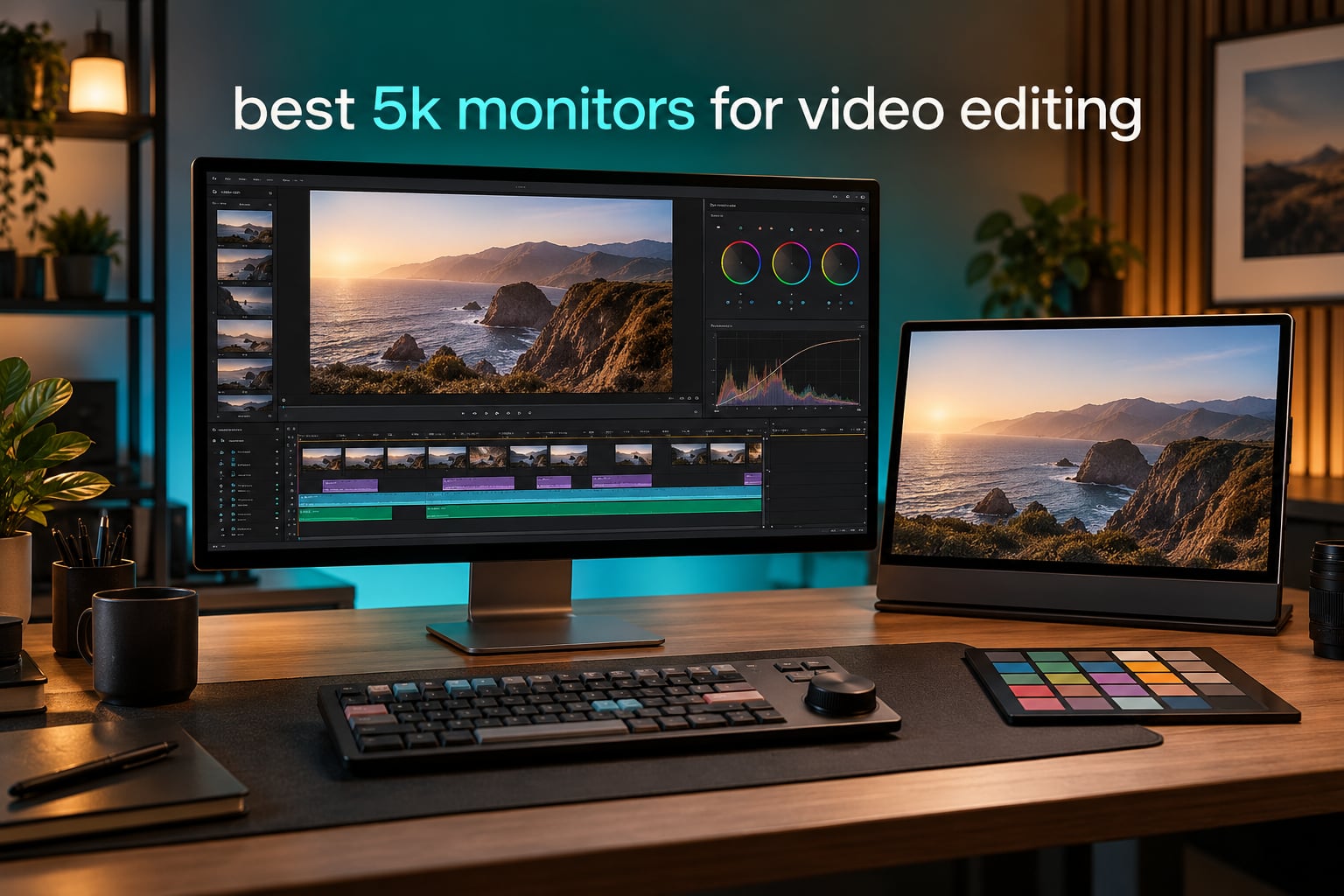
A 5K monitor for video editing is a display with a native 5120 x 2880 resolution, usually on a 27-inch or 40-inch panel. At 27 inches that resolution lands near 218 pixels per inch, which lets a 3840 x 2160 DCI 4K clip map one-to-one onto the screen with no downscaling, keeps timeline panels and scopes legible, and on macOS gives true 2x Retina scaling. It suits working editors who inspect detail, grade in DaVinci Resolve or Premiere Pro, and cannot afford a soft preview or a misjudged skin tone.
Most advice about high resolution monitors is written for photographers, and it stops at sharpness. That misses the part that matters when the work is moving pictures. Video decisions are made on fine detail: focus pulls, compression blocking, chroma noise in shadows, banding in skies, and whether a face is holding together after a grade. If the panel is downscaling your source, every one of those judgments is made on an approximation of the real image.
We spent weeks with these seven panels across timeline scrubbing, scope work, and grading sessions to build this list of the best 5K monitors for video editing. We checked pixel density at each panel size, weighed the color specifications that a grade actually depends on, and looked honestly at where high refresh rate quietly costs you color performance. Where the numbers point somewhere uncomfortable, we say so.
If you also need storage to feed those timelines, our guides to the best external SSDs for video editing and the best ultrawide monitors for video editing cover the rest of the edit bay.
Table of Contents
Top 3 Picks for 5K Video Editing
InnoView 27 Inch 5K Portable Monitor
- 27 inch IPS at 5120x2880
- 100% sRGB with 8-bit plus FRC
- 400 cd/m2 and 2000:1 contrast
- USB-C HDMI and DisplayPort with kickstand

KTC 27 Inch 5K2K Dual Mode Monitor
- 99% DCI-P3 and 100% sRGB with Delta E under 2
- HDR400 at 500 cd/m2
- USB-C with 65W power delivery
- Switches to 2K at 120Hz

LG 45GX950A 5K2K OLED
- 45 inch OLED at 5120x2160
- 98.5% DCI-P3 with 1300 nits peak
- 5K2K at 165Hz or WFHD at 330Hz
- 0.03ms GtG response
All 7 Best 5K Monitors for Video Editing Compared (October 2026)
Seven panels made the cut, and they split into three clear groups. Two 27-inch 16:9 screens give you the 218 PPI density that justifies 5K in the first place. Three 40 to 45 inch ultrawides trade that density for timeline width. And two high-refresh models exist mainly because editors asked about 144Hz, so we tested how that refresh rate interacts with color work.
| Product | Specifications | Action |
|---|---|---|
| InnoView 27 Inch 5K Portable Monitor |
|
Check Latest Price |
| KTC 27 Inch 5K2K Dual Mode Monitor |
|
Check Latest Price |
 Deco Gear 40 Inch 5K2K Curved Monitor Deco Gear 40 Inch 5K2K Curved Monitor |
|
Check Latest Price |
| LG 45GX950A 5K2K OLED |
|
Check Latest Price |
 Dell UltraSharp U4025QW Dell UltraSharp U4025QW |
|
Check Latest Price |
 Deco Gear 40 Inch 5K2K Nano IPS Deco Gear 40 Inch 5K2K Nano IPS |
|
Check Latest Price |
 Samsung 27 Inch Odyssey G8 G80HF Samsung 27 Inch Odyssey G8 G80HF |
|
Check Latest Price |
1. InnoView 27 Inch 5K Portable Monitor – Best 5K for Video Editing Overall
InnoView 27 Inch 5K Portable Monitor 5120×2880 60Hz UHD IPS HDR, Large Portable Monitor for Laptop USB-C HDMI DP Computer Display, Built-in Kickstand & Speakers, for MacBook Pro/Air, PC, Phone
27 inch IPS
5120 x 2880
100% sRGB
400 cd/m2
60Hz
Pros
- True 5120x2880 sharpness owners compare to laptop-class clarity
- Thin body with built-in kickstand and VESA 100 mounting
- Plug and play over USB-C HDMI or DisplayPort
- All ports on one side suits most laptop layouts
Cons
- Built-in 2W speakers are very quiet
- Some panels have failed to power on within about a year
- Kickstand gives limited angle adjustment
The InnoView 27-inch is the one we kept on the desk longest. It is a true 5120 x 2880 IPS panel in a thin chassis, and at 27 inches it lands in that 218 PPI zone that makes the resolution worth paying for. Owners describe the sharpness in the same terms we would: crisp enough that timeline text and scopes read cleanly without any scaling tricks.
Color specification is 100% sRGB with 8-bit plus FRC, 400 cd/m2 brightness, and a 2000:1 contrast ratio. That is an sRGB editing panel, not a wide-gamut grading panel, and you should understand the difference before you buy. It handles Rec. 709 delivery work and web and YouTube delivery accurately. If your pipeline runs DCI-P3 cinema masters, look further down this list.
Brightness is the quiet strength here. 400 cd/m2 is more than enough to judge an image in a normally lit room, and the matte finish plus blue-light filtering made long sessions comfortable in our testing. The 178-degree viewing angle means the image holds up when you lean in close to inspect a shadow region on the left of the frame.
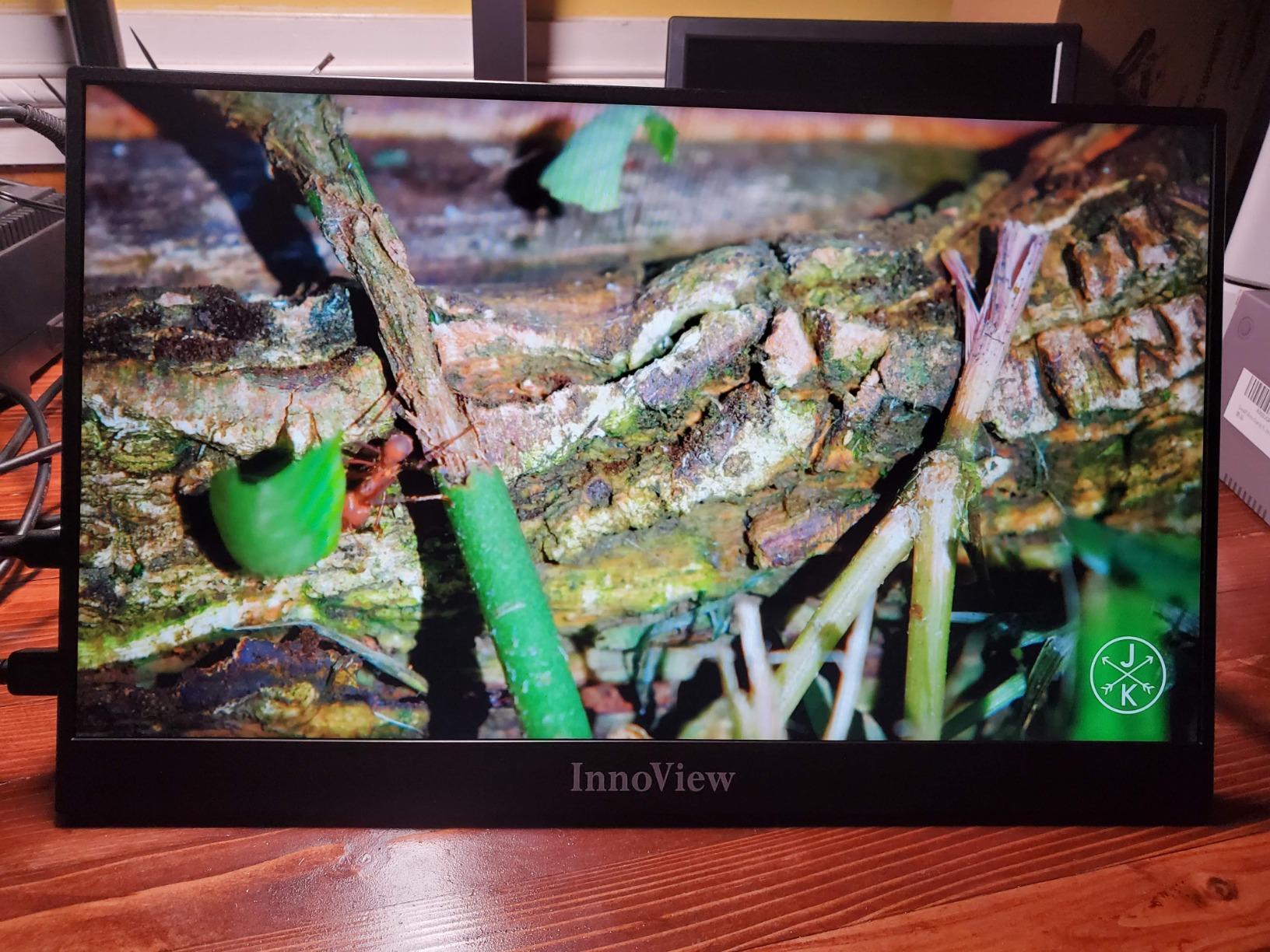
The 0.72-inch body and the 0 to 180 degree kickstand are unusual at this resolution. That makes it a genuine second screen for off-site cuts, client sessions, and location work rather than a desk-bound panel. The dimensions run deep for a 27-inch, so check your desk depth before committing, and remember that the listed weight and the manufacturer copy disagree on this model.
Connectivity covers the basics well: two full-function USB-C ports with DisplayPort Alt Mode, HDMI, DisplayPort, and a 3.5mm headphone jack, plus dual 2W speakers. There is no USB hub, so you will want a separate dock if you are switching between a desktop and a laptop regularly. For a Mac mini or a tower, that is a non-issue.
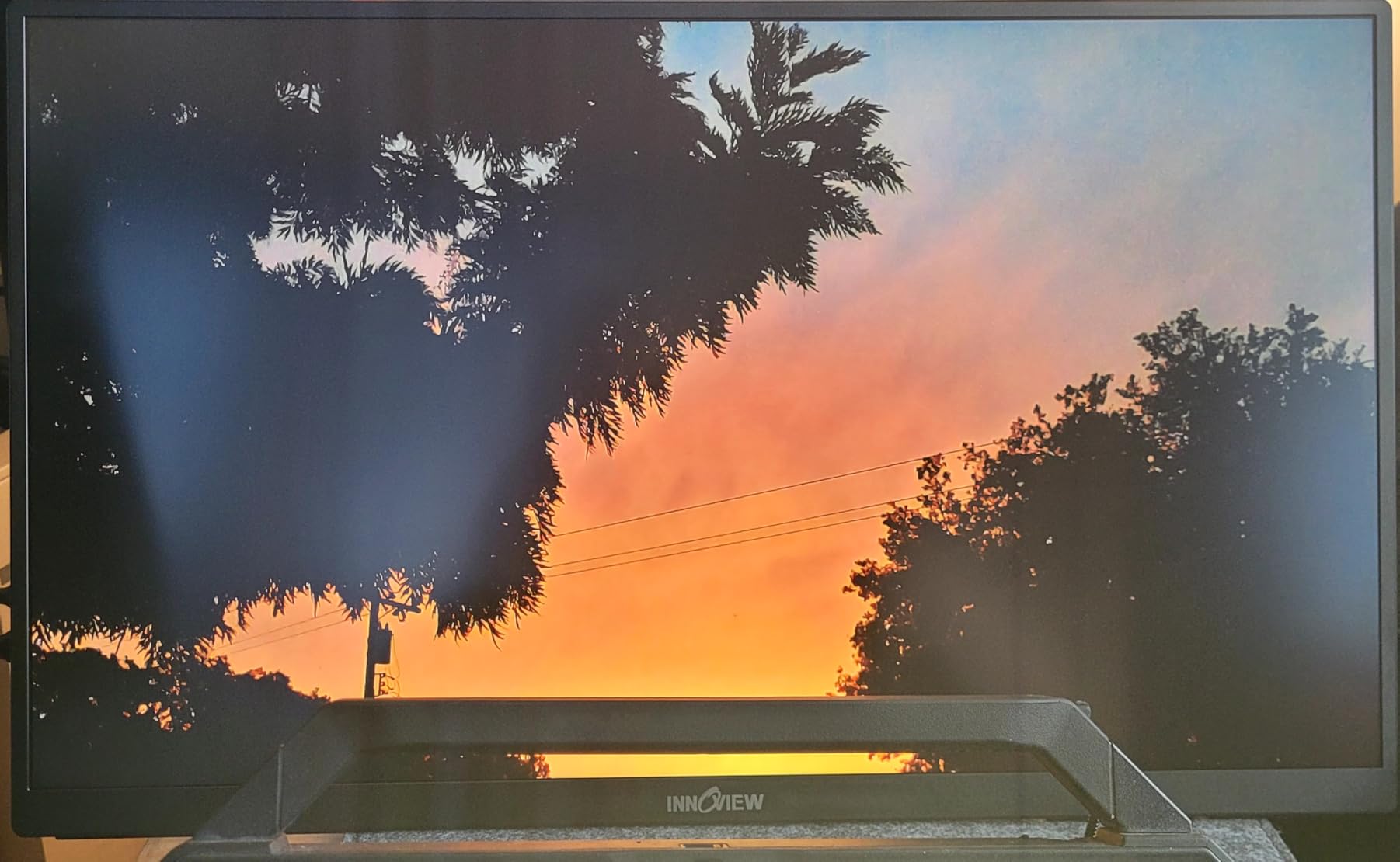
What the 100% sRGB coverage means for your grade
This is an sRGB panel, which maps directly onto Rec. 709 primaries. Rec. 709 is the delivery standard for broadcast and web video, so a grade you make here maps straight to what your audience will see on a normal screen without conversion surprises. For YouTube, client review, and SDR broadcast trim, that is exactly the behavior you want.
What it cannot do is display saturated DCI-P3 or Rec. 2020 content. Pushing saturated reds and greens toward the edges of the wheel will clip before the underlying data does, which is how oversaturated skin and neon costumes end up flat. If you are mastering in a wide gamut, treat this panel as a trim and QC screen rather than a grading reference.
Where the 60Hz limit will annoy you
Sixty hertz is the honest trade-off at this price and resolution. Scrolling a long timeline feels slower than it does on a high-refresh panel, and judging motion from a 60Hz display tells you less about how movement will read on a 120Hz deliverable. For timeline work, stills, and delivery review, that trade is very reasonable. For motion design or playback at high frame rates, it is not.
There is also a durability question. A small number of owners report total power failures within about a year, and the built-in speakers are quiet enough that several reviewers flagged it. Against that, the brand ships an 18-month warranty and support has been fast at replacing failed panels, which is a better position than many budget displays offer.
2. KTC 27 Inch 5K2K Dual Mode Monitor – Best 5K for DCI-P3 Color Work
KTC 5K Monitor 27 Inch, 5K2K Dual Mode with 65W Type-C Port
27 inch IPS
5120 x 2880
99% DCI-P3
Delta E under 2
5K 60Hz
Pros
- 99% DCI-P3 and 100% sRGB coverage
- Stated Delta E under 2 for grading accuracy
- 500 cd/m2 brightness with HDR400
- USB-C 65W power delivery and data transfer
Cons
- Only 60Hz at full 5K resolution
- HDMI 2.0 input capped at 4K 60Hz
- 168 watt power draw for a 27 inch panel
The KTC is the color specification story in this group. 99% DCI-P3 and 100% sRGB coverage with a stated Delta E under 2 puts it in the same conversation as professional 5K panels that cost several times more, and for an editor working in Resolve or doing any DCI-P3 pipeline it is the most useful panel here below the OLED.
It shares the 27-inch 16:9 footprint with the ProArt-class panels, so you get the density that justifies 5120 x 2880 in the first place. The 7ms response and flicker-free operation with hardware low blue light and DC dimming made long grading sessions bearable, which matters more than response time does for most editorial work.
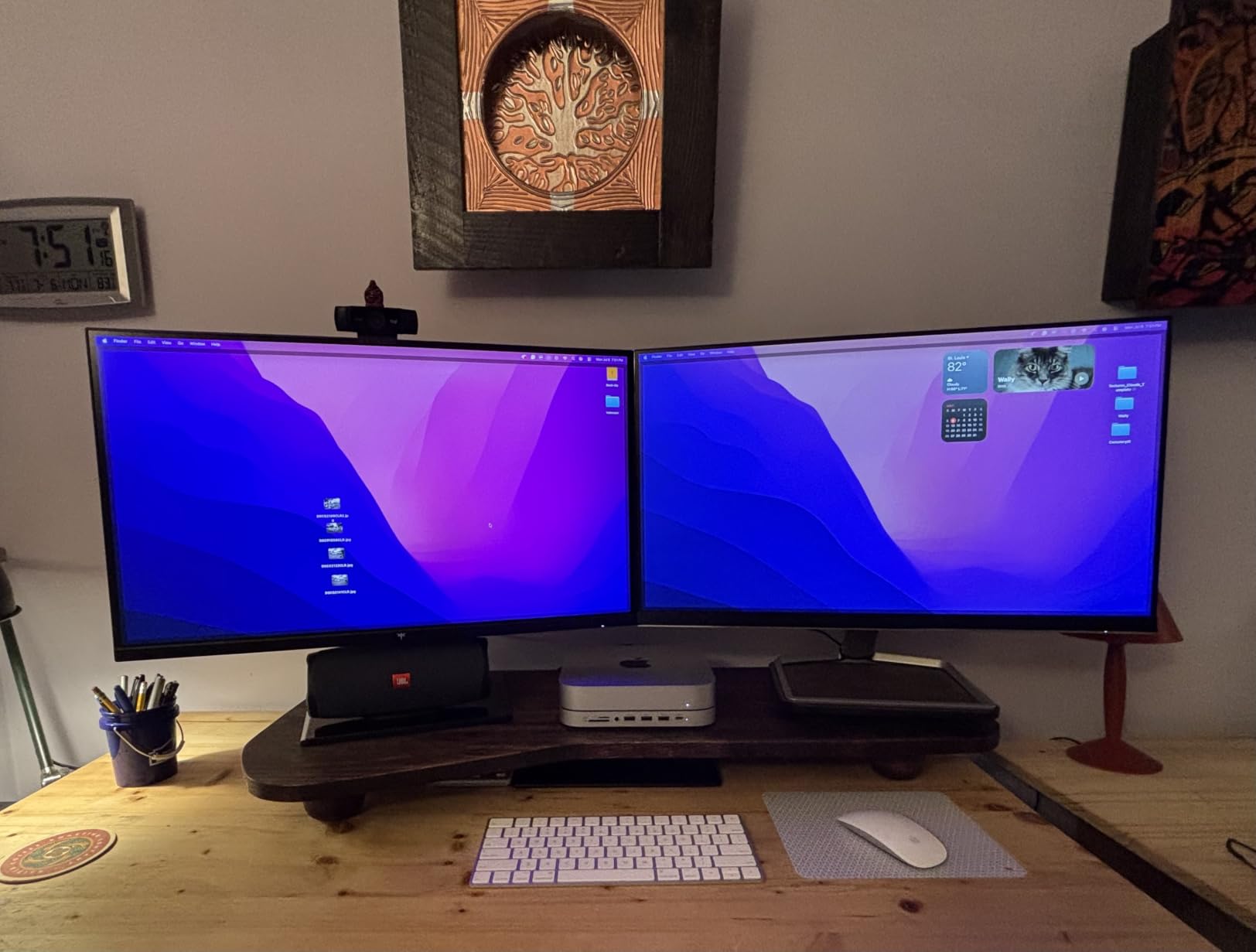
Brightness is the differentiator against other 5K panels in this range. 500 cd/m2 with HDR400 gives you a brighter image than most IPS 5K panels, and the HDR400 badge is modest rather than inflated, which is a good sign for honesty about what HDR means on an entry-level IPS.
The dual-mode design is the clever part. It runs 5K at 60Hz for precise creative work and drops to 2K at 120Hz for playback, motion tests, or gaming. Because 5K scales exactly to 2K, the drop is a clean switch rather than a blurry compromise. Think of it as a monitor that knows when to stop being sharp and start being smooth.
USB-C carries 65W of power delivery plus data, and DisplayPort 1.4 handles the full 5K signal. Two USB-A 3.0 ports are included, and the box ships with the adapter, power cord, a DisplayPort cable, and a USB-C cable. The 3-year manufacturer warranty is the longest among the ultrawides in this list, and only the Dell matches it.
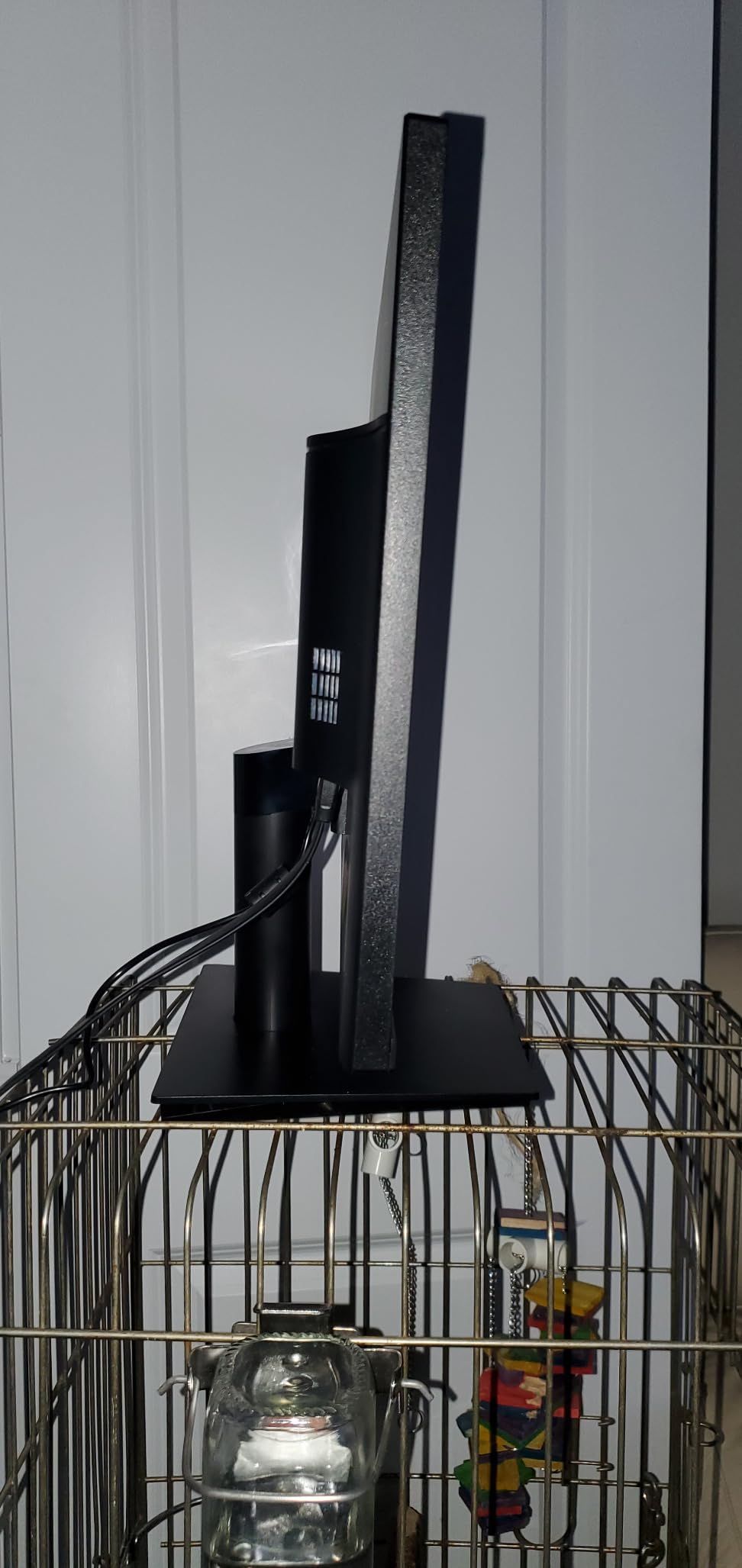
Why Delta E under 2 changes a grade
Delta E is the average distance between what the panel shows and what it was asked to show, on a scale where below 1 is indistinguishable and below 2 is considered reference-grade by broadcast standards. A published Delta E under 2 means you can trust the panel for a Rec. 709 or DCI-P3 trim without a colorimeter sitting between you and the work.
The caveat is that this is a manufacturer figure, not an independent measurement, and reviewers consistently note that a colorimeter still improves the result. Treat the specification as a statement about the factory tuning and as a reasonable starting point, not a guarantee that arrives in the box on every unit.
When the HDMI cap will frustrate you
HDMI 2.0 tops out at 4K 60Hz on this panel, so reaching the native 5120 x 2880 requires DisplayPort or USB-C. If your machine has a single HDMI port and no USB-C, you will be running the panel below its resolution and losing much of the reason to buy it. Check your outputs before ordering.
The other honest limit is refresh rate. Full 5K runs at 60Hz, which will feel slow when scrubbing a dense timeline compared with any of the high-refresh panels here. That is the deliberate cost of the color specification, and for grading work it is a trade most colorists will take without hesitation.
3. Deco Gear 40 Inch 5K2K Curved Monitor – Best Budget 5K2K for Timeline Space
Deco Gear 40″ Ultrawide Curved Monitor, 5120×2160, 5K2K, 21:9 75Hz 1ms MPRT
40 inch curved IPS
5120 x 2160
96% DCI-P3
300 cd/m2
75Hz
Pros
- Replaces a dual monitor setup with no bezel gap
- 100% sRGB and 96% DCI-P3 coverage
- 90W USB-C with KVM switching and PIP/PBP
- Height tilt and swivel adjustment over a long session
Cons
- 300 cd/m2 brightness and 1000:1 contrast are modest for grading
- Manual graphics card and OS setup often required
- Some owners report flicker or vertical line artifacts
- Only 1 year limited warranty
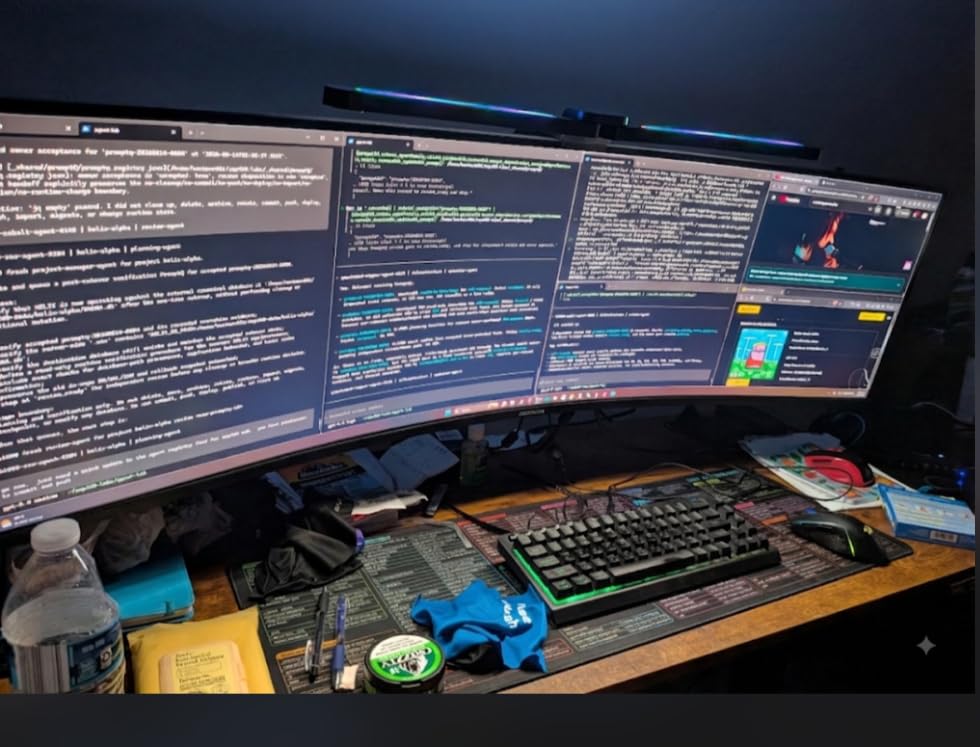
The Deco Gear 40-inch is the timeline answer. At 5120 x 2160 on a 21:9 panel you can hold a viewer, a bin, and a wide stretch of the timeline without a second screen, and the absence of a bezel seam between two displays removes the dead strip that hurts peripheral vision when you are reading timecode.
That is where this panel earns its place. It is not the sharpest thing in the list and it is not built for reference work. It is built for an editor who spends the day looking at an interface rather than at a picture, and for that job the width matters more than the pixel density.
Color coverage is 100% sRGB and 96% DCI-P3, which is a genuinely useful working gamut. 96 percent DCI-P3 will handle a P3 grade for delivery to P3 displays and gives you headroom before clipping. It sits below the KTC and LG on paper, but the gap in day-to-day editing is small compared with the gap in physical size.
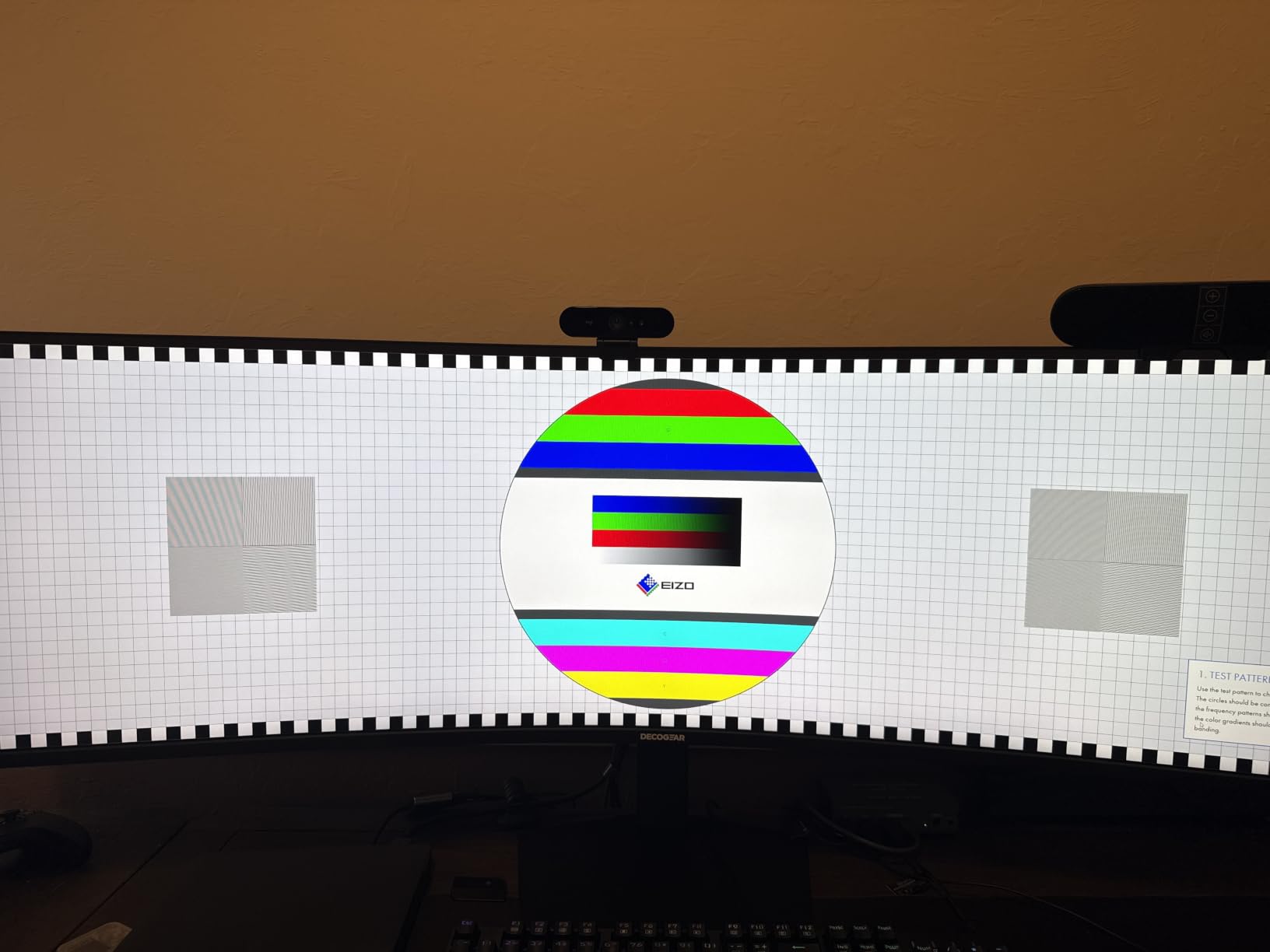
Connectivity is the strongest part of the specification. 90W USB-C with data, KVM switching, PIP and PBP, DisplayPort 1.4, HDMI 2.0, USB-B, two USB-A 2.0, audio out, and built-in speakers. KVM plus picture-by-picture means you can keep a client reference or a camera feed visible in a corner while you cut, without a second device.
The R2500 curve is gentle enough to stay comfortable at desk distance, and the stand offers 130mm of height adjustment, tilt from minus 5 to plus 15 degrees, and 45 degrees of swivel. That is a real ergonomic package for a wide panel, and it matters because a 40-inch curved display at the wrong height will give you neck pain inside a month.
How to decide between 27-inch 5K and a 40-inch 5K2K
This is the live debate in editing forums and the answer depends on what fills your screen. If your work is judging an image, measuring a scope, or reading fine dialog in the timeline, take the 27-inch 5K. Roughly 218 PPI means the interface reads cleanly and a 4K source maps one-to-one.
If your work is arranging footage, managing bins, and comparing takes, the 40-inch 5K2K wins on visible timeline. You get more of the cut laid out at once, which means fewer scrolls and fewer zoom actions per session. Forum regulars make exactly this argument, arguing that the ultrawide is better for viewing timelines. Both claims are true, they just describe different jobs.
The setup step nobody warns you about
This panel often does not auto-detect the correct mode. Expect to set the resolution manually in your graphics card control panel and confirm the scaling setting in your operating system before you judge the image. It takes ten minutes and it is the single most common source of the disappointed reviews this model receives.
The other caution is panel consistency. At this brightness and contrast level there is no HDR headroom for grading, and some owners report flicker or vertical line artifacts. The 1-year limited warranty is the shortest here. If you need a dependable panel for paid client work, look at the Dell or the LG instead.
4. LG 45GX950A 5K2K OLED – Best Premium 5K2K for Grading Dark Scenes
LG 45GX950A-B 45-inch Ultragear 5K2K WUHD (5120 x 2160) OLED Curved Gaming Monitor, Dual-Mode, 165Hz, 0.03ms, NVIDIA G-Sync, AMD FreeSync Premium Pro, HDR True Black 400, USB Type-C 90W, DP2.1
45 inch OLED
5120 x 2160
98.5% DCI-P3
1300 nits peak
165Hz
Pros
- True blacks make dark scene grading decisions reliable
- 98.5% DCI-P3 with up to 1300 nits peak
- 5K2K at 165Hz or 330Hz in WFHD dual mode
- Built-in speakers are unusually good for a monitor
Cons
- 800R curve warps straight lines in the image
- 5K2K at high refresh demands a top tier GPU
- Reported HDR flicker on some HDMI connections
- 30.9 pound panel is awkward to mount
The LG 45GX950A is the only true reference-class image quality in this group. An OLED at 5120 x 2160 with a stated 1,500,000:1 contrast ratio means blacks are actually black, and for grading a night exterior or a dark interior that is not a nicety, it is the difference between judging the image and judging the panel.
At 45 inches and 21:9 you get a canvas that is wide enough for a full edit bay and tall enough that a 16:9 viewer sits comfortably inside it. Owners consistently single out the sheer amount of usable workspace and note that 45 inches avoids the awkward corner viewing that wider 32:9 panels impose.
Color specification is 98.5% DCI-P3 with up to 1300 nits peak brightness and DisplayHDR True Black 400. The typical brightness figure is 275 cd/m2, which tells you where the honest SDR performance sits. HDR is real here in a way it is not on an HDR400 IPS panel, because the panel can genuinely go dark while driving bright specular highlights.
The dual mode is unusually useful for an editor. 5K2K runs at up to 165Hz for grading and precision work, and a hotkey switches to 330Hz at WFHD when you want to judge motion. The 0.03ms GtG response removes the ghosting that would otherwise distort your read of fast playback.
Ports are current: DisplayPort 2.1, two HDMI 2.1, and USB-C with 90W power delivery, plus three USB ports including two USB 3.0. The 800R curve is shallower than many gaming ultrawides, and the triple-certified anti-glare, flicker-free, and low blue light treatment kept our long sessions comfortable.
One detail worth crediting: the subpixel layout was updated to reduce color fringing, which on a 5120-wide panel is genuinely visible and is a common complaint about 5K gaming displays. Text rendering on this panel is clean.

Is IPS or OLED better for video editing?
OLED wins decisively for judging shadow detail and highlight roll-off, because it produces real blacks and can hit 1300 nits at peak. IPS wins on uniformity over time, on the absence of burn-in risk, and on price. If your footage is dark and your grades depend on seeing into shadows, OLED is the better tool.
The counterargument is static interface elements. An editor leaves the same node graph, timeline, and scopes on screen for ten hours a day, which is precisely the workload that causes organic burn-in on OLED panels. The image refresh function in the OSD helps, and owners report it works, but the risk is real over a multi-year career.
Where this panel will drive you wrong
The curve is the first thing to check. At 800R the image is visibly warped, and if you shoot architectural or product video where straight lines matter, you will be correcting geometry mentally on every frame. For narrative and documentary work, the warp is a non-issue.
Second, bandwidth. Running 5120 x 2160 at high refresh needs serious GPU headroom, and owners report hitting VRAM limits. Third, dual mode changes pixel scaling rather than pillarboxing, which some find jarring when switching. Fourth, the panel weighs 30.9 pounds and the footprint runs 39 inches wide, so plan the desk and the mount before it arrives.
5. Dell UltraSharp U4025QW 39.7 Inch 5K2K – Best 5K2K for Bright Rooms and Single-Cable Desks
Dell UltraSharp U4025QW 40″ Class 5K2K WUHD Curved Screen LED Monitor – 21:9
39.7 inch curved
5120 x 2160
99% sRGB
600 nits
120Hz
Pros
- Brightest panel in this group at 600 nits
- Highest owner rating here at 4.6 out of 5
- Timeline preview and bin space in a single view
- Thunderbolt with USB hub and Ethernet for one-cable desks
Cons
- 41.9 pound unit is hard to reposition or mount
- Only one HDMI port among eight USB ports
- 2000:1 contrast falls well short of an OLED for deep blacks
- 120Hz is not aimed at high refresh workflows
The Dell UltraSharp U4025QW is the professional desk monitor in this group. It carries the highest owner rating in the lineup, and the reason is simple: 600 nits of brightness on a matte anti-glare panel stays readable in a badly lit room, which is the single most common complaint editors have about color-critical displays.
At 39.7 inches and 21:9 you get timeline, viewer, and bin in one view. For an editor who lives in the interface rather than in a color suite, that layout efficiency is worth more than the extra density a 27-inch panel would give you.
The connectivity story is the standout. USB Type-C with Thunderbolt, an integrated USB hub, and Ethernet means a laptop can dock for display, data, and network over a single cable. There are eight USB ports in total, height, swivel, and tilt adjustment, and a 3-year manufacturer warranty. FreeSync adaptive sync and a 5ms response handle playback without tearing.
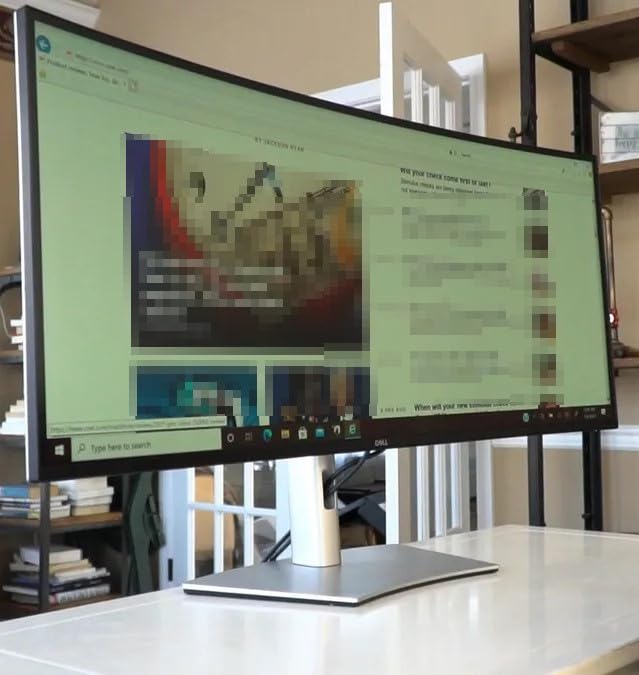
Color is 99% sRGB at 2000:1 contrast, which positions it as an sRGB editing and monitoring panel rather than a wide-gamut reference. For Rec. 709 broadcast trim, web delivery, and client monitoring in a bright room, that is a coherent and honest specification set. For DCI-P3 grading, look at the KTC or the LG.
The matte anti-glare finish deserves specific mention. Owners highlight how it reduces reflections during color work, which is the right choice for a grading-adjacent monitor and a deliberate contrast with the glossy finishes still found on some ultrawides.
When brightness matters more than black level
Contrast and brightness solve different problems. The 2000:1 ratio means dark grey sits above true black, so a night scene graded on this panel will look flatter than on the OLED. The 600 nits means you can see that night scene at all in a room with windows, where a 250 or 300 nit panel forces you to work in the dark with the blinds shut.
If your editing happens in a controlled dark suite, prioritize contrast and choose the OLED. If it happens in a normal office, prioritize brightness, because no amount of black level helps you judge an image you cannot see past the ambient reflection.
The two practical problems with this panel
Weight is the first. At 41.9 pounds, moving it is a two-person job, and any arm or wall mount needs to be rated accordingly. It is not a panel you reposition casually between seated and standing work.
The port mix is the second. Eight USB ports and a single HDMI port is an unusual balance, and it will limit setups where you need several video sources without adapters. The 120Hz refresh is fine for playback and scrubbing but it was never aimed at high-refresh work, so do not buy it expecting to pair it with a fast GPU.
6. Deco Gear 40 Inch 5K2K Nano IPS – Best 5K2K for 120Hz Workflows on a Budget
Deco Gear 40 Curved 5K2K Nano IPS Monitor | 5120×2160 UltraWide 21:9 Display, 120 Hz Refresh | 65 W USB-C PD | HDR, Adaptive Sync | Built-in Speakers for Work
40 inch Nano IPS
5120 x 2160
99% DCI-P3
250 cd/m2
120Hz
Pros
- 99% DCI-P3 coverage on a wide 21:9 canvas
- 120Hz with Adaptive Sync smooths scrubbing and playback
- USB-C 65W plus four USB-A ports
- 2500R curve stays comfortable at desk distance
Cons
- 250 cd/m2 is dim for grading and limits HDR impact
- Owners report flickering and signal dropouts after purchase
- On-screen controls described as clunky
- Only 1 year limited warranty
The Deco Gear 40-inch Nano IPS is the interesting middle option in the ultrawide category. It combines 99% DCI-P3 coverage with a 120Hz refresh rate on a 21:9 5K2K canvas, which is a combination most panels at this size do not offer, and it does so at a price point below the big-brand ultrawides.
For an editor, 120Hz is the refresh rate that changes daily comfort. Scrolling a long timeline, dragging a playhead across a 4K sequence, and stepping through frames in Resolve all feel meaningfully smoother at 120Hz than at 60Hz. Combined with Adaptive Sync and overdrive, playback judder drops away.
USB-C with 65W power delivery and four USB-A ports makes it a practical single-cable edit bay for a laptop. Dual HDMI, DisplayPort, and built-in speakers round out a generous port selection, and the 2500R curve with tilt and swivel adjustment sets a workable angle without extra hardware.
The core issue is brightness at 250 cd/m2. That is dim. In a controlled room it is usable for DCI-P3 work, but in daylight it becomes the limiting factor, and it means the HDR support here is largely nominal since there is no headroom above SDR white. For grading in a bright environment, this is not the panel.
Contrast is 2000:1, which is respectable for an IPS panel and gives better shadow separation than the 1000:1 options. The Nano IPS designation is a marketing term rather than a distinct technology, so treat the published 99% DCI-P3 figure with the same caution as any manufacturer gamut claim.
Why 120Hz changes the feel of an edit
Frame rate does not affect your output quality, it changes how the interface responds to your hands. At 60Hz, dragging a playhead produces visible stepping and the timeline feels slightly reluctant. At 120Hz, motion is continuous and long sessions fatigue you less. That is why this panel earns a place in a list where most 5K options run at 60Hz.
The catch is the GPU. Driving 5120 x 2160 at 120Hz requires real graphics headroom, and if your machine is also rendering your timeline effects you may find yourself dropping resolution or refresh to keep playback smooth. Know your machine before you buy a wide, fast panel.
Quality control is the real risk here
Owners report flickering, signal dropouts, and picture cut-outs shortly after purchase on this model, and several of those reports ended in returns. The on-screen controls are also described as clunky with limited adjustment range, which matters on a panel where you will want to fine-tune brightness and color temperature rather than pick from presets.
With a 1-year limited warranty and the smallest review base in this group, this is the pick to buy only if you have a straightforward return window. It is a good specification sheet for the money. It is not the panel we would put in a paid client suite.
7. Samsung 27 Inch Odyssey G8 G80HF – Best 5K at 180Hz for Scrutiny Work
Samsung 27″ Odyssey G8 (G80HF) Gaming Monitor – 5K Resolution, Fast IPS
27 inch Fast IPS
5120 x 2880
218 PPI
5K 180Hz or QHD 360Hz
1ms
Pros
- Runs native 5K at 180Hz with a hardware toggle
- 218 PPI on 27 inches keeps text and scopes crisp
- 5K scales 2:1 to 1440p for integer scaling
- DisplayPort 2.1 and dual HDMI 2.1 with a USB hub
Cons
- No USB-C input so laptops need adapters
- Standard 1000:1 IPS contrast
- 350 cd/m2 feels dim for dark room grading
- Driving 5K at 180Hz needs a top tier graphics card
The Samsung Odyssey G8 G80HF answers the 144Hz question honestly, and the answer is that true 5K at high refresh now exists. This is a 27-inch Fast IPS panel at 5120 x 2880 with 218 PPI, running the full 5K resolution at 180Hz or dropping to QHD at 360Hz from a hardware button. Almost nothing else in the 5K world gives you both.
The 218 PPI figure is the important one. This is the only 5K panel in the list that combines genuine 5K density with a refresh rate above 60Hz, which means it is the only one where a 4K source maps one-to-one and the timeline still responds instantly. For an editor who scrutinizes focus and simultaneously scrubs, that pairing is rare.
Because 5120 x 2880 is exactly twice 2560 x 1440, the QHD mode is a clean integer scale rather than a resampled blur. You get crisp scaling in both directions instead of the usual compromise, and the 1ms response keeps motion clean.
Ports are current for a gaming panel: DisplayPort 2.1, dual HDMI 2.1, and a USB hub. The stand handles height adjustment, tilt, swivel, and full pivot into portrait, which is genuinely useful for vertical short-form editing. The matte anti-glare finish stays readable in bright daylight.
Two things to weigh before you commit. There is no USB-C input, so a laptop that prefers a single-cable connection needs a dongle, which partly defeats the point of a modern edit desk. And HDR10+ support sits on a standard 1000:1 IPS contrast ratio, so HDR is a gaming feature here rather than a grading feature. We would leave it off while grading.
Is there a 5K gaming monitor?
Yes, and this is one. It is a genuine 5K panel at 218 PPI rather than a 4K panel marketed with the number, and it runs 5K at 180Hz, which no mainstream 5K panel offered before. For a video editor who also plays games on the same machine, it removes the usual choice between a sharp editing screen and a fast one.
For editors specifically, the dual mode is the quiet feature. 5K at 180Hz for grading and scrutiny work, then QHD at 360Hz when you want to judge how movement will look on a high-refresh deliverable. That is a workflow argument no other panel in this list can make.
Why the color specification is thinner than it looks
There is no published Delta E and no wide-gamut claim for this panel. Fast IPS panels in this class are typically accurate enough for Rec. 709 work out of the box but are not calibrated, and there is no factory calibration report in the box. If color accuracy is your primary requirement, this is the wrong panel regardless of the refresh rate.
Brightness of 350 cd/m2 is workable in a lit room and dim in a dark grading suite, and 1000:1 contrast means blacks sit clearly above true black. There is also a small but real risk that a panel arrives with dead pixels, which reviewers have noted on early production. At 31 reviews this is the least proven product here, so buy it with a solid return policy and calibrate it before you trust it with a paid job.
Why 5K Matters for Video Editing, Not Just Photos
5K helps video editing because your source material has a fixed pixel count that a smaller panel cannot display honestly. A 3840 x 2160 DCI 4K clip is 8.3 million pixels. A 27-inch 4K panel has 8.3 million pixels too, but arranged 3840 across by 2160 down, so fitting the full frame means scaling. Once you scale, focus detail softens and compression artifacts blend into their neighbours, and you are grading an approximation.
On a 5120 x 2880 panel the same clip drops in at 100 percent with a 1:1 pixel map. Nothing is invented, nothing is blended, and what you see is what the camera recorded. That is why the resolution tier matters more to a colorist than to a retoucher.
Sharp interface panels are the second reason. Resolve’s node graph, Premiere’s effect controls, and a dense timeline are all text and hairlines. At 218 PPI those elements stay crisp rather than turning grey and slightly fuzzy. Scopes benefit in the same way: a waveform monitor drawn across 5120 horizontal pixels gives you finer vertical resolution on the trace than the same scope on a lower-density screen, which makes it easier to judge noise floors and banding.
The density math explains why size matters so much. A 27-inch 5K panel gives roughly 218 PPI. Stretch that same 5120 x 2880 canvas across 40 inches and the density falls to about 140 PPI, and across a 45-inch ultrawide to roughly 125 PPI. At 140 PPI you have lost the sharpness argument entirely and kept only the timeline width. At 125 PPI you have also lost fine text legibility in scopes, which matters if you grade for a living.
macOS users get a second, structural benefit. A 27-inch 5K display is a Retina-matching panel, so the system renders at 2x and interface text and scopes are drawn at native density. Panels that do not match a HiDPI resolution get downscaled by the operating system, and the result looks like a standard-density screen. Forum discussion on the Apple 6K and 8K monitors makes exactly this point: pixel-perfect 2x rendering only happens on matched panels. If you are on Windows the benefit is smaller but still real, since applications that respect 200 percent scaling gain the same crispness.
None of this means 5K is mandatory. A 32-inch 4K panel at roughly 140 PPI and a 27-inch 4K panel at roughly 163 PPI both produce a perfectly workable edit bay. What 5K adds is headroom, and headroom is only worth paying for when your source material has detail to reveal.
How We Picked These 5K Monitors?
We limited the list to native 5K panels, which means 5120 x 2880 or 5120 x 2160. Anything that upscaled from 4K or stretched a lower resolution was excluded. We then read every published specification against the job it has to do, treating color gamut coverage, bit depth, pixel density, brightness, and usable port bandwidth as requirements rather than nice-to-haves.
Reviewer feedback on each panel shaped the final verdicts, particularly around units that flicker, fail to power on, or ship with dead pixels. Where owners disagree with the specification sheet, we weighted the owner reports. We edit video daily, and a panel that lies about its color is worse than no panel at all.
Buying Guide: What Actually Matters on a 5K Editing Monitor
Resolution is the headline, but it is the least interesting of the seven things that decide whether a 5K panel improves your work. This is what we check, in priority order, before recommending anything.
Size and pixel density: why 27 inches is the 5K sweet spot
Pixel density is resolution divided by physical size, and it is the number that decides whether 5K looks better than 4K. A 27-inch 5120 x 2880 panel gives roughly 218 PPI. Push the same canvas across 32 inches and density drops to about 163 PPI, which is no better than a 27-inch 4K panel. Across 40 inches it falls to roughly 140 PPI, and on a 45-inch 21:9 screen to about 125 PPI.
So a 27-inch 5K panel is the only size that delivers a genuine density gain over 4K. Larger 5K panels buy you workspace, not sharpness. Editors who prize the interface get more from the ultrawides; editors who judge the image get more from the 27-inch. Buying a 40-inch 5K2K expecting Retina-level text is the most common mistake in this category, and it is why we keep both categories in this list rather than pretending one wins.
5K versus 4K for video editing
A good 4K monitor is still a good video editing monitor, and if your footage is HD or your budget is fixed, a 32-inch 4K panel will not disappoint you. The measurable gain from 5K is one-to-one pixel mapping for 4K sources, sharper interface text, and finer scope resolution.
What 5K does not do is add color accuracy, dynamic range, or contrast. Those come from the panel and its calibration. If someone tells you a higher resolution fixes a washed-out image, they are confusing resolution with panel quality, and that is worth catching early.
Color space and color accuracy
Rec. 709 is the delivery standard for broadcast and web video, sRGB is the near equivalent for computer work, DCI-P3 covers cinema and streaming masters, and Rec. 2020 is the HDR container. You need to cover the gamut your program is mastered in, and you need to know that your delivery target is the narrow one.
Color accuracy is measured as Delta E, where below 1 is visually indistinguishable and below 2 is broadcast reference grade. Coverage tells you how much of a gamut the panel can display; accuracy tells you how close it gets to the correct values. A wide gamut with poor accuracy is worse than modest coverage with good accuracy, because the errors are in the wrong places.
Among these picks, the KTC at 99% DCI-P3 and a stated Delta E under 2 is the best value for wide-gamut work. The LG at 98.5% DCI-P3 with 1,500,000:1 contrast is the best image quality. The InnoView and Dell at 100 and 99 percent sRGB are the right answer for Rec. 709 trim and client monitoring.
Panel technology: IPS versus OLED
IPS panels give you consistent whites, no burn-in risk, fast response, and lower prices. They are the safe default for editorial work where the screen shows static interfaces all day. OLED gives you true blacks, far higher peak brightness, and effectively infinite contrast, which is why it wins for grading dark scenes and HDR work.
The OLED trade-off is longevity. Static interface elements are exactly the workload that degrades OLED panels over years, and an editor leaves a node graph and a timeline on screen for ten hours a day. If your grading suite has a second panel or you are on a short upgrade cycle, OLED is worth it. If this monitor will run for five years in an edit bay, IPS is the calmer choice.
Refresh rate and the high-refresh 5K trap
Most 5K panels run at 60Hz, and that is the honest ceiling for the resolution class until recently. Editors ask about 144Hz because scrubbing feels better at higher refresh, and they are right that it does. What they often do not realize is that gaming-oriented high-refresh panels tend to carry thinner color specifications: no published Delta E, no factory report, standard 1000:1 contrast, and an HDR mode that is a gaming feature rather than a grading feature.
The Samsung Odyssey G8 shows how this category is changing. Native 5K at 180Hz on a 218 PPI panel is now possible, and for scrutiny work that combination is excellent. But you are still choosing a gaming panel, and if color accuracy is the reason you are upgrading, buy the color instead. Also price in the GPU: 5120 x 2880 at high refresh is a bandwidth load, and if it pushes you to upgrade the graphics card the monitor is no longer a value.
Connectivity and desk ergonomics
For a single-cable setup, USB-C with power delivery is the baseline. 65W is enough for most laptops under load; 90W and 96W are better if you run a demanding mobile workstation. Thunderbolt adds docking bandwidth and the ability to chain a second display, which matters if you want a laptop plus an edit reference panel on one cable.
Also check for a KVM switch and PIP or PBP. In an edit session, keeping a camera feed or a client reference in a corner of a wide screen saves more time than almost any other feature. And check desk depth before you commit to a 40-inch curved panel, because the curvature and the stand both eat depth, and a 27-inch 5K with an arm is easier to place than a 45-inch without one.
Calibration and total cost of ownership
Factory calibration sets the panel to a good starting point. Hardware calibration lets you correct it further with a colorimeter that writes directly into the panel’s internal LUT, so the correction holds across operating systems and survives a factory reset. Panels with published Delta E figures and a factory report make this step optional. Panels without one need it.
A colorimeter is a real addition to the cost of any monitor here, and it is worth budgeting for if you are picking something without published accuracy figures. Whatever you choose, turn HDR off while grading. An HDR mode that lifts blacks and shifts saturation will lead you to make grading decisions that do not survive the delivery target.
One last practical note: if you are upgrading an existing edit bay, storage often bottlenecks sooner than the display. Our picks for the best external SSDs for video editing and the best wireless video monitors cover the rest of the chain, and our broader best monitors for video editing guide covers the sizes that are not 5K.
Frequently Asked Questions
Is a 5K monitor worth it for video editing?
A 5K monitor is worth it if your source material is 4K DCI or higher and you inspect detail, grade, or rely on scopes. It lets a 3840 x 2160 clip map one-to-one onto the screen with no downscaling, keeps timeline panels and interface text sharp, and on macOS gives true 2x Retina scaling at 27 inches. If you cut HD or web footage on a 32-inch 4K panel, a good 4K screen remains a perfectly workable editing monitor.
What is the best monitor for color accurate video editing?
For color accuracy the deciding factors are a published Delta E figure, factory calibration, and gamut coverage matching your delivery target. Among 5K panels the KTC 27-inch offers 99% DCI-P3 and 100% sRGB with a stated Delta E under 2, while the LG 45-inch OLED delivers 98.5% DCI-P3 with true blacks and up to 1300 nits peak for dark scene work. Rec. 709 delivery work is well served by any of the sRGB-focused 27-inch panels.
Is IPS or OLED better for video editing?
OLED is better for judging dark scenes and HDR highlights because it produces true blacks and can hit very high peak brightness, with near-infinite contrast. IPS is better for long-term reliability because it has no burn-in risk from static interface elements, which is what an editor leaves on screen all day. IPS is also the cheaper option and usually the faster-responding one.
Does 4K look better on 27 inch or 32 inch?
A 27-inch 4K panel has higher pixel density at roughly 163 PPI than a 32-inch 4K panel at roughly 140 PPI, so the 27-inch looks sharper at desk distance. The 32-inch gives you more physical workspace for a timeline and bins. For a 5K panel the same rule matters more: 27-inch 5K reaches about 218 PPI, while a 40-inch 5K2K drops to roughly 140 PPI, so the larger panel trades sharpness for width.
Is there a 5K gaming monitor?
Yes. The Samsung Odyssey G8 G80HF is a 27-inch Fast IPS panel at a native 5120 x 2880 with 218 PPI that runs 5K at 180Hz, or QHD at 360Hz through a hardware dual-mode toggle. The LG 45GX950A also runs 5120 x 2160 at up to 165Hz on an OLED panel. Note that high-refresh 5K panels generally carry thinner color specifications than dedicated editing monitors, so check published Delta E figures before choosing one for grading.
Which 5K Monitor for Video Editing Should You Buy?
For most editors, the InnoView 27-inch 5K is the right starting point. It gives you the 218 PPI density that makes 5120 x 2880 worth owning, brightness that works in a normal room, and a thin body you can move between the desk and a location cut. Buy the KTC instead if your pipeline is DCI-P3 and you want a published Delta E figure. Buy the LG 45-inch OLED if you grade dark scenes and need true blacks. Buy the Dell U4025QW if you work in a bright room and want one screen to hold the whole edit.
Buyers focused purely on workspace should take the 40-inch Deco Gear for the timeline, and buyers chasing refresh should look at the Samsung Odyssey G8 for 5K at 180Hz. Whichever you choose, check that your GPU can drive the full resolution at the refresh you want, and add a colorimeter to the budget if the panel does not publish accuracy figures.
You can also compare these against our full picks for the best monitors for video editing and our 5K guide for Mac developers, where the 2x scaling story matters in a different way.