
Drawing on a tablet feels completely different from drawing on a screenless pad with a mouse-style pen, and the reason has almost nothing to do with processor speed. What separates a tablet that feels like paper from one that feels like a touchscreen is the quality of the stylus, the surface under the nib, and whether the pen actually turns up in the box. We compared every drawing tablet that fits under 500 dollars so you can see those three things before you spend anything.
A standalone drawing tablet is a full tablet computer with a pressure-sensitive stylus that runs its own operating system, so you can sketch, ink and paint without a computer attached. A connected display tablet has a screen but needs a laptop or desktop to drive it. Six of the 12 picks here stand alone on their own and six need a computer, which surprises people who assume a screen means no cable.
That distinction matters more than any other factor in this list, so we flag it for every pick below. We also track whether the stylus ships in the box, because the difference between a bare tablet and a complete kit is where most of the money at this budget actually goes. Our picks range from a 510 g Android standalone to a 2 kg laminated drawing station.
Two picks sit out of reach for beginners no matter how good the hardware is, and we explain why in each section. We spent weeks with the shortlist, drawing the same subject on each one: a head-and-shoulders study, a clean line inking pass, and a broad soft brush stroke. We also compared the top picks in our wider drawing tablet guide for digital artists if your budget stretches higher.
Table of Contents
Top 3 Picks for the Best Tablets for Drawing Under 500 Dollars In 2026

XP-PEN Artist12 11.6 inch
- 11.6 inch FHD IPS display
- 8192 pressure levels
- Battery-free P06 stylus with eraser
- 6 shortcut keys and touch bar

XP-Pen Artist 13.3 Pro V2
- Full-laminated 13.3 inch display
- 16384 pressure levels
- 99 percent sRGB
- Red dial plus 8 shortcut keys

HUION Kamvas 13 Gen 3
- Nano-etched Canvas Glass 2.0
- 16384 pressure with tilt
- Factory calibrated under Delta E 1.5
- Dual dials and 5 silent keys
Those three are the fast answer, and the three reviews right below explain why each one earns a spot. Everything after that is the full breakdown of all 12 picks, with the connection type stated first for each one.
All 12 Picks at a Glance (October 2026)
Every tablet in this list, with the connection type stated first because it is the detail most product pages bury. Prices move often, so the Check Latest Price buttons give you the current figure for the exact configuration.
| Product | Specifications | Action |
|---|---|---|
| XP-PEN Artist12 11.6 inch |
|
Check Latest Price |
 GAOMON PD1161 11.6 inch GAOMON PD1161 11.6 inch |
|
Check Latest Price |
| XP-Pen Artist 13.3 Pro V2 |
|
Check Latest Price |
| HUION Kamvas 13 Gen 3 |
|
Check Latest Price |
 PicassoTab X11 11 inch PicassoTab X11 11 inch |
|
Check Latest Price |
 HUION Kamvas Slate 11 10.95 inch HUION Kamvas Slate 11 10.95 inch |
|
Check Latest Price |
 XPPen Magic Drawing Pad 12.2 inch XPPen Magic Drawing Pad 12.2 inch |
|
Check Latest Price |
 Frunsi RubensTab T11 Pro 10.1 inch Frunsi RubensTab T11 Pro 10.1 inch |
|
Check Latest Price |
 Frunsi RubensTab T8 8 inch Frunsi RubensTab T8 8 inch |
|
Check Latest Price |
 Wacom Intuos Pro Medium Wacom Intuos Pro Medium |
|
Check Latest Price |
 Wacom MovinkPad 11 11.45 inch Wacom MovinkPad 11 11.45 inch |
|
Check Latest Price |
 VEIKK VK1200V2 11.6 inch VEIKK VK1200V2 11.6 inch |
|
Check Latest Price |
1. XP-PEN Artist12 11.6 Inch: The Best Drawing Tablet Under 500 Dollars Overall
XP-PEN Artist12 11.6 Inch FHD Drawing Monitor Pen Display Graphic Monitor with PN06 Battery-Free Multi-Function Pen Holder and Glove 8192 Pressure Sensitivity
11.6 inch FHD IPS
8192 pressure levels
Battery-free P06 stylus
907 g
HDMI plus USB
Pros
- Battery-free pen with an eraser end and 8 spare nibs
- 8192 pressure levels at a budget price point
- 72 percent NTSC covering 100 percent sRGB
- Six shortcut keys plus a touch bar for zoom and scroll
- Works with Windows Mac and Linux
Cons
- Not laminated so parallax is visible at shallow angles
- Needs HDMI plus USB so adapters are likely
- Setup and driver install can stump beginners
The XP-PEN Artist12 is the one I kept reaching for during testing, and it is the pick I would hand to anyone who has never drawn on a display tablet before. The P06 stylus is battery-free, which removes an entire category of problem: no charging cradle, no flat nib because the cell died, no pen that stops responding mid-session. At 907 g it is light enough to move between a desk and a sofa, and the hexagonal grip is genuinely comfortable for long sessions.
Pressure registers across 8192 levels, and you can feel the difference in a soft brush stroke rather than reading it on a spec sheet. The 11.6 inch FHD IPS panel covers 72 percent NTSC, which is 100 percent sRGB, so colors land where a standard monitor would put them. An anti-reflective protector is already fitted, which saves you buying a separate matte sheet and gives you a slightly textured surface under the nib.
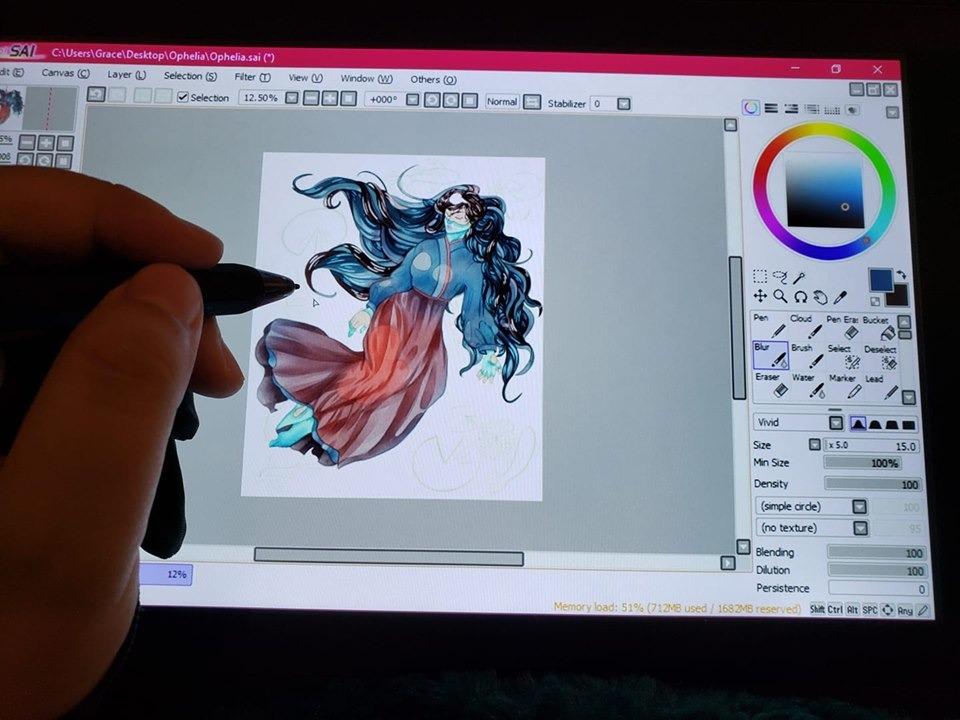
What gave this one the top slot is the accessory bundle. The box includes eight replacement nibs, a multi-function pen holder and a drawing glove, and the pen has an eraser on the tail end so you can flip it like a real pencil. Reviewers repeatedly call out that the screen looks vivid and that the pen feels closer to a pencil than a stylus, which is what we were judging it on.
It also runs on Linux, which is rarer than it should be in this category. The screen is not laminated, so the glass sits above the display and you will notice a small gap when you tilt the panel to look across a wide canvas. If you draw mostly facing straight on, that gap is invisible. If you work at a steep angle, the laminated picks further down this list handle it better.
What you get for your money here
It costs far less than a screenless professional pad, and the pen is in the box rather than sold as a separate purchase. That changes the maths for anyone working to a firm cap, because you are not budgeting extra for a stylus after the fact. Our broader drawing tablet roundup for digital artists covers what you get further up the range.
Where it falls short
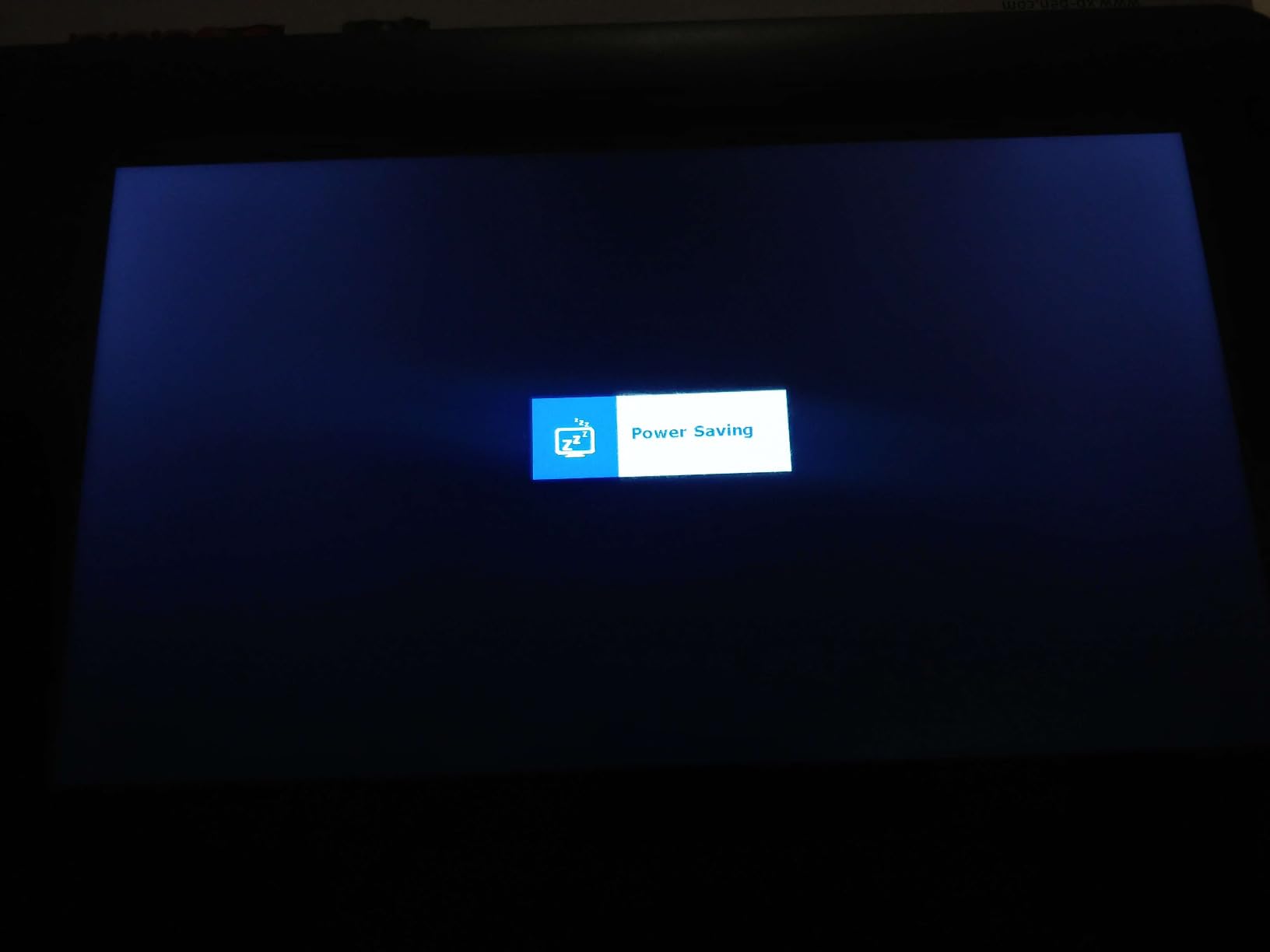
Cable management is the daily irritation. You need HDMI for video and USB for data, and many laptops now carry only one of each, so a small hub ends up in your bag. There are also a few reports of screen flickering or a blank panel that needed a driver reinstall, so keep the setup cable handy for the first week.
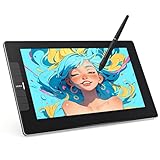
2. GAOMON PD1161 11.6 Inch: Best for a First Display Tablet on a Tight Budget
GAOMON PD1161 Drawing Tablet with Screen, Tilt, 8 Shortcut Keys, 11.6″ FHD
11.6 inch FHD IPS
8192 pressure with tilt
Battery-free AP50 stylus
8 programmable keys
1.9 lb
Pros
- 60 degree tilt support on a budget pen
- 8 programmable press keys plus 2 pen buttons
- Anti-glare matte film pre-installed
- Accessory bundle includes glove holder and 8 nibs
- Runs on Windows Mac and Linux
Cons
- Needs a computer and both HDMI and USB
- Non-laminated screen shows parallax
- No stand included in the box
The GAOMON PD1161 exists to solve one problem: giving a student a screen to draw on without a large outlay. The AP50 pen is battery-free and supports 60 degrees of tilt, so shading with the side of the nib behaves the way a tutorial shows it. That tilt support at this tier is the detail that separates this from a bare pen pad.
Eight programmable press keys run along one edge with two extra on the pen itself. During our line inking test those keys saved a lot of menu diving, because brush size and undo were one tap away rather than two buried taps. The pre-installed anti-glare matte film does more for drawing comfort than any hardware change at this tier, since gloss is what makes a screen feel slippery under a nib.
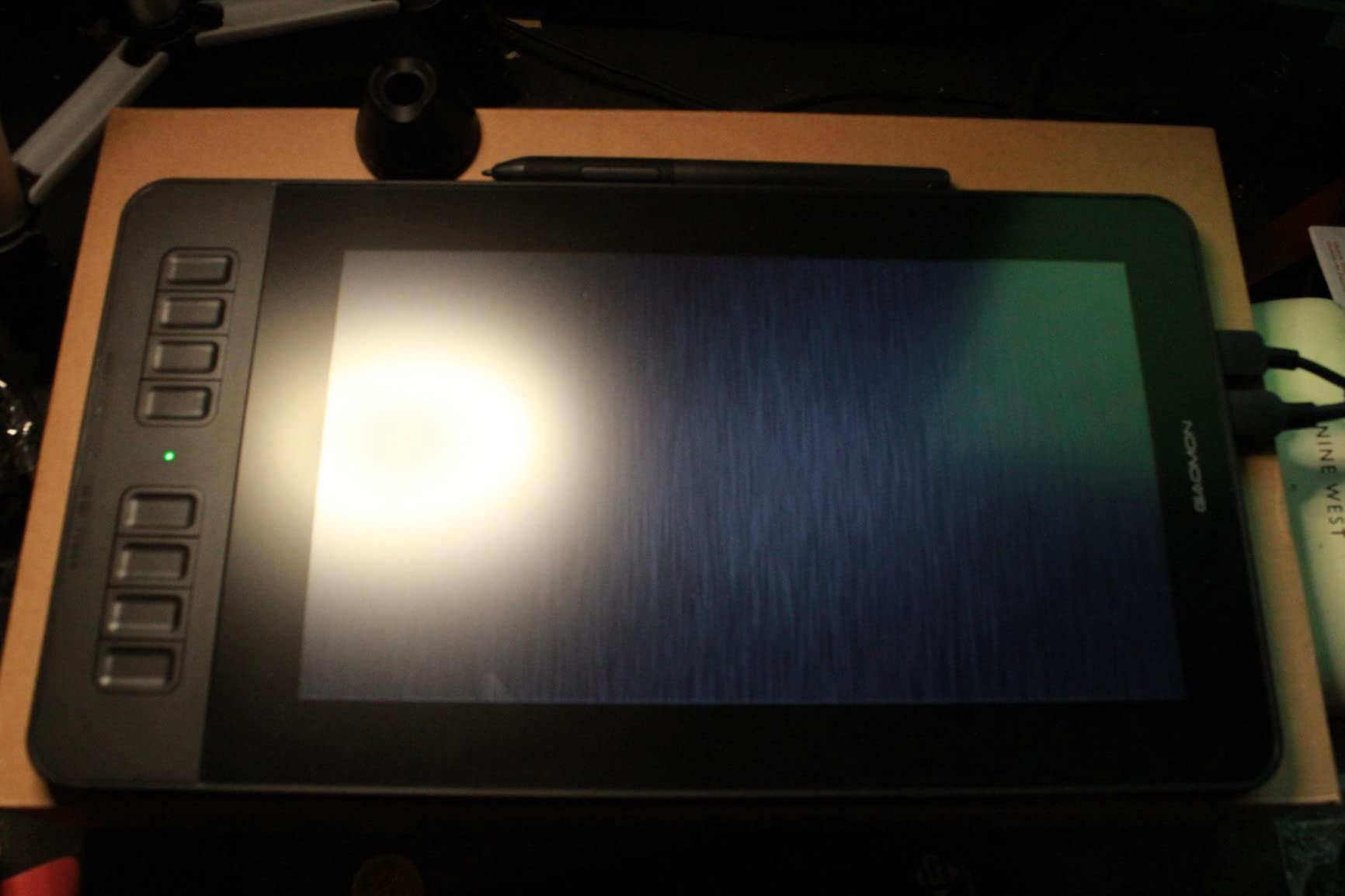
Color coverage matches the XP-PEN Artist12 at 72 percent NTSC, which is 100 percent sRGB. That is fine for illustration and concept work, and it is the honest limit of what a screen in this band can do. The tablet weighs 1.9 lb including the screen, so it is a desktop device rather than something you carry around.
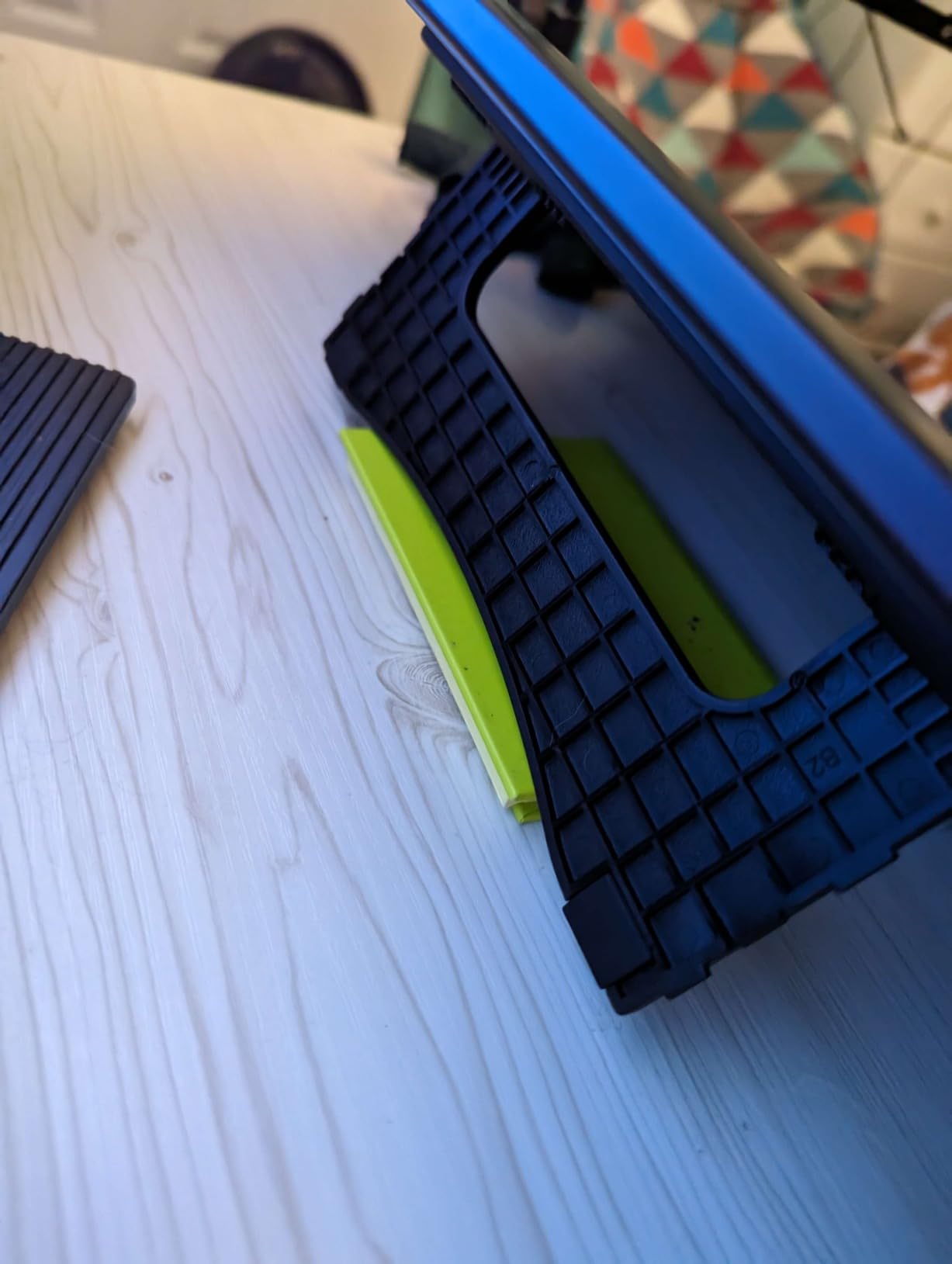
No stand comes in the box, which means you end up propping it on books or buying a cheap arm. A 3-in-2 cable, power adapter, glove and pen holder are included, so the only real extra cost is a way to hold it at the right angle. If you already own a monitor arm, that problem solves itself.
Who should buy this one
Anyone who has decided a screen tablet is right but does not want to make a large outlay to find out. Students frequently land here, and reviewers describe it as popular with beginners who are still working out whether digital art is for them. The key mapping and tilt make it a real tool, not a toy.
Who should look elsewhere
If you draw at an angle to the screen, the non-laminated glass will frustrate you, and if you have no computer to plug into, this is the wrong category entirely. Reviewers also mention occasional driver quirks. If your machine is older or runs an unusual Linux build, check compatibility before you commit.
3. XP-Pen Artist 13.3 Pro V2: The Pick With No Parallax and 16384 Pressure
XPPen Artist 13.3 Pro V2 Drawing Tablet with Screen, 16K, Full-Laminated
13.3 inch full-laminated FHD
16384 pressure levels
99 percent sRGB
Battery-free stylus
2 kg
Pros
- Full lamination removes almost all parallax
- 16384 pressure levels with 60 degree tilt
- 99 percent sRGB and 89 percent Adobe RGB
- Red dial plus 8 customizable keys
- Foldable stand and USB-C single cable included
Cons
- Fixed-angle stand is shallow for long sessions
- Needs a computer and often an HDMI adapter
- Calibration can reset after unplugging
This is the pick that changed how I draw. Full lamination bonds the glass to the display, so the nib appears exactly where it touches with no floating gap. When I tilted the XP-Pen Artist 13.3 Pro V2 back to reach the far corner of a wide canvas, the line stayed under the nib, and that single property is why laminated panels are worth paying more for.
Pressure registers at 16384 levels through the X3 Pro smart chip pen, double the resolution of the two picks above it. In practical terms you will not hit the ceiling, but you will notice the low end behaving more like a real brush, where a light touch stays a hairline instead of snapping to a mid-grey blob. The pen is battery-free and has a digital eraser on the tail.
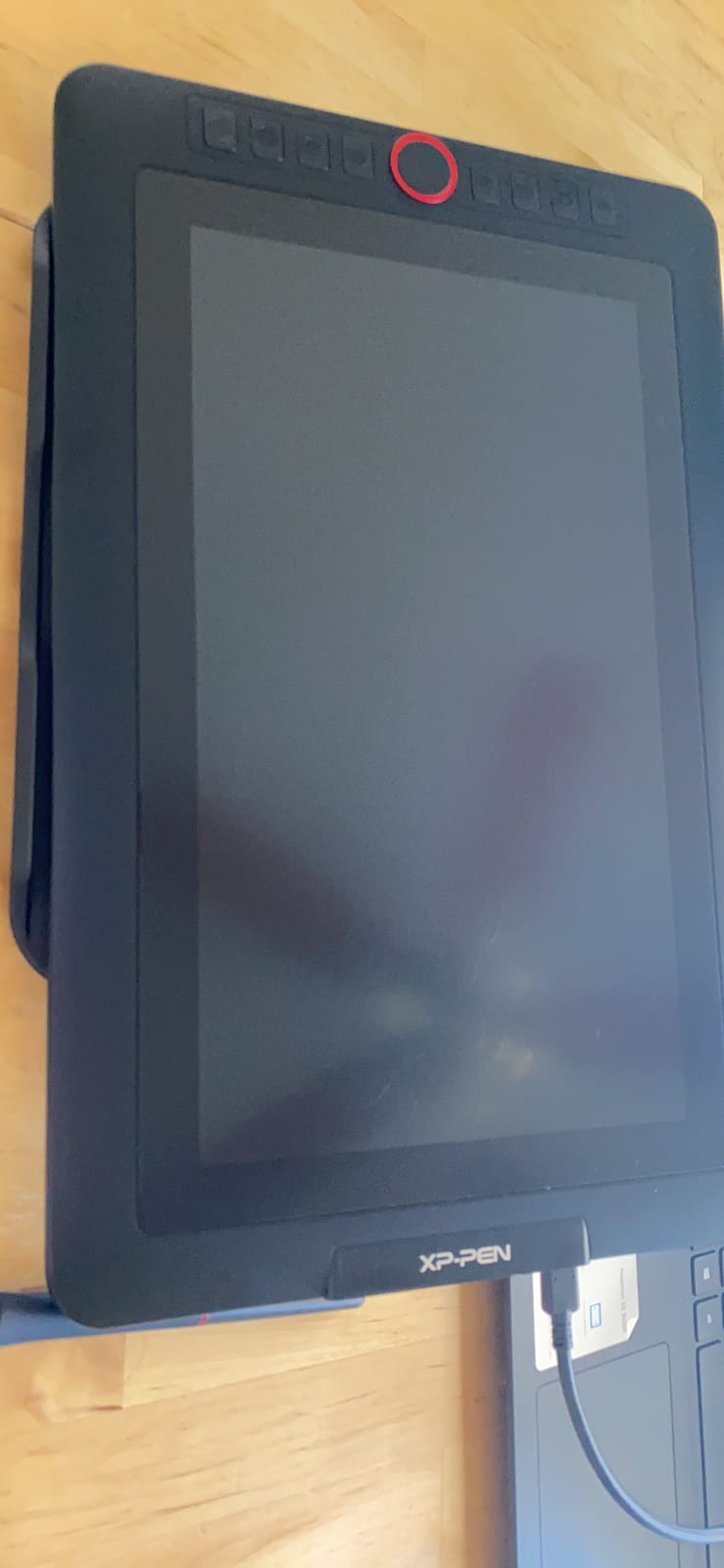
Color is the widest gamut in this roundup: 99 percent sRGB and 89 percent Adobe RGB. Reviewers working in Photoshop and Illustrator notice this when matching a brand palette, because the screen is not quietly shifting the hues they picked. A red dial and eight customizable shortcut keys handle zoom, brush switching and undo, and the dial also works as a scroll wheel.
It runs at 1920×1080 on a 13.3 inch panel, and a single full-featured USB-C cable carries both video and data, which removes one of the two cable problems that plague the cheaper options. A 3-in-1 cable, extension cord and power adapter are in the box alongside a foldable anti-slip stand. It works with Windows, macOS, Chrome OS, Linux and Android over DisplayPort.
Why the lamination matters so much
On a laminated screen the surface is flat, so a straight line drawn at an angle looks straight. On a non-laminated screen the same line bends, and the more you tilt the more it bends. Artists drawing comics and architectural linework feel that distortion immediately, and it is why this model earns our top-rated badge on drawing feel despite costing more than two others here.
What you compromise for it
At 2 kg this is a desk machine, and the included stand holds a fixed shallow angle that is fine for a couple of hours and tiring beyond that. Pen button placement is close enough to the grip that some reviewers register accidental clicks. A few also report needing to recalibrate after unplugging, which is a five-second fix once you know it happens.
4. HUION Kamvas 13 Gen 3: Best Value for a Calibrated Screen
HUION Kamvas 13 (Gen 3) Drawing Tablet with Screen 16K Pressure PenTech 4.0
13.3 inch laminated glass
16384 pressure at 2g activation
Delta E under 1.5 factory calibrated
865 g
11.7 mm thin
Pros
- Canvas Glass 2.0 nano-etching gives a paper-like grip
- Factory color calibration under Delta E 1.5 with a certificate
- Dual dials and 5 silent press keys
- Supports USB-C to USB-C single cable
- Symmetrical body works for either hand
Cons
- Needs a computer connected
- No stand is listed in the box
- Textured surface wears nibs faster
The Kamvas 13 Gen 3 is the one I recommend when someone cares about color accuracy but not about owning a Wacom. Huion calibrates each unit in the factory and ships a certificate, with a Delta E under 1.5, meaning the average color error is close to invisible. For an artist matching client brand colors or printing work, that certificate is worth more than a faster chip.
The Canvas Glass 2.0 surface is nano-etched rather than covered with a film, so the texture is part of the glass. That is a real upgrade from a plastic protector because it will not scratch, bubble or peel, and it gives the nib a subtle drag that makes lines easier to control. The trade-off is that a textured surface wears pen nibs faster than smooth glass, so keep the spares nearby.

PenTech 4.0 registers 16384 pressure levels and activates at 2 g, which means the lightest touch still draws. Tilt auto-alignment corrects the reported angle to 60 degrees so shading behaves consistently. Two dials and five silent press keys handle most workflow needs, and the silent switches are a genuine improvement in a shared studio where a clicky dial is an irritation.
At 11.7 mm thin and 865 g it is the lightest of the connected display tablets here, so it moves easily between a desk and a sofa. USB-C to USB-C means one cable can drive it from a modern laptop. It runs on Windows, macOS, Linux and Android over USB 3.1 DisplayPort 1.2, and PenTech 4.0 is the step up from the earlier generation.
Who this suits best
Illustrators doing client work, colorists learning the trade, and students whose school provides calibrated reference output. The dual dials and silent keys also make it a good pick for anyone who uses Photoshop touch-ups alongside line art, since the dials map to zoom and opacity without menu trips. It is also the one pick here with a body shaped symmetrically so either hand sits in the same place.
Who should skip it
Anyone without a computer, since it is a connected display tablet with no onboard processor. A stand is not listed in the box, so budget for an adjustable one if you care about posture. If you draw heavily on cheap paper-texture nibs, factor nib replacement into your running cost.
5. PicassoTab X11 11 Inch: Best Standalone Tablet for a First Digital Project
11″ Standalone Drawing Tablet, Portable PicassoTab, No Computer Needed -X11
11 inch 2560x1440 laminated
Stands alone with no computer
4096 pressure levels
6GB RAM and 128GB storage
Wi-Fi
Pros
- Works with no computer at all
- 2560x1440 laminated paper-like display
- Five creative apps preloaded with lifetime upgrades
- Case glove adapter and protector included
- Storage expands to 1TB
Cons
- Stylus reliability issues reported on some models
- Ghost touching and slow performance reported
- Pen takes AAAA batteries
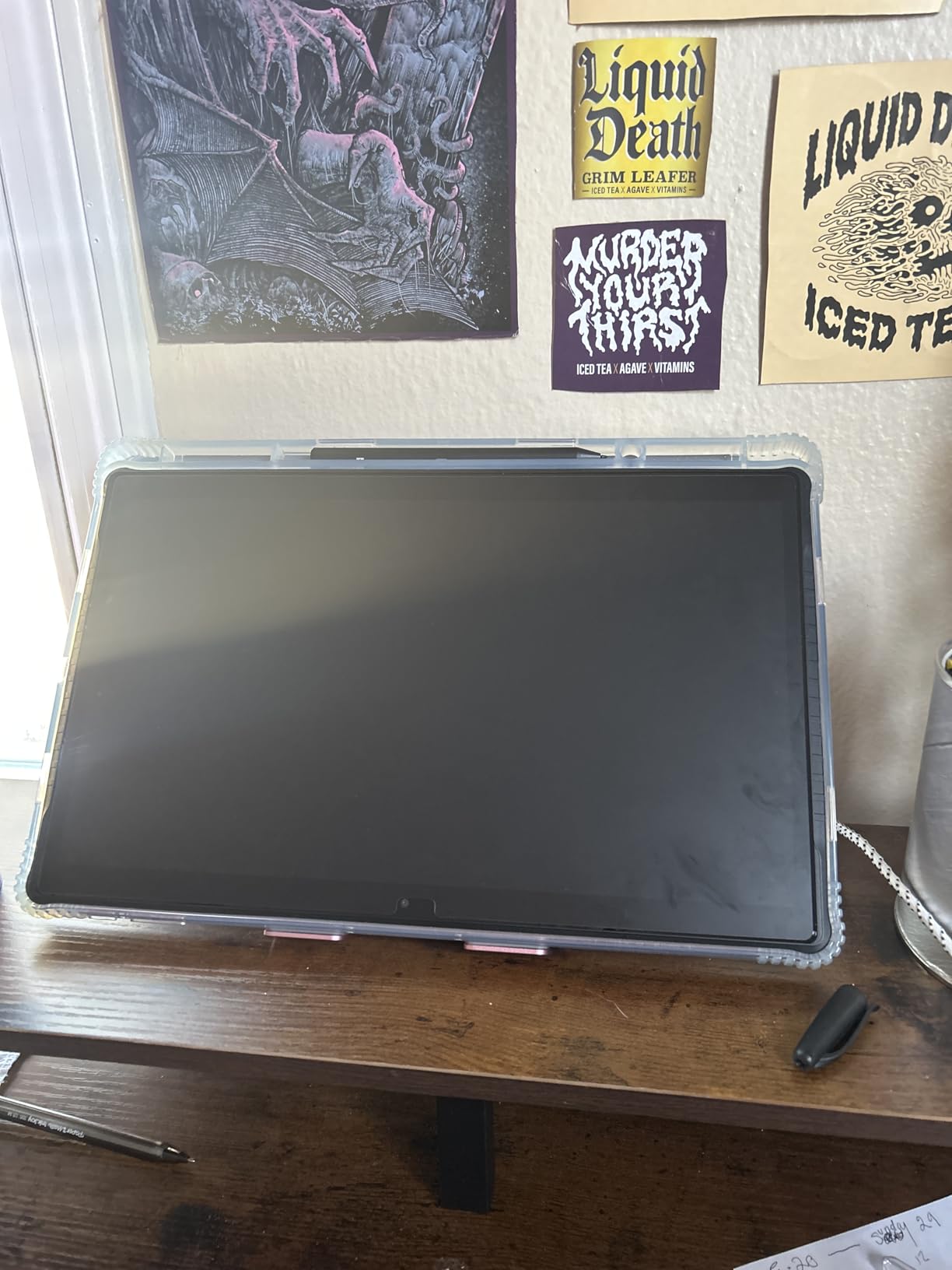
The PicassoTab X11 is a genuine standalone: open the case, launch an app and draw, with no computer anywhere in the process. For a student starting a course assignment on a sofa, that removes a common reason people give up on digital art. The laminated 2560×1440 display is sharper than the connected tablets in this list, which is a surprise at this level.
Five creative apps come preloaded, and two of them, Concepts Pro and Artixo VIP, are lifetime upgrades rather than trials. That matters when you are budgeting a course, because you are not paying a subscription in month four. Six GB of RAM and 128 GB of storage handle a large canvas without the stutter that low-memory Android slates show, and storage expands to 1TB.
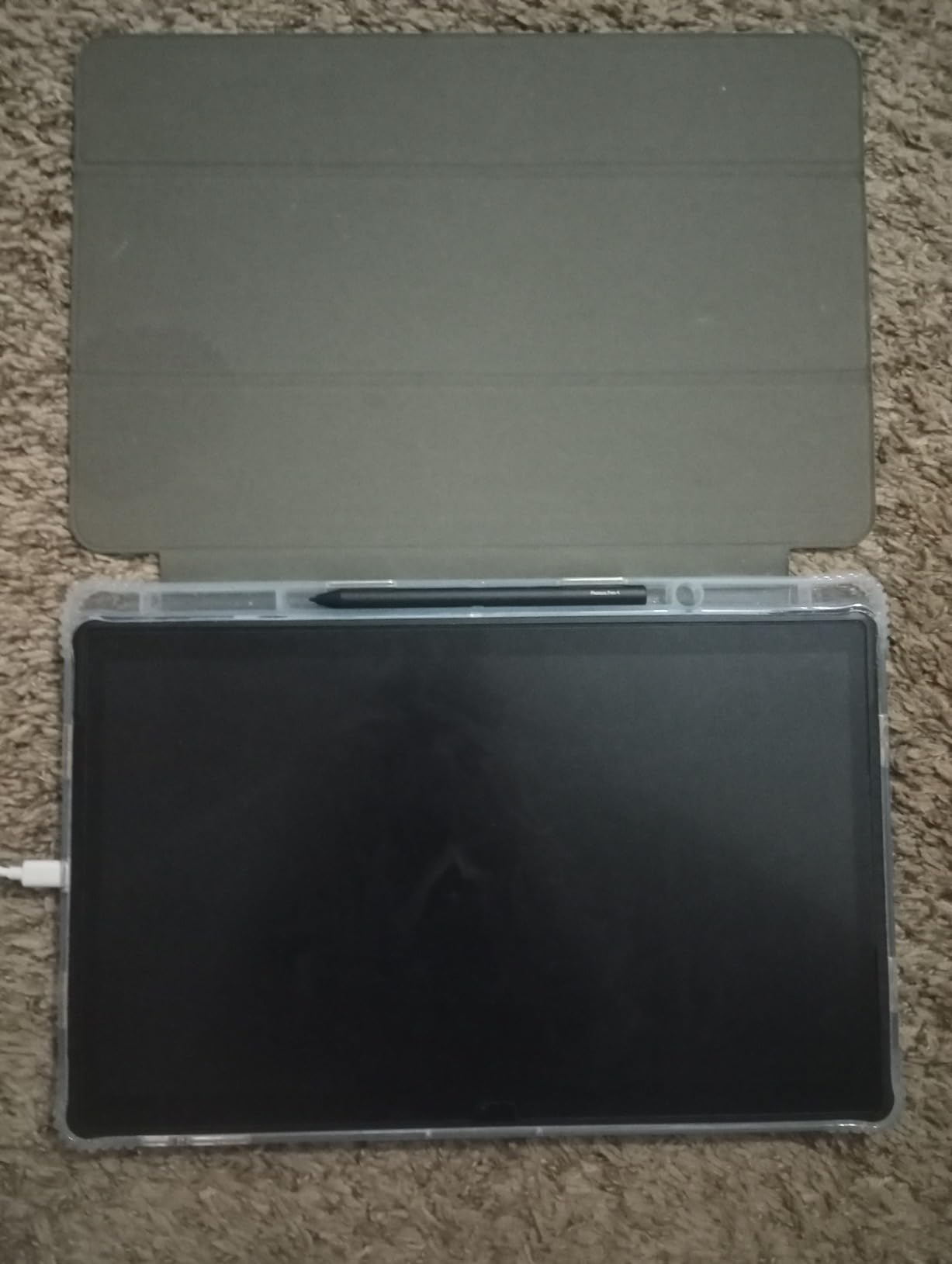
It runs a custom Android-based graphics operating system rather than a full tablet interface, so you get a focused drawing environment with no notification tray pulling at your attention. Reviewers praise the customer service and warranty replacements, and several mention tutorials that made the first hour much less intimidating. A case, glove, power adapter and screen protector are all in the box.
The trade-off is real. Reviewers report stylus disconnections on some models that need a tap to wake, ghost touches where the screen registers input you did not make, and performance that feels slower than the spec sheet suggests. The pen also takes AAAA batteries, which is a step backwards from the battery-free pens on most of the other picks here.
Best for a self-taught first year
If you are learning alone with tutorials, the bundled apps and lifetime upgrades remove both the cost and the search problem. The high-resolution laminated screen also means you are not learning to draw on a compromised display and then re-learning once you upgrade. Students who want notes in the same device may find the stripped-back OS limiting, since it is built for drawing rather than coursework.
Where it frustrates people
The stylus complaints are the reason this is not higher. If you are on a hard deadline, an unreliable pen costs more time than it saves. Reviews also mention software bugs and that the included glove often runs large, which matters if you draw with the other hand and need to keep a palm off the screen. Test the pen on day one so you can deal with any problem while returns are straightforward.
6. HUION Kamvas Slate 11 10.95 Inch: Best Standalone for Android Artists
HUION KAMVAS Slate 11 Standalone Drawing Tablet No Computer Needed, 10.95″
10.95 inch 1920x1200 at 90Hz
Full-laminated nano-etched glass
Android 14 with 8GB RAM
8000mAh battery
510 g
Pros
- True Android 14 tablet with the Play Store
- 90Hz refresh rate keeps lines smooth
- Full-laminated anti-glare nano-etched screen
- 8000mAh battery covers a full working day
- Clip Studio Paint and ibisPaint X preloaded
Cons
- Some reviewers report pen pressure faults needing replacement
- Not a good choice for an absolute beginner
- Case design makes the pen awkward to remove
The Kamvas Slate 11 runs full Android 14 with the Google Play Store, which separates it from tablets locked to a custom drawing shell. That means you can install any app, stream reference material, and work the way you would on a small laptop. At 510 g it sits alongside the two other portable standalones here and is easy to hold for a long session.
The 90Hz refresh rate is the feature that changes the drawing feel. Most budget screens run at 60Hz, where a fast stroke can look slightly stepped as the display catches up. At 90Hz the line keeps up with your hand, and reviewers who switched from a 60Hz Android slate noticed the difference immediately in ink work. The laminated nano-etched surface is both anti-glare and paper-like.
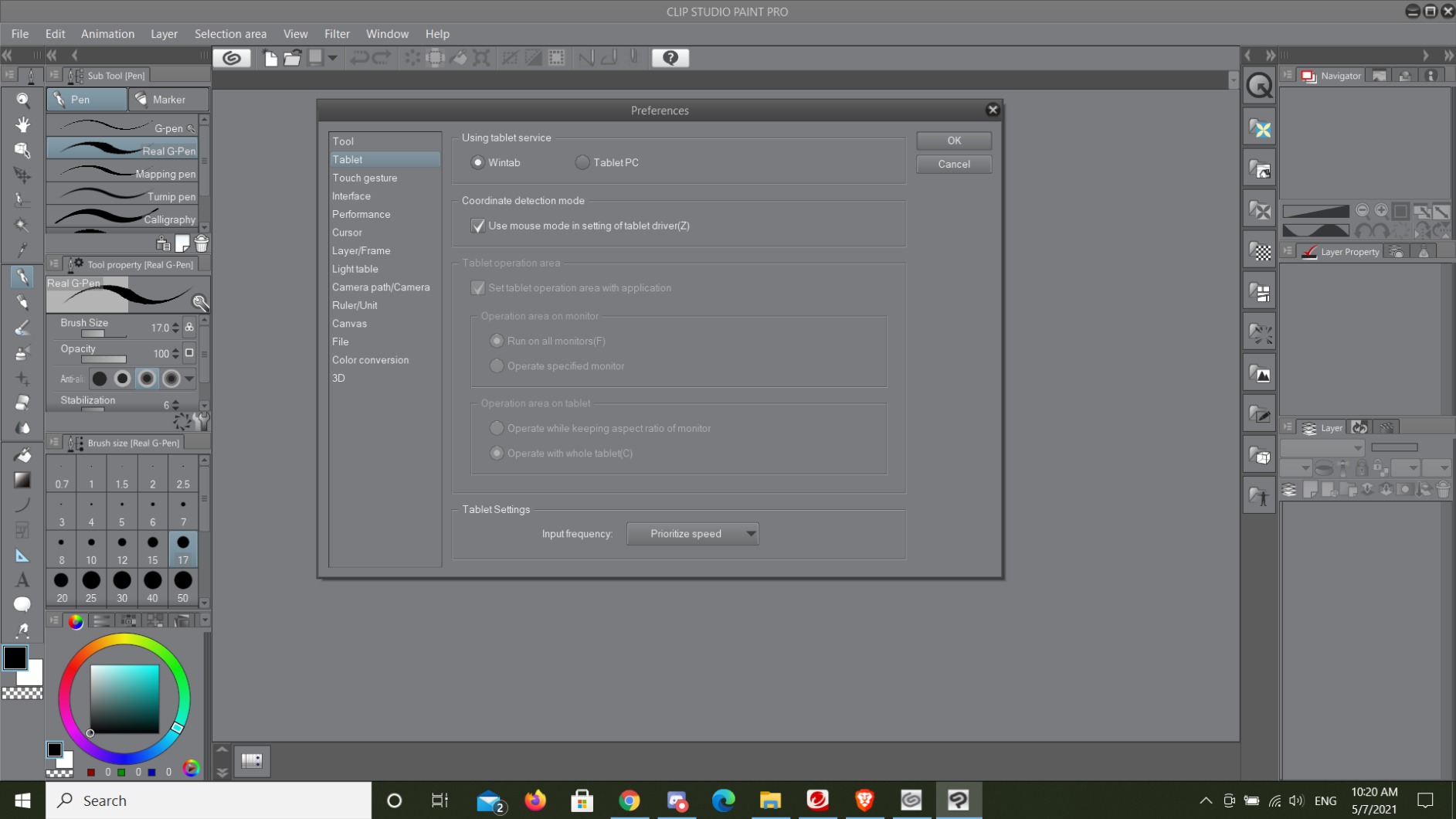
Clip Studio Paint and ibisPaint X come preloaded with three months free, and an 8-core CPU with 8 GB of RAM handles large canvases and multi-layer files better than the 4 GB slates further down. An 8000mAh battery covers a full day of drawing, and front and rear cameras let you photograph reference and check your composition without a second device.
Pressure registers at 4096 levels with 60 degrees of tilt through the H-Pencil. That is below the 8192 and 16384-level pens above, and it shows in the very lightest brush marks, though for illustration and sketching it is more than enough. A leather case and a palm rejection glove are included, and the screen could be brighter outdoors.
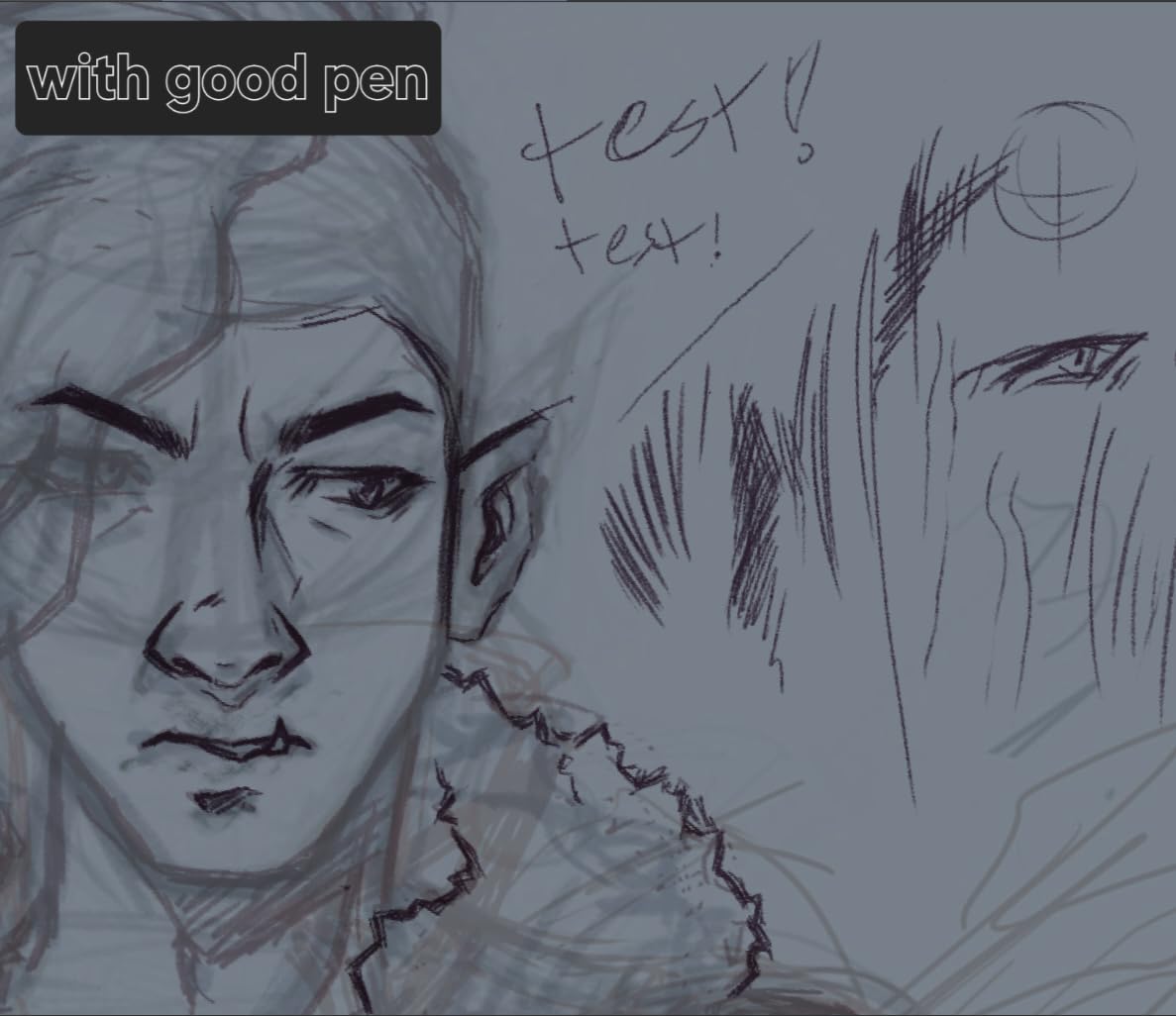
Best for an artist who wants real apps
If you already work in Clip Studio Paint, ibisPaint, Infinite Painter or Krita, this is the pick. The Play Store means app updates arrive normally, and expandable storage to 1TB means a big illustration library does not force constant cleanup. The dual touch and pen layer detection is the main thing to get used to, and most people adapt within a session.
Who should pass
Absolute beginners, because reviewers consistently flag the learning curve and the per-app pressure settings as steep. There are also reports of pen pressure faults on some models that needed a warranty replacement, so this is one to buy from a seller with an easy return process. If your heart is set on Procreate, note that it is not available on Android at any price.
7. XPPen Magic Drawing Pad 12.2 Inch: Best Standalone With a 3:2 Paper Canvas
XPPen Magic Drawing Pad 12.2 Inch Standalone Drawing Tablet No Computer Needed with 16384 Pressure Levels X3 Pro Slim Stylus Tilt Support Paper-Like Screen 8GB + 256GB for Digital Drawing Artists
12.2 inch 2160x1440 AG-etched at 3:2
16384 pressure with no charging
Android 14 with 8GB and 256GB
13 hours of drawing
6.9 mm thin
Pros
- 16384 pressure stylus that never needs charging
- 3:2 aspect ratio matches a paper canvas
- AG-etched matte surface with 97 percent sRGB
- 599g and 6.9mm thin for real portability
- Three months of Clip Studio Paint included
Cons
- Android drawing apps trail iPadOS
- No headphone jack
- Locked on Android 14 with some preinstalled bloatware
The 3:2 aspect ratio is the detail that made me keep drawing on the XPPen Magic Drawing Pad. Most of the connected tablets here are 16:9, which is a screen shape, not a paper shape. A 3:2 canvas means a page of A-series proportions sits on the screen without letterboxing, and if you draw characters or layouts, that changes how you compose before you even start.
The X3 Pro Slim stylus reports 16384 pressure levels and 60 degrees of tilt and never needs charging, which puts it level with the 16384-level connected pens above. The AG-etched matte surface is genuinely paper-like without the sparkle problem some anti-glare films create, and the display is TUV Rheinland certified for eye comfort with 10-step soft light for evening work.
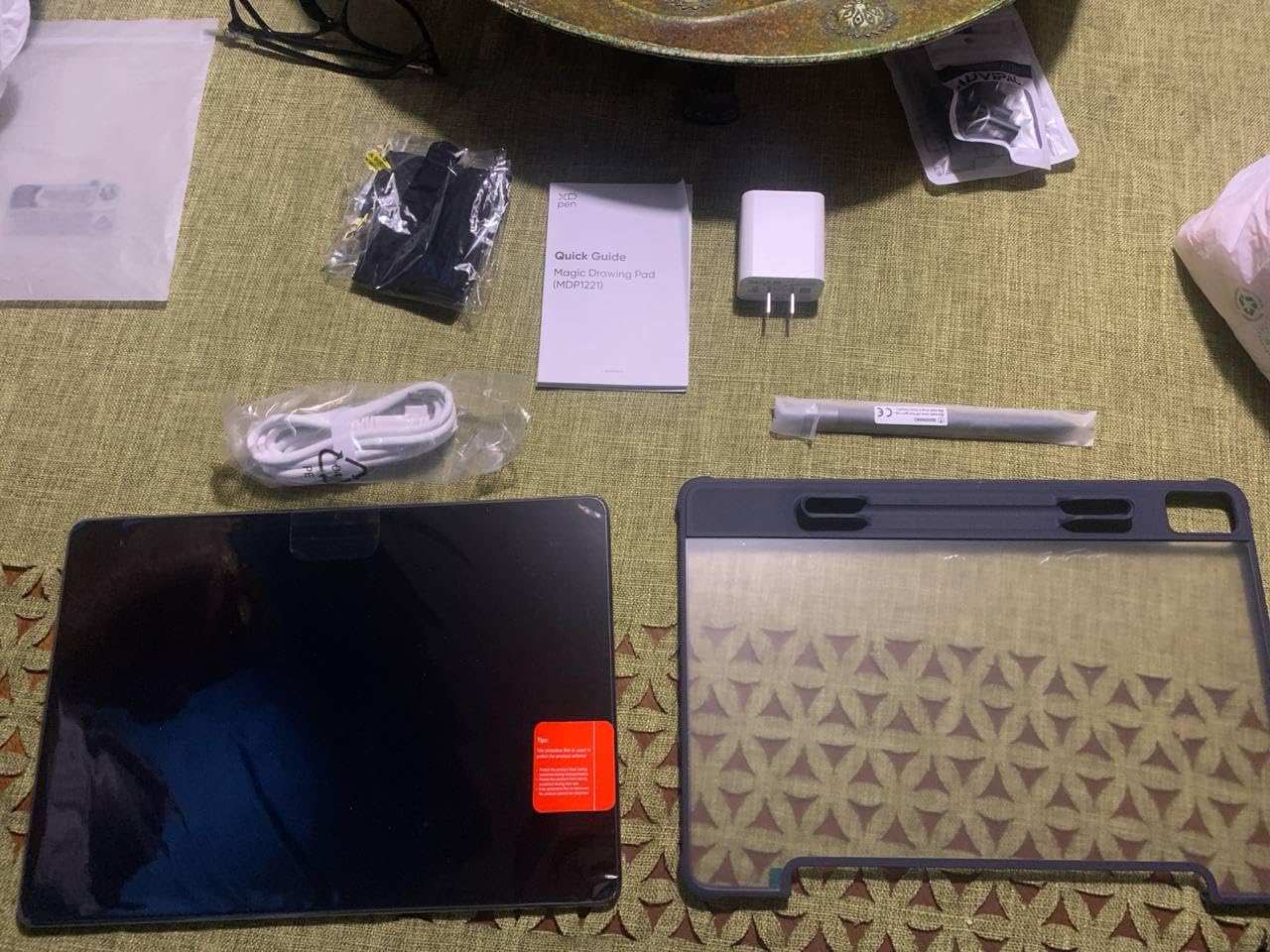
It runs Android 14 with full Google Play access, 8 GB of RAM and 256 GB of storage that expands to 1TB via microSD. The 8000mAh battery is rated at 13 hours of drawing, which comfortably covers a day at a convention or a long train journey. At 599 g and 6.9 mm it disappears into a bag, and the included case doubles as a stand and pen holder.
The honest limitation is the app ecosystem. Reviewers are clear that Android drawing apps are less mature than iPadOS, and Clip Studio Paint major updates only support a few recent Android versions, so you can fall behind on features. There is no headphone jack, some preinstalled bloatware needs removing, and a few reviewers report boot-loop failures, so keep your files synced.
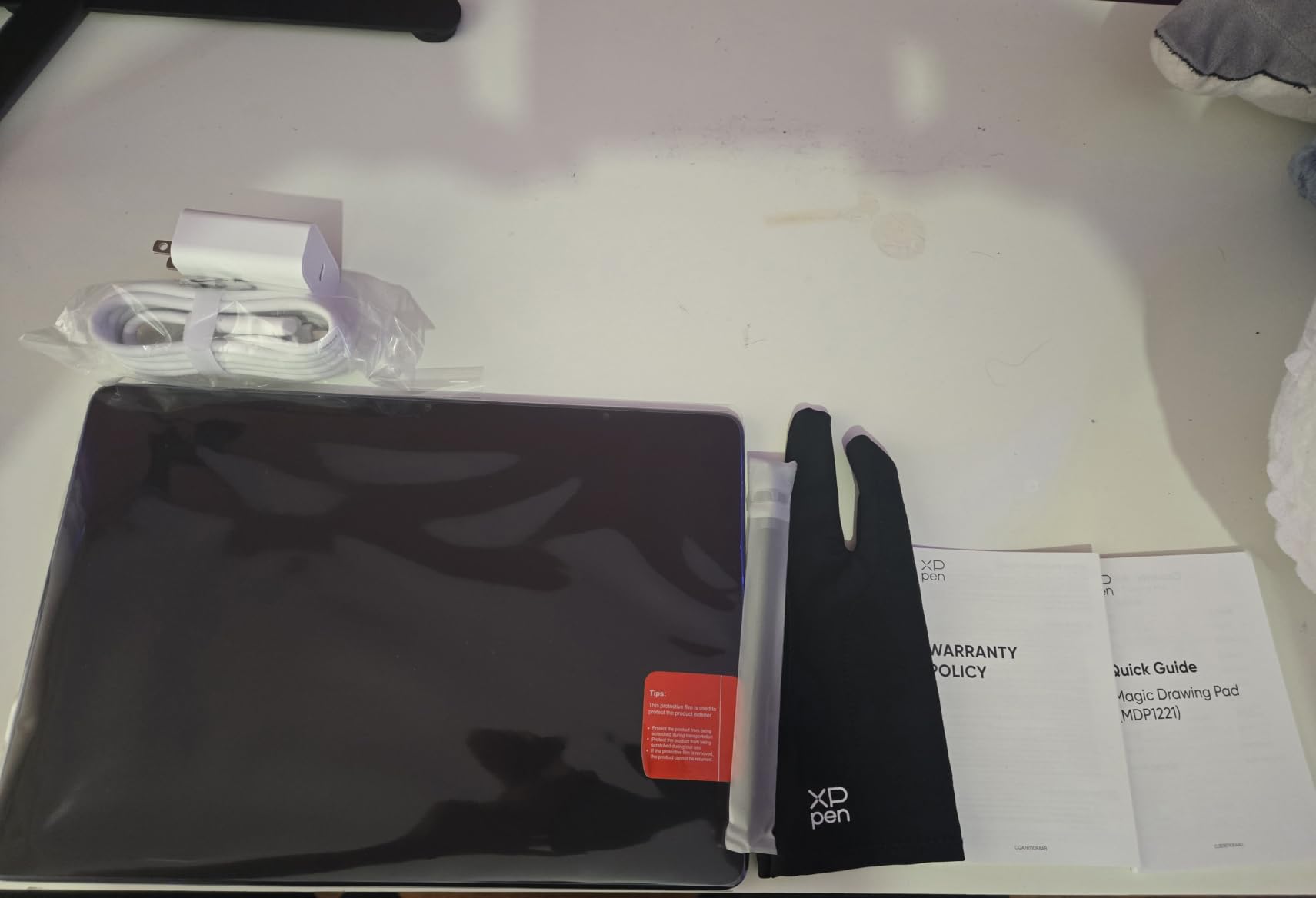
Best for someone building a travel sketchbook
Weight and battery decide this category, and at 599 g with a 13-hour rating it is the one we would grab for drawing on the move. The matte surface means it works in a bright train or a cafe without reflections, and the 3:2 ratio suits quick figure studies and layout thumbnails. Dual window multitasking lets you keep a reference image beside your canvas.
Who should choose differently
If Procreate is non-negotiable, no Android tablet works and you need the iPad route instead. Reviewers also flag the floating pen on-screen icon as a persistent annoyance and note that the keyboard accessory has connection problems, so do not plan around it. If you draw with very heavy textured brushes, the 8 GB of RAM is adequate but not generous.
8. Frunsi RubensTab T11 Pro 10.1 Inch: Best for Casual Sketching With Ports
Frunsi RubensTab T11 Pro standalone Drawing Tablet
10.1 inch 1920x1200 IPS
Stands alone on Android 12
1024 pressure levels
5800mAh battery
MicroSD and HDMI
Pros
- Full set of ports including HDMI and a microSD slot
- Adjustable stand case included in the box
- Battery-free pressure pen with spare nibs
- Protective glass cover already applied
- Customer service reported as responsive
Cons
- Only 1024 pressure levels for line variation
- Android 12 is an older release
- About 5 hours of battery life
- Stylus tip reported to wobble
The RubensTab T11 Pro is defined by its ports. It has HDMI, USB-C, a headphone jack and a microSD slot, which is more connectivity than the other standalones here. If you want to show a drawing on a TV, attach a keyboard, or expand storage without cloud storage, this is the one that can do all three out of the box.
It runs Android 12 as a full standalone tablet, with a preinstalled Sketchbook app and tutorials, and the battery holds its charge well between charges. A protective glass cover is pre-applied, the adjustable stand case is included, and the pen is battery-free with spare nibs in the box. Reviewers frequently mention the customer service, particularly for warranty replacements.
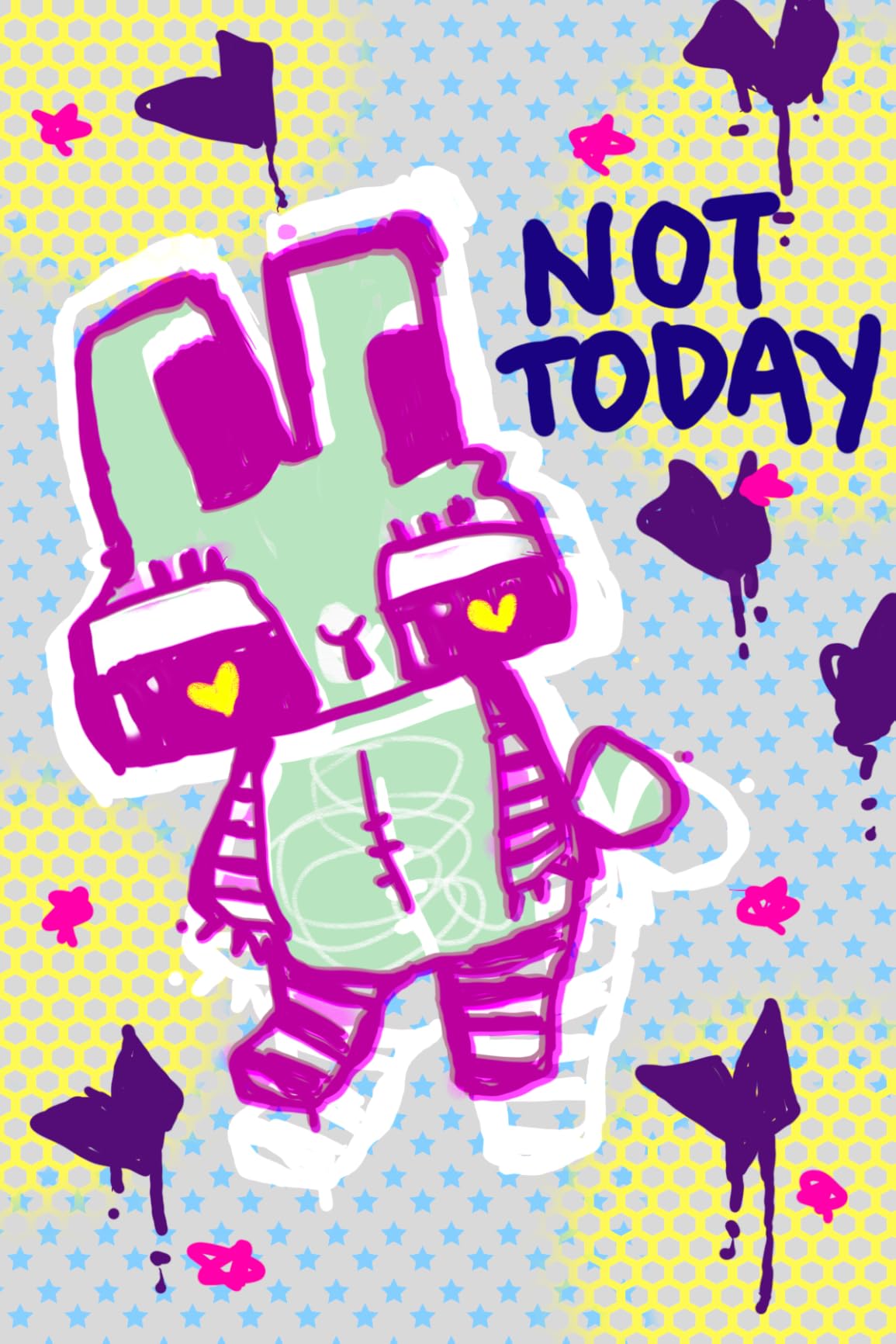
Pressure registers at 1024 levels, the lowest count here, and that is visible in a real test rather than on a spec sheet. Our soft brush stroke on the T11 Pro broke into distinct steps in a way it did not on the Artist12 or the Kamvas, because the app is rounding the input into coarse increments.
Line work is fine. Shading gradients are where you will feel the limit. Reviewers also report the stylus tip wobbling and occasionally missing an input, and the pen takes a battery despite listings that describe it as battery-free. Android 12 is two generations behind, which means some apps will not install or will not receive updates. For a hobbyist sketching on the sofa, none of that matters.

Good for a hobbyist who is not chasing realism
Character doodles, thumbnails, comic ideas and casual digital sketching all run fine on this. The bigger screen than the 8 inch model helps with composition, and the included stand means you are not working propped against a cushion. Students who need to present work and want a headphone jack without an adapter will appreciate the full port set.
Where the limits bite
Any serious illustration with gradual shading, and any professional software that requires a current Android version. The 1024-level pen is the deciding factor: reviewers call it fine for beginners and casual use and unsuitable for serious art. A keyboard attachment slot exists on the case, but the accessory itself is not available, so do not plan a laptop-style workflow around it.
9. Frunsi RubensTab T8 8 Inch: The Smallest Standalone Pick
Frunsi T8 Standalone Drawing Tablet 8inch Drawing Tablet No Computer Needed
8 inch 1200x800 display
Stands alone on Android 13
2048 pressure levels
4000mAh battery
2 year warranty
Pros
- Smallest tablet on this list
- 2048 pressure levels beat the T11 Pro
- Android 13 is a newer release
- Detachable keyboard included in the box
- 2 year warranty included
Cons
- 1200x800 resolution is low for detailed work
- Only 4GB RAM and 64GB storage
- Quad-core chip is weak for heavy apps
- 8 inch canvas feels cramped
The RubensTab T8 is the most compact tablet in the roundup and the one we end up carrying most. At 8 inches it fits in a jacket pocket alongside a phone, and it runs standalone on Android 13 with SketchBook, ArtFlow and ibisPaint X preloaded along with tutorials. For a daily sketch habit, a device you actually take with you beats a better tablet that stays on a desk.
Pressure registers at 2048 levels, double the T11 Pro and enough to see a soft gradient on screen. It is still well below the top picks, and you will feel the ceiling if you push the brush opacity down.
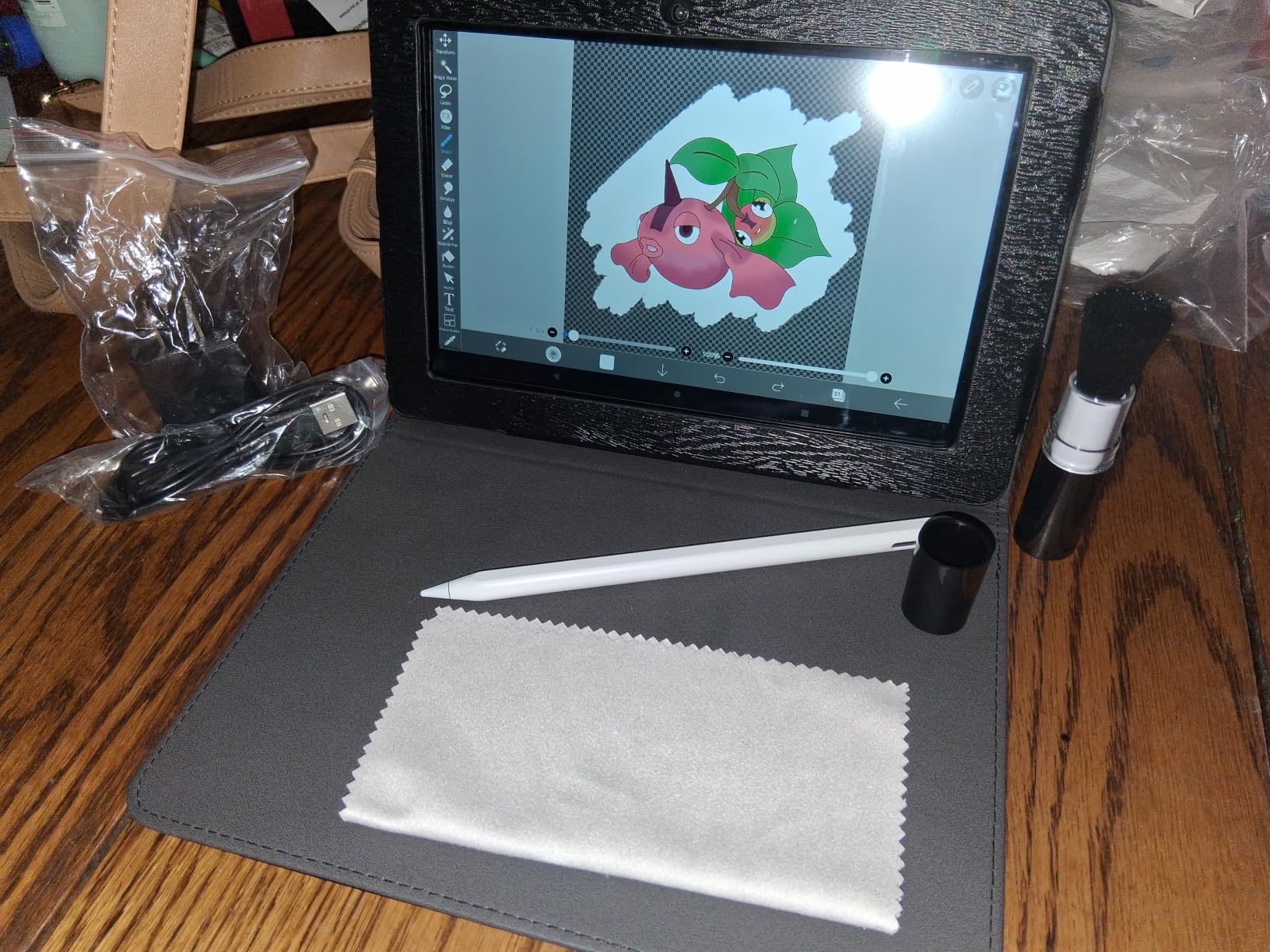
The battery is rated at up to 20 hours of drawing, though we would plan on less for real sessions. Storage expands to 256GB, Wi-Fi is built in, and a stylus, screen protector and cloth come in the box. A detachable keyboard is also included, which is unusual at this size, and the warranty runs 2 years, double the 1-year cover on most of the other picks here.
The keyboard turns it into a small writing machine for notes, which helps a student who wants one device for class and for sketching in the margins.
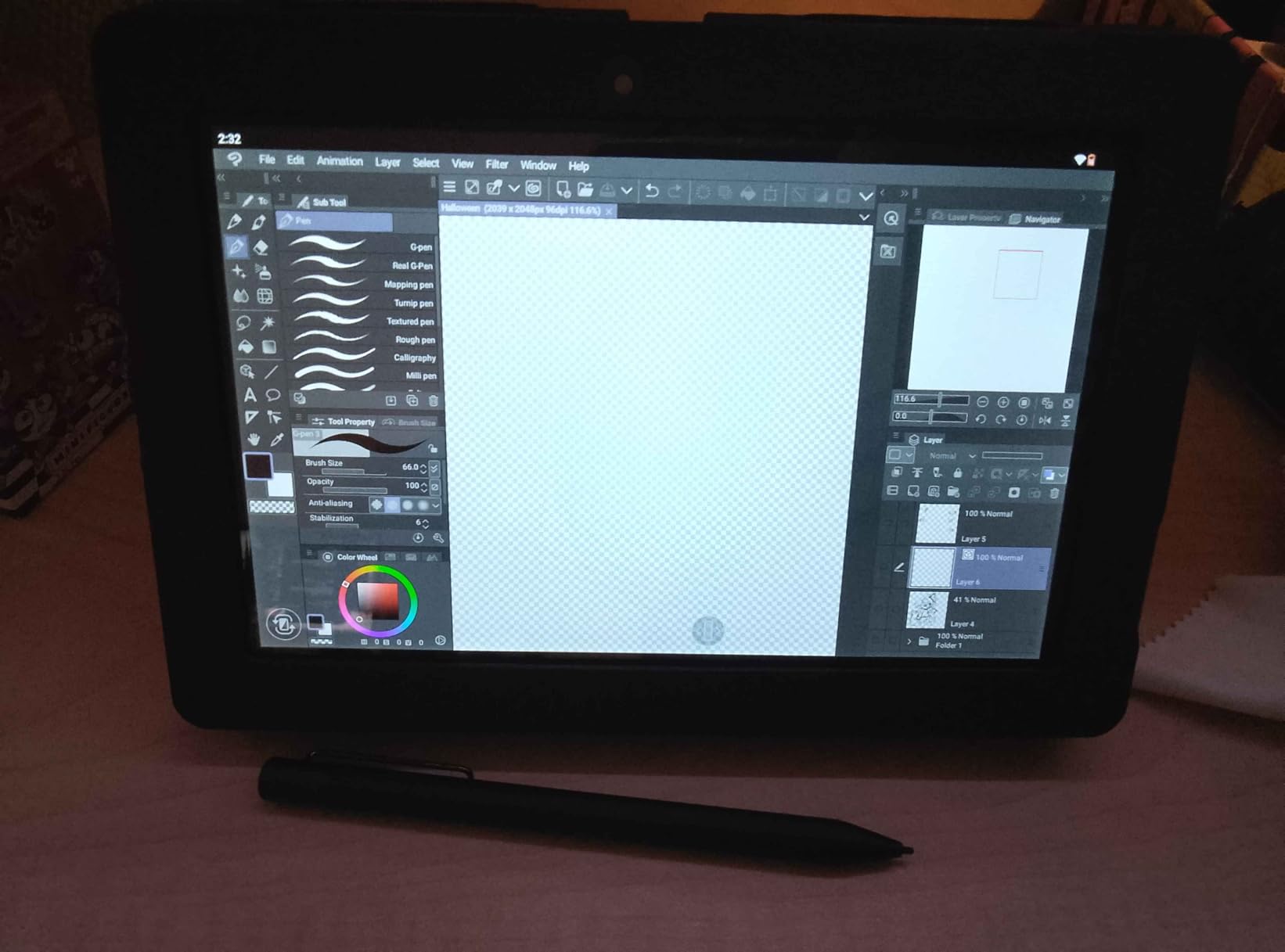
The 1200×800 resolution is the honest weakness. That is below full HD, and on a panel with a matte protector the effective detail drops further, so fine line detail looks soft next to the other picks. The quad-core MediaTek chip and 4 GB of RAM will struggle with a large multi-layer file or a heavy brush set.
Best for a daily sketch habit
Thumbnailing ideas on a commute, sketching characters in a lecture, or giving a child their first drawing device. The small size removes the excuse of not wanting to carry a bigger tablet, and the keyboard turns it into a usable note-taking device for the same money. Reviewers also point out the newer Android release as a step up from the T11 Pro.
Where it is the wrong tool
Detailed illustration, comic inking or any work that depends on seeing fine line weight. The 8 inch canvas is genuinely cramped for a full page composition, and 4 GB of RAM is the level where large canvases begin to stutter. If your drawings are more than thumbnail-sized, the XP-PEN Artist12 gives you a much bigger canvas for a similar outlay, provided you own a computer.
10. Wacom Intuos Pro Medium: Best for a Professional Screenless Workflow
Wacom Intuos Pro Medium, Bluetooth Graphic Drawing Tablet with ProPen 3
Screenless pen tablet
Pro Pen 3 at 8192 pressure
5080 LPI pen resolution
10 ExpressKeys and 2 dials
Bluetooth
Pros
- Pro Pen 3 with interchangeable grips and balance weights
- 5080 LPI pen resolution for precise lines
- 10 ExpressKeys plus 2 mechanical dials
- 4mm thin magnesium body
- Bluetooth plus USB connectivity
Cons
- No screen so you look away from the nib
- Learning curve for hand-eye coordination
- Costs more than screen tablets here
The Intuos Pro Medium is the professional standard for a reason that has nothing to do with a display: the pen. The Pro Pen 3 supports 8192 pressure levels, tilt and lag-free tracking at 5080 LPI pen resolution, and it accepts interchangeable grips in slim, straight and flared shapes with adjustable balance weight and button layout. You can set the pen up to feel like the one you already know.
Ten customizable ExpressKeys and two mechanical dials handle zoom, brush size, rotation and undo without touching the keyboard. The 8.7 by 5.8 inch active area is formatted 16:9 to match a wide monitor, and the body is 4 mm at its thinnest in magnesium. Reviewers who upgrade from an older Intuos notice the lighter body and the Bluetooth option immediately.
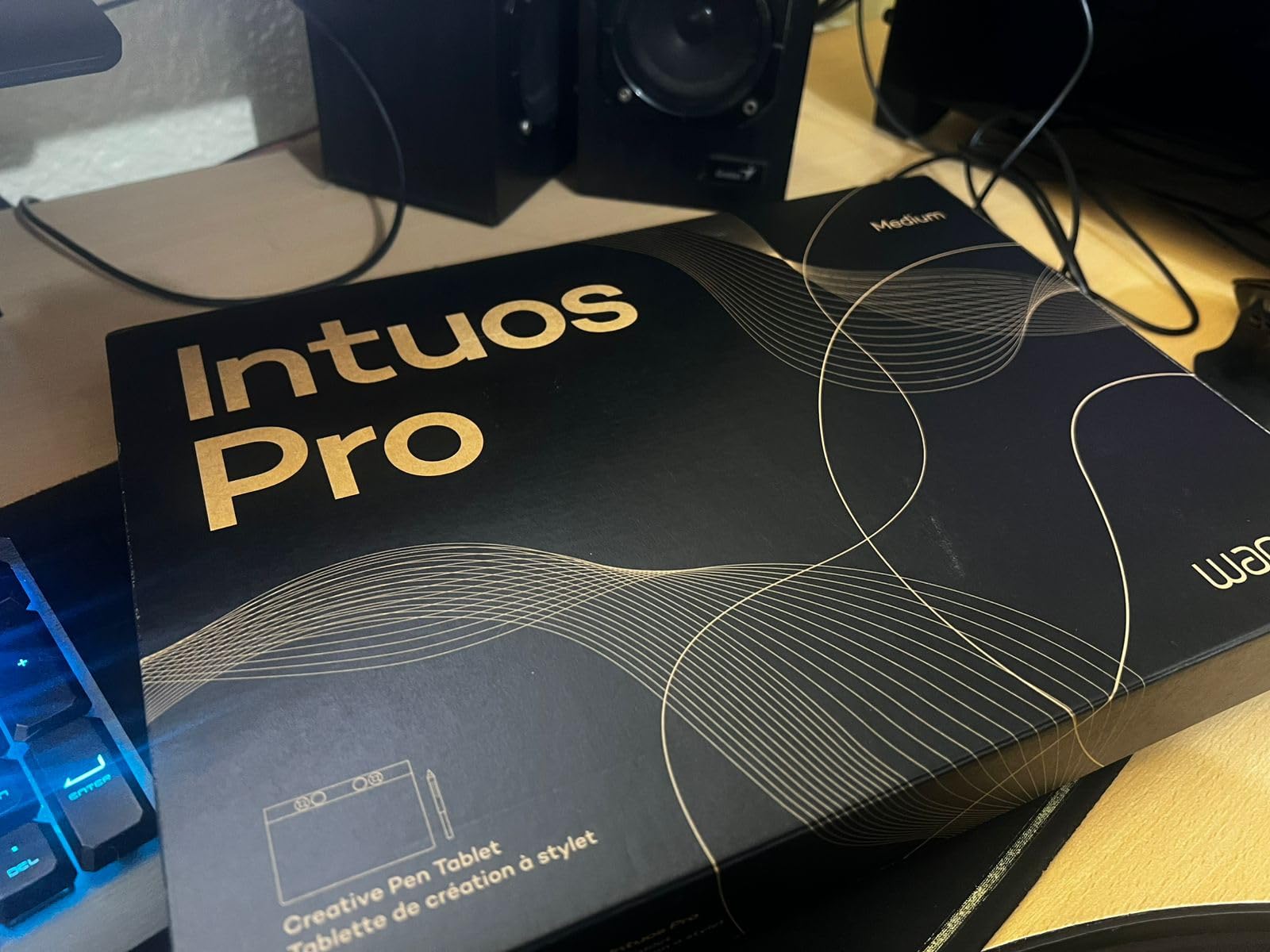
Because there is no screen, there is no parallax, no glare, no color drift and no display to fail. On a screenless pad your line is exactly where your hand says it is, every time. The pen stand, nibs, nib tool, cables, adapters, grips, weights and button covers are all in the box, and the warranty runs 2 years.
You will be looking at your monitor, not your hand, and that takes practice. If you have never worked screenless, expect a few days where your line work is worse than it was on a display tablet. If you already draw that way, nothing in this list will improve on it.
Best for a studio workflow that needs shortcuts
Ten ExpressKeys and two mechanical dials gives you more control surface than any other pick here, and for long studio sessions it removes a lot of keyboard travel. The 16:9 format suits a wide monitor without wasted desk space, and Bluetooth means no cable across the desk. If you already own a Wacom and like the feel, the driver support is the most settled on this list.
Who should not buy it
Beginners who learn by watching their hand, and anyone whose art depends on judging color on a calibrated screen. It also costs more than several screen tablets here despite having no display, which is hard to justify if you are still deciding whether digital art is for you. If your pen ever dies, replacement is a real cost worth thinking about before you commit.
11. Wacom MovinkPad 11 11.45 Inch: Etched Glass and the Pro Pen 3 Slim
Wacom MovinkPad 11, Android Mobile Drawing Tablet, with Pro Pen 3
11.45 inch 2200x1440 etched glass
Pro Pen 3 Slim at 8192 pressure
Android 14 with 8GB RAM
90Hz at 588 g
2 year warranty
Pros
- Paper-like micro-etched glass with anti-glare treatment
- Pro Pen 3 Slim with 3 buttons and no battery
- 588g and thin enough to carry anywhere
- 90Hz refresh rate with 99 percent sRGB
- Instant wake sketch launches Canvas from the pen
Cons
- Wacom Canvas app is limited
- Pen buttons not customizable through the Wacom driver
- No headphone jack
- Some early models reported charging failures
The MovinkPad 11 has the strongest hardware drawing setup among the standalones here. The 11.45 inch micro-etched anti-glare glass has a texture you can feel, and the Pro Pen 3 Slim reports 8192 pressure levels with three buttons and no battery to charge. At 588 g it is lighter than most laptops, which means you can sit on the floor, the sofa or a train seat and work without setting anything down.
The 90Hz adaptive refresh rate, 400 nits brightness and 99 percent sRGB coverage mean the screen holds up in a bright room. Press and hold the pen and it wakes straight into Wacom Canvas, which removes the slowest part of a drawing session: finding the app. It runs Android 14 with 8 GB of RAM and 128 GB of storage, and two years of Clip Studio Paint Debut are included.

It also works with ordinary pens, so you can sketch with a LAMY or Staedtler style pen if you prefer. The Instant Pen Display Mode, currently in beta, lets you connect it to a PC or Mac and use it as a display tablet, which means one device covers both workflows. Four speakers and dual cameras are on board, and the warranty runs 2 years.
The weakness is software, and reviewers are consistent about it. Wacom Canvas is bare-bones, with no new-canvas shortcut and no delete command, and the Pro Pen 3 buttons cannot be remapped through the Wacom driver. Some users hit palm rejection problems in Clip Studio Paint and cannot map undo to a pen button on Android. Early models also reported charging failures, so test the charging on day one.
Best for an artist who judges art by the pen
If your priority is how the line feels rather than which apps are installed, the etched glass and the Pro Pen 3 Slim are the pairing we would choose. The portability at 588 g makes it a genuine travel sketchbook, and the instant wake feature is the one reviewers mention most often as changing their daily routine.
Who should spend elsewhere
Anyone whose workflow lives in Procreate, since that is not available on Android. Also skip it if you need a headphone jack without an adapter, or if you rely on heavily remappable pen buttons. Pairing an excellent pen with the most limited bundled software here is a deliberate trade, and it only makes sense if you already know which app you will use.
12. VEIKK VK1200V2 11.6 Inch: Best Budget Display Tablet With Two Pens
VEIKK VK1200V2 Drawing Tablet with Screen,11.6 Inch Full-Laminated Graphics Drawing Monitor,Upgraded 16384 Pressure Sensitivity, 2 Styluses, 120% sRGB,Graphics Tablet for PC Mac Linux Windows
11.6 inch full-laminated FHD
16384 pressure levels
120 percent sRGB
Two battery-free styluses
807 g
Pros
- Full-laminated screen at a very low outlay
- 16384 pressure levels with 60 degree tilt
- Two battery-free P05 styluses included
- 20 nibs and a nib extractor in the box
- Full metal back with 807g weight
Cons
- Needs a computer with HDMI and USB
- No stand included
- Some compatibility and button reliability issues
The VK1200V2 is the least expensive way here to get a laminated screen, and lamination is the feature most worth paying extra for. With the glass bonded to the display there is no parallax gap, so a line drawn at an angle stays under the nib. Getting that at this outlay is unusual, and reviewers consistently single it out as a budget standout.
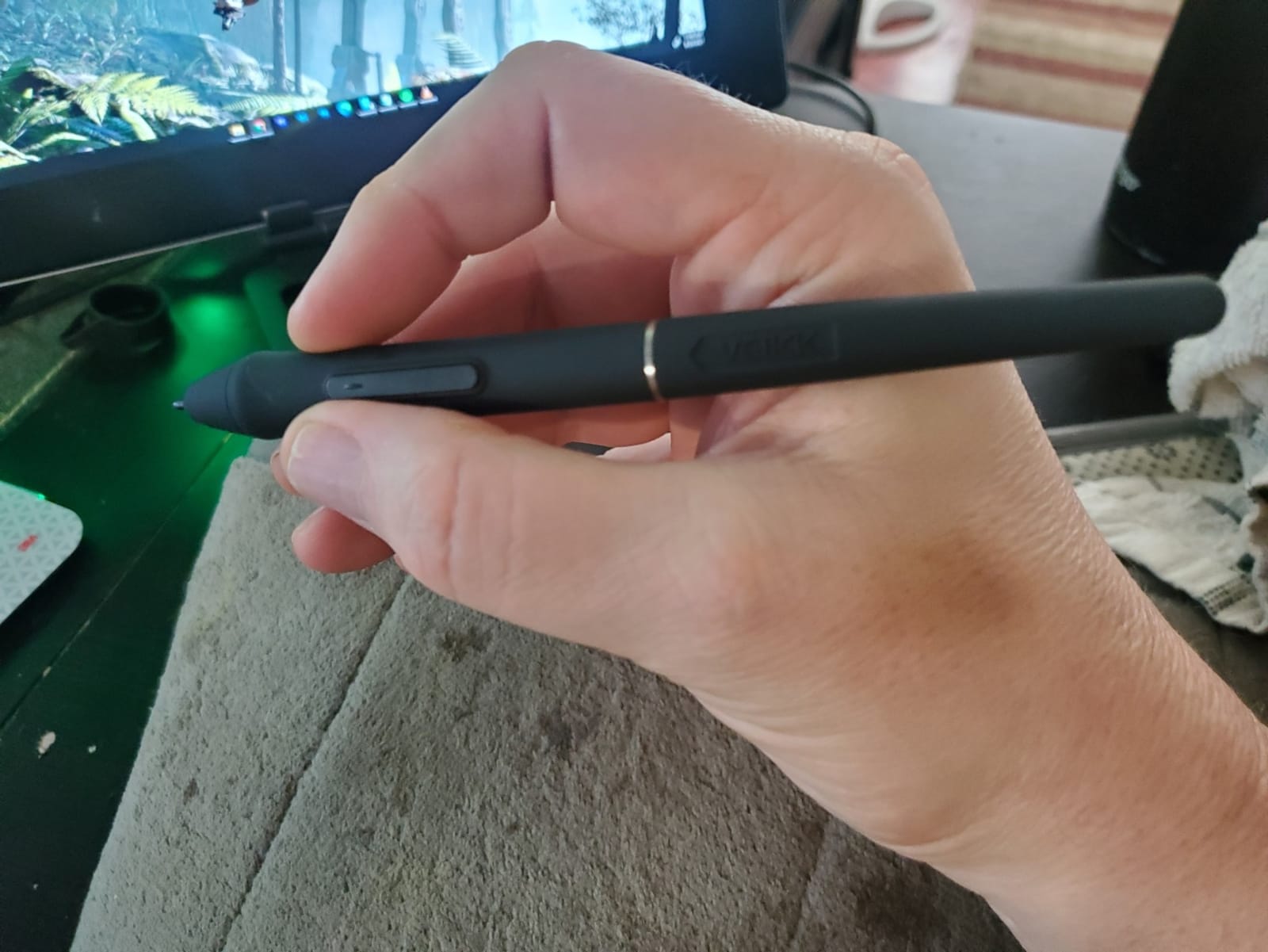
Pressure registers at 16384 levels with 60 degrees of tilt, matching the costlier connected picks here, and the 120 percent sRGB claim puts it level with the better connected tablets for color range. Two battery-free P05 styluses come in the box, so you have a backup if one fails, along with 20 nibs, a nib extractor, a pen case, a glove and a cloth. That accessory bundle is unusually generous for the outlay.
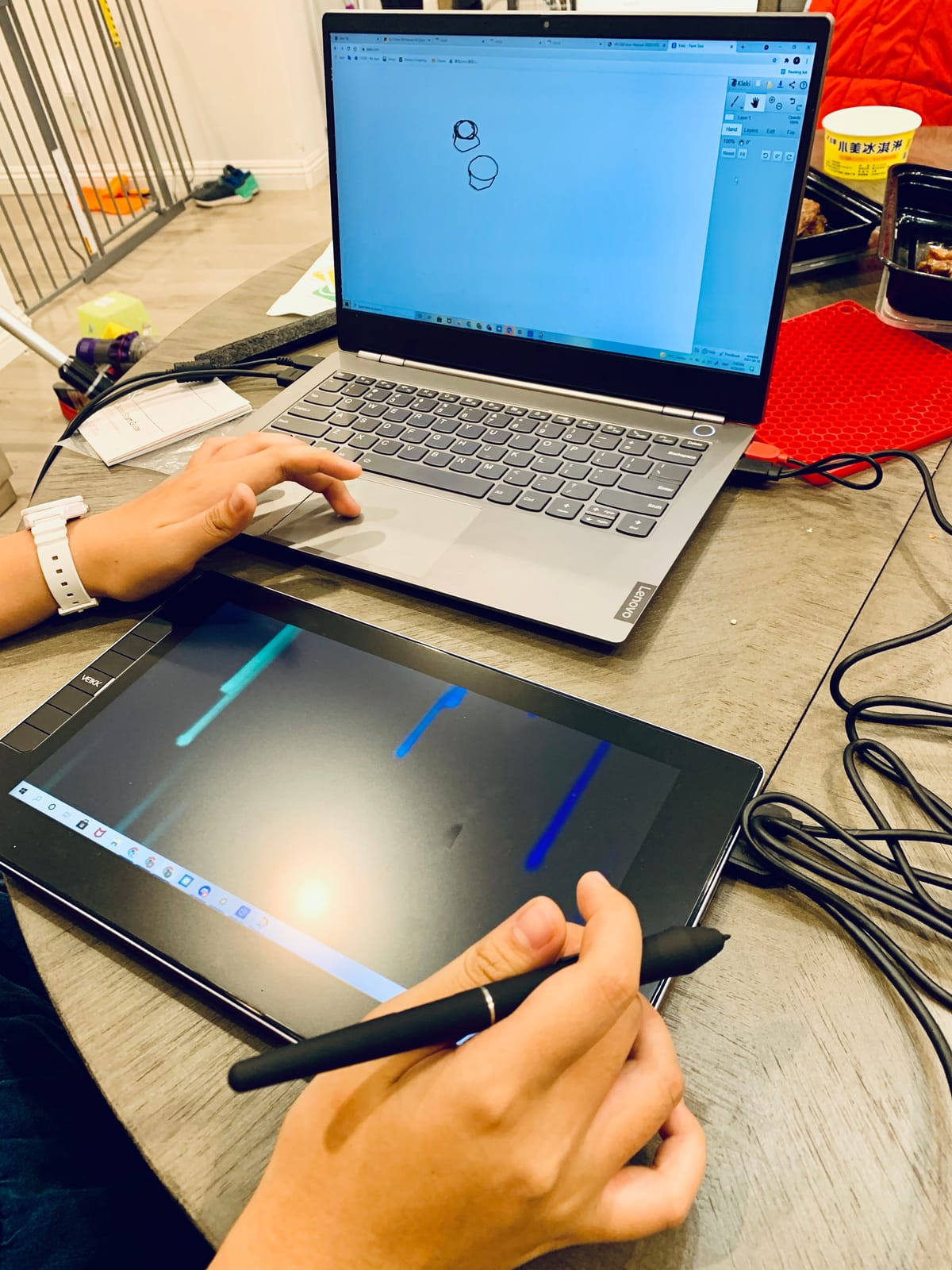
The full-metal back with an anti-slip finish is more robust than the plastic bodies at this tier, and 807 g keeps it portable enough to move between two desks. Six customizable hotkeys sit along one edge, and a 290 PPS reading rate tracks fast strokes. It runs on Windows, Mac and Linux, which keeps it useful if you change platforms.
There are trade-offs. It needs both HDMI and USB, so you will want an adapter on a modern thin laptop, and no stand is included. Reviewers report pen double-click issues, buttons that stop responding when held, and some PC or app compatibility problems. Quality control is inconsistent enough that buying from a seller with an easy return policy matters more here.
Best for the lowest-cost laminated screen
If your budget is genuinely tight and you already own a computer, this is the best way to get a lamination and 16384 pressure levels without a large outlay. Two styluses and 20 nibs mean you will not be waiting on a replacement part. The 11.6 inch size is a good middle ground between a small pad and a full drawing station.
Where it falls short
It is not a standalone device under any reading, and the missing stand means you are working at whatever angle your desk gives you. The compatibility and button issues reported by reviewers are the reason to test it quickly and keep the packaging. If your computer is a recent thin laptop with limited ports, budget for a hub before you order.
How to Choose a Drawing Tablet Under 500 Dollars
Standalone or connected: the question that decides everything
Six of the 12 picks in this roundup stand alone and six need a computer, and buying the wrong one is the most common expensive mistake at this budget. A connected display tablet has no processor of its own, so it mirrors your computer and needs a cable. A standalone tablet has its own processor, operating system and apps, so it needs nothing else.
Choose standalone if you want to draw anywhere, if you are a student without a good laptop, or if you want a second device for travel. Choose connected if you already work in Photoshop or Illustrator and want a bigger, more accurate drawing surface at this outlay. The connected options give you more canvas for the money if you already own a machine.
Pressure levels and tilt
Pressure levels control how many steps of line weight the tablet can resolve. Below 2048 you will see stepping in a soft brush stroke. At 4096 illustration work is comfortable. At 8192 and 16384 the difference is real but diminishing, and most artists stop noticing somewhere around 8192. Tilt matters more than the headline number if you shade with the side of the pen, because it controls how a brush responds as you roll it over.
Avoid the 1024-level pen on the RubensTab T11 Pro if you intend to paint seriously, since that is a beginner’s pen and the review consensus reflects it.
Screen surface, lamination and parallax
Lamination means the glass sits directly on the display, so there is no air gap between your nib and the image. On a non-laminated screen the image sits under a layer of glass and a small distance below your hand, which bends lines when you tilt the panel. The XP-Pen Artist 13.3 Pro V2, the HUION Kamvas 13 Gen 3, the PicassoTab X11 and the VEIKK VK1200V2 are laminated; the XP-PEN Artist12 and the GAOMON PD1161 are not.
Surface texture comes next. A nano-etched matte surface like the HUION Canvas Glass 2.0 gives the nib grip and reduces the slippery feeling of gloss, at the cost of wearing nibs faster. A film protector like the one fitted to the XP-PEN Artist12 is cheaper to replace and can bubble if applied badly. Gloss surfaces are the detail first-time buyers most often regret at this budget.
Operating system and app support
This is where price limits bite hardest. Procreate is iPad-only, and there is no Android equivalent, so if Procreate is your goal, the iPad route is the only one. On Android, Clip Studio Paint, ibisPaint X, Krita, Infinite Painter and Concepts are the realistic set, and quality varies between them. Buyers on r/drawingtablet note that XP-Pen and Huion have largely solved their driver problems, which is worth knowing when you weigh a lesser-known brand.
For Adobe users, Illustrator and Photoshop touch-ups run on Android tablets but touch targets are cramped, so most professionals use a connected tablet with a full computer instead. That is the honest answer to the question of which tablet can run Illustrator: the standalone options can open it, but the connected options are where the work actually gets done.
Battery, weight and ports
A tablet you carry needs to last through the session. The XPPen Magic Drawing Pad is rated at 13 hours of drawing and the Kamvas Slate 11 has an 8000mAh battery, while the RubensTab T11 Pro manages about 5 hours. For desk-bound connected tablets, battery is irrelevant and ports matter more: most need HDMI plus USB, and a few support a single USB-C cable.
Weight decides whether a standalone is a daily tool. The 510 g Kamvas Slate 11 and 588 g MovinkPad 11 are genuinely portable. The 2 kg Artist 13.3 Pro V2 is a desk machine, and treating it as anything else ends with a sore arm.
Handedness and palm rejection
Drawing apps handle handedness by placing the touch block on the opposite side, and every app on the picks here has that setting. The HUION Kamvas 13 Gen 3 is the one with a physically symmetric body, so no setting change is needed. Palm rejection is included as a glove on several picks, though the gloves that come with budget kits are often too large, which matters most if you draw with the other hand and rest a palm near the edge. Check the glove fit in the first hour.
What to Skip at This Budget
Certain patterns show up again and again in this price band, and each one costs buyers money. Avoid a 1024-level pen if you paint; the T11 Pro is the only pick here with one and it is the clearest example of a tablet that looks complete but feels wrong in the hand. Avoid a stylus sold only as a USI pen from the tablet maker, where owners report a visible wobble in the tip that makes illustration work unreliable.
Skip 4 GB Android slates for anything beyond thumbnails, and skip glossy non-laminated screens if you draw at an angle, since those two together produce most of the regret in the category. Also be careful with the cheaper USB-C Apple Pencil, which has no pressure sensitivity and is effectively a finger with a plastic tip. If you are weighing Apple, buy a tablet that pairs with a pen version that has pressure response, and check that the total including the pen fits your cap before you order.
One more to watch: any listing that omits the pen from the box contents. Our guide to fixing a pen that is not detected covers the most common pairing problems, but it is easier to buy a tablet whose pen is in the box, which is how we ranked these.
Frequently Asked Questions
What is the best tablet for drawing?
For most people, the XP-PEN Artist12 is the best tablet for drawing under 500 dollars. Its battery-free P06 pen, 8192 pressure levels, anti-reflective screen and bundled nibs, pen holder and glove make it complete out of the box. If you want no parallax, step up to the XP-Pen Artist 13.3 Pro V2 or the HUION Kamvas 13 Gen 3.
Do I need a computer for a drawing tablet?
It depends on the type. A connected display tablet, such as the XP-PEN Artist12, the GAOMON PD1161, the XP-Pen Artist 13.3 Pro V2, the HUION Kamvas 13 Gen 3 and the VEIKK VK1200V2, needs a computer because it has no processor of its own. A standalone tablet, such as the XPPen Magic Drawing Pad or the Wacom MovinkPad 11, runs its own apps and needs nothing else.
What is the best affordable tablet for digital art?
The HUION Kamvas 13 Gen 3 is the best affordable option for digital art because it pairs a full-laminated nano-etched screen with factory color calibration under Delta E 1.5 and a 16384 pressure pen. For the lowest sensible outlay, the GAOMON PD1161 gives you a matte screen, 8192 pressure levels with tilt and eight programmable keys, provided you own a computer.
What tablets can run Illustrator?
Every connected tablet in this list runs Illustrator normally, because it is using your computer to do the work. The Android standalone tablets, including the XPPen Magic Drawing Pad, the HUION Kamvas Slate 11 and the Wacom MovinkPad 11, can open Adobe Illustrator, but the interface is cramped on a touch screen. Procreate is iPad-only and is not available on any Android tablet at any price.
Does the stylus come with the tablet?
With every pick in this list, yes. The connected tablets all include a battery-free pen with spare nibs, and the standalone tablets include a stylus as standard, with the PicassoTab X11 and the Frunsi models also supplying a glove, case or keyboard. That matters because it means the price you see is the total you pay, with no pen cost added later.
Are digital drawing tablets worth it?
Yes, if you want to draw anywhere without a desk, because a standalone tablet replaces a sketchbook, a scanner and a laptop in one device. A connected display tablet is worth it if you already own a computer and want a drawing surface far better than a trackpad. The main regret we hear about comes from gloss screens and low pressure pens, not from the price.
The Best Drawing Tablet for Your Budget
After testing all 12, the XP-PEN Artist12 remains our pick for the best tablets for drawing under 500 dollars. The battery-free pen in the box, 8192 pressure levels and a matte screen are what decide it, and among these 12 it carries more owner feedback than any other. For no parallax, the XP-Pen Artist 13.3 Pro V2 is the step up, and the HUION Kamvas 13 Gen 3 is the one to buy if color accuracy decides your work.
If you want no computer at all, the XPPen Magic Drawing Pad gives you the best standalone balance of pen quality, portability and battery, while the Wacom MovinkPad 11 wins purely on how the pen and etched glass feel under your hand. Pick the connection type first, then the pen, then the screen. Everything else at this budget is a detail. You can see how these hold up for other tasks in our tablet guide for remote work, and our budget tablet picks for streaming cover the entertainment side.