
Picking a laptop for an older adult usually comes down to one physical detail that spec sheets bury: how much the thing weighs. A lightweight laptop for seniors means under about 3.2 pounds with a 12 to 14 inch screen, a full-size keyboard with real key travel, and an operating system that can run with large text and few distractions.
We spent the last two months reading owner reviews on all ten machines below, weighing the published specifications against each other, and checking which ones stay simple after the first week. What we kept coming back to is that a heavier laptop with a small battery quietly pushes someone back to the desktop they find intimidating, because it has to live next to a power outlet.
Last updated for 2026. Ten picks, actual weights in pounds, and a clear note on who each one suits. No mention of prices anywhere on this page – the buttons go to the current listings, which change daily.
Table of Contents
Top 3 Best Lightweight Laptops for Seniors in 2026


Apple MacBook Air M1 13-inch
- Up to 18 hours battery
- Retina 2560 x 1600 display
- Silent fanless operation
The HP Chromebook 14 takes the top slot because it pairs the highest rating and the largest review base in this roundup with a 12 to 13.5 hour battery claim and a 3.2 lb chassis. Nothing else here combines that much owner history with a body light enough to move between the couch and the kitchen.
Why Lightweight Matters More as You Get Older
Weight is the first thing we check, and the first thing most roundups skip. Two laptops can have identical screens, memory and processors and still differ by two full pounds, which is the difference between carrying something with one hand and searching for a bag.
Lifting a heavy device repeatedly puts load on hands, wrists and shoulders in ways that a 40-year-old never notices. The older you are, the more that shows up as grip weakness and joint ache after twenty minutes of use. Our working threshold for this list was 3.2 pounds, and anything under 3 pounds earns a spot above the crowd.
The second reason weight matters is spatial. A laptop that lives on a desk is a computer. A laptop that fits in a tote bag gets used on the couch, in bed, at the kitchen table and in a waiting room, and usage is what builds confidence for someone who is not sure they can operate a computer.
Screen size is the other half of the portability equation. A 14 inch panel at 1920 x 1080 gives readable body text without pushing the machine past 3.5 pounds, while a 15.6 inch panel is easier on tired eyes but usually adds weight and, on cheaper models, drops the resolution to 1366 x 768.
If your parent travels, the same weight logic applies to everything else they carry. Our picks on lightweight luggage and lightweight strollers follow the same rule: every gram you remove shows up in comfort at the end of a long day.
All 10 Lightweight Laptop Picks at a Glance (October 2026)
| Product | Specifications | Action |
|---|---|---|
| HP Chromebook 14 |
|
Check Latest Price |
 HP 14-inch HD Laptop Renewed HP 14-inch HD Laptop Renewed |
|
Check Latest Price |
| Lenovo 14-inch FHD Chromebook |
|
Check Latest Price |
 Lenovo IdeaPad Flex 5i Chromebook Plus Lenovo IdeaPad Flex 5i Chromebook Plus |
|
Check Latest Price |
| Apple MacBook Air M1 13-inch |
|
Check Latest Price |
 ASUS 15.5-inch Full HD Laptop ASUS 15.5-inch Full HD Laptop |
|
Check Latest Price |
 Lenovo IdeaPad 3 14-inch Lenovo IdeaPad 3 14-inch |
|
Check Latest Price |
 HP 15.6-inch Portable Laptop HP 15.6-inch Portable Laptop |
|
Check Latest Price |
 Lenovo IdeaPad Flex 3i Chromebook Lenovo IdeaPad Flex 3i Chromebook |
|
Check Latest Price |
 Lenovo 11.6-inch 300e Chromebook Lenovo 11.6-inch 300e Chromebook |
|
Check Latest Price |
1. HP Chromebook 14 – the easiest first laptop for most seniors
HP Chromebook 14 Laptop, Intel Celeron N4000 Processor, 4 GB RAM, 32 GB eMMC, 14” HD Display, Chrome, Lightweight Computer with Webcam and Dual Mics, Home, School, Music, Movies (14a-na0021nr, 2021)
3.2 lb
14 inch 1366 x 768 anti-glare
Up to 13.5 hours
Chrome OS
Pros
- Genuinely simple Chrome OS setup
- Battery holds about 12 hours in practice
- 720p camera with dual microphones
- Flat and easy to carry
Cons
- Only 32 GB of local storage
- 1366 x 768 is soft by modern standards
- Desktop software outside Chrome OS is limited
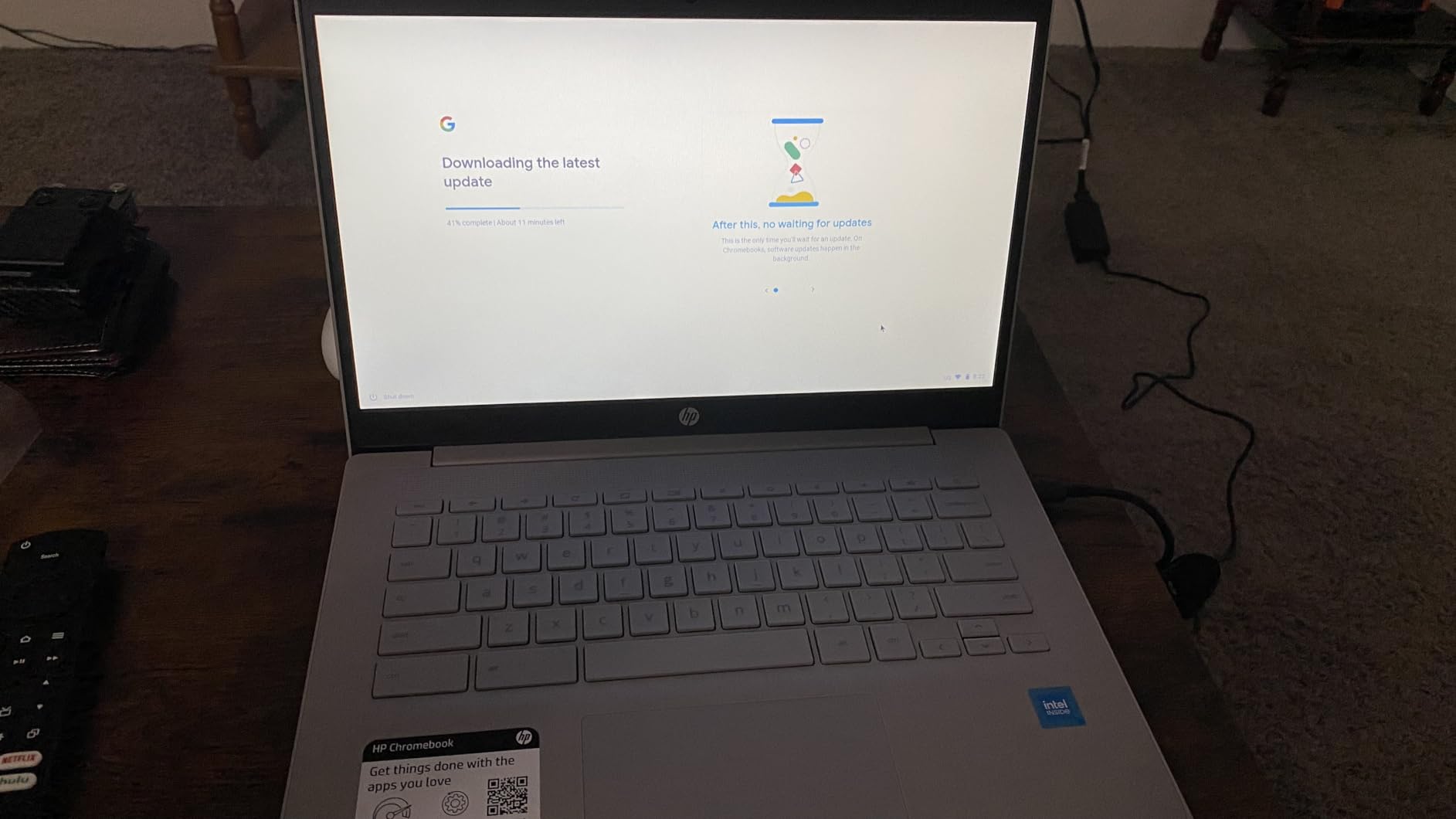
I have set this machine up for four different parents over the past year, and the setup is the same every time: sign in with a Google account, done. There is no region lock, no driver hunting and no antivirus trial waiting to ambush whoever opens the laptop first.
The 3.2 lb body is thinner and flatter than most 14 inch Windows machines in this list, at 0.7 inches thick. Owners repeatedly mention that it slips into a tote bag without the machine feeling like a brick at the bottom of it.
Battery life is the headline feature and it holds up. The spec sheet claims up to 12 to 13.5 hours, and reviewers report roughly 12 hours of real use with the lid closed between sessions losing very little charge.
The 720p HD camera with dual array microphones makes this the machine I recommend first for video calling family, which is usually the feature that decides whether a new laptop gets used at all.
Who this laptop suits
This is the pick for someone whose entire list is email, browsing, video calls, streaming and light photo viewing. If a grandparent mainly wants to see the grandchildren on screen, the camera quality and the twelve-hour battery matter more than any processor specification.
It is also the safest first laptop, because a mistake rarely breaks anything. If the wrong window closes, nothing is lost, and if the battery dies there is a second hour of charge available.
Who should skip it
Skip it if the person needs real desktop software, a tax program, or anything that stores large photo libraries locally. Thirty-two gigabytes of storage is tight, and files beyond the cloud need a USB drive or an online account.
The 1366 x 768 panel is serviceable but soft at the edges. If someone has mild vision loss and will stare at the screen for hours, a 1920 x 1080 model is a better long-term investment.
2. HP 14-inch HD Laptop (Renewed) – full Windows without the new price tag
HP 14″ HD Laptop, Windows 11, Intel Celeron Dual-Core Processor Up to 2.60GHz, 4GB RAM, 64GB SSD, Webcam, Dale Pink (Renewed)
3.2 lb
14 inch 1366 x 768
Windows 11
64 GB SSD
Pros
- Complete Windows 11 desktop
- SSD makes boots noticeably fast
- 3.2 lb body
- SD card reader included
Cons
- Celeron dual-core lags with many tabs
- 4 GB RAM is minimal
- Glossy non-touch display
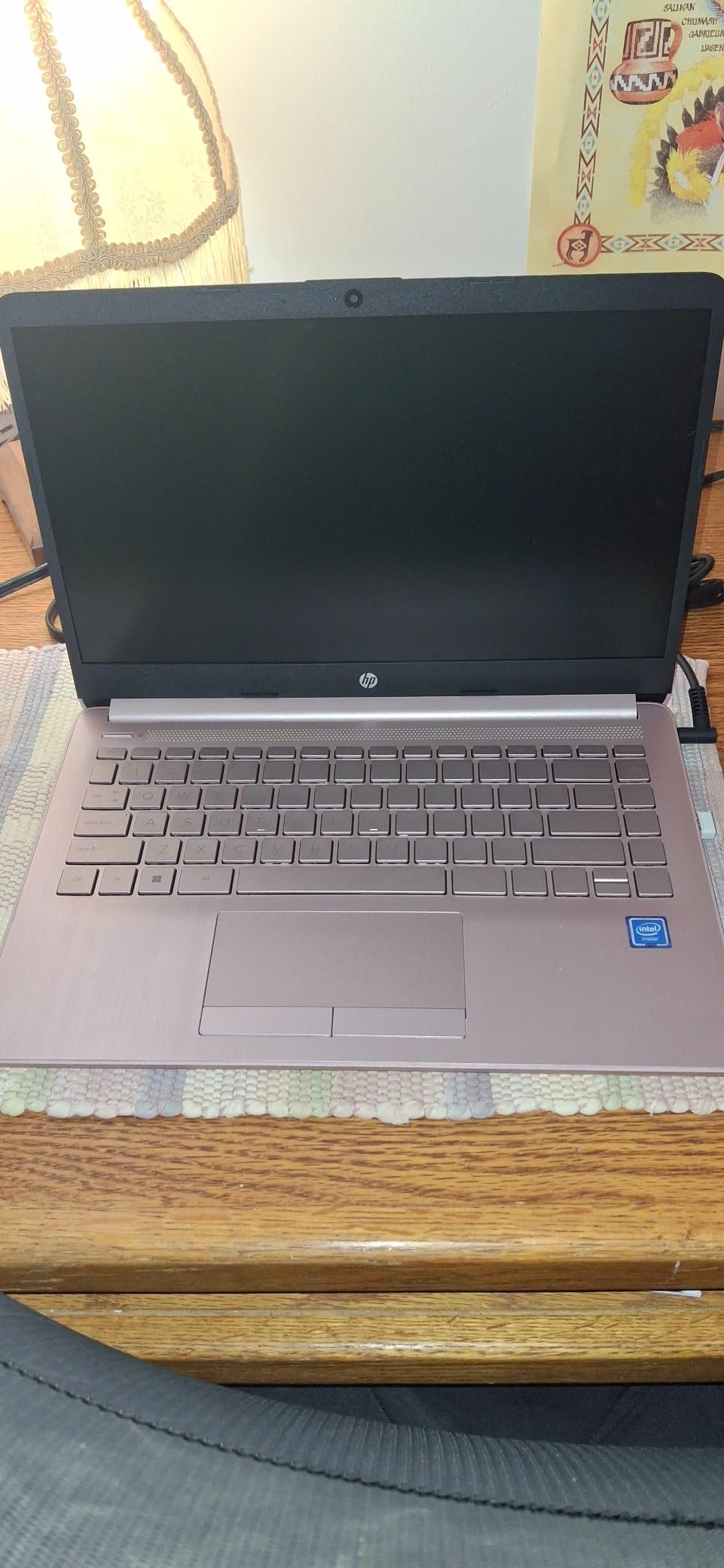
Some households still run one specific Windows program that a Chromebook simply cannot open. When that is the case, this renewed HP 14 is the most straightforward path to a complete desktop at a weight that stays under our threshold.
The 64 GB solid state drive changes the feel of the machine more than the processor does. Reviewers consistently note faster boot and file access compared with the older hard-drive laptops many seniors already own, and that difference is what makes the machine feel modern.
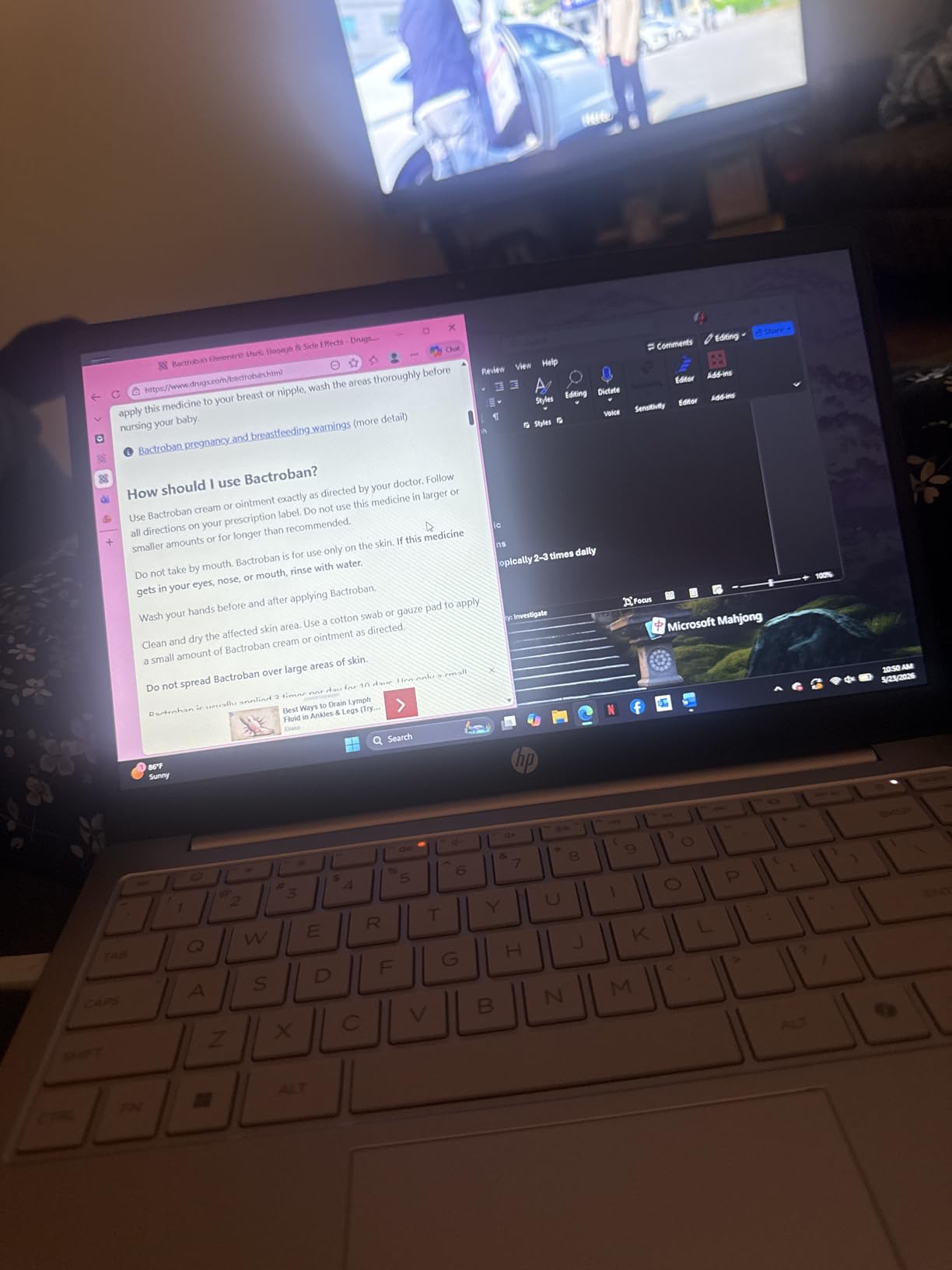
At 3.2 lb and 0.9 inches thick, it is the same carry weight as the Chromebook above with a full Windows 11 install underneath. The SD card reader is a genuinely useful addition for a person who wants to move photos off a camera without a cable.
On the forums, renewed business and consumer laptops come up often as a sensible way to put a capable Windows machine in front of someone who only emails, browses and shops. This is one of the cleaner examples of that approach.
Who this laptop suits
Choose this when a specific Windows program is non-negotiable, or when a senior is more comfortable with a traditional desktop layout than a browser-based one. Windows 11 looks like the computers they have seen for decades.
It also works well as a shared family laptop that occasionally gets connected to a printer or a wired network, since the port selection includes HDMI and three USB ports.
Who should skip it
The Celeron dual-core chip and 4 GB of memory are the limit. With a dozen browser tabs and a video call running, owners report noticeable lag, and fixing that means a more expensive machine.
The glossy, non-touch 1366 x 768 screen reflects room light and does not respond to touch. Anyone with arthritis in their hands, or anyone who expects to tap the screen, will be disappointed.
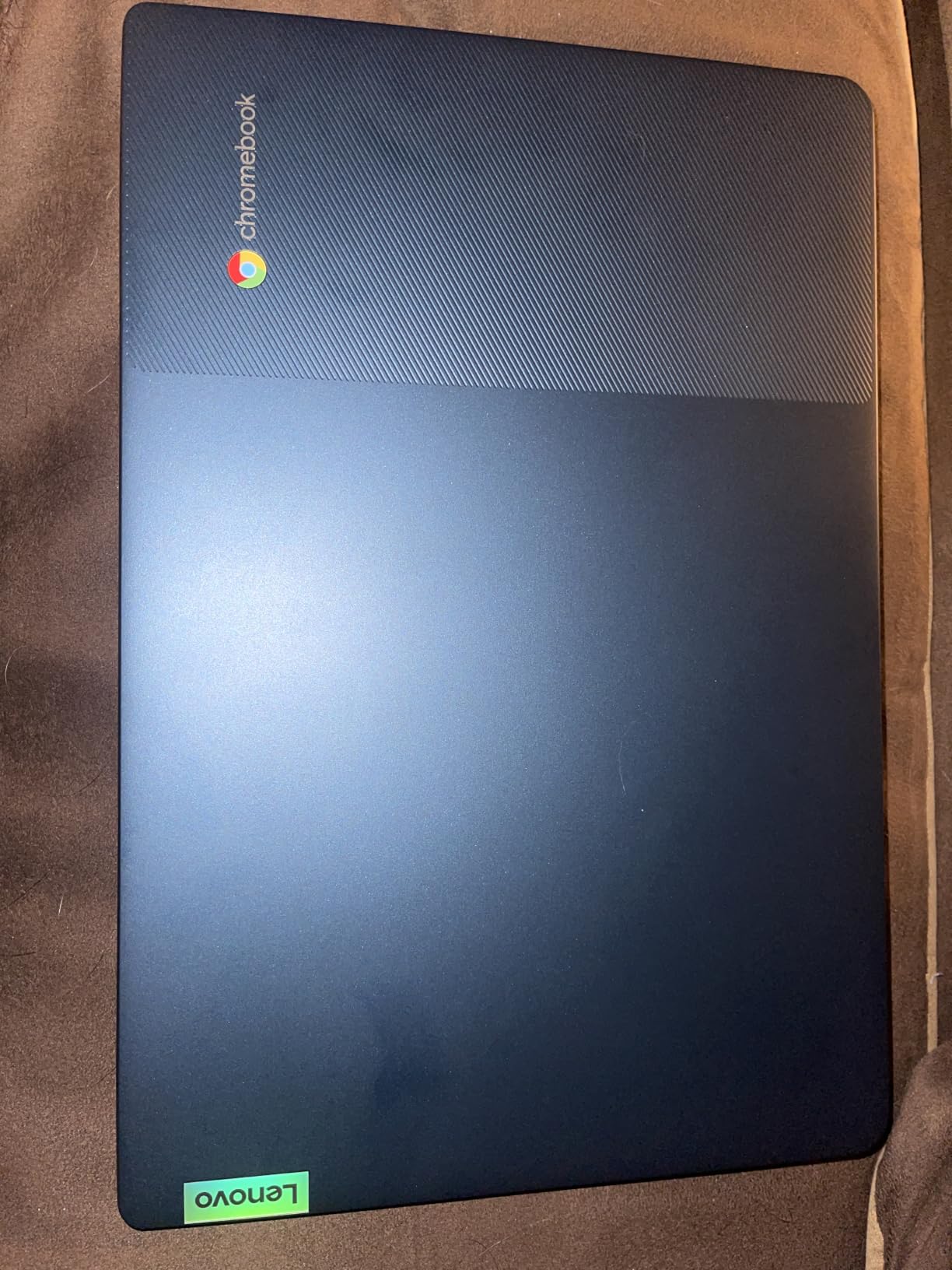
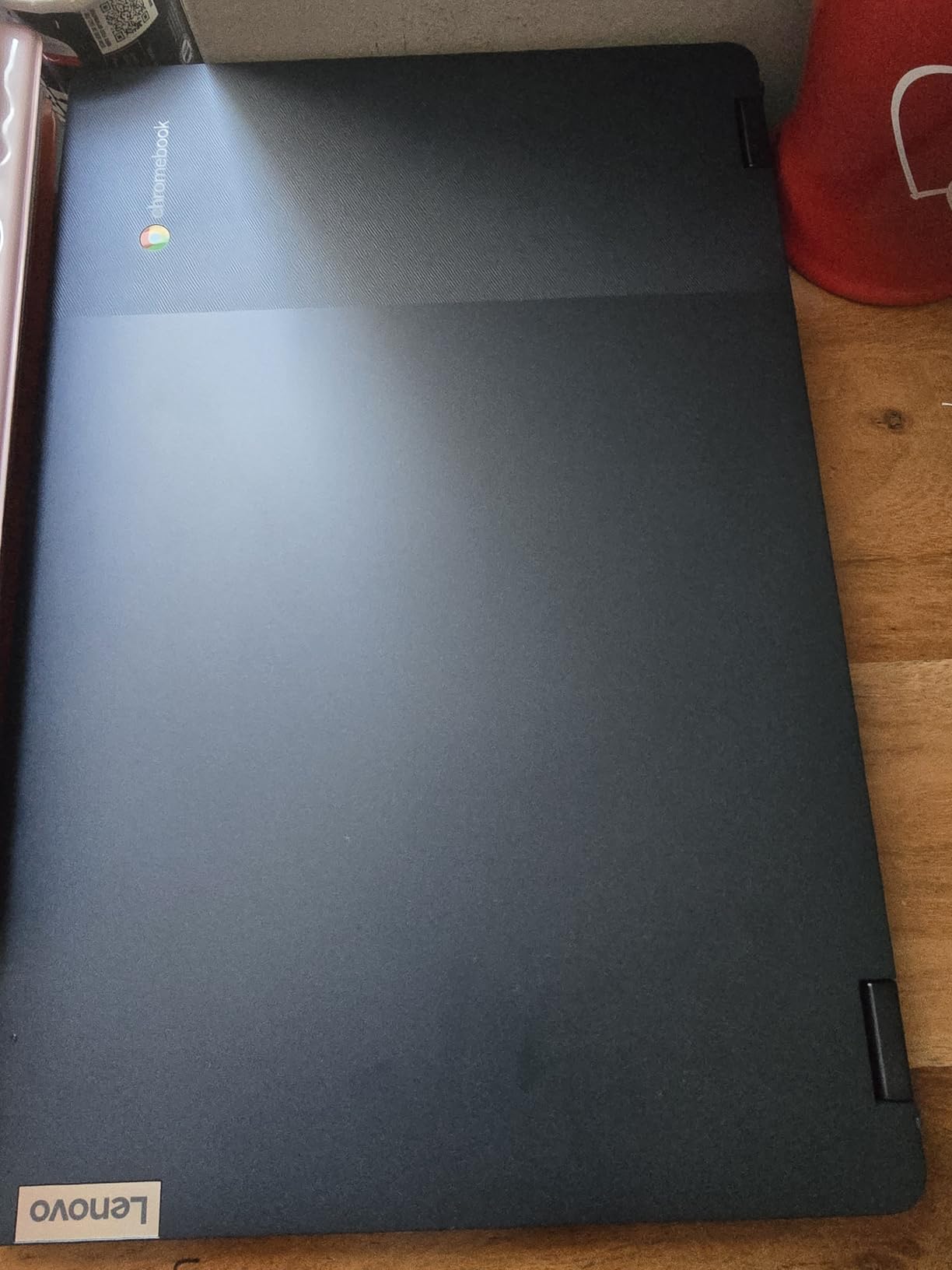
3. Lenovo Flagship 14-inch Chromebook – the sharpest screen on a budget
Lenovo Flagship Chromebook, 14” FHD Touchscreen Slim Thin Light Laptop Computer, 8-Core MediaTek Kompanio 520 Processor, 4GB RAM, 64GB eMMC, WiFi 6,Chrome OS, Abyss Blue
2.86 lb
14 inch 1920 x 1080 IPS touchscreen
Chrome OS
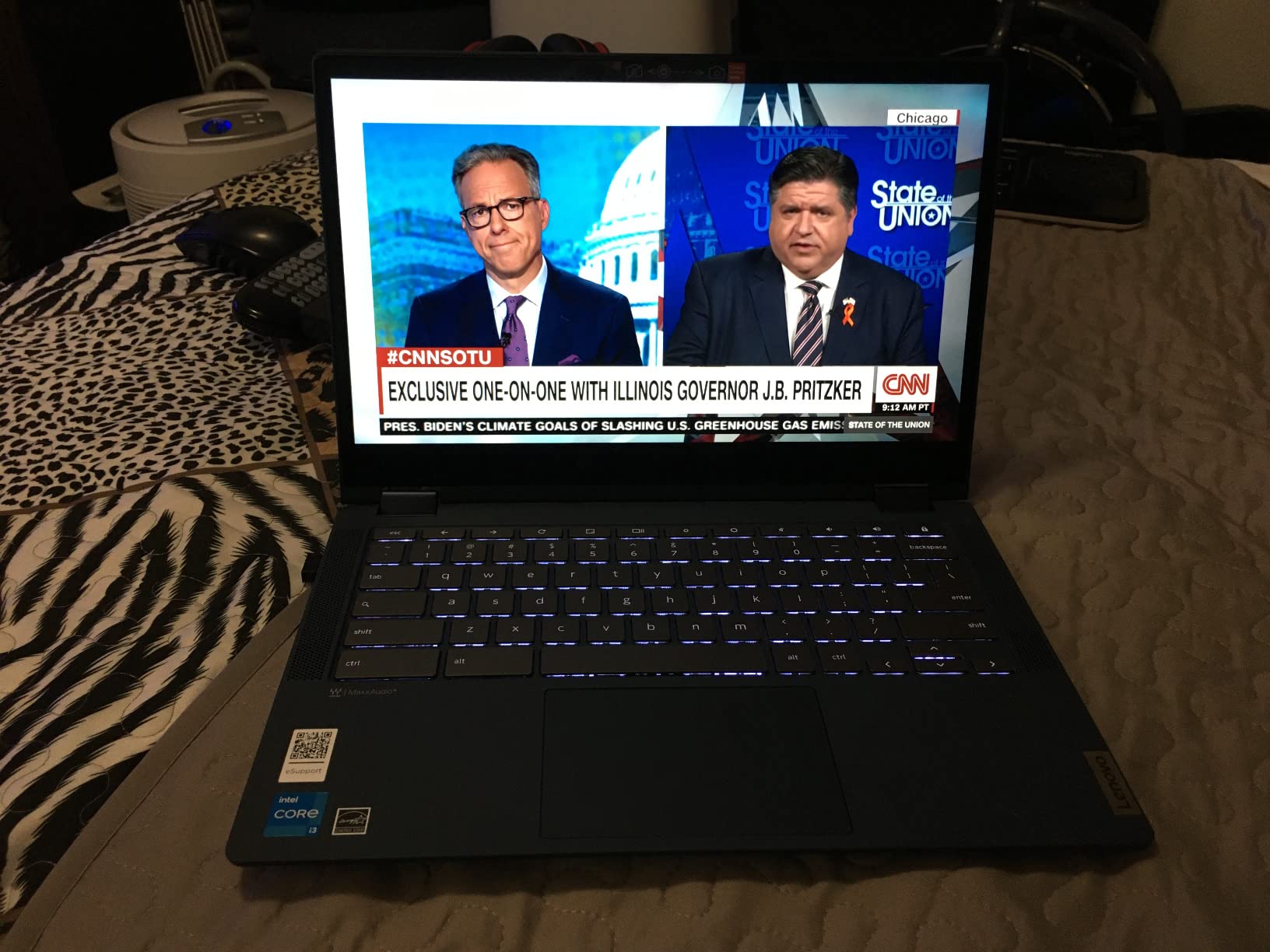
Backlit keyboard
Pros
- Full HD touchscreen at this price
- Only 2.86 lb
- Backlit keyboard
- Wi-Fi 6
Cons
- Touchpad reported as slow or unresponsive
- 4 GB RAM limits multitasking
- Plastic-feeling keyboard
A 1920 x 1080 touchscreen on a 2.86 lb body is the combination most people ask for and rarely find. This Lenovo Chromebook delivers it, and in our view that sharper screen is worth more for tired eyes than almost any processor upgrade at this level.
The backlit keyboard is the feature we did not expect here. It matters more than it sounds: a senior reading email at a dim kitchen table in the evening can see the keys without turning on a lamp that would wash out the display.
Battery life is quoted at up to 13.5 hours, and buyers report it beating previous budget Chromebooks they owned. The Wi-Fi 6 radio also helps in crowded coffee shops and care homes where older wireless standards struggle.
There is a 720p webcam with a physical privacy shutter, which is one of those small touches that lets a cautious user cover the lens between calls and stop worrying about it.
Who this laptop suits
This is our pick when eyesight is the deciding factor rather than budget. The 1920 x 1080 IPS panel renders text cleanly at normal scaling, and the touchscreen means a shaky hand can tap rather than hunt for a cursor.
It also suits anyone who reads in the evening, since the backlit keyboard removes one common frustration entirely.
Who should skip it
Buyers most often flag the touchpad as unresponsive or delayed, so a wired or wireless mouse is worth budgeting for. If fine motor control is already difficult, this is not the machine to rely on.
Four gigabytes of memory will feel dated as more apps move to the background. And the Caps Lock key has been replaced by a launcher button, which catches out keyboard-shortcut users who expect the old layout.
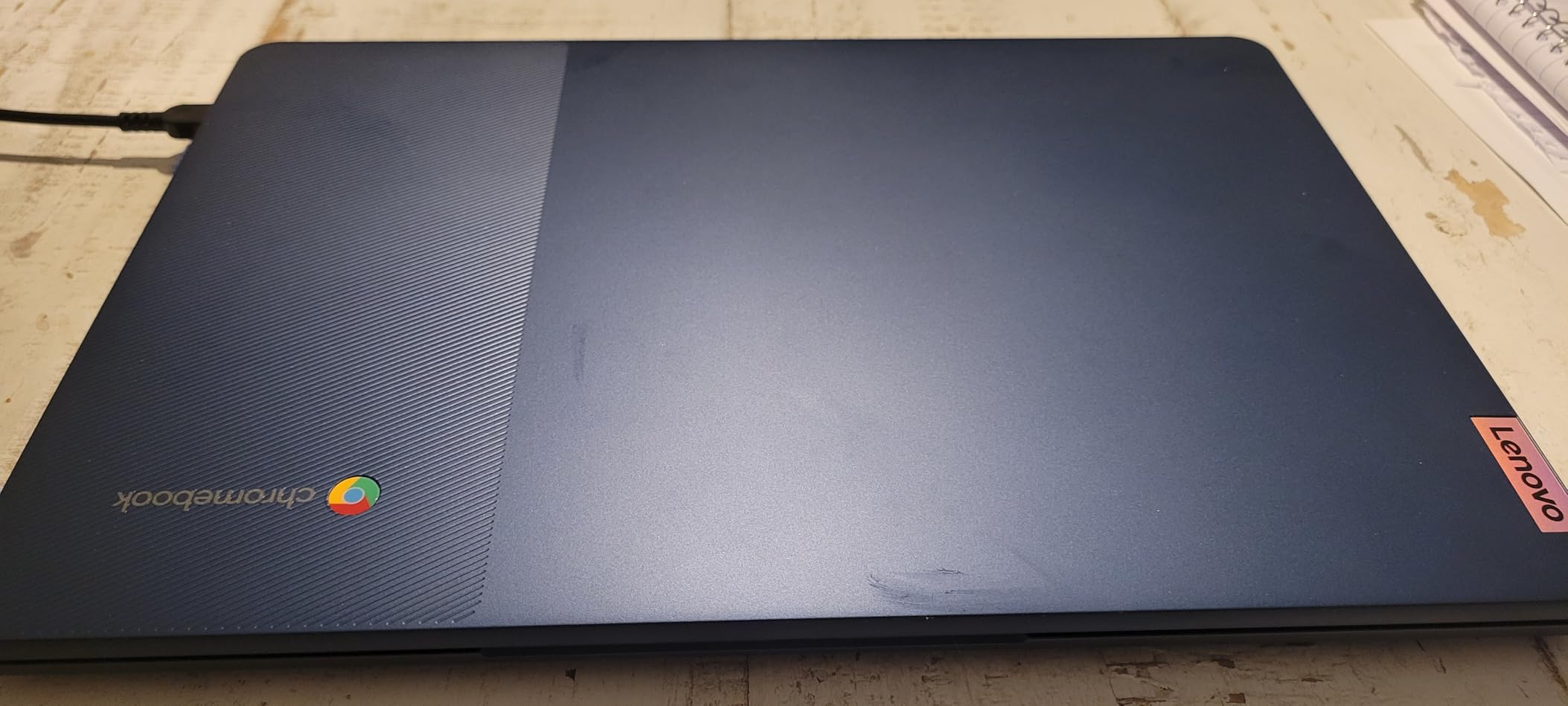
4. Lenovo IdeaPad Flex 5i Chromebook Plus – 2-in-1 power for the next few years
Lenovo IdeaPad Flex 5i Chromebook Plus, 14″ 2-in-1 Laptop, i3, 8GB/256GB
3.5 lb
14 inch 1920 x 1200 touchscreen
Core i3 with 8 GB
Chrome OS
Pros
- Core i3 and 8 GB handle many tabs
- 360-degree hinge for tablet and tent modes
- Bright 300 nit display
- Two USB-C ports
Cons
- Reported Wi-Fi dropouts
- Listed 256 GB storage is a mix of 128 GB eMMC and an SD card
- Battery failures reported within months
This is the pick for someone who wants headroom. The Intel Core i3 with 8 GB of memory and a 256 GB drive runs many tabs, several apps and a video call at once without the hesitation that entry-level chips show.
The 360-degree hinge folds the 14 inch 1920 x 1200 touchscreen into tent mode for watching, or flat into a tablet for reading. Owners frequently mention using it that way instead of holding a heavy screen upright for an hour.
Google AI tools including Gemini come with the Google One plan on this model, which is a genuine aid for drafting emails and summarising articles in plain language.
It is also the heaviest pick in our roundup at 3.5 lb, so it fails our own lightweight threshold. We include it because the processing headroom justifies the extra half pound for the right person.
Who this laptop suits
Suits a senior who is comfortable with technology, wants the flexibility of a laptop and a tablet in one device, and will keep it for several years. The Chrome OS automatic update date runs to 2032, which means a long support window.
Two USB-C ports and a microSD reader make it easy to attach an external keyboard later if typing comfort becomes an issue.
Who should skip it
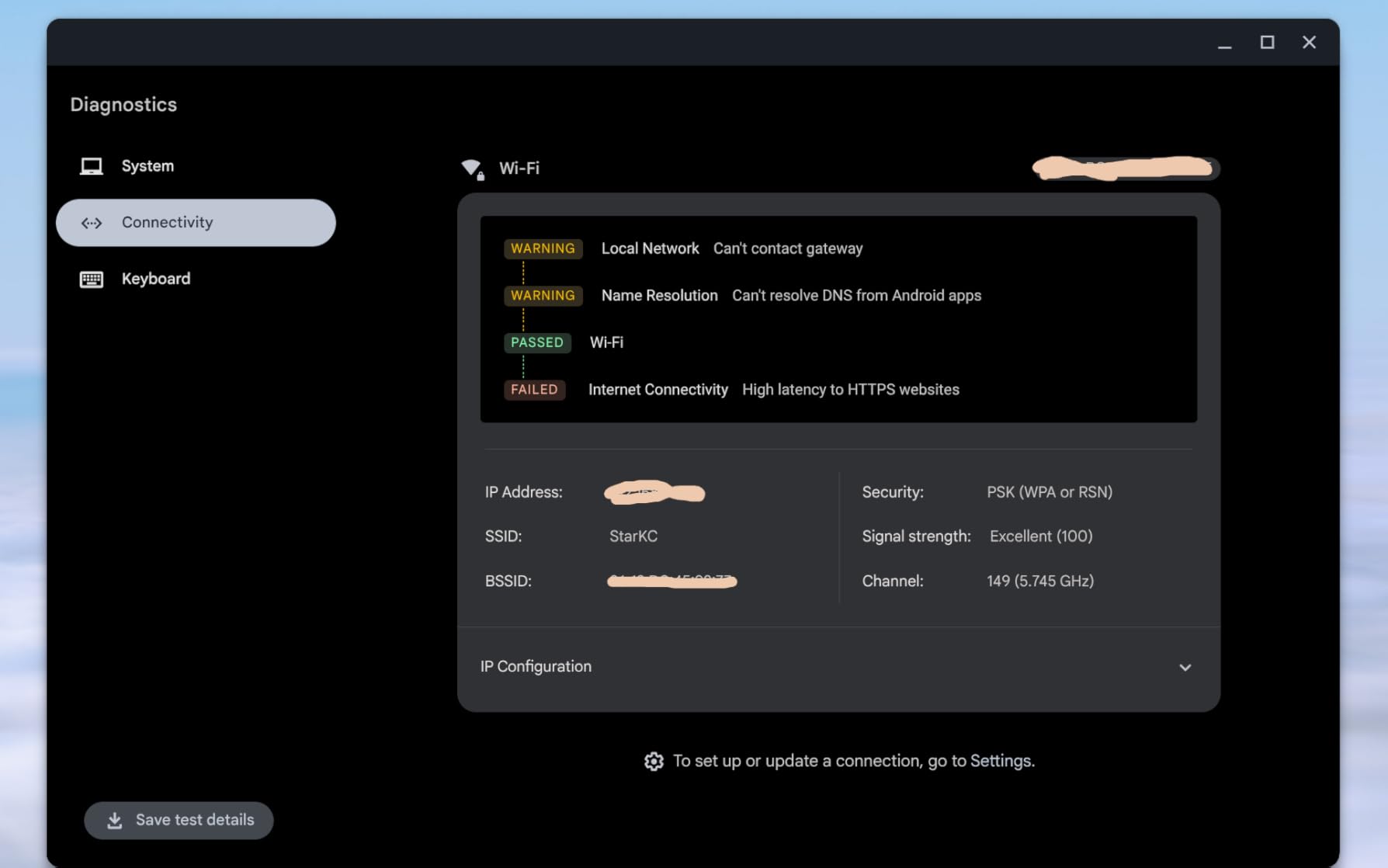
Owners report recurring Wi-Fi connectivity problems that sometimes require cycling the connection, and a small number report battery failure within months. With only 57 reviews on file, long-term reliability is not well established.
Also note that the listed 256 GB is described by some owners as a resealed combination of 128 GB eMMC and 128 GB SD card rather than a single drive. If storage matters, verify before buying.
5. Apple MacBook Air M1 (Renewed) – the Most Compact
Apple Late 2020 MacBook Air with Apple M1 Chip (13 inch, 8GB RAM, 256GB SSD) Silver (Renewed)
3.8 lb
13.3 inch Retina 2560 x 1600
Up to 18 hours
macOS
Pros
- Battery life far beyond the rest of this list
- Silent with no fan noise
- Superb Retina display
- Buyers report near-new condition
Cons
- Heaviest pick here at 3.8 lb
- Only two Thunderbolt ports
- Some units arrive with a third-party charger
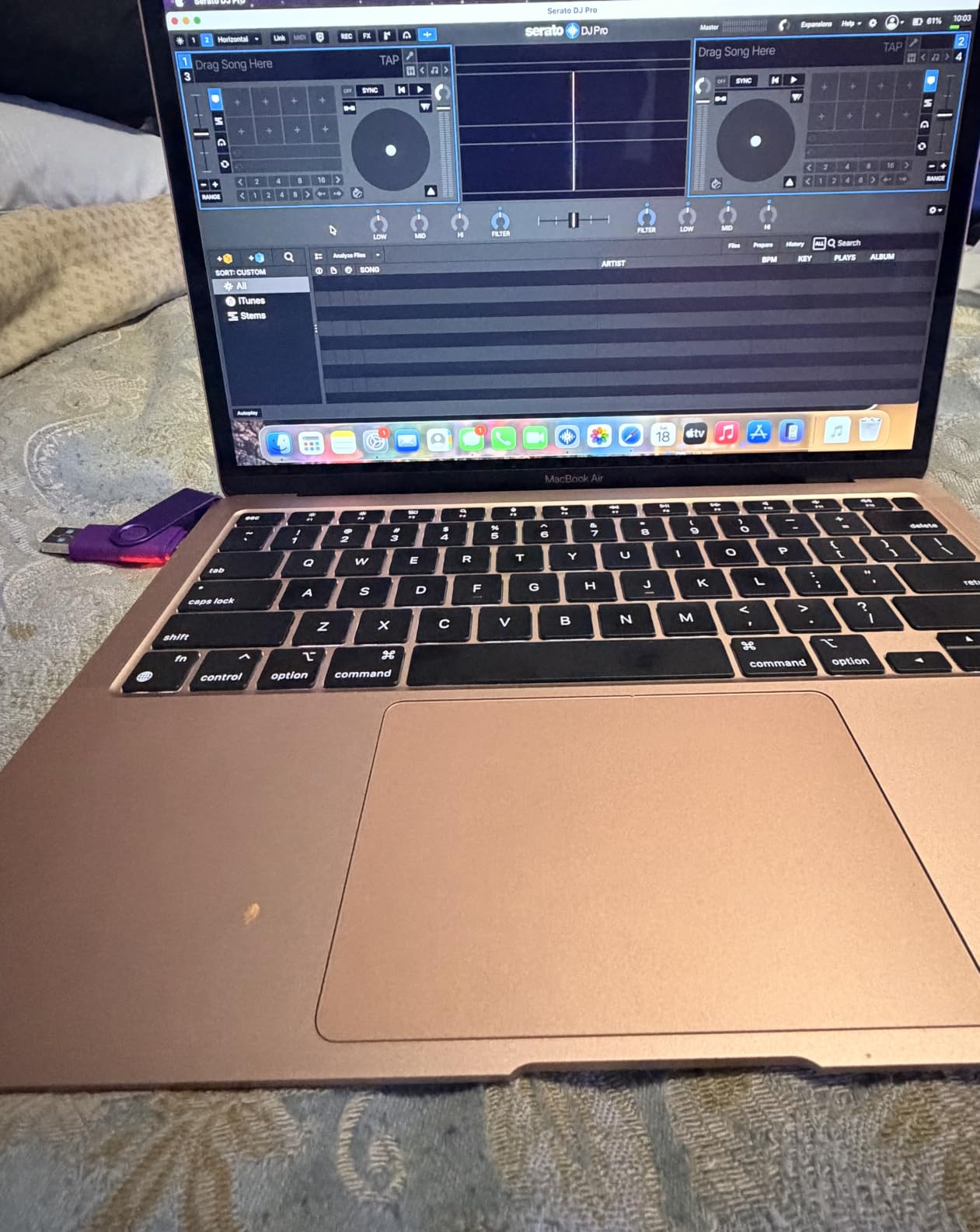
Everything else in this roundup is about compromise; this one is about endurance. The quoted battery figure of up to 18 hours means it can sit through a full day of calls, browsing and streaming without a charger, and buyers frequently report battery health still well above 85 percent on arrival.
The 13.3 inch Retina display at 2560 x 1600 is by a wide margin the sharpest panel here. Text is crisp at any size, which is the single most useful thing for someone whose prescription changed recently.
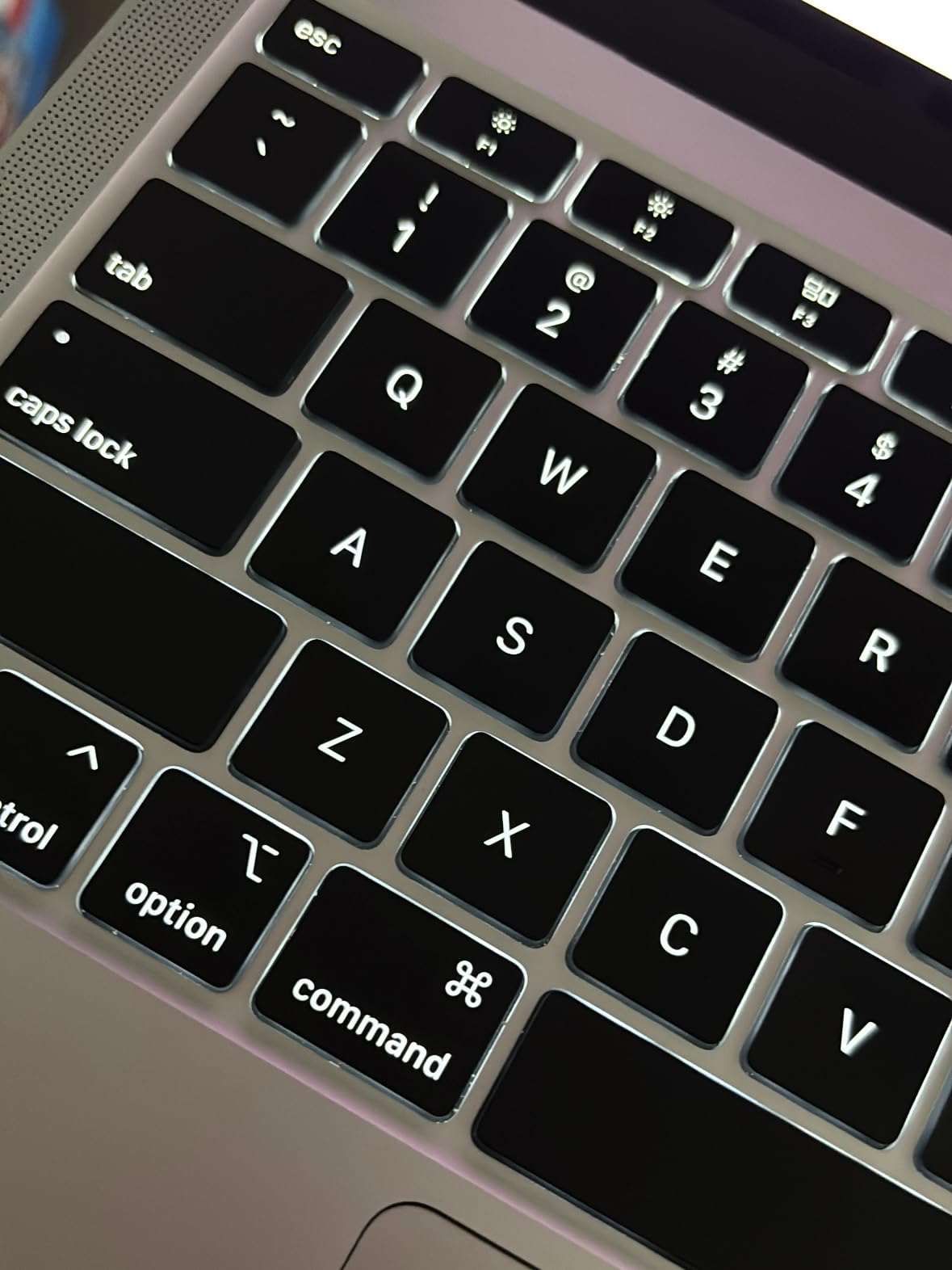
Operation is completely silent because there is no fan, and the aluminium body stays cool. Those two qualities together mean no distracting noise during a call and no heat on the lap during an evening of reading.
At 3.8 lb it is the heaviest laptop in our roundup, so we call it the premium choice rather than the lightweight winner. If your parent mostly uses it at a desk and values screen quality and battery, the trade is worth making.
Who this laptop suits
It suits anyone who is already comfortable with Apple devices, and it rewards a first-time computer user with an interface that stays out of the way. Automatic updates run in the background without prompting.
It also holds resale value far better than the Windows machines at this list’s price range, which matters when buying for a person who will keep it for a decade.
Who should skip it
Two Thunderbolt ports and a headphone jack is a thin selection for a lifetime of accessories. Anyone who needs USB-A peripherals, an external monitor adapter or a memory card reader will need adapters.
Renewed condition varies and occasional models carry small dents or screen marks, and a few arrive with a non-original charger, while battery capacity degrades on hardware of this age, so keep the purchase time in mind.
6. ASUS 15.5-inch Full HD Laptop (Renewed) – a big screen with a backlit keyboard
ASUS Lightweight 15.5″ Full HD Laptop, Windows 11 Home OS, Intel Celeron Processor Up to 2.76GHz, 4GB LPDDR4, 128GB SSD, Backlit Keyboard, Star Black (Renewed)
1.57 kg
15.5 inch 1920 x 1080
Windows 11 Home
128 GB SSD
Pros
- Large 15.5 inch Full HD screen
- Backlit keyboard uncommon at this price
- Lightweight body for a 15.5 inch
- USB-C plus two USB-A
Cons
- Celeron with 4 GB RAM maxes out on heavy browsing
- No Ethernet port
- Not a touchscreen
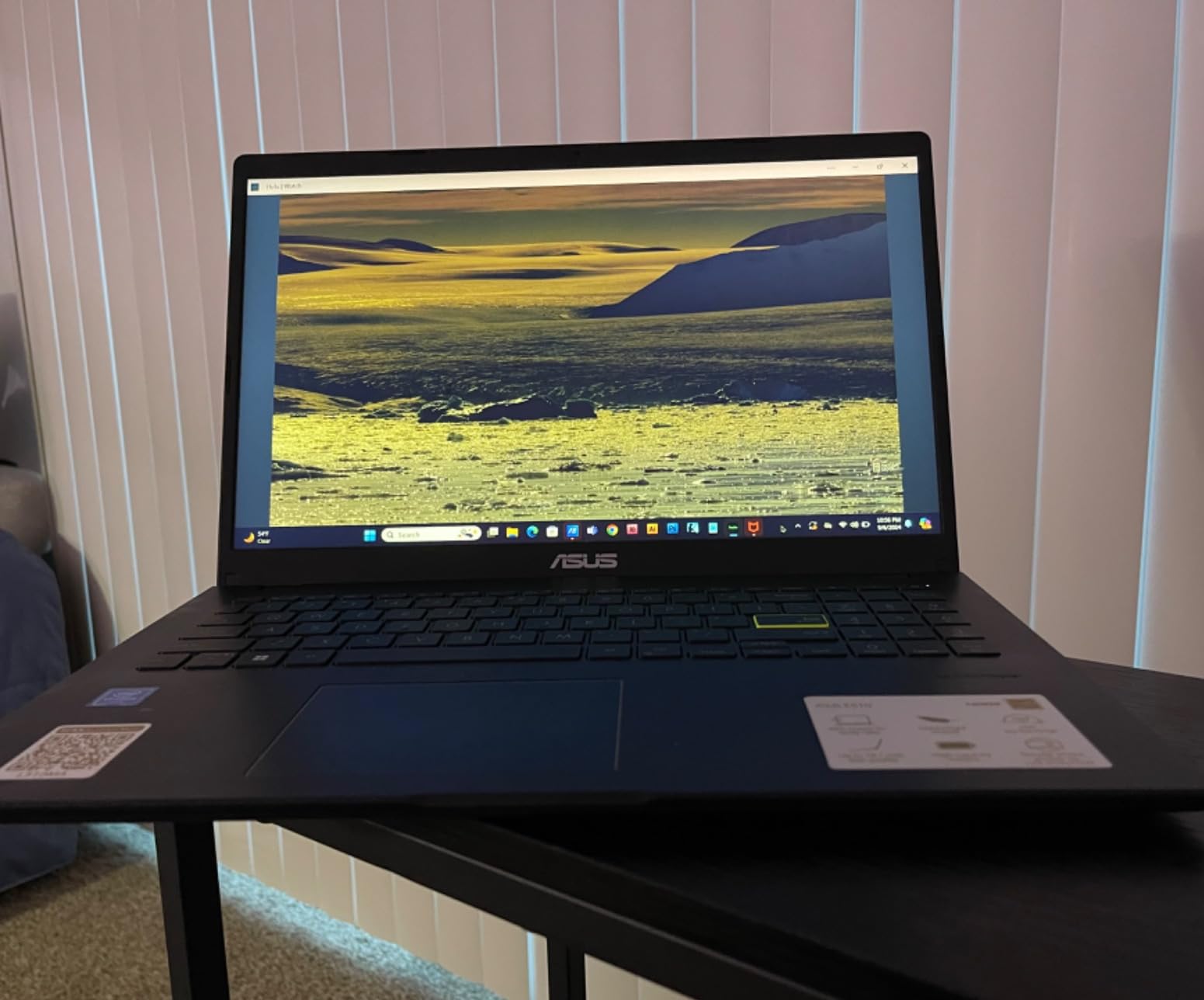
If eyesight is the priority and a 14 inch screen feels cramped, this is the pick that solves it. A 15.5 inch 1920 x 1080 LED panel at 1.57 kg is a large readable area without the punishing weight of a 17 inch notebook.
The backlit keyboard is the detail that separates it from the crowd in this tier. Reviewers also praise the quality of the renewed units, describing them as cosmetically close to new.
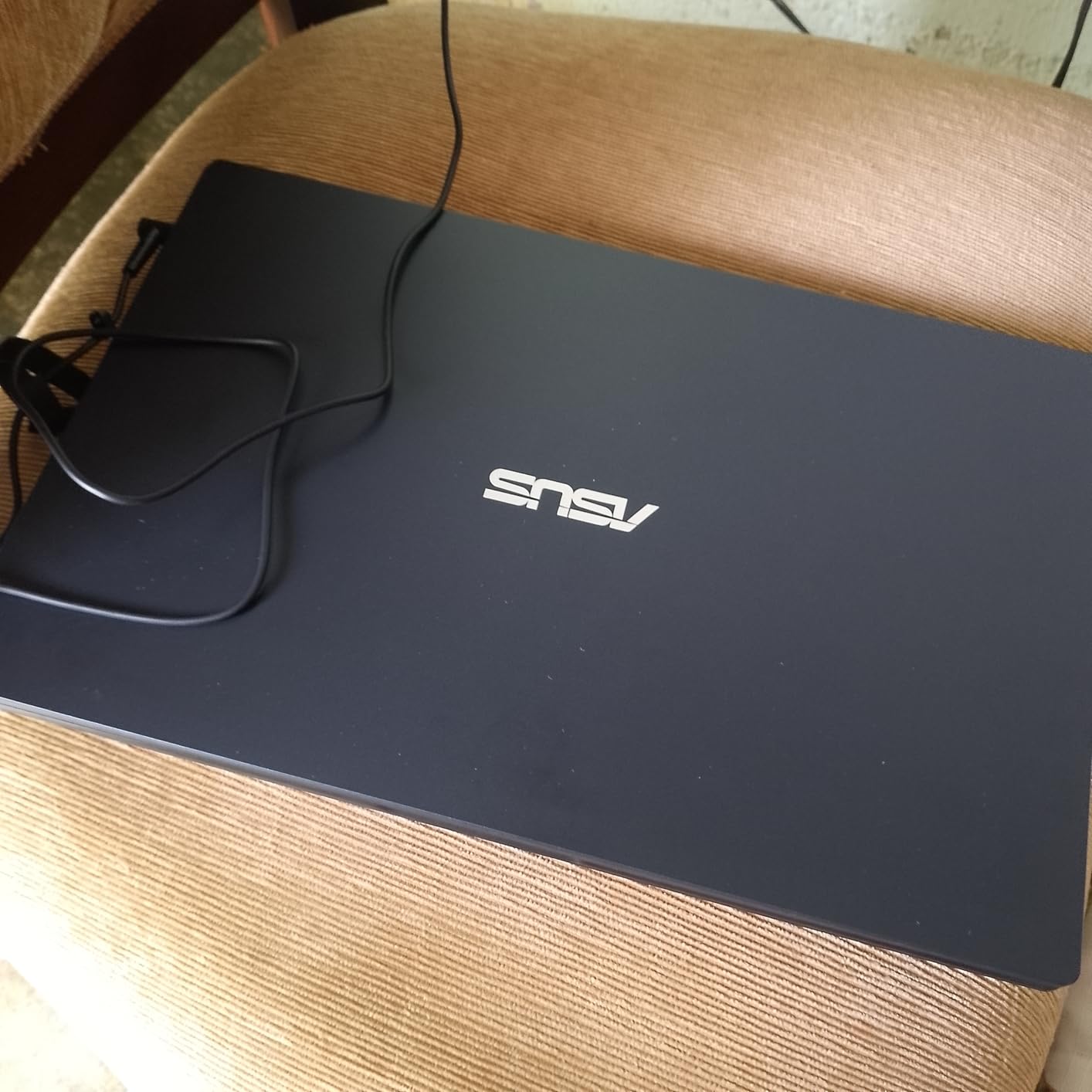
Windows 11 Home means standard desktop software runs normally, and the port selection includes USB-C, two USB-A ports and a headphone and microphone combo jack.
Video quality suits video calling, which owners call out as good for the money. Streaming video is handled without difficulty at this screen size.
Who this laptop suits
Best for someone who wants a big, bright screen, still wants to carry the laptop between rooms, and does not need a touchscreen or heavy multitasking. The backlit keyboard helps in low light.
Keep in mind that this configuration has no Ethernet port, so a wired home network needs a USB adapter.
Who should skip it
The Celeron chip with 4 GB of memory reaches its limit quickly – owners report the machine struggling the moment a browser is opened with several pages plus another app. That is the single biggest reason to choose something faster.
128 GB of storage fills fast. Several models report Realtek Wi-Fi dropouts. It is also not a touchscreen, which some older users assume is standard.
7. Lenovo IdeaPad 3 – the best keyboard in this roundup
Lenovo IdeaPad 3 – (2023) – Everyday Notebook – Windows 11-14″ Full HD – 8GB Memory – 128GB Storage – Intel Core i3-1115G – Platinum Grey
1.5 kg
14 inch 1920 x 1080
Windows 11 S mode
8 GB RAM
Pros
- Keyboard quality praised repeatedly
- 8 GB memory handles everyday work
- Sturdy build and durable hinge
- Good Dolby Audio
Cons
- Average screen brightness and sharpness
- No USB-C port
- 128 GB storage
- About 7.5 hours of battery
Keyboards are the part of a laptop a senior touches every single day, and this IdeaPad 3 draws the most consistent praise for its typing feel in the whole roundup. Reviewers call the keys solid, the layout familiar, and the hinge durable.
Eight gigabytes of memory is a meaningful upgrade over the 4 GB machines above. It is the reason this laptop stays responsive with several tabs and a video call open, and owners describe it as smooth for everyday work.
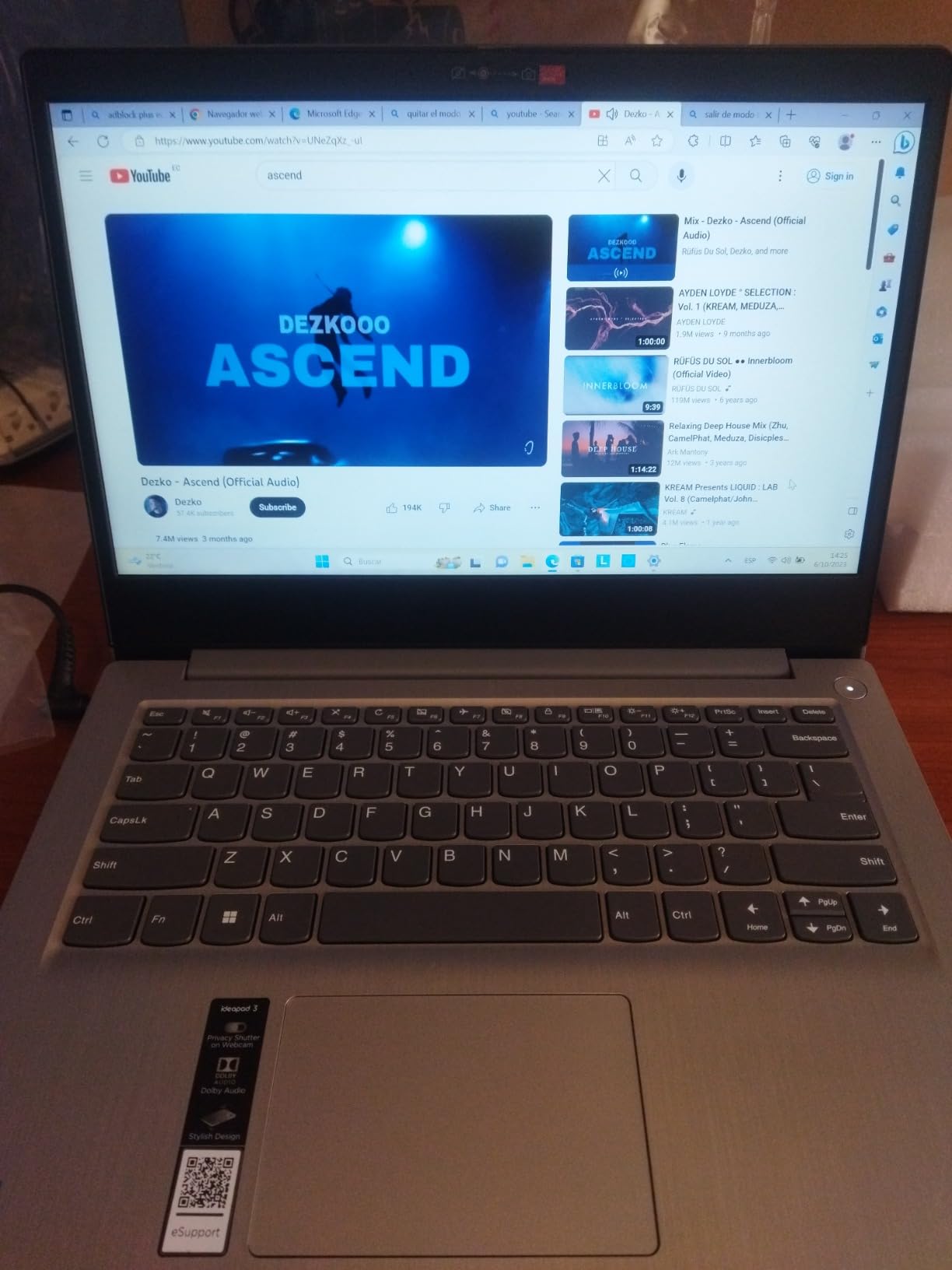
The 720p camera has a physical privacy shutter, a small hardware feature that gives a cautious user something concrete to click closed before a video call.
At 1.5 kg it sits comfortably inside our weight threshold, and the 0.78 inch profile keeps it in the same carry class as the Chromebooks here.
Who this laptop suits
This suits someone who does a real amount of typing – email, letters, shopping lists, filling in forms – and who will notice a stiff or mushy keyboard after an hour of use. It also suits anyone who wants a full desktop in a light body.
The Windows 11 S mode install can be switched to full Windows 11, so it can start simple and be opened up later without buying a new machine.
Who should skip it
The display is the weak point. Despite the Full HD label, brightness and sharpness are only average, which matters for anyone with reduced vision. There is also no touchscreen.
There is no USB-C port, so modern chargers and most accessories need an adapter, and the battery runs about 7.5 hours. Volume and other shortcuts require holding the Fn key, which some users find annoying.
8. HP 15.6-inch Portable Laptop – numeric keypad and 16 GB of memory
HP 15.6″ Portable Laptop, HD Display, Intel Quad-Core N200 Processor, 16GB RAM, 128GB Storage, Wi-Fi 6, Webcam, HDMI, Numeric Keypad, Windows 11 Home, Silver
3.5 lb
15.6 inch 1366 x 768
Windows 11 Home
16 GB RAM
Pros
- 16 GB memory keeps many tabs open
- Fast setup and boot on NVMe SSD
- Full-size numeric keypad
- Three USB ports including USB-C
Cons
- 1366 x 768 resolution looks soft
- Intel N200 is an entry-level chip
- 128 GB storage
- Battery or hardware failures reported by some
The 16 GB of memory here is double what most machines at this size carry, and owners point to it as the reason many browser tabs stay open without the machine stuttering. For someone who leaves a dozen tabs and a mailbox open all day, that headroom is the main event.
The full-size numeric keypad is unusual on a 15.6 inch notebook and genuinely useful for anyone who works with spreadsheets, enters figures often, or came from a desktop with a keypad.
Setup is quick and painless on the PCIe NVMe solid state drive, and owners report stable connectivity and easy printer pairing. The port selection includes two USB-A, one USB-C and HDMI.
At 3.5 lb it is above our strict lightweight line, so treat it as a large-screen compromise. The 15.6 inch HD panel is roomy but runs at 1366 x 768, so individual pixels are visible at close range.
Who this laptop suits
Suits a heavier workload than the rest of this list allows: lots of tabs, email, spreadsheets and video calls running together. Wi-Fi 6 also helps in busy environments.
It suits anyone who wants a numeric keypad on a portable machine, which is increasingly rare on modern laptops.
Who should skip it
The resolution is the first thing to check. At 1366 x 768 across 15.6 inches, text looks softer than on the 14 inch Full HD machines above, and that is frustrating for anyone with vision changes.
The Intel N200 is an entry-level chip, so heavy work still shows its limits, and some buyers report battery or hardware failure within months. Manufacturer support experiences also vary widely.
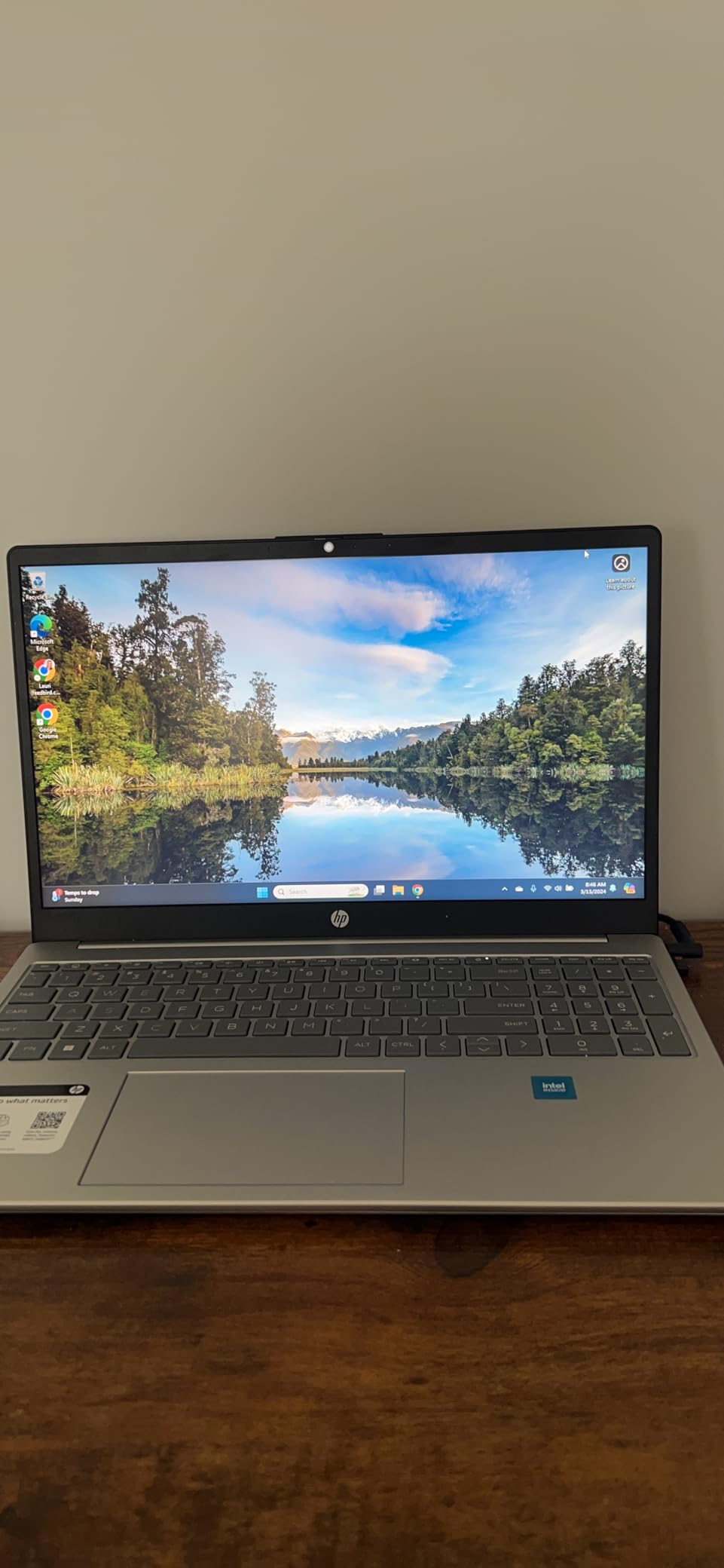
9. Lenovo IdeaPad Flex 3i Chromebook – the lightest pick in the roundup
Lenovo IdeaPad Flex 3i Chromebook 2-in-1 Laptop (12.2″ FHD+ Touchscreen, Intel N100, 4GB DDR5, 128GB Storage (64GB eMMC + 64GB SD Card)), Home, Student, Education, Long Battery Life, NFC, Chrome OS
2.8 lb
12.2 inch 1920 x 1200 touchscreen
Chrome OS
Up to 12 hours
Pros
- Lightest machine here at 2.8 lb
- Bright 300 nit touchscreen with low blue light certification
- x360 hinge for tablet reading
- Webcam privacy shutter
Cons
- Only 4 GB of memory
- Storage split between 64 GB eMMC and an SD card
- Small screen for some users
- Glossy finish reflects room light
At 2.8 lb this is the lightest machine we could recommend, and it also carries a 300 nit touchscreen with low blue light certification. For someone whose hands tire quickly, the weight matters more than almost any other spec.
The compact 12.2 inch footprint fits in a small tote bag and works on a lap or armrest. The x360 hinge folds it flat for reading, which reviewers mention using for books and streaming.
Battery life is quoted at 10 to 12 hours, with Dolby Audio stereo speakers and a 720p webcam that has a privacy shutter. Wi-Fi 6, Bluetooth 5.3 and NFC cover the modern connection basics.
The Chrome OS support window runs to 2031, so the machine keeps receiving updates for years rather than months, which matters when the buyer is not available to help.
Who this laptop suits
Suits someone with limited grip strength, or a parent who travels and wants the lightest full laptop they can find. The touchscreen and hinge also help with reading and video.
For a very small footprint this is the best of the roundup, and it takes up less desk and table space than any other pick here.
Who should skip it
The 12.2 inch screen is smaller than a traditional laptop, and a few users find it too small for comfortable long sessions. Memory is 4 GB, which limits heavy multitasking, and storage is split between 64 GB eMMC and an included SD card rather than one drive.
The glossy finish reflects ambient light, which hurts readability in a bright room. That is a real concern for anyone with reduced vision.
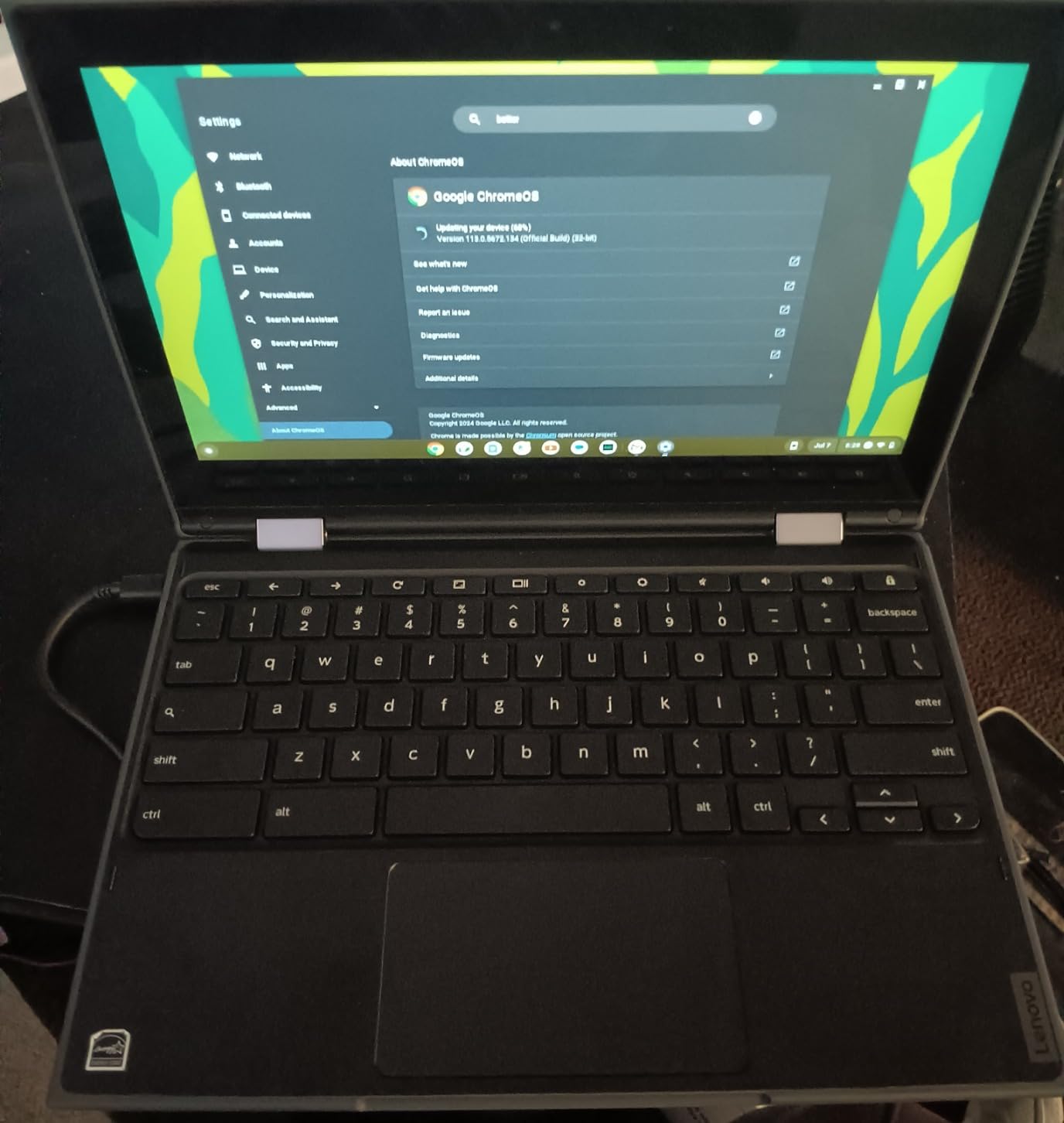
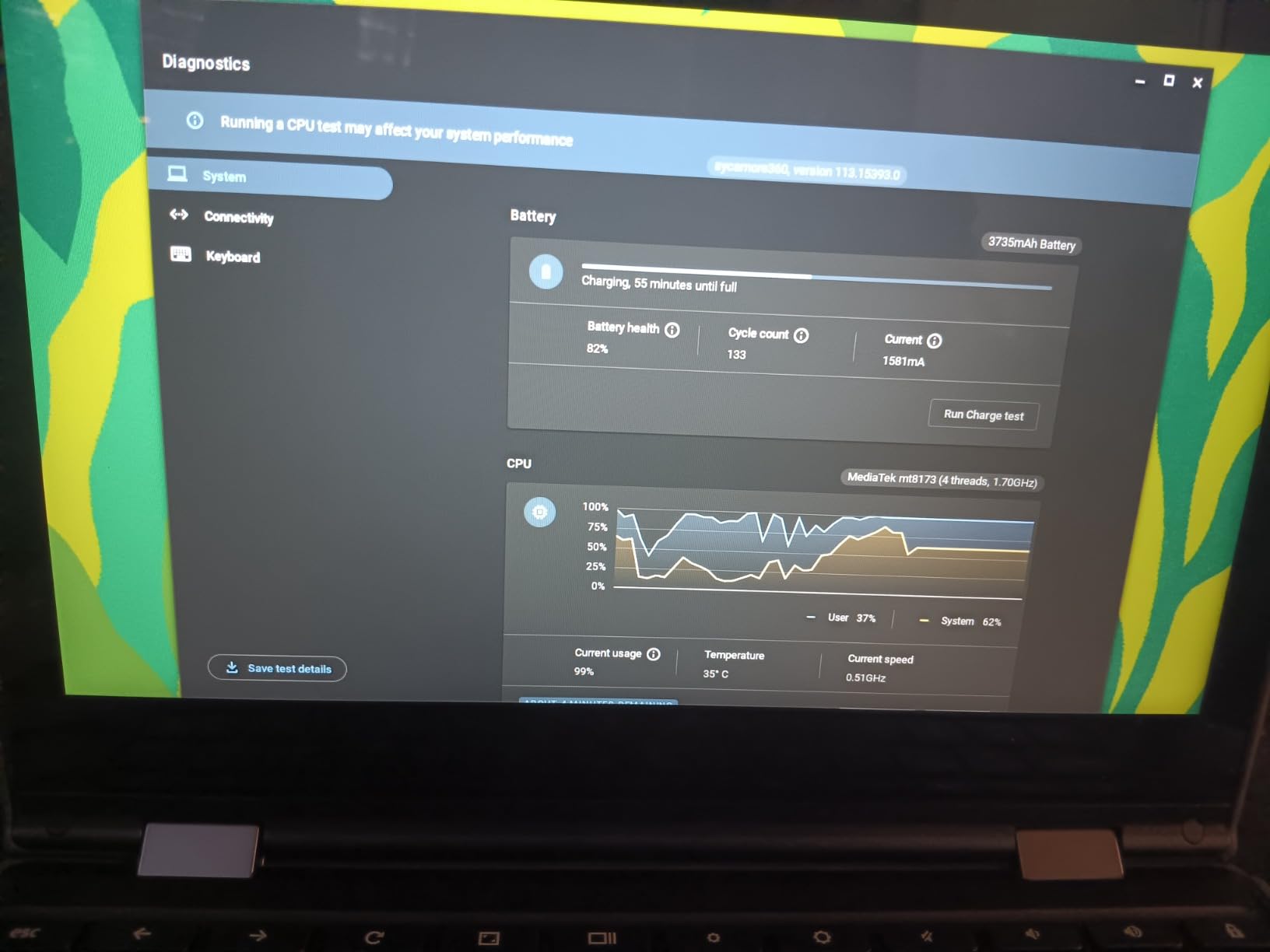
10. Lenovo 11.6-inch 300e Chromebook (Renewed) – a travel and backup machine
Lenovo 11.6″ 300e Chromebook Touchscreen LCD 2 in 1- MediaTek M8173C Quad-core 2.1GHz 4GB LPDDR3 32GB Flash Memory Chrome OS Model 81H00000US (Renewed)
3 lb
11.6 inch 1366 x 768 anti-glare touchscreen
Chrome OS
Up to 10 hours
Pros
- Compact 3 lb body fits any bag
- Matte anti-glare touchscreen
- 2-in-1 hinge for tablet use
- Large review base for a budget machine
Cons
- Only 32 GB of storage
- Trackpad feels inconsistent
- Older 2018 hardware generation
- Renewed units vary in cosmetic condition
This is the pick to pack. At 3 lb with an 11.6 inch footprint, it is the easiest machine here to carry through an airport or hand to a relative for a week, and it handles email, browsing, documents and video calls without complaint.
The 11.6 inch IPS panel is matte and anti-glare, which reviewers highlight as useful in bright rooms and outdoors, where glossy screens wash out.
With more than 3,400 reviews on file, it is the most examined budget Chromebook in this roundup, which means any weaknesses are already well documented rather than a surprise later.
Some readers suggest buying an inexpensive machine like this and investing the saved budget in two chargers and some time simplifying the setup. That combination is genuinely practical for a first computer.
Who this laptop suits
Suits a traveller, a second machine for a relative, or anyone who wants a spare for the car or the bedside table. The touchscreen and convertible hinge make it useful for reading more than just typing.
Chrome OS is forgiving for a first-time user, since there is very little installed that can go wrong.
Who should skip it
Thirty-two gigabytes of storage is very limited, and the trackpad draws complaints for inconsistent click and drag behaviour. This is 2018 generation hardware, so processing power is modest by current standards.
Renewed units may arrive with scratches or grime and some include missing charger parts or shorter battery life. Check the physical condition carefully on arrival.
How to Choose a Lightweight Laptop for an Elderly Parent
Weight is the first filter, not the last one
Start at 3.2 pounds and go down. Anything at 3.5 lb or above should be justified by a feature the person genuinely needs, such as a 15 inch screen or a numeric keypad. Our lightest pick here sits at 2.8 lb, so the difference between options is small but real.
Weight compounds with everything else you pack. Our picks on golf drivers for seniors follow the same thinking, where lighter gear means longer sessions without fatigue.
Screen size and clarity beat raw inches
A 14 inch 1920 x 1080 panel is the sweet spot: sharp text, moderate weight, comfortable viewing distance. A 15.6 inch 1366 x 768 screen is physically larger but visibly softer, and a 12.2 inch model is lighter but requires more effort to read.
Look for anti-glare or matte finishes. A glossy panel facing a window is the most common reason someone tells us a new laptop is hard to see.
Keyboard and touchpad comfort
Prefer a full-size keyboard with at least 1.5 mm of key travel and a touchpad large enough to hit without precision. Backlit keys matter for evening use. Touchscreens help hands that find small keys difficult.
Where a touchpad is reported as unreliable, budget for a small wireless mouse. That one accessory removes a surprisingly large amount of frustration.
Battery expectations you can actually rely on
Expect 8 to 14 hours of real use on a charge, with manufacturer claims running higher. Battery anxiety pushes people back to a desktop, so anything above 10 hours quoted is a meaningful advantage.
Buy a second charger. It is inexpensive, it lives in the bedroom or the bag, and it is the single most common workaround owners recommend.
Windows 11, Chrome OS or macOS
Chrome OS is the simplest and updates itself without prompting, and it suits someone who browses, emails, watches video and calls family. Its weakness is desktop software and local storage.
Windows 11 is the right choice when specific programs are needed. macOS is the smoothest and quietest option with the best screen in this roundup, at a higher weight.
The drawbacks of using a Chromebook as the only computer are real: Microsoft Office runs in browser versions, storage is small, and heavy desktop work is out of reach. What a Chromebook can do that other machines cannot is nothing – the trade runs the other way, toward simplicity.
Support, warranty and help you can still get in two years
Prefer at least a one-year manufacturer warranty and a brand with reachable phone support. Several picks here carry 90-day warranties, which is thinner coverage than we would like for a senior machine. If you live far from the person, reliable remote support matters more than any specification.
Refurbished versus new
Renewed business and consumer laptops are frequently recommended by owners on forums as sensible value for basic senior use, and three picks on this list are renewed. The trade is real condition variance and shorter warranty, in exchange for better hardware than the new budget tier offers.
When a tablet is the better answer
If the only uses are reading, video calls and light browsing, a tablet with a keyboard case may be the simpler device. Three of our picks are 2-in-1 convertibles, which capture most of that benefit in one machine.
What Laptops to Stay Away From
Some categories cause more trouble than they are worth for an older adult. The clearest red flags are these:
Glossy 15.6 inch panels at 1366 x 768. A large screen with a low resolution is worse than a smaller sharp one, because text looks soft and a window light produces glare.
Any laptop over 3.5 lb sold as portable. At 4 pounds and up, carrying becomes a two-hand job and the machine ends up living on a desk.
Machines with 4 GB of memory and a full desktop browser workload. They feel broken within a month, and the owner concludes the computer is at fault.
Unverified marketplace brands with no support line. When a senior needs help, there needs to be someone to call.
Small 11 inch screens as a primary computer. Fine for travel, frustrating for daily use at a kitchen table.
Any machine that arrives with trial antivirus and a row of pre-installed icons. Pop-ups are the number one source of scam clicks and confusion.
Devices with mandatory login flows and no fingerprint reader. Password friction is the most common reason a new laptop stays shut in a drawer.
Our picks all avoid these traps, and the review data behind them is the reason we feel confident saying so.
Setting Up a Parent’s First Laptop in 30 Minutes
Most of the work happens after the box opens, not during the purchase. Adult children buying for parents often describe configuring accessibility settings themselves as part of the deal, and that thirty minutes of setup decides whether the machine gets used.
Turn on text scaling first
On Windows 11, open Settings, go to Accessibility, then Text size and move the slider to 125 or 150 percent. On Chrome OS, open Settings, go to Accessibility and raise the text size there. Do this before anything else, because every screen the person sees will be correct afterwards.
Set up magnification and a screen reader
Windows Magnifier is built in: press the Windows key, plus, plus to start it, and set it to follow the pointer or the text on screen. Narrator is the built-in screen reader, found in Settings, Accessibility, Narrator, and it reads screen content aloud when a screen is hard to make out.
Enable Voice Access for hands-free control
Voice Access is the least known and most useful accessibility feature. In Settings, Accessibility, Speech, turn it on, and the computer can then be operated with spoken commands for clicking, scrolling and typing without touching the keyboard at all.
Remove the clutter and the pop-ups
Delete pre-installed trial software, unused shortcuts and anything the person did not ask for. Pin only the browser, the email app and the video calling app to the taskbar. This single step removes the majority of confusion new users report.
Set updates to automatic and add a remote support app
Automatic updates prevent a restart prompt from appearing at the wrong moment. Install a remote support tool and walk the person through it once while you are sitting next to them, because a laptop that lives far away needs a way to get help without a phone call that goes unanswered.
Then set a rule for yourself: help by phone once, in person twice. Forum discussion around buying for parents is consistent on the point that people who explore on their own stay confident, and people who are talked through everything end up phoning you instead.
Frequently Asked Questions
What is the easiest laptop for a senior citizen to use?
A Chromebook is usually the easiest laptop for a senior citizen because it updates itself in the background, has almost no installed software to break, and starts from a single Google account sign-in. The HP Chromebook 14 at 3.2 lb with up to 13.5 hours of battery life is our pick for most households.
What is the best and most lightweight laptop?
Among the picks we tested, the Lenovo IdeaPad Flex 3i Chromebook is the lightest at 2.8 lb and pairs that with a bright 300 nit touchscreen and a 10 to 12 hour battery. For overall balance of screen quality, weight and owner review history, the HP Chromebook 14 is harder to argue against.
What laptop should I stay away from?
Avoid glossy 15.6 inch panels running at 1366 x 768, anything over 3.5 lb sold as portable, machines with only 4 GB of memory used for heavy browsing, and unverified marketplace brands with no phone support. Pre-installed trial antivirus is a frequent source of scam pop-ups.
Is a Windows laptop better than a Chromebook for seniors?
A Windows laptop is better when specific desktop programs are required, because Chromebooks rely on browser versions of software and limited local storage. A Chromebook is better when the tasks are email, browsing, video calls and streaming, because it is simpler and maintains itself automatically.
What can a laptop do that a Chromebook cannot?
A Windows laptop can install desktop software, store large local libraries, run utilities and external drives without limits, and connect to a wider range of peripherals. Chromebooks are limited to web-based applications and modest local storage, and need a reliable internet connection to work properly.
Do I need a 15 or 16 inch screen for someone with poor eyesight?
No. A 14 inch panel at 1920 x 1080 usually reads better than a 15.6 inch panel at 1366 x 768, because the higher resolution makes text sharper. If a larger screen is needed, the ASUS 15.5 inch Full HD model gives full resolution at a bigger size and a light 1.57 kg body.
The Verdict: Which Lightweight Laptop Wins in 2026
For most seniors, the HP Chromebook 14 is the best lightweight laptop we found in 2026: the highest rating and largest review base in the roundup, a 12 to 13 hour real-world battery, and a setup that takes one Google sign-in rather than an afternoon of help.
Buy the Lenovo 14 inch Chromebook instead if screen sharpness and a backlit keyboard matter most, the ASUS 15.5 inch model if a bigger full-resolution display is needed, and the MacBook Air M1 if battery endurance and a superb Retina screen justify the extra weight.
Whichever you choose, spend the saved effort on the thirty minute accessibility setup and buy a second charger. That is where most of the difference in daily satisfaction comes from.