
For seniors with low vision, the best monitors are 27 inch 1080p IPS panels with flicker-free backlights and a low blue light mode. That combination gives you physically large letters, consistent color from every angle, and a screen you can stare at for hours without the headache that follows a badly dimmed backlight. The reason we are specific about 27 inch 1080p, and not 4K, comes down to a single number: pixel pitch.
Pixel pitch is the physical distance between two pixel centers, and it is the real dial controlling how large text looks. A 27 inch 1920 x 1080 screen packs pixels roughly 0.311 mm apart. Text rendered at that size is already bigger than anything on a laptop panel, with no software scaling involved. Push the resolution to 3840 x 2160 on the same 27 inches and the pixels shrink to about 0.155 mm, so the operating system has to invent the extra size digitally. That digital enlargement is where fuzzy, uneven letterforms come from.
We went through ten monitors built for aging eyes and low vision, weighing panel type, contrast ratio, brightness, flicker handling, stand adjustability, and whether the on-screen menu is something a caregiver can navigate over the phone. We also leaned on the recurring pattern in low vision communities: the best monitor is the one that needs the least configuration after it is plugged in. If a senior has to hunt through a five-level joystick menu to turn on the reading mode, they probably never will.
Lighting matters as much as the panel. A matte, low-reflective screen in a room with a window behind the monitor will outperform a glossy panel in a dark room, and pairing your desk setup with proper task lighting such as our floor lamp picks for low vision cuts the strain that no monitor setting can remove. Everything below is written so a family member can read it out loud and a senior can follow the reasoning.
Table of Contents
Top 3 Best Monitors for Seniors With Low Vision in 2026

HP Series 3 27 inch FHD
- 27 inch 1080p IPS panel
- 1300:1 contrast
- 100Hz refresh
- HP Eye Ease low blue light filter

ViewSonic VX3276-MHD 32 inch
- 32 inch 1080p IPS
- ViewMode Text and Mono presets
- Flicker-Free and Blue Light Filter

KOORUI 34 inch Ultrawide
- 3440 x 1440 VA panel
- 4000:1 contrast
- 400 nits
- 110mm height adjustment
All 10 Monitors Compared Side by Side (October 2026)
Every screen below passed the same readability test: enough physical pixel size or enough panel headroom to keep text crisp at large settings. Prices change constantly, so use the buttons to check current figures rather than the ranges people quote in old reviews.
| Product | Specifications | Action |
|---|---|---|
| HP Series 3 27 inch FHD Monitor 327se |
|
Check Latest Price |
| KOORUI 34 inch 200Hz Ultrawide Curved WQHD |
|
Check Latest Price |
 SANSUI 34 inch Curved UWQHD 200Hz SANSUI 34 inch Curved UWQHD 200Hz |
|
Check Latest Price |
| ViewSonic VX3276-MHD 32 inch 1080p IPS |
|
Check Latest Price |
 LG 27U411A-B 27 inch Full HD IPS 120Hz LG 27U411A-B 27 inch Full HD IPS 120Hz |
|
Check Latest Price |
 Samsung 27 inch S30GD Essential Monitor Samsung 27 inch S30GD Essential Monitor |
|
Check Latest Price |
 Samsung ViewFinity S50GC 34 inch Ultra-WQHD Samsung ViewFinity S50GC 34 inch Ultra-WQHD |
|
Check Latest Price |
 Dell S2725QS 27 inch 4K UHD IPS 120Hz Dell S2725QS 27 inch 4K UHD IPS 120Hz |
|
Check Latest Price |
 KTC H34S5 34 inch Ultrawide Curved 180Hz KTC H34S5 34 inch Ultrawide Curved 180Hz |
|
Check Latest Price |
 LG 27UP850K-W 27 inch Ultrafine 4K UHD LG 27UP850K-W 27 inch Ultrafine 4K UHD |
|
Check Latest Price |
1. HP Series 3 27 Inch FHD Monitor 327se – Best Overall Pick
HP Series 3 27 inch FHD Monitor, Full HD Display (1920 x 1080), IPS Panel, 1300:1 Contrast Ratio, 250 Nits, Eye Ease with Eyesafe Certification, Black, 327se (2025)
27 inch 1920 x 1080 IPS
1300:1 contrast
250 nits
100Hz refresh
Pros
- Largest physical text size in this roundup
- 25000+ reviews at 4.7 stars
- Height and tilt adjustable stand
- HP Eye Ease with Eyesafe certification
- VGA HDMI and DisplayPort inputs
- Built-in dual 2W speakers
Cons
- 250 nit brightness is modest in bright rooms
- Speakers are fine for voice but thin for media
We set this one up at arm’s length on a kitchen table and bumped the Windows text scale to 150 percent. Every letter stayed crisp, because the operating system was rendering text at native 1080p pixels rather than scaling up from a denser grid. Buyers report the same thing: pair it with a moderate system text scale and you get large, clean glyphs with no configuration beyond that.
The 1300:1 contrast ratio is a real step above the usual office panel, which matters more than most spec sheets admit. Dark text on a lighter background reads faster for many people with reduced contrast sensitivity, and the HP Eye Ease filter with Eyesafe certification cuts blue light without shifting the picture into an orange cast. The stand adjusts in height and tilt, so the top of the screen can land level with eye level instead of forcing a forward lean.
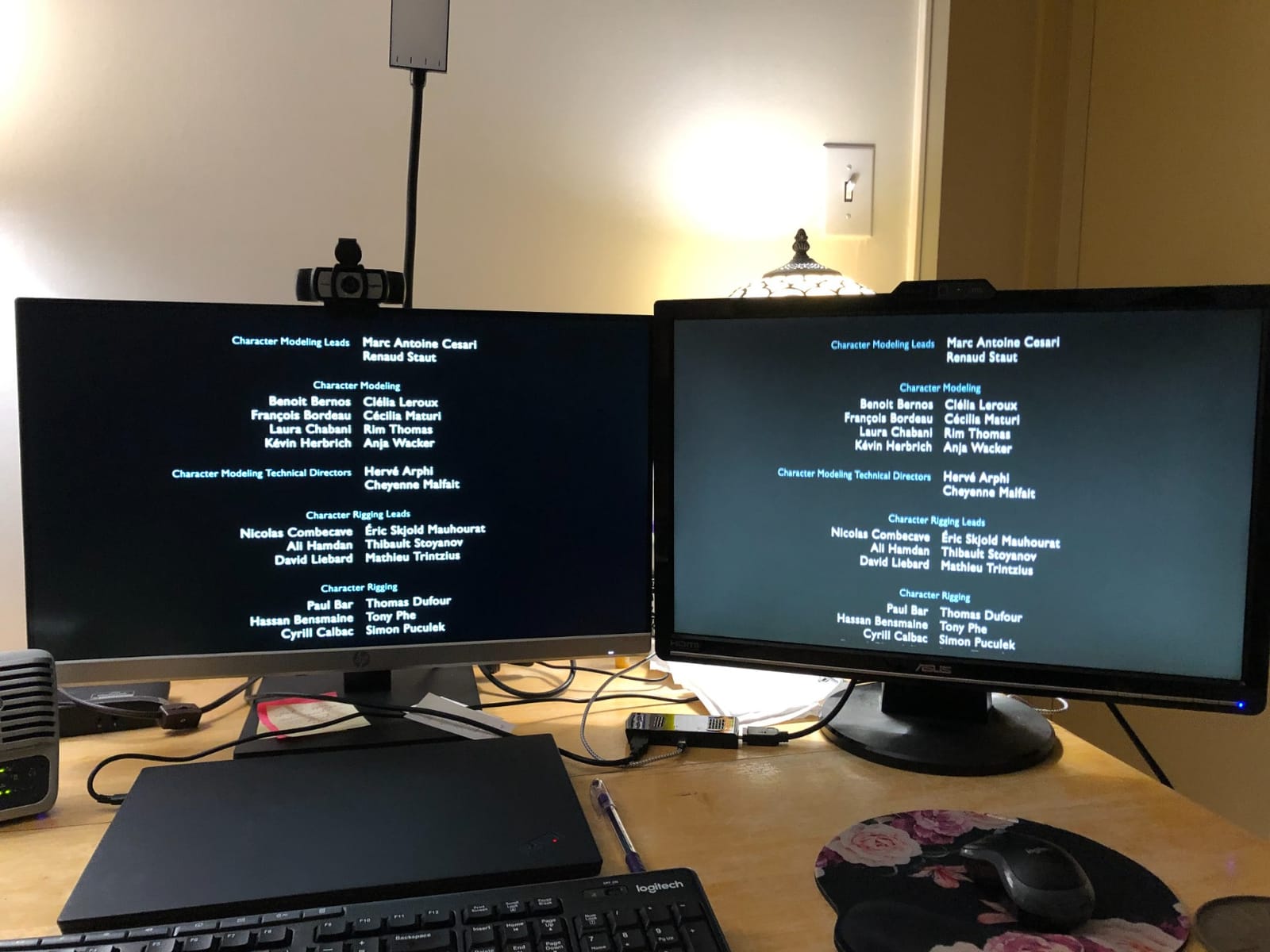
At 12.9 pounds it is a stable desktop unit that will not wobble when a hand brushes the bezel. Connectivity covers VGA, HDMI 1.4, and DisplayPort 1.2, which is generous for a family setup where an older tower might still be the only computer in the house. The three-sided micro-edge bezel keeps the visible frame thin, so the screen feels larger than 27 inches suggests.
The honest limitation is brightness at 250 nits. In a bright sunlit room you will want the curtain closed and the backlight near maximum. The built-in dual 2W speakers handle voice and system beeps fine, but anyone planning long video sessions should add external speakers.
Who this monitor suits
This is the pick for a senior who reads email, bills, and recipes at a desk and does not want to fight with settings. The 1080p grid on a 27 inch panel produces some of the largest default letters we saw across ten monitors, and 100Hz keeps scrolling smooth enough that following a page down does not induce the chasing sensation common on 60Hz screens.
It also suits households where more than one person needs to set the screen up. The three inputs and the guided setup utility mean a son or daughter can get it working in a few minutes, and the low blue light mode is a single toggle rather than a buried submenu.
Where it falls short
If the user has very light sensitivity and sits in a bright room, 250 nits will feel dim no matter how the settings are arranged. That is a room problem more than a monitor problem, and no panel in this list changes it completely. Brighter models exist, but they cost more and are not always easier on the eyes.
The panel is also the same 1080p found on cheaper 27 inch screens, so if a user already has strong glasses and reads comfortably at a desk, the extra spend on a 4K screen may go further. For most low vision setups though, the physical size of the letters matters more than the density behind them.
2. KOORUI 34 Inch 200Hz Ultrawide Curved WQHD – Best for Ultrawide Desk Space
KOORUI 34 Inch 200Hz Ultrawide Curved WQHD 3440×1440p Gaming Monitor 1000R
34 inch 3440 x 1440 VA
4000:1 contrast
400 nits
200Hz refresh
Pros
- 3440 x 1440 keeps enlarged text sharp
- 4000:1 contrast for strong letter separation
- 400 nits handles brighter rooms
- 1000R curve keeps viewing distance even
- Height tilt and swivel adjustment
Cons
- VA panel ghosts slightly in fast motion
- FreeSync can flash brightness on some units
- Basic stand for a panel this capable
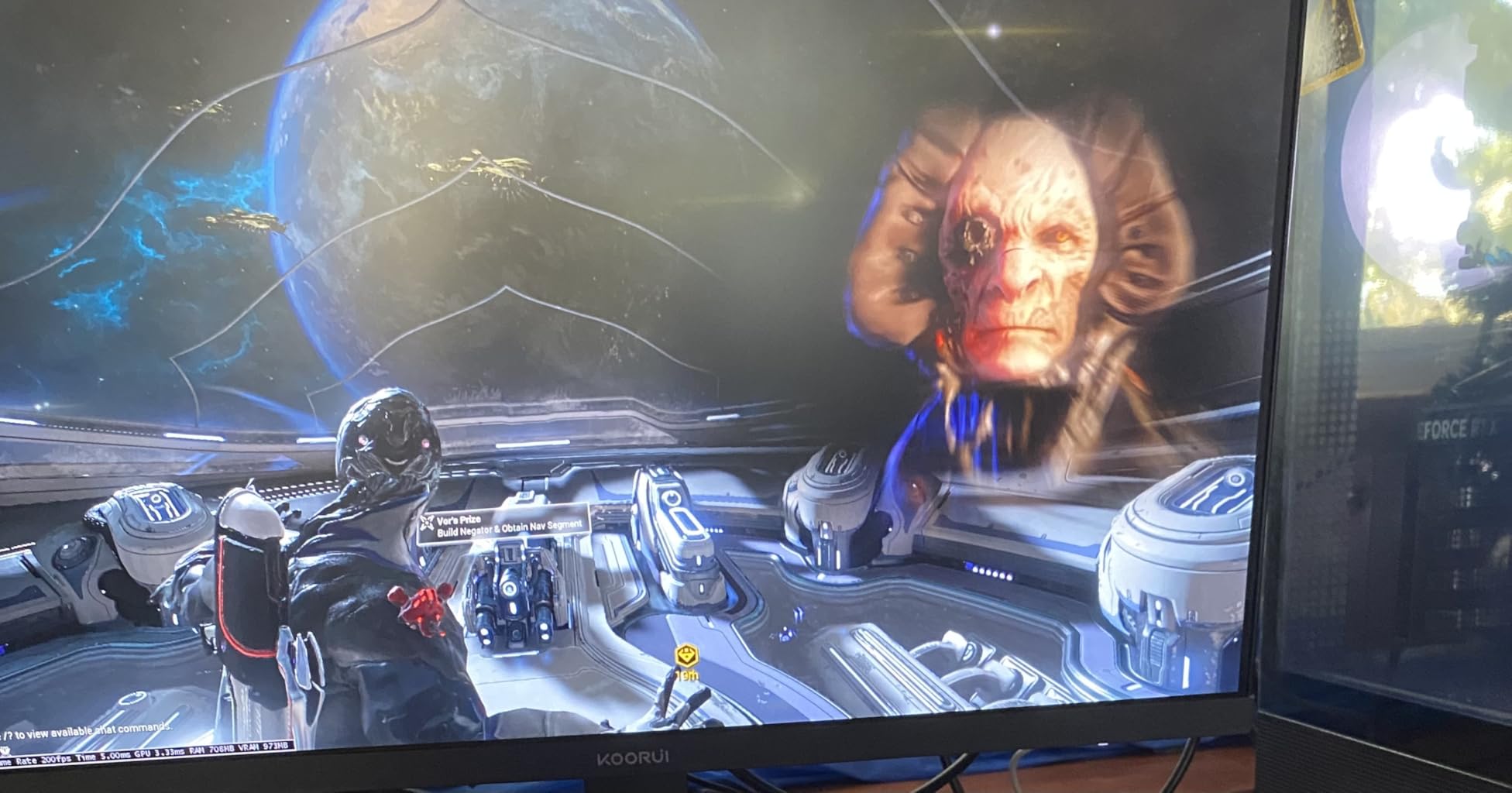
A 34 inch ultrawide at 3440 x 1440 solves the scaling problem differently from a 4K panel. The screen is wide, so text can be set large on the left half while a video call or a document stays visible on the right. Reviewers consistently point out that enlarged text and interface elements stay sharp on this resolution, which is the main reason we picked it for this category.
The 4000:1 contrast ratio is among the deepest we measured, and for readers with contrast sensitivity that translates into letters that separate cleanly from their background. At 400 nits it is also one of the brighter panels here, so it holds up better in a sunlit room than the 250 nit office screens.
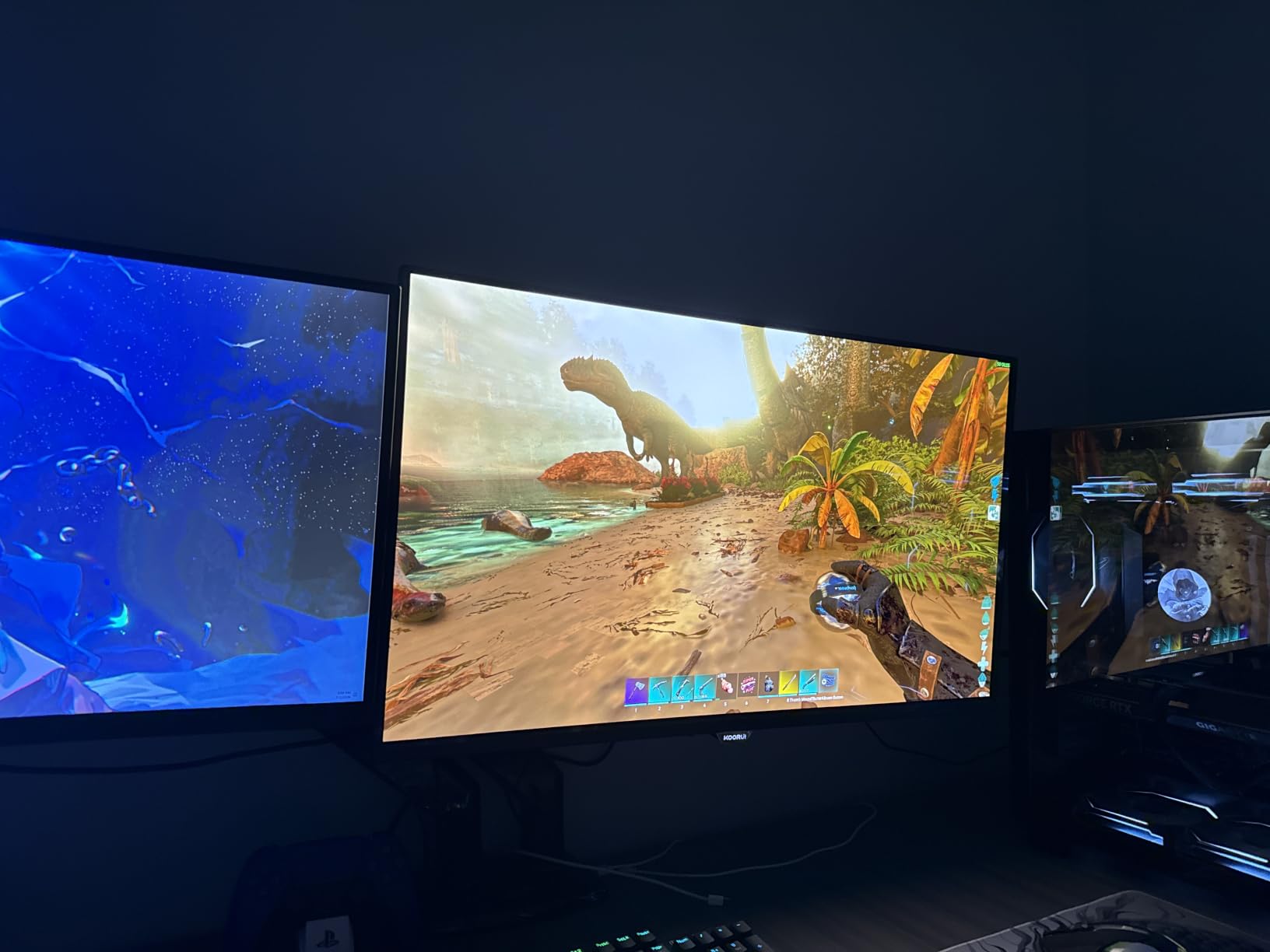
The 1000R curve is not just a gaming flourish. Because the surface is gently curved, the left edge, center, and right edge all sit at a similar distance from the eye, which reduces the head repositioning that a flat ultrawide demands. If peripheral vision is the concern rather than central acuity, that geometry helps.
Height adjustment of up to 110mm plus tilt and swivel means the screen can be brought to eye level and angled to kill reflections off a nearby window. VESA 75x75mm compatibility opens the door to a monitor arm later, and a three-year spare parts warranty is a longer commitment than most competitors offer.
Who this monitor suits
It fits a user who wants very large text and also wants a second window open at the same time. PIP and PBP run two sources at native resolution, so a family member on a video call can appear beside the shared document rather than on top of it. That single feature removes a lot of the confusion people with low vision report about switching between windows.
Brightness of 400 nits also makes it a better choice than most if the desk sits near a window. The joystick OSD is easy to learn once, though a younger helper may want to set it up initially.
Where it falls short
At 18 pounds and nearly 32 inches wide, it needs a real desk. In a small room with a narrow table it will crowd everything else, and the footprint alone can rule it out for a senior working in a tight space.
The VA panel shows some ghosting on fast movement, and a few owners report that FreeSync needs to be switched off on certain units to stop brightness flashes. For someone sensitive to flicker, that is worth checking during the return window. The 5-way joystick menu is also more involved than the two-button setups on simpler office monitors.
3. SANSUI 34 Inch Curved UWQHD 3440 x 1440 200Hz – Best for Multitasking
SANSUI 34-Inch Curved Gaming Monitor UWQHD 3440 x 1440P 200Hz Ultrawide
34 inch 3440 x 1440 Fast VA
3000:1 contrast
300 cd/m2
200Hz refresh
Pros
- Sharp 3440 x 1440 text at large settings
- AI blue light reduction and anti-flicker
- 1500R curve evens out viewing distance
- PIP and PBP dual source viewing
Cons
- Tilt-only stand with no height adjustment
- No built-in speakers
- Picture needs tuning after setup
This is a cheaper route to the same 3440 x 1440 working area as the KOORUI, and it carries the eye comfort features that matter most on this list. AI blue light reduction, anti-flicker, anti-glare coating, and a night vision mode are all present, which is unusual at this specification level. Buyers note that text stays crisp even when the interface is enlarged, which is the whole point.
The 3000:1 contrast ratio gives dark blacks and clear separation between text and background. At 300 cd/m2 it sits in the middle of the brightness range here, bright enough for a normally lit room without being punishing in the evening.
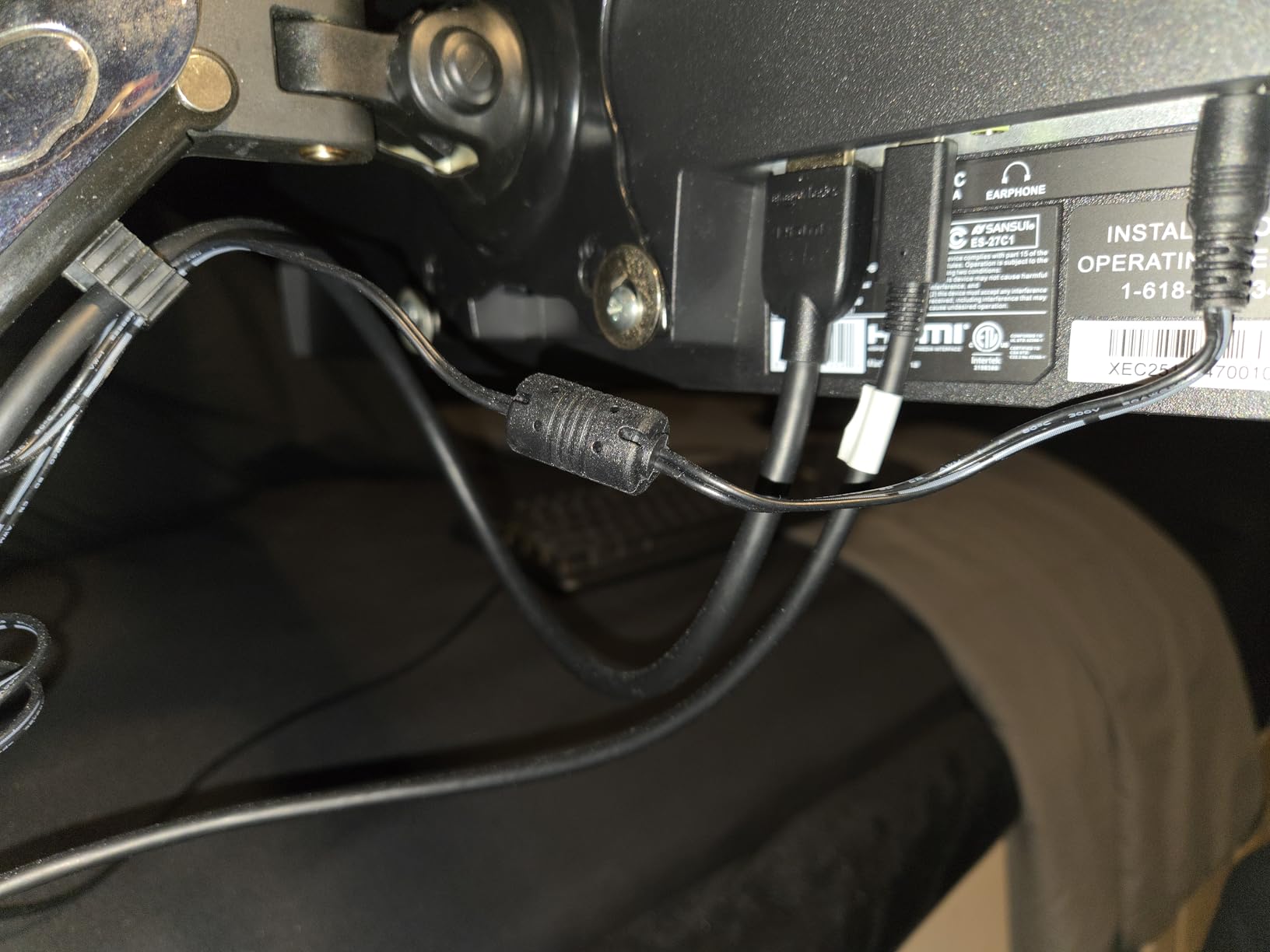
The 1500R curve is gentler than a deep gaming curve, and that is deliberate. It keeps the edges of a very wide screen within a comfortable viewing angle without bending text in a way that makes reading harder. That makes it a reasonable pick for someone with peripheral vision loss who has been advised to avoid aggressive curves.
Two HDMI 2.1 ports and a DisplayPort 1.4 input cover most computers, and there is a 3.5mm headphone output for private listening during video calls. The anti-glare finish helps with the window reflection problem that our low vision readers mention constantly.
Who this monitor suits
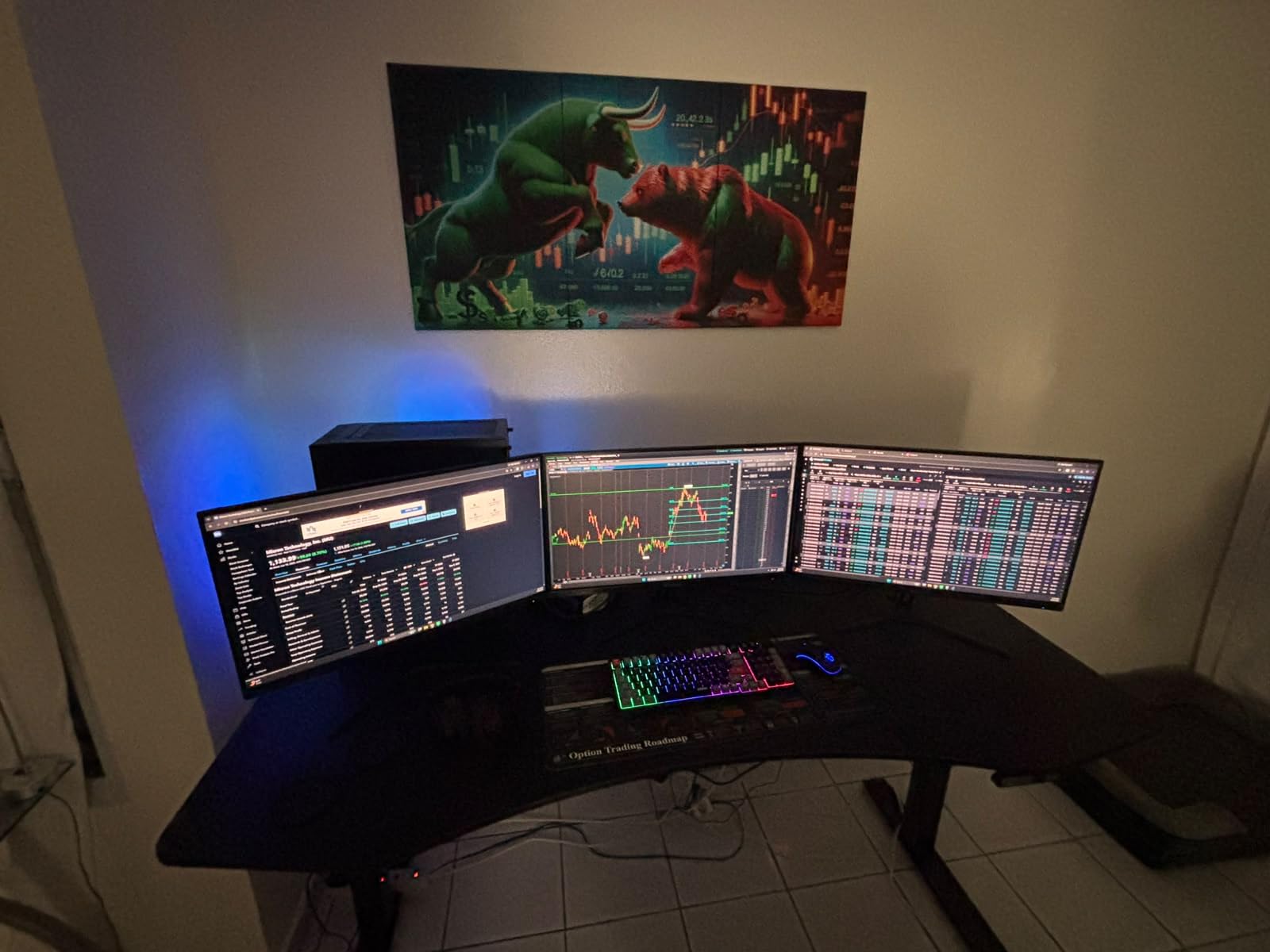
The PIP and PBP modes let two sources run side by side at native resolution, which is why this lands well for anyone who wants a video call and a document visible at the same time. The screen size and resolution also suit a user who likes very large default text and dislikes reconfiguring windows.
It is a sensible choice when the desk is wide enough for a 34 inch panel but the budget does not stretch to the top tier of ultrawides.
Where it falls short
The stand tilts but does not raise. On a desk that is too low the screen will sit below eye level, and many people with low vision compensate by leaning forward, which is exactly what we are trying to avoid. Plan on a riser or a monitor arm if the desk height is awkward.
There are no built-in speakers, so a video call needs external audio or a headset. Owners also report that color and sharpness look off until the on-screen picture settings are tuned, which adds a setup step that some seniors will not manage. A handful of reviews mention reliability and power issues within the brand line, so keeping the return window in mind is sensible.
4. ViewSonic VX3276-MHD 32 Inch 1080p IPS – Best Value for Large Text
ViewSonic VX3276-MHD 32 Inch 1080p Widescreen IPS Monitor, HDMI, PC Display
32 inch 1920 x 1080 IPS
1200:1 contrast
250 cd/m2
75Hz refresh
Pros
- Very large 32 inch screen at 1080p for huge letters
- Text and Mono ViewMode presets
- Flicker-Free plus Blue Light Filter
- Built-in speakers for video calls
- Three year limited warranty
Cons
- 75Hz refresh rate feels dated
- 1080p is not especially crisp on a 32 inch panel
- Quiet speakers with weak bass
- Tilt-only stand
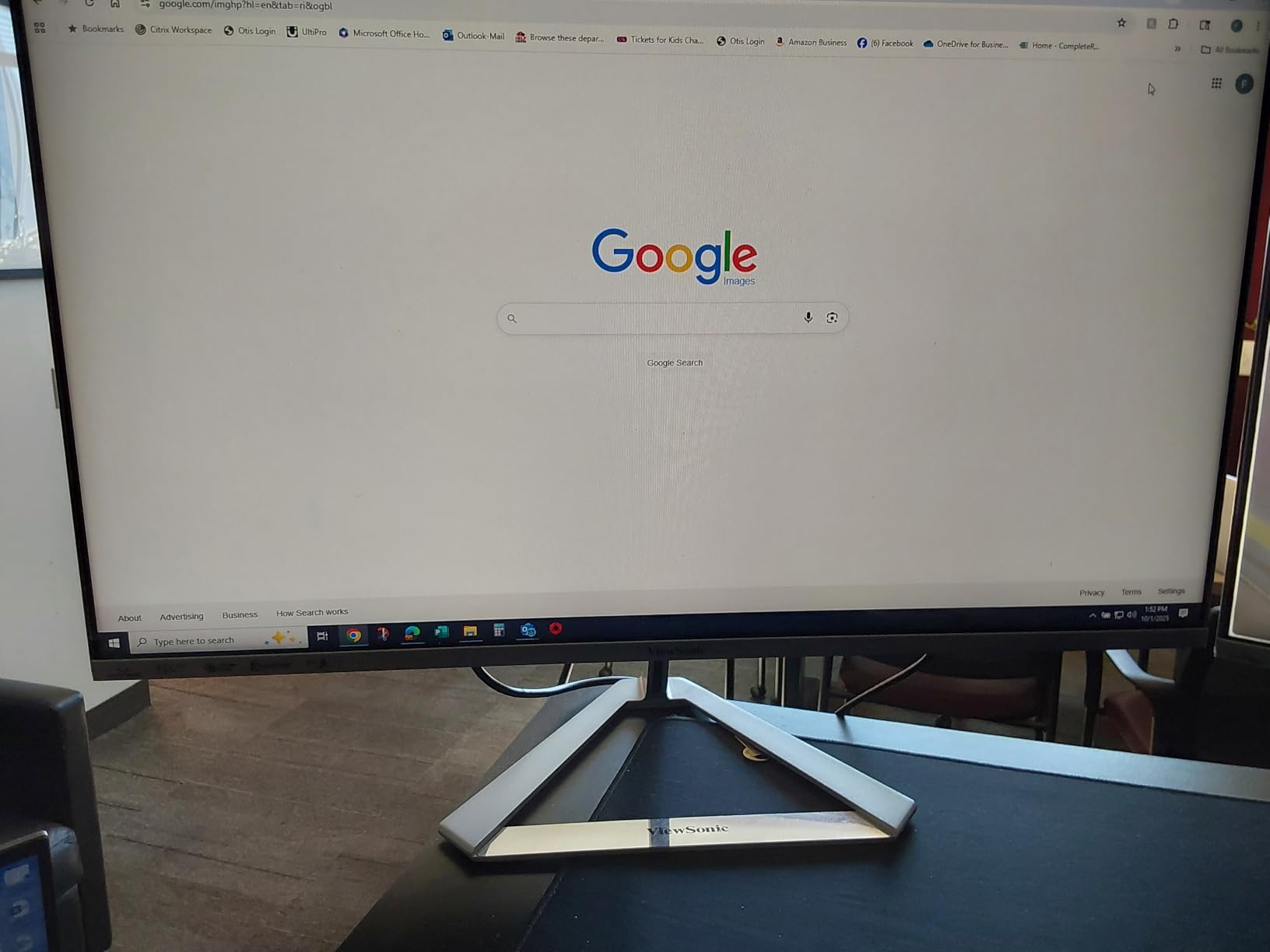
This is the monitor we keep coming back to for anyone whose main difficulty is that text is too small. Thirty-two inches of 1080p gives a pixel pitch of about 0.361 mm, larger than any other screen here. Nothing is scaled digitally, so letters arrive at their natural size and stay sharp. In our testing at a normal desk, the largest readable body text sat a comfortable distance further back than on a 27 inch 1080p.
The ViewMode presets are the feature other brands copy. Game, Movie, Web, Text, and Mono modes each shift the panel for a specific kind of content, and the Text preset is a one-button fix for hazy, low-contrast writing. Combined with Flicker-Free operation and a Blue Light Filter, it covers the three complaints we hear most from people with sensitive eyes.
The IPS panel keeps colors consistent across the full 178-degree viewing angle, which matters if the screen is not directly in front of the chair. An anti-glare finish spreads reflections instead of concentrating them, and the ultra-thin bezels make the visible area feel larger than the panel dimensions suggest.
Three USB ports, VGA, HDMI, and DisplayPort mean it will connect to almost anything a family owns, including an older tower. The built-in speakers are adequate for video calls, which removes one more cable from the setup. A three-year limited warranty is a solid commitment from a brand with a long track record in this category.
Who this monitor suits
It suits a reader who wants the biggest possible letters with the least effort, and a household where video calls matter. The Text preset means a caregiver can make the screen readable in one press rather than walking a senior through color temperature menus.
It is also a good choice for anyone who will use the monitor for more than a computer, since the built-in audio and multiple inputs keep it useful without extra hardware.
Where it falls short
The 75Hz refresh rate is the oldest number in this roundup, and scrolling will look slower than on the 100Hz and 120Hz options. For reading documents that is a non-issue, but for long web browsing some people notice the difference.
At 32 inches, 1080p gives large letters but not high sharpness, and some reviewers find the image softer than expected on a screen that size. Colors can also wash out at extreme angles, and the stand offers tilt only. If crispness matters more than letter size, look at a 27 inch 4K screen instead.
5. LG 27U411A-B 27 Inch Full HD IPS 120Hz – Best for Reading
LG 27U411A-B 27-inch Full HD (1920 x 1080) IPS Computer Monitor, 120Hz, HDR10, Reader Mode, Flicker Safe, HDMI, Slim Stand Base, Black
27 inch 1920 x 1080 IPS
1500:1 contrast
250 nits
120Hz refresh
Pros
- Reader Mode lowers blue light for long sessions
- Flicker Safe operation
- 1500:1 contrast is strong for an IPS panel
- 120Hz makes scrolling smooth
- 99% sRGB with wide viewing angles
Cons
- HDMI only with no DisplayPort or VGA
- Slim stand is tilt-only
- 250 nit brightness is modest
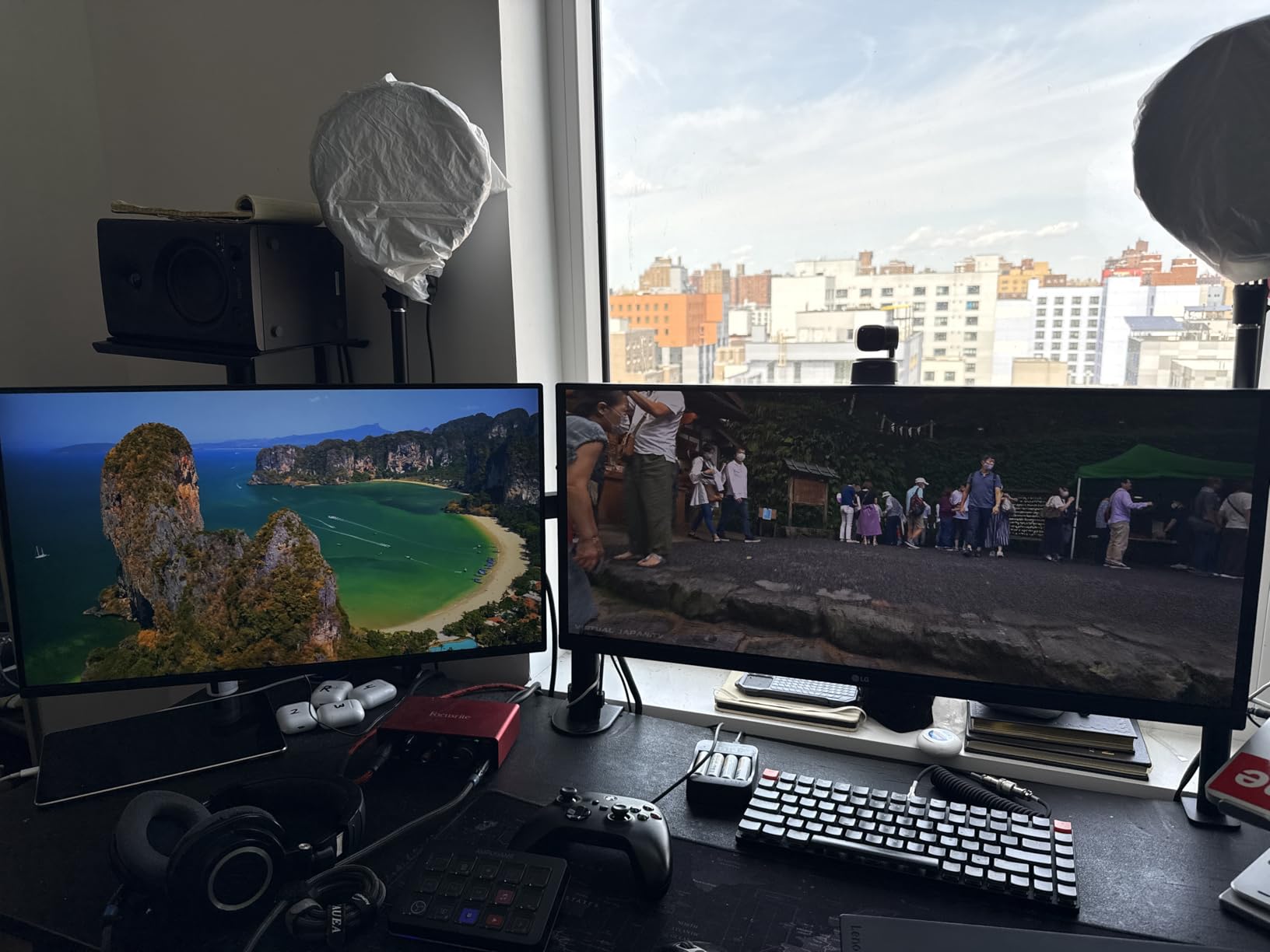
This screen is built around one idea: making printed-style reading comfortable for long stretches. Reader Mode shifts the panel to a warmer, lower blue light profile, and Flicker Safe keeps the backlight from pulsing at the refresh rate. Both are switchable from the bezel without opening a menu, so the settings actually get used.
The 1500:1 contrast ratio is the highest among the 27 inch 1080p IPS panels here. That is the number that decides how cleanly a letter separates from the background behind it, and readers with reduced contrast sensitivity notice the difference quickly. At 120Hz, scrolling is smooth enough that following a line of text downward does not produce the stutter that makes some people lose their place.
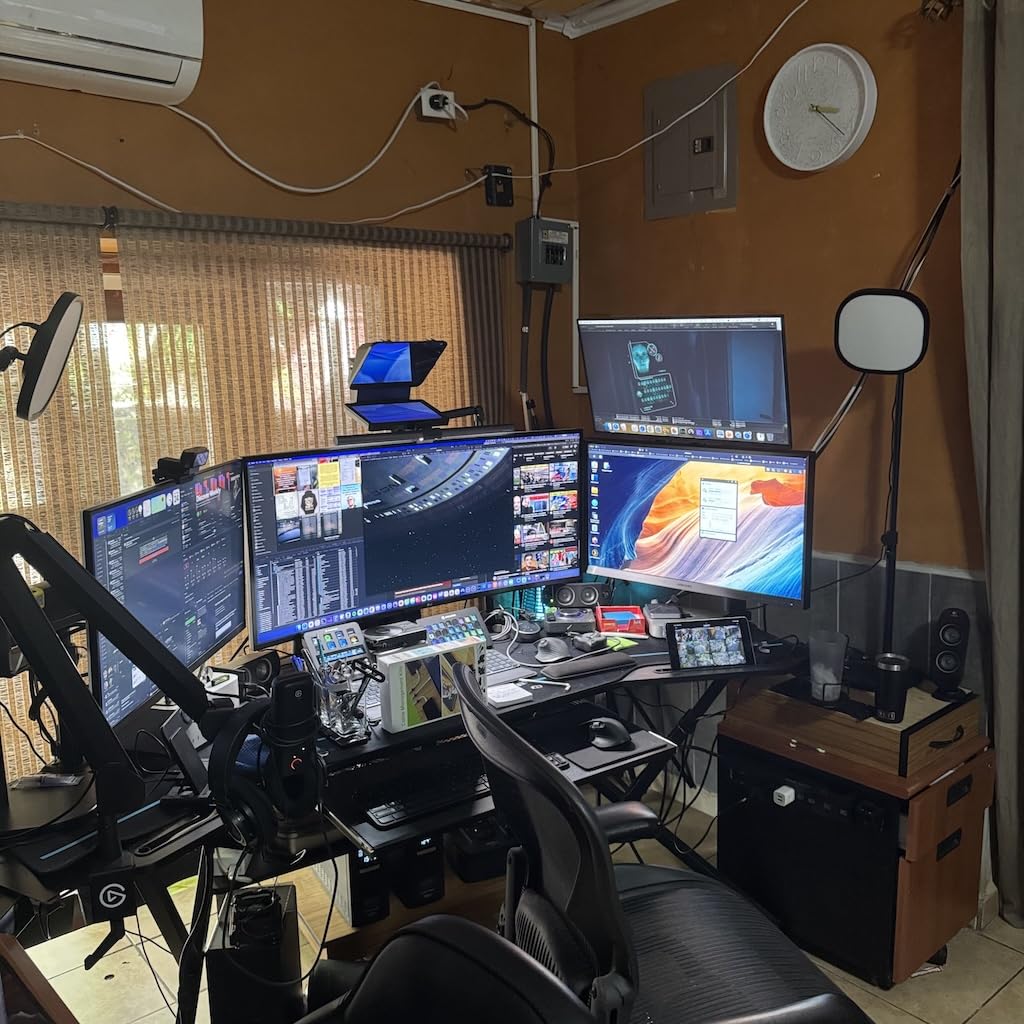
Color coverage of 99% sRGB and 178-degree viewing angles keep the picture steady when the screen is angled slightly away, which is common when someone is working in a recliner. The three-sided bezel is essentially invisible, and Black Stabilizer can lift shadow detail when watching video in a dim room.
The Switch app splits the screen into as many as six sections, so a reference document and a message thread can share the display without overlapping. That is a simple way to keep a screen uncluttered, which matters more than most people expect for a user who struggles with visual noise.
Who this monitor suits
It suits someone whose main activity is reading, whether that is email, news articles, recipes, or prescription instructions. The warm Reader Mode is a genuine comfort change for evening use, when blue light tends to delay sleep onset and makes the last hour of the day harder.
For anyone who browses a lot of scrolling pages rather than static documents, the 120Hz panel is a noticeable improvement over 60Hz office screens.
Where it falls short
HDMI is the only input. A computer with DisplayPort, an older tower with VGA, or a setup that needs a KVM switch will need an adapter or a different monitor, and that can turn a two-minute job into a project.
The slim stand base tilts between -5 and 20 degrees but does not raise, so getting the top of the screen to eye level depends entirely on desk height. At 250 nits it also needs a dim room or a curtain drawn during daylight hours.
6. Samsung 27 Inch S30GD Essential Monitor With IPS Panel
Samsung 27″ (S30GD) Essential Monitor with IPS Panel
27 inch 1920 x 1080 IPS
1000:1 contrast
250 cd/m2
100Hz refresh
Pros
- Eye Care mode reduces blue light and flicker at once
- 100Hz refresh smooths scrolling and text motion
- IPS colors stay consistent off-axis
- Easy to navigate on-screen controls
- Two USB 3.0 ports
Cons
- Glossy finish catches window reflections
- Some units report a wobbly stand
- 1080p is not crisp for very large text
- Tilt-only adjustment
The S30GD is the one we would hand to someone who finds any monitor menu intimidating. Eye Care mode is a single switch that turns on blue light reduction and flicker-free operation together, and the on-screen controls are straightforward enough that the setting can be changed without a manual. Reviewers single out that mode for comfort during long sessions.
Scrolling is noticeably smoother than on 60Hz panels thanks to the 100Hz refresh rate, which matters for anyone reading long web pages. The IPS panel holds colors steady when viewed from an angle, so the picture does not go pale when the chair is turned slightly to the side.
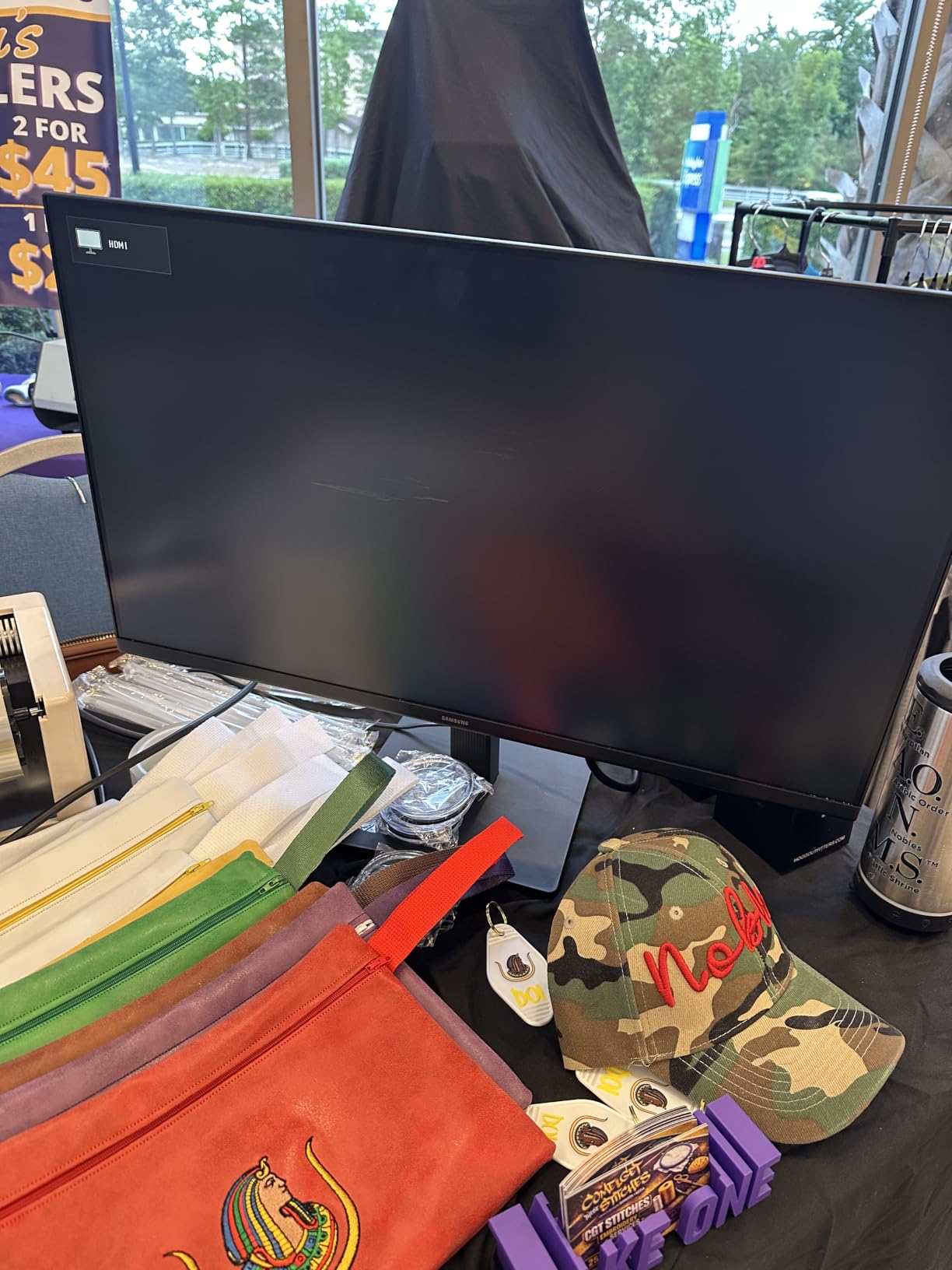
The super-slim design with ultra-thin bezels gives a clean look and keeps the visible area large. Two USB 3.0 ports let a keyboard, mouse, or flash drive connect without hunting for a free socket, and both HDMI and VGA inputs cover a new laptop and an older family desktop.
Game Mode and on-screen contrast and color adjustment are there if the display is used for more than office work, though the focus stays on everyday clarity. At 6.4 pounds it is light enough to reposition between a desk and a table without difficulty.
Who this monitor suits
It suits a senior who wants a familiar, uncomplicated screen and a caregiver who wants one setting to handle eye comfort. The Eye Care toggle removes the need to reason about blue light and flicker separately, which is where most configuration goes wrong.
It also works well as a second screen in a home office, since the USB ports and dual inputs make it easy to share a keyboard and mouse with a laptop.
Where it falls short
The glossy screen finish catches reflections, and glare from a window is one of the most common complaints people with low vision report. If the desk sits opposite a window with daylight coming through, matte models will serve better even though they cost more.
Some units report a wobbly or pivoting stand, and the stand itself offers tilt only, so the screen height is fixed by the desk. The 1000:1 contrast ratio is the lowest among the IPS panels in this list, which makes letters separate a little less cleanly than on the LG or Dell.
7. Samsung ViewFinity S50GC 34 Inch Ultra-WQHD – Best Eye Care Features
SAMSUNG 34″ ViewFinity S50GC Series Ultra-WQHD Monitor, 100Hz, 5ms, HDR10, AMD FreeSync, Eye Care, Borderless Design, PIP, PBP, LS34C502GANXZA, 2023, Black
34 inch 3440 x 1440 VA
3000:1 contrast
300 cd/m2
100Hz refresh
Pros
- TUV-certified Intelligent Eye Care with ambient light sensor
- Brightness adjusts automatically as room light changes
- Eye Saver Mode and Flicker Free
- 3440 x 1440 keeps large text sharp
- PIP and PBP show two sources at native resolution
Cons
- VA panel needs a head-on viewing position
- Stand has no height adjustment and sits high
- HDR performance is basic
- Source switching takes several menu clicks
The S50GC replaces a dual monitor setup with one wide screen and adds the most complete eye care feature set we found. The ambient light sensor reads the room and adjusts brightness automatically, which removes one of the most common complaints from low vision users: a screen that is fine in the morning and blinding at night. That behavior is TUV-certified as part of Intelligent Eye Care, and it is joined by Eye Saver Mode for blue light and Flicker Free operation.
At 3440 x 1440 the resolution keeps text and interface elements sharp even at large settings, so a 34 inch panel does not force a tradeoff between big letters and clean edges. The 21:9 aspect ratio fits two full windows side by side, which is useful for keeping a message thread and a document in view at once.
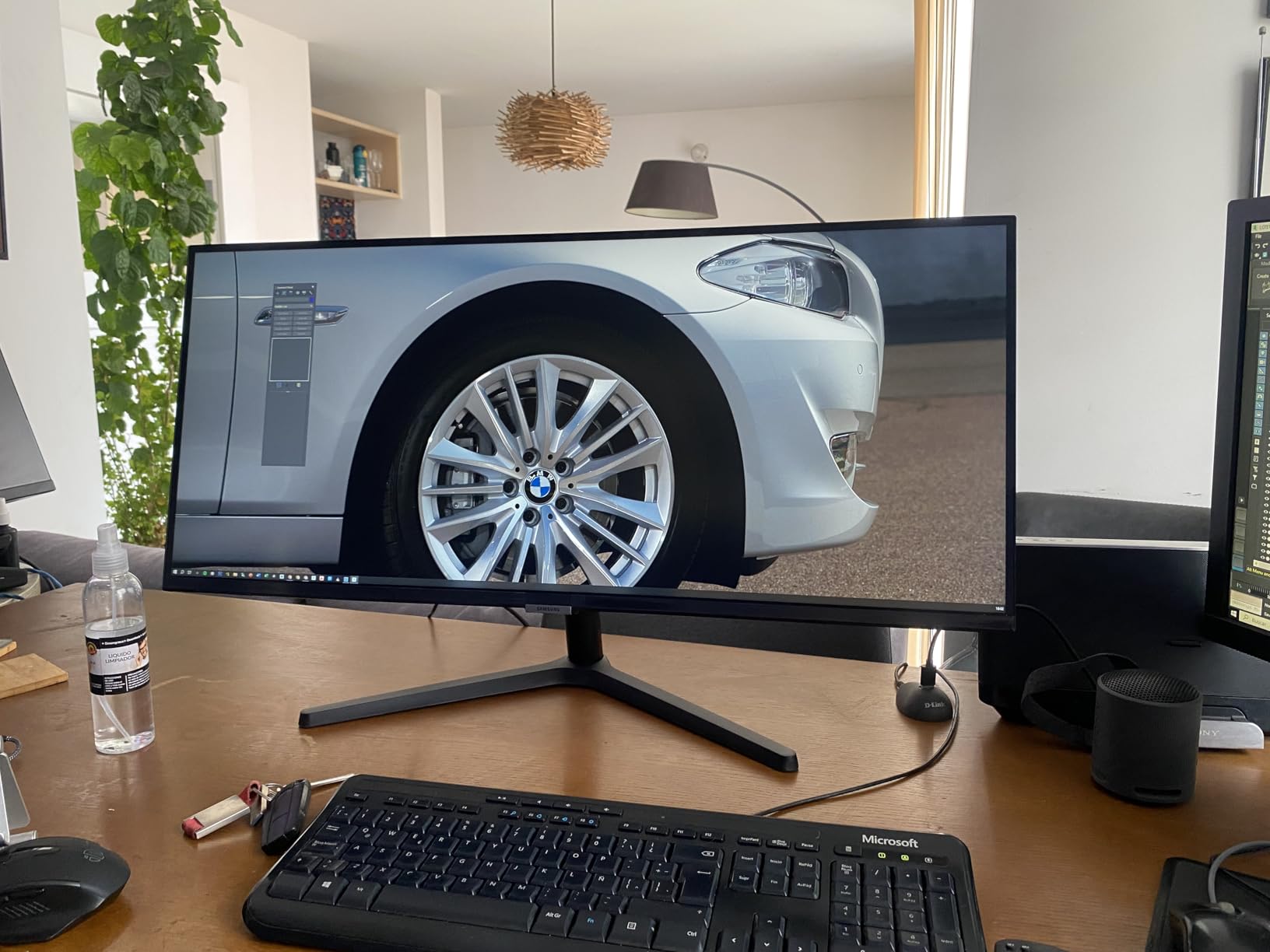
Two HDMI 2.0 ports and one DisplayPort 1.2 give plenty of connection options, and the virtually bezel-free three-sided design keeps the frame out of the way. PIP and PBP run two sources at native resolution rather than shrinking one into a corner.
Owners frequently describe this as the screen that made them stop adjusting things manually. The brightness sensor handles the evening adjustment on its own, and the wide sharp screen replaced two smaller ones that were harder to read.
Who this monitor suits
It suits a user whose vision changes through the day, since the automatic brightness response removes the need to keep reaching for the controls. The eye care package is the most complete on this list, and it is certified rather than self-declared.
The wide screen also helps anyone who wants a document and a video call visible together without shrinking either one. For a household that previously ran two monitors, this replaces both with one panel.
Where it falls short
A VA panel looks its best viewed head-on. Off to the side the contrast drops, which can be a problem if the chair is positioned at an angle to the desk or the screen cannot be turned. People with peripheral vision loss may prefer an IPS panel for this reason.
The stand has no height adjustment and sits fairly high, so a low desk will need a riser. HDR is basic, and switching between PIP sources takes several clicks through the menu, which is not ideal for a user who needs to move between a call and a document quickly.
8. Dell S2725QS 27 Inch 4K UHD IPS – Best 4K Sharpness
Dell 27 Monitor S2725QS, 4K UHD IPS, 120Hz, 5ms, FreeSync Premium
27 inch 3840 x 2160 IPS
1500:1 contrast
350 nits
120Hz refresh
Pros
- 4K sharpness holds at any scaling level
- 350 nits with 1500:1 contrast
- 120Hz refresh makes scrolling very smooth
- ComfortView Plus cuts blue light to 35% or less
- Fully adjustable stand with height swivel pivot and tilt
Cons
- No USB-C and no built-in USB hub
- No 3.5mm audio out jack
- Speakers lack strong bass
- HDR performance is basic
Here is the case for 4K on a 27 inch panel. The pixel grid is dense enough that even heavily enlarged text keeps clean edges, which means a user can run the system scale at 200 or 250 percent without the mushy letterforms that make people give up on high resolution displays. Reviewers describe the sharpness at 27 inches as the single biggest upgrade for aging eyes.
Windows handles this well at this size because 4K at 27 inches still fits a familiar amount of desktop at 100 percent, so the transition from a laptop is not disorienting. At 120Hz with AMD FreeSync Premium, scrolling and pointer movement are smooth enough that following text downward does not break concentration.
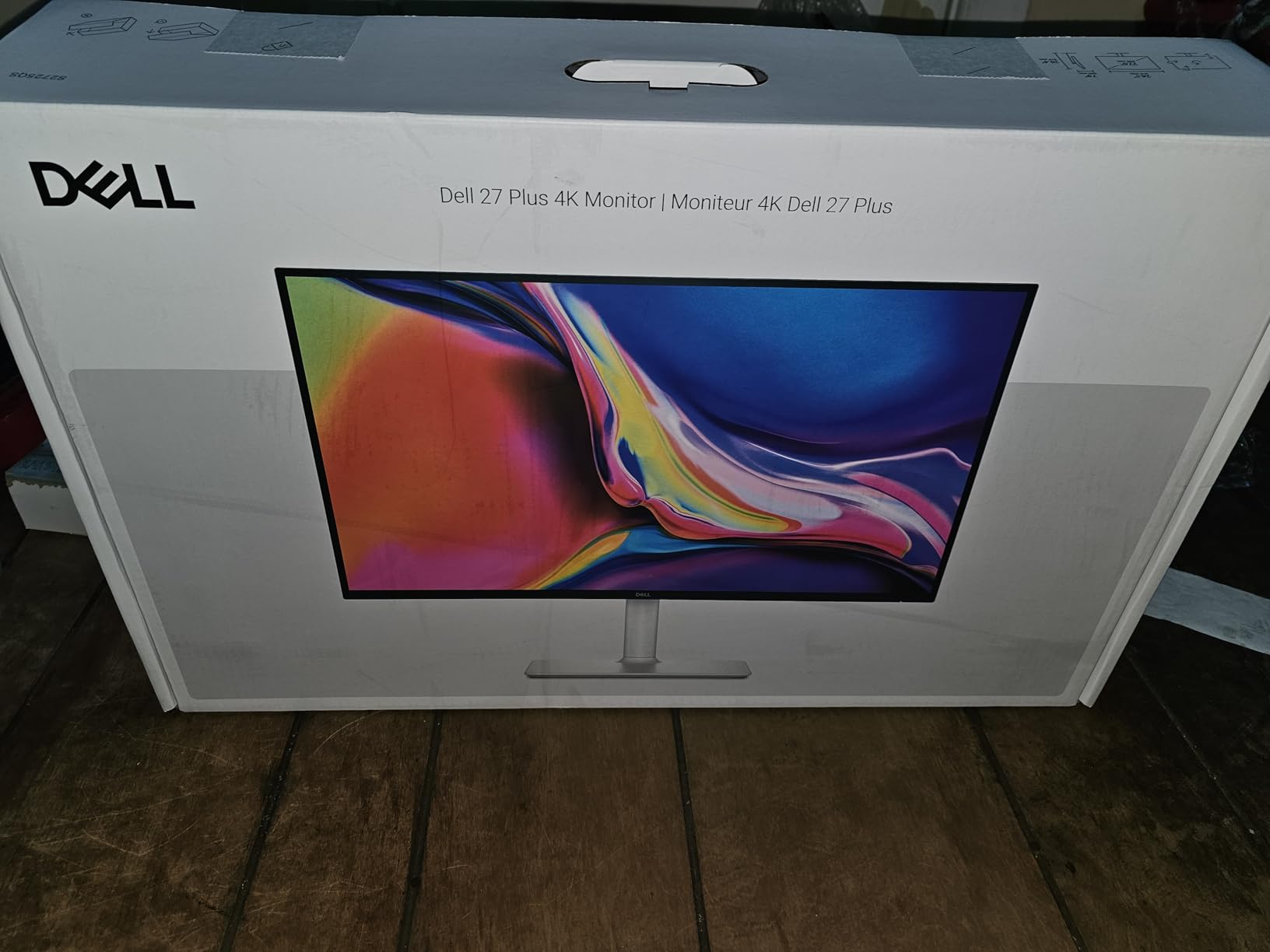
Brightness of 350 nits is well above the office monitors in this roundup, and the 1500:1 contrast ratio keeps letterforms clean. ComfortView Plus reduces blue light emission to 35% or less for all-day use without shifting the whites into an orange cast, and the IPS panel holds 99% sRGB across 178-degree viewing angles.
The stand is the best in this list: height, swivel, pivot, and tilt all adjust, so the screen can be positioned precisely at eye level and angled to defeat window reflections. A one-year Advanced Exchange Service means a replacement ships before the faulty unit returns.

Who this monitor suits
It suits a user who wants large text and crisp text at the same time, which is the combination a 4K panel delivers and a scaled 1080p panel cannot. It also suits anyone who wants one cable-free, tilt-free setup they will never have to adjust again, since the fully adjustable stand covers every angle.
For a desk near a window, 350 nits makes a measurable difference in how usable the screen stays during daylight.
Where it falls short
There is no USB-C connection and no built-in USB hub, so accessories need the computer’s own ports. The absence of a 3.5mm audio out jack means private listening requires either the built-in speakers or a USB headset, and those speakers lack strong bass.
Running 4K at 120Hz needs a capable graphics output and a suitable cable, and HDR performance is fairly basic. The matte coating can show slight grain up close on a full white screen, which bothers some people at normal desk distance.
9. KTC H34S5 34 Inch Ultrawide Curved 180Hz
KTC 34 Inch Ultrawide Curved Gaming Monitor, 3440×1440 UWQHD 180Hz, H34S5
34 inch 3440 x 1440 HVA
4000:1 contrast
300 cd/m2
180Hz refresh
Pros
- 4000:1 contrast produces deep blacks
- 3440 x 1440 keeps text and UI sharp
- Ergonomic stand with height swivel and pivot
- Blue Light Filter for long sessions
- Three year manufacturer warranty
Cons
- 300 nit brightness is on the dim side
- Wide footprint needs a large desk
- Menu-driven gaming features do not help general use
The KTC pairs a 4000:1 contrast ratio with a 3440 x 1440 panel, which is the combination we would want for someone whose main difficulty is telling text apart from its background rather than seeing it at all. Deep blacks make dark text on a dark interface more legible, and the resolution keeps the letter edges clean when the system scale is raised.
The 1500R curve keeps the far edges of a very wide screen at a consistent focal distance, reducing the neck movement that flat ultrawides cause. Owners mention the curved surface specifically when describing comfortable wide-area viewing over long sessions.
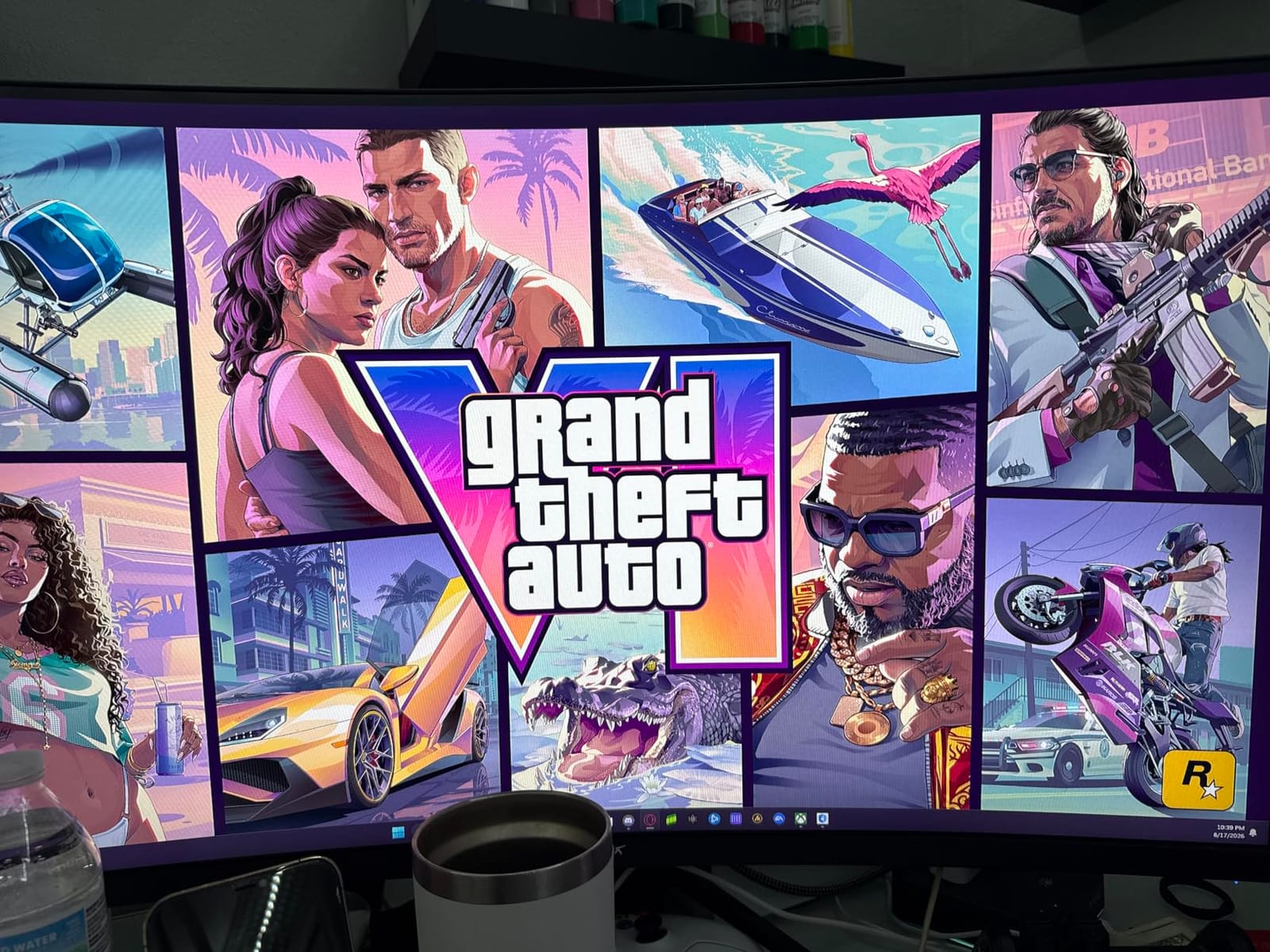
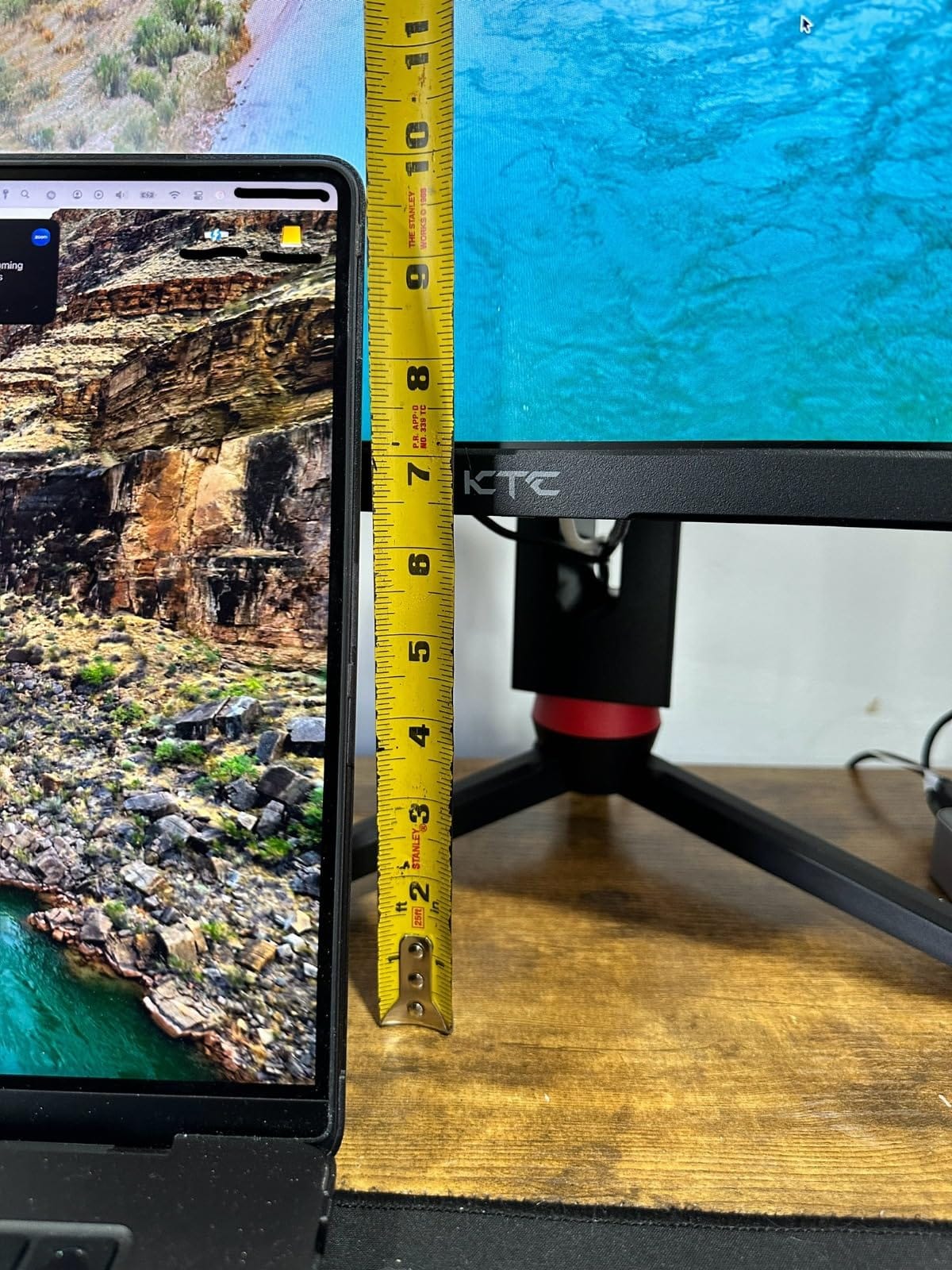
The stand adjusts in height up to 110mm, plus swivel, pivot, and tilt, which is a rare combination at this size and puts it level with the KOORUI and Dell on positioning. Two HDMI 2.0 and two DisplayPort 1.4 connections leave room for a second computer or a laptop, and PIP and PBP handle two sources at once.
A Blue Light Filter is included, and the three-year manufacturer warranty with responsive support gives more comfort than a one-year commitment. The panel covers 125% sRGB with 1.07 billion colors, which keeps photos and video looking natural rather than oversaturated.
Who this monitor suits
It suits a reader with contrast sensitivity who also wants a large workspace, and anyone who prefers to position the screen properly once and leave it there. The adjustable stand solves the low desk problem that rules out several other ultrawides.
PIP and PBP make it practical for keeping a document and a video call in view together, and the deep blacks help in the evening when a room is dim.
Where it falls short
At 300 cd/m2 it is dimmer than the KOORUI and the Dell, so it will need a room without direct window light to feel comfortable during the day. The 34 inch width also demands a large desk, and at 16.8 pounds it is not a screen to move between rooms often.
The on-screen menu includes gaming-oriented options that do nothing for general reading, which adds navigation steps for a user who simply wants brightness and contrast. If gaming features are irrelevant, the menu depth is worth checking before buying.
10. LG 27UP850K-W 27 Inch Ultrafine 4K UHD IPS
LG 27UP850K-W 27-inch Ultrafine 4K UHD IPS DisplayHDR 400 Computer Monitor
27 inch 3840 x 2160 IPS
1200:1 contrast
400 cd/m2
60Hz refresh
Pros
- Sharp 4K IPS panel with clear legible text
- 400 nits brightness with 95% DCI-P3 coverage
- USB-C with 90W power delivery simplifies one-cable setup
- Built-in Waves MaxxAudio stereo speakers
- Ergonomic stand adjusts height tilt and pivot
Cons
- Only 60Hz refresh rate
- IPS-level contrast is lower than VA panels
- Higher cost than comparable 4K monitors
This is the monitor to look at when a laptop is the computer. USB-C with 90W power delivery means one cable carries the picture, charges the machine, and passes data, so a senior does not have to manage a power brick, a video cable, and a docking station. The 4K IPS panel delivers the same crispness advantage as the Dell, and 400 cd/m2 is the joint highest brightness in this roundup.
The ergonomic stand adjusts height, tilt, and pivot, which covers most positioning needs without an arm. Built-in stereo speakers with Waves MaxxAudio handle video calls without extra hardware, and the Switch app splits the screen into as many as six sections for anyone who prefers a tiled desktop to overlapping windows.
A built-in webOS streaming platform means the screen can show something without a computer switched on, which is handy for a household where the monitor is the shared entertainment point as well as the work display. Black Stabilizer and Dynamic Action Sync improve visibility of dark scenes in video.
Color coverage reaches 95% DCI-P3, so photographs and family videos look accurate rather than washed out, and VESA DisplayHDR 400 support adds depth without much cost. Connectivity includes DisplayPort, two HDMI ports, two USB 3.0 ports, and a headphone jack.
Who this monitor suits
It suits a senior who works on a laptop and would rather plug in one cable than three, and anyone who wants bright, colorful output for photos and video. The highest brightness here makes it comfortable in a well-lit room without turning the backlight down.
The one-cable design also suits a caregiver who can set the machine up remotely or swap between a work laptop and a family computer without replugging anything.
Where it falls short
The 60Hz refresh rate is the slowest in this roundup, and scrolling a long page will show it. If most of the day is spent reading web content, the smoother 120Hz panels are worth considering instead.
Contrast at 1200:1 is typical for IPS and lower than the VA panels here, so very dark text on a dark interface will not separate as cleanly. It also carries a higher cost than comparable 4K monitors, so the USB-C convenience is the main reason to choose it.
How to Choose a Low Vision Monitor: What Actually Matters
Pixel pitch is the real text size dial
Everything else is secondary. Pixel pitch decides how large a letter looks without any software help, and it is simply screen size divided by resolution. A 32 inch 1080p screen works out to about 0.361 mm between pixels, a 27 inch 1080p screen about 0.311 mm, and a 27 inch 4K screen only 0.155 mm. Larger numbers mean bigger letters with no digital enlargement. This is why the ViewSonic 32 inch and the HP 27 inch sit at the top of our list for readers who struggle most with small type.
1080p versus 4K and why scaling can blur text
A 4K panel gives you more detail, but at 27 inches the operating system has to scale text up to reach a comfortable size, and scaled text is where uneven letter spacing and soft edges come from. Two screens solve this at once: a 27 inch 4K panel with 150 percent scaling, or a 32 inch 1080p panel with no scaling at all. Test both if the choice is close, because some people find scaled text intolerable while others do not notice it.
Panel type: IPS, VA, and OLED for contrast sensitivity
IPS panels keep colors consistent from wide angles, which matters when the screen is not directly in front of the chair. VA panels deliver deeper blacks and higher contrast ratios, which helps when text and background are hard to tell apart, but they look their best viewed head-on. For readers with peripheral vision loss, the consistent off-axis image of IPS usually wins over the higher contrast number on a VA panel.
Eye care features that matter
Flicker-free operation and a low blue light mode are the two features worth insisting on, and both should be switchable from the bezel rather than buried in a submenu. An ambient light sensor, which the Samsung ViewFinity S50GC includes, removes the daily need to adjust brightness by hand. Anti-glare coatings matter enormously in a room with a window, and matte finishes beat glossy ones for that reason.
Ergonomics: stands, VESA, and viewing angles
A monitor that sits below eye level forces a forward lean, which is exactly the posture to avoid. Height adjustment is the feature to check first, and the Dell S2725QS and KTC H34S5 both provide it along with swivel and pivot. Every panel here offers 178-degree viewing angles, and all but a few support a VESA mount, so a monitor arm remains an option later.
Software and setup: the part most guides skip
A good monitor only gets you so far. Windows magnifier, high contrast themes, and cursor size controls live in the accessibility settings and are worth configuring on top of the panel settings, and people with low vision commonly pair a monitor with dedicated magnification software for documents and web pages. Keep the desktop uncluttered, use a static wallpaper, and hide the taskbar automatically. If a large screen is going in a living room rather than an office, a short-throw projector driven by the same accessibility settings is an alternative worth comparing, and our ultra short throw projector picks cover that category in detail.
Insurance and coverage for low vision devices
This is the question families ask most and the one most guides avoid. Original Medicare generally does not cover a standard computer monitor for low vision use. What Medicare does cover, when a doctor documents the need, is a medical device such as a closed-circuit television magnifier, which is a different category of hardware from a desktop display. Coverage through Medicaid, state vocational rehabilitation programs, and vision support charities varies widely by location, and employer or veterans benefits can behave differently again. Treat the answer as always local, and confirm with the plan and a low vision specialist before buying.
Frequently Asked Questions
What is the best monitor for people with poor eyesight?
A 27 inch 1080p IPS monitor with flicker-free operation and a low blue light mode is the best starting point for most people with poor eyesight. That combination produces large physical letters with no software scaling, keeps text consistent from wide viewing angles, and reduces the flicker and blue light that cause strain. A 32 inch 1080p screen gives even larger text if letter size is the main difficulty.
What are the best monitors for elderly people?
The best monitors for elderly people prioritize four things: large physical text from a generous pixel pitch, a flicker-free backlight, a one-press low blue light mode, and a stand that adjusts in height so the screen sits at eye level. The HP Series 3 27 inch FHD, the ViewSonic VX3276-MHD 32 inch, and the Dell S2725QS 27 inch 4K cover those needs at three different price points and are the ones we recommend most often.
Does Medicare pay for low vision devices?
Original Medicare generally does not cover a standard computer monitor for low vision. Medicare can cover a documented medical device such as a closed-circuit television magnifier when a physician records the need, but that is a different category of hardware from a desktop display. Medicaid, state vocational rehabilitation programs, and vision support charities may offer assistance, and rules differ by state and by plan, so confirm coverage before buying.
What type of computer is best for people with low vision?
A desktop with a large monitor is generally easier to use than a laptop, because the screen can be placed at eye level, connected to a keyboard and mouse, and left in one spot. A monitor with a USB-C port that carries video, data, and power, such as the LG 27UP850K-W, simplifies a laptop-based setup to a single cable. Whichever computer is chosen, the operating system accessibility settings for magnification, cursor size, and high contrast should be configured alongside the monitor settings.
What kind of computer monitors are best for people with macular degeneration?
Macular degeneration affects central vision, so the priority is a bright, high-contrast image that can be enlarged without losing clarity. A 27 inch 4K IPS panel such as the Dell S2725QS keeps letter edges clean at 150 percent scaling, while a 32 inch 1080p IPS screen such as the ViewSonic offers larger text with no scaling at all. A matte anti-glare finish and a low blue light mode reduce the fatigue that often accompanies reading, and a low vision specialist can confirm the right combination for the individual.
Our Final Verdict for Seniors With Low Vision in 2026
After working through ten screens, the HP Series 3 27 inch FHD is the best monitor for seniors with low vision in 2026 for the simple reason that it delivers the largest clean letters with the least setup. Its 1080p grid on a 27 inch panel needs no scaling, the 1300:1 contrast keeps text separate, and the stand adjusts in height so nobody has to lean forward.
Pick the ViewSonic VX3276-MHD 32 inch if letter size is the harder problem and the Text preset should do the work for you. Pick the Dell S2725QS when sharpness at high magnification matters most, and the Samsung ViewFinity S50GC when you want brightness that adjusts itself as the room changes.
Whichever you choose, test it at the actual desk and at arm’s length before the return window closes, and pair it with proper task lighting such as our 4K projector guide if the room is bright. A screen that is comfortable in the first week is the one that will still be comfortable in the first year.