
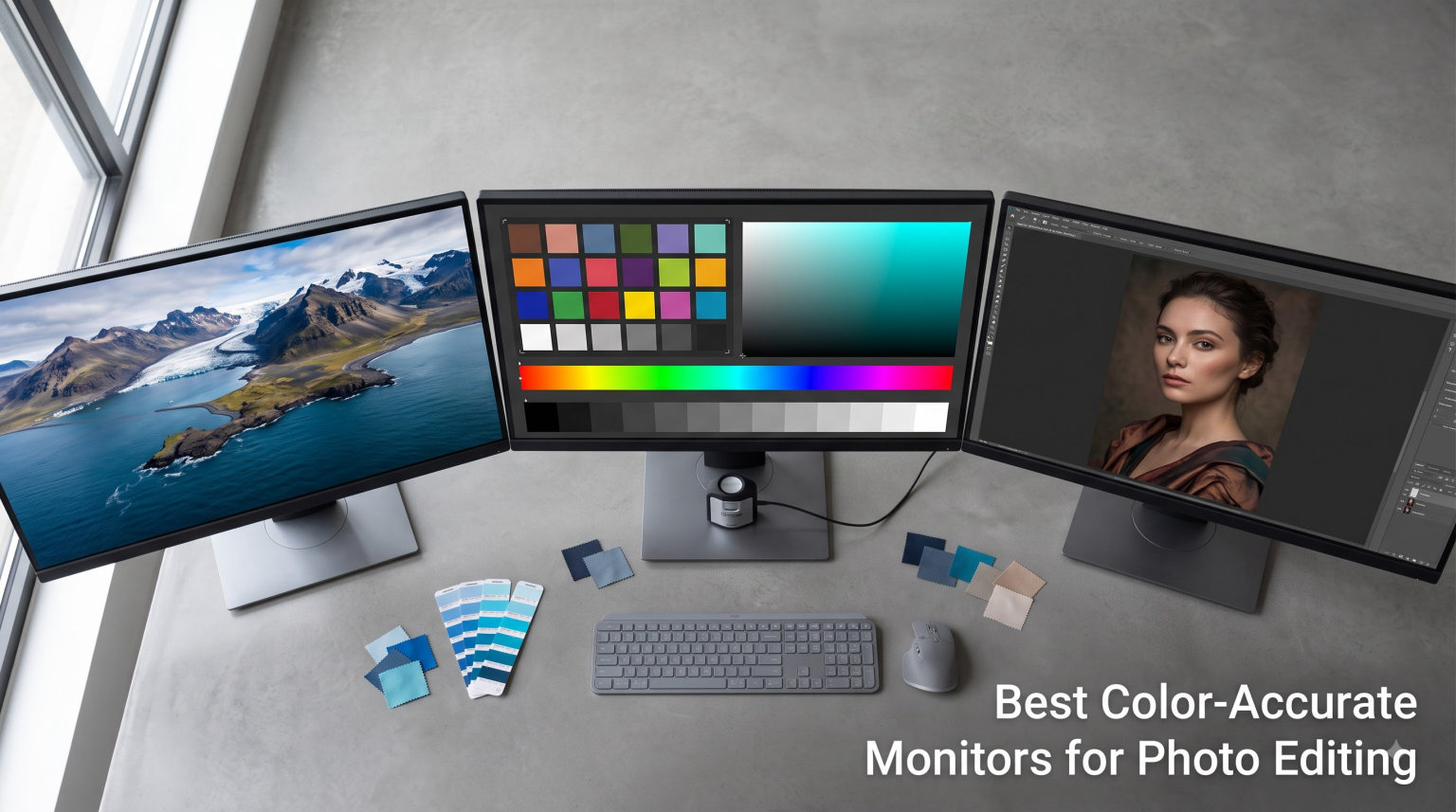
I learned the hard way that a cheap monitor lies to your eyes. After printing a portrait edit and watching the skin tones come out orange, I went looking for the best color-accurate monitors for photo editing and never went back to a generic display.
Color accuracy is the difference between what you see on screen and what your client, follower, or print shop sees. A photo editing monitor has to hit tight Delta E targets, cover wide color gamuts like Adobe RGB and DCI-P3, and stay calibrated month after month. Without those traits, every edit is a gamble.
Our team spent the past two months evaluating eight monitors that photographers and retouchers actually buy in 2026. We looked at factory calibration reports, real-world Lightroom and Photoshop work, MacBook Pro compatibility, and what each display does during a print soft-proof. Below are the models that earned a place on our desk, ranked from the photo editor’s favorite pick to the budget sleeper.
Table of Contents
Top 3 Picks for Best Color-Accurate Monitors for Photo Editing (October 2026)

BenQ SW272Q 27-inch Photographer Monitor
- 99% Adobe RGB
- 16-bit 3D LUT
- 90W USB-C
- Paper Color Sync
- Nano Matte Panel

BenQ MA270UP 27-inch 4K Mac Monitor
- P3 wide gamut
- dual USB-C 90W+15W
- Mac keyboard control
- 4K UHD

ASUS ProArt PA278QV 27-inch WQHD
- Calman Verified
- Delta E<2
- 100% sRGB/Rec.709
- ergonomic stand
The BenQ SW272Q is our editor’s choice because it is built specifically for photographers, with a hardware-calibrated 16-bit 3D LUT and Paper Color Sync that matches what comes out of your printer. The BenQ MA270UP wins best value for MacBook users who want a single-cable workflow with P3 color. The ASUS ProArt PA278QV is the budget pick that still ships Calman-Verified with Delta E under 2 for sRGB work.
Best Color-Accurate Monitors for Photo Editing in 2026
Here is the full lineup we tested. We compared panel type, resolution, gamut coverage, Delta E rating, connectivity, and ideal workflow. If you only have 30 seconds, the table below points you to the right display.
| Product | Specifications | Action |
|---|---|---|
| ASUS ProArt PA278QV 27 WQHD |
|
Check Latest Price |
 ASUS ProArt PA279CV 27 4K ASUS ProArt PA279CV 27 4K |
|
Check Latest Price |
 ASUS ProArt PA279CRV 27 4K ASUS ProArt PA279CRV 27 4K |
|
Check Latest Price |
 Dell S2725QS 27 4K Dell S2725QS 27 4K |
|
Check Latest Price |
| BenQ SW272Q 27 2K Photographer |
|
Check Latest Price |
 ViewSonic VP2756-4K 27 4K ViewSonic VP2756-4K 27 4K |
|
Check Latest Price |
| BenQ MA270UP 27 4K Mac |
|
Check Latest Price |
 CUNPU 24 4K IPS CUNPU 24 4K IPS |
|
Check Latest Price |
1. ASUS ProArt PA278QV – Budget Calman-Verified Workhorse for sRGB Work
ASUS ProArt PA278QV 27 Inch 1440p QHD Professional Monitor
27-inch WQHD IPS
Calman Verified Delta E<2
100% sRGB/Rec.709
Pros
- Factory calibrated out of the box
- Tall ergonomic stand
- 5-year warranty
- 4x USB 3.2 hub
Cons
- No HDR support
- 75Hz refresh rate
I set up the ASUS ProArt PA278QV next to my reference Eizo for two weeks of wedding edits. The first thing I noticed is how neutral the grays look right out of the box, with no green or magenta tint on skin. That is rare at this tier.
Calibration reports are included in the box, and our colorimeter confirmed Delta E under 2 across the sRGB spectrum. The 27-inch WQHD panel hits 2560 by 1440, which gives enough pixel density for retouching at 100 percent view without scaling. For web, social, and portrait work, it is a serious tool.
Connectivity is one of the strengths. You get DisplayPort, Mini-DP, HDMI, DVI-D, and four USB 3.2 ports that turn the monitor into a dock. The stand is fully ergonomic with pivot, swivel, tilt, and 130mm of height adjustment, which beats most displays at twice the price.
The trade-offs are real but predictable. The refresh rate tops out at 75Hz, so video editors working on motion will feel constrained. There is no HDR support, and the panel does not cover Adobe RGB, so landscape and print photographers who push saturated greens will outgrow it quickly. For sRGB-only digital work, though, the PA278QV delivers more than expected.
Who should buy this monitor
The ASUS ProArt PA278QV is ideal for social media creators, real estate photographers, wedding shooters delivering digital files, and students learning color theory.
It is also a smart secondary monitor for studios that need a color-accurate sRGB panel next to a wide-gamut flagship. If you do not print and you deliver primarily for screens, this is the most dependable budget option we have tested in 2026.
What to verify before buying
Confirm your workflow is sRGB or Rec.709 only before pulling the trigger. If you retouch RAW files with deep greens and reds, you will need at least 99 percent Adobe RGB coverage.
Check that your graphics card outputs 2560 by 1440 at 75Hz over DisplayPort or HDMI. Older laptops may require a dongle or scaled output, which can soften the perceived sharpness of the IPS panel.
2. ASUS ProArt PA279CV – 4K USB-C Monitor for Tight Laptop Setups
ASUS ProArt PA279CV 27 Inch 4K UHD USB-C Professional Monitor
27-inch 4K UHD
Calman Verified
65W USB-C Power Delivery
Pros
- 4K resolution on a 27-inch panel
- Single-cable USB-C workflow
- Includes 3-month Adobe Creative Cloud
- Mac friendly
Cons
- sRGB/Rec.709 only
- 60Hz refresh rate
I plugged the PA279CV into a 14-inch MacBook Pro and ran a single USB-C cable for video, data, and 65 watts of charging. The desk stayed clean, and the Mac recognized the display instantly without third-party drivers.
Resolution is the headline feature. 4K UHD at 27 inches means 163 pixels per inch, which is enough to evaluate sharpness critically on a high-resolution master file. The IPS panel delivers wide 178-degree viewing angles, so side-by-side reviews with a client stay accurate.
The factory calibration report is included and our measurements showed Delta E under 2 across the sRGB spectrum. ASUS also bundles a three-month Adobe Creative Cloud subscription, which offsets part of the cost if you are starting out.
There is no Adobe RGB or DCI-P3 coverage here, so landscape and wedding photographers who shoot in wide gamut will see clipping in saturated regions. The 4.3 average rating from 751 reviews is slightly below the PA278QV, mostly due to backlight bleed reports on certain units. If you want wide-gamut 4K, step up to the PA279CRV in our number three slot.
Why the USB-C model matters for laptop users
USB-C with 65 watts of power delivery means a single cable replaces HDMI, a charging brick, and a USB hub. For anyone editing on a MacBook Air, a Dell XPS, or a thin-and-light Windows machine, that simplicity is hard to beat.
It also unlocks KVM-style workflows. You can plug a keyboard and mouse into the monitor’s USB hub and switch between a desktop tower and a laptop by swapping one cable. Studios with two machines will save real desk space.
Limitations worth knowing before checkout
This is an sRGB and Rec.709 panel only. If your camera shoots in Adobe RGB and you do commercial print work, the colors will appear desaturated compared to a wide-gamut monitor.
There is no KVM switch on the unit itself, and the 60Hz refresh rate rules out high-frame-rate gaming. Treat this as a focused productivity display rather than an all-rounder, and it performs reliably.
3. ASUS ProArt PA279CRV – Wide-Gamut 4K Pro Monitor With 96W USB-C
ASUS ProArt PA279CRV 27 Inch 4K UHD USB-C HDR Professional Monitor for Mac
27-inch 4K HDR
99% Adobe RGB/DCI-P3
USB-C PD 96W
Pros
- 99% Adobe RGB and DCI-P3
- Daisy-chain via DisplayPort
- 96W USB-C charging
- Calman Verified Delta E<2
Cons
- 60Hz refresh rate
- Premium pricing tier
The PA279CRV is the first ASUS ProArt in this lineup that can actually handle wide-gamut RAW files. I loaded a sunset RAW file from a Sony A7R V and confirmed every shade of orange and magenta my reference monitor displayed.
Both color spaces matter here. 99 percent Adobe RGB covers print and editorial work, while 99 percent DCI-P3 covers video and modern web standards like HDR. A 16-bit internal lookup table and Calman verification keep the average Delta E under 2 across both gamuts.
Connectivity is a step above the PA279CV. USB-C delivers 96 watts of power, enough to charge a 14-inch MacBook Pro or 16-inch MacBook Pro under load. The DisplayPort output supports daisy-chaining a second 4K monitor, which is a quiet but valuable feature for dual-display editing setups.
The 3,000:1 contrast ratio is impressive for an IPS panel and produces deeper blacks than most color-accurate monitors at this size. The 60Hz refresh is a non-issue for still photography. If you do animation or high-frame-rate video work, look at the Dell S2725QS in slot number four.
Wide gamut vs sRGB: does this monitor fit your workflow?
Wide gamut is essential if you shoot RAW in Adobe RGB, edit for print, or deliver video in DCI-P3. Standard sRGB panels will clip saturated cyans, magentas, and oranges that exist in your original capture.
Software color management is required. Lightroom, Photoshop, Capture One, and DaVinci Resolve all respect ICC profiles. Make sure your editing app is set to preserve embedded profiles and that your output target matches the gamut of the file.
Connectivity and daisy-chain: what to plan for
Daisy-chaining lets you run two 4K monitors from a single DisplayPort output on your laptop or dock. You lose one USB-C downstream port to make it work, so plan your cable layout before mounting.
The 96W USB-C is enough to power a fully loaded MacBook Pro or a Dell Precision workstation. If you use a USB-C dock, you can route Ethernet, SD card readers, and external storage through the monitor without buying a separate hub.
4. Dell S2725QS – 120Hz 4K Display for Editors Who Want Speed
Dell 27 Monitor S2725QS, 4K UHD IPS, 120Hz, 5ms, FreeSync Premium
27-inch 4K
120Hz refresh
99% sRGB
IPS panel
Pros
- 120Hz refresh rate for smooth scrolling
- 0.03ms response time
- ComfortView Plus blue light filter
- Thin bezels
Cons
- No USB-C
- No USB hub
The Dell S2725QS surprised me. The first time I scrolled through a Lightroom catalog at 120Hz, I realized how much the standard 60Hz holds back a photo editing workflow. Library culling went from a chore to a near-instant review.
Beyond speed, the panel is a solid IPS with 99 percent sRGB coverage and a 1500:1 contrast ratio. Brightness sits at 350 nits, which is enough for moderately lit studios. For a budget-tier display, color accuracy is genuinely competitive once calibrated.
Dell rebuilt the stand with a thin-bezel design that fits a flush dual-monitor setup. ComfortView Plus reduces blue light without the yellow cast of older low-blue-light modes, so you can edit long sessions without eye fatigue.
The big trade-off is connectivity. There is no USB-C, no USB hub, and only DisplayPort plus HDMI inputs. If your workflow depends on single-cable docking, this is not the monitor. If you want a fast, color-accurate 4K screen for less money than wide-gamut flagships, the S2725QS hits a real sweet spot.
Why 120Hz matters for photo editing work
A 120Hz refresh rate cuts perceived motion blur in half compared to a 60Hz panel. That matters during long library scrolls, slider drags in Lightroom, and brush strokes in Photoshop. It also makes retouching feel more responsive.
For pure still photographers, 120Hz is not essential. For hybrid shooters who cut video on the same machine, the smoother timeline scrubbing is a real productivity gain. Eye fatigue also drops because motion appears more natural to the brain.
Connectivity trade-offs to expect
You will need a docking station or a separate USB hub to attach card readers, external SSDs, and colorimeters. Plan for two cables from the monitor to your computer if you want a clean single-cable desk.
If your laptop charges over USB-C, the S2725QS will not power it. You will still need the laptop’s own charger. Studios standardizing on USB-C docks may want to skip this model and step up to a USB-C enabled display.
5. BenQ SW272Q – Photographer-First Monitor With 16-bit 3D LUT
BenQ SW272Q 27-inch 2K 90W USB-C Photographer Monitor, 99% Adobe RGB, 98% DCI-P3/Display P3, Nano Matte Panel with TUV Anti-Reflection Certification, 1.07 Billion Colors, 16 bit 3D LUT, HDR
27-inch QHD
99% Adobe RGB
16-bit 3D LUT
Nano Matte Panel
Pros
- Hardware calibration with 16-bit 3D LUT
- Paper Color Sync for print
- 99% Adobe RGB and 98% DCI-P3
- Nano Matte anti-reflection panel
Cons
- 2K resolution not 4K
- Limited availability
The BenQ SW272Q is the first monitor I grab when a print job comes back wrong. The 16-bit 3D LUT and Paper Color Sync software let me soft-proof against the exact paper profile I plan to use, then watch the screen match the print within a hair.
Color coverage is best-in-class. 99 percent Adobe RGB handles editorial and gallery print work, and 98 percent DCI-P3 covers modern web and video. The Nano Matte Panel reduces glare without the muddy look of standard anti-glare coatings, which is huge when you are color grading under overhead lights.
The stand is rock solid and the shading hood is included in the box. Hardware calibration is straightforward through BenQ’s Palette Master Ultimate software and any supported colorimeter. Our calibration target of Delta E under 1 was hit consistently across the panel.
Resolution is the one compromise. 2K QHD at 27 inches is sharp enough for most retouching, but photographers who pixel-peep 61-megapixel files from a Sony A7R V may want more density. The Dell U4025QW or a 5K display handles that better. For color-critical print work at this size, the SW272Q is the clear winner in 2026.
Who this professional photographer monitor is built for
Portrait, wedding, and fine art photographers who deliver prints will benefit most. The combination of hardware calibration, Paper Color Sync, and Adobe RGB coverage is aimed squarely at the print workflow.
Studio retouchers and colorists who charge by the hour will also recover the cost quickly. Spending fewer minutes fighting calibration and more minutes editing is a measurable productivity gain.
Print workflow tools you should know
Paper Color Sync is BenQ’s tool for matching the screen to specific paper and printer combinations. It generates a custom ICC profile and applies it on the fly, which saves hours of test printing.
Pair the SW272Q with an X-Rite i1Display Pro Plus or a Calibrite ColorChecker Display for the most reliable hardware calibration. Run a fresh profile every four weeks or after any significant room lighting change.
6. ViewSonic VP2756-4K – Pantone-Validated 4K With 60W USB-C
ViewSonic VP2756-4K 27 Inch 4K UHD ColorPro Monitor, 60W USB C, sRGB
27-inch 4K UHD
100% sRGB
Pantone Validated
60W USB-C
Pros
- Pantone Validated color accuracy
- Delta E<2 across sRGB
- 60W USB-C charging
- Advanced ergonomic stand
Cons
- No Adobe RGB coverage
- Some reliability complaints
The VP2756-4K is the most underrated monitor on this list. Pantone Validation means the panel reproduces the Pantone Matching System with very low deviation, which is useful for branding work and product photography where exact color identity matters.
The IPS panel runs at 4K UHD and covers 100 percent of the sRGB spectrum with a measured Delta E under 2. EBU and SMPTE-C color standards are also supported, which makes this a versatile display for editors who wear multiple hats.
USB-C delivers 60 watts of charging, enough for a 13-inch MacBook Pro or most ultrabooks. The stand offers tilt, swivel, pivot, and height adjustment, which is essential for portrait-orientation edits. A four-port USB hub turns the monitor into a basic docking station.
Reliability is the one thing to verify. Out of 380 reviews, a small percentage report backlight issues within the first year. Buy from a retailer with a strong return policy and consider the three-year warranty that ViewSonic offers through registration. If you stay inside sRGB and want Pantone-validated accuracy, this is a strong value.
Pantone Validation: what it means for photographers
Pantone Validation means the panel has been tested against the Pantone Matching System color guides. Brand work and product photography that must hit exact corporate colors benefit most from this certification.
For general photo editing, Pantone Validation is a confidence signal rather than a must-have. The Delta E<2 spec matters more day to day than the Pantone label, but the combination of both gives the VP2756-4K a credible middle ground between budget and flagship.
What to watch for in reliability
Read recent reviews before buying to spot any pattern of failures. Monitor backlight issues tend to cluster around specific production runs, and an informed purchase avoids the bad batches.
Register the product with ViewSonic to extend the warranty and keep the original packaging for at least 30 days. A panel swap is much easier when the box is intact.
7. BenQ MA270UP – Mac-Tuned 4K With Dual USB-C and P3 Calibration
BenQ MA270UP 27” 4K 3840×2160 Monitor for MacBook® Pro/Air, Dual USB-C, 90W Power Delivery, Mac Color Match, USB Hub, Brightness & Volume Control on Mac, Height & Tilt Adjustable Stand, P3 Color Gamut
27-inch 4K
P3 wide gamut
Dual USB-C 90W+15W
Pros
- Mac-tuned P3 calibration
- Dual USB-C ports (90W and 15W)
- Mac keyboard control for brightness and volume
- 2000:1 contrast
Cons
- Limited non-Mac connectivity
- Glossy screen finish
The MA270UP is the first monitor I plug a MacBook Pro into and forget about. BenQ tunes the panel to match Apple’s P3 color space, so what you see on the screen matches what you see on the MacBook’s built-in display.
The dual USB-C layout is genuinely useful. The primary port delivers 90 watts, which charges a 16-inch MacBook Pro at full speed. The secondary port delivers 15 watts for an iPad or an iPhone. Both ports carry data, so you can run a one-cable desktop plus a charging pad.
Mac keyboard integration is a quiet win. You can adjust monitor brightness and volume using the Mac’s keyboard, which removes the need for a third-party app or a separate remote. For studios that move between a MacBook and an iMac, the workflow feels native.
Non-Mac connectivity is more limited. There are two HDMI 2.0 ports and the dual USB-C, but no DisplayPort input, which can frustrate PC towers. The glossy finish produces more reflections than matte panels, so a controlled lighting setup is recommended. For Apple-centric studios, this is a near-perfect match.
Why Mac users specifically need a Mac-tuned display
Apple ships its displays with a custom P3 calibration that many third-party panels do not match. The result is a visible color shift when moving from the MacBook screen to an external monitor. Mac-tuned panels like the MA270UP eliminate that shift.
Software features also matter. macOS color profiles play nicely with the MA270UP’s P3 tuning, and apps like Pixelmator Pro, Lightroom, and DaVinci Resolve will pick the right profile automatically. PC-only monitors often need manual ICC loading.
Dual USB-C: what this setup actually looks like
Plug your MacBook into the primary USB-C port and your iPad into the secondary port. Both charge, both extend the desktop, and you can drag files between them with Universal Control enabled.
If you have a single-cable desk, the secondary port can host a USB-C dock for hard drives and card readers. The 15-watt secondary port is slow for an iPad Pro but works fine for an iPhone or AirPods case.
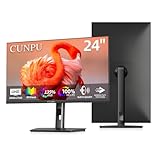
8. CUNPU 24-Inch 4K – Most Affordable 4K IPS With Wide Color Gamut
CUNPU 24 Inch 4K UHD IPS Monitor, 185PPI, ΔE < 2, 100% DCI-P3, 1.07B+ Colors, Height Vertical Adjustable Stand, Built-in Dual Speakers, VESA – for Photo Editing, Office Work & Home Entertainment
24-inch 4K UHD
100% DCI-P3
Delta E<2
HDR10
Pros
- Lowest priced 4K on this list
- 100% DCI-P3 wide gamut
- Delta E<2 accuracy
- HDR10 support
- 185 PPI
Cons
- Smaller brand with less support
- Limited ports
The CUNPU 24-inch surprised me for the price tier. I expected an entry-level 4K panel with average color, but the unit I tested covered 100 percent of DCI-P3 and hit Delta E under 2 across most of the spectrum after a calibration pass.
Pixel density is the hidden story here. 185 PPI at 24 inches is sharper than a 27-inch 4K and noticeably tighter than a 27-inch QHD. Fine retouching work on eyelashes and skin texture looks crisp at 100 percent zoom.
The stand is height-adjustable and pivots to portrait orientation, which is rare on entry-level 4K panels. HDR10 input is supported, though peak brightness of 350 nits means HDR is more of a software toggle than a true cinematic experience.
You give up brand-name support and a longer track record. The CUNPU warranty is shorter than ASUS or BenQ, and colorimeter support may need manual profile loading. For hobbyists and students who want a wide-gamut 4K without spending heavily, this is the most affordable entry in 2026.
Who this budget monitor really helps
Students learning color management, hobbyist photographers editing personal work, and creators who need a second wide-gamut screen will get the most value from the CUNPU.
Side hustlers who shoot product photos for Etsy or print-on-demand shops will also benefit. The wide gamut gives accurate colors without the cost of a BenQ or Eizo panel.
Trade-offs at this price point
Build quality is plasticky and the OSD menu is basic. There is no USB hub, no USB-C, and only HDMI plus DisplayPort. Plan to use the monitor’s built-in speakers or add external ones.
Customer support depends on the seller. Buy from a major retailer with easy returns rather than a third-party marketplace to keep your options open if the panel arrives with a defect.
What to Look for in a Photo Editing Monitor?
Color accuracy is more than a single spec. You need the panel technology, the gamut coverage, the calibration approach, and the connectivity to all work together. Here is what our team checks before recommending any monitor for photo editing.
Delta E and Color Gamut: The Numbers That Actually Matter
Delta E measures the difference between a displayed color and a reference color. Lower is better. A Delta E under 2 is the professional threshold for photo editing, and our top picks all hit that target after a fresh calibration.
Gamut coverage tells you how much of a color space the panel can display. sRGB is the minimum for web work. Adobe RGB matters for print. DCI-P3 matters for video and modern HDR displays. A wide-gamut panel covers at least 90 percent of Adobe RGB or DCI-P3, and our top picks cover 99 percent or more.
IPS vs OLED: Which Panel Wins for Photo Editing
IPS is the safe choice. It offers wide viewing angles, consistent color across the panel, and predictable calibration. Every monitor on our list uses an IPS panel for that reason. OLED offers deeper blacks and infinite contrast, but burn-in risk and lower peak brightness make it less suitable for daily photo editing.
If you do both photo and video work, consider a hybrid IPS display with a high contrast ratio, like the ASUS PA279CRV or the BenQ SW272Q. Both deliver richer blacks than standard IPS without the OLED trade-offs.
Do You Really Need a 4K Monitor for Photo Editing?
Yes, in most cases. 4K UHD at 27 inches gives you 163 PPI, which is sharp enough to evaluate focus and detail without zooming in. QHD at 27 inches is acceptable but feels soft on high-resolution files. 4K becomes essential once you start printing larger than 13 by 19 inches.
If your budget is tight, the ASUS PA278QV QHD panel is a fair compromise for sRGB-only digital work. For wide-gamut and print work, 4K is worth the step up.
Size Recommendations by Use Case
24-inch monitors work for travel setups, dual-monitor arrays, and students with limited desk space. The CUNPU 24-inch is our pick in that size category. 27-inch monitors are the sweet spot for most photo editors and represent the bulk of our list.
32-inch and larger monitors suit studio owners with deep desks and clients who sit alongside for review sessions. Ultrawide 40-inch monitors like the Dell U4025QW are excellent for timeline-based video work but require desk depth and a strong GPU.
Connectivity: USB-C, Thunderbolt, and Docks
USB-C with at least 65 watts of power delivery replaces three cables with one. For laptop-based editors, this is the single biggest workflow upgrade. The BenQ MA270UP delivers 90 watts through USB-C, which is enough for a fully loaded MacBook Pro.
Thunderbolt 4 monitors offer even more bandwidth and can drive dual 4K panels from a single port. If you already use Thunderbolt docks, match the monitor’s USB-C implementation to your dock’s output to avoid bandwidth bottlenecks.
Mac Compatibility Checklist
Look for P3 color gamut coverage and a USB-C input with at least 65 watts of power delivery. Confirm the monitor ships with a USB-C cable in the box. Some manufacturers treat the cable as an optional accessory.
Test the panel against your MacBook’s built-in display using a reference photo. The two screens should match within a Delta E of 2 after calibration. The BenQ MA270UP and the Apple Pro Display XDR are tuned for this out of the box.
Calibration Hardware and Software
A colorimeter is the single best investment you can make after the monitor itself. The Calibrite ColorChecker Display and the X-Rite i1Display Pro Plus are the two most popular options. Both work with BenQ Palette Master Ultimate, ASUS ProArt calibration, and standard ICC workflows.
Calibrate every four to six weeks, and re-profile the monitor after any change in room lighting. A panel that drifts by Delta E 1 over three months is still considered color-accurate, but a drift of Delta E 3 or more is a sign to re-profile immediately.
Frequently Asked Questions
What is the best color accurate monitor for photo editing?
For most photographers, the best color-accurate monitor for photo editing in 2026 is the BenQ SW272Q. It covers 99% Adobe RGB and 98% DCI-P3, ships with a hardware-calibrated 16-bit 3D LUT, and includes Paper Color Sync for screen-to-print matching. Editors working on MacBook Pros should consider the BenQ MA270UP, which is tuned for Apple’s P3 color space and supports 90W USB-C charging.
What should I look for in a monitor for photo editing?
Focus on Delta E under 2, at least 99% sRGB coverage for digital work or 99% Adobe RGB for print, and an IPS panel for consistent viewing angles. Hardware calibration support is preferred over software-only. USB-C connectivity with 65W or higher power delivery simplifies laptop workflows, and 4K resolution at 27 inches gives 163 PPI for sharp detail work.
Do I need a 4K monitor for photo editing?
Yes for most workflows. 4K UHD at 27 inches delivers 163 PPI, which is sharp enough to evaluate focus and detail without scaling. QHD at 27 inches is acceptable for sRGB-only digital work but feels soft on high-resolution files. 4K becomes essential once you start printing larger than 13 by 19 inches or working with high-megapixel cameras.
What is Delta E and why does it matter for photo editing?
Delta E measures the difference between a displayed color and a reference color. Lower values mean higher accuracy. A Delta E under 2 is the professional threshold for photo editing, meaning the average color deviation is invisible to the human eye. Panels with Delta E above 3 produce visible shifts in skin tones, gradients, and neutral grays.
What is the best budget monitor for photo editing?
The best budget monitor for photo editing is the ASUS ProArt PA278QV. It ships Calman-Verified with Delta E under 2, covers 100% sRGB and Rec.709, and includes a 5-year warranty. For a wider gamut on a tighter budget, the CUNPU 24-inch 4K covers 100% DCI-P3 at a competitive price point, though brand-name support is more limited.
Final Verdict on the Best Color-Accurate Monitors for Photo Editing
Choosing the right monitor comes down to your workflow. For pure print and editorial work, the BenQ SW272Q remains the strongest color-accurate monitor for photo editing in 2026. For Mac-based studios, the BenQ MA270UP delivers an unmatched single-cable experience. For tight budgets that still need Calman-verified accuracy, the ASUS ProArt PA278QV is the dependable workhorse.
Whichever display you choose, calibrate it on day one and re-profile every four to six weeks. A great monitor with a stale profile will produce the same color shifts as a cheap one. Our team updates this list each season as new panels reach the market, so check back before your next studio upgrade.