
The AMD Ryzen 7 7800X3D is the best CPU for streaming and gaming overall. Eight Zen 4 cores with 96 MB of 3D V-Cache deliver top-tier gaming frame rates while leaving enough spare threads for OBS, a browser with chat open, Discord and a background recorder, which is exactly what a single-PC stream rig asks of a processor.
That first sentence answers the question most people arrive with, but the honest version needs more context. Streaming loads a CPU in two separate ways, and they do not point at the same chip. Your game runs on the CPU’s single-core performance, one thread per frame. Your video then gets compressed in real time, and that job either lands on the GPU or on the CPU depending on which encoder you pick in OBS.
Because most streamers hand the encoding to a dedicated hardware block inside an Nvidia RTX or a modern Radeon card, the CPU mostly decides your in-game frame rate and how much headroom you have left for everything else on screen. That is why the cheapest way to a smoother stream is often not a bigger chip. It is a faster GPU-side encoder and sensible OBS settings.
We spent weeks running games and encoding workloads side by side to put this list together, covering six processors from a bundled-cooler AM4 budget chip to a 24-core LGA 1851 hybrid. You will find the best overall pick, a value six-core, a budget option that ships with a cooler, and three Intel lanes for people who encode on the CPU or run very heavy multitasked workflows.
If you are still building out the rest of the setup, our picks for the best CPUs for gaming PCs and best budget CPUs under 300 dollars cover the gaming-only and budget angles in more depth.
Table of Contents
Top 3 CPUs for Streaming and Gaming

Best CPUs for Streaming and Gaming at a Glance (October 2026)
| Product | Specifications | Action |
|---|---|---|
 AMD Ryzen 7 7800X3D AMD Ryzen 7 7800X3D |
|
Check Latest Price |
 AMD Ryzen 5 9600X AMD Ryzen 5 9600X |
|
Check Latest Price |
| AMD Ryzen 5 5600X |
|
Check Latest Price |
 Intel Core Ultra 7 265K Intel Core Ultra 7 265K |
|
Check Latest Price |
 Intel Core Ultra 9 285K Intel Core Ultra 9 285K |
|
Check Latest Price |
 Intel Core i7-14700K Intel Core i7-14700K |
|
Check Latest Price |
The six chips below span roughly the whole decision space. Three are AMD AM5 or AM4 parts built around gaming first, and three are Intel hybrid designs with far more raw multi-threaded throughput for people who still encode on the CPU.
NVENC vs x264: Do You Even Need CPU Encoding?
The single biggest decision you make before buying a CPU is which encoder OBS Studio will use, because that choice decides whether core count matters at all. If you own an Nvidia RTX card or a recent Radeon, the video encoder is a separate block of silicon on the GPU. OBS calls it NVENC on Nvidia and AMF on AMD, and it handles the H.264 or HEVC compression without asking the processor for help.
With hardware encoding active, your CPU is doing three jobs and no more: driving the game’s main thread, running OBS itself, and keeping Discord, chat overlays, a browser with notifications and maybe a recording pass alive in the background. Core count beyond eight or ten buys you very little here. Community consensus on the obsproject.com forum is that NVENC on RTX offers the best quality-per-performance balance, while x264 still wins on raw quality at an identical bitrate.
That last point is worth sitting with, because it is where the confusion starts. A faster CPU does not raise your bitrate, does not raise your stream resolution, and does not make the picture cleaner. Bitrate and scene complexity decide that. What more cores buy is steadier 1% low frame rates in the game and fewer dropped frames in OBS, which is a different kind of improvement and a real one.
H.264, HEVC or AV1 in OBS
H.264 is the safe default. Every platform accepts it, every hardware encoder supports it, and it is the least likely thing to go wrong on a Tuesday night broadcast.
HEVC (H.265) holds more detail at the same bitrate, which matters if your stream has lots of fine texture or text on screen. Support varies by platform and by service, so check before you switch.
AV1 gives the best compression of the three on the newest Nvidia and Radeon cards. It is heavier on the encoder hardware, and decoding it smoothly in OBS on older hardware can cost you frames.
Whichever you pick, the NVENC path is where most streamers should start. It leaves the CPU free for the thing viewers actually notice, which is how the game plays. x264 remains the right answer in two situations: you are streaming to a destination that does not accept hardware encoding, or you genuinely prefer the quality difference and have the spare cores to pay for it.
1. AMD Ryzen 7 7800X3D – Best Overall CPU for Streaming and Gaming
AMD Ryzen 7 7800X3D 8-Core, 16-Thread Desktop Processor
8 cores / 16 threads
4.2 GHz base, 5.0 GHz boost
8 MB L2 plus 96 MB L3 3D V-Cache
120W, Socket AM5
Pros
- Highest gaming frame rates in its class
- Cache keeps CPU-heavy games fast
- Integrated Radeon graphics for display output
- Less memory-sensitive than non-X3D chips
Cons
- Productivity throughput weaker than non-X3D chips at the same price
- Runs warm at 120W and needs a capable cooler
- Socket AM5 requires DDR5 memory
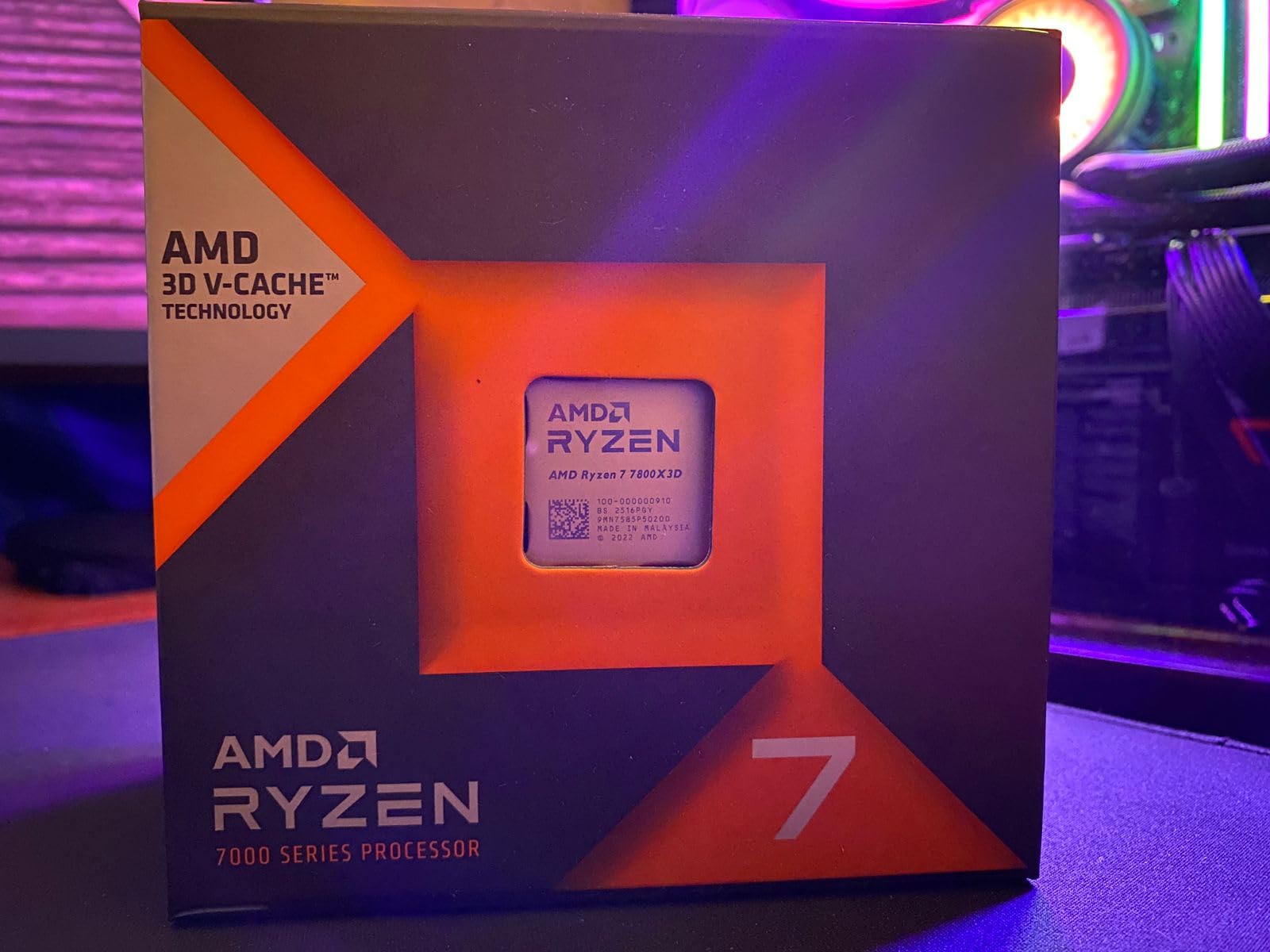
This is the chip we kept coming back to. The Ryzen 7 7800X3D pairs eight Zen 4 cores and 16 threads with 96 MB of stacked L3 cache, and in testing it held its frame rate better than anything else in this list while OBS, a browser and a recording pass ran in the background. For a single-PC stream rig, that combination is the whole job description.
The cache is the story here. Games that lean hard on simulation and asset streaming hit that 96 MB pool directly, so you get gaming performance that scales with the GPU rather than crawling behind it. Owners report less memory sensitivity than non-X3D chips, which means you are not chasing a memory kit to unlock the performance.
Where streaming fits in: with NVENC or AMF handling the encode, the 16 threads leave plenty of room for OBS, Discord and a browser. Sixteen threads is also comfortable for veryfast or faster x264 presets at 1080p if you want to compare the two encoders side by side before you commit to one.
The catch is productivity throughput. This chip trades multi-threaded output for cached gaming speed, which is the correct trade for a streamer and the wrong trade for someone rendering 4K timelines. Reviewers consistently note it falls behind non-X3D chips at similar pricing on encoding and compilation work.
Buy the Ryzen 7 7800X3D if you want the best of both on one machine
Buy it if your rig both games and streams on the same PC, especially at 1080p60 or 1440p60, and especially if you are pairing it with a mid-range or high-end GPU. Eight physical cores is the sweet spot we kept landing on: enough to keep OBS and your background apps out of the game’s way, few enough that your budget stays on the graphics card.
Also buy it if you want an upgrade path. AM5 has several more generations of Ryzen parts to come, so this socket is not a dead end the way AM4 is.
Skip the Ryzen 7 7800X3D if your workload is not gaming first
Skip it if you edit video, transcode, or run a second stream at 4K while gaming. Non-X3D Ryzen chips and Intel’s hybrid designs do more of that work per pound, and the 7800X3D will make you wait on renders instead of games.
Also skip it if your case has weak airflow. At 120W the chip wants a competent cooler, and pairing it with a thin low-cost cooler from an entry-level kit is how you end up thermally throttling mid-session.
2. AMD Ryzen 5 9600X – Budget Pick Six-Core on AM5
AMD Ryzen™ 5 9600X 6-Core, 12-Thread Unlocked Desktop Processor
6 cores / 12 threads
3.9 GHz base, 5.4 GHz max boost
38 MB cache, 65W
Socket AM5, DDR5-5600
Pros
- Smooth 100+ FPS in popular titles at 1080p and 1440p
- Zen 5 efficiency at only 65W
- Unlocked for overclocking
- Entry point to the AM5 platform with PCIe 5.0 headroom
Cons
- No cooler included
- so a budget aftermarket cooler is needed
- Only 6 cores limits heavy multitasking and multi-stream encoding headroom
- Requires DDR5 memory
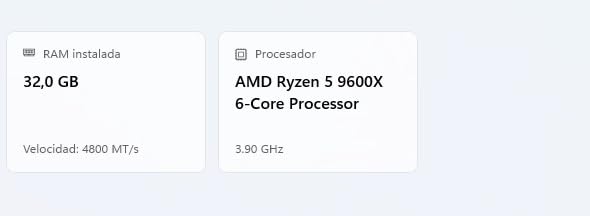
The Ryzen 5 9600X is the pick for a streamer who wants a current platform without spending flagship money. Six Zen 5 cores and 12 threads, a 5.4 GHz max boost, and a 65W rating that makes cooling almost a non-issue. Owners rate it at 4.8 out of 5 across more than 4,000 reviews.
Sixty-five watts is the number that sells this chip for streaming builds. In a small case with a mid-range GPU pushing heat, a chip that draws this little leaves thermal headroom for everything else, and it means a cheap four-heatpipe tower is genuinely enough. That is money you can move to the GPU or the capture card.
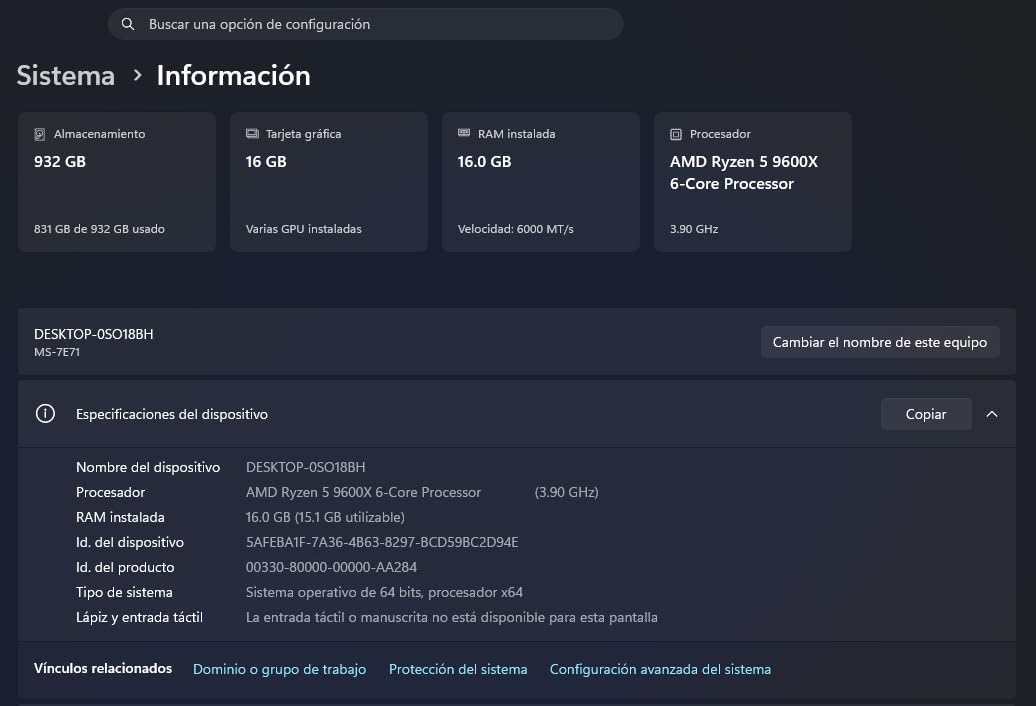
On the stream side, six cores is workable but not luxurious. With NVENC or AMF encoding, OBS and your background apps fit comfortably into the spare threads. If you want to run veryfast x264 at the same time, or run a second stream, or leave a video editor exporting in the background, you will feel the ceiling. The 1% lows in a CPU-limited game suffer first.
Two things to budget for. There is no cooler in the box, which is the single most repeated caveat across reviews, and DDR5 memory is required, so an existing AM4 board will not take this chip.
Buy the Ryzen 5 9600X if your GPU is the expensive part of the build
Buy it if you are gaming at 1440p on a modern card, because at that resolution the GPU is usually the bottleneck and a six-core Zen 5 part keeps up fine. It is also the sensible AM5 entry if you plan to upgrade to a Ryzen 7 or Ryzen 9 later without changing the board.
Do buy it if low power draw and quiet thermals matter to you. Reviewers consistently highlight the efficiency of the Zen 5 parts at this power envelope.
Skip the Ryzen 5 9600X if you plan to multitask hard
Skip it if your stream includes a second camera feed, a second encode path, or a lot of live editing. Twelve threads sounds like plenty until OBS, Discord, two browser profiles, a recording pass and a game are all asking at once.
Also skip it if you are trying to reuse an AM4 build. This is an AM5-only part, and mixing platforms means a new board and a new memory kit on top of the chip.
3. AMD Ryzen 5 5600X – Best Value With a Cooler Included
AMD Ryzen 5 5600X 6-core, 12-thread unlocked desktop processor with Wraith Stealth cooler
6 cores / 12 threads
3.7 GHz base, 4.6 GHz max boost
32 MB L3 cache, 65W
Socket AM4, DDR4, Wraith Stealth cooler
Pros
- Bundled Wraith Stealth cooler keeps build cost down
- Zen 3 single-core strength for 100+ FPS at 1080p
- 65W keeps heat and fan noise modest
- Works with inexpensive B450
- B550 and X570 boards
Cons
- Last AM4 generation
- so no upgrade path to future AMD sockets
- No integrated graphics
- requiring a separate GPU
- Bundled cooler is adequate but not quiet under sustained load
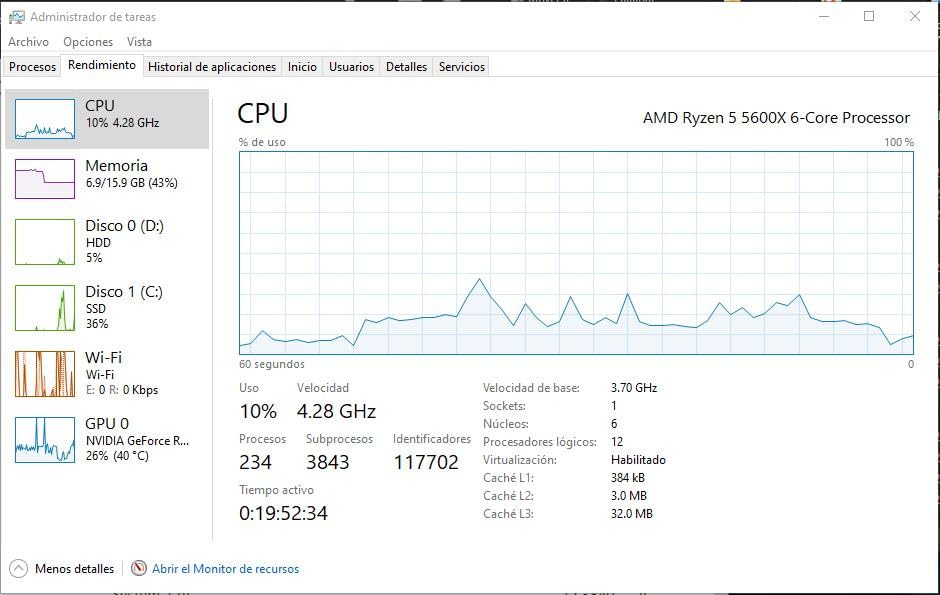
With more than 30,000 reviews averaging 4.8 out of 5, the Ryzen 5 5600X is the most battle-tested chip on this list. Six Zen 3 cores, 12 threads, a 4.6 GHz max boost and a 65W TDP. It is not the fastest option here, and for a stream-first budget build it is very often the correct one.
The reason is the bundled AMD Wraith Stealth cooler. Every other processor in this roundup needs you to budget a cooler separately, and for a streamer assembling a full rig the GPU, board, memory and capture card already eat the budget. Removing one line item from that list is worth more than a few extra frames per second.
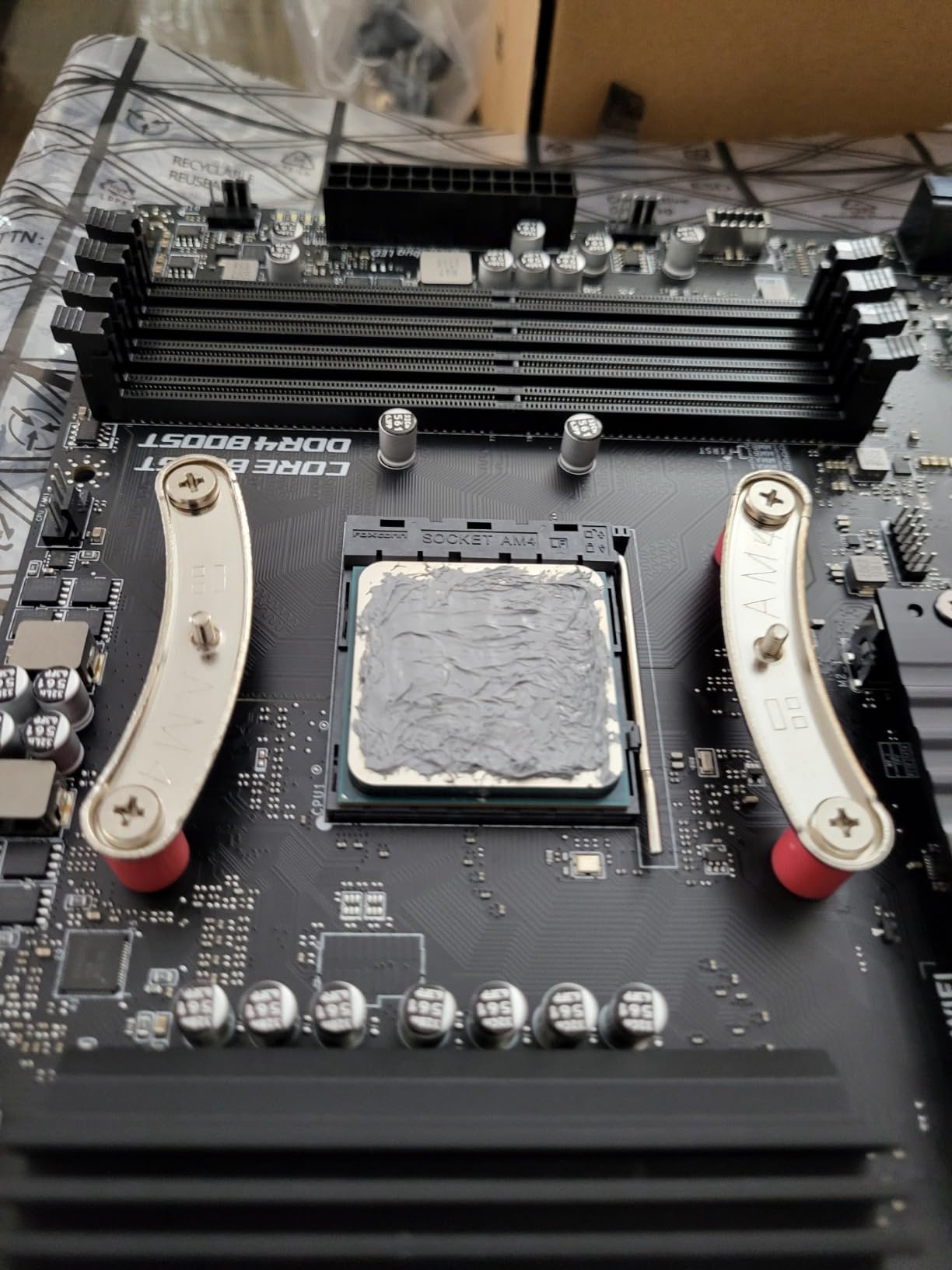
Where it fits in a streaming build is straightforward. With hardware encoding handling the video, six Zen 3 cores at 4.6 GHz are plenty for 1080p60 streams with OBS, Discord and a browser running in the background. The community view on r/PcBuild and r/buildapc threads is consistent on this point: nobody building a 1080p stream rig needs a flagship processor.
The honest limitation is the socket. AM4 is the last AMD generation on this platform, so there is no upgrade path to future AMD silicon. If you can accept that, B450, B550 and X570 boards are cheap and plentiful, and DDR4 kits cost less than DDR5.
Buy the Ryzen 5 5600X if total platform cost drives the decision
Buy it if you are streaming at 1080p60, your encoder is a hardware block on your GPU, and you want the cheapest complete rig that will not stutter. The included cooler plus an inexpensive AM4 board and DDR4 kit is the lowest-cost streaming platform on this list by a wide margin.
Buy it if you already own an AM4 board. Dropping this chip into an existing machine is the cheapest upgrade path available to a streamer today.
Skip the Ryzen 5 5600X if you plan to keep the PC for years
Skip it if you want headroom for a platform refresh later. AM4 support ends here, so your next processor means a new board and a new memory kit, which defeats the point of saving money now.
Also skip it if you want integrated graphics for troubleshooting or a headless stream rig. This chip has none, so a display output needs a discrete card.
4. Intel Core Ultra 7 265K – Best for CPU Encoding and Hybrid Multitasking
Intel Core Ultra 7 Desktop Processor 265K – 20 cores (8 P-cores + 12 E-cores) up to 5.5 GHz
20 cores (8 P-cores + 12 E-cores)
Up to 5.5 GHz, unlocked
36 MB cache, 125W
LGA 1851, PCIe 5.0, no cooler
Pros
- 20-core hybrid design gives solid encoding throughput alongside gaming
- Runs cooler and quieter than previous-gen Intel desktop parts
- Unlocked up to 5.5 GHz with 36 MB cache
- PCIe 5.0 and Optane support on LGA 1851
Cons
- No bundled cooler
- Requires an Intel 800-series LGA 1851 motherboard
- 20 cores but only 20 threads limits parallel scaling versus 16-core AMD parts
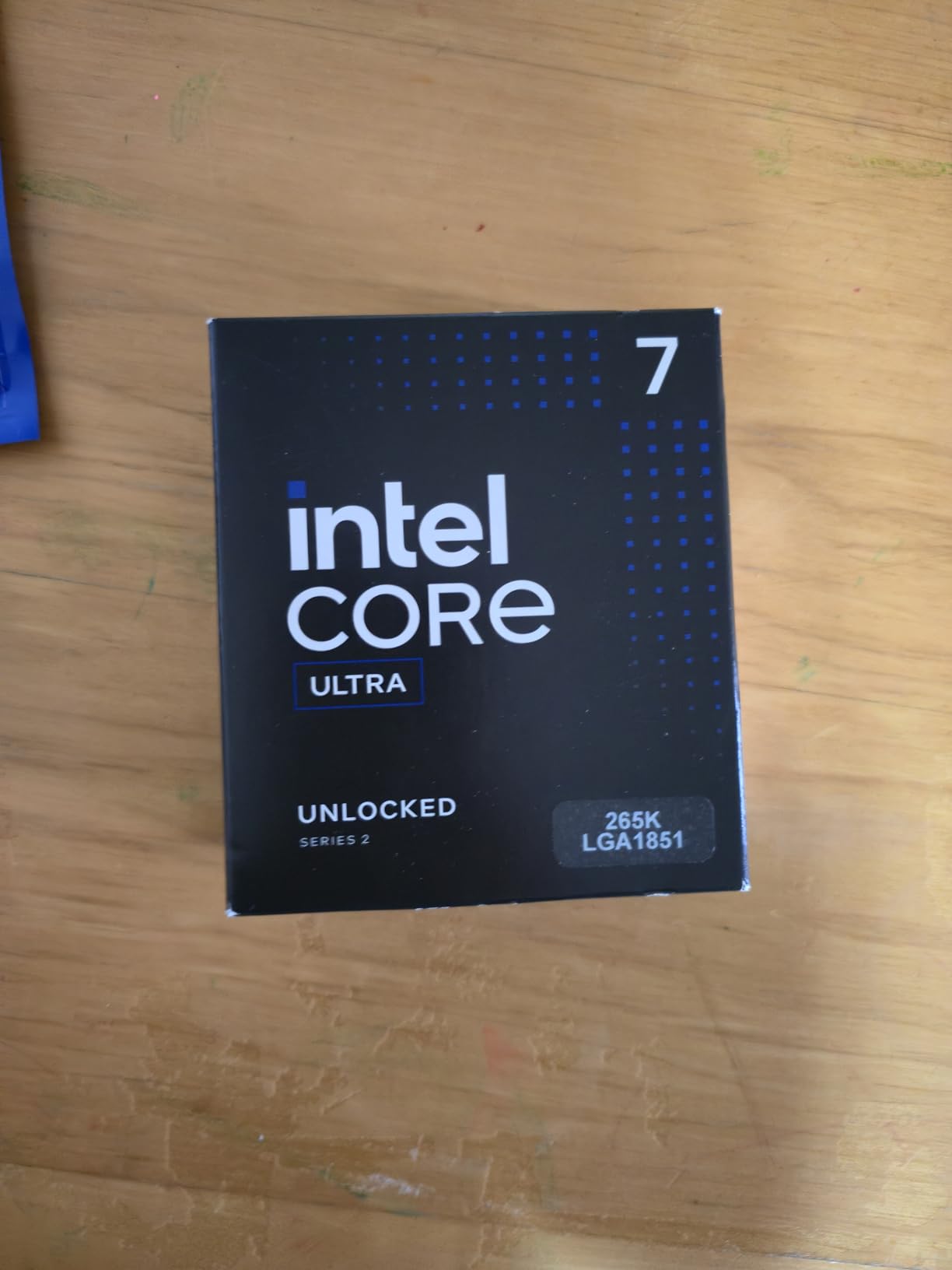
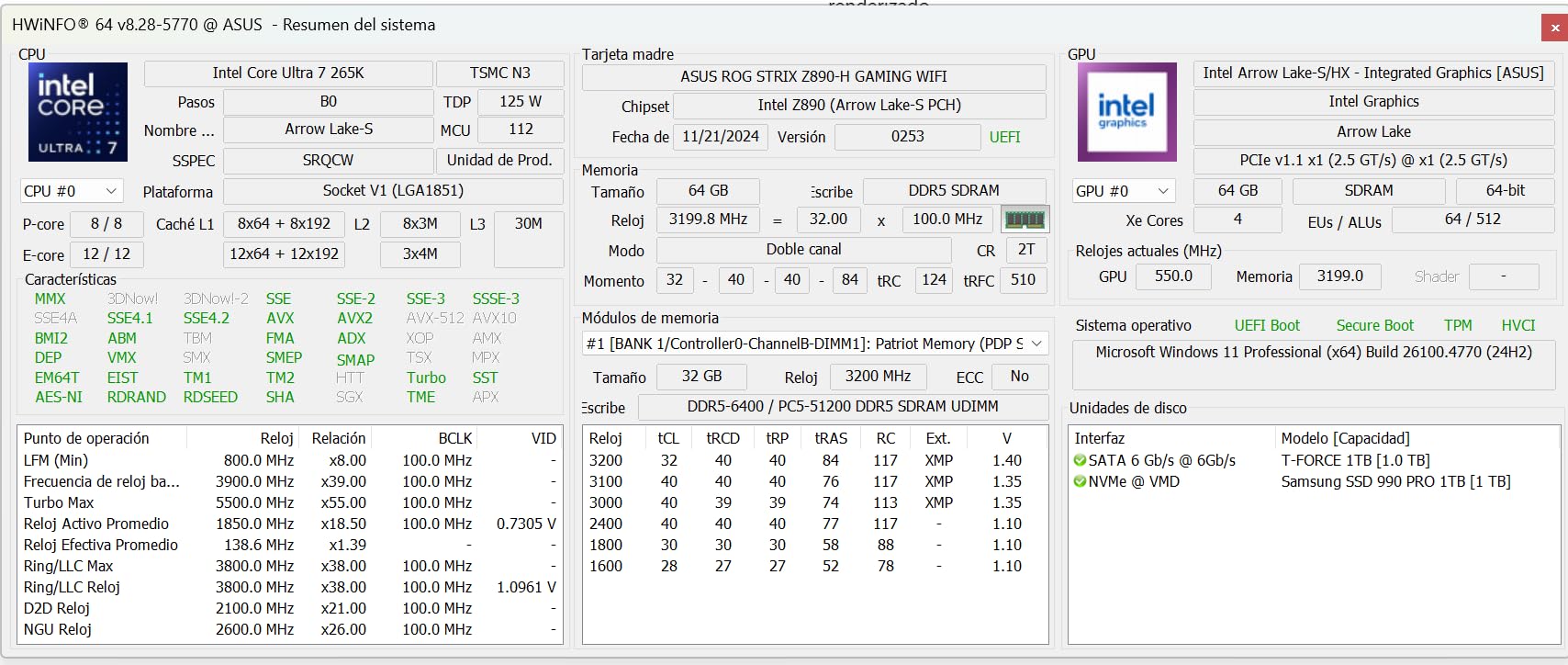
The Core Ultra 7 265K is the pick for streamers who insist on encoding on the CPU. Twenty cores split into 8 performance cores and 12 efficiency cores, unlocked up to 5.5 GHz, with 36 MB of cache. Owners rate it 4.8 out of 5 from more than 1,300 reviews and single out its multi-core capability.
Hybrid architecture matters more here than in the gaming-first chips. The efficiency cores handle the encode threads and the background apps while the performance cores keep the game thread fed, which is exactly the workload pattern x264 and OBS produce. If you are running x264 at a slow preset, or transcoding while you stream, this is the lane you want.
Thermal behaviour is a genuine strength. Reviewers consistently describe this chip as running cooler and quieter than previous-generation Intel desktop parts, and 125W is manageable with a good air tower. Efficiency has clearly improved over the earlier generation.
The threading is the compromise. Twenty cores but only 20 threads means you get less parallel scaling than a 16-core, 32-thread AMD part on heavily threaded work. For most streaming workloads that difference is small, but for long CPU encodes it is real.
Buy the Core Ultra 7 265K if you encode with x264
Buy it if you want to compare encoders seriously, if your streaming platform does not accept hardware encoding, or if you run Handbrake or x265 transcodes in the background while gaming. The core count gives OBS room to work without touching the game’s thread.
Buy it if you are starting a new LGA 1851 build and want a mid-range chip that can move to a Core Ultra 9 later in the same socket.
Skip the Core Ultra 7 265K if you only need a fast gaming chip
Skip it if you plan to use NVENC or AMF for encoding. In that case you are paying for cores and a newer, costlier platform for work your GPU is already doing, and an AMD X3D chip will deliver more gaming performance for the money.
Also skip it if you are trying to keep the platform cheap. An 800-series board plus DDR5 is a real cost, and no cooler is included in the box.
5. Intel Core Ultra 9 285K – Best for 4K Streaming and Editing Alongside Gaming
Intel® Core™ Ultra 9 Processor 285K 24 cores (8 P-cores + 16 E-cores) up to 5.7 GHz
24 cores (8 P-cores + 16 E-cores)
Up to 5.7 GHz, unlocked
40 MB cache, 125W
LGA 1851, PCIe 5.0, no cooler
Pros
- 24 cores give ample throughput for 4K stream encoding and editing
- Runs cooler and quieter than earlier-gen Intel flagships
- Unlocked up to 5.7 GHz with 40 MB cache
- Integrated graphics and PCIe 5.0 on LGA 1851
Cons
- No thermal solution included
- Requires an Intel 800-series LGA 1851 motherboard
- Gaming frame rates trail AMD X3D parts in frame-rate-limited titles
When the stream is 4K and you are editing alongside it, the arithmetic changes. The Core Ultra 9 285K brings 24 cores split into 8 performance and 16 efficiency cores, boosts to 5.7 GHz and carries 40 MB of cache. That is the most total throughput on this list, and it is the reason this chip exists in a streaming roundup.
Four cores handle the game, the encode rides across the efficiency cores, and the export queue runs underneath both. A 24-core hybrid part gives you somewhere to put all of that without the frame rate collapsing every time a background task wakes up.
Reviewers describe the thermal picture as a clear improvement over earlier Intel flagships, with the chip running cooler and quieter than its predecessors. Integrated Intel Graphics means the machine can boot to a desktop for BIOS updates or OBS setup without a discrete card present.
Where it loses ground is gaming. The same reviews note that frame rates trail AMD X3D parts in titles where you are GPU-limited. If you only ever stream at 1080p60 and play competitive shooters, you are leaving performance unused.
Buy the Core Ultra 9 285K if you stream at 4K or edit while you stream
Buy it if you are producing long-form content rather than live broadcasts, if you run multiple encode passes, or if your stream machine doubles as a workstation. Twenty-four cores is the number that keeps all of that from fighting over the same eight cores.
Buy it if you want the newest platform and maximum PCIe 5.0 support, with an upgrade to faster Core Ultra parts later in the same socket.
Skip the Core Ultra 9 285K if gaming is the priority
Skip it if your main goal is the highest possible frame rate in the game itself. You will get that from a cheaper X3D chip, and you will get it while your GPU has less work to do against a demanding frame pacing target.
Also skip it if the platform cost is a concern. No cooler is included, and the required 800-series board pushes the total well past the processor.
6. Intel Core i7-14700K – Best Intel Upgrade With 20 Cores and 28 Threads
Intel® Core™ i7-14700K New Gaming Desktop Processor 20 cores (8 P-cores + 12 E-cores) with Integrated Graphics – Unlocked
20 cores (8 P-cores + 12 E-cores), 28 threads
Up to 5.6 GHz Turbo Boost Max 3.0
33 MB cache, 125W
LGA 1700, DDR4 or DDR5
Pros
- 20 cores and 28 threads give plenty of headroom for encoding alongside a game
- Integrated UHD 770 graphics help with troubleshooting
- Memory controller supports four DDR5-5600 sticks
- Measurable frame-rate uplift over an i7-12700K
Cons
- High power draw under load needing a 240mm AIO or top-tier air cooler
- Aggressive default voltage behaviour makes undervolting advisable
- Instability reported on a small number of chips even with updated BIOS
- Trails AMD X3D chips in top-end gaming
The Core i7-14700K is the pick if you want maximum thread count without moving to the newest Intel platform. Twenty cores and 28 threads from a hybrid 8 P-core plus 12 E-core design, boosting to 5.6 GHz with Turbo Boost Max 3.0. Owners rate it 4.6 out of 5 across nearly 1,300 reviews.
Twenty-eight threads is the highest thread count on this list, which makes it a strong fit for x264 encoding plus a game plus a background workload. The integrated UHD 770 graphics are also quietly useful: you can boot the machine, install your OS and set up OBS before the graphics card arrives.
Memory flexibility is the quiet advantage here. The platform supports both DDR4 and DDR5, so if you already own an LGA 1700 board and a good DDR4 kit, you can drop this chip in without replacing anything. That flexibility has disappeared on LGA 1851.
The thermal and stability picture is the reason this sits at sixth. Reviewers note high power draw under load with gaming loads landing in the 60 to 70C range on a 360mm AIO, and repeated mentions of aggressive default voltage behaviour that makes undervolting worthwhile.
Buy the Core i7-14700K if you already own an LGA 1700 board
Buy it if you are upgrading an existing 12th or 13th generation machine. Owners report a measurable frame-rate uplift over an i7-12700K, and you keep your board and possibly your memory.
Buy it if your workload is threaded rather than cached: CPU encoding, heavy background multitasking, or running a lot of applications alongside the game.
Skip the Core i7-14700K if you are starting from scratch
Skip it for a new build. A fresh LGA 1700 system is at the end of its life, and a small number of owners report instability that persisted even after BIOS updates. Starting on LGA 1851 or AM5 gives you a socket with somewhere to go.
Also skip it if thermals matter in a compact case. This chip wants serious cooling, and it still trails AMD X3D parts in top-end gaming frame rates.
How to Choose a CPU for Streaming and Gaming
How many CPU cores do you actually need for gaming and streaming?
Six cores is the floor that works, eight is the sweet spot, and ten or more only pays off under specific conditions. With hardware encoding active, a six-core chip running at a high boost clock will hold a 1080p60 stream without trouble. Eight cores gives you room for a browser, Discord and a recorder without the game feeling the squeeze. Sixteen or more cores matters when you are encoding on the CPU, streaming at 4K, or editing while you broadcast.
Threads are a separate question. A 6-core, 12-thread chip handles twelve simultaneous tasks well enough for streaming. A 16-core, 32-thread part handles twice the load, which is why it wins in CPU-encode scenarios and loses on value everywhere else.
Single-core versus multi-core: which one moves your frame rate?
Single-core performance moves your in-game frame rate. Every frame of a game is largely a serial job handled by one core, so clock speed, cache and instructions per clock dominate. Multi-core performance moves the encode, the recording, the chat overlay and everything else in the background.
This is why the 3D V-Cache chips show such a strong gap in gaming while looking weak on productivity. They are optimised for the serial half of the job. If your stream is gameplay-led, optimise for the serial half.
Socket and memory: AM4, AM5 or LGA 1851?
Three platforms show up here and they are not interchangeable. AM4 runs the Ryzen 5 5600X on DDR4 and is the cheapest route in, with no upgrade path beyond it. AM5 runs the Ryzen 7 7800X3D and Ryzen 5 9600X on DDR5 and has several more generations ahead of it. LGA 1851 runs the Core Ultra 7 265K and Core Ultra 9 285K on DDR5 and is Intel’s newest socket.
The trap that catches people is buying a current-generation chip and then discovering they also need a new board and a full memory kit. If you already own an AM4 or LGA 1700 board, the cheapest upgrade is usually to reuse it. If you are building fresh and expect to keep the machine for several years, the newer socket is the better bet. Memory price volatility is the other factor, and DDR4 kits are still consistently cheaper than DDR5.
Cooling and power draw while streaming
Streaming is a sustained load, not a burst. A chip that boosts hard for thirty seconds and then throttles will produce exactly the stutter you are trying to avoid. Look at the sustained power figure rather than the boost headline: 65W parts cool with a basic tower, 120 to 125W parts want a solid dual-tower air cooler or a 240mm AIO.
Case airflow matters as much as the cooler. A compact case with one intake fan will trap heat around a 125W chip no matter how good the cooler is. If your stream drops frames an hour into a session rather than at the start, throttling is the first thing to check.
OBS settings by CPU tier
You can buy the right processor and still set OBS wrong. A practical ladder, roughly matching the picks in this guide:
Six-core budget tier (Ryzen 5 5600X, Ryzen 5 9600X): NVENC or AMF hardware encoding, CQP around 28 to 32, CBR 6000 for a 1080p60 stream. Leave NVENC preset on default and do not chase bitrate.
Eight-core X3D tier (Ryzen 7 7800X3D): Hardware encoding at CBR 6000 for 1080p60, or 9000 to 12000 for 1440p60. Rate control matters more than resolution here.
Many-core tier (Core Ultra 7 265K, Core Ultra 9 285K, i7-14700K): If you are on x264, veryfast is the sensible preset and anything slower is pure waste on a live stream. Tune for smoothness, not for archival quality.
If you also want to upgrade the rest of the rig, our guides to streaming microphones and CPUs for content creation cover the adjacent parts of a stream setup.
Stream problems and what they actually mean
Stutter in the game but a smooth stream: the CPU is not feeding the game fast enough. This is a single-core or game-thread problem, not an encoder problem.
Dropped frames reported by OBS: the encoder is not keeping up. On hardware encoding, check GPU headroom first; on x264, you need more CPU cores.
Audio pops or crackles: usually buffer settings or a background CPU task stealing a core from the audio thread.
Stream quality poor but frame rate fine: this is bitrate and scene complexity, not silicon. A faster CPU will not fix a busy-looking scene at too low a bitrate.
Frame rate drops only after an hour: thermal throttling. Check temperatures before anything else.
How much should you spend on a streaming CPU?
Spend according to what your encoder does, not according to your frame rate target. With hardware encoding, a mid-range six-core chip is genuinely enough for 1080p60, and the money is better spent on the GPU. If you encode on the CPU, you are buying throughput and the budget moves up several tiers. Our general rule is that the processor should never be the most expensive part of a stream-focused build, because the graphics card drives both your game and your encode.
Single-PC vs Dual-PC Streaming: What the CPU Actually Has to Do
In a single-PC setup, one machine renders the game, runs OBS, captures the display and encodes the video. The processor handles the game thread and every background task at once, which is why the picks above lean toward high boost clocks and enough cores to keep OBS out of the way. You also pay for one set of components, and the capture card usually disappears entirely if your GPU supports a direct passthrough path.
In a dual-PC setup, the gaming PC handles the game and often the capture, while a second machine with integrated graphics does nothing but run OBS and encode. The answer changes completely. The gaming PC wants the fastest single-core chip money can buy, because nothing else is competing for the CPU. The stream PC wants cores and threads, because encoding is all it does, and it does not need a discrete graphics card at all.
Forum threads on linustechtips regularly suggest that a full second PC is overkill, and that a cheap processor with integrated graphics can carry the entire encode load. That is correct advice. A dedicated stream machine removes the contention problem entirely, which is why some streamers prefer it despite the extra cost. If you want to reuse your parts, our content creation CPU guide covers chips that suit the heavy-transcode side of the equation.
Frequently Asked Questions
What CPU should I use for streaming?
The AMD Ryzen 7 7800X3D is our top pick for streaming and gaming on a single PC. Its 8 cores and 16 threads deliver top gaming frame rates while leaving headroom for OBS, Discord and background apps. If you encode with NVENC or AMF, a mid-range six-core chip such as the Ryzen 5 9600X is also enough for 1080p60.
How many CPU cores do I need for gaming and streaming?
Six cores is the practical floor for a single-PC stream rig, eight is the sweet spot, and ten or more only pays off when you encode on the CPU, stream at 4K, or edit while broadcasting. With GPU hardware encoding handling the video, the CPU needs strong single-core speed for the game plus a few spare cores for OBS and your background apps.
Is streaming heavy on CPU or GPU?
It depends on the encoder. With hardware encoding such as NVENC or AMF, the video compression runs on the GPU, so the CPU only runs the game, OBS and your background apps. With x264 software encoding, the compression lands on the CPU, and core count plus multi-threaded throughput become the deciding factors for stream quality and stability.
What video encoder should I use in OBS with an Nvidia GPU?
Use NVENC for most streams. It leaves the CPU free for the game, is stable, and community consensus on the obsproject.com forum rates it as the best quality-per-performance balance. Choose H.264 for maximum compatibility, HEVC for better detail at the same bitrate where your platform supports it, and AV1 on the newest cards for the best compression. Use CQP or CBR rate control rather than lossless or CRF.
Is a dedicated streaming PC worth it?
It removes contention rather than adding raw power. On a dual-PC rig the gaming machine only runs the game, so it wants the best single-core performance available, while the stream machine only runs OBS and encoding, so it wants cores and can use integrated graphics instead of a discrete card. It is worthwhile if you are already reusing parts or if stuttering while streaming is a persistent problem for you.
Which CPU Should You Buy for Streaming and Gaming?
The Ryzen 7 7800X3D is the pick we would build around for the best cpus for streaming and gaming, because eight cores and 96 MB of 3D V-Cache cover the game thread, OBS and the background load of a single-PC rig without stuttering, and the AM5 socket leaves you an upgrade path afterwards.
If you are spending as little as possible, the Ryzen 5 5600X bundles its own cooler and pairs with cheap AM4 boards and DDR4 kits, which is the lowest-cost complete streaming platform here. The Ryzen 5 9600X is the same idea on the current platform, at 65W and unlocked for overclocking.
If you encode on the CPU rather than the GPU, step up to the Core Ultra 7 265K for throughput or the Core Ultra 9 285K when you also stream at 4K or edit alongside the broadcast. The single decision that shapes everything: pick a fast gaming chip if a hardware encoder handles the video, and pick a many-core chip if it does not.