
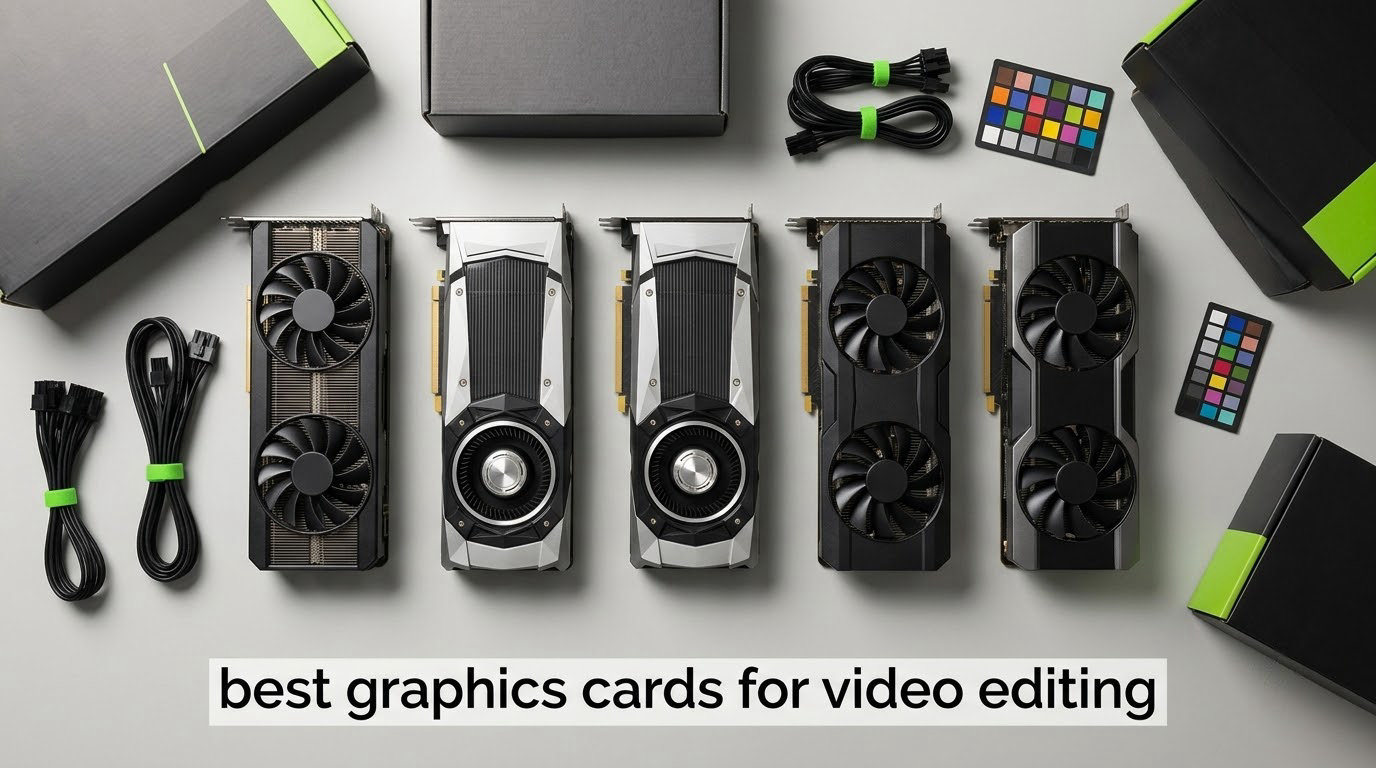
The best graphics card for video editing right now is the ASRock Radeon RX 9060 XT Challenger 16GB. It pairs 16GB of GDDR6 with a 2-slot, single 8-pin design, so you get the VRAM headroom that 4K timelines demand without a 13-inch card or a power-supply rebuild. Last updated October 2026.
Most editors buy the wrong card because they chase CUDA core counts or frame rates. Neither decides how your timeline feels. What decides it is how much video memory you have, how current the hardware encoder is, and whether the rest of your machine can feed the card.
We went through the specifications, owner reviews and failure reports behind ten cards across NVIDIA, AMD and Intel, then matched each one to the resolution and software it actually handles well. Every pick below states its VRAM, its power needs and its physical size, because those three numbers cause more broken builds than any benchmark does. If you are still choosing a display first, our [guide to monitors for video editing](https://zamd.net/best-monitors-for-video-editing/) covers the colour-critical side of the same decision.
Two forum themes shaped the list. Editors repeatedly reported that a capable GPU paired with a slow processor still felt slow, and that memory capacity mattered more than headline speed. Both threads shaped the buying guide at the end of this article rather than the order of the picks.
Our top picks at a glance:
Best overall: ASRock Radeon RX 9060 XT Challenger 16GB
Best for 4K and 8K timelines on NVIDIA: MSI GeForce RTX 5070 Ti 16G Ventus 3X OC
Best for 8K workstation power: GIGABYTE GeForce RTX 5080 Gaming OC 16G
Best value: ASUS TUF GeForce RTX 5070 12GB
Best for wide-bus grading headroom: GIGABYTE Radeon RX 9070 XT 16G
Best NVIDIA budget entry: ASUS Dual GeForce RTX 5060 8GB
Best for AV1 transcoding on a budget: Sparkle Intel Arc B580 Titan OC 12GB
Best for small form factor: ASRock Intel Arc B570 Challenger 10GB
Best for 32GB workstation and AI work: ASRock Radeon AI PRO R9700 32GB
Best for 1080p starters: ASUS Dual GeForce RTX 3050 6GB
Table of Contents
Top 3 Best Graphics Cards for Video Editing Right Now (October 2026)


MSI GeForce RTX 5070 Ti 16G Ventus 3X OC
- 16GB GDDR7 at 28Gbps on 256-bit
- PCIe 5.0
- under 300W

GIGABYTE GeForce RTX 5080 Gaming OC 16G
- 16GB GDDR7 256-bit
- Blackwell with DLSS 4
- 575W board power
Those three cover the majority of editing work. The 9060 XT wins on capacity per watt and physical footprint. The 5070 Ti is the NVIDIA route when you need CUDA-accelerated effects and 16GB of GDDR7. The 5080 is for 8K timelines, AI tooling and multi-app work where export time matters more than the build.
Best Graphics Cards for Video Editing in 2026
| Product | Specifications | Action |
|---|---|---|
| ASRock Radeon RX 9060 XT Challenger 16GB |
|
Check Latest Price |
| MSI GeForce RTX 5070 Ti 16G Ventus 3X OC |
|
Check Latest Price |
| GIGABYTE GeForce RTX 5080 Gaming OC 16G |
|
Check Latest Price |
 ASUS TUF GeForce RTX 5070 12GB ASUS TUF GeForce RTX 5070 12GB |
|
Check Latest Price |
 GIGABYTE Radeon RX 9070 XT 16G GIGABYTE Radeon RX 9070 XT 16G |
|
Check Latest Price |
 ASUS Dual GeForce RTX 5060 8GB ASUS Dual GeForce RTX 5060 8GB |
|
Check Latest Price |
 Sparkle Intel Arc B580 Titan OC 12GB Sparkle Intel Arc B580 Titan OC 12GB |
|
Check Latest Price |
 ASRock Intel Arc B570 10GB ASRock Intel Arc B570 10GB |
|
Check Latest Price |
 ASRock Radeon AI PRO R9700 32GB ASRock Radeon AI PRO R9700 32GB |
|
Check Latest Price |
 ASUS Dual GeForce RTX 3050 6GB ASUS Dual GeForce RTX 3050 6GB |
|
Check Latest Price |
Reading that table top to bottom, the pattern is obvious. The cards that survive long editing sessions are the ones with at least 12GB, and the ones that survive cramped cases are the ones under 10 inches. Both of those constraints rule out the flagship cards for most people, which is why the 16GB mid-range options do the heavy lifting in real studios.
1. ASRock Radeon RX 9060 XT Challenger 16GB – the best graphics card for video editing overall
ASRock Radeon RX 9060 XT Challenger 16GB OC, RDNA 4, 3290MHz Boost, 16GB GDDR6 128-bit, PCIe 5.0, Dual Fans, 0dB Silent, LED Indicator, DisplayPort 2.1a, HDMI 2.1b
16GB GDDR6 on 128-bit
3290MHz boost
2-slot, 0.5kg, one 8-pin
Pros
- 16GB of VRAM in a small dual-fan card
- Creative workloads get far more headroom than 8GB rivals
- Runs cool and quiet under load
- Light 0.5kg weight fits tight cases
- Lower power draw than the card it replaces
Cons
- Dual-fan heatsink dissipates less than triple-fan designs
- 128-bit bus limits raw bandwidth
- Some encoding hiccups with lower-to-mid range CPUs
- Basic packaging for a premium component
Sixteen gigabytes is the number that unlocks comfortable 4K editing, and this card puts it in a 9.8-inch, 0.5 kg two-slot shell that needs a single 8-pin connector. That combination is unusual. The other 16GB card in this group runs a triple 8-pin power setup, which is exactly the kind of thing that stops an editor upgrading.
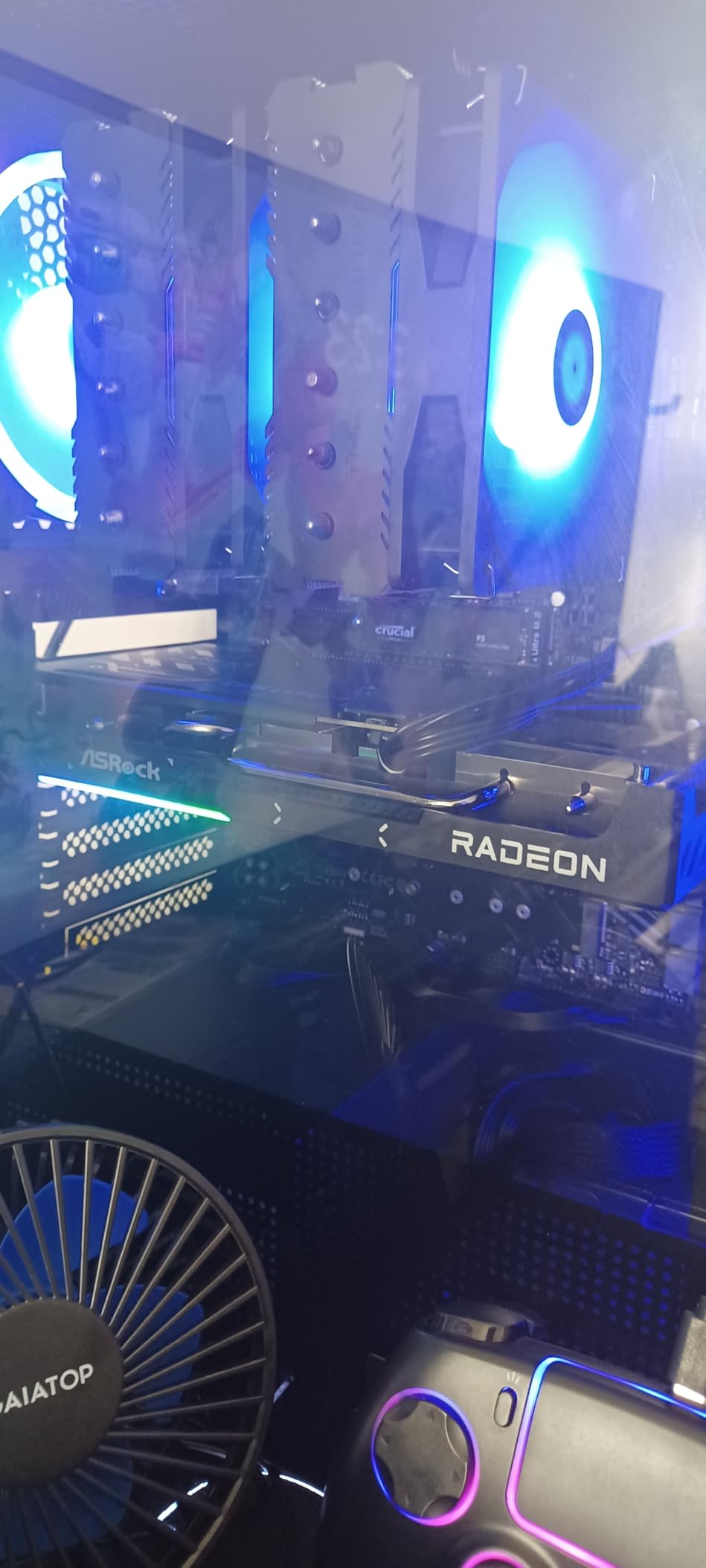
Owners consistently report that the frame buffer simply does not run out where an 8GB board of the same class does, along with low-to-mid 60s temperatures and a quiet fan profile. One buyer uses it as a workstation accelerator inside an external enclosure.
For resolution work, the 9060 XT is the sensible default. See also our picks for [graphics cards for 4K gaming](https://zamd.net/best-graphics-cards-for-4k-gaming/) if you want to know how it handles timelines that are not creative work.
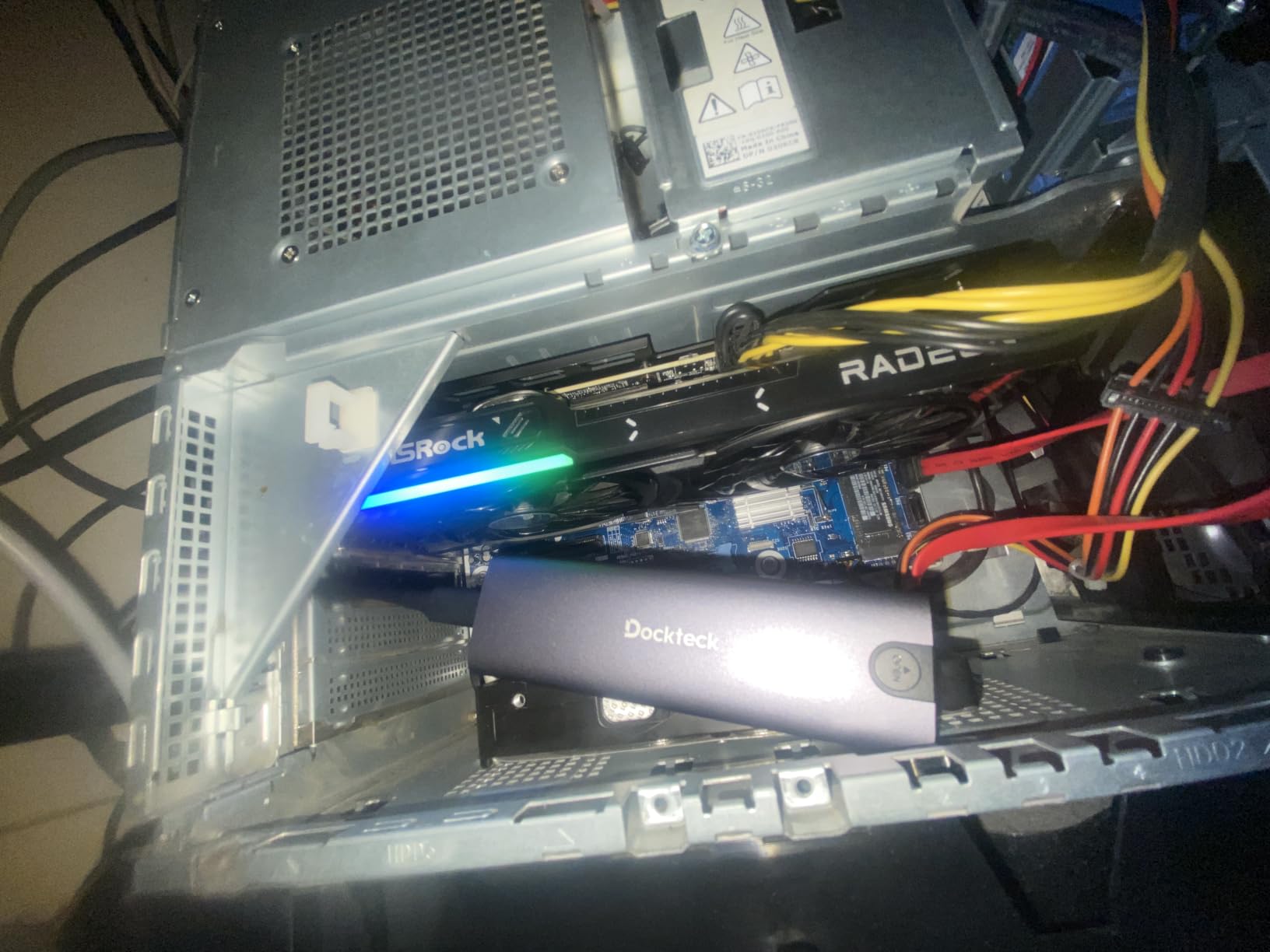
What makes it the better choice at 4K
The 128-bit bus means raw bandwidth is lower than a 256-bit rival, and on heavy 4K timelines with large caches that gap can show. For most editors it stays hidden behind the fact that the card simply does not run out of video memory, which is the failure that actually stops work.
Pair it with a CPU that is not several years behind it. Reviewers report occasional video encoding hiccups when the processor is a lower-to-mid range part, which is a reminder that the encoder path wants a CPU that can feed it.
Where it falls short
It is an RDNA 4 card, so Adobe applications run on the same driver and feature footing as they do on AMD’s larger cards. Fusion and After Effects work, but NVIDIA’s CUDA path remains the smoother experience for plugins that were written for it first.
If you need 32GB, or you run local AI models alongside your edit, look at the Radeon AI PRO R9700 further down. Otherwise the trade you are making here is capacity and efficiency for a bus width you will rarely feel.
2. MSI GeForce RTX 5070 Ti 16G Ventus 3X OC – best for 4K and 8K timelines on NVIDIA
MSI GeForce RTX 5070 Ti 16G Ventus 3X OC Graphics Card – RTX 5070 Ti GPU, 16GB GDDR7 (28Gbps/256-bit), PCIe 5.0 – Triple Fan Thermal Design (3 x TORX Fan 5.0) – HDMI 2.1b, DisplayPort 2.1b
16GB GDDR7 at 28Gbps
256-bit memory bus
min 750W PSU, triple fan
Pros
- 16GB GDDR7 on a 256-bit bus for multi-stream high-resolution work
- Runs under 300W and fits a standard mid-tower
- No coil whine reported by owners
- Compact enough for small-form-factor cases
- Stable over months of sustained use
Cons
- NVIDIA tuning software less complete than Adrenalin
- 16-pin connector must be fully seated without sharp bends
- Warmer in sealed SFF cases at 72-75C
- One report of recurring driver crashes
If your work lives in Premiere Pro or After Effects and you want NVIDIA’s acceleration without flagship power draw, this is the card. The 28 Gbps GDDR7 on a 256-bit bus is a genuine bandwidth step over anything Blackwell’s lower tiers offer, and 16GB is enough headroom for multicam and 6K timelines without pre-renders.
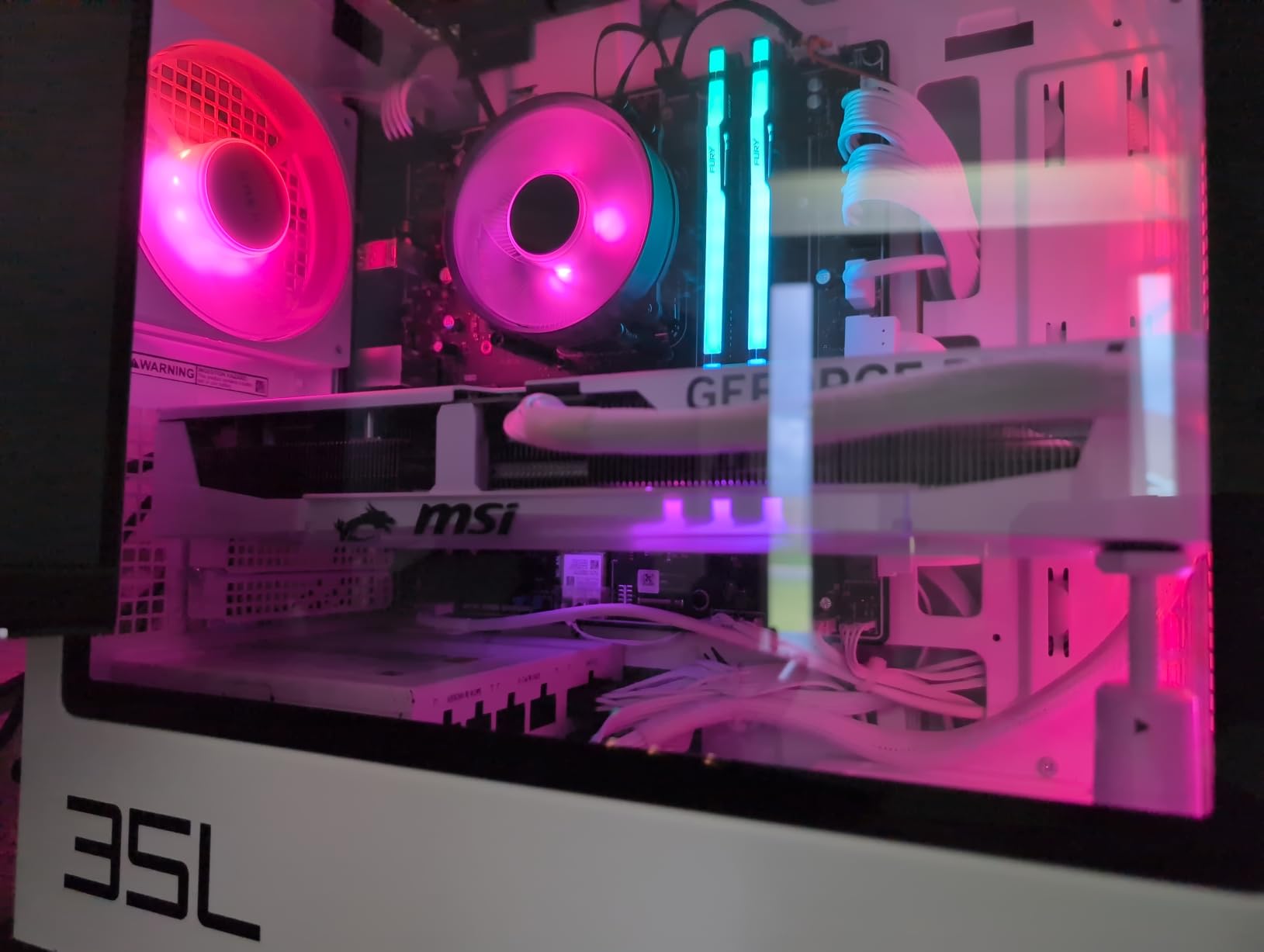
Owners who edit and run local AI on the same machine report the card delivers on both. One buyer tested over nine months with no crashes and stable temperatures, and a Japanese reviewer confirms smooth video editing alongside AI workloads. The triple TORX fan design also stays quiet in practice.
Two practical notes before you commit. The board needs a 750W-class supply at minimum, and the 16-pin connector wants a straight, fully seated run. Owners running it in sealed small-form-factor cases report 72 to 75C, so airflow matters there.
When the GDDR7 bandwidth actually pays off
The 256-bit bus at 28 Gbps moves frames into the card faster than a narrow-bus alternative, which shows most clearly in Resolve when you have several streams playing with scopes open. It also shortens the read-back time during a colour pass with a large node tree.
For a single 1080p or 4K stream with light effects, the difference is small. You are buying headroom for the timeline you will have in two years, not for the one you are editing today.
Reasons it is not our first pick
The 9060 XT holds more VRAM for far less power and arrives in a fraction of the physical size. This card wins when you need NVIDIA specifically, or when bandwidth-heavy Resolve work is your daily routine.
It is also the pick to beat on a dual-purpose machine. Our [1440p gaming card guide](https://zamd.net/best-graphics-cards-for-1440p-gaming/) covers the gaming side of that same build if you want the full picture.
3. GIGABYTE GeForce RTX 5080 Gaming OC 16G – best for 8K workstation power
GIGABYTE GeForce RTX 5080 Gaming OC 16G Graphics Card, WINDFORCE Cooling System, 16GB 256-bit GDDR7, GV-N5080GAMING OC-16GD Video Card
16GB GDDR7 256-bit
13.46 inches long
575W board power
Pros
- Excellent thermals for its size at 60-65C under sustained load
- Very quiet in normal use
- Handles 4K gaming plus simultaneous 4K recording and streaming
- Easy to overclock with memory gains available
- Tasteful RGB and a simple VBIOS update tool
Cons
- Enormous at 13.46 inches and 4 pounds
- 575W draw needs all adapter connectors seated
- 16GB is modest for a card in this class
- Some builds see fan resonance needing a curve tweak
This is the card to buy when your timeline is the deliverable and the deadline is the enemy. The WINDFORCE cooler held 60 to 65C under sustained full load without liquid cooling according to owners, and it rarely needed full fan speed, which matters when a 4K export runs for an hour.
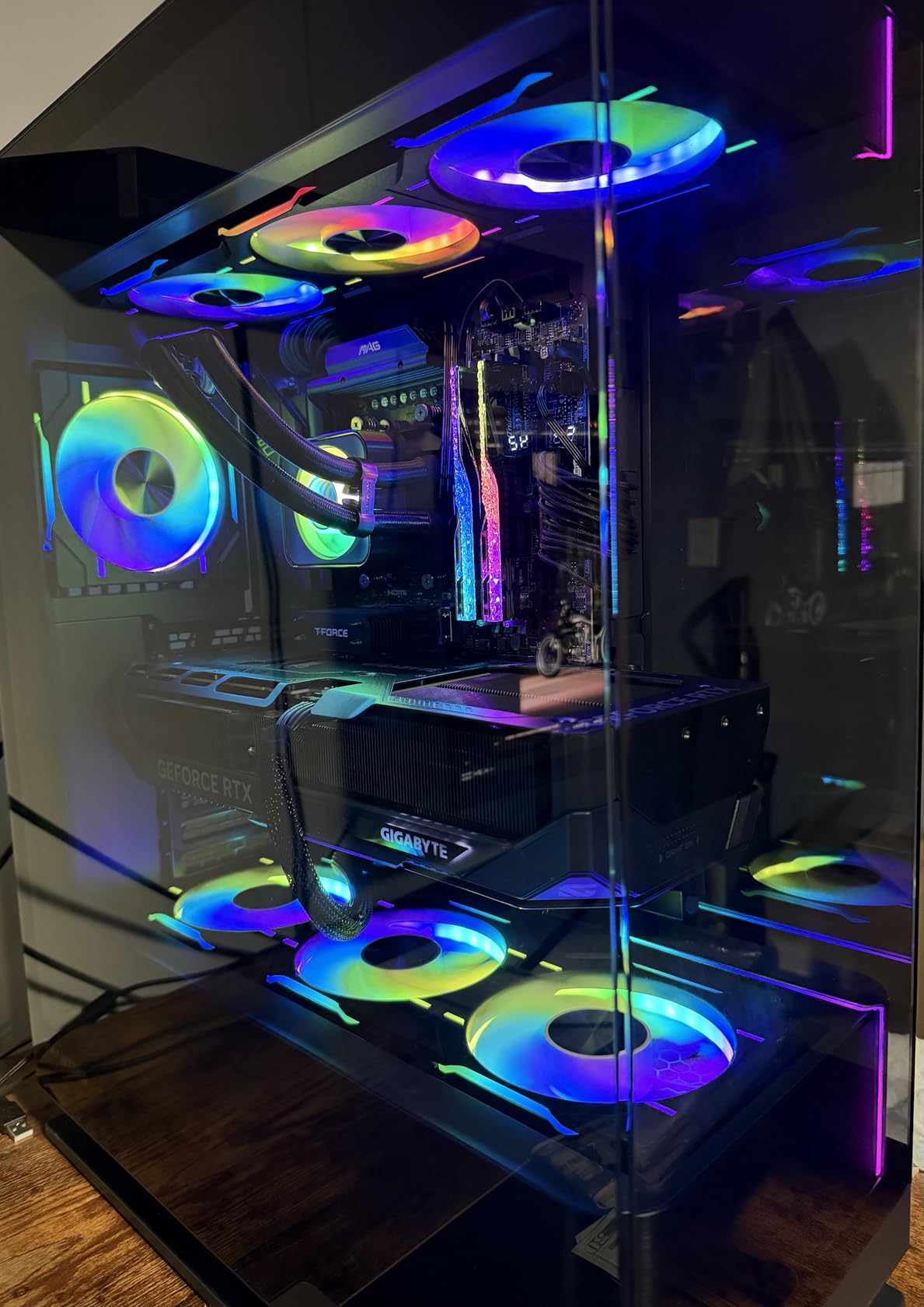
Owners run it for 4K editing while simultaneously recording and streaming with no reported issues, and overclockers report roughly 300 MHz on the core and 1500 to 2000 MHz on memory. That headroom is what makes it useful for effects-heavy work and local AI alongside the edit.
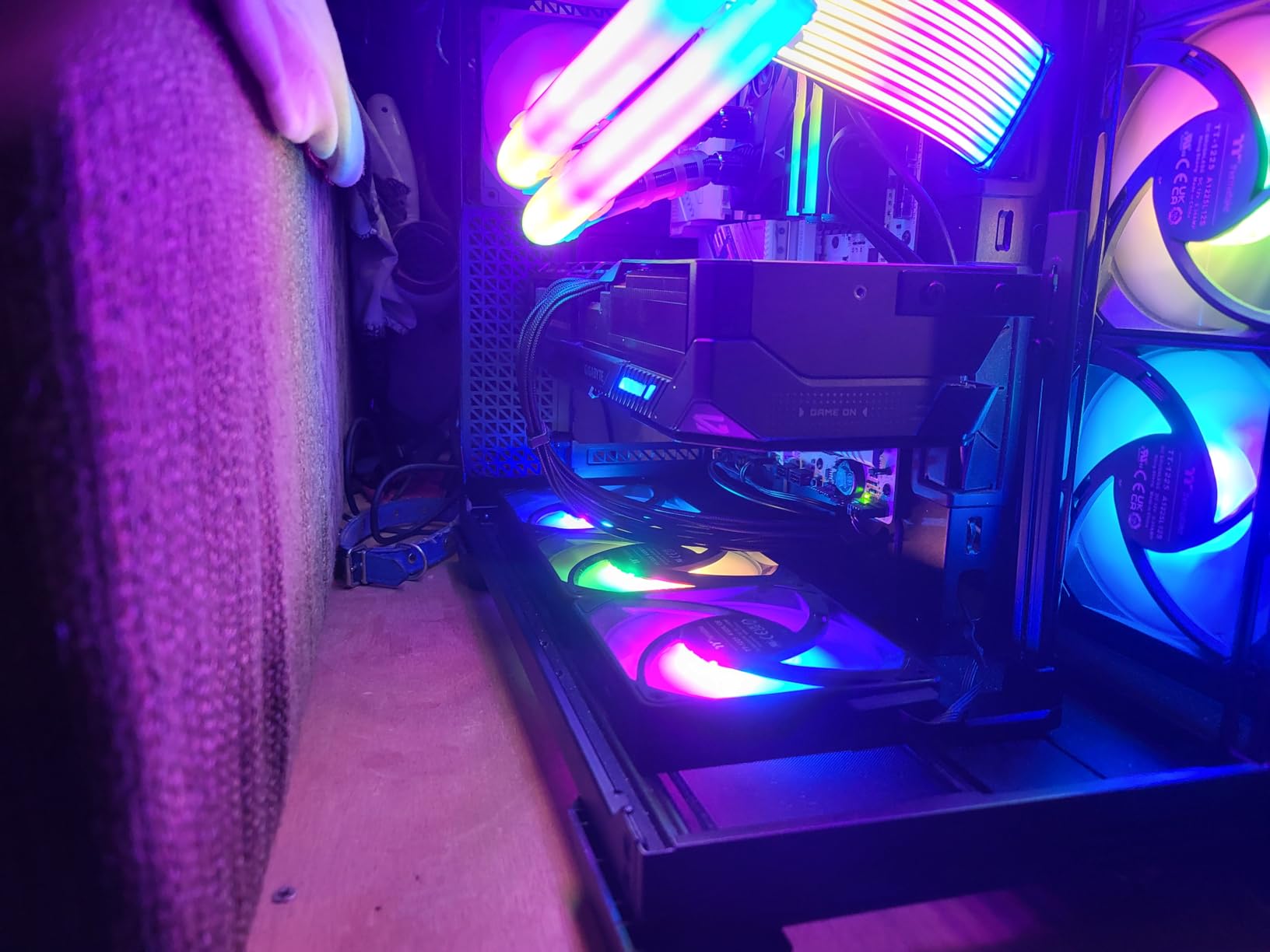
Plan the physical install before you buy. At 13.46 inches and 4 pounds it is one of the largest cards here, it takes a 575W draw, and every connector on the 12V-2×6 adapter must be fully seated. It also pairs naturally with an ultrawide timeline; our [ultrawide monitor picks](https://zamd.net/best-ultrawide-monitors-for-video-editing-for-home/) cover that side.
How to size the rest of the build around it
Sixteen gigabytes of GDDR7 is fast memory, but it is still 16GB. On very large 8K timelines with heavy grading you will be the first person in the room to feel the ceiling, and the sensible fix is a card with more capacity rather than a faster one.
Budget a quality power supply and a case with room for a 13-inch card with sag support. Owners who skipped that planning report case fan relocation and connector seating as their main headaches.
What it costs you to own
Because this is a high-power board, thermals under long exports are the thing to watch rather than peak clocks. The fan curve rarely needs adjusting in normal use, but some builds report resonance between 1450 and 1600 RPM that a curve tweak solves.
If your work is 4K rather than 8K, the 5070 Ti above delivers most of the practical benefit in a much easier package.
4. ASUS TUF GeForce RTX 5070 12GB – the best value NVIDIA pick
ASUS TUF Gaming GeForce RTX 5070 12GB GDDR7 OC EditionGaming Graphics Card
12GB GDDR7
2640MHz boost
3.125-slot, 13 inches
Pros
- Editing and rendering reported quick and stable
- Excellent cooling with idle temperatures around 36C
- Military-grade TUF build with protective PCB coating
- Includes a GPU support bracket
- 12GB GDDR7 gives real creative headroom
Cons
- Very large and heavy at 13 inches and 3.4 pounds
- 12GB can fall short for texture-heavy projects
- Loud under sustained full load
- Some cards arriving defective or pre-registered
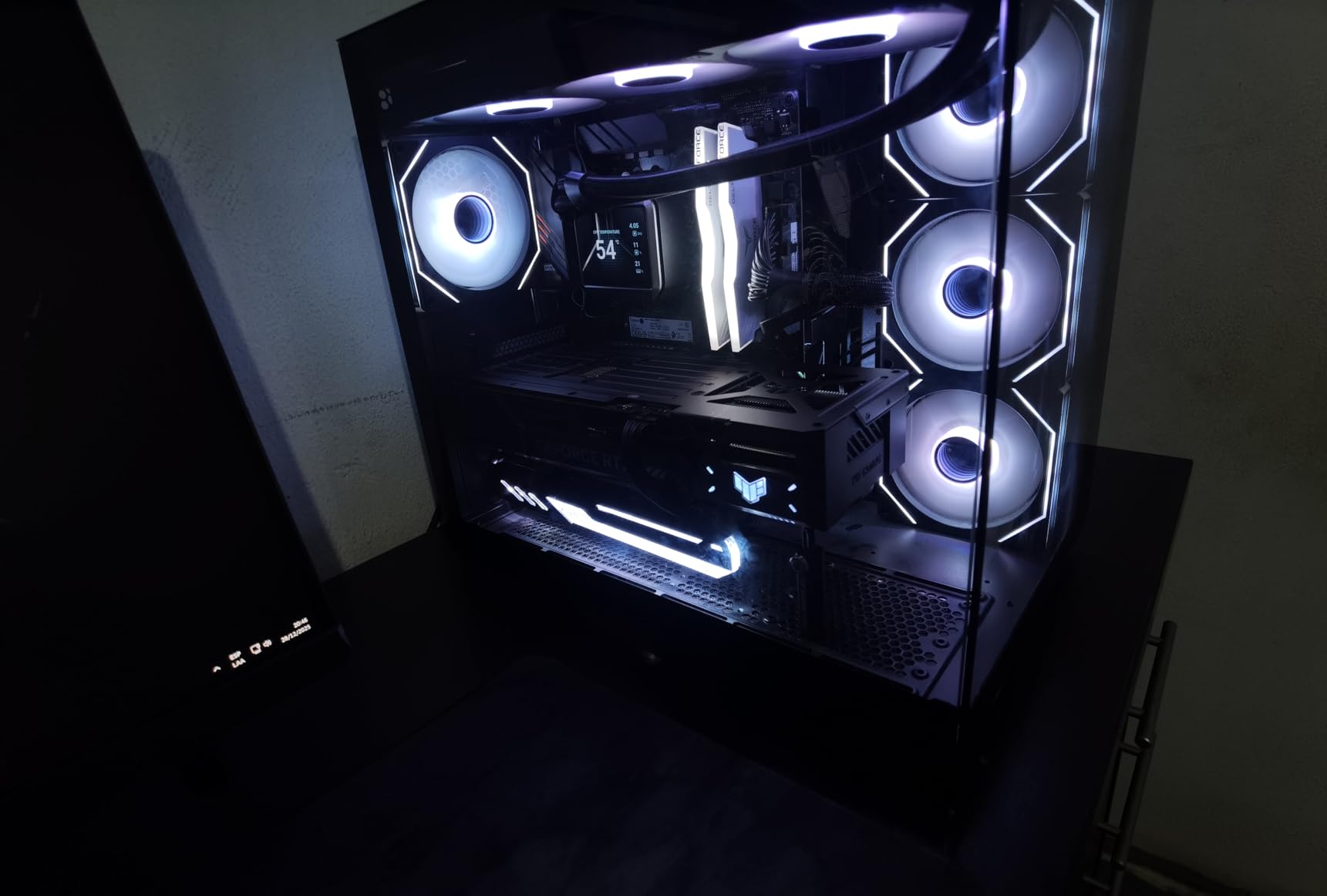
The TUF 5070 is the card we recommend when someone asks for a current-generation NVIDIA part without a flagship budget. Reviewers describe editing and rendering as quick and stable with no lag, and a Japanese reviewer confirms smooth 4K video and photo editing in Adobe applications.
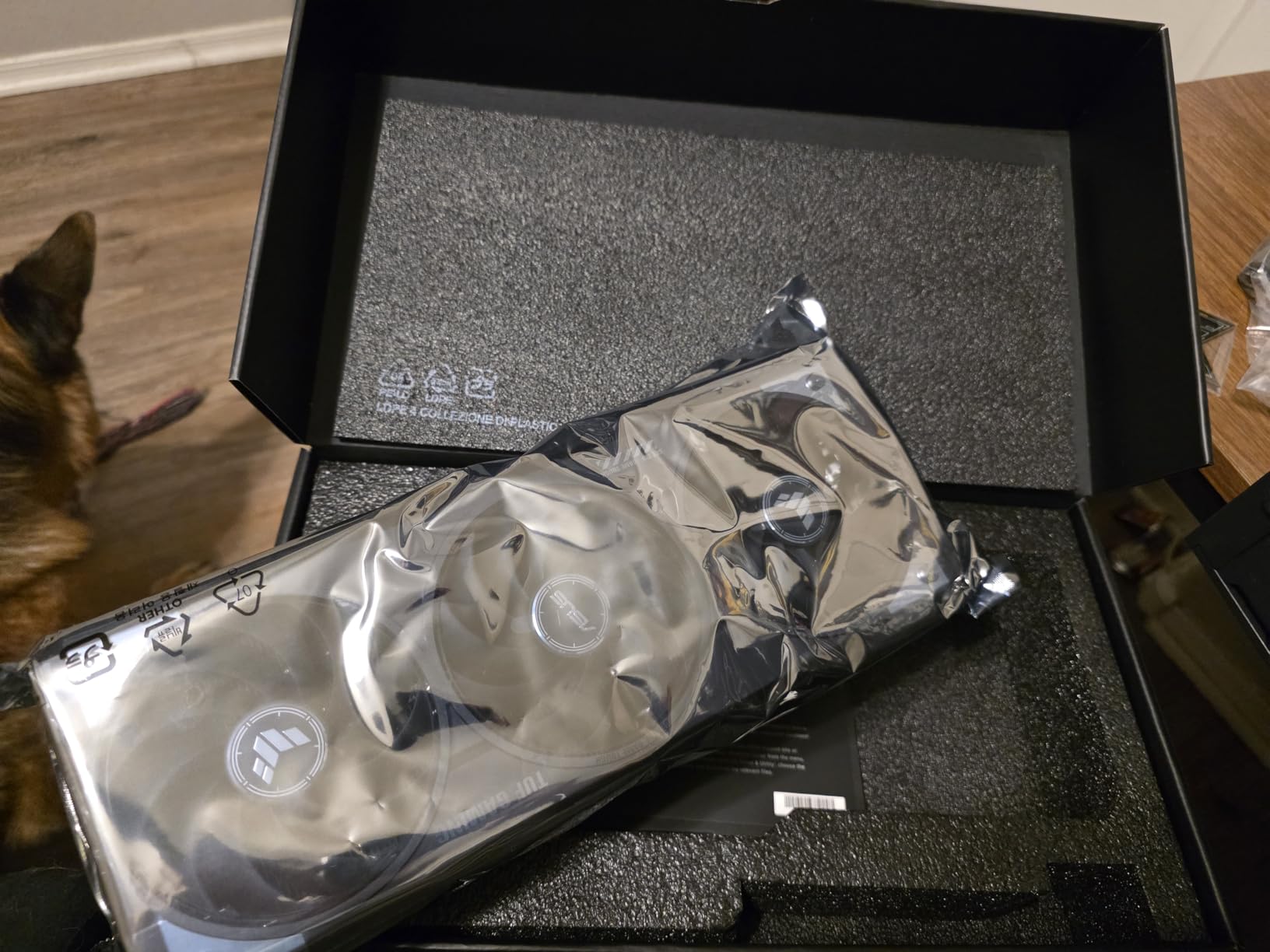
Thermals are the standout. Idle temperatures sit around 36C and load temperatures stay controlled, and the phase-change GPU thermal pad plus the massive fin array are the reason. The included bracket matters too, because at 13 inches and 3.4 pounds the card needs support.
Twelve gigabytes is the compromise. It is enough for comfortable 4K editing and most effects work, and it is the point where you start trading card against card for the last few gigabytes of VRAM at rising cost.
Check your case before you order
A 3.125-slot, 13-inch, 3.4-pound card does not fit every mid-tower, and clearance is the single most repeated practical complaint in reviews. Measure from the rear panel to the front fans, not the case’s stated maximum GPU length, which usually leaves no room for a power cable bend.
Some buyers also report units arriving with a pre-registered serial number or outright defective, so check the packaging and run a memory test as soon as it lands.
Where the 5070 fits against the alternatives
Against AMD’s 16GB options, the 5070 trades capacity for CUDA and the widest plugin support in Adobe’s suite. Against the 5070 Ti, it saves money and power at the cost of memory bandwidth.
If you are still deciding by raw performance, the loudness under full load and the 12GB ceiling are the two reasons we would step up to the 5070 Ti rather than sideways.
5. GIGABYTE Radeon RX 9070 XT 16G – best for wide-bus grading headroom
GIGABYTE Radeon RX 9070 XT Gaming OC 16G Graphics Card, PCIe 5.0, 16GB GDDR6, GV-R9070XTGAMING OC-16GD Video Card
16GB GDDR6 on 256-bit
3060MHz clock
three 8-pin connectors
Pros
- 16GB removes the VRAM warnings 8GB and 12GB cards show
- Runs cool and quiet except during shader compilation
- Strong price-to-performance against the RTX 5080 and 5090
- Black and white variants available
Cons
- Three 8-pin connectors complicate upgrades from older cards
- Runs a little warmer than rival 9070 XT designs
- Noticeably noisy under full load
- Clean driver install may be needed on new cards
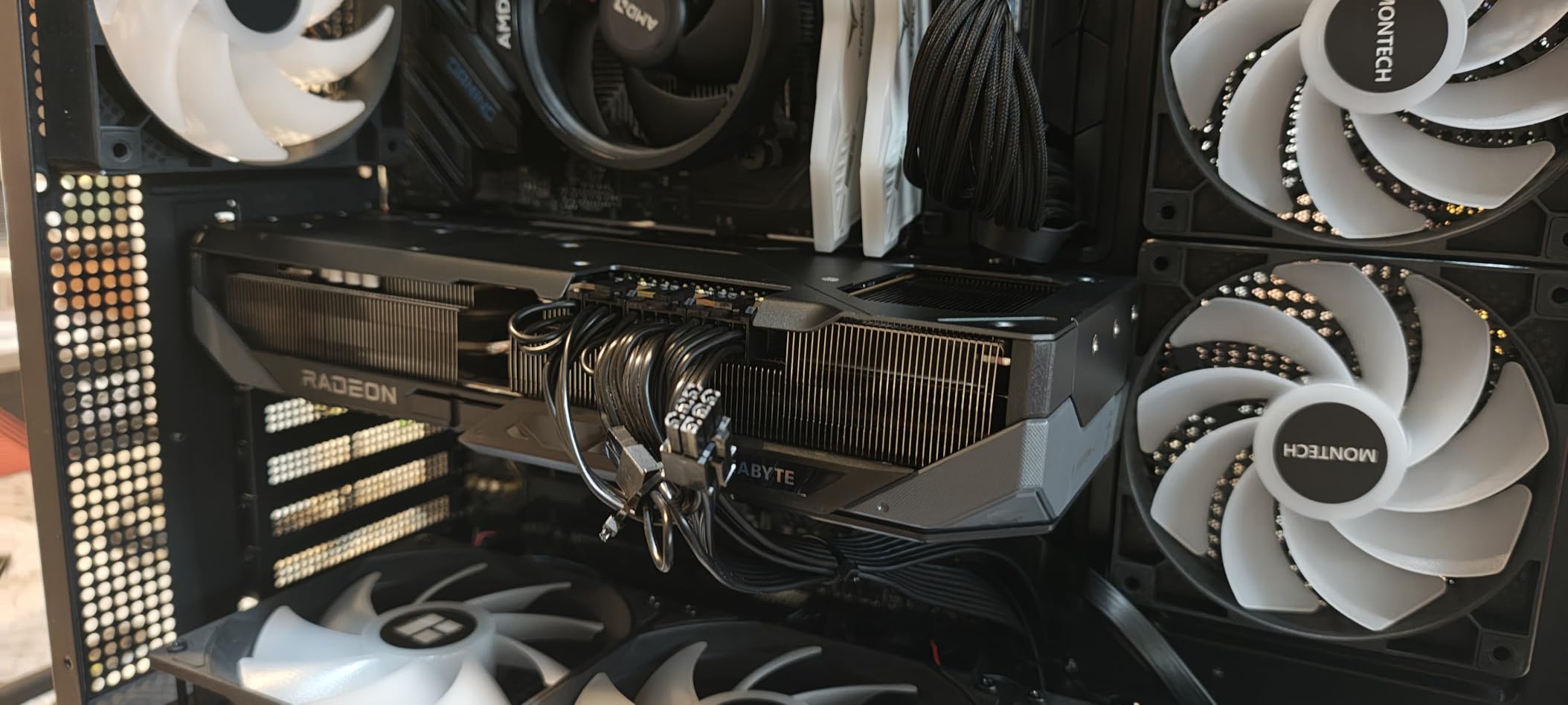
This is the AMD card for editors whose bottleneck is bandwidth rather than capacity. Sixteen gigabytes on a 256-bit bus is the widest memory interface in this group alongside the RTX 5080 and RTX 5070 Ti, and owners replacing 8GB and 12GB cards report that the video memory warnings at 4K high settings simply disappear.
Resolve is the software that benefits most. Blackmagic’s own colour pipeline leans on AMD hardware, and the wider bus keeps large node trees and heavy grain responsive during a full timeline grade.
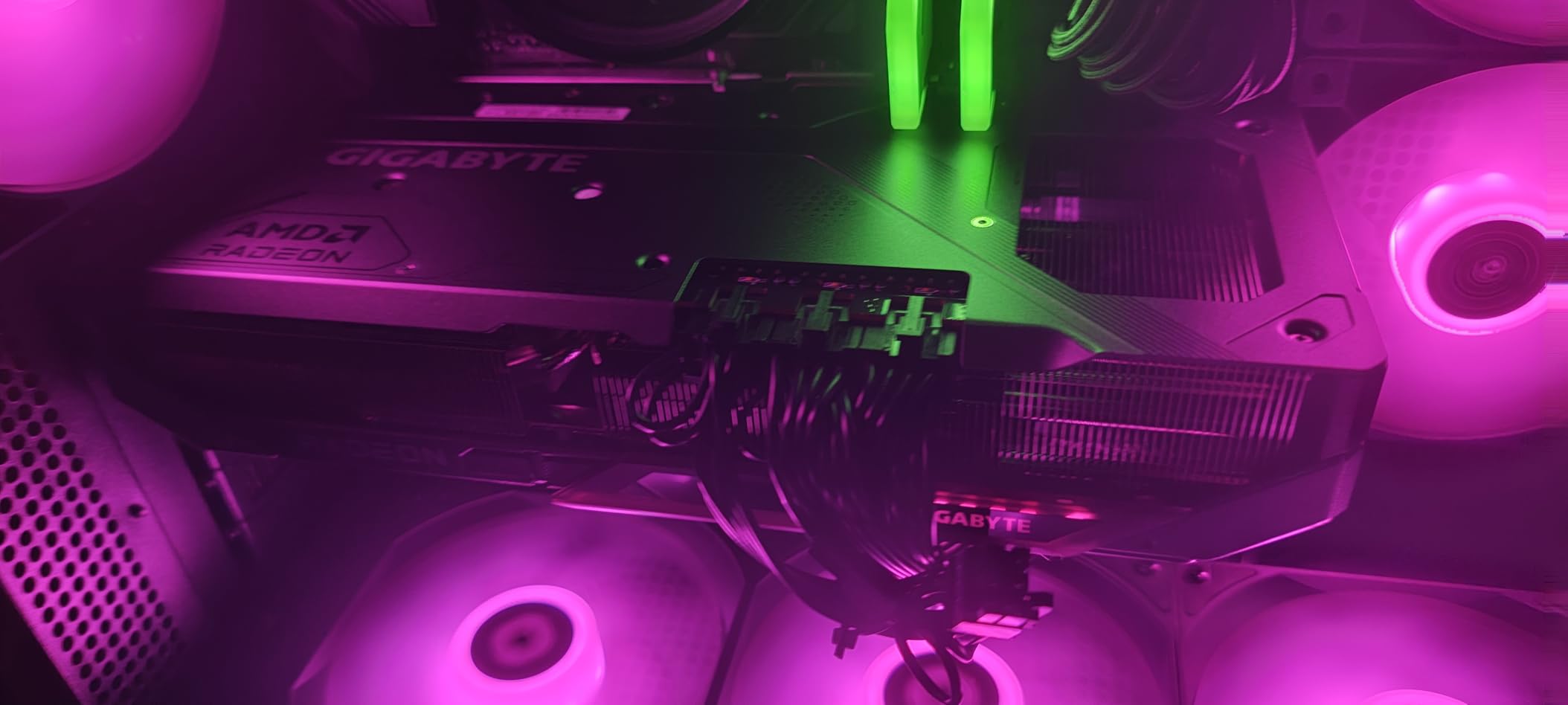
Two build notes. The card uses three 8-pin connectors, which is awkward if you are coming from a single- or dual-connector board, and newer AMD cards sometimes want a clean driver install to clear early instability. Owners also note it runs a little warmer than other 9070 XT implementations.
How it compares in the vendor argument
On paper the 9070 XT offers more VRAM per unit of spend than any NVIDIA card in this list, and reviewers frame it as strong value in the current market. In Resolve that advantage is real rather than theoretical.
In Premiere Pro and After Effects the same money buys a card with a more mature plugin ecosystem. If your team is split between those two applications, the compatibility question outranks the spec sheet.
Is it worth more than a 16GB 9060 XT?
Yes when bandwidth is what is limiting you, and that is usually a grading or multi-stream scenario rather than a straight cut. For a single 4K stream with light effects, the smaller 9060 XT does the same job with less power and less noise.
Our [1440p gaming card picks](https://zamd.net/best-graphics-cards-for-1440p-gaming/) show the same trade from the performance side, which is useful context if the card doubles as a gaming card.
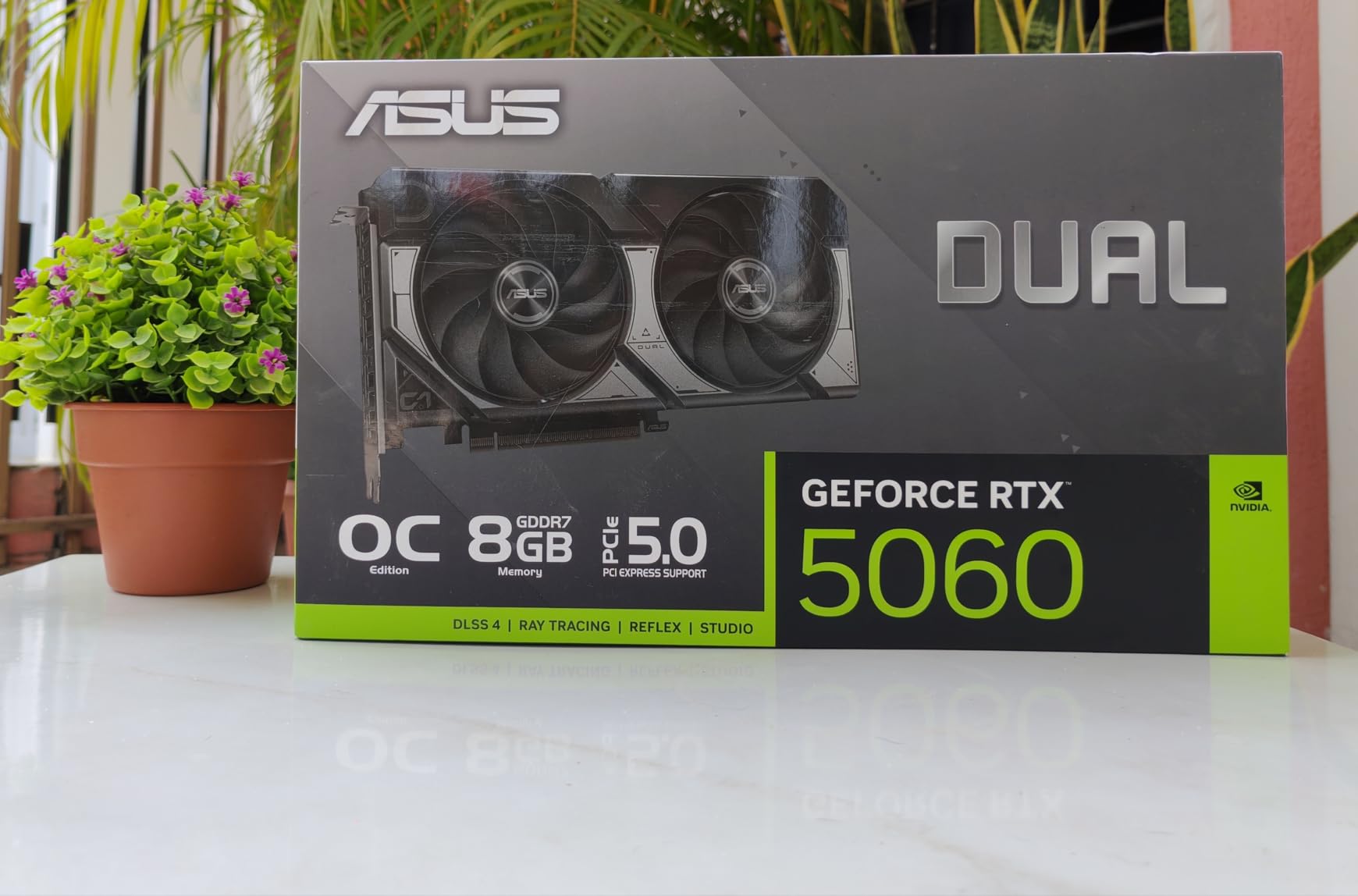
6. ASUS Dual GeForce RTX 5060 8GB – the best NVIDIA budget entry
ASUS Dual NVIDIA GeForce RTX 5060 8GB GDDR7 OC Edition (PCIe 5.0, 8GB GDDR7, DLSS 4, HDMI 2.1b, DisplayPort 2.1b, 2.5-Slot Design, Axial-tech Fan Design, 0dB Technology), 3 Year Warranty
8GB GDDR7 on PCIe 5.0
2565MHz OC boost
2.5-slot SFF-ready
Pros
- GDDR7 and PCIe 5.0 give a real bandwidth uplift
- Runs cool and quiet in an SFF-ready dual-fan design
- Plugs in easily and holds stable clocks
- Dual BIOS and 0dB technology for quiet profiles
Cons
- 8GB VRAM is a hard ceiling for larger creative canvases
- Needs settings management to avoid exhausting the frame buffer
- A minority report audio crackle above 44.1kHz
The 5060 8GB is a generational step in memory speed without a generational step in capacity. GDDR7 on PCIe 5.0 delivers a real bandwidth and latency uplift over the previous generation, and owners report stable clocks through long sessions with no thermal throttling.
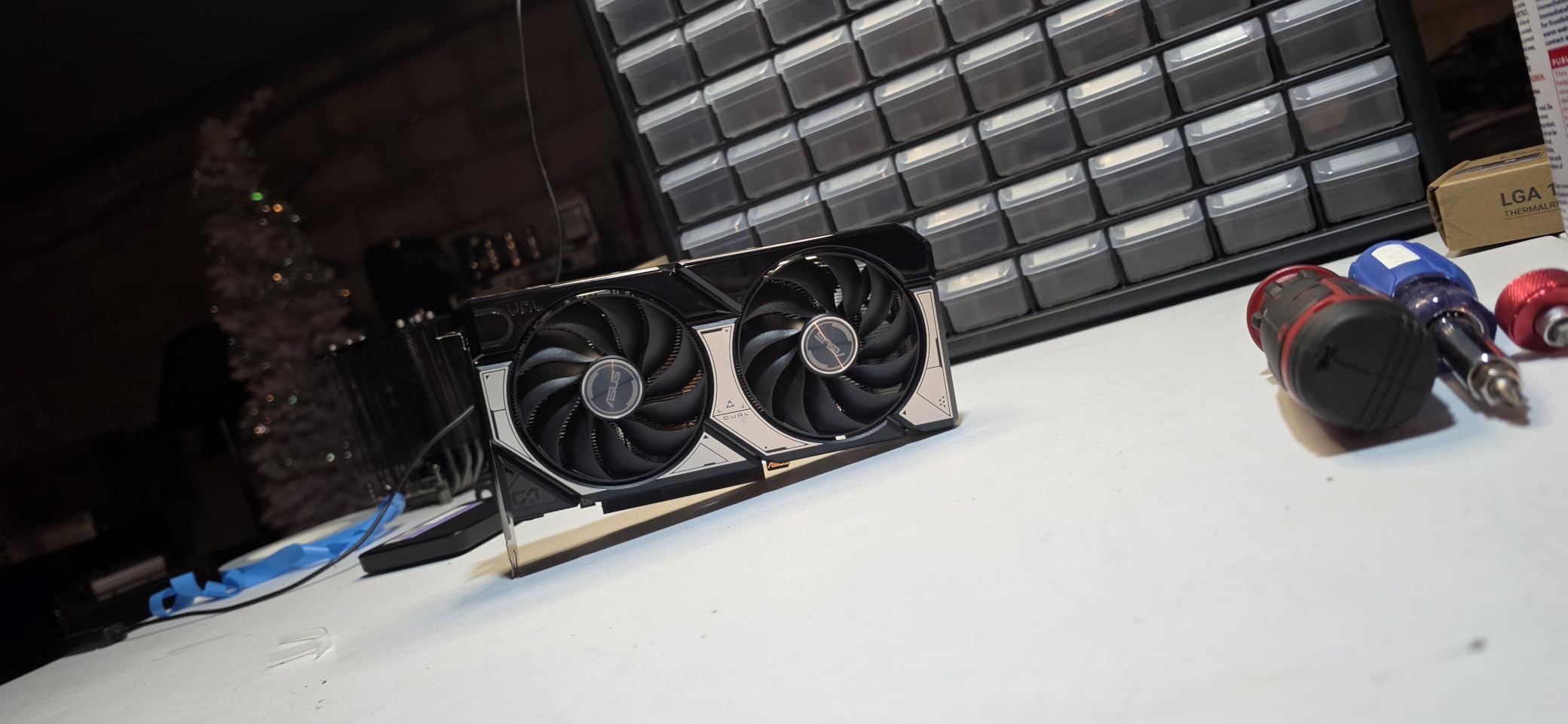
For editing it is honest work at 1080p and light 4K. The problem is the 8GB ceiling, which owners name as the dominant complaint and the reason reviewers recommend the 16GB 5060 Ti or a 16GB RX 9060 XT instead. You will need to manage proxy and effect settings to stay inside that budget.
Anyone splitting time between editing and gaming should read our [4K gaming GPU guide](https://zamd.net/best-graphics-cards-for-4k-gaming/) first, since this card is a strong dual-purpose pick.
Is the RTX 5060 good for editing?
It is good enough for 1080p work and for 4K timelines with proxies and a limited effect stack. It is not good enough for 4K multicam, heavy grade or long Fusion chains, because 8GB fills up long before the card runs out of processing power.
The card’s 2.5-slot SFF-ready design and dual BIOS make it a comfortable fit in small builds, and 0dB technology keeps it silent at idle.
When to spend a little more instead
If your timeline is 4K and you want the card to last, the step up to a 16GB option is the one that changes the experience. Buying a faster 8GB card does not fix a memory ceiling.
A few users also report audio crackle above 44.1kHz sampling rates. If you work with high-resolution audio, test that early.
7. Sparkle Intel Arc B580 Titan OC 12GB – best for AV1 transcoding on a budget
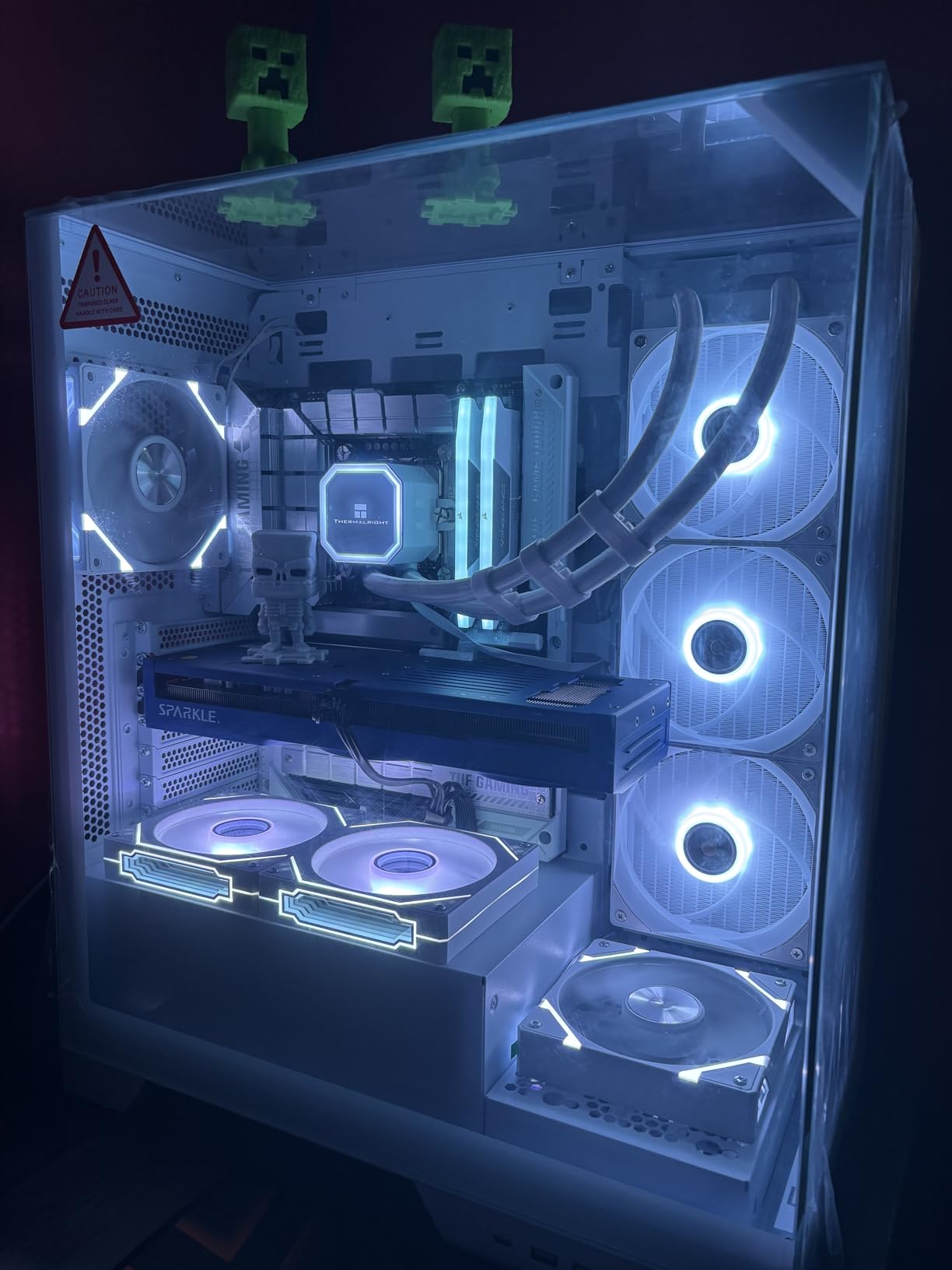
Sparkle Intel Arc B580 Titan OC, 12GB GDDR6, Torn Cooling 2.0, Axial Fan, Breathing Light, Metal Backplate, SB580T-12GOC
12GB GDDR6
2760MHz OC boost
AV1 hardware encode and decode
Pros
- Multiple buyers praise it for editing and transcoding
- 12GB of VRAM is generous for the class
- Runs cool and quiet at 59-65C under full load
- Thinner than most three-fan cards
- Intel ships frequent driver and firmware updates
Cons
- AV1 codec processing reported broken in some driver versions
- TDR settings need manual adjustment
- Rasterization trails competing Radeon cards
- Runs warm at times
- No VR headset support
The Arc B580 is the card in this group that reviewers single out for video work rather than gaming. Multiple buyers name it for editing, transcoding and AV1 encoder quality specifically, which is a different conversation from the frame-rate arguments the other cards attract.
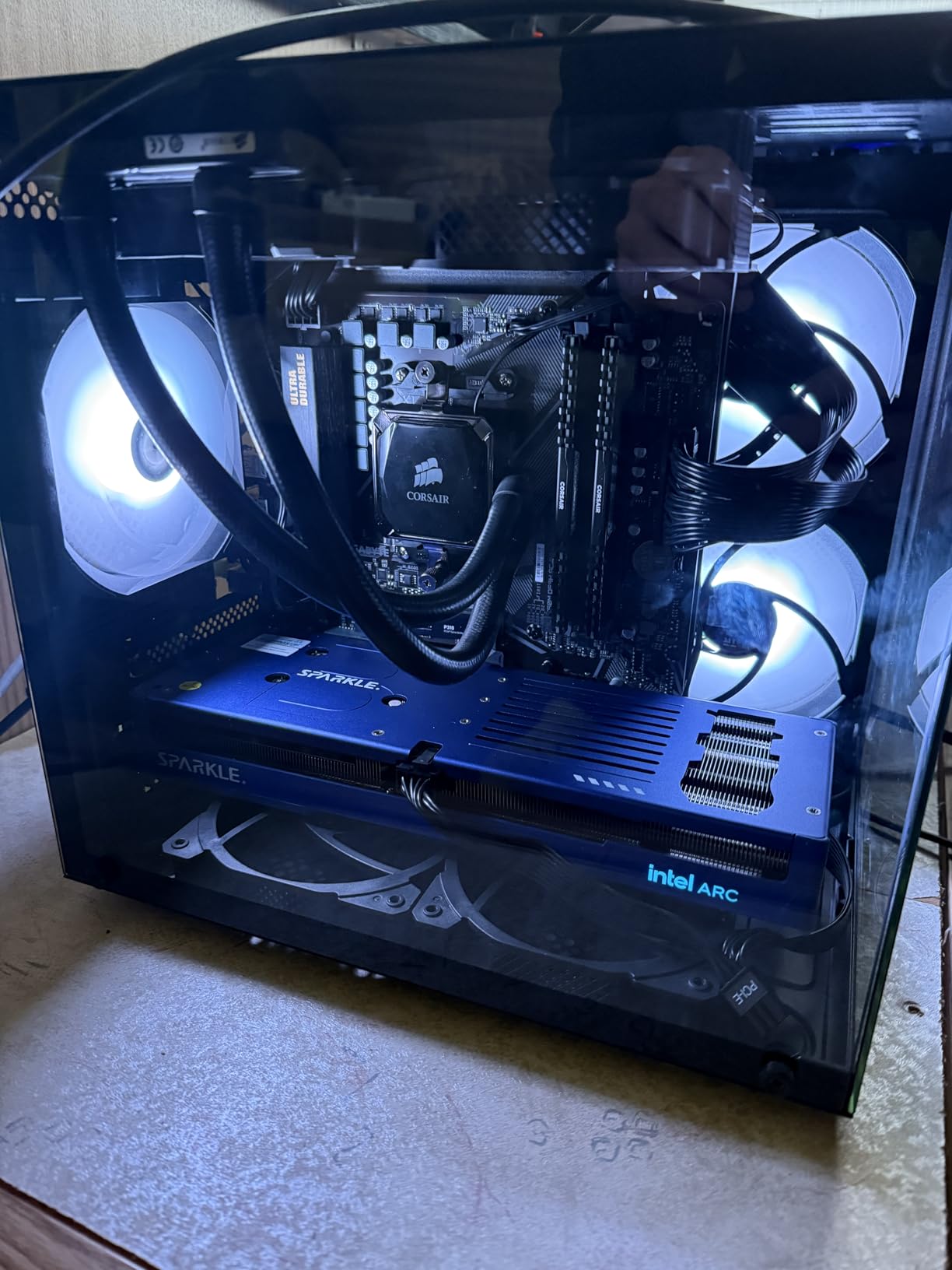
Twelve gigabytes of VRAM at this tier is unusual, and it future-proofs texture-heavy work better than the 8GB and 10GB options below it. Owners report 59 to 65C under full load and a slimmer profile than most triple-fan designs, which eases installation.
Read the driver notes before you commit. Owners report AV1 codec processing broken in some Intel driver versions and TDR settings that need manual adjustment, which is exactly the kind of thing to check before a deadline rather than after one.
What the AV1 encoder is worth to an editor
AV1 hardware encoding matters if you deliver a lot of files, stream regularly, or archive. Encoding happens on a dedicated media engine rather than on the compute cores, so it keeps working while other work is running.
One long-term owner reports no degradation after nearly two years, and owners point out that PT and XT support, the media engine and XMX make the card useful for AI and compute tasks through torch.xpu.
When to choose NVIDIA or AMD instead
If your work depends on a specific Adobe or third-party plugin written against CUDA, the ecosystem maturity difference still matters. The 4.5 average here is the second lowest in the group, and a 4 percent one-star share suggests more rough edges than the major board partners.
For Fusion and After Effects power users, we would steer to a mainstream NVIDIA or AMD card rather than recommending an Arc part without flagging the stability risk.
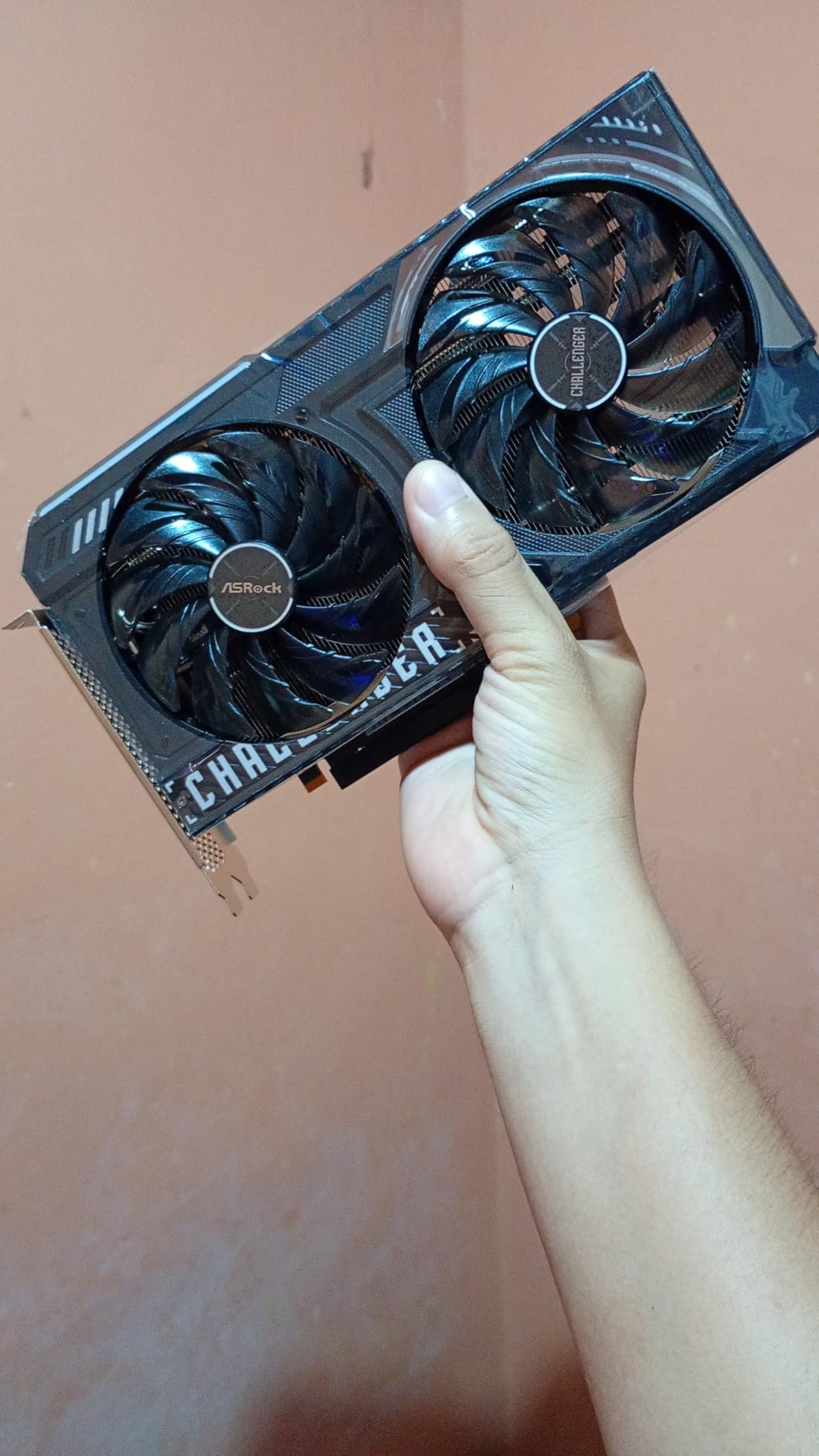
8. ASRock Intel Arc B570 10GB – best for small form factor PCs
ASRock Intel Arc B570 Challenger 10GB OC GDDR6 Graphics Card, 2600 MHz GPU, 19 Gbps Memory, Dual Fan, Metal Backplate, HDMI 2.1a, DisplayPort 2.1, 0dB Cooling
10GB GDDR6 on 160-bit
2600MHz clock
PCIe 5.0 x8, one 8-pin
Pros
- 160-bit bus delivers roughly 380 GB/s of bandwidth
- Dual media engines handle AV1 and HEVC encode and decode
- Fans stop completely at idle
- Metal backplate prevents GPU sag
- Single 8-pin connector keeps installs simple
Cons
- Resizable BAR and ReBAR must be enabled in BIOS
- Driver maturity trails AMD and NVIDIA
- Blue screens reported by some users
- Recommended as a secondary rather than primary GPU
Ten gigabytes on a 160-bit bus gives more usable bandwidth than the 8GB NVIDIA cards it costs less than, and the single 8-pin connector makes it one of the easiest cards here to install. Owners consider it underrated for exactly that reason.
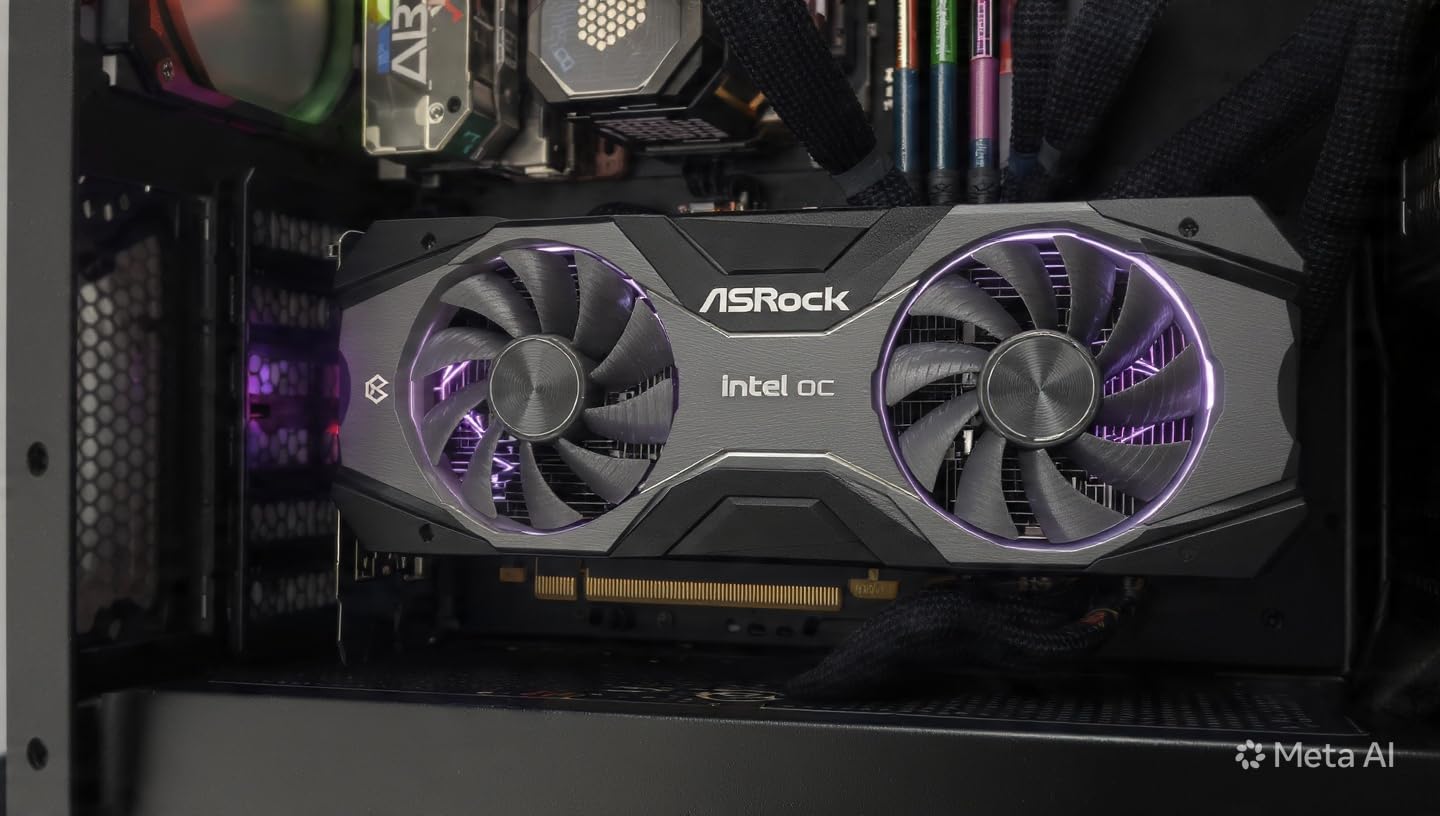
The dual media engines handling AV1 and HEVC encode and decode are useful for creator workflows, and the quiet behaviour helps in a small chassis where fan noise carries. The metal backplate also stops the sag that plagues lighter cards in tight builds.
Setup friction is the real cost. Resizable BAR and ReBAR must be enabled in the BIOS, and some older systems need a firmware update first, so check your motherboard before ordering.
Where the 160-bit bus earns its keep
Bandwidth is what feeds preview and effects, so a narrow 64-bit or 128-bit board with less memory can feel slower than this card despite lower headline capacity. The practical effect shows on multi-stream 4K playback and on effect previews that pull large textures.
It is also a comfortable fit for editors who want a second card for encoding duties alongside a primary card elsewhere.
Limits worth knowing before you buy
Intel Arc drivers still need work, with some users reporting streaming instability and driver-related blue screens, and rasterization performance trails competing Radeon cards even when overclocked. The 4.7 average is carried by a small review pool, so treat the rating with care.
If you can live without AV1 and need maximum driver reliability, an AMD or NVIDIA card of similar size is the lower-risk route.
9. ASRock Radeon AI PRO R9700 32GB – best for 32GB workstation and AI builds
ASRock Radeon AI PRO R9700 Creator 32GB Professional Graphics Card, 2920 MHz Boost Clock, GDDR6, AMD RDNA 4, AI-Accelerators, DisplayPort 2.1a, PCIe 5.0, Blower Cooler
32GB GDDR6 on 256-bit
64 CUs with AI accelerators
2-slot blower
Pros
- Largest frame buffer in the group at 32GB
- 64 Compute Units with second-gen AI accelerators
- Two-slot blower design suits multi-GPU workstation density
- Vapor chamber heatsink with Honeywell PTM7950 thermal pad
- Die-cast metal shroud rated for 24/7 operation
Cons
- Blower cooler is audibly louder under load than open-air designs
- Professional positioning means not every app is a target use case
- Compatibility should be verified per application
- Only 58 reviews
- so long-term data is limited
Thirty-two gigabytes changes what is possible. 8K timelines, large AI models and complex 3D scenes all fit without pre-renders, and the 256-bit bus keeps that memory moving fast enough to use. For a machine doing edit, grade and local inference at once, nothing else in this group has the headroom.
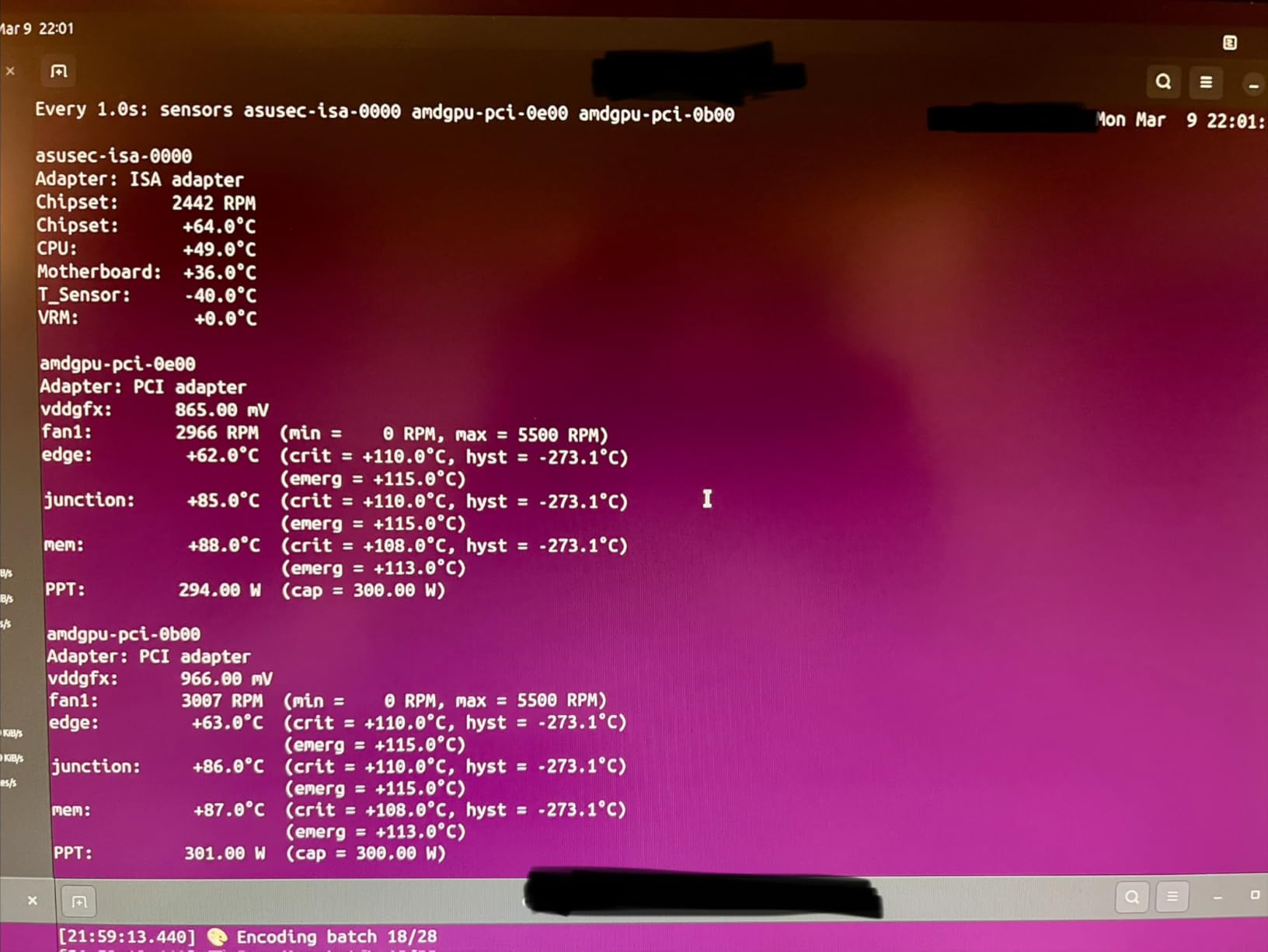
The blower cooler is the design decision that makes it a workstation card rather than a gaming one. It exhausts heat straight out of the chassis, so a two-slot card fits into dense multi-GPU and server layouts where open-air coolers block each other. That is the reason the card maker chose 32GB over a faster consumer configuration.
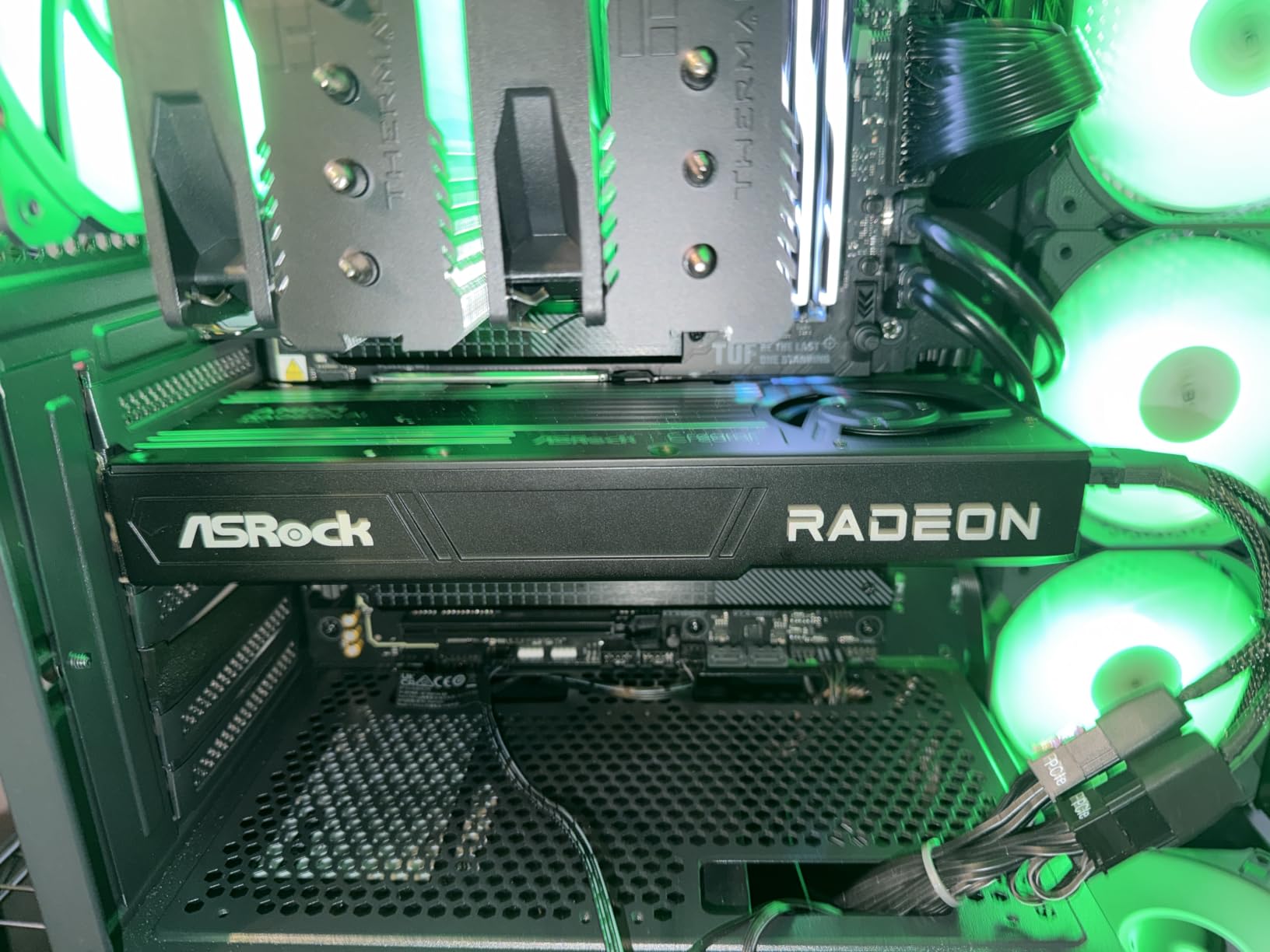
Four DisplayPort 2.1a outputs support multiple high-resolution professional displays, and the vapor chamber heatsink with Honeywell PTM7950 thermal interface material is built for sustained professional loads rather than short bursts.
When 32GB is worth the extra spend
You need 32GB when the project, not the card, is the limit: 8K source with heavy grade, 3D scenes that reference large texture libraries, or AI tooling sharing the same machine. Below that, the money buys a faster card with less memory rather than more usable work.
Blackmagic’s own guidance is that Resolve’s minimum is very low but anything under it is a non-starter. That same logic, scaled up, is how we think about this card.
Trade-offs to weigh first
Blower coolers are audibly louder than open-air coolers once under load, and the professional positioning means some consumer editing software is not the target use case. Verify compatibility for your specific applications before ordering.
At 58 reviews this is the thinnest feedback pool here, so long-term reliability data is limited. Budget for the verification time.
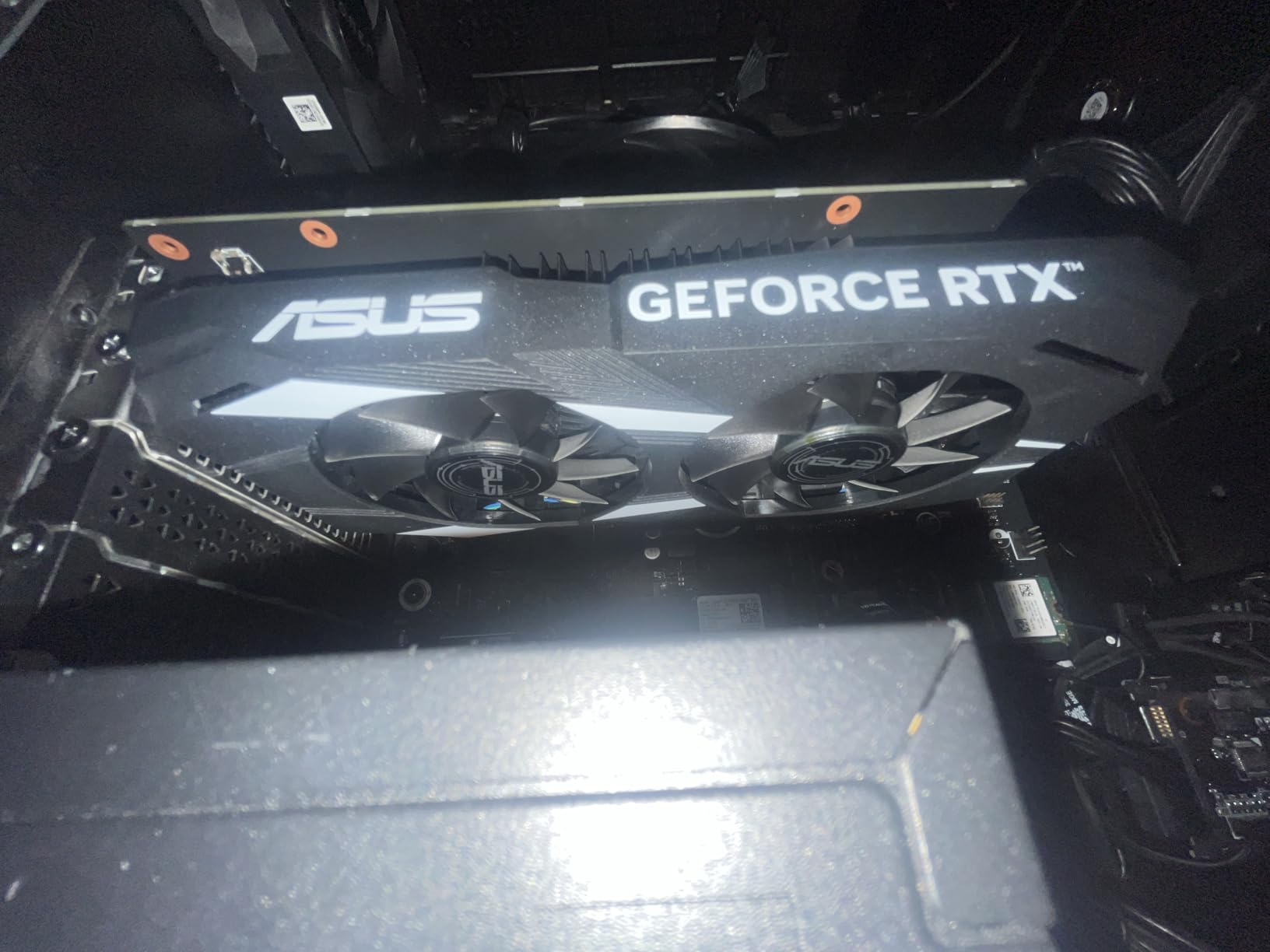
10. ASUS Dual GeForce RTX 3050 6GB – best for 1080p starters
ASUS Dual GeForce RTX 3050 6GB GDDR6 OC Edition Gaming Graphics Card
6GB GDDR6
1500MHz boost
2-slot, 7.9 inches
Pros
- Two-slot design fits small chassis where larger cards will not
- Dual axial-tech fans improve downward air pressure
- DLSS support via third-gen Tensor Cores
- IP5X dust resistance and steel bracket for durability
Cons
- 6GB of GDDR6 restricts 4K and multi-layer editing
- Weakest memory bandwidth in the group
- Ampere-generation NVENC trails Blackwell and RDNA 4 on codec options
Not every editing machine needs 16 gigabytes. For 1080p timelines with a few layers, the RTX 3050 6GB does the job and its 2-slot, 7.9-inch footprint is one of the easiest here to fit. It also has the largest review pool in the group, holding a 4.6 average across 1116 ratings.
The recurring limitation owners cite is the 6GB frame buffer, which restricts higher-resolution timelines and effects-heavy editing. Memory bandwidth is the other honest limit, since it is the weakest in this group and slows large media ingestion and effect previews.
The card’s strengths are physical: axial-tech fans, a stainless steel bracket and IP5X dust resistance, plus a factory OC boost of 1500 MHz. It is the least stressful card here to own in a small, dusty machine.
What 6GB actually covers
A 1080p project, a moderate number of layers and a light effect stack sit comfortably inside 6GB. Add 4K source, multicam or a Fusion chain and you will hit the ceiling, at which point the card stops being the constraint and the memory is.
Editing forums put 8GB at the realistic floor for 4K work. That is the point to move up rather than optimising around a 6GB board.
Why not skip it entirely
A 4-year-old encoder generation is the quieter reason. Ampere NVENC trails Blackwell and RDNA 4 on newer codec options, so if your deliverables are HEVC or AV1 heavy, the export paths on newer cards are simply more capable.
It remains the right answer for a first editing PC, a 1080p YouTube workflow, or a machine where a 2-slot card is the only thing that will fit.
How to Choose a Graphics Card for Video Editing in 2026
Work through these in order and the choice makes itself. Most expensive mistakes come from deciding on price or frame rate first and discovering the memory ceiling afterwards.
1. Match VRAM to your resolution
These thresholds hold across everything in this guide. 8GB is the realistic floor for 1080p work and the absolute minimum for 4K. 12GB to 16GB is where 4K editing, multicam and 6K become comfortable. 24GB and above is for 8K timelines, heavy grading and anything sharing the machine with 3D or AI workloads.
When people ask whether more VRAM beats higher frame rate, the framing on editing forums is the honest one: a user weighing an RTX 3080 Ti 12GB against an RTX 4060 Ti 16GB and an RTX 5070 12GB framed it as not knowing if they needed full performance or more memory. The answer is memory. Out of VRAM, playback grinds to a stop and you pre-render; a fast card with too little memory cannot fix that.
2. Check the encoder generation, not just the card tier
NVIDIA’s NVENC, AMD’s VCN and Intel’s media engines compress the finished file on dedicated silicon, which is what makes exports fast. The generation matters for codec support: AV1 encode needs RTX 40-series or newer on NVIDIA and RX 7000-series or newer on AMD, and the 10-bit 4:2:2 decode path is present across current parts. The 3050’s Ampere encoder is the oldest in this group and the most limited.
3. NVIDIA, AMD or Intel Arc, honestly
Nvidia wins on software maturity. CUDA is the most widely supported acceleration path in Adobe applications, NVENC is the most predictable encoder, and Studio Drivers are tested against creative applications specifically. For Premiere Pro, After Effects and a mixed plugin stack, that ecosystem advantage is the deciding factor.
AMD wins on memory per unit of spend, and DaVinci Resolve is developed with AMD hardware in mind, so a 16GB Radeon card is a genuinely strong Resolve machine. The one honest condition: Fusion and After Effects workflows attract stability reports on AMD, particularly on laptop parts, so check your specific toolchain.
Intel Arc is a budget wildcard with the weakest ecosystem maturity. Its AV1 and HEVC encode and decode are real, and the B580’s 12GB is generous, but drivers still need work and ReBAR setup can block an install.
4. Do not ignore the rest of the system
The most common forum complaint is not that a card is slow, it is that a machine with a capable GPU still feels slow. One editor with an RTX 3060 12GB found a 4K export taking roughly 2.5 times longer than expected, then discovered the Ryzen 5900X was the limiting factor. No card fixes a weak CPU, insufficient RAM or an undersized power supply.
Practical minimums: 32GB of system RAM for 4K, and a power supply at or above the card maker’s recommendation, which for the RTX 5080 means planning for 575W of board power alone. Storage matters for the same reason; our [external SSD picks for video editing](https://zamd.net/best-external-ssds-for-video-editing/) cover cache and media handling.
5. Install the right drivers
For creative work, install NVIDIA Studio Drivers rather than Game Ready. Studio builds are validated against Premiere, Resolve and After Effects, and users report Game Ready updates breaking Resolve on machines that had been working fine. If Resolve starts crashing, rolling back a recent driver is the first thing to try.
6. Measure the case and the cables
Length in inches, slot width, power connector count and case clearance cause more failed installs than compatibility. Cards here range from the 7.9-inch two-slot RTX 3050 to the 13.46-inch RTX 5080, and connector types range from a single 8-pin to a 12V-2×6 adapter feeding 575W. Measure from the rear panel to the front fans and leave room for the cable bend.
Frequently Asked Questions
Which graphics card is best for 4K video editing?
The ASRock Radeon RX 9060 XT Challenger 16GB is the strongest all-round choice for 4K editing. Its 16GB of GDDR6 removes the memory warnings that stop 8GB cards dead, and its 2-slot, single 8-pin design fits builds that cannot take a 13-inch board. If your work runs in Premiere Pro or After Effects and you need CUDA-accelerated plugins, the MSI GeForce RTX 5070 Ti 16G is the NVIDIA equivalent with 16GB of GDDR7 on a 256-bit bus.
How much VRAM do I need for video editing?
8GB is the realistic floor for 4K work and enough only for light 1080p editing. 12GB to 16GB is where 4K timelines, multicam and 6K become comfortable without constant pre-renders. 24GB and above is for 8K source, heavy grading and shared 3D or AI workloads. DaVinci Resolve needs more than Premiere Pro for the same project, and running out of VRAM stops playback rather than slowing it slightly.
Is a GPU the same as a graphics card?
A GPU is the chip itself, the graphics processing unit doing the work. A graphics card is the complete board: the GPU plus its VRAM, cooling and display outputs. When product pages say a card has 16GB of VRAM, they mean the memory sitting alongside the processor on that board, and that memory is what determines how much of your timeline you can preview at once.
Is RTX 5060 good for editing?
It is good for 1080p work and for 4K timelines using proxies and a modest effect stack. The limit is its 8GB of VRAM, which fills up on 4K multicam or heavy Fusion chains long before the card runs out of processing power. Its GDDR7 memory and PCIe 5.0 interface are a genuine generational uplift, so if you can move to a 16GB option such as the 5060 Ti or the RX 9060 XT 16GB, that is the change that alters the editing experience.
Is Nvidia or AMD better for video editing?
Nvidia wins on software maturity, with CUDA widely supported in Adobe applications, the most predictable NVENC hardware encoder and Studio Drivers validated against creative tools. AMD wins on VRAM per unit of spend, and DaVinci Resolve is built with AMD hardware in mind, so a 16GB Radeon card is a strong Resolve machine. The honest AMD condition is that Fusion and After Effects workflows attract stability reports, so verify your toolchain before switching.
Final Verdict: the Best Graphics Card for Video Editing in 2026
For most editors, the best graphics card for video editing is the ASRock Radeon RX 9060 XT Challenger 16GB. Sixteen gigabytes of GDDR6 in a two-slot, 0.5 kg card with a single power connector solves the two problems that ruin editing PCs: running out of memory and not fitting the card at all.
Choose the MSI GeForce RTX 5070 Ti 16G Ventus 3X OC instead when your work runs in Adobe applications and you need CUDA plus wide memory bandwidth, and the GIGABYTE GeForce RTX 5080 Gaming OC 16G when 8K timelines and local AI justify 575W and a 13.46-inch install. The ASRock Radeon AI PRO R9700 32GB is the answer when 32GB is the only capacity that solves the problem.
Whichever you pick, measure the case, check the power supply and install Studio Drivers before the deadline rather than after. Then go make the cut.