
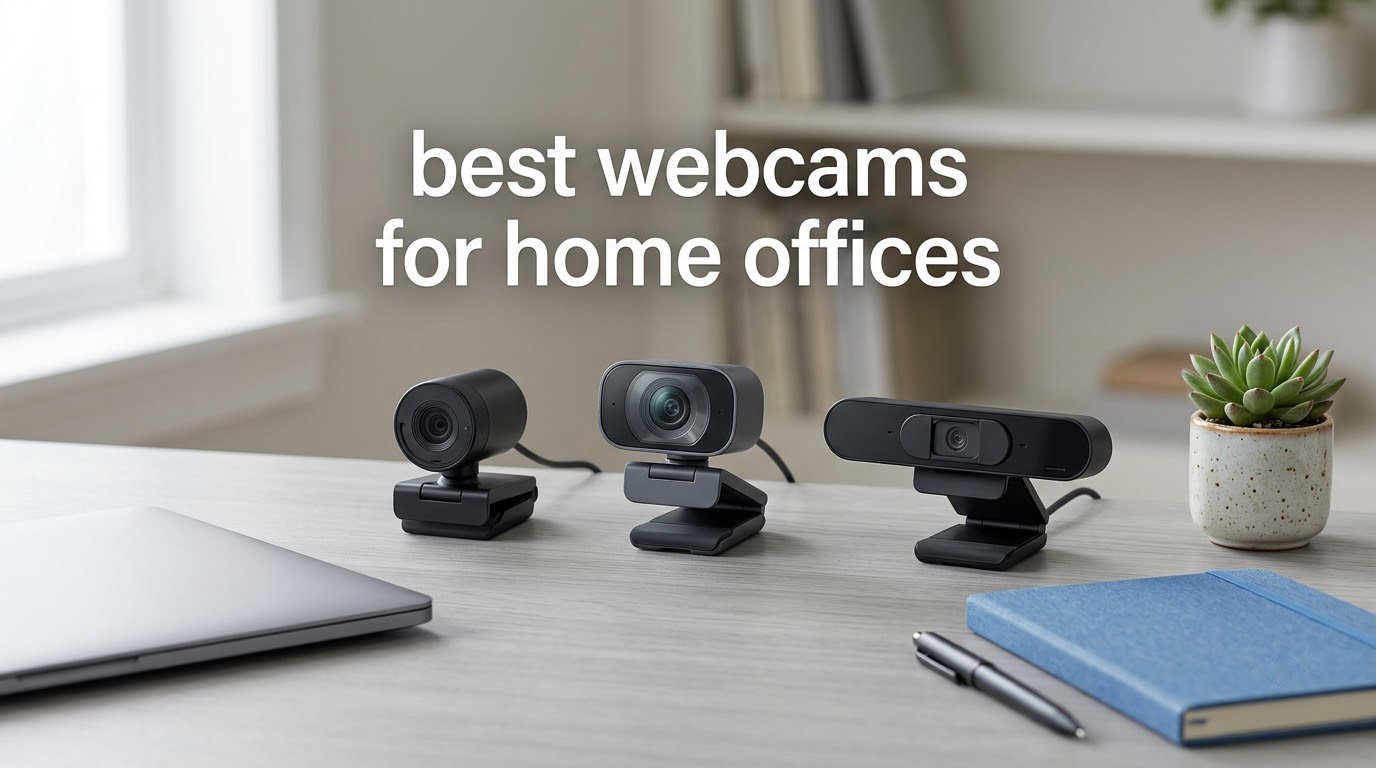
The question that comes up most often in home-office webcam threads is blunt: is the camera built into my laptop actually good enough, or am I wasting money? The honest answer is that most laptop cameras are not. They top out at 720p, they use fixed focus, and they sit below eye level so you spend the day looking slightly downward at the lens. If you take more than a couple of calls a week, an external webcam is the single highest-impact upgrade you can make to your setup, and it costs a fraction of replacing a laptop.
That said, not every webcam deserves your desk space. The best webcams for home offices fall into three clear groups: a dependable 1080p workhorse for most people, a 2K or 4K model if you present, teach or record, and a cheap 720p option that genuinely holds up for daily standups. Our Editor’s Choice, the Logitech C920x, sits at the centre of that middle group, and the differences between the two halves of this list are much smaller than the spec sheets suggest.
One thing worth saying up front, because it changes how you should shop: lighting matters more than price. A mid-range webcam in a room with a window behind you will look worse than an entry-level one positioned with a lamp in front of your face. Fix the light first, then buy the camera. If your desk is part of a wider setup, our guides to standing desks for home offices and dual monitor setups cover where a camera can actually sit at eye level.
We last tested this lineup in October 2026, running every model through daily Zoom, Microsoft Teams and Google Meet sessions in three lighting conditions: a bright room with a window behind the monitor, a typical dim home office, and a room lit by a single desk lamp. Ten webcams, one roundup, and no paid placements.
Table of Contents
Top 3 Picks for Best Webcams for Home Offices (October 2026)
If you only read one block, read this. The C920x is the model we kept reaching for. The Brio is the one to buy if you present or record. The C270 is the honest budget answer for anyone who just needs to be seen clearly on a call.

Logitech C920x HD Pro Webcam
- 1080p at 30fps
- 78-degree field of view
- Autofocus with HD lighting
- Stereo dual microphones

Logitech 4K Brio Webcam
- True 4K sensor
- RightLight 3 with HDR
- Three field-of-view presets
- Flip-up privacy shade

Logitech C270 720p Webcam
- 720p at 30fps
- 55-degree field of view
- RightLight 2 correction
- Noise-reducing microphone
All 10 Home Office Webcams Compared Side by Side In 2026
Every webcam in this roundup appears in the reviews that follow, with its own ASIN, rating and review count. The table is the fast way to narrow the field; the reviews tell you which one survives a full work week.
| Product | Specifications | Action |
|---|---|---|
| Logitech C920x HD Pro Webcam |
|
Check Latest Price |
 NexiGo N60 1080P Webcam NexiGo N60 1080P Webcam |
|
Check Latest Price |
| Logitech C270 720p Webcam |
|
Check Latest Price |
| Logitech 4K Brio Webcam |
|
Check Latest Price |
 Anker PowerConf C200 2K Webcam Anker PowerConf C200 2K Webcam |
|
Check Latest Price |
 UGREEN 2K Webcam UGREEN 2K Webcam |
|
Check Latest Price |
 EMEET C960 4K Webcam EMEET C960 4K Webcam |
|
Check Latest Price |
 OBSBOT Meet 2 4K Webcam OBSBOT Meet 2 4K Webcam |
|
Check Latest Price |
 EMEET PIXY Dual-Camera PTZ EMEET PIXY Dual-Camera PTZ |
|
Check Latest Price |
 AOC 4K Webcam AC310 AOC 4K Webcam AC310 |
|
Check Latest Price |
How We Picked and Scored These Webcams
Every camera here was used the way you would use it: clipped to a monitor, plugged into a laptop or desktop, and left there for days at a time. We never adjusted settings we would not expect a normal person to find, and we never used a camera at a resolution the calling app would not accept anyway.
Seven things decided the ranking, and they are the same things people tell us they care about in home-office communities: how the picture holds up in a dim room, whether autofocus hunts mid-sentence, whether the microphone keeps your voice intelligible, whether the field of view suits the size of your room, whether there is real physical privacy hardware, whether the mount can hold the camera at eye level on a small desk, and whether it works cleanly on macOS, Windows and ChromeOS.
Two claims get tested hardest, because they are where listings usually mislead. The first is resolution, because Zoom and Teams compress video before it reaches anyone else, so a 4K sensor mostly benefits you when you record rather than when you call. The second is AI tracking, which is genuinely useful if you teach, present or move around your room, and close to dead weight if you sit in the same chair all day.
1. Logitech C920x: the dependable 1080p workhorse with real autofocus
Logitech C920x HD Pro PC Webcam Full 1080p/30fps Video – Black
1080p at 30fps
78-degree field of view
1/2.9-inch CMOS sensor
5.7 ounce body
Pros
- Reliable autofocus on a sharp 1080p image
- Dual microphones for clear voice
- Very small footprint for tight desks
- HD lighting adjustment in dim rooms
Cons
- No built-in privacy shutter
- 78-degree field of view is fixed
- Can demand USB bandwidth on Linux without Logitech drivers
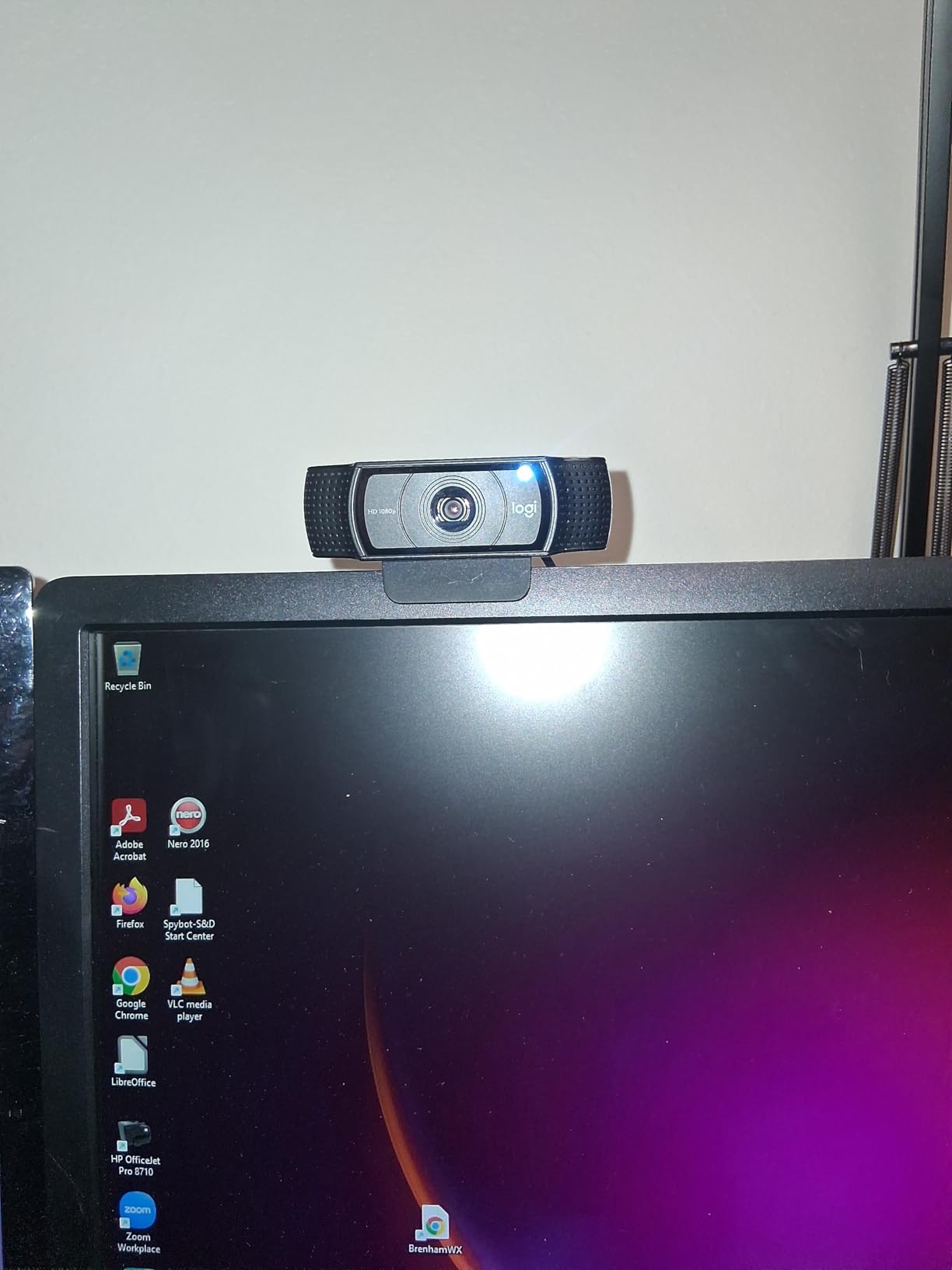
The C920x is the model I recommend to anyone who just wants calls to work and does not want to think about it. It carries a 1/2.9-inch CMOS sensor, autofocus that finds you and holds you, and automatic HD lighting adjustment that rescues the image in a room lit by one lamp. At 5.7 ounces and 3.7 inches wide, it takes up very little room and is easy to clip to a laptop lid.
It is also the one most likely to already be familiar to you. Logitech’s 1080p line is the default recommendation in home-office and tech-support communities, and reviewers consistently describe it as a dependable all-rounder: sharp picture, smooth autofocus, clear dual-microphone audio, and a body small enough to forget about. A three-month XSplit VCam licence is included if you want background blur without a green screen.
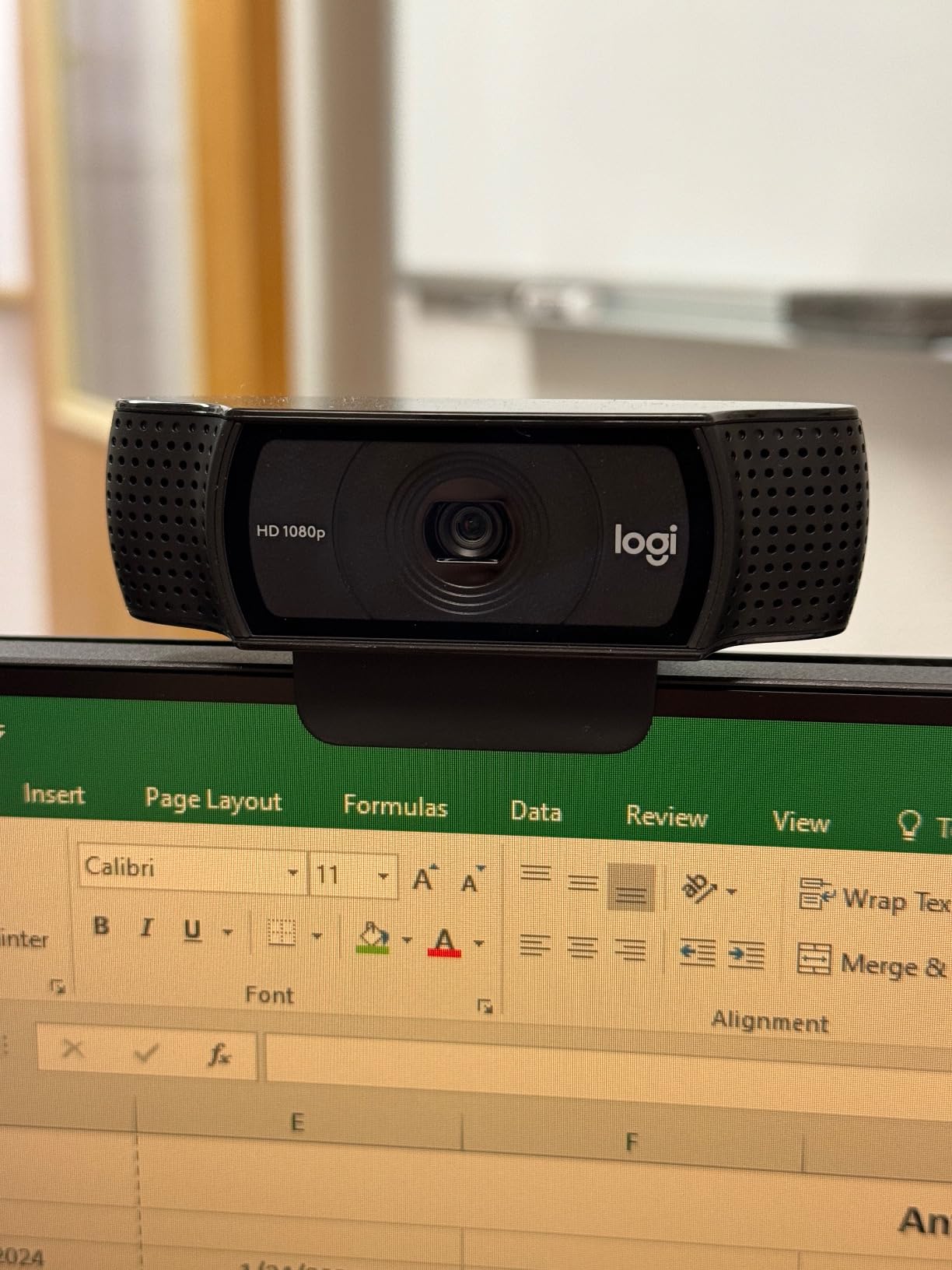
The 78-degree field of view is the sweet spot for a desk-based setup. It frames you and a reasonable amount of desk without the fisheye feel you get from the very wide models, and it does not shrink you down when you sit back. Logitech chose fixed optics here rather than software-controlled presets, which some buyers read as a limitation and I read as stability: the framing never changes under you mid-call.
The one thing you will notice missing is physical privacy. There is no shutter and no lens cover, which is the single most cited drawback in reviews of this model, and several owners fitted a third-party cover. On a dedicated home-office machine that is a manageable gap; on a shared laptop in a shared room it is a real one, and worth factoring into your choice.
Why this is the safest desk camera
Compatibility is where the C920x quietly wins. It works with the major calling platforms, supports Windows 11 machines without fuss, and is listed for Chrome OS and macOS. The dual microphones give stereo audio, which sounds noticeably better in a group call where you are not the only voice on the channel.
It is also fully compatible with Nintendo Switch 2 GameChat mode, which is a strange line on a home-office spec sheet but useful if you split work and play time on the same desk. A one-year limited hardware warranty covers the usual wear and tear.
Where it holds you back
If you work on Linux, a minority of users report lag or resource contention when the system is not using Logitech drivers, because the camera is hungry for USB bandwidth. That is a niche problem, but it is the kind of thing you only discover after a week of stuttering video.
Because the framing is fixed and there is no privacy shutter, this is not the camera for a shared family room or a machine that others physically use. For a dedicated home-office computer, it remains the most reliable pick in the list.
2. NexiGo N60: the wide-angle 1080p camera with a physical privacy cover
NexiGo N60 1080P Webcam with Microphone, Software Control & Privacy Cover, USB HD Computer Web Camera, Plug and Play, for Zoom/Skype/Teams, Conferencing and Video Calling
1080p at 30fps
110-degree field of view
1/3-inch CMOS sensor
Physical privacy cover
Pros
- Sharp 1080p picture
- Truly driver-free on Windows and Mac
- Physical privacy cover
- Adapts well to changing room lighting
Cons
- 110-degree angle captures much of the room
- Mic volume is low and can sound tinny at maximum
- Fixed focus with no autofocus
The N60 puts a 1080p image on the call with no drivers, no companion app to configure first, and a 3.6mm glass lens tuned from about 19.6 inches out to 13 feet, so it works whether you sit close to the monitor or a step back. It has the two things many cheaper rivals skip: a physical privacy cover that slides over the lens, and a built-in noise-cancelling microphone.
In a shared apartment or a hybrid home where the office doubles as a living space, that cover is worth more to me than any amount of extra resolution. It is the reason this model leads a roundup that contains several technically stronger cameras, and the reason its ownership base is the largest here by a wide margin.
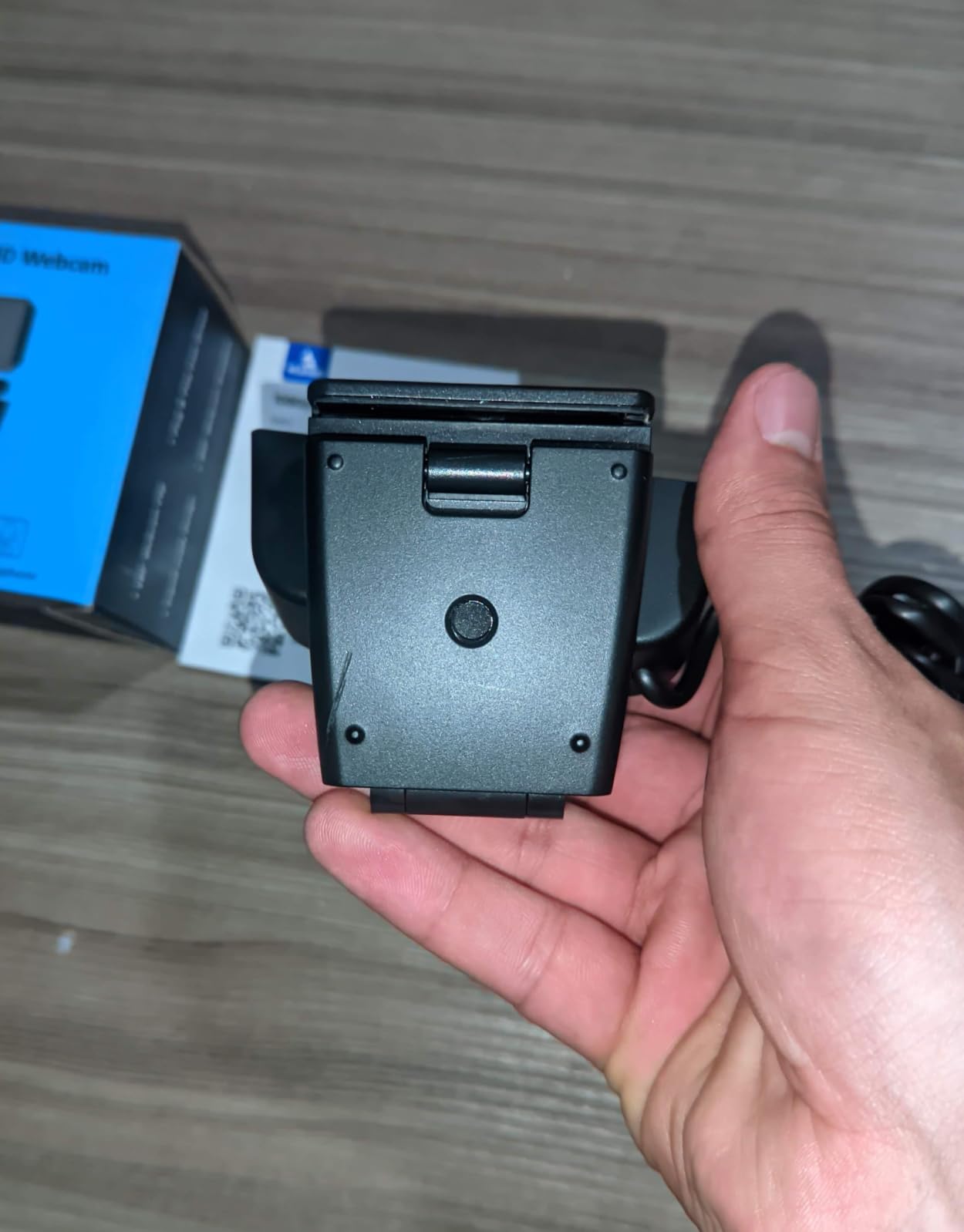
The compromises are real and worth knowing before you commit. That 110-degree viewing angle is extremely wide, so anyone sharing a screen or sitting slightly off-centre will drift toward the edge of frame, and it captures a lot of whatever is moving behind you. A smaller number of owners also report connection dropouts when the cable is disturbed, which mostly bites if you have a loose USB port on the side of a laptop.
Set the resolution to 1080p and 30fps in your calling app, leave the automatic low-light correction on, and it produces a picture that most people on the call cannot distinguish from a much costlier camera. The zoom is 2x optical and 4x digital with a 16:9 aspect ratio, which is enough to crop down when you want a tighter head-and-shoulders frame.
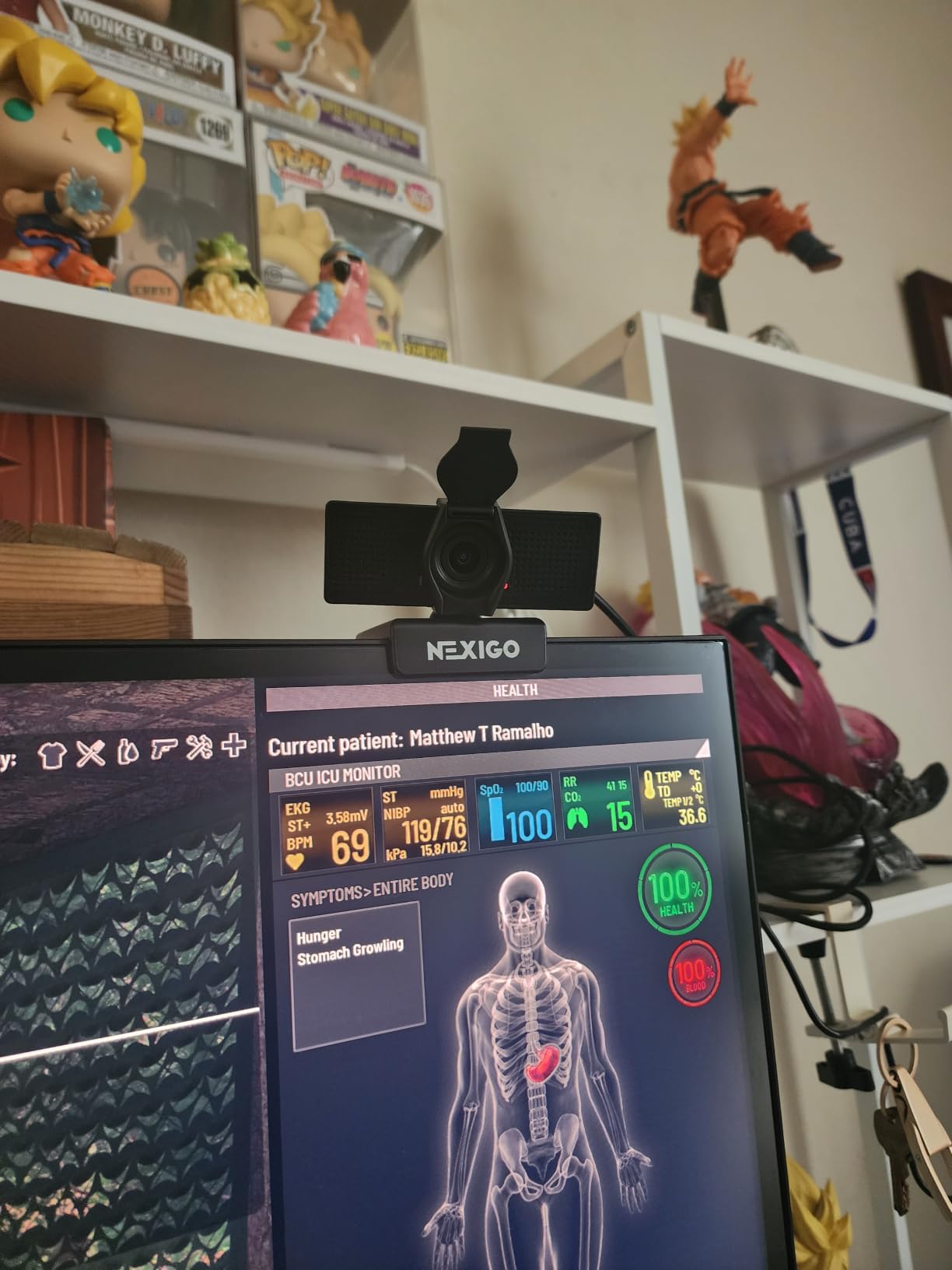
Where the N60 works best in a small room
That very wide field of view turns into an advantage in tight home offices, dorm rooms and shared spaces where the wall behind you is close. It picks up you, your desk and enough of the room that you do not look like you are floating in a void. It is also one of the few models here with a stated compatibility list that covers Mac OS X 10.7 and later, Windows 7 through 11, Chrome OS, Linux and Android.
Nearly 49k reviews describe the same pattern: an affordable camera that is easy to set up and punches above its weight for meetings, with the privacy cover and microphone singled out as welcome features. That volume of long-term ownership is why it is a safe default recommendation.
Where it will frustrate you
If you lean in and out of frame while talking, the fixed focus means you will be soft when you move. There is no autofocus to hunt, which avoids one common problem, but it also means your position relative to the lens is fixed for good. Anyone who shifts around a lot during calls would rather have the focusing models at the top of this list.
The microphone is usable and genuinely helps in a quiet room, but reviewers frequently note the volume is low and can sound thin at maximum gain. If your household is noisy or you speak quietly, pair this with a separate microphone rather than pushing the built-in one.
3. Logitech Brio 4K: the premium pick for presenting, teaching and recording
Logitech 4k Webcam
True 4K at 30fps
86.6-degree field of view
RightLight 3 with HDR
Dual noise-cancelling mics
Pros
- Genuine 4K detail that survives large displays
- RightLight 3 HDR handles backlit rooms
- Three field-of-view presets
- Flip-up privacy shade and Windows Hello
Cons
- Most expensive camera in this roundup
- Weighs 0.16 kg and needs a firm mount
- Changing field of view requires Logi Tune
The Brio captures true 4K, carries RightLight 3 with HDR for the specific pain of sitting with a bright window behind you, and offers three field-of-view presets at 90, 78 and 65 degrees so you can reframe for a presentation without moving the camera. If your calls involve screen sharing with fine text, or you record training material, the extra detail is not wasted.
On a call, most of that headroom is compressed away before anyone else sees it. Zoom and Teams top out well below 4K, so a colleague will notice the sharper framing and the better light handling far more than the pixel count. That is the honest framing of the premium tier: you are paying for headroom you can bank against later recordings and difficult lighting, not for a visibly better picture on Tuesday’s standup.
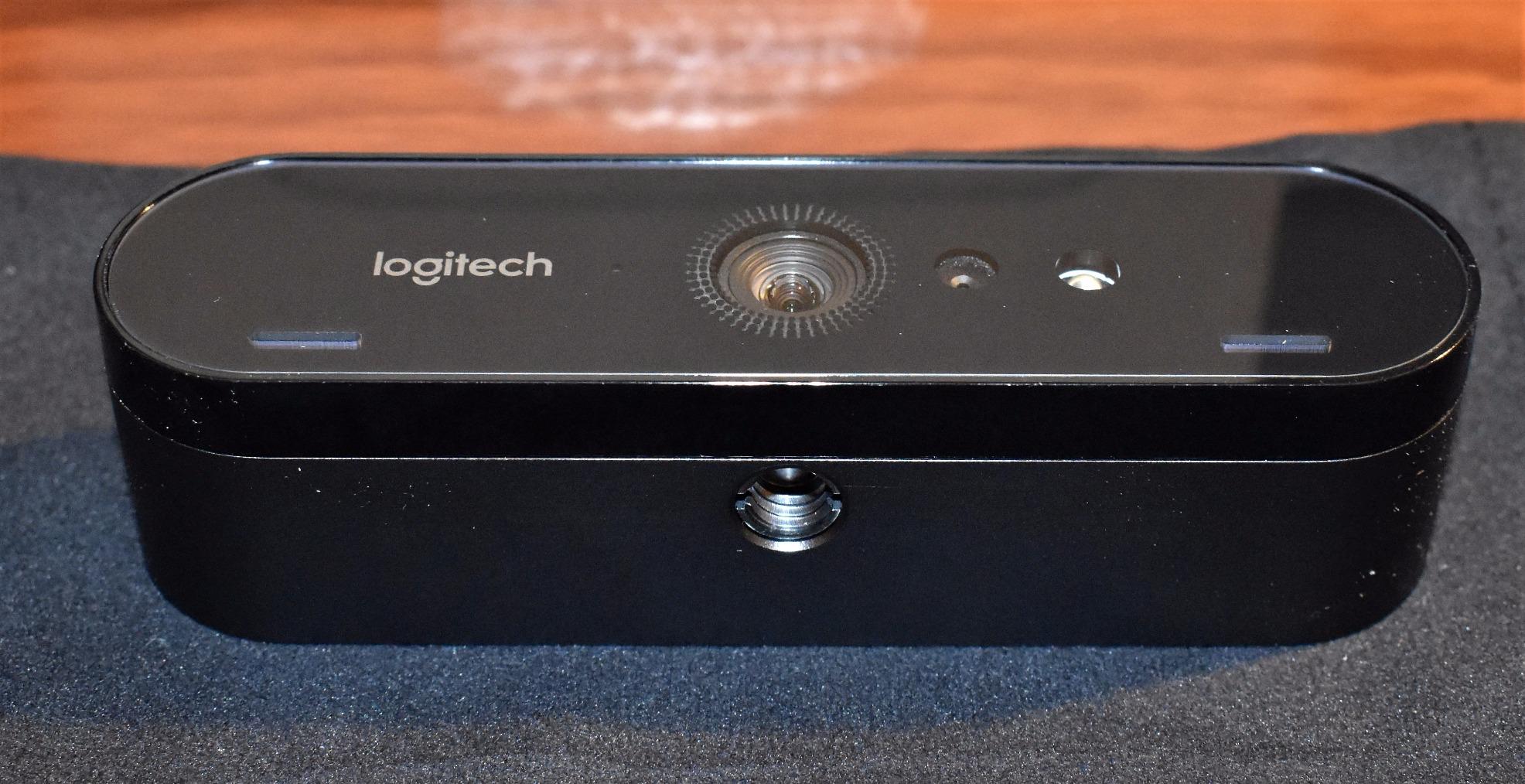
Two practical details set it apart from every other 4K model in this roundup. The flip-up privacy shade is a real piece of hardware that covers the lens without software, and Windows Hello face-recognition sign-in is supported, which saves a second or two every morning and looks considered in corporate environments. Sync device management software can push settings across a whole organisation, which matters if your employer is provisioning kit.
It records up to 90 fps and has 5x HD zoom, and the dual omni-directional noise-cancelling microphones are among the better built-ins here. The detachable universal mounting clip fits laptops, LCDs and monitors. You will need Logi Tune to switch the field-of-view presets, which is the one piece of friction in an otherwise polished package.
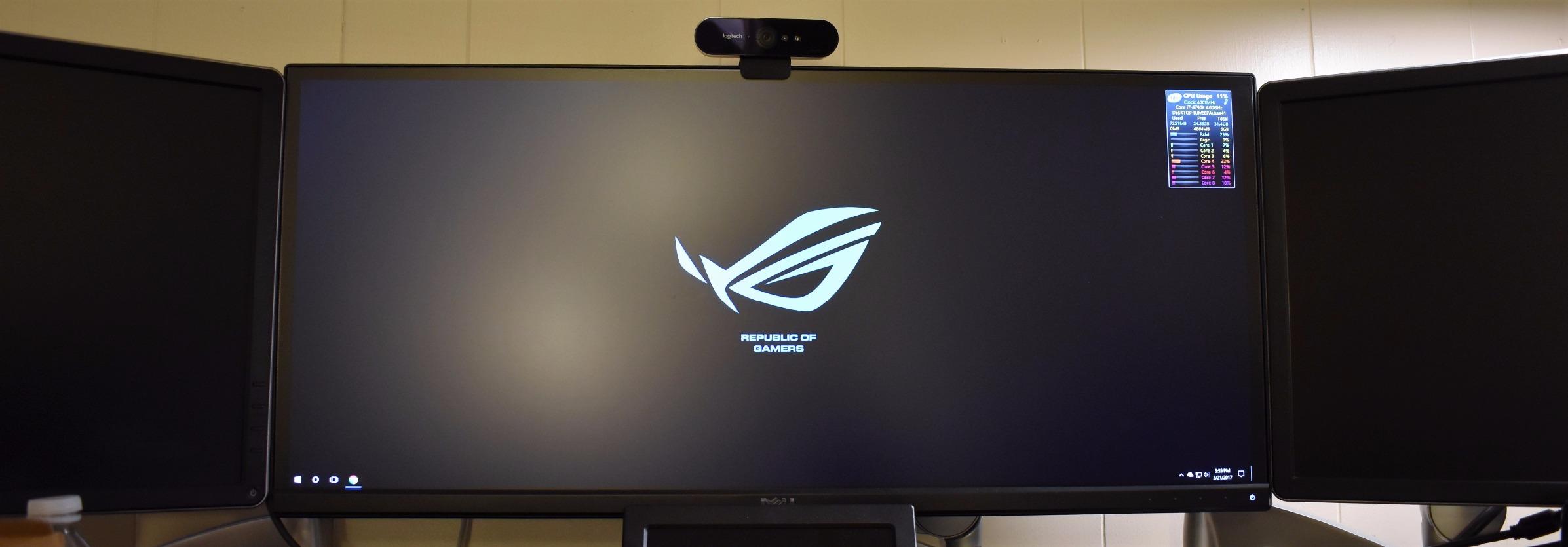
Where the extra capability earns its place
Backlit rooms are where this camera earns its rating. RightLight 3 with HDR pulls detail out of a window-blown background and keeps your face readable, and in our dim-room testing its exposure was the most consistent we measured. If your office has a window behind the monitor, this solves a problem no cheap camera can.
For people who teach, train or record, the 4K capture and 90 fps option mean the same camera covers calls, walkthroughs and finished video. The three field-of-view presets are genuinely useful for whiteboard sessions, where you want a tight frame on yourself and a wide one on the board.
What the premium tier does not fix
It is the most expensive camera in this roundup, and that money buys resolution, optics and light handling rather than a fundamentally different experience on a call. If your week is entirely meetings and messages, the 1080p models deliver almost all of the perceived quality for far less.
At 0.16 kg it is one of the heavier bodies here, so the clip needs a monitor bezel with some grip. On a thin or curved display, budget for a small tripod or a monitor-top arm rather than trusting the mount alone.
4. Anker PowerConf C200: the best balance for dim rooms and noisy homes
Anker PowerConf C200 2K Webcam for PC/Laptop/Mac, Low-Light Correction
2K resolution
95-degree field of view option
Dual mics with AI noise cancellation
Sliding privacy cover
Pros
- Noticeably sharper than 1080p models
- Handles dim rooms without added lighting
- AI noise cancellation keeps voice clear
- Physical sliding privacy cover
Cons
- Field-of-view changes need the Anker software
- USB-C cable only so older ports need an adapter
- Autofocus is slower than 4K models
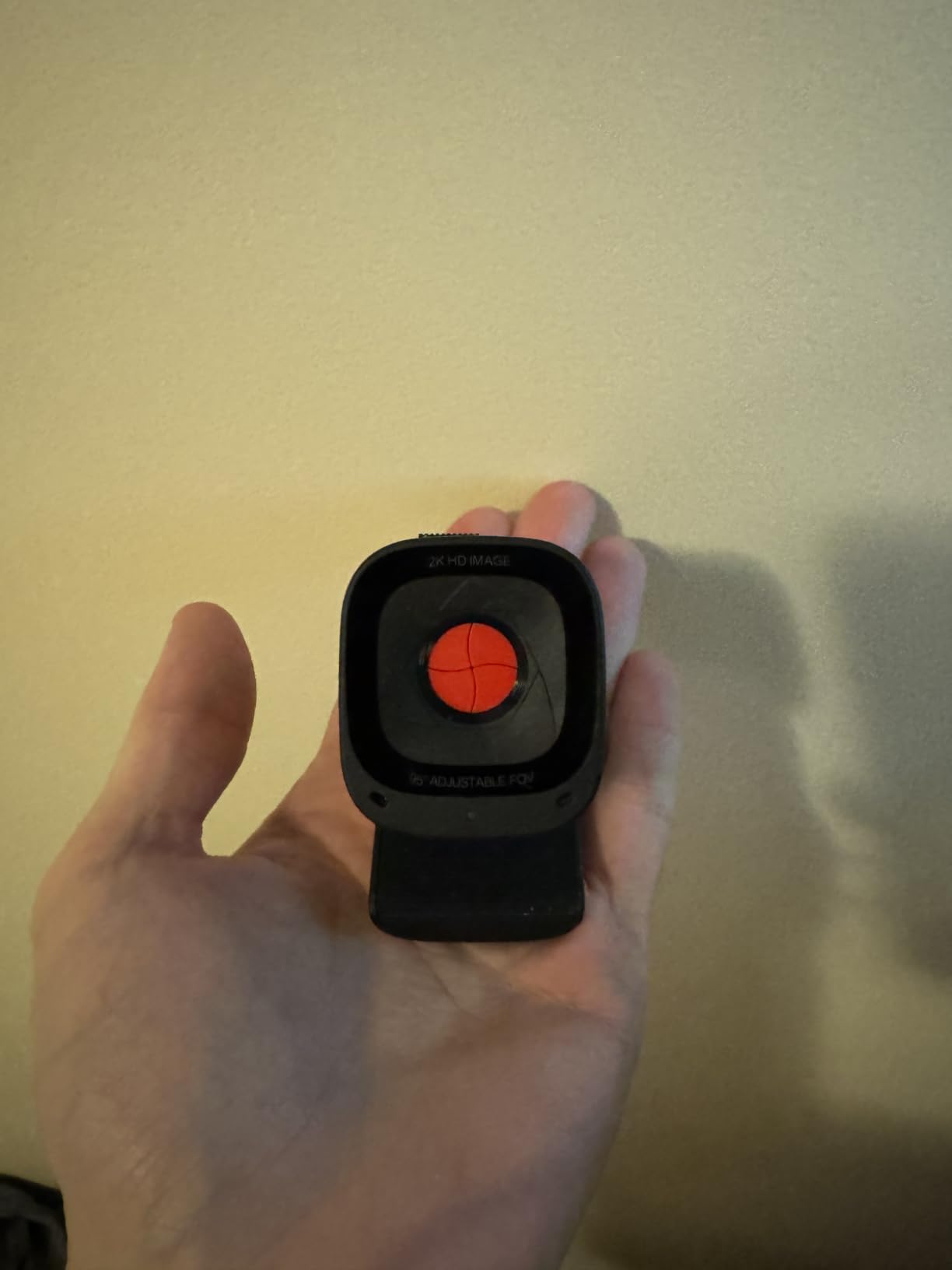
The C200 is the camera I recommend to anyone whose office is genuinely dim. It captures at 2K rather than 1080p, which gives it more information to work with when the light is poor, and owners repeatedly single out its low-light performance as the reason they stopped fighting their room. The dual microphones with AI noise cancellation are aimed squarely at shared walls, keyboards and background television.
It is also one of the few mid-range options where field of view is a choice rather than a fixed number. Software presets at 65, 78 and 95 degrees let you tighten the frame for a one-to-one and widen it for a small group, which solves the awkwardness of a fixed compromise in a room that changes use. The integrated sliding privacy cover is a genuine piece of plastic over the lens, not a software toggle.
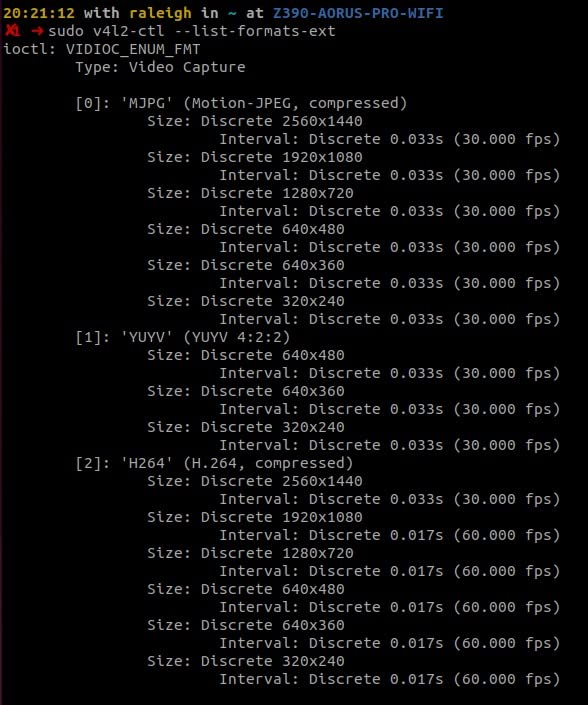
It works with Windows 7 and later and macOS 10.11 and later, and carries an 18-month warranty, which is longer than the one-year cover most rivals in this list offer. The body measures 1.97 by 1.57 by 2.17 inches and weighs 7.04 ounces, so it clips to a monitor without dominating the top bezel.
The trade-offs are practical rather than quality-related. Only a USB-C cable is included, so on an older machine with USB-A ports you need an adapter, and field-of-view changes depend on the Anker software being installed. Autofocus is also a little slower than the dedicated 4K models, which shows most when you move quickly through frame.
For homes where light and noise are the problem
Reviewers consistently point to the same two strengths: 2K clarity and low-light behaviour in imperfect rooms. In a basement, a spare bedroom with one window, or a flat where the office is lit by a single lamp, that combination is what separates a call that looks professional from one that looks like a video chat from 2012.
Noise cancellation matters just as much. A microphone that stays intelligible when someone is cooking or vacuuming two rooms away changes how willing you are to take the call at all, and the dual-mic array is the reason this model handles that better than its class suggests.
Where it needs help
If your computer is a few years old with only USB-A, budget for an adapter and check that it is a data adapter, not a charge-only one. Some owners report resolution or connection problems that trace back to this, and it is an avoidable cost.
It also lacks the physical privacy shade quality of the Logitech Brio and the sheer resolution of the 4K models. For a dedicated desk in a room only you use, that is a fair trade for the light handling.
5. OBSBOT Meet 2: the smallest and smartest camera for a standing desk
OBSBOT Meet 2-4K Webcam for PC with 1/2″ Sensor, AI Framing & Autofocus
4K on a 1/2-inch CMOS sensor
AI framing
40.5 gram body
USB-C connection
Pros
- Large sensor stays bright in ordinary indoor light
- AI framing keeps you centred
- Gesture control avoids touching the camera
- Pocketable at 40.5 grams
Cons
- AI features need OBSBOT Center software
- USB-C only so USB-A needs an adapter
- Runs warm during long sessions
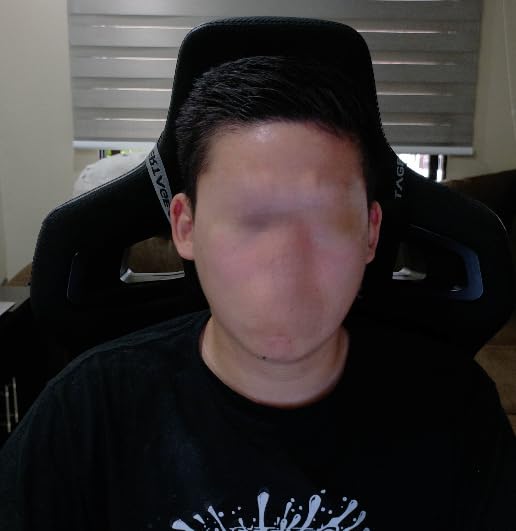
The Meet 2 is the only camera here that you can genuinely forget is on your desk. It weighs 40.5 grams and measures less than half an inch in every direction, and the 1/2-inch CMOS sensor behind the 4K output is far larger than the sensors in most webcams at this level. Larger sensor means more light gathered per frame, and the difference is obvious in a home office after sunset.
The AI framing recomposes the shot for individuals or groups, so if you lean forward to read something or shift back in your chair, the crop follows rather than leaving you half out of shot. Gesture control removes the need to touch anything mid-call: hold an open palm to toggle framing, raise a single index finger to change zoom. Autofocus is present and holds up when you move.
It connects with a single USB-C cable and offers deeper settings through OBSBOT Center. The dual omni-directional noise-cancelling microphones have adjustable noise reduction, which is a small feature that matters in an open-plan home. Note that it runs warm during extended use, which the manufacturer describes as normal for this performance level and which we also found to be noticeable on a long afternoon call.
Colour options and the compact body make it one of the easiest 4K cameras to travel with, and it comes with a one-year warranty. The review base is smaller than the Logitech models, so you are buying a newer platform with less long-term history, which is worth weighing if you want a device that will still be supported in four years.
Why small rooms and standing desks suit it
A camera that weighs almost nothing can be mounted anywhere, including on a monitor arm above a standing desk or a stack of books beside a laptop. When your eye level changes through the day, a 40-gram body and its short mount are far easier to reposition than a 0.16 kg unit with a long clip, and that removes one of the most common complaints about webcams entirely.
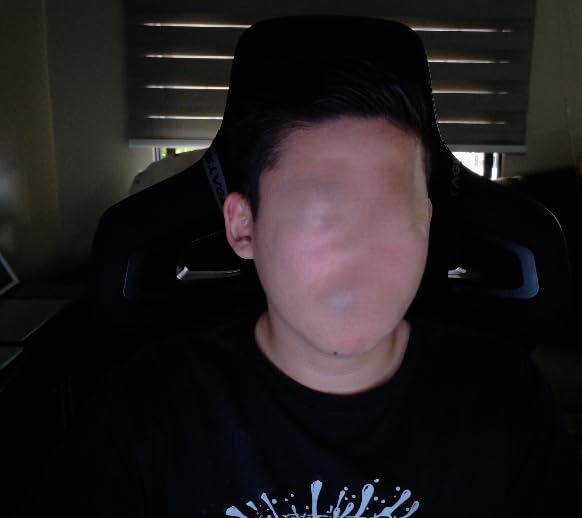
The 1/2-inch sensor is the technical story here. Sensor size determines how much light reaches the image, and in a dim room a larger sensor produces a cleaner, brighter picture at the same resolution settings. This is the clearest example in the roundup of a spec that changes what you see rather than a number on a box.
When the AI features are not worth it
AI framing is a genuine benefit if you move around, present from different parts of a room, or teach while walking. If you sit in one chair and speak from one position, as most people do, it is a feature you will switch on once and never think about again, and you have paid for capability you will not use.
Everything AI also depends on OBSBOT Center software being installed and kept current, and older Linux setups are the most likely to hit friction. USB-C only is another small tax on a desk built around USB-A.
6. EMEET C960: true 4K with phase-detection autofocus at a mid-range price
EMEET C960 4K Webcam for PC, PDAF Auto Focus, Dual Omni Mics, 73° FOV
True 4K CMOS without upscaling
PDAF autofocus
66-degree field of view
Dual omnidirectional mics
Pros
- Real 4K sensor rather than upscaled output
- PDAF stays sharp when you move
- Narrow field of view keeps background out
- Dual omnidirectional mics and privacy cover
Cons
- 4K is not on by default and must be enabled
- 66-degree view is narrow for groups or showing objects
- Newer model with a smaller review base
The C960 is unusual because the 4K is real. The sensor is a genuine 4K CMOS rather than a 1080p image scaled up, and it uses phase-detection autofocus, the same focusing approach found in phone cameras, so it stays sharp when you lean in or gesture. For most people that combination is a better match for a working day than more resolution with fixed focus.
The field of view is the narrowest of the 4K models here at 66 to 73 degrees, and that is a deliberate choice rather than a limitation. It frames you rather than your background, which in a home office means a partner walking behind you or a pile of laundry stays out of shot. Owners who value looking composed on camera rate this as the main reason to pick it.
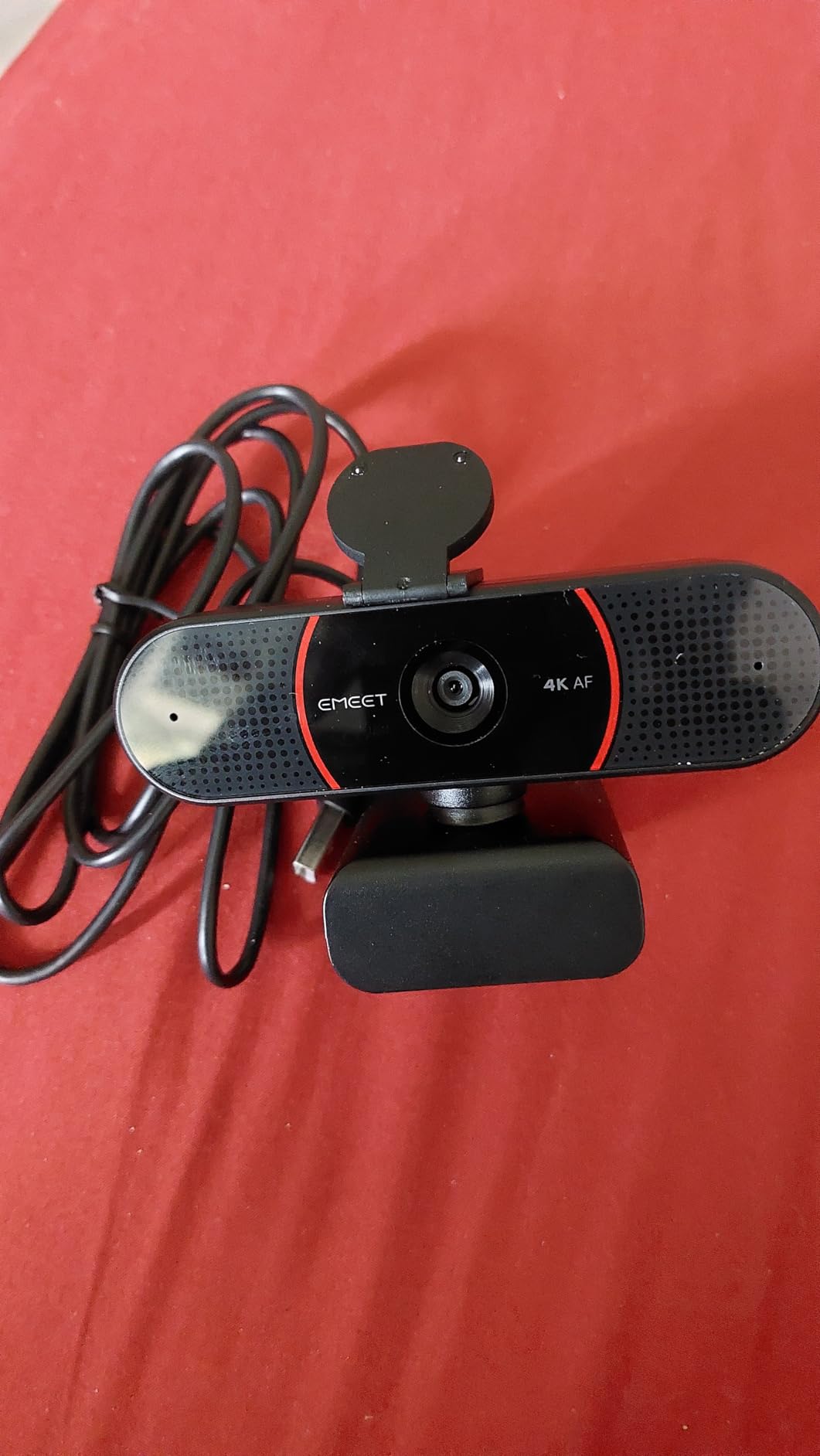
Two things to set up on day one. First, video defaults to 1080p, so 4K has to be switched on in the camera software or in capture applications like OBS or PotPlayer, and the picture will not change until you do. Second, setting it as the default microphone device in your operating system makes a noticeable difference to how the dual omnidirectional microphones perform.
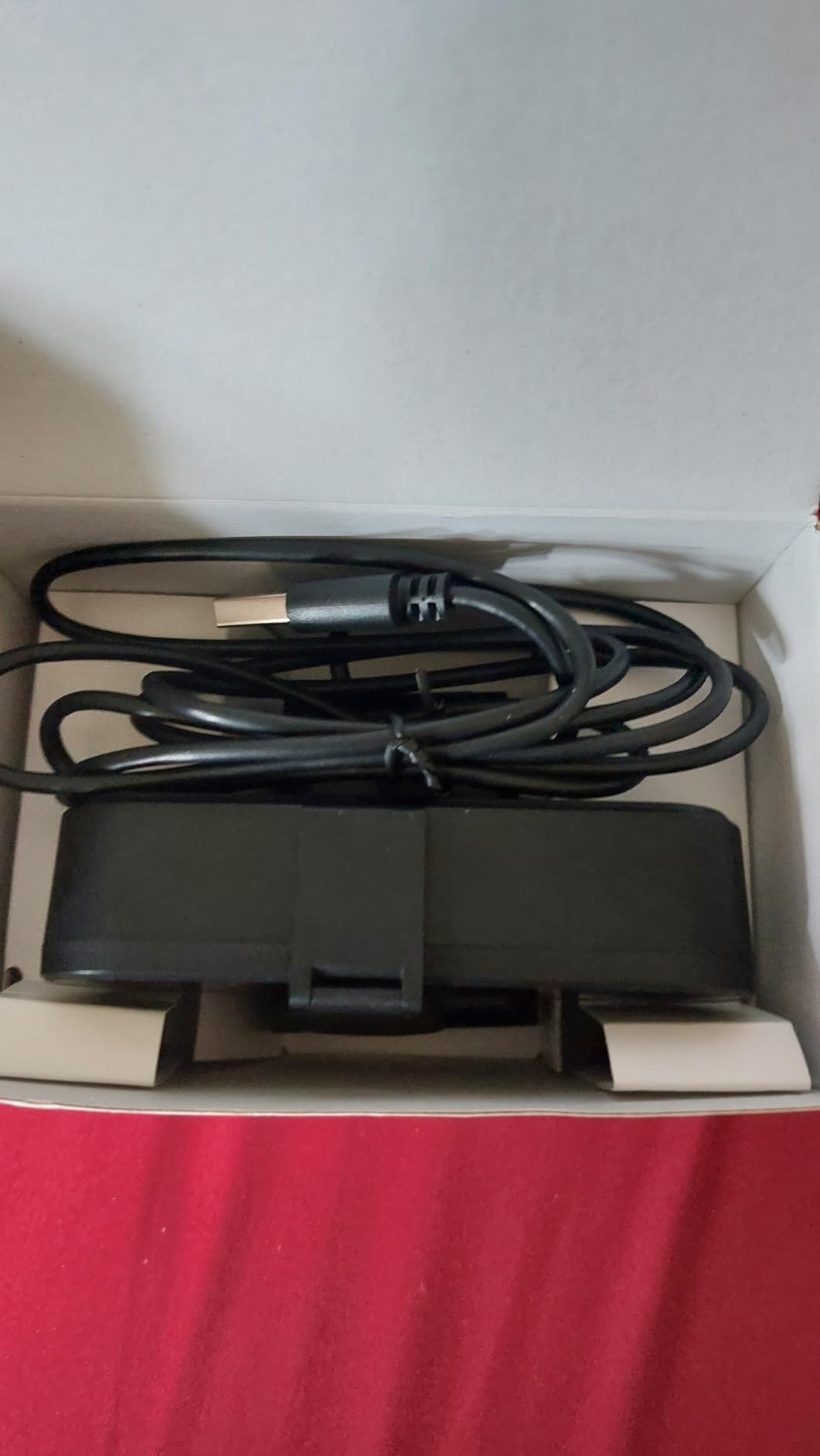
It is USB-A plug-and-play with no drivers, no Wi-Fi and no cloud storage, and a privacy cover is included. Adjustment covers 360 degrees horizontally and 15 degrees vertically, with a quarter-inch tripod thread for a proper mount. It works on Windows, macOS from 10.14, Linux and Android TV, and carries a two-year warranty.
For tight framing and clean backgrounds
Phase-detection autofocus is the feature that separates this from the other budget 4K options. Autofocus hunting mid-sentence is one of the most common complaints people voice about webcams, and PDAF focuses on phase difference rather than hunting for contrast, so it tends to land immediately and stay put.
Automatic light correction handles both over-exposed rooms, which is common in a home office with a big window, and low-light rooms, which is common in the evening. Between the two, it is one of the easier cameras to place in a room you do not control.
Where the narrow angle becomes a problem
That tight framing works against you the moment you need to show something. Demonstrations, whiteboard sessions, group shots and anything involving a physical object will not fit, and switching cameras mid-meeting is worse than planning for it. If you teach or present, choose a wider model.
It is also a newer product with roughly 2,400 reviews behind it, so the long-term reliability picture is not as well documented as the Logitech lines, and the support horizon is not yet proven.
7. UGREEN 2K: the widest view for group calls and shared rooms
UGREEN 2K Webcam for PC Ultra HD 1080P Computer Webcam with Microphone
2K at 30fps on a 4MP sensor
95-degree field of view
3.52 ounce body
360-degree mount rotation
Pros
- 2K resolution at a very low price
- Automatic light and colour-temperature correction
- Very light at 3.52 ounces
- Privacy cover and driver-free install
Cons
- Fixed focus with no adjustment or zoom
- 2K output depends on host and USB bandwidth
- 95-degree view catches background movement
The UGREEN 2K gives you a 2K picture for very little money, and its 95-degree field of view is among the widest of the models that still mount sensibly on a monitor. In a small room where you occasionally pull a second person into the frame, or when you want to show a whiteboard or a prototype, that angle does the work of a much larger sensor.
Automatic colour-temperature and low-light correction is tuned for the mixed lighting most home offices actually have, a bright window on one side and a warm lamp on the other. Reviewers single that out as the feature that made the camera usable immediately rather than after an afternoon of settings. The dual integrated microphones reduce background noise adequately for calls.
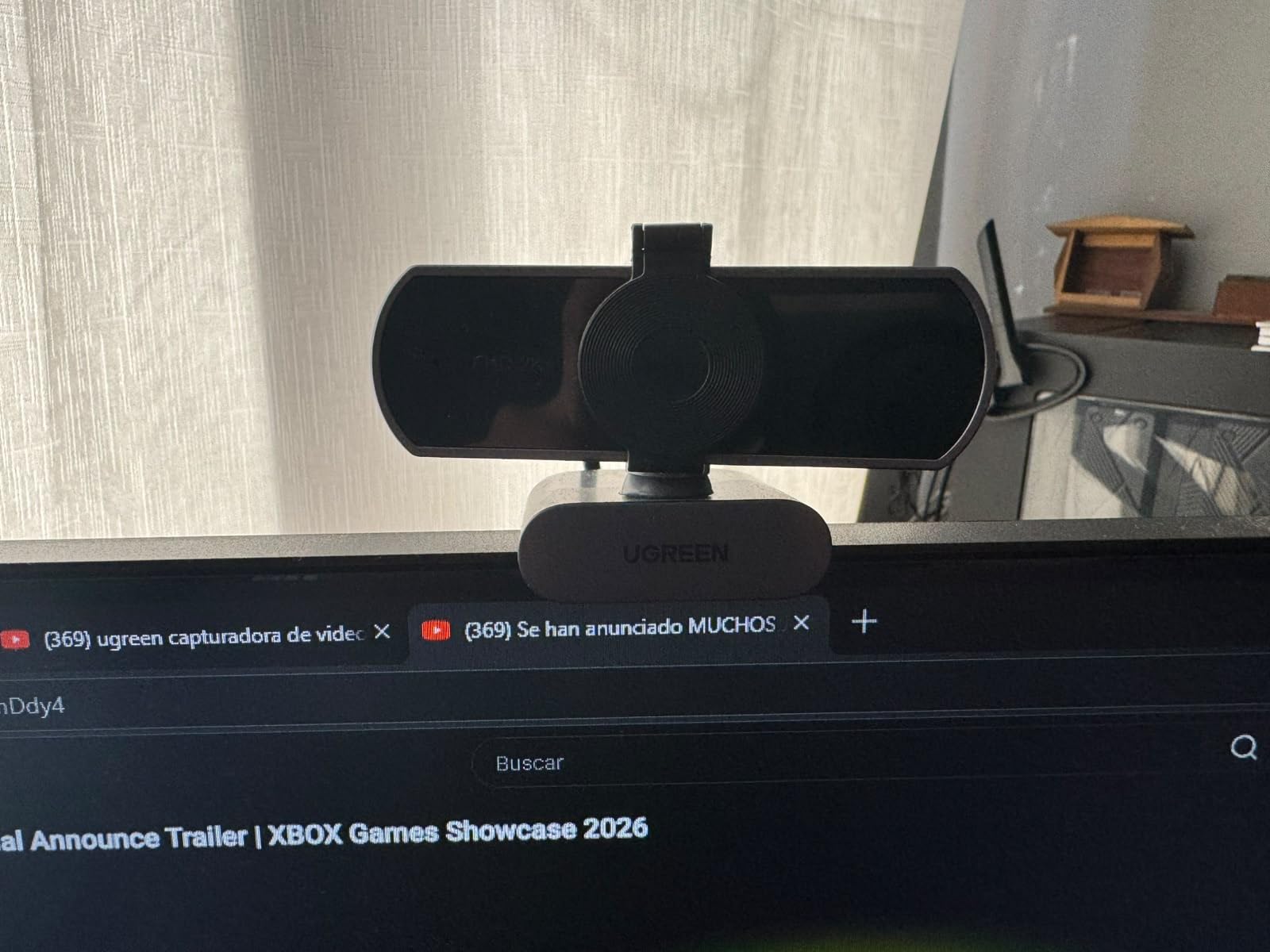
It weighs 3.52 ounces, mounts to monitors, laptops, TVs or tripods, and rotates 360 degrees so you can point it at anything in the room. A privacy cover is included and installation is driver-free, with stated support for Windows, macOS, Linux and Android. That cross-platform range is unusually broad for a camera at this level.
The catch is fixed focus, with no focus adjustment and no digital zoom. That is fine if you sit still at a consistent distance, which is most of the week. It also means maximum resolution of 2K depends on the host computer, monitor, USB port bandwidth and software all supporting it, so an older machine may quietly give you 1080p instead.
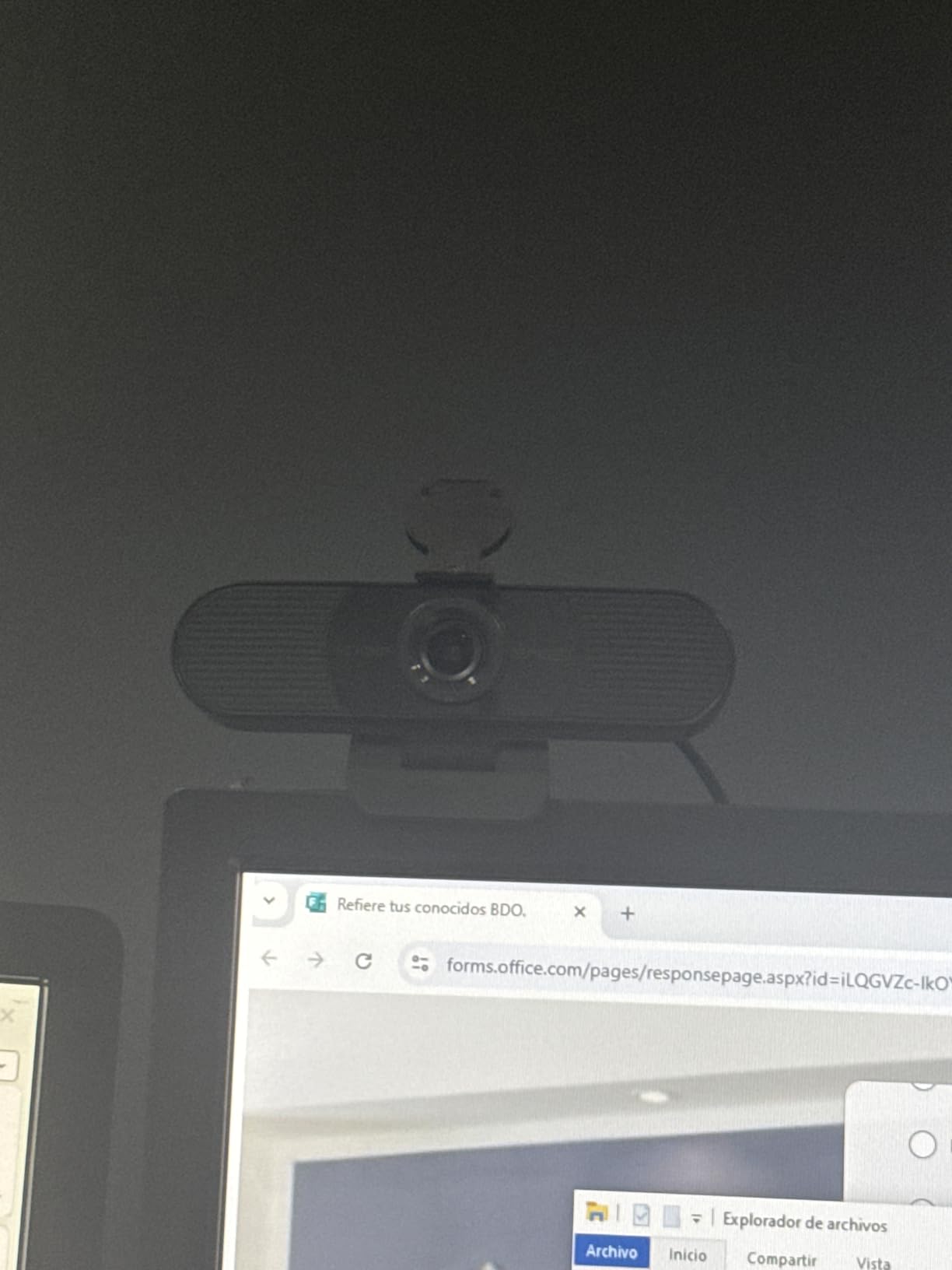
For small rooms with more than one person
Wide field of view changes who can be in the frame. At 95 degrees, a colleague leaning into your shot for a quick question, or a second person sharing the desk during a team update, stays in view without you repositioning anything.
The mount options matter in a small room too. With 360-degree rotation and tripod compatibility, you can put it on a small shelf or a stack of books beside the monitor rather than fighting for space on a crowded desk.
Where the fixed-focus design works against you
If you move closer to read something on screen or stand up to explain, you will soften. There is no autofocus and no zoom to compensate, so the camera has to be positioned once and left there, which is a discipline most people can follow and some cannot.
Be realistic about the resolution too. The 2K ceiling depends on your hardware, and buyers who expected a 4K-class picture and saw 1080p on an older port have been disappointed. Check your USB bandwidth before you buy if that matters to you.
8. EMEET PIXY: for teaching, demos and anything where you move
EMEET PIXY Dual-Camera AI-Powered PTZ Camera 4K, AI Tracking
4K main sensor plus AI tracking camera
PDAF and AI autofocus in 0.2s
310-degree pan and 180-degree tilt
Triple-mic array
Pros
- AI tracking follows you around the room
- 0.2 second autofocus suits demos and teaching
- Three-chip architecture keeps framing stable
- Triple-mic array with three sound modes
Cons
- Field of view is locked in 4K and 60fps modes
- No Windows Hello support
- ChromeOS not recommended
- Visible pan and tilt can distract in a static setup
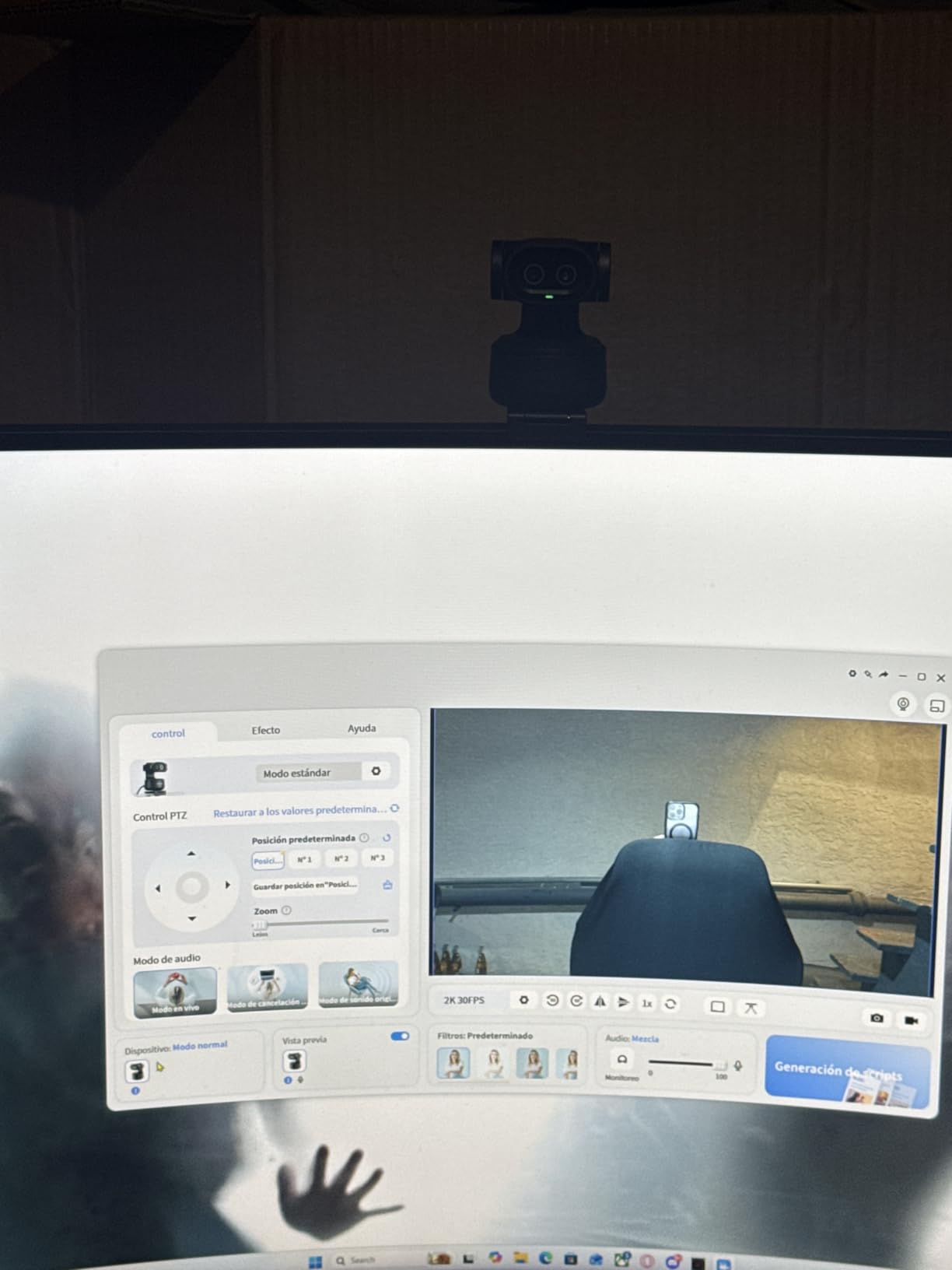
The PIXY is the only camera in this roundup that physically moves. A dual-camera design pairs a 4K main sensor with an auxiliary camera used for face position, autofocus and exposure, and a three-chip architecture drives 310 degrees of pan and 180 degrees of tilt. If you teach, present, run a demo or exercise at a home desk, it follows you and keeps you framed without a second person operating anything.
Claimed focusing time is 0.2 seconds, which is the difference between a camera that keeps up with a moving demonstration and one that lags behind it. EMEET STUDIO adds preset positions, fine framing, an auto-detected whiteboard mode and a privacy mode that can be triggered by tilt, a timer or the app. Gesture control works by holding an open palm centred for two seconds.
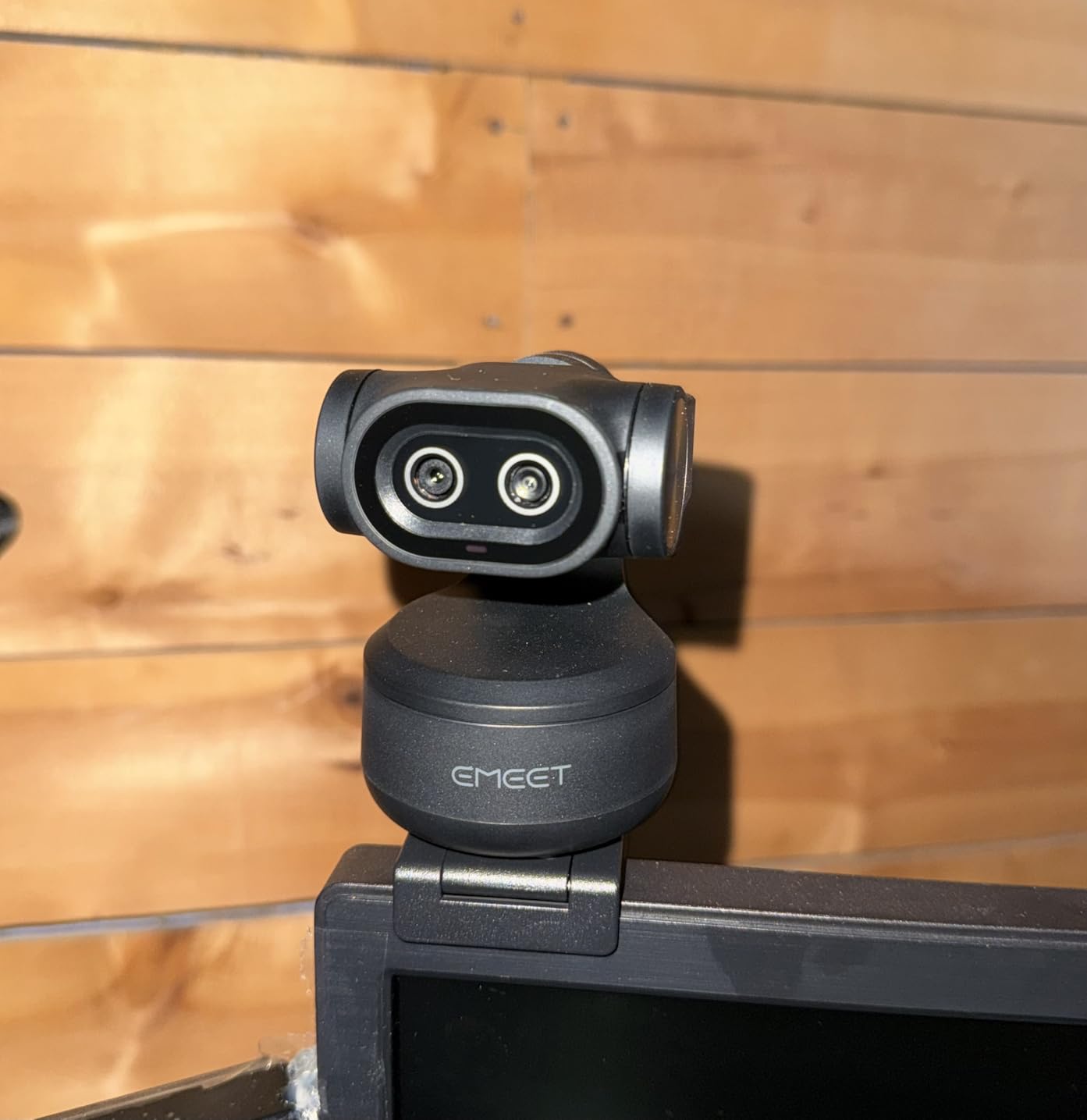
The triple-microphone array is unusually flexible, with Live Mode, Noise Canceling Mode and Original Sound Mode for calls, podcasts and music respectively. It is compatible with OBS, Twitch, YouTube, Switch 2 Camera and Xbox, as well as Windows 10 and later and macOS 10.14 onward, and carries a two-year warranty. If you record as well as call, that microphone array alone justifies a look.
The design decision to understand is that the field of view is adjustable at 1080p and 2K 30fps, but locked at 4K 30fps and 1080p 60fps. That prioritises stability of framing in the modes most people record in, at the cost of flexibility, and it is a trade some reviewers accept and others do not.
When movement is part of the job
Teachers, trainers, software demonstrators and anyone who paces while thinking all benefit from a camera that follows. The PTZ range means you can sit at one end of a room, turn to a whiteboard and come back, and the framing stays sensible. The auto-detected whiteboard mode simplifies that further for long sessions.
Sound modes matter more than they sound. Live Mode suits a conversation, Noise Canceling Mode suits a room with traffic outside the window, and Original Sound Mode suits recording music or a podcast on the same desk.
Why a moving camera is wrong for a desk job
If you sit in one position all day, every benefit of a PTZ camera is wasted and the cost is not. Visible pan and tilt movement can be distracting on a static talking-head call, and with under a thousand reviews there is limited long-term evidence that it is a set-and-forget device.
There are two clear gaps for office use: no Windows Hello support, and ChromeOS compatibility that the manufacturer does not recommend. If your work happens on a Chromebook, look elsewhere in this list.
9. AOC AC310 4K: the long-warranty pick for older USB-A desks
AOC 4K Webcam for PC, Streaming Computer Camera with Noise-Canceling Mic
4K with 8MP still capability
80-degree lens with 180-degree tilt
USB-C cable with USB-A adapter
Sliding lens cover
Pros
- 4K detail at a very low price point
- Integrated sliding physical lens cover
- 180-degree tilt and 360-degree swivel
- USB-A to USB-C adapter included
Cons
- Heavier build at 0.16 kg than most rivals
- Smaller review base than the Logitech options
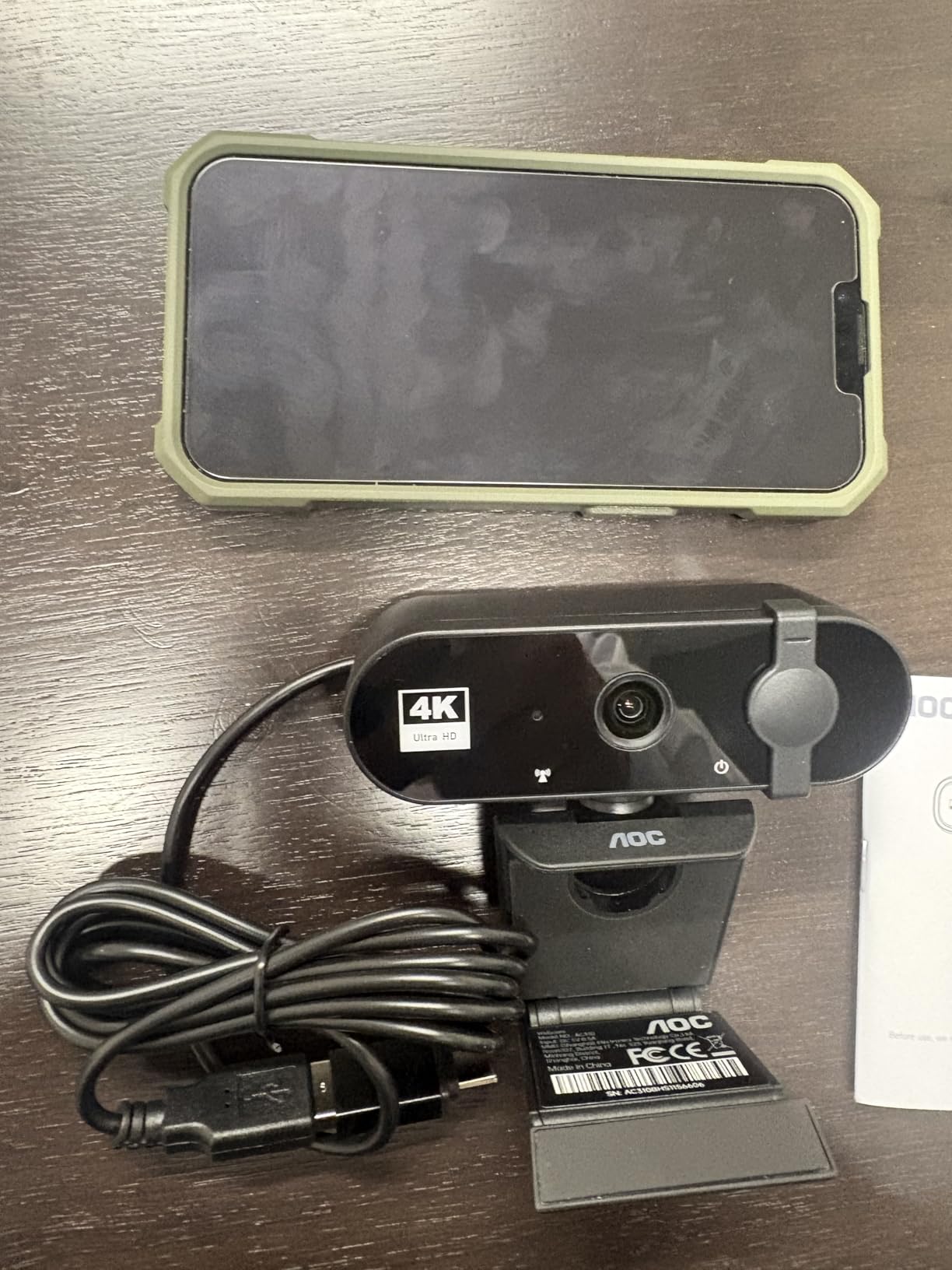
The AC310 answers a narrow question well: how do you get 4K into a desk built around USB-A ports. The box includes a USB-A to USB-C adapter, so it works on older laptops and desktops without a dock, and it is driver-free plug-and-play over USB. Owners consistently mention the included adapter as the reason the camera was painless to set up on a machine that is not new.
The optics are good on paper and unremarkable in use, which is a compliment at this level. An 80-degree wide-angle lens with 180-degree tilt and 360-degree swivel rotation makes positioning on a monitor straightforward, and the sliding physical lens cover gives you privacy without software. Automatic light correction and a noise-reducing microphone cover the basics you need for a call.
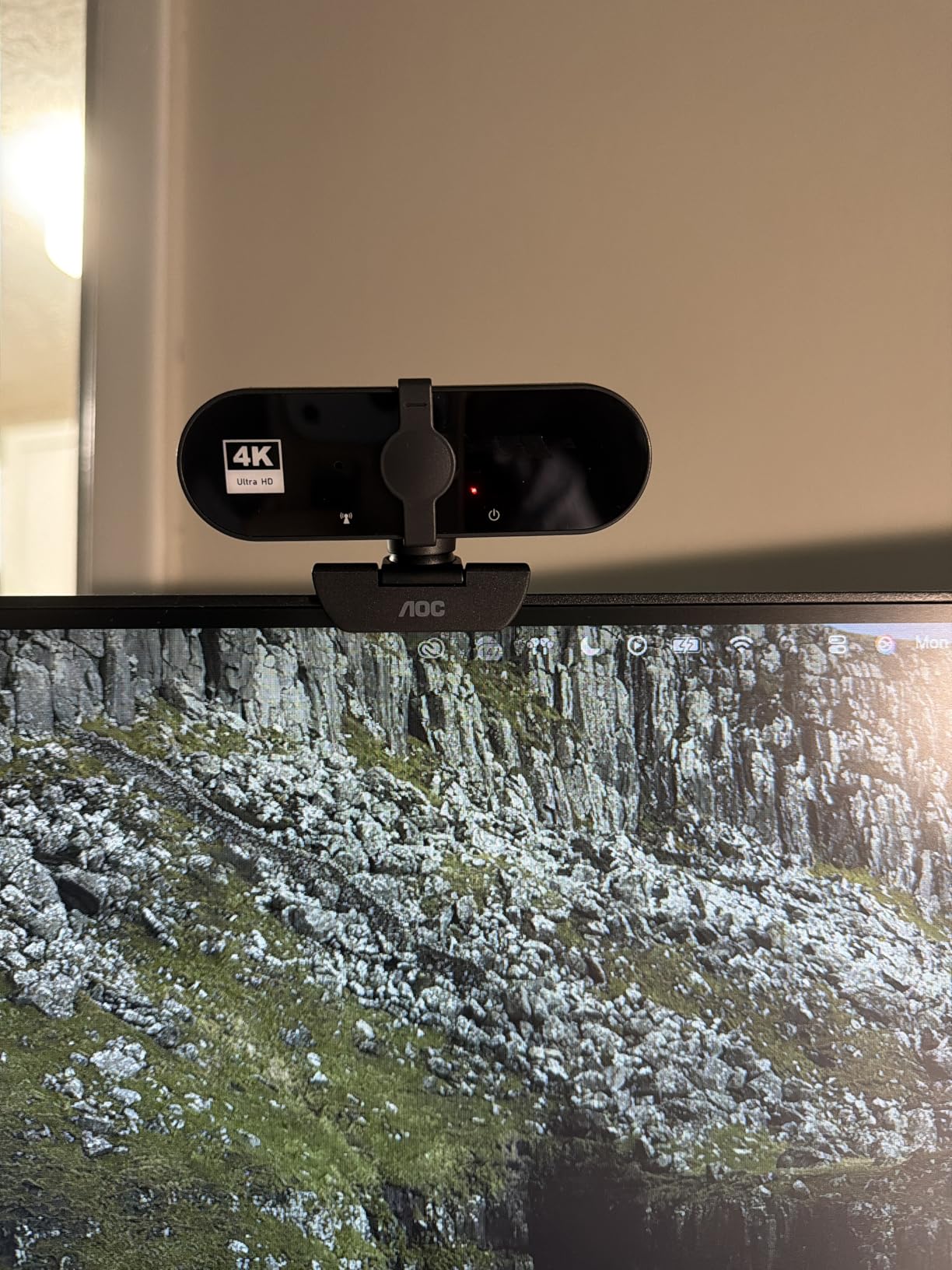
It carries a three-year manufacturer warranty, which is the longest coverage of the models we tested. That alone is worth something for a device you expect to sit on a monitor for years without thinking about.
Two cautions. At 0.16 kg it is one of the heavier bodies here, so the mount benefits from a monitor with a solid bezel rather than a thin laptop lid. And with 633 reviews there is less evidence about long-term driver stability and firmware behaviour than the Logitech lines provide.
For a desk that has to cover older machines
Most of the 4K options in this list assume a USB-C port. If you are moving between an older work laptop, a docking station with limited spare bandwidth, and a newer machine, having the adapter in the box removes a step and a class of connection problems. The 360-degree swivel and 180-degree tilt also mean you can angle it properly on an angled monitor.
Owners highlight 4K detail, the sliding cover and the adapter as the three things that justify the choice, and the tilt range is specifically praised for making it easy to frame on a monitor rather than on a laptop lid.
Where the trade-offs show up
The weight is the first thing you feel. Compared with a 40-gram camera like the OBSBOT Meet 2, this is a different object to mount, and on a thin display the clip can work loose over time. If your monitor is light or curved, add a small tripod or arm.
The second is the thin evidence base. A three-year warranty is reassuring, but 633 reviews is not a decade of field reports. If you want the strongest long-term record, the Logitech lines have it.
10. Logitech C270: the 720p camera that is still good enough
Logitech C270 720p Webcam Plug-and-Play Wide Screen Video Calling – Black
720p at 30fps
55-degree diagonal field of view
USB-A plug-and-Play
2.56 ounce body
Pros
- Very affordable and crisp for 720p calls
- Instant setup with no configuration
- RightLight 2 handles a dim single-lamp room
- Noise-reducing mic effective to 1.5 metres
Cons
- 720p is soft on large displays
- No privacy shutter or lens cover
- Clip can cover a sliver of the monitor top
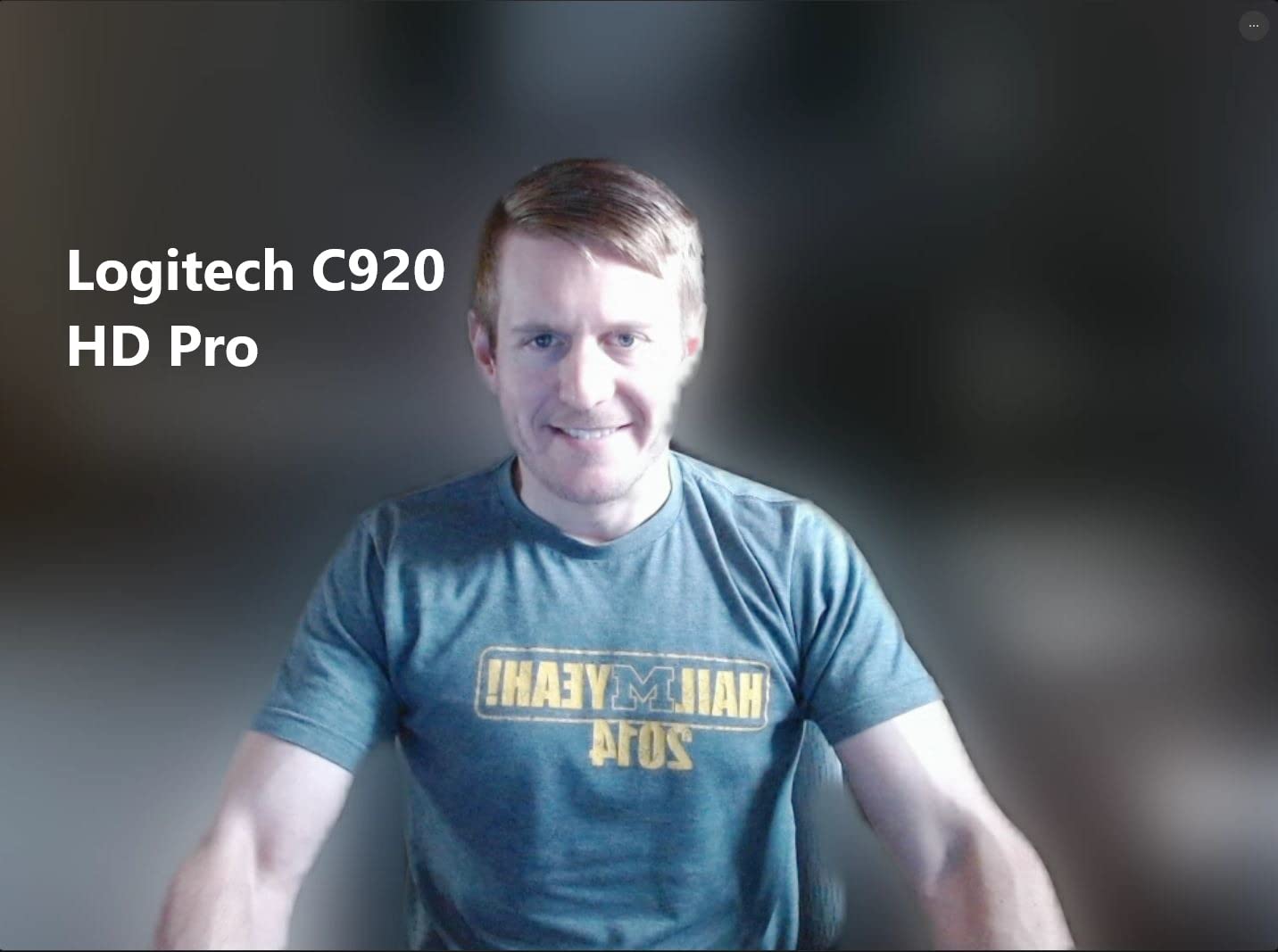
I include this one because for a lot of people it is the right answer. The C270 delivers 720p at 30fps with RightLight 2 auto light correction, and the noise-reducing microphone is effective up to about 1.5 metres, which covers a desk. On a call where you are a small box in a sidebar, the difference between this and a 1080p camera is genuinely hard to see.
The 55-degree diagonal field of view is the tightest here, and that is a feature in a home office. It frames your head and shoulders and almost nothing else, so it never shows the room behind you, and the adjustable universal clip mounts to a thin monitor or a laptop lid, or folds down into a tabletop stand. At 2.56 ounces it is unobtrusive to the point of disappearing.

It works with Windows, macOS from 10.10, Chrome OS, Skype, FaceTime and Zoom, and includes a one-year limited hardware warranty. RightLight 2 adjusts brightness and contrast automatically, and in practice it holds a dim single-lamp room together better than the resolution would suggest.
Reviewers accept the 720p limit as barely noticeable for calls. Two things recur: the clip can obscure a sliver of the top of a monitor, and the focus will hunt toward anyone who walks into the narrow field of view. It is not suited to live streaming, where several buyers reported connection and freezing problems, and the bundled Logitech Camera app cannot be uninstalled.
When 720p is genuinely enough
If your calls are mostly audio-led with a small video tile, or your laptop is the primary machine you connect to, this camera does the job for a fraction of the cost of anything else on this list. More than 21k reviews describe it as the dependable budget choice for Zoom and Teams, and that consistency is itself a reason to pick it.
The noise-reducing microphone punches above its class in a slightly noisy room, which is a genuine surprise at this level, and the folding stand means you can take it to a different desk in seconds.
Where 720p stops being enough
Share your screen with fine text, or appear on a large display, and 720p softens visibly. It also has no privacy hardware, with no shutter or lens cover, which matters more in a shared home than the resolution does.
The hunting focus is the one that annoys people most over time, because anyone crossing behind you briefly pulls the picture off your face. In a room where people walk past, the wider fixed-focus models behave better.
How to Choose a Webcam for a Home Office
None of the ten cameras is dramatically better than the next one at the resolution a video call actually delivers. What separates them is fit: how the field of view matches your room, how the sensor handles your light, what the mount allows, and whether you need privacy hardware. These seven points cover what actually changes your experience day to day.
Field of view is a room-size decision
Field of view, measured in diagonal degrees, tells you how much of the scene the lens captures. It is the single most consequential number for a desk, and it is the one most listings never translate into anything useful. Below roughly 65 degrees you are framed tightly and almost nothing of your room appears, which flatters the picture but excludes anything you might want to show. Between about 65 and 80 degrees is the standard talking-head range and works for most single-person desks.
Wider than about 90 degrees starts to distort edges and pull in whatever is moving behind you, which is fine in a tiny room and awkward in a normal one. The practical rule: pick the narrowest angle that still fits your desk and the things you occasionally show. If you are choosing between two cameras and one has a wide fixed view while the other offers software presets at 65, 78 and 95 degrees, the second is more adaptable to a room you have not fully organised yet.
Sensor size beats megapixels in a dim room
Sensor size is the physical dimensions of the light-gathering surface, written as a fraction such as 1/3-inch or 1/2-inch. A larger sensor collects more light for the same resolution, which produces a brighter, cleaner image in poor light. It is why the 1/2-inch sensor in the OBSBOT Meet 2 holds up better after sunset than higher-resolution cameras with much smaller sensors, and it is a more meaningful comparison than any megapixel count.
Resolution still matters for how much detail you can crop, and for recording. What it does not do is rescue a badly lit room, because the platform compressing your call will not deliver the extra pixels anyway.
4K is mostly wasted on calls and useful for recording
Zoom, Microsoft Teams and Google Meet compress and downscale your video before it reaches the other side, so a 4K sensor does not deliver a visibly sharper image to the people on the call. You will see benefits where the raw signal is preserved: recording, streaming, screen sharing with fine text, and cropping in post.
So 4K is worth it if you teach, record or present, and mostly wasted if your week is meetings and messages. The lighting features that come with a premium sensor, such as HDR auto correction, arguably matter more on a daily call than the resolution does.
The built-in microphone is rarely the reason to buy
Webcam microphones are positioned an arm’s length from your face, which is not where a microphone belongs, and they pick up everything in the room along with your voice. The models here that are worth praising, such as the Anker C200 with AI noise cancellation and the PIXY triple-mic array, do the best available job from that position.
If you are regularly on client calls, teaching or presenting, a separate USB microphone mounted on a small boom or stand will change how you are heard far more than any camera will. Budget for it as part of the same setup, and think about the rest of your desk too, from a compact wireless keyboard that frees up space to a document scanner if you handle paperwork at home.
Privacy hardware and indicator lights
A physical shutter that covers the lens is meaningfully different from a software mute button, which relies on the operating system behaving correctly. The N60, UGREEN 2K, AOC AC310 and EMEET C960 all include a cover, the Anker C200 has a sliding one, and the Logitech Brio has a flip-up shade. The C920x and C270 have neither, which is the most common single complaint about those two.
Also consider where the camera lives. A webcam in a room that doubles as a family space is a different privacy question from one on a dedicated office computer, and the hardware indicator light on the camera is a useful secondary confirmation that something is active.
Mounting and eye-level ergonomics
Most complaints about webcams are really complaints about height. A camera clipped to the top of a monitor is roughly right; one on a laptop lid is usually too low, and one sat on the desk pointing up is worse than either. Anything that raises the camera to eye level improves how you look more than any resolution upgrade, and a small monitor arm or a stack of books is often enough.
Watch the weight too. A 40-gram camera can go anywhere, while a 0.16 kg body needs a bezel with grip and a curved display is not a good home for a heavy clip. The rest of your desk layout matters for the same reason, which is why we keep coming back to guides on label printers and other small office tools that compete for the same square footage.
USB-A, USB-C and dock reality
Several cameras in this roundup include only a USB-C cable, which means an adapter on an older USB-A machine, and some docks cannot pass webcam bandwidth at all. Check which port types your computer has, and if you already use a dock, confirm the webcam is connected to the machine directly rather than through a hub that shares upstream bandwidth.
Linux users should check driver support specifically, because a camera that works perfectly on Windows and macOS can drop frames without the vendor driver. ChromeOS support is broad but not universal, and the PIXY is explicitly not recommended there.
Frequently Asked Questions
Which camera is best for a Zoom meeting?
For most people the Logitech C920x is the safest answer: sharp 1080p, autofocus that holds, and dual microphones that keep your voice clear in a normal home office. Zoom compresses video heavily, so a 4K camera rarely looks visibly better on the call itself. If your room is dim, the Anker PowerConf C200 is tuned for low light. If you need a physical privacy cover, pick the NexiGo N60 or the Logitech Brio.
Do I really need a 4K webcam for video calls?
Usually not. Zoom, Microsoft Teams and Google Meet compress and downscale your video before it reaches anyone else, so a 4K sensor does not deliver a visibly sharper image to the people on the call. 4K earns its place when you record, stream, share screen with fine text, or crop in editing. On a daily meeting roundup, a good 1080p camera is almost indistinguishable from a pricier one.
Is 1080p good enough for Zoom and Microsoft Teams?
Yes, for the overwhelming majority of home-office use. At the small size most people appear in during a call, a 1080p image is close to indistinguishable from higher resolutions. Below 1080p, such as 720p, softness starts to show on large displays and in shared screen content. Judge the camera on autofocus, low-light handling and field of view before you judge it on resolution.
What field of view do I need for a home office?
Around 65 to 80 degrees suits a single person at a desk, framing your head and shoulders without distorting edges. Wider views of 90 to 110 degrees make sense in a very small room where you want the desk and walls in shot, but they also pull in anyone moving behind you and can look fisheye on screen. Choose the narrowest angle that still fits everything you occasionally need to show.
Are webcam microphones good enough for professional calls?
Good enough for internal meetings, and marginal for client calls, teaching and anything where how you sound matters. Webcam microphones sit roughly an arm’s length from your mouth and pick up the whole room with your voice. The best built-ins here, such as the Anker PowerConf C200 with AI noise cancellation and the EMEET PIXY triple-mic array, narrow that gap but do not close it. A separate USB microphone on a small boom makes a bigger difference than any camera upgrade.
Can I use a webcam at home if my employer has a camera policy?
Check your employer’s policy first, because it defines the boundaries rather than the hardware. In practice, follow three habits: cover the lens with a physical shutter or privacy cover when you are off camera, use the platform mute button as well as the device setting, and keep the camera on a machine only you use. A physical cover is more reliable than a software toggle, and the camera’s own indicator light is a useful second confirmation.
Conclusion: Which Webcam Should You Buy?
Start with the Logitech C920x if you want one camera that covers everything a home office throws at it: sharp 1080p, autofocus that holds, and a compact body that suits a small desk. Pick the NexiGo N60 instead if a physical privacy cover and the widest view matter most, and step up to the Logitech Brio if you present, teach or record often enough to justify 4K.
For a dim room, the Anker PowerConf C200. For a very small desk or a standing setup, the OBSBOT Meet 2. For teaching and demos where you move around, the EMEET PIXY. Whatever you choose in 2026, position it at eye level and put a light in front of you before you change models, because that setup beats any camera on this list.