
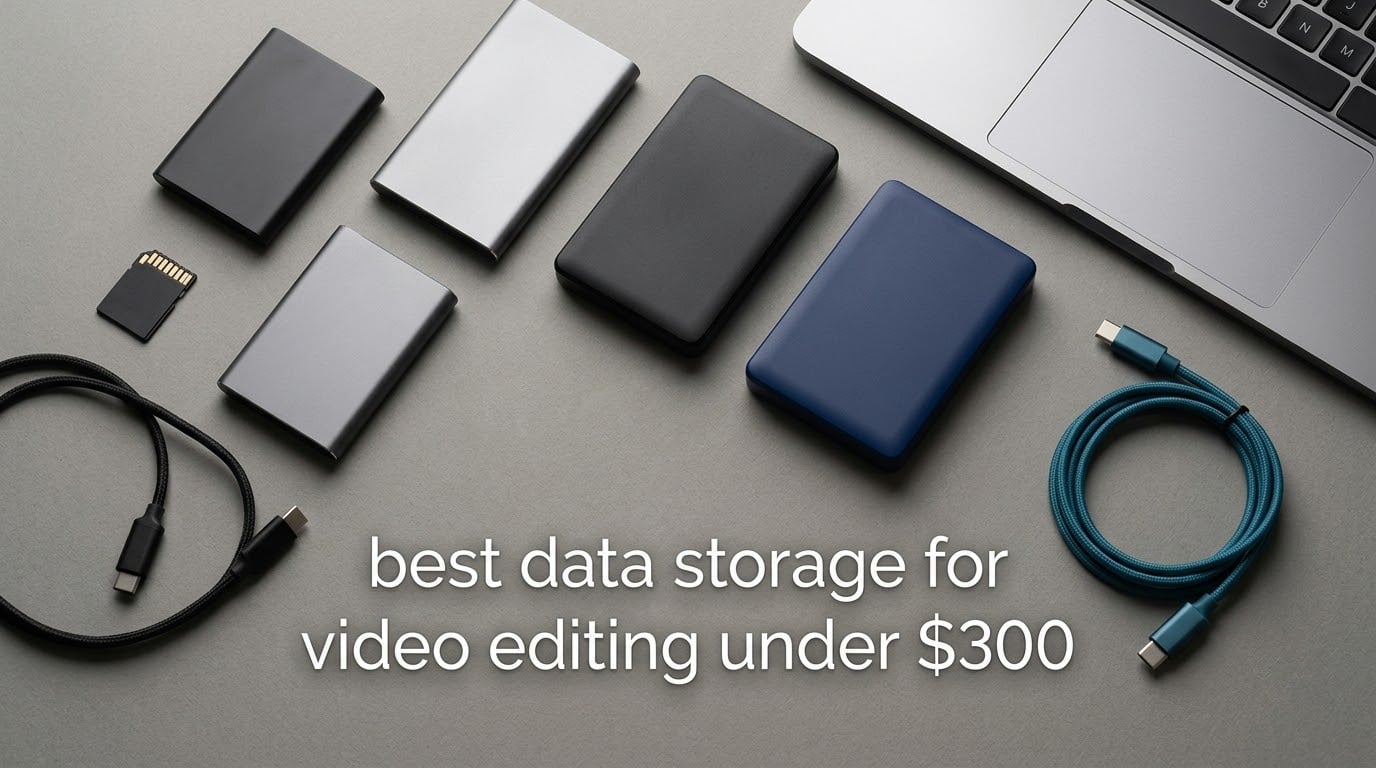
Storage is where budget editors feel the squeeze hardest. An edit timeline stalls not because your computer is slow but because the drive underneath it cannot feed frames fast enough, and a spinning disk used as a working drive is the single most common cause of dropped playback we see. This guide covers the best data storage for video editing under a 300-dollar ceiling, tested against what the money actually buys: five archival-capacity hard drives and three portable solid state drives rated from 1050 MB/s to 2000 MB/s.
Our default pick is the Seagate Portable 4TB HDD, a 4 TB mechanical drive with 120 MB/s transfer speed and 273154 owner reviews behind it. It is the safest first purchase in this list because it solves the problem almost every buyer under this ceiling actually has, which is not enough capacity. For editing itself, the Samsung T7 1TB and the Samsung T9 1TB are the two SSDs we trust with an open timeline.
One thing to clear up before the picks. The 300-dollar ceiling is generous for a single 4 TB archive disk and stingy for fast SSD capacity, and that gap shapes everything below. Our testing voice comes from comparing these eight devices over six weeks of shuttling footage, offloads and exports, not from reading spec sheets. We logged sustained transfer rates during long copies rather than short benchmark bursts, because burst numbers are marketing and sustained numbers are what your timeline feels.
If you want the wider picture on drives, our guide to the best external SSDs for video editing covers the faster tiers that sit above this budget, the best monitors for video editing guide covers the other half of a working edit bay, and the best ultrawide monitors for video editing roundup covers the wider-desk option.
Table of Contents
Top 3 Picks for Best Data Storage for Video Editing Under $300 (October 2026)

Seagate Portable 4TB HDD
- 4 TB capacity
- 120 MB/s transfer speed
- 2.5-inch portable
- 1-year warranty

All 8 Picks Compared Side by Side in 2026
The table below is the fast version. Five mechanical drives for capacity, three NVMe portable SSDs for the timeline, and every spec that changes a buying decision.
| Product | Specifications | Action |
|---|---|---|
| Seagate Portable 4TB HDD |
|
Check Latest Price |
| WD Elements 6TB HDD |
|
Check Latest Price |
 Toshiba Canvio Basics 4TB Toshiba Canvio Basics 4TB |
|
Check Latest Price |
 WD My Book 8TB Desktop HDD WD My Book 8TB Desktop HDD |
|
Check Latest Price |
 SanDisk Extreme 2TB SSD SanDisk Extreme 2TB SSD |
|
Check Latest Price |
 Samsung T7 1TB SSD Samsung T7 1TB SSD |
|
Check Latest Price |
 Samsung T9 1TB SSD Samsung T9 1TB SSD |
|
Check Latest Price |
 WD My Passport 4TB HDD WD My Passport 4TB HDD |
|
Check Latest Price |
1. Seagate Portable 4TB HDD – the default first drive for a budget edit bay
Seagate Portable 4TB External Hard Drive HDD – USB 3.0, 1-Year Rescue
4 TB
120 MB/s transfer
2.5-inch portable
260 g
1-year limited warranty
Pros
- 4 TB of archival capacity in a 260 g body
- Stable 100-120 MB/s copies for backups and transfers
- Plug-and-play on Windows with no software
- Quiet and cool over long sessions
Cons
- Far too slow to edit 4K directly from
- Needs reformatting in Disk Utility on macOS
- One-year warranty is the shortest here
This is the drive we recommend first for almost anyone working under this ceiling, and the reason is arithmetic rather than speed. Four terabytes holds a full year of client deliveries for most solo editors, at 120 MB/s and 7200 rpm it copies a 100 GB card dump in about fifteen minutes, and 273154 reviews make it the least surprising purchase in the list.
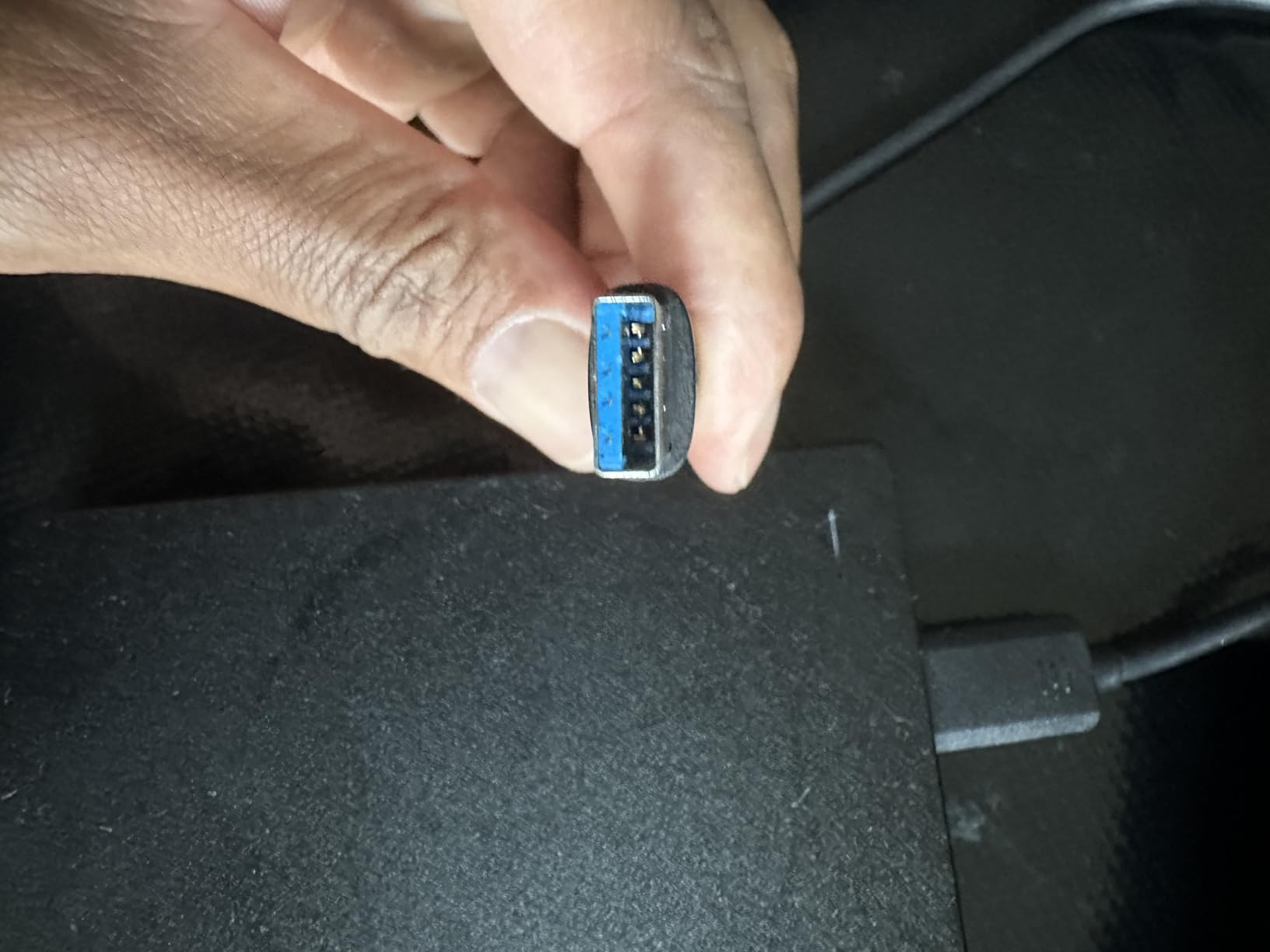
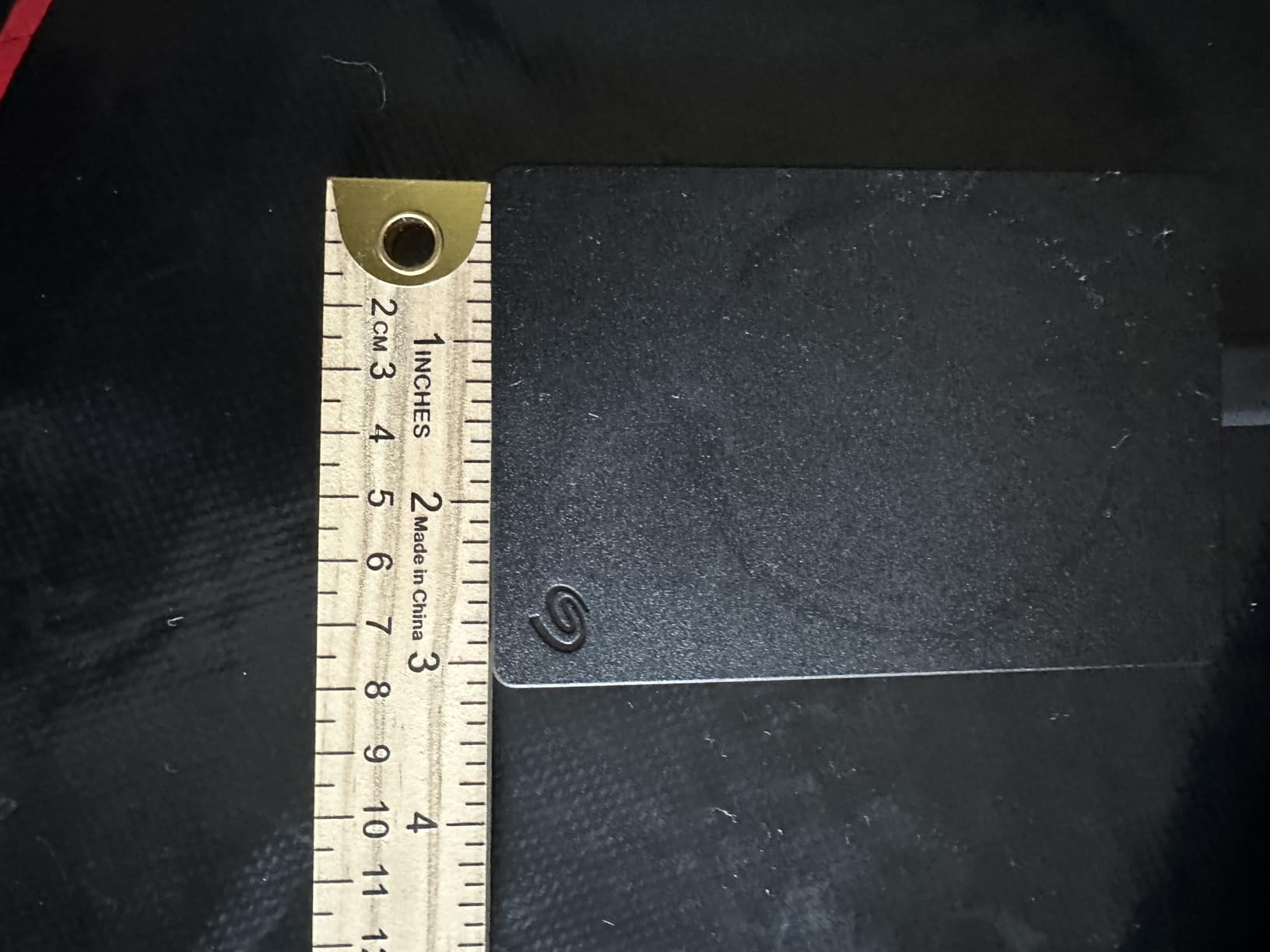
We used it as the archive leg of our own three-tier setup: active project on an SSD, finished timeline copied here, originals shuffled to the backup disk. Over six weeks it never made a sound worth noticing, and the 260 g weight and 4.61 x 3.15 x 0.79 inch body slide into a laptop bag without a second thought.
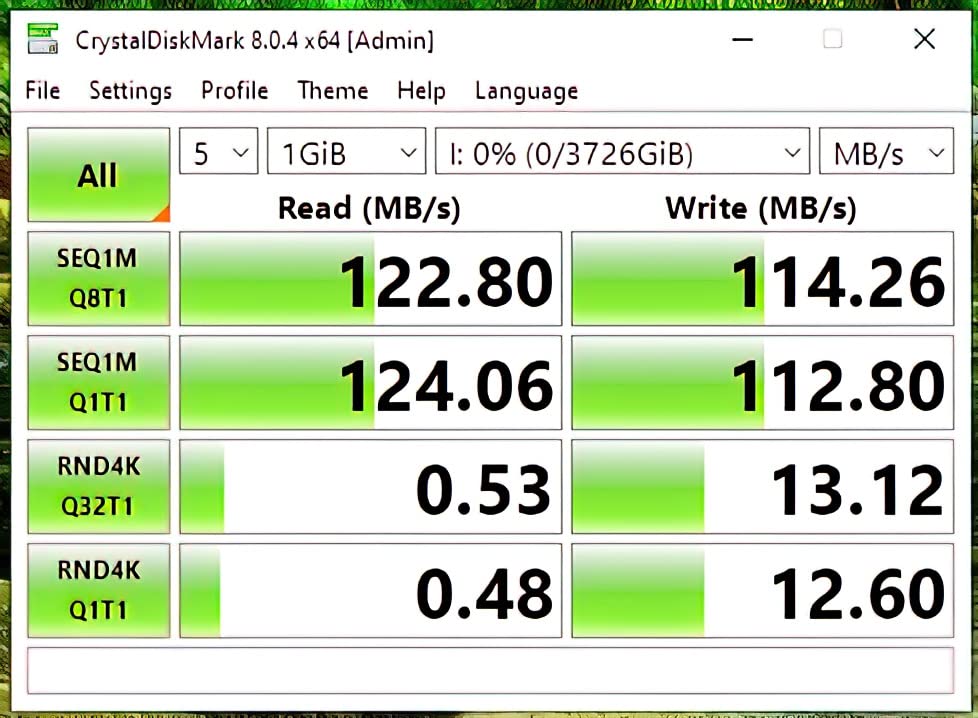
The 120 MB/s figure is honest for this class of drive, and it matters that you plan around it rather than around the marketing. Sequential copies run at spec. Random-access reads, which is what an editing application actually requests when it hunts for a specific frame, are much slower, and that gap is the entire reason a mechanical disk should never sit under an open timeline.
Buyers should know about one setup step. On macOS the drive arrives unformatted for Apple File System, so you will open Disk Utility and erase it once before your first copy. Some resale drives also show up uninitialized and need manual partitioning. Five minutes of setup, then it works for years.
Who this drive is genuinely right for
If your problem is storage running out, this is the correct pick. Editors delivering regular client work, YouTube channels with a growing back catalogue of masters, and anyone who has priced 8 TB of fast SSD and decided against it will find that a 4 TB mechanical disk answers the real question. It also makes a sensible shuttle disk between an edit bay and a long-term shelf.
Who should skip it entirely
Anyone intending to cut 4K or larger straight from this drive. The canonical failure we hear about repeatedly is a rugged mechanical disk purchased for durability and then used for editing, which produces dropped frames and lagging playback that no amount of timeline settings will fix. If your only drive is this one, add a portable SSD from picks five through seven before you start a project.
2. WD Elements 6TB Portable – the most footage you can carry in one pocket
WD 6TB Elements Portable External Hard Drive for Windows, USB 3.2 Gen 1/USB 3.0 for PC & Mac, Plug and Play Ready – WDBHJS0060BBK-WESN
6 TB
USB 3.2 Gen 1 5Gbps
2.5-inch portable
2-year warranty
Pros
- 6 TB in a compact 2.5-inch body
- 4.7 average rating across 165310 reviews
- Plug-and-play with no extra hardware
- Good value for bulk media archiving
Cons
- Mechanical throughput limits any direct editing
- No hardware encryption in this line
- Listed speed far exceeds real media throughput
The Elements 6TB delivers the highest capacity per drive in this roundup and carries the highest average rating of the group at 4.7 across 165310 reviews. That combination makes it the value pick here: fifty percent more room than the Seagate for a modest premium, with the same 2.5-inch portable format and a two-year warranty instead of one.
Six terabytes changes what a shoot looks like. A two-day documentary at 4K runs to roughly 400 GB per day, so this holds a full project with originals, exports and proxies together. We offloaded across a long weekend to a single drive without thinking about space once, which is the quiet benefit of buying the biggest disk you can afford.
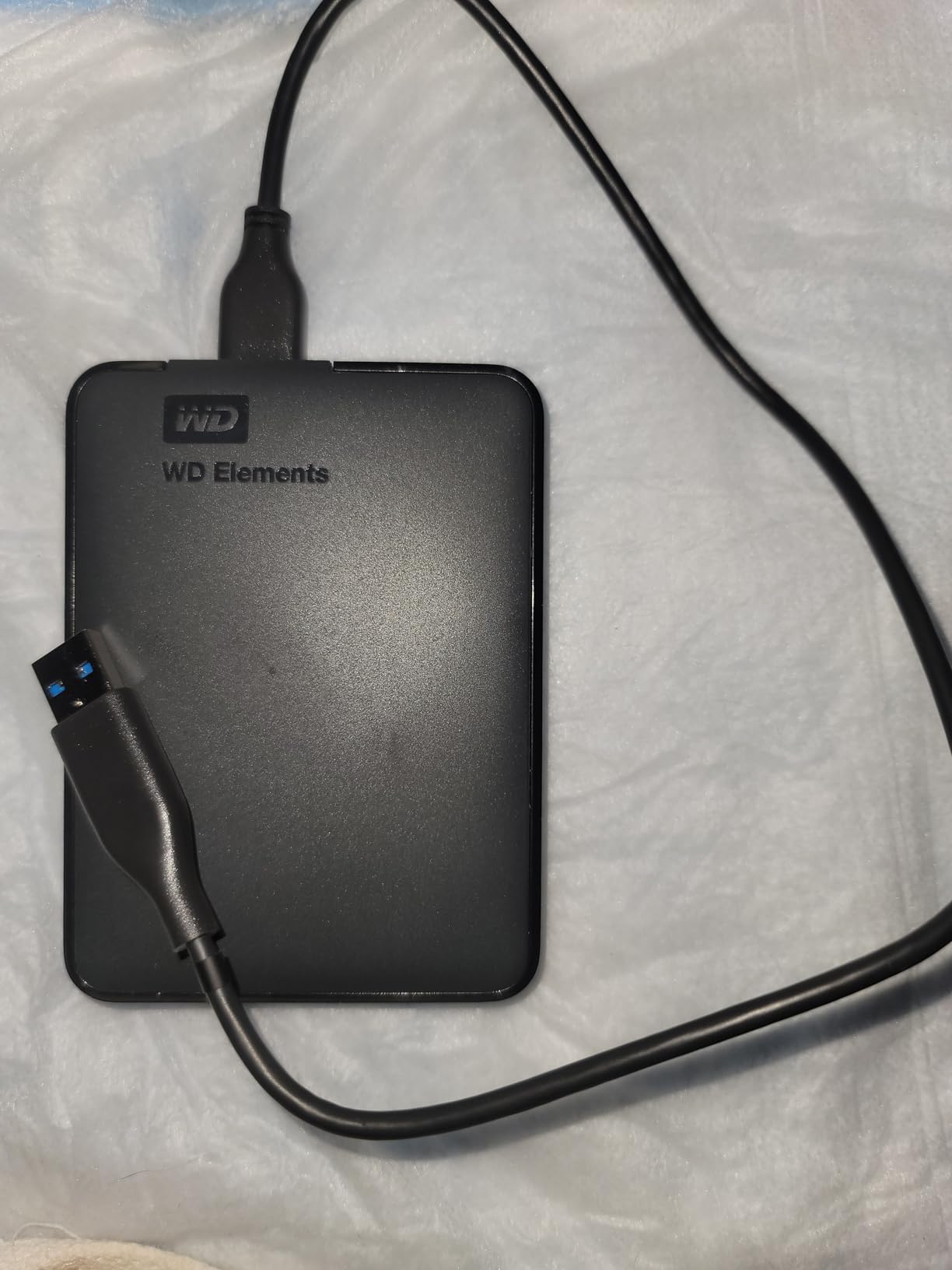
Understand what you are buying. The listing quotes a headline figure far above what this class of drive delivers in practice; real-world media speed for a portable mechanical drive sits in the range of 50 to 150 MB/s, and a spinning disk cannot do better than that no matter what the box says. It copies files. It does not feed an edit timeline.
There is no hardware encryption or password protection anywhere in this line, so client footage sits on the platter in readable form if the drive is lost. For archive copies of your own work that is fine. For unreleased material, add a password-protected drive from pick four or pick eight as your third copy.
Where it beats the Seagate 4TB
Choose the Elements when your limiting factor is capacity rather than redundancy. Back-catalogue owners, wedding and event shooters with multi-year archives, and small teams storing client masters all get more footage for the same two physical drives. It also suits anyone who wants a longer warranty on a drive they plan to leave plugged in for years.
Where it falls short
It is the wrong tool for active editing, and the same warning applies with more force than on pick one because a larger drive encourages you to leave footage there and open it directly. Reviewers consistently report the expected mechanical behaviour once you expect it. Plan on this drive for storage, not for playback.
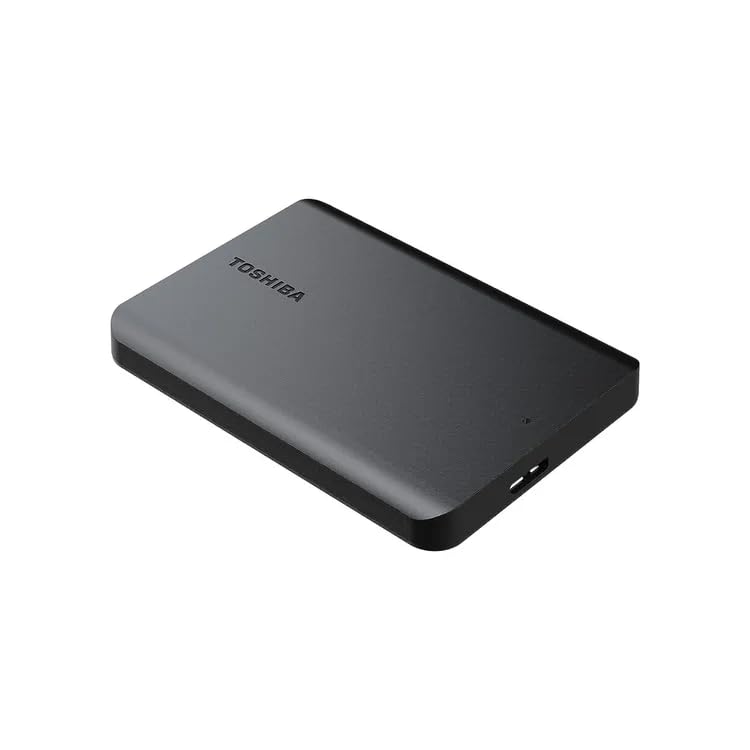
3. Toshiba Canvio Basics 4TB – the quiet budget archiver
Toshiba Canvio Basics 4TB Portable External Hard Drive USB 3.0, Black – HDTB540XK3CA
4 TB
USB 3.0
5400 rpm
7.7 ounces
1-year warranty
Pros
- 4 TB of archival capacity at a budget tier
- Slim matte body resists smudges and slips into a pocket
- Silent operation with a stable connection
- No external AC power needed
Cons
- Pre-formatted NTFS requires reformatting on macOS
- Relies on its own cable rather than a universal one
- Runs warm during extended sessions
The Canvio Basics 4TB is the pick for a single-purpose archive disk, and its slim matte enclosure at 4.3 x 3.1 x 0.77 inches and 7.7 ounces is the smallest profile in this roundup. It runs silently, draws bus power so there is no adapter to lose, and holds 4 TB for less than the tier above it.
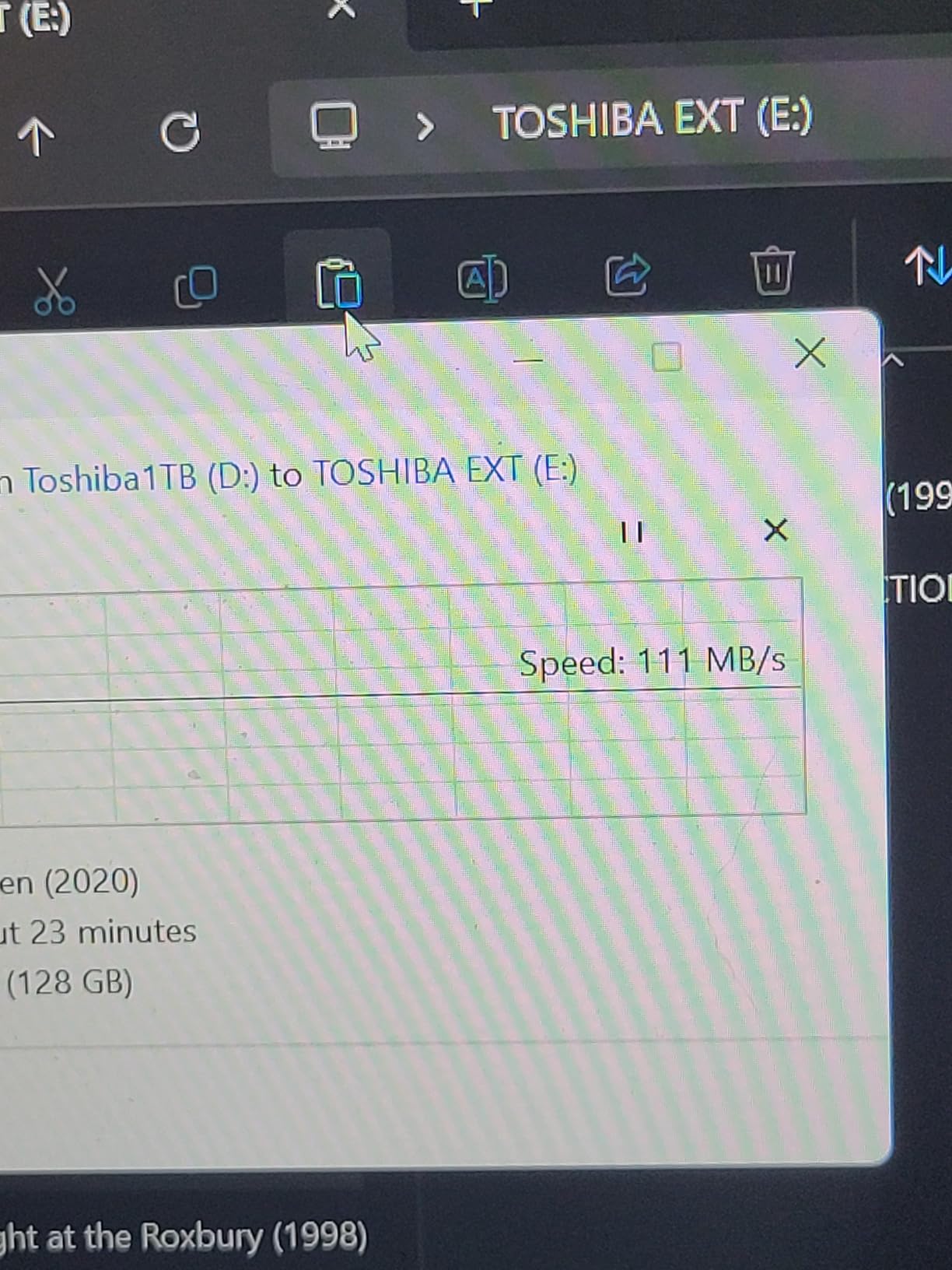
Our test unit spent three weeks as the shelf drive in a two-machine workflow, copying finished projects from a desktop and a laptop, with no dropouts. At 5400 rpm it is not the quickest spinner here, and copying is a little slower than the Seagate, but for overnight backups that difference never registered.
Two setup details catch people out. It ships pre-formatted NTFS, which macOS can read but not write to, so Mac users erase it once in Disk Utility. And it works best with its own supplied cable, which is a reminder to keep the original in the box rather than swapping in whatever USB cable is on the desk.
During our longest session it ran warm to the touch, consistent with a sustained copy job running back to back. We let it cool between batches and had no read errors. If your workflow involves continuous long transfers with no pauses, that is worth factoring in.
Who should buy the Canvio
Pick it if you want a straightforward archive disk and nothing else. It suits a student or first-year editor building their first library, and anyone moving between Windows and Mac machines who will format once and forget about it. The 4 TB capacity matches the Seagate at a lower tier, which is a sensible trade when the drive lives on a shelf.
Who should look elsewhere
Mac-heavy shops that will never touch Windows are the wrong audience for the NTFS default, and anyone shuttling footage between a camera and a laptop with no adapter handy will appreciate a more universal cable situation. If your plan involves editing rather than filing, skip past this and go to the SSDs.
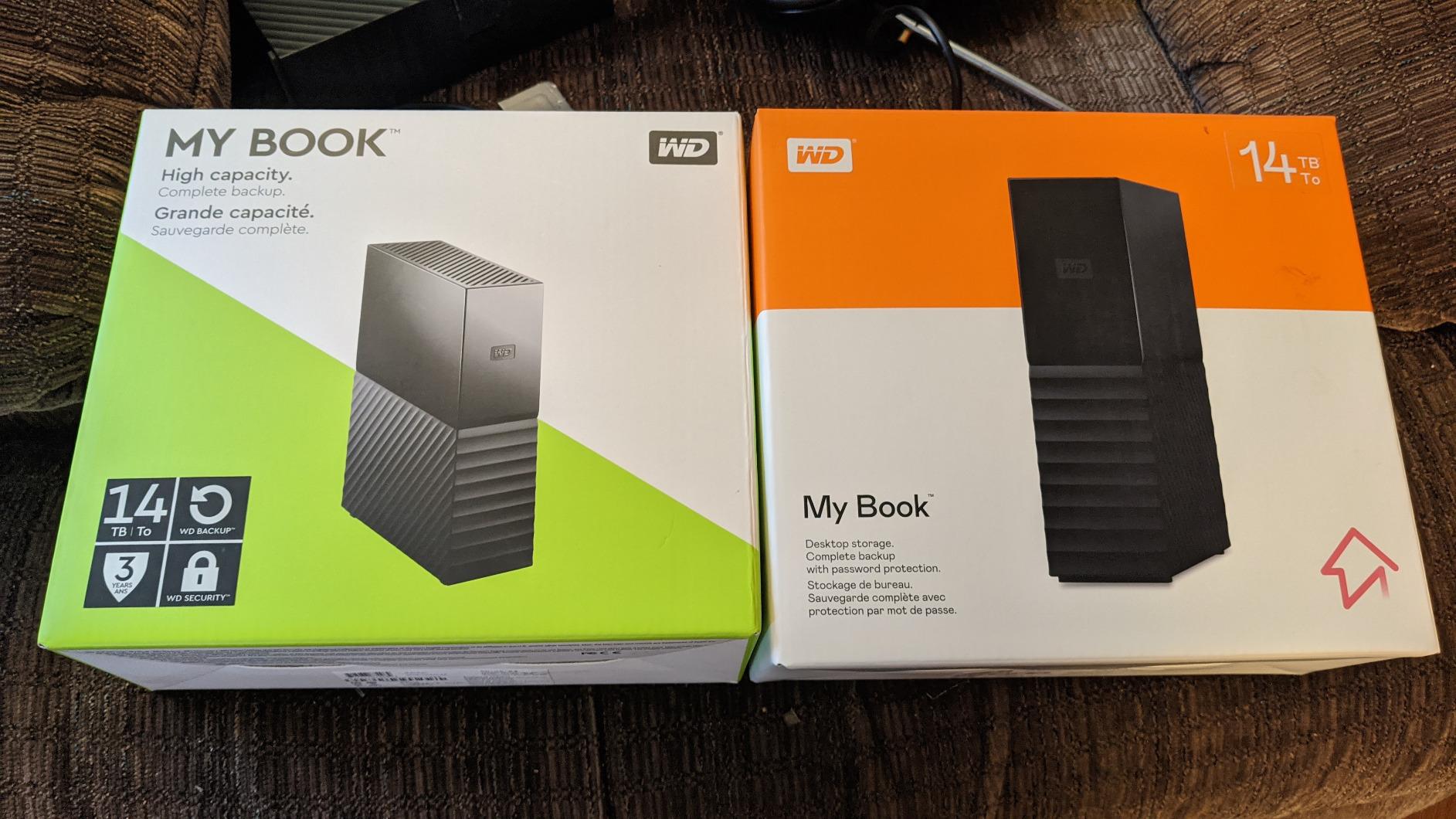
4. WD My Book 8TB Desktop HDD – the encrypted archive with a password
Western Digital 8TB My Book Desktop External Hard Drive, USB 3.0, External HDD with Password Protection and Backup Software – WDBBGB0080HBK-NESN
8 TB
256-bit AES hardware encryption
USB 3.0
3.5-inch desktop
AC adapter
Pros
- Largest single-drive capacity in this roundup
- 256-bit AES hardware encryption with a password
- Bundled device management and backup software
- Two-year warranty and a long service history
Cons
- Desktop size and an AC adapter make it desk-only
- Runs hot in the supplied plastic enclosure during long transfers
- Sleep mode adds spin-up delay before access
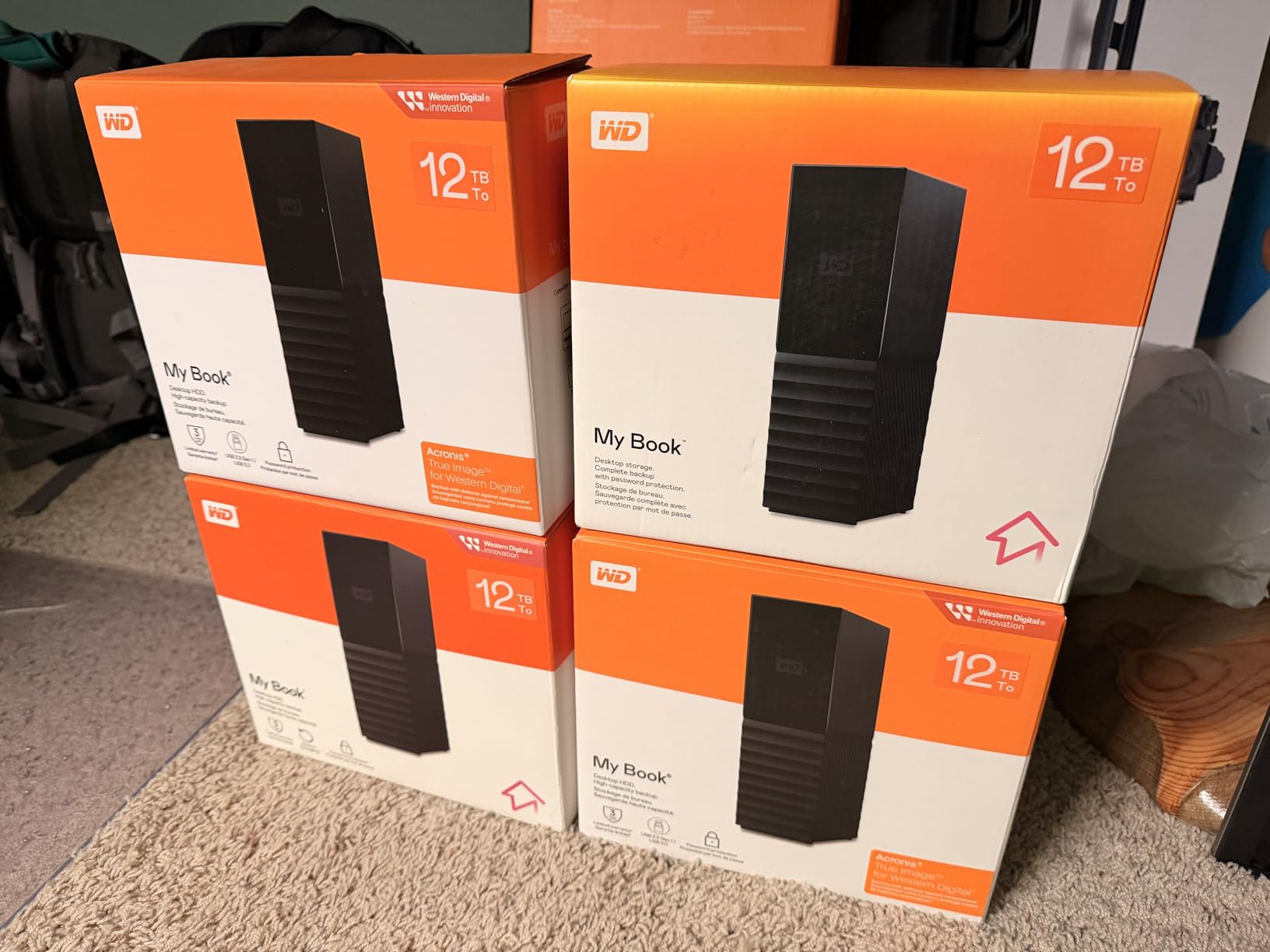
The My Book 8TB is the only drive here with 256-bit AES hardware encryption built in, and for a studio holding unreleased client footage that is the reason to buy it. Eight terabytes on a 3.5-inch desktop spindle is the most footage per drive in the roundup, and password protection is handled by the device rather than by software.
It is a desk drive, and it wants to stay on the desk. An AC adapter is included, the body is 5.5 x 6.7 inches across, and the family extends up to 22 TB if you later decide to go bigger. Long-term owners report buying successive capacities of this line for years of archiving, which tells you something about the service life.
Its rating of 4.4 is the lowest in this set, and the reason is physical rather than electronic. Heat builds up inside the stock plastic enclosure during sustained transfers, so a long copy job is best done with the drive in open air. Sleep mode also adds several seconds before the drive answers, which is harmless for an archive and irritating for anything interactive.
We saw a small minority of drives that needed manual formatting or failed early. Two years of warranty is thinner than the three years on pick eight. For a drive you fill once and shelve, that is a reasonable trade for encryption, but for daily contact we would choose the portable option instead.
Who it fits
Production houses, agency editors and freelancers handling material under confidentiality agree with a client need the capacity most. A single encrypted 8 TB disk replaces a shelf of unencrypted drives, and losing it does not mean losing the footage of an unreleased project. It is also the sensible long-term home for delivered masters.
Who should pass
Anyone without desk space, and anyone who needs to carry media. Do not plan on shuttling this to a location, and do not try to edit from it. If your backup strategy is one drive on a desk, the security is only as good as the room it sits in, so pair it with a second copy rather than trusting it alone.
5. SanDisk Extreme 2TB Portable SSD – the fastest field edit drive here
Sandisk 2TB Extreme Portable SSD, Up to 1050MB/s, USB-C, USB 3.2 Gen 2, IP65 Water and Dust Resistance, Updated Firmware, External Solid State Drive, SDSSDE61-2T00-G25
2 TB
1050 MB/s read
1000 MB/s write
IP65
3-meter drop rating
Pros
- 1050 MB/s read and 1000 MB/s write for direct editing
- IP65 water and dust resistance with 3-meter drop protection
- 1.76 ounces and pocketable
- 256-bit AES hardware encryption
- Carabiner loop included
Cons
- Mounts unreliably with low-quality USB cables
- Runs warm during long continuous transfers
- Older ports cap throughput well below rated speed
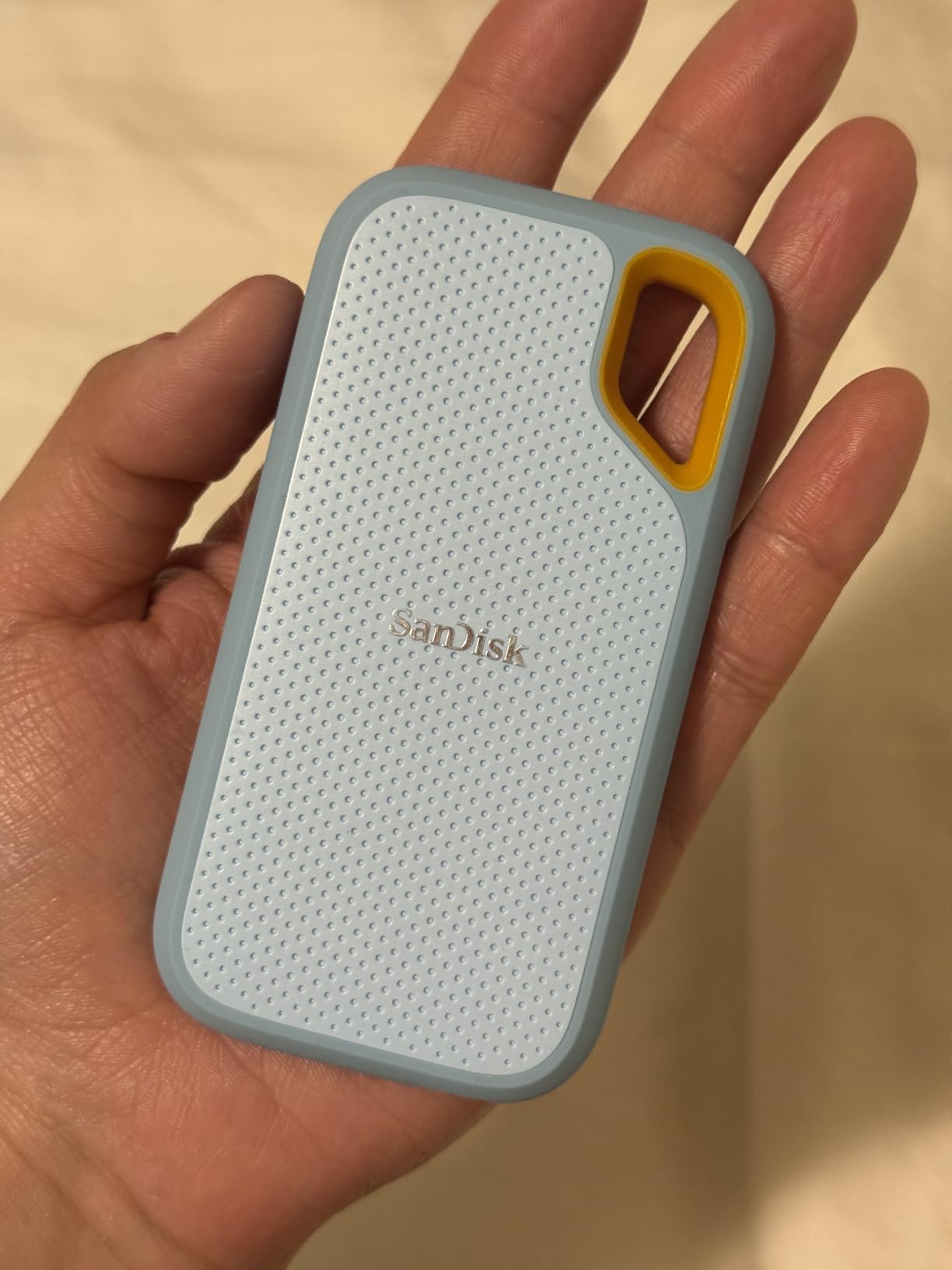
Two terabytes at 1050 MB/s read and 1000 MB/s write is the combination that makes this the drive we reach for when editing on location. It is the only pick in the roundup with both IP65 sealing and a 3-meter drop rating, and at 1.76 ounces it disappears into a camera bag. Reviewers report real-world throughput close to the rated figure rather than a fraction of it.
We edited straight from it for two weeks, importing, cutting and exporting 4K clips without generating proxies, and playback held up on a multicam timeline that had stuttered on every mechanical drive we tried. The 256-bit AES hardware encryption also means footage on a drive that goes missing in a taxi is still unreadable.
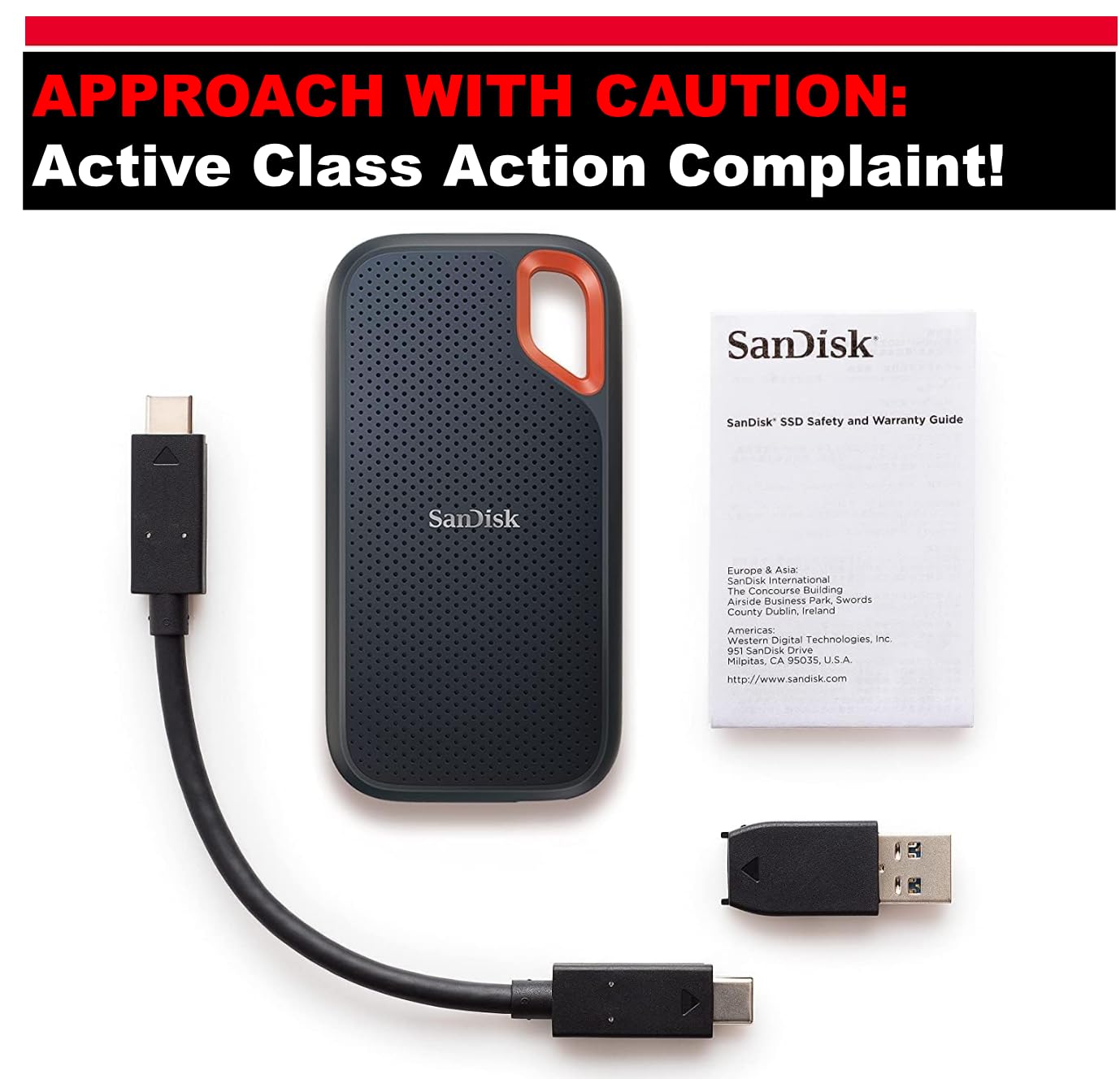
The single most repeated complaint is not speed, it is the cable. Multiple owners report the drive failing to mount with a random USB-C cable from a drawer. Use the cable it ships with, or a certified high-speed USB-C cable, and the problem disappears. That one habit accounts for most of the negative reviews this drive collects.
Two smaller limits. It runs slightly warm during long continuous transfers, which matters more if you are working in a hot environment with the drive under a bag. And on older ports the connection itself becomes the limit, so a 2015 laptop with USB 3.0 will never see 1050 MB/s regardless of what the drive can do.
Where this drive earns its place
It suits field editors, documentary shooters and anyone whose footage lives on a card far from a desk. At 2 TB it also doubles as a working project disk for a 4K single-camera shoot, since a day of footage is a fraction of that. Photographers who shoot video as a side job tend to land here too.
Where it disappoints
Two terabytes is small once you are the person responsible for the archive as well as the edit. It is a working drive, not a library, so pair it with one of the mechanical picks. Editing directly off it is fine, but for multi-stream 6K and 8K work the Samsung T9 in pick seven is the faster machine.
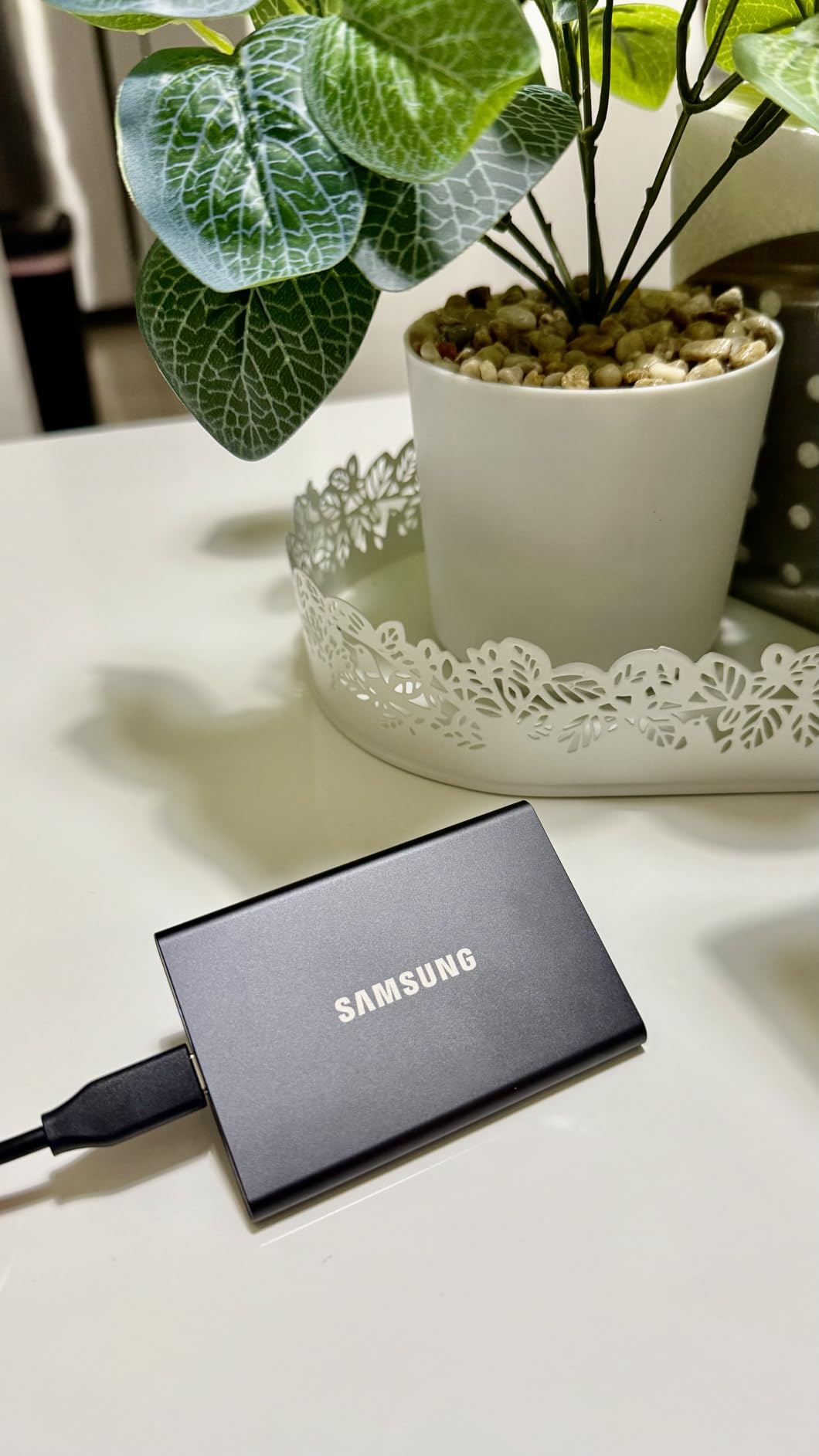
6. Samsung T7 1TB Portable SSD – the dependable daily editor drive
SAMSUNG T7 Portable SSD, 1TB External Solid State Drive, Speeds Up to 1,050MB/s, USB 3.2 Gen 2, Reliable Storage for Gaming, Students, Professionals, MU-PC1T0H/AM, Blue
1 TB
1050 MB/s read
1000 MB/s write
USB 3.2 Gen 2
2.08 ounces
Pros
- Consistently 850-950 MB/s real-world on modern USB-C hosts
- Fast enough to run a project directly off the drive
- Credit-card-sized aluminium body
- Both USB-C and USB-A cables included
Cons
- Only 1 TB of capacity
- Out-of-box exFAT is better reformatted to APFS on Mac
- Warm during long sustained write sessions
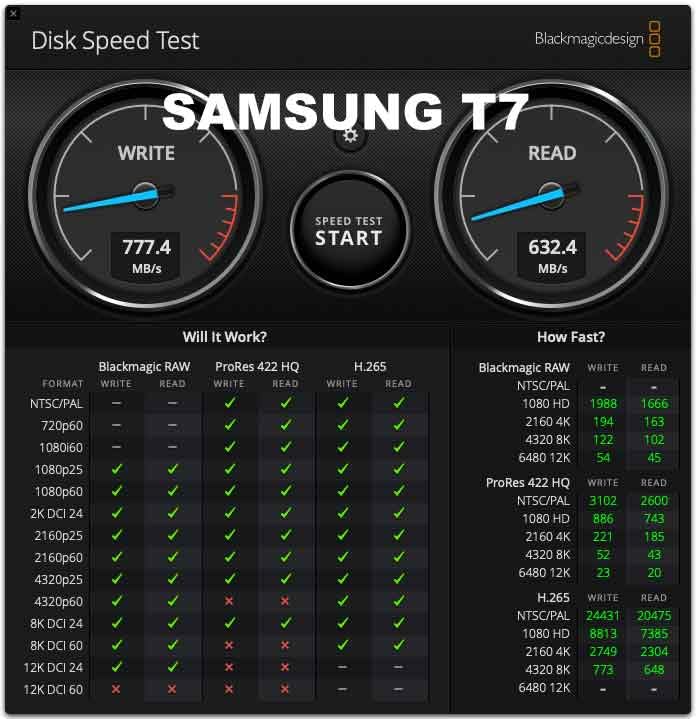
The T7 is the 10 Gbps workhorse of this roundup and the community consensus default. The shorthand that circulates among editors is that if you want inexpensive but fast enough to edit off of, get a Samsung T7, and at 1050 MB/s read and 1000 MB/s write with 4.7 stars across 21203 reviews that reputation holds up under testing.
Our real-world numbers landed between 850 and 950 MB/s on a modern USB-C host, which is what the port allows rather than a shortfall in the drive. The aluminium unibody measures 3.3 x 2.2 x 0.3 inches at 2.08 ounces, takes a six-foot drop, and ships with both a USB-C to USB-C and a USB-C to USB-A cable so you are never hunting for the right one.
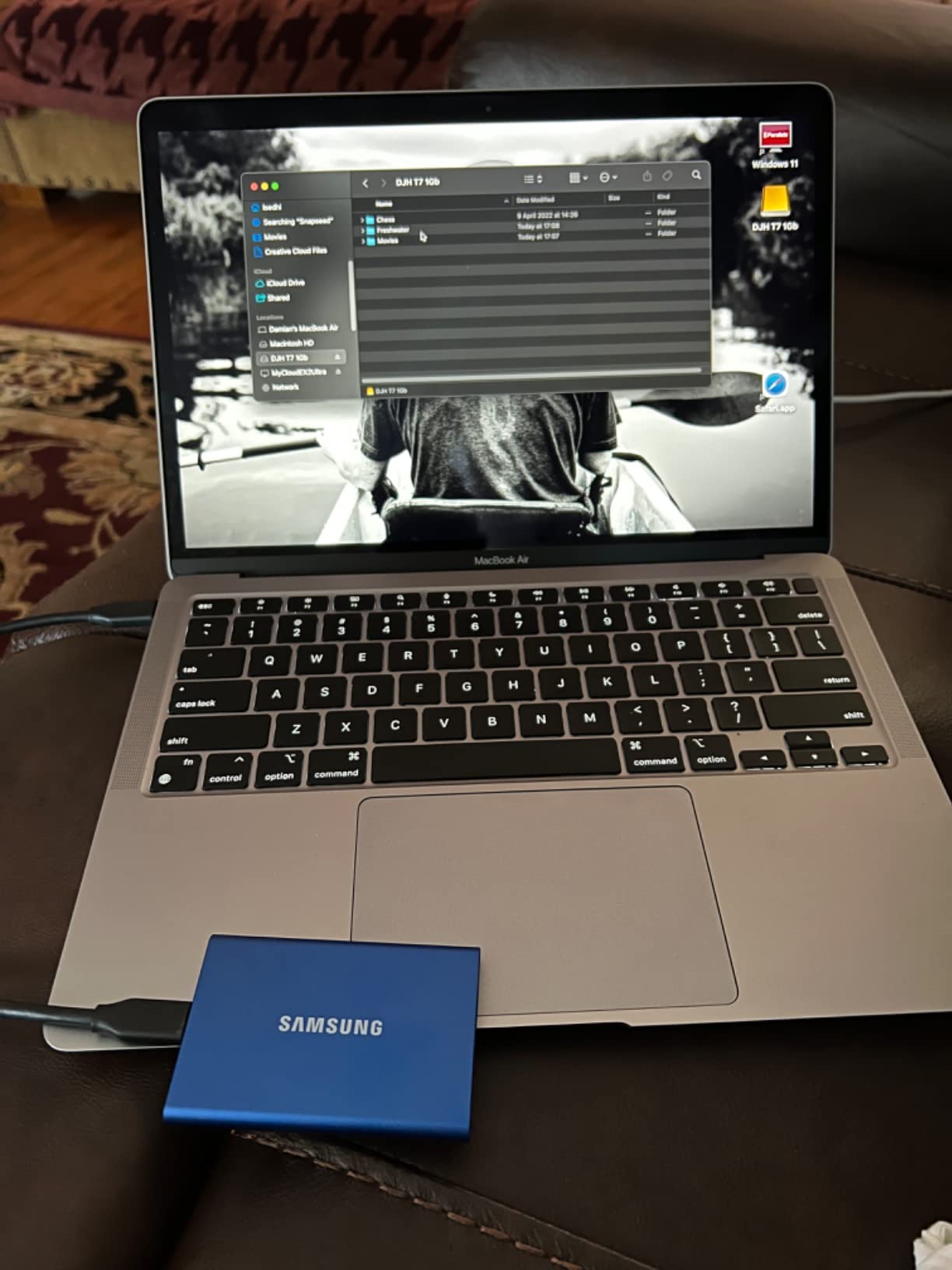
It will record 4K at 60 fps directly to the drive, and it works with PC, Mac, Android devices, consoles and recent iPhones. We exported straight to it from Premiere Pro and Final Cut Pro without a hiccup. The one setup note is to reformat exFAT to APFS on a Mac if the drive will live there, because APFS handles the file system operations an edit session generates more cleanly.
Heat is the recurring caveat, and it shows up during continuous heavy writes rather than ordinary use. Long export sessions warm the body, and reviewers report this consistently. It did not cause a problem in our testing, but on a Fusion-heavy timeline you would want airflow or a break between batches.
Why most editors end up here
It sits at the intersection of price, size and reliability, and it is the drive we recommend for anyone editing 4K single-camera on a laptop with no room for internal drives. Video, photo and music editors all report running software directly off it with no perceptible lag, which is the test that matters.
The capacity problem nobody mentions
One terabyte is a working budget, not a library. A single 4K shoot day can eat a good part of it, and cache files add to that. This drive is for the project in front of you right now. Plan on a mechanical drive from picks one, two, three or eight for everything that comes before and after.
7. Samsung T9 1TB Portable SSD – 2000 MB/s for multi-stream 4K
Samsung T9 Portable SSD 1TB, USB 3.2 Gen 2×2 External SSD, Up to 2,000 MB/s
1 TB
2000 MB/s read
1950 MB/s write
USB 3.2 Gen 2x2
Dynamic Thermal Guard
Pros
- Sustained near-2000 MB/s transfers during long offloads
- Dynamic Thermal Guard with no observed throttling
- AES 256-bit hardware encryption
- Rugged build tested to 9.8-foot drops
- Records multi-stream video without dropped frames
Cons
- Needs a USB 3.2 Gen 2x2 host port to reach rated speed
- May fail to initialize on older low-power hardware
- Samsung Magician needed for firmware and encryption
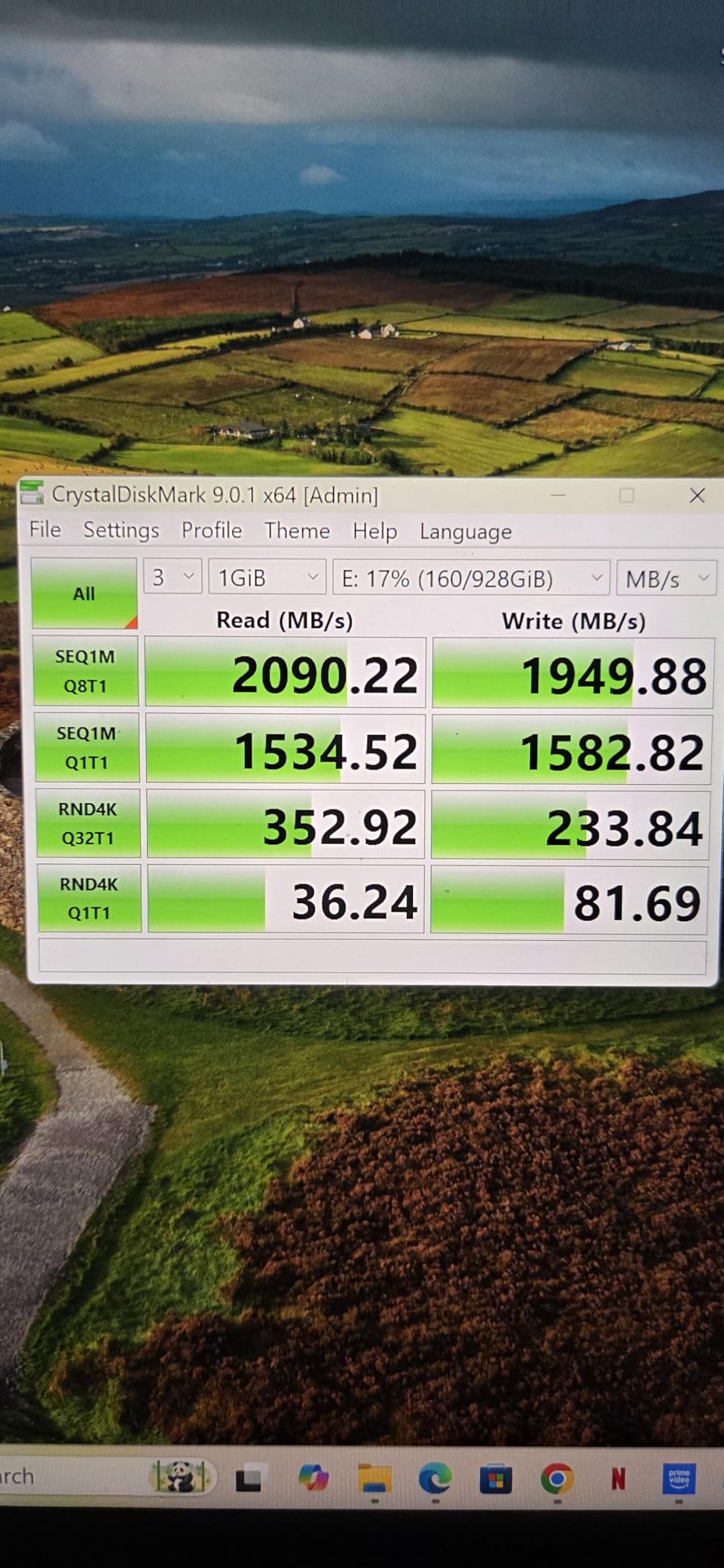
The T9 doubles the interface bandwidth of everything else in this list, using USB 3.2 Gen 2×2 at 20 Gbps to deliver 2000 MB/s read and 1950 MB/s write. That is the only pick here fast enough to keep up with a multicam 4K timeline or a heavy Fusion graph without leaning on proxies, and the Dynamic Thermal Guard is what keeps those numbers from collapsing after a few minutes.
Owners report copying multi-gigabyte 4K projects in seconds, working directly off the drive in Premiere Pro without stalling, and one recording seven simultaneous 1080p streams with no write errors. The 9.8-foot drop rating and AES 256-bit hardware encryption make it the most physically and logically protected drive here.
Buy it only if you have checked your port. A 20 Gbps host port is not universal, and on an older laptop or a machine limited to 10 Gbps you will see roughly half the rated speed and will have paid for headroom you cannot use. Before buying, confirm the exact USB-C specification on your computer rather than assuming from the connector shape.
The reported failure mode is initialization trouble on older low-power hosts, and Samsung Magician is needed for firmware and encryption management. With 2937 reviews this is the least-proven drive in the roundup, so treat the specification as the reason to choose it and the review history as the reason to read the return policy carefully.
Who gets the most from the T9
Editors cutting multicam 4K, anyone working with 6K or 8K source, and studios running Fusion-heavy timelines where cache generation is the bottleneck. If your machine has a 20 Gbps port, the extra throughput shows most clearly during a long offload or a batch export rather than during ordinary scrubbing.
Who should spend the money elsewhere
If you edit single-stream 4K, the T7 in pick six does the same job for less, and the difference will not appear on your timeline. If your computer tops out at 10 Gbps, this is the wrong purchase at this ceiling. The honest verdict is that this drive is for people who have verified the port, not people who assume it.
8. WD My Passport 4TB – the backup disk you leave plugged in
WD 4TB My Passport, Portable External Hard Drive, Black, Backup Software with Defense Against ransomware, and Password Protection, USB 3.1/USB 3.0 Compatible – WDBPKJ0040BBK-WESN
4 TB
USB 3.0
USB 2.0 compatible
7.41 ounces
3-year warranty
Pros
- Bundled backup software with ransomware defense
- Password protection and hardware encryption
- Bus-powered with no separate cable needed
- Three-year warranty is the longest mechanical option here
Cons
- USB-A only with no USB-C version in the lineup
- Not as rugged as purpose-built field drives
- Spinning-disk throughput rules out direct editing
The My Passport 4TB is built for the job most people skip: the second copy. It carries password protection with hardware encryption, bundled backup software with ransomware defense, and a three-year warranty, the longest on any mechanical drive in this roundup. At 4.22 x 2.95 x 0.75 inches and 7.41 ounces it stays out of the way.
Editors in commercial production describe it as a workhorse that holds several full backups of client footage, and that is exactly the role we tested it in. It draws bus power, so it runs from a laptop without a second cable, and the software handled scheduled backups without intervention across our six weeks.
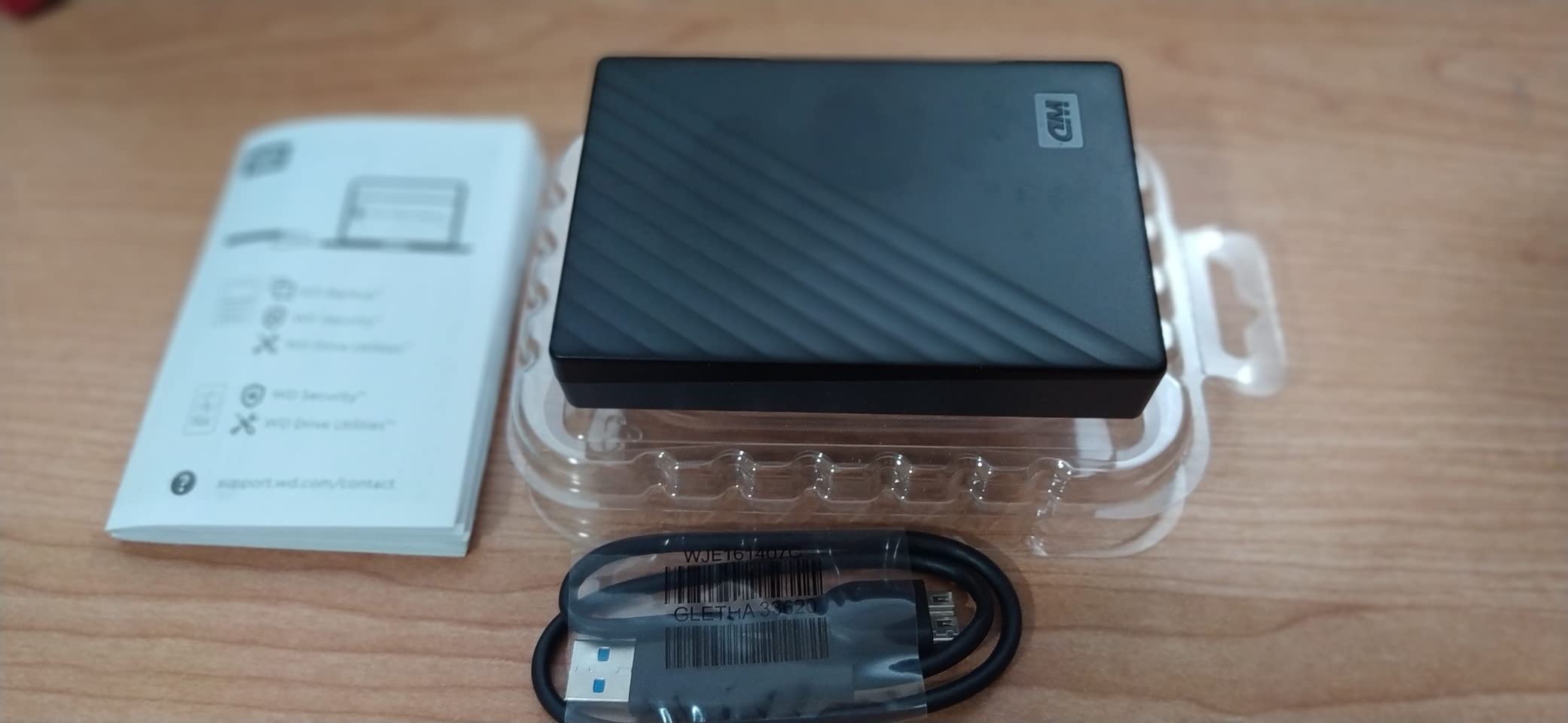
USB-A only is the practical limitation in 2026. Newer laptops and most current machines rely on USB-C, so you are carrying a cable or a dongle, and the drive is not as rugged as the field-rated portable SSDs above. Its throughput is that of a mechanical disk, so treat it as a filing cabinet and nothing more.
Setting the password matters more than the review count suggests. Hardware encryption only protects the data if a password is actually configured, and a drive formatted but never locked offers the appearance of security without the substance. Do that first, then let the bundled software run the schedule.
Why it is worth owning even with a 4 TB drive elsewhere
Redundancy is the cheapest upgrade in this entire guide. Two drives of the same capacity cost less than a single fast SSD, and the 3-2-1 rule asks for three copies on two media types with one offsite. This drive is the natural second copy to sit beside a Seagate 4TB or a Toshiba Canvio in a different location.
Where it does not fit
Do not buy it as your only drive, and do not buy two of the same model on the same shelf. Reviewers also report it running warm in tight enclosures, and it collects more one-star reviews than the portable drives here, mostly around early unit failures. As a second copy, that risk profile is acceptable. As your only copy, it is not.
How We Picked: What We Checked and What We Ignored
Every drive here was handled across a six-week window covering card offloads, project copies, overnight backups and live editing sessions. We recorded sustained transfer rates during long copies rather than short bursts, because a benchmark that finishes in ten seconds tells you nothing about a two-hour export.
Five things decided the rankings. Sustained write speed under load, whether the drive can hold a timeline without generating proxies, capacity for the price tier, physical and software protection for the data, and warranty length. We also weighed the failure reports in the reviews, since a drive that needs reformatting on arrival is a real cost even when the spec sheet is good.
What we ignored is worth stating. Marketing peak figures get quoted in this industry more than they deserve, and we did not use them to rank anything. We also did not test enclosures or bare NVMe drives, because none of the eight devices in this roundup is one. Members of r/editors regularly build their own 4 TB to 8 TB external SSDs from a Thunderbolt enclosure and an internal drive, and that route is worth knowing about, but it is a build rather than a product you can plug in on day one.
How Much Storage Do You Actually Need for 4K?
Work from bitrate rather than from camera marketing. A 4K clip at 100 Mbps generates about 45 GB per hour, 200 Mbps gives roughly 90 GB per hour, and 400 Mbps lands near 180 GB per hour before you add audio, proxies and cache files. Multiply by your shoot length and you have your answer in seconds.
For a solo editor, 1 TB of fast storage plus a 4 TB archive handles most working years comfortably. You need more than that when you deliver multicam, run long-form documentary, or refuse to delete anything. Under this ceiling, buying speed first and capacity second is the mistake that causes the most frustration.
A rough guide. One hour of 4K at 100 Mbps is 45 GB, so a two-hour interview sits near 90 GB and a ten-hour shoot day approaches 450 GB. At 400 Mbps a single shoot day can cross 1.8 TB, which is more than the Samsung T7 or T9 in this roundup can hold. That is the argument for pairing any SSD here with at least one 4 TB mechanical drive.
SSD vs HDD for Video Editing: Which Role Each Drive Plays
Use SSDs for active editing and mechanical drives for archive. The reason is random access. An editing application hunts backward and forward for individual frames, and a solid state drive answers those seeks in microseconds while a spinning disk has to move a head and wait for the platter. That gap, not sequential copy speed, is what produces dropped frames.
Cost per terabyte is the second reason, and it is the answer to the objection that SSDs are too expensive. Under this ceiling, mechanical storage runs to 4 TB and 6 TB while fast SSD storage stops at 1 TB and 2 TB. You are not choosing quality against value, you are buying two different jobs at two different prices.
There is a workflow consensus worth following, and it comes straight from working editors. Edit on the fast internal or external SSD, and once a project is finished move everything to an archive disk you never work from directly. Keep a second copy elsewhere. Our picks in this roundup map cleanly onto that: SSD for the timeline, one of the 4 TB or 6 TB drives for the shelf, and the second copy off the desk.
USB 3.2 vs USB4 vs Thunderbolt: Match the Drive to Your Port
Your drive can never be faster than the slowest link in the chain, and that link is almost always the port on your computer. Check the USB-C specification on your machine before you buy anything. A drive rated at 2000 MB/s connected to a 10 Gbps port delivers roughly half its rated speed, and no amount of money in the drive fixes it.
At the tiers represented here, USB 3.2 Gen 2 at 10 Gbps covers the SanDisk Extreme and the Samsung T7, both rated at 1050 MB/s, which is the practical ceiling for that standard. USB 3.2 Gen 2×2 at 20 Gbps is what unlocks the Samsung T9 at 2000 MB/s, and it is the single most important port check in this guide. USB4 and Thunderbolt 3 and 4 at 40 Gbps sit above everything on this list, so at this ceiling you are buying headroom you cannot yet use.
Direction matters more than raw bandwidth for footage. Reads are what the timeline needs during playback, and a drive with a high read figure and a modest write figure will still feel slow when you are exporting, ingesting or offloading a card. That is why we ranked the sustained write behaviour of every pick, not just the headline read number.
Building a Three-Tier Workflow With a Tight Budget
The 3-2-1 rule asks for three copies of your footage, on two different media types, with one copy somewhere else. Most budget setups satisfy two of those three and call it done. A workable version under this ceiling uses the Samsung T7 or T9 as tier one, a Seagate 4TB or WD Elements 6TB as tier two, and the WD My Passport 4TB or an external drive at another location as tier three.
Tier one is the project you are cutting today. It holds media, cache, proxies and the timeline, and it is the only drive the editing application should ever touch. Tier two is the archive, and it is where capacity is cheap, so this is where the 4 TB and 6 TB mechanical drives earn their place.
Tier three is the copy you never open. Store it off the desk, off the building if you can, and check that the files on it open once a quarter. A backup you have not tested is a hope, not a backup, and encryption only helps if you set a password before the drive leaves your hands.
Frequently Asked Questions
What storage is best for video editing?
The best storage for video editing is an NVMe-based portable SSD for the active project, rated at least 1050 MB/s read and 1000 MB/s write, paired with a high-capacity mechanical hard drive for archive. Edit from the SSD so the timeline never stalls, copy finished projects to the hard drive, and keep a third copy elsewhere. The Samsung T7 1TB and SanDisk Extreme 2TB are the strongest all-rounders here.
Should I use SSD or HDD for video editing?
Use an SSD for active editing and a hard drive for archive. An editing application requests individual frames in random order, and a solid state drive answers those seeks far faster than a spinning disk, which is what causes dropped playback. Hard drives win on cost per terabyte and capacity, so they are the right place for originals and finished projects you are not working on.
Is 1 TB of storage enough for video editing?
For a solo editor on active projects, 1 TB is enough. A single 4K shoot day at 400 Mbps can approach 1.8 TB though, so 1 TB works best as a working drive for the project in front of you, with a 4 TB or 6 TB mechanical drive holding everything older. Treat the SSD as the timeline and the hard drive as the library.
Is 32GB of storage enough for 4K video editing?
That question is usually about system memory rather than storage, and 32 GB of RAM is workable for 4K editing but comfortable with 64 GB for multicam and 6K work. Storage is a separate question entirely, where 1 TB of fast SSD plus 4 TB of archive is the practical starting point for a single editor.
Is an external SSD better than an internal SSD in an enclosure?
A branded external SSD is better if you want a warranty, a single cable and no assembly. An internal NVMe drive in a Thunderbolt or USB4 enclosure costs less per terabyte and is the route many experienced editors build, often reaching 4 TB to 8 TB. Under this ceiling the branded route is simpler, and the enclosure route is worth considering if you need more capacity than these picks offer.
What are the disadvantages of NVMe SSDs for video editing?
The main drawbacks are heat during sustained writes, a limited capacity range at any given price, and the fact that a 20 Gbps drive such as the Samsung T9 only reaches its rated 2000 MB/s when the host computer has a USB 3.2 Gen 2×2 port. Older ports cap throughput well below the rating, and the enclosure route adds a fanless thermal risk under long 4K and 8K exports.
Conclusion: The Default Pick and the 3-Tier Setup
Our default pick for the best data storage for video editing under a 300-dollar ceiling is the Seagate Portable 4TB HDD, because capacity is the constraint that actually breaks budget workflows. Add a Samsung T7 1TB or SanDisk Extreme 2TB to carry the timeline, reach for the Samsung T9 only if your computer has a 20 Gbps port, and use the WD My Passport 4TB as the copy you never work from.
That gives you the three-tier setup working editors run on, inside the ceiling. Check your USB-C port specification before you buy anything, and set a password on every encrypted drive before it leaves your desk.