
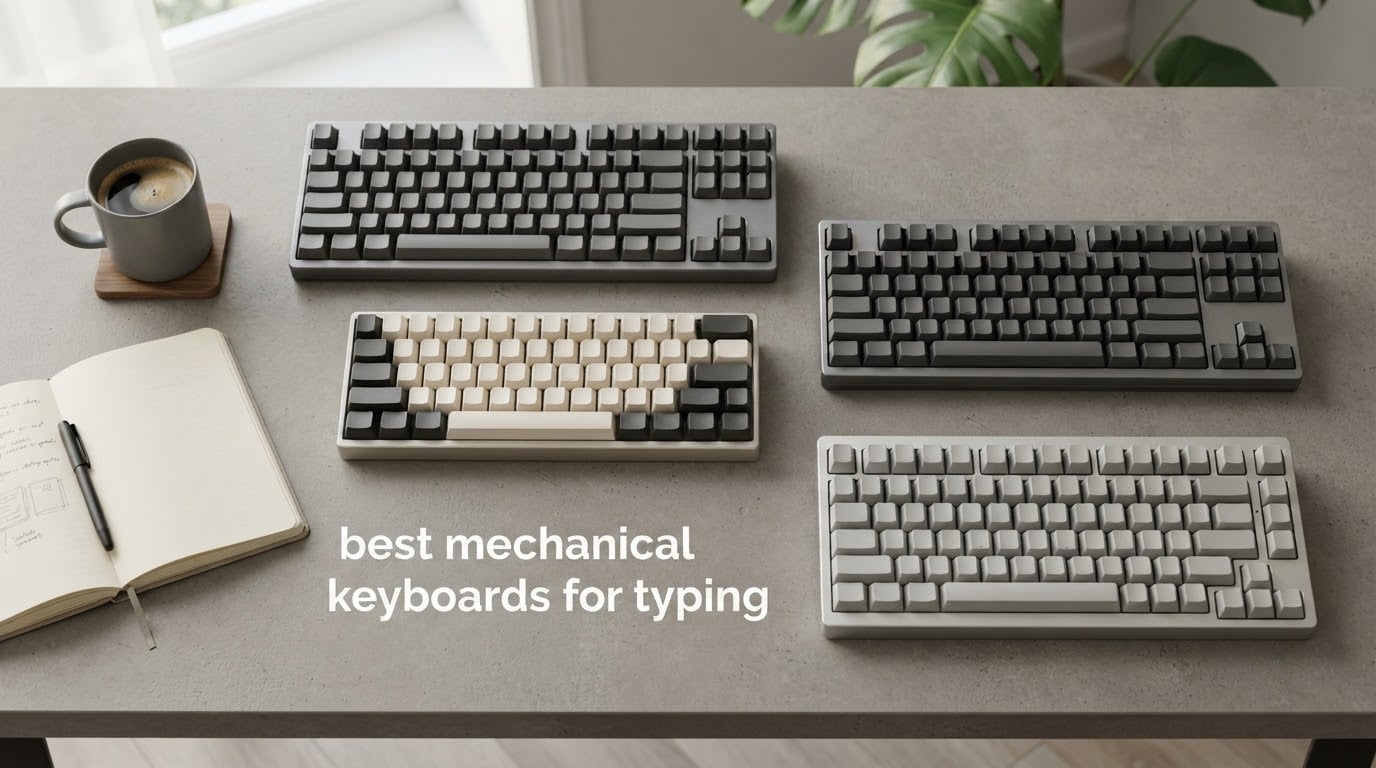
The best mechanical keyboard for typing in 2026 is the Redragon K552P, a heavy 87-key tenkeyless board with a stiff aluminum frame, hot-swappable sockets and double-shot PBT keycaps that stay planted while you type. If you work in a shared office, the GravaStar Mercury K1 is the quieter and better-damped option. If you want the deepest sound per dollar, the RK Royal Kludge R75 is the one.
That is the short answer. Everything below it is the long answer, built from twelve boards we examined closely for one purpose: how they behave when you type on them for hours, not how they perform in a game.
There is a specific problem with roundups like this one. Almost every mechanical keyboard sold today is marketed at gamers, which means almost every one of them ships with clicky Blue switches, an RGB rainbow, a raised logo and a macro column. Those four things are close to irrelevant if your job is words. So instead of ranking by spec sheets, we ranked by the handful of variables that actually change a long typing session: how the switch feels at the actuation point, how the spacebar and modifier keys behave, how loud the board is at normal volume, whether the case wobbles, how the keycap legends wear, and how far your mouse ends up sitting from your body.
We also split every board into one of two buckets, which no competitor does. Some keyboards feel excellent the moment you unbox them and never need attention again. Others are mediocre out of the box but have hot-swappable sockets, so you can pull the switches in five minutes and transform the feel. Those are different purchases for different people, and confusing the two is the single most common regret we see in keyboard communities.
Our existing guides cover adjacent ground well: tenkeyless boards for coders, mechanical keyboards for programmers and premium aluminum mechanical keyboards all go deeper on build quality. This one is narrowed to typing feel alone. If your problem is a key that double-fires, that is a fault rather than a taste question, and it has its own guide: why a mechanical keyboard double types and how to fix it.
Table of Contents
How We Tested and Chose These Keyboards
We judged each board on seven things, in this order: switch feel at the actuation point, stabilizer behaviour on the spacebar and the modifiers, acoustic character at normal typing volume, keycap texture and legend durability, case rigidity and whether the board creeps under load, layout fit for mouse proximity, and wireless behaviour where a board offers it.
Stabilizers got more attention than they get in most reviews. A spacebar that ticks on the upstroke is the single most annoying thing a typing keyboard can do, and boards with factory-lubed stabilizers and internal foam handle it noticeably better than boards without. Where a product page listed the stabilizers as factory-lubed, we treated that as a real advantage rather than a footnote.
We also handled the noise question carefully. Almost nobody publishes decibels for a keyboard, and we are not going to invent them. Instead we compared each board against the others in the same room at the same typing volume and sorted them into loud, moderate and quiet bands. The forum evidence backs this up: when people ask for an office-friendly board, what they are really asking for is a board that is not louder than a normal conversation.
One thing we deliberately did not do is publish a words-per-minute table. Any typist will tell you that speed comes from muscle memory in your head, not from the board under your fingers, and a benchmark measured on someone else’s hands says nothing about yours. Competitors get away with describing typing feel as exceptional or legendary without a single measurable number, and we think that is the right call rather than a gap.
Every pick here is wired or wireless from the brands currently shipping complete prebuilt boards with hot-swap sockets and gasket or foam-based mounting. We left out barebones kits and solder-only customs, because they assume you already know what you are doing.
Top 3 Picks for Typing (October 2026)
These three cover the most common typing situations. The Redragon K552P wins overall on build weight and keycap quality for a modest outlay, the GravaStar Mercury K1 wins on damping and battery life, and the RK Royal Kludge R75 wins on sound and mounting.

Redragon K552P TKL
- 87-key tenkeyless
- Hot-swappable 3-pin sockets
- Double-shot PBT caps
- 900 g aluminum frame

GravaStar Mercury K1
- Gasket mount with 5 foam layers
- Tri-mode wireless
- 8000mAh battery
- 40 gf linear switches

All 12 Best Mechanical Keyboards for Typing Compared in 2026
Every board below appears here with its layout, its switch type and the feature that matters most for typing. The full list is sorted in the order we recommend them.
| Product | Specifications | Action |
|---|---|---|
| Redragon K552P TKL |
|
Check Latest Price |
 Redragon K556 Redragon K556 |
|
Check Latest Price |
 Logitech G Pro TKL Logitech G Pro TKL |
|
Check Latest Price |
 Redragon K580 Redragon K580 |
|
Check Latest Price |
| GravaStar Mercury K1 |
|
Check Latest Price |
 AULA F75 Pro AULA F75 Pro |
|
Check Latest Price |
 AULA F99 AULA F99 |
|
Check Latest Price |
| RK Royal Kludge R75 |
|
Check Latest Price |
 Logitech G413 SE Logitech G413 SE |
|
Check Latest Price |
 Das Keyboard 4 Professional Das Keyboard 4 Professional |
|
Check Latest Price |
 YUNZII AL80 YUNZII AL80 |
|
Check Latest Price |
 Logitech Alto Keys K98M Logitech Alto Keys K98M |
|
Check Latest Price |
1. Redragon K552P TKL: The Best Mechanical Keyboard for Typing Overall
Redragon K552P Mechanical Gaming Keyboard TKL with 18 Backlight Modes, Hot-Swappable Red Switches, 87-Key Compact Ergonomic Design, N-Key Rollover & Software Programmable Macro – RGB, Black
87-key TKL
900 g
Aluminum frame
Double-shot PBT
Hot-swappable 3-pin
Pros
- Heavy frame that stays planted
- Hot-swappable sockets included with puller
- Double-shot PBT keycaps resist shine
- Compact TKL frees mouse space
Cons
- Loud clicky typing
- Raised logo and gamer font
- Weak bundled software
This is the board we recommend most often, and the reason is boring in the best way: it is heavy at 900 grams, it has a full aluminum frame, and its keycaps are double-shot PBT. Almost nothing else at this tier gets all three.
Weight is the variable nobody measures and everybody notices. A board that will not creep across the desk while you hammer a paragraph is worth more over a workday than any lighting feature. The K552P stays put, and the double-shot PBT legends will not wear off or turn glossy the way ABS prints do after a few months of skin contact.
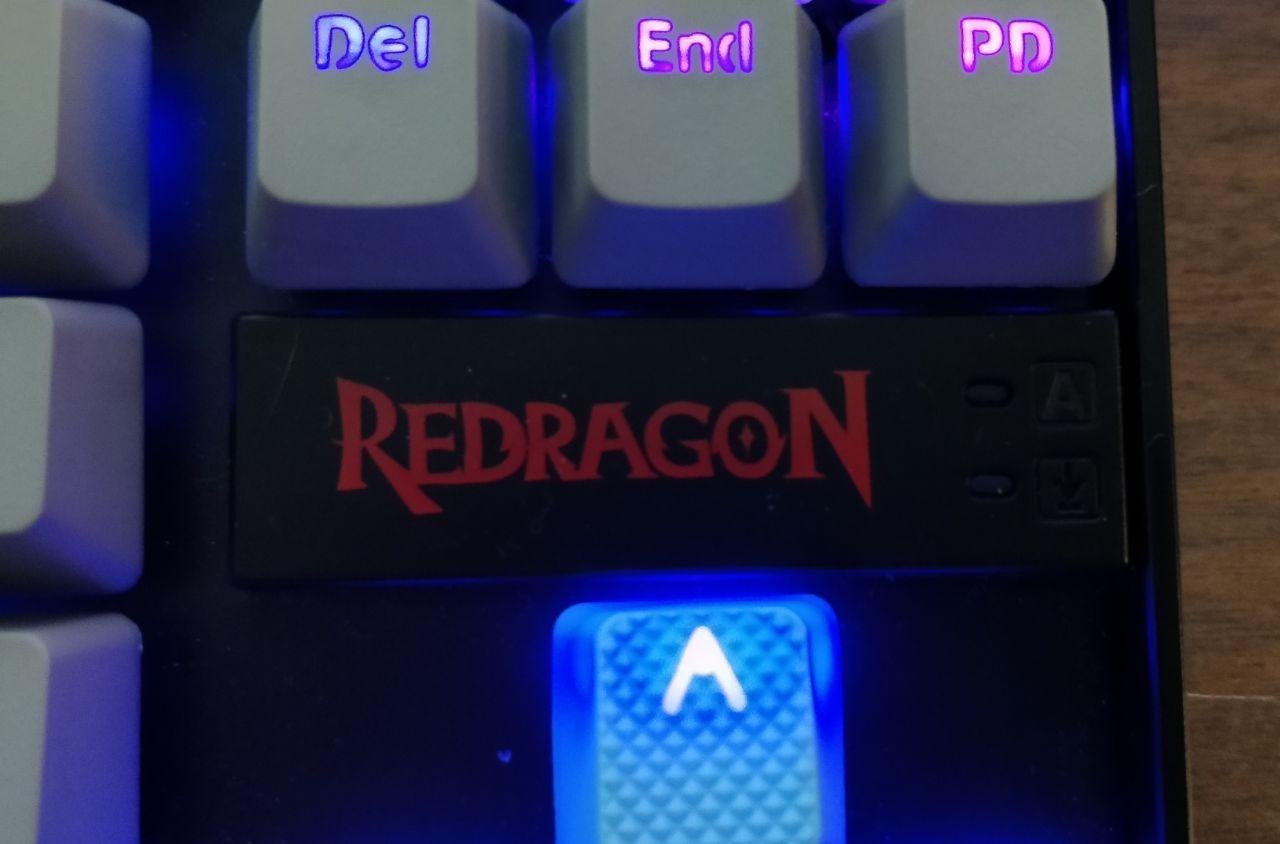
The catch is the switches. It ships with clicky Blue switches, which are genuinely audible and the single biggest reason this board lives on desks rather than in living rooms. That is a real cost for anyone sharing a space, and I would not pretend otherwise. The saving grace is the hot-swap socket array, which accepts 3-pin switches.
That socket array is what turns this from a gamble into a safe first purchase. You can pull the clicky switches out in five minutes with the included keycap puller and drop in a tactile or linear pair without touching a soldering iron. Community buyers treat hot-swap as insurance against disliking the switch you were given, and on this board that insurance costs nothing extra.
Who the K552P suits
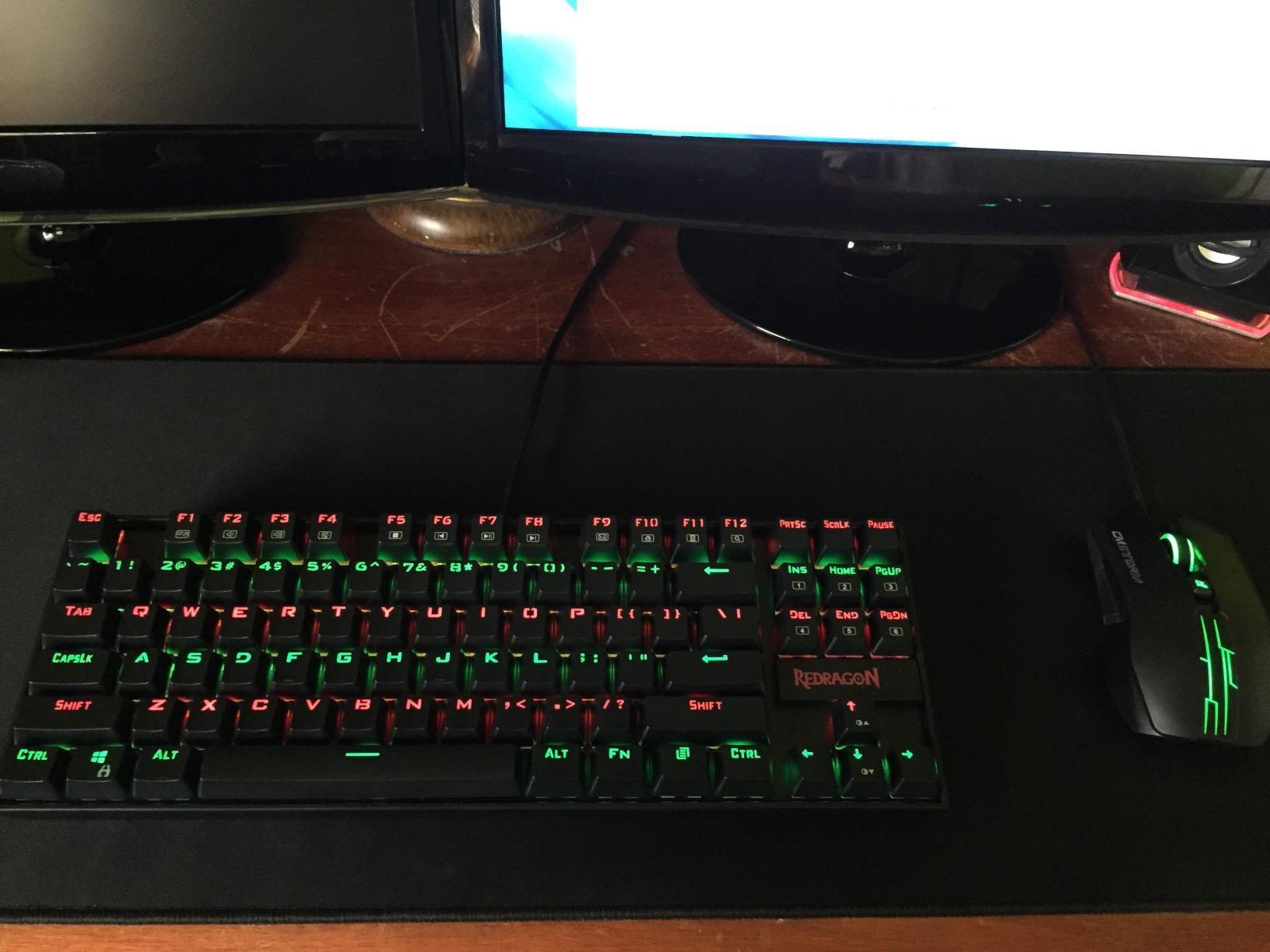
It suits someone on their first mechanical keyboard who wants to try switches without committing, and someone who types in short bursts in a room where a clicky board is tolerated. The 87-key layout keeps a dedicated function row and arrow cluster while leaving clear desk space for a mouse, which is the ergonomic argument for tenkeyless boards in general.
It also suits a typist who wants PBT keycaps specifically. Double-shot PBT has a matte, slightly textured surface that keeps your fingers from sliding, and it holds its legends indefinitely compared with cheaper dyed ABS sets.
Who should skip the K552P
Skip it if you are on video calls all day or share a small office. A clicky Blue board announces every keystroke to the entire room, and no amount of liking the build fixes that. Check our backlit mechanical keyboard guide if low light is your problem instead, since this board’s 18 RGB modes do help there.
Skip it if you dislike gamer styling. The raised Redragon logo and angular keycap font are polarizing, and the lettering prints block a good share of the backlight. The bundled control software is also weak, though the on-board FN shortcuts cover lighting well enough that you may never open it.
2. Redragon K556: The Best Full-Size Board for Long Typing Sessions
Redragon K556 Wired RGB Mechanical Gaming Keyboard, 104-Key Aluminum Board
104-key full-size
1000 g
Brushed aluminum
Brown tactile
Hot-swap 3 and 5 pin
Pros
- Brown tactile switches suit long sessions
- Aluminum plate removes flex
- Internal foam tames the sound
- Real numpad included
Cons
- Heavy and not portable
- Fixed non-detachable cable
- Software needed for macros
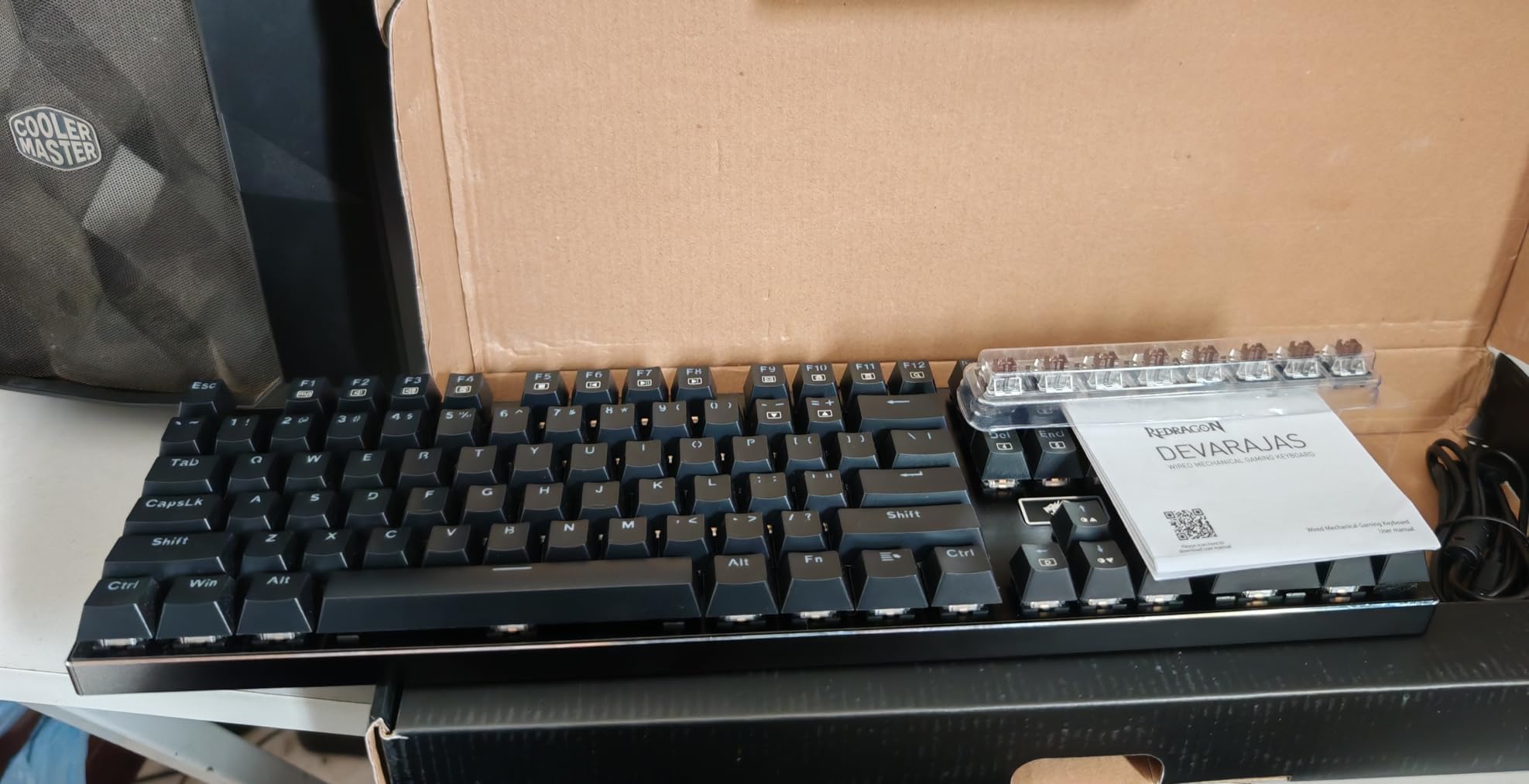
The K556 is the board I recommend to people who type spreadsheets for eight hours and would be annoyed by a missing numpad. It is a full 104-key layout with a brushed aluminum alloy case and plate, and the whole thing weighs a kilo.
More importantly, it ships with Brown tactile switches. That is the single most important fact on this page for long sessions, and I will come back to it in the switch guide below. A tactile bump tells your finger a keystroke registered without any audible click, which reduces accidental presses and makes long stretches of text noticeably less tiring.
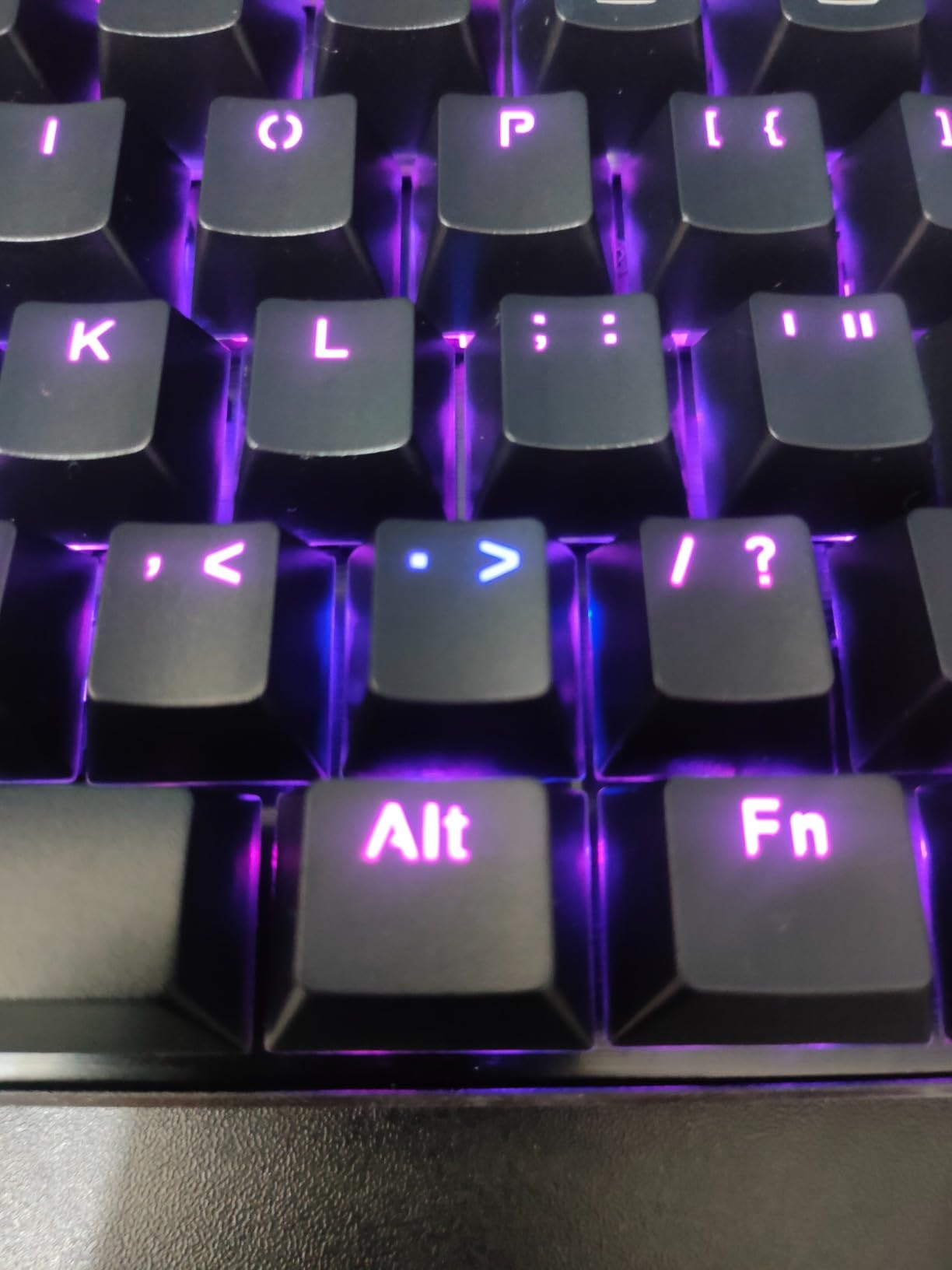
The internal noise-absorb foam does more work than it sounds like it should. It takes the hollow ring out of the aluminum case and turns what would be a bright, echoing board into something closer to a muted thock. Some modifiers and keys are still loud, but the character is office-adjacent rather than disruptive.
The hot-swap sockets here accept both 3-pin and 5-pin switches, which is a genuine advantage over cheaper hot-swap boards that only take one pin count. You can try almost any Cherry MX-compatible switch without buying a new board, and factory-lubed stabilizers mean the spacebar starts out quiet.
Who the K556 suits
It suits finance, logistics, accounting and data-entry work where a numpad is not optional, and it suits typists who simply prefer a physical function row. If your day involves numbers or spreadsheets, a compact layout will eventually frustrate you.
It also suits people who type on Brown switches already and like them. This is not a board that asks you to learn a new feel, which is worth something when you are trying to get work done rather than tinker.
Who should skip the K556
Skip it if you carry your keyboard between places. At a kilo plus a full-size footprint, this is a desk instrument, not a travel companion. The fixed non-detachable cable is a further annoyance for anyone who swaps setups regularly.
Skip it if you want wireless. There is none here. Anyone working across a laptop and a desktop should look at the tri-mode boards further down this list instead. Note also that the companion software is required for anything beyond the 20 onboard lighting presets, and reviewers report it can be finicky to install.
3. Logitech G Pro TKL: The Most Durable Board for Typists Who Travel
Logitech G PRO Mechanical TKL Tenkeyless Gaming Keyboard (Clicky) – Black
90-key TKL
2.2 lb
Rubber feet
GX Blue Click
Detachable cable
Pros
- Built for tournament travel
- Crisp reliable click switches
- Detachable cable and 3 angles
- LIGHTSYNC stores patterns onboard
Cons
- Dated full-size plastic styling
- No media keys beyond F-row
- Clicky noise in a quiet room
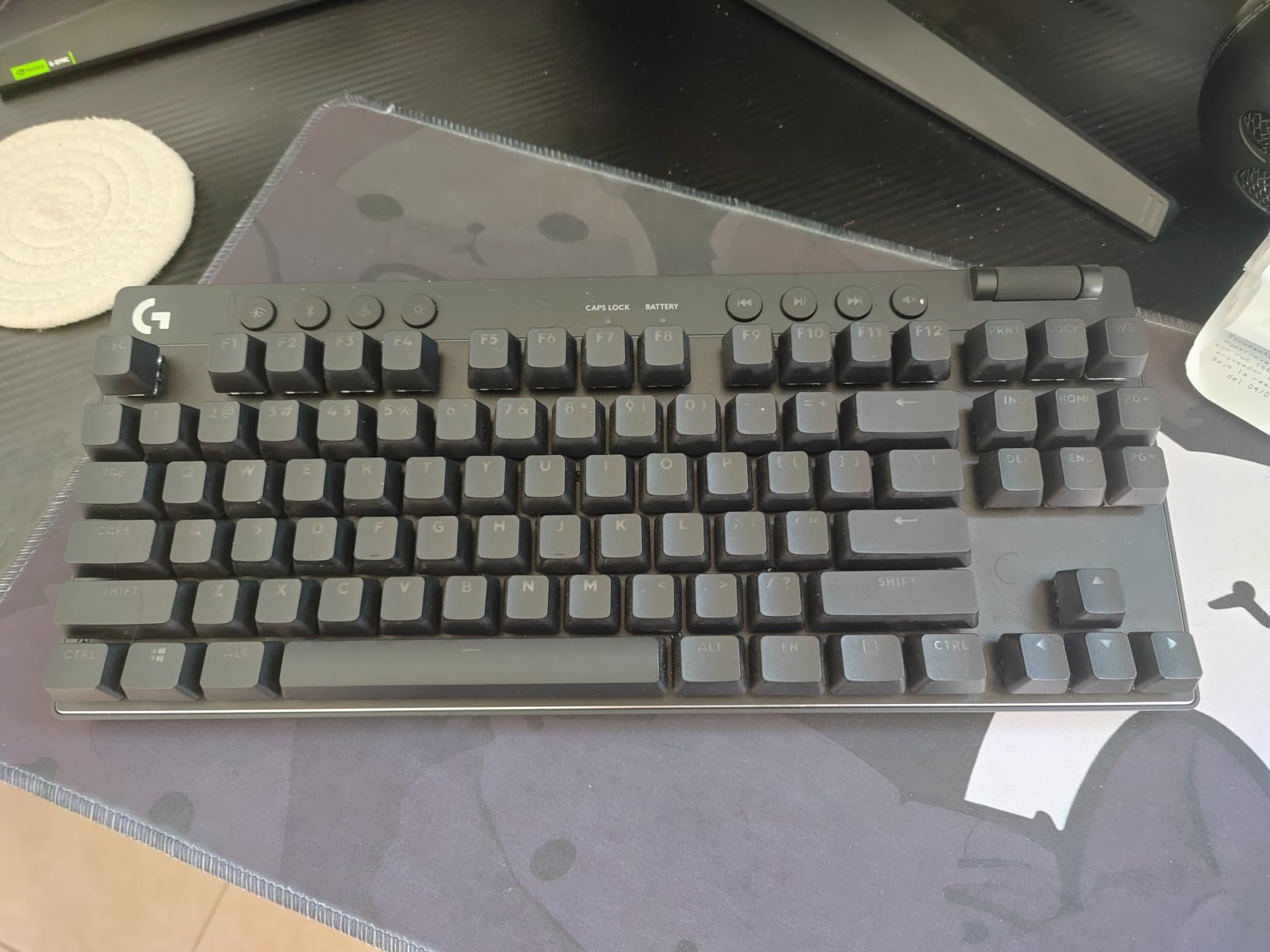
This is the only board in the list with a two-year manufacturer warranty, and that fact alone changes who it suits. It was designed for esports competition, which means it was built to be packed, carried and used by strangers for months at a time.
For a typist who travels, that matters more than acoustics. The detachable three-pronged cable means you can swap a damaged lead without replacing the board, and the three-step angle adjustment lets you set wrist angle properly on whatever surface you are working from. LIGHTSYNC lighting stores static patterns on the board itself, so it works on a locked-down work machine with no software installed.
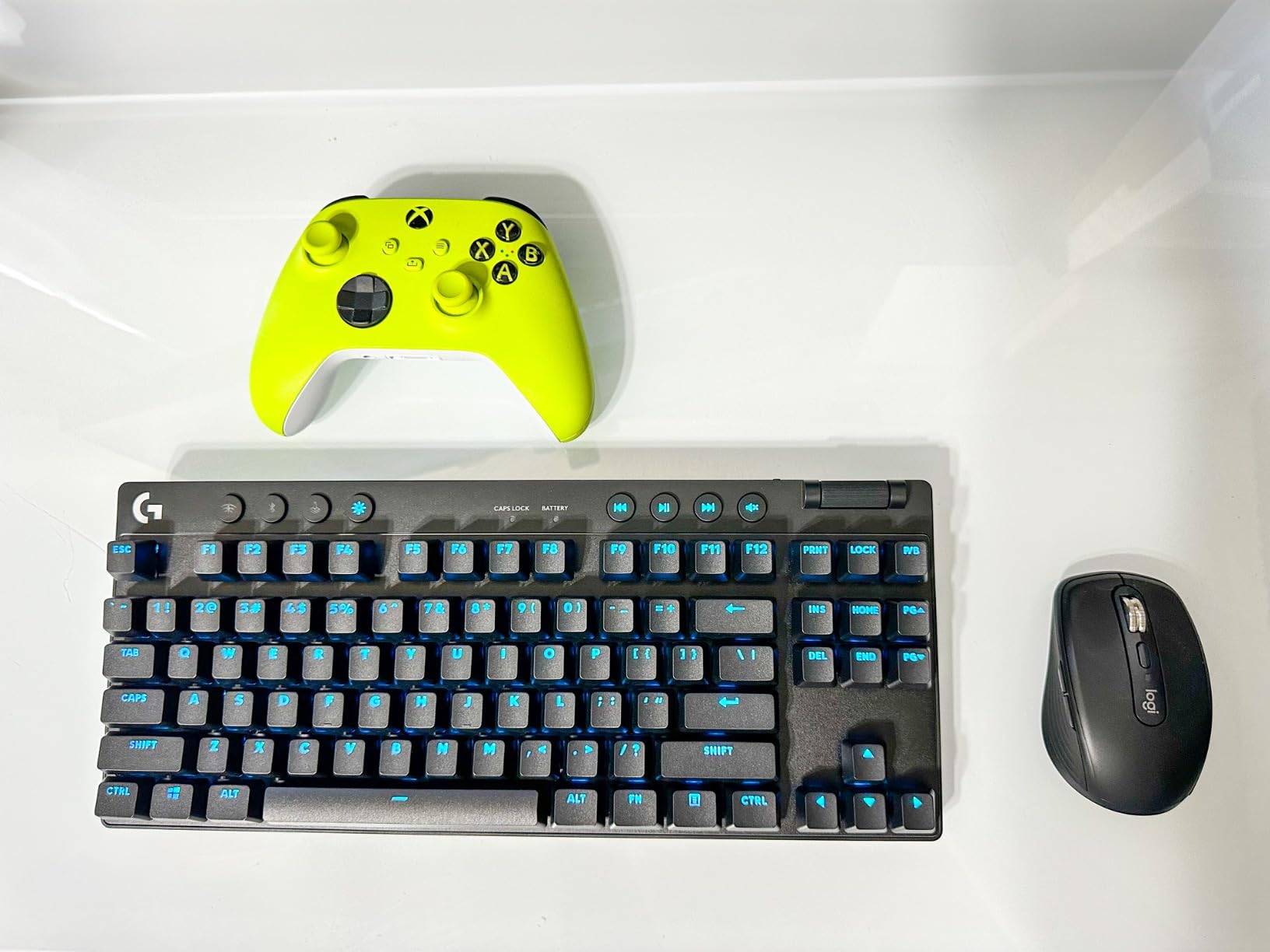
The GX Blue Click switches give a crisp, audible and consistent keystroke, and consistency is the underrated quality here. A board you use in a hotel room at midnight and at your desk at nine in the morning should feel the same both times, and this one does.
The 90-key layout gives you a function row and arrow keys while freeing up a lot of mouse space. That proximity is an ergonomic gain rather than a cosmetic one, which is the argument we make in the layout section below.
Who the G Pro TKL suits
It suits anyone who types in more than one place, and anyone who has broken a cheaper board by dropping it. The warranty is unusually generous for this category, and the construction has a track record of surviving transport.
It also suits typists who type with a light, deliberate touch. Because you cannot swap these switches, you are committing to a clicky feel, and clicky switches reward someone who presses decisively rather than someone who floats over keys.
Who should skip the G Pro TKL
Skip it if sound matters. Clicky Blue switches on a full-size plastic case are the loudest category in this roundup, and there is no foam or gasket mount here to soften them. A typist in a shared office will finish their day frustrated.
Skip it if you want modern conveniences. There are no media keys beyond the function row, no volume control, no wireless and no hot-swap sockets. It is a well-built board with a dated feature set, and you should buy it for durability alone rather than expecting a modern kit.
4. Redragon K580: The Best Full-Size for Programmers Who Want Macro Keys
Redragon K580 Wired RGB Mechanical Gaming Keyboard, Macro Key & Media Wheel
104-key full-size
1200 g
Aluminum plate
USB-C
5 onboard macro keys
Pros
- Macro keys record without software
- Volume roller included
- Hot-swappable for most switches
- Heavy and rigid
Cons
- Very loud clicky Blue switches
- Heavy gamer branding
- Wired only
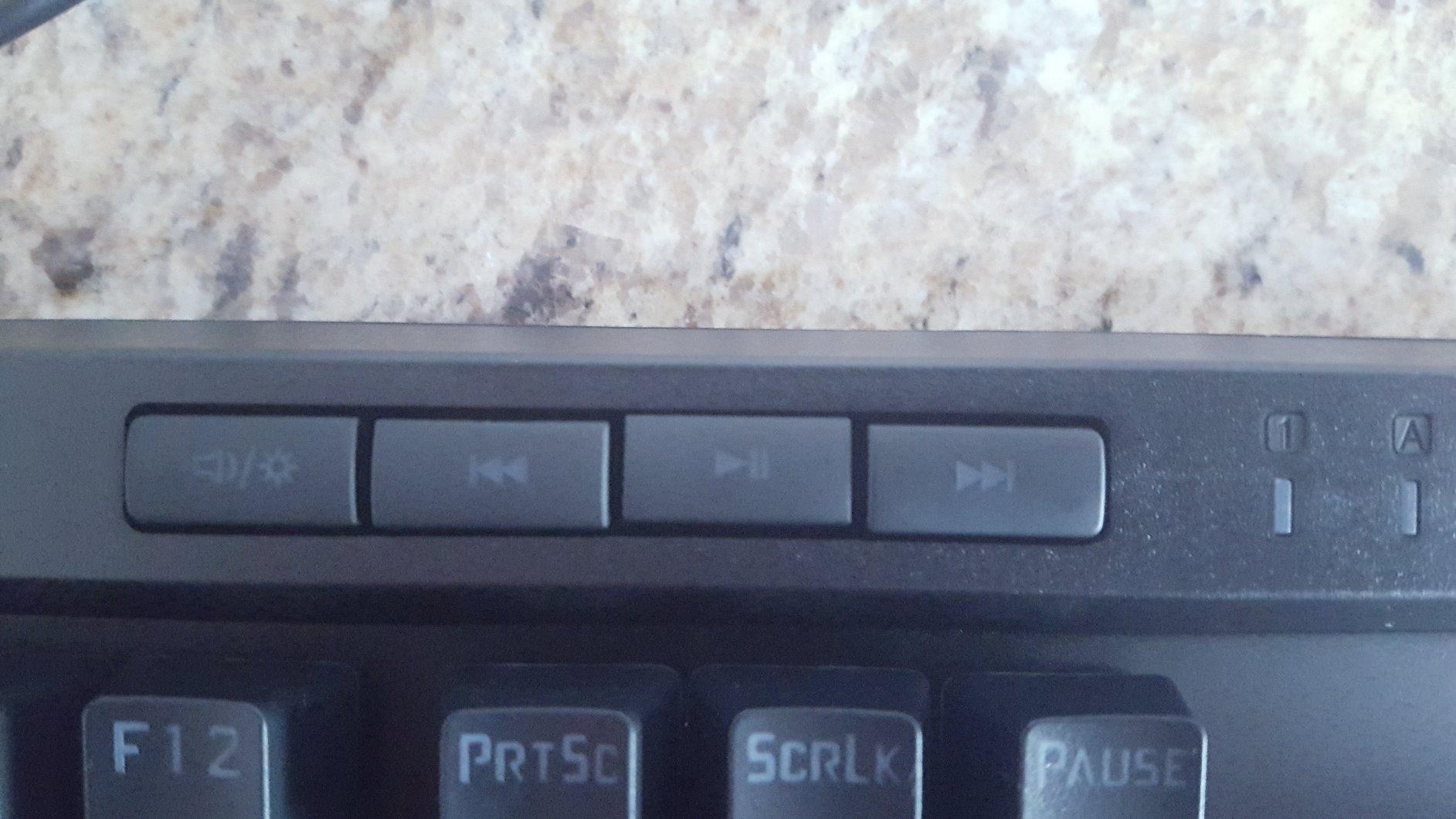
The K580 is the only board here with five dedicated macro keys that record key combinations with no software installed at all. Press the macro key, press the sequence, press it again, and it is stored on the board. For anyone who retypes the same block of text or the same command sequence repeatedly, that is a genuine typing productivity tool rather than a gimmick.
The volume roller and dedicated media keys add to that. Most full-size boards in this price range give you either media keys or a knob, rarely both, and the roller is the one people reach for during long sessions.
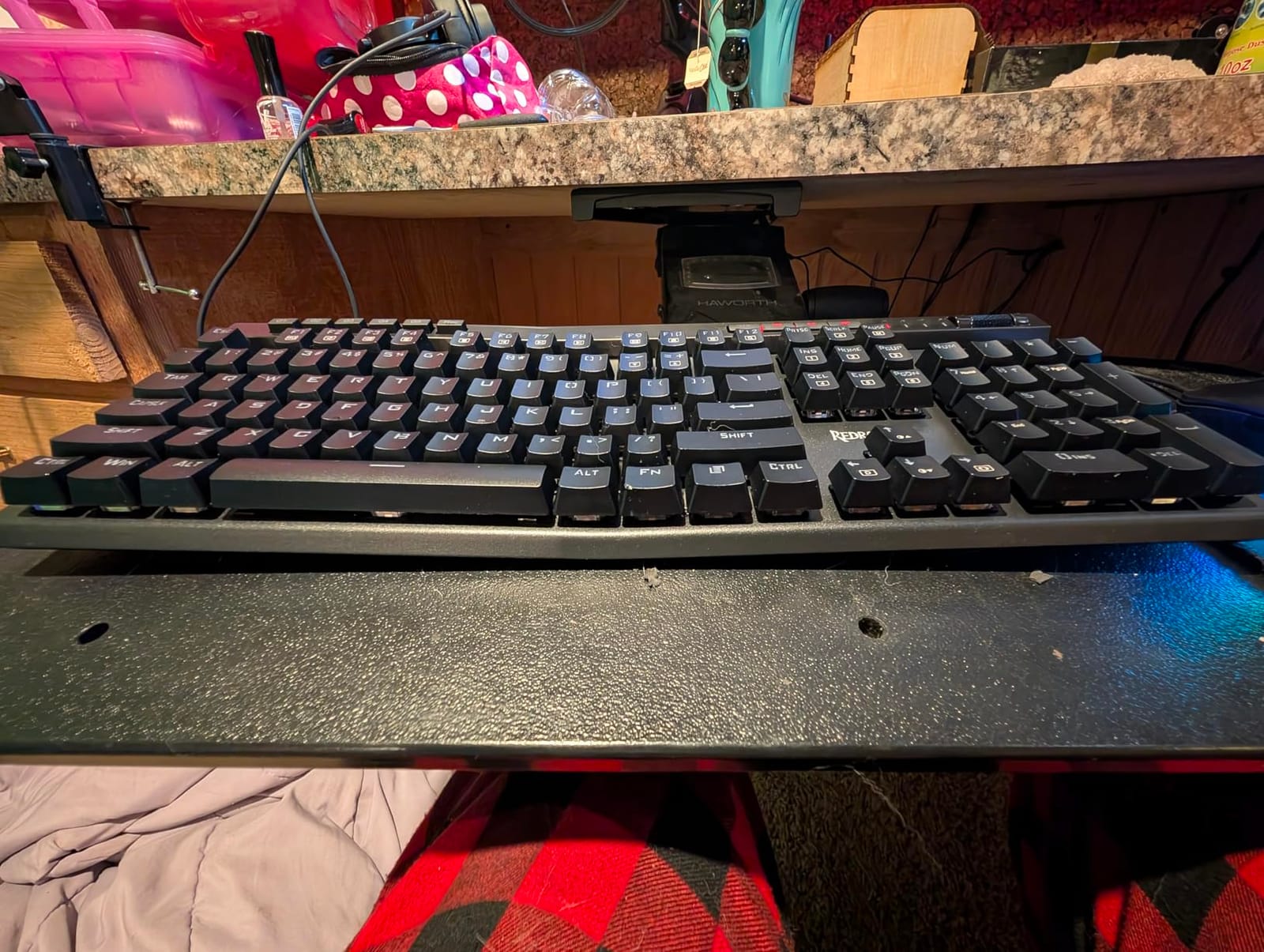
Construction is solid rather than premium. An aluminum plate sits inside an ABS shell at 1200 grams, so it does not flex under typing pressure, and the switches are rated for 50 million keystrokes with double-shot keycaps on top.
That switch rating is worth noting because these are clicky Outemu Blue switches, which are the loudest option here. There is no foam in this board. If you work anywhere other than a private room, that noise becomes the thing everyone notices about your typing.
Who the K580 suits
It suits programmers and anyone who types repeated sequences who also wants a real numpad. Our mechanical keyboard guide for programmers goes deeper on layout choices for code, and the K580 is a reasonable pick for people who also do serious data entry.
It also suits hot-swap beginners who want a large board, since the sockets accept nearly any switch type and you can move to a quieter switch within a few minutes of unboxing.
Who should skip the K580
Skip it if noise is a factor. Clicky Blue switches in an undamped case are the worst acoustic combination in this roundup, and no software setting fixes a physical switch.
Skip it if you want understated hardware. The branding is heavy and the styling is overtly aimed at gamers, which is fine at your desk and awkward in a client meeting. It is wired only, with no Bluetooth or 2.4GHz mode.
5. GravaStar Mercury K1: The Best Pick for Quiet Typing in an Open Office
GravaStar Mercury K1 75% Wireless Mechanical Gaming Keyboard RGB Backlit
75% wireless
2.3 lb
Gasket mount
5 foam layers
8000mAh battery
Pros
- Deep damped thock out of the box
- Machined aluminum body
- Week-long battery with RGB off
- Tri-mode wireless with easy switching
Cons
- Polarizing retro styling
- Inconsistent per-key RGB
- Weak proprietary software
This is the board I recommend when someone asks me directly for a quiet mechanical keyboard for typing. The reason is structural, not cosmetic: the switch plate is gasket-mounted inside the case and there are five layers of sound-dampening foam between the plate and the shell.
Gasket mounting means the plate is held at its edges by soft material rather than screwed rigidly to the case, so the energy of a keystroke is absorbed instead of ringing through the chassis. On a board without that, typing produces a hollow pitch that gets worse the longer you go. Here it produces what reviewers consistently describe as a deep, low thock.
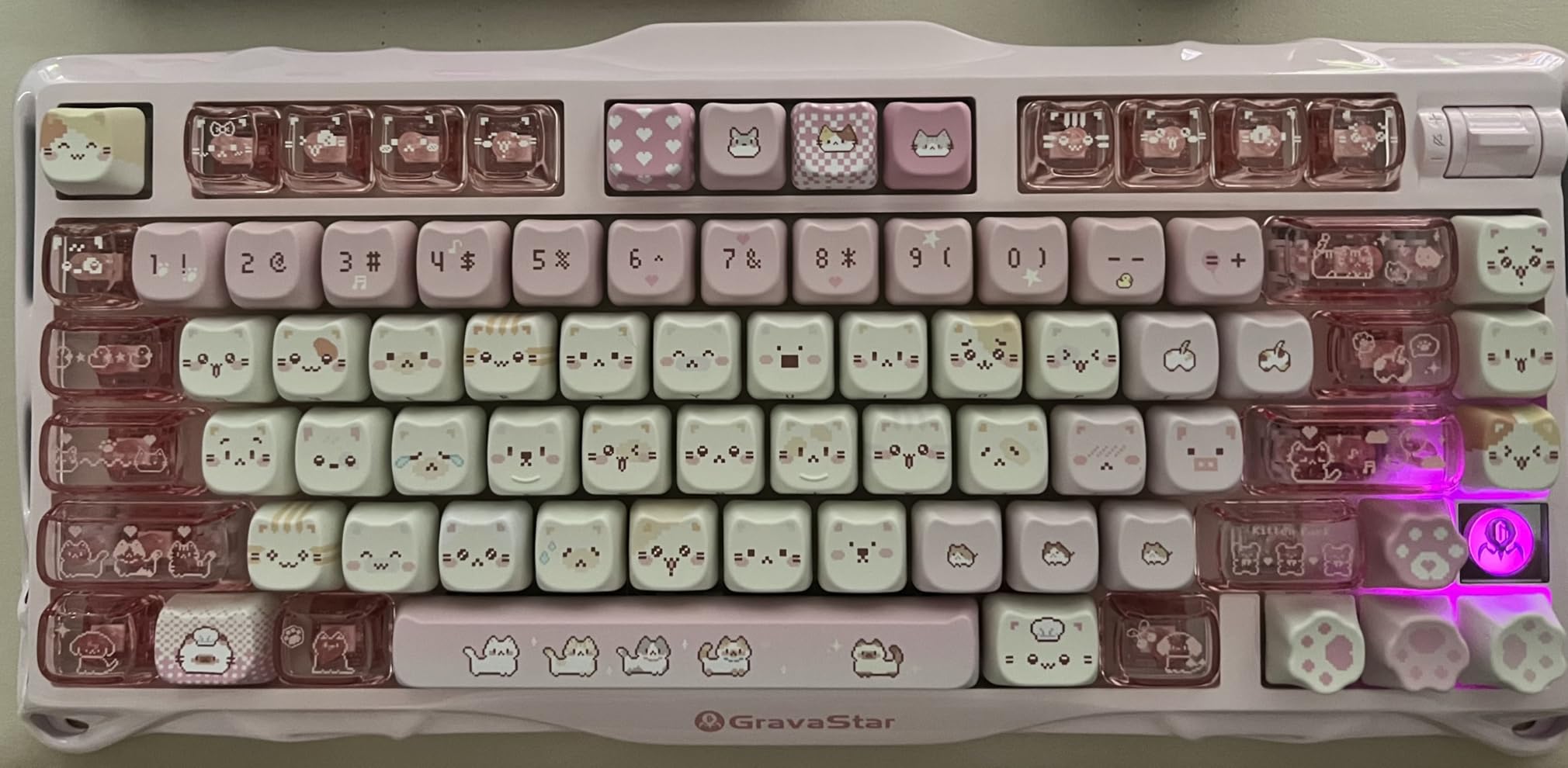
The 8000mAh battery is the other reason this board works for work. With RGB off, reviewers report a runtime in the region of 400 hours, which in practice means charging it every few weeks rather than every few days. Tri-mode connectivity covers 2.4GHz wireless, USB-C wired and Bluetooth 5.0, and switching between paired devices is straightforward.
The switches are custom linear at 40 gf with 1.5 mm pre-travel and 3.5 mm total travel. That is a light, short-travel configuration, which suits fast typists and long sessions, though linear switches give you no confirmation that a keystroke registered. People who type in noisy cafés or who press hard without looking down often prefer a tactile bump for that reason.
Who the Mercury K1 suits
It suits open-plan workers, shared studios and anyone who takes video calls from the same desk they type on. Light linear switches plus five foam layers put this board in the quiet band of our testing, and it is the one I would hand to someone whose colleagues are sensitive to noise.
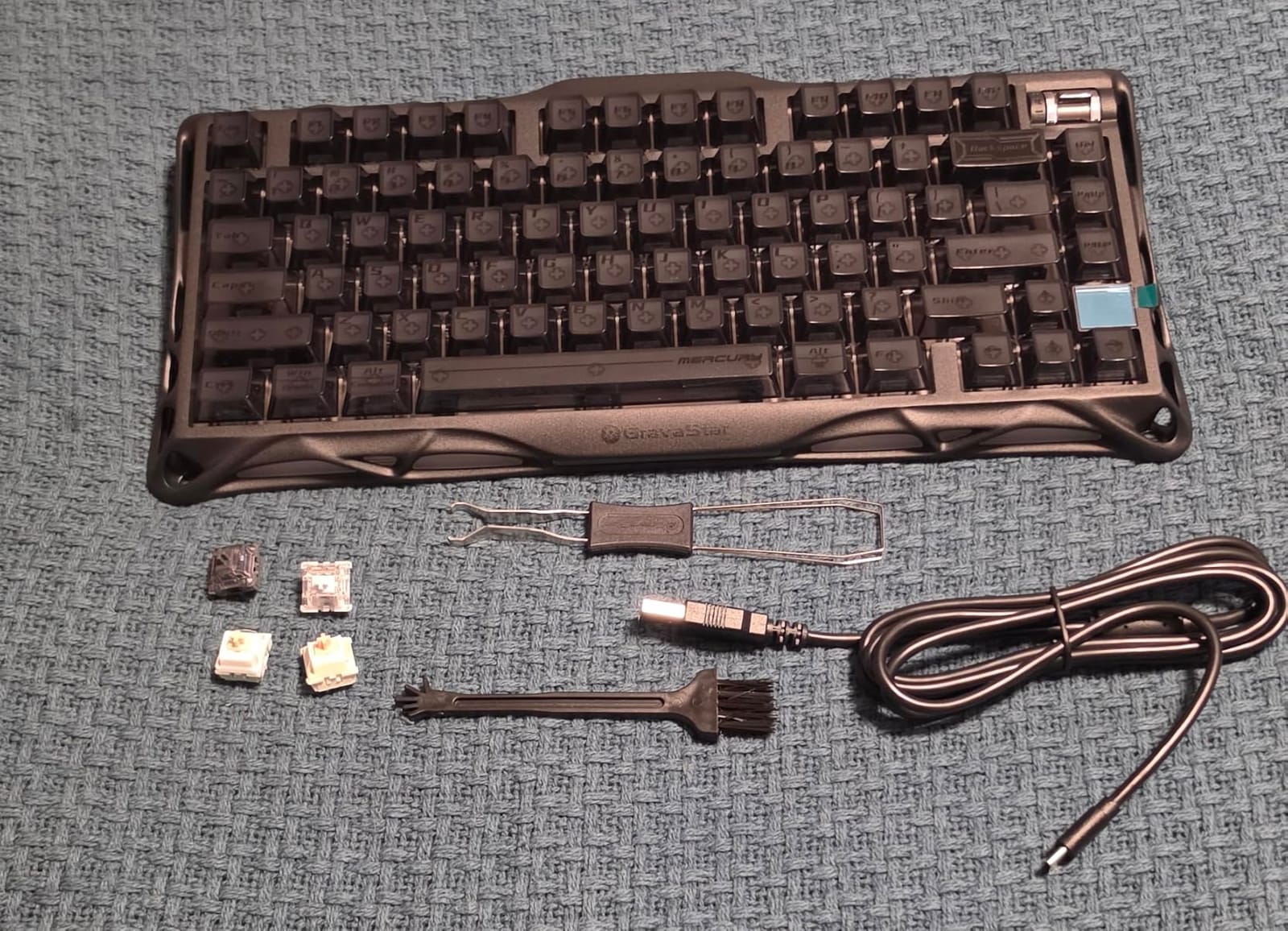
It also suits typists who work across several devices, since five-device Bluetooth pairing means one keyboard can serve a laptop, a desktop and a tablet. Hot-swappable sockets with four spare switches included let you change the feel without a soldering iron.
Who should skip the Mercury K1
Skip it if you want a numpad or an understated look. The bio-mechanical retro styling divides people hard, and the product data notes there is no numpad, so spreadsheet work is out.
Two smaller problems are worth flagging. The switch housings are opaque, so per-key RGB does not light up uniformly, and the proprietary software does not control the edge ambient lighting at all. Customer support is generally reported as responsive, typically answering within a day.
6. AULA F75 Pro: The Best Wireless Value Board for Typing
AULA F75 Pro Wireless Mechanical Keyboard,75% Hot Swappable Custom Keyboard with Knob,RGB Backlit,Pre-lubed Reaper Switches,Side Printed PBT Keycaps,2.4GHz/USB-C/BT5.0 Mechanical Gaming Keyboards
81-key 75%
1.02 kg
5 foam layers
4000mAh battery
Tri-mode
Pros
- Layered foam gives a solid thocky feel
- Tri-mode wireless for five devices
- Knob switches gaming and office modes
- Pre-lubed switches and stabilizers
Cons
- Plastic case despite premium internals
- Keycaps are not shine-through
- Only 6-month warranty
The F75 Pro packs more damping into a low outlay than anything else here. There is an extended silicone pad, PCB single key slotting and five layers of internal silencer foam, all inside a plastic case. That combination produces a heavy, thocky typing feel that reviewers routinely compare favourably to boards costing several times more.
The multi-function knob is more useful for typing than it first appears. It switches between a gaming mode and an office mode, so you can dim or disable the lighting without opening any software, which is exactly the kind of small control a typist needs on a shared desk.
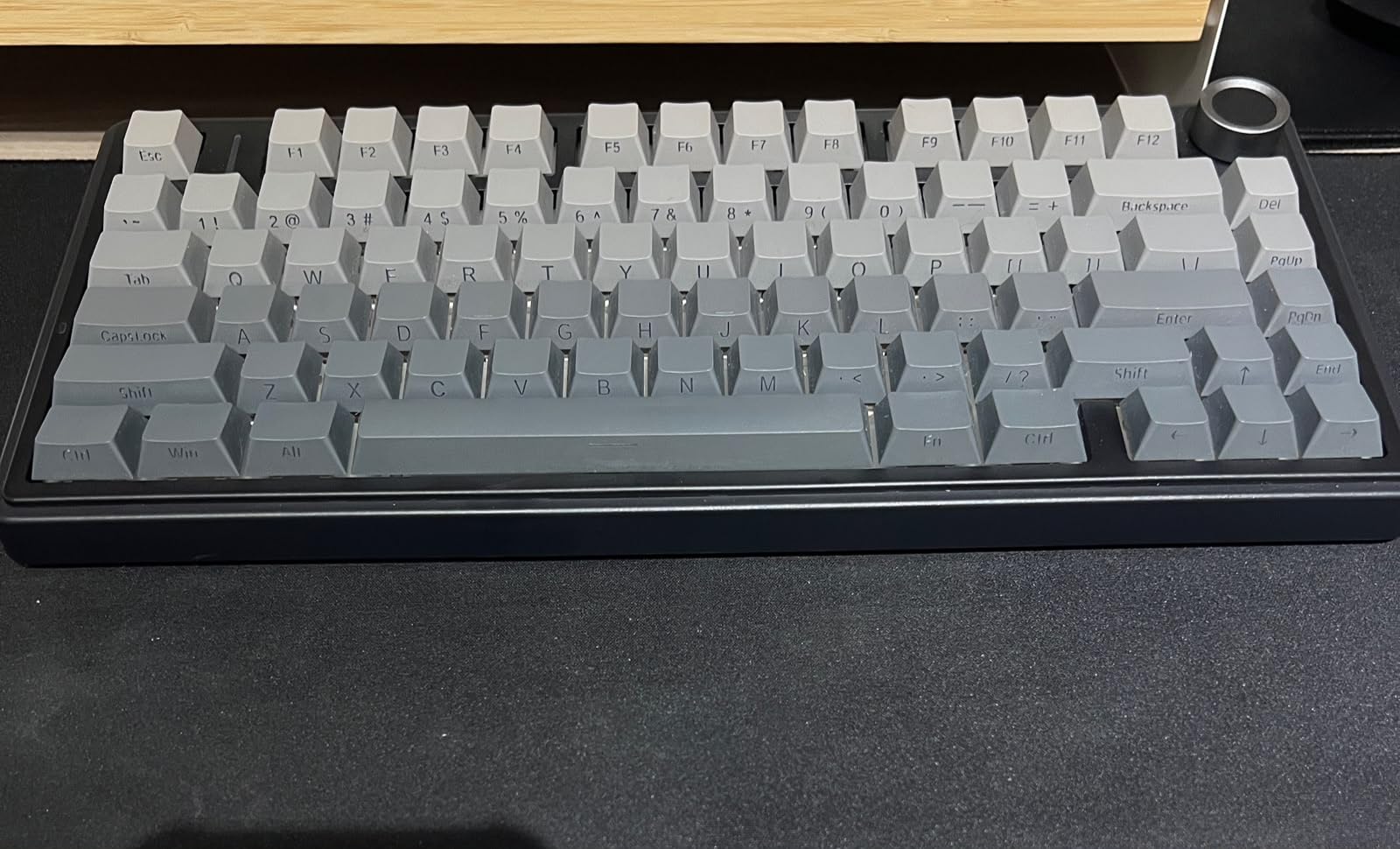
Connectivity is tri-mode across 2.4GHz wireless, Bluetooth 5.0 and USB-C, with pairing for up to five devices at once, and the 4000mAh rechargeable battery covers ordinary working days between charges. Switches are factory-lubed LEOBOG Reaper linears and the stabilizers come pre-lubed, which removes the two most common early complaints about budget boards.
The side-printed double-injection PBT keycaps resist fading and sweat, which matters if you type for many hours. They are not shine-through, so the RGB glows around the legends rather than through them. Cosmetic, but worth knowing before you expect a lit board.
Who the F75 Pro suits
It suits anyone moving from a membrane or laptop keyboard who wants a dramatic upgrade in feel and sound without a large outlay. It suits wireless multi-device setups and typists who want a compact board with a knob and still want arrow keys and a dedicated delete.
It also suits first-time switch experimenters. The hot-swap sockets accept both 3-pin and 5-pin switches, and the board ships already tuned, so you have a good baseline to change from.
Who should skip the F75 Pro
Skip it if you care about resale value or long-term service. The warranty is six months, which is the shortest in this roundup by a wide margin, and if a board fails after that you are on your own.
Skip it if you need a numpad or a metal chassis. This is a plastic 81-key board, and the customization software is Windows-focused. Typing Mac users should expect a rougher experience with layer access.
7. AULA F99: The Best Hot-Swap Board That Still Has a Numpad
AULA F99 Wireless Mechanical Keyboard,Tri-Mode BT5.0/2.4GHz/USB-C Hot Swappable Custom Keyboard,Pre-lubed Linear Switches,RGB Backlit Computer Gaming Keyboards for PC/Tablet/PS/Xbox
99-key 96%
1500 g
8000mAh battery
5 foam layers
Tri-mode
Pros
- Real numpad in a hot-swap board
- Gasket structure kills hollow ping
- Surprisingly heavy for plastic
- 8000mAh battery
Cons
- Keycaps are not shine-through
- Windows-only customization software
- Compressed 96% layout takes adapting
The F99 solves a specific problem: you want a real numpad and you also want hot-swappable sockets and gasket-style acoustics. Those three rarely appear together below this tier, and most hot-swap boards with foam are compact.
The 99-key 96% layout keeps the numpad and the arrow keys by compressing the function row into a tight strip. Reviewers who upgraded from budget boards describe the sound change as dramatic, and the 1500 gram weight in a plastic case is genuinely unusual, giving it a stable feel that most boards at this weight lack.
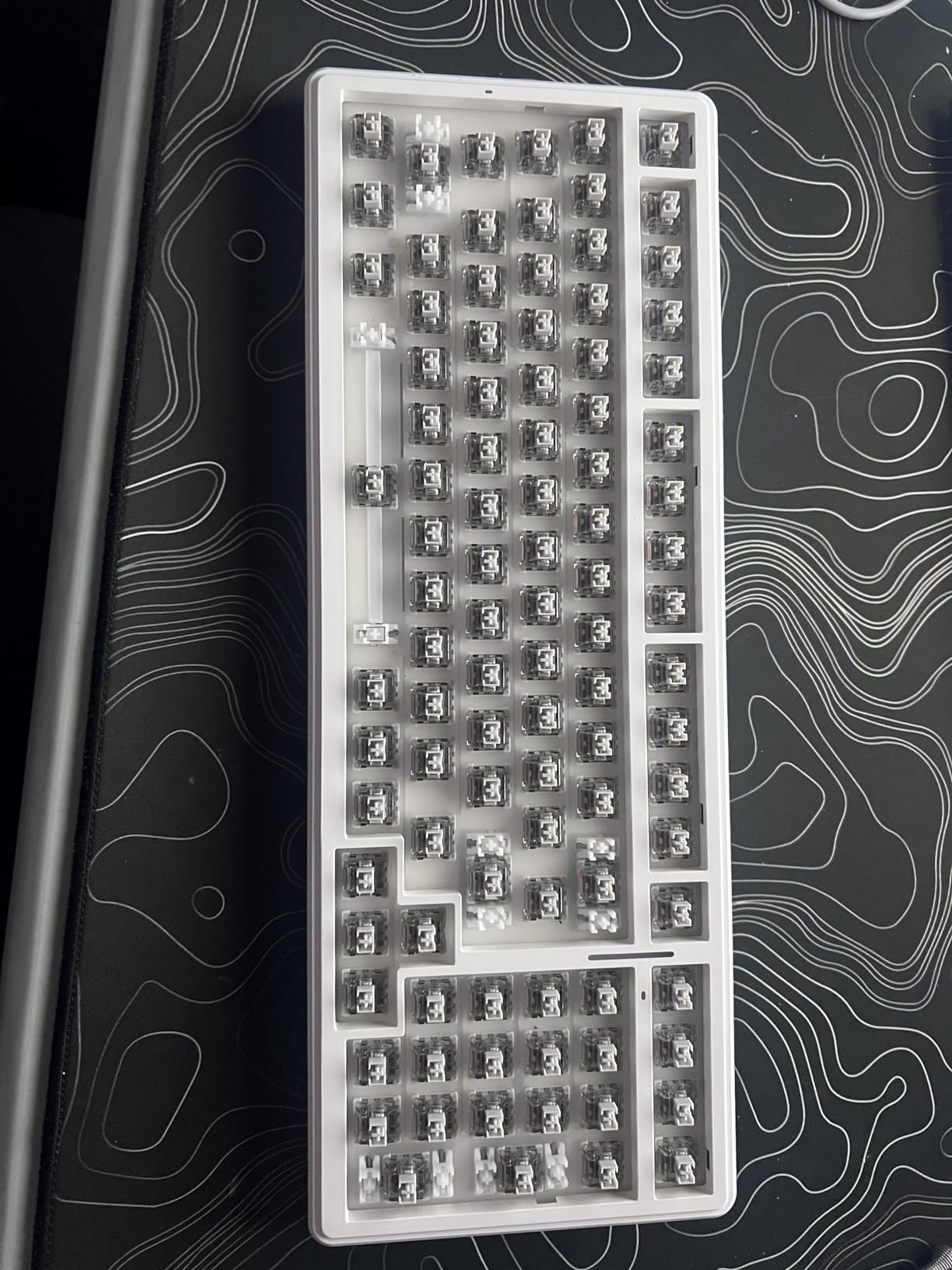
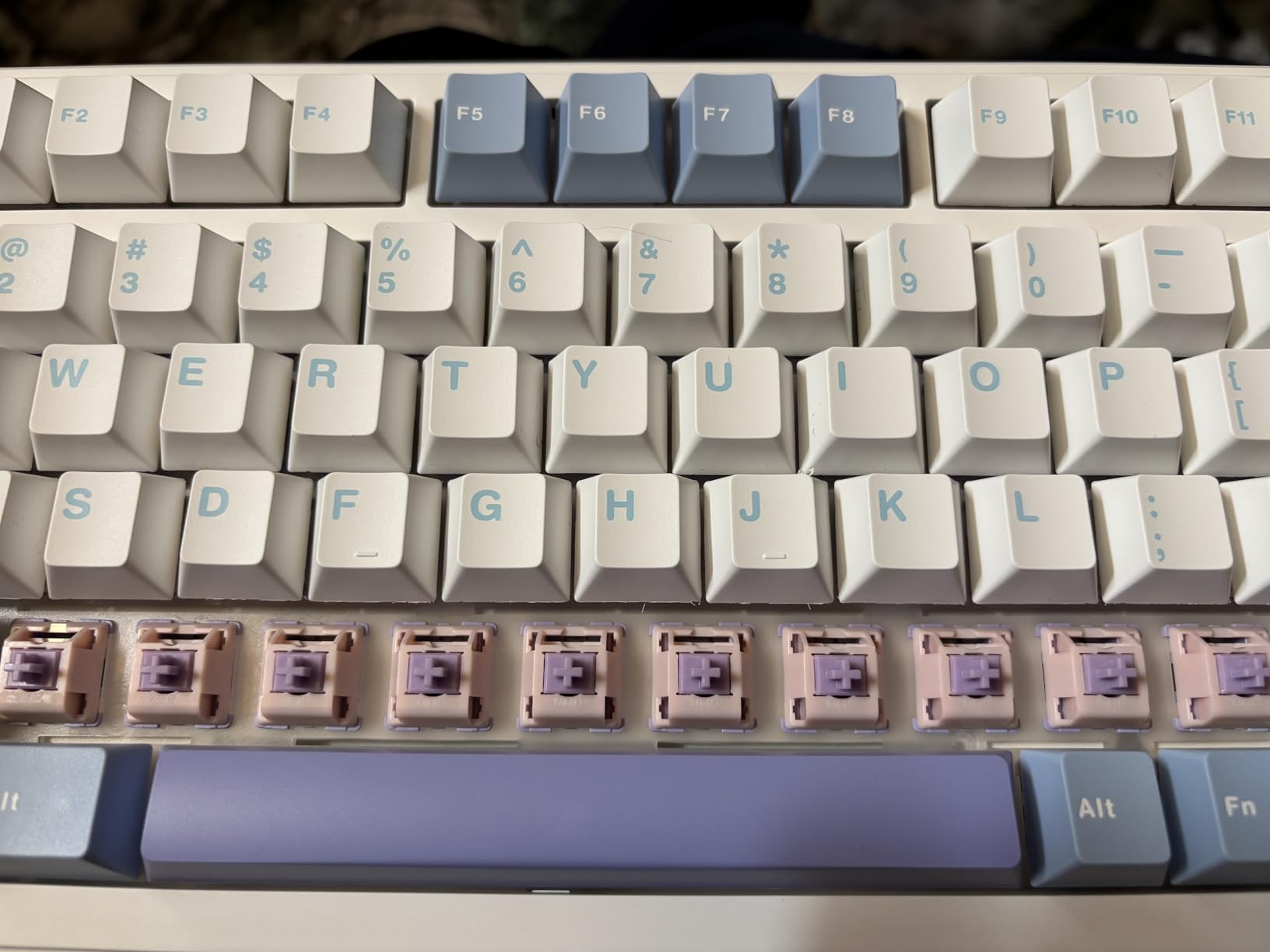
Switch sockets accept 3-pin and 5-pin switches and a puller is included, and the switches and stabilizers both arrive factory-lubed. The 8000mAh battery is the same class as the GravaStar’s, and tri-mode connectivity covers Bluetooth 5.0, 2.4GHz and USB-C with up to five paired devices.
Acoustically, the gasket structure with five layers of internal silencer foam removes the hollow ping that usually defines plastic keyboards. Reviewers describe the result as creamy and marbly, which is a fair summary of a well-damped budget board.
Who the F99 suits
It suits spreadsheet and data-entry work where a numpad is required but the budget does not stretch to an aluminum gasket board. It also suits typists who switch between writing and numbers all day and want both without swapping devices.
It suits anyone who wants to try switches seriously. The hot-swap PCB, foam stack and included puller mean this is a platform rather than a fixed-feeling product, which is the tune-it-yourself side of the framework described earlier.
Who should skip the F99
Skip it if you are new to compact layouts. The numpad 0 key and the condensed arrow cluster genuinely take time to adapt, and mistyping them during a fast session is frustrating for the first week.
Two smaller catches: the customization software is Windows-only, and the battery indicator stays red even when fully charged, so do not rely on it to tell you when you are about to lose connection. The warranty is again six months.
8. RK Royal Kludge R75: The Best Budget Board for a Deep, Full Sound
RK ROYAL KLUDGE R75 Wired Mechanical Keyboard with Volume Knob, 75% Mechanical Gaming Keyboard Gasket Mount, Hot Swappable Silver Switch, MDA Profile PBT Keycaps, Creamy Keyboards, Black
81-key 75%
1.7 lb
Gasket mount
Poron and IXPE foam
USB-C
Pros
- Triple-layer foam removes hollow echo
- Substantial weight with a real metal knob
- Textured double-shot PBT caps
- Spare switches and dust cover included
Cons
- Wired only with no wireless
- No QMK or VIA on earlier revisions
- Thin bundled USB cable
The R75 is the acoustic outlier in this roundup. Its gasket mount is backed by three separate absorption layers: poron sound-absorbing cotton, an IXPE foam pad and sponge case foam, plus a spacebar silencer. Reviewers call it one of the best-sounding mechanical keyboards at this outlay, and for typing at a desk it earns the recommendation.
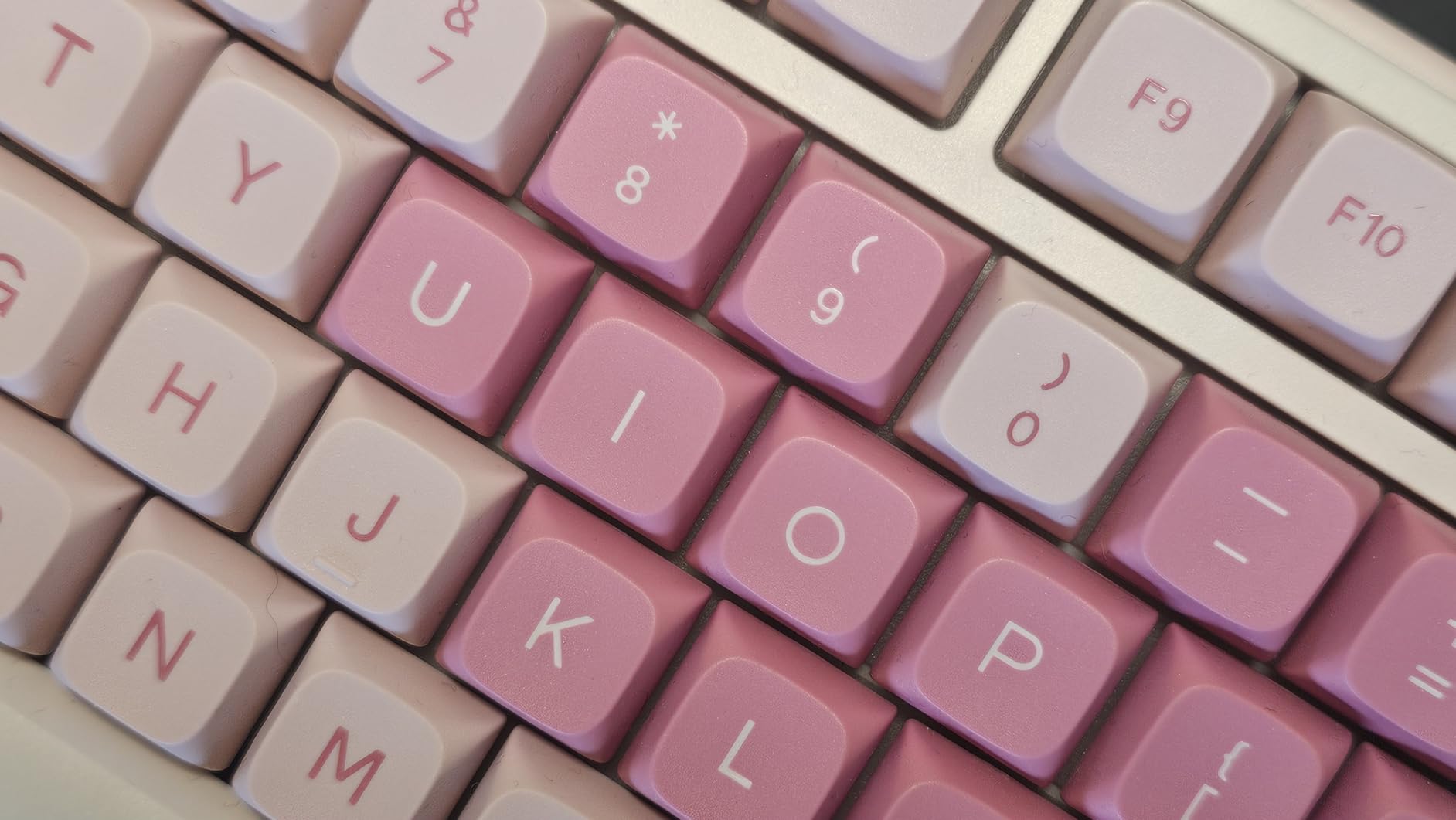
The MDA-profile double-shot PBT keycaps have thick, textured walls that your fingers can feel, which is a real ergonomic benefit over smooth thin-walled caps. The stepped profile is higher at the edges than in the middle, so your fingers land on the raised rim of each key. That improves accuracy for touch typists who do not look down.
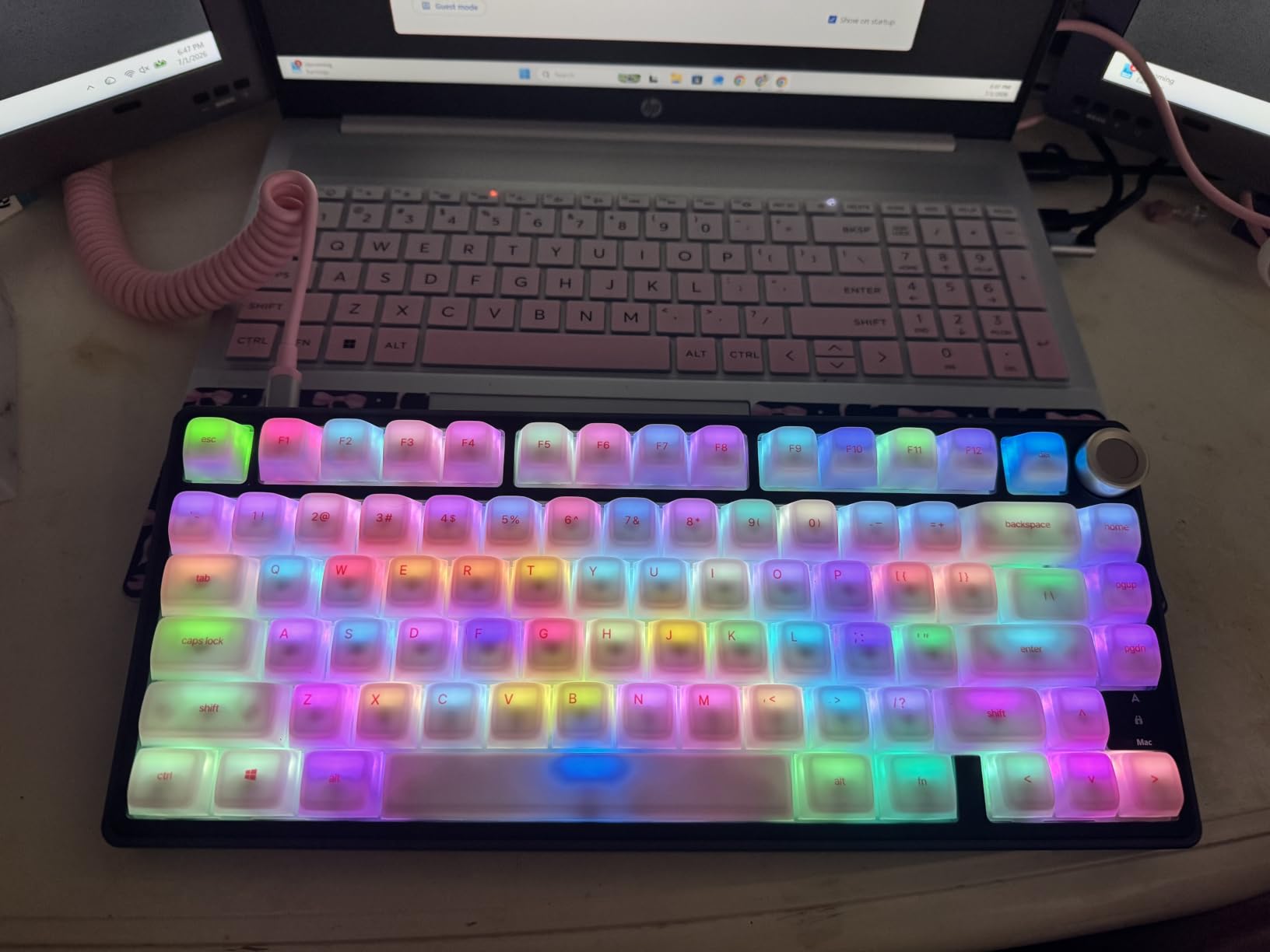
Build weight is 1.7 pounds with a CNC aluminum plate and an aluminum volume roller that does not feel cheap. Four replacement switches, a dust cover, a puller and a cable are in the box, which is more than most competitors include.
The hot-swappable PCB accepts both 3-pin and 5-pin switches, so feel and travel can be changed without soldering. Pre-lubed stabilizers mean the spacebar and modifiers start out quiet rather than rattly.
Who the R75 suits
It suits a typist on a modest budget who cares most about how the board sounds and feels under the fingers. The compact 81-key layout keeps a dedicated delete key and arrow keys, so you are not forced onto an Fn layer for basic editing.
It also suits anyone who wants to experiment with switches but not with soldering. The hot-swap board and the spare switches in the box make the first swap frictionless.
Who should skip the R75
Skip it if you need wireless. It is wired only by design, with no Bluetooth and no 2.4GHz mode, which rules it out for anyone moving between a laptop and a desktop.
Skip it if deep remapping is a requirement. Earlier hardware revisions do not have QMK or VIA support, which blocks remapping layers and third-party RGB control entirely. Confirm the revision before buying if programmability matters. The bundled cable is also thin and low quality.
9. Logitech G413 SE: The Best No-Fuss Tactile Board for Office Typing
Logitech G413 SE Full-Size Mechanical Gaming Keyboard – Black
108-key full-size
780 g
Aluminum-magnesium case
White LED
PBT caps
Pros
- Rigid case with almost no flex
- PBT caps resist shine well
- Tactile feedback without click noise
- Understated styling suits an office
Cons
- No RGB and the light cannot go fully off
- Not hot-swappable
- Wired with a thick fixed cable
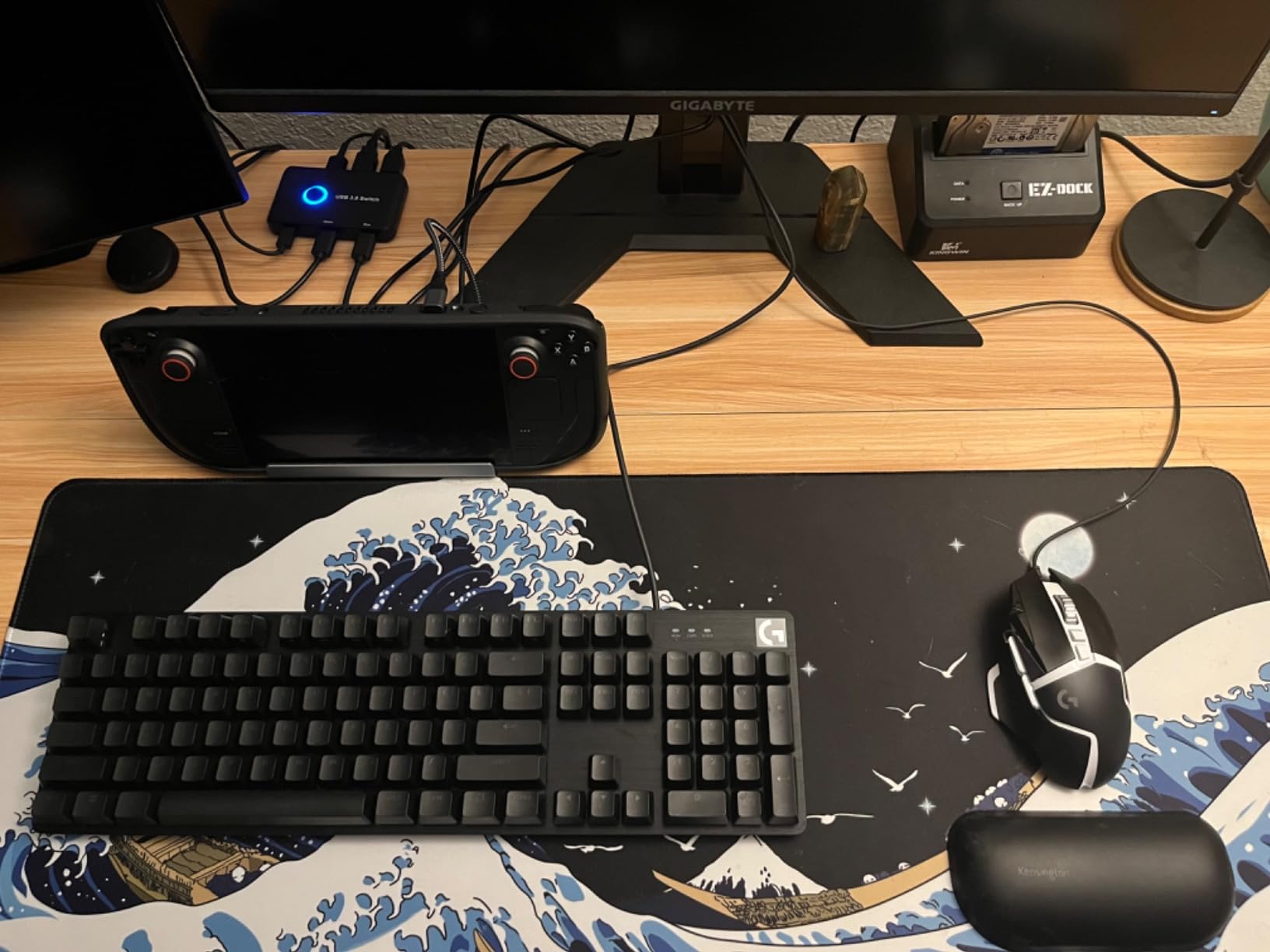
The G413 SE is the board to buy when you want typing and nothing else. It has no macro software worth speaking of, no RGB, no wireless and no hot-swap sockets. What it has is a rigid brushed aluminum-magnesium top case, PBT keycaps and tactile mechanical switches.
That is the right trade for an office. Tactile switches give clear confirmation of each keystroke without the extreme noise of clicky boards, and PBT caps are the material that survives years of daily handling. Reviewers consistently describe it as a good balance of feedback and noise for both work and play.
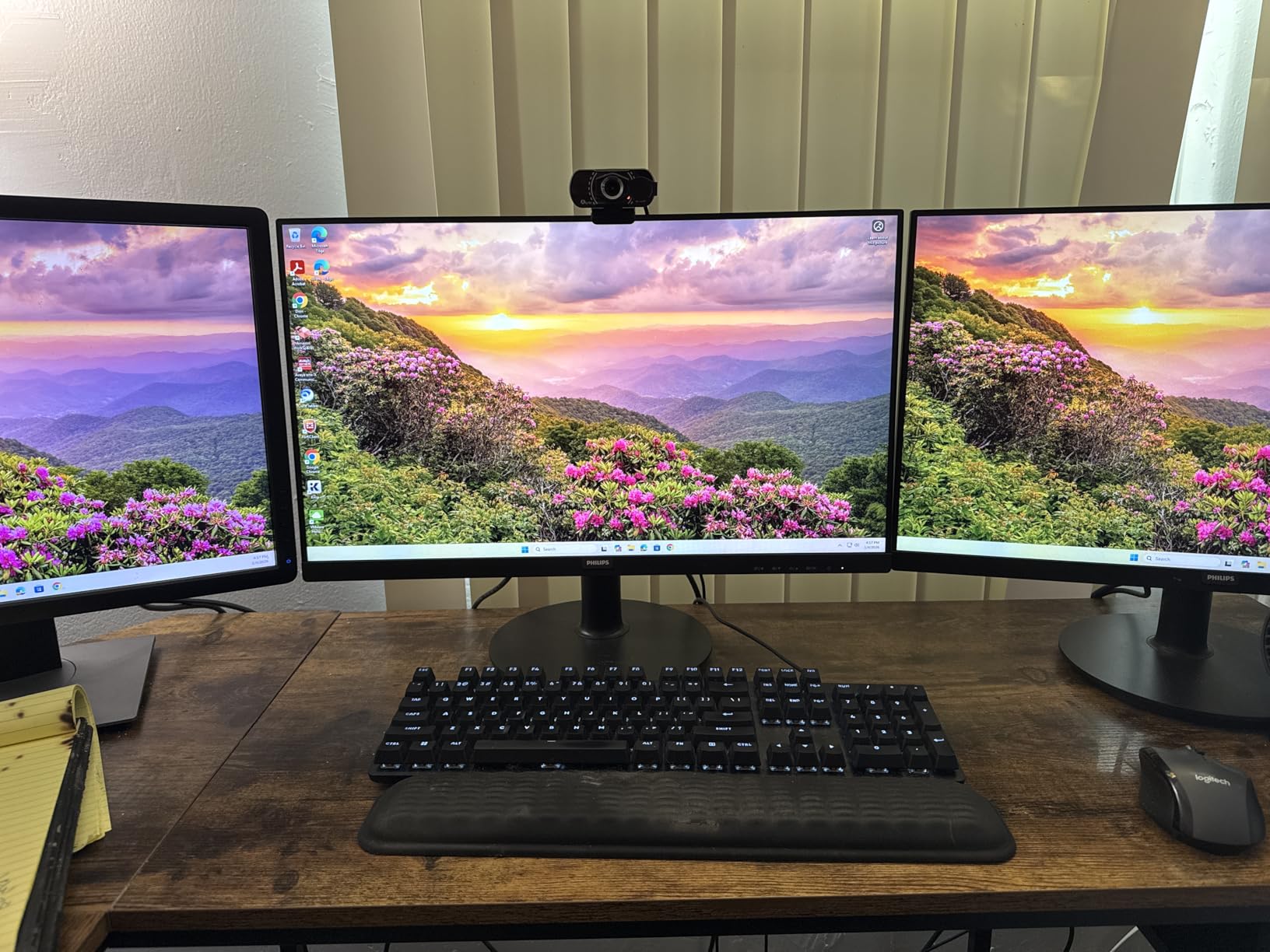
The 108-key layout gives you a full function row, a numpad and dedicated navigation keys, which makes it the most conventional choice here for spreadsheet and general office work. Twelve FN shortcuts cover volume, playback, lighting brightness and the Windows key lock.
Two practical details worth knowing. The white LED backlight cannot be switched off completely, only dimmed, which matters in a dark room. And six-key rollover anti-ghosting is more than enough for typing but is not full n-key rollover.
Who the G413 SE suits
It suits office workers and typists who want a mechanical board with zero configuration. There is no app to install, no layers to learn and no firmware to update, so you can move a laptop into a new setup in minutes.
It suits people who came to this topic from a gaming query and are now spending their day in spreadsheets. The understated styling and white-only lighting will not look out of place in a client meeting, and the tactile switches are a good default for long text work.
Who should skip the G413 SE
Skip it if you want to change switches later. This is not a hot-swap board, so the feel is fixed for the life of the keyboard. If you are unsure about tactile switches, this is not the board to experiment on.
Skip it if sound quality is your priority. There is no gasket mount and no sound dampening in this design, so the acoustics are plainer and more hollow than the R75 or the GravaStar despite the tactile switches. The cable is thick and non-detachable.
10. Das Keyboard 4 Professional: The Best Built Board That Needs No Software
Das Keyboard 4 Professional Wired Mechanical Keyboard, Cherry MX Blue Mechanical Switches, 2-Port USB 3.0 Hub, Volume Knob, Aluminum Top (104 Keys, Black)
104-key full-size
2.6 lb
Cherry MX Blue
Aluminum top
USB 3.0 hub
Pros
- Genuinely solid aluminum build
- Crisp MX Blue feedback
- Two-port USB 3.0 hub
- Works with no drivers at all
Cons
- No backlight at all
- MX Blue noise is loud
- Magnetic footbar lets the board slide
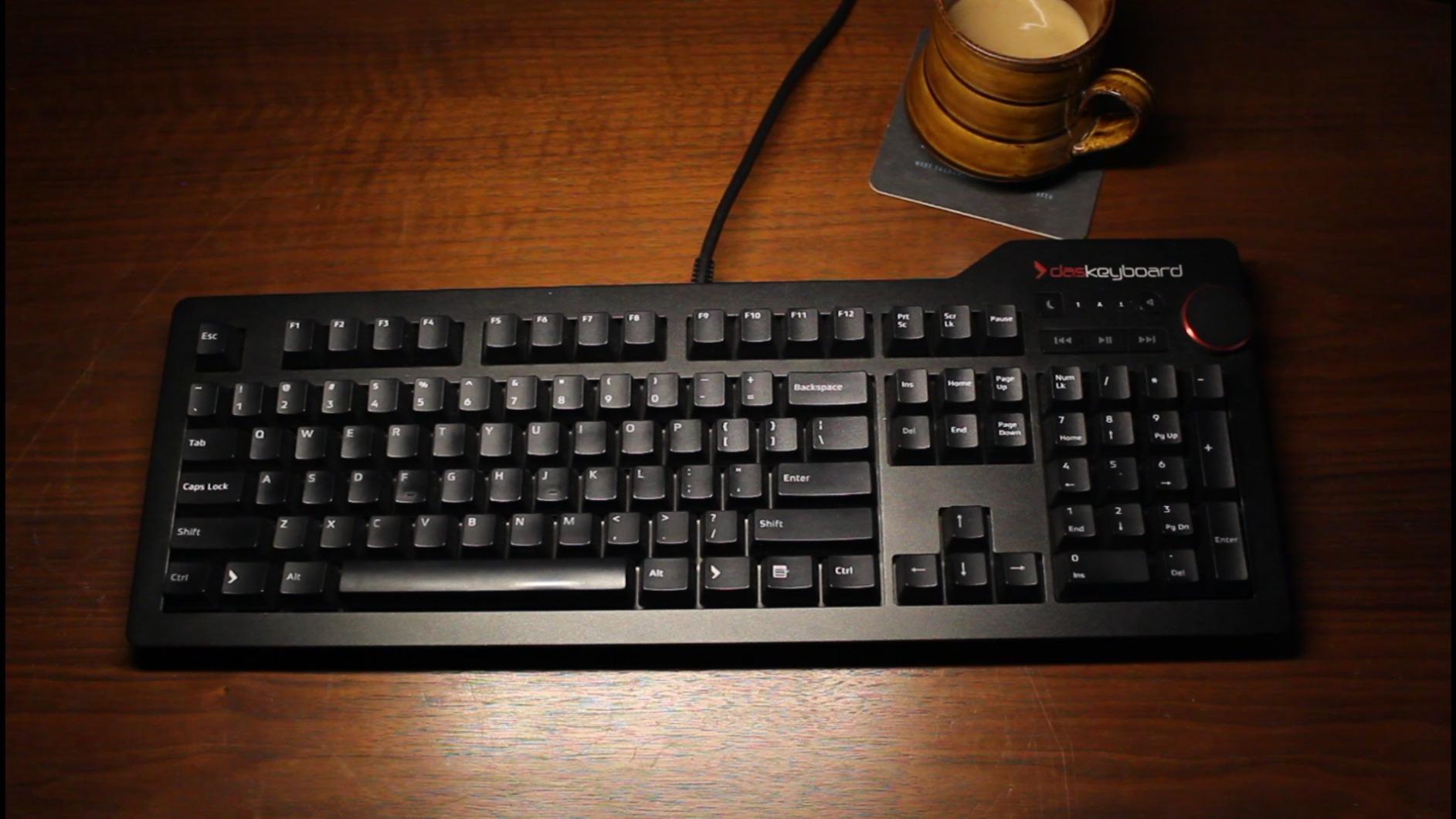
The Das Keyboard 4 Professional is the enthusiast reference for the idea that a keyboard does not need software. No driver, no app, no cloud account, no firmware updater. You plug it in and it works, and for a pure typist that is a genuine feature rather than a lack.
Build quality is the reason reviewers with several mechanical keyboards behind them rate it highly. A solid aluminum top panel and plate produce no flex at 2.6 pounds, factory-lubed stabilizers cover the large keys, and the F and J keys have tactile bumps so your fingers find home without looking.
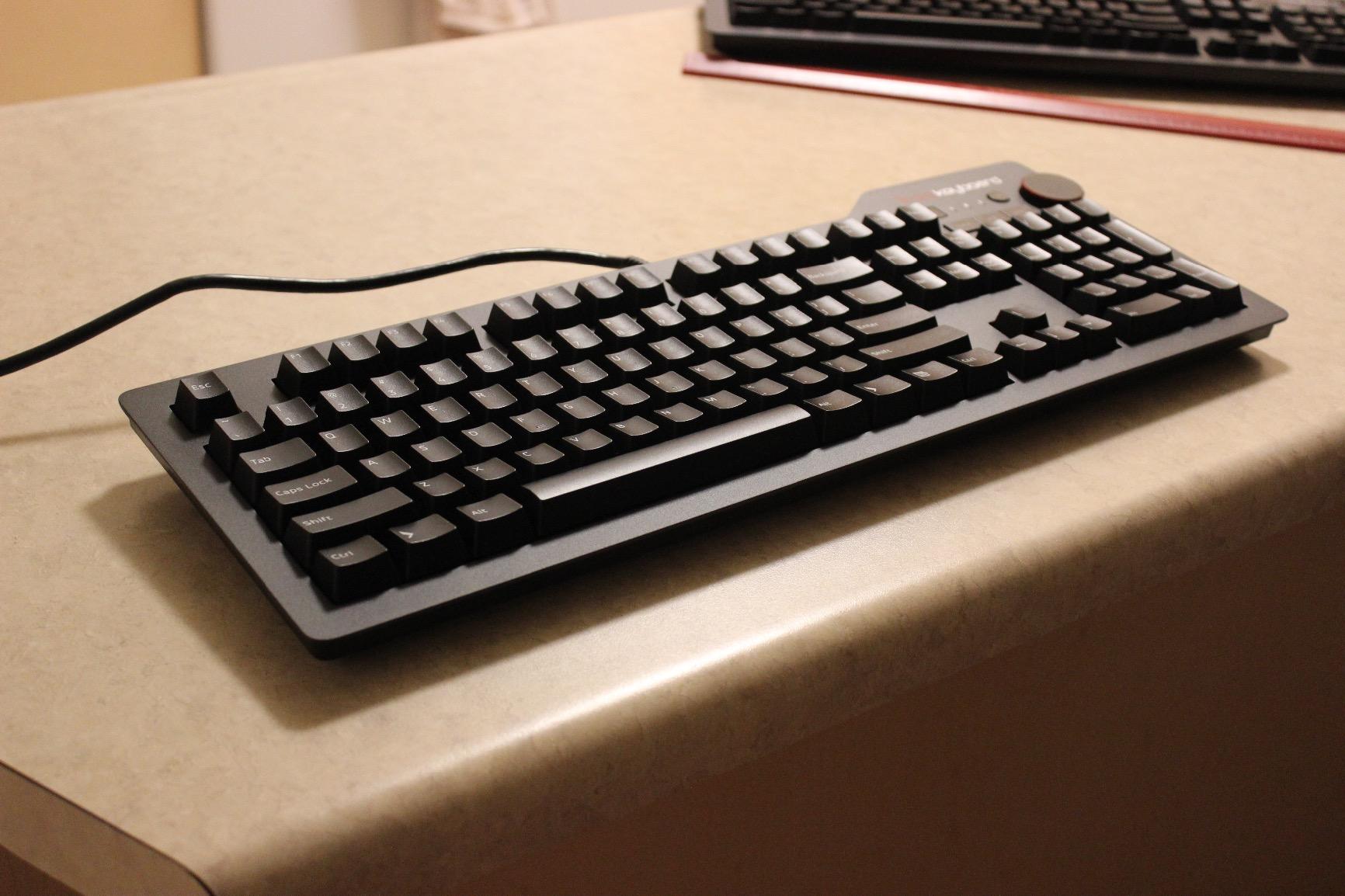
Cherry MX Blue switches give a crisp, satisfying tactile click that many typists report makes them type faster, mostly because the click confirms each keystroke audibly and tactilely at once. Laser-etched keycaps are rated to 50 million keystrokes and hold their legends over time.
The two-port USB 3.0 hub rated to 5 Gb/s lets a single cable serve a mouse and a drive, and the oversized volume knob plus a dedicated instant-sleep button are practical controls rather than gimmicks. Full n-key rollover is supported over USB.
Who the Das Keyboard 4 suits
It suits typists who want a full-size board that will outlive several laptops, and anyone who works on locked-down or older machines where installing configuration software is a problem. It suits people who prefer tactile clicky feedback and work alone.
It also suits anyone who wants a physical, machined feel without chasing custom keyboard parts. Everything here is off-the-shelf, factory assembled, and the laser-etched caps do not shine.
Who should skip the Das Keyboard 4
Skip it for a shared office. Cherry MX Blue click noise on an undamped aluminum case is the loudest board in this roundup, and the price reflects a premium tier without the acoustic tuning that tier usually buys.
Skip it if you need a backlight, which this board entirely lacks. The detachable magnetic footbar is also slippery and lets the board slide during heavy typing, and the fixed cable is thick, rigid and unbraided. This is a wired-only design with no wireless option.
11. YUNZII AL80: The Best Aluminum Board With Real Remapping
YUNZII AL80 75% Wireless Aluminum Mechanical Keyboard(Silver,Cocoa Cream)
80-key 75%
1.4 kg
CNC aluminum
QMK and VIA
6000mAh battery
Pros
- Premium CNC aluminum chassis
- Factory-lubed switches and stabilizers
- Gasket mount with no hollow ping
- Rock-solid tri-mode wireless
Cons
- Cocoa Cream switches are loud
- QMK source not published
- No AltGr key on the 75% layout
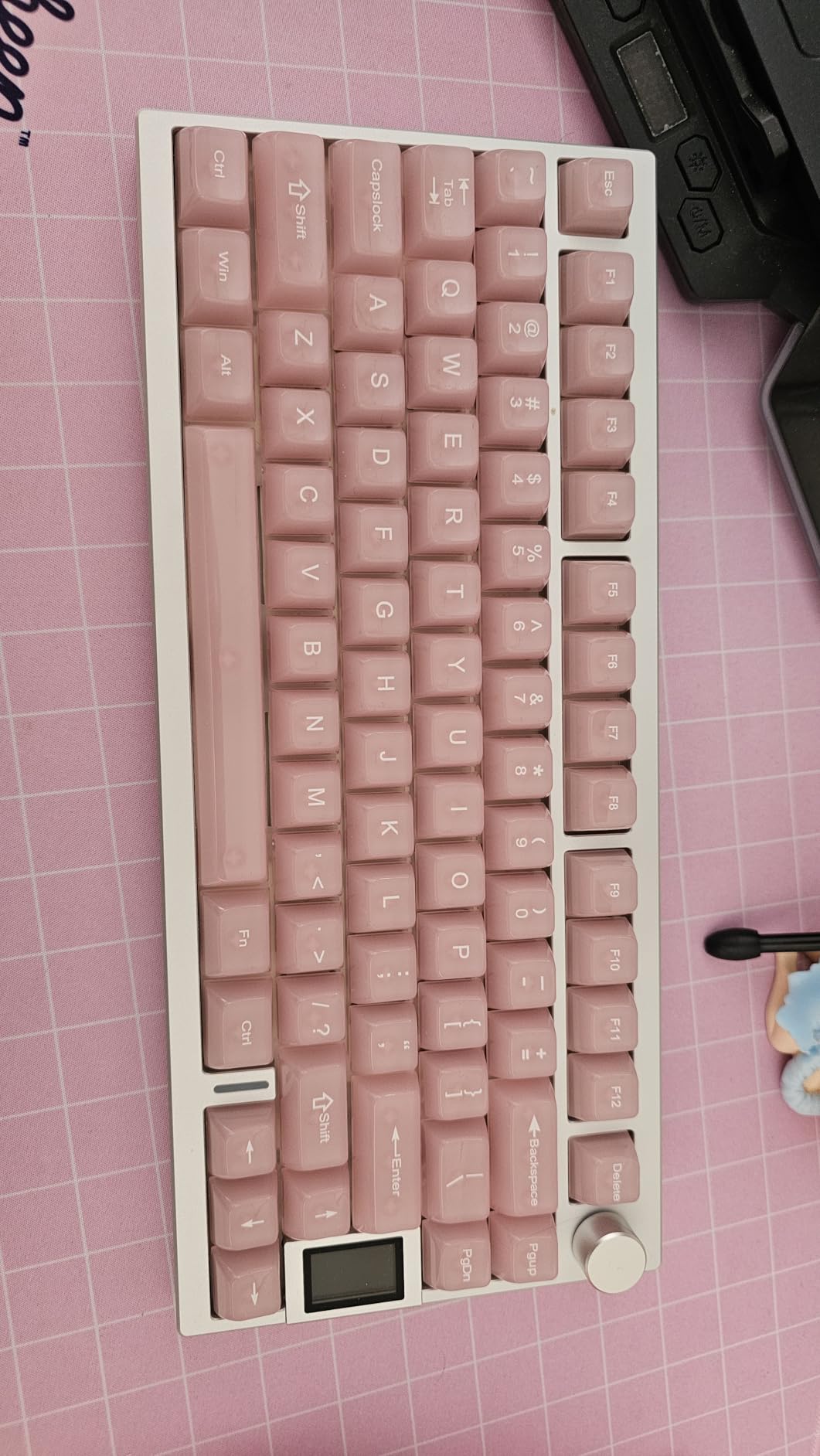
The AL80 is the board for typists who care about layout customisation as much as feel. QMK and VIA support means you can remap every key, build layers, assign macros and drive the RGB from a browser rather than an app. Very few boards at this level offer that.
For day-to-day typing, the fundamentals are strong. A CNC anodized aluminum case and plate at 1.4 kg resist flex, the gasket mount with multiple layers of sound-absorbing material produces almost no hollow ping, and the switches and stabilizers both arrive factory-lubed for a creamy feel out of the box.
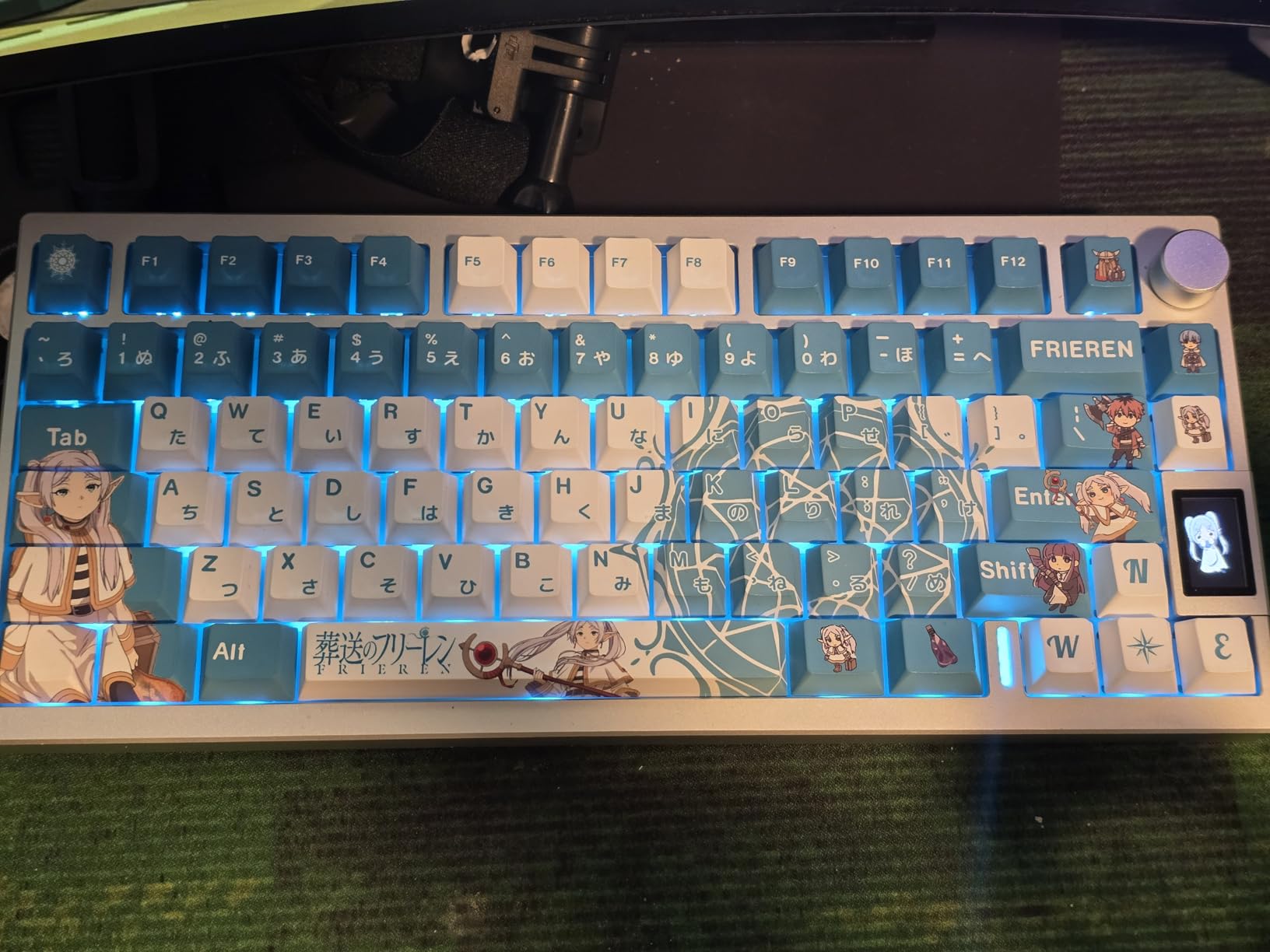
The LCD is more than decoration. It can show the time, battery status, connection mode, and your own uploaded images or GIFs, which makes it easy to confirm at a glance which mode you are in before you start typing. The metal knob responds well and can be assigned in software.
Tri-mode connectivity covers Bluetooth, 2.4GHz wireless and USB-C with up to five paired devices at 1000Hz polling. Reviewers report no perceptible latency on either wireless mode, which is the question most wireless keyboard pages never answer.
Who the AL80 suits
It suits typists with a German, Nordic or other AltGr layout, except that the 75% layout has no AltGr key at all, so check that first if that applies to you. It suits programmers who remap layers constantly and want a browser-based workflow rather than a vendor app.
It suits anyone who wants a machined aluminum board with gasket mounting and wireless at a mid outlay. Many owners describe it as a keeper rather than a stepping stone.
Who should skip the AL80
Skip it if you type quietly. The included Cocoa Cream V2 linears are louder and higher-pitched than the switches on premium rivals, which is the most common complaint from owners comparing it against other boards in this range.
Skip it if you need full open-source firmware control. Yunzii advertises QMK and VIA but has not published the source code, which gates complete remapping and OpenRGB control. The screen also sits at an awkward viewing angle, and deep modding is difficult because of the Allen screws and thick foam.
12. Logitech Alto Keys K98M: The Best 1800-Style Wireless Board for Typing
Logitech Alto Keys K98M Wireless Mechanical Gasket Keyboard – Graphite
98-key 1800-style
1100 g
Gasket mount
Hot-swappable
White LED
Pros
- Gasket mount genuinely dampens vibration
- Light switches suit long sessions
- Reliable wireless with easy switching
- Up to 12 months per charge
Cons
- Hollow space bar sound
- Arrow keys overlap numpad 0
- Heavy for a compact board
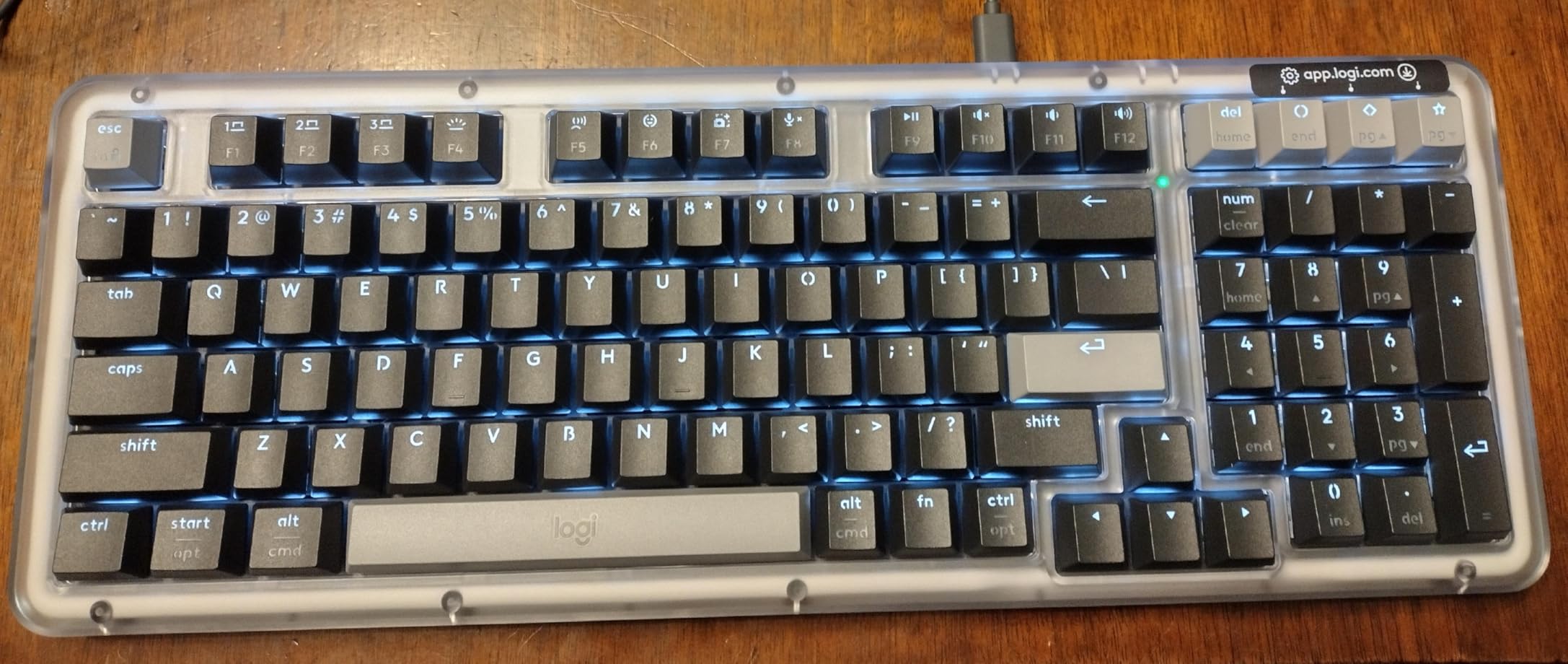
The Alto Keys K98M is a newer release with a smaller review base than the rest of this list, and that is worth stating plainly. Early sentiment is broadly positive, and the reason is that Logitech finally added real gasket mounting to a consumer keyboard. Older Logitech boards had none.
The 98-key layout is a 1800-style compact arrangement with a numpad, so you get numbers without a full-size footprint. The switches are light and smooth, and reviewers single them out as comfortable over long typing sessions. Hot-swappable sockets with five spare switches included let you change the feel, and the concave keycaps have a dished surface that centres your fingertip.
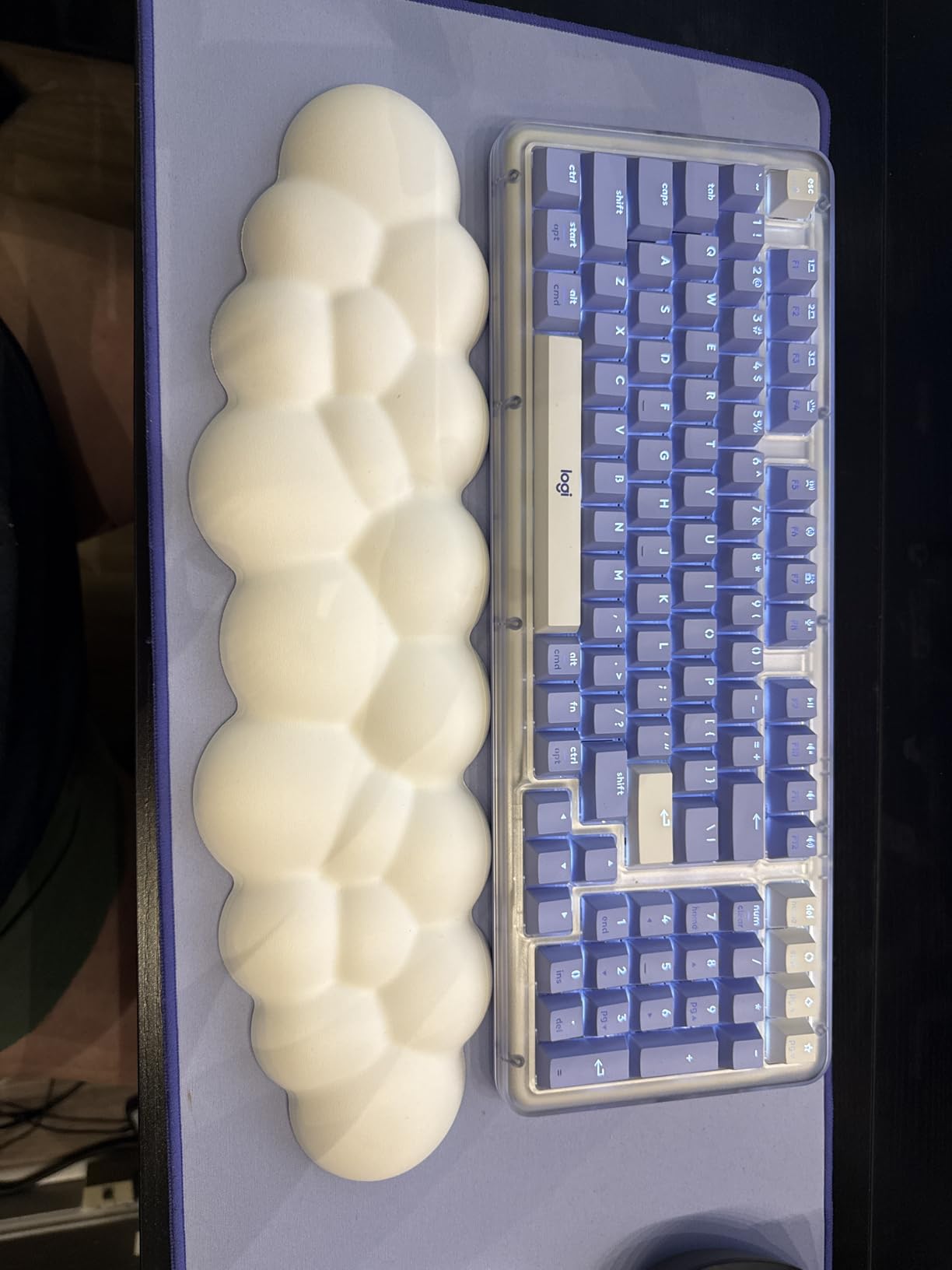
Wireless reliability is the quiet strength here. Bluetooth Low Energy and the Logi Bolt receiver both pair cleanly, device switching is effortless, and there is a battery indicator to trust. Up to 12 months of battery life per charge is claimed, and USB-C charging works while you keep typing.
That matters for anyone moving between a laptop, a desktop and a tablet, and it is the strongest reason to consider this board despite the smaller review count. A two-year limited hardware warranty also backs it up.
Who the Alto Keys K98M suits
It suits typists who want a numpad without a full-size board, and anyone for whom wireless reliability matters more than firmware depth. The Logi Options+ app programs Action Keys and includes AI-assisted shortcuts, which is a light touch rather than a full customisation layer.
It suits Mac and Windows users equally, since it is compatible with both and the switch type is described simply as mechanical rather than locked to one switch family.
Who should skip the Alto Keys K98M
Skip it if you are sensitive to layout quirks. On this compact 98-key arrangement the arrow keys overlap the numpad 0 key, which several buyers have returned boards over. Check the layout image before committing.
Skip it if sound is critical. The space bar has a noticeably hollow, bass-heavy sound compared with the rest of the keys, the white LED coverage on the taller function-row caps is uneven, and some buyers find the keys louder than a non-clacky mechanical board should be. At roughly 2.5 pounds it is also heavy for its size.
Switch Choices for Typing: Linear, Tactile and Clicky
For long typing sessions, tactile switches are the safest default. The bump at the actuation point confirms a keystroke without producing an audible click, which reduces accidental presses and lets you type for hours without the mental fatigue that comes from never knowing whether a key registered.
Linear travels smoothly from top to bottom with no bump and no click. Fastest for gaming and preferred by many long-form writers who dislike being interrupted by a bump. The lightest options, at 40 gf, suit long sessions; heavier linears wear your typing out faster.
Tactile adds a small bump at the actuation point. This is the community default for writing, and it is what we recommend if you are unsure. The two boards in this roundup that ship with tactile switches are the Redragon K556 and the Logitech G413 SE.
Clicky adds an audible click alongside a tactile bump. Enthusiasts enjoy the feedback; everyone sharing your room does not. Five boards here ship clicky, which is why we have flagged the noise in each section.
Silent variants damp the sound of both linear and tactile switches. Worth the premium if you are in an open office or on calls, since damping the switch is often more effective than switching to a clicky-free board.
Switch weight matters more than most buyers expect, and it maps fairly cleanly to hand strength. Light-pressing typists generally do best at 45 to 50 gf, average hands sit comfortably at 50 to 60 gf, and heavy typists who bottom out every keystroke are best served by 60 to 70 gf, which reduces the effort required to actuate.
Named switches worth starting with: Cherry MX Brown is the classic moderate tactile option at around 55 gf, Gateron Jupiter Brown is a well-regarded budget-friendly Brown clone, Boba U4T and Holy Panda are heavier tactiles at the upper end, Zealios V2 is a heavy tactile for strong typists, and Gateron Oil King is a smooth heavy linear. The board that ships with the least amount of switch character is usually the one you will keep, so consider hot-swapping before you commit.
How to change switches on a hot-swap keyboard
Hot-swap means the sockets hold the switch in place electrically and mechanically without solder, so switching is a five-minute job with no tools beyond the puller that ships in the box. The boards here that support it accept either 3-pin or 5-pin switches, so check which your board takes before ordering replacements.
Power the keyboard off and unplug the cable.
Insert the switch puller under the switch housing. Pull the two plastic locking tabs straight up while pressing gently on the switch body.
Remove the old switch by pulling it straight up along the axis of the key, not at an angle.
Line up the replacement switch so the two metal pins on the bottom face straight down, then push it straight down into the socket until it clicks.
Replace the keycap by pushing it on at the same angle you removed it.
Reconnect the power and test the row with a typing test before you close the case.
If a switch will not seat, check that the pins are straight and that the switch is oriented correctly, since a bent pin is the usual cause. Switch lubrication is a separate step and is not required for a good result on the foam-filled boards in this list.
Layout Size for Typing: Full-Size, 96%, TKL and 75%
The best layout for typing is the smallest one that still contains every key you use daily, because a smaller board brings your mouse closer to your body and takes the load off your shoulder and neck. That is why tenkeyless boards earn an ergonomic recommendation rather than a desk-space one.
Full-size 104-key gives a numpad, a separated function row and dedicated navigation keys. Best for spreadsheets and data entry. Two picks here: the Redragon K556 and the Das Keyboard 4 Professional.
96% compact 99-key keeps a numpad in a shorter body by tightening the function row. Best if you need numbers and less desk depth. The AULA F99 is our pick, with the caveat that the layout takes a week to learn.
Tenkeyless 87 to 90 keys drops the numpad entirely and keeps a proper function row. The strongest choice for long-form writing. Our top pick, the Redragon K552P, is here.
75% compact 81 keys compresses the function row and usually adds a knob. Best for a small desk or a multi-device wireless setup. The R75, F75 Pro, Mercury K1 and AL80 are here.
To choose in four steps: decide whether you type numbers daily, because that decides full-size or 96% against the rest. Then decide whether an F-row shortcut matters, which decides 75% and below against TKL. Then measure your desk and how far your mouse currently sits from your shoulder. Finally, check whether your operating system needs an AltGr key, because the 75% layouts in this roundup do not include one.
A note for Mac users: boards in this roundup ship with Windows legends. The Logitech G413 SE and the Alto Keys K98M are explicitly compatible with both Windows and macOS, while the boards whose customisation software is Windows-only will make layer access rougher on a Mac.
Quiet Typing: Boards That Survive a Shared Office
The quietest typing results come from four things in order: a dampened case, factory-lubed stabilizers, switch choice, and keycap material. Internal foam matters more than almost anything else, which is why the GravaStar Mercury K1 and the RK Royal Kludge R75 sit at the quiet end despite both using linear switches.
Stabilizers are the second lever and the one most people forget. Every board with a wide key has a wire and a housing that can rattle on the upstroke. Factory-lubed stabilizers, which the AULA F75 Pro and F99 and the RK Royal Kludge R75 all ship with, fix most of that noise before you touch anything.
For a genuinely quiet setup, our order of preference for shared offices is the GravaStar Mercury K1 first, then the RK Royal Kludge R75, then the Redragon K556 with its internal foam. On any of those, replacing the switches with a silent tactile variant takes minutes and drops the noise further.
One practical etiquette point that nobody mentions: white LED-only boards such as the Logitech G413 SE and the Alto Keys K98M are visually quieter in a meeting because they do not strobe, and neither has media playback keys that fire by accident mid-call. Both have a place in a room with a camera pointed at your desk.
Ergonomics for Long Typing Sessions
Switch choice is only one lever. People who type for hours on Brown tactile switches and still get hand pain, which is common in the forum discussions we read, are usually working around a setup problem rather than a switch problem.
Set your elbows at roughly 90 to 110 degrees with your upper arms close to your sides. If your shoulders are lifting, the keyboard or chair is too high.
Keep your wrists flat and neutral. A negative tilt, where the keyboard’s back edge sits lower than the front, extends your wrists less than a flat board does. A thick wrist rest should support the heel of your palm, not press into your wrists.
Take a five-minute break every hour. Standing, moving and looking away from the screen does more for hand comfort than any keyboard change.
Use a light touch. Bottoming out every keystroke on a heavy switch is the most common cause of fatigue after long sessions.
Watch for warning signs: tingling, numbness, weakness or pain that persists overnight. Those are reasons to see a clinician, not reasons to buy a bigger keyboard.
Layout size feeds into this directly. Every centimetre you remove between your keyboard and your mouse brings your shoulders back toward a neutral position, which is why we keep recommending tenkeyless and 75% boards for long typing. If you already have wrist pain, split and column-staggered boards address the geometry itself, and that is a bigger lever than any switch swap. Our tenkeyless keyboard guide covers the layout side in more detail, and readers with existing nerve pain should treat a split board as the priority rather than a luxury.
What Does Not Matter for Typing
Some of the specification sheet is aimed at a use case that has nothing to do with writing, and paying for it means paying more for the keyboard you actually want.
RGB backlighting. Useful for finding keys in a dark room, and largely irrelevant otherwise. It also frequently leaks into the typing experience because coloured light under opaque keycaps is distracting, and it is a real cost driver in the price of a board.
Very high polling rates. These matter for competitive gaming, where inputs are measured in milliseconds. Typing speed is limited by your fingers and your habits, not by how often the board checks for a pressed key.
Macro key columns. Useful if you retype the same blocks constantly. If you are reading this to decide, you do not need five extra keys above your left hand.
Deep programmability. Layers, macros and OLED screens are enjoyable if you enjoy configuring them. They are not a typing feature, and the boards that are simplest out of the box are often the ones that get finished work done.
Maximum lightness. Very light boards look modern but move slightly under typing pressure, which feels cheap over a long session. Weight between roughly 800 grams and 1.5 kg is the useful band.
None of the above is a dealbreaker, and several are pleasant extras. The point is that a board can be outstanding for typing while being average at everything else, which is exactly what we optimised for in this list.
Frequently Asked Questions
Are mechanical keyboards good for typing?
Yes, for most people they are. Mechanical switches give consistent feedback, resist accidental presses when tactile, and last far longer than rubber dome membranes because each key is an independent moving part. The main reason people dislike them is noise and a steeper learning curve on switch feel. Tactile switches at 50 to 60 gf are the safest starting point for long sessions.
Which type of switch is best for typing?
Tactile switches are the best general answer for typing. The bump at the actuation point confirms each keystroke without an audible click, which reduces accidental presses and lowers fatigue over hours. Linear switches suit fast typists and people who dislike interruptions, and clicky switches are enjoyable but too loud for shared spaces. Silent variants of either are the choice for open offices.
Should I get a 75% or TKL keyboard for typing?
TKL is the better choice for long-form writing because it keeps a separated function row and dedicated navigation keys while leaving clear space for a mouse. A 75% board compresses the function row, usually adds a knob, and suits small desks and multi-device wireless setups. Choose TKL if you use editor shortcuts, and 75% if desk depth matters more than shortcut access.
What is the best quiet mechanical keyboard for the office?
For an open office, the GravaStar Mercury K1 is the strongest pick in our testing. Its gasket-mounted plate and five layers of sound-dampening foam produce a deep, low sound, and its light linear switches add little top-end noise. The RK Royal Kludge R75 is the runner-up thanks to triple-layer foam. Swapping in silent tactile switches improves either board further.
How do I change the switches on my mechanical keyboard?
On a hot-swap board, no tools beyond the included puller are needed. Power the keyboard off, insert the puller under the switch housing and pull the two locking tabs straight up, remove the switch along the axis of the key, align the replacement so its two pins face down, and push until it clicks. Then refit the keycap. Soldering is only required if your board has soldered joints.
Do keyboards cause carpal tunnel?
No keyboard causes carpal tunnel on its own, but poor setup can aggravate the underlying pressure on the wrist and forearm. Keep elbows at 90 to 110 degrees, wrists neutral with a slight negative keyboard tilt, take a five-minute break every hour, and avoid bottoming out every keystroke. Persistent tingling, numbness or overnight pain is a reason to see a clinician, and a split board may help the geometry.
Conclusion: The Best Mechanical Keyboards for Typing in 2026
The best mechanical keyboards for typing in 2026 depend almost entirely on your noise tolerance and your layout needs. For most people, the Redragon K552P is the pick: a heavy tenkeyless frame, double-shot PBT keycaps and hot-swap sockets that let you replace the loud clicky switches in five minutes.
If you share a space, choose the GravaStar Mercury K1 for its gasket mount and five foam layers, or the RK Royal Kludge R75 if you want the deepest sound and do not need wireless. If you type numbers all day, the Redragon K556 gives you Brown tactile switches and a real numpad, and the AULA F99 does the same with hot-swap sockets and a large battery. If you want no configuration at all, the Logitech G413 SE is the plainest board that still feels properly mechanical.
Whichever one you choose, buy the hot-swappable version if you can. That single feature turns an irreversible switch decision into a five-minute experiment, and it is the reason most of the community recommends it as insurance rather than as a feature.