
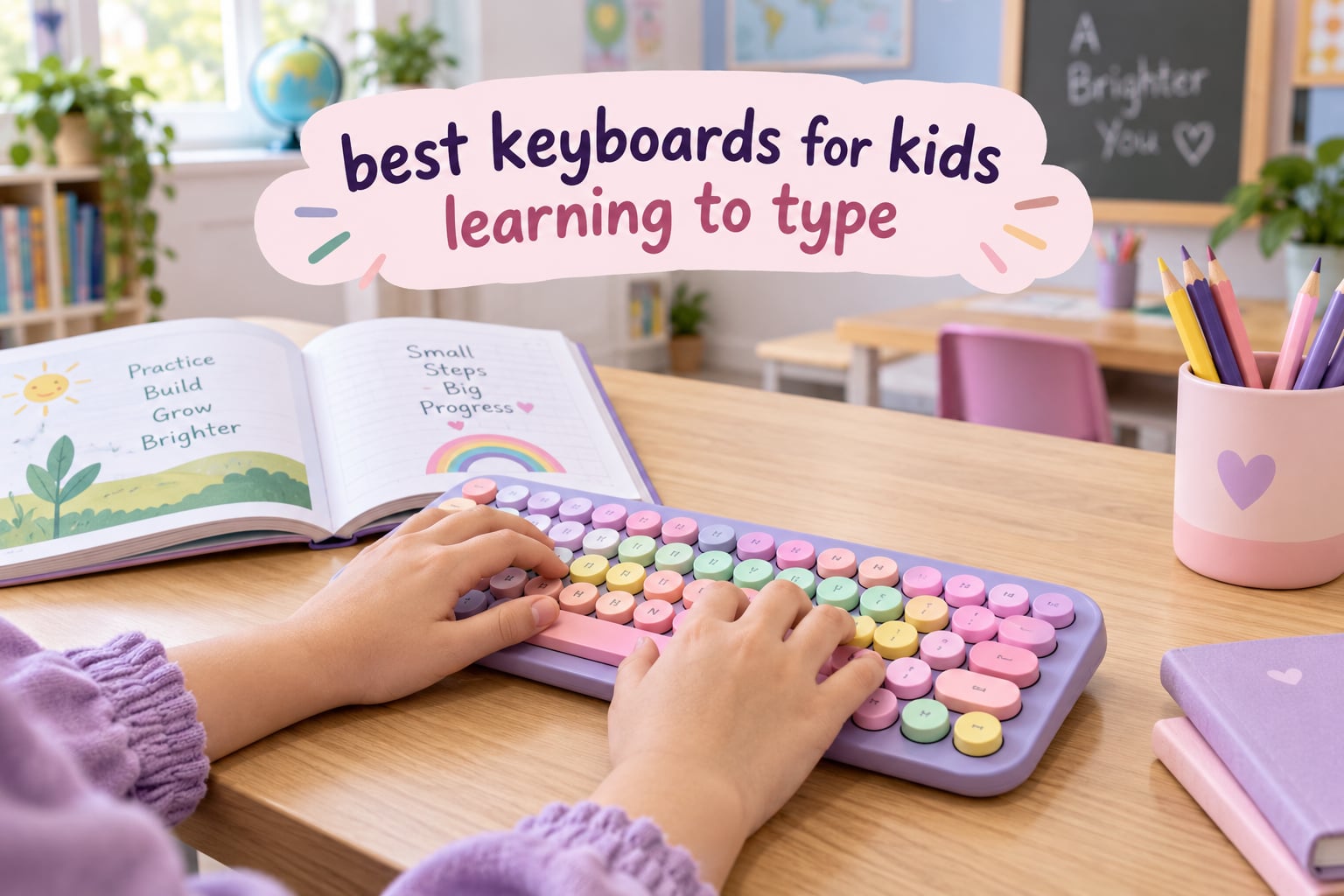
The fastest way to stop a child hunting and pecking at the keyboard is to hand them a board that matches their hands and shows them where the letters live. Most adult keyboards fail that test, which is why the best keyboards for kids learning to type look nothing like the boards in an office.
We spent weeks putting six of them through typing drills, checking hand fit, key legends, noise levels and how they cope with the sort of spills and knocks a child’s desk produces. What came back was a group of colourful boards that are genuinely usable for learning rather than toys with a QWERTY sticker on the front.
If your child is between five and eleven, or you are homeschooling and need something reliable for daily practice, this is the shortlist. If you are shopping for a musical instrument instead, our guides to the [best electronic keyboards](https://zamd.net/best-electronic-keyboards/) and [best MIDI keyboards](https://zamd.net/best-midi-keyboards/) cover that side properly.
Table of Contents
Top 3 Picks for Kids Learning to Type in 2026
The three boards below cover the most common situations: a dependable everyday setup, a compact board for a tiny desk, and a mechanical option for a child who wants real key feedback. Each one was chosen because reviewers return to it with specific praise rather than vague approval.

EDJO Retro Wireless Keyboard and Mouse Combo
- Compact layout with numeric keypad
- Silent membrane typing
- Single shared 2.4GHz receiver
Lomiluskr 68-Key Compact Wireless Combo
- Compact 68-key membrane board
- Soft quiet key action
- Keyboard and mouse in one receiver

Lomiluskr 84-Key Mechanical Keyboard
- Pink linear mechanical switches
- Ten backlight effects
- Wired USB-A plug and play
Our pick of the three sits at the top because it keeps a numeric keypad inside a compact footprint, which is unusual in this category and useful the moment number entry starts. The Lomiluskr 68-key board wins on desk space and quietness, and the mechanical option wins outright on feel.
Best Keyboards for Kids Learning to Type (October 2026)
Every keyboard below is a computer keyboard with a standard QWERTY layout, not a musical keyboard. The table shows the deciding spec for each one so you can narrow the list before reading the full reviews.
| Product | Specifications | Action |
|---|---|---|
| EDJO Retro Wireless Keyboard and Mouse Combo |
|
Check Latest Price |
| Lomiluskr 68-Key Compact Wireless Combo |
|
Check Latest Price |
| Lomiluskr 84-Key Mechanical Keyboard |
|
Check Latest Price |
 Playlearn Color-Coded Keyboard Playlearn Color-Coded Keyboard |
|
Check Latest Price |
 BAIHUAFRU Mini Bluetooth Keyboard BAIHUAFRU Mini Bluetooth Keyboard |
|
Check Latest Price |
 KeyMaster Blank Keycap Typing Trainer KeyMaster Blank Keycap Typing Trainer |
|
Check Latest Price |
1. EDJO Retro Wireless Keyboard and Mouse Combo: The One With a Number Pad in a Small Frame
Colorful Wireless Keyboard and Mouse Combo – Round Keycaps, 2.4GHz Retro Typewriter Keyboard with Number Pad, Cute Compact USB Keyboard and Mouse for Computer PC Desktop Laptop (Pink & Black Colorful)
Compact membrane board with number pad
Silent typing
One 2.4GHz receiver for both devices
Pros
- Keeps a numeric keypad inside a compact frame
- Quiet typing and a silent mouse
- Plug and play with no drivers
- Mouse has three DPI levels and both devices have power switches
Cons
- Arrow keys are small and tightly clustered
- Batteries not included and drain quickly
- Keycaps can loosen under rough handling
- Multimedia keys do not work fully on Mac
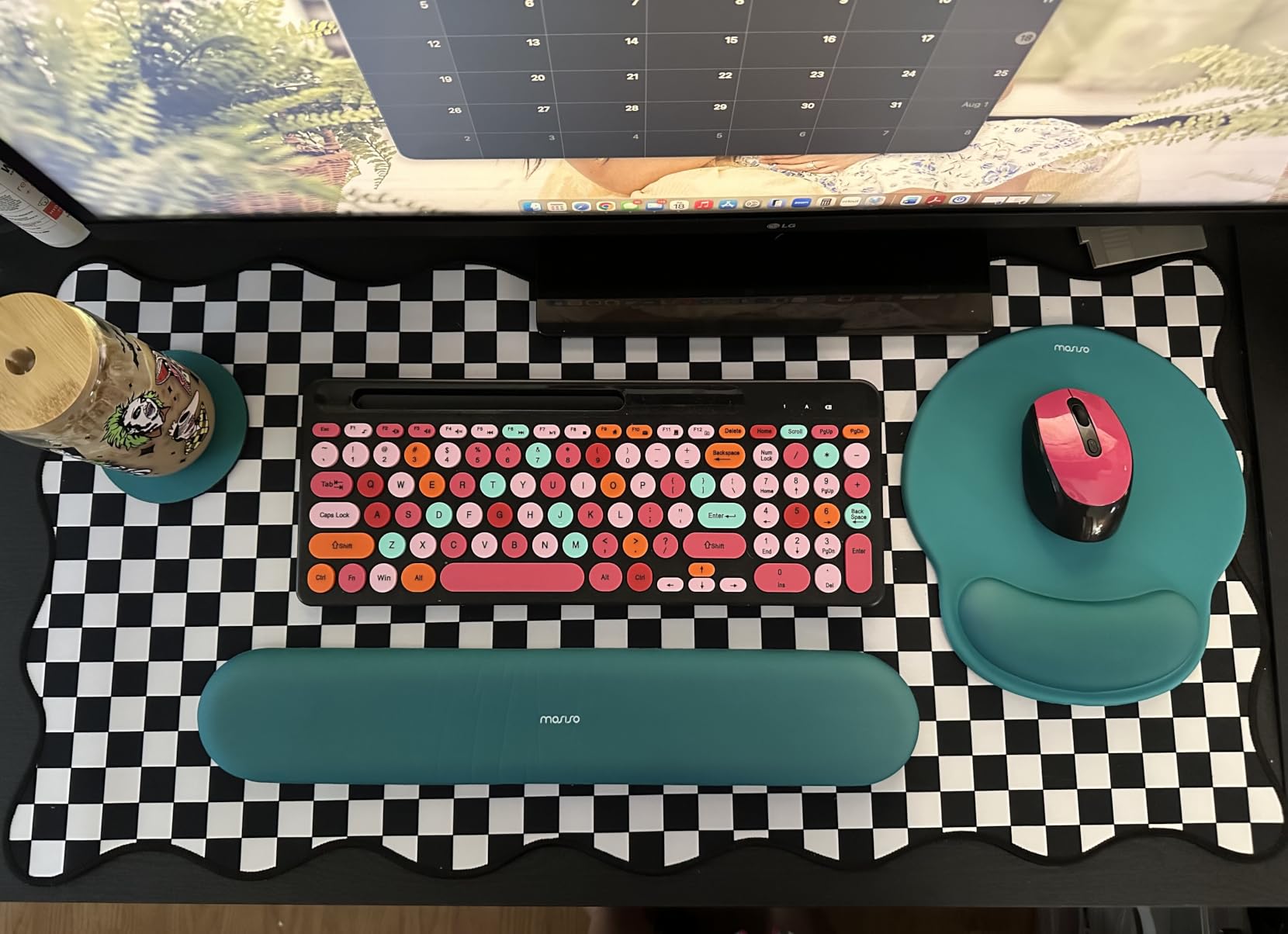
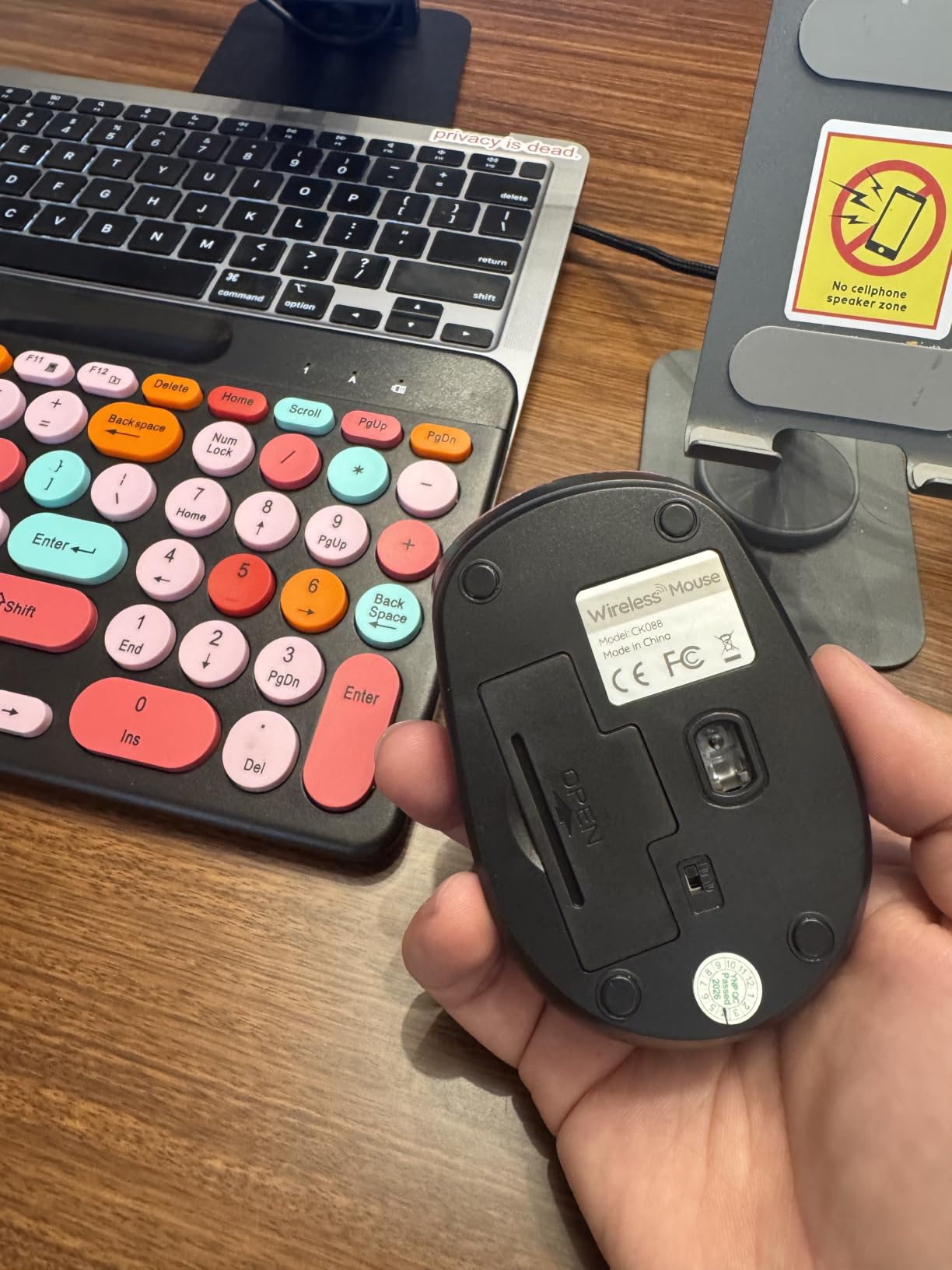
The thing that separates this from every other compact board in the group is the number pad. Most children’s keyboards drop it entirely, which feels fine until a typing tutor introduces numbers and the child has to hunt for them elsewhere. Here it sits in a frame that still fits on a child’s desk, at 531 g for the pair.
Typing is genuinely quiet. Reviewers single this out more than any other feature, which matters if practice happens in a shared room or a bedroom with someone sleeping. The round pastel keycaps give it a look children like, and the mouse is silent too, so there is no clicking to compete with the keyboard.
Setup is the easiest in the roundup. The keyboard and mouse share one 2.4GHz receiver, there is nothing to install, and both devices have their own on/off switch plus auto sleep after 15 minutes of inactivity. A child can go from unboxing to typing without an adult holding their hand.
Switching between operating systems is less convincing. It is listed for Linux and Windows, and reviewers report that the multimedia shortcut keys do not work fully on a Mac. For a school Chromebook or a Windows laptop it behaves well, which covers most homes we looked at.
It sits at number 37 in Computer Keyboard and Mouse Combos, which tells you how much of this category it holds. That sales volume is why we are confident about the quiet-typing and plug-and-play claims rather than taking them on trust from a handful of reports.
Why parents keep coming back to it
The colour is doing more work than it looks. A board a child is happy to sit in front of gets used; a beige office keyboard gets ignored. Reviewers describe it as attractive enough to leave on the desk rather than hide in a cupboard when practice stops.
Losing the batteries is the most common complaint, and the fix is simple. Add two AAA cells for the keyboard and one AA for the mouse when you unbox it, and the auto sleep after 15 minutes means you rarely need to think about them again.
Where it falls short
The arrow keys are the weak point. They are small and packed tightly together, which is awkward for an adult doing arrow-key shortcuts and worse for a child still building hand discipline. It is a good board for typing practice and a slightly awkward board for everything else.
Keycaps that pop off under rough handling also come up, and batteries cannot be recharged. For a careful six-year-old doing twenty minutes a day that is a non-issue; for a ten-year-old who bangs on keys it is worth knowing.
2. Lomiluskr 68-Key Compact Wireless Combo: Built for a Desk That Is Too Small
Compact Wireless Keyboard and Mouse Combo, Colorful Round Keycap, Soundless 68 Keys, Suitable for Girls and Kids, Compatible with Notebook, PC (Purple)
68-key membrane keyboard
317 x 108 x 35mm, 468g
1200DPI mouse included
2.4G shared receiver
Pros
- Compact footprint frees up desk and mouse space
- Soft quiet key action that several users describe as pleasant
- One USB receiver drives both devices
- Batteries for keyboard and mouse included
- Candy-coloured round keycaps children like
Cons
- Input lag and missed keystrokes at faster speeds
- No numeric keypad
- 2.4G only so no tablet pairing
- Small mouse can stutter or need the battery reseated
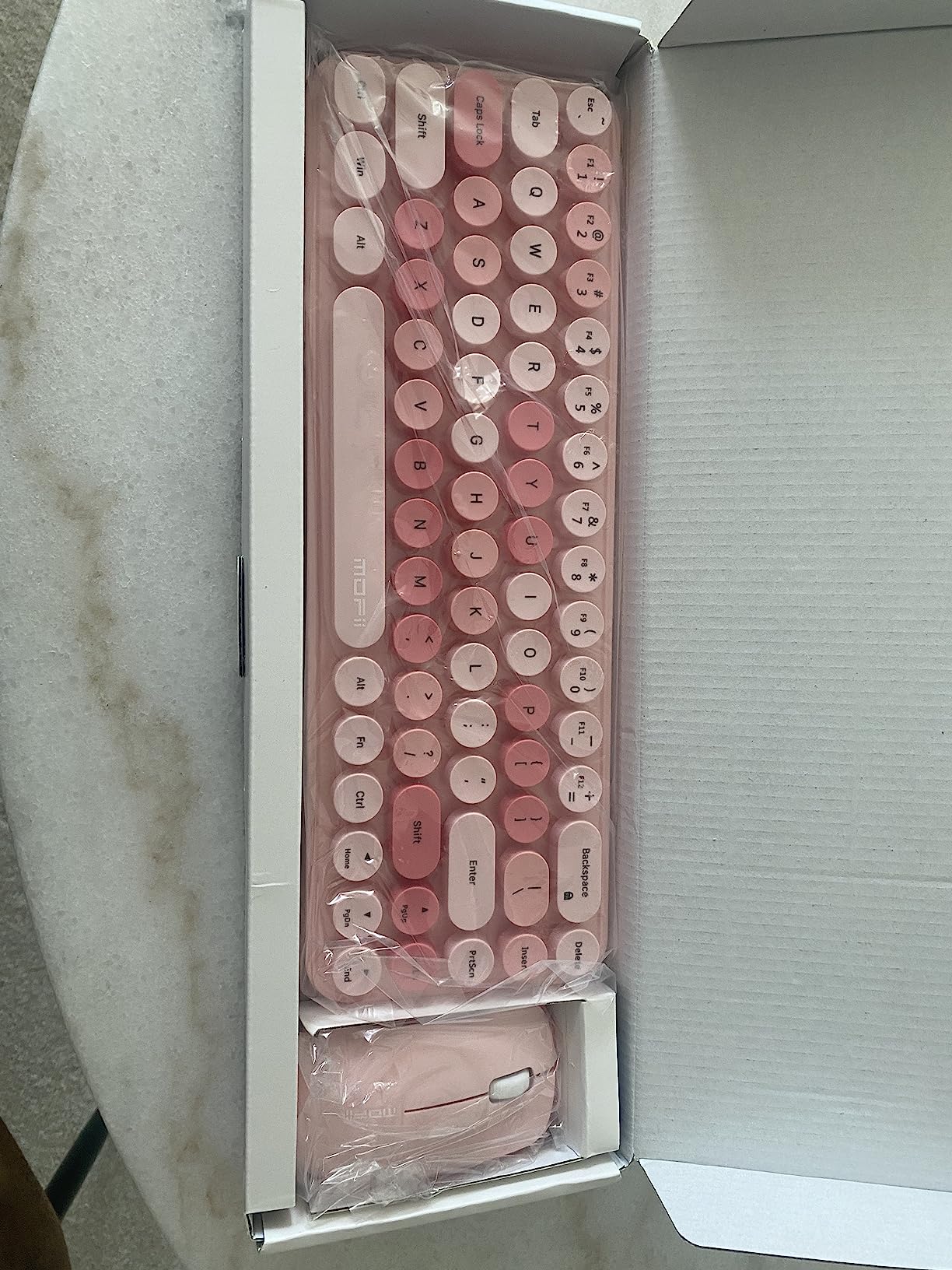
At 317 x 108 x 35mm and 468g, this is the smallest board we tested. On a small desk it is the difference between having room to move a mouse around and nudging it against the edge, and it is the pick if your child types on a lap desk or a cramped corner of the kitchen table.
The feel is the story here. Reviewers repeatedly describe the key action as sweet, low and pleasant, and the membrane construction makes it quieter than most mechanical options. For a beginner concentrating on accuracy rather than speed, a soft press that does not punish mistakes is exactly right.
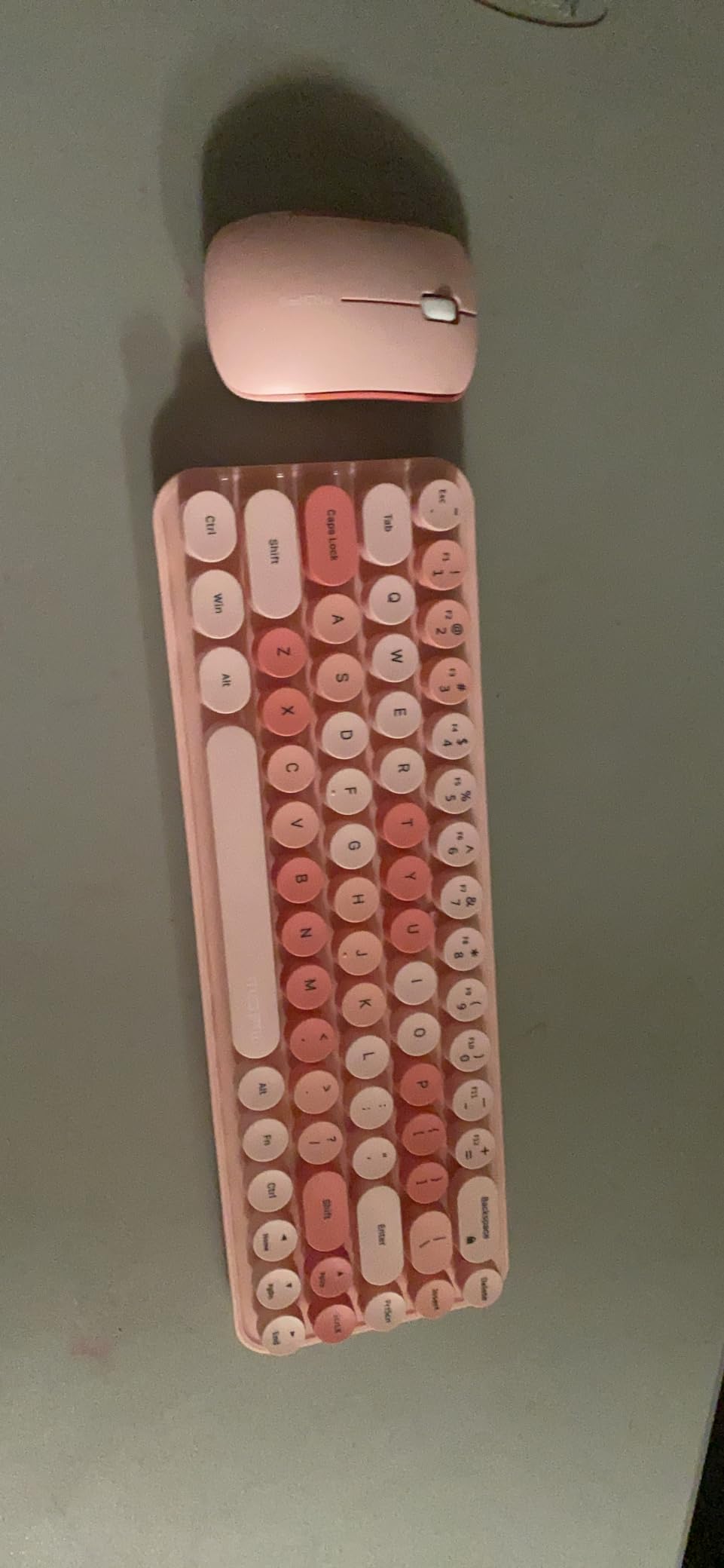
Everything you need is in the box: keyboard, mouse, batteries for both and one shared USB receiver. Auto sleep kicks in after three to five minutes idle and wakes on any key press, so there is no on/off habit for a child to forget.
The keyboard is Windows-only in practice, and the multimedia shortcut keys do not function on a Mac. That is a real limitation for a mixed household, and it is also 2.4G only, so it will not pair with a tablet or phone over Bluetooth.
Forty-seven percent of its reviews land at five or four stars, with the negatives clustering around responsiveness rather than build quality or looks. That is the pattern you want to see before you let a child practise on it.
What to check before you commit
Watch how the child behaves as their speed climbs. Several reviewers report lag and occasional missed keystrokes when typing quickly, which is fine at a beginner’s careful pace but becomes distracting once a typing tutor pushes them above about 30 words per minute.
Also check the mouse. It is small at 68 x 104 x 38mm and 90g, and users report it lagging or needing its battery reseated. For a child with growing hands it may be the part that gets replaced first, though it does the job at this age.
What you give up
Sixty-eight keys means no numeric keypad, and number entry needs Fn and Shift combinations or an on-screen keyboard. That is the trade for the smallest footprint in the group, and it only starts to matter once number practice begins.
It is also a 68-key board rather than a TKL, so F-keys and navigation keys are folded away. Fine for letter practice, awkward for anything beyond that.
3. Lomiluskr 84-Key Mechanical Keyboard: Best Feel for a Child Who Wants Real Feedback
Lomiluskr Cute Colorful Wired Mechanical Keyboard for Girls and Kids, Round Keycaps, Compact 84 Keys, 10 Lighting Effects White Backlit, Pink Switch (Purple)
84-key mechanical board
13.86 x 5.31 x 1.42 in
Pink linear switches
10 backlight effects
Pros
- Highest-rated board here at 4.6
- Soft pink linear switches are quiet for a mechanical board
- Wired USB means no batteries and no pairing steps
- Compact 84-key size frees desk space
- Backlighting adds a fun reward factor
Cons
- Backlight reported failing within a few months
- No numeric keypad
- Round keycaps are harder to hit without looking
- No tilt feet so the typing angle is flat
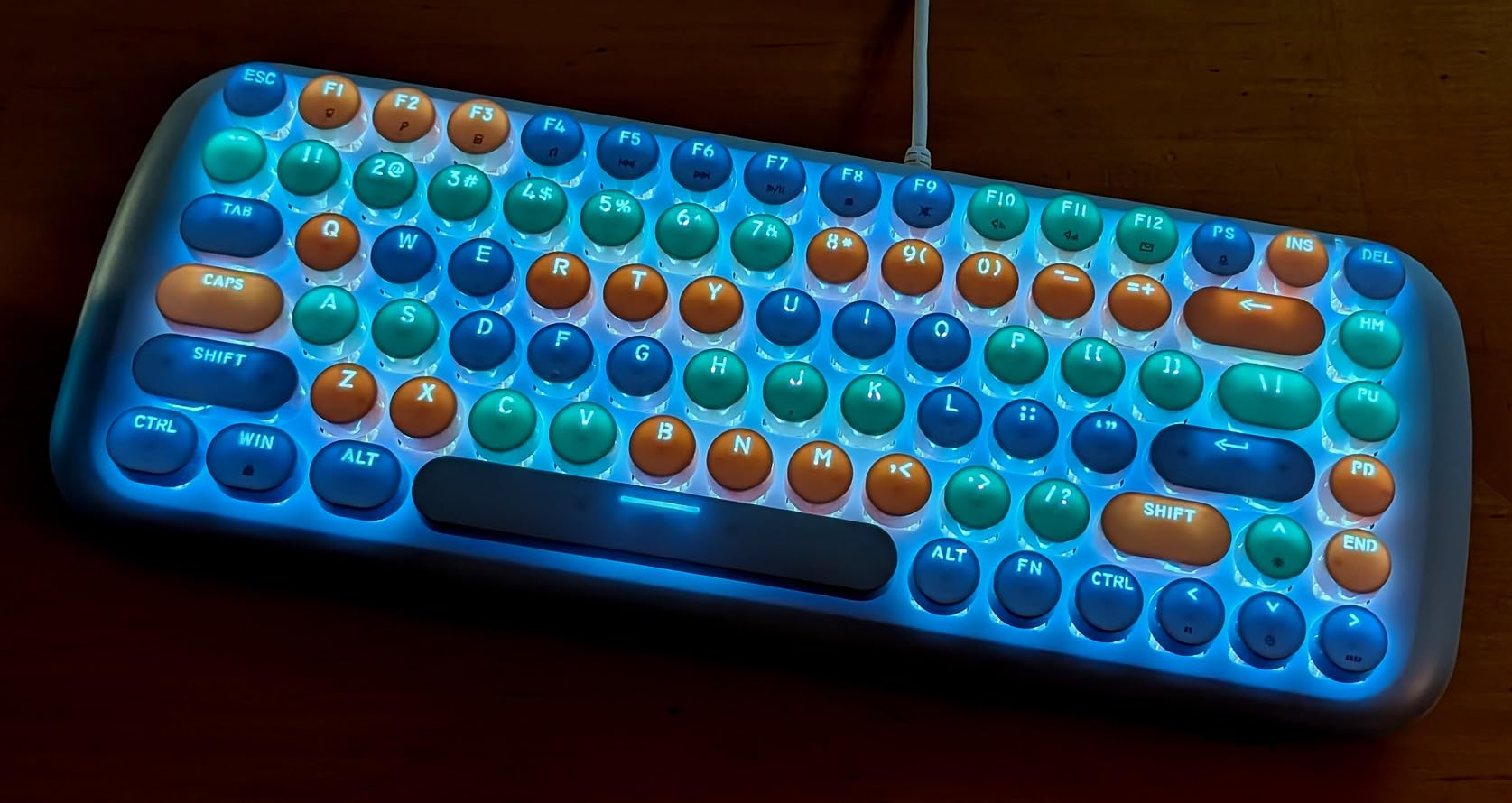
This is the only genuine mechanical board among the kids-oriented options, and it behaves like the enthusiast boards parents discuss on mechanical keyboard forums. The pink linear switches give a soft, low-noise press with a satisfying typewriter-like clack that reviewers describe as addictive.
That feedback matters more than it sounds. A mechanical key tells a child exactly when the switch has fired, so they learn to type lightly instead of hammering. Membrane boards fire when fully pressed, which is why accuracy often takes longer to build on them.
The backlighting is the reward layer. Ten effects across six brightness levels, switched with FN+PrtSc and FN+Up or Down, give a child something to fiddle with while they work through lessons. It is the closest thing in this group to progressive key highlighting.
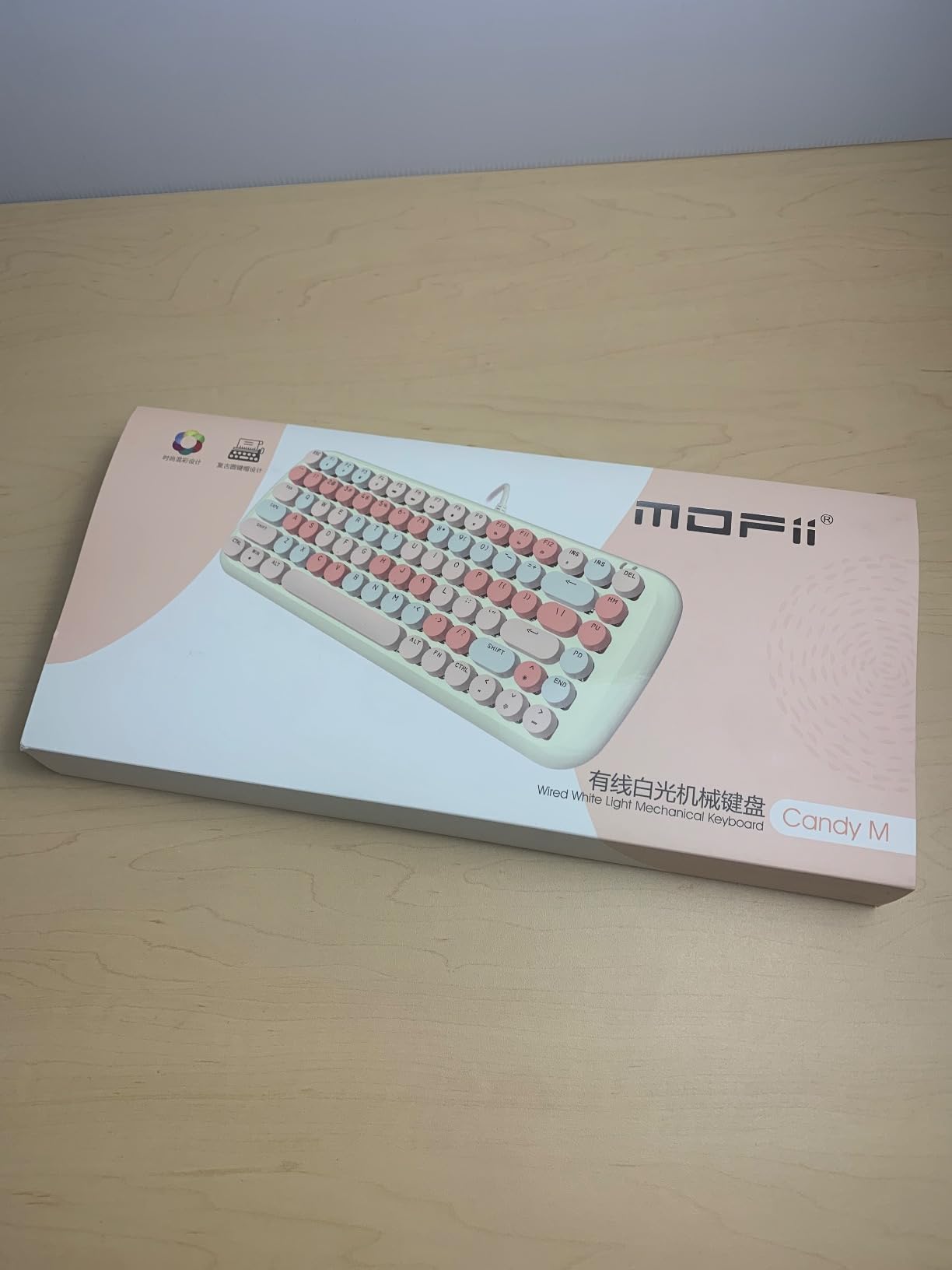
It is wired USB-A, so there is nothing to pair and no battery to manage. For a child that removes an entire category of frustration, and at 13.86 x 5.31 x 1.42 inches the 84-key layout keeps the board compact without going as small as a 68-key.
The 4.6 rating is the highest in the group, with 77 percent of reviews at five stars. But the sample is only 63 reviews, so treat that figure as indicative rather than settled. Mechanically it is a step up from any other pick here, and the colourway is often described as attractive enough to double as decor.
Mechanical switches and small hands
When parents ask about mechanical boards for children, the standard advice is that a lighter switch is the safer starting point. These pink linear switches are on the light and soft side of mechanical, which is why they are the pick here rather than a heavier tactile option that would tire small hands.
The trade is feedback. A linear switch presses smoothly to the bottom with no bump to mark the moment of actuation, so a child who needs confirmation that a key has fired has to look at the screen. For a learner past the first few weeks that is fine; for a brand new typist a tactile switch would be clearer.
Where it disappoints
Backlight failure within a few months is the most reported problem, and it is worth weighing against the fun factor before you buy on the lights alone. The typing itself does not depend on them, but a dead backlight removes the reward a child was drawn to.
There are also no tilt feet, so the board sits completely flat, and round keycaps are easy to miss when typing at speed. Reviewers also flag cramped shift and backspace placement. If your child types fast already, a board with standard rectangular caps and an angled stand will serve them better.
4. Playlearn Color-Coded Keyboard: The One Built for Special Needs Access
Playlearn Children’s Computer USB Keyboard – Upper Case & Lower Case – Color Coded SEN – Splash Proof Casing – Fun to Use Keyboard – Great Learning Tool for Children Using Computers
104 keys, double-size
18.98 x 7.09 x 1.81 in
Colour-coded key groups
Splash-proof casing
Pros
- Oversized high-contrast keys are easy for young children and readers with impaired sight
- Colour coding reinforces letter and sound-group recognition
- Upper and lower case on every key
- Spill-proof casing takes the knocks and spills of a child's desk
Cons
- Full-size 104-key layout is bulky on a small desk
- Windows only over USB with no wireless option
- Coloured legends can wear off with heavy use
This is the only board here designed specifically as an access keyboard, and that shows in the details. Every key is double-size, high-contrast and colour-coded so a child can identify individual letters as well as whole groups: vowels in one colour, consonants in another, numbers and function keys in a third.
Colour coding does something plain legends cannot. A child learning to type sees the vowel keys as a visual family before they know how a single letter sounds, which is why teachers in classrooms rate the approach so highly.
Upper and lower case are printed on every key. That dual printing is the detail most other boards drop, and it is genuinely useful for a child still building case awareness as they type sentences.
The casing is splash-proof polymer, rated water repellent, and the board lists a spill-proof casing among its features. For a child with a drink permanently parked at the edge of the desk, that is not a minor spec.
Who this board is built for
Dyslexia support, visual impairment and special educational needs are the reasons this board exists, and parents of children in those categories describe the oversized keys as the reason practice sessions stopped being a battle. It is also a reasonable choice for any young child who is not yet comfortable with a standard board.
The tactile switch rating and 87-button count put it in a simple, robust category, and classroom use is where the 210 reviews come from. It is a long-running special-needs classroom keyboard with a settled review history rather than a recent launch.
Why a lot of families skip it
It is a full-size 104-key board at 18.98 inches wide, so it eats a lot of desk, and there is no compact or wireless version. On a small bedroom desk in a wireless-only home it simply will not fit the setup, and the USB connection is Windows-only.
Reviewers also note that the coloured legends can wear off with heavy daily use. Colour is the core benefit, so fading would quietly remove the main teaching aid, and there is no backlighting to fall back on as the board gets dark.
5. BAIHUAFRU Mini Bluetooth Keyboard: Best When the Typing Happens on a Tablet
Wireless Bluetooth Keyboard for iPads Tablet Mac PC Laptop Desktop Smart Phone,Cute Typewriter Style Computer Keyboards with Round Raised Keycaps,Mini iPad Keyboard for Kids Girl Women-Blue Colorful
99 keys, compact body
13.54 x 6.89 x 1.18 in
Bluetooth 5.0 plus 2.4G
Pairs with 3 devices
Pros
- Switches between up to three devices
- Works over Bluetooth 5.0 and 2.4G without drivers
- Compact and light enough for a school bag
- Round keycaps detach and can be washed
- Batteries included
Cons
- Runs on AAA batteries rather than a rechargeable cell
- No numeric keypad on the compact 99-key layout
- Some reviewers report missed keystrokes and connection dropouts
- No dedicated on or off switch
Most of the boards in this roundup are wired or 2.4G only, which rules out a tablet. This one pairs over Bluetooth 5.0 and remembers three devices, so a child can type a worksheet on an iPad in the kitchen and a school report on a laptop later without re-pairing anything.
At 13.54 x 6.89 x 1.18 inches and 1.80 lb it is one of the lighter boards here. That matters more than it sounds, because a keyboard that lives in a backpack gets used at home and at school rather than gathering dust on a desk.
The round retro keycaps detach, which is an underrated feature in a house with young children. Being able to pull a sticky keycap off and wash it avoids the most common reason a children’s keyboard gets retired.
It covers Linux, macOS and Windows, so it is the most flexible board for a mixed household in this group. The 33FT or 10M range is more than enough for a bedroom or a classroom, and two AAA batteries come included with auto power-save and a low-battery indicator.
At 589 reviews this is the most heavily reviewed board in the roundup, which makes the 4.0 rating the most statistically solid of the six. It is not a criticism of the product so much as an honest reflection of a large sample with the usual spread.
What makes multi-device pairing useful
Channel switching is fast, so a child can flip from a tablet to a desktop mid-session without a parent intervening. Reviewers who use it across devices call this the feature that keeps them on it rather than the one board they only reach for at a desk.
It also solves the dock problem. A tablet propped against a wall with a keyboard in front of it is workable; the same tablet plus a full-size wired board is a tangle of cables across the child’s desk.
Where it loses points
Wireless reliability is the recurring complaint in recent reviews, with owners reporting inconsistent key registration and connection dropouts after months of use. If your typing tutor relies on a timed test, have a wired board as a backup for the serious sessions.
There is also no on or off switch, so the keyboard only wakes when a key is pressed. Batteries are AAA rather than a rechargeable cell, and the 99-key layout drops the number pad, which will slow down number entry once your child gets there.
6. KeyMaster Blank Keycap Trainer: The Only Real Typing Training Device Here
KeyMaster Electronics Learn to Type Keyboard; Typing Practice Show or Hide Keys; Blank Key Caps; Teach Students Touch Typing; Keyboarding Mechanical Training Tool; Better Than Covers or Skins [1]
104-key blank-keycap mechanical board
Shine-through caps hide lettering
Silent linear switches
Pros
- Lettering genuinely disappears when the lights are off
- Individual keys can be blacked out one row at a time
- Full-size 104-key layout matches a real machine
- Silent linear switches are quiet enough for a shared classroom
- Aluminium frame
- kickstand and device holder feel like classroom equipment
Cons
- Several standard keys are relocated
- removed or remapped
- The Control+Alt lighting shortcut interferes with normal key combinations
- Not usable as a daily keyboard
- CapLock indicator does not work on Mac
Every other board here teaches by adding information. This one teaches by taking it away. The shine-through keycaps hide all lettering when the backlighting is off, and individual keys can be blacked out so you can reveal only what is being taught at that moment.
That is a different pedagogical approach entirely. Stickers and skins still leave the printed letter visible to the corner of the eye, which a learner uses to cheat. A truly blank key forces them to trust the finger position, and parents say that is what finally stopped their children looking down mid-word.
Classroom users describe pairing it with colour-coded and then standard keyboards as a three-stage progression. Blank first, colour second, plain third, and the muscle memory carries through each change.
The hardware is adult quality: an aluminium frame, an aluminium keyboard plate, polycarbonate enclosure, silent linear Outemu Red switches with curved keys and deeper travel, plus a kickstand and device holder. It is water resistant and works over USB 2.0 or 3.0.
What a teacher would want to know
It is compatible with Windows, macOS and ChromeOS and works with educational keyboarding software, which is what makes it usable in a classroom setting alongside whatever typing curriculum you follow. The full-size 104-key layout means skills transfer directly to a school or home machine without adjustment.
The silent linear switches matter for shared rooms. Reviewers describe it as quiet enough for a classroom while still feeling like a proper mechanical board, which is rare when the choice is usually silent-and-dead or loud-and-mechanical.
Why it is a training tool only
The layout is not standard. Num Lock, Insert, Pause/Break and Scroll Lock are relocated, removed or remapped, so a child who learns shortcuts on this board will hit surprises on any other keyboard. Treat it as a dedicated trainer kept on the desk, not as the main keyboard.
The Control+Alt lighting shortcut also conflicts with a meaningful share of normal key combinations, and the CapLock indicator does not work on a Mac. With 56 reviews the rating is the least established in the group, so we would test it before committing a child to it.
How to Choose a Keyboard for a Child Learning to Type
Start with the person, not the specification sheet. Hand size, age and where practice happens decide almost everything else, and the differences between these six boards matter less than whether the child will actually sit down and use the one you chose.
Computer keyboard or musical keyboard
Decide this first, because search results for this topic are full of pianos. A musical keyboard teaches rhythm, note reading and melody. A computer keyboard teaches the QWERTY layout used by every school and office, and that is what touch typing means.
If the goal is literacy and typing speed, a computer keyboard is the only relevant category. Musical instruments are a different purchase entirely, covered in our guides to the [best MIDI keyboards](https://zamd.net/best-midi-keyboards/) and full-size electronic keyboards.
Age and hand size
Below about age six, hand span is the binding constraint. Measure from the tip of the thumb to the tip of the little finger with the hand stretched; if the span is under about four inches, a compact or full-size adult board will force hunt-and-peck because the home row is out of reach. Double-size keycaps and colour coding solve this where a smaller layout cannot.
From roughly age seven upward, a standard layout becomes workable as hands grow. After that the deciding factor is desk space and whether number entry matters, which separates the 68-key, 84-key, 99-key, 104-key and TKL options from each other.
Full-size, TKL or compact layouts
Full-size 104-key boards match what a child will meet at school, so skills transfer with no adjustment. They also take the most desk, which is why the colour-coded and blank-key trainers in this group are full-size despite the space they use.
TKL removes the number pad and the function row to save roughly 25 percent of the width, keeping the main typing area standard. We covered that form factor in detail in our guide to the [best tenkeyless mechanical keyboards](https://zamd.net/best-tenkeyless-mechanical-keyboards-for-coders/). Compact 68-key to 84-key boards go further, folding number entry into Fn combinations and shortening travel between keys, which suits a small desk but slows number practice.
A separate numpad is the compromise most parents never consider. A compact 68-key board plus a standalone pad gives a full-size working area on a small desk, at the cost of two things to buy and two things to store.
Colour coding and large print
Colour coding groups keys by type rather than by position: vowels one colour, consonants another, numbers and functions a third. It helps a child recognise the shape family of a letter before they know the sound, which is why teachers using SEN classrooms rate it highly.
Large print and high contrast serve a different purpose, helping a child with impaired sight or an early reader find a key at all. Dual-case printing, with upper and lower case on every key, helps a child who is still learning that letters come in two forms. Only one board in this group combines all three.
Backlighting and progressive lighting
Backlighting is usually a fun factor rather than a teaching tool, which is fine. Children spend more time on a board they like, and one option here offers ten lighting effects across six brightness levels.
Progressive lighting is the more interesting idea: highlighting the next key to press so the learner never looks down. No board in this group ships with it driven by typing software, because standard USB HID does not let an application command individual key lighting. It takes a program that reads keystrokes and controls the board itself, which is the setup enthusiasts describe on mechanical keyboard forums.
Blank keycaps are the opposite approach and need no software at all. Switch the lights off and the letters vanish, which is the most direct way to stop a child peeking at the legends.
Switch types and what a child needs
Switch type decides how much feedback a child gets. Membrane keys fire when fully pressed, are quiet and cheap, and suit a younger child who only needs the letter to appear. Scissor-switch keys on laptop-style boards are similar but a little crisper.
Mechanical keys fire earlier in the stroke. Tactile switches include a bump so the child knows the moment the key registered without looking, which builds light touch and accuracy. Linear switches press smoothly to the bottom with no bump, which feels smooth and satisfying but gives no confirmation.
For actuation force, lighter switches are the safer start for small hands. Heavier switches build muscle memory faster for an adult but tire a child, and that fatigue is where bad habits start. Whatever the switch, a keyboard that makes the child reach is a keyboard they will avoid.
Connectivity: wired, 2.4G or Bluetooth
Wired USB is the most reliable option and the easiest to set up, since there is no pairing step and no battery to manage. It is also the least convenient, because the cable runs across the desk and the board stays tethered to one machine.
2.4G wireless uses a USB receiver and gives a stable connection with a range of around 33 feet, which covers a room. It cannot pair with a tablet. Bluetooth solves that and covers phones as well, at the cost of battery management and the occasional dropout that owners of one board here report.
A single shared receiver for keyboard and mouse is worth checking for. It keeps a child’s desk free of clutter and means one port rather than two, which matters on a slim laptop.
Durability and spill resistance
Children spill things. A spill-proof or water-repellent casing is not a nicety in this category, and only two boards in this group advertise any water resistance at all. Membrane and mechanical boards both fail when liquid reaches the plate, so a cover or a lidded cup on the desk is sensible regardless.
Watch the keycaps as well. Round retro caps on several boards here detach for washing, which is a genuine advantage in a young household. Caps that lift off and do not refit easily are the most common long-term complaint.
Software and teaching modes
No board here ships with built-in typing lessons, so the teaching layer is software. Popular choices among homeschooling parents include Typing Club, Ten Thumbs and Mickey’s Typing Adventure, and all of them run on a normal keyboard with no special hardware.
The one thing worth checking is compatibility. Windows-only boards will limit you, and anything with remapped or removed keys will confuse shortcuts a typing tutor relies on. A standard 104-key wired layout is the safest base for any curriculum.
Frequently Asked Questions
What is the best beginner keyboard for a child?
The best beginner keyboard is a compact board with a standard QWERTY layout, a quiet soft key action and a size that suits small hands. The Lomiluskr 68-key combo suits the tightest desks, while a full-size board such as the Playlearn colour-coded model matches what a child will meet at school. For most children the deciding factors are hand fit, quietness and a colour or design they actually want to use.
What is the best keyboard for a 5 year old to learn on?
At five, look for double-size or high-contrast keys, colour coding that groups vowels and consonants, and a soft key action that does not punish mistakes. The Playlearn colour-coded board is built for exactly that, with both upper and lower case printed on every key. Keep practice to short daily sessions, because a five-year-old builds accuracy through repetition rather than length.
What is the best computer keyboard for kids learning to type?
For learning touch typing, the best computer keyboard is one whose home row a child can reach without moving their wrists, with legends they can read and a connection that never drops mid-session. A wired full-size or compact board is the safest starting point. Backlighting and colour add motivation, while a blank-key trainer such as the KeyMaster is the strongest option if you want to stop a child peeking at the keys.
Are mechanical keyboards good for kids learning to type?
They can be, because a mechanical switch registers before the key is fully pressed, which teaches a lighter touch than a membrane board. The risk is feedback and weight: linear switches give no bump to confirm a key fired, and heavier switches tire small hands. The 84-key mechanical board here uses soft pink linear switches specifically to avoid both problems.
Should kids learn on a TKL or a full-size keyboard?
Full-size is usually better for a first keyboard because it matches the machine at school, so nothing has to be relearned. TKL saves desk width by removing the number pad while keeping the main typing area standard, which makes it a good second step. Going straight to a very compact board speeds up initial accuracy but costs you number entry and normal hand spacing later.
What actuation force is best for kids typing?
Lighter switches are the safer choice for children, and mechanical keyboards for young typists should feel soft rather than heavy. Heavy actuation forces build adult muscle memory faster but tire small hands, and fatigue is where sloppy technique starts. If a child complains about the board feeling hard or stiff, that is the signal to move to a lighter switch or a membrane board.
Final Verdict for Kids Learning to Type in 2026
For most families the EDJO retro wireless combo is the pick, because it keeps a number pad inside a compact frame, types quietly and needs no setup. On a cramped desk the Lomiluskr 68-key combo is the better fit, and a child who wants a real key feel will rate the mechanical board highest.
Add the colour-coded board for SEN or dyslexia support, the Bluetooth model for tablet practice, and the blank-key trainer if your child keeps peeking at the letters. Whichever you choose for the best keyboards for kids learning to type, fifteen minutes a day beats an hour once a week.