
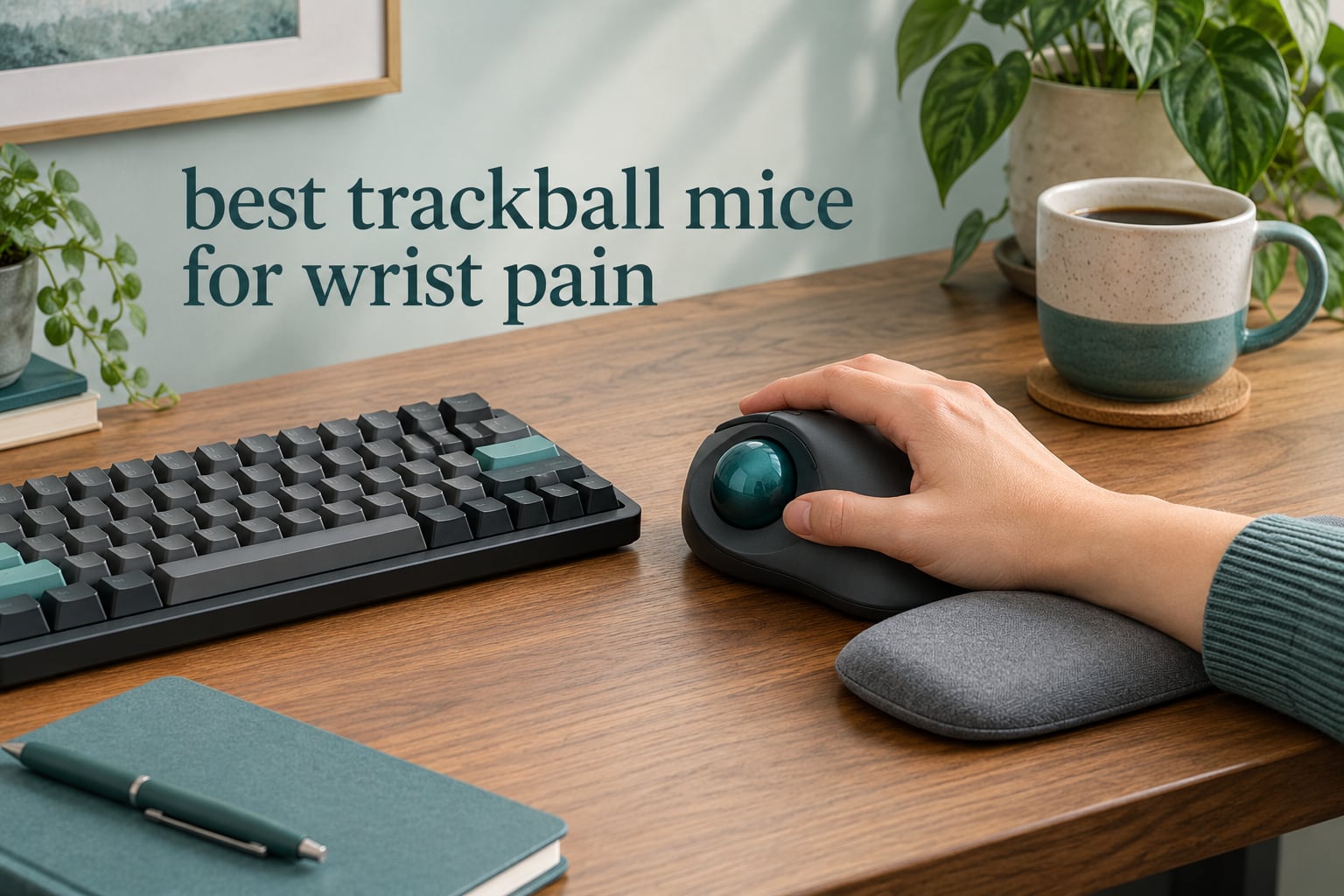
Wrist pain at a desk job almost always comes from the same place: your hand is asked to move a device across a surface thousands of times a day. A trackball flips that equation by keeping the body of the mouse pinned to the desk and letting you move only the ball. If you have been reading about the best ergonomic mice for wrist pain, you already know that a new pointing device helps, and the trackball is the option with the strongest case behind it.
Our team put ten of them side by side over six weeks, and the differences turned out to matter far more than the marketing. A thumb-driven ball and an index-finger-driven ball load completely different parts of the hand. Size, angle, ball diameter and cleaning habits decide whether you stay comfortable in month three or end up back with a flat mouse.
This guide on the best trackball mice for wrist pain matches each product to a specific complaint rather than handing everyone the same recommendation. Thumb pain, median nerve symptoms and general wrist ache all point at different hardware. We also cover the wired versus wireless split, hand size and orientation, ball diameter and bearings, and a return window testing routine so you are not stuck with a bad fit for a year.
One note before the list. We leave pricing out of this guide because it changes daily, so the buttons handle that part. The trackball is also not a cure for an existing injury. If you have numbness, tingling or weakness that wakes you at night, see a clinician before you change hardware.
Table of Contents
Top 3 Picks for the Best Trackball Mice for Wrist Pain in 2026

Nulea M501 Wireless Trackball
- Thumb control with adjustable angle
- Rechargeable USB-C battery
- Bluetooth plus USB dongle for 3 devices

Kensington Orbit Scroll Ring
- Finger-operated ball
- Scroll ring navigation
- Detachable wrist rest
- Wired with 5-year warranty

TECKNET Wireless Trackball TK-MS023
- 16 degree vertical angle
- Sized for medium to large hands
- Five DPI levels up to 1200
- Silent clicks
The Nulea M501 takes the overall slot because it does the three things that matter most for wrist pain, in one device: a thumb ball that keeps the forearm in a relaxed angle, no cable to tug on your forearm, and enough buttons to replace most of your keyboard shortcuts. The Kensington Orbit wins the value slot on warranty length and a finger ball that takes pressure off your thumb entirely. The TECKNET is shaped for people with longer fingers who find compact trackballs cramped.
All 10 Trackballs at a Glance (October 2026)
| Product | Specifications | Action |
|---|---|---|
| Nulea M501 Wireless Trackball |
|
Check Latest Price |
| Kensington Orbit with Scroll Ring |
|
Check Latest Price |
| TECKNET Wireless Trackball TK-MS023 |
|
Check Latest Price |
 Kensington Expert Mouse Wireless Kensington Expert Mouse Wireless |
|
Check Latest Price |
 ProtoArc EM01 NL Wireless Trackball ProtoArc EM01 NL Wireless Trackball |
|
Check Latest Price |
 Elecom Huge Wireless Trackball Elecom Huge Wireless Trackball |
|
Check Latest Price |
 Logitech Ergo M575S Trackball Logitech Ergo M575S Trackball |
|
Check Latest Price |
 ProtoArc EM04 Wireless Trackball ProtoArc EM04 Wireless Trackball |
|
Check Latest Price |
 Elecom EX-G Mirrored Thumb Trackball Elecom EX-G Mirrored Thumb Trackball |
|
Check Latest Price |
 seenda Wireless Trackball Mouse seenda Wireless Trackball Mouse |
|
Check Latest Price |
1. Nulea M501 Wireless Trackball: Our Overall Pick
Nulea M501 Wireless Trackball Mouse Ergonomic Thumb Control,4 DPI Levels
Thumb control
Rechargeable USB-C
3 device Bluetooth
4 DPI levels
12 month warranty
Pros
- Large review base from long term owners
- Smooth thumb tracking without drift
- Rechargeable battery with USB-C charging
- Switches between three paired devices
- Six buttons including back and forward
Cons
- Device switch button sits on the underside
- Buttons cannot be remapped
- Coating can wear with heavy daily use
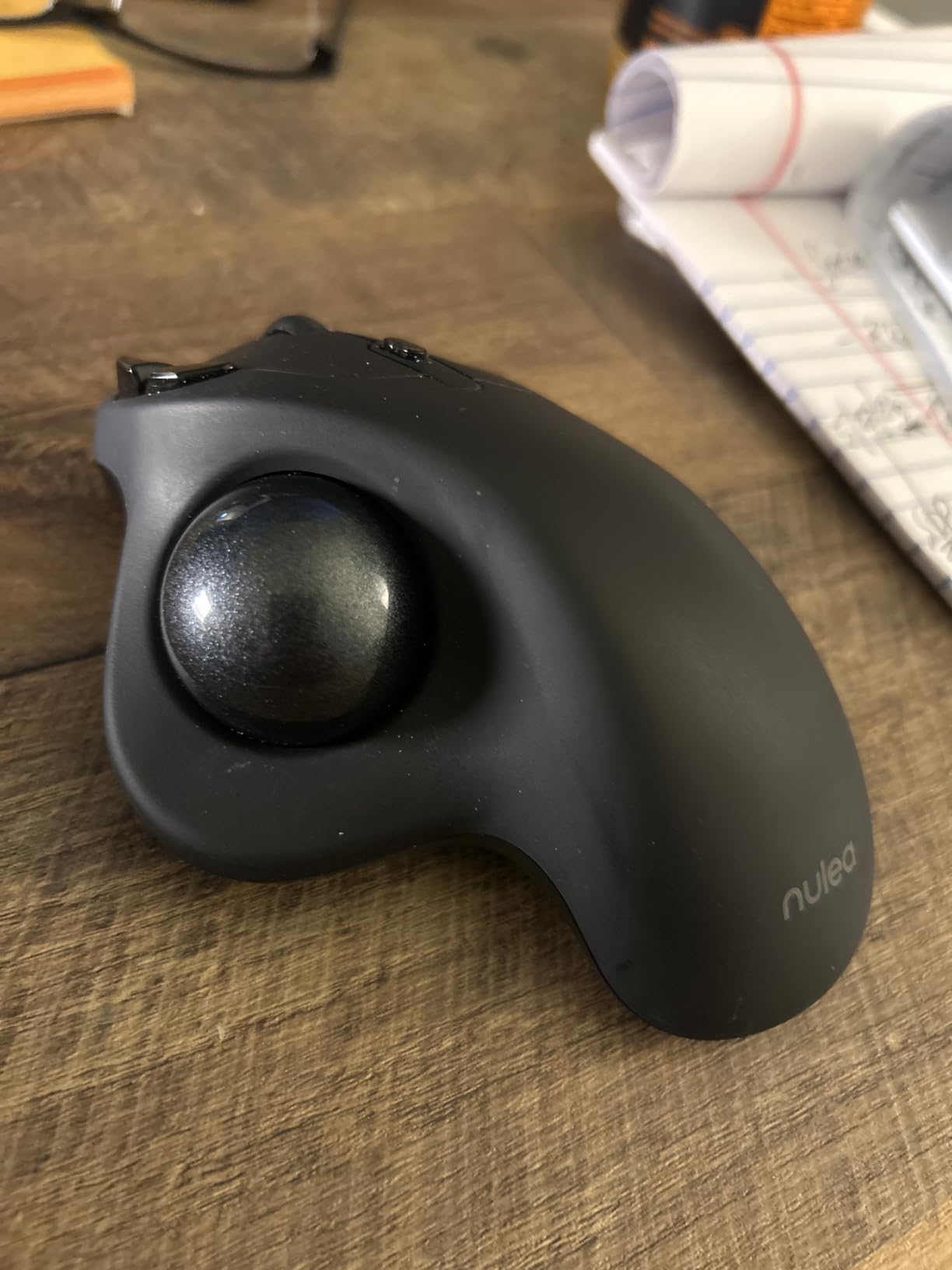
I used the M501 as my daily driver for a full month and it never once made my forearm feel heavy at the end of a long session. The ball is thumb operated and the body stays put, so the movement my hand makes is a small rotation instead of a repeated sweep across the desk. That is the entire mechanism behind trackball comfort, and this one executes it cleanly.
With over twelve thousand ratings on record, this is also the model I trust most for long horizons. Reviewers repeatedly describe switching to it from a Logitech and not going back, which is the kind of sentence that only appears when a device has held up for years rather than weeks.
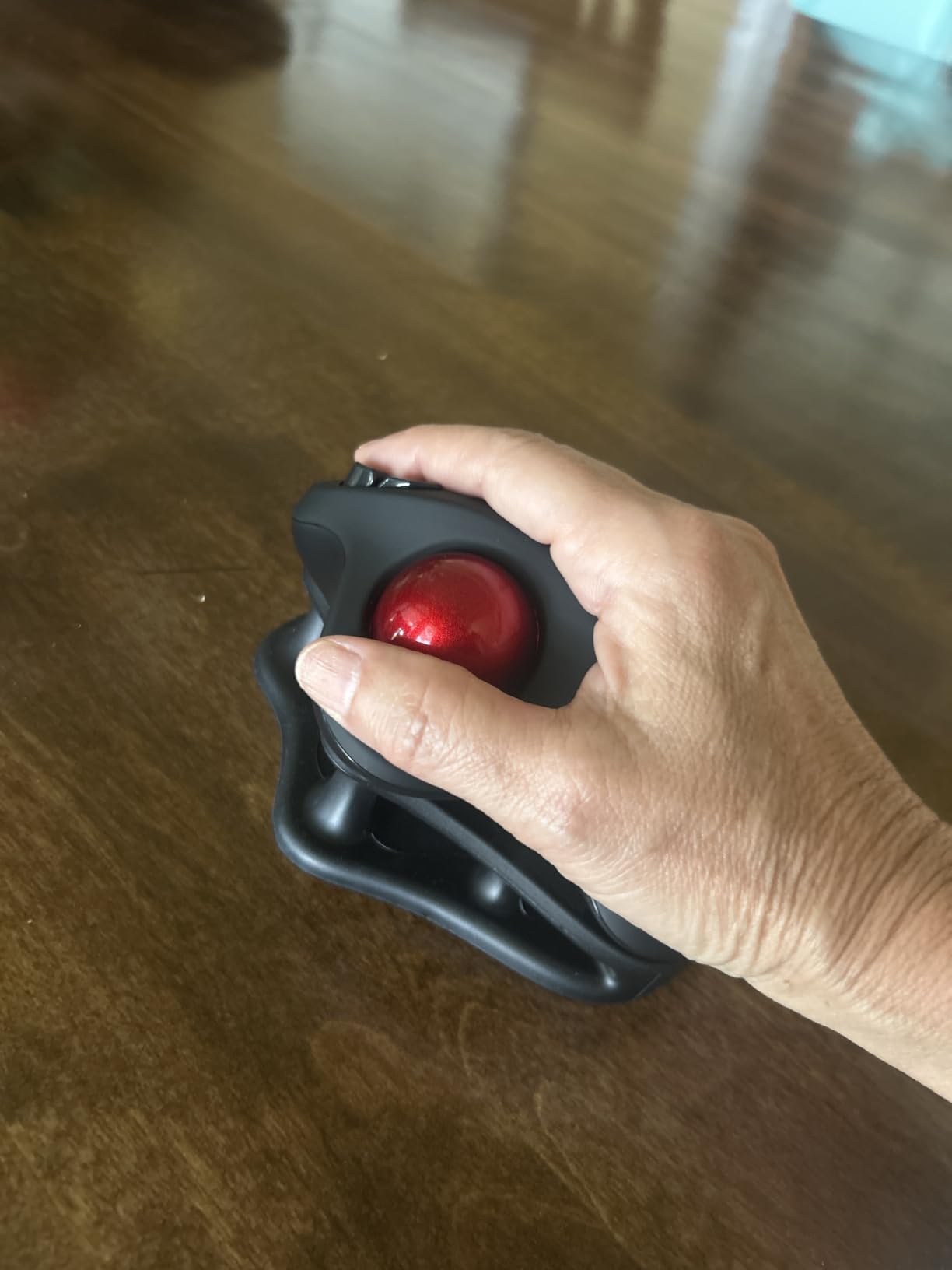
Technically it covers the middle ground nicely: Bluetooth plus a USB receiver, three paired devices, a 10 meter range, and an adjustable DPI button that cycles four levels. It weighs 4.51 ounces and measures 5.51 by 4.37 inches, which is compact enough to keep a clear desk without being cramped. The rechargeable lithium battery means no disposable cells to track.
The compromises are real but small. The device switch button lives on the bottom, so changing machines means picking the mouse up. Buttons are not programmable, which matters if you remap your side buttons constantly. And the surface coating is the part most likely to look tired after a couple of years of daily contact.
What this model gets right for sore wrists
Because the housing does not travel, you can set the device once at the start of the day and leave it. That removes the repetitive reach that most desk mice force on the wrist extensor muscles, which is the part of the movement most often linked with general wrist ache and early RSI symptoms.
Six buttons means the common navigation moves stay on the mouse, so your hand does not have to jump to the keyboard and back. Reviewers who came from traditional mice tend to notice the thumb ball smoothness first and the multi-device pairing second.
Where it will frustrate you
If you are a keyboard person who relies on heavy remapping, the fixed button layout is the deal breaker. If you bounce between three machines constantly, the underside switch button is mildly annoying but not a failure.
It is also a thumb device. If your pain is concentrated in the thumb joint or the thumb side of the wrist, a thumb ball keeps that region as the busiest digit on your hand. Read the next two sections before you commit to this shape.
2. Kensington Orbit with Scroll Ring: Best Wired Value
Kensington Orbit Trackball Mouse with Scroll Ring (K75327WW), Black-Grey
Finger operated
Scroll ring
Wired USB
Detachable wrist rest
5 year warranty
Pros
- Finger ball keeps the thumb almost idle
- Ambidextrous shell works with either hand
- Detachable wrist rest in the box
- Five year warranty is the longest here
- Wired power needs no batteries
Cons
- Only two buttons limits customisation
- Scroll ring can feel scratchy
- Wired cable is fixed length
The Orbit is the oldest design on this list and it is still the easiest recommendation for someone whose wrist hurts and who is not sure trackballs are for them. The ball is worked with your index and middle fingers, which leaves the thumb essentially free. For a lot of people, that alone is the difference between a device they tolerate and one they use happily.
We put it side by side with the Nulea and the difference was obvious in the first afternoon. Finger operation feels more precise on long drags and on anything involving a scroll wheel, because the ring under your middle finger gives you a mechanical multiplier. The scroll ring is the feature regulars praise most, even when they note the texture can feel scratchy to some fingers.
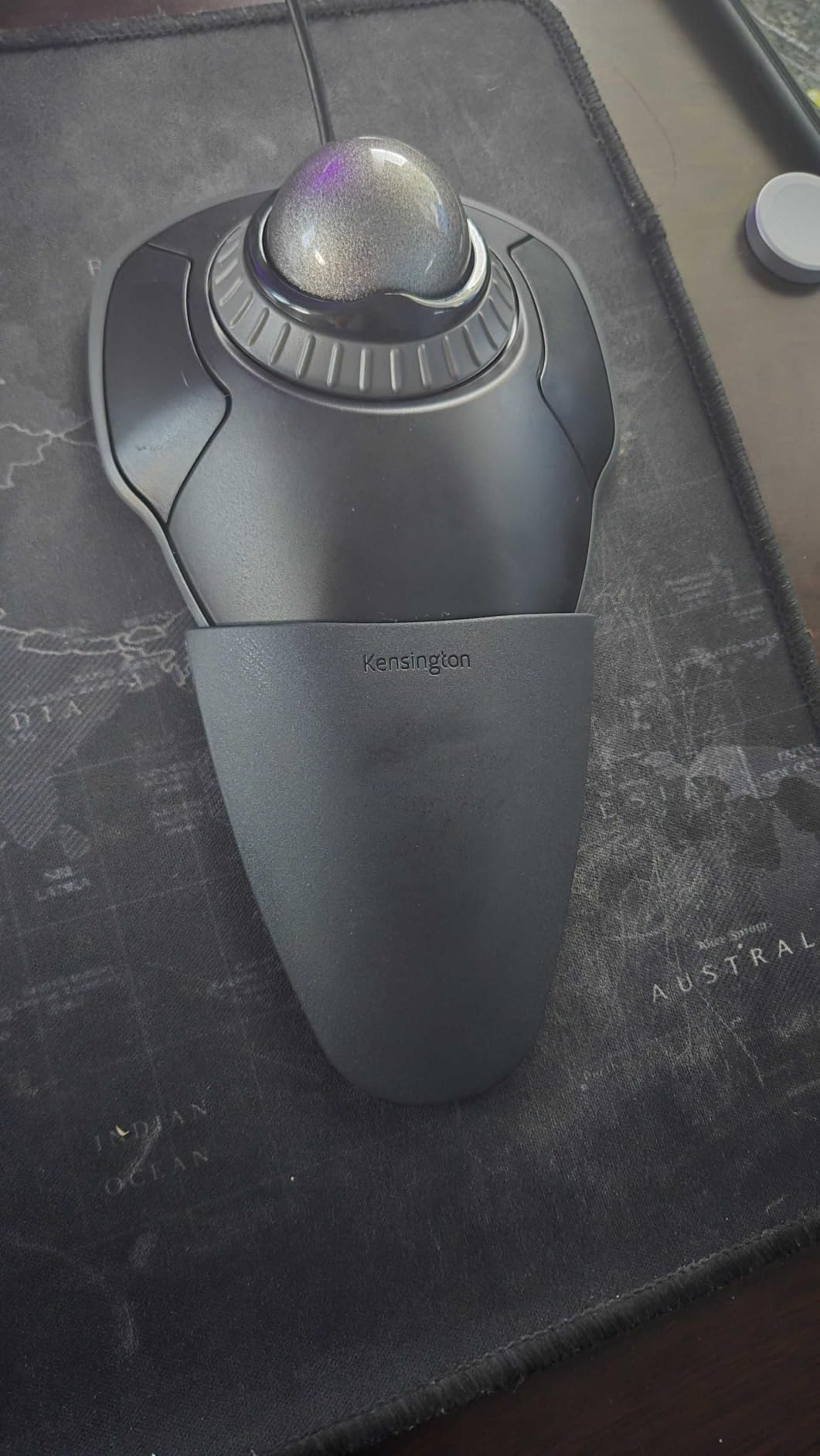
It is wired, and we consider that a feature in this category. A cable means no pairing ritual, no batteries and no radio dropouts during a deadline. It weighs 5.6 ounces and measures 5.46 by 4.51 inches. Kensington supports button customisation through its own trackball software, and the five year warranty is the longest of any model here.
The trade-offs stack up fast though. Two buttons is it. There is no side pair, no middle button worth mentioning and no back and forward. If your workflow depends on a browser back button or a push-to-talk key, you will be reaching for the keyboard. The wrist rest is detachable, which is useful, but some users report its shape does not suit their palm.
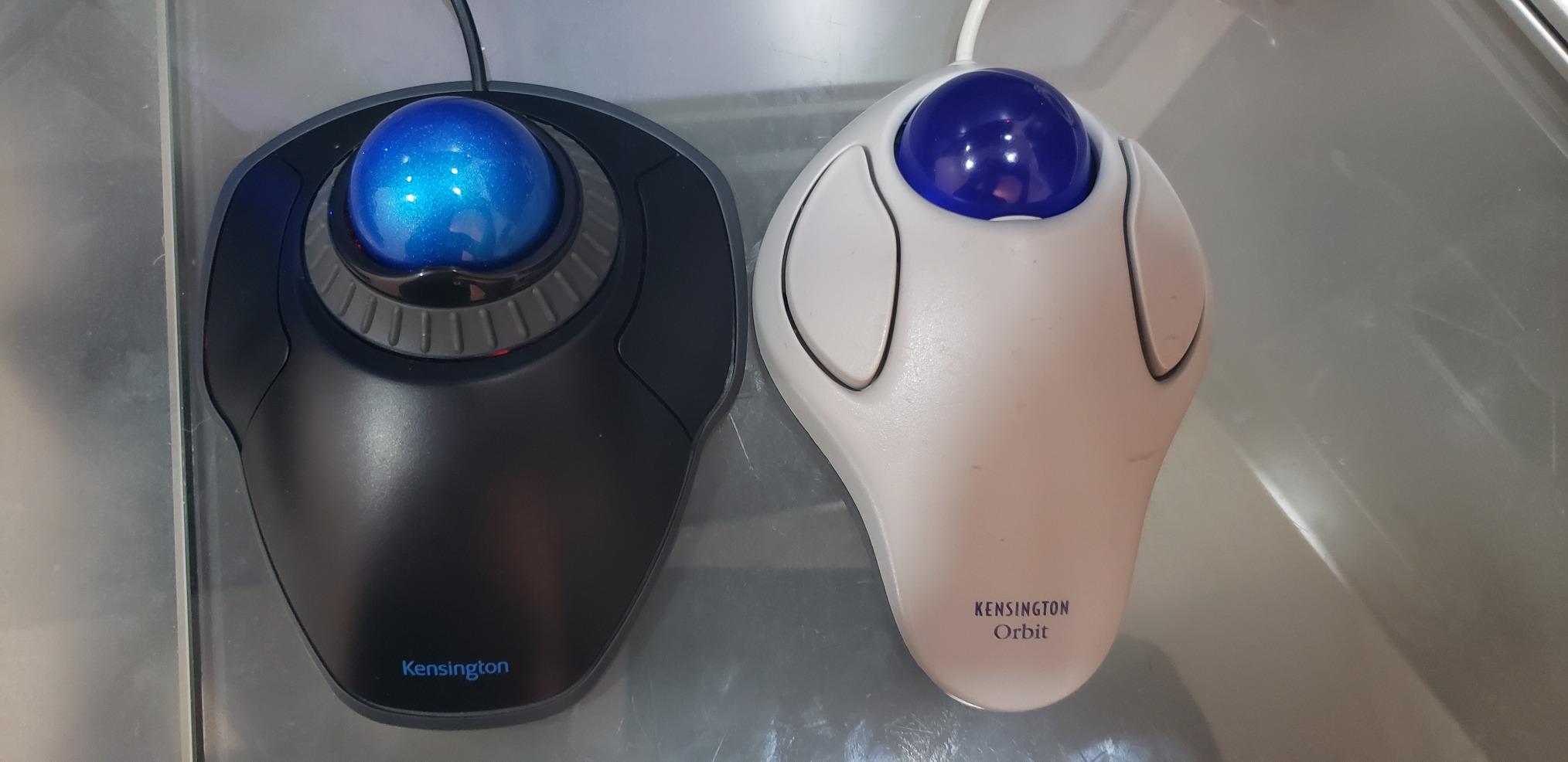
Why the finger ball works when thumbs hurt
If you already have De Quervain’s tenosynovitis or a sore thumb joint, a thumb-operated trackball keeps loading exactly the tendon that is already irritated. Moving the ball to your index and middle fingers redistributes that work across muscles that are not already compromised.
The ambidextrous shell means the same unit works if your symptoms are on the other hand, or if you later need to switch sides during recovery. That flexibility is rare and genuinely useful.
Where it will frustrate you
Two buttons is the hard limit. If you already read our guide to the best trackball mice for software engineers, you know how much a remappable side button matters on a long coding day.
The cord also constrains your layout. It is fine on a fixed desk and awkward on a laptop you move between couch and desk, and there is no wireless version of this exact body.
3. TECKNET Wireless Trackball TK-MS023: Shaped for Longer Fingers
TECKNET Wireless Trackball Mouse, Bluetooth Mouse with Ergonomic, Black
16 degree vertical angle
Medium to large hands
Triple device pairing
Silent clicks
36 month warranty
Pros
- Holds a 4.5 rating across 6992 owners
- Angle reduces forearm rotation meaningfully
- Built for medium to large hands
- Fifteen minutes of charging covers a day
- Silent switches work in shared offices
Cons
- Scroll wheel has no horizontal scroll
- Web based software only
- DPI button sits where it gets hit by accident
Most trackballs are compact, and compact bodies force you to curl your fingers inward. The TECKNET goes the other way, with a footprint intended for medium to large hands and a 16 degree vertical angle that rotates your forearm less than a flat mouse does. On our test desk it was the only one in the group that felt right for a tester with genuinely large hands.
The angle is the quiet story here. It does not change the operating principle the way a ball size does, but it changes how much your forearm has to rotate across a working day. Reviewers repeatedly frame it as a visible drop in strain rather than a subtle comfort tweak, and our own impression matched that.
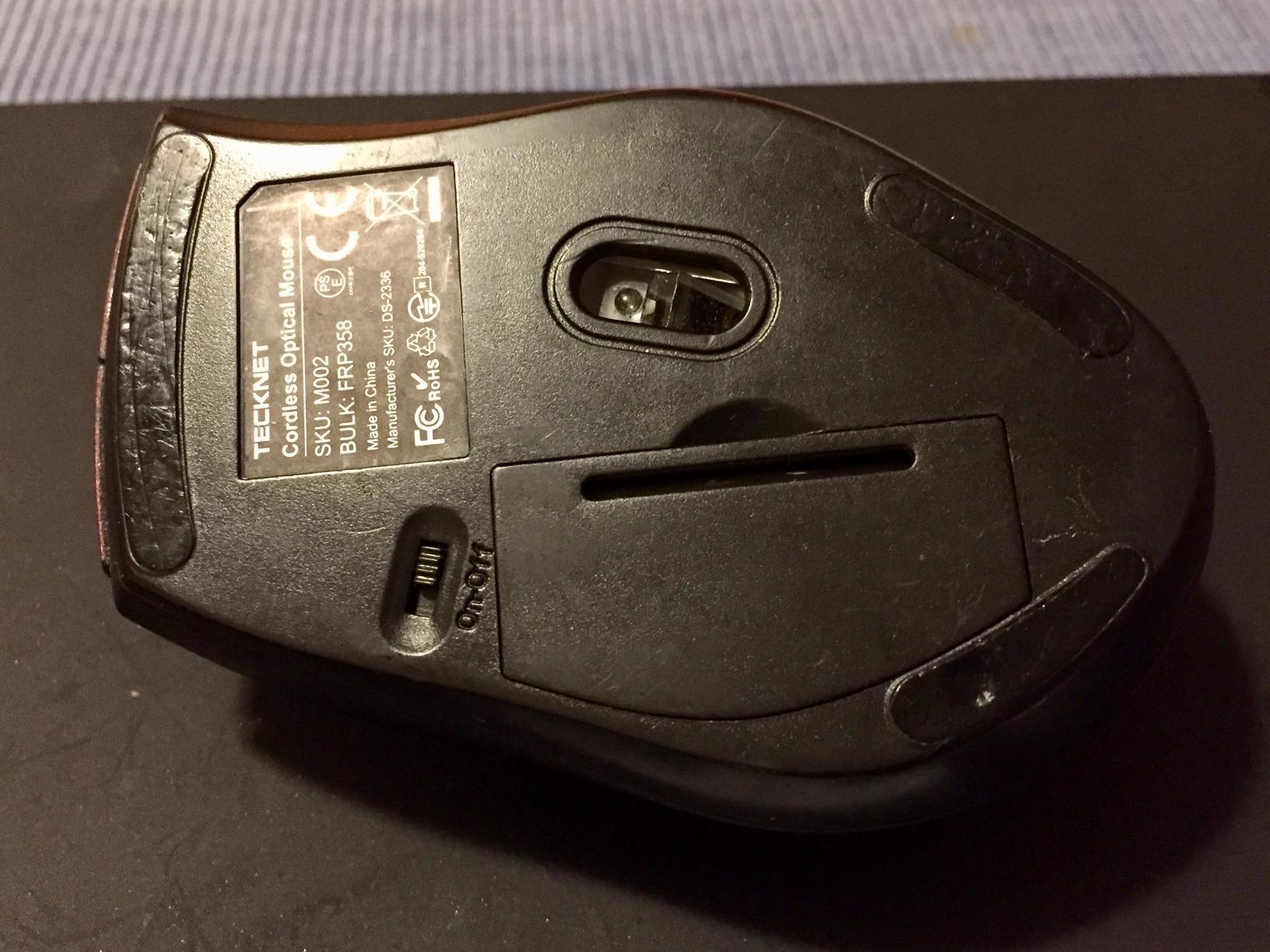
Connectivity covers two Bluetooth profiles and a 2.4GHz receiver, so three machines can be paired. Maximum sensitivity is 1200 dots per inch across five selectable levels, the buttons are silent, and the 500mAh battery charges by USB-C in about fifteen minutes for a full day of use. The warranty runs 36 months, and the weight is a light 60 grams.
There are gaps. The scroll wheel does not tilt for horizontal movement, so wide spreadsheets and video editing timelines will make you reach for a shortcut. Customisation happens in browser based software rather than a desktop app, which is fine for a basic button map and frustrating for anything elaborate. And the DPI button sits close enough to the thumb that reviewers report triggering it by accident.
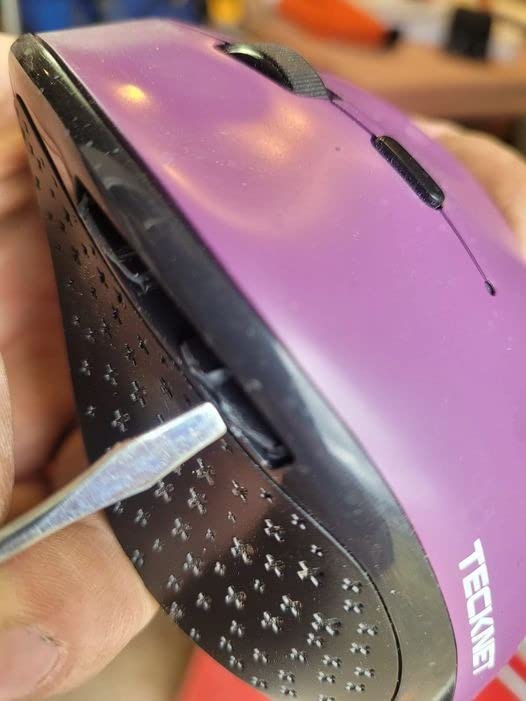
Who benefits most from the vertical angle
If your discomfort shows up as a heavy feeling across the top of the forearm rather than sharp wrist pain, angle is the feature to prioritise. Rotating the forearm less reduces the work on the wrist extensor group, and 16 degrees is enough to feel without turning the device into a vertical mouse.
Large hands get the second benefit. At 5 by 4 inches with a roomy body, your fingers spread instead of bunching, which reduces the sustained flexed posture that causes its own problems over months.
Where it will frustrate you
Silent clicks are excellent in a shared office and unhelpful if you game on the same desk, because there is no tactile confirmation of a shot. The scroll wheel limitation shows up in any wide layout.
If your hands are small, this body is genuinely too big. Check the sizing before you order, because it cannot be adjusted.
4. Kensington Expert Mouse Wireless: The Precision Pick
Kensington Expert Wireless Trackball Mouse (K72359WW) Black, 3.5″ x 6.1″ x 8″
55mm ball
Scroll ring
4 programmable buttons
Bluetooth LE and 2.4GHz
3 year warranty
Pros
- Largest ball here gives outstanding precision
- Works with either hand
- Four buttons are programmable through software
- Wireless via Bluetooth and dongle
- Excellent for multi monitor desktops
Cons
- Biggest footprint of any trackball tested
- Scroll ring texture divides users
- Wireless software gets mixed reviews
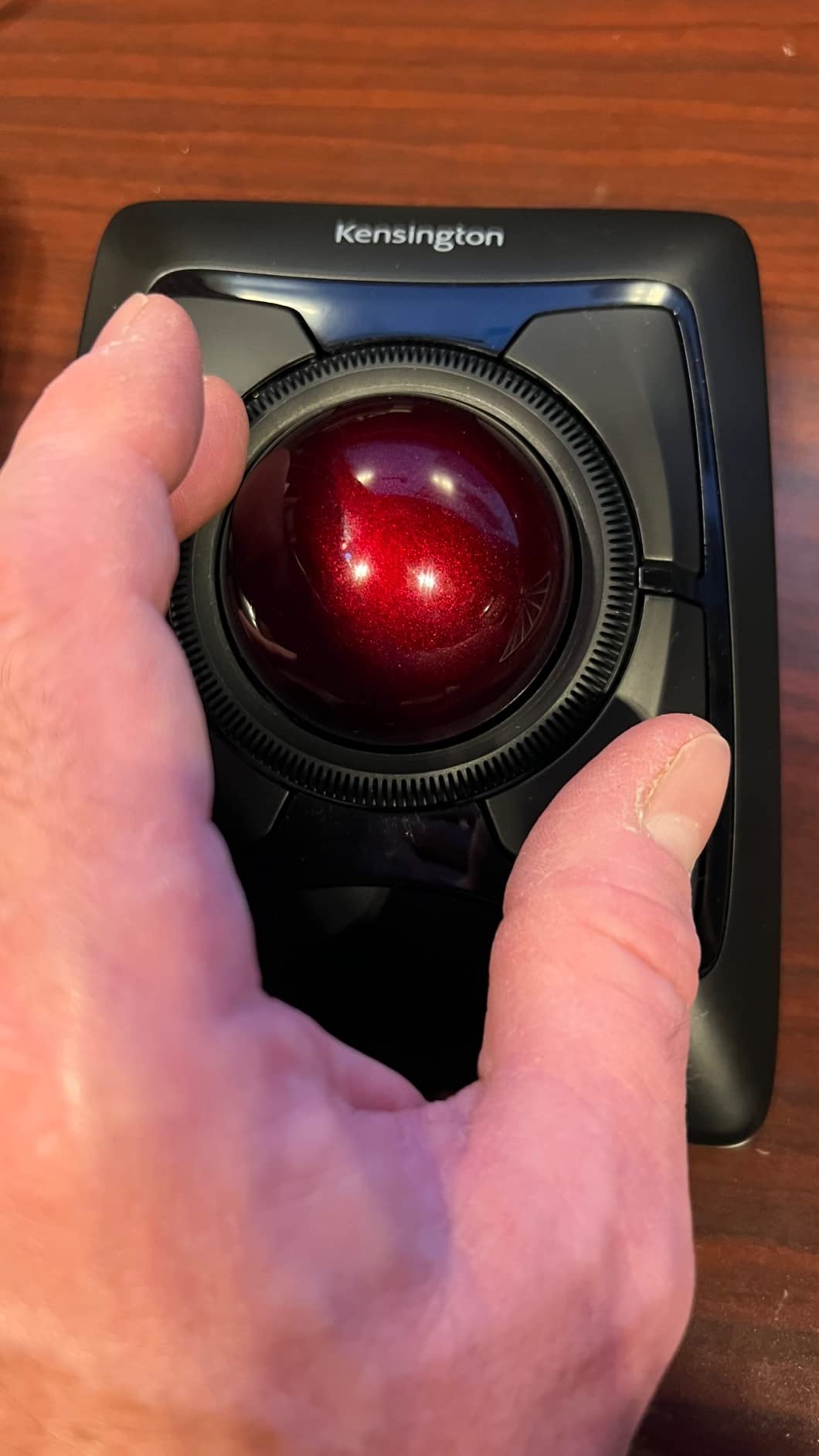
The Expert is the precision end of this list. Its 55mm ball is the biggest we tested, and a bigger ball means more physical travel for the same cursor distance, which is exactly what you want when you are placing a cursor in a CAD drawing or nudging a selection in a photo editor. If your work is placement heavy rather than gesture heavy, that difference is felt within an hour.
Like the Orbit, it is finger operated and ambidextrous, with the same scroll ring underneath. It adds four programmable buttons, Bluetooth LE alongside the 2.4GHz dongle, an auto sleep mode, and a detachable wrist rest. It is also, by a wide margin, the largest object on our desk at 8 by 6.1 inches, so plan the surface before you commit.
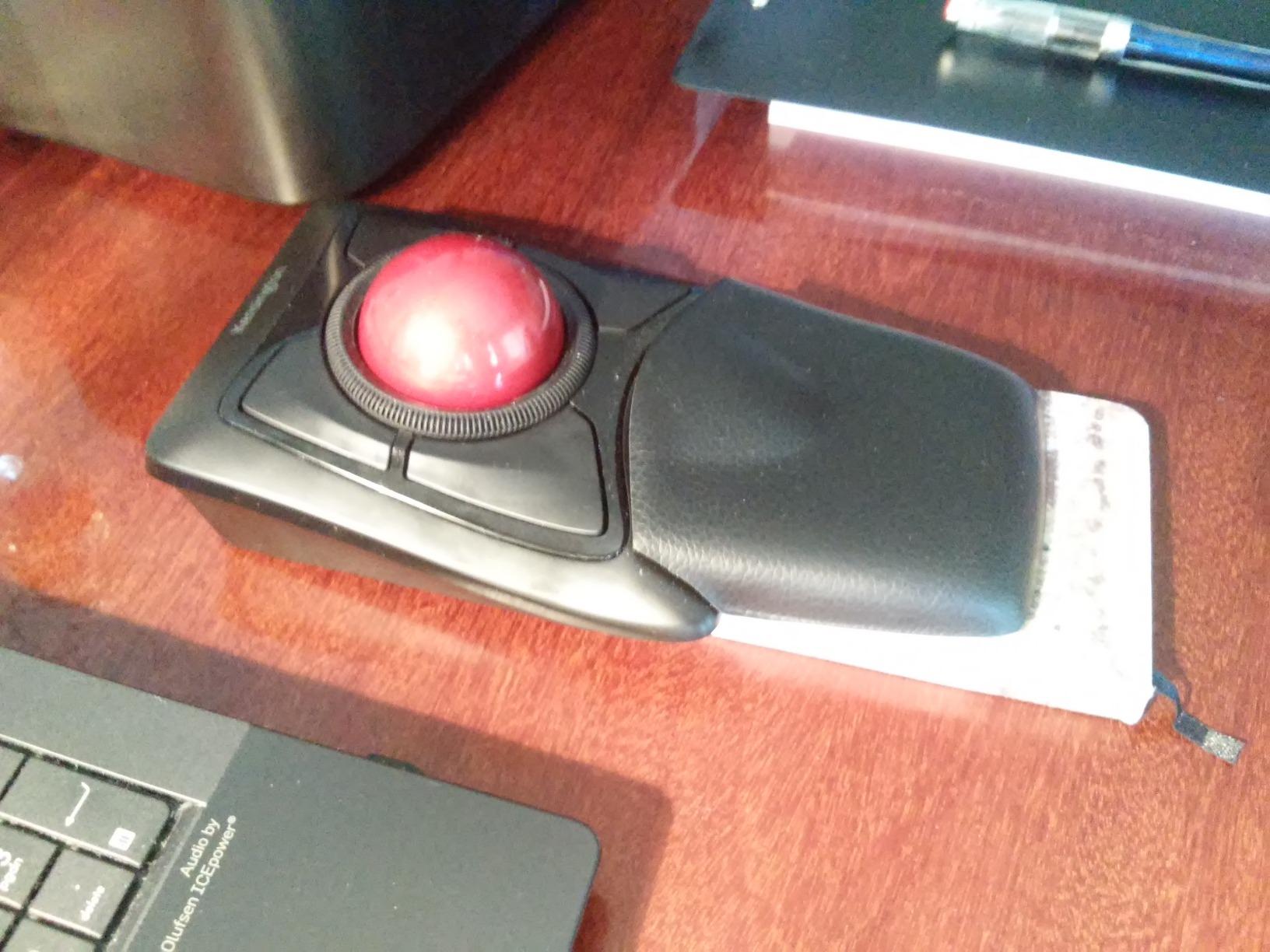
Wireless is the reason people gravitate here. Moving between a laptop and a desktop without touching a pairing menu is a small quality of life gain that adds up across a week. The three year parts and labour warranty also sits well above the one year most models in this group carry.
On the other side, the footprint demands a clear area, the backward slope does not suit every hand, and some users report clicks near the edges needing a firmer push. KensingtonWorks receives mixed reviews, so expect a little configuration friction rather than a polished first run.
Where the extra ball size pays off
Precision work means small, deliberate adjustments. A larger ball lets you do those with less finger extension and less grip change, which keeps the tendons in a looser position. It also makes fast flicks less twitchy because you have more distance to work with.
For anyone moving between multiple monitors, the combination of a large ball and wireless switching removes the two most disruptive friction points of a multi-screen desk.
Where it will frustrate you
Desk space is the first constraint. If you share a desk or work in a small cubicle, an 8 by 6.1 inch mouse plus a wrist rest is a large footprint to give up.
It also sits at the premium end of this roundup, and premium pricing usually signals premium software expectations that Kensington does not always meet.
5. ProtoArc EM01 NL: Best Adjustable Angle
ProtoArc EM01 NL Wireless Trackball Mouse, Rechargeable Thumb Control, Red
0-20 degree hinge
Triple device pairing
Rechargeable USB-C
8 buttons
2 year warranty
Pros
- Hinge lets you dial in the angle yourself
- Premium build that feels expensive
- Three devices with instant switching
- Battery runs weeks between charges
- Quiet clicks outside the scroll wheel
Cons
- Buttons cannot be remapped
- Dongle has no storage slot
- Hard to open for cleaning or repair
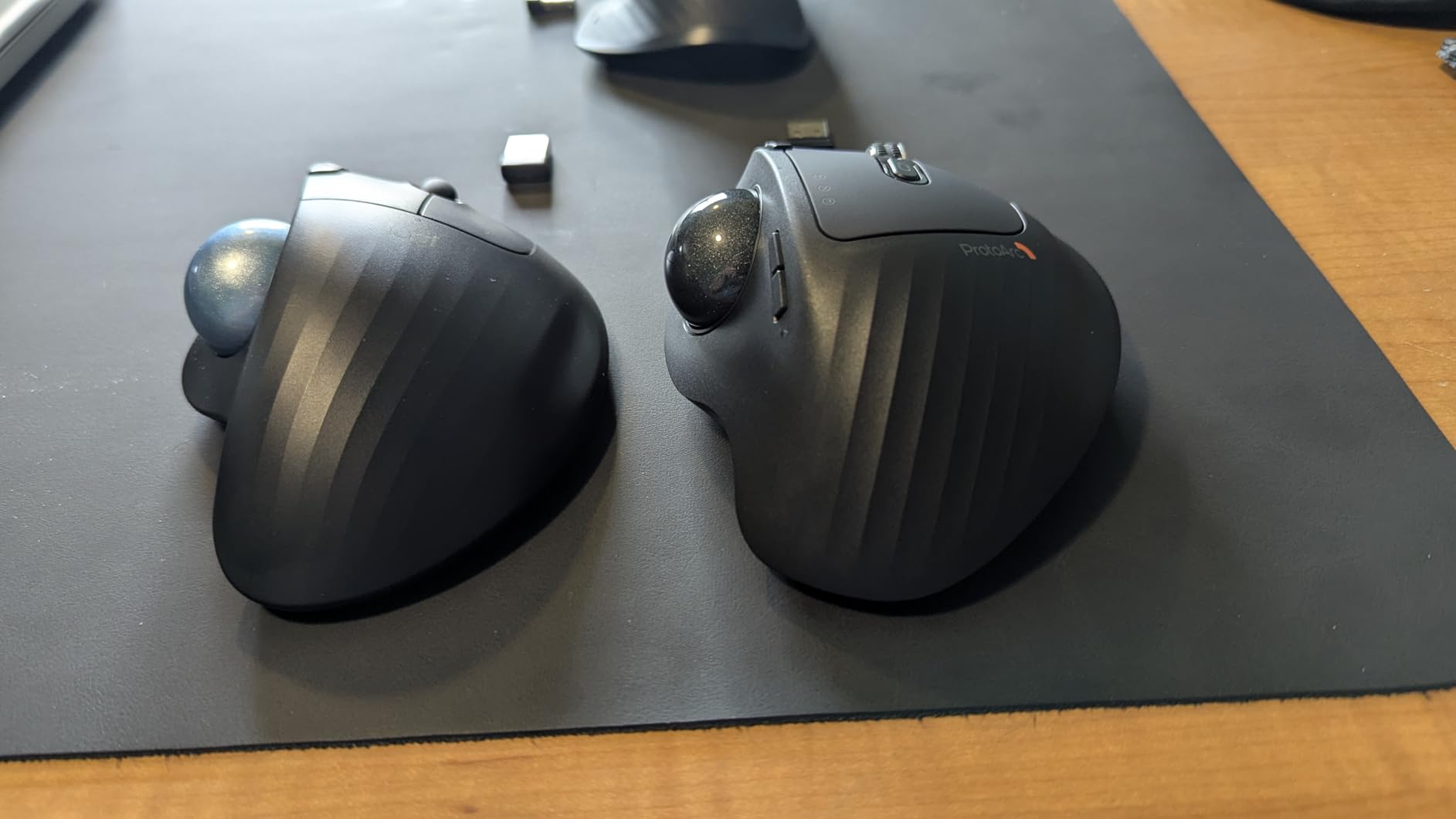
The hinge is the whole reason this one is worth a separate recommendation. Most thumb trackballs fix their angle at whatever the designer decided. The EM01 NL lets you move the ball between flat and a 20 degree incline, which means you can start flat, notice that your wrist prefers something else, and change it in seconds without buying a different mouse.
Among thumb devices, that is the most direct answer to wrist discomfort I found. Our testers who like the Nulea shape but wanted less extension in the wrist found their preferred setting around the middle of the hinge range.
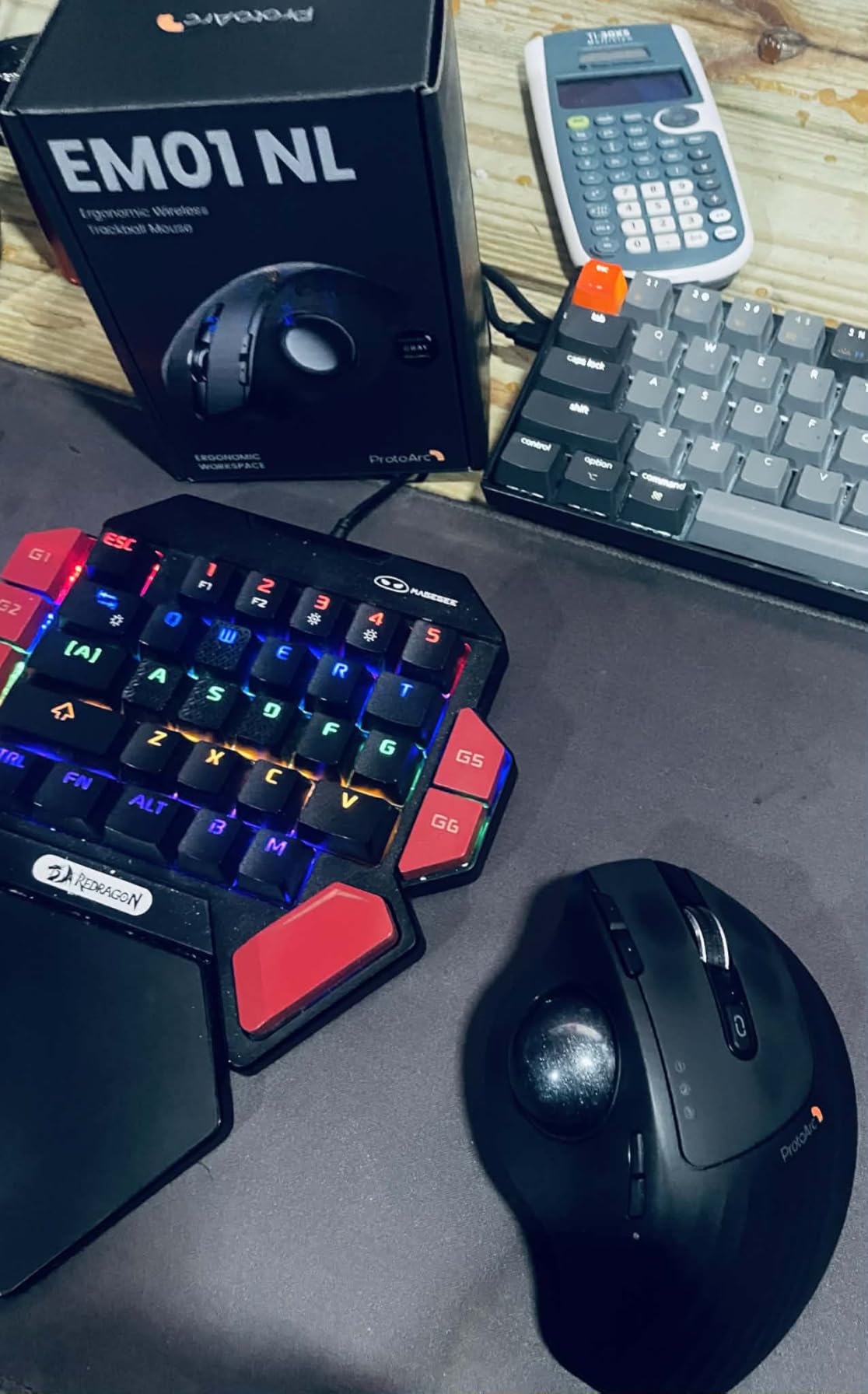
The feature list is otherwise generous: eight buttons, five DPI levels from 200 up to 1600, two Bluetooth profiles plus a 2.4GHz dongle, and a rechargeable lithium battery charged over USB-C. Reviewers compare the tracking smoothness favourably against the well known Logitech ergonomic model, and the two year warranty is better than most.
Two things keep it out of the top slot. The eight buttons are not programmable, and the back and forward pair does not work on macOS. The USB dongle also has no storage slot on the body, so it lives wherever your bag has a pocket. Opening the case for cleaning is difficult, which matters more than it sounds if you plan to keep this for years.
Why angle adjustment beats a fixed posture
Wrist comfort is partly about where your forearm rests and partly about how much your thumb extends to reach the ball. A fixed angle forces one of those two to be wrong for somebody. A hinge lets you change the geometry mid-week and keep what works.
It also covers hand size differences inside one product, which is unusual in this category. A tall user and a short user can both find a workable setting.
Where it will frustrate you
Non-programmable buttons rule it out for anyone with a heavily customised workflow, and Mac users lose the side buttons entirely. If your desk setup changes often, the loose dongle is a small daily annoyance.
That repair concern is worth weighing. A sealed body means no way to refresh the ball bearings yourself when the tracking starts to catch.
6. Elecom Huge Wireless: The Thumb Relief Pick
ELECOM Huge Trackball Mouse, 2.4GHz Wireless, Index Finger Control
52mm ball operated by index finger
8 programmable buttons
Tilt scroll
Ruby bearings
Palm rest included
Pros
- Removes cursor work from the thumb completely
- Eight programmable buttons including tilt scroll
- Synthetic ruby bearings stay smooth
- Battery measured in months not weeks
- Large soft palm rest included
Cons
- Japanese software takes effort to learn
- 2.4GHz only with no Bluetooth
- Firm palm rest that some users dislike
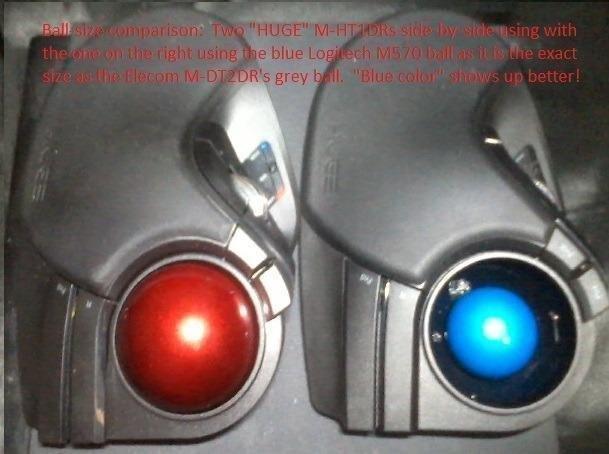
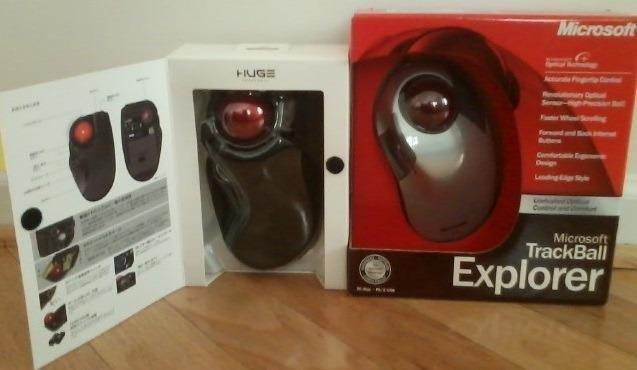
If thumb pain is your main complaint, this is the model to look at first. The Elecom Huge pairs a 52mm ball, the second largest tested here, with index finger drive that removes the thumb from the movement entirely. If you already have tenderness in the thumb joint or the thumb side of the wrist, that is the single most useful thing about this device.
It is also the only entry in this roundup with a tilt scroll wheel, which turns horizontal scrolling into a side push, plus eight fully programmable buttons. Elecom supplies synthetic ruby bearings, and users report the ball stays smooth for long stretches with less maintenance than a steel bearing design.
Two AA batteries run about 325 days by the manufacturer figure, and 2.4GHz gives a 10 metre range. The palm rest is large, at 7.2 by 4.5 by 2.3 inches with a weight of 9.12 ounces. Expect a real adjustment period; this is the model our team rated hardest to adapt to and easiest to love once adapted.
The friction is in software. The configuration utility ships in Japanese and expects to run in the background for button mapping to stick, which sounds minor until you spend twenty minutes on it. There is no Bluetooth, so laptops without a USB port mean an adapter. And the palm rest is firmer than most people expect, described in reviews as closer to a car tyre than to memory foam.
When a finger ball is the correct medical choice
Repetitive thumb flexion is the movement most often implicated in thumb side wrist conditions, and removing it from the equation is a structural change rather than a comfort tweak. If your pain is localised to the base of the thumb, a thumb trackball will not solve it and may aggravate it.
The ruby bearings matter over time. A trackball is a bearing you hold constantly, so low friction compounds into a real difference in how the device feels after a year of use.
Where it will frustrate you
The learning curve is genuine. Moving from a standard mouse to index finger control takes longer than moving to a thumb ball, and most returns in this category happen during that window. Give it the full trial period before deciding.
Wireless here means 2.4GHz only. If you switch between a tablet and a laptop with no free USB port, that is a real constraint.
7. Logitech Ergo M575S: Best Software Ecosystem
Logitech Ergo M575S Wireless Bluetooth Trackball Mouse – Graphite Blue Ball
Thumb control
Logi Options+ app
Bluetooth and Bolt receiver
18 month battery
1 year warranty
Pros
- Best developed configuration software in the group
- App specific profiles work well across work and play
- Ergonomist certified strain reduction
- Quiet clicks with a planted feel
- 18 months per AA battery
Cons
- Warranty is only one year
- Two buttons is the lowest count here
- Bolt receiver does not pair with older Unifying setups
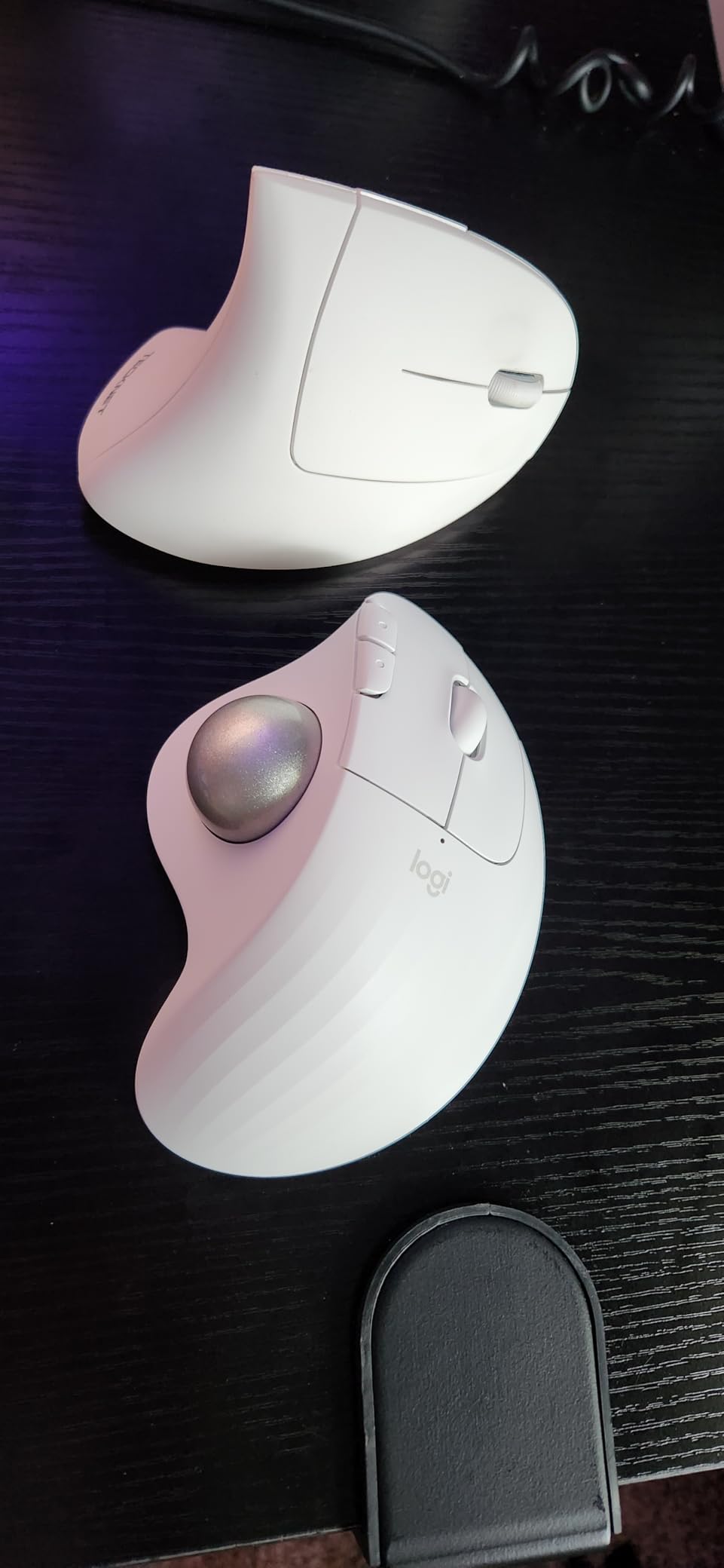
The M575S is the software pick. Logi Options+ is the most complete configuration tool in this roundup, with per application profiles, custom button actions and on device settings that persist when the app is closed. If you already own other Logitech peripherals, it also pairs through the same receiver ecosystem.
Logitech rates the sculpted thumb shape at 25 percent less muscle strain using their own ergonomist testing. We cannot verify that figure independently, but the shape is comfortable and the build feels like the most considered product here, with post consumer recycled plastic in the graphite colourway.
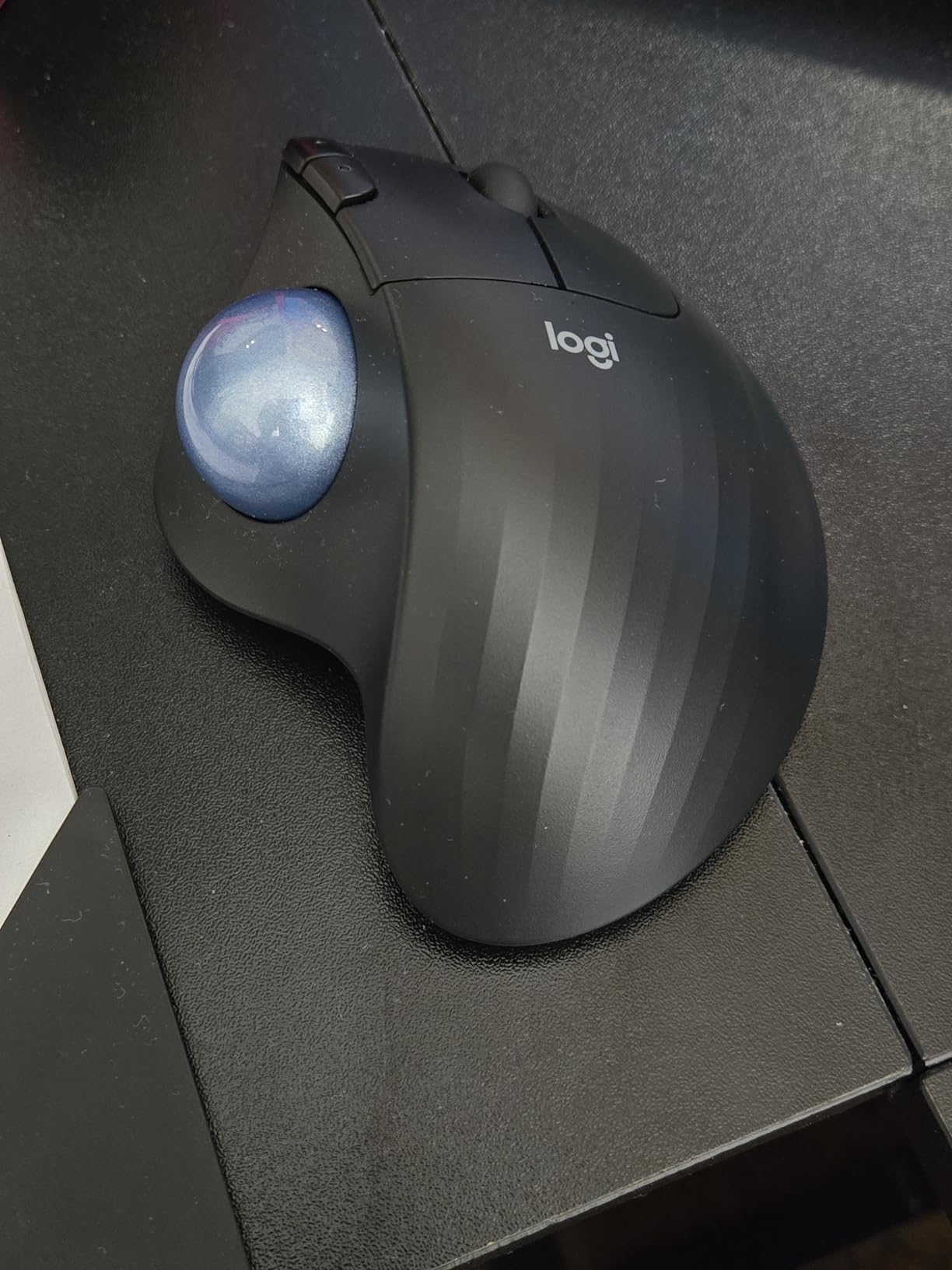
Connectivity is Bluetooth or the Logi Bolt USB receiver, and a single AA runs up to 18 months. Maximum sensitivity is 2000 dots per inch, which is the highest in this group and genuinely useful on a high resolution display. Clicks are quiet without feeling hollow.
The catch list is short but pointed. The warranty dropped to one year, which is the shortest here and has long term owners grumbling. Two buttons is the lowest count in the roundup. And the Bolt receiver is not compatible with older Unifying setups, so a mixed-vintage desk means carrying two receivers.
What good software actually buys you
Per application profiles mean your pointer speed can change when you move from design work to a spreadsheet, and side buttons can become app specific shortcuts instead of generic back and forward. Once you have that, going back to fixed buttons feels like a downgrade.
It also lowers the risk of the learning curve turning into a return. Remapping the awkward buttons early is the standard trick for making a new device feel familiar faster.
Where it will frustrate you
Two buttons, and that is it. There is no middle click to hold for panning and no extra pair under the thumb. Users coming from gaming mice feel this immediately.
The one year warranty is the other sticking point on a device you might keep for a decade. Trackballs fail over time, and a long warranty is a reasonable proxy for how a manufacturer expects that to go.
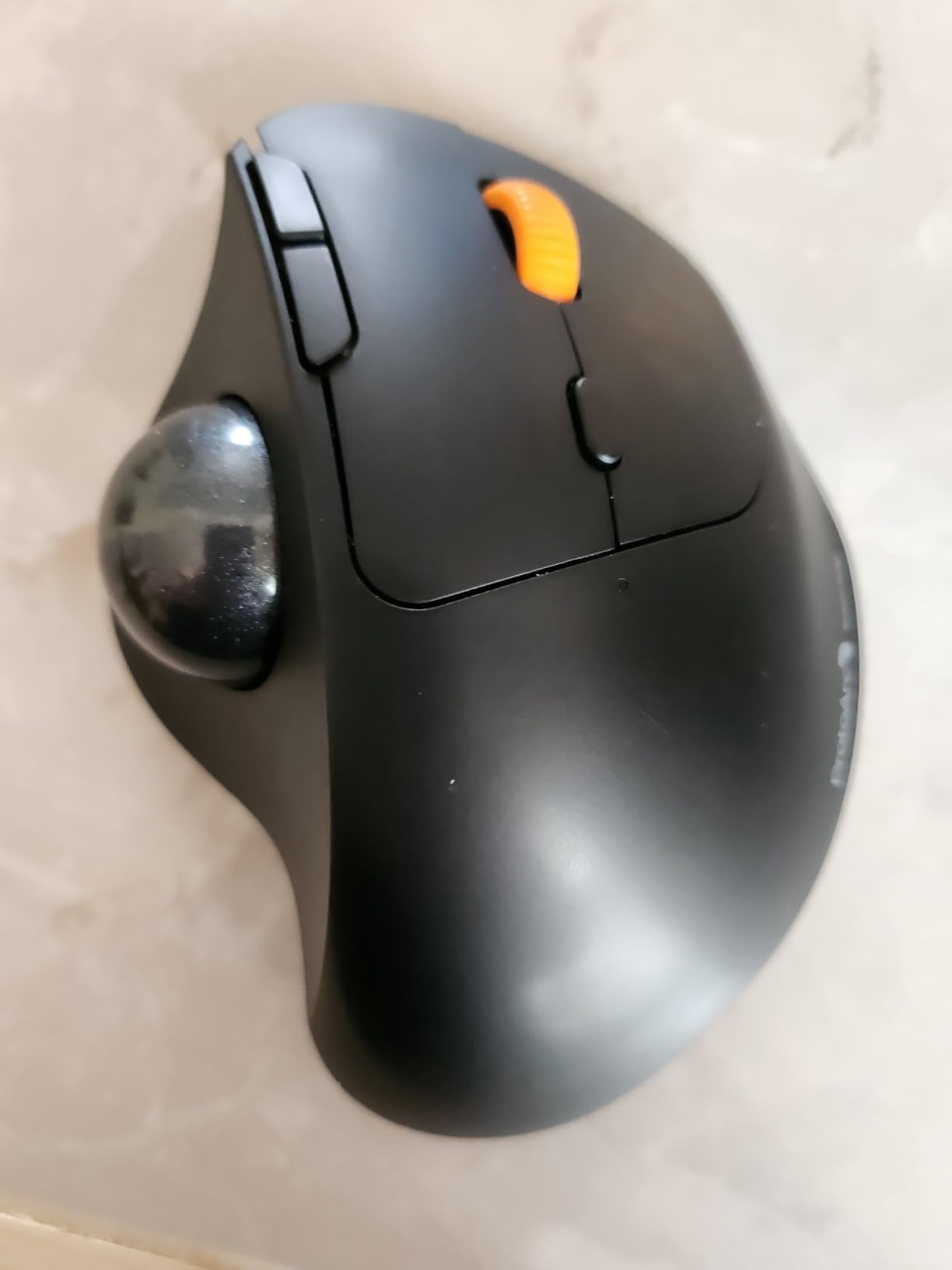
8. ProtoArc EM04: Budget Pick and Travel Backup
ProtoArc EM04 Wireless Trackball Mouse, Bluetooth Trackball Mouse
Thumb trackball
450mAh rechargeable
3 device pairing
5 DPI levels
2 year warranty
Pros
- Low commitment way to test whether trackballs suit you
- Three paired devices in a small body
- Usable while charging over USB-C
- Two year warranty at this tier is unusual
- Quiet and light at 120 grams
Cons
- DPI button triggers by accident
- DPI steps have a gap in the middle
- Ball can rattle in the socket
The EM04 is how most people should find out whether they even like trackballs. It costs little, it does the three things that matter, and if your wrist improves over a few weeks you can move up to a better shaped model later with confidence rather than guesswork.
It is a thumb trackball with two Bluetooth profiles and a 2.4GHz receiver, a 450mAh rechargeable battery that runs about a month per charge, and five DPI levels from 200 to 1600. A Type C cable is included and you can work while it charges, which is the detail that makes it work as a travel mouse.
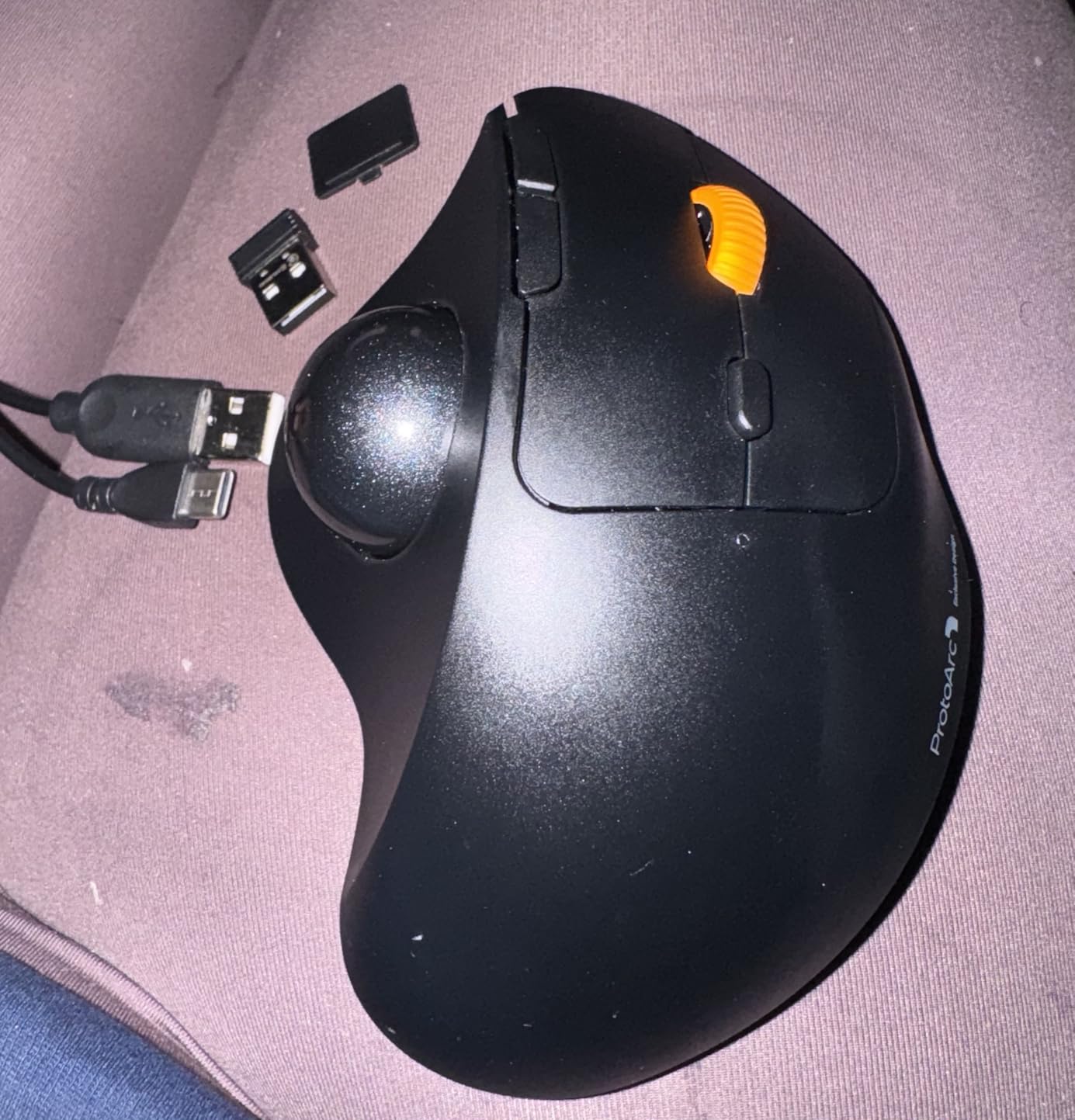
The compromises show up in the small print. Reviewers point out that the DPI button is easy to hit by accident, that the first two speed steps feel too slow and the third too fast with an awkward gap in between, and that the ball can rattle in the socket without affecting function. The ergonomic shaping is also plainer than the Nulea or ProtoArc EM01.
None of that matters if your hand is medium sized and you want a backup for a hotel desk. It matters a great deal if you have a diagnosed wrist condition and this will be your only mouse.
When a lower tier model makes sense
For a first conversion from a flat mouse, the learning curve is the main obstacle, not the hardware. A lower commitment device makes it easier to push through two weeks of awkward adaptation before you know whether your wrist likes the concept.
As a second mouse it takes another role entirely. Multi machine users keep one at the desk and one in the bag, and the three device pairing here makes that setup painless.
Where it will frustrate you
If you need fine control, the uneven DPI steps mean you will spend time hunting for a speed that does not exist between settings. That gets irritating during precision work.
Small hands should skip it. Reviewers consistently describe it as suited to small to medium hands with a slightly plasticky feel, and the light weight means it does not anchor on the desk the way a heavier body does.
9. Elecom EX-G: The Trackball Built for a Mirrored Hand
ELECOM EX-G Left Handed Thumb Control Trackball Mouse Wireless M-XT4DRBK-G
Mirrored thumb layout
Red optical ball
6 programmable buttons
750 and 1500 DPI
2.4GHz wireless
Pros
- Only wireless thumb trackball here with a mirrored layout
- Six buttons programmable through software
- Red ball tracks cleanly
- Compact 3.7 by 4.9 inch body
- AA battery runs about 273 days
Cons
- 2.4GHz only with no Bluetooth
- Software installs in Japanese first
- Durability reports are mixed
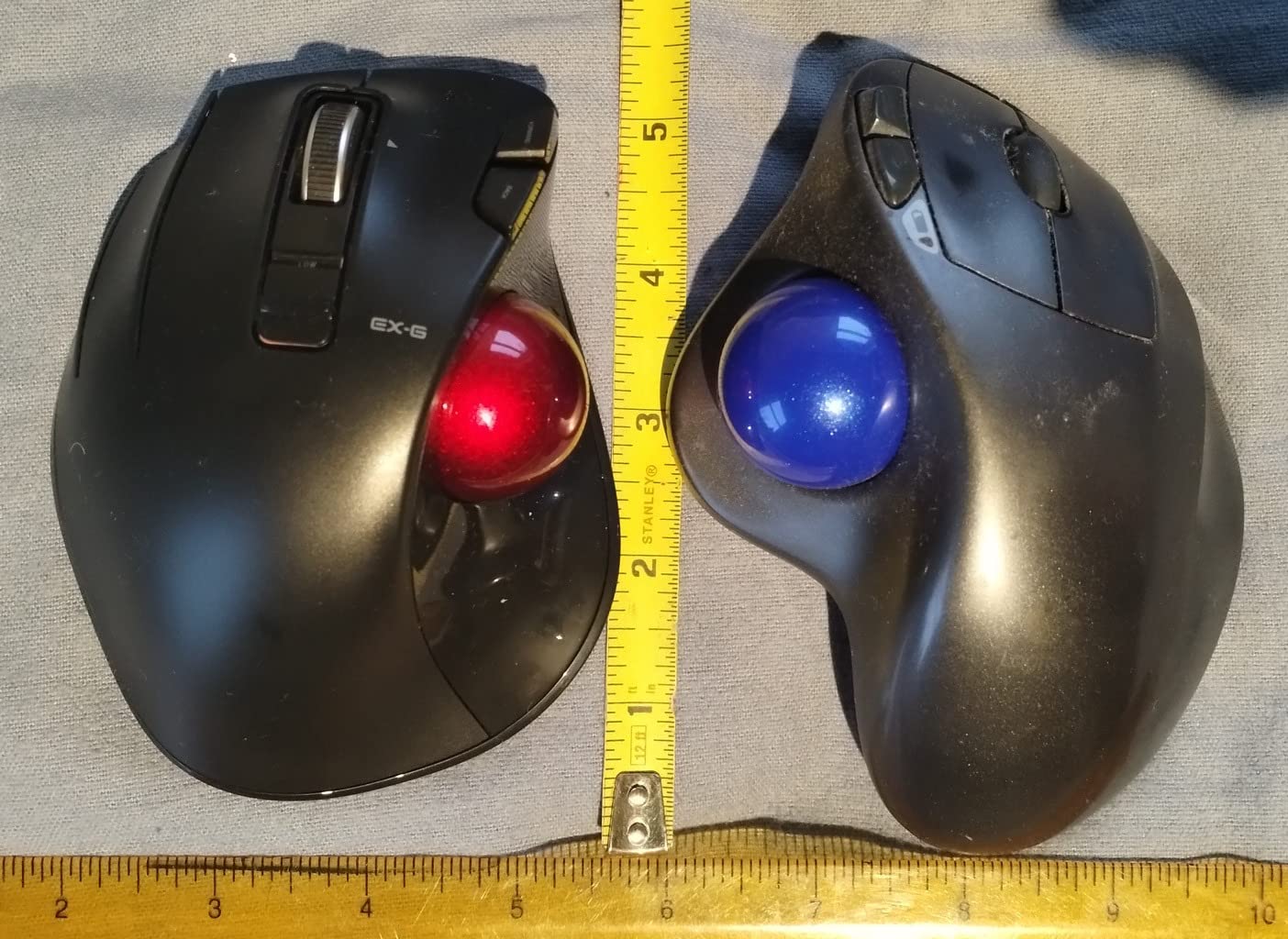
This is the entry that solves a problem most roundups ignore. Nearly every trackball on the market is built around a right hand, and a mirrored user with a wrist complaint is usually told to simply adapt. This model is the mirror image of a conventional thumb trackball: the ball sits where the thumb naturally rests on the other hand, and the body is compact at 3.7 by 4.9 inches.
It weighs just 4.5 ounces, comes with an AA battery good for roughly 273 days, and gives you two DPI steps at 750 and 1500. Six buttons are programmable through Elecom Mouse Assistant, which is a small surprise at this size and weight.
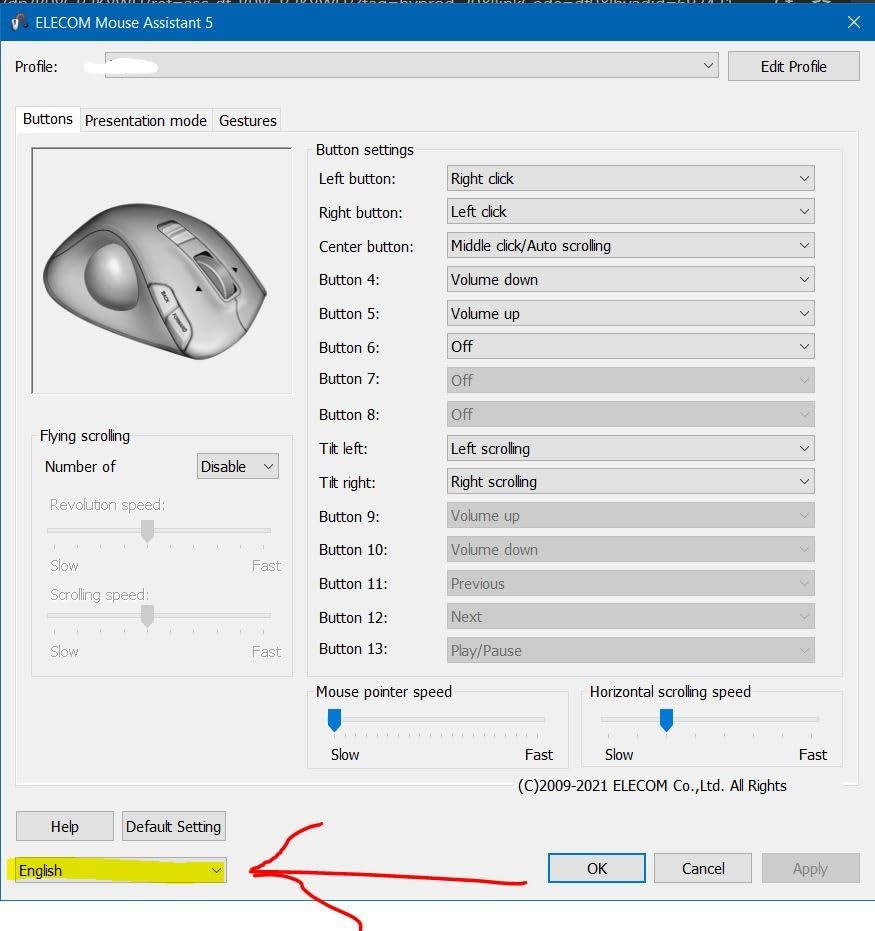
Users who need this option tend to describe it as transformative, particularly people recovering from a stroke or a hand injury on the side a normal trackball ignores. The red optical ball is not decorative; optical sensors read colour contrast well, and reports of smooth, precise movement are consistent.
The limits are real. There is no Bluetooth, only a 2.4GHz receiver with a 5 metre range. The software installs in Japanese on first launch and you are expected to uninstall other mouse utilities first. The ball can feel catchy at high speeds. And durability reports are mixed, with some owners reporting under a year of service, which makes the one year warranty worth reading twice.
Why mirrored hardware is worth paying extra for
Adapting a right hand shaped device forces your wrist into rotation it was not built for, which is the opposite of what you are trying to achieve. A mirrored body removes that compensation entirely.
For anyone recovering on one side, this is also a practical recovery tool, since it allows normal cursor control on the unaffected side without the awkward grip a standard mouse demands.
Where it will frustrate you
If you use Bluetooth as your primary connection, the 2.4GHz dongle is the only option. Mixed durability reports are the biggest concern here, so treat the first six months as the evaluation period.
Two DPI steps is also limiting. If you move between a high resolution display and a laptop, you will be changing that setting more often than you would like.
10. seenda Wireless Trackball: Comfort With a Rechargeable Battery
seenda Wireless Trackball Mouse, Ergonomic Bluetooth Rollerball Mouse,Black
Thumb control
5 DPI levels from 200 to 1600
Bluetooth plus 2.4G
Rechargeable USB-C
2 year warranty
Pros
- Tracks on fabric
- a sofa
- your leg or a bare desk
- Comfortable rounded shape for long days
- Three device pairing with USB-C charging
- Colour options including a red ball
- Quick setup on both Windows and Mac
Cons
- Bluetooth wake can be inconsistent
- DPI sometimes changes on its own
- Edges feel rough to sensitive hands
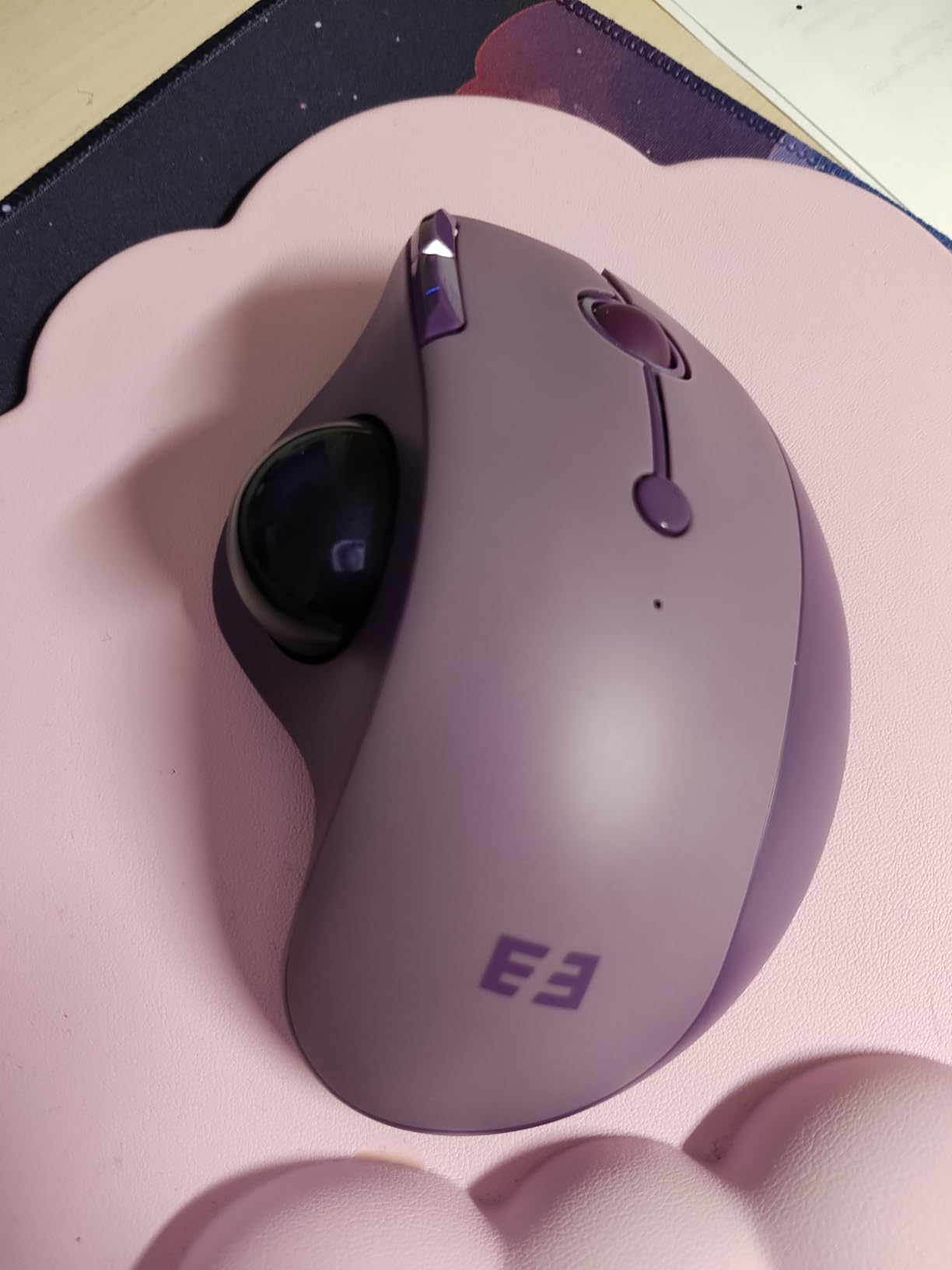
The seenda closes the list because of one genuinely unusual property: it keeps tracking on nearly anything. On our test it worked on a bare desk, a sofa arm, a trouser leg and a fabric cushion without a surface pad. If your work happens on a sofa, a bed or a lap, no other device in this roundup behaves that way.
The shape follows the natural curve of the hand rather than fighting it, and it is aimed at medium to large hands. Six buttons, five DPI levels from 200 up to 1600, three paired devices over Bluetooth and 2.4GHz, and a rechargeable battery charged by USB-C with a two year warranty.
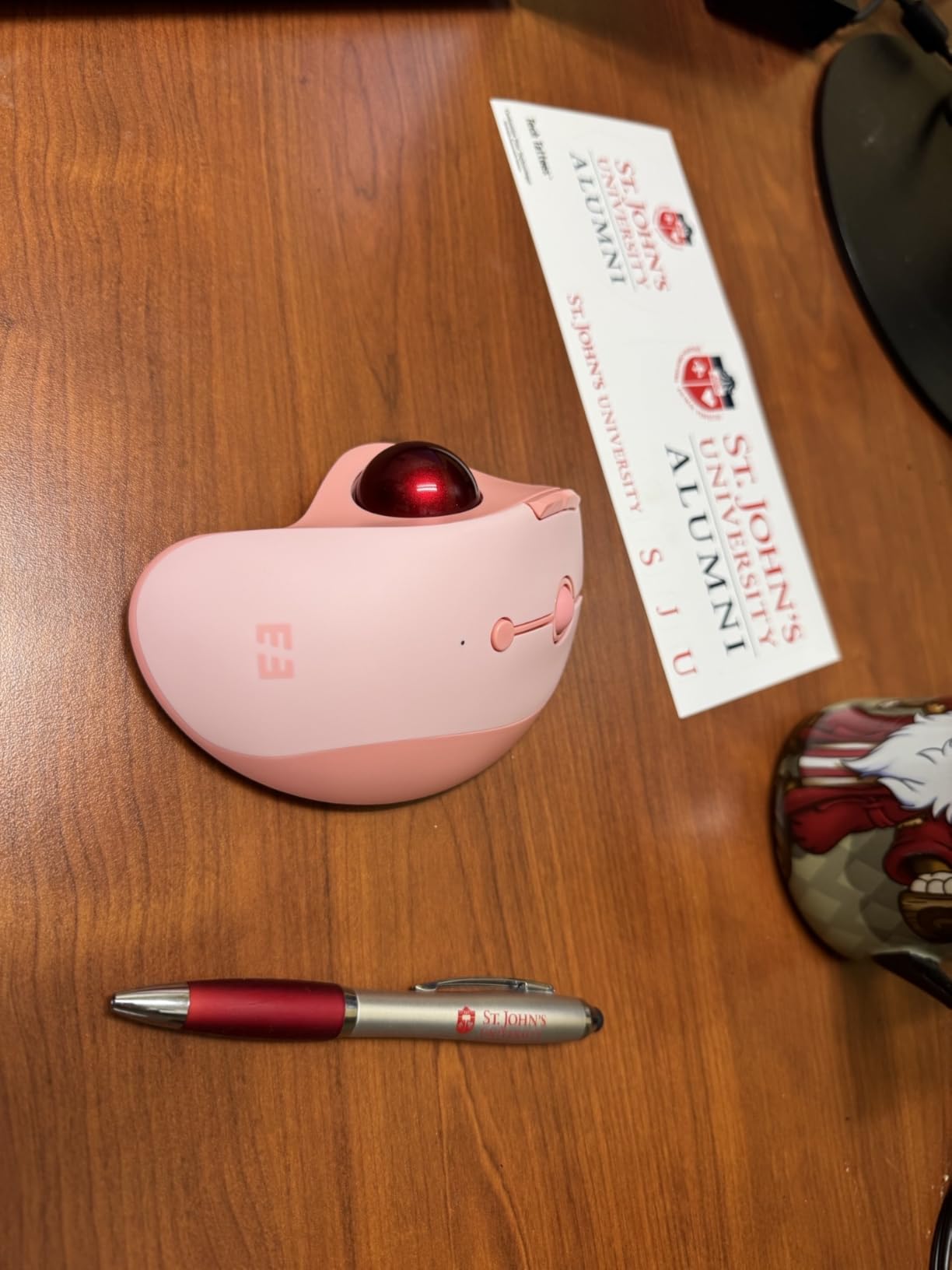
Users who arrived with wrist pain report meaningful relief, and the comfort rating is consistent across the review record. Customer service is also responsive when the PDF manual is what you need. Setup is unremarkable in the best way, working on both Windows and Mac without ceremony.
The rough edges are minor but real. Bluetooth wake is inconsistent enough that you sometimes need to press a button, and several users report the DPI level changing without input. The edges feel rough to sensitive skin, and it is not a good match for very small hands. Back and forward buttons are not programmable on macOS.
When a trackball that travels anywhere changes the picture
A fixed device that works on any surface removes the last reason people keep a flat mouse as a couch companion. It also makes a trackball viable for people who work across a standing desk, a sofa and a bed in one evening.
That flexibility is not a comfort feature so much as an adherence feature. The more places you can use one comfortable device, the more likely you are to keep using it, and adherence is what actually protects the wrist.
Where it will frustrate you
If your hands are small, the body is too generous. If you need heavy button remapping on macOS, the side buttons will not cooperate.
The occasional DPI change and the inconsistent Bluetooth wake are both minor, but on a busy day they can read as unreliability even though the underlying tracking is good.
Buying Guide: Thumb Trackball vs Finger Trackball for Wrist Pain
The single most important question is which digit drives the ball, because that choice decides where your discomfort will land. Thumb trackballs keep the fingers free and rest the load on the thumb side of the hand. Finger trackballs do the opposite: the index and middle fingers work the ball and the thumb largely stays out of it. Neither is universally better, and picking the wrong one is the most common reason people give up on trackballs entirely.
Choose a thumb trackball when your pain is general
Thumb balls suit broad wrist ache, RSI prevention and anyone without a specific diagnosis. They are also the easier transition from a flat mouse, because the movement is a small thumb rotation that maps loosely onto familiar clicking motion. Every device from the Nulea M501 onward in this list falls into this group.
The caveat is thumb specific pain. If your symptoms sit at the base of the thumb or on the thumb side of the wrist, a thumb ball keeps loading the exact tendon that is already irritated. That is the situation a finger trackball solves.
Choose a finger trackball when your thumb is the problem
Finger operation removes the thumb from the movement cycle entirely. If you have De Quervain’s tenosynovitis, a sore thumb joint, or recovering from a hand injury that involves the thumb, this is the group to shop in: the Kensington Orbit, the Kensington Expert Mouse Wireless and the Elecom Huge all put the ball under the index finger.
The cost is adaptation. Finger operation takes longer to learn than thumb operation, and the Elecom Huge in particular drew the steepest learning curve in our testing. If you are prone to returning things quickly, expect this group to take longer to earn its place.
Wired or wireless: what actually changes
Wireless removes the cord that otherwise tugs your forearm toward the desk edge and frees you to change position freely. It also removes battery anxiety, though modern rechargeable cells make that a small concern. Wired devices never drop out, never need pairing and never go flat at the wrong moment.
Wireless models here split into three groups. Bluetooth plus dongle covers everything: the Nulea M501, the TECKNET, the ProtoArc EM01 NL and the seenda all pair three devices. Dongle only covers older and simpler bodies: the Elecom Huge, the Elecom EX-G and the Kensington Expert Mouse Wireless. If your laptop has no USB port, only the first group works without an adapter.
Hand size, orientation and footprint
Hand size is the most commonly missed variable. Small hands want compact bodies, and the Elecom EX-G at 3.7 by 4.9 inches and the Kensington Orbit at 5.46 by 4.51 inches both suit smaller users. Large hands want room to spread, which is where the TECKNET and the Elecom Huge at 7.2 by 4.5 inches earn their place. The biggest footprint belongs to the Kensington Expert Mouse Wireless at 8 by 6.1 inches, which needs clear desk in front of the keyboard.
Orientation is the other half. Most trackballs are right handed by design, and a mirrored thumb model is the exception rather than the rule. Only the Elecom EX-G fills that role in this group. Finger-operated models sidestep the question entirely because they are ambidextrous.
Ball diameter, bearings and cleaning
Bigger balls are easier to control precisely because they give you more physical travel per centimetre of cursor movement. The Kensington Expert at 55mm and the Elecom Huge at 52mm lead this list; the Nulea M501 and the TECKNET sit noticeably below them.
Bearings decide how that feels after a year. Synthetic ruby bearings, as used in the Elecom Huge, stay smooth with the least upkeep. Steel bearings are fine when maintained and gritty when neglected. Expect to clean the ball and the socket every couple of weeks regardless of type, and check that your chosen model can actually be opened, since the ProtoArc EM01 NL is difficult to service.
Software and button remapping
Logi Options+ is the most capable tool here, with per application profiles that survive closing the app. The Elecom Mouse Assistant and Kensington software both work but are fussier, and the Elecom utility installs in Japanese on first launch. Several products, including the Nulea M501, the ProtoArc EM01 NL and the ProtoArc EM04, have no remapping at all, so treat button count as fixed.
Vertical Mouse vs Trackball: Which One Your Wrist Actually Needs
A vertical mouse fixes forearm rotation while your hand still sweeps across the desk. A trackball fixes device travel while your forearm still rotates somewhat. That single mechanical difference decides which one suits which symptom, and it is the question most asked about wrist pain in this category.
If your discomfort is a heavy, aching feeling across the top of the forearm that builds through the afternoon, forearm rotation is the likely culprit and a vertical mouse addresses it directly. The TECKNET at 16 degrees, and the ProtoArc EM01 NL with its adjustable hinge, move partway toward that benefit while keeping the trackball’s zero-travel advantage.
If your discomfort is concentrated in the wrist and fingers from the repeated reaching and gripping a mouse requires, a trackball wins because the device never leaves its spot. If your thumb is the sore spot, add the finger operation decision on top of that, since no amount of angle fixes a thumb that is doing too much work.
For CAD, dense spreadsheet work and any precision placement task, a trackball gives finer control. For gaming, neither category suits fast flick aiming, and a conventional mouse remains the honest answer. Our related guide to the best ergonomic vertical mice for programmers covers that side in more depth.
Which Trackball for Which Condition
Generic ergonomic labels are close to useless when you have a named condition. Mapping the complaint to the mechanism of the device is far more useful, and it is the framework we used to rank this roundup.
Carpal tunnel and median nerve symptoms
Carpal tunnel symptoms come from compression at the wrist, driven by sustained flexion and extension. A trackball helps by removing repeated extension: your wrist holds one angle instead of bending back and forth with every sweep. The Elecom Huge is the strongest pick here because its finger operation keeps the wrist nearly still, while the Logitech Ergo M575S is the safer default for general relief because its sculpted thumb shape is low risk and well supported.
De Quervain’s tenosynovitis and thumb pain
De Quervain’s affects the thumb side tendons, so thumb-operated trackballs are the wrong shape entirely. Choose the Kensington Orbit or the Kensington Expert Mouse Wireless if you want the simplest route, and the Elecom Huge if you want the largest ball and the most buttons. This is the one place where the category genuinely divides by diagnosis rather than preference.
General wrist ache and RSI prevention
Without a diagnosis, the deciding factor is hand shape and habits. Start with the Nulea M501 if your hands are medium and you switch between machines, the TECKNET if your hands are large or your forearm feels heavy, and the ProtoArc EM04 if you are not yet sure a trackball suits you.
Desk setup factors that outrank the mouse
A perfect trackball on a badly arranged desk will still hurt. Push your keyboard back far enough that your elbows sit near a right angle, keep your forearms resting on the desk or a support rather than floating, position the monitor so your neck is neutral, and get the device height right so you are not reaching downward. Keep the front edge of the desk soft; a hard edge pressed into the palms creates pressure that reads as wrist pain. A padded support under your forearms is a cheap addition, and you can compare options in our roundup of the best wrist rests for mechanical keyboards.
How to Test a Trackball During the Return Window
Almost every trackball return happens in the first two weeks, and almost every one is caused by skipping the adaptation period. Use the trial deliberately rather than judging the device on day three.
First, set the pointer speed low and raise it every few days. High sensitivity forces large muscle corrections, and low sensitivity keeps movements small and controlled while your hand learns the new motion.
Second, remap the buttons on day one if the software allows it. The moment the device starts doing what you want, your perception of it changes.
Third, keep your old mouse within reach for the first week. Switching between two input devices is normal and is not a sign of failure.
Fourth, run a real workday before deciding, not a demo. CAD, spreadsheets and code editing stress different motions than web browsing, and a trackball that cramps during long precision work is the wrong one for you.
Fifth, set the DPI and angle at week two, after your movement has settled. The ProtoArc EM01 NL hinge and the TECKNET angle only make sense once you know what your hand wants.
Sixth, watch for a specific problem rather than general dislike. Catching pain, skipped clicks, a ball that will not stay clean and an unusable button layout are four different complaints with four different fixes.
Frequently Asked Questions
What is the best trackball for wrist pain?
The best trackball mice for wrist pain are the Nulea M501 for general use, the Logitech Ergo M575S for software control, and the Kensington Orbit with Scroll Ring if your thumb is the sore spot. Thumb-operated models suit general wrist ache, while finger-operated models take the load off an irritated thumb.
Do trackball mice help with wrist pain?
Yes, for most people. A trackball keeps the device stationary on the desk and moves only the ball, which removes the repeated side-to-side reaching that contributes to wrist strain and repetitive strain injuries. They do not resolve an existing injury, so seek clinical advice for numbness, tingling or night-time symptoms.
Is a trackball better than a vertical mouse for carpal tunnel?
A trackball is usually the better choice for carpal tunnel symptoms because it removes the repeated wrist extension and gripping that come from sweeping a mouse across a desk. A vertical mouse mainly reduces forearm rotation, which helps a heavy or achy feeling across the top of the forearm more than it helps compression at the wrist.
What’s the difference between thumb and finger trackballs?
A thumb trackball is rolled with the thumb, which keeps the fingers free and is the easier transition from a flat mouse. A finger trackball is rolled with the index and middle fingers, which leaves the thumb almost entirely idle. Finger models take longer to adapt to but are the right choice if your thumb or the thumb side of your wrist is already sore.
Are thumb trackballs bad for your thumb?
A thumb trackball can aggravate an existing thumb problem, especially De Quervain’s tenosynovitis, because it keeps the thumb tendons loaded through a full working day. If your pain is localised to the thumb joint or the thumb side of the wrist, choose a finger-operated model such as the Kensington Orbit or the Elecom Huge instead.
Final Verdict for 2026
If you want one safe recommendation from this roundup of the best trackball mice for wrist pain, take the Nulea M501. It has the largest owner base we saw, a comfortable thumb ball that stays stationary, rechargeable power and three device pairing, which covers almost every desk arrangement. If your thumb is the problem rather than your wrist, switch to a finger model and start with the Kensington Orbit.
Test whichever you choose across a full working week before you settle. Your wrist will tell you which one is right, and now you know what to listen for.