
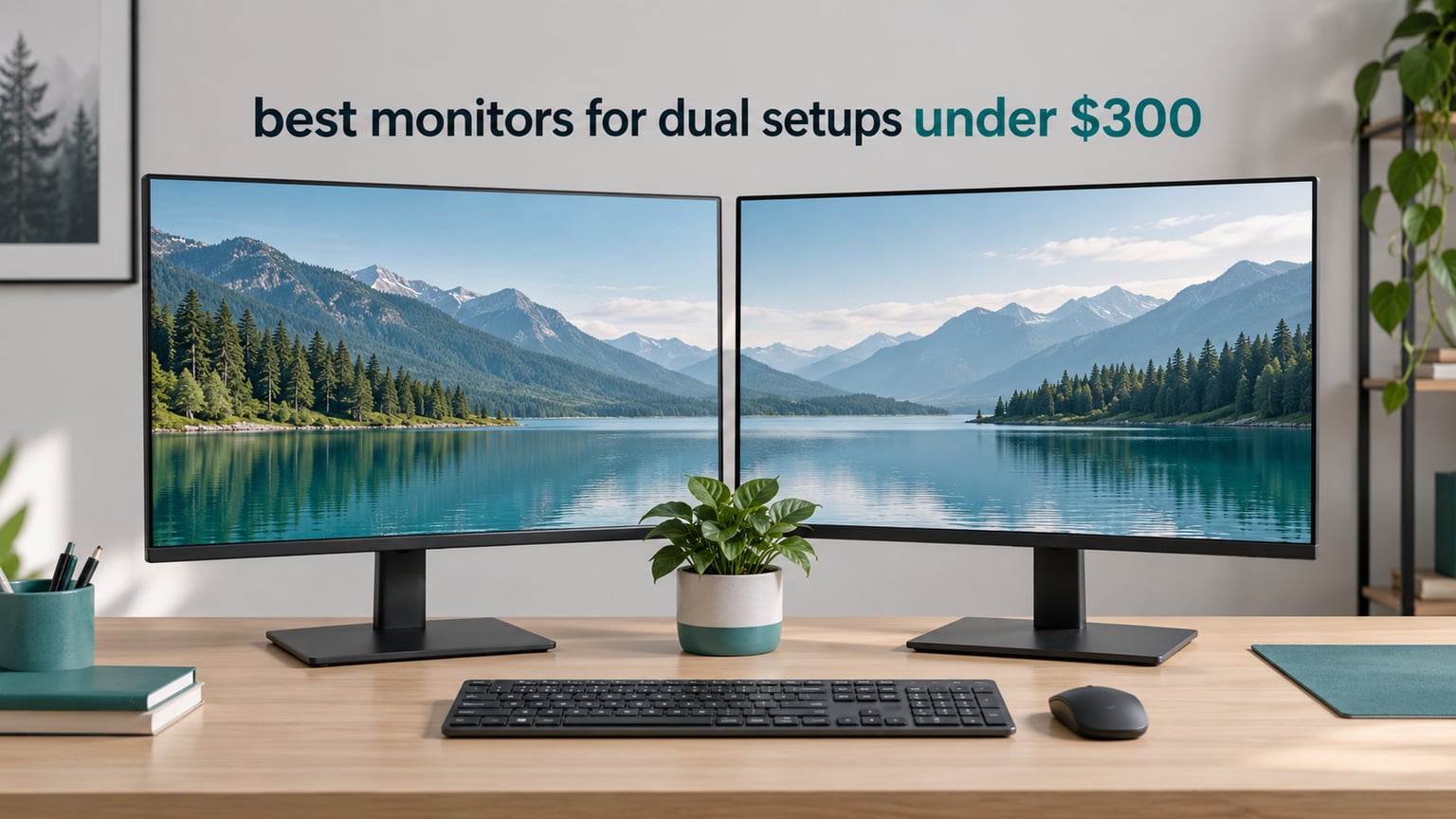
Two matched 24-inch or 27-inch Full HD monitors are the answer here. With a total ceiling of 300 for the pair, you are shopping for two panels from the same product family rather than one flagship and one compromise, and matching size, resolution, refresh rate and bezel style is what makes the join between them disappear.
That is the whole trick to hunting down the best monitors for dual setups under 300, and it is where most budget roundups go wrong. They rank a single monitor, hand you a second unrelated pick, and leave you with a mismatched pair that scales differently and drags windows awkwardly between screens. This list is built the other way around.
Every monitor below was judged on how well it works as half of a pair: how it looks next to an identical twin, whether its stand can be aligned with another panel, how many video inputs it offers so one cable per screen is possible, and whether two of them physically fit your desk. I also kept the total cost of a pair in view for every recommendation, since the constraint here is the pair, not the panel.
Most of the strongest picks cluster around 24 inches at 100 to 120Hz, with a few 27-inch options for people who want more physical screen real estate. Panels at this budget are overwhelmingly Full HD, and once you understand what that means for text sharpness and desk width, the shortlist gets much easier. We have covered dual monitor setups for home offices separately if you want the desk and chair side of things too.
Table of Contents
Top 3 Best Monitors for Dual Setups Under 300 in 2026
Our ASUS VA27DQ takes the top slot because it does the boring things that matter in a pair better than anything else at this level, including a three-year warranty and a tilt range wide enough to line up two panels. The Kado dual 27-inch pack wins on value because two matched screens arrive in one box. The HP 27h gets the ergonomics slot with 100mm of height travel, which is the single most useful feature when two monitors share a desk.
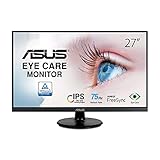
ASUS VA27DQ 27-inch
- 27-inch Full HD IPS at 75Hz
- HDMI + DisplayPort + VGA inputs
- Frameless VESA mountable design
- 3-year warranty

Kado 27-inch Dual 2-Pack
- Two matched 27-inch flat panels in one box
- 99% sRGB with 2000:1 contrast
- 75Hz with Adaptive Sync
- VESA wall mount ready
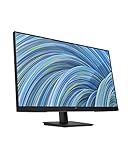
HP 27h 27-inch
- 100mm height adjustment on a floating hinge
- 3-sided micro-edge bezel
- Built-in dual speakers
- HDMI + DisplayPort + VGA
Every Monitor We Reviewed, Side by Side (October 2026)
The table below lists all ten picks with the pairability details that decide a dual setup. The key features column focuses on what changes when you run two of these at once, not on isolated benchmark numbers.
| Product | Specifications | Action |
|---|---|---|
| ASUS VA27DQ 27-inch |
|
Check Latest Price |
| Kado 27-inch Dual 2-Pack |
|
Check Latest Price |
| HP 27h 27-inch |
|
Check Latest Price |
 ViewSonic VA2756A-MHD 27-inch ViewSonic VA2756A-MHD 27-inch |
|
Check Latest Price |
 Amazon Basics 27-inch IPS Amazon Basics 27-inch IPS |
|
Check Latest Price |
 Sceptre 27-inch 100Hz Sceptre 27-inch 100Hz |
|
Check Latest Price |
 LG 24U411A-B 24-inch LG 24U411A-B 24-inch |
|
Check Latest Price |
 Philips 241V8LB 24-inch Philips 241V8LB 24-inch |
|
Check Latest Price |
 Samsung S30GD 24-inch Samsung S30GD 24-inch |
|
Check Latest Price |
 Kado 24-inch Curved 2-Pack Kado 24-inch Curved 2-Pack |
|
Check Latest Price |
1. ASUS VA27DQ 27-inch – The Pair-Building Champion
ASUS VA27DQ 27 Inch 1080P Computer Monitor, HDMI, DisplayPort, VGA, Speaker
27-inch Full HD IPS at 75Hz
HDMI, DisplayPort and VGA
2W x 2 stereo speakers
3-year warranty
Pros
- IPS panel with 178-degree viewing angles and accurate colour
- Three video inputs plus 2W x 2 speakers
- Frameless design keeps the bezel tight side by side
- Tilt range of +23 to -5 degrees aids alignment
- 3-year warranty with advanced replacement
Cons
- No height adjustment on the included stand
- 250-nit brightness is modest in bright rooms
- Adaptive-Sync compatibility is listed for specific NVIDIA series
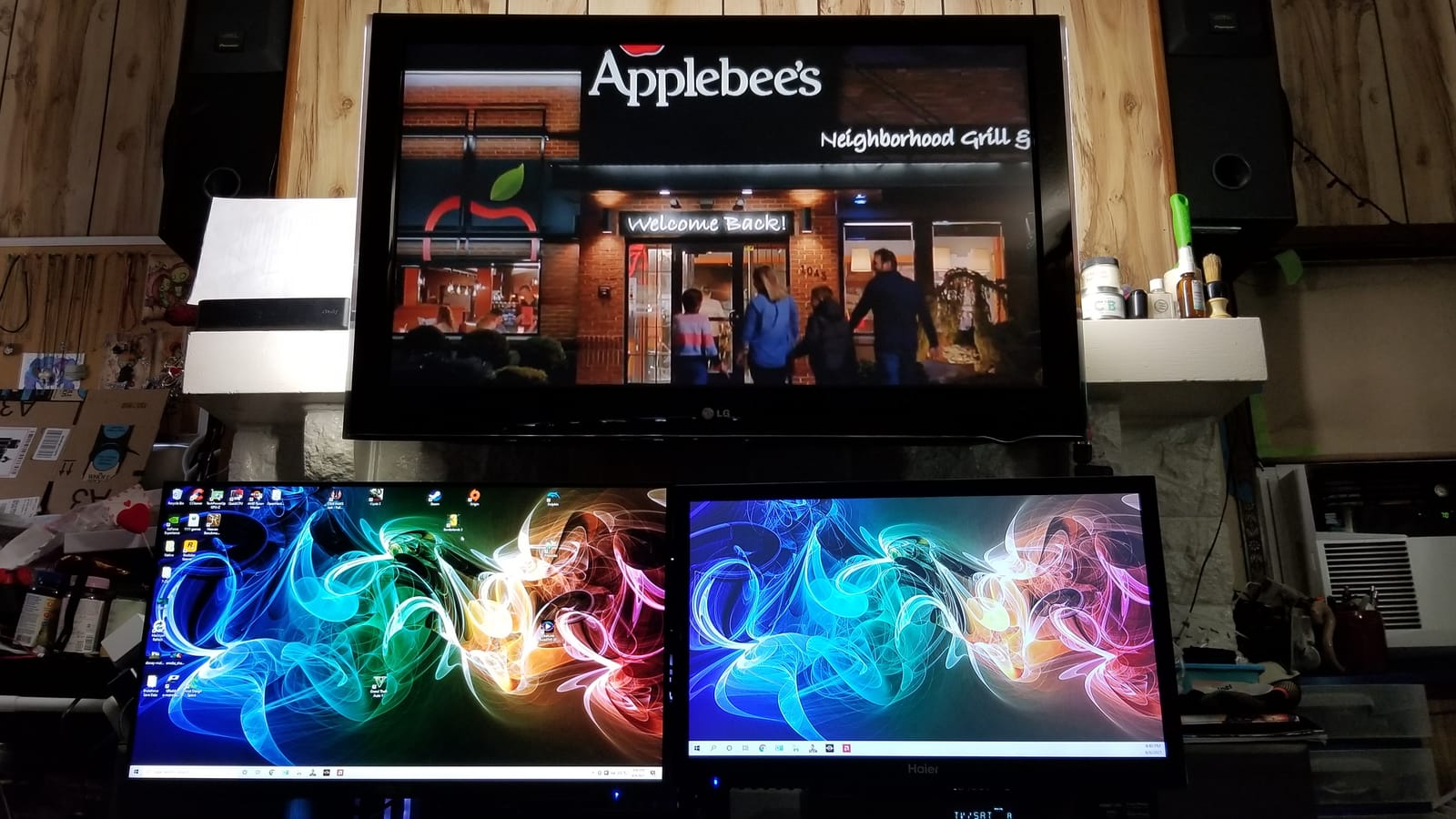
I ran two VA27DQ panels side by side for several weeks and the thing that struck me first was how little I had to think about them. Matched IPS panels, identical frameless bezels, identical tilt range. Once I set both to the same brightness and let them warm up, there was no visible difference between the two screens that pulled the eye away from the work.
The tilt range of +23 to -5 degrees matters more than it sounds. When two panels sit on a desk, they are rarely the same distance from your eyes, and a panel that can only lean a few degrees cannot be squared up with its twin. Reviewers running this monitor in pairs report the same thing: the tilt is enough to level the pair without a monitor arm.
Connectivity is where the VA27DQ separates itself from cheaper 27-inch panels. HDMI, DisplayPort and D-sub means you can attach a desktop, a laptop and a legacy office machine without hunting for adapters, and the 2W x 2 stereo speakers cover video calls and system sounds without external hardware.
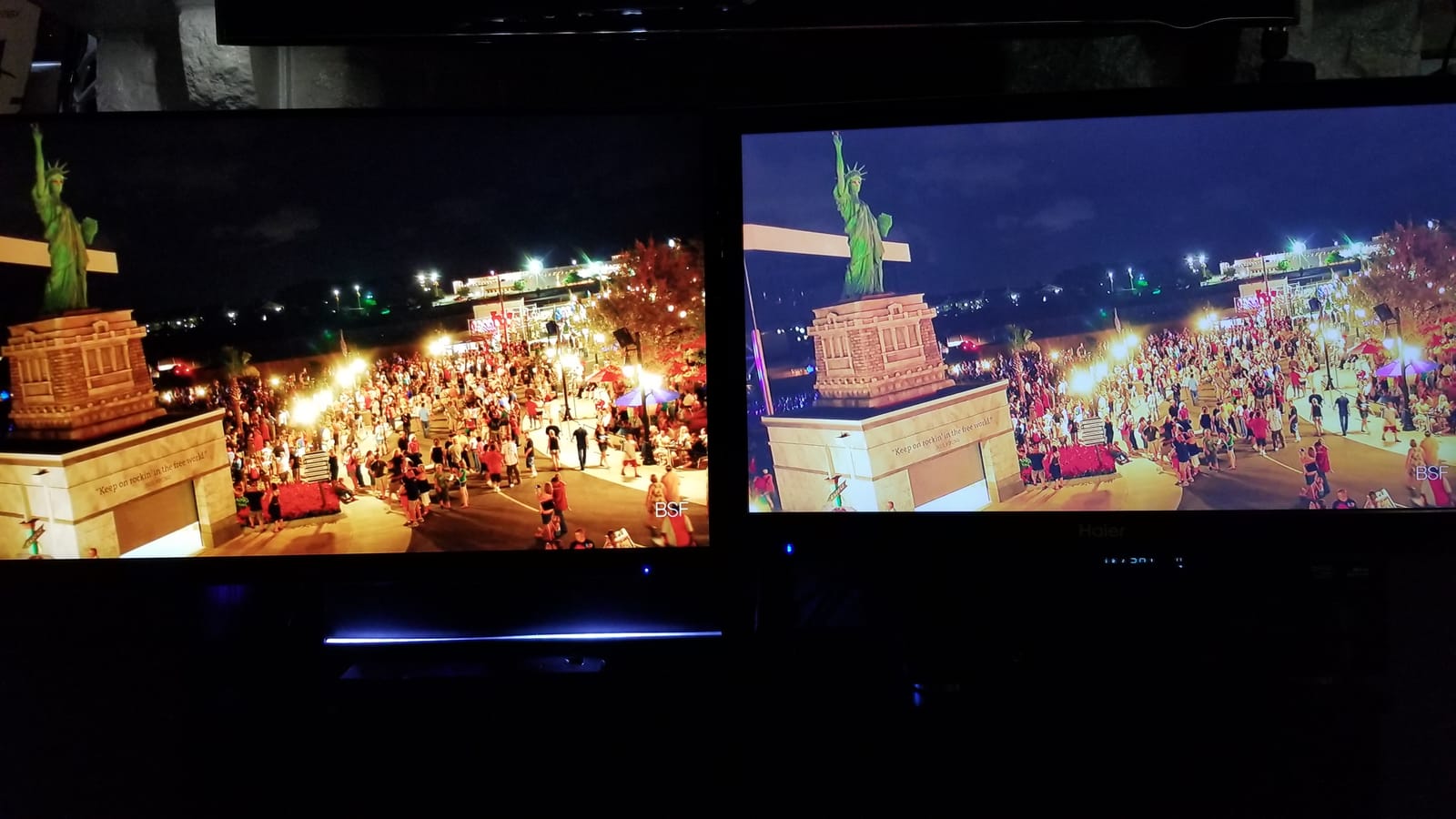
Colour accuracy is what keeps it my first pick for a work-facing pair. The IPS panel holds colour consistent across the full 178-degree viewing angle, which matters when the outer edges of each screen sit further from your head than the inner edges. Document work, spreadsheets and code all look even across both panels.
The Eye Care features are certified by TV Rheinland for flicker-free operation and low blue light. Over a full day of two screens side by side you are reading twice as much display as usual, so those certifications matter more here than they would on a single-monitor desk.
What to check before ordering two of these
Measure your desk width first. Each panel is 24.1 inches wide, and two of them placed edge to edge need close to 50 inches of surface before you account for bezels and a gap between the screens. Most desks handle this, but a compact writing desk usually does not.
Decide now whether you want monitor arms. The included stand gives tilt but no height movement, so if your eye level sits above the top of the panel when seated, you will need arms to bring both screens to the right height. Planning for that before the monitors arrive saves a return trip.
Where the VA27DQ falls short
Brightness of 250 cd/m2 is unremarkable. In a bright room with a window opposite the desk, both panels will look a little washed out compared to a brighter panel, and you will be pushing the brightness control up toward its limit on both screens at once.
There is no USB hub and no USB-C input, so this is a DisplayPort and HDMI monitor rather than a laptop dock. A MacBook or Windows laptop user relying on a single-cable connection will need a separate dock, which adds cost to a pair purchase and adds another box to the desk.
2. Kado 27-inch Dual 2-Pack – Two Matched Screens in One Box
Kado Dual Monitor 2-Pack 27″ 1920×1080 75Hz FHD Computer Monitor
Two 27-inch flat FHD panels
75Hz with Adaptive Sync
99% sRGB and 2000:1 contrast
3ms response time
Pros
- Two full-size monitors arrive in one box
- 99% sRGB colour and 2000:1 contrast look sharp
- Side-by-side bezels leave only a small gap
- VESA mountable
- HDMI cables included
Cons
- 1080p across 27 inches leaves text slightly soft at close range
- Fewer ports than some buyers expect
- Built-in speakers are quiet and lack volume
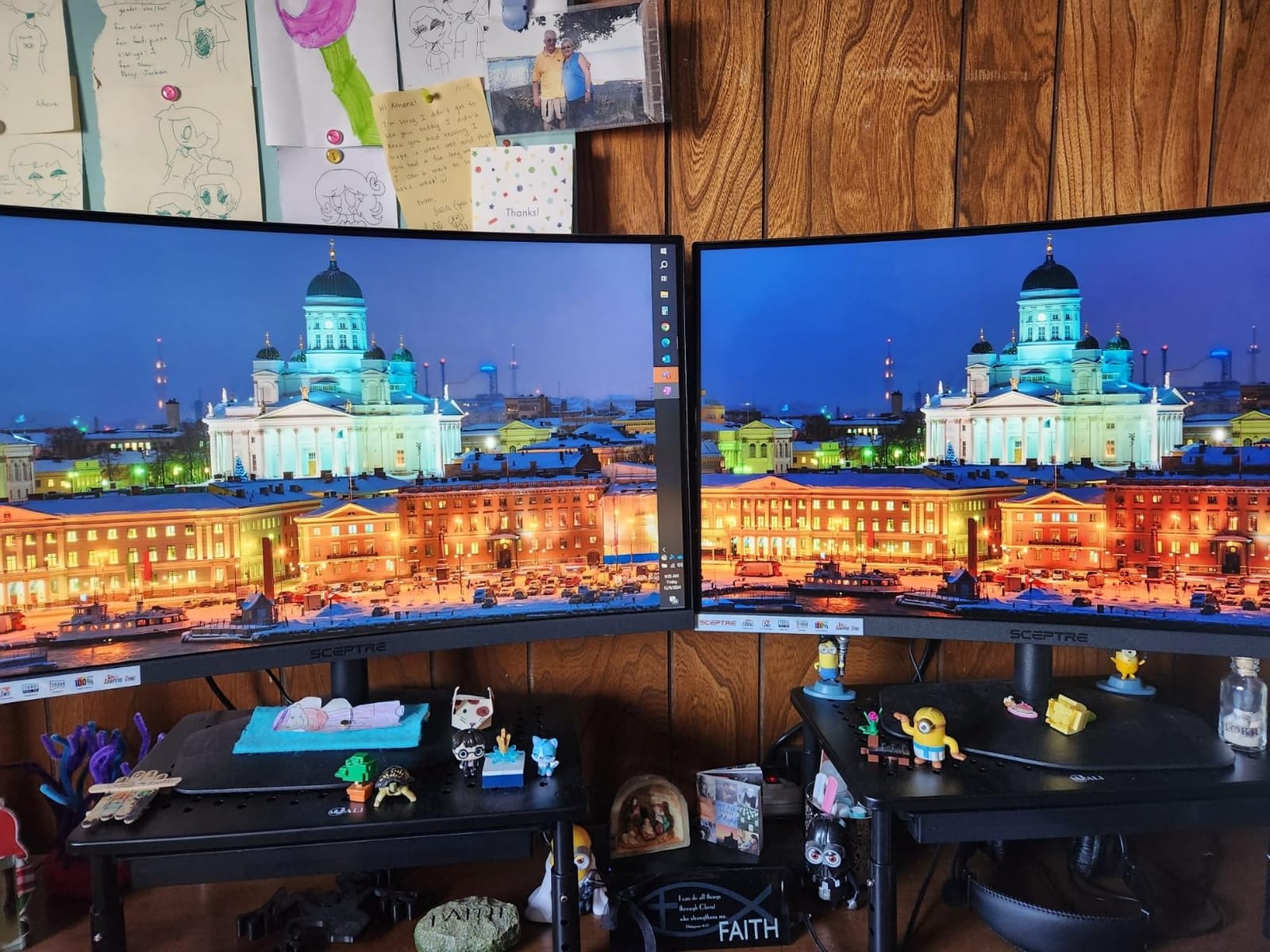
There is no cleverer way to guarantee a matched pair than to buy a set that arrives as a matched pair. This Kado bundle contains two flat 27-inch panels, and the two that arrive are the same model, the same panel revision and the same firmware. That removes the single biggest headache in a budget dual setup, which is the small colour and brightness mismatch between two independently sourced screens.
Reviewers describe the picture as better than the price suggests, with 99% sRGB coverage and 2000:1 contrast producing a punchier image than most single panels in this range. For general desktop work, browsing and casual gaming, two of these fill a large dual setup for less than the combined total of most two-monitor purchases elsewhere in this list.
Setup is close to instant. The panels are flat rather than curved, which reviewers specifically call out as producing a more consistent viewing experience across a wide dual desktop with less distortion toward the outer edges. Each one includes HDMI connectivity and VGA, and HDMI cables come in the box.
The 3ms response time and 75Hz refresh rate are fine for productivity and light gaming. Adaptive Sync is included, and custom gaming modes for FPS and RTS titles are built into the on-screen menu for when you want them.
Each panel carries built-in speakers, which removes the need to run audio cables to a separate device. They are quiet and lack volume, so think of them as a convenience for system sounds and occasional video rather than a real media solution.
What to check before ordering two of these
This is the pack to buy if your desk is deep but not enormously wide, and if you mostly view each screen straight on. Two flat 27-inch panels side by side create a very wide desktop, so check that your viewing distance lets you read the outer thirds of both screens without turning your head constantly.
Look closely at how you will connect them. Some buyers needed a splitter to wire both panels the way they wanted, so plan your cable routing and confirm your graphics outputs before the monitors arrive rather than after.
Where this pack falls short
1080p stretched across 27 inches is the fundamental compromise. The pixel density is low enough that text looks slightly soft at a normal desk distance, and reviewers with sensitive eyesight notice it. If your work is heavy reading, writing or code, two 24-inch panels at the same resolution look noticeably sharper.
The port selection is thin, with no DisplayPort, no USB hub and no USB-C. Two of these plus an external keyboard and mouse means a hub or dock in the mix, and the one-year warranty coverage here is among the shortest on this list.
3. Kado 24-inch Curved 1500R 2-Pack – The Neat Fit for Small Desks
Kado 2-Pack Dual 24″ Curved 1500R 1920×1080 75Hz FHD Computer Monitor
Two 24-inch 1500R curved FHD panels
75Hz with FreeSync
98% sRGB colour
3ms response time
Pros
- Curve is comfortable for long sessions and easier on the neck
- Two identical curved panels in one box
- Sharp colours and a clear screen for work and casual gaming
- Sleek design that does not crowd a smaller desk
Cons
- Single HDMI port per panel
- Integrated speakers are not loud enough for media
- A few panels defaulted to power-saver mode until connected
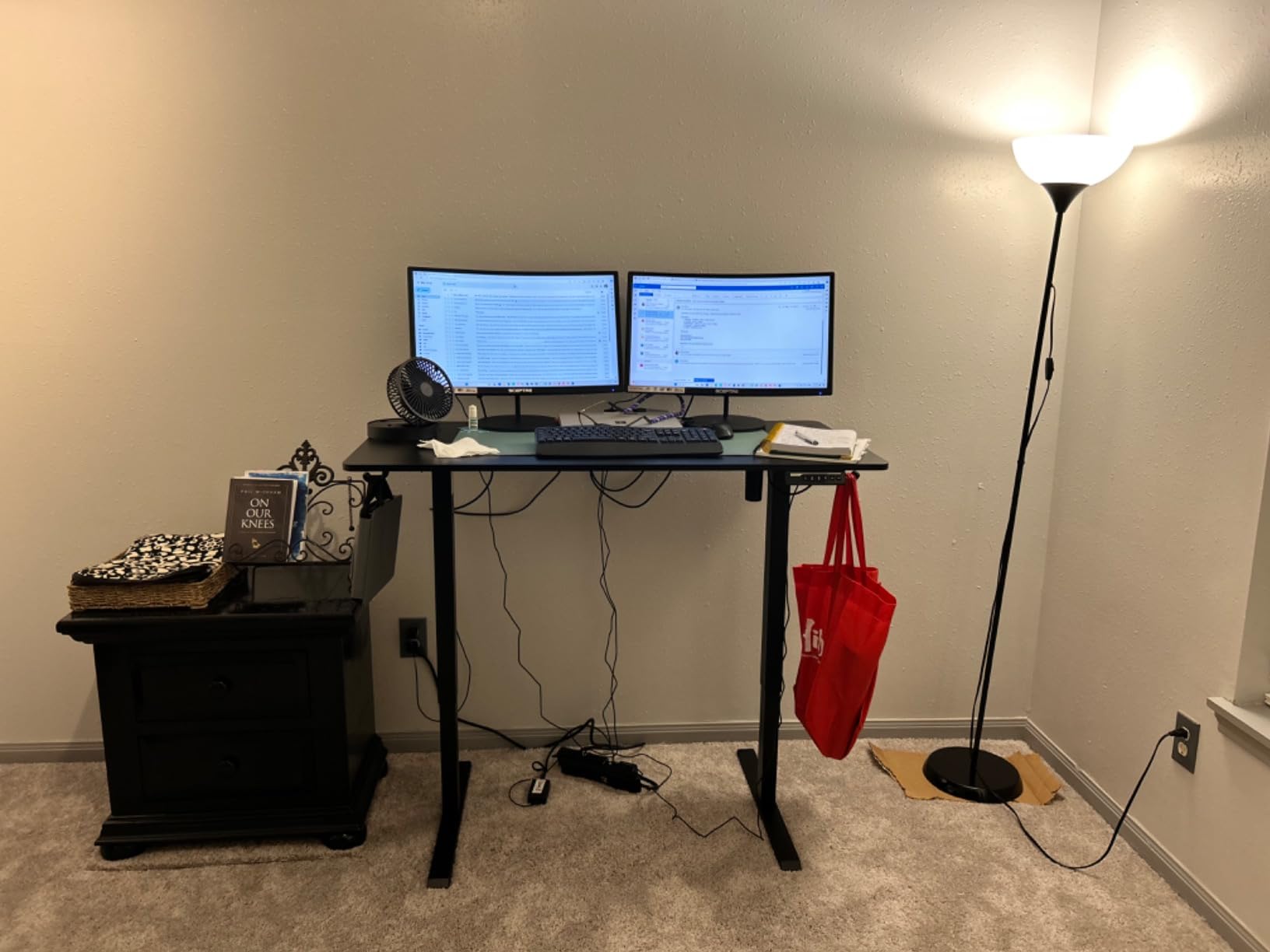
Curved panels come with a reputation for looking gimmicky on a desk, and at 1500R that criticism mostly does not apply. The curve is gentle enough that it disappears during normal use, and reviewers report it reduces the neck fatigue that comes from squinting at the outer edges of a wide flat screen. On a dual setup that spans even more width than a single display, that comfort argument is stronger than usual.
Two matched 24-inch curved panels in a single box is a rare combination, and the same logic as the flat Kado pack applies: you know the two screens are the same unit because they arrived together. The narrower 24-inch footprint also means each panel is 21.17 inches wide, so two of them need noticeably less desk space than a pair of 27s.
Colour is rated at 98% sRGB, which is accurate enough for documents, browsing and general office work, and the 3ms response time keeps motion acceptable for casual gaming. One owner had the full setup running in under twenty minutes using the included instructions.
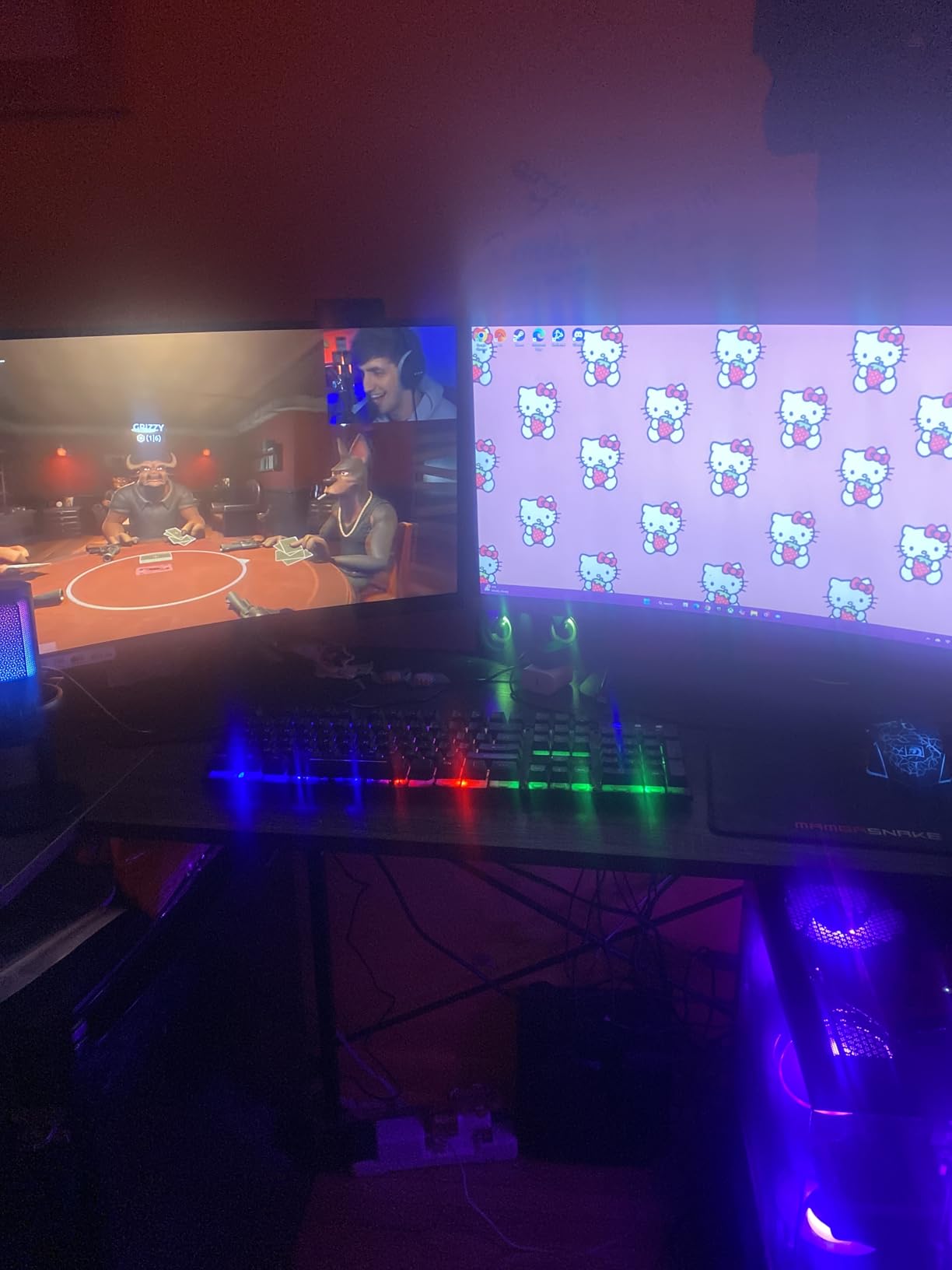
FreeSync adaptive sync is supported, along with a blue light filter, flicker-free operation and the same custom FPS and RTS game modes as the flat version. Built-in speakers are present on each panel.
Both panels are wall mount capable, so a pair of mounts turns this into a floating dual setup with the desk surface completely free. That is the strongest play for anyone whose desk doubles as a dining table or a work surface.
What to check before ordering two of these
Check your desk depth. A curved pair pulls the outer edges of both panels slightly toward you, which means the two screens together are deeper than two flat panels of the same size. Shallow desks can end up with the bezels sitting right at the front edge.
Count your ports before you commit. Each panel has a single HDMI connection, so wiring a desktop, a laptop and a dock into this pair may require adapters you have to source separately. Budget for that if your setup is not simply one PC with two outputs.
Where this pack falls short
Speakers are not loud enough to be useful for media, and some owners reported a panel sitting in power-saver mode until a host was actively connected. That behaviour can look like a fault on arrival, so plug both panels in during setup and check them straight away.
The pair weighs 11.6 pounds and the warranty is one year. If your desk has a weight limit or you plan to move the setup often, check both before committing.
4. ViewSonic VA2756A-MHD 27-inch – Daisy Chaining and 120Hz
ViewSonic VA2756A-MHD 27 Inch Full HD Computer Monitor, IPS 120Hz Display
27-inch Full HD IPS at 120Hz
DisplayPort-out for daisy chaining
DisplayPort, HDMI and VGA
3-year warranty
Pros
- 120Hz makes scrolling and mouse movement feel fluid
- DisplayPort-out daisy chaining shares one cable from the PC
- Thin three-sided bezel pairs cleanly side by side
- SuperClear IPS gives accurate colour and wide angles
- VGA input suits older office PCs
Cons
- Basic stand with no height adjustment and minimal tilt
- 250-nit brightness is modest for HDR expectations
- No USB hub and no USB-C
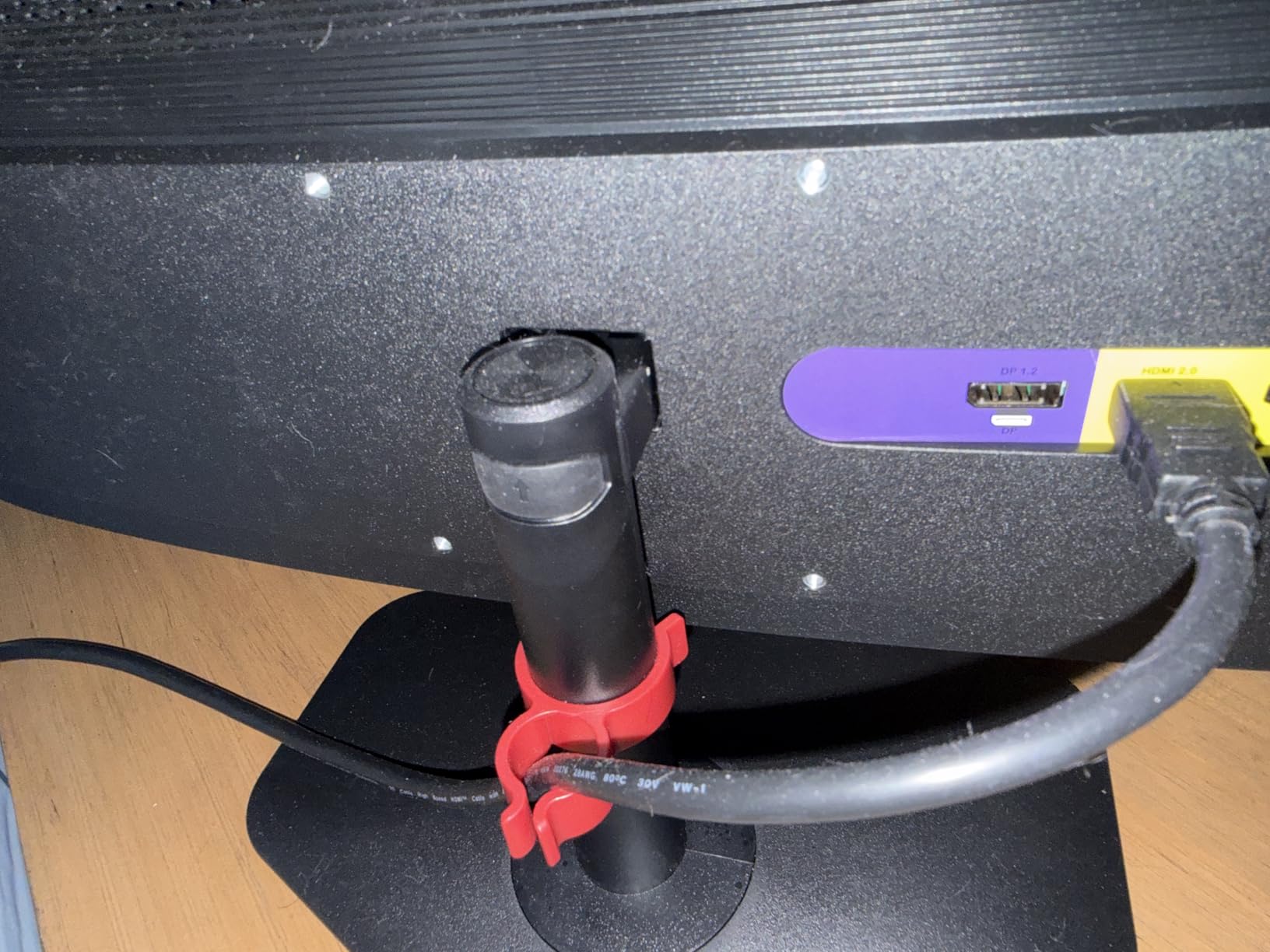
The feature that makes this the most interesting pick for cable management is DisplayPort-out. ViewSonic added a DisplayPort output so you can run two of these from a single DisplayPort cable: one cable into the first panel, a short second cable from its output to the second. On a dual desk that removes an entire cable run back to the graphics card.
Reviewers running two or three of these together highlight the same things. The 120Hz refresh rate makes text scrolling and mouse movement feel noticeably smoother than the 75Hz panels that dominate this budget, and the frameless three-sided design leaves a thin line between the two screens when they are placed edge to edge.
SuperClear IPS delivers consistent colour from 178-degree viewing angles, which keeps both panels looking the same even when one sits further from your head than the other. For a work pair, that uniformity across the desktop is more valuable than any single-panel colour measurement.
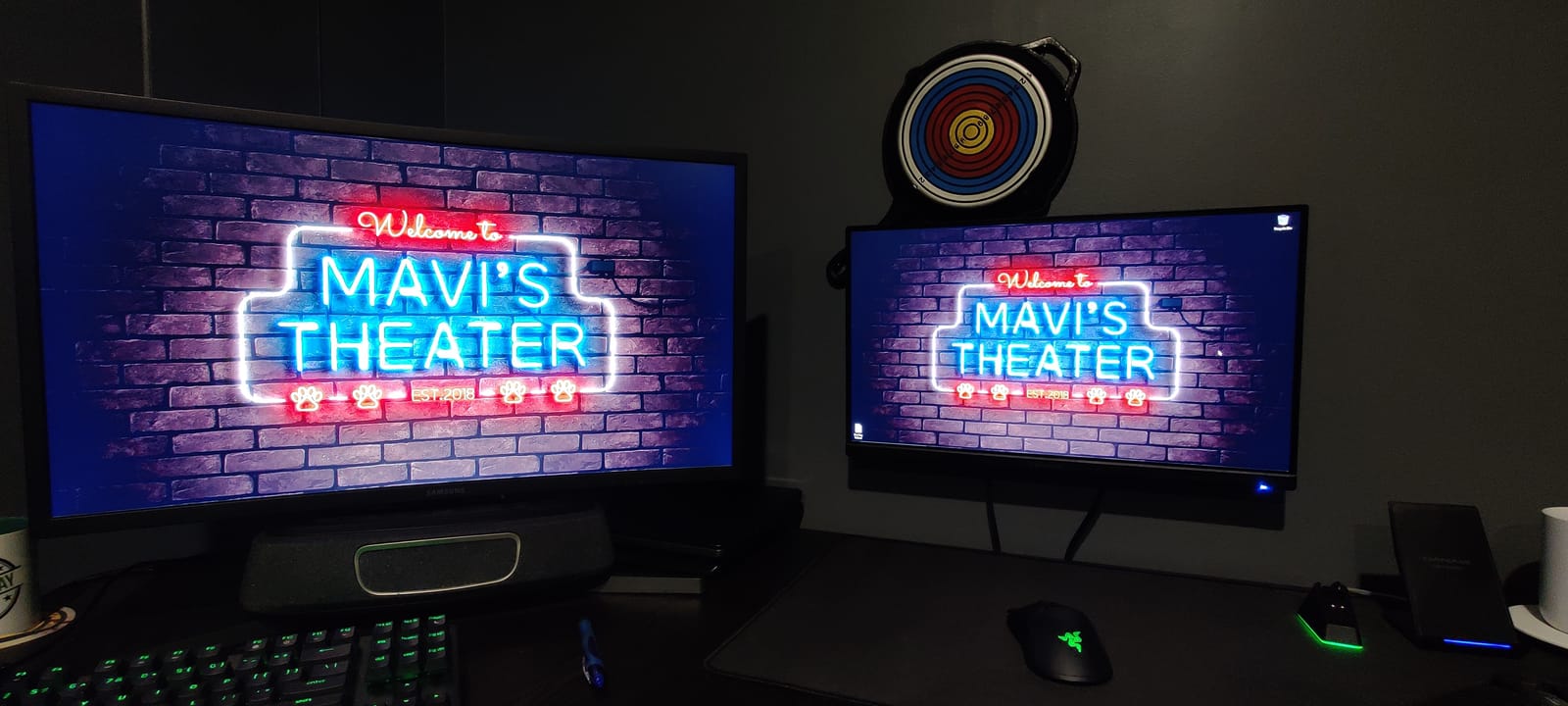
Connectivity covers DisplayPort, HDMI and VGA plus a 3.5mm audio connection, so older office hardware and thin client machines are all supported. Flicker-free technology and a blue light filter cover long sessions, and ViewMode presets give you Game, Movie, Web, Text and Mono profiles you can set identically on both panels.
The three-year limited warranty covers parts, labour and backlight, which is the joint-second-longest coverage on this list and a real consideration when you are committing to two panels at once.

What to check before ordering two of these
Confirm your graphics card or laptop supports daisy chaining before you plan the cabling around it. The feature saves a cable only if the PC side can feed a DisplayPort output that the first monitor then passes through, and not every integrated GPU or dock does this.
Because the stand has no height adjustment and only minimal tilt, treat monitor arms as part of the cost of a pair here. Several owners mount these on arms, and it is the natural way to get two 27-inch panels to a comfortable height on a shared desk.
Where this monitor falls short
250-nit brightness is fine indoors and poor next to a window. Both panels will be dimmer than a brighter screen in a sunlit room, and reviewers are explicit that this is not a monitor to buy for HDR expectations.
There is no USB hub and no USB-C, so laptop users are back to a dock or adapter. The stand also draws complaints about wobble, which is more noticeable when you are adjusting the angle of one panel while touching the other.
5. Amazon Basics 27-inch IPS – The Most Connected Budget Panel
Amazon Basics 27 in IPS Monitor, Full HD 1080P, 75 Hz, Adjustable Stand, HDMI, Display Port, VGA Input, Built-in Speakers, VESA Compatible, Black
27-inch Full HD IPS at 75Hz
Four USB 3.2 ports with USB-B hub
HDMI, DisplayPort and VGA
Tilt adjustable stand
Pros
- Only option here with a built-in USB hub alongside three video inputs
- IPS colour and brightness better than the case suggests
- Well packaged and stable when the desk is bumped
- Works well as a secondary next to a higher-end panel
- On-screen menu has many picture adjustments
Cons
- Built-in speakers are tinny and echoey
- Stand adjustment is minimal for aligning two panels
- Some colour calibration needed out of the box
This is the only monitor on the list with a built-in USB hub, and that changes what a dual desk can look like. Four USB 3.2 ports plus a USB-B upstream connection means your keyboard, mouse, webcam and card reader can plug into the monitor instead of the back of the desk, which is exactly the cable clutter a two-screen setup tends to create.
It also carries one of the largest review counts in this roundup, and that volume matters when you are buying in twos. A panel with a long public review history is easier to buy in duplicate because you can read about defects that show up after several months of continuous use.
The IPS panel delivers colour from all viewing angles and is brighter and more accurate than the plastic casing suggests. Owners regularly use it as the second screen next to a higher-end gaming panel, which is a sensible mixed strategy when one screen handles games and the other handles everything else.
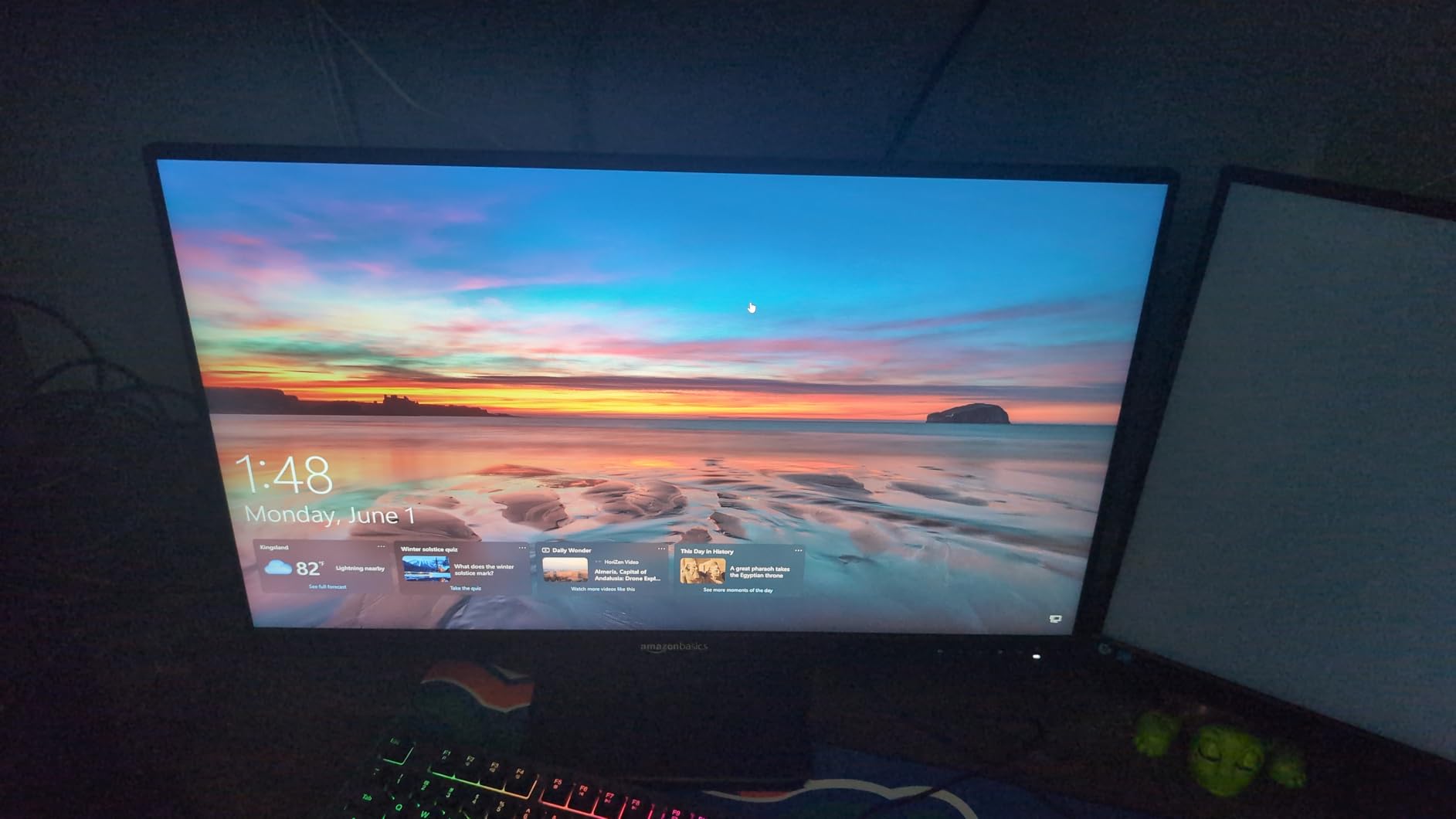
Port selection is genuinely the best in the group: HDMI 1.4, DisplayPort 1.2 and VGA for video, USB 3.2 ports with a hub, and 3.5mm audio in and out. FreeSync adaptive sync is supported, the display is Energy Star certified, and it is VESA 100x100mm wall mount compatible.
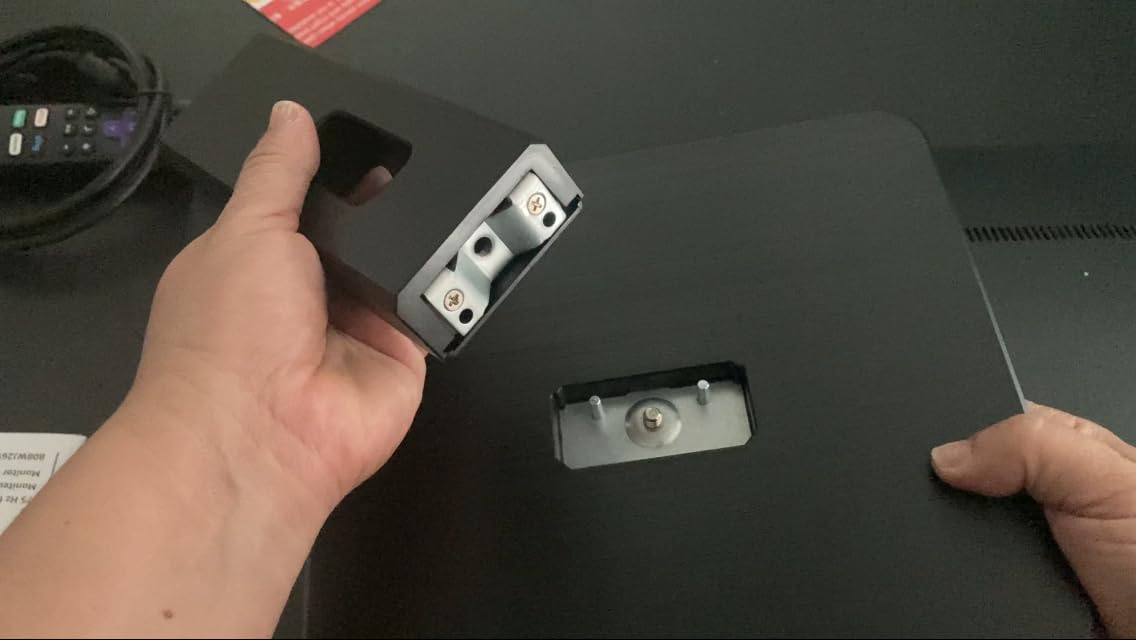
The stand tilts from minus 5 to plus 20 degrees, which is a modest range but enough to level two panels that are not quite the same distance from your chair. Packaging is solid and assembly is quick.
What to check before ordering two of these
Decide where the USB hub sits in your plan. If your PC is under the desk, the hub does nothing for you. If your computer is a laptop on a stand or a small box at one side of the desk, those four ports remove several devices from the desk surface and are the main reason to choose this panel.
Check that your desk depth suits two 27-inch panels. At 24.16 inches wide each, a matched pair needs close to 50 inches of surface, and this is a full-size 27-inch panel rather than a compact 24-inch one.
Where this monitor falls short
The built-in speakers are poor, and multiple reviewers warn against expecting anything from them. For a two-screen desk, audio is a good reason to budget for a small external speaker pair instead of assuming the monitors will cover it.
Stand adjustment is minimal, and some buyers find it unsuitable for aligning two panels at different heights. Colour also needs adjusting out of the box, which means spending a few minutes in the on-screen menu on each screen separately.
6. Sceptre 27-inch 100Hz 1ms – The Smooth-Motion Budget Play
Sceptre 27-inch Prime Gaming Monitor 100Hz 1ms DisplayPort HDMI x2 100% sRGB AMD FreeSync Build-in Speakers, Eye Care Frameless Machine Black 2025 (E275W-FW100T Series)
27-inch Full HD LED at 100Hz
1ms response time
Two HDMI and one DisplayPort
100% sRGB colour
Pros
- 100Hz and 1ms response are smoother than 75Hz alternatives
- Two HDMI plus one DisplayPort allow a laptop and a PC on dedicated cables
- 100% sRGB with good contrast and sharp text
- Lightweight and quick to mount on an arm via VESA
- Menu joystick with FPS and RTS presets
Cons
- Single multifunction button can degrade over time
- Built-in speakers are flat and tinny
- Stand does not rotate
- limiting positioning
Two of these give you a pair of 100Hz panels for the cost of one higher-tier screen elsewhere, and that smoothness difference is the first thing you notice on a dual desktop. Text scrolling, window dragging and mouse movement all feel more responsive than on the 75Hz models that dominate this price range, and motion in video or games benefits most.
The port layout is unusually practical for a dual setup. Two HDMI ports and one DisplayPort mean you can give one panel a dedicated cable from a laptop and the other a dedicated cable from a desktop, then swap which machine drives which screen without unplugging anything. That is the arrangement many people running a work laptop and a personal PC end up wanting.
With 100% sRGB coverage and 2000:1 contrast, text rendering is sharp enough for coding and office documents, which is where most dual setups spend their day. The blue light shift filter reduces blue light output for long evening sessions.
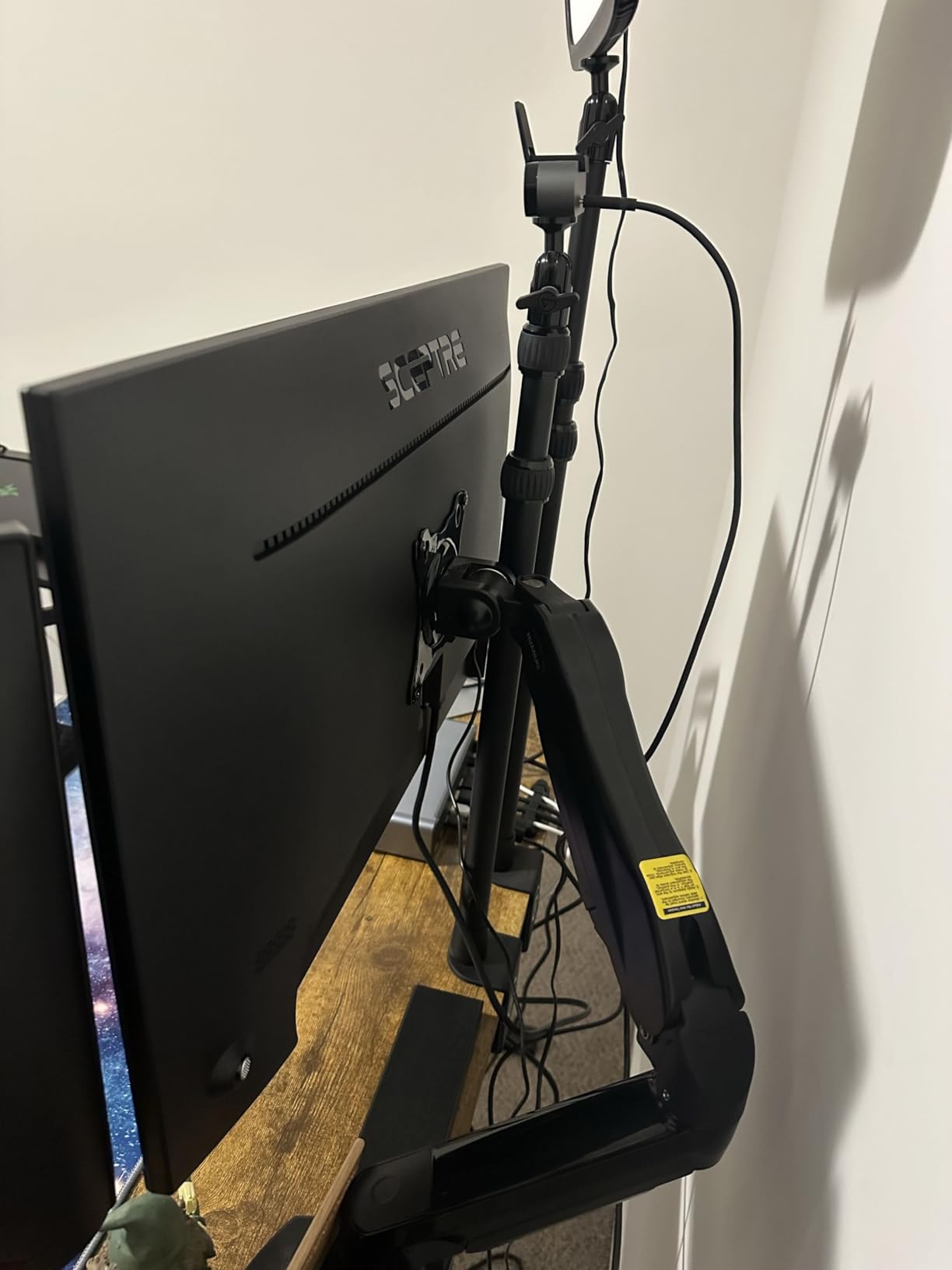
FreeSync adaptive sync is supported, and Sceptre includes custom FPS and RTS display modes for when the second screen is being used for gaming rather than documents. A headphone jack and audio-in are both provided.
At 7.2 pounds the panel is light, and the VESA wall mount pattern means it goes onto a monitor arm easily. That matters here because the stand does not rotate, which narrows how you can position the pair on a desk.
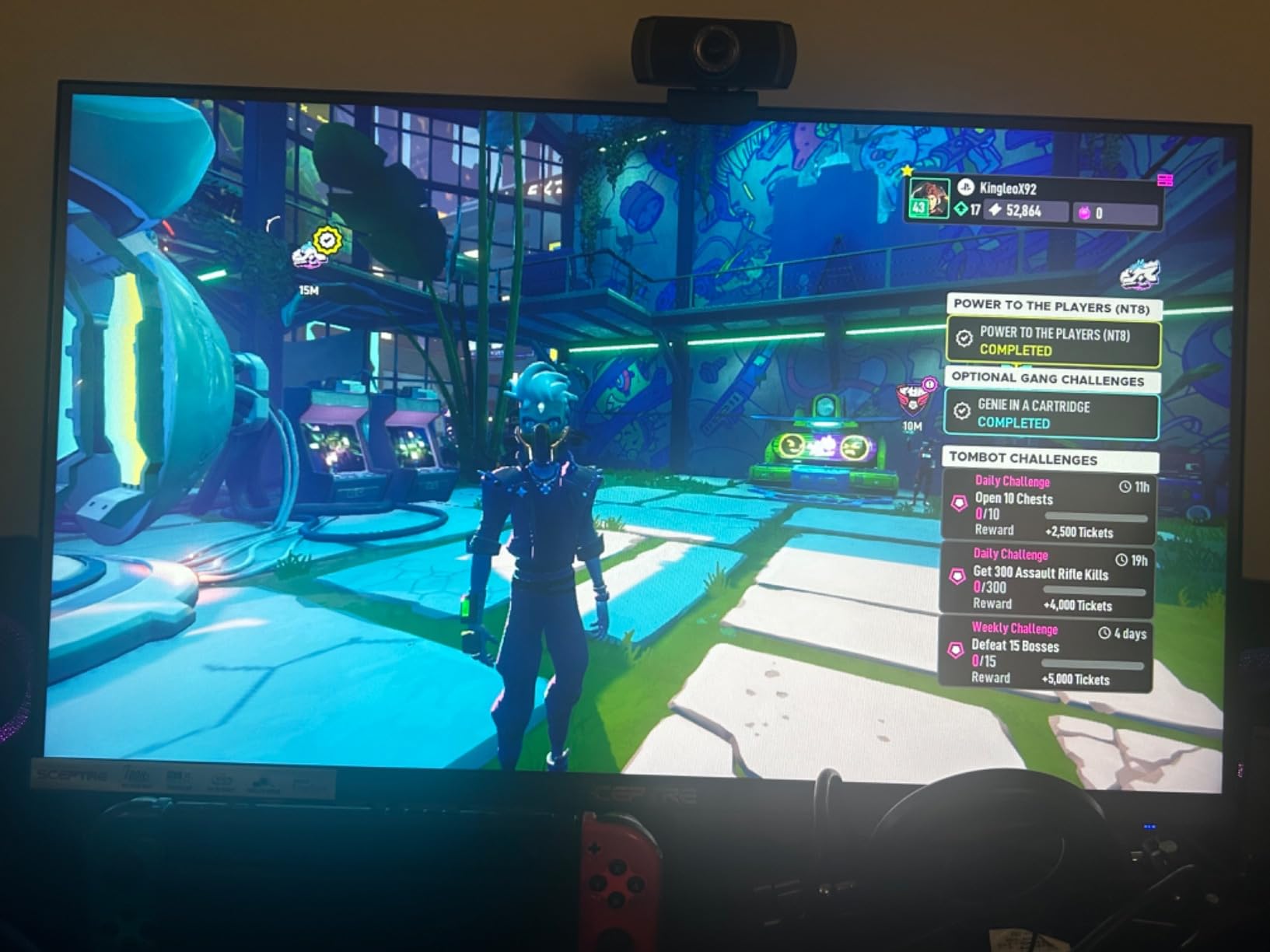
What to check before ordering two of these
Plan on monitor arms. The lack of rotation on the included stand means angling two panels inward toward your chair is awkward without them, and a pair on arms lets you set the exact distance and angle for each screen independently.
Think about which machine drives which panel. Three video inputs across the pair gives you flexibility, but a single laptop with only two outputs will be using both, leaving no spare input on either monitor for a second device.
Where this monitor falls short
Speakers are flat and tinny with little bass, which is the near-universal complaint. Plan on external audio rather than using these for media.
The single multifunction button used for power and menu control is a reliability weak point, and one reviewer reported a unit failing to power on reliably. Warranty coverage is a limited one year, among the shortest here, so check your purchase protection carefully when ordering a pair.
7. HP 27h 27-inch – The Ergonomics Pick with Real Height Travel
HP 27h Full HD Monitor – Diagonal – IPS Panel & 75Hz Refresh Rate – Smooth Screen – 3-Sided Micro-Edge Bezel – 100mm Height/Tilt Adjust – Built-in Dual Speakers – for Hybrid Workers
27-inch Full HD IPS at 75Hz
100mm height adjustment and tilt
3-sided micro-edge bezel
Built-in dual speakers
Pros
- 100mm height and tilt is the best ergonomics in this set
- Built-in dual speakers work for softphone calls
- 27-inch IPS gives vibrant colour and wide viewing angles
- Well packaged and quick to set up
- Three inputs cover modern and legacy PCs
Cons
- Thin bezel undermined by a dead band of black between panel and frame
- A dead pixel or marks reported on one unit from a two-monitor order
- Glossy finish shows fingerprints and reflections
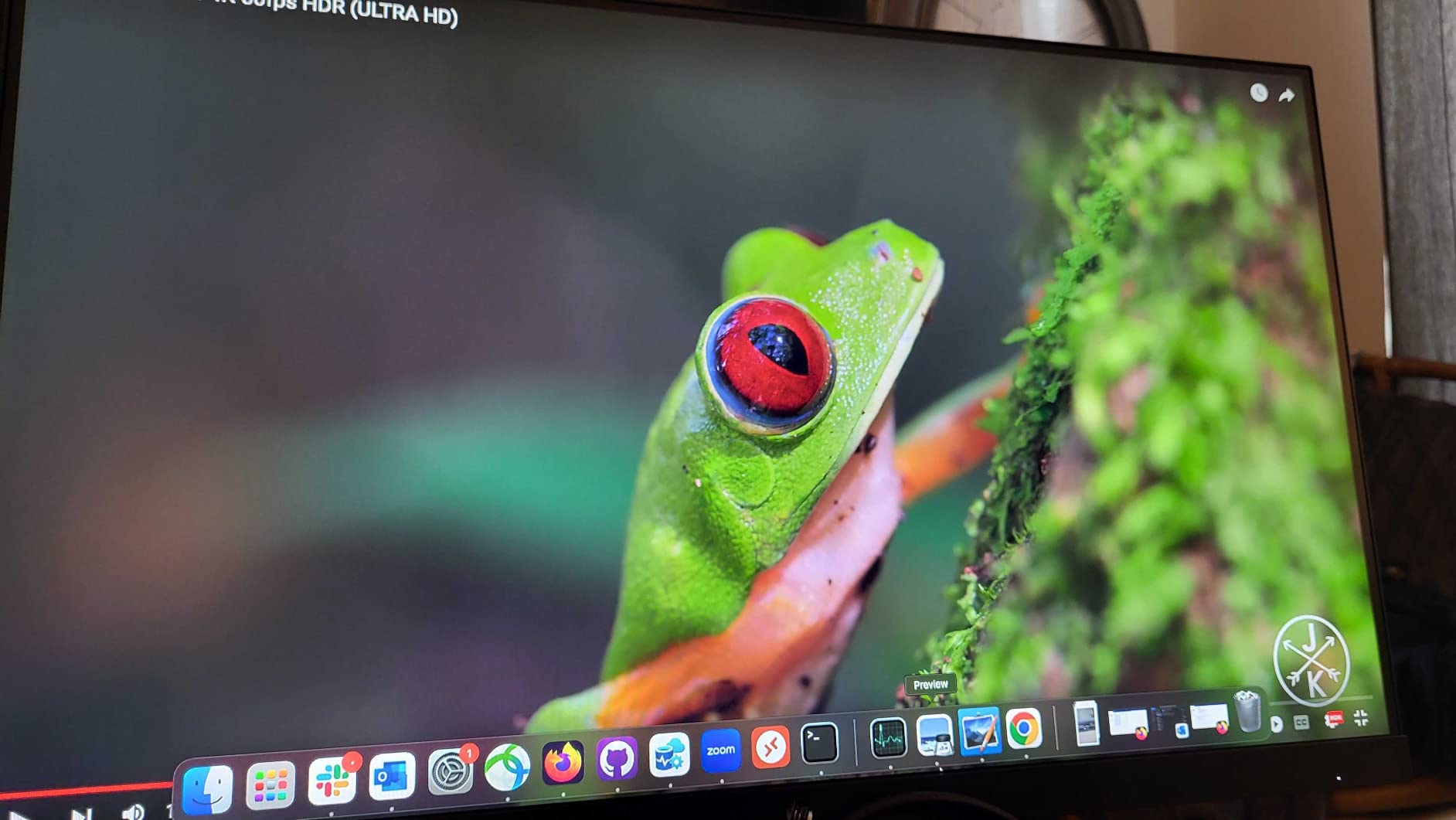
Almost every budget monitor includes a stand that tilts and nothing else, which is why so many dual setups end up with one screen sitting noticeably higher than the other. The HP 27h is the exception here, with 100mm of height adjustment on a floating hinge stand plus tilt. On a two-monitor desk, being able to match both panel heights is worth more than almost any other single feature at this budget.
Reviewers consistently single out that stand as the reason they can line up a pair cleanly, and it also makes the whole setup easier to reconfigure when you change chairs or move the desk. Several owners run this as a hybrid-work display where it gets repositioned constantly.
The built-in dual speakers are the rare exception in this list that reviewers describe as genuinely usable. For softphone and video calls without a headset, having audio on the monitor removes a common reason to keep a headset on all day.

Connectivity covers HDMI, DisplayPort and VGA, with the ports conveniently positioned for cable routing behind the stand. FreeSync and G-Sync compatibility are listed, the display is flicker-free, and a joypad on-screen control works alongside HP Display Center for adjusting settings.
The 27-inch IPS panel gives vibrant colour and 178-degree viewing angles, which suits spreadsheet work where you are scanning wide tables across two screens. The display is EPEAT Gold, Energy Star and TCO certified, and the chassis uses 85% recycled plastics.
What to check before ordering two of these
Inspect both screens on arrival, not one. A buyer ordering a two-monitor set reported a unit arriving with a dead pixel or marks, and with no height adjustment on competing models, replacing one panel later means redoing the alignment of the pair.
Consider desk depth. The glossy screen finish shows fingerprints and reflections, which is more noticeable in a bright room and on a surface you touch often. Angle the pair slightly away from a window if reflections become distracting.
Where this monitor falls short
The 3-sided micro-edge bezel is undermined by a dead band of black between the panel and the frame, so the gap between two panels is wider than the marketing suggests. On a symmetrical dual desk that band is exactly where your eye goes.
Refresh rate is 75Hz, which is fine for work but noticeably less smooth than the 100Hz and 120Hz options here. If gaming is a real part of what the second screen is for, the slower rate is the trade-off for the height adjustment.
8. LG 24U411A-B 24-inch – Best Refresh Rate Per Panel
LG 24U411A-B 24-inch Full HD (1920 x 1080) IPS Computer Monitor, 120Hz, HDR10, Reader Mode, Flicker Safe, HDMI, Slim Stand Base, Black
23.8-inch Full HD IPS at 120Hz
HDR10 and 99% sRGB colour
Switch app splits screen six ways
Virtually borderless three-side design
Pros
- 120Hz IPS gives noticeably smoother scrolling than 60Hz panels
- Virtually borderless three-side design looks clean in a pair
- Colour adjustable with hue and saturation controls
- Anti-glare coating praised for bright rooms
- Metal stand with no wobble and 100x100mm VESA
Cons
- No built-in speakers at all
- Basic HDR with no meaningful highlight detail
- No height adjustment and an awkward control knob
At 120Hz with 1ms Motion Blur Reduction, this is the smoothest option in a compact 24-inch format on the list, and that makes it the most convincing way to spend a dual budget if you work at a laptop and want a second screen that keeps up. Two 120Hz 24-inch panels give you a matched, high-refresh pair that still fits a modest desk.
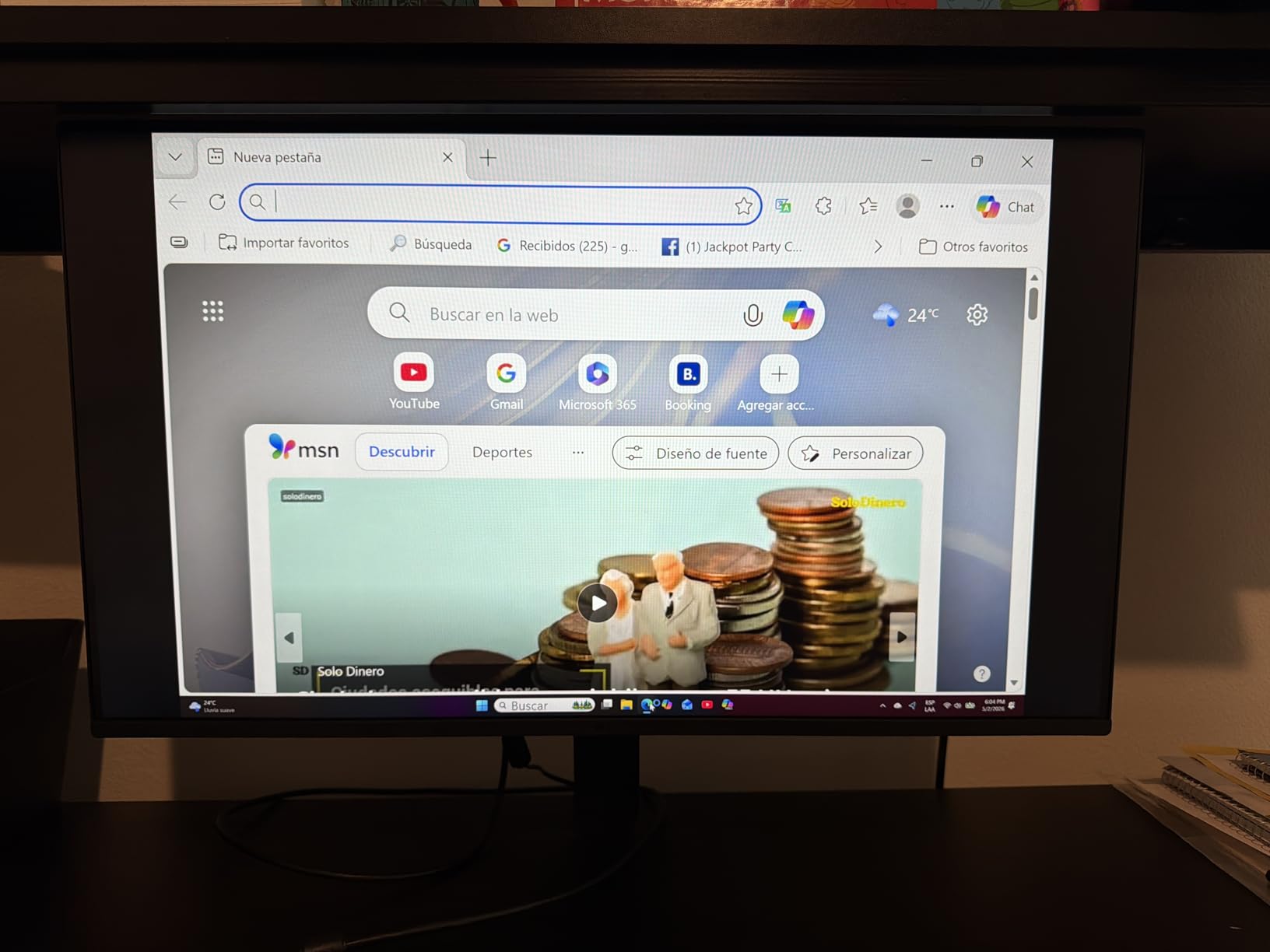
The virtually borderless three-side design is what sells it for dual use. Reviewers who bought two describe the arrangement as clean, and the narrower 23.8-inch footprint means both panels fit beside a laptop without pushing the second screen off the desk.
Colour controls are unusual at this level. Hue and saturation adjustments are usually stripped out below this price, and their presence here means you can tune both panels to match each other and to your room, rather than accepting whatever comes out of the box.
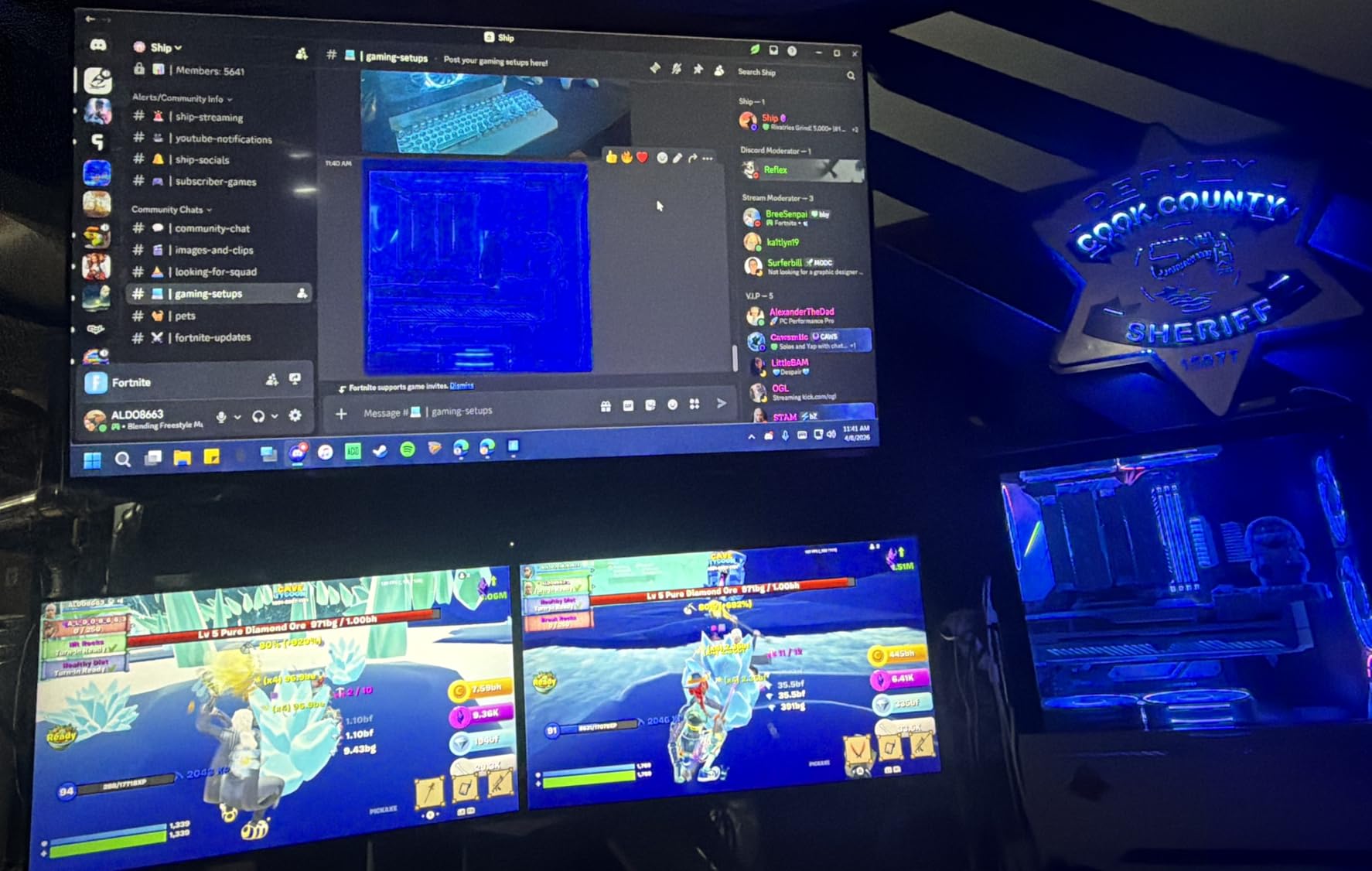
Software features go further than most. The Switch app splits the display into up to six sections from one machine, which is a genuinely useful trick when one side of your dual setup handles several small tasks such as chat, mail and a task list. Reader Mode lowers blue light for document work, and Flicker Safe covers long sessions.
Gaming features include Dynamic Action Sync to reduce input lag, Black Stabilizer for dark scenes, and FreeSync adaptive sync. The metal stand does not wobble, and a 100x100mm VESA mount means monitor arms are straightforward.
What to check before ordering two of these
Budget for audio from the start. There are no built-in speakers, so a pair of these means external speakers or headphones as a separate purchase, and for a two-screen desk that is an extra box to plan for.
Plan on arms. The stand tilts from minus 5 to plus 20 degrees but has no height movement, and reviewers running two of these put them on monitor arms to get the height right. The VESA pattern is standard, so mounting is not a problem.
Where this monitor falls short
HDR support is nominal. The panel is listed as HDR10 capable but does not deliver meaningful highlight detail, so do not treat this as an HDR monitor. Reviewers describe the out-of-box colour as green-tinted and over-saturated, which means budget a few minutes per screen in the menu.
The single control knob is awkward to use, and one unit arrived missing the screws needed to attach the panel to its stand. Check the box contents before you build the setup.
9. Philips 241V8LB 24-inch – Longest Warranty and a 4-Year Safety Net
Philips 24 Inch Computer Monitor FHD 100Hz VA VESA Flicker-Free, 241V8LB
23.8-inch Full HD VA LCD at 100Hz
3000:1 contrast
Virtually bezel-free on three sides
4-year parts and labor warranty
Pros
- Lowest cost 24-inch option here
- so a pair stays well inside the budget
- VA panel 3000:1 contrast gives deeper blacks and visible gradients
- Three-sided bezel-free design built for multi-monitor setups
- 100Hz feels smoother than 60Hz
- Works well with monitor arms
Cons
- Stand offers no swivel or height adjustment
- Basic feature set with no hub or KVM
- No built-in speakers
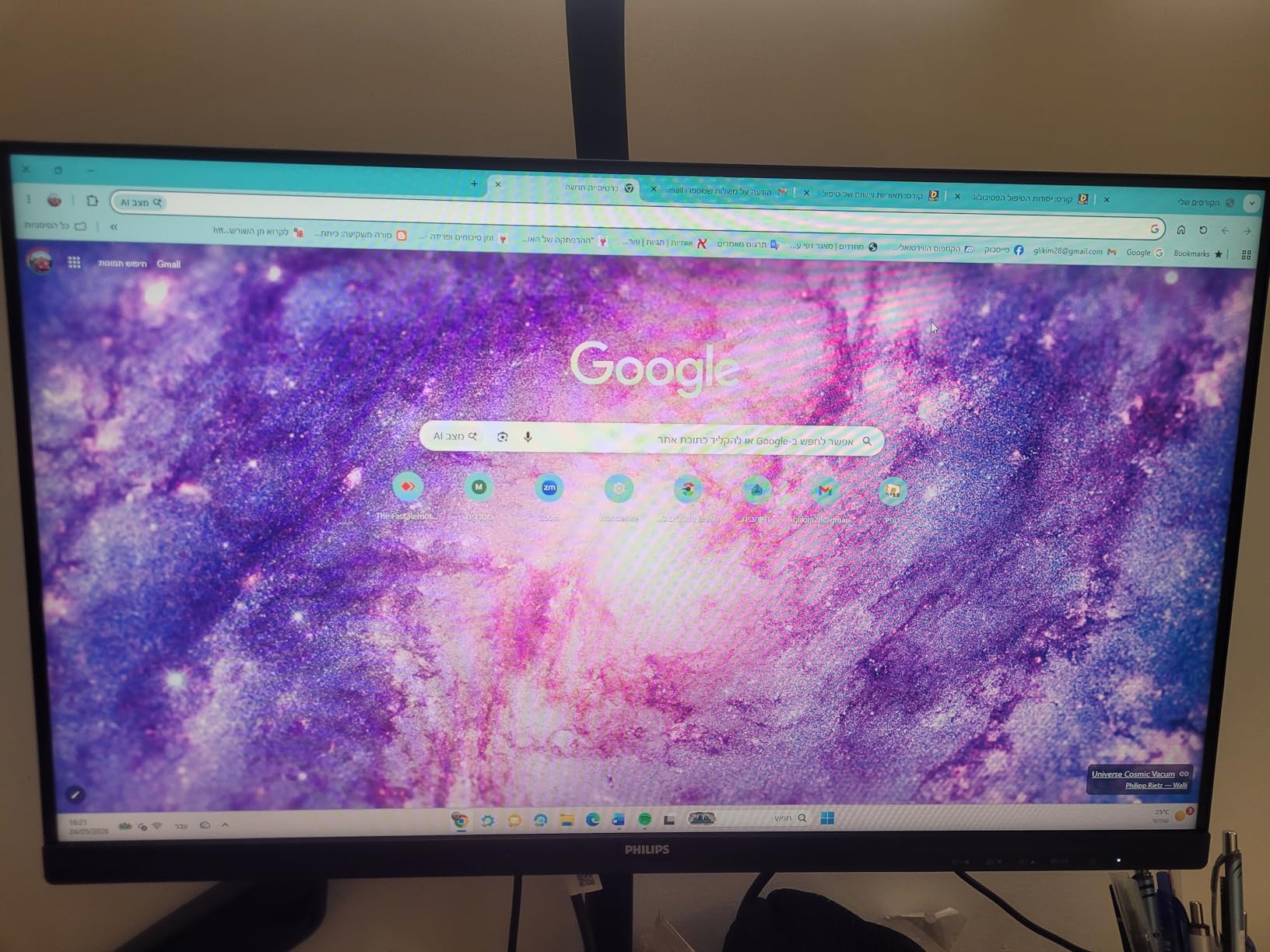
The two things that matter most for a pair are covered well here: the screen sits at the more affordable end of the 24-inch options on this list, which leaves room in the budget for arms or a dock, and the three-sided bezel-free design is built explicitly for clean multi-monitor arrangements. That arrangement leaves a lot of headroom for everything else a dual desk needs.
The VA panel is the differentiator. Its 3000:1 contrast ratio produces deeper blacks and more visible gradient detail in dark imagery than the IPS panels that make up most of this list, and reviewers notice it when working with photos or video on the second screen.
With more than 2200 ratings, this is one of the most proven panels here, and one buyer reports deploying five of them. EasyRead mode gives a paper-like view for long documents, which pairs well with a setup where one screen handles reading and the other handles everything else.
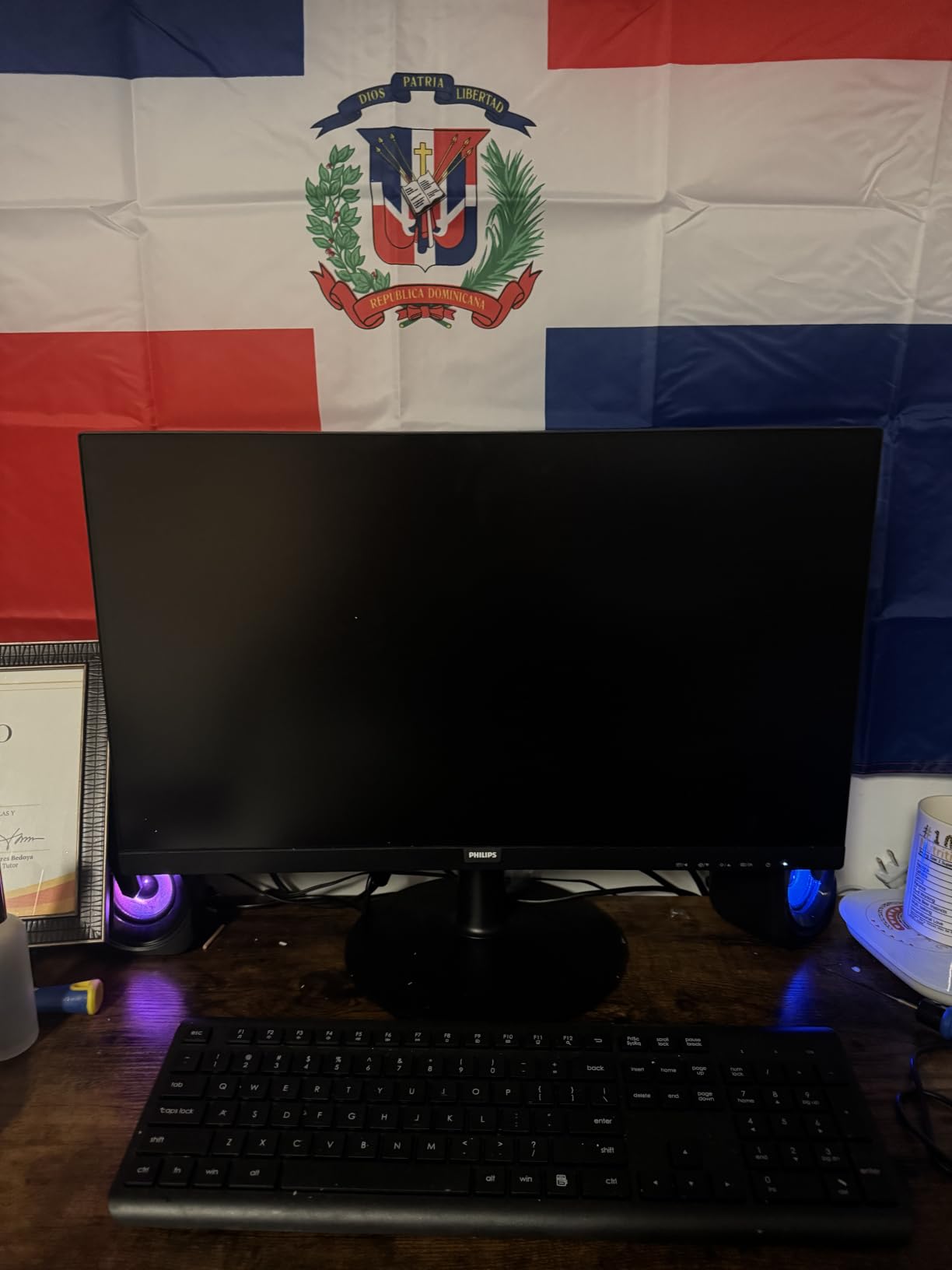
Connectivity is HDMI and VGA, with Adaptive-Sync support, a blue light filter, flicker-free eye care and a VESA mount. Viewing angles are listed at 178 degrees horizontally and vertically, and the panel handles 16.7 million colours.
The four-year parts and labour warranty is the longest coverage in this roundup, which is a meaningful advantage when committing to two panels simultaneously, since a defect discovered on the second screen is covered on the same schedule as the first.
What to check before ordering two of these
Plan for monitor arms from the start. The stand has no swivel and no height adjustment, so aligning two panels on it is close to impossible if your eye level is not exactly where the factory position puts them. Arms turn this from a compromise into a good setup.
Think about desk depth. Two 23.8-inch panels need considerably less width than a pair of 27-inch screens, which makes this the safer pick for a smaller desk or a shared workspace where a colleague sometimes needs room.
Where this monitor falls short
The feature set is basic. There is no USB hub, no KVM switching, no USB-C and no speakers, so anything beyond video and a keyboard and mouse connected to the PC itself means adding a hub to the shopping list.
VA panels have slower pixel response than the fastest IPS options here, so this is a work monitor rather than a fast-motion gaming one. If the second screen is mainly for games, look at a higher refresh rate instead.
10. Samsung S30GD 24-inch – The Slim Mainstream Pair
Samsung 24″ (S30GD) Essential Monitor with IPS Panel and Tilt Only Stand
24-inch Full HD IPS at 100Hz
FreeSync and G-Sync compatible
Ultra-slim three-sided bezel
Tilt adjustment with wall mount
Pros
- IPS panel gives accurate colour and solid viewing angles
- 100Hz smoothness noticeable against 60Hz panels
- Buyers commonly order two and mount them to desk arms
- Plug-and-play with a laptop and clear menu controls
- Lightweight slim design suits a compact dual-monitor desk
Cons
- Stand is tilt only with no height or swivel and some owners report it pivots
- Screen sits fairly high on the stand
- Sharpness is only average for some buyers
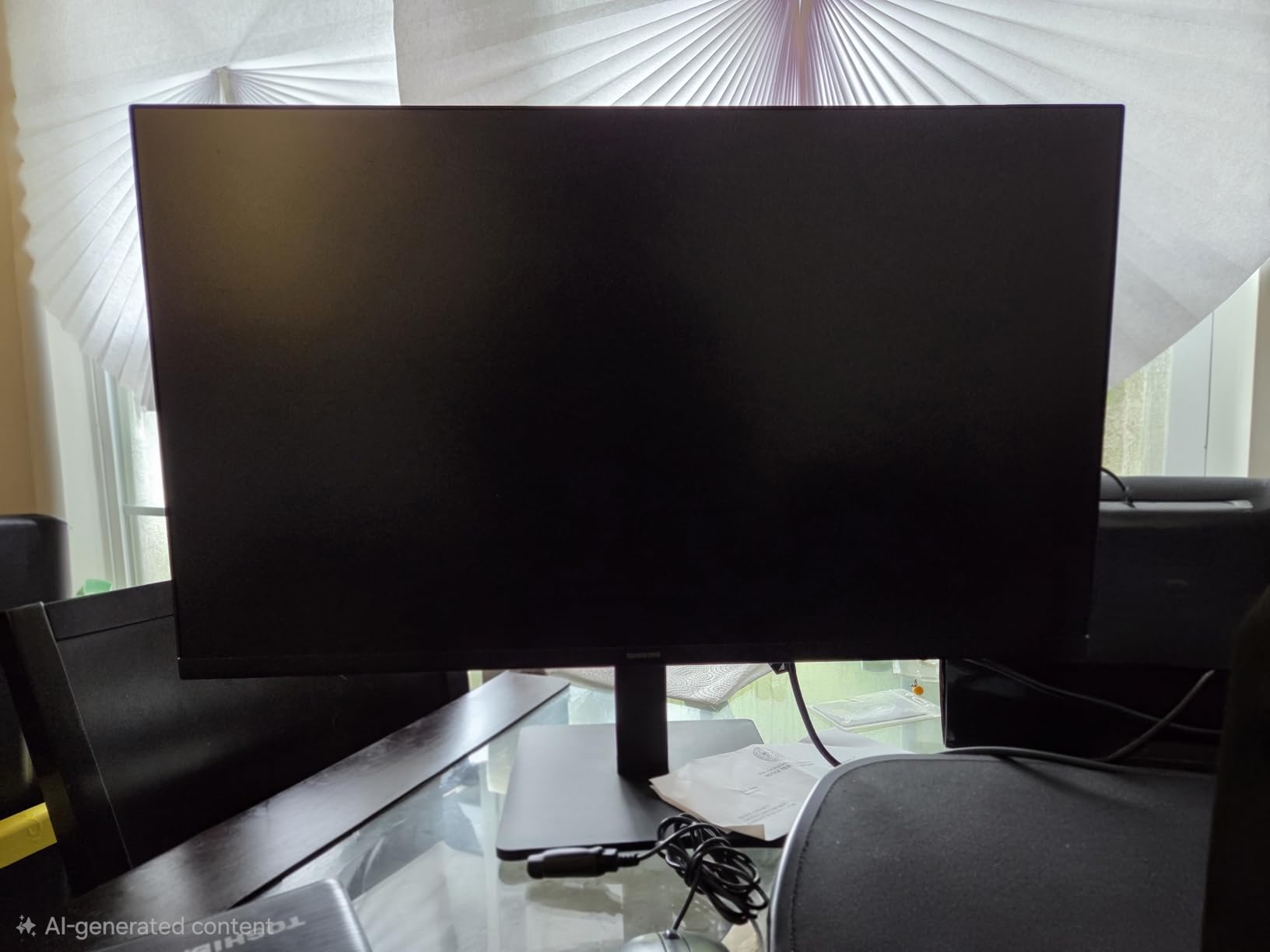
The Samsung S30GD is the mainstream-brand option: a 24-inch IPS panel at 100Hz with a slim profile that reviewers describe as well suited to a compact dual-monitor desk. Several owners bought two and put them on desk arms, which is the standard fix for the stand included with this model.
At 100Hz, scrolling and casual gaming both feel smoother than a 60Hz panel, and the IPS technology gives accurate colour with solid viewing angles. For documents, mail and general office work spread across two screens, that combination is the whole requirement met.
The super-slim design with ultra-thin border bezels on three sides keeps the visual gap between two panels small, and the panel itself is light at 5.3 pounds, so moving the pair around on arms is straightforward.
FreeSync and G-Sync compatibility are both listed, along with a Game Picture Mode and Eye Saver Mode for reducing blue light. The on-screen menus are easy to work through, and the display connects to a laptop without extra setup.
Connectivity is HDMI and D-sub VGA, and the display is wall mount capable, which gives you a mounting path even if the included stand is not the final arrangement.
What to check before ordering two of these
Order arms with the monitors rather than after. The stand offers tilt adjustment only, with no height movement and no swivel, and some owners report it pivoting under the weight of two panels being adjusted at once. Arms solve all three problems in one move.
Check the panel height against your seating position before you set up. Reviewers note the screen sits fairly high on the stand, which can put the top of the display at or above eye level and encourage you to look upward for part of the day.
Where this monitor falls short
Picture sharpness draws mixed feedback. Most owners are satisfied, but at least one buyer found text unclear for their eyesight. If you are sensitive about text rendering, a higher pixel density panel suits better, though that sits outside a matched pair at this budget.
Warranty is a limited one year, and the 1000:1 contrast ratio is among the lowest here, so blacks look grey compared with the VA and higher-contrast IPS options. Fine for office work, less so for photo and video work on the second screen.
How to Pair Two Monitors So the Gap Disappears
Start with size, because it is the only choice you cannot fix later. Two panels of the same diagonal and the same aspect ratio have identical dimensions, so they sit at the same height and the same distance from your eyes. Mix a 24-inch with a 27-inch and one screen will sit higher than the other with no way to correct it, because the two are different physical products.
Next, match resolution. Two panels at the same resolution scale identically, so a window dragged from one screen to the other keeps its exact size. This is the single most common complaint in dual setups, where a 1440p screen sits next to a 1080p screen and windows visibly shrink or grow as they cross over.
Refresh rate matters less for scaling but more for feel. If one screen runs at 100Hz and the other at 75Hz, moving the mouse between them produces a visible change in smoothness that some people find distracting within a few days. Matching the rate removes that.
Bezel style is the finishing touch. Frameless or three-sided bezel-free designs, like the Philips 241V8LB and the ViewSonic VA2756A-MHD, produce the tightest join. Panels with a raised frame, such as the Samsung S30GD, leave a visible divider that your eye tracks when the two screens form one wide desktop.
On identical versus mixed pairs, community consensus on r/Monitors consistently favours identical monitors, and the reasoning is the one above. A mixed pair makes sense in one specific case, when one screen is the primary and the other is a dedicated secondary for chat, a document or a video feed, and the mismatch does not matter because you are not dragging windows between them.
Buy two of the same model, and buy them together. That single decision removes most of the frustration people describe in the first week of a dual setup.
What Resolution and Refresh Rate You Actually Need
At this total budget, both panels will be Full HD 1920×1080, and the question becomes what that looks like at a given size. A 24-inch Full HD panel sits at roughly 92 pixels per inch, while a 27-inch Full HD panel is closer to 82. The difference is small enough to look fine across a desk and large enough to notice on a text-heavy workflow at a normal viewing distance.
That is the trade-off the 27-inch options make. They give you a physically larger desktop, which is real extra room for windows side by side, at the cost of slightly softer text than a 24-inch panel. If your work is documents, spreadsheets, writing or code, two 24-inch panels are the sharper choice. If you want more visible space and sit a little further back, the 27-inch panels are the better buy.
On refresh rate, the tiers are clear. 75Hz is fine for office work and scrolling. 100Hz, found on the Sceptre, Philips and Samsung options, is a noticeable step up and is the sweet spot for mixed work and play. 120Hz, on the ViewSonic and LG panels, is the smoothest option here and is the one to pick if the second screen will be used for games.
Neither panel can be 1440p at this total budget, and any roundup suggesting otherwise is stretching the number. If your eye is drawn to 1440p panels, we have covered monitors under 300 at higher resolutions and curved models separately. For a pair, two sharp Full HD panels beat one sharper panel and a compromise.
Panel type is a smaller decision at Full HD. IPS gives the most consistent colour and viewing angles, which is why it wins in a two-screen desktop where panels are viewed at different angles. VA gives deeper blacks at the cost of slower response, and it is the right pick for a second screen showing photos and video in a controlled room.
Desk Space, Monitor Arms and Cable Management for Two Screens
Do the width maths before you buy. A 27-inch panel is roughly 24 inches wide, so two side by side need close to 50 inches of desk plus a small gap, and a pair of 24-inch panels need roughly 43 to 45. Most desks clear the 27-inch figure. Many clear the 24-inch figure comfortably, and none of them clear 50 inches if they are also hosting a laptop.
Depth matters as much as width. Two panels side by side push your viewing distance outward, so the outer edges of each screen sit further from your head than the centre. A shallow desk forces you to sit closer and strain your neck at the edges, which is the most common physical complaint in dual setups.
Monitor arms solve more problems than people expect. They recover desk depth, let you set exact height and angle per screen, and clear the surface underneath for a keyboard. The practical caution from the community is about arm load, since inexpensive single arms are often rated for one mid-range panel and can struggle to hold two 27-inch screens on a shared pole. Check the load rating for the number and size of panels you actually plan to fit.
For cables, three approaches work well. The ViewSonic daisy chain runs two panels from a single DisplayPort feed, which is the cleanest option if your graphics output supports it. The Amazon Basics panel routes your peripherals through its built-in USB hub, freeing the desk. And a basic under-desk cable tray keeps the two power leads and video cables out of sight without spending much.
If you run two machines rather than two screens from one machine, a KVM switch lets you move one keyboard and mouse between them. We have covered KVM switches for dual monitors if that is part of your plan.
One last cable note: a dual setup doubles the power leads, and each panel drawing its own power directly is simpler than routing everything through a strip, because it means one failed strip does not black out your entire desktop.
GPU and Laptop Ports for Driving Two Monitors
Two Full HD panels at 75 to 120Hz are a light load, and almost any desktop GPU from the last several years drives them without strain. One DisplayPort and one HDMI output is the ideal combination, since it covers both modern and older displays and lets you use whatever each monitor prefers.
Watch the port types rather than the count. Two HDMI outputs work fine for Full HD, but DisplayPort is the better option for anything above 60Hz on some panels, and it is the only way daisy chaining works. A single DisplayPort output plus a USB-C port on a modern laptop gives you exactly what a two-screen dock needs.
Integrated graphics on recent processors handles two Full HD monitors comfortably, so a budget desktop does not need a dedicated card for this. A dedicated card becomes relevant when you start pushing higher resolutions or refresh rates across two panels, and we have covered ultrawide alternatives under 300 for anyone weighing a single wider screen instead.
Laptop users hit a real constraint. Base M-series MacBook models support only one external display, a limitation raised repeatedly in community discussions, so a dual setup on a Mac means checking your specific model before buying two panels. Windows laptops generally support two external displays, but ultrabooks with a single USB-C port need a dock to provide the second video output.
USB-C power delivery is worth checking if your machine charges through a monitor. None of the picks here deliver laptop charging over USB-C, so a dock or charger is a separate purchase for a two-screen laptop setup.
Windows and Mac Scaling Differences in a Two-Screen Desktop
Both operating systems scale each display independently, which is what makes mixed-resolution pairs possible at all, but they handle the transition differently. Windows applies per-monitor scaling at a percentage, and switching between a display set to 100% and one set to 150% changes how large windows appear as they move across.
That mismatch is the single most reported frustration in mixed dual setups. It is also why matching resolution on both panels is the fix that costs nothing, and why the matched 2-pack options are worth considering even when a single panel would have been slightly better on paper.
Macs present the same problem differently. Displays are scaled by the system, and moving a window between a 100% and a 150% display produces a similar jump, though the system handles text rendering more consistently across mixed densities. Either way, two identical panels remove the issue entirely.
HDR is the other rough edge. Windows HDR across two panels of different brands is inconsistent at this budget level, because these monitors support HDR nominally at best. Run both screens in standard SDR mode for a consistent desktop rather than enabling HDR on one and leaving the other without it.
Finally, picture settings. If you buy two different models, set brightness, contrast and colour temperature on each separately to match. A mismatch between panels is far more visible in a side-by-side desktop than it ever is on a single screen, which is the practical argument for buying one model twice.
Frequently Asked Questions
Which monitor is best for dual setup?
The ASUS VA27DQ 27-inch is the strongest overall pick for a matched pair. It has IPS colour that stays consistent across viewing angles, a frameless bezel that keeps the join between two panels tight, a +23 to -5 degree tilt range for alignment, HDMI, DisplayPort and VGA inputs, and a three-year warranty. Buying two of the same model also means both screens scale identically.
Are dual monitor setups worth it?
Yes, for anyone who constantly moves between windows. Two screens give you room to keep a document, a spreadsheet, a chat client and a terminal visible at the same time instead of alt-tabbing between them. The gain is largest for remote office work, coding, research and video editing. The main cost is desk space, and the main annoyance is mismatched scaling, which disappears when both panels are the same model.
What is the best budget monitor for a dual monitor setup?
At this total budget, a 24-inch Full HD IPS panel at 100 to 120Hz is the most useful format. Two 24-inch panels fit a normal desk, scale identically, and give you a 1920×1080 workspace each. The Philips 241V8LB, Samsung S30GD and LG 24U411A-B all fit that profile, with the Philips offering the longest warranty and the LG the highest refresh rate.
What is the best monitor size for a dual monitor setup?
Two 24-inch panels are the practical answer for most desks, needing roughly 43 to 45 inches of width. Two 27-inch panels need close to 50 inches and give you more physical workspace at the cost of slightly softer text at Full HD. Choose 24-inch for text-heavy work and smaller desks, and 27-inch when you want maximum screen space and sit further back. Mixing sizes in one pair is best avoided.
Is it possible to use dual monitors with different sizes?
Yes, it works, but you cannot line up the panel heights because a 24-inch and a 27-inch are different physical products with different bezel positions. Mixed sizes also complicate scaling, so a window dragged between them will change apparent size. The arrangement makes sense when one screen is a dedicated secondary for chat or a document and you are not moving windows between them, but identical panels are better whenever the budget allows.
What is the best layout for a dual monitor setup?
Side by side, angled slightly inward, with the top edge of both panels at eye level. The primary screen, usually the one you use most, goes directly in front of you and the secondary sits at roughly a 20 to 30 degree angle. Make sure your viewing distance lets you read the outer edge of both screens without turning your head, and use monitor arms to set exact height and angle for each panel.
Do I need a monitor arm for dual 27-inch monitors?
In most cases yes, because almost every budget monitor includes a tilt-only stand and no height adjustment. Without arms you cannot match the height of two panels, and you cannot angle them inward. Check that the arm is rated for the total weight of both panels, since inexpensive single arms are often rated for one mid-range screen. A pair of 24-inch panels is easier to align on stock stands but still benefits from arms.
Can I run two 1440p monitors on a single GPU?
Two Full HD panels at this budget are a light load and any recent graphics output handles them, one DisplayPort plus one HDMI being the ideal combination. Driving two 1440p monitors at high refresh rates is a different question and depends on the card. Since two Full HD panels already exceed a 300 total budget, 1440p for a pair falls outside this price range.
The Pair I Would Buy Today in 2026
My pick for the best monitors for dual setups under 300 is two ASUS VA27DQ panels. Nothing else at this level combines a usable tilt range, a frameless bezel, three video inputs and a three-year warranty, and those four things are what decide whether a two-screen desk works or fights you every day.
If desk width is tight, the split changes. Two Philips 241V8LB panels leave the most room in the budget for monitor arms, and the four-year warranty is the safest place to start. If you want smoother motion, the Sceptre 100Hz pair or the LG 120Hz 24-inch pair is the upgrade path, and the LG gives you more colour controls than anything else here.
One rule covers every scenario: buy two of the same model, and get arms if the stand does not adjust in height. Those two decisions solve nearly every dual-setup complaint people describe, and they cost less than upgrading one panel later.