
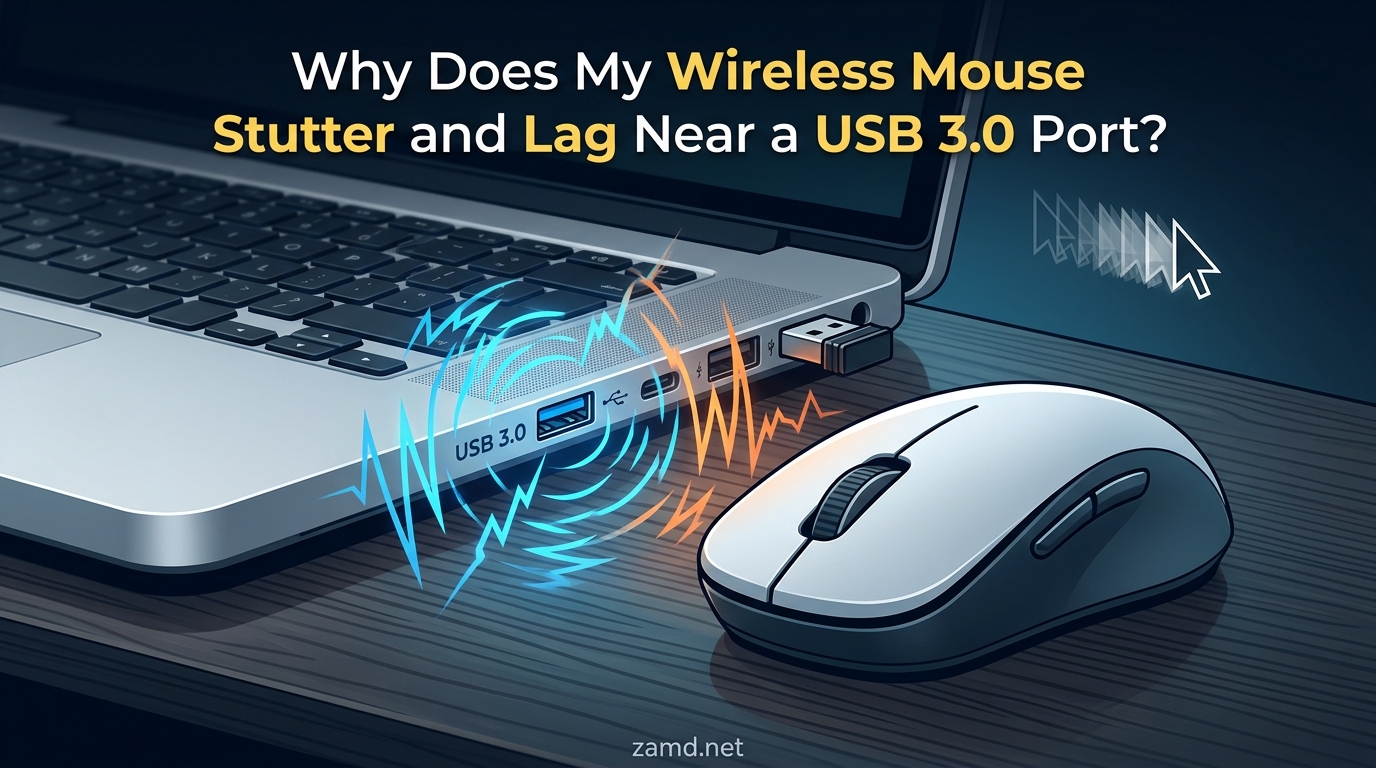
Your wireless mouse stutters and lags near a USB 3.0 port because those ports emit electromagnetic interference (EMI) in the 2.4GHz frequency range. That happens to be the exact same frequency band that most 2.4GHz wireless mice use to communicate with their USB receiver. The noise from USB 3.0 data transfers literally drowns out the signal between your mouse and its dongle, causing the cursor to stutter, jump, or freeze.
This is not a defect in your mouse, and it is not a problem with your USB port either. It is a well-documented design characteristic recognized by Intel in their 2012 white paper on USB 3.0 interference and acknowledged by the USB Implementers Forum (USB-IF). The faster data speeds of USB 3.0 come with a tradeoff: broadband RF noise that bleeds into nearby wireless devices.
If you have ever noticed your mouse acting up only when an external hard drive is transferring files, or your cursor jumping during a gaming session right after plugging in a USB 3.0 device, this guide will explain exactly why. More importantly, I will walk you through every fix from the 30-second solutions to the advanced settings that stop wireless mouse stutter for good in 2026.
Table of Contents
Why USB 3.0 Ports Cause Wireless Mouse Stutter
The root cause comes down to one thing: your USB 3.0 port and your wireless mouse are trying to use the same patch of radio spectrum. When both are active at the same time, the louder signal (USB 3.0) overpowers the weaker one (your mouse).
The Physics: EMI in the 2.4GHz Band
USB 3.0 ports achieve their 5 Gbps data transfer speeds by rapidly switching electrical signals across multiple data lanes. These high-speed transitions generate electromagnetic radiation that leaks out from the port connector and the cable itself. This radiation spreads across a wide frequency range, with significant energy concentrated between 2.4 GHz and 2.5 GHz.
That frequency range should sound familiar. It is the same band used by 2.4GHz wireless mice, Wi-Fi networks, Bluetooth devices, and many other consumer wireless products. When USB 3.0 EMI floods that band, it raises the background noise floor to a level where your mouse receiver can no longer cleanly detect the mouse’s signal.
How USB 3.0 Data Transfers Create RF Noise
The interference is not constant. It intensifies when a USB 3.0 device is actively transferring data. A USB 3.0 external SSD copying a large file will generate far more RF noise than the same drive sitting idle in the port. This is why many users report intermittent stutter rather than a constant lag.
The noise comes from the rapid voltage switching inside the USB 3.0 controller and the unshielded or poorly shielded connectors and cables. Even high-quality USB 3.0 cables leak some RF energy. The port itself acts as an antenna, broadcasting that noise in all directions within a radius of roughly 6 inches to 2 feet depending on shielding quality.
The 2.4-2.5 GHz Frequency Overlap Explained
Think of it like two radio stations broadcasting on nearly the same frequency. Your wireless mouse transmits a weak signal on 2.4 GHz. The USB 3.0 port pumps out broadband noise across 2.4 to 2.5 GHz. The closer the noise frequency is to your mouse’s operating frequency, the worse the interference.
Most 2.4GHz wireless mice use frequency hopping spread spectrum (FHSS) to avoid interference. They rapidly switch between different channels within the 2.4 GHz band. But when USB 3.0 noise saturates the entire band, frequency hopping cannot find a clean channel to jump to. The result is signal dropout, latency spikes, and cursor stutter.
Why Your Mouse Receiver Gets Overwhelmed
Your wireless mouse dongle is designed to pick up a very weak radio signal from a mouse running on battery power. That signal is incredibly low-power by design to conserve battery life. The dongle has a sensitive receiver tuned to detect faint 2.4 GHz transmissions.
When USB 3.0 EMI raises the noise floor, the signal-to-noise ratio drops below what the receiver can handle. The dongle starts missing packets of data from the mouse. Each missed packet translates to a moment where the cursor does not update on screen, which you perceive as stutter or lag.
How to Identify USB 2.0 vs USB 3.0 Ports
Before you start moving things around, you need to know which ports on your computer are USB 3.0 and which are USB 2.0. The good news is that there is a simple color-coding system that most manufacturers follow.
USB Port Color Coding Guide
The plastic insert inside a USB port tells you what generation it is. Here is the standard color code used across most desktops and laptops:
- Black or white interior: USB 2.0. These ports do not generate the same EMI and are safe for wireless mouse receivers.
- Blue interior: USB 3.0 (also called USB 3.1 Gen 1 or USB 3.2 Gen 1). These are the primary culprits behind wireless mouse interference.
- Teal blue interior: USB 3.1 (USB 3.1 Gen 2). Same interference issue as blue USB 3.0 ports.
- Red interior: USB 3.2 (often with higher power delivery). Also generates EMI in the 2.4 GHz band.
- Yellow interior: Usually a USB 2.0 port with always-on power for charging. Generally safe for wireless receivers.
If your computer has a mix of port colors, your wireless mouse dongle should go in a black or white USB 2.0 port whenever possible.
USB 3.1, 3.2, and USB-C: Do They Also Cause Interference?
Yes. USB 3.1, USB 3.2, and USB-C ports running at USB 3.x speeds all generate the same type of 2.4 GHz EMI. The faster the data transfer rate, the more RF noise the port produces. A USB 3.2 Gen 2×2 port running at 20 Gbps can generate even more interference than a standard USB 3.0 port.
This is a growing concern for laptop users. Many modern laptops only have USB-C ports, and those USB-C ports typically run at USB 3.1 or 3.2 speeds. If you are using a USB-C hub or adapter to connect your wireless mouse receiver, that adapter may be introducing USB 3.0 interference into an otherwise clean setup.
How to Check Port Types in Windows and Mac
On Windows, open Device Manager, expand the Universal Serial Bus controllers section, and look for entries containing “USB 3.0” or “eXtensible Host Controller.” Those indicate USB 3.0 ports. Ports listed simply as “Standard Enhanced PCI to USB Host Controller” are USB 2.0.
On Mac, click the Apple menu, select About This Mac, then System Report. Under the Hardware section, click USB. You will see a tree view of all connected USB devices and the ports they are connected to, with speed information showing whether each port is running at 480 Mbps (USB 2.0) or 5 Gbps and above (USB 3.x).
Symptom Diagnostic: Is It Really USB 3.0 Interference?
Before spending time on fixes, you should confirm that USB 3.0 interference is actually the problem. Several other issues can cause similar symptoms, and misdiagnosing will waste your time.
Symptom-to-Cause Diagnostic Guide
Here is a diagnostic reference based on the patterns I and other users have encountered across hundreds of forum threads and support cases:
- Mouse stutters only when an external drive or SSD is connected and actively transferring files: Classic USB 3.0 interference. The drive uses a USB 3.0 connection and generates EMI during data transfers.
- Mouse stutters intermittently with no clear pattern: Could be USB 3.0 interference from background device activity, or it could be USB selective suspend cycling. Check both.
- Mouse stutters only during gaming but works fine on desktop: Likely a combination of high polling rate sensitivity and USB 3.0 interference. The higher polling rate makes the mouse more sensitive to missed packets.
- Mouse lag appeared after a Windows update: Windows may have re-enabled USB selective suspend or changed power management settings. Check your USB power settings.
- Mouse works fine at first but degrades over hours of use: Likely a dying battery. Low voltage weakens the mouse’s transmitted signal, making it more susceptible to USB 3.0 EMI.
- Cursor jumps or teleports across the screen: This is often a sensor tracking issue (dirty sensor, reflective surface) rather than wireless interference. Clean the sensor first.
- Mouse stutters only when using a docking station or USB hub: The hub or dock is amplifying USB 3.0 interference near the receiver. This is one of the most common and most fixable scenarios.
- Mouse stutters only on a new PC build: New motherboards pack ports tightly together. The receiver may be sitting right next to active USB 3.0 ports with minimal shielding between them.
The One-By-One Unplug Test
This is the simplest and most reliable test for USB 3.0 interference. Unplug every USB device from your computer except the wireless mouse receiver. Use the mouse for a few minutes and see if the stutter disappears. If it does, plug your devices back in one at a time, testing the mouse after each one. When the stutter returns, the device you just plugged in is the interference source.
In most cases, the culprit will be an external hard drive, SSD enclosure, USB 3.0 hub, or a device connected through a docking station. The moment that device starts using the USB 3.0 data lanes, your mouse starts stuttering.
Is It the Mouse or the Computer? Isolation Guide
Plug the mouse and its receiver into a different computer. If the stutter follows the mouse, the problem is the mouse itself (likely a battery, sensor, or hardware issue). If the stutter disappears on the second computer, the problem is in your original setup, and USB 3.0 interference is the most likely cause.
Also try plugging the receiver directly into the computer instead of through a hub or docking station. If direct connection fixes the stutter, the hub was the interference source.
Other Causes That Mimic USB 3.0 Interference
Not all mouse stutter comes from USB 3.0 EMI. Here are the three most common imposters:
Low battery voltage: A dying battery weakens the mouse’s transmitted signal, which looks exactly like interference. Replace the battery first before troubleshooting anything else. Fresh batteries are a prerequisite for all other diagnostics.
Dirty optical sensor: Dust, hair, or debris on the sensor lens causes tracking errors that look like stutter. Turn the mouse over, inspect the sensor opening, and clean it with a cotton swab or compressed air.
Reflective or transparent surfaces: Glass desks, glossy mousepads, and shiny surfaces confuse optical sensors. If your mouse works fine on a sheet of paper but stutters on your desk, the surface is the problem, not USB 3.0.
Quick Fixes for Wireless Mouse Stutter Near USB 3.0
These are the solutions that fix the problem in under a minute. I recommend trying them in order, starting with the one that addresses the most common cause.
Fix 1: Use a USB Extension Cable (The Number One Solution)
This is the single most effective fix, and it is confirmed across every forum thread, support article, and Intel white paper on the topic. A simple USB 2.0 extension cable lets you physically move the receiver away from the USB 3.0 port and its cables.
Plug the extension cable into a USB 2.0 port, then place the mouse receiver at the other end of the cable on your desk, at least 6 inches away from any USB 3.0 ports, cables, or devices. The extension cable acts as a shielded tunnel that moves the sensitive receiver out of the RF noise zone.
Most extension cables in the 3 to 6 foot range work well. Use a USB 2.0 extension cable, not a USB 3.0 one, to avoid reintroducing the same interference you are trying to escape. Many premium gaming mice from Logitech and Razer now include a USB extension cable in the box specifically for this reason.
Fix 2: Switch Your Receiver to a USB 2.0 Port
If your computer has USB 2.0 ports available (black or white interior), move the mouse receiver to one of them. USB 2.0 ports operate at 480 Mbps and do not generate the broadband EMI that causes interference.
This is often the quickest fix. The tradeoff is that USB 2.0 ports may be in less convenient locations, such as the back of a desktop tower. If you need the receiver on your desk, combine this fix with Fix 1 by using a USB 2.0 extension cable.
Fix 3: Move the Receiver Away from USB 3.0 Ports and Cables
USB 3.0 interference has a physical range. The RF noise is strongest within about 6 inches of the port or cable and drops off significantly beyond 2 feet. If your mouse receiver is plugged into a port directly adjacent to a USB 3.0 port with an active device, simply moving it to a port farther away can solve the problem.
On a desktop, this might mean using a port on the rear I/O panel instead of the front panel. On a laptop, it might mean using a port on the opposite side from your USB 3.0 devices. The goal is to maximize physical distance between the receiver and any active USB 3.0 data lanes.
Fix 4: Use Rear Motherboard Ports Instead of Front Panel
Front panel USB ports on desktop cases are connected to the motherboard via long internal cables that run through the case. These cables often pass right next to other components and are frequently unshielded. A front panel USB 3.0 port with an active device can generate interference that affects receivers plugged into nearby front panel ports.
Rear motherboard ports connect directly to the motherboard’s USB controller with minimal internal cabling. They tend to be better shielded and are physically farther from front panel cables. If you are using front panel ports for everything, try moving both the mouse receiver and the USB 3.0 device to rear ports.
Fix 5: Switch to Bluetooth Mode
If your mouse supports Bluetooth, switching from the 2.4GHz USB dongle to a Bluetooth connection can eliminate the stutter. Bluetooth uses frequency hopping spread spectrum technology that is more resistant to USB 3.0 interference than a fixed-channel 2.4GHz dongle.
The tradeoff is latency. Bluetooth adds approximately 5 to 10 milliseconds of input lag compared to a 2.4GHz dongle. For office work, browsing, and general productivity, this is imperceptible. For competitive gaming, that extra latency can be noticeable.
On MacBooks with only USB-C ports, switching to Bluetooth is often the only practical solution since there are no native USB 2.0 ports available.
Advanced Solutions for Persistent Mouse Lag
If the quick fixes did not fully resolve the stutter, these advanced solutions address interference from the software and power management side.
Disable USB Selective Suspend in Windows
Windows has a power management feature called USB Selective Suspend that turns off power to idle USB ports to save energy. When the system briefly cuts and restores power to a USB port, it can cause momentary signal interruptions that look exactly like interference stutter.
To disable it, open Control Panel and go to Power Options. Click Change plan settings on your active power plan, then Change advanced power settings. Expand USB settings, then expand USB selective suspend setting. Change the setting to Disabled for both On battery and Plugged in. Click Apply and restart your computer.
Important: Windows updates sometimes re-enable this setting. If your mouse stutter returns after a major Windows update, check this setting first.
Turn Off Bluetooth Power Saving
If you are using a Bluetooth mouse, the Bluetooth radio’s power saving mode can cause similar stuttering. Open Device Manager, find your Bluetooth radio under the Bluetooth section, right-click it, and select Properties. Go to the Power Management tab and uncheck “Allow the computer to turn off this device to save power.”
On some systems, this tab is hidden. You may need to adjust this setting through the Windows Settings app under Bluetooth and devices instead.
Adjust Your Mouse Polling Rate
Polling rate determines how often your mouse reports its position to the computer. A 1000Hz polling rate means the mouse reports 1000 times per second. Higher polling rates make the mouse more sensitive to interference because each missed report is more noticeable when updates come that frequently.
If your mouse software allows it, try lowering the polling rate from 1000Hz to 500Hz or even 125Hz. This reduces the amount of data the mouse sends and makes each transmission more resistant to USB 3.0 noise. The difference in responsiveness is minimal for non-gaming use.
For gaming mice with 4000Hz or 8000Hz polling rates, USB 3.0 interference is particularly destructive. These ultra-high polling rates are extremely sensitive to even small amounts of packet loss. If you are running a high polling rate mouse, keeping the receiver far from any USB 3.0 source is absolutely essential.
Update USB and Chipset Drivers
Outdated USB controller drivers can cause intermittent disconnections and stutter that mimics interference. Visit your motherboard manufacturer’s website and download the latest USB and chipset drivers for your specific model. Intel and AMD both release periodic chipset driver updates that address USB stability issues.
Also check for firmware updates for your mouse itself. Some manufacturers release firmware patches that improve signal stability or adjust the mouse’s frequency hopping behavior to better avoid USB 3.0 noise.
Replace Weak Batteries
This deserves a mention in the advanced section because it is so often overlooked. Low battery voltage reduces the power of your mouse’s transmitted signal. A weakened signal is far more vulnerable to USB 3.0 interference than a strong one. A fresh battery can make the difference between a mouse that stutters constantly and one that works perfectly even near USB 3.0 ports.
If you are using rechargeable batteries, make sure they are fully charged. Old rechargeable batteries that no longer hold a full charge can produce voltage drops that trigger stutter even when the battery indicator shows a partial charge.
Mac-Specific Troubleshooting for Wireless Mouse Lag
None of the major competitor articles cover Mac troubleshooting in any depth, so let me fill that gap. Mac users face unique challenges because modern MacBooks have abandoned traditional USB-A ports entirely in favor of USB-C (Thunderbolt).
USB-C Port Interference on MacBooks
USB-C ports on MacBooks run at USB 3.1 or 3.2 speeds, which means they generate the same 2.4 GHz EMI as blue USB 3.0 ports. If you are using a USB-C to USB-A adapter to connect a 2.4GHz wireless mouse dongle, that adapter is sitting right on top of a USB 3.x port that is actively generating interference.
The same fix applies: use a USB 2.0 extension cable between the adapter and the receiver to create physical distance, or switch to Bluetooth mode entirely. Many MacBook users find that Bluetooth is the cleanest solution since it eliminates the need for any USB adapter at all.
Mac Bluetooth Reset Procedure
If your Bluetooth mouse is stuttering on Mac, a full Bluetooth module reset can help. Hold down Shift and Option, then click the Bluetooth icon in the menu bar. You will see hidden debug options. Select “Reset the Bluetooth module” and confirm. Your Mac will restart the Bluetooth subsystem and re-pair with your devices.
On macOS Monterey and later, you may need to use the terminal command sudo killall bluetoothd to fully restart the Bluetooth daemon if the menu option is unavailable.
Mac USB Power Management Settings
Macs do not have an equivalent to Windows USB Selective Suspend, but they do have aggressive power management that can affect USB devices. Go to System Settings, then Energy Saver (or Battery on macOS Ventura and later). If available, disable “Put hard disks to sleep when possible” and check that USB devices are not being disconnected when the display sleeps.
Also check Activity Monitor for any process called “bluetoothd” that is consuming excessive CPU. High CPU usage by the Bluetooth daemon often indicates a connection quality problem that can manifest as stutter.
Special Scenarios: Gaming, Docking Stations, and Laptops
Certain usage patterns make USB 3.0 interference much worse. Understanding these scenarios helps you identify and fix problems that generic advice does not cover.
Gaming Mice with High Polling Rates
Gaming mice that operate at 4000Hz or 8000Hz polling rates are extremely sensitive to USB 3.0 interference. At 8000Hz, the mouse sends a position update every 0.125 milliseconds. Even a tiny amount of interference can cause enough packet loss to produce visible stutter and frame drops in fast-paced games.
If you are running a high polling rate gaming mouse, keep the receiver at least 1 foot away from any USB 3.0 port or cable. Use the included USB extension cable if your mouse came with one. If it did not, invest in a quality USB 2.0 extension cable and position the receiver on your desk away from all USB 3.0 sources.
Many competitive gamers also reduce their polling rate to 1000Hz for games where USB 3.0 interference cannot be fully eliminated. The slight reduction in polling rate is far less damaging than the stutter caused by interference-induced packet loss.
Why Docking Stations Amplify Interference
Docking stations are one of the most common sources of wireless mouse stutter in office environments. A typical USB 3.0 docking station connects to your computer via a single USB 3.0 cable, then provides multiple USB ports, video output, Ethernet, and audio. The dock itself becomes a hub of USB 3.0 data activity.
If you plug your wireless mouse receiver into a port on the docking station, the receiver is now sitting inside a box full of USB 3.0 electronics. Every USB 3.0 device connected to the dock generates EMI that the receiver picks up. The dock’s internal circuitry provides minimal shielding between its USB 3.0 controller and the downstream USB ports.
The fix is to plug the mouse receiver directly into the computer, not the dock. If your laptop only has one USB port and it is occupied by the dock, use a USB 2.0 extension cable to move the receiver away from the dock.
Laptop Port Proximity Issues
Laptops pack USB ports tightly together on both sides, with minimal physical separation. On many laptops, a USB 2.0 port sits directly adjacent to a USB 3.0 port. If both are in use, the receiver in the USB 2.0 port is still within the interference radius of the USB 3.0 port next to it.
Some gaming laptops are particularly bad because they pack multiple USB 3.0 ports into a small chassis with little shielding between them. The solution remains the same: use a USB extension cable to get the receiver out of the cluster of ports entirely.
External SSDs and Hard Drives as Interference Triggers
External storage devices are the most common trigger for USB 3.0 interference because they use USB 3.0 connections and transfer large amounts of data. An external NVMe SSD enclosure can saturate the USB 3.0 bus during file transfers, generating peak RF noise.
The stutter typically starts the moment you begin copying files and stops when the transfer completes. This intermittent pattern is the signature of USB 3.0 data-transfer interference. Moving the receiver away from the external drive, or switching the drive to a port on the opposite side of the computer, usually resolves it immediately.
One Reddit user discovered that their external HDD was causing mouse lag only during background Windows updates that used the drive for temporary storage. The fix was as simple as moving the receiver to a different port.
How to Prevent Wireless Mouse Stutter for Good
Once you have fixed the immediate stutter, a few preventive measures will keep it from coming back.
Desk Setup Best Practices
Plan your desk layout with USB port placement in mind. Keep your wireless mouse receiver on the desk surface, connected via a USB 2.0 extension cable, at least 6 inches from any USB 3.0 cable or device. Route USB 3.0 cables along the back of your desk, away from where the receiver sits.
If you use a docking station, place it on the opposite side of your desk from the mouse receiver. The extra few feet of distance can make a significant difference in signal quality.
Choosing the Right USB Extension Cable
Use a USB 2.0 extension cable, not USB 3.0. A USB 3.0 extension cable has additional pins for high-speed data and can carry USB 3.0 EMI along its length. A USB 2.0 cable only has the four standard pins and will not introduce USB 3.0 noise.
A length of 3 to 6 feet works well for most desk setups. Shorter cables may not provide enough distance from USB 3.0 sources. Longer cables can introduce signal degradation that affects mouse responsiveness. Look for cables with ferrite beads or shielded construction for best results.
Future-Proof Solutions
As of 2026, several emerging technologies offer hope for eliminating this problem entirely. Bluetooth 5.3 includes improved interference detection and avoidance that makes it more resistant to USB 3.0 noise than older Bluetooth versions. If your mouse and computer both support Bluetooth 5.3, a Bluetooth connection may be as reliable as a 2.4GHz dongle for most uses.
Wi-Fi 6E and Wi-Fi 7 operate in the 6 GHz band, which is completely separate from the 2.4 GHz band where USB 3.0 interference occurs. As more wireless peripherals move to newer frequency bands, the USB 3.0 interference problem may become a thing of the past. Until then, the USB extension cable remains your best friend.
FAQs
Is my USB port causing mouse lag?
Yes, if the port is USB 3.0 (blue interior) or higher, it emits electromagnetic interference in the 2.4GHz band that can disrupt wireless mouse signals. To confirm, unplug all USB devices except the mouse receiver and test. If the stutter stops, a USB 3.0 device was the cause.
Does USB 3.0 have less latency?
No, the USB generation does not affect mouse input latency in a meaningful way. USB 2.0 and USB 3.0 both poll at 1000Hz maximum for input devices. The latency difference between USB 2.0 and USB 3.0 for a mouse is negligible. However, USB 3.0 can introduce wireless interference that causes stutter and perceived lag.
How to fix USB wireless mouse lag?
1. Move the receiver to a USB 2.0 port (black or white interior). 2. Use a USB 2.0 extension cable to position the receiver at least 6 inches from any USB 3.0 ports. 3. Unplug USB 3.0 devices one by one to identify the interference source. 4. Disable USB Selective Suspend in Windows Power Options. 5. Replace the mouse battery with a fresh one.
Why does my wireless mouse keep stuttering?
The most common cause is USB 3.0 electromagnetic interference in the 2.4GHz band, the same frequency used by most wireless mice. Other causes include low battery voltage, dirty optical sensors, reflective desk surfaces, USB power saving settings, and outdated drivers. Run the one-by-one unplug test to identify the specific cause.
Can USB 3.0 cause wireless mouse interference?
Yes. USB 3.0 ports and cables emit broadband electromagnetic interference that peaks in the 2.4-2.5 GHz range. This is the same frequency band used by 2.4GHz wireless mice. Intel documented this in their 2012 white paper, and the USB-IF acknowledges the issue. The interference is a design characteristic of USB 3.0, not a defect.
How far does USB 3.0 interference reach?
USB 3.0 interference is strongest within approximately 6 inches of the port or cable and drops off significantly beyond 2 feet. Moving the wireless receiver at least 6 inches away from active USB 3.0 sources is the minimum recommended distance. For high polling rate gaming mice, 1 foot or more is recommended.
Do USB 3.1 and 3.2 ports cause the same interference?
Yes. USB 3.1, USB 3.2, and USB-C ports running at USB 3.x speeds all generate 2.4GHz EMI similar to USB 3.0. Faster speeds (10 Gbps, 20 Gbps) can produce even more RF noise. The blue, teal, and red USB port colors all indicate USB 3.x speeds and all cause wireless mouse interference.
How do I know if my USB port is 2.0 or 3.0?
Check the plastic insert color inside the port. Black or white means USB 2.0. Blue means USB 3.0. Teal blue means USB 3.1. Red means USB 3.2. On Windows, you can also check Device Manager under Universal Serial Bus controllers. On Mac, check System Report under the USB section for speed information.
Does a Bluetooth mouse suffer from USB 3.0 interference?
Bluetooth mice are more resistant to USB 3.0 interference than 2.4GHz dongle mice because Bluetooth uses frequency hopping spread spectrum. However, severe USB 3.0 noise can still overwhelm Bluetooth. Bluetooth mice are a good alternative when USB 3.0 interference cannot be eliminated, with the tradeoff of slightly higher latency (5-10ms).
Why does my mouse lag only when my external hard drive is plugged in?
Your external hard drive uses a USB 3.0 connection that generates electromagnetic interference during data transfers. When the drive is actively reading or writing files, the USB 3.0 EMI floods the 2.4GHz band and disrupts the wireless mouse signal. Moving the receiver away from the drive or using a USB 2.0 extension cable fixes this immediately.
Conclusion
Understanding why your wireless mouse stutters and lags near a USB 3.0 port comes down to one core fact: USB 3.0 ports emit electromagnetic interference in the 2.4GHz band, and that is the exact frequency your wireless mouse uses. The noise drowns out the mouse signal, causing cursor stutter, latency spikes, and connection drops.
The fixes are straightforward and proven. Start with a USB 2.0 extension cable to physically move the receiver away from USB 3.0 sources. If that is not enough, switch to a USB 2.0 port, disable USB Selective Suspend, replace weak batteries, and check for other interference triggers like docking stations and external drives.
Remember that this interference is a known design characteristic documented by Intel and the USB-IF, not a defect in your mouse or computer. With the right setup, you can enjoy a completely stutter-free wireless mouse experience even in a desk full of USB 3.0 devices. Bookmark this guide for reference the next time your cursor starts acting up after plugging in a new device.