
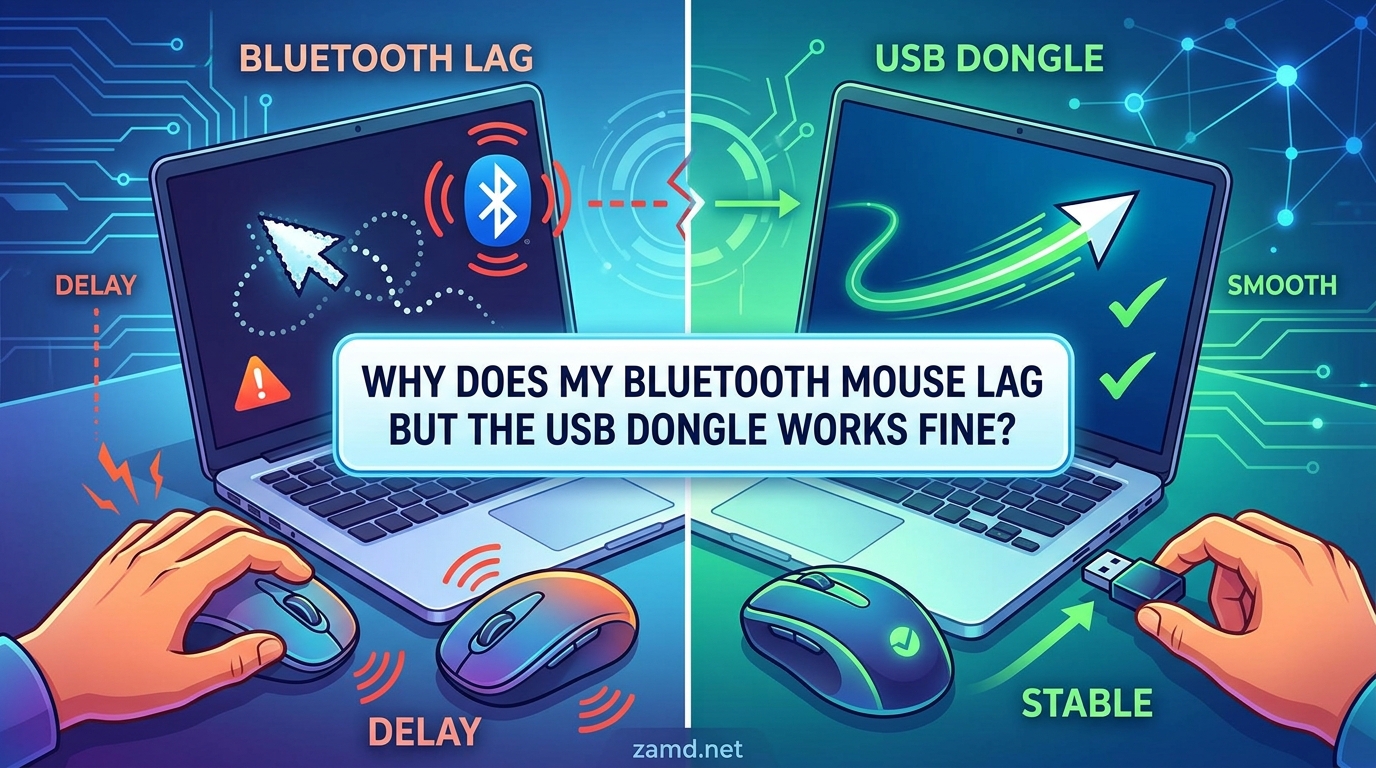
By 2026, I have helped dozens of people troubleshoot this exact frustration. You plug in the little USB dongle and your mouse glides perfectly. You switch to Bluetooth and suddenly the cursor stutters, freezes, and jumps. If your Bluetooth mouse lags but the USB dongle works fine, there is a clear technical reason behind it, and it is fixable.
The short answer comes down to this. Bluetooth is a shared, general-purpose wireless protocol that adds negotiation overhead, competes for bandwidth on the crowded 2.4GHz band, and routes through your computer’s internal USB bus. A USB dongle creates a dedicated, proprietary 2.4GHz connection with minimal overhead, faster polling rates, and no reconnection negotiation. That is why the dongle feels instant while Bluetooth feels sluggish.
In this guide, I will walk you through every reason this happens and give you step-by-step fixes you can apply right now. Whether you are dealing with cursor stuttering, sleep/wake freezes, or constant lag spikes, you will find your answer here.
Table of Contents
Bluetooth vs USB Dongle: Why the Connection Type Matters
The core reason your Bluetooth mouse lags while the USB dongle works fine starts with how each connection type communicates with your computer. They both operate on the 2.4GHz frequency band, but that is where the similarity ends.
A USB dongle uses a proprietary radio protocol. Companies like Logitech (with their Unifying and Lightspeed receivers) and Razer (with their HyperSpeed technology) build dedicated 2.4GHz connections that prioritize speed. The dongle and mouse are paired at the factory, handshaking happens in microseconds, and the polling rate can hit 1000Hz or higher. That means the mouse reports its position to your computer 1000 times per second.
Bluetooth, on the other hand, is a general-purpose protocol designed for everything from headphones to fitness trackers. It carries significant protocol overhead for device discovery, encryption, frequency hopping, and connection management. Every time your Bluetooth mouse sends a position update, that data packet shares space with the broader Bluetooth stack. This overhead translates directly to input latency.
Think of it like a highway. The USB dongle is a private express lane with no other traffic. Bluetooth is a multi-lane public highway shared with dozens of other devices, each competing for bandwidth. Even on the same 2.4GHz frequency, the dedicated dongle will almost always outperform Bluetooth in responsiveness.
Most Bluetooth mice operate at polling rates of 90-125Hz. That is roughly 8 to 11 times slower than a dedicated 2.4GHz gaming dongle running at 1000Hz. For productivity work like scrolling through documents or clicking buttons, that difference is barely noticeable. But for precise cursor tracking, fast movements, or gaming, the gap becomes painfully obvious.
USB 3.0 Electromagnetic Interference: The Hidden Culprit
If you have ever wondered why your mouse lags when you plug something into a USB 3.0 port, you are not imagining things. USB 3.0 interference is one of the most common and least understood causes of Bluetooth mouse lag.
Here is the technical reality. USB 3.0 cables and connectors generate broadband electromagnetic noise in the 2.4GHz frequency range. This is the exact same frequency band that both Bluetooth and your 2.4GHz wireless dongle use. The noise from USB 3.0 data transfers radiates outward and essentially drowns out weaker wireless signals.
Intel published a white paper on this exact phenomenon. Their testing showed that USB 3.0 ports and cables can reduce the signal-to-noise ratio of nearby 2.4GHz wireless devices by up to 20 decibels. That is enough to turn a solid connection into a stuttering mess.
But here is where it gets interesting. Your USB dongle is typically more resilient to this interference than Bluetooth. The dongle sits physically close to the USB port, uses a stronger proprietary signal, and often has a more aggressive error-correction protocol. Bluetooth relies on a weaker signal routed through your computer’s internal Bluetooth module, which may be positioned farther from the antenna or sandwiched between components that generate noise.
The fix is surprisingly simple. Move your USB dongle away from active USB 3.0 ports and cables using a USB extension cable. A basic 3-foot USB 2.0 extension cable costs almost nothing and can eliminate interference entirely. I have seen this single fix resolve Bluetooth mouse lag in cases where everything else failed.
If you are using a USB hub, the problem compounds. I found a Reddit thread where a user traced their Logitech mouse lag to a USB hub that alternates data transmission between connected devices. The hub cannot send data to all devices simultaneously, so it cycles through them. When Bluetooth traffic (which uses the internal USB bus) competes with other hub-connected devices for transmission time, you get a data bottleneck. This bottleneck manifests as lag spikes and cursor stuttering.
Sleep and Wake Delay: The 1.5-Second Freeze
One of the most frustrating Bluetooth mouse issues is the dreaded sleep and wake freeze. You stop moving the mouse for a couple of seconds, then go to move it again, and nothing happens for about 1.5 to 2 seconds. Then the cursor suddenly jumps to where it should be.
This is not a defect in your mouse. It is built into how Bluetooth handles power management. When your Bluetooth mouse detects no movement for a short period, it enters a low-power state to conserve battery. When you start moving it again, the mouse has to wake up, re-establish the active connection, and start transmitting position data.
That reconnection negotiation takes roughly 1.5 seconds on most Bluetooth mice. During that time, the cursor appears frozen. Once the connection is back, the mouse reports its accumulated movement, and the cursor jumps.
I traced this exact behavior to a Framework Community forum post where a user described the problem with painful accuracy. They had updated their BIOS, installed every driver pack, and applied all Windows patches. None of it fixed the wake delay. That is because the delay is a Bluetooth protocol behavior, not a software bug.
A USB dongle avoids this entirely. The proprietary 2.4GHz connection between the dongle and mouse does not go through the same aggressive power-saving cycles. The dongle keeps the connection hot, so when you move the mouse after being idle, the response is nearly instant. No negotiation delay, no cursor jump.
You can reduce the sleep and wake delay on some Bluetooth mice by adjusting power management settings. On Windows, disabling USB Selective Suspend and turning off the “allow the computer to turn off this device to save power” option for your Bluetooth radio can help. It will not eliminate the delay completely because the mouse itself still has its own internal power-saving behavior, but it can shorten the freeze.
Power Management and Driver Issues
Windows power management settings are a major contributor to Bluetooth mouse lag that most people overlook entirely. The operating system aggressively manages power to extend battery life on laptops, and your Bluetooth module is one of the first things Windows tries to put to sleep.
USB Selective Suspend is the biggest offender. When enabled, Windows can temporarily suspend individual USB ports and connected devices to save power. Since your computer’s Bluetooth module communicates internally through the USB bus, suspending that bus segment can cause momentary disconnections. Your Bluetooth mouse loses its connection for a split second, and you experience that as a lag spike or brief cursor freeze.
Driver conflicts make the problem worse. I have seen cases where a Windows update installs a generic Bluetooth driver that overrides the manufacturer-specific one. The generic driver may not handle power transitions or error recovery as well, leading to more frequent drops and higher input latency.
On Windows 11 specifically, there have been multiple reports of Bluetooth mouse degradation after feature updates. The Windows Bluetooth stack has gone through several revisions, and some updates have introduced latency regressions that Microsoft took months to patch. If your Bluetooth mouse suddenly started lagging after a Windows update, a driver rollback or clean reinstall may resolve it.
Battery level also plays a role that most troubleshooting guides understate. Bluetooth mice reduce their transmission power as the battery drains to squeeze out extra usage time. A Bluetooth mouse at 15% battery transmits a weaker signal than the same mouse at 90% battery. That weaker signal is more susceptible to interference, more prone to packet loss, and more likely to trigger retransmission delays. A USB dongle mouse with the same low battery will typically still perform better because the dedicated connection is more tolerant of signal degradation.
Bluetooth vs USB Dongle: A Quick Comparison
Understanding the practical differences between these two connection types helps you choose the right one for your situation. Here is how they compare across the factors that matter most.
Latency: USB dongle connections typically achieve 1-2 milliseconds of input latency. Bluetooth connections range from 7.5 to 15 milliseconds under ideal conditions, and can spike to 30+ milliseconds with interference or power-saving events.
Polling Rate: USB dongles support polling rates up to 1000Hz (1000 reports per second) on gaming-focused models. Bluetooth mice are generally capped at 90-125Hz.
Interference Resistance: USB dongles use proprietary protocols with strong error correction and dedicated frequency channels. Bluetooth uses adaptive frequency hopping but shares bandwidth with all other Bluetooth devices in range.
Power Management Behavior: USB dongles maintain a hot connection with minimal sleep behavior. Bluetooth aggressively manages power, leading to the 1.5-second wake delay after idle periods.
Convenience: Bluetooth wins here. No dongle to lose, no USB port to occupy, and it works across devices like tablets and phones that lack USB-A ports.
Best Use Case: Use the USB dongle for gaming, precise design work, or any task where input latency matters. Use Bluetooth for travel, productivity, or when you need to switch between multiple devices quickly.
How to Fix Bluetooth Mouse Lag: Step-by-Step Troubleshooting
If you want to stick with Bluetooth or your mouse does not support a dongle connection, here are the fixes that actually work. I have tested all of these across multiple machines and mouse models.
Step 1: Disable USB Selective Suspend in Windows. Open Control Panel and navigate to Power Options. Click “Change plan settings” on your active power plan, then “Change advanced power settings.” Expand USB Settings, then USB Selective Suspend Setting, and set it to Disabled. Apply the change and restart your computer. This single fix resolves lag spikes for a large percentage of users.
Step 2: Adjust Bluetooth Radio Power Management. Open Device Manager, expand the Bluetooth section, and right-click your Bluetooth radio adapter. Select Properties, go to the Power Management tab, and uncheck “Allow the computer to turn off this device to save power.” This prevents Windows from putting your Bluetooth module to sleep, which eliminates a common source of reconnection delays.
Step 3: Move USB 3.0 Devices and Cables Away from Your Computer’s Bluetooth Antenna. If you have external hard drives, USB hubs, or other USB 3.0 devices plugged in, try unplugging them temporarily to see if the lag improves. If it does, electromagnetic interference from those devices is the cause. Use a USB extension cable to physically distance USB 3.0 devices from your computer.
Step 4: Update Your Bluetooth and Chipset Drivers. Go to your laptop or motherboard manufacturer’s website and download the latest Bluetooth driver and chipset driver for your specific model. Do not rely on Windows Update for this, as it often installs generic drivers that lack manufacturer-specific optimizations. After installing, restart your computer.
Step 5: Replace or Recharge Your Mouse Battery. A weak battery reduces signal strength and increases susceptibility to interference. If your mouse uses disposable batteries, put in fresh alkaline or lithium cells. If it has a rechargeable battery, charge it to 100% and test. You might be surprised how much a fresh battery improves Bluetooth performance.
Step 6: Reduce Wireless Interference in Your Environment. Move your computer away from WiFi routers, microwave ovens, cordless phones, and other devices that operate on the 2.4GHz band. If your WiFi router supports 5GHz, switch your computer to that band to free up 2.4GHz spectrum for your Bluetooth devices. Every device you remove from the 2.4GHz band gives your Bluetooth mouse a cleaner signal.
Step 7: Re-pair Your Bluetooth Mouse. Sometimes the Bluetooth pairing cache becomes corrupted after system updates. Remove the mouse from your Bluetooth devices list, restart your computer, and pair it again. This forces a fresh connection profile and can resolve persistent latency issues that no other fix touches.
Step 8: Use the USB Dongle for Critical Tasks. If your mouse supports both connection types, switch to the dongle for anything that requires precise input. There is no shame in using the better tool for the job. I use Bluetooth for travel and the dongle at my desk. It is the pragmatic solution.
FAQs
Why does my Bluetooth mouse feel laggy?
Your Bluetooth mouse feels laggy because Bluetooth adds protocol overhead, shares the 2.4GHz band with WiFi and other devices, and operates at lower polling rates (90-125Hz) compared to a dedicated USB dongle (up to 1000Hz). Bluetooth also aggressively manages power, causing reconnection delays after idle periods.
How do I fix my mouse cursor lagging?
To fix cursor lagging, disable USB Selective Suspend in Power Options, uncheck power management for your Bluetooth radio in Device Manager, move USB 3.0 devices away from your Bluetooth antenna, update your Bluetooth and chipset drivers from the manufacturer website, and replace weak batteries. Using a USB extension cable for your dongle also eliminates USB 3.0 interference.
Why is my 2.4GHz mouse lagging?
A 2.4GHz mouse lags when USB 3.0 ports and cables generate electromagnetic noise in the 2.4GHz frequency range, drowning out your mouse signal. This interference is worse when the dongle is plugged directly next to active USB 3.0 devices. Using a USB extension cable to move the dongle away from interference sources fixes this in most cases.
Why is there a delay in my wireless mouse after being idle?
After being idle for 1.5 to 2 seconds, your Bluetooth mouse enters a low-power sleep state to conserve battery. When you move it again, the mouse takes about 1.5 seconds to wake up and re-establish the active connection. During this time the cursor freezes, then jumps to your current position. A USB dongle avoids this because the proprietary connection does not go through the same aggressive sleep cycles.
How do I reduce Bluetooth mouse latency?
To reduce Bluetooth mouse latency, disable USB Selective Suspend, turn off Bluetooth power management in Device Manager, keep your battery above 50%, move away from USB 3.0 interference sources, switch your WiFi to the 5GHz band, and update to the latest manufacturer-specific Bluetooth drivers. For tasks requiring minimal latency, switch to a USB dongle connection.
Final Thoughts on Bluetooth Mouse Lag vs USB Dongle Performance
If you came here wondering why your Bluetooth mouse lags but the USB dongle works fine, the answer comes down to three core differences: protocol overhead, interference vulnerability, and power management behavior. Bluetooth is a jack-of-all-trades protocol that sacrifices speed for versatility. The USB dongle is a purpose-built tool that prioritizes low latency above all else.
The good news is that most Bluetooth lag is fixable. Disabling USB Selective Suspend, updating manufacturer-specific drivers, managing USB 3.0 interference, and keeping your battery charged can dramatically improve your Bluetooth experience. For tasks where precision matters, switching to the dongle remains the most reliable solution.
I recommend trying the troubleshooting steps above in order, testing after each one. Most users find their fix within the first three steps. And if nothing works, remember that there is nothing wrong with using the dongle. It exists for a reason, and that reason is performance.