
What makes the best document scanners for taxes? A feeder that swallows at least 40 sheets, duplex scanning for double-sided W-2s, and OCR good enough to produce searchable PDFs plus an export path to Excel or CSV. Below, I break down ten scanners that clear that bar, from a compact unit for shoebox backlogs to a 100-sheet workhorse for a self-employed filer with years to catch up on.
Tax paperwork is an unusually bad scanning workload. It arrives in mixed batches, half of it is thin thermal receipt paper that fades and smears, a lot of it is double-sided, and every single page has to remain readable years later when a preparer asks a question. That combination rewards a scanner with a solid automatic document feeder and reliable paper handling far more than it rewards raw resolution or a sleek app.
We also think honesty beats hype here. Two of the biggest rivals to a scanner are your phone and your existing printer, and for plenty of filers the phone genuinely wins — so we say who should skip the hardware altogether. Every pick below was assessed on the same criteria: feeder capacity, duplex, resolution, OCR output, the software that ships with it, and the reliability of its paper path on the crumpled, faded receipts that make up a real tax folder.
Two more things before we start. The IRS accepts electronic records, and a computer-prepared record is treated as adequate support for a deduction, so scanning your paperwork is a supported practice rather than a workaround. And thermal paper is the number one hardware complaint in tax-scanner forums: the ink transfers onto feeder rollers and smears onto later pages, so anything in this list that runs receipts through an ADF needs regular roller cleaning.
Table of Contents
Top 3 Picks for Tax Document Scanning in 2026

Best Document Scanners for Taxes at a Glance (October 2026)
The table below is the short version. Every product here earns a place because it clears one of the specific gaps we found — a large feeder, a computer-free workflow, wireless sharing, portability, or a footprint that fits a cramped home office desk.
| Product | Specifications | Action |
|---|---|---|
| Epson WorkForce ES-400 II |
|
Check Latest Price |
 ScanSnap iX2500 ScanSnap iX2500 |
|
Check Latest Price |
 Brother DS-640 Brother DS-640 |
|
Check Latest Price |
 Epson WorkForce ES-580W Epson WorkForce ES-580W |
|
Check Latest Price |
 Canon imageFORMULA R10 Canon imageFORMULA R10 |
|
Check Latest Price |
 Brother DS-740D Brother DS-740D |
|
Check Latest Price |
 ScanSnap iX1300 ScanSnap iX1300 |
|
Check Latest Price |
 Canon imageFORMULA DR-C225 II Canon imageFORMULA DR-C225 II |
|
Check Latest Price |
 HP Small USB Document and Photo Scanner HP Small USB Document and Photo Scanner |
|
Check Latest Price |
 Epson WorkForce ES-C220 Epson WorkForce ES-C220 |
|
Check Latest Price |
For readers who want the broad category covered rather than the tax angle specifically, our general guide to the [best document scanners](https://zamd.net/best-document-scanners/) covers photo scanning and film workflows too. If your paperwork problem is a shared desk rather than a shoebox, the [best document scanners for home offices](https://zamd.net/best-document-scanners-for-home-offices/) page focuses on footprint and network sharing.
1. Epson WorkForce ES-400 II Review — the all-round tax workhorse
Epson Workforce ES-400 II High-Speed Color Duplex Desktop Document Scanner
50-sheet ADF
Duplex color at 300 dpi
OCR to searchable PDF and Excel
Pros
- 50-sheet automatic document feeder handles full stacks in one load
- Ultrasonic double feed detection catches missed pages
- Creates searchable PDFs and converts scans to editable Word or Excel
- Scans straight to email
- Dropbox
- Evernote
- Google Drive or OneDrive
- Highest average rating in this group at 4.5 with 77 percent five-star reviews
Cons
- USB only
- so it cannot be shared across a network without a computer
- No built-in touchscreen
- scanning is driven from the connected computer
- Bulkier than the portable models in this list
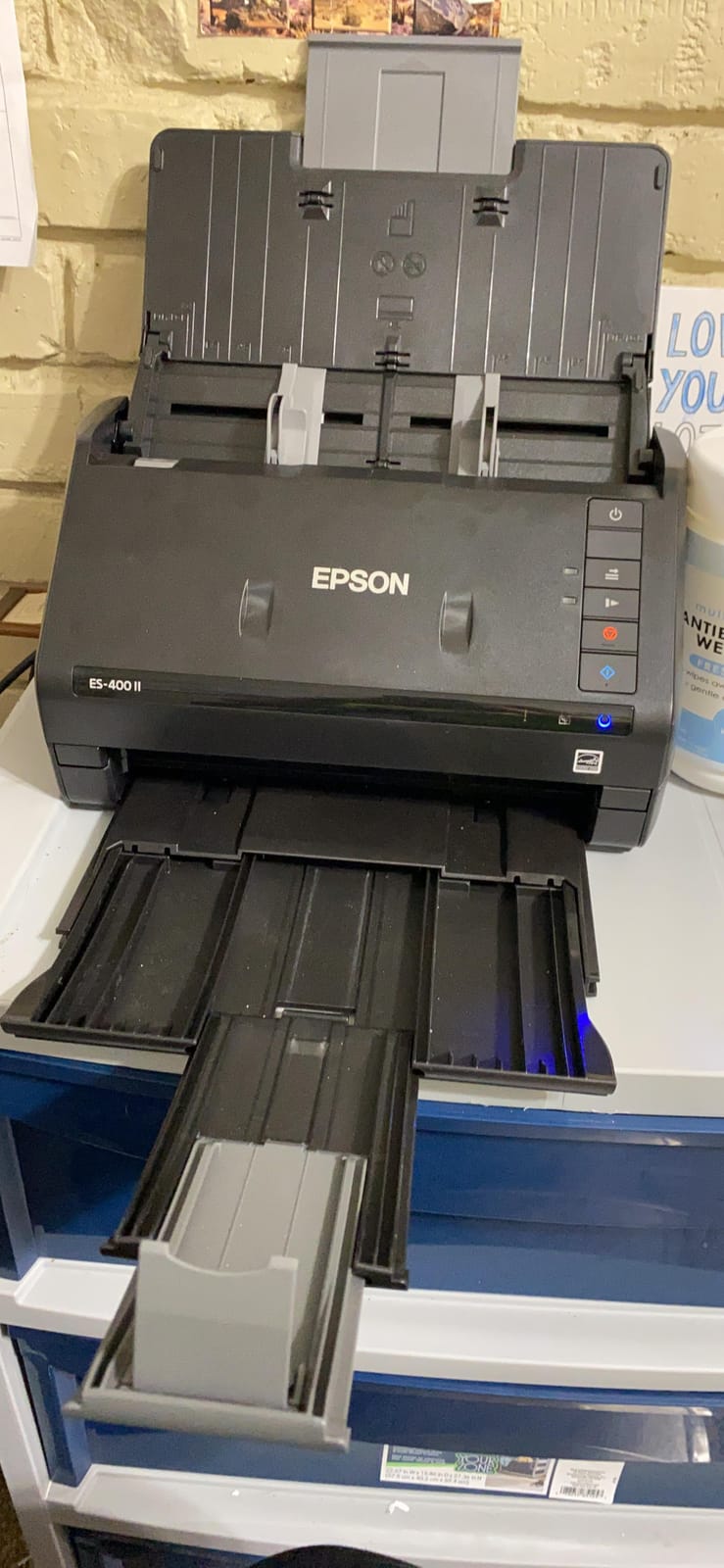
This is the scanner we recommend to most people filing their own taxes or running a small practice. The 50-sheet automatic document feeder is the single feature that changes daily life: a stack of fifty W-2s, bank statements and receipts goes in once, and you do not touch it again until the job finishes.
Paper handling is where the ES-400 II separates itself. Ultrasonic double feed detection is the feature to understand — it means the scanner notices when it pulls two sheets at once and stops rather than silently feeding a blank page into your archive. Dynamic skew correction handles the slightly rotated scan that comes out of a feeder, which matters when you have folders of mixed paper.
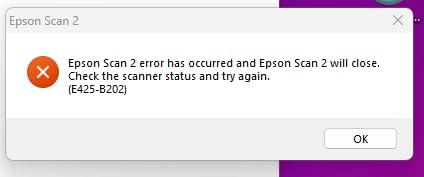
On the software side, Epson ScanSmart gives you a preview before saving, automatic file naming, and one-click destinations to email, Dropbox, Evernote, Google Drive or OneDrive. OCR output produces searchable PDFs and converts scans into editable Word or Excel files, which is the difference between a filing cabinet and a document you can actually search when a preparer asks about a single expense in April.
Epson’s image processing handles auto crop, blank page removal and background cleaning without you opening a single dialog. For a shoebox of mixed receipts and forms that is a real time saving, since the software tidies the scan before you ever see it.
When the ES-400 II is the right call for your paperwork
Reach for this one if your volume lands in the range of a few hundred pages a year, you file your own return, or you hand a folder to a preparer each spring. A 50-sheet feeder covers a typical month of business receipts in two loads, and duplex means both sides of a folded form are captured in one pass.
It is also the safest pick on reliability. Only 6 percent of its reviews are one-star, the lowest share among the ten models here, and that consistency is what you want from a machine that will be asked to run once a year without warning.
When another scanner suits you better
If you scan from a laptop that moves between a kitchen table and a shared studio, USB-only becomes a genuine limitation — there is no touchscreen and no network sharing, so a second computer cannot reach it. For a household or small office where several people need the same machine, a wireless model with a touchscreen is a better fit.
It is also not the right tool for a multi-year backlog of thousands of pages. At 50 sheets per load, catching up on years of records takes many sessions, and a 100-sheet feeder at higher speed will finish the job in a fraction of the time.
2. ScanSnap iX2500 Review — the fastest route through a document backlog
ScanSnap iX2500 Wireless or USB High-Speed Document Scanner, Black
45 ppm duplex
100-sheet feeder
Wi-Fi 6 and USB-C
touchscreen profiles
Pros
- Fastest scanner in this roundup at 45 ppm duplex with a 100-sheet feeder
- Large touchscreen lets you choose named scan profiles by purpose
- Built-in Wi-Fi 6 plus USB-C so several people can share it
- Brake roller system
- multi-feed sensor and skew detection reduce jams
- User-replaceable snap-in rollers
Cons
- No TWAIN or ISIS driver
- which rules out third-party archiving setups such as paperless-ng
- ScanSnap Home is Windows-only in practice and wants frequent firmware updates
- Setup usually requires a phone and the documentation is thin
- Mixed paper sizes and creased documents can still cause the occasional jam
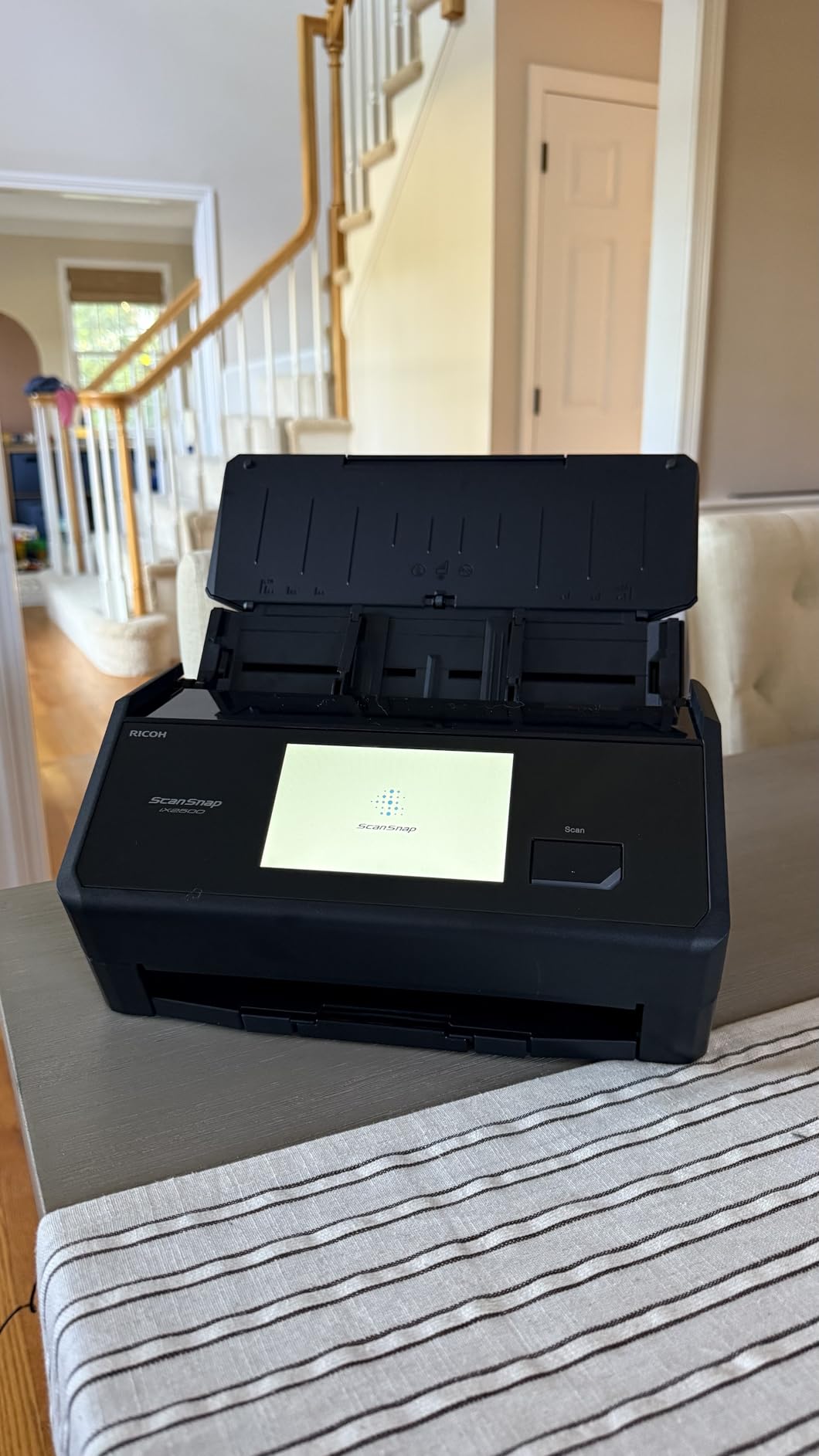
If the job in front of you is a backlog rather than a single tax year, speed changes the outcome. The iX2500 runs duplex at up to 45 pages per minute through a 100-sheet feeder, so a thousand pages of archived statements is a short sitting rather than an evening project.
The hardware story here is jam prevention. A brake roller system, a multi-feed sensor and skew detection all work together to feed paper without the double-skips and jams that turn a batch job into an error hunt. The rollers snap in and out for replacement, which matters a great deal on a machine you intend to run on thermal receipts as well as letter paper.
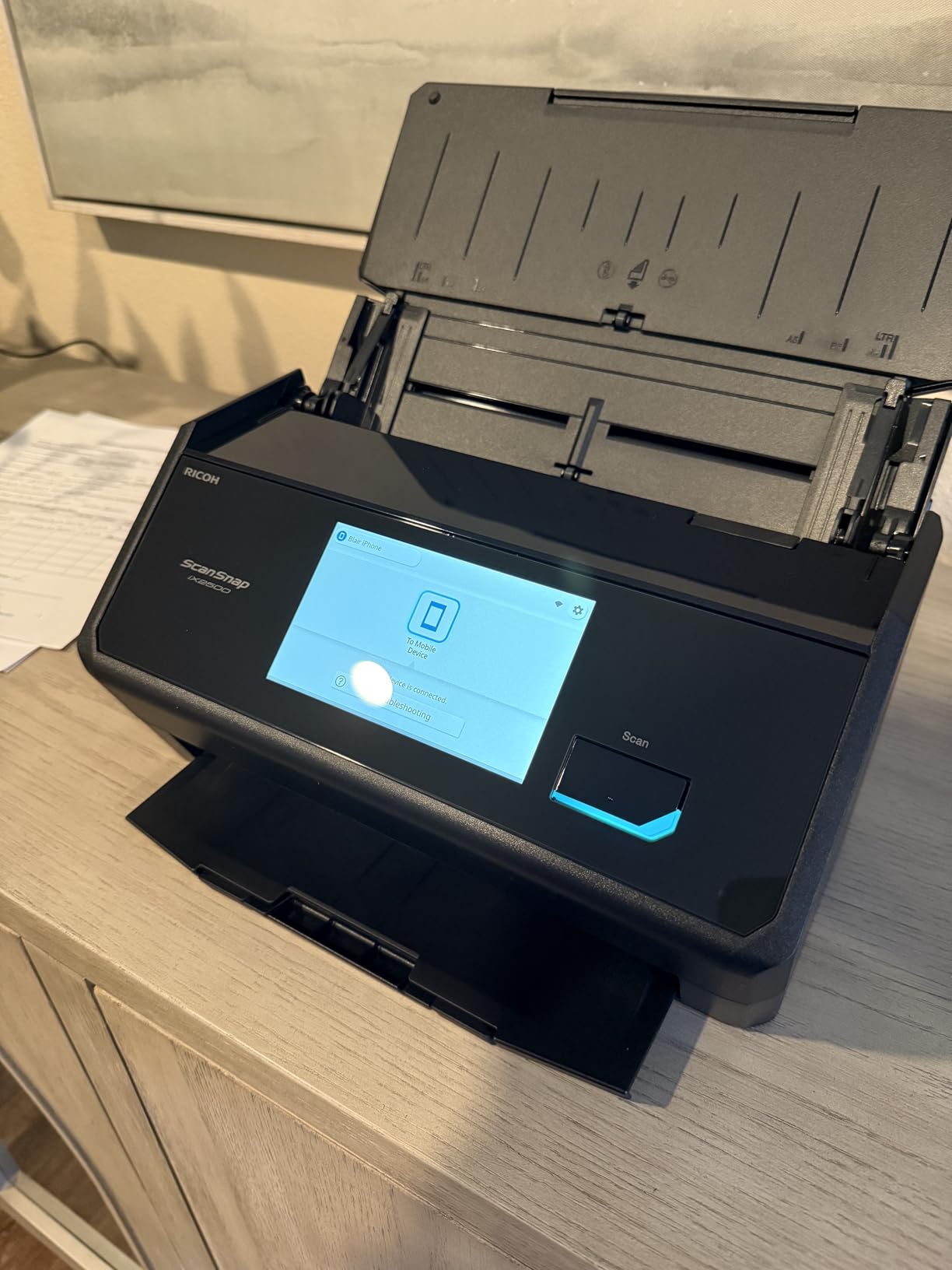
The large touchscreen is the feature that changes workflow. You can build named scan profiles for the things you actually scan — receipts, W-2s, bank statements — and start a job with one tap instead of walking through menus on a laptop that may be in another room. Owners report scanning hundreds of pages into a single searchable PDF very quickly, which is exactly the outcome a multi-year archive needs.
Connectivity is built-in Wi-Fi 6 and USB-C, so the machine can be shared across a household or a small office without a computer acting as intermediary. It is the upgraded replacement for the iX1600, so anyone comparing against older ScanSnap advice online is looking at the previous generation.
When the iX2500 is the right call
Choose it when the quantity of paper is the main problem: digitizing a decade of old tax records, an accountant clearing client archives, or a freelancer who has deferred filing for years. The 100-sheet feeder means fewer reload interruptions, and 45 ppm means a big stack finishes while you make coffee.
Named touchscreen profiles also suit people who scan the same categories repeatedly. Setting up receipts, statements and forms once removes the decision-making from every later session.
When another scanner suits you better
The absence of a TWAIN or ISIS driver is the dealbreaker for a specific group. If your filing system depends on third-party archiving software — paperless-ng, for instance, or a document management system that talks to scanners through TWAIN — this unit will not appear in the list. That limitation is why it does not sit at the top of our ranking despite the strong hardware.
ScanSnap Home is also effectively Windows-only in practice, and the machine wants frequent firmware and software updates. Occasional users who just need to scan fifty receipts should look at something simpler with a shorter software chain.
3. Brother DS-640 Review — the best value for a small tax archive
Brother DS-640 Compact Mobile Document Scanner, (Model: DS640)
Up to 16 ppm
300 DPI
1 pound and USB powered
One sheet at a time
Pros
- Very fast for its size at up to 16 pages per minute in color
- Under a foot long and about 1.5 pounds
- so it fits in a bag or jacket pocket
- USB powered
- so it needs no outlet and no separate power brick
- Free iPrint&Scan app with cloud
- email and OCR destinations
- Automatic color detection
- image rotation
- bleed-through prevention and text enhancement
Cons
- One sheet at a time
- with no automatic document feeder
- Single-sided only
- so double-sided tax forms must be flipped by hand
- False jam errors reported on long receipts over 5 or 6 inches
- Short included micro-USB cable
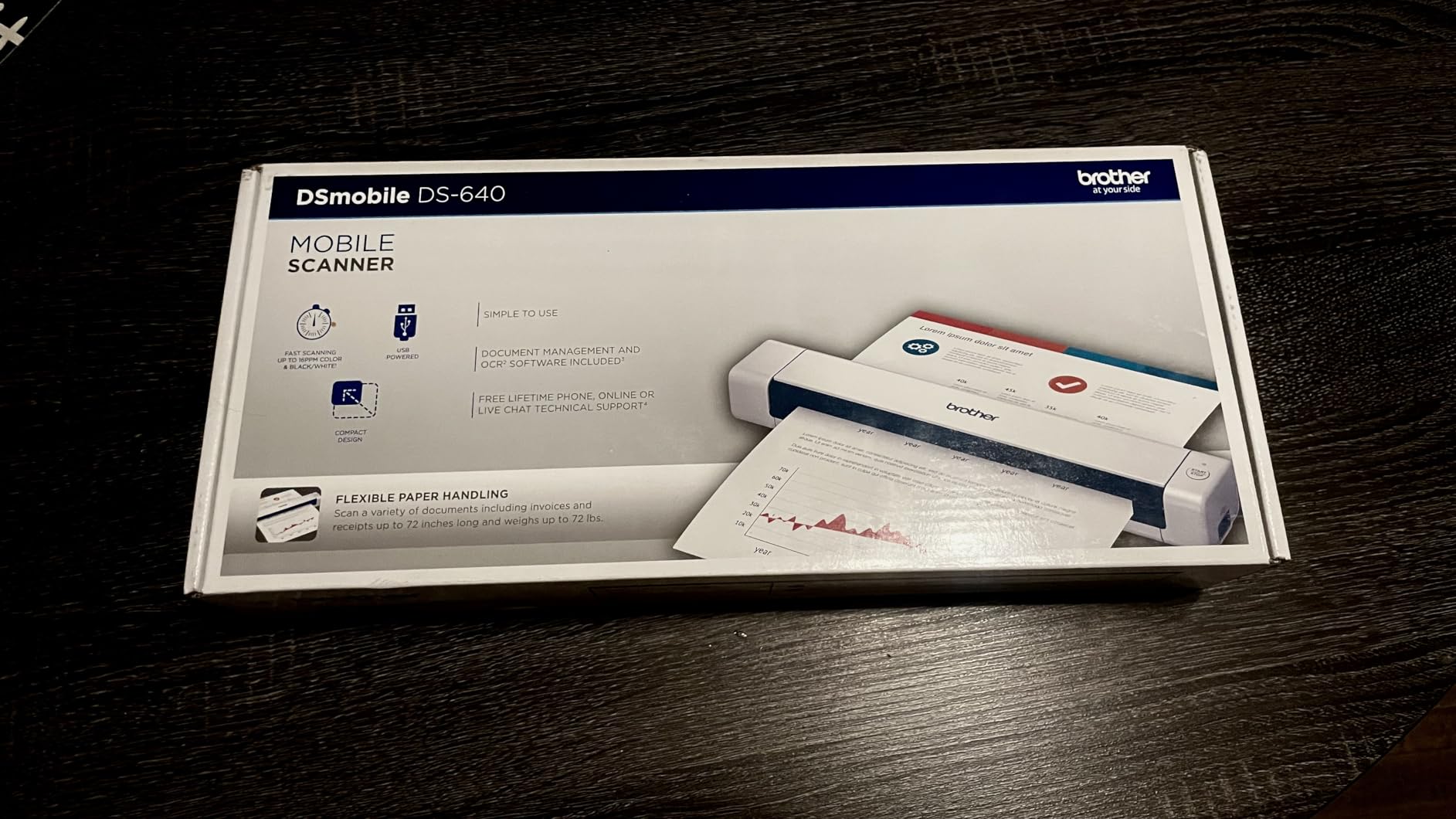
The Brother DS-640 is the reason most of this list is unnecessary. It weighs about 1.5 pounds, measures under a foot long, and runs off the USB cable alone, so it lives in a drawer and comes out when tax season starts. At 6456 reviews it is by far the most thoroughly tested scanner here, and owners consistently cite tax filing and receipt scanning as satisfied use cases.
Speed is its quiet strength. Up to 16 pages per minute in color, and the color speed matches the black and white speed, so there is no mode-switching penalty when your folder mixes printed forms and color receipts. Automatic color detection, image rotation, bleed-through prevention and text enhancement all run without intervention.
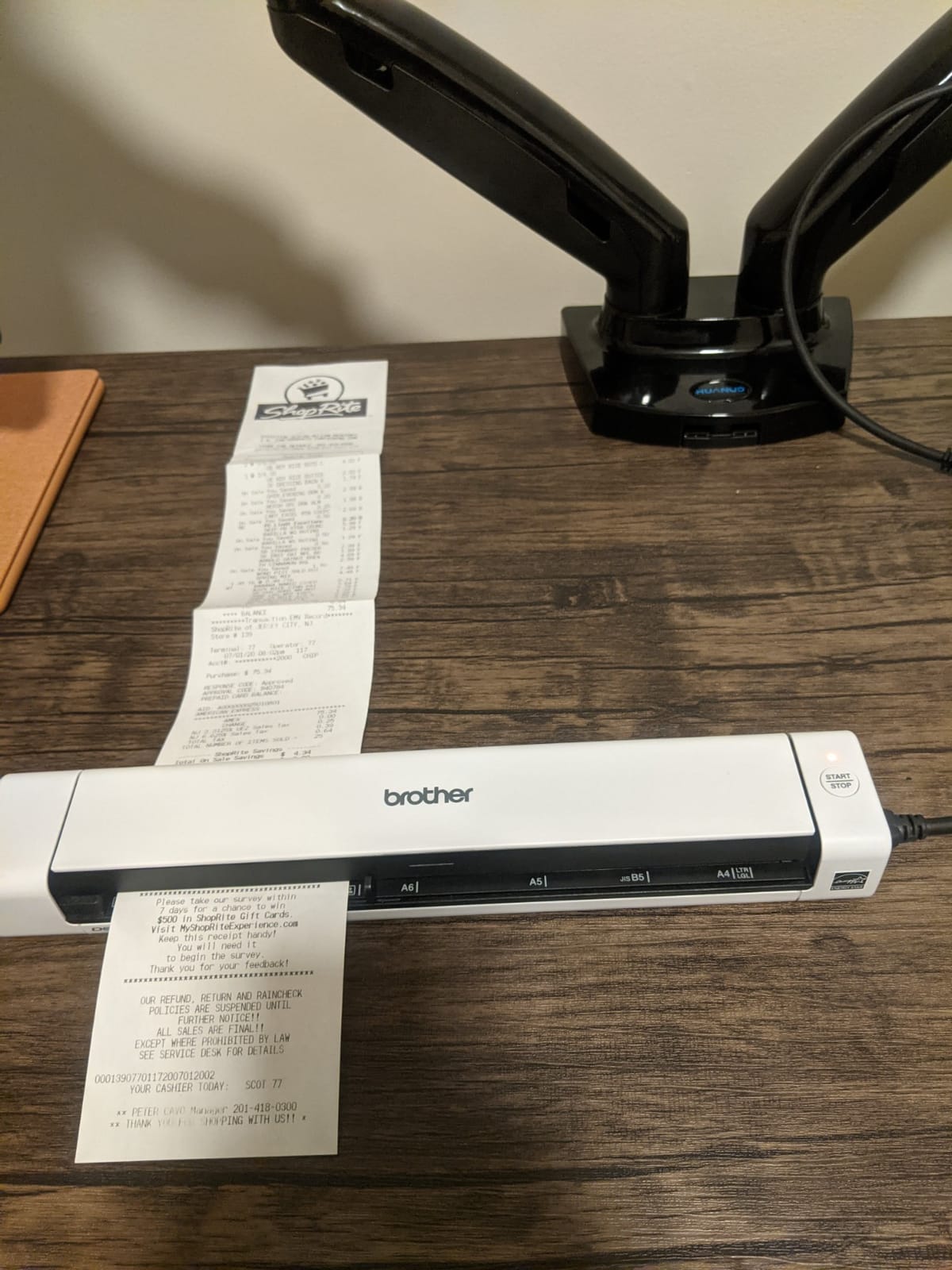
The iPrint&Scan app covers the destinations that matter for a filer: cloud, email and OCR. It handles receipts, business cards, ID cards and standard paper equally well, which covers the mixed contents of a typical expense envelope.
It also supports Windows, Mac and Linux, with TWAIN and WIA drivers on PC and SANE on Mac. For anyone who has ever been told a scanner is Mac-incompatible, that matters.
When the DS-640 is the right call
This is the right pick for a salaried filer with a shoebox and no appetite for desk furniture. A few hundred receipts and forms in a season, scanned in batches of one, is roughly an evening’s quiet work — and the machine costs little enough that the cost-per-page is trivial.
It is also the most portable option on this list. Freelancers who bill from different locations can keep the only scanner they own in a bag rather than at a fixed desk.
When another scanner suits you better
Feeding one sheet at a time is the honest limit. A stack of 200 pages means 200 separate feed-and-wait cycles, and forum users regularly describe scanning a handful of receipts as a genuine time sink. If your archive runs to hundreds of pages, an automatic document feeder pays for itself in saved evenings.
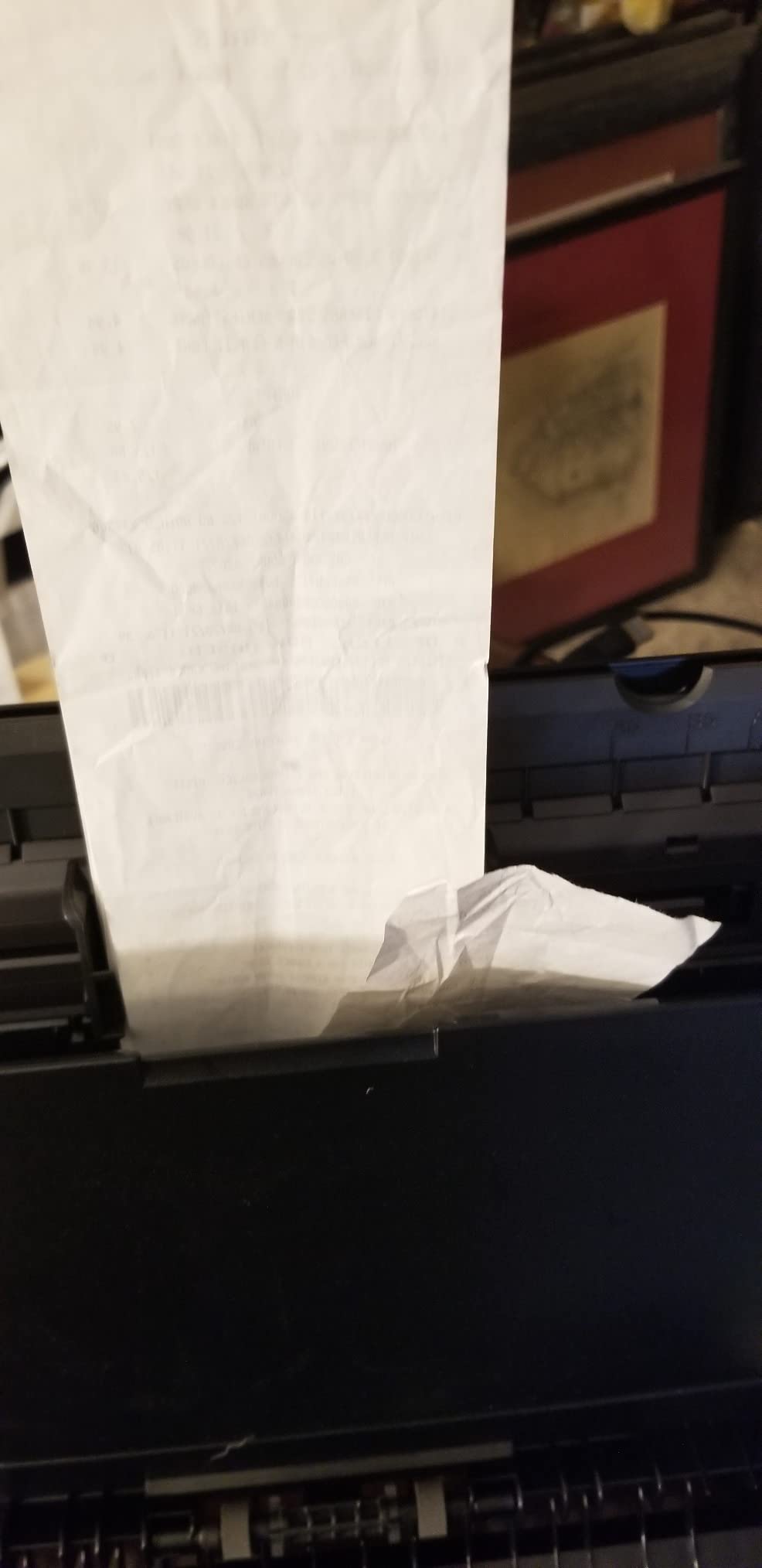
Single-sided scanning also means double-sided W-2s and folded forms need manual flipping. And several reviewers report false jam errors on long receipts, where the machine reports a jam and rejects a partial scan that you then have to redo.
4. Epson WorkForce ES-580W Review — the best scanner to run without a computer
Epson Workforce ES-580W Wireless Color Duplex Desktop Document Scanner
100-sheet ADF
35 ppm
4.3 inch touchscreen
Wireless to phone or cloud
Pros
- Wireless scanning sends files to a phone
- tablet
- computer or cloud directly
- 4.3 inch touchscreen lets you start a job with no computer involved
- 100-sheet automatic document feeder for large archives in one load
- Save to USB
- Dropbox
- Google Drive or OneDrive without a computer
- Up to 35 ppm with Single-Step Technology capturing both sides in one pass
- OCR produces searchable PDFs and editable Word or Excel
Cons
- Requires a Wi-Fi network for wireless operation
- Larger desktop footprint than the portable models
- Higher cost than USB-only desktop scanners
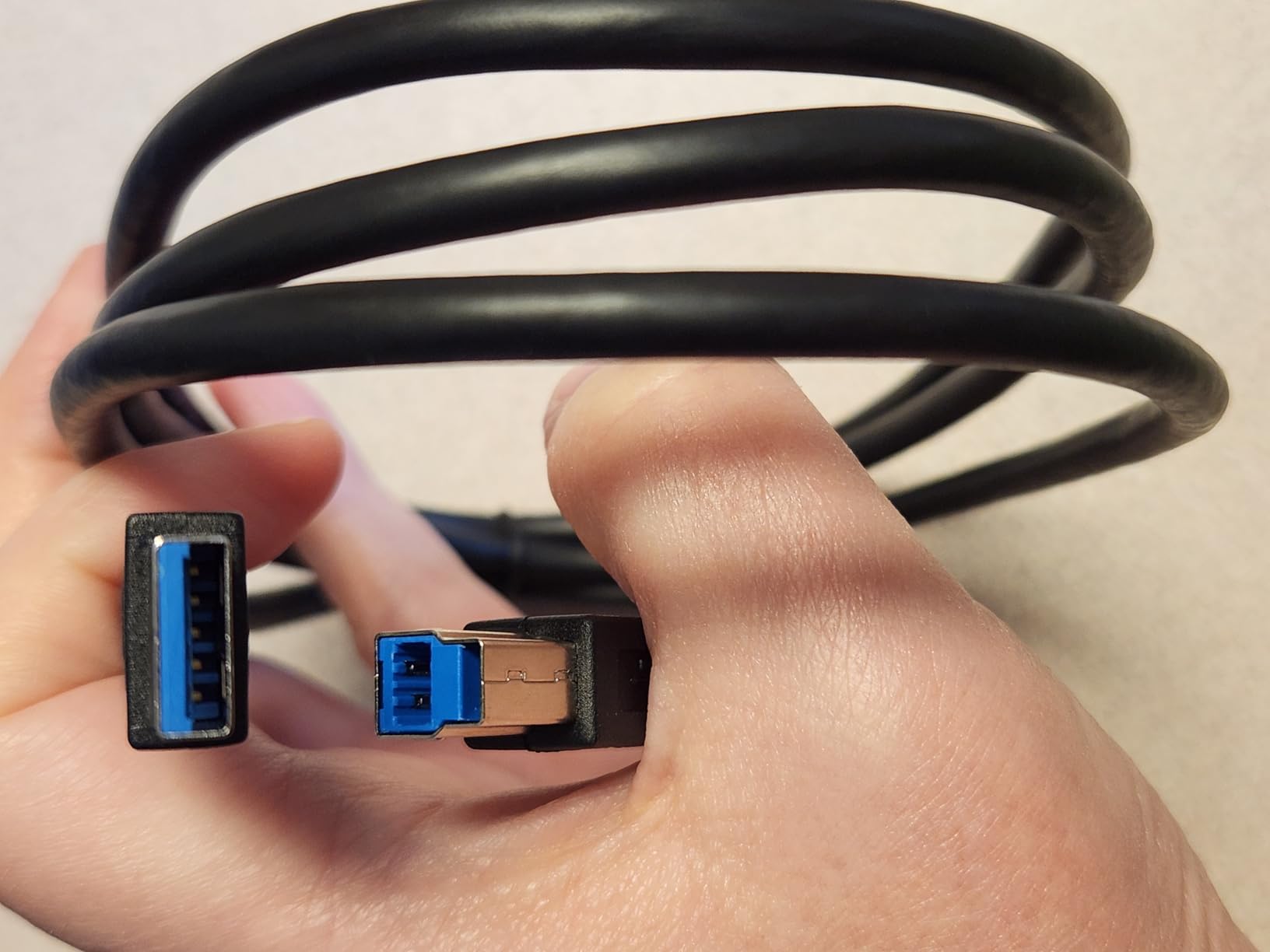
The defining feature of the ES-580W is that it does not need a computer at all. A 4.3 inch touchscreen on the front lets you pick a destination, start a scan and file the result, with the machine sending output to a phone, tablet, USB drive, email address or cloud service on its own.
That matters more for taxes than it does for most office work. The person who needs to scan a stack of receipts is rarely sitting at a desk with a laptop open — they are clearing a counter after a weekend market, or a shoebox on the sofa, or a box in a storage unit. Being able to scan without a computer removes the main reason people give up on digitizing.
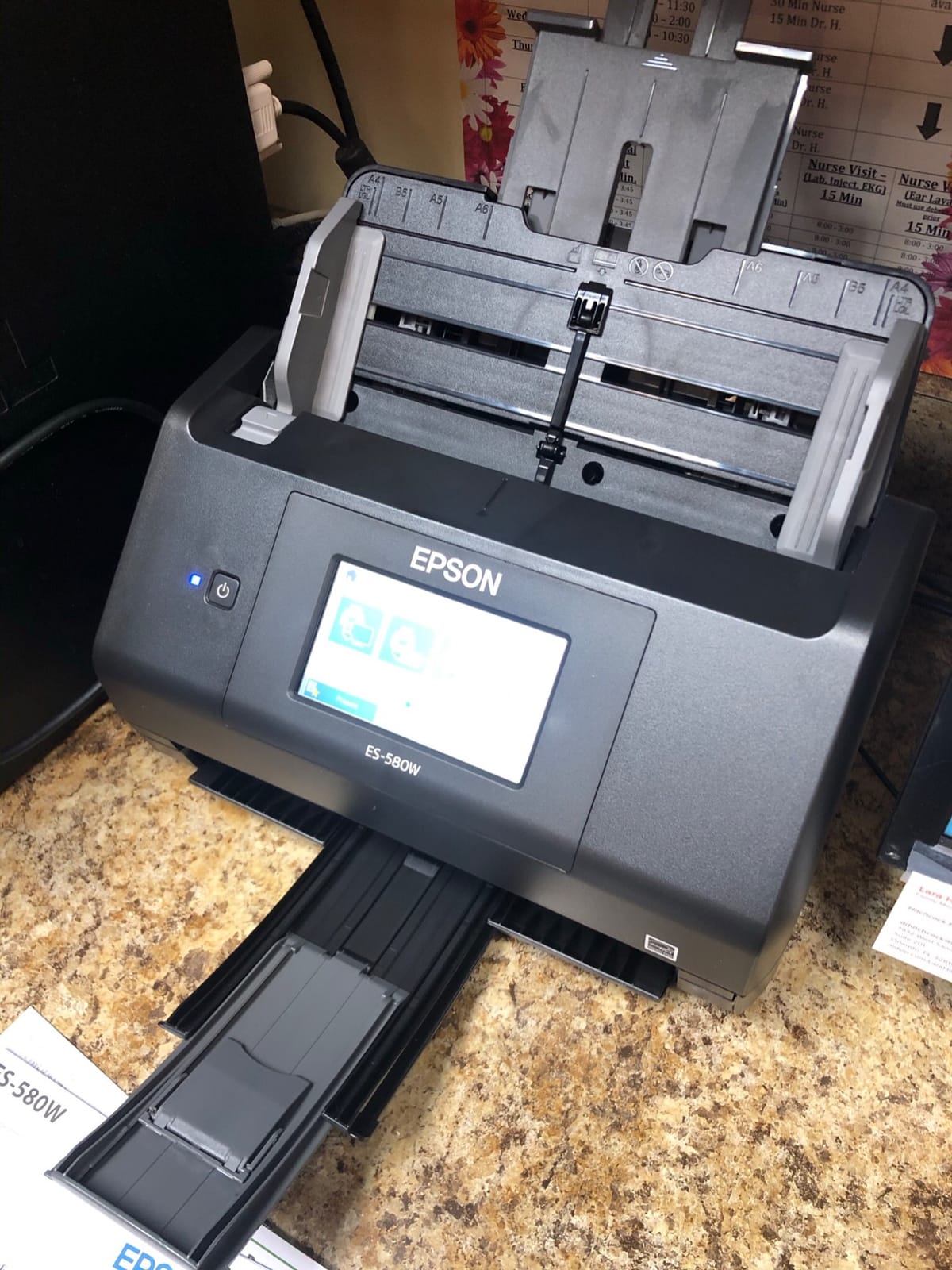
The 100-sheet feeder is the largest in this roundup, and at up to 35 pages per minute with Single-Step Technology capturing both sides in one pass, it handles a season of business receipts quickly. The feeder is the reason this model suits archiving rather than just filing.
OCR handles searchable PDFs and editable Word or Excel, and the intelligent image adjustments cover auto crop, blank page deletion, background removal, dirt detection and skew correction. Dirt detection is worth singling out for tax work: thermal receipts shed dark flecks, and the software is willing to clean them out of the scan.
When the ES-580W is the right call
Pick it if the computer is not where the paperwork is, or if more than one person needs to use the same machine. Wireless means a shared household or a small office can point a phone at it and scan, rather than passing a single USB cable around.
USB destinations are the sleeper feature. Saving to a flash drive without a computer is ideal for sensitive documents, because a W-2 or a 1099 never has to travel to a cloud account that someone else controls.
When another scanner suits you better
Wireless operation depends on having a Wi-Fi network, and the desktop footprint is large at nearly 12 inches square. If you work on a laptop alone at a cramped kitchen table, a compact USB model takes up less room and costs less.
It is also more expensive than USB-only desktop scanners of similar capability. If nobody else will ever scan with it and your computer is always within reach of the paper, the network features are something you pay for and do not use.
5. Canon imageFORMULA R10 Review — the most travel-ready duplex scanner
Canon imageFORMULA R10 – Portable Document Scanner, USB Powered, Duplex Scanning, Document Feeder, Easy Setup, Convenient, Perfect for Mobile Users, White
20-sheet feeder
Duplex at 12 ppm
600 dpi
Built-in software
Pros
- Scans both sides of a page at up to 12 pages per minute duplex
- 20-sheet automatic document feeder cuts down manual handling
- Light enough to move between home and office
- Software is built in
- needs no installation and updates itself
- Works on both Windows and Mac
- Preview tools let you straighten and trim before saving
Cons
- Not intended for scanning photographs on photo paper
- Lowest average rating among the portable models here at 4.1
- One-star reviews run higher than most Canon competitors
- 12 percent of reviews are one-star
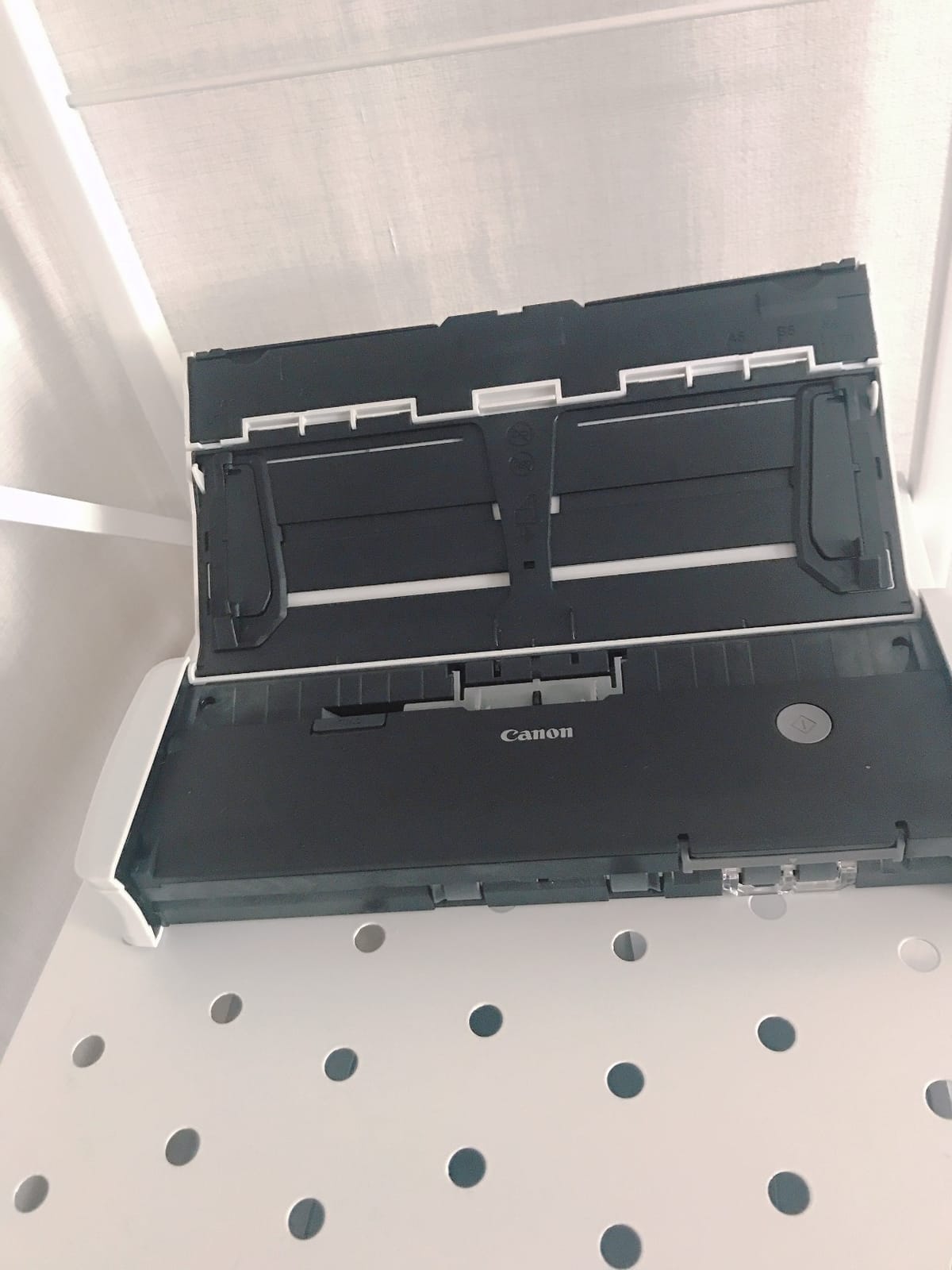
Most scanners described as portable are portable in the sense that they are small. The Canon imageFORMULA R10 is portable in the more useful sense: it has an automatic document feeder and real duplex scanning, which is the combination that actually changes how you work away from a desk.
It scans both sides of a page at up to 12 pages per minute through a 20-sheet feeder, at up to 600 dpi. Twelve pages per minute is not fast, and that is the tradeoff for a unit weighing under a kilogram — but for a consultant billing travel expenses or a contractor working from a second location, throughput does not matter nearly as much as not having to flip every page.

The software decision is unusually good. It is built into the machine, requires no installation, and updates itself. For a scanner that lives in a bag and gets connected to whatever laptop is nearby, that removes the most common reason portable scanners get abandoned — a missing driver or a vendor utility that has not been updated since a laptop’s operating system changed.
Preview and editing tools let you straighten, trim and adjust a scan before saving, which matters for receipts that arrive at an angle. It handles receipts, business cards, plastic cards, reports and legal documents, and it works on both Windows and Mac.
When the R10 is the right call
Choose it when your tax work happens in more than one place. A duplex feeder in a bag changes the calculus on travel — client invoices, fuel receipts and a hotel folio scanned on the road arrive home as searchable PDFs rather than as a pile of paper to re-handle later.
It is also a good second machine for a home office where a large desktop unit has no room. Twenty sheets is a workable batch size for a week of receipts.
When another scanner suits you better
The rating is the reason this is not higher. At 4.1 with 12 percent one-star reviews, it draws noticeably more build and reliability complaints than the Epsons and Brothers in this list, and it is not designed for scanning photographs on photo paper at all.
At 12 pages per minute it is the slowest duplex unit here. If your paperwork stays in one room, a 300 dpi desktop machine will scan it several times faster for less, and 12 ppm becomes a tax on every batch.
6. Brother DS-740D Review — duplex scanning in a very small footprint
Brother DS-740D Duplex Compact Mobile Document Scanner
Duplex at 16 ppm
25-sheet feeder
Saves 11 inches of desk space
Pros
- Scans single and double-sided pages in one pass at up to 16 ppm
- Desk Saving Design frees 11 inches of desk space
- Under 12 inches long and easy to carry in a briefcase
- One USB cable handles both power and data
- iPrint&Scan supports PC
- network
- cloud
- email and OCR destinations
- Verified Linux support with SANE and NAPS2
Cons
- Frequent false jam errors reported
- particularly on long receipts
- Short proprietary USB cable that is difficult to replace
- The paper size slider shifts when bumped
- Brother BR-Receipts software needs manual field training and its boxes cannot be resized
- Technical support and documentation are seen as weak
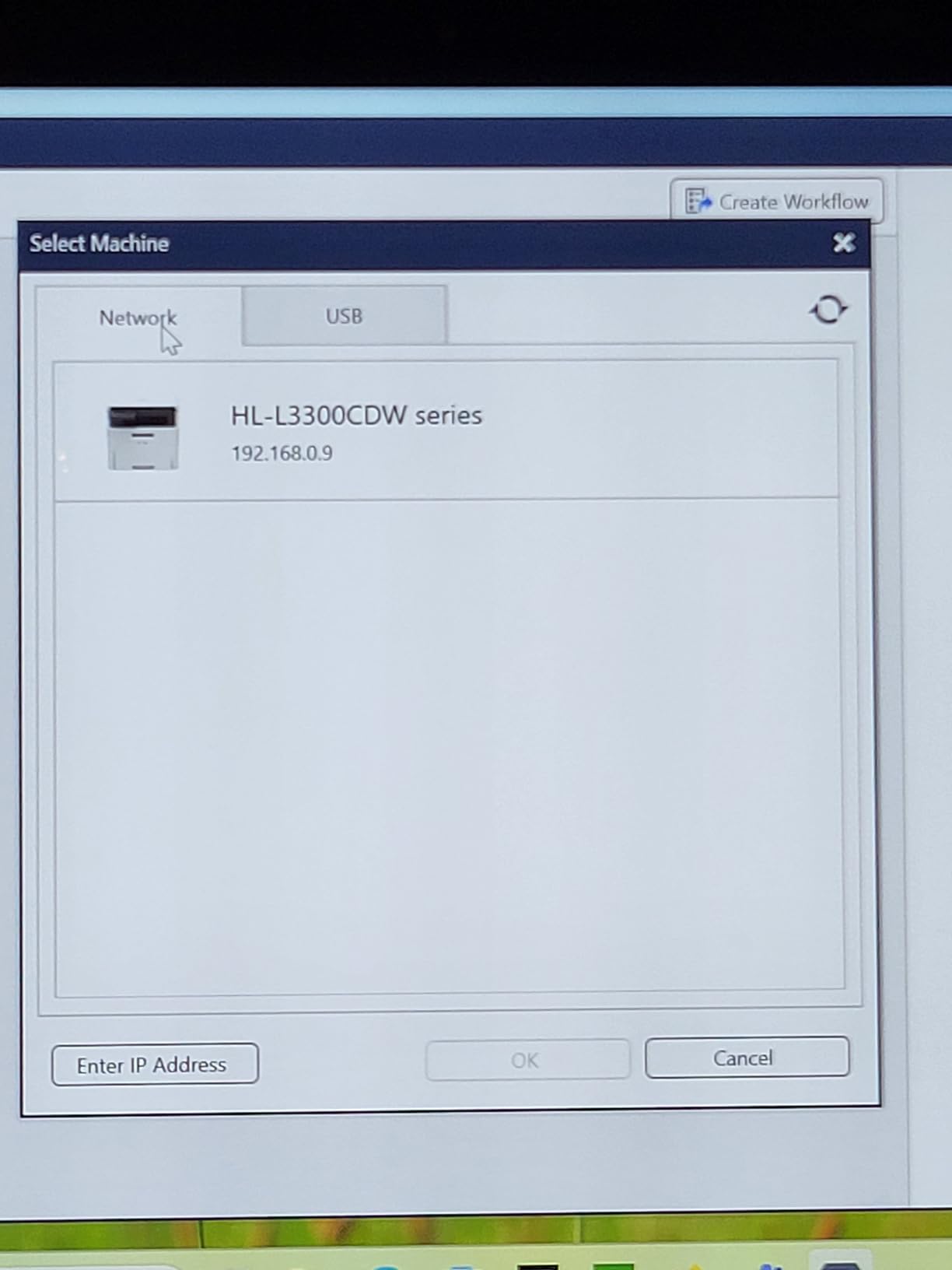
The DS-740D answers a question a lot of home filers never ask out loud: can I have an automatic document feeder and duplex scanning on a desk that already has three other things on it? This one can, by freeing 11 inches of desk space through its vertical design.
It scans both sides in a single pass at up to 16 pages per minute, and the 25-sheet feeder takes a meaningful batch. A CCD sensor handles the optical work, and the fold-flat body means it can be stored and pulled out again without a dedicated shelf.
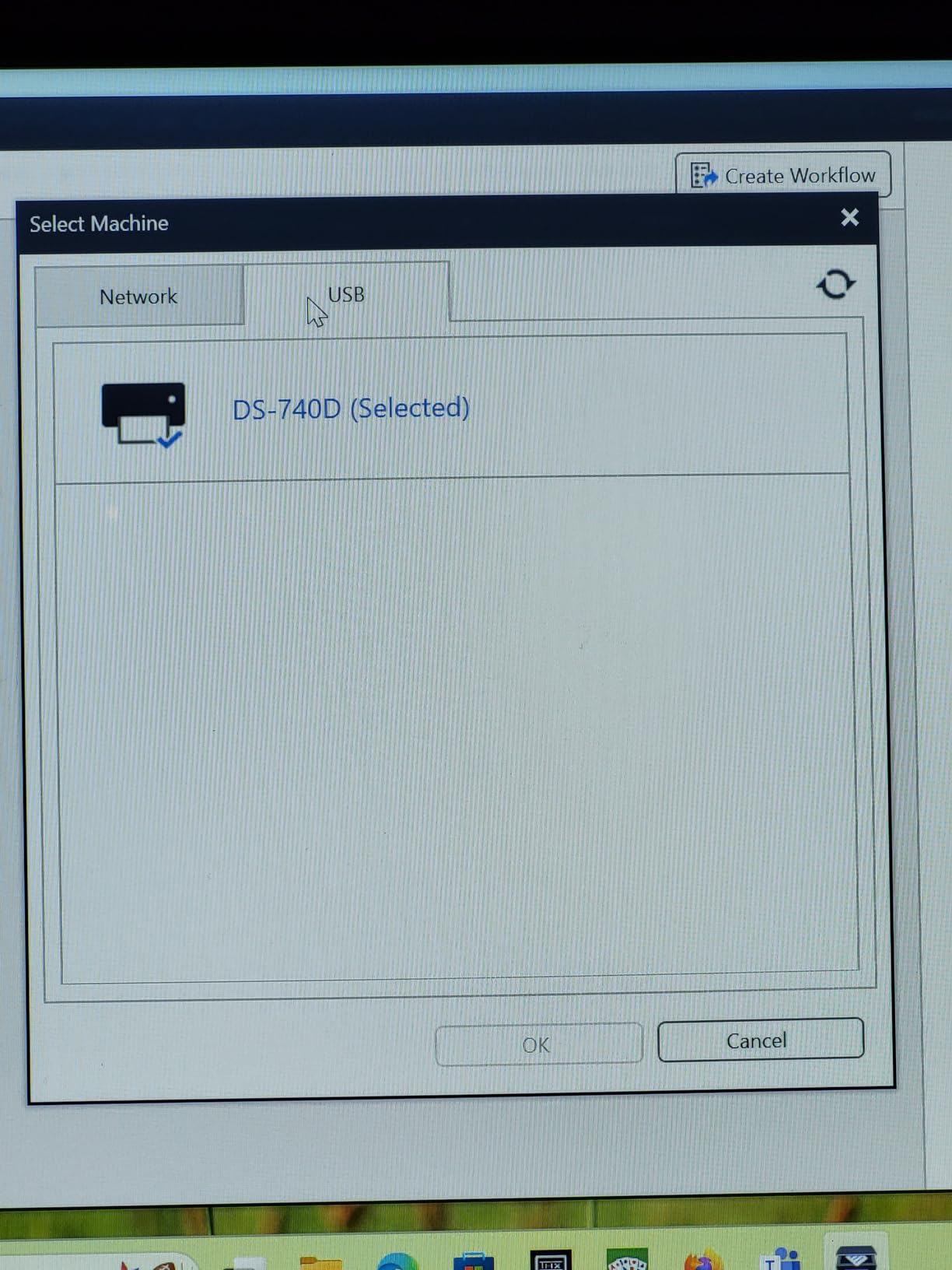
The iPrint&Scan app is genuinely good and covers destinations a filer needs: PC, network, cloud, email and OCR. It runs on Windows, Mac and Linux with TWAIN, WIA, ICA and SANE drivers, and Linux support with SANE and NAPS2 is specifically verified. Few competitors in this roundup can say that.
Automatic color detection, image rotation and bleed-through prevention run by default, so a mixed stack of forms and receipts comes out consistent without per-page settings.
When the DS-740D is the right call
It fits the small home office or a study desk shared with a laptop and a printer. Twenty-five sheets and duplex at 16 ppm is enough throughput for a salaried filer with a few hundred pages, and the small footprint means it stays out rather than being exiled to a cupboard.
Linux compatibility is a genuine reason to pick it if you run anything other than Windows or macOS, which is rarer than it should be on this kind of hardware.
When another scanner suits you better
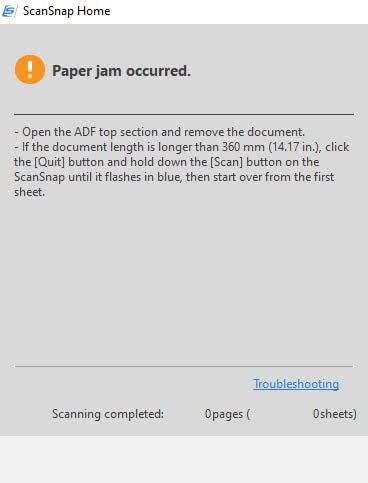
Jamming is the dominant complaint. Several reviewers replacing higher-end scanners report frequent false jam alerts on standard letter paper and long receipts, and the workaround involves unplugging the USB cable. If the machine lives somewhere inconvenient, a jam you cannot clear without a laptop is a real problem.
The paper size slider also shifts when bumped, and Brother’s receipt OCR software requires manual field training with boxes that cannot be resized. Anyone planning to extract receipt data into structured columns should test that workflow before committing.
7. ScanSnap iX1300 Review — wireless scanning with a folding body
ScanSnap iX1300 Wireless or USB Double-Sided Color Document Scanner, Black
30 ppm duplex
20-sheet feeder
Folds flat
USB or Wi-Fi
Pros
- Folding design frees desk space even while the scanner is in use
- Fast duplex scanning at up to 30 pages per minute with de-skew
- color optimization and blank page removal
- Wireless or USB
- sending scans to Mac
- PC
- mobile devices and cloud services
- Can be used with no computer at all
- Handles thick items and plastic cards as well as standard paper
- Chromebook support through the mobile app
Cons
- ScanSnap Home feels bloated compared with earlier ScanSnap software
- Firmware and software updates arrive frequently and are sometimes required
- No built-in display
- so many operations need a paired device
- Documentation does not cover Linux or non-standard compatibility
The iX1300 is the version of the ScanSnap idea that folds flat. It scans at up to 30 pages per minute duplex through a 20-sheet feeder, and then folds down to a fraction of its running size, which solves a problem most scanners create: a permanent object occupying desk space for eleven months a year.
Connectivity is genuinely dual-purpose. It works over USB or Wi-Fi, and can send scans to a Mac, a PC, a mobile device or a cloud service. It can be used with no computer at all, and Chromebook users get support through the mobile app, which matters for anyone who does their admin in a browser.
The image processing is aggressive in a helpful way. Automatic de-skew, color optimization and blank page removal happen on the way through, so a stack of slightly crooked receipts comes out aligned and clean. It also handles thick items and plastic cards alongside ordinary documents.
ScanSnap Home pulls documents, receipts, business cards and photos into one place, and a one-touch QUICK MENU starts a scan and drops the result into a favorite application. At 600 dpi it captures more detail than the 300 dpi machines, which is a genuine advantage on faded thermal receipts.
When the iX1300 is the right call
Pick it when desk space is at a premium and you want wireless without giving up feeder speed. Thirty pages per minute duplex is fast enough for a busy season, and 600 dpi is the setting you want for old, faded receipts where the print has gone thin.
It is also the option for a Chromebook user or someone who scans from a phone, since it does not require a traditional computer in the loop.
When another scanner suits you better
The software is the weak point. ScanSnap Home is heavier and slower than earlier ScanSnap software, and firmware updates arrive every few weeks, sometimes required before a feature works. Users who just want a plain PDF without a workflow suite find the extra layers tiring.
With no built-in display, many operations still need a paired device, and the documentation does not cover Linux or non-standard setups. For large batch jobs, the 20-sheet feeder also means more reloads than a 100-sheet machine.
8. Canon imageFORMULA DR-C225 II Review — direct QuickBooks Online scanning
Canon imageFORMULA DR-C225 II Office Document Scanner
25 ppm duplex
30-sheet feeder
Scans to QuickBooks Online
Three-year warranty
Pros
- Scans directly to QuickBooks Online along with Dropbox
- Google Drive
- OneDrive
- Box
- Evernote and SharePoint
- TWAIN driver included
- with Windows and Mac support
- Upright top feed and top eject design with built-in cable organization
- Bundled eCopy PDF Pro Office licence and a business card organizer
- Handles receipts
- photos
- business cards
- plastic cards and long documents
- Three-year warranty with US-based technical support
Cons
- Lowest average rating here at 4.0 with 18 percent one-star reviews
- Older model with limited wireless capability compared with newer rivals
- No touchscreen
- so scanning is controlled from a connected computer
This is the only scanner in the roundup that pushes files straight into QuickBooks Online from the device itself, alongside Dropbox, Google Drive, OneDrive, Box, Evernote and SharePoint. For a self-employed filer whose Schedule C expenses live in QuickBooks, skipping the download-and-upload step is a real saving in time.
It runs duplex color at up to 25 pages per minute through a 30-sheet feeder. The upright top-feed, top-eject design keeps the footprint narrow and includes built-in cable organization, which is the kind of unglamorous detail that matters when a scanner shares a desk with a monitor.
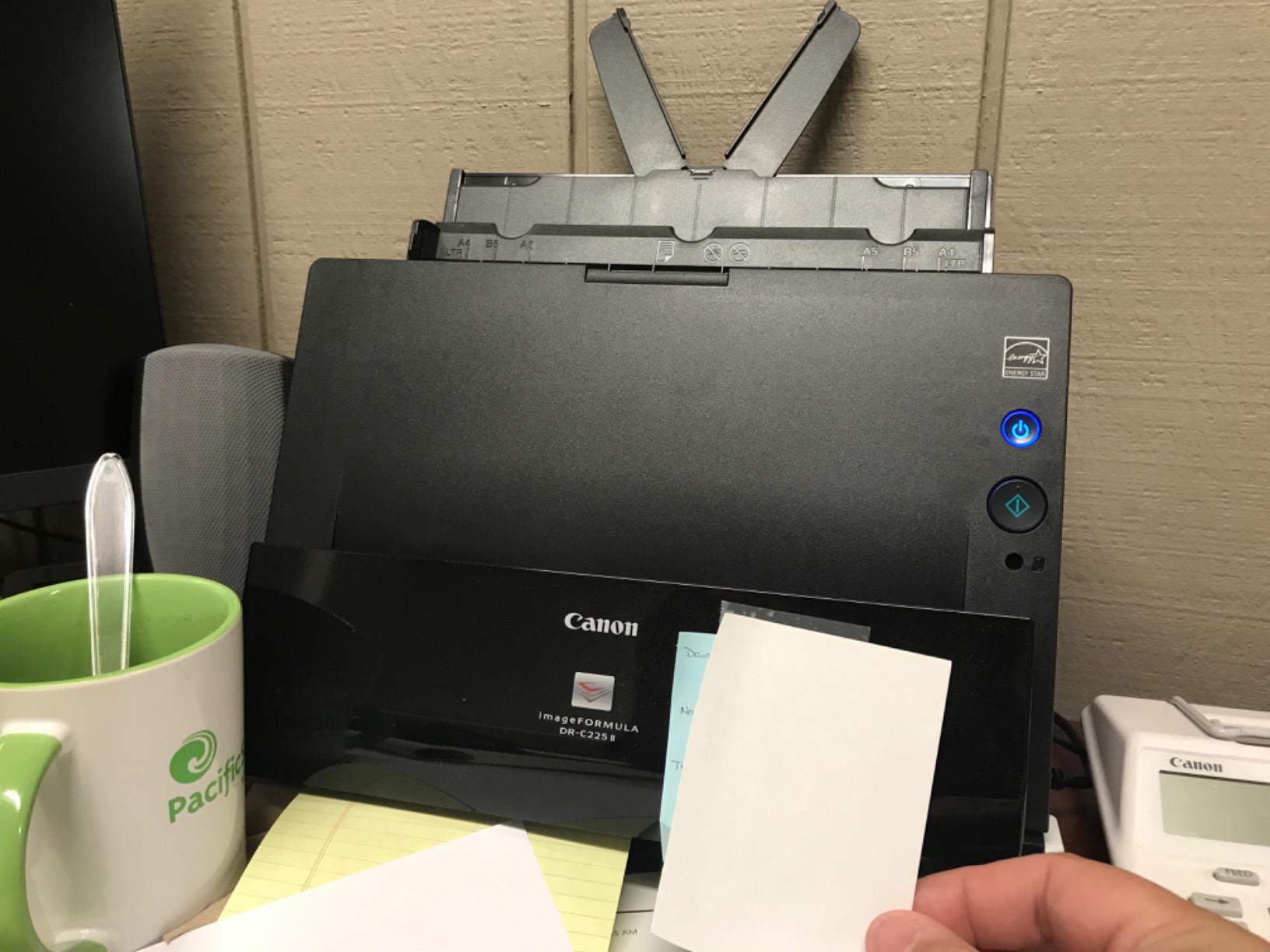
Two details make it pleasant to live with. It ships with a TWAIN driver, so it appears in third-party document management software as well as in Canon’s own utility, and it carries a three-year warranty with US-based technical support — the longest coverage in this roundup.
Media handling is broad: receipts, photos, business cards, plastic cards, thick and thin documents and long documents all feed through without a change of tray. The bundled business card organizer is a small bonus for people who invoice from conferences.
When the DR-C225 II is the right call
Choose it if QuickBooks Online is where your records end up. Direct device-to-QuickBooks scanning is the feature no other model here offers, and for a freelancer logging expenses weekly it removes a step from every single transaction rather than a step from a one-time project.
The three-year warranty also suits anyone who intends to keep a scanner for a long time. A longer warranty is meaningful when the alternative is replacing a machine every few tax seasons.
When another scanner suits you better
The rating is the concern. At 4.0 with 18 percent one-star reviews, this is the weakest showing of the ten models, and it points to reliability and software friction rather than to a specific tax workload.
It is also an older generation with no wireless capability worth relying on and no touchscreen, so scanning is driven from a connected computer. If you need to scan away from a desk, or want to share one machine between two people, choose a wireless model instead.
9. HP Small USB Document and Photo Scanner Review — the lightest option
HP Small USB Document & Photo Scanner for Portable 1-Sided Sheetfed Digital Scanning, Model HPPS100, for Home, Office & Business, PC and Mac Compatible, HP WorkScan Software Included
3 ounces
15 ppm simplex
Up to 1200 dpi
10-sheet capacity
Pros
- Extremely light at 3 ounces and small enough for a bag or briefcase
- Fast 15 ppm simplex scanning for small to medium batches
- Up to 1200 dpi
- the highest resolution in this roundup
- Paper sizes from 2 by 2.9 inches up to 8.5 by 14 inches
- HP WorkScan handles auto-scan
- size detection
- cropping
- background cleanup and hole removal
- Two-year limited warranty
Cons
- Single-sided scanning only
- HP WorkScan is the only way to trigger scanning and the on-device button is reported as non-functional
- Software is reported to use heavy CPU and crash above 300 dpi
- Long receipts repeatedly trigger false jam errors and discard partial scans
- No adjustable paper guide
- so pages drift if not perfectly square
At three ounces, this is the lightest scanner here by a wide margin, and it is the only one that also handles photographs properly. Resolution goes up to 1200 dpi, and paper sizes run from 2 by 2.9 inches for receipts up to full legal at 8.5 by 14 inches. Several users deploy it across more than one office.
The reason to own it is a specific one: a home-office filer who needs to scan a document and occasionally a photograph. A birthday card from a client, a print of a damaged receipt, an old photograph needed as supporting evidence — a pure document scanner will do all of these badly or not at all.
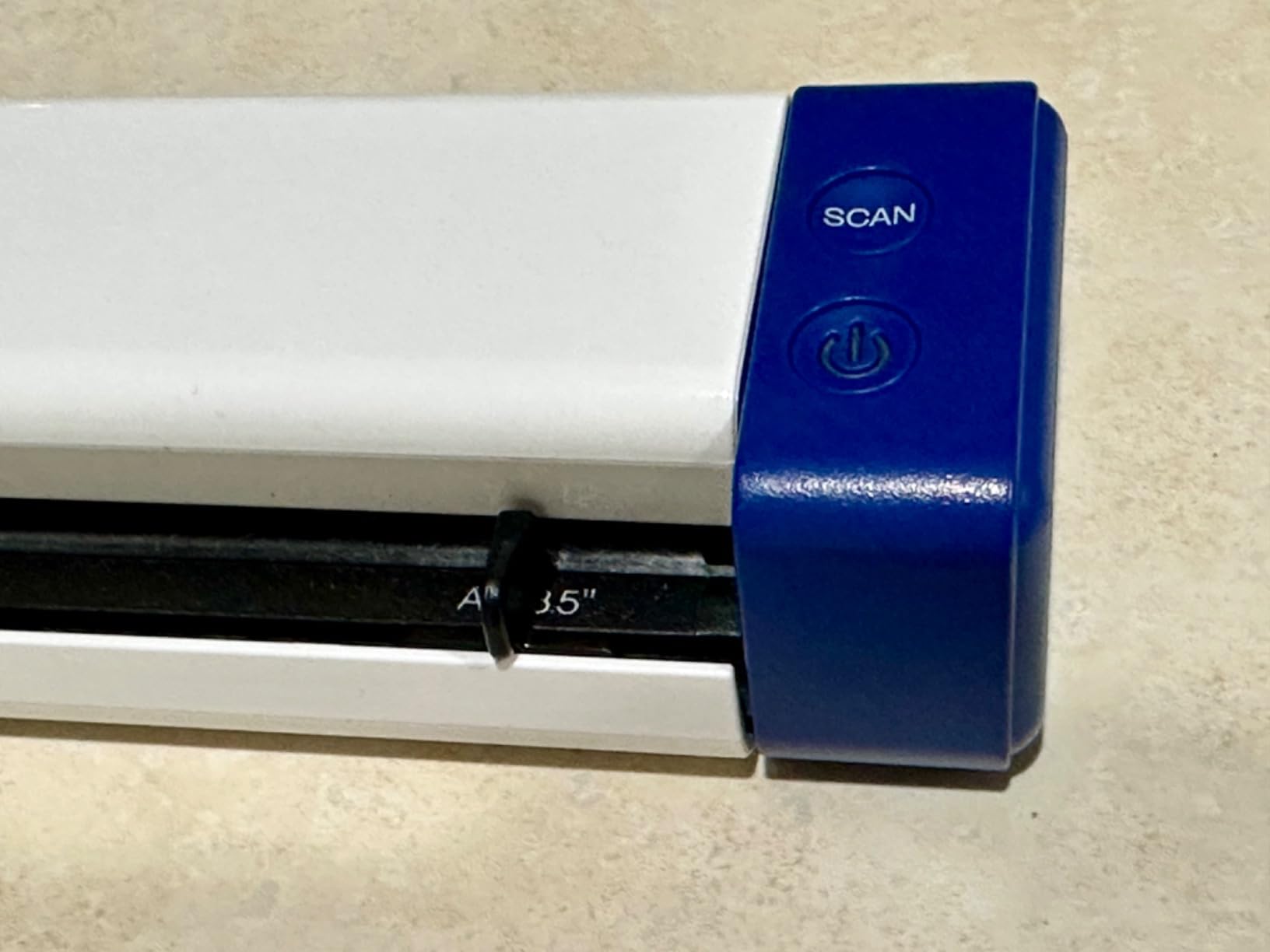
HP WorkScan covers the housekeeping work: auto-scan, size detection, cropping, background cleanup and edge and hole removal. Hole removal is quietly useful for tax files, because three-hole-punched pages staple into binders with the old holes still there, and the resulting scan has stray black marks on every third page.
It scans at up to 15 pages per minute simplex, handles a 10-sheet batch, and comes with a two-year limited warranty. It works on Windows and Mac.

When the HP scanner is the right call
Pick it if the deciding factor is what you carry. Three ounces means it can live permanently in a laptop bag rather than a cupboard, and the 1200 dpi ceiling makes it the right tool when a document is faded, small or has photographic elements alongside the paper work.
For a household that scans a small number of documents but wants them captured well, it is a reasonable stopping point that avoids desk commitment.
When another scanner suits you better
Single-sided only is a real limitation for tax work, where folded forms and double-sided paperwork are common. And the software is the weak point: HP WorkScan is the only route to scanning, the on-device button is reported as non-functional, and the application is reported to consume heavy CPU and crash machines above 300 dpi.
Long receipts trigger false jam errors that discard partial scans, and there is no adjustable paper guide, so pages drift sideways and crinkle unless they are perfectly square. If receipts are your main workload, a machine with a receipt guide and a proper feeder is a better investment.
10. Epson Workforce ES-C220 Review — compact duplex for a tight budget
Epson Workforce ES-C220 Compact Document Scanner Duplex 20-pg ADF
30 ppm duplex
20-page ADF
Saves 60% of desk space
300 dpi
Pros
- Saves 60% of desk space with an ultra compact footprint
- Single-step duplex scanning at up to 30 ppm
- 20-page feeder accepts mixed sizes and can be topped up mid-job
- Flexible scan path handles paper
- cards and passports
- Image adjustments cover auto crop
- blank page deletion
- background removal
- dirt detection
- skew correction and staple protection
- One user completed a 437 page document in about half an hour
Cons
- Reported to drop into sleep mode and vanish from the computer until power cycled
- ScanSmart filename field is too short for longer document names
- USB only
- with no wireless sharing or touchscreen
- 20-sheet feeder is sensitive to paper thickness and jams on thicker items
The ES-C220 is the middle of the range in every sense: 30 pages per minute duplex, a 20-page feeder, 300 dpi, and a body that saves 60 percent of its desk footprint. That combination makes it the compact duplex option for someone who has outgrown a single-sheet scanner but has no space for a full-size desktop unit.
The image processing list is the most complete in this roundup. Auto crop, blank page deletion, background removal, dirt detection, skew correction and staple protection all run automatically. Staple protection is the one worth noting for tax work: a folder of forms with a staple still in the corner feeds through without a jam, which saves a surprising amount of time on a hundred-page stack.
One owner reported OCRing a handwritten pencil manuscript successfully, which is a demanding test for a 300 dpi CIS sensor. Another completed a 437-page document in roughly half an hour, which is a realistic figure for a mixed stack through the 20-page feeder.
When the ES-C220 is the right call
Choose it if you want duplex scanning and a real feeder without giving up half your desk. Staple protection and dirt detection handle the two most common causes of failed batches on tax paperwork, and the flexible scan path takes cards and passports as well as paper.
It is also a good first scanner for someone moving from a phone app to hardware, since it is simple, USB-only and needs no network configuration.
When another scanner suits you better
The software annoys people. There are repeated reports of the scanner dropping into sleep mode and becoming invisible to the computer until it is power cycled, and the ScanSmart filename field is too short for descriptive names, so files get renamed in Finder afterwards. If your workflow depends on precise file names, that is a daily friction.
The 20-sheet feeder is also sensitive to paper thickness and jams on thicker items, and there is no wireless sharing or touchscreen, so a second person cannot use it independently.
What Actually Matters When You Buy a Document Scanner for Taxes
Most scanner comparisons obsess over resolution and speed, and both matter less for tax work than most people expect. What decides whether you will actually use the machine is paper handling, the OCR quality on messy thermal receipts, and where the files end up afterwards. Here is how to think through each decision.
The four scanner types and which one your tax work needs
Flatbed scanners never misfeed or jam, handle books and fragile paper of any thickness, and are unbeatable for a single item. They are slow and manual, which makes them a poor match for stacks.
Sheetfed scanners with an automatic document feeder are the workhorse for taxes. Paper goes in a stack, comes out scanned, and duplex models capture both sides in one pass. The trade-off is that a crumpled thermal receipt can stop the batch, so a flatbed is still worth keeping in mind for the worst offenders.
Receipt-specific scanners are a narrower category. They are built to run short thermal paper through quickly and often bundle software that reads vendor, date and total, then exports rows to a spreadsheet. If most of your records are receipts, this is efficient. If your folder also holds W-2s, bank statements and multi-page forms, a general document scanner handles more of the job.
Portable scanners trade capacity for size, usually giving you a one- or twenty-sheet feeder and a fold-flat body. Combo units combine a flatbed and an ADF in one chassis, which is the flexible option if you have a mix of delicate and bulky paper.
Resolution: where 300 DPI is enough and 600 DPI earns its keep
300 DPI is the practical floor for tax documents, and most of the machines in this roundup sit there. Printed forms, bank statements and standard receipts all read cleanly at 300 dpi, and the resulting file size stays manageable for years of archiving.
600 DPI is worth paying for in one specific situation: thermal receipts that have faded. Thermal print degrades, and older receipts from a shoebox can have text so thin that 300 dpi produces a search result full of misread characters. Two of the models here capture 600 dpi from the start, and one goes higher still. If your archive is mostly faded receipts, resolution is not a spec-sheet luxury.
Going beyond 600 dpi rarely helps. Files get large, scanning slows down, and the extra detail is not readable text.
Feeder capacity, duplex and speed for a season’s paperwork
Feeder capacity is the number that predicts how your weekend goes. Twenty sheets means a few reloads for a hundred pages. Fifty sheets covers a typical month of business receipts in a single load. One hundred sheets means you set a batch running and walk away.
Duplex is worth paying for in tax work specifically, because double-sided forms and folded pages are common. If your documents are all single-sided, you can save money without losing anything.
Speed is the least interesting of the three. Between 20 and 45 pages per minute, the difference is real but rarely decisive, because nobody is timing their own tax scanning. What speed does affect is your patience when the batch stalls.
OCR and the export path to Excel, CSV or your accountant
Optical character recognition turns an image of text back into selectable characters. That is what makes a PDF searchable, and it is the difference between a filing cabinet and a document database. A scanner that produces beautiful images but unusable text has solved the wrong problem for tax work.
The export path matters just as much. Forum users are consistent on this: being able to get data into CSV or Excel for a preparer beats any searchable PDF gallery. Look for a TWAIN driver so the scanner appears inside third-party document management software, and for direct destinations to accounting tools if that is where your records end up.
Watch the bundled software closely. Some utilities are excellent out of the box, while others need a paid tier or an account before OCR and export work, which is the point where many people give up.
Thermal receipt paper: the failure nobody warns you about
Thermal paper is coated with dye that transfers under pressure and heat. Run it through a feeder at speed and the ink transfers onto the rollers, then onto the back of the next receipt you scan. Forum users describe exactly this: dark smears on thermal receipts, and a roller cleaning routine that becomes part of your maintenance schedule.
Four things reduce the problem. Scan thermal receipts promptly rather than after years in a box, because fresh prints are less fragile. Clean the rollers on the schedule the manufacturer recommends, especially if you scan receipts often. Use lower feed speeds and gentler settings for thin receipts. And keep a flatbed or a phone app for the handful of receipts that are torn, folded or curling.
Scanning receipts promptly also serves the tax side of things. Physical receipts degrade, so a scan made in the year of the expense is a better record than one made five years later.
Wireless or USB, and when you can skip the computer entirely
USB is simpler, more reliable and usually cheaper. Wireless adds sharing and flexibility: several devices can use one machine, and a touchscreen model can scan and file a document with no computer in the room at all.
Skipping the computer is the underrated option. The reason many people never finish digitizing their tax records is that the scanner lives in a study and the paperwork lives in a kitchen drawer. A model with a touchscreen that saves to USB, email or cloud removes that barrier completely, and saving to a USB drive also keeps sensitive documents off cloud accounts you do not control.
Do you even need a scanner? Honest answers
For a salaried filer with fifty documents, a phone is genuinely enough. A free scanning app produces a multi-page searchable PDF from a flat surface with better lighting, and a dedicated machine will not improve those scans. Users on personal finance forums regularly describe skipping a scanner entirely and photographing documents with a phone or a small digital camera.
You want hardware when the volume is real, when the paper is too fragile or too small to photograph reliably, or when you need searchable PDF output at a volume a phone will not sustain. A shoebox of several years of receipts crosses that line quickly, because the friction is the sorting, not the capture.
You do not need a scanner if you already have a multifunction printer with a feeder. Plenty of home offices do, and it will do the job adequately. Be aware that the software bundled with a printer is usually weaker than a dedicated scanner’s, which matters more for OCR than for images.
File naming, folders and how long to keep tax records
This is the step people get stuck on before handing records to a preparer, and no hardware solves it for you. A simple convention works: one folder per tax year, subfolders by document type, and a filename pattern of year, document type, counter. A receipt folder in a tax year folder named 2026-07-14-hardware-003 is searchable in seconds; a folder of IMG_2841 files is not.
On retention, the general rule is to keep records at least as long as the period in which a return could still be examined, and longer for assets and certain retirement-related transactions. A scanned PDF is not a lesser record than the paper original, so once a scan is verified as legible, the paper can be dealt with according to your storage plan rather than kept indefinitely.
Two more details worth building in. Export a searchable PDF rather than a plain image PDF, so the text is selectable and searchable in a pinch. And keep an extra copy somewhere separate from your computer, because the most common way tax archives are lost is a drive failure.
Privacy: W-2s, 1099s and bank statements leave the drawer
Scanned tax documents carry social security numbers, bank routing details and income information, so they deserve the same care as the paper they replace. Scan to a drive you control, or to a USB device you then store securely, rather than uploading a stack of 1099s to a free cloud service you have not evaluated.
Once a scan is verified, deal with the paper deliberately. A cross-cut shredder handles receipts and single-sided documents, and a strip shredder is the minimum for anything with a social security number on it. Storing paper tax files for years in a home drawer is a more common source of identity theft than most people expect. If you want a place to put documents that are too sensitive to destroy immediately, our guide to [fireproof document safes](https://zamd.net/best-fireproof-document-safes/) covers that side. For anything that needs to stay legible for a signature or review, a [document camera](https://zamd.net/best-document-cameras/) is a better tool than a scanner.
Frequently Asked Questions
What is the best scanner for scanning tax documents?
The Epson WorkForce ES-400 II is the best all-round document scanner for taxes. Its 50-sheet automatic document feeder, duplex color scanning and ultrasonic double feed detection handle mixed paper reliably, and its OCR produces searchable PDFs plus editable Word and Excel files. It suits anyone scanning a few hundred pages a year, filing their own return, or handing a folder to a preparer each spring.
How many DPI do I need to scan receipts?
300 DPI is the practical floor for receipts and tax forms, and most scanners in this roundup meet it. Choose 600 DPI when your archive is mostly faded thermal receipts, since old thermal print can be so thin that a 300 dpi scan produces misread text. Going above 600 dpi adds file size and scan time without improving readability.
Do I really need a scanner for tax documents?
For a salaried filer with a few dozen documents, a phone scanning app is genuinely enough and produces a usable multi-page searchable PDF. Buy hardware when the volume is real, when paper is too fragile or too small to photograph reliably, or when you need searchable output at a volume a phone will not sustain. A multifunction printer with a feeder also covers the job adequately.
Which scanner is better, the ScanSnap or the Epson?
The ScanSnap iX2500 wins on throughput with 45 ppm duplex and a 100-sheet feeder, making it the better choice for a multi-year backlog. The Epson WorkForce ES-400 II wins on reliability and value, with the highest rating in this roundup and a more mature software chain. Note that the iX2500 has no TWAIN driver, which rules out third-party archiving software.
What is the best receipt scanner for taxes?
For receipts specifically, the Canon imageFORMULA DR-C225 II is the strongest option here because it scans directly to QuickBooks Online from the device. For portability, the Canon imageFORMULA R10 has a 20-sheet feeder and duplex in a body that travels. Remember that thermal ink transfers onto feeder rollers, so any receipt workflow needs a regular roller cleaning routine.
Which brand of document scanner is best for home tax prep?
Epson, Brother, Canon and ScanSnap all make reliable scanners for home tax prep, and the choice comes down to workflow. Brother wins on portability and value, Epson on reliability and rating, Canon on QuickBooks Online integration and travel, and ScanSnap on speed and wireless sharing. All four are worth considering; only the workflow differs.
Which Document Scanner for Taxes Should You Buy?
Our pick for most people is the Epson WorkForce ES-400 II. It has the highest rating in this roundup, the fewest one-star reviews, a 50-sheet feeder that handles a real season of paperwork, and OCR that produces both searchable PDFs and editable spreadsheets. Nothing else here does all four as quietly.
Buy the ScanSnap iX2500 instead if the problem is quantity — a multi-year backlog, a shared machine, or thousands of pages to clear. Buy the Brother DS-640 if you want the cheapest sensible answer and your archive fits in a few hundred pages. Buy the Epson WorkForce ES-580W if the paper is not where the computer is.
Before any of them, check whether your existing printer already has a feeder. Many filers are one unopened box away from having everything they need. When you do buy, work out your naming convention on day one, verify a handful of scans are legible, and shred the paper once you are satisfied. Check the latest pricing on the picks above and pick the one that matches your filing season rather than your ambition.