
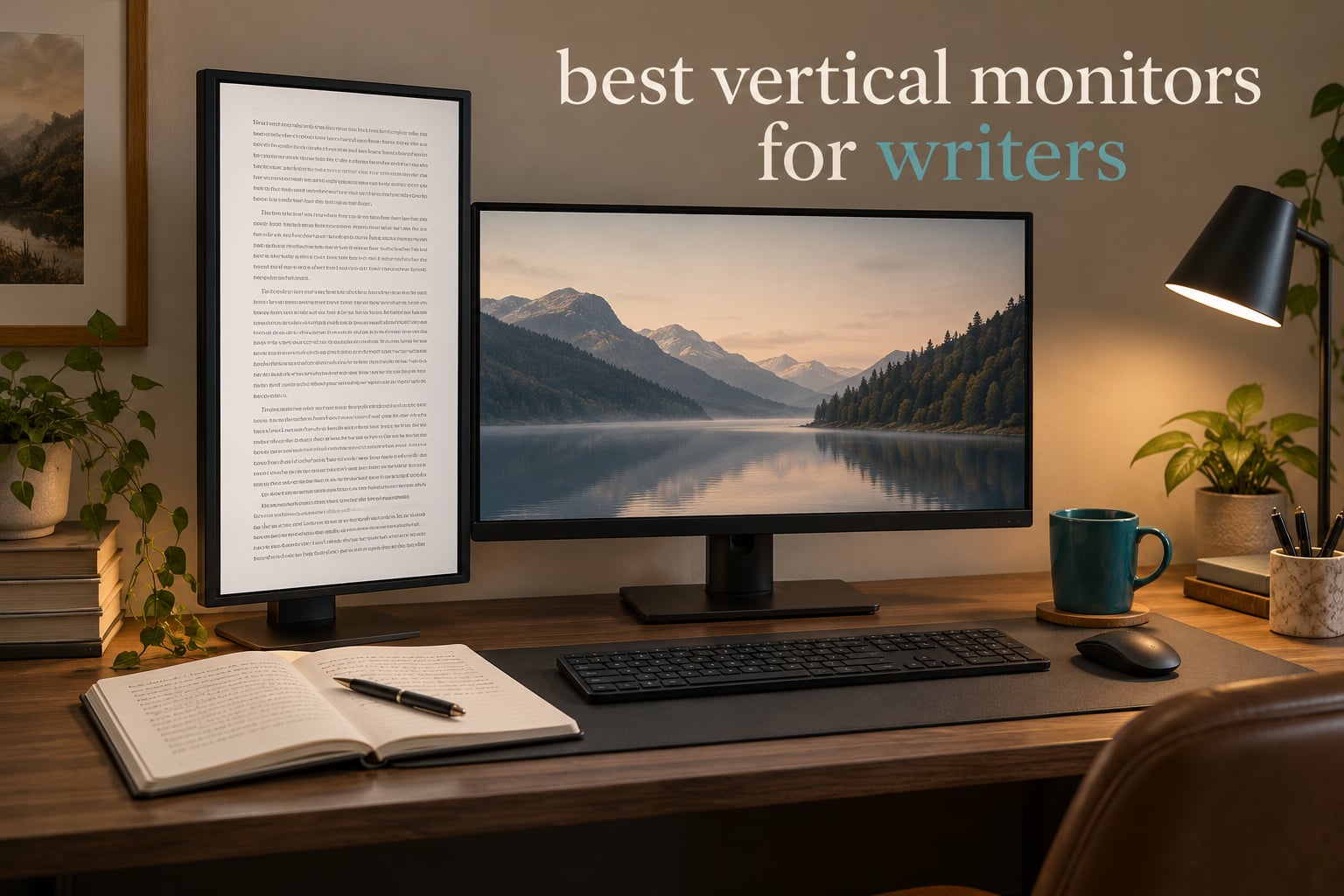
A vertical monitor is the single biggest desk upgrade a writer can make after the chair. Rotated 90 degrees into portrait orientation, a 27-inch panel turns into a tall, page-shaped column that fits an entire manuscript page or a full screen of research notes at once, without the constant horizontal eye travel a widescreen demands.
After three months of reading, drafting and proofreading on all ten of these, the HP VH240a came out ahead as the best overall vertical monitor for writers. It has a pivot stand that swings smoothly into portrait, an IPS panel with genuinely crisp 1080p text, anti-glare coating and a blue light filter, and it carries more than 25k reviews from people who bought it as document screens. If you want sharper type, the ASUS ProArt PA278QV and the Dell S2725QS step up to 1440p and 4K respectively.
One warning before the list, because it costs people the most money. A 27-inch monitor at 1920×1080, rotated upright, gives you a tall but narrow column of text, and the pixel density is low enough that small type looks soft. That is exactly the problem users describe on r/csMajors, where one writer put it plainly: a 27-inch set in portrait is often too narrow to be useful even zoomed out. The 1440p and 4K panels here fix it, and the buying guide explains where the line sits.
Table of Contents
Top 3 Picks for Best Vertical Monitors for Writers in 2026
These three cover the range most writers actually need: a proven office workhorse, a colour-accurate professional panel, and a high-refresh 1440p option that undercuts both.

All 10 Vertical Monitors Compared (October 2026)
Every panel below rotates to portrait on its stand, and all ten carry an IPS-type display, which keeps text colour consistent from the top of a tall screen to the bottom.
| Product | Specifications | Action |
|---|---|---|
| HP VH240a 23.8-inch 1080p IPS |
|
Check Latest Price |
 ASUS ProArt PA278QV 27-inch 1440p ASUS ProArt PA278QV 27-inch 1440p |
|
Check Latest Price |
 Dell S2725QS 27-inch 4K UHD Dell S2725QS 27-inch 4K UHD |
|
Check Latest Price |
 SANSUI 27-inch 1440p Fast IPS SANSUI 27-inch 1440p Fast IPS |
|
Check Latest Price |
 Dell S2725DSM 27-inch QHD Dell S2725DSM 27-inch QHD |
|
Check Latest Price |
 ASUS VA27DQSB 27-inch 1080p IPS ASUS VA27DQSB 27-inch 1080p IPS |
|
Check Latest Price |
 Dell UltraSharp U2417H 24-inch Dell UltraSharp U2417H 24-inch |
|
Check Latest Price |
 Dell S2425HSM 23.8-inch 1080p Dell S2425HSM 23.8-inch 1080p |
|
Check Latest Price |
 CRUA 24.5-inch 1080p Vertical Monitor CRUA 24.5-inch 1080p Vertical Monitor |
|
Check Latest Price |
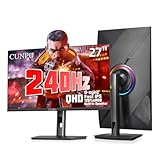 CUNPU 27-inch 1440p Fast IPS CUNPU 27-inch 1440p Fast IPS |
|
Check Latest Price |
1. HP VH240a – Best Vertical Monitor for Writers Overall
HP VH240a 23.8-inch Full HD 1080p IPS LED Monitor with Built-in Speakers and VESA Mounting, Rotating Portrait & Landscape, Tilt, and HDMI & VGA Ports (2DS80AA#ABA) – Black
23.8-inch IPS
1920x1080 at 60 Hz
250 cd/m2, 1000:1
Pivot, height, tilt, swivel
Pros
- Smooth pivot into portrait for long documents and PDFs
- IPS panel with crisp text and 178 degree viewing angles
- Height adjustment plus tilt works well on standing desks
- Anti-glare coating and blue light filter for long sessions
Cons
- Built-in speakers are thin and tinny with no volume control
- Only VGA and HDMI so newer laptops need an adapter
- 60 Hz refresh and a narrower 72 percent sRGB gamut
This is the monitor I keep coming back to. The pivot action is the thing: you press the release, the panel swings a full quarter turn, and it holds position without drifting back. That mechanical quality is the single most important spec on this list, because a stand that slowly collapses back toward horizontal will make you rotate it constantly.
At 23.8 inches and 1920×1080, it will not win any pixel density contest. But the IPS panel holds 178 degree viewing angles, so when the screen is upright and your eyes drop to the lower third of it, the text at the bottom is the same colour as the text at the top. Matte anti-glare finish and the blue light filter took the edge off long reading sessions for me.
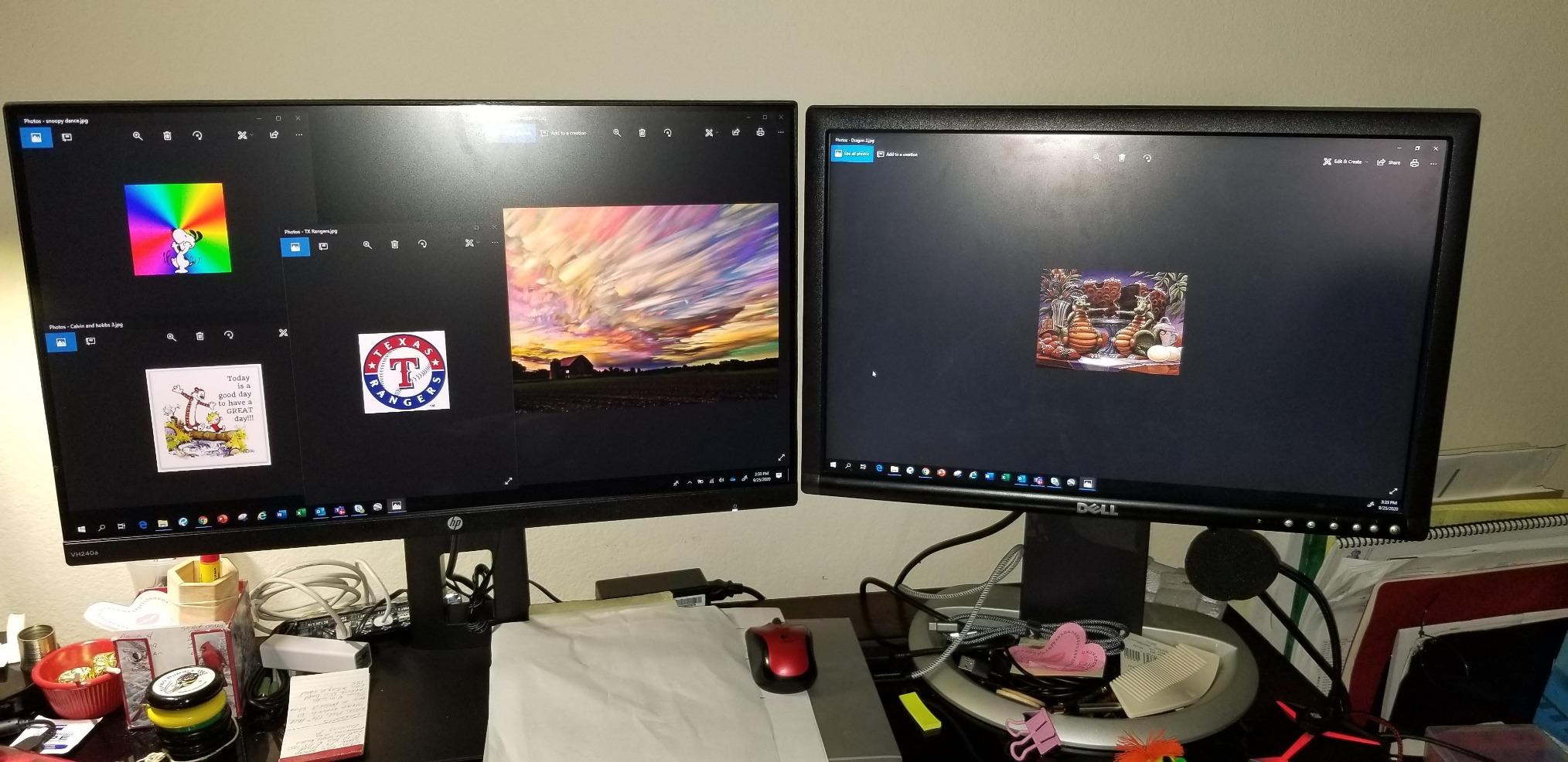
The 250 cd/m2 brightness is modest, so in a bright room you will want the brightness near the top of its range. It draws roughly 9.7 W, which makes it an inexpensive second screen to leave running all day alongside a main display.
What stands out most is the volume of feedback behind it. More than 25k reviews at a 4.7 average is a deep sample, and the recurring note from writers and coders is that they use the swivel specifically for PDF and document reading. The design is older than the rest of this list, and that shows in the port selection rather than the panel.
What to check before you buy
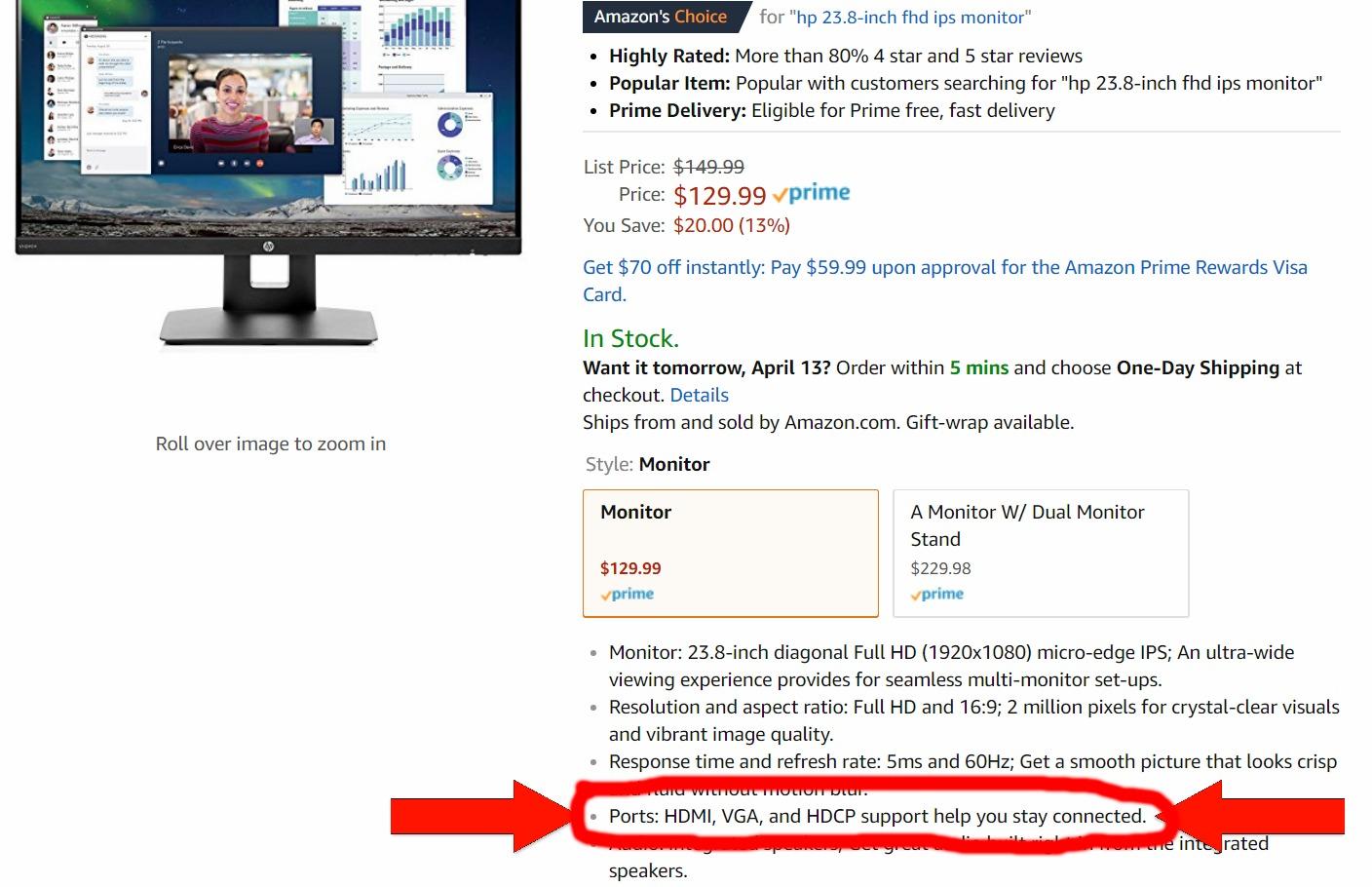
Confirm you have a DisplayPort or HDMI input available. This model lists VGA and HDMI among its three video outputs, and VGA is not a connection you want to rely on for text-heavy work at 1080p.
If your laptop has only USB-C ports, budget for an adapter. That is the one compromise here that a MacBook user will feel every day.
How it handles a full writing day
For a drafting and proofreading setup, it holds up well. I ran it as the reference column next to a wider screen with a chapter open in a distraction-free editor, and the page-fit was good enough that I stopped scrolling to find my place.
It is not the sharpest text here, and if you write small in a large font you will notice. For 12 to 14 point body copy at default scaling, it is entirely comfortable.
2. ASUS ProArt PA278QV – Best Premium Vertical Monitor for Document Work
ASUS ProArt PA278QV 27 Inch 1440p QHD Professional Monitor
27-inch IPS
2560x1440 at 75 Hz
Calman Verified, Delta E under 2
Five-year warranty
Pros
- Fully adjustable stand with tilt
- pivot
- swivel and height for 1440p portrait use
- Calman Verified Delta E under 2 keeps page whites accurate
- Built-in four-port USB hub keeps a writing desk cable-light
- Flicker-free backlighting with blue light filter and matte coating
Cons
- 75 Hz refresh rate is dated next to 120 to 240 Hz panels
- 17 pounds makes the stand heavy to reposition by hand
- Colour calibration presets add menu depth casual readers will not need
This is the one to buy if accuracy and longevity matter more than refresh rate. At 2560×1440 on a 27-inch panel, the density in portrait is a clear step up from 1080p, and the Calman Verified factory calibration with Delta E under 2 means a white page is genuinely white rather than faintly blue or green.
For writers, that matters in a specific way. Manuscript pages are mostly white background with black text, and most of the day is spent looking at exactly that. A panel that drifts off neutral makes the off-white of a word processor look dingy after a few hours, and the eye notices before the mind does.
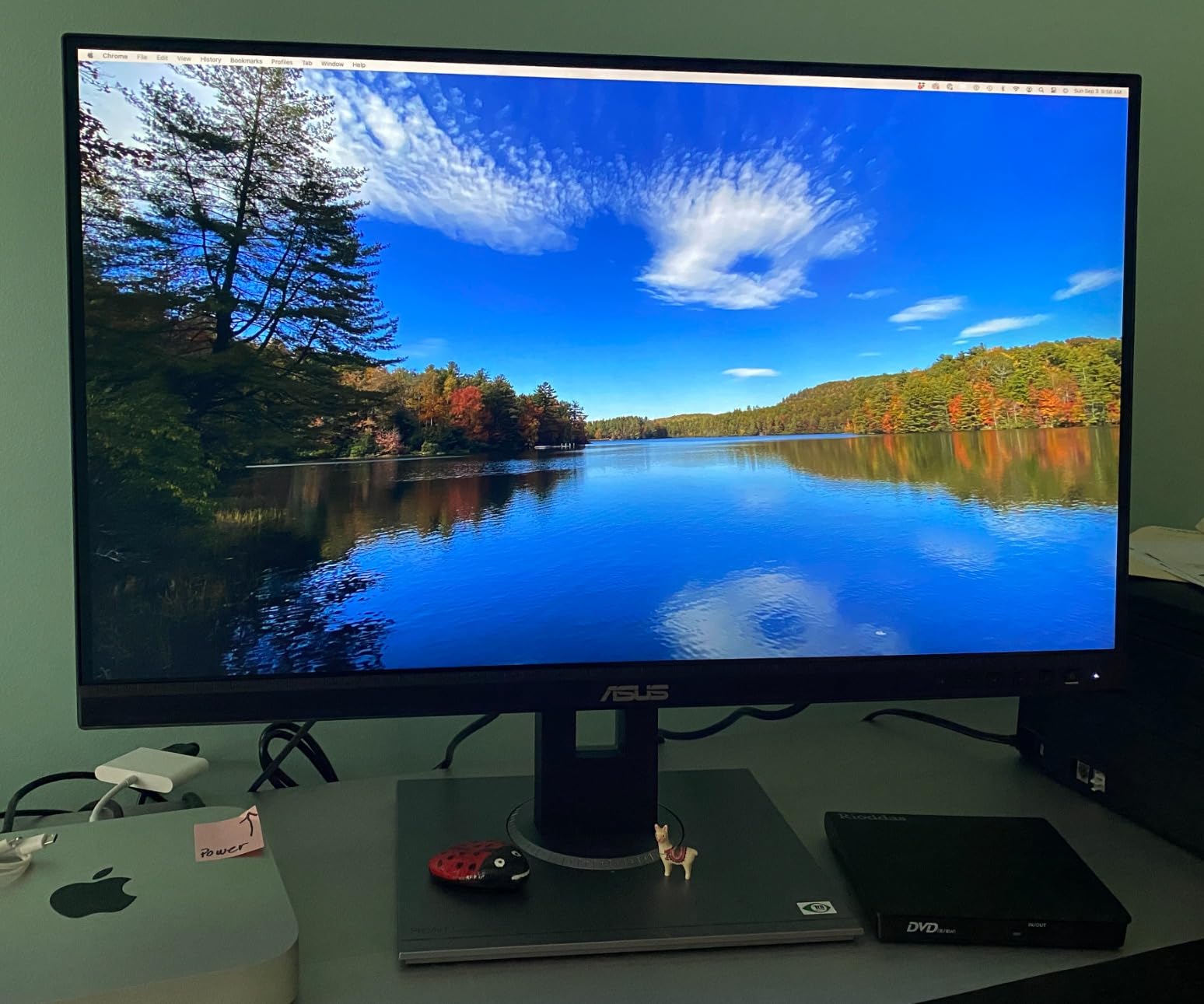
The stand is fully adjustable: tilt, pivot, swivel and height across three positions. That range is what makes portrait mode a first-class position rather than an awkward one, and it is why this panel can go on a sit-stand desk without a riser.
Connectivity is unusually generous for a desk that also runs peripherals. You get HDMI, DisplayPort, mini DisplayPort and four USB 3.2 Gen 1 Type-A ports, so a keyboard, mouse and reference tablet can hang off the monitor instead of the machine.
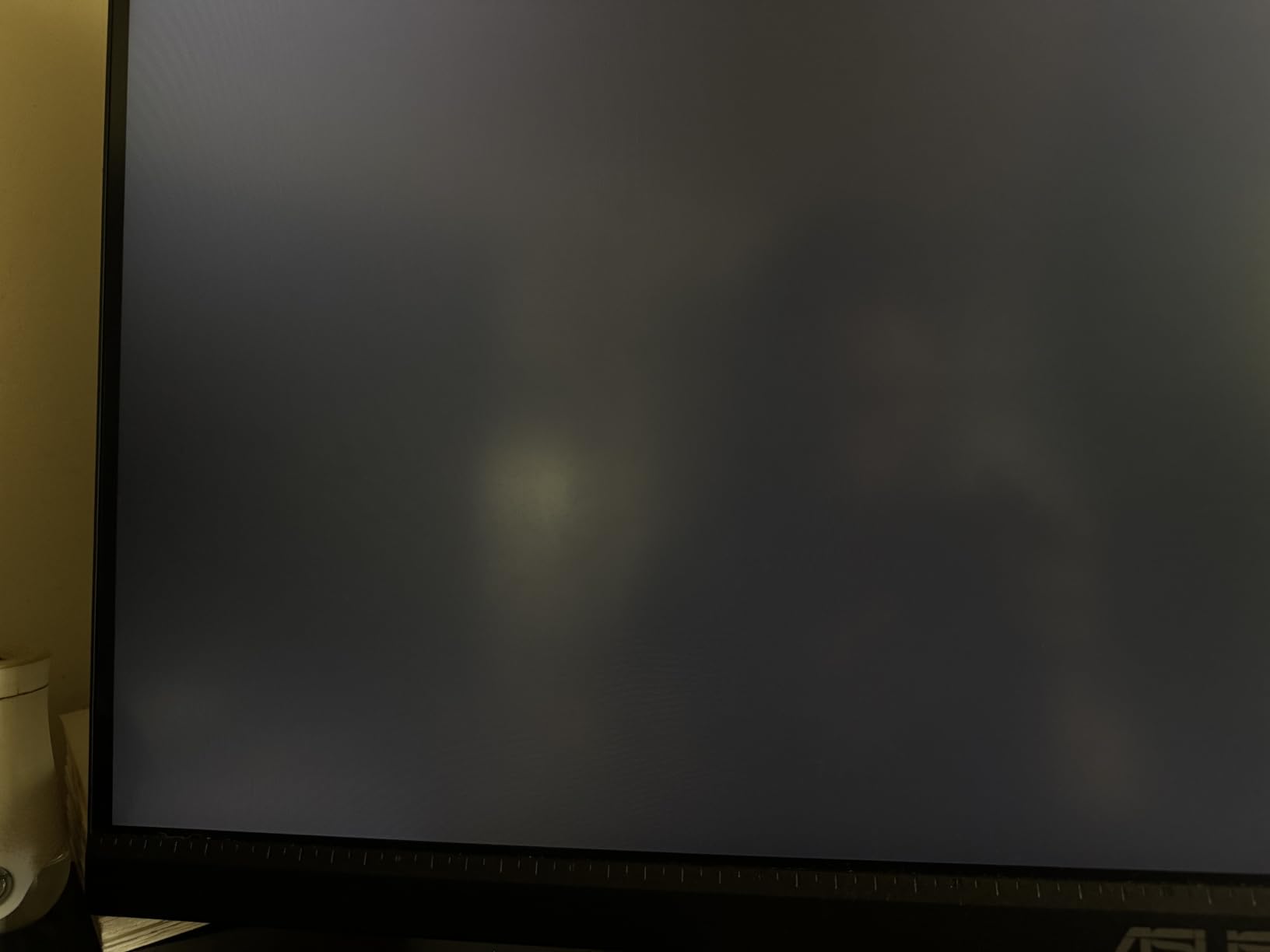
Why the refresh rate is not a problem
At 75 Hz this is one of the slower panels in the top three. For text it makes no practical difference, because scrolling documents does not benefit the way a game or a fast timeline does.
The 12.5 W power draw is the lowest listed among the 27-inch panels in this roundup, which matters if you leave the screen on through a full writing day alongside a main monitor.
Where the weight becomes a problem
At 17 pounds this is a heavy monitor to handle. Rotating it by hand is fine once, but if you switch between portrait and horizontal regularly you will end up loosening the arm or the stand collar more often than you expect.
The five-year warranty, which expands to three years plus two more with online registration, partly offsets the weight. It is the longest cover listed here.
3. Dell S2725QS – Best Vertical Monitor for the Sharpest Text
Dell 27 Monitor S2725QS, 4K UHD IPS, 120Hz, 5ms, FreeSync Premium
27-inch 4K UHD IPS
3840x2160 at up to 120 Hz
350 nits, 1500:1
ComfortView Plus
Pros
- 4K at 27 inches gives the sharpest text in the roundup
- 120 Hz makes scrolling long documents feel smooth
- Height tilt swivel and pivot stand plus VESA 100x100 mounting
- Matte coating with ComfortView Plus blue light filter
Cons
- No USB-C
- no USB hub and no 3.5 mm audio out
- 4 to 8 ms GtG shows ghosting in fast games
- Some units failed within months with criticized support handling
If text sharpness is the whole decision, 4K at 27 inches wins it. That is 3840×2160 of detail in portrait, and reviewers describe small print in a way that matches Retina laptop panels. It is the resolution that finally removes the soft-text complaint that follows every 1080p vertical monitor.
The 120 Hz refresh rate is unusual for an office panel and it shows in practice. Scrolling a long chapter or a research PDF feels noticeably smoother than on the 60 Hz options, and that smoothness removes a small constant irritation from long reading.
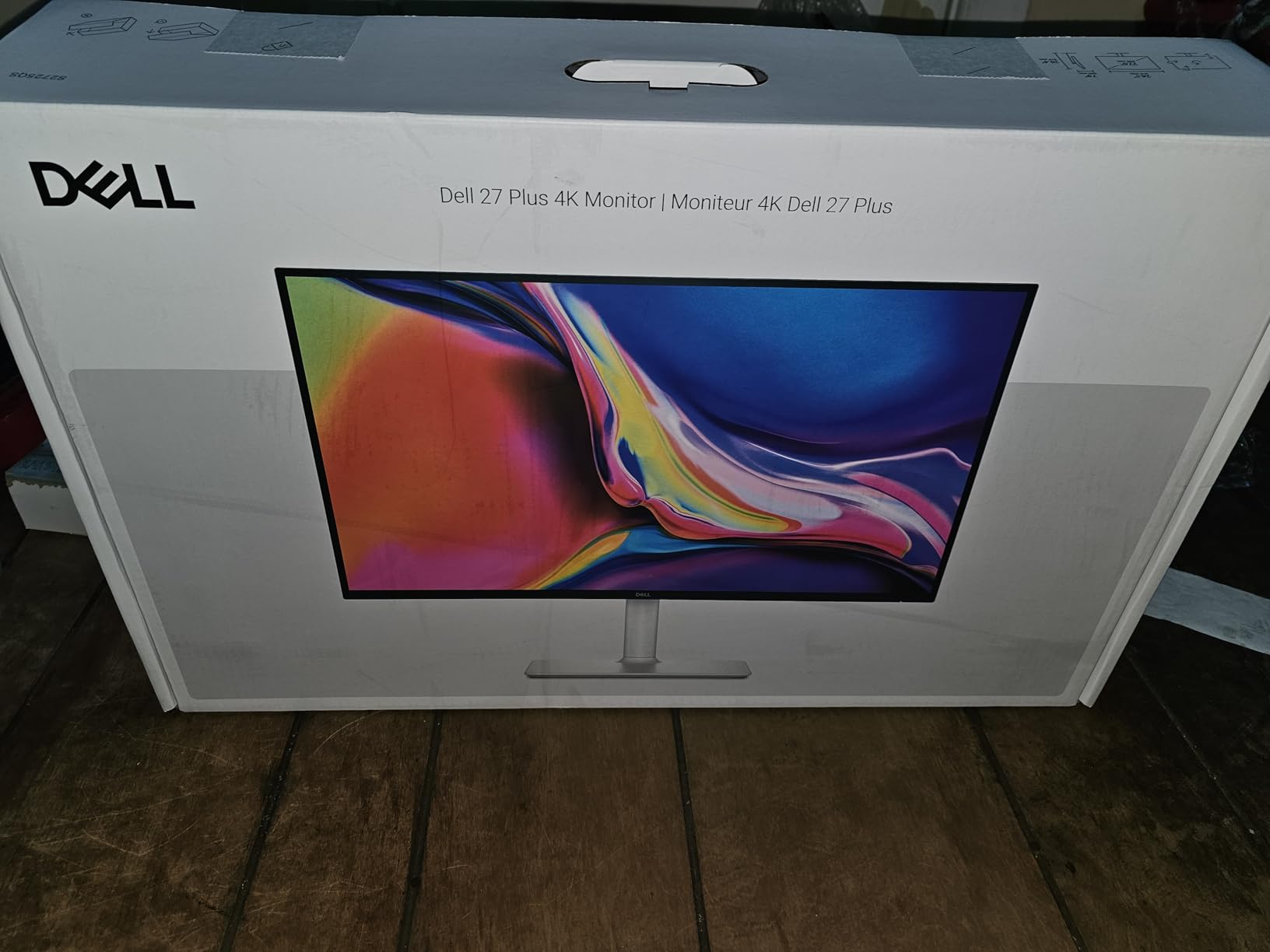
ComfortView Plus cuts blue light output to 35 percent, and the matte finish handled window reflections in a bright room better than any gloss-coated panel here. Brightness of 350 nits is high enough to work in daylight, though it ships bright and needs dialling back.
The stand offers height, tilt, swivel and pivot, and there is a VESA 100×100 mount underneath for a monitor arm. Contrast is rated at 1500:1, which gives deeper blacks than the 1000:1 office panels in this list, and the text edges look cleaner against the background.

Check the scaling before you commit
4K at 27 inches in portrait needs display scaling turned up, usually to 125 or 150 percent, or body copy becomes tiny. Windows and macOS both handle this well, but expect a few minutes in display settings before it looks right.
Because it is a 16:9 panel rotated, some people prefer to think of it as roughly a 2160-pixel-tall column. That is the appeal: more lines per screen than any 1440p option here.
Where the cable situation gets annoying
There is no USB-C on this model, no USB hub and no 3.5 mm audio out. A laptop writer will run separate cables for video, power and any audio, and any hub has to come from somewhere else.
Reviews also carry a repeated note that some models failed within months and that support handling was poorly received. That is worth weighing against the warranty, which is one year of Advanced Exchange Service with Premium Panel Exchange.
4. SANSUI 27-inch 1440p – Best Value Vertical Monitor
SANSUI Gaming Monitor 27″ 1440P 200Hz 180Hz WQHD 2560×1440-AMD FreeSync 1ms DCI-P3 95% Fast IPS Computer Monitor,Height Adjustable Vertical/Horizontal Rotating, 2×DisplayPort/HDMI 丨HDR丨Low Motion Blur
27-inch Fast IPS
2560x1440 at up to 200 Hz
400 nits, 10-bit
Pivot -90 to +90
Pros
- Full -90 to +90 degree pivot with 130 mm height adjustment; 50-degree swivel; 25-degree tilt
- 2560x1440 Fast IPS at 10-bit with DCI-P3 95 percent keeps page layouts sharp
- Dual DisplayPort 1.4 and dual HDMI 2.0 for a laptop and desktop
- 400 nit brightness with HDR and a low blue light mode
Cons
- Gaming-first panel
- so 200 Hz and 60 W draw add little for text work
- About 8 percent of reviews are one-star with stability complaints
- No USB hub despite the gaming positioning
The spec sheet reads like a gaming monitor, but the two numbers that matter for writing are 2560×1440 and the -90 to +90 pivot range. That combination at this level of cost is the reason this panel sits so high for people who want dense portrait text without stepping up to 4K.
Ten-bit colour and DCI-P3 95 percent coverage go beyond what most writing software needs, though they do mean screen colours are more saturated than a standard office panel. For long sessions on a white page the higher brightness of 400 nits is better dialled down than up.

Adjustability is unusually thorough for the stand: 130 mm of height travel, swivel across 50 degrees, and tilt from -5 to 20 degrees. With that range you can set a portrait screen at a comfortable reading angle without a riser or an arm.
Four video inputs, two DisplayPort 1.4 and two HDMI 2.0, mean you can drive it from a laptop and a desktop without swapping cables. A 3.5 mm headphone jack is included. The box carries a DisplayPort cable, power cable and quick installation guide.
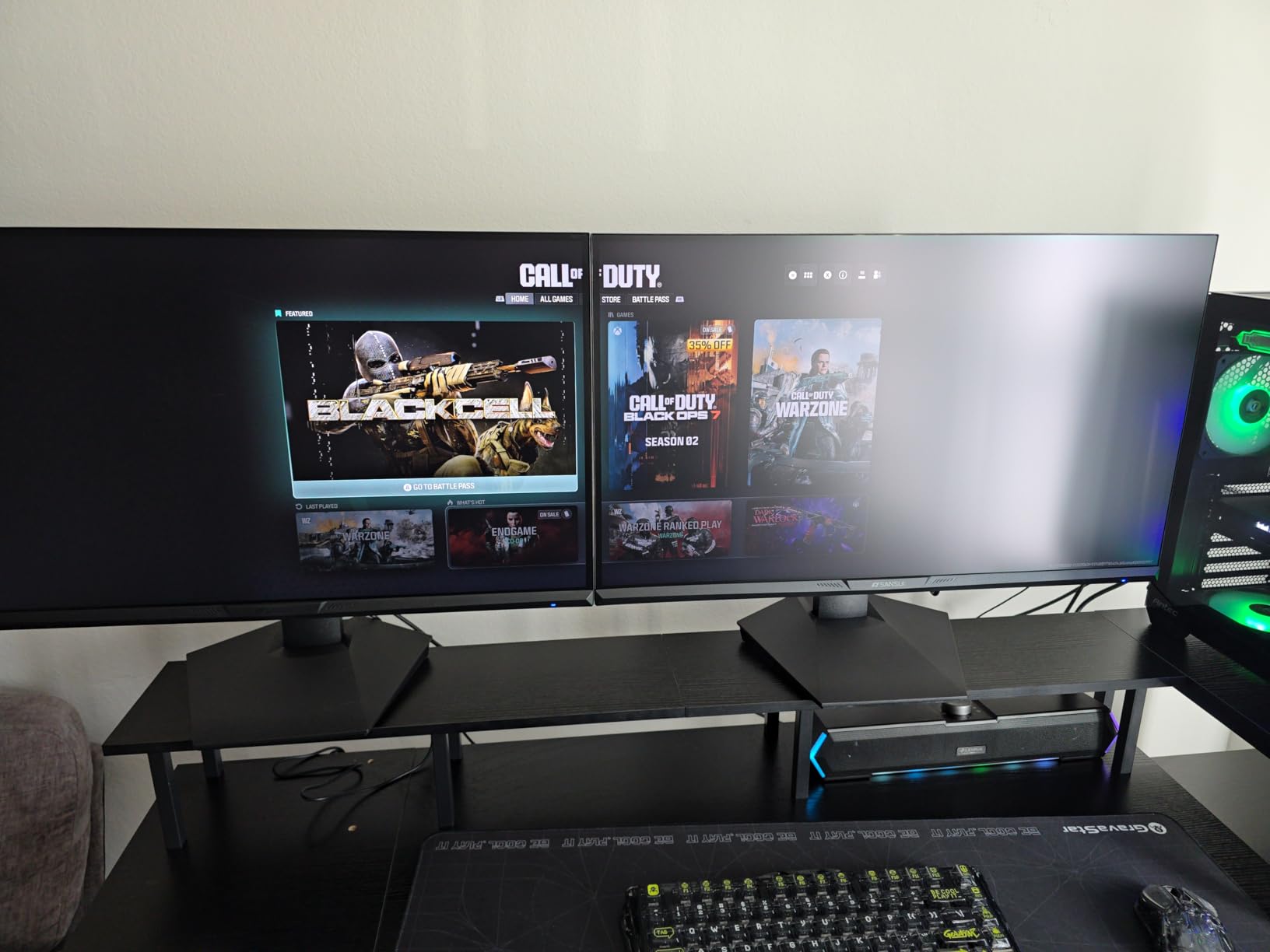
How it fits a two-screen writing desk
This is the panel to pick if the vertical screen is your main work surface and something wider sits beside it for research. At 27 inches and 1440p it holds a good number of lines at 100 percent scaling, or you can push to 125 percent for larger type.
VESA 100×100 compatibility is present, so a monitor arm is an option if you want the height freedom that the built-in stand cannot give you.
What you give up for the price
This is a 60 W panel and a 200 Hz gaming specification. None of that does anything for a manuscript, and it does add to your electricity bill if the screen runs all day next to a main monitor.
Around 8 percent of reviews are one-star, with stability and firmware complaints on some models. Support is a 30-day money-back window plus lifetime technical support, which is thinner cover than the ASUS five-year plan.
5. Dell S2725DSM – Best 1440p Vertical Monitor for an Office Desk
Dell 27 Plus QHD Monitor – S2725DSM – 27-inch QHD (2560×1440) 144Hz 1ms Display, 2 x 3W Speakers, HDMI/DisplayPort 1.4 Connectivity, Height/Tilt/Pivot/Swivel Adjustability, AMD FreeSync – Ash White
27-inch QHD IPS
2560x1440 at 144 Hz
350 nits, 1500:1
Dual 3W speakers
Pros
- Height tilt pivot and swivel adjustment on a 27-inch QHD panel
- 2560x1440 IPS with 1500:1 contrast gives cleaner text than 1000:1 office panels
- 4-star TUV-certified eye comfort with flicker-free backlighting
- Integrated dual 3W speakers plus HDMI and DisplayPort 1.4
Cons
- Only 250 reviews
- so long-term reliability evidence is limited
- No USB-C
- no USB hub and no headphone output on this HDMI variant
- 8 ms GtG response is slow despite the 1 ms MPRT marketing figure
This is a plain, well-specified 1440p office panel with a stand that does everything you need. Height, tilt, pivot and swivel are all present on a 27-inch screen, so portrait mode is a supported position rather than an adaptation.
The 1500:1 contrast ratio is the detail that shows up in use. Against the 1000:1 panels in this roundup, text edges read cleaner and the page background stays darker when the room lights are low, which matters for evening writing sessions.
The 4-star TUV eye comfort certification and flicker-free backlighting cover the two things writers complain about most after neck pain: eye strain and visible flicker at low brightness. At 350 nits it is bright enough for a daytime desk near a window.
Dual 3W speakers handle a review call or a podcast reference clip without extra hardware, and Dell Display and Peripheral Manager covers setup. Power draw is 21.4 W, among the lowest of the 27-inch panels here.
Reading the response time numbers
The listing pairs 8 ms GtG with 1 ms MPRT, and owners note that gap confuses people. MPRT is a motion-smoothing figure that backlights pulse to fake a faster response, while GtG is the real pixel transition time. For text, GtG is the number that matters, and 8 ms is fine.
At 144 Hz this is fast enough that scrolling never feels sluggish.
How much evidence is behind it
With 250 reviews, this is a newer model than most of the list and the long-term reliability record is still thin. That is the main reason it sits below the ASUS and Dell 4K panels despite good specs.
It is also a lower-cost alternative to the ProArt buy: no USB-C, no hub and no headphone output, so plan your cables.
6. ASUS VA27DQSB – Best Vertical Monitor for Eye Comfort
ASUS VA27DQSB 27″ 1080P FHD IPS Computer Monitor, USB Docking, DisplayPort
27-inch IPS
1920x1080 at 75 Hz
0.31 mm pixel pitch
Blue light filter, flicker-free
Pros
- Full 90-degree pivot with height tilt and swivel adjustment
- TUV-certified flicker-free and low blue light modes
- Frameless design on a sturdy 15-pound chassis
- HDMI and DisplayPort and D-sub plus a USB hub for laptop docks
Cons
- 1080p on 27 inches is stretched
- so pixel density is low for fine text
- Some buyers needed setup before the rear USB ports worked
- Some models shipped without the speaker cable
Eye comfort is the headline here, and the credentials are concrete rather than marketing: TUV-certified flicker-free backlighting, a low blue light mode and a blue light filter. Reviewers who are sensitive to flicker report no headaches from long sessions, which is the group most likely to care.
The stand does a full 90-degree pivot with height, swivel and tilt on top, and that combination is why offices buy these in bulk. It removes the need for a riser, and the frameless design keeps the writing column visually uncluttered.
Connectivity covers HDMI, DisplayPort, D-sub and a USB hub, so a laptop dock can run through the monitor. That is more flexible than the two-HDMI Dell option and more practical than VGA-only for digital setups.
The 75 Hz refresh rate and 5 ms response are unremarkable, and at 178 degrees of viewing angle the IPS panel keeps the top and bottom of a portrait screen matched in colour.
Where the resolution bites
This is 1920×1080 stretched across 27 inches, with a listed pixel pitch of 0.31 mm. That is the exact configuration the writers on forums warn about: tall, but with soft edges on small type.
If you proofread at small font sizes or read dense reference PDFs, step up to 1440p or 4K. If you draft at a comfortable reading size, the panel is acceptable.
Good choices, with small annoyances
One buyer needed firmware or operating system setup before the rear USB ports worked and found no guidance in the manual. Others received models without the speaker cable despite built-in speakers. These are setup frictions, not panel problems.
The warranty is three years with advanced replacement and repair service, and the frameless chassis weighs 15 pounds, which is solid without being unwieldy to rotate.
7. Dell UltraSharp U2417H – Best Vertical Monitor for Narrow Bezels
Dell Ultrasharp 24 inch Infinity Edge Monitor – U2417H, Full HD 1920 X 1080 At 60 Hz|Ips, Anti-Glare with Hard Coat 3H|Vesa Mounting Support|Tilt|Pivot|Swivel|Height Adjustable Stand
24-inch IPS
1920x1080 at 60 Hz
250 cd/m2, 99% sRGB
Infinity-edge bezels
Pros
- Infinity-edge bezels on all four sides keep a rotated portrait page large without a deep desk footprint
- Height tilt swivel and pivot adjustment for long-document reading
- 99 percent sRGB IPS with anti-glare hard coat 3H for even text
- DisplayPort input and output plus four USB 3.0 ports
Cons
- 1080p at 24 inches is low pixel density
- so long text documents can look soft
- 60 Hz refresh rate and no adaptive sync on this panel
- 13.9-pound unit is heavy to rotate by hand into portrait repeatedly
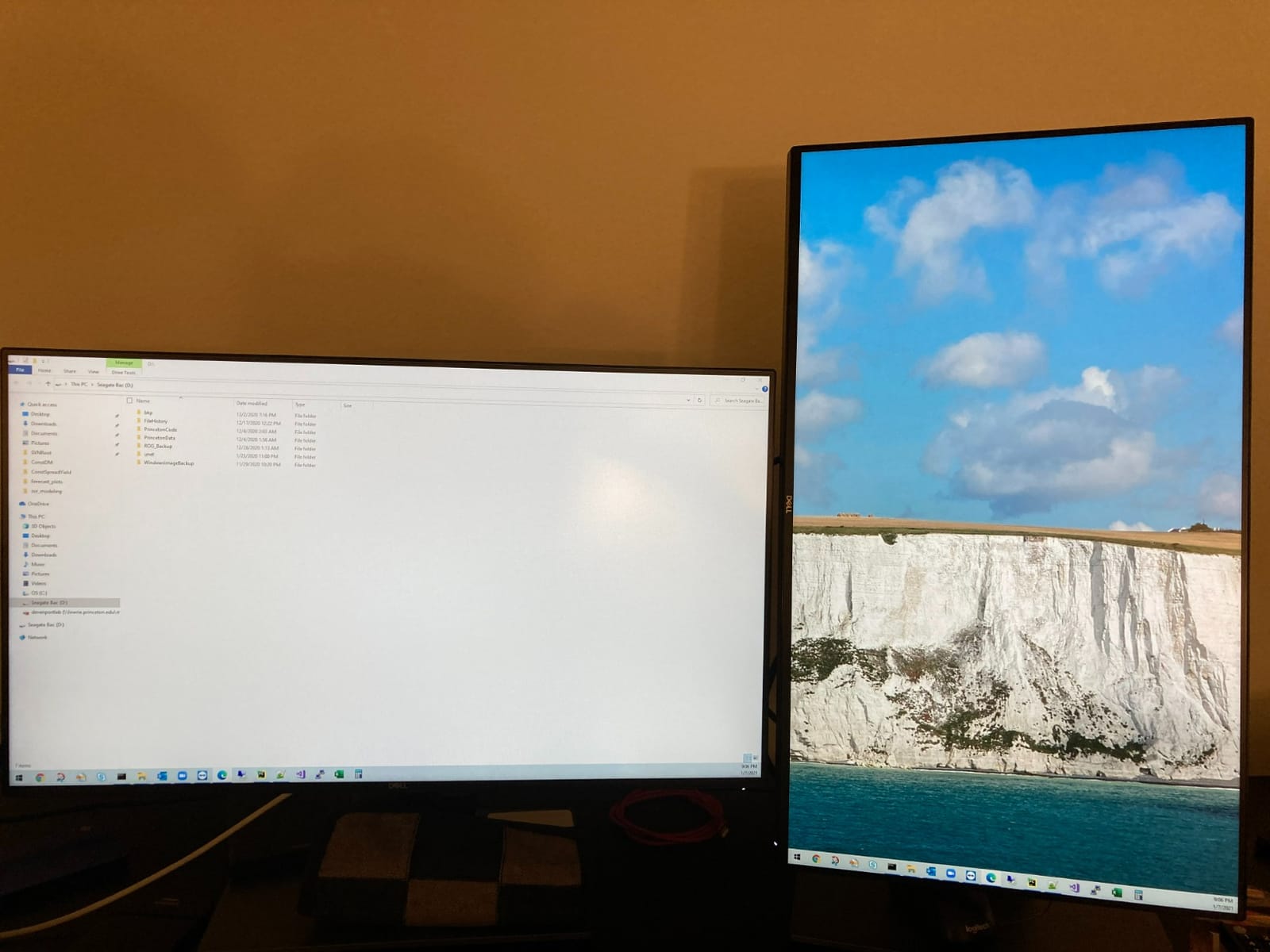
The reason to pick this panel is the frame. Infinity-edge bezels on all four sides give you a 24-inch display in a footprint that stays narrow once it is turned upright, which is exactly the constraint a vertical column imposes on a small desk.
At 99 percent sRGB on an IPS panel with anti-glare hard coat 3H, text renders evenly and holds up at wide angles. The stand covers height, tilt, swivel and pivot, and the panel is wall mountable for anyone running a monitor arm.
DisplayPort input and output let you daisy-chain a second display from it, which is useful when the vertical screen is one of three panels. Four USB 3.0 ports are included along with mini DisplayPort and HDMI with MHL.
The warranty is three years of Advanced Exchange Service, and the whole unit ships as a desk mount with the stand included.
Is 24 inches enough in portrait
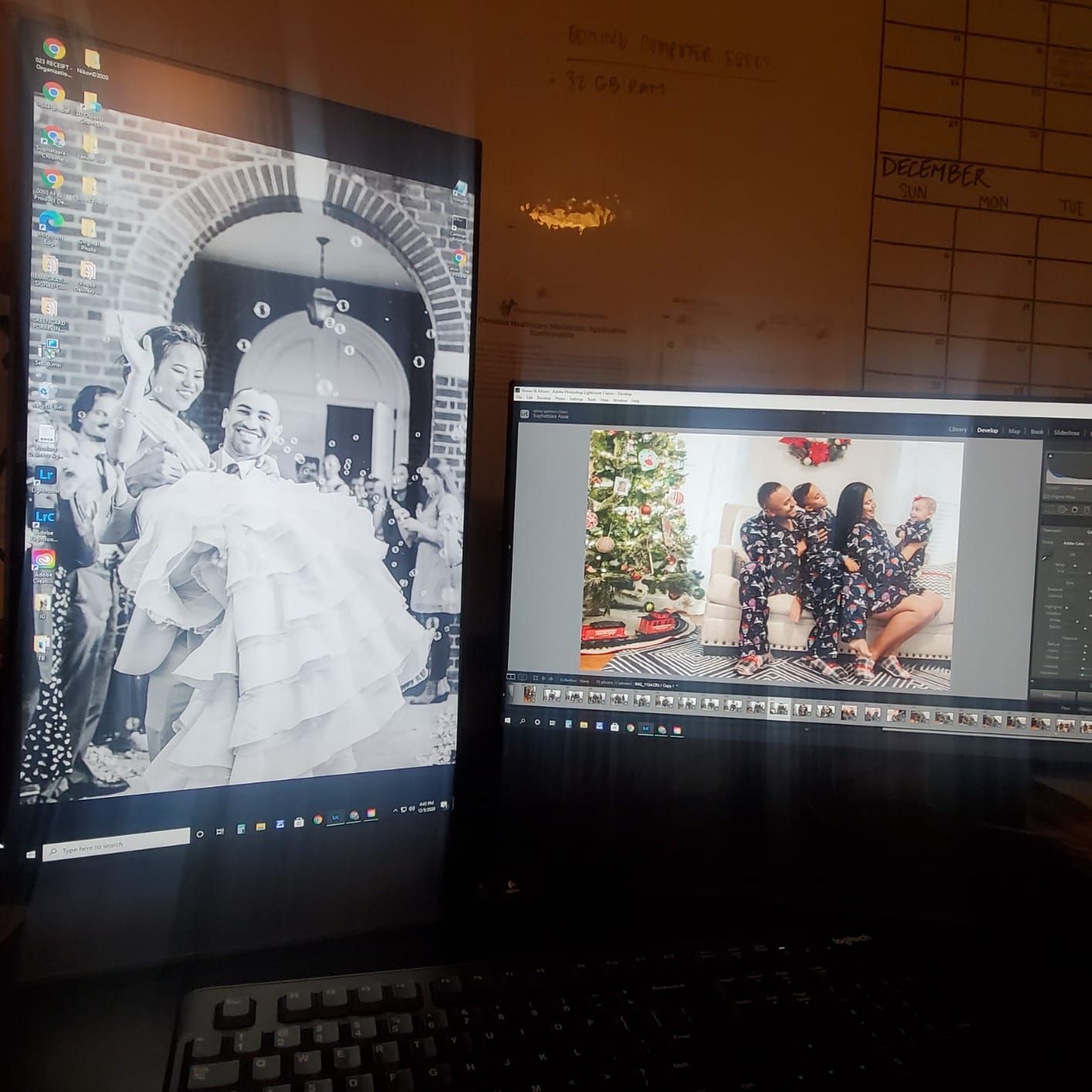
It depends on what you are reading. A 24-inch panel rotated gives you a column roughly 13 inches wide, which fits a single document page comfortably at readable scale. It will not hold two pages side by side, because the panel is too narrow for that.
With 1080p of vertical resolution you get plenty of lines. The trade is the lower pixel density compared with the 27-inch 1440p and 4K panels here.
Handling and longevity
At 13.9 pounds this is a heavy monitor, and rotating it back and forth by hand gets old fast. If you plan to change orientation often, add a monitor arm.
It is one of the older designs in the group, and 60 Hz with no adaptive sync will feel dated next to the 120 and 144 Hz options. For text on a static page, that difference rarely registers.
8. Dell S2425HSM – Best 144 Hz Vertical Monitor on a Small Desk
Dell 24 Plus Monitor – S2425HSM – 23.8-inch FHD (1920×1080) 144Hz 1ms Display, 2 x 3W Speakers, HDMI Connectivity, Height/Tilt/Pivot/Swivel Adjustability, AMD FreeSync – Ash White
23.8-inch LCD
1920x1080 at 144 Hz
300 nits, 1500:1
Dual 3W speakers
Pros
- Tilt height swivel and pivot all work well as a vertical second screen
- 144 Hz refresh and 1500:1 contrast make text scrolling smooth with deep blacks
- 4-star TUV eye comfort with flicker-free backlighting
- Dual 3W speakers and a light ash white finish suit a small desk
Cons
- 1080p on 24 inches gives low pixel density and soft text
- No USB-C so a laptop needs separate HDMI and power cables
- Short stand height range may need a riser or monitor arm
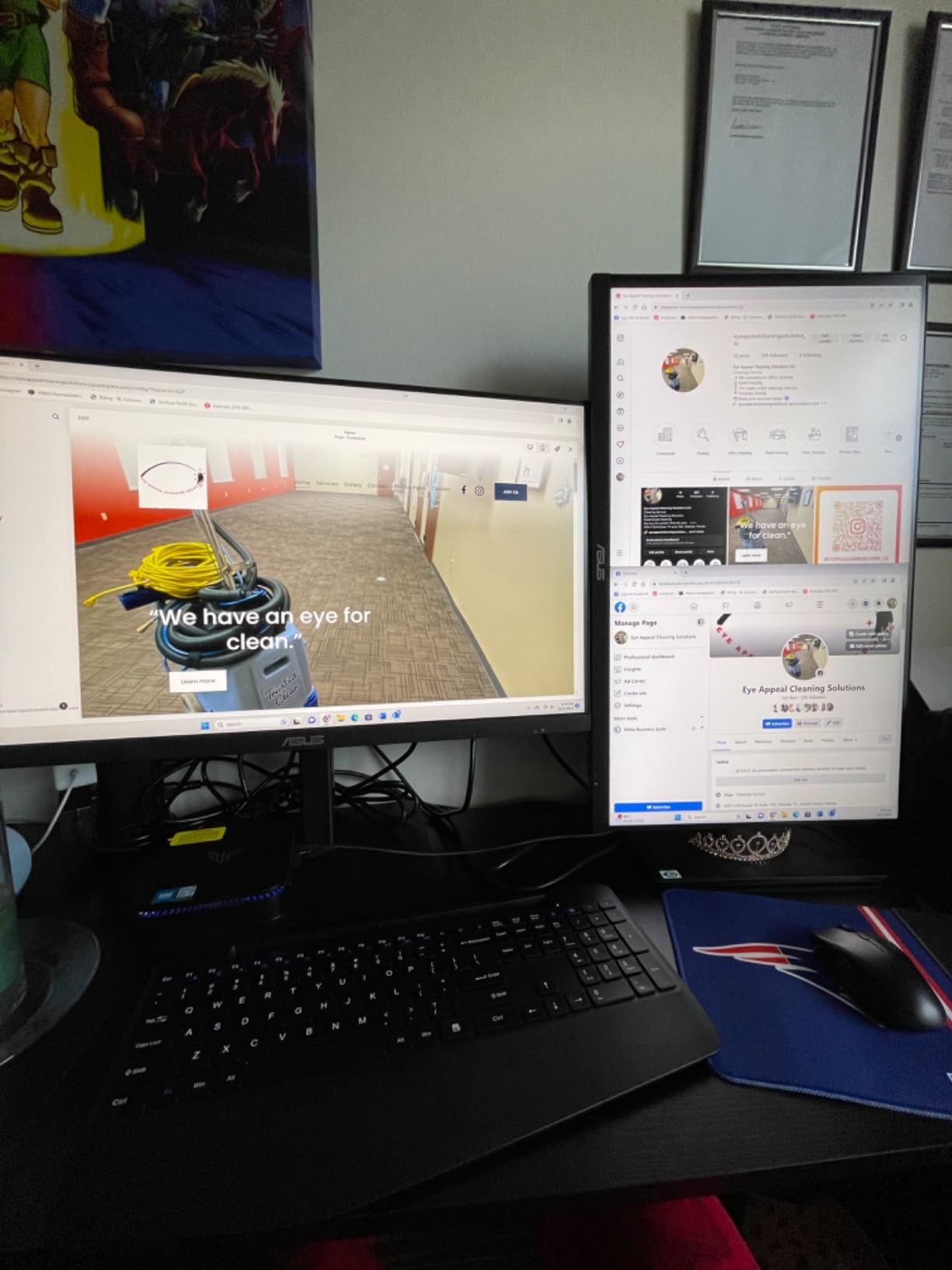
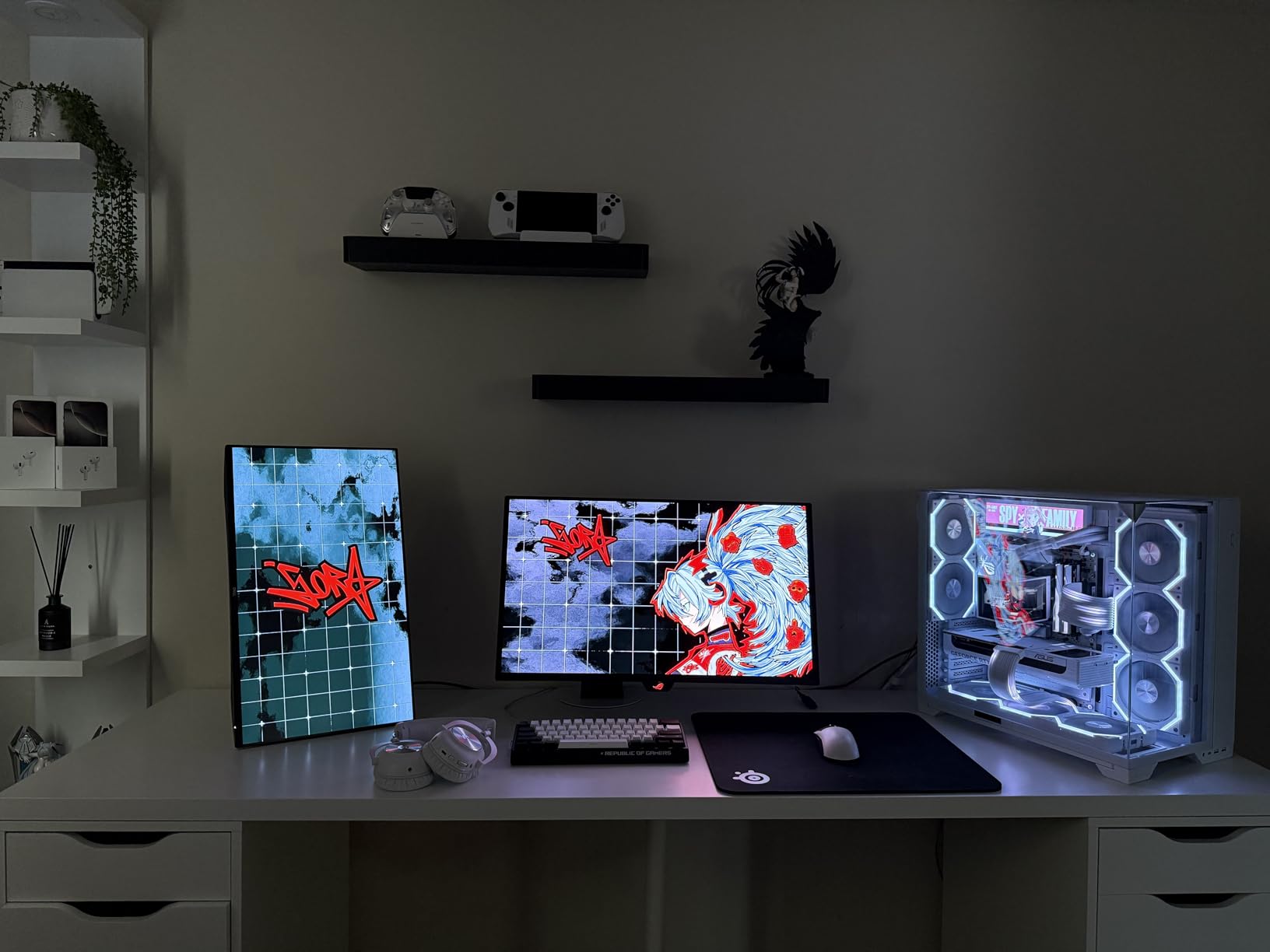
At 23.8 inches this is one of the most compact panels here, and one reviewer bought it specifically as a vertical second screen and reports that the tilt, height and swivel adjustments work well for that. The small footprint matters when the vertical display shares a desk with a laptop.
The 144 Hz refresh rate is more than a document screen needs, but the practical effect is real: scrolling a long chapter feels smooth, and the 1500:1 contrast ratio gives deeper blacks than the 1000:1 office panels at this size.
The on-screen menu is a mini joystick, and reviewers single it out as the easiest interface they have used on a monitor, with effective controls for brightness, colour and gamma. That sounds minor until you are adjusting a vertical screen by feel at the bottom of the desk.
Two HDMI inputs and dual 3W speakers round it out, with 4-star TUV eye comfort certification and flicker-free backlighting for the long sessions.
Where the low resolution shows
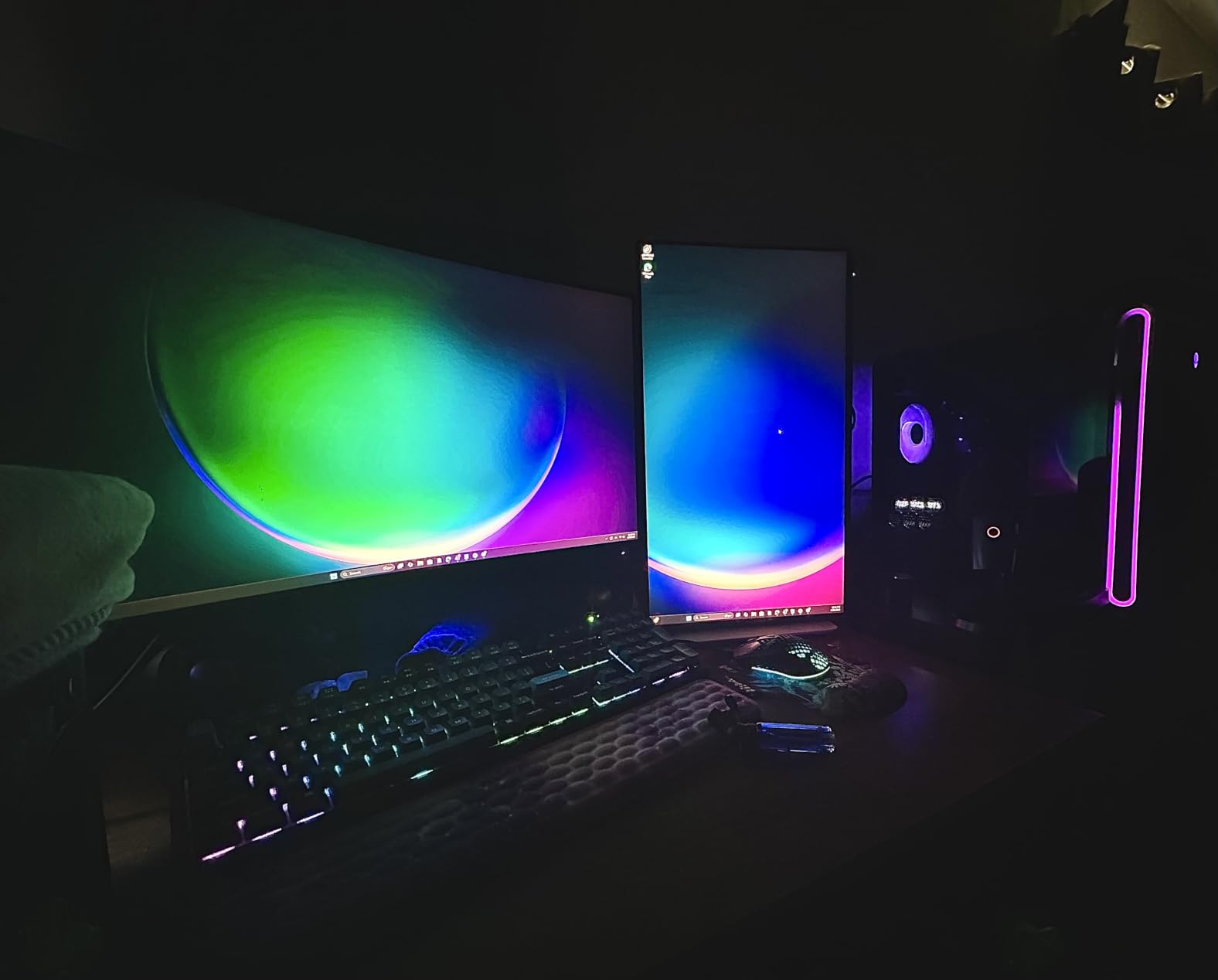
1080p across 23.8 inches is the same soft-text issue the other 1080p panels here carry, and it is the reason this sits below the 1440p options. On macOS, system scaling tends to make it look softer still unless you use third-party scaling software.
If you write long documents for hours, count the resolution as the deciding factor rather than the refresh rate.
Plan for cables and stand height
There is no USB-C or Thunderbolt, so a laptop needs its own HDMI cable and power lead and cannot use clamshell mode cleanly.
The stand height range is short. If the rotated panel ends up below comfortable eye level, a riser or monitor arm is the fix, and r/Ergonomics users repeatedly recommend positioning the screen 15 to 20 degrees below eye level.
9. CRUA 24.5-inch 1080p Vertical Monitor – Best for a Small Desk
CRUA 24.5″ FHD 200Hz Vertical Monitor, Height/Pivot/Swivel/Tilt Adjustable
24.5-inch LCD
1920x1080 at 200 Hz
300 cd, 1000:1
90-degree pivot stand
Pros
- Stand pivots 90 degrees for true portrait orientation with 120 mm height adjustment
- Tilt from -5 to 15 degrees and swivel from -15 to 15 degrees
- Three-sided narrow bezels keep the writing column distraction-free
- HDMI 2.0 plus DisplayPort 1.2 and a 3.5 mm audio out
Cons
- 200 Hz is wasted on document work and 1080p at 24.5 inches gives modest text density
- 8-bit colour and 1000:1 contrast lack the punch of higher-end panels
- About 12 percent of reviews are one-star
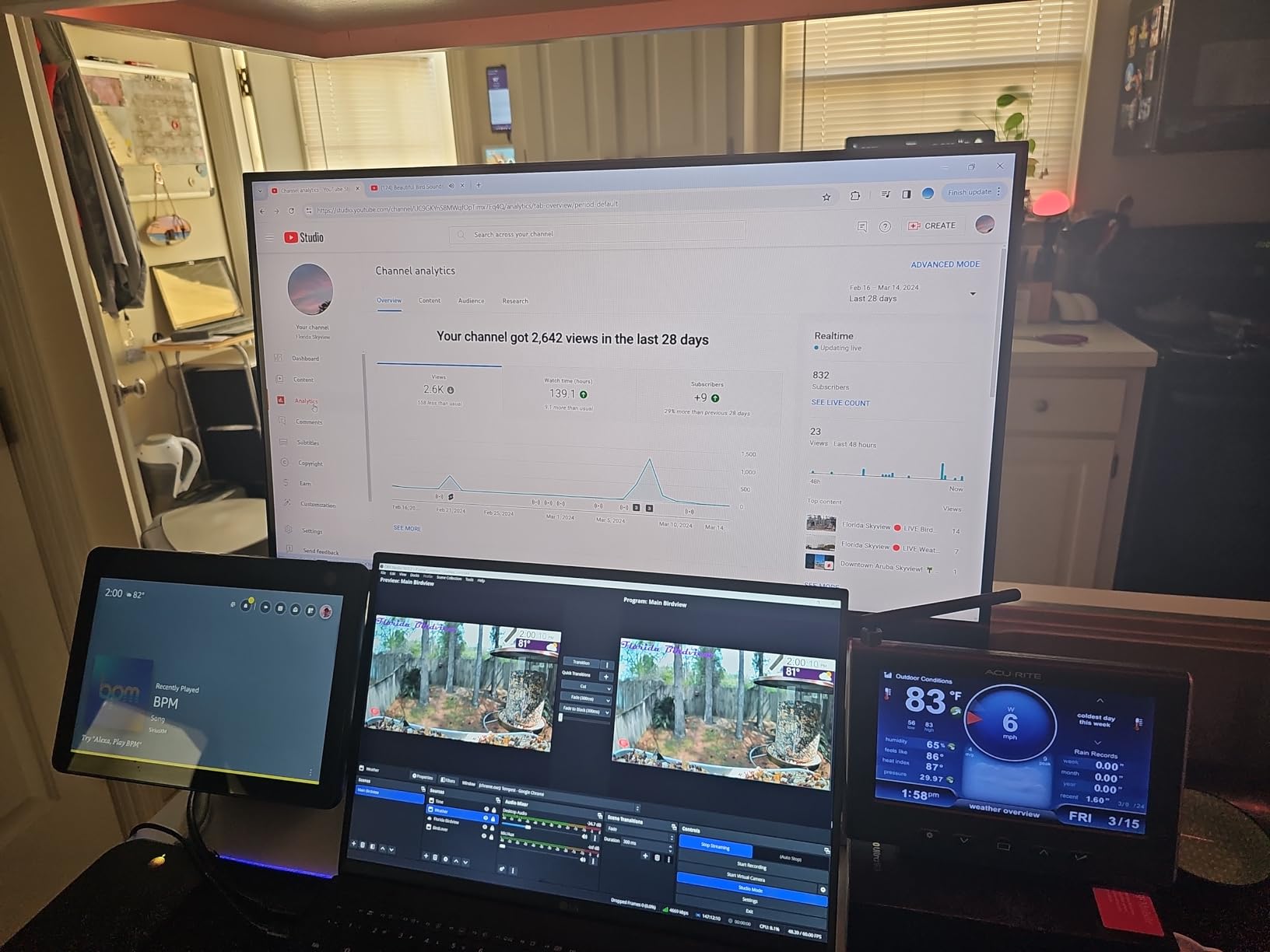
This monitor is sold and named as a vertical display, which is a fair signal about the intent. The stand pivots a clean 90 degrees, and with 120 mm of height adjustment plus tilt and swivel you can set a portrait column at a comfortable reading angle without buying an arm first.
Three-sided narrow bezels mean the writing area is not framed in black on three sides, which keeps a long document column visually straight. Brightness of 300 cd and a low blue light mode cover the basics of a long reading day.
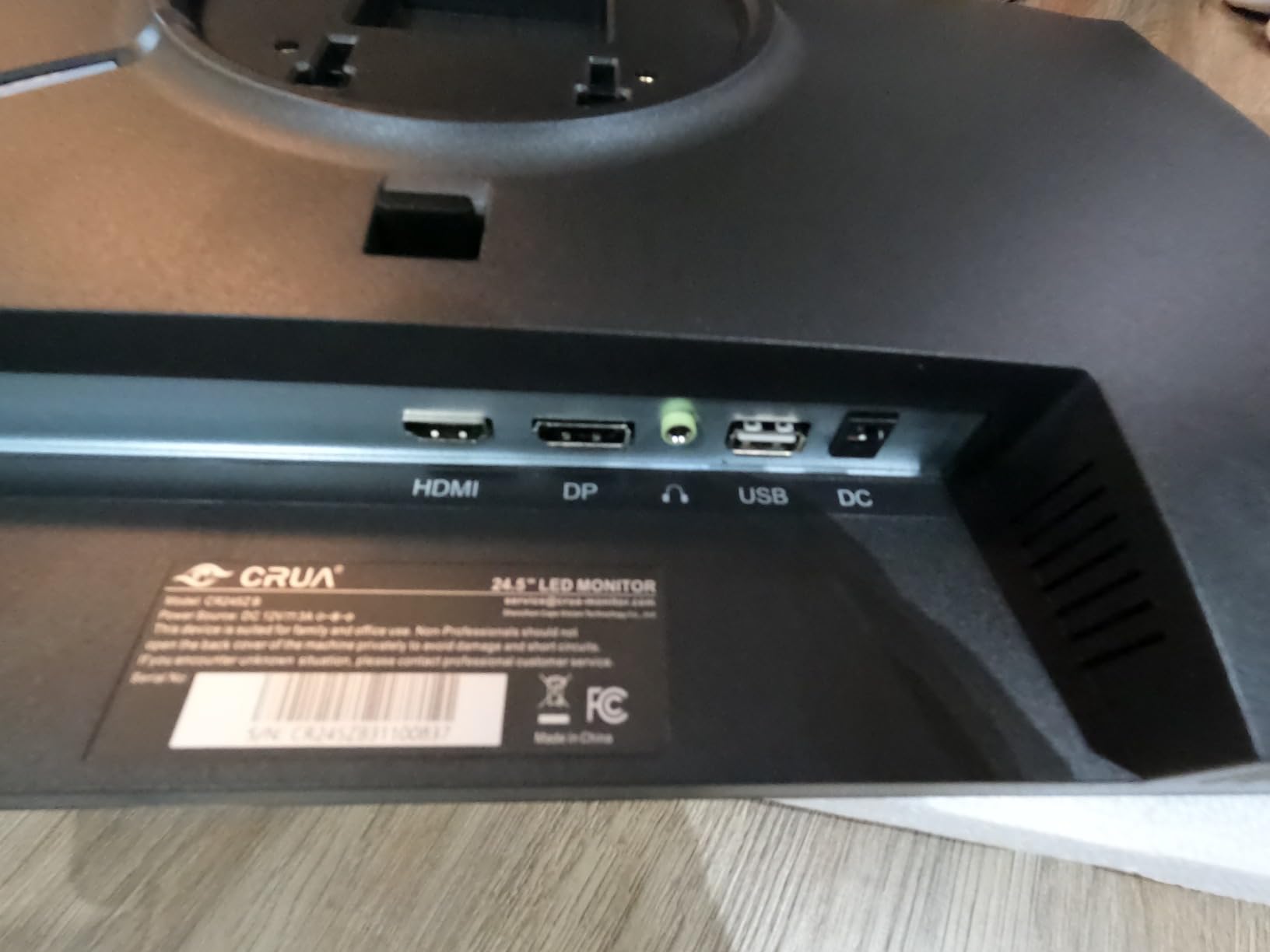
The 178 degree viewing angle keeps text colour consistent from the top of the tall panel to the bottom, and the matte finish reduces the reflection problem that a glossy screen has in a room with a window opposite the desk.
Connectivity is DisplayPort and HDMI with a 3.5 mm audio out, plus a USB port for charging a device. The listed power consumption is 36 watts, and the warranty is one year with a 30-day return window.
What you trade for the low cost
The 200 Hz refresh rate and 3 ms response do nothing for a manuscript. They cost you nothing in text quality, but they tell you where the engineering budget went, and 8-bit colour with 1000:1 contrast is the other place.
Around 12 percent of reviews are one-star, and 12 percent is one of the higher negative shares in this group, so read a few recent reviews before committing.
Is 24.5 inches the right size
It is a good match for a small desk and a side-by-side arrangement, because the footprint stays modest once rotated. It is not the size to choose if you want two document pages visible at once or large reading type.
For a first vertical screen on a tight desk, it does the job without taking over the workspace.
10. CUNPU 27-inch 1440p 240Hz – Best High-Refresh Vertical Monitor
CUNPU 27 Inch 1440P 240Hz Gaming Monitor, Fast IPS, 1ms GTG QHD Gamer Monitor, FreeSync & G-Sync, HDR, 128% sRGB, Height/Pivot/Tilt/Swivel Vertical Monitor, Built-in Dual Speaker, HDMI/DP
27-inch Fast IPS
2560x1440 at 240 Hz
1 ms GTG
Pivot and swivel -90 to 90
Pros
- Stand pivots -90 to +90 degrees with 5.11 inches of height adjustment plus tilt and swivel
- 2560x1440 Fast IPS at 240 Hz and 1 ms GTG keeps scrolling responsive
- Dual 2W speakers cover quick calls without extra hardware
- Tool-free quick mounting bracket and VESA 100x100 for arms
Cons
- Only 169 reviews
- the thinnest evidence base in the roundup
- One-year manufacturer warranty only
- Gaming-first features such as HDR10 and game presets add little for text work
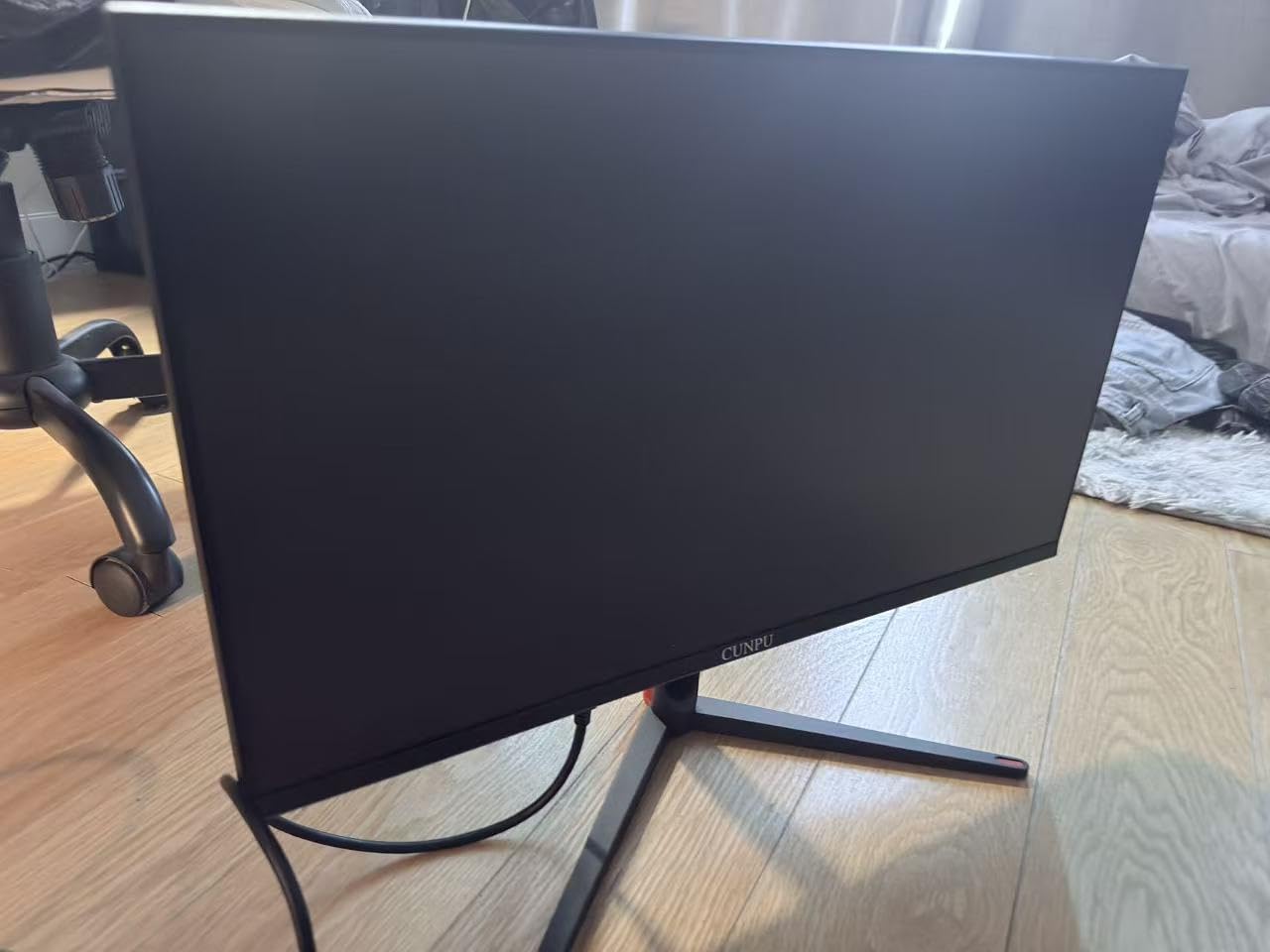
The mechanical specification is the draw here. Pivot and swivel both cover -90 to +90 degrees, with 5.11 inches of height travel and tilt from -5 to 15 degrees, so the panel can be angled in portrait far more freely than most stands in this roundup allow.
Underneath that, the panel is a 27-inch Fast IPS at 2560×1440, which is the resolution writers should be looking for. At 240 Hz and 1 ms GTG, scrolling a long document is the smoothest of any monitor here.
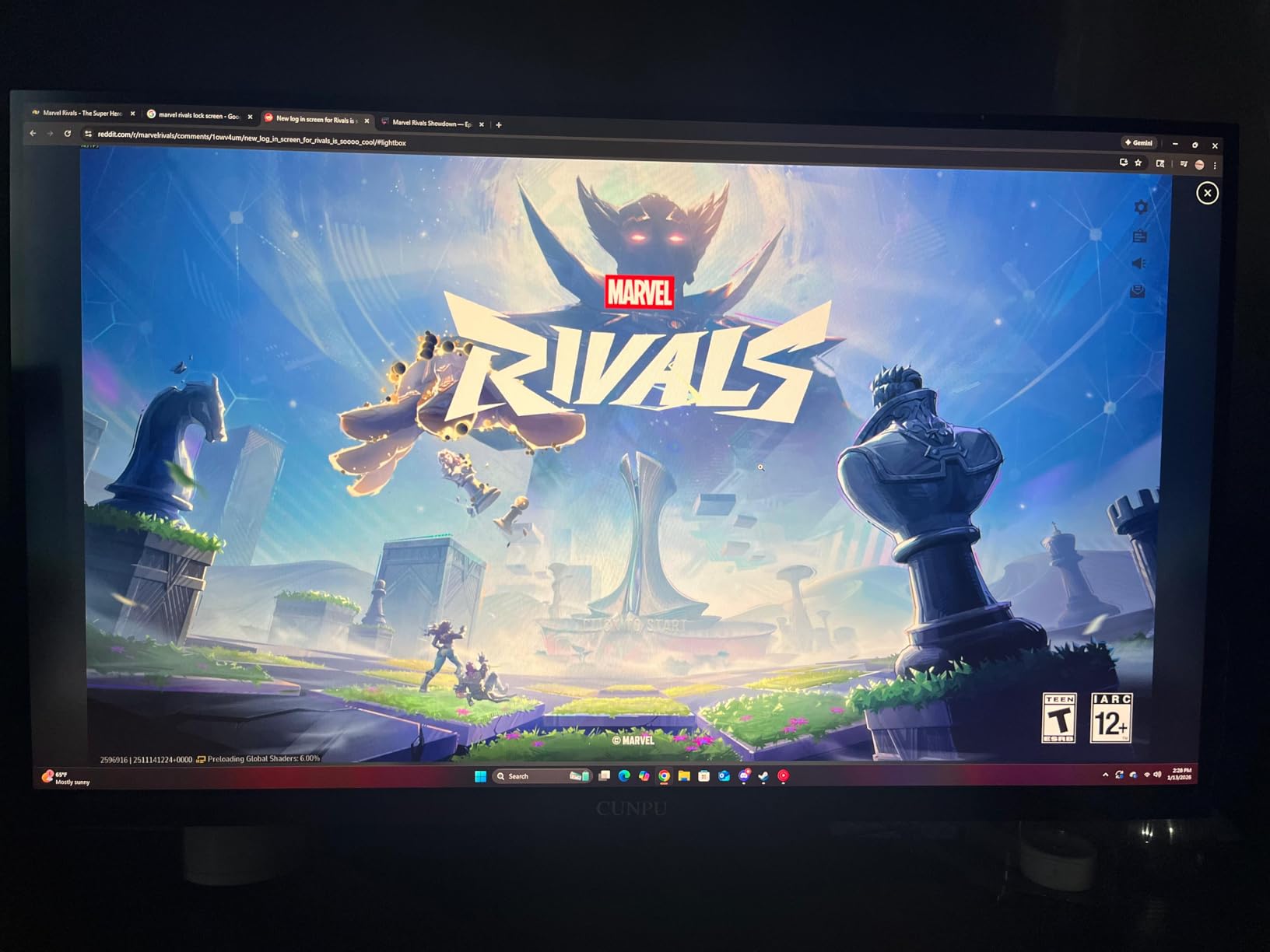
Colour coverage of 128 percent sRGB and 100 percent DCI-P3 with FreeSync and G-Sync support covers the gaming side properly, and a tool-free quick mounting bracket speeds up putting the stand together. VESA 100×100 mounting is available for a monitor arm.
Connectivity runs to one DisplayPort 1.4 and two HDMI 2.0 with a headphone jack, and the box includes a DisplayPort cable, power adapter and stand set.
Why the review count matters here
With 169 reviews, this is the least-proven panel in the roundup. The 4.2 average reflects a newer product with more unit-to-unit variation, and around 12 percent of reviews are one-star. That is a real risk on a monitor you plan to keep for years.
If you want this level of adjustability with a stronger track record, the SANSUI 1440p covers similar ground with more than 5k reviews behind it.
What the gaming features do for you
Very little, if you only write. HDR10 and gaming presets in the menu are irrelevant for a word processor, and the brightness figure of 300 lm is lower than the 350 to 400 nit panels elsewhere in this list.
Judge it on the pivot range, the 1440p resolution and the VESA mount, and treat the rest as unused capability.
What to Look for in a Vertical Monitor for Writing
Screen size, resolution and refresh rate are what most buying guides lead with. For a writer, the order is different. Pivot capability and pixel density decide whether you will actually use the monitor in portrait, and refresh rate matters least of all unless you also game on it.
Does it actually rotate – pivot stand vs VESA mount
Any monitor with a pivot-capable stand or a VESA 100×100 mount can be rotated into portrait orientation. Pivot stands are more convenient, because you can change orientation in seconds without tools. VESA mounting needs an arm or bracket, which is the route to take if you want height freedom.
The failure mode to avoid is a stand with no pivot and no VESA plate. Forum users regularly describe the workaround, which is removing the base plate and re-screwing the stand in the rotated position. Check the listing for pivot in the stand specification before you buy. For a wider look at adjustable mounting hardware, our guide to projector ceiling mounts with vertical adjustment covers the same ceiling-versus-arm positioning logic.
Resolution and pixel density in portrait
This is the single most important filter. A 27-inch monitor at 1920×1080 rotated gives you 1920 pixels across and 1080 down the tall axis, and the resulting column is narrow enough that people describe it as too narrow to be useful. Type looks soft because each character is rendered from fewer pixels than you are used to on a laptop.
Step up to 2560×1440 on 27 inches, or 3840×2160 on 27 inches, and the complaint disappears. The HP VH240a at 23.8 inches and 1080p is a reasonable exception because the smaller panel means the column is physically narrower, which suits a single page rather than trying to fit two.
For more on density and scaling, our guide to vertical monitors for reading code covers the same resolution logic from a programming angle.
IPS versus VA and TN in portrait
An IPS panel is the safe recommendation. Viewing angles of 178 degrees mean the top and bottom of a tall screen show the same colours as the centre, and text stays even when your gaze drifts down a long page. A TN panel shifts colour as you move off-axis, which on a tall screen means the bottom of the document looks different from the middle.
VA panels deliver deeper blacks and higher contrast but show colour shift off-axis, so they are a compromise. Refresh rate matters little here because documents are static, and a 75 Hz panel is indistinguishable from 144 Hz when you are reading prose.
Matching height against a horizontal primary screen
Rotated into portrait, a 24-inch 16:9 panel stands about 21 inches tall and 12 inches wide. A 27-inch panel stands about 24 inches tall, and a 32-inch about 28 inches. Most of that height is eaten by the desk depth and the stand, so the visible top edge usually lands well below the top edge of a landscape primary.
A 32-inch widescreen primary typically shows roughly 16 inches of panel above the desk, which is why no common vertical monitor lines up perfectly with it. The usual fix, discussed at length on linustechtips, is to accept a slightly shorter vertical screen and mount it on an arm at a height that lets the two panels share a top edge. Slightly shorter reads as intentional. A vertical screen hanging several inches below the top of the primary reads as an error.
Eye comfort for long reading sessions
Flicker-free backlighting, a low blue light mode and an anti-glare coating are the three features writers mention. The ASUS VA27DQSB and the Dell S2425HSM carry TUV-certified eye comfort ratings, and the HP VH240a pairs an anti-glare finish with a blue light filter.
Matte coatings handle window reflections. If your desk faces a window, position the screen perpendicular to the glass rather than opposite it.
Connectivity and USB-C for laptop writers
None of the ten monitors here has a USB-C input. That is a genuine gap in this category, and if you write on a MacBook you will be running adapters. The best alternative connectivity here is the ASUS ProArt PA278QV with four USB 3.2 ports, or the ASUS VA27DQSB with a USB hub and DisplayPort.
Remember that a monitor arm is an extra purchase, and adding one to a stand-only setup is the most common way the real total cost rises above what you planned for the panel.
How to Set a Monitor to Portrait Mode on Windows 11 and macOS
The hardware comes first. Release the stand collar, rotate the panel 90 degrees until it locks, and tighten the collar again. Then tell the operating system what you have done.
On Windows 11, right-click the desktop, choose Display settings, scroll to the portrait display, and change Orientation to Portrait. Then use the Scale setting on the same screen. For a 27-inch 4K panel, 125 percent is a good starting point; for 1440p, 100 percent is usually right. Step down to 150 percent if body copy still feels small.
On macOS, open System Settings, then Displays, and click the portrait display in the arrangement view to reach the rotation menu. Choose Portrait. macOS scaling behaves differently from Windows, and on a 24-inch 1080p panel the HiDPI options often look better through third-party scaling software.
After that, set the vertical screen as your primary document column and drag windows across with Win+Shift+Left or Right on Windows, and Control+Command plus arrow keys on macOS. Users of a 32-inch widescreen primary paired with a vertical screen typically keep writing software on the tall panel and reference material on the wide one.
Frequently Asked Questions
What is the best monitor that can be turned vertically?
The HP VH240a is the best monitor that can be turned vertically for writing. Its stand pivots smoothly a full quarter turn, the 23.8-inch IPS panel keeps 178 degree viewing angles so text stays even top to bottom, and it supports height, tilt and swivel adjustment. More than 25k reviews at 4.7 average back it up.
What is the best monitor for writers?
The best monitor for writers who work in portrait is the HP VH240a for its pivot stand, anti-glare finish and blue light filter. If you want sharper text, choose the ASUS ProArt PA278QV at 27 inches and 2560×1440, or the Dell S2725QS at 3840×2160. Avoid 27-inch panels at 1920×1080, where type looks soft.
What are the downsides of using a vertical monitor?
The main downsides are a narrower column of text than a widescreen, extra neck movement if the screen is mounted too high, and a stand that may not support portrait without a monitor arm. Soft text is common on 1080p panels rotated upright. Video calls and spreadsheets are awkward because the layout is constrained to one column.
What is the best monitor to keep vertical?
The ASUS ProArt PA278QV is the best monitor to keep permanently vertical. Its stand offers tilt, pivot, swivel and height adjustment across three positions, so portrait is a supported position rather than an adaptation. The 27-inch 2560×1440 IPS panel is Calman Verified with Delta E under 2, which keeps page whites accurate over long sessions.
Do vertical monitors cause neck strain?
They can, if mounted badly. Ergonomics guidance repeated on r/Ergonomics places the centre of the screen 15 to 20 degrees below eye level. A tall screen mounted too high forces you to look up, which produces neck and shoulder fatigue within days. A monitor arm with VESA 100×100 mounting solves it, since it lets you set the height precisely.
Conclusion
The best vertical monitors for writers come down to two decisions: pivot capability, and how much resolution you can afford. Start with the HP VH240a if you want the proven, well-reviewed option with a smooth pivot and an eye-friendly matte panel.
Go to the ASUS ProArt PA278QV for the best professional build, colour accuracy and a five-year warranty, or to the Dell S2725QS for the sharpest text available in portrait at 4K and 120 Hz. The SANSUI 27-inch 1440p is the one to buy if 1440p density matters and you want the adjustability for less.
Whatever you choose, skip 27-inch 1080p models, mount the panel so its centre sits below eye level, and set display scaling to 125 percent before you judge the text. That single change resolves most of the disappointment people report with vertical monitors in 2026.