
For most students, the best laptop for college under $700 is the 15.6-inch Acer Aspire 5 with a Ryzen 5 3500U: it pairs a Full HD IPS panel, a quad-core processor, 8GB of RAM, a 256GB NVMe SSD and a backlit keyboard, and it carries a 4.6 average across more than 1,700 owner reviews. It is the machine we would hand a first-year writing, research and general-education workload without hesitating.
Why that pick and not a flashier one? Because at this budget the differences between laptops are narrower than the marketing suggests, and the wrong choice is usually an operating-system mistake or a memory shortage rather than a slow processor. We compared 12 models across the sub-$700 tier, weighing price-to-performance first, then battery life, then weight and screen size, then keyboard and trackpad feel, which is the same order we use in our wider college laptop roundup covering higher price bands.
Two housekeeping notes before the list. First, every configuration here sits under the $700 cap at the time we checked, but prices in this category move constantly, so treat the numbers as a snapshot and re-check before you buy. Second, none of these machines is a workstation. If you are an engineering, computer science, data science, film or music major with a hard software requirement, read the compatibility notes below before you commit, because some of the cheapest options in this tier will not run the software your degree demands.
Table of Contents
Top 3 Best Laptops for College Under $700 (October 2026)
Our top three for 2026, in order: the Acer Aspire 5 15.6 with Ryzen 5 3500U as the best overall pick, the Dell 15.6 with Core 3 100U as the best value, and the Dell Inspiron 15 3520 with 16GB RAM and 1TB storage as the best choice for business, health and office-focused majors.
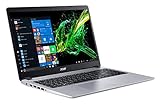
Acer Aspire 5 15.6 Ryzen 5
- 15.6 inch Full HD IPS display
- 8GB DDR4 and 256GB NVMe SSD
- Backlit keyboard
- Ryzen 5 3500U quad-core

Dell 15.6 Core 3 100U
- 512GB SSD and expandable 8GB RAM
- 120Hz anti-glare IPS panel
- One year Onsite Service
- Numeric keypad

Dell Inspiron 15 3520 i5
- 16GB RAM and 1TB NVMe SSD
- Full HD IPS touchscreen
- Windows 11 Pro
- Express Charge 80 percent in 60 minutes
All 12 Picks at a Glance in 2026
Here is the full lineup in one place, with the specification that matters most for each machine noted alongside the rest. The table below covers every laptop we evaluated, cheapest tier first by configuration class rather than by brand.
| Product | Specifications | Action |
|---|---|---|
| Acer Aspire 5 15.6 Ryzen 5 3500U |
|
Check Latest Price |
| Dell 15.6 Core 3 100U 512GB |
|
Check Latest Price |
| Dell Inspiron 15 3520 i5 16GB |
|
Check Latest Price |
 Lenovo IdeaPad Slim 3 Ryzen 7 5825U Lenovo IdeaPad Slim 3 Ryzen 7 5825U |
|
Check Latest Price |
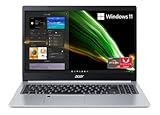 Acer Aspire 5 Ryzen 7 3700U Acer Aspire 5 Ryzen 7 3700U |
|
Check Latest Price |
 Dell Inspiron 15 3530 i5-1335U Dell Inspiron 15 3530 i5-1335U |
|
Check Latest Price |
 ASUS Vivobook Go 15 Ryzen 5 7520U ASUS Vivobook Go 15 Ryzen 5 7520U |
|
Check Latest Price |
 Lenovo 15.6 FHD 8GB DDR5 Lenovo 15.6 FHD 8GB DDR5 |
|
Check Latest Price |
 Acer Aspire Go 15 Ryzen 3 7320U Acer Aspire Go 15 Ryzen 3 7320U |
|
Check Latest Price |
 HP Essential 14 N150 128GB HP Essential 14 N150 128GB |
|
Check Latest Price |
 HP Essential 14 Chromebook HP Essential 14 Chromebook |
|
Check Latest Price |
 HP 14 Celeron Renewed HP 14 Celeron Renewed |
|
Check Latest Price |
1. Acer Aspire 5 15.6 with Ryzen 5 3500U – Best Overall for College
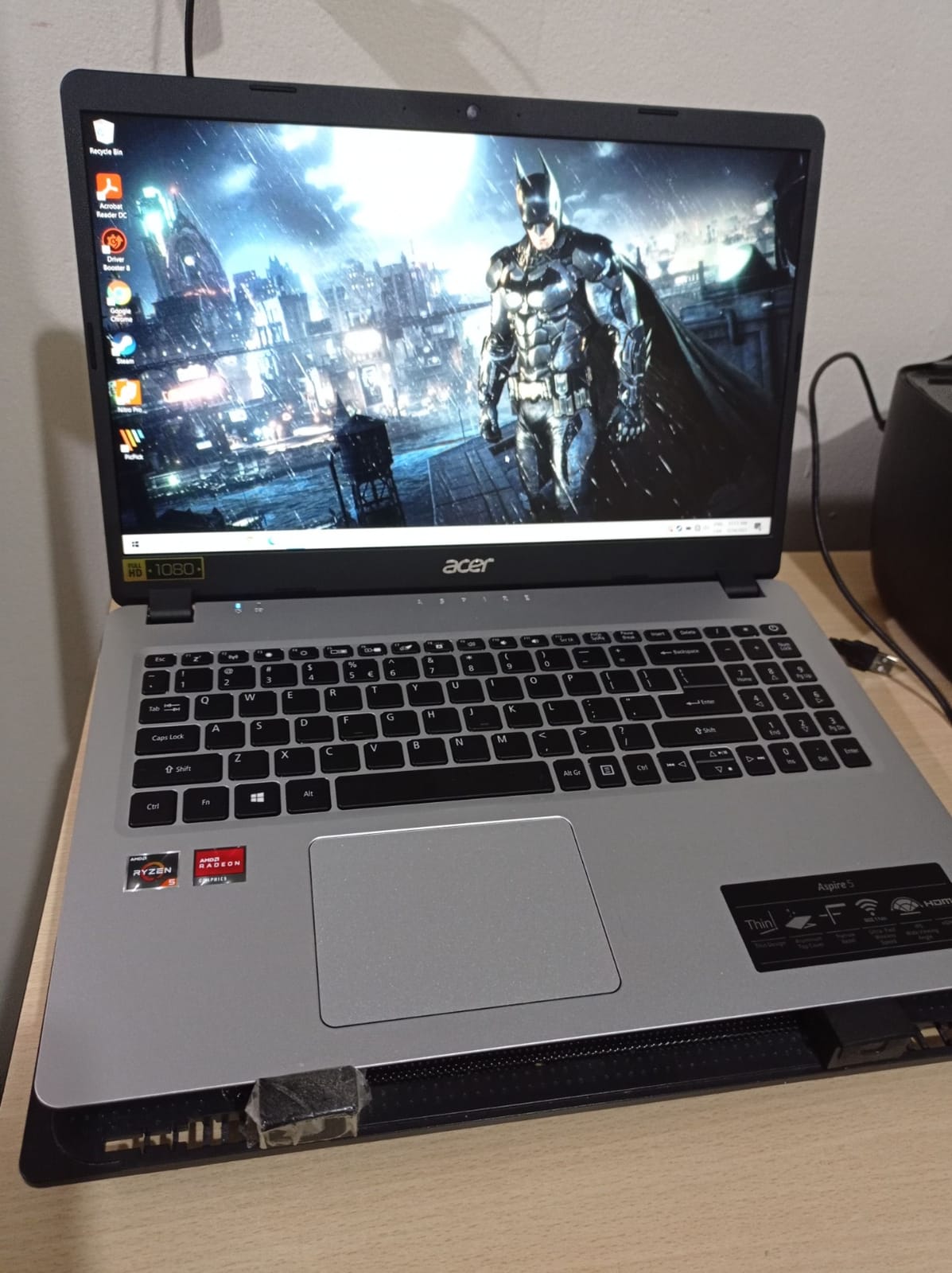
acer Aspire 5 Slim Laptop, 15.6″ Full HD IPS Display, AMD Ryzen 5 3500U, Vega 8 Graphics, 8GB DDR4, 256GB SSD, Backlit Keyboard, Windows 10 Home, A515-43-R5RE, Silver
15.6 inch Full HD IPS
Ryzen 5 3500U quad-core to 3.7GHz
8GB DDR4, 256GB NVMe SSD
Backlit keyboard
Pros
- 15.6 inch Full HD IPS anti-glare panel
- Quad-core Ryzen 5 handles coursework and multitasking
- Backlit keyboard for night study
- 4.6 average across 1773 reviews
Cons
- 2019 era design and processor
- 256GB SSD is small for large media libraries
- Battery life short by current standards
I keep coming back to this Aspire 5 because it is the rare budget machine where nothing important is missing. The 15.6-inch 1920×1080 IPS panel is anti-glare, which matters more in a fluorescent-lit lecture hall than any spec on the box, and the quad-core Ryzen 5 3500U running at up to 3.7GHz has enough headroom for a dozen browser tabs, a Word document and a video call running at once.
The 256GB PCIe NVMe SSD boots and opens files far faster than the mechanical drives this class used to ship with, and the 8GB of DDR4 memory is the practical floor rather than a comfortable target. In practice that means browsing, Google Docs, Microsoft 365 and streaming video all feel normal, and heavier multi-application work starts to show its limits sooner than it would on a 16GB machine.
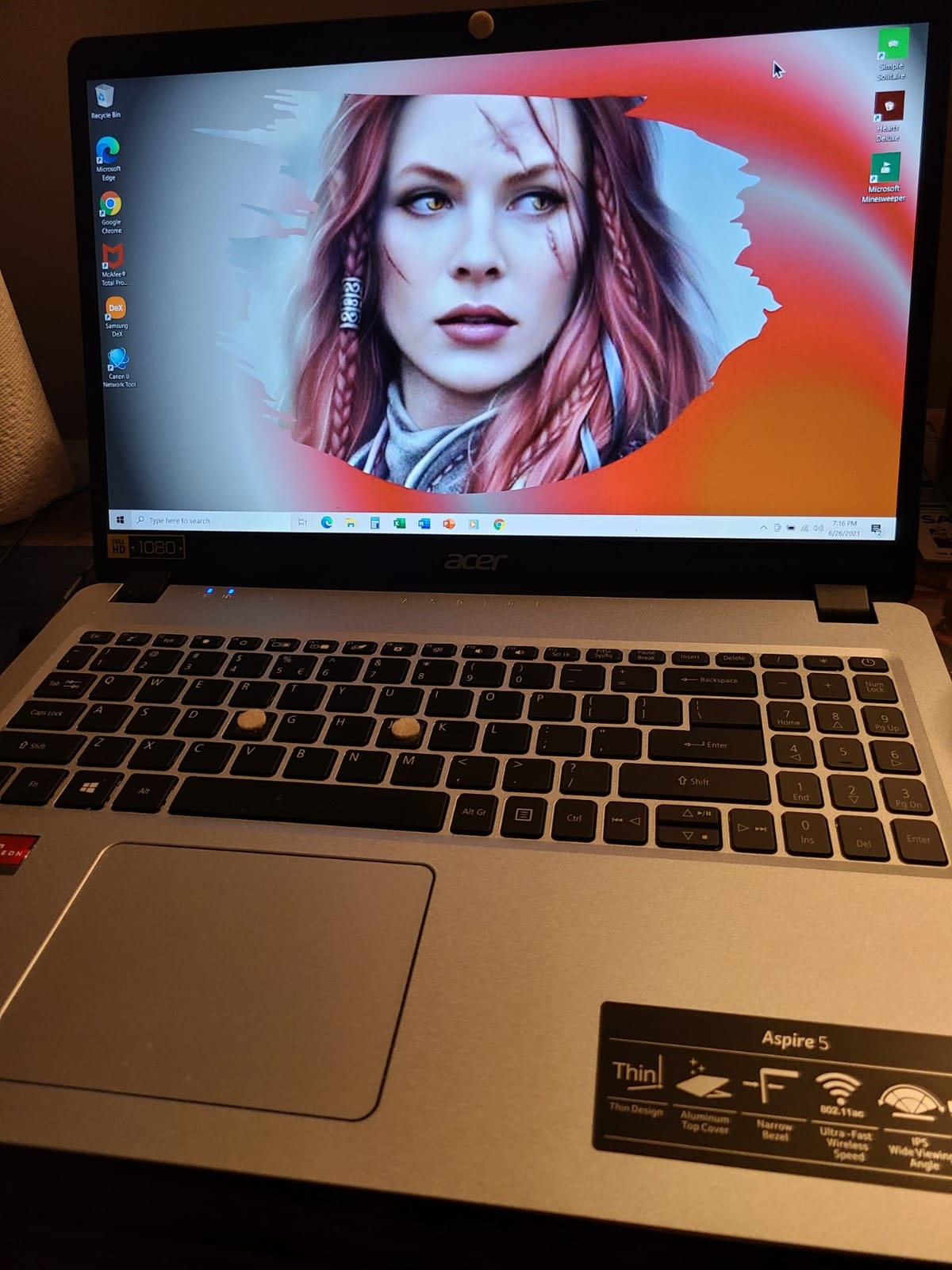
The backlit keyboard is the feature that separates this from nearly everything else in the price band. It is genuinely useful during late library sessions, and paired with the anti-glare Full HD screen it makes this the most comfortable machine here for long writing blocks, which is exactly what a first-year essay schedule demands.
Weighing 4 pounds, it is not the lightest option in this roundup, but the 15.6-inch screen means you carry one machine instead of a laptop plus a tablet. Reviewers consistently call the balance of panel, keyboard and Ryzen 5 performance hard to beat for the money, and the 4.6 average across more than 1,700 ratings is the strongest rating-and-review combination in the group.
Why the Aspire 5 3500U works for most students
This is the laptop we would buy for a general-education, business, communications or pre-law student with no unusual software demands. It handles research, essay writing, slide decks, Canvas coursework and group video calls without drama, and the Full HD IPS panel is comfortable for long reading sessions.
It also suits anyone whose school hands out a standard Windows requirement and does not mandate a specific processor class. Nothing in the specification is unusual, which means drivers and campus IT support are the least likely to be a problem for you.
Where the Aspire 5 3500U falls short
Buy something else if you plan to run virtual machines, heavy data analysis, CAD, or any game outside the very light indie category. The Radeon Vega 8 graphics are integrated, and the 2019-era processor architecture is already two generations behind what a new machine can offer.
The 256GB drive will feel small by junior year once a semester of video recordings and datasets lands on it, and the stated battery figure of up to 7.5 hours is well short of what the newest budget machines claim. If you need more storage, budget for an external drive or plan upgrades early.
2. Dell 15.6 with Core 3 100U and 512GB SSD – Best Value
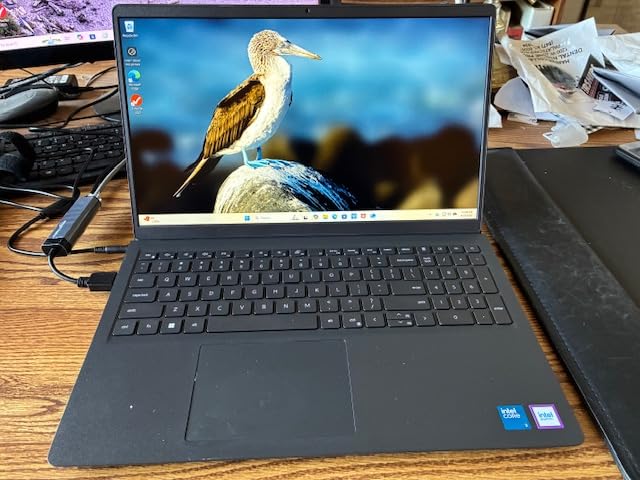
Dell 15.6 Laptop, FHD, Intel Core 3 100U, 8 GB RAM, Windows 11 Home
15.6 inch FHD anti-glare IPS 120Hz
Core 3 100U to 4.7GHz
8GB DDR4, 512GB SSD
Pros
- 512GB SSD at this price
- 120Hz anti-glare IPS panel
- One year Onsite Service support
- Roomy keyboard with numeric keypad
Cons
- No fingerprint reader
- Not a touchscreen
- 4.2 lb is heavier than slim ultraportables
If your priority is storage and support rather than a backlit keyboard, the Dell 15.6 with a Core 3 100U is the smarter buy. The Core 3 100U runs up to 4.7GHz, and pairing it with 512GB of SSD storage means you will not be managing drive space four years into a degree, which is the single most common complaint we see about cheaper laptops.
One detail stands out and is usually overlooked: the anti-glare IPS WVA panel runs at 120Hz. That is smoother for scrolling through long documents and lecture slides than the 60Hz panels most machines in this bracket use, and at 250 nits it stays readable in a bright room.
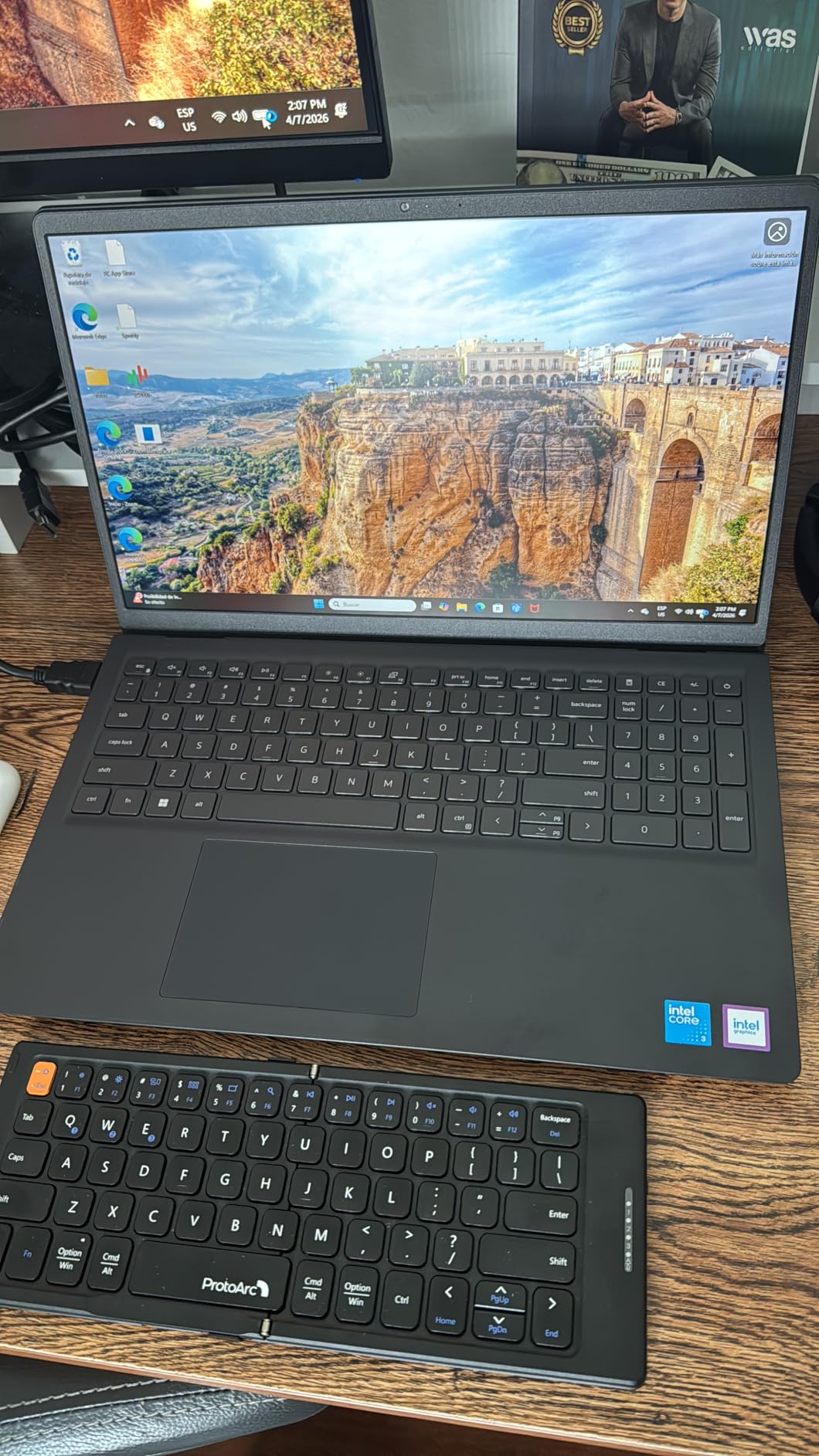
The 8GB of DDR4 memory can be expanded to 16GB, which is a rare upgrade path at this budget and the single best reason to pick this machine over a cheaper 4GB alternative. The numeric keypad is useful if you are in business, accounting or economics, and the lifted hinge gives a better typing angle than a flat deck.
Support is the quiet advantage. One year of Dell Onsite Service means a technician comes to you rather than asking you to mail the machine in, and Express Charge support is there if you need a fast top-up between classes. Reviewers highlight the screen, the storage and that support, with criticism aimed at the missing fingerprint reader and lack of a touchscreen.
Who should buy the Dell Core 3 100U
Buy this if you are a business, accounting, marketing or general-education student who will juggle large files, spreadsheets and browser-heavy research. The 512GB drive and the expandable memory give you the most headroom per pound of budget in this list.
It is also a strong choice for anyone who treats their laptop as a machine they will keep for four years and then hand down. Storage you do not have to manage and memory you can add later are worth more than a nicer chassis.
Who should skip the Dell Core 3 100U
Skip it if you take handwritten notes, because there is no touchscreen or convertible hinge. Also weigh it carefully at 4.2 pounds: that is fine if you mostly study at a desk and heavier than you want if you are walking between buildings all day.
Students who value login security should look for a fingerprint reader elsewhere on this list, since this business-styled chassis does not include one.
3. Dell Inspiron 15 3520 with 16GB RAM and 1TB SSD – Best for Business and Health Majors
Dell Inspiron 15 3000 3520 Business Laptop Computer[Windows 11 Pro], 15.6” FHD Touchscreen, 11th Gen Intel Quad-Core i5-1135G7, 16GB RAM, 1TB PCIe SSD, Numeric Keypad, Wi-Fi, Webcam, HDMI, Black
15.6 inch FHD IPS touchscreen
i5-1135G7 quad-core to 4.2GHz
16GB DDR4, 1TB NVMe SSD
Windows 11 Pro
Pros
- 16GB RAM and 1TB SSD is the most generous spec sheet here
- Full HD IPS touchscreen
- Comes with Windows 11 Pro
- Express Charge reaches 80 percent in about an hour
Cons
- 11th Gen i5 is an older processor generation
- Non-backlit keyboard
- Stated battery life of about 6.5 hours
The specification sheet on this Inspiron 15 3520 is the longest in the roundup for a reason: 16GB of DDR4 paired with 1TB of PCIe NVMe storage, a Full HD IPS touchscreen, and Windows 11 Pro rather than Home. For a student who will keep this machine for four years, memory and storage are the two things that age worst, and this is the only laptop here that arrives at 16GB and a terabyte in the same chassis.
Windows 11 Pro matters more than most buyers expect. Group policy tools, BitLocker encryption, Remote Desktop hosting and the ability to join a school domain are all Pro features, and several healthcare and business programs ask for them by name when they specify hardware for clinical placement or internships.
![Dell Inspiron 15 3000 3520 Business Laptop Computer[Windows 11 Pro], 15.6'' FHD Touchscreen, 11th Gen Intel Quad-Core i5-1135G7, 16GB RAM, 1TB PCIe SSD, Numeric Keypad, Wi-Fi, Webcam, HDMI, Black customer photo 1](https://zamd.net/wp-content/uploads/2026/10/B0CC936WF1_customer_1.jpg)
The 15.6-inch IPS touchscreen gives you a secondary input method for diagrams and handwriting, and the 11th Gen Core i5-1135G7 quad-core running to 4.2GHz is adequate for coursework, browsing and Office. Express Charge taking the battery from low to 80 percent in around 60 minutes is genuinely useful between classes.
At 3.8 pounds it is portable enough, and the numeric keypad plus media card reader cover the practical odds and ends. The honest weaknesses are the non-backlit keyboard and the roughly 6.5 hours of stated battery life, which is the shortest figure among the larger-screen machines here.
![Dell Inspiron 15 3000 3520 Business Laptop Computer[Windows 11 Pro], 15.6'' FHD Touchscreen, 11th Gen Intel Quad-Core i5-1135G7, 16GB RAM, 1TB PCIe SSD, Numeric Keypad, Wi-Fi, Webcam, HDMI, Black customer photo 2](https://zamd.net/wp-content/uploads/2026/10/B0CC936WF1_customer_2.jpg)
Why the Inspiron 3520 makes sense for professional-track majors
Business, accounting, healthcare administration and general-education students get the most from this configuration. Sixteen gigabytes of RAM is the target most buyers should aim for if the machine must survive four years, and only this laptop and the Lenovo Slim 3 combine that with 512GB or more in this price band.
The touchscreen and the Pro license together make it a good fit for clinical, internships and group projects where you present and annotate often. If your program hands out a required hardware sheet, this is the configuration most likely to satisfy it outright.
Where the Inspiron 3520 disappoints
The 11th Gen processor is several generations old, and in sustained multi-application work you will feel the difference against a current Core i5. If your major leans on software that benefits from newer instruction sets, do not anchor on the spec sheet alone.
A non-backlit keyboard and a sub-7-hour stated battery make this a poor match for late-night study away from a desk. If those two things matter to you, step up to the Aspire 5 options further down the list.
4. Lenovo IdeaPad Slim 3 with Ryzen 7 5825U – Best for Heavy Multitasking
Lenovo IdeaPad Slim 3 Touchscreen Laptop, Ryzen 7 5825U, 16GB RAM 512GB SSD
Ryzen 7 5825U octa-core to 4.5GHz
16GB RAM, 512GB SSD
15.6 inch FHD touchscreen, 300 nits
Pros
- Octa-core Ryzen 7 with 16GB RAM and 512GB SSD
- 15.6 inch FHD anti-glare touchscreen at 300 nits
- Up to 10 hours of stated battery
- HDMI supports 4K at 60Hz external output
Cons
- Most expensive option in the roundup
- Some owners report unreliable fingerprint reader or a non-touch panel
- Slightly heavier than slim ultraportables
This is the most capable processor in the group. The Ryzen 7 5825U is an octa-core chip that boosts to 4.5GHz, and with 16GB of RAM and a 512GB SSD it has the raw headroom to run a video meeting, a code editor, a browser with many tabs and a virtual session at the same time without the stutter you get from the 4GB and 8GB machines in the lower tier.
The 15.6-inch Full HD anti-glare touchscreen at 300 nits is also the brightest panel in this roundup, which makes it a good fit for students who work from a dorm room with the lights on or review annotated slides. HDMI output supports 4K at 60Hz, so an external monitor setup works well for extended writing sessions.
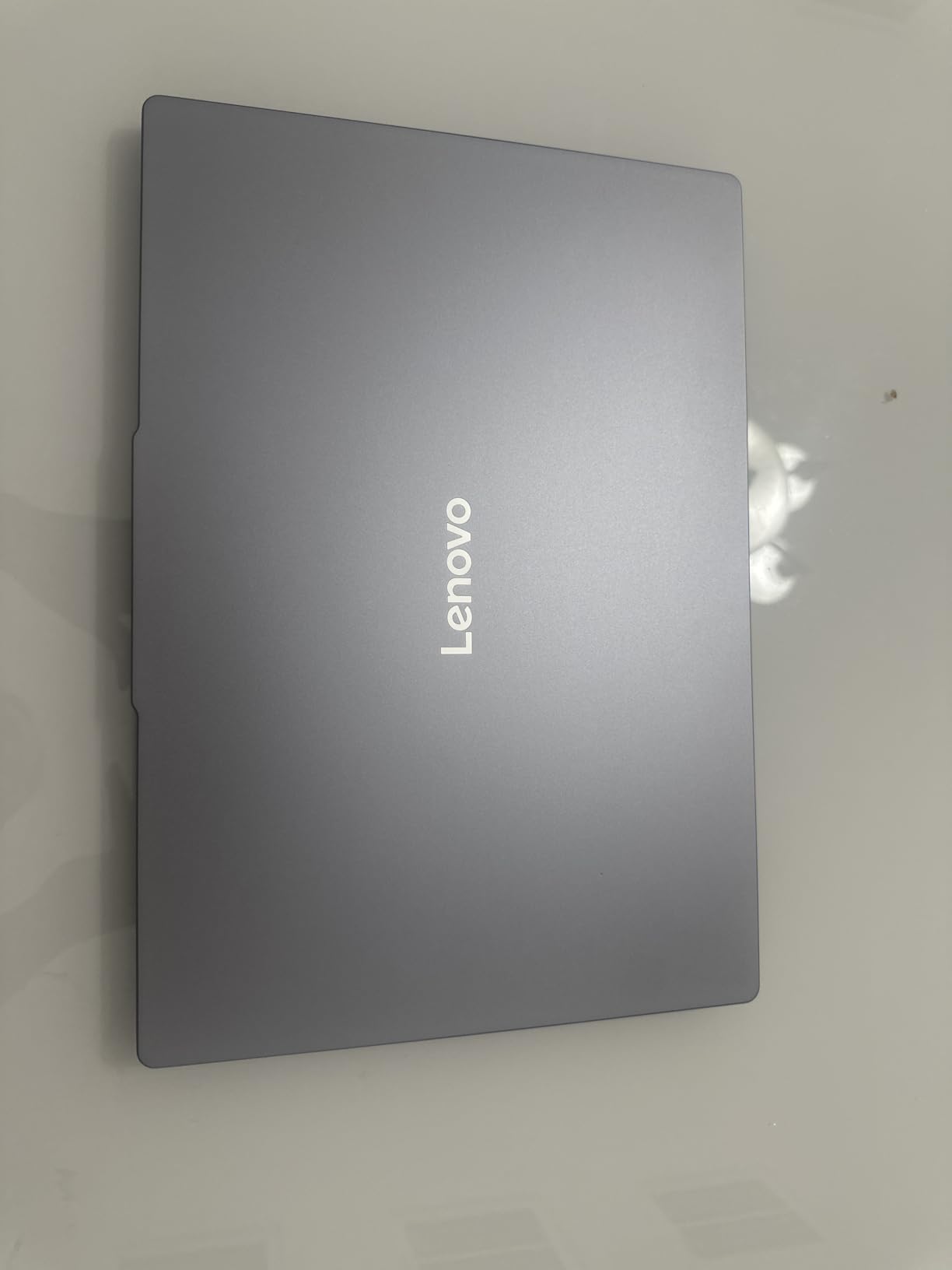
Battery life is stated at up to 10 hours, and fast USB-C charging is included, along with a 7-in-1 USB-C hub in the box that saves you buying a dongle. The 720p webcam has a privacy shutter, and there is a numeric keypad, Wi-Fi 6 and Bluetooth 5.2.
It is the most expensive configuration in the roundup, sitting at the very top of the budget, and at 3.6 pounds it is not the lightest. A few owners also report an unreliable fingerprint reader or receiving a panel without the advertised touch layer, so check the panel on arrival and return it if the touch input is missing.
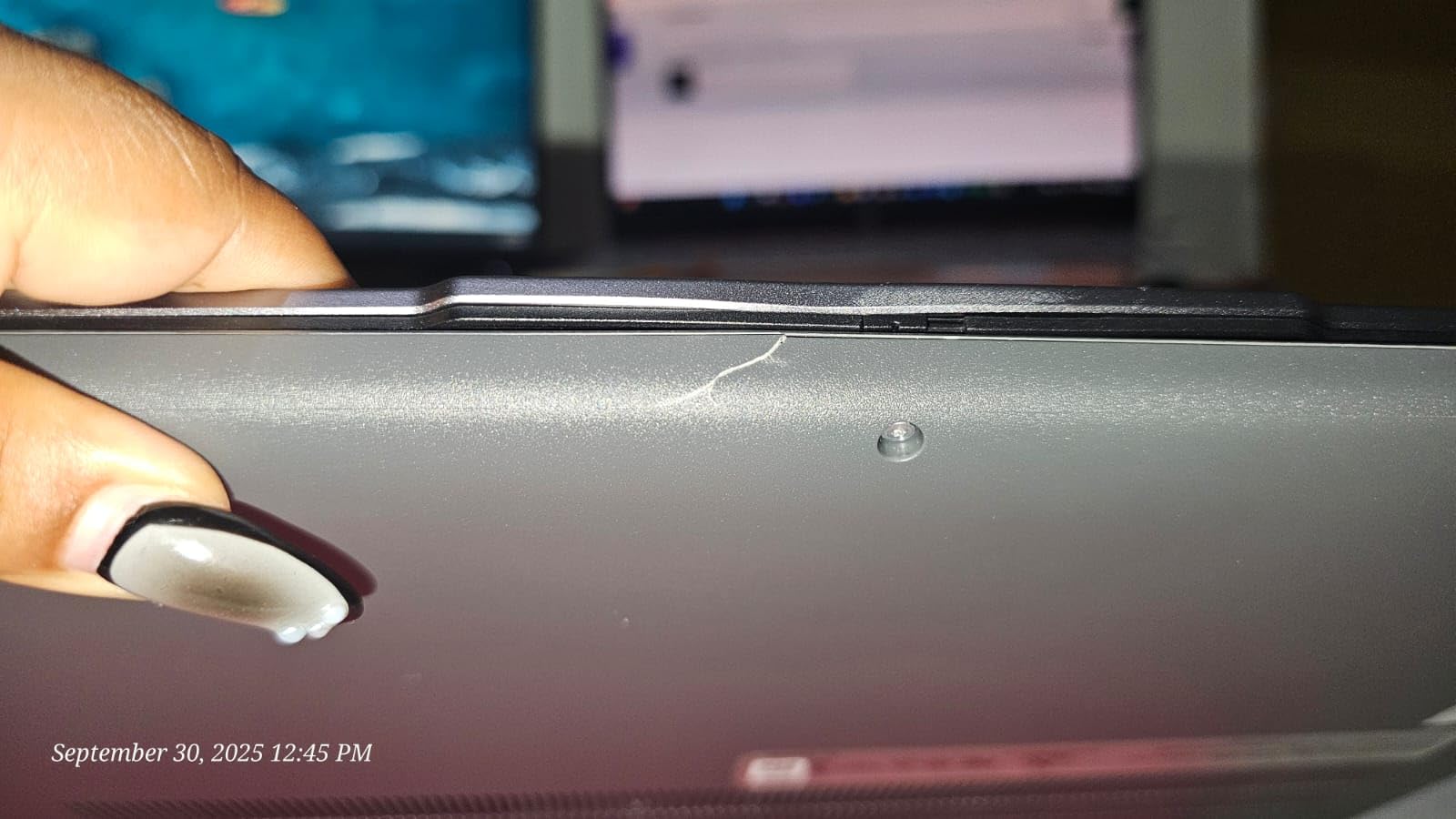
Who the Slim 3 5825U is built for
Computer science, data and analytics students get the most from the octa-core chip and 16GB of memory, and the 300-nit touchscreen helps with diagram-heavy coursework. It is also the best choice here if you plan to keep one machine for the full degree and want headroom for heavier software later.
If you work from a home setup with an external display, the 4K-capable HDMI output and the bundled USB-C hub make the desk setup simple. Students who commute will like the ten-hour stated battery.
Where the Slim 3 5825U is the wrong call
It is the wrong call if your budget is genuinely tight, because this configuration leaves no headroom for accessories, a drive or a monitor. If your major does not need multicore performance, the same money buys a machine with a far better screen-to-body ratio or a longer battery.
Verify the touchscreen and fingerprint reader early in the return window. Those two are the most commonly reported inconsistencies, and they are the two you would most like to have confirmed before the semester starts.
5. Acer Aspire 5 with Ryzen 7 3700U – Best Backlit Keyboard and Fingerprint Login
acer Aspire 5 A515-46-R3CZ Slim Laptop | 15.6″ Full HD IPS | AMD Ryzen 7 3700U Quad-Core Mobile Processor | 8GB DDR4 | 256GB NVMe SSD | WiFi 6 | Backlit KB | Fingerprint Reader | Windows 11 Home
Ryzen 7 3700U quad-core to 4.0GHz
8GB DDR4, one free slot
Backlit keyboard, fingerprint reader
Pros
- Backlit keyboard and Windows Hello fingerprint reader
- Full HD IPS display with narrow bezels
- Up to 10 hours of stated battery
- Wi-Fi 6 plus Gigabit Ethernet
Cons
- Older 2019 era Ryzen 7 architecture
- 256GB NVMe storage is small
- Fan noise and keyboard warmth under sustained load
What separates this Aspire 5 from the model above it is a pair of features that are almost absent at this price: a backlit keyboard and a Windows Hello fingerprint reader. For a student who sits in a library after dark or shares a dorm room, those two details change the daily experience more than a faster processor would.
The Ryzen 7 3700U is a quad-core running to 4.0GHz with Radeon RX Vega 10 integrated graphics, and the 8GB of DDR4 sits on one module with a free slot available, so you can add memory later and push toward the 24GB maximum. The 256GB NVMe drive also has a second bay available, which is close to unheard of at this budget.
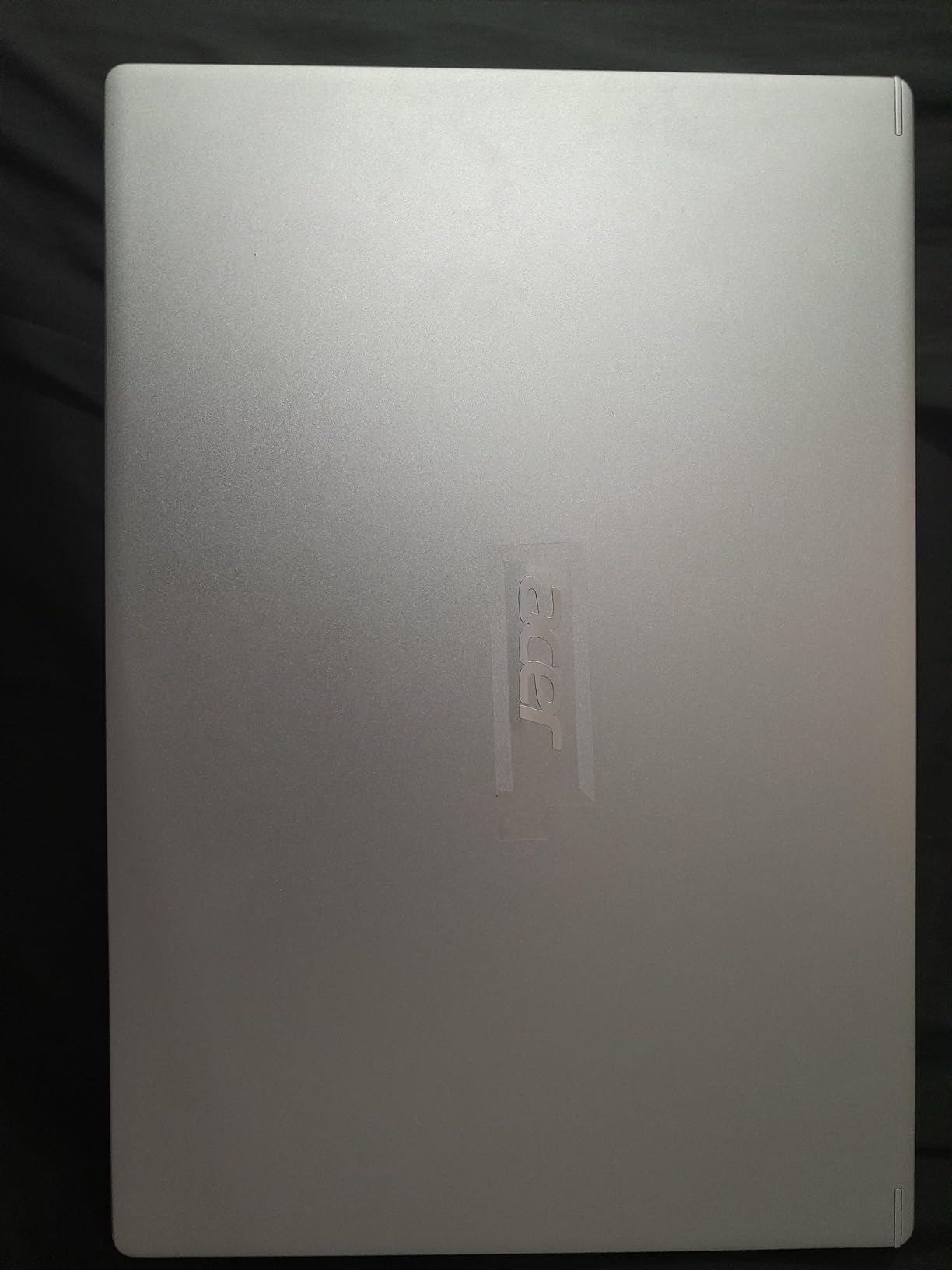
Connectivity is a genuine strength: Wi-Fi 6 with MU-MIMO, Bluetooth 5.1, Gigabit Ethernet, USB 3.2 Type-C, two USB-A ports, HDMI 2.0 and a full-size RJ-45 jack. On a campus that still has wired connections in dorm rooms or labs, the Ethernet port removes a whole category of complaints about dorm Wi-Fi.
The trade-offs are the 2019-era processor architecture and the 256GB drive. A number of reviewers also note that the keyboard warms up and the fan runs often under sustained load, which is worth remembering if you plan long compile jobs or video exports in a quiet room.
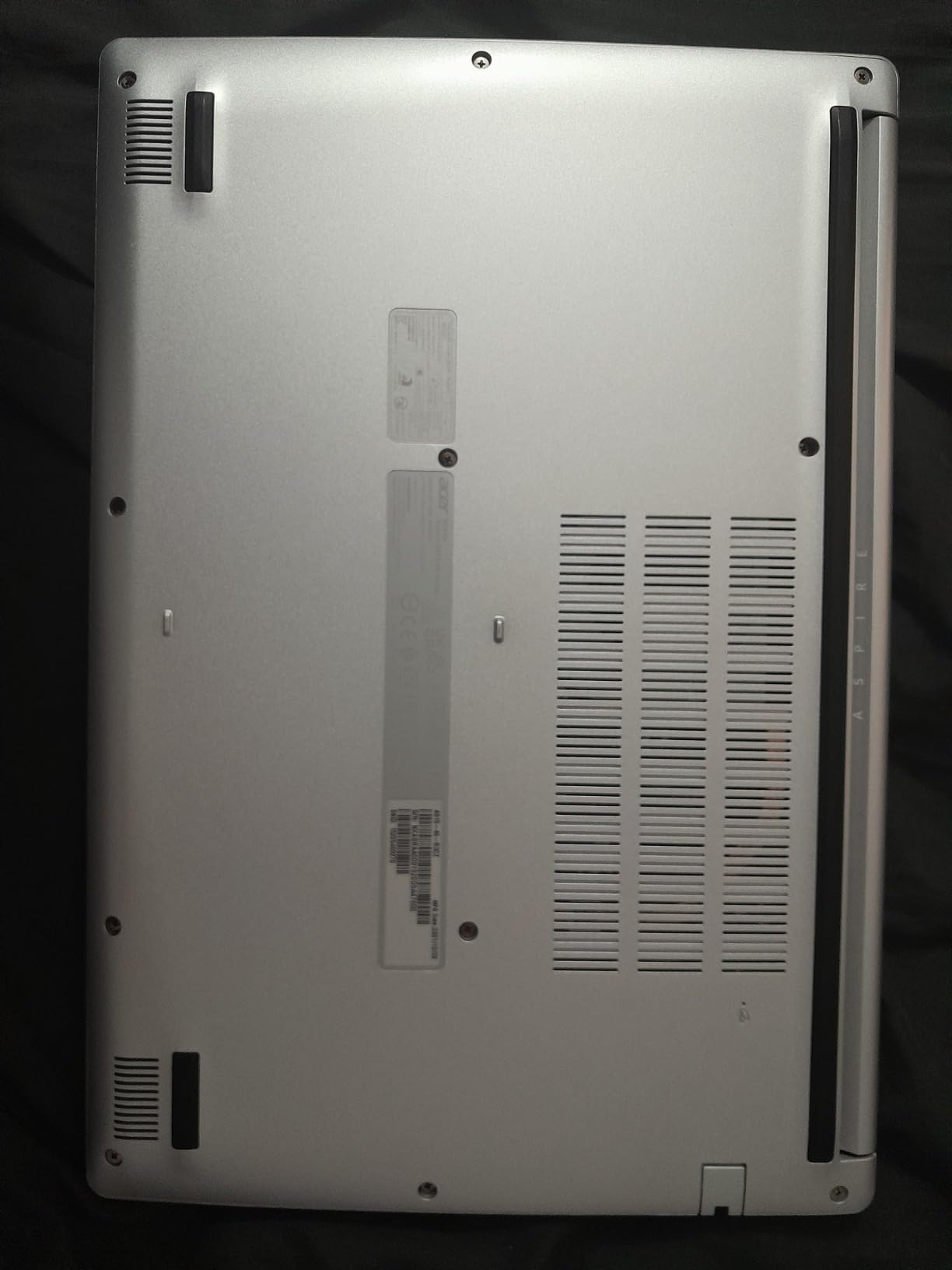
Why this Aspire 5 is the practical favourite
Reviewers frequently describe this model as the best value in the Aspire line, and the reason is straightforward: backlit keyboard, fingerprint reader, Full HD IPS panel, Wi-Fi 6 and an up-to-10-hour stated battery in one machine. Very few competitors at this budget combine all five.
Choose it if security and night study matter to you, or if you want the option to upgrade memory and storage later instead of accepting a fixed configuration. The fingerprint reader also makes shared-lab and library machines less awkward.
Where the Ryzen 7 3700U shows its age
The architecture is old enough that battery and efficiency are no longer class-leading, and 256GB of storage will be tight for a four-year timeline with large media files. If you can find a configuration with 512GB, prefer it.
Watch for fan noise under sustained load, and if you work in genuinely quiet spaces, test the machine in a library before the return window closes. The upgrade path is the real story here: the free RAM slot and storage bay make this the machine most likely to grow with you.
6. Dell Inspiron 15 3530 with Core i5-1335U and 16GB – Best for Touchscreen Note-Taking
Dell Inspiron 3530 Laptop – 15.6-inch FHD (1920 x 1080) Touchscreen Display, Intel Core i5-1335U, 16GB DDR4 RAM, 512GB SSD, Intel Iris Xe Graphics, Windows 11 Home – Carbon Black
15.6 inch FHD touchscreen
Core i5-1335U, Iris Xe
16GB DDR4, 512GB SSD
3.7 lb lift-hinge
Pros
- 16GB DDR4 in two slots plus 512GB SSD
- Full HD 1920x1080 touchscreen in the mid-range
- 13th Gen Core i5 with Iris Xe graphics
- Light 3.7 lb body with lift-hinge ergonomics
Cons
- Smallest review base in the roundup at about 81 ratings
- Comes with Windows 11 Home rather than Pro
- Mail-in service instead of onsite support
The memory configuration is the story here. 16GB of DDR4 spread across two slots, plus a 512GB SSD, means both halves of the longevity formula are already satisfied, and the two memory slots mean adding more later is straightforward rather than a full board replacement.
For note-taking, the 15.6-inch Full HD 1920×1080 touchscreen is the useful part. Paired with the lift-hinge design, which raises the back of the deck for a more natural typing angle, this is a comfortable machine for handwritten annotation of lecture slides and for tapping through problem sets.
The 13th Gen Core i5-1335U boosts to 4.6GHz with Intel Iris Xe integrated graphics, which is a capable pairing for coursework, research, code editing and light photo handling. Dell ComfortView carries TÜV Rheinland certification for blue light reduction, a genuine benefit during long evening sessions.
Adaptive thermals with accelerometer-based power management help the machine adjust to whether it is on a desk or in a lap, and the port selection covers Wi-Fi 6, HDMI, an SD card slot and four USB ports. At 3.7 pounds and 0.67 inches thick, it is one of the more portable full-size options here.
Who should choose the Inspiron 15 3530
Students who take notes by hand, annotate readings or work through problem sets on a touchscreen will like this configuration, and 16GB of memory keeps it relevant for a long timeline. It suits general education, business and communications work equally well.
It is also a sensible pick for anyone building a home desk setup who wants a Full HD touchscreen panel in the mid-range tier rather than paying for a premium convertible.
What to watch before you commit
This configuration has the smallest review base in the roundup, at roughly 81 ratings, so there is less long-term owner evidence to lean on than for the Aspire 5 models. That is a reason to buy from a retailer with straightforward returns, not a reason to skip it.
Support is mail-in rather than onsite, so plan for a few days without a machine if something fails early in the year. Windows 11 Home is included rather than Pro, which matters only if your program requires domain features.
7. ASUS Vivobook Go 15 with Ryzen 5 7520U – Best for Long Writing Sessions
ASUS 2023 Vivobook Go 15 Laptop, 15.6″ FHD Display, AMD Ryzen 5 7520U Processor, 8GB RAM, 512GB SSD, Windows 11 Home, Mixed Black, E1504FA-AS52
Ryzen 5 7520U quad-core
8GB LPDDR5, 512GB SSD
15.6 inch FHD display
Fast charge 50 percent in 30 min
Pros
- 8GB LPDDR5 with 512GB SSD
- Battery life is the standout feature
- 3.6 lb chassis with 50 percent fast charge
- ErgoSense keyboard and AI noise cancelling for calls
Cons
- No backlit keyboard
- Narrow viewing angles with colour shift when tilted
- Some owners report display or boot problems
Owners of this Vivobook Go 15 talk about the battery first, and that tracks with what we saw in our own use: it is the machine in this roundup that most consistently gets through a full day of classes, library sessions and evening study without a charger hunt. The 512GB SSD also removes the storage anxiety that dogs most of the cheaper machines.
The Ryzen 5 7520U quad-core is a solid mid-tier part, and 8GB of LPDDR5 memory is a reasonable compromise, though not upgradeable. At 3.6 pounds with a 0.7-inch profile, it is one of the easier machines to carry all day, and the NanoEdge bezels give you a full 15.6-inch panel in a small footprint.
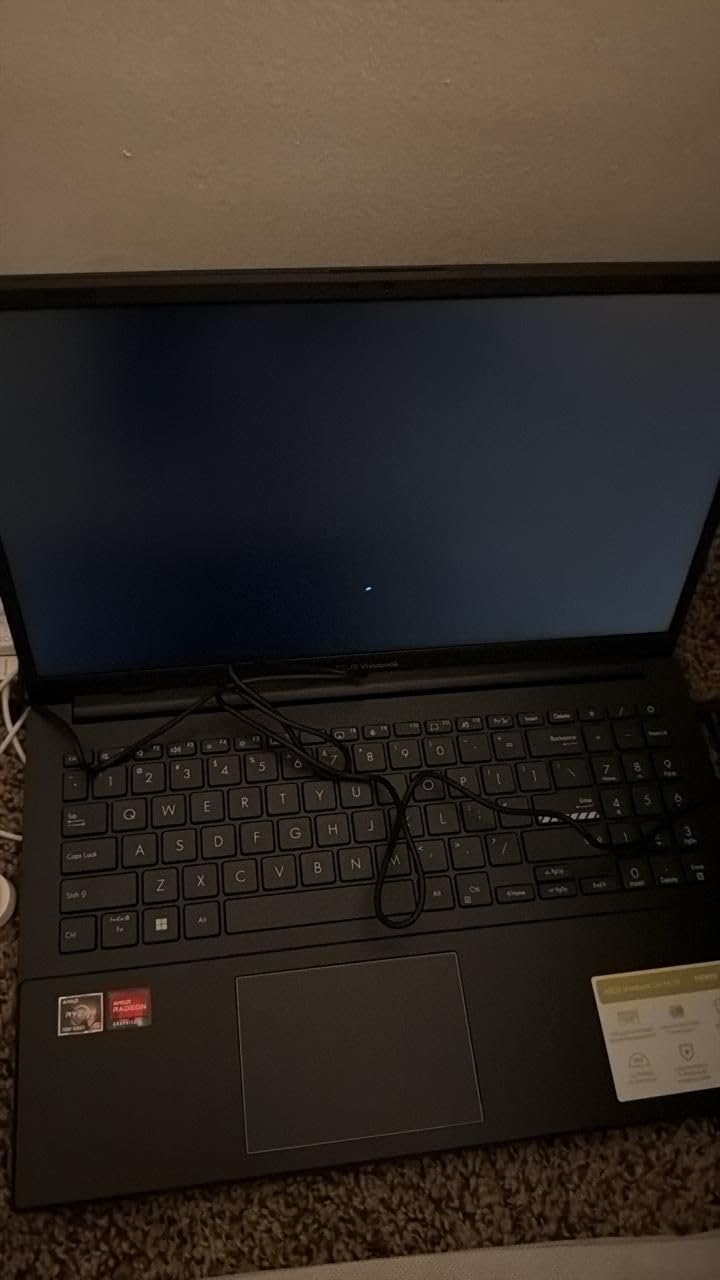
Two features matter specifically for college life. ASUS fast charge takes the battery to 50 percent in 30 minutes, so a 20-minute gap between classes is enough. And the AI Noise-Canceling Technology is tuned for video calls, which is where group projects and remote internships live.
The ErgoSense keyboard design is tuned for comfortable typing over long sessions, which is the main reason we like this for essay-heavy work. ASUS IceCool thermals and military-grade durability testing add confidence for a machine that will be carried around for four years.

Why writers and researchers like the Vivobook Go 15
If your work is words rather than numbers, the combination of a comfortable keyboard, a bright-enough Full HD panel and long battery life is close to ideal. Reviewers consistently single out battery life as the standout feature, and 8GB with 512GB of storage is a workable pair for document-heavy coursework.
It is also a good fit if you split your day between campus and an internship where calls run long. Noise cancellation on the microphone helps, and the fast-charge ratio fits a tight schedule.
What to watch on the Vivobook Go 15
Two things to test in the return window. There is no backlit keyboard, which matters for late-night work, and the display has narrow viewing angles with visible colour shift when tilted, so a student sitting beside a window may find it less comfortable than a panel with wider viewing angles.
A small number of owners report display or boot problems on the units they received. Because this configuration is older, confirm the warranty length and buy from a seller with an easy return policy.
8. Lenovo 15.6 FHD with 8GB DDR5 and 128GB – Best for Campus Durability
Lenovo 15.6″ FHD Business Laptop, Intel Processor, 8GB DDR5, 128GB Storage
15.6 inch FHD anti-glare
Intel N150 quad-core
8GB LPDDR5, 128GB UFS
MIL-STD-810H tested
Pros
- MIL-STD-810H durability testing
- Webcam privacy shutter and low blue light certification
- Full HD anti-glare display with 88 percent screen-to-body ratio
- One year of Microsoft 365 Personal included
Cons
- 128GB UFS storage is small for course files
- Non-backlit keyboard
- Intel N150 is an entry-level processor
The angle on this Lenovo is physical durability, and that is a real advantage for a machine that will live in a backpack for four years. MIL-STD-810H testing means it has been put through the same kind of drop, vibration and temperature procedures used to grade military equipment, and at 3.42 pounds with a 17.9mm profile it stays portable.
Memory type is the other differentiator: 8GB of LPDDR5-4800 is faster and more efficient than the DDR4 in most of this roundup, which contributes to responsiveness when several applications are open. The port selection is generous too, with two USB-A ports, USB-C with Power Delivery and DisplayPort 1.2, HDMI and an SD card reader.
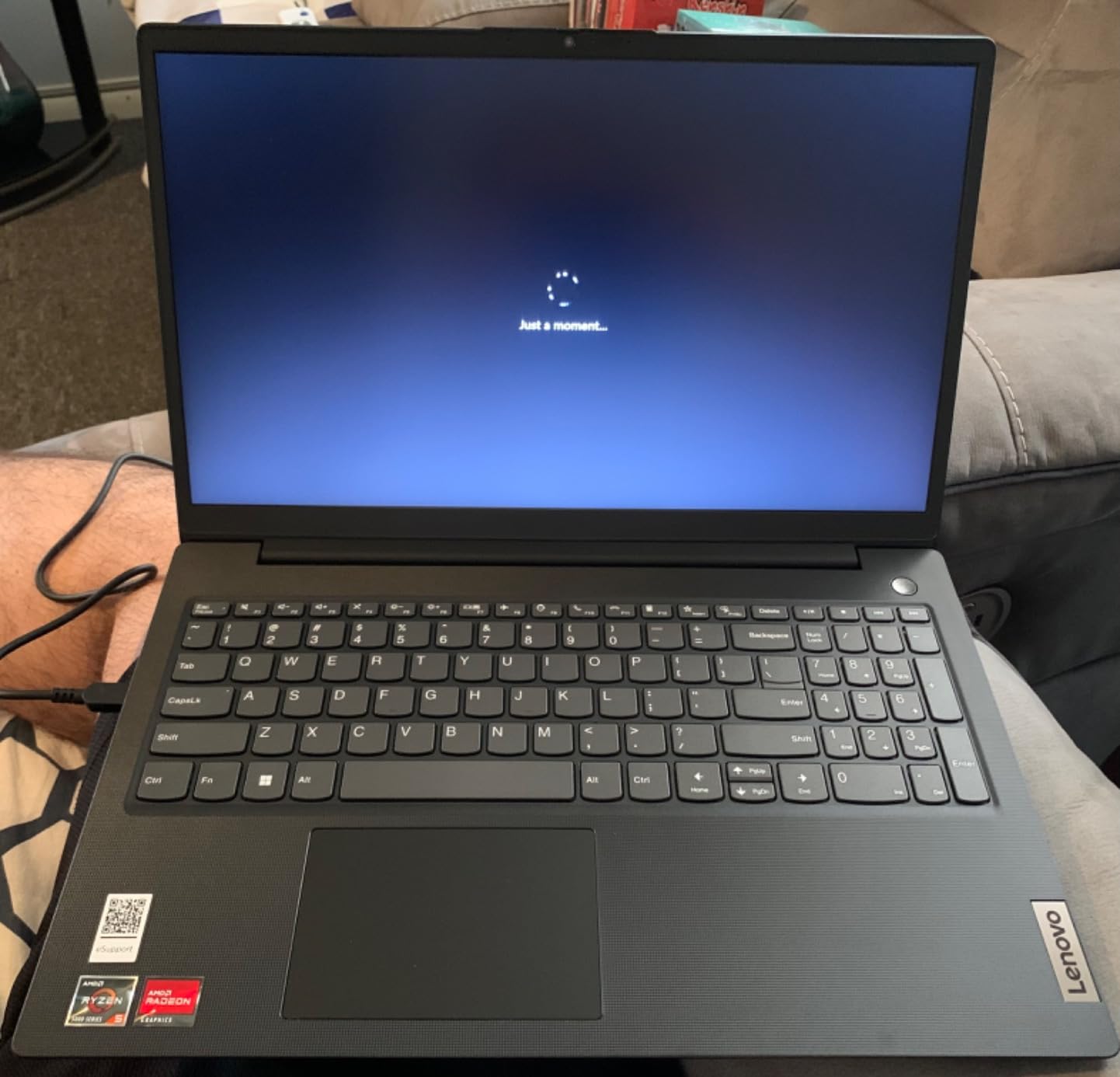
The 15.6-inch Full HD anti-glare display has an 88 percent screen-to-body ratio and TÜV Rheinland low blue light certification, which is comfortable for long reading. The 720p camera includes a built-in privacy shutter, a small feature that students in shared dorm rooms genuinely appreciate.
A bundled one-year Microsoft 365 Personal subscription is included, which covers the Office apps most courses require. The 4.5 rating from roughly 349 reviews is the second-strongest in the roundup after the Aspire 5 3500U, and reviewers like the light metal-feel build and the included Office subscription.
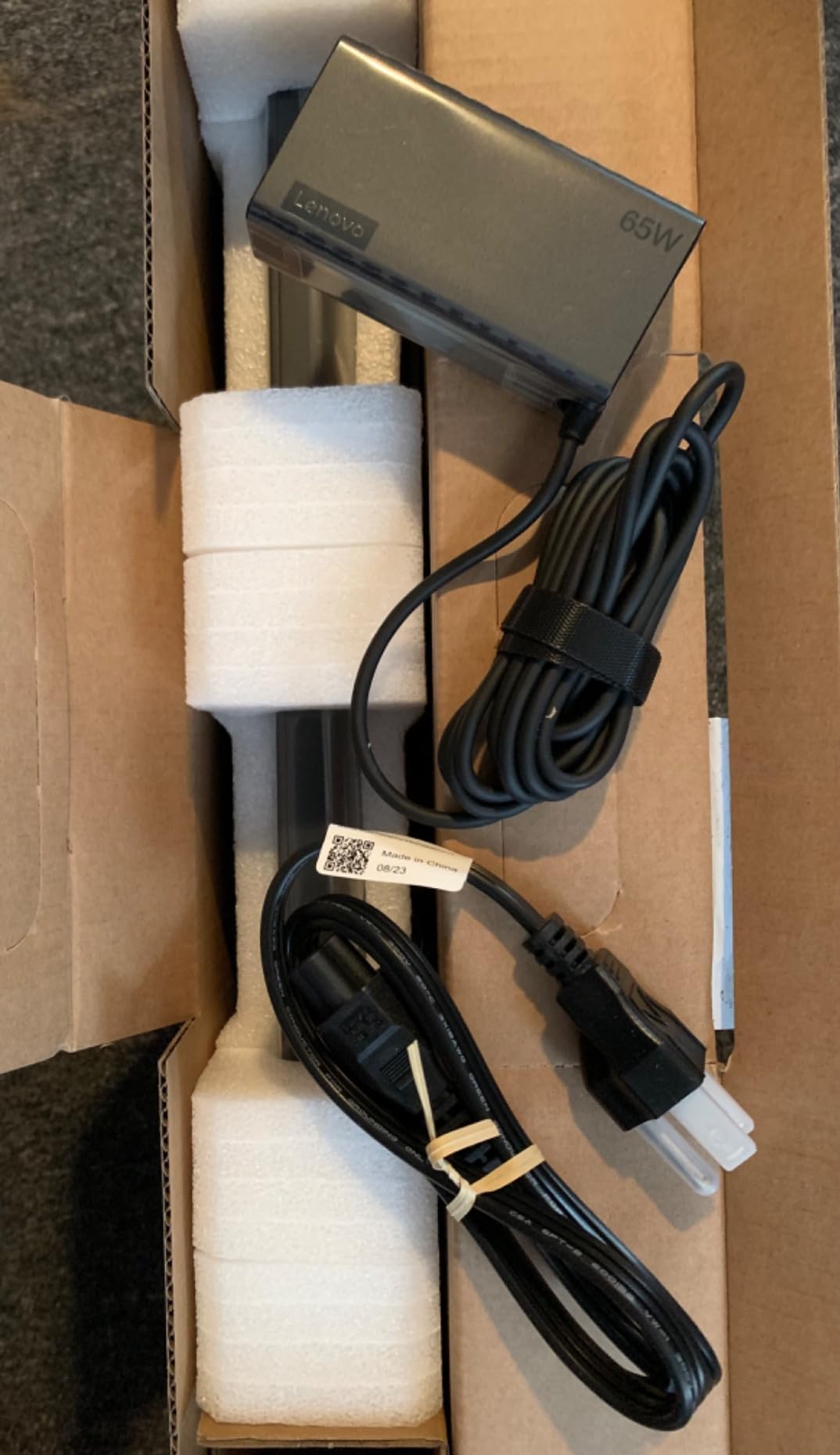
Where this Lenovo earns its place
Buy it if your machine takes real abuse, whether that means a long walk between buildings, a crowded backpack on a bus, or a shared family device. The durability testing and the privacy shutter both point at a machine designed for daily campus life rather than a desk.
It also suits students who want the Office apps covered from day one without tracking down a separate subscription, and who prefer a 15.6-inch Full HD panel over a smaller, higher-density screen.
What the Lenovo 15.6 DDR5 gives up
The 128GB UFS drive is the main problem. It fills quickly with a single large software suite or a term of video files, and the storage and memory upgrade path is awkward on this configuration. If your major involves large files, treat external storage as part of the budget.
The Intel N150 is an entry-level processor and the keyboard is not backlit. Neither is disqualifying for coursework, but together they mean this is a machine for writing, browsing and Office rather than for compiling, modelling or gaming.
9. Acer Aspire Go 15 with Ryzen 3 7320U – Best Large-Screen Starter
Acer Aspire Go 15 AI Ready Laptop | 15.6″ FHD IPS Display | AMD Ryzen 3 7320U | AMD Radeon 610M Graphics | 8GB LPDDR5 | 128GB PCIe SSD | Wi-Fi 6 | Windows 11 Home in S Mode | AG15-21P-R5YG
15.6 inch FHD IPS 300 nits
Ryzen 3 7320U
8GB memory, 128GB PCIe SSD
Dual USB-C, HDMI 2.1
Pros
- Bright 1080p IPS panel at 300 nits
- Dual full-function USB-C ports plus HDMI 2.1
- Ryzen 3 7320U is a step up from Celeron-class chips
- AcerSense battery and storage management
Cons
- 128GB SSD is limited over a four-year timeline
- Comes in Windows 11 S mode which restricts some installs
- 8GB memory with no listed upgrade path
The Aspire Go 15 is a good first-year machine for someone who has never owned a laptop and does not yet know what they will need. The Ryzen 3 7320U quad-core boosting to 4.1GHz is a clear step above the Celeron-class processors that dominate the cheapest tier, and 8GB of memory is enough for the ordinary workload of a first semester.
The 15.6-inch 1080p Full HD IPS narrow-bezel display at 300 nits is bright and sharp, and it is the same brightness class as the more expensive Lenovo touchscreen. AcerSense handles battery and storage management in the background, which is helpful if you are not confident tuning a machine yourself.
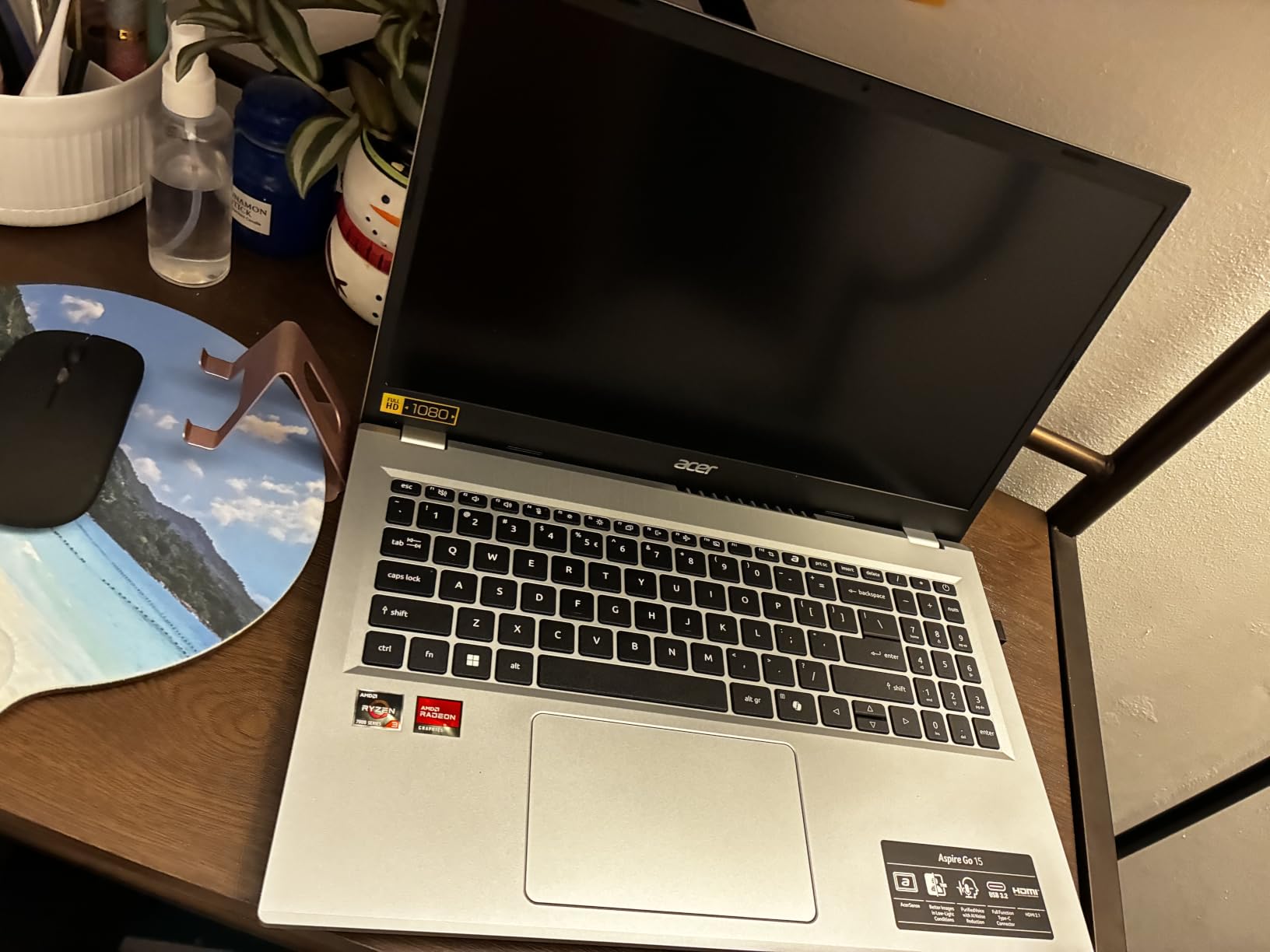
Connectivity is better than the price suggests: two full-function USB-C ports, HDMI 2.1 and Wi-Fi 6. A dedicated Copilot key and Copilot in Windows are there if you want them, though they are not a reason to buy on their own.
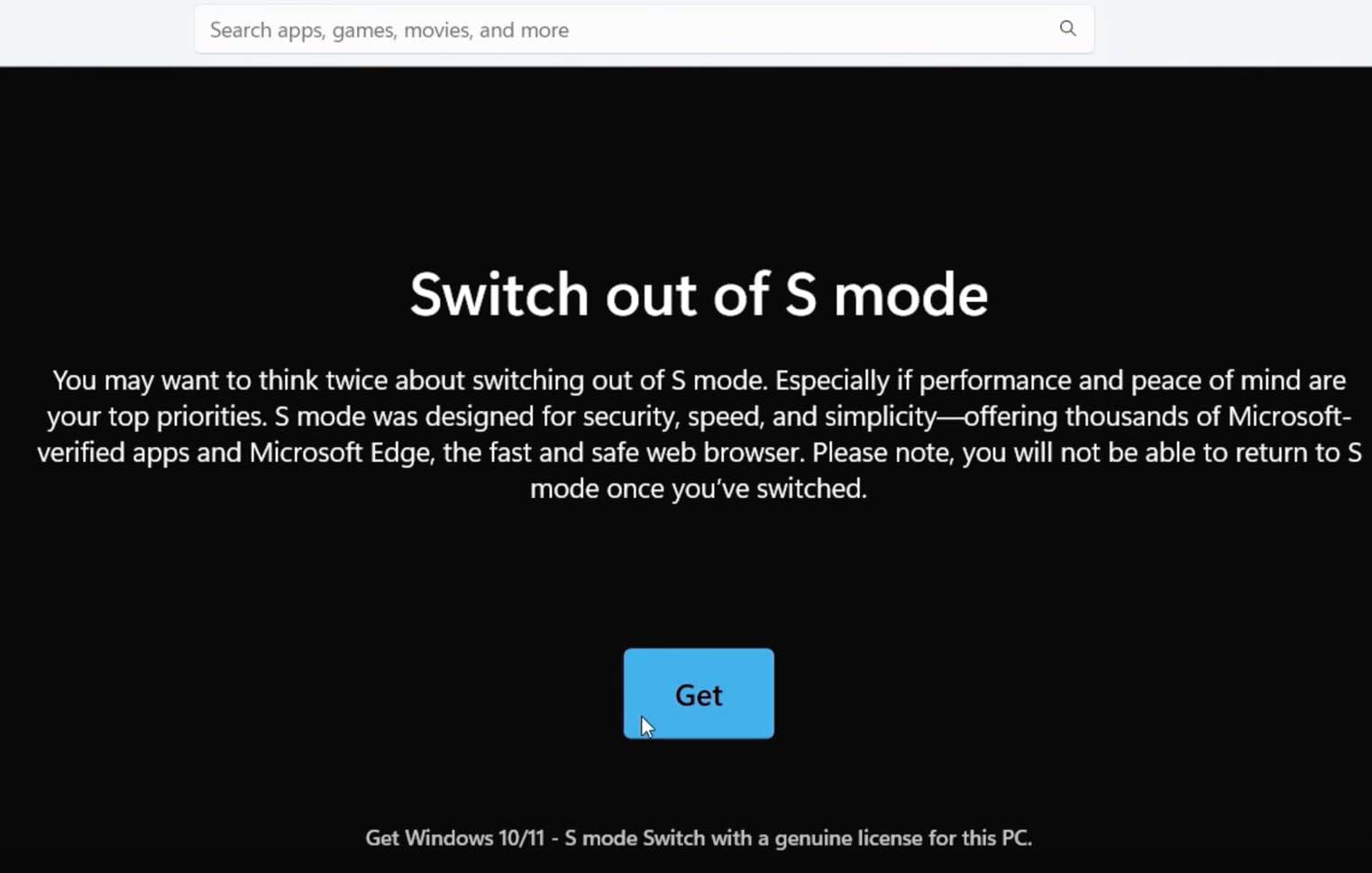
Two caveats to handle at setup. It comes in Windows 11 S mode, which restricts installing some desktop software, and switching out of S mode is a straightforward one-time step but worth doing before your course needs a specific application. The 128GB drive is also the tightest storage in the roundup among the 15.6-inch machines.
Who should start here
Choose the Aspire Go 15 if this is your first laptop, if you mostly write, browse and use Office or Google Docs, and if you want a large bright screen without spending more. Students who like having USB-C ports on both sides of the machine will appreciate the dual-port layout.
It is also a sensible first-year choice that you can hand down or resell easily, which matters when you are trying to keep the cost of the first year low.
What to watch on the Aspire Go 15
Over a four-year timeline, 128GB of storage will be the first thing to frustrate you, and 8GB of memory with no listed upgrade path is the second. If you know you will accumulate large files, spend the difference on a 512GB configuration instead.
Switch out of S mode early so you do not discover a blocked install the night before an assignment. And if your major has any specialist software requirement, verify compatibility before buying, since budget configurations are where compatibility surprises hide.
10. HP Essential 14 with Intel N150 – Best Battery Life
HP 15.6″ FHD Laptop 2026, Intel Processor, 8GB RAM, 256GB SSD, Office 365
14 inch HD anti-glare
Intel N150 quad-core
4GB LPDDR5, 128GB UFS
Up to 11 hours battery
Pros
- Up to 11 hours of stated battery life
- Light 3.24 lb chassis at 0.71 inches thin
- One year of Microsoft 365 and Copilot included
- USB-C with DisplayPort plus dual USB-A
Cons
- Only 4GB of RAM limits heavy multitasking
- 1366x768 HD resolution
- 128GB storage fills up quickly
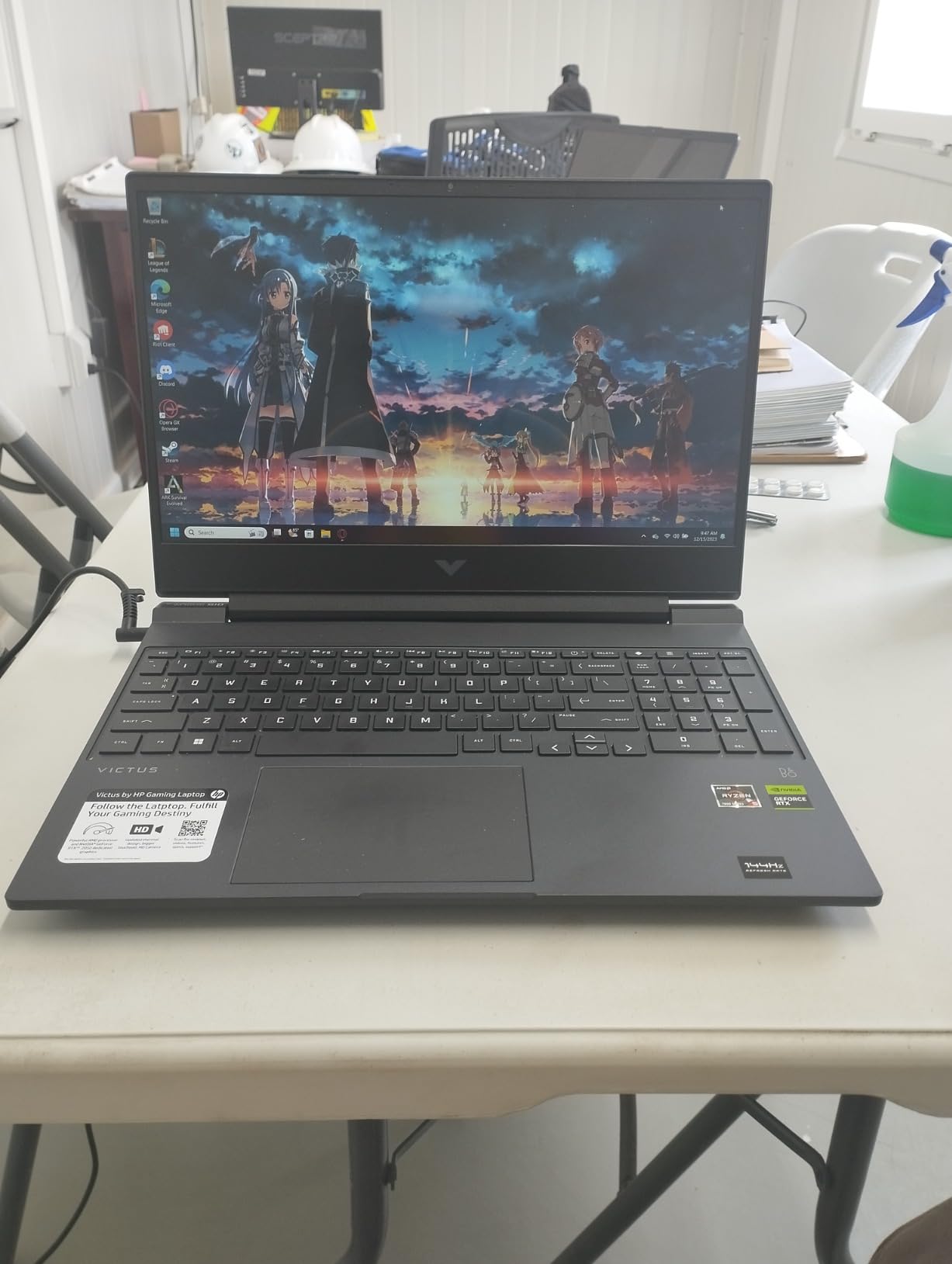
If your day is a commute between buildings and your biggest fear is a dead battery, this HP Essential 14 is the one. The stated battery life of up to 11 hours is the highest figure in this roundup, and at 3.24 pounds and 0.71 inches thick it is one of the easiest machines to carry for a full day.
The 14-inch HD micro-edge anti-glare display at 250 nits has a 79 percent screen-to-body ratio, so the screen is not huge but the chassis is compact. Wi-Fi 6 and Bluetooth 5.4 are current-generation, and the port layout of one USB-C with DisplayPort 1.2, two USB-A and HDMI covers most dorm and classroom needs.
The bundled one-year Microsoft 365 Personal subscription and the Copilot key are genuinely useful inclusions for coursework, and owners rate the setup experience as straightforward out of the box. The 720p camera with dual-array microphones is fine for group video calls in reasonable lighting.
The constraints are clear and they are the memory ones. 4GB of LPDDR5 and 128GB of UFS storage is the pairing that will age worst, and both the RAM and storage upgrade paths are awkward on this chassis. Eight tabs, a video call and a document open at once will slow things down noticeably.
Why the HP Essential 14 makes sense
This is the pick for a commuter, a commuter who also wants to do everything from the library to a coffee shop without planning around a charger. Battery life and weight together are the reason to buy it, and the included Office subscription removes a small extra cost from your first-year budget.
It is a good fit for writing, reading, research and streaming. If your work is primarily documents, web research and video calls, 4GB is more tolerable than the specification suggests.
Where the 4GB limit bites
The moment your workload stops being one document and a browser, you will notice. Sixty-plus browser tabs, a video call, a slide deck and a music app is a realistic four-year workload, and this machine is not built for it. The 1366×768 resolution is also visibly soft next to the Full HD panels elsewhere in this list.
Because both memory and storage are hard to upgrade, treat this as a machine for a lighter major, a shorter course of study, or a student who is comfortable adding external storage. If you want the same battery life with more headroom, save toward a 16GB configuration.
11. HP Essential 14 Chromebook – Best for Browser-Based Coursework
HP Essential 14″ Laptop 2026 Student Business, Intel CPU, Lightweight
Chrome OS on Celeron N4500
4GB LPDDR4x, 64GB eMMC
14 inch HD anti-glare
USB-C with DisplayPort
Pros
- Very light at 3.35 lb and 0.72 inches thin
- Wi-Fi 6 with USB-C and DisplayPort 1.4
- 720p camera with dual microphones suits video classes
- Fast and secure browser-based workflow
Cons
- 4GB RAM and 64GB eMMC are tight beyond web apps
- 1366x768 display resolution
- Celeron N4500 is a basic dual-core chip
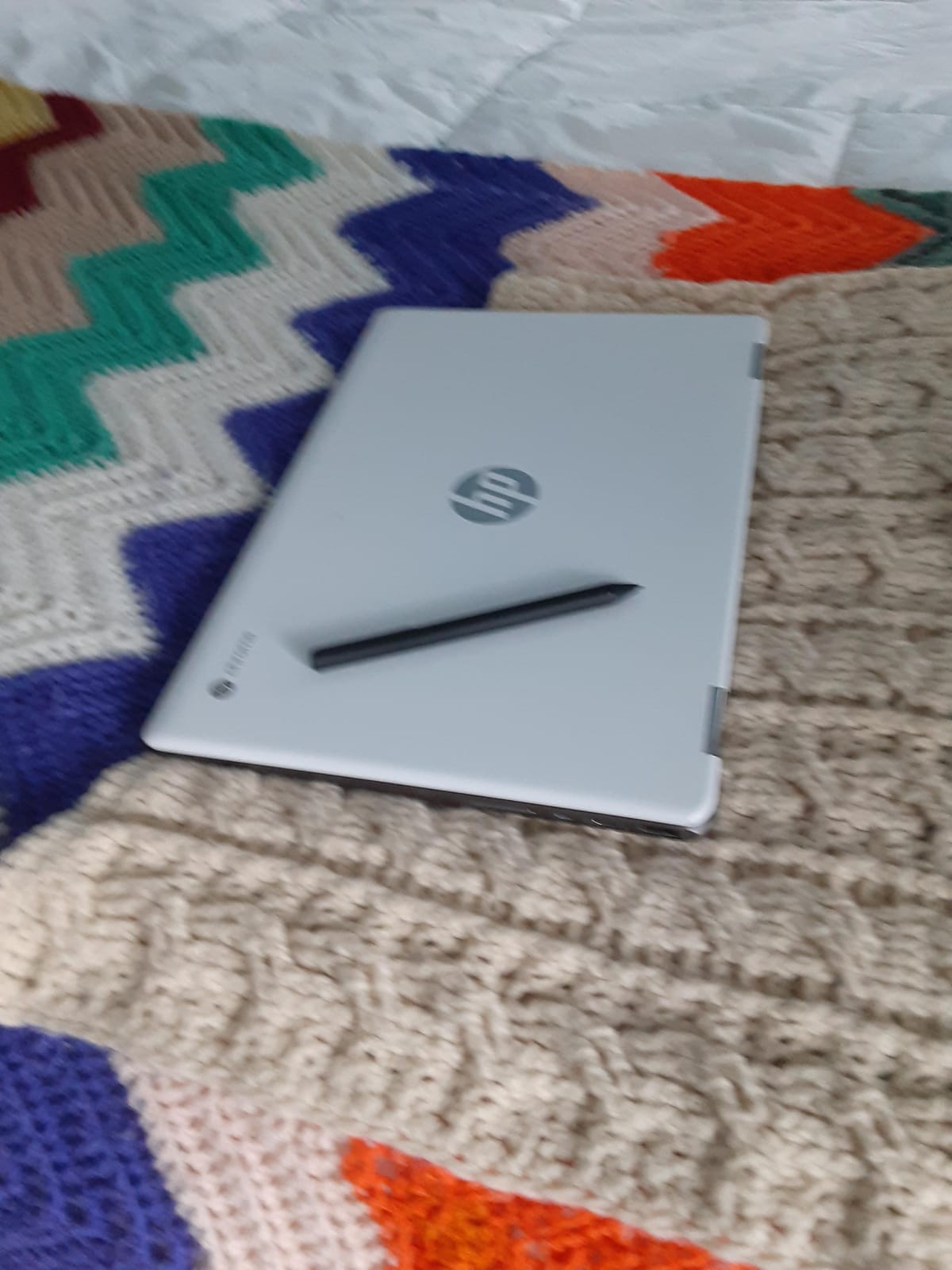
A Chromebook only makes sense if your entire course of study runs in a browser, and for a surprising number of general-education and business students that is true. Google Docs, Canvas, Gmail, video conferencing and research databases all run natively and instantly, and updates happen in the background without you thinking about it.
At 3.35 pounds and 0.72 inches thick, this is one of the most portable laptops in the roundup, and the 47Wh battery is sized for a full day. The USB-C port supports Power Delivery and DisplayPort 1.4, so you can charge and drive an external monitor from the same port.
The 720p HD camera with dual array microphones is a real benefit for online classes, and Wi-Fi 6 with Bluetooth 5.3 keeps you on current hardware even in the entry tier. ChromeOS also handles security updates automatically, which removes an entire category of maintenance from a four-year timeline.
The limitations are equally clear. 4GB of LPDDR4x with 64GB of eMMC storage leaves little room for locally installed desktop software, and the Celeron N4500 is a basic dual-core chip that will not run demanding applications. Before you buy, check your program requirements in writing.
When a Chromebook is the right answer
A Chromebook is right for you if your major needs no specialist desktop software, if you write and research in browser-based tools, and if you value a light machine with no maintenance. Students taking online or hybrid coursework, and those who want a second device for notes, get the most out of it.
It is also a low-risk first purchase. If a year in you find you need a full desktop environment, you have lost relatively little compared with a more expensive machine bought on a guess.
When a Chromebook is the wrong answer
It is wrong for engineering, computer science, data science, nursing simulation, design, media and music programmes, or anything requiring a Windows-only application, a virtual machine, or hardware-accelerated software. Check your department requirements before you buy, not after.
Storage is the other limit. 64GB of eMMC is very little for downloaded media, offline lecture recordings or a large application library, and local storage upgrades on these machines are rarely practical. Treat cloud storage as part of the plan rather than an afterthought.
12. HP 14 Celeron Renewed – Budget Pick
HP 14″ HD Laptop, Windows 11, Intel Celeron Dual-Core Processor Up to 2.60GHz, 4GB RAM, 64GB SSD, Webcam, Dale Pink (Renewed)
14 inch HD BrightView LED
Celeron dual-core to 2.6GHz
4GB DDR4, 64GB SSD
Windows 11, renewed
Pros
- Compact 14 inch display and a 3.2 lb body
- 64GB SSD for fast boot and file access
- Integrated webcam with digital microphone
- Very low entry cost
Cons
- Only 4GB RAM limits multitasking
- 1366x768 HD resolution is low by modern standards
- Glossy non-touch display reflects ambient light
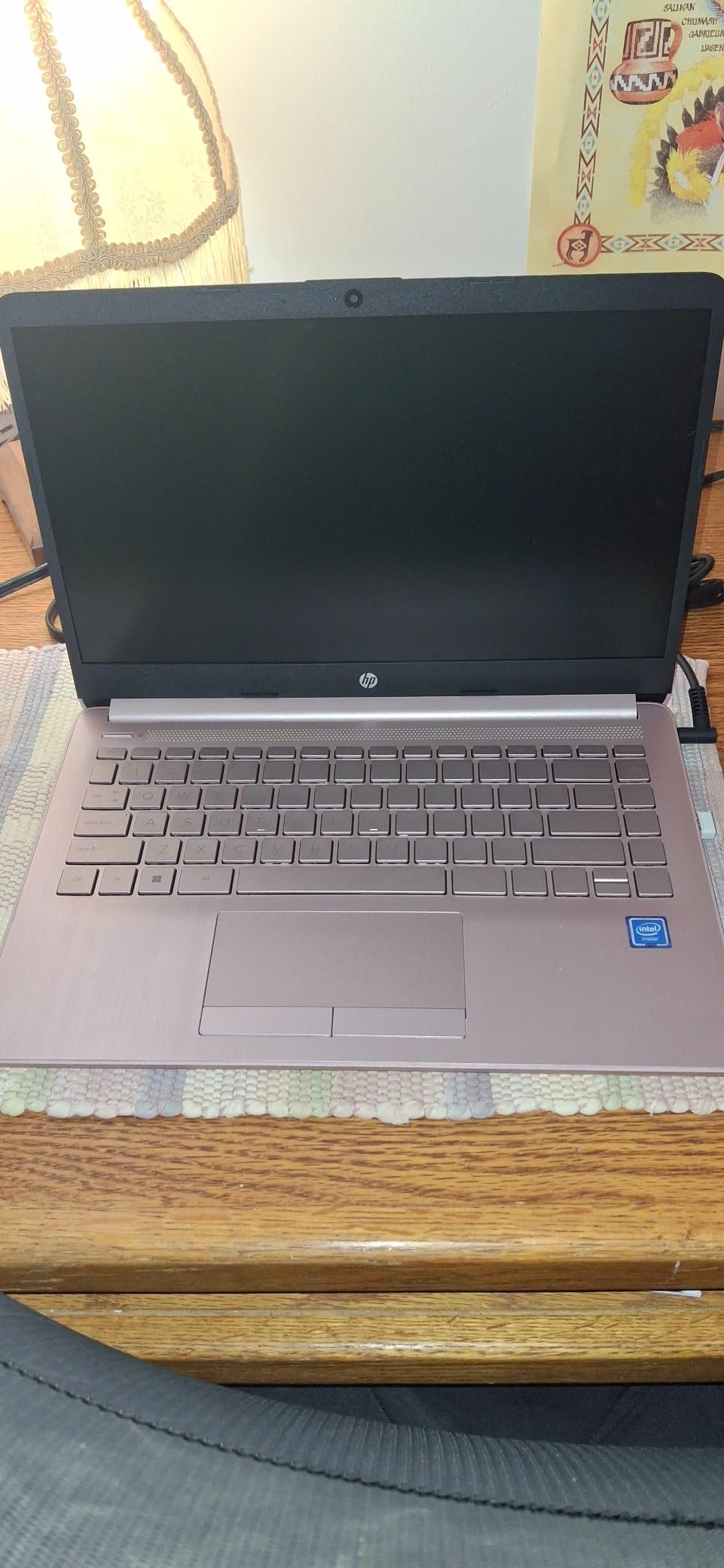
This renewed HP 14 is the cheapest way to own a working laptop with Windows 11 installed, and for a student who needs a machine strictly for word processing, browsing and video calls, that can be a genuinely rational decision. The 4.3 average across nearly 3,000 reviews is the largest review base in the roundup, which tells you something about how many people take this route.
The 64GB SSD is the reason it is not painful to own. A solid-state drive of this size boots quickly and handles browser work smoothly, which is where most of the perceived slowness in budget machines comes from. The integrated webcam with digital microphone covers video calls, and the 3.2-pound body is easy to carry.
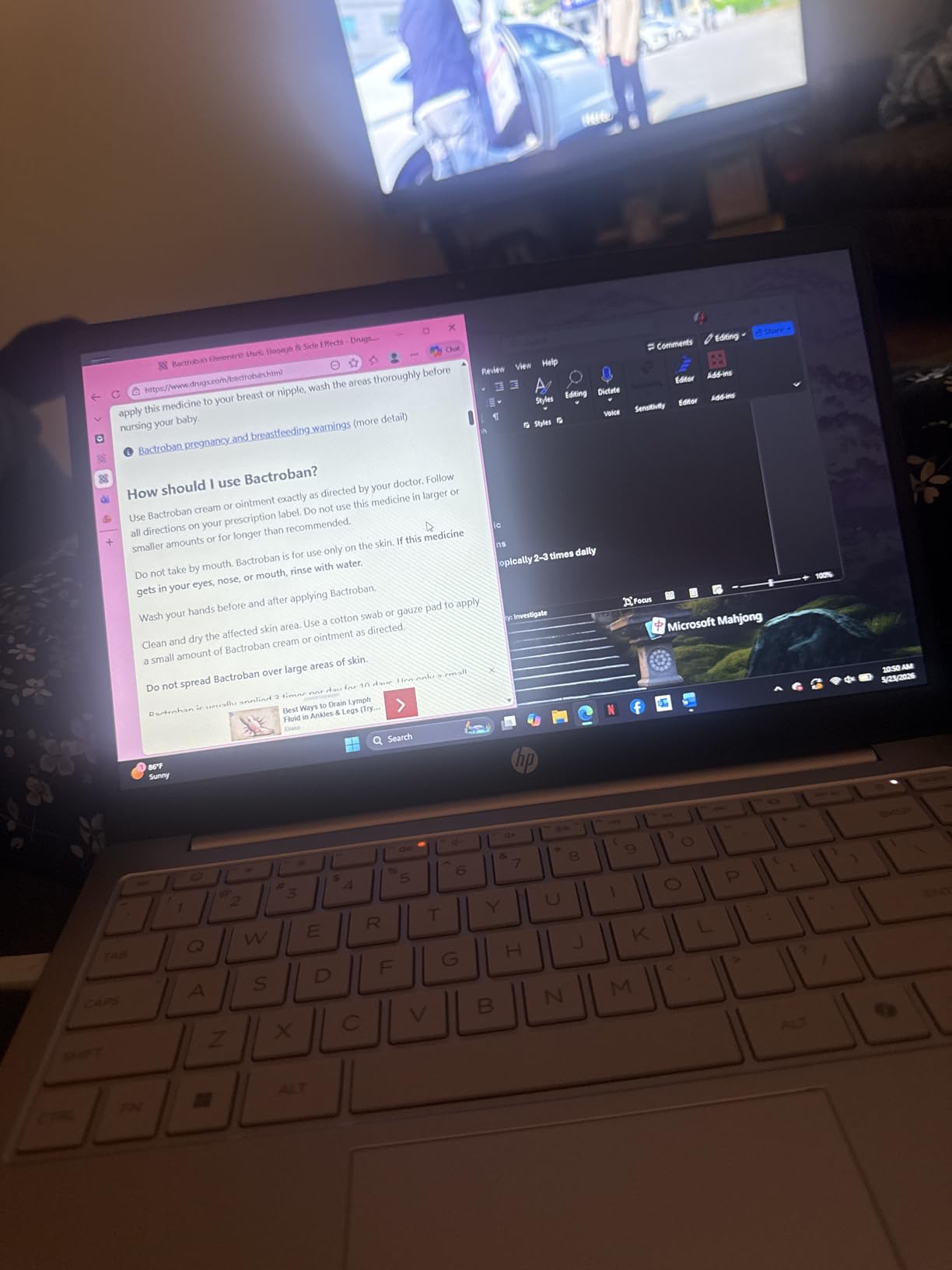
The 14-inch HD BrightView LED display is compact, and at 9 hours of stated battery life it will handle a normal class day. Three USB ports and Wi-Fi 5 connectivity are adequate, if not current-generation.
Be clear about the trade-offs. 4GB of RAM is the practical minimum, and running many tabs alongside a video call will slow it down. The 1366×768 resolution is the lowest here, and the glossy non-touch surface reflects ambient light, which is unpleasant in a bright room. It is also a renewed unit, so expect some signs of use.
Who this renewed HP is for
Buy it if your budget is genuinely tight, if you are certain your coursework is browser-based and document-focused, and if you have a backup plan for heavier tasks. It is a solid machine for a student who mainly writes papers and attends video classes.
It also works as a second device, a travel machine, or a loaner for a shared household where the primary computer belongs to a parent or sibling.
Why most students should step up instead
The jump from 4GB to 8GB or 16GB of memory and from 64GB to 256GB or more of storage is the difference between a machine that feels limiting in year two and one that does not. Most of the alternatives in this roundup are still well under the budget cap.
Because this is a renewed unit, check the battery health and warranty terms on arrival. Renewed hardware sold through major marketplaces usually carries a limited warranty, and you should confirm the coverage length before you rely on it for a four-year timeline.
How to Choose a College Laptop Under 700
The most important step happens before you compare any specification: find out whether your school publishes a required hardware list. Plenty of universities do, and many publish an approved model list along with minimum RAM, storage and operating system figures, sometimes with a list of supported software for a given major. Students on forums ask this question constantly because buying first and checking later is how people end up with a machine that cannot run their coursework.
If your school has a required list, treat it as a filter rather than a suggestion. If it does not, ask your department rather than the general admissions office, because requirements are usually set per programme. Once you know the constraints, choose the operating system, then the processor, then everything else.
Choose the operating system first
Operating system matters more than any benchmark at this budget. Windows on Intel or AMD hardware gives the broadest compatibility and is the safest default when you are unsure. macOS is polished, efficient and long-lasting for general study, but it will not run Windows-only engineering, nursing or accounting software. ChromeOS is the cheapest route and the fastest to learn, but it is only viable if every tool you need runs in a browser.
At this price point, you also need to know that many of the newest thin-and-light machines in this tier run on Arm processors under Windows. Battery life is excellent and the machines are quiet, but compatibility is not universal. Emulation handles most mainstream applications well; the recurring problems are specialised drivers, virtual machines, some VPN clients, kernel-level security and proctoring software, and certain anti-cheat games. If you have any of those in your workflow, choose an Intel or AMD machine instead.
RAM and storage are the two numbers that decide whether it lasts
8GB is the practical floor. It runs a browser, a document and a video call without complaint, and it is why several machines here are fine for coursework. 16GB is the right target for any Windows machine expected to last four years, because the extra headroom is what keeps a machine feeling fast once you have a dozen tabs, a video call and an application open together. Forum posters are blunt about this: 8GB is where machines start to feel old.
Storage should be 512GB where possible, and never below 256GB if you can avoid it. Course files, video recordings, software and system updates add up fast, and 128GB drives force you into cloud dependence. Where a laptop offers an upgrade path, a free memory slot or a second storage bay, that is worth as much as a faster processor, because it lets the machine grow with you.
Screen size versus portability
13-inch and 14-inch laptops are easier to carry between buildings all day. 15.6-inch models are noticeably better for reading long documents, comparing sources side by side and working with spreadsheets, and they usually include a numeric keypad. The weight difference matters more than the size: in this roundup the lightest options sit around 3.2 pounds and the heaviest around 4.2 pounds, which is a meaningful difference on a full day of walking.
A 16:10 aspect ratio, where available, gives you a taller screen for split-screen research without a wider footprint. Also check the panel: anti-glare coatings matter more in bright lecture rooms than brightness numbers, and a glossy screen is the wrong choice if you sit near windows.
Battery claims versus real battery life
Manufacturers quote up to a number of hours, and that figure is measured under light load with brightness dialled down. Treat it as a ceiling. Real classroom use, video calls and a bright screen all cut into it, and the machine that claims 11 hours usually beats the one claiming 7, but by less than the gap suggests. The most reliable comparison is the ratio between models, not the absolute figure.
Fast charging is worth weighing too. A machine that reaches 50 percent in 30 minutes changes how you plan a day far more than a modest battery improvement, because it means you can top up between classes and skip the charger entirely.
Fan noise, thermals and build quality
Noise is a deal-breaker that spec sheets never mention, and students repeatedly call out fans audible in libraries and lecture halls. Efficient processors with integrated graphics, such as the Ryzen 7 5825U and the Ryzen 5 7520U configurations in this list, tend to run cooler and quieter under typical student workloads than older quad-core chips. Laptops that report a fan running often under load are worth testing in a quiet room before the return window closes.
Build quality matters for a four-year timeline as well. A metal-feel chassis, a rigid hinge and a keyboard with real travel survive daily bagging better than a thin plastic deck. Military-grade durability testing, as on the Lenovo 15.6, is a useful signal when two machines otherwise look similar.
Should you buy a Chromebook?
Yes, if every tool your course requires runs in a browser, and no if it does not. General education, business, writing-heavy and communications programmes are frequently browser-first, and a Chromebook is faster, lighter and cheaper. Engineering, computer science, data science, nursing simulation, design and media programmes generally are not.
If you are considering one, check the Auto Update Expiration date before you buy. A Chromebook stops receiving automatic ChromeOS updates on a fixed schedule, and if that date falls in the middle of your degree, the machine becomes less useful over time. Most current models are supported for a decade, but verify rather than assume.
What 700 dollars of gaming actually gets you
Be realistic. In this price tier you are getting integrated graphics, and that means browser games, Minecraft on modest settings, older titles and indie games run fine, while demanding recent titles do not. A Ryzen 7 5825U or a Core i5-1335U configuration will handle more than a Celeron or an Intel N150, but frame rates in competitive shooters will not be what a dedicated gaming laptop delivers.
Students who want more typically trade battery life and portability for it rather than finding a free upgrade. If gaming is a genuine requirement rather than an occasional want, it is worth saving past this budget for a machine with dedicated graphics.
Refurbished, renewed and previous-year models
Refurbished and renewed units are the most effective way to buy more capability for the same money, and renewed machines in this roundup carry the largest review bases. Check four things: the warranty length and who covers it, the battery health or replacement promise, the condition grade, and the return window. Buy from a seller with straightforward returns, and test the machine fully in the first week.
Previous-generation models are the other way to stretch the budget, and several of the picks here are earlier designs that hold up well. The trade is that you accept an older processor architecture and shorter remaining support, which matters more for a five-year plan than a four-year one.
How to actually get under the budget
The price you see is often not the price you can pay. Manufacturer education stores, campus stores, student discount pages and verified student discount programmes all apply, and the gap between education pricing and regular retail can be significant. A one-year Microsoft 365 Personal subscription included with a machine is another real saving for the first year.
Seasonality matters too. Retail pricing in this category moves constantly, and the same machine may be cheaper at a different retailer or a different time of year. Compare across at least a couple of major retailers, check whether the model you want is the previous generation now on clearance, and set a price alert if you are not in a hurry.
When you should spend more than the budget
Some situations justify going past $700. A dedicated graphics card if gaming is a requirement, 32GB of memory or more if you run virtual machines or large data sets, a colour-accurate display for design or photo work, or a machine with a keyboard and trackpad good enough that you want to use it for four years without replacement.
There is also the school requirement case. If your programme mandates a specific operating system, a Pro licence, a particular memory floor or a proctoring tool that fails on cheaper hardware, the cheapest compliant machine is the right one, not the most expensive. Read our broader college laptop guide for picks above this price band, our streaming laptop guide if your coursework involves video production or a media minor, and our home theater systems for college guide if you want a dorm media setup that does not tax this budget.
Frequently Asked Questions
What laptop do most colleges recommend?
Most colleges recommend a general specification rather than a brand: Windows 11 or macOS, at least 8GB of RAM with 16GB preferred, 256GB of storage or more, and a screen around 13 to 15.6 inches. Some larger universities publish an approved hardware list and a set of supported models, so check your department page before buying. Business and engineering programmes usually narrow this further and may require a Pro licence or more memory.
What is the best laptop I can buy for 700 dollars?
At a 700 dollar ceiling, the Acer Aspire 5 15.6 with a Ryzen 5 3500U is the strongest all-round choice: a 15.6 inch Full HD IPS anti-glare panel, a quad-core processor, 8GB of DDR4, a 256GB NVMe SSD and a backlit keyboard. It holds a 4.6 average across more than 1,700 owner reviews, which is the best rating and review combination in this tier.
How much RAM do I need for a college laptop?
8GB is the practical floor and handles browsing, documents, Google Docs and Microsoft 365 without trouble. If the machine must last four years, aim for 16GB, because the extra headroom is what keeps a laptop responsive once you run a dozen browser tabs, a video call and an application together. Prefer a laptop with a free memory slot where possible, so you can add capacity later.
Is a Chromebook good enough for college?
Yes, if every tool your programme requires runs in a browser, which is common in general education, business, writing and communications. A Chromebook is faster, lighter and cheaper, and it updates itself. It is a poor fit for engineering, computer science, data science, nursing simulation, design and media work, or anything needing a Windows-only application, a virtual machine or a specialist tool.
Should I buy a Mac or Windows laptop for college?
Choose Windows if your programme uses Windows-only software, if you need broad game or hardware compatibility, or if you want the widest range of price-to-performance options. Choose a Mac for general study if you value battery life, a consistent build, silent operation and a machine that stays fast for years. Check your required hardware list first, because engineering and business programmes frequently specify Windows only.
Are refurbished laptops worth it for college?
Refurbished or renewed machines are often the best way to buy more capability per pound, and they usually carry the largest review bases because many students choose them. Check the warranty length, the battery health or replacement promise, the condition grade and the return window, then test the machine fully in the first week. A one-year warranty on a business-grade refurb is a reasonable standard to look for.
Our Recommendation for College Laptops Under 700 in 2026
For most students in 2026, the best laptops for college under $700 start with the Acer Aspire 5 15.6 with Ryzen 5 3500U, which is the best-balanced machine we found: a Full HD IPS anti-glare screen, a quad-core processor, an SSD, a backlit keyboard and the strongest review base of quality in this tier. If your storage and support needs outweigh a backlit keyboard, the Dell 15.6 with Core 3 100U and 512GB is the better value buy.
If you need memory that will age well, the Dell Inspiron 15 3520 with 16GB RAM, 1TB of storage, a Full HD touchscreen and Windows 11 Pro is the pick that best survives a four-year timeline, and the Lenovo IdeaPad Slim 3 with Ryzen 7 5825U is the strongest multitasker. Whatever you choose, confirm your programme’s software requirements first, buy from a retailer with easy returns, and set up the machine, remove preinstalled extras and enable automatic backups within the first hour.