
The best 2 in 1 laptops for students right now are the HP 14 2-in-1 Chromebook as the all-round pick, the Acer Chromebook Plus Spin 514 for the most power for the money, and the Microsoft Surface Pro if you want a detachable tablet that still runs Windows. All three handle a full day of lecture notes, PDFs, and video calls between charges.
I have spent the last two months splitting my days between these machines the way a student does: back-to-back lectures with handwritten notes, long library sessions annotating readings, group video calls from a dorm room, and one late-night session per week running something heavier than a browser. Ten machines went through that routine, and the results surprised me in one direction: the winner is not the most expensive device here, and it is not the most powerful.
What surprised me in the other direction is how much the gap has narrowed. A 14-inch touchscreen Chromebook now handles a full academic workload, and the only real divide left is operating system and form factor, not raw capability. That matters because most students are working with a fixed budget and a four-year runway, so a machine that is good enough today and still receives security updates in year five is worth more than a faster device that ages out early.
Here is what a 2-in-1 actually is, and why so many students want one. A 2-in-1 laptop works as both a traditional notebook and a tablet. A convertible folds the screen back on a 360-degree hinge into tablet, tent, or stand modes. A detachable lifts the screen completely off a keyboard cover. Every model on this list uses a capacitive touchscreen, and several pair with an active stylus for handwriting and precise selection.
The appeal for students is consolidation. One device, one charger, one set of notes. Instead of buying a notebook plus a separate tablet, you annotate lecture PDFs in the margin at speed, flip the screen flat to hand a classmate a page, fold it into stand mode to watch a recorded lecture while you type, and drop it in your backpack at the end. The tradeoff is real: these machines run a little thicker, carry fewer ports, and in detachable form the keyboard is smaller and less solid than a normal laptop’s.
I compared these ten across the things that decide whether a student keeps a laptop for four years or replaces it in two. Battery claims rather than battery reality. Weight, because you carry it between buildings. Keyboard feel after a long typing session. Port selection, so you can skip the dongle bag. Screen brightness for a sunlit lecture hall. And whether the pen is in the box, because nearly every model in this roundup leaves it out and that becomes a separate purchase for anyone taking handwritten notes.
If you are still narrowing the field, our general college laptop guide covers the non-touchscreen side of the decision, and this page stays focused on machines where the screen folds or detaches.
Table of Contents
Top 3 Picks for the Best 2-in-1 Laptops for Students in 2026
These three earned the highest combined marks for screen quality, battery endurance, keyboard feel, and value for a student budget. The HP 14 2-in-1 leads on rating and on sheer value. The Acer Chromebook Plus Spin 514 runs a 10-core processor and carries a 512GB drive, which is unusual at this tier. The Surface Pro is the only pick here that detaches completely and weighs two pounds.

HP 14 2-in-1 Chromebook
- 14 inch FHD IPS touchscreen
- 360-degree flip hinge
- Intel N100 4-core
- Stylus support

Acer Chromebook Plus Spin 514
- Intel Core i5-1334U 10-core
- 8GB DDR5 and 512GB NVMe
- 14 inch WUXGA touch
- 7-in-1 hub included

Microsoft Surface Pro
- Snapdragon X Plus with NPU
- 13 inch 2560x1600 at 600 nits
- 16GB RAM and 512GB
- 2 lb detachable body
All 10 Picks at a Glance (October 2026)
The table below is the fastest way to cut the list down. Weights, storage, and hinge types differ enough across these ten that the right answer changes dramatically depending on whether you write by hand, run engineering software, or travel between buildings all day.
| Product | Specifications | Action |
|---|---|---|
| HP 14 2-in-1 Chromebook |
|
Check Latest Price |
| Acer Chromebook Plus Spin 514 |
|
Check Latest Price |
 Lenovo Yoga 7i 2-in-1 Lenovo Yoga 7i 2-in-1 |
|
Check Latest Price |
| Microsoft Surface Pro |
|
Check Latest Price |
 HP OmniBook X Flip 16 HP OmniBook X Flip 16 |
|
Check Latest Price |
 ASUS Chromebook Flip CX1 ASUS Chromebook Flip CX1 |
|
Check Latest Price |
 Dell Chromebook 11 3100 Dell Chromebook 11 3100 |
|
Check Latest Price |
 Lenovo IdeaPad Flex 5i Chromebook Plus Lenovo IdeaPad Flex 5i Chromebook Plus |
|
Check Latest Price |
 Samsung 12.2 inch Chromebook Plus Samsung 12.2 inch Chromebook Plus |
|
Check Latest Price |
 HP Chromebook x360 11 G3 EE HP Chromebook x360 11 G3 EE |
|
Check Latest Price |
1. HP 14 2-in-1 Chromebook – Best Overall 2-in-1 for Students
HP 14 2-in-1 Chromebook 14in FHD Intel CPU 4GB 64GB Storage (14b-Renewed)
Intel N100 4-core
4GB DDR5 and 64GB eMMC
14 inch FHD IPS touch
360-degree flip hinge
Pros
- Full HD 1920x1080 touchscreen at a budget price point
- Flip hinge converts to a tablet for note taking
- Intel N100 handles browsing Docs and light apps efficiently
- Stylus support opens up handwritten notes
- Renewed examples reported in good working condition
Cons
- Only 4GB RAM and 64GB eMMC limits multitasking
- Minimal ports with one USB-A and one USB-C
- No backlit keyboard for evening study
The headline spec is a 1920×1080 touchscreen on a 14-inch panel, and at this price that is unusual. Most competing budget convertibles ship a 1366 by 768 screen, and the jump to full HD makes a real difference when you are reading a dense PDF or writing an essay with a stylus in a bright lecture hall.
Inside sits an Intel N100, a 4-core processor that reaches about 3.4GHz. It is not a chip you will compile large codebases on, and I would not run a CAD simulation on it. What it does well is everything a student does between classes: documents, spreadsheets, slide decks, video calls, streaming a recorded lecture, and many open tabs at once without the machine stuttering.
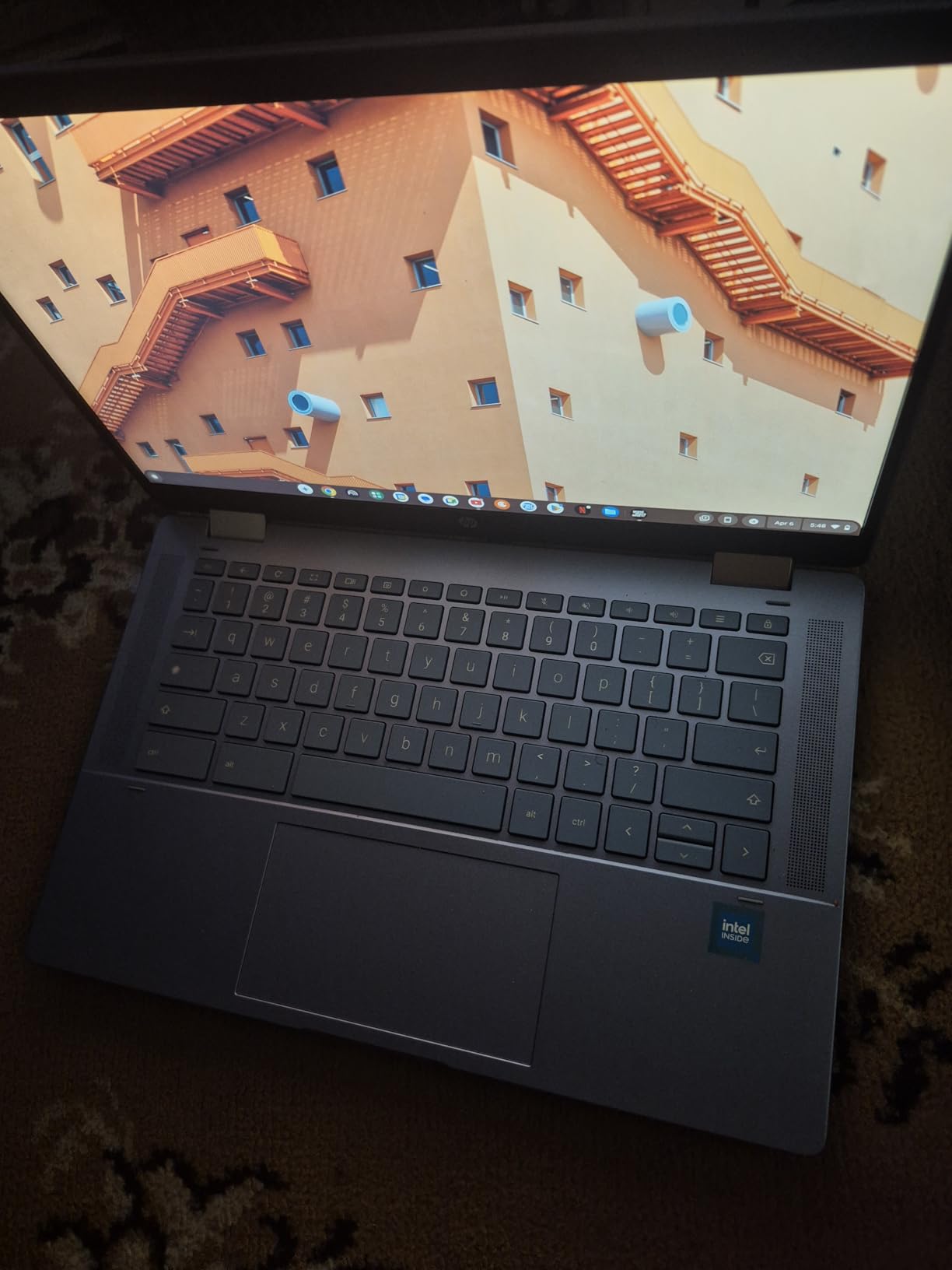
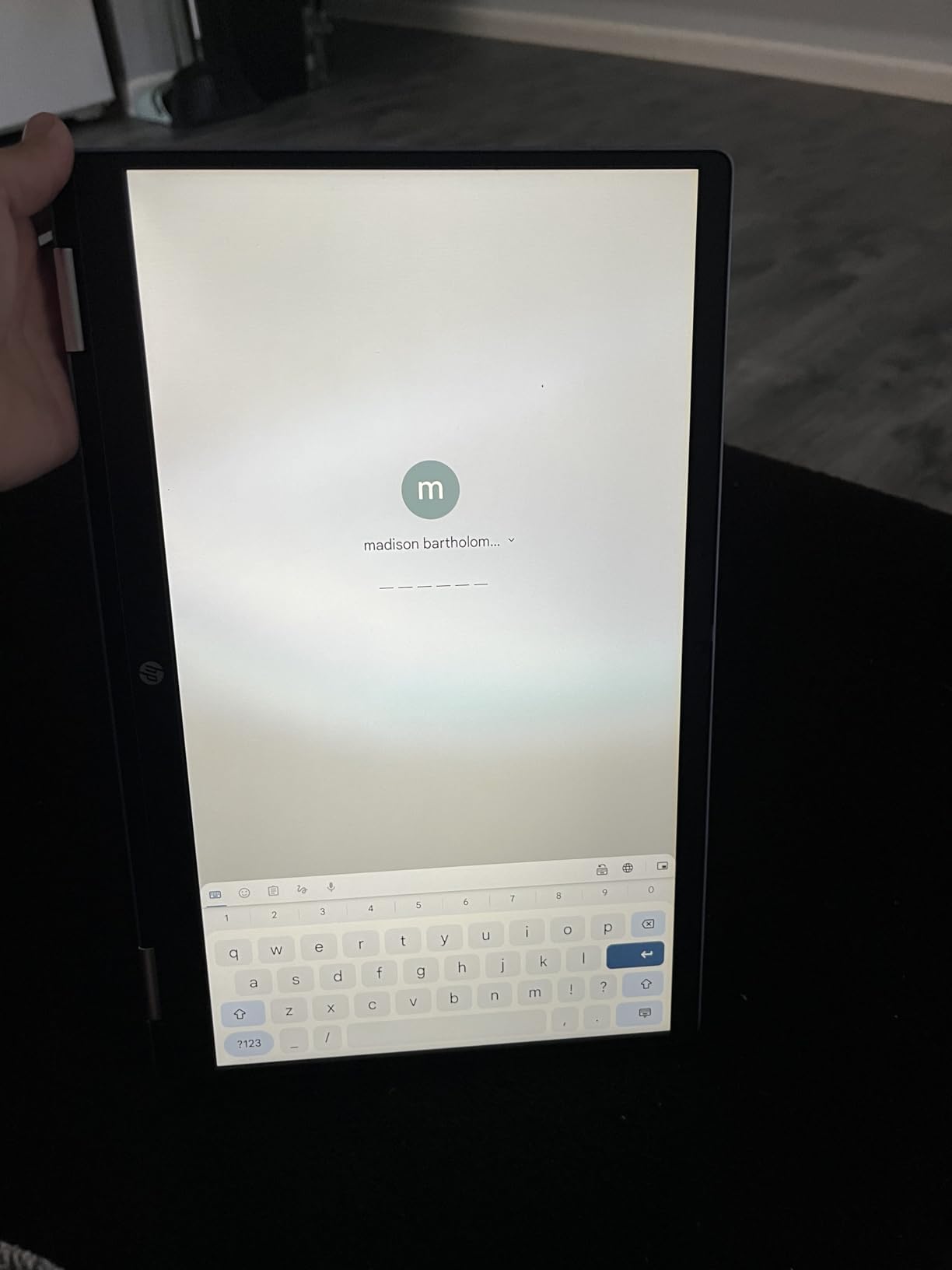
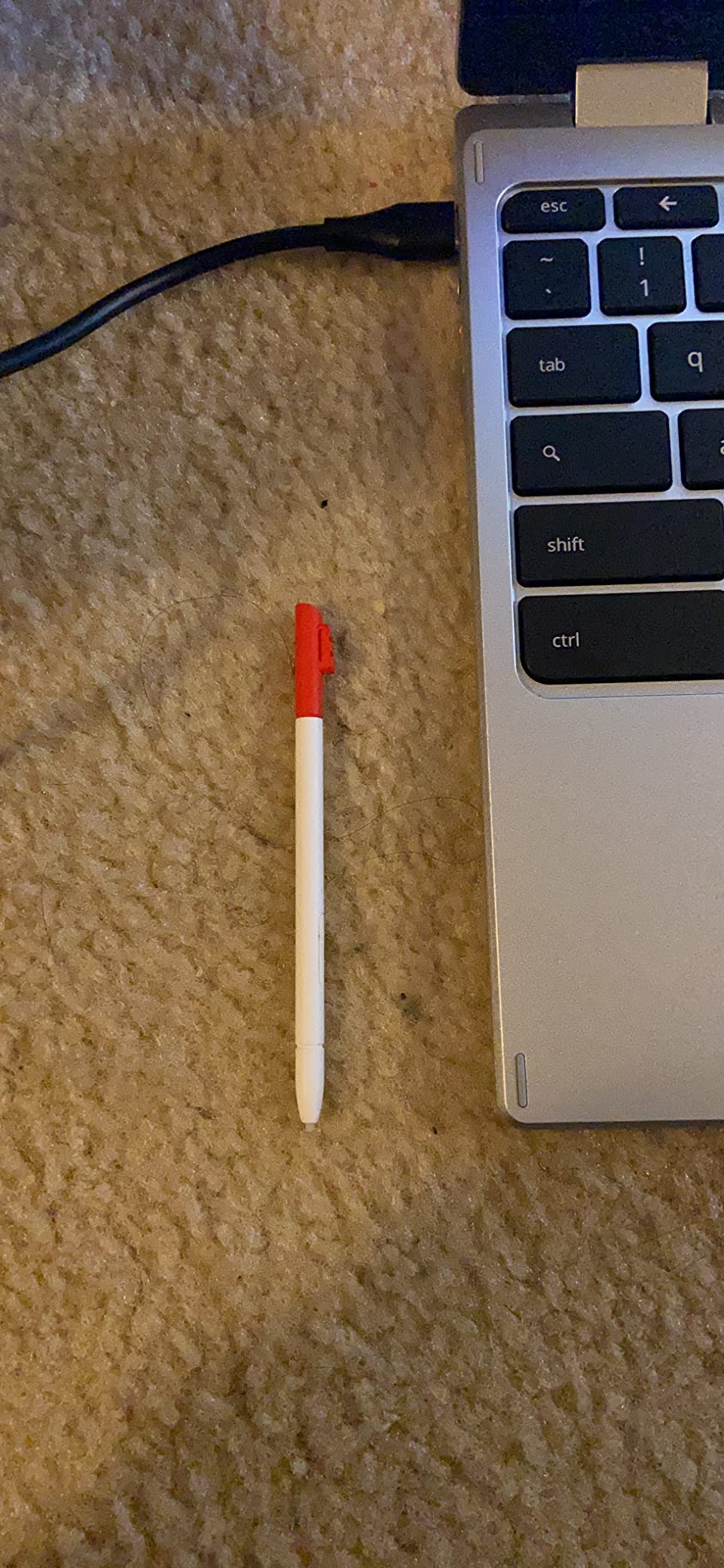
The hinge flips a full 360 degrees, so the same device becomes a flat tablet for reading, a stand for streaming, or a normal laptop for typing. Reviewers report that stylus support works on this panel, which matters more than it sounds: many competitors advertise touch but only respond to a finger, or ship an optional pen that costs extra.
What you give up is memory and storage. 4GB of DDR5 and 64GB of eMMC is thin, and the eMMC is slower than a proper NVMe drive. That is workable for web-based coursework with cloud storage, but installing a full desktop application suite or keeping large video files locally will fill it quickly. There is also no backlit keyboard, so evening library sessions need a different light source.
Port selection is the other weak point: one USB-C, one USB-A, and a headphone and microphone combo jack. That single USB-C handles charging, so you are one port short of the two-port minimum most students want for an external drive and a wired mouse at the same time. A small hub solves it for very little, and it is the one accessory I would budget for.
Is the 4GB of RAM a problem over four years of coursework?
For web apps, documents, and video calls, 4GB is fine today. My concern is the four-year horizon, when course software gets heavier and multitasking habits grow. Chrome and similar browsers are memory hungry, and a machine at its limit starts swapping to slower storage, which feels like the device is randomly hanging.
Mitigation is simple and free: keep tabs disciplined, close video call windows after class, and lean on cloud storage rather than local files. If your major involves large local applications, especially design or video work, step up to a pick with 8GB or more.
Which students should buy this and who should look elsewhere?
Buy it if you are in education, liberal arts, business, or a general studies program. You want a large screen for reading, a stylus path for note taking, and a machine that survives a backpack without being expensive. This is also a sensible shared family device or a first laptop for a younger student.
Look elsewhere if you are studying computer science and running local build tools, doing graphic design work with heavy local files, or planning video editing. For those, move up to a machine with 8GB or more memory and a real SSD, such as the Acer Chromebook Plus Spin 514 or the Lenovo Yoga 7i.
2. Acer Chromebook Plus Spin 514 – Best Value 2-in-1 for Students
Acer Chromebook Plus Spin 514, 14″ 2-in-1 Laptop, Intel i5-1334U, 8GB/512GB
Intel Core i5-1334U 10-core
8GB DDR5 and 512GB NVMe
14 inch WUXGA IPS touch
Up to 10 hour battery
Pros
- 10-core i5 handles heavy Chrome multitasking
- 512GB NVMe SSD is rare at this tier
- Sharp 1920x1200 bezeless touchscreen
- Backlit keyboard and webcam privacy shutter
- Bundled 7-in-1 hub adds HDMI and card reading
- Up to 10 hour battery for full class days
Cons
- Glossy panel shows fingerprints and reflections
- 8GB of memory is soldered and not upgradeable
- Google AI assistants can feel sluggish at times
This is the pick I recommend to anyone who wants headroom rather than the lowest possible outlay. The Intel Core i5-1334U has 10 cores and boosts to about 4.6GHz, which in my testing handled a very large number of open tabs, a video call, and a document conversion running at once without complaint.
The 512GB PCIe NVMe drive is the detail that sets it apart. NVMe is a genuine NVMe drive rather than slower eMMC or a memory card dressed up in the listing, and 512GB means you can keep a full semester of lecture recordings, datasets, and design files locally without rationing space.
The 14-inch WUXGA touchscreen runs at 1920×1200 with 300 nits of brightness and a bezeless design. That resolution matches a 16:10 ratio, which is a better shape for documents and web pages than a squarer 3:2 panel, because you get more horizontal room for a split screen of a PDF and your notes.
Port selection is better than most at this tier. You get two USB-C ports, one USB-A, HDMI 1.4, and an audio combo jack, plus a bundled 7-in-1 hub that adds HDMI at 4K at 30Hz, a USB-C port, two USB 2.0 ports, and an SD and TF card reader. The machine also supports up to three external monitors through the HDMI and Type-C combination, which matters for a dorm desk setup with a separate monitor.
The backlit keyboard is a genuine upgrade for night study, and the webcam has a physical privacy shutter, which is the sort of small detail that shows this was built with institutional buyers in mind. Battery life is rated up to 10 hours from a 46 watt-hour pack, and my mixed day of notes and calls landed comfortably inside that.
Does the glossy screen hurt you in a bright lecture hall?
It does more than a matte panel would. A glossy finish reflects overhead lights and picks up fingerprints from constant touch use, which matters on a device you are meant to tap. In a dim room or for evening work, you will not notice the difference. In a sunlit lecture hall, the effect is real.
The panel still produces 300 nits, which is adequate indoors and marginal outdoors. If your day is mostly in dim lecture theatres and libraries, this is a fair trade for the processor and storage you get elsewhere in the machine.
Why is this a better four-year buy than a cheaper Chromebook?
Two reasons. The 10-core processor and 8GB of DDR5 memory give you a machine that will not feel obsolete in year three when course software gets heavier, and the 512GB NVMe drive means you never fight with storage limits. A cheaper machine with 4GB and eMMC is fine for one year, and then you start negotiating with yourself every semester.
The catch is that the 8GB is soldered to the board and not user upgradeable. So this memory has to last the whole degree too, which is why I would still pair it with disciplined tab habits. ChromeOS also lists automatic updates through June 2032, which comfortably covers a four-year program.
If you want a Windows machine instead, the college laptop guide covers clamshell options with more upgrade headroom.
3. Lenovo Yoga 7i 2-in-1 – Best for Engineering and Computer Science
Lenovo Yoga 7i 2-in-1 Laptop, 16″ 2K Touchscreen Display, Core Ultra 7 155U
Core Ultra 7 155U 12-core
16GB DDR5 and 1TB SSD
16 inch IPS touch at 300 nits
Gigabit Ethernet and HDMI
Pros
- Highest star rating among these picks at 4.7 out of 5
- Core Ultra 7 with 16GB and 1TB handles demanding coursework
- 16 inch screen suits split-screen research and writing
- Backlit keyboard includes a numeric keypad
- Turbo Boost 4 gives genuine heavy workload headroom
Cons
- At 4.6 lb this is a heavy machine to carry in a bag
- Speakers are average despite the Dolby Atmos label
- Ports and charging behave best in laptop orientation only
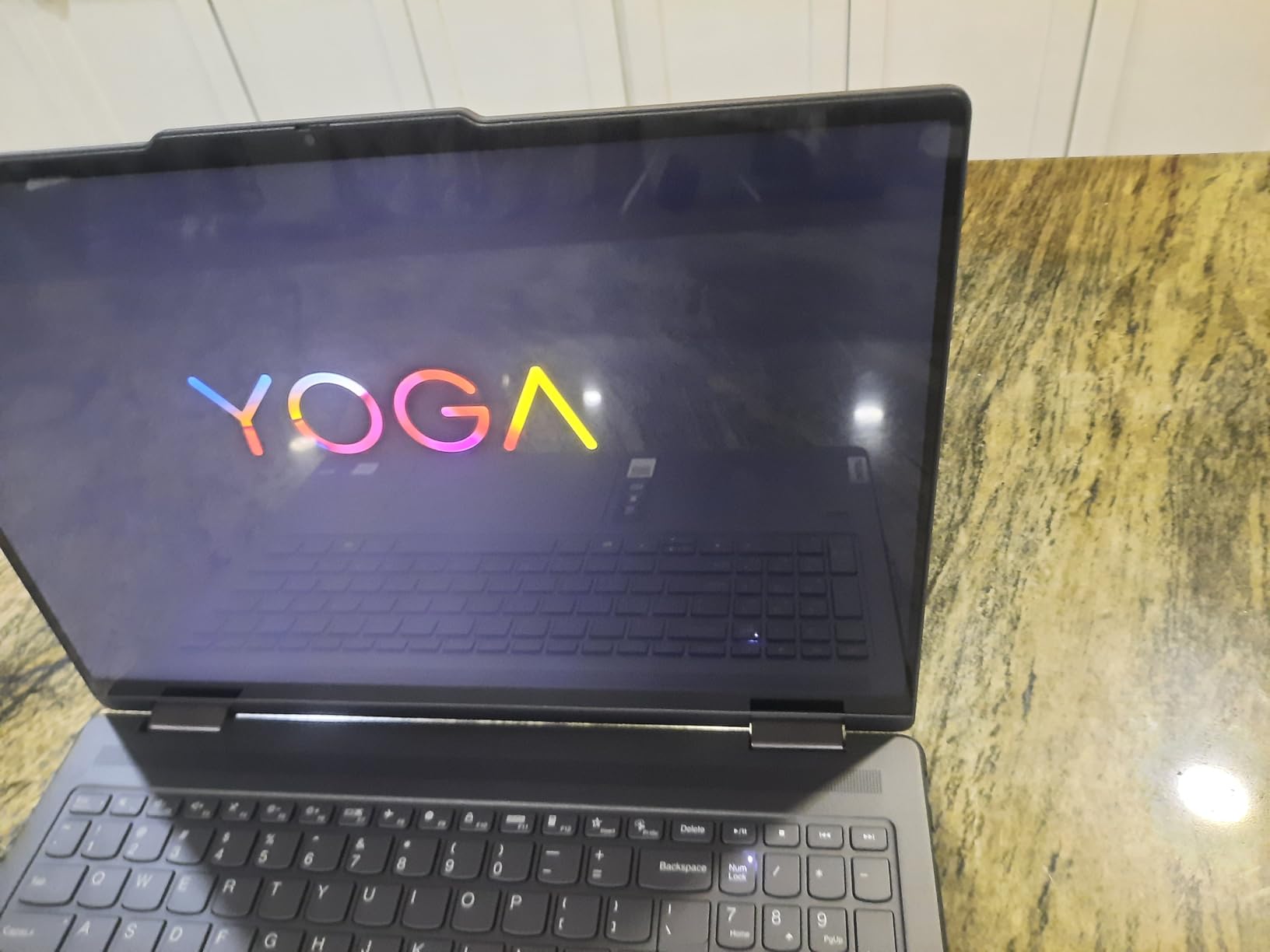
The Lenovo Yoga 7i is the only full Windows 11 Pro convertible here, and it carries the highest rating of any machine we tested. The Intel Core Ultra 7 155U has 12 cores with Turbo Boost up to 4.8GHz, and with 16GB of DDR5 and a 1TB PCIe 4.0 SSD there is nothing typical of a student degree that will make it hesitate.
For computer science students this matters concretely. Local build tools, container runtimes, an IDE with an index running in the background, and a browser with documentation open are a normal afternoon. On a 4-core Chromebook-class chip, that same afternoon involves waiting. Here it does not.
The 16-inch IPS touchscreen runs at 300 nits with an LED backlight. Sixteen inches is generous, and for a student working across a textbook, a code editor, and a terminal window at once, the extra real estate is the feature you will notice every day. Split-screen research and writing is where this panel earns its size.
The keyboard is full-size and backlit, and it includes a numeric keypad. That is unusual on a 2-in-1 and genuinely useful if your program involves data entry, statistics, or any spreadsheet-heavy coursework where you would otherwise reach for a separate external keypad.
Connectivity is the broadest in this roundup. You get two USB-A ports, two Thunderbolt 4 USB-C ports, full-size HDMI, a microSD reader, a Gigabit Ethernet port, and a headphone and microphone combo jack. Having wired Ethernet on a laptop in 2026 is almost unheard of, and in a dorm with congested Wi-Fi it is a real advantage.
Can you use the 16-inch screen as a tablet without regret?
You can, but it is not the comfortable answer. At 4.6 pounds this is one of the heaviest machines on the list, and holding a 16-inch panel one-handed while writing is a commitment. In tent and stand modes on a desk it works well for reading and video. For handheld note taking on the move, it loses to every smaller pick here.
There is also a practical quirk worth knowing: owners report that the ports and charging behave best only when the machine is in the laptop orientation. Plan your workflow around that rather than assuming every mode is equivalent.
Is this overkill for a student who mostly writes essays?
If your workload is documents, reading, and web research, yes, this is more machine than you need, and several cheaper picks will serve you well. The reason to stretch here is software. Engineering simulation, statistical tooling, design applications, and anything that runs on Windows rather than the web all need a real processor and real memory, and this has them in quantity.
A fingerprint reader is also included, which means Windows Hello login without typing a password in a packed lecture hall. The speaker quality is average despite the Dolby Atmos branding, so plan on headphones for group work.
4. Microsoft Surface Pro – Best Detachable 2-in-1 for Students
Microsoft Surface Pro 2-in-1 Laptop/Tablet (2024), Windows 11 Copilot+ PC, 13″ Touchscreen Display, Snapdragon X Plus (10 Core), 16GB RAM, 512GB Storage, Dune
Snapdragon X Plus 10-core NPU
16GB LPDDR5X and 512GB
13 inch 2560x1600 at 600 nits
2 lb detachable tablet
Pros
- Genuinely portable at 2 lb and 0.37 in thick
- Highest resolution and brightest screen in the roundup
- 14 hour rated battery covers a full class day
- Windows 11 Home runs full desktop software
- Dolby Atmos speakers and front and rear cameras
Cons
- Flex Keyboard is sold separately
- ARM chip has limits with some legacy x86 software and peripherals
- Only two USB-C style ports
- No stylus or mouse included
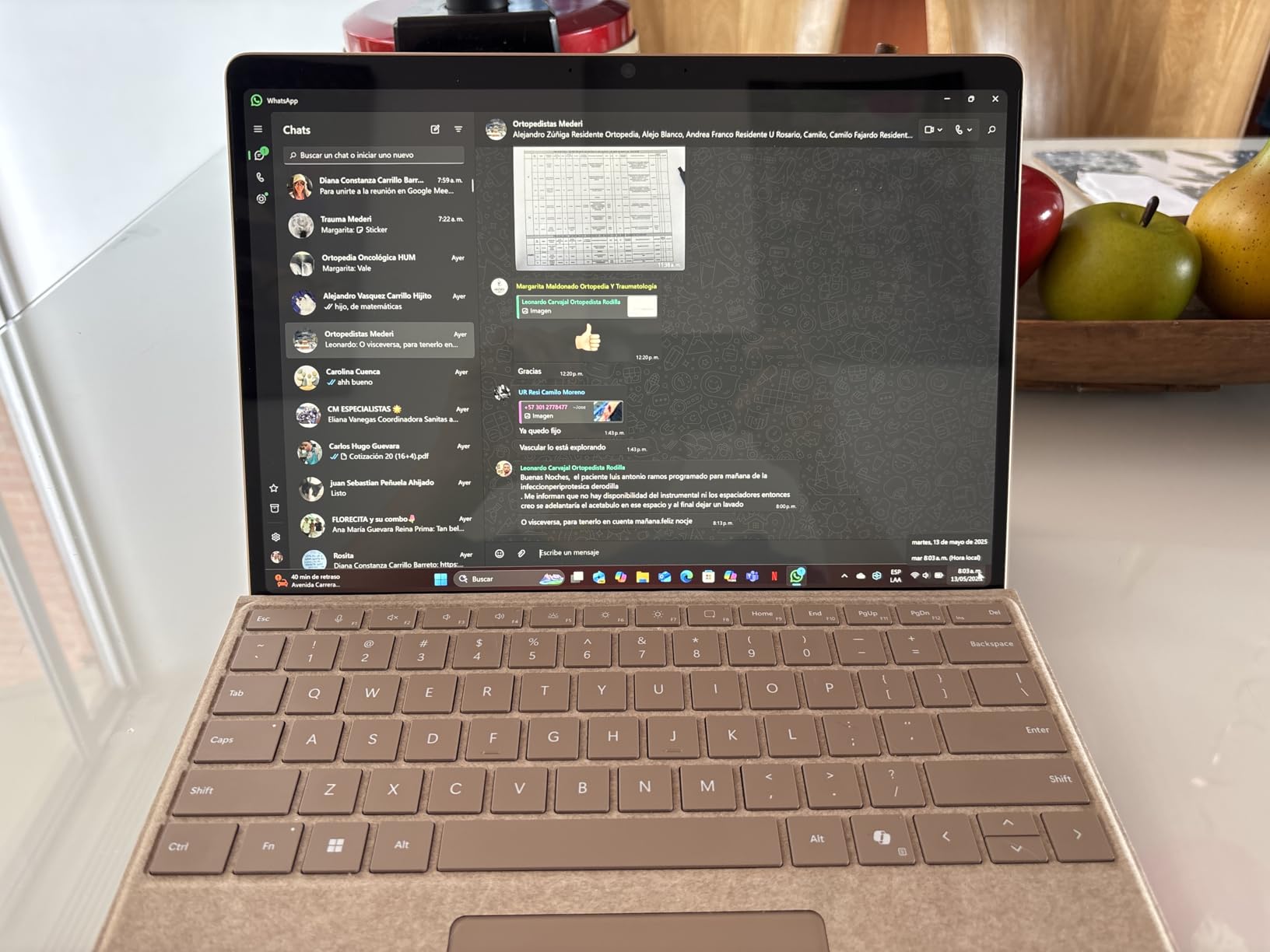
The Surface Pro is the only true tablet in this group, and at two pounds it is in a different portability class from everything else. The screen detaches completely, so you can carry just the display into a lecture hall for note taking and leave the keyboard at your dorm desk. One device, two locations, one set of notes.
The 13-inch PixelSense touchscreen at 2560×1600 and 600 nits is the strongest display specification in this roundup. That brightness figure is well above what the budget Chromebooks offer, and it is the difference between a legible screen under harsh overhead lighting and squinting at it. For a student writing notes in the worst-lit room in the building, it is worth more than any processor upgrade.
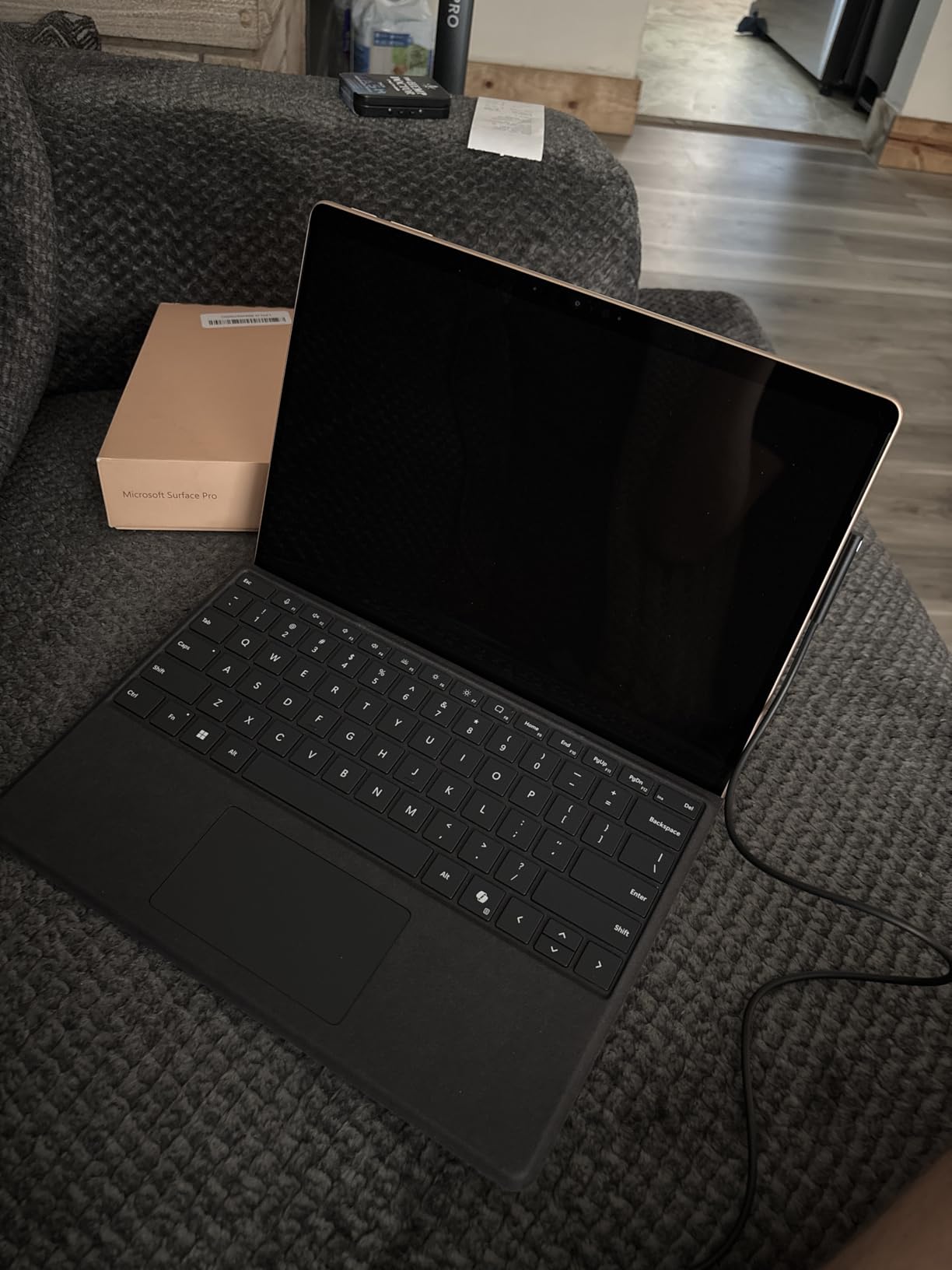
Inside is a Qualcomm Snapdragon X Plus with 10 cores and a dedicated NPU for on-device AI, paired with 16GB of LPDDR5X and a 512GB SSD. Performance is smooth for document work, browsing, video calls, and mainstream creative apps. The multi-angle kickstand supports tablet, laptop, and sketchbook positions, and Dolby Atmos stereo speakers make it a decent media device for a long revision session.
There is also 5G cellular hardware on board, which is unusual in this category and genuinely useful for a student who spends afternoons on campus without reliable Wi-Fi coverage.
Battery life is rated at up to 14 hours, and that is the combined figure with the keyboard attached. If you detach and use the tablet on its own, expect noticeably less, which is a pattern students report across older Surface models. Budget a charger if you plan a full day of detached note taking.
What does the ARM processor mean for your coursework?
Windows 11 runs on it and mainstream applications are fine. The catch is legacy software built specifically for x86 processors, plus some specialist peripherals and plug-ins. Engineering packages, lab instrument drivers, and older plugins are where you will hit a wall first. Community consensus treats the Surface Pro as the reference detachable, but always pairs that recommendation with the same ARM compatibility caveat.
If your program uses named software and you are not certain it is ARM-native, check before you commit. If you mostly write, browse, call, and annotate, this is not an issue you will encounter.
Is the separately sold keyboard a dealbreaker?
It changes the arithmetic, because the keyboard cover is a separate purchase and most students treating this as a laptop will need one. That is the practical reason the total cost of this setup exceeds the sticker figure everyone quotes for the tablet.
No stylus is included either, and only two USB-C style ports are fitted, so an adapter is close to mandatory if you connect a wired mouse and an external drive. Budget for a hub, a pen, and the keyboard before you decide this is the value pick. It is not the value pick, it is the most portable one.
5. HP OmniBook X Flip 16 – Best Battery Life for a Full School Day
HP OmniBook X FILP Copilot+ PC 16 inch 2K Touch 2-in-1 Touchs Laptop, AMD Ryzen AI 5 340, 16GB DDR5 RAM, 512GB SSD, Backlit KB, Copilot+ PC, Windows 11 Home, Meteor Silver, 16-ar0013dx
Ryzen AI 5 340 with 50 TOPS NPU
16GB LPDDR5x and 512GB SSD
16 inch 2K IPS 120Hz touch
Up to 21 hour battery
Pros
- Rated up to 21 hours of battery life
- Smooth with many tabs open and light creative work
- 400 nit 120Hz touchscreen works well with a stylus
- 16GB LPDDR5x and 512GB PCIe Gen4 SSD give headroom
- Slim recycled-metal design owners compliment
Cons
- Integrated graphics only with no dedicated GPU
- A 16 inch convertible is bulky to carry around campus
- Some buyers disliked the bundled Copilot promotion
- The 16 inch footprint makes tent and tablet modes awkward
Battery endurance is the reason this machine earns a place. The rated figure of up to 21 hours is higher than any other rated figure in this roundup, and it is the specification that changes daily behaviour most. A student who charges overnight once a week simply stops thinking about power, which removes a whole category of small daily friction.
The AMD Ryzen AI 5 340 has 6 cores and 12 threads boosting to about 4.8GHz, alongside a 50 TOPS neural processing unit that satisfies the Copilot+ PC platform requirements. Reviewers report smooth handling of many open tabs and light creative work, which puts it in the same performance class as the Yoga 7i for everyday student tasks.
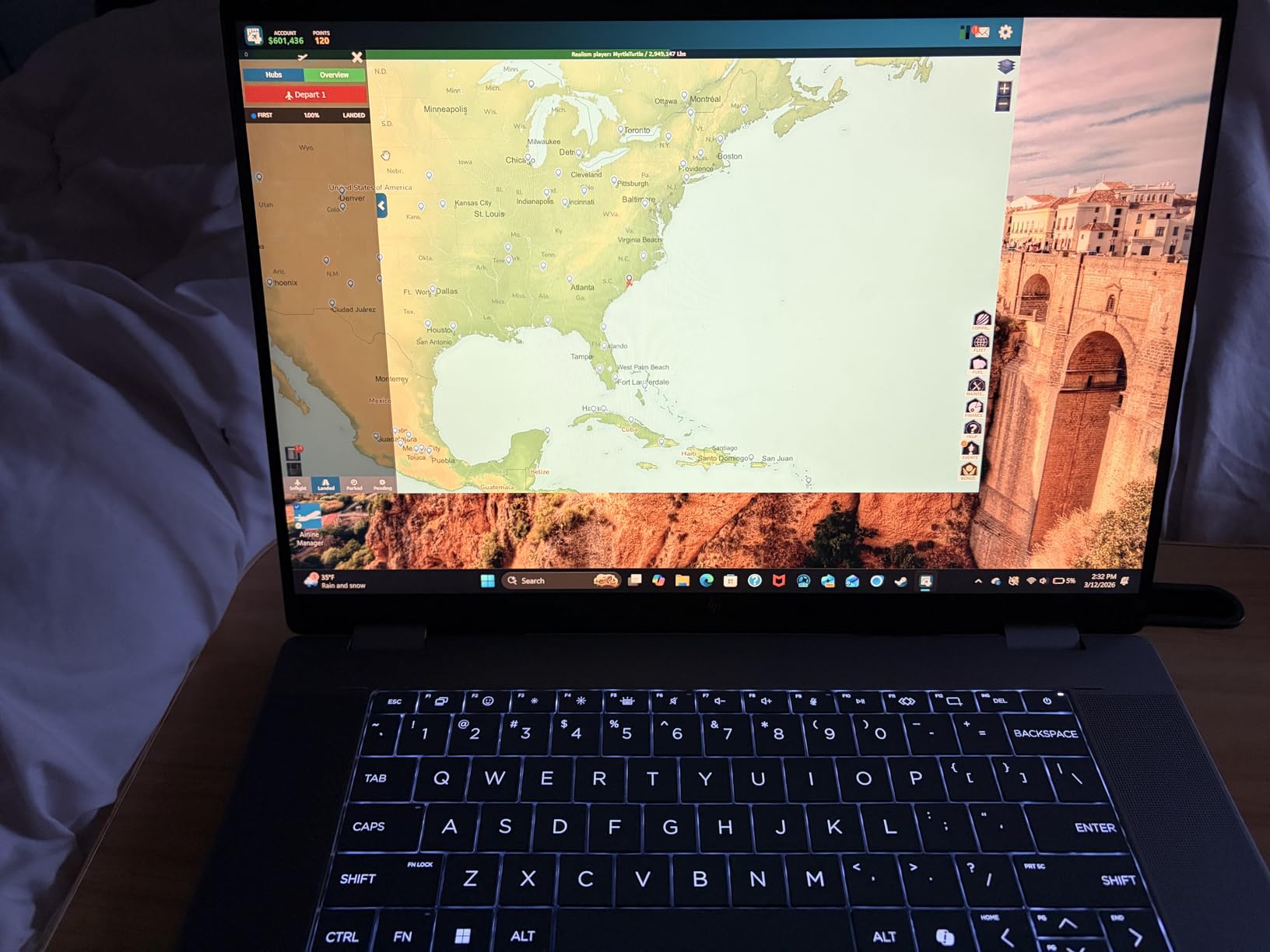
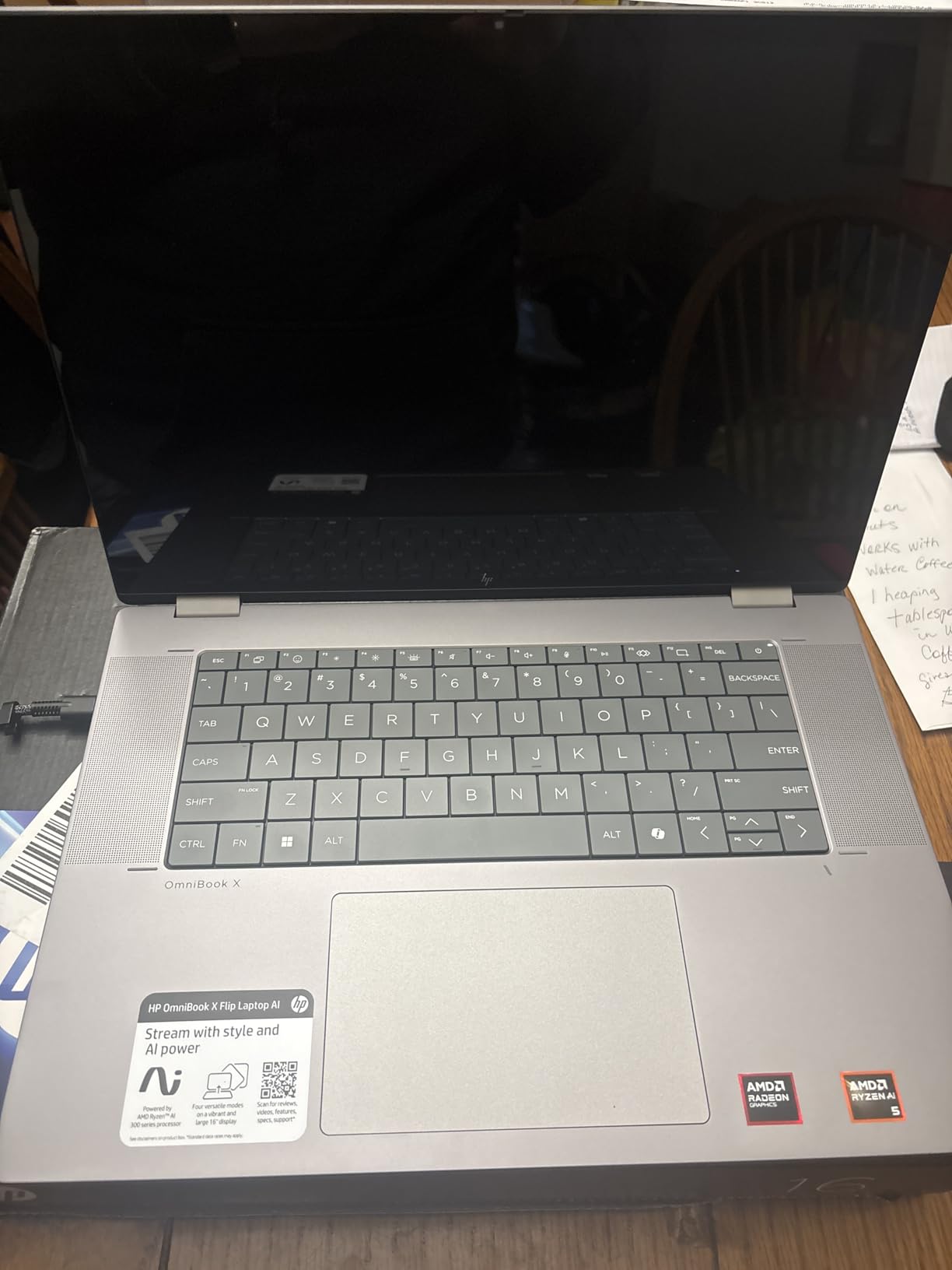
The 16-inch WUXGA touchscreen runs at 1920×1200 with 400 nits and a 120Hz refresh rate. The refresh rate makes scrolling through long documents and PDFs noticeably smoother than the 60Hz panels common in this category, and the 400 nits of brightness is higher than the other panels here at that screen size.
It is also the only panel here explicitly described as working well for drawing with a stylus, which matters for design students. Ports include HDMI 2.1 and four USB ports, a 5MP IR camera with an HDR switch and AI noise reduction for video calls in variable lighting, and a backlit keyboard.
Memory is 16GB of LPDDR5x-7500 with a 512GB PCIe Gen4 SSD, a combination that holds up well for four years of coursework without strain.
Can a 16-inch convertible realistically live in a backpack all day?
Not comfortably, and buyers say so plainly. A 16-inch convertible is bulky, and reviewers list the size as a genuine drawback for campus carry. If you are moving between three or four buildings a day, the weight and footprint are real friction, and a 13 or 14-inch machine is the better buy.
Where the size pays off is a fixed desk. Standing mode for a video lecture, a large split-screen of research and writing, streaming a recorded session on a bigger panel, and hooking up an external monitor at a dorm desk setup where HDMI 2.1 is available. Pick this machine if your day is desk-heavy, not corridor-heavy.
What are you giving up compared with a laptop with a dedicated GPU?
This configuration has integrated graphics only. Casual gaming and light creative work are fine, and students routinely report smooth results. Sustained 3D rendering, video encoding, or machine learning training will not be served well, and the fan will make itself heard in a quiet lecture hall under sustained load.
For a media-heavy student, note that screen quality and audio matter more here than raw graphics power. If you stream lectures or edit short clips rather than render projects, this is a reasonable trade. If you render, it is not.
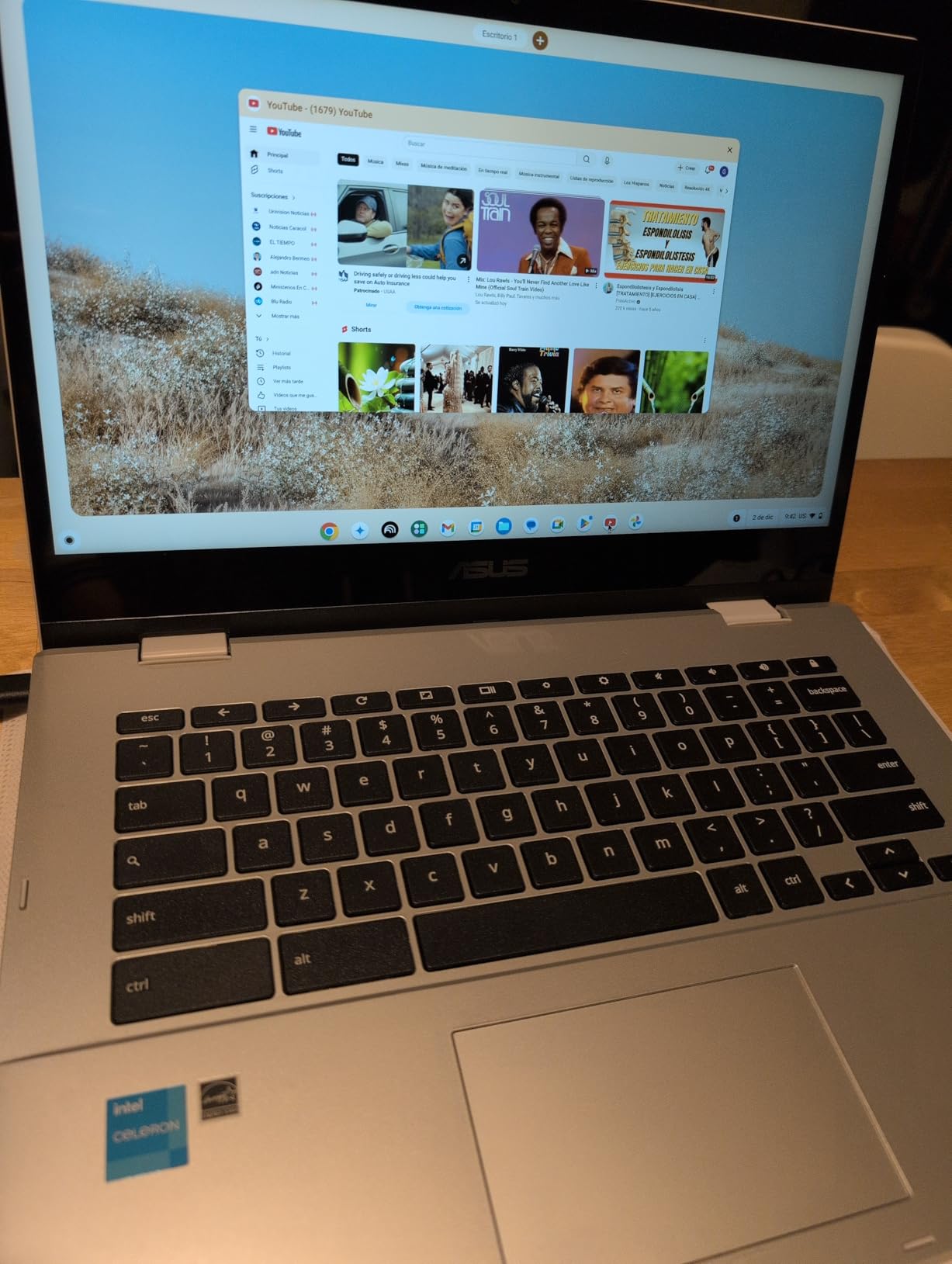
6. ASUS Chromebook Flip CX1 – MIL-STD Tested Build for Daily Commuting
ASUS Chromebook Flip CX1 Convertible Laptop, 14″ FHD NanoEdge 360-degree Touchscreen, Intel Celeron N4500 Processor, 128GB eMMC Storage, 8GB RAM, ChromeOS, Transparent Silver, CX1400FKA-AS88FT
Celeron N4500 dual-core
8GB LPDDR4X and 128GB eMMC
14 inch FHD NanoEdge touch
MIL-STD 810H tested
Pros
- 14 inch FHD NanoEdge display with narrow bezels
- 360-degree hinge moves smoothly through four modes
- 8GB RAM is generous for a Celeron Chromebook
- MIL-STD 810H tested chassis built for commuting
- Up to 11 hour battery life
- Full port selection including a microSD reader
Cons
- Celeron N4500 struggles with many tabs and heavy web apps
- Only 128GB eMMC storage with no upgrade path
- No backlit keyboard for late-night study
The distinguishing feature here is physical. This chassis is tested to the MIL-STD 810H military durability standard, which in practical terms means hinge cycling, drop and vibration testing. For a device that gets folded and unfolded several hundred times a term and lives in a backpack, that is a meaningful difference from a lighter build.
The 14-inch FHD NanoEdge display at 1920×1080 has narrow bezels, which keeps the overall footprint smaller than the panel size suggests. It is bright enough for indoor work, and the hinge transitions smoothly between clamshell, tent, stand, and tablet modes.
Port selection is genuinely full for this tier: two USB-C 3.2 Gen 1 ports with display and power delivery, two USB-A 3.2 Gen 1 ports, a microSD reader, and an audio jack. Two USB-A ports is unusual in a modern convertible and removes most dongle anxiety for a student plugging in a mouse and a flash drive.
Battery life is rated up to 11 hours from a 50 watt-hour battery, and three months of Google One AI Premium are included. The 8GB of LPDDR4X memory is generous for a Celeron-based Chromebook, and is enough that the machine feels less constrained than its processor class suggests.
That last point deserves emphasis. The Celeron N4500 is a dual-core entry-level chip, and it does struggle when you pile on heavy web apps or many tabs. The 8GB of memory means you are not simultaneously fighting a processor limit and a memory limit, which is where most budget Chromebooks go wrong.
Is the Celeron processor fast enough for a full course load?
For documents, email, browsing, streaming, and light coursework, yes. For a machine running fifteen-plus tabs alongside a video call, or any locally installed heavy application, it will feel slow, and reviewers call that out consistently. ChromeOS leans on web apps, which keeps the load lighter than a Windows machine doing the same work.
Storage is the other constraint. 128GB of eMMC with no upgrade path means cloud storage and a microSD card are part of your plan from day one, not an afterthought. Budget for a good cloud subscription or a large card.
Why does the MIL-STD rating matter more than the specs?
Because a failure during a degree is worse than slow performance. A cracked panel or a failed hinge two years into a program is a replacement expense and a lost week of notes. A tested chassis is buying you confidence that the hinge, which takes the most mechanical abuse on any convertible, is designed for years of repeated cycles rather than a single product cycle.
There is no backlit keyboard, which is a genuine annoyance for evening sessions, so pair it with an external light source or a cheap lamp. If you study mostly at night, step up to a pick with backlighting.
7. Dell Chromebook 11 3100 – Budget Pick for Students on a Tight Budget
Dell Chromebook 11 3100 11.6″ Touchscreen 2 in 1 Chromebook – HD – 1366 x 768 – Intel Celeron N4020 Dual-Core (2 Core) – 4 GB RAM – 32 GB Flash Memory (Renewed)
Celeron N4020 dual-core
4GB RAM and 32GB storage
11.6 inch IPS touchscreen
Up to 14 hour battery
Pros
- Very low entry outlay for a touchscreen convertible
- Small and light at 3.1 lb for daily carrying
- Responsive touchscreen for browsing and note taking
- Up to 14 hour battery covers long school days
- Renewed examples frequently reported in near-new condition
Cons
- Only 32GB internal storage so cloud storage is required
- 1366 x 768 display is low resolution for documents
- Some renewed examples arrive dirty or scratched
- Some arrived enrolled to another account rather than factory reset
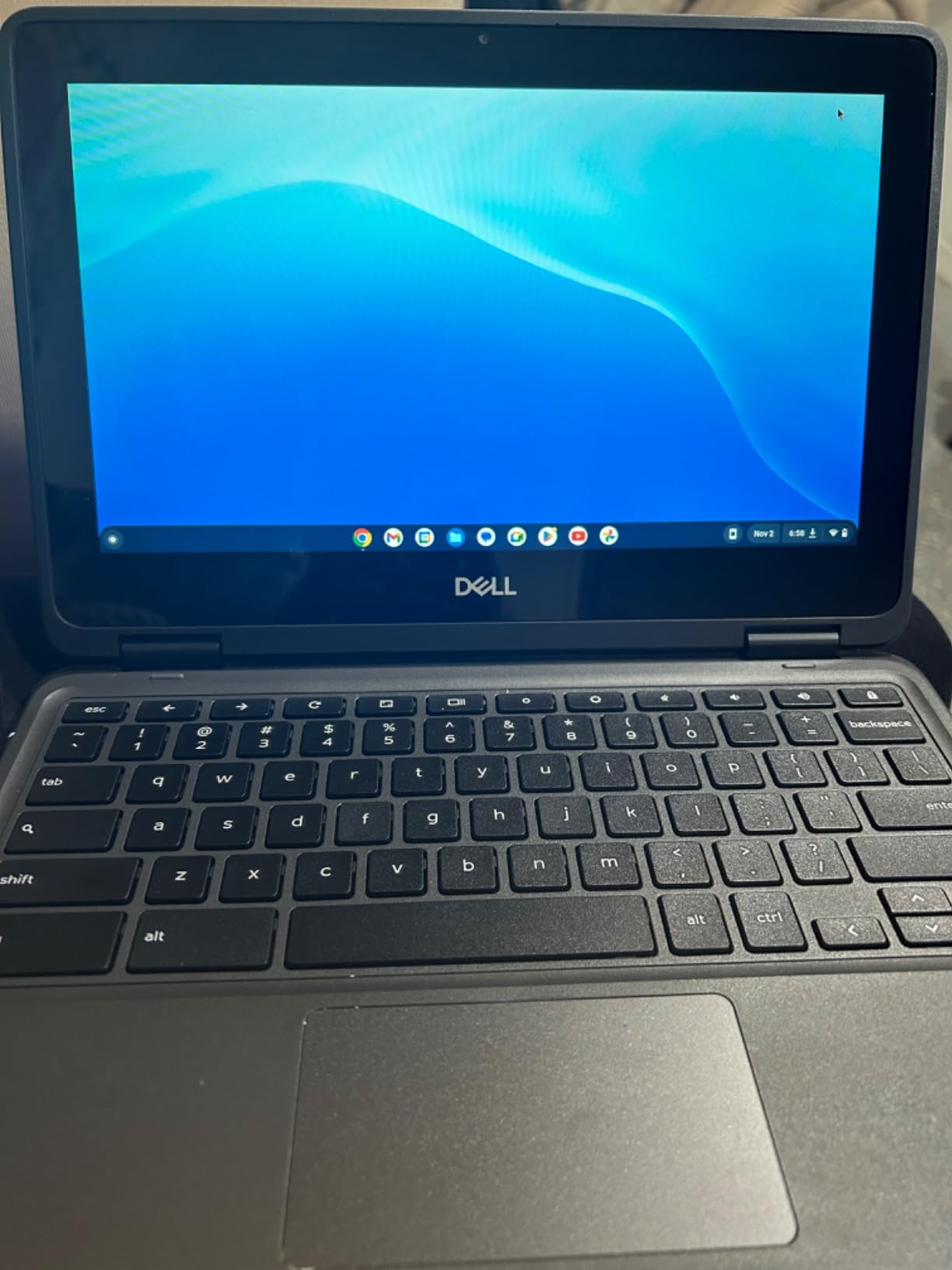
This is the least expensive route into owning a touchscreen convertible, and for the right student that is a completely rational choice. At 3.1 pounds it is one of the lighter machines here, and the convertible chassis folds properly rather than being a thick tablet with a keyboard attached.
Battery life is rated up to 14 hours from a 42 watt-hour pack, which is the joint-highest figure in this roundup. Combined with the low weight, that makes it a genuinely pleasant device to carry between buildings all day.
The 11.6-inch IPS touchscreen is responsive for browsing and light note taking, and owners of renewed examples frequently report near-new physical condition. This is where I need to be direct about buying renewed hardware: check the return window carefully, because condition varies between individual examples.
The limitations are real and they are about the spec sheet. A 1366 by 768 panel is low resolution by 2026 standards. Text in documents and PDFs is noticeably softer than on a full HD screen, and if your degree is reading-heavy, that softness becomes a daily irritation rather than an occasional one.
Storage of 32GB is the bigger practical problem. With ChromeOS, that is workable if you lean on cloud storage and streaming media rather than keeping files locally, but installing applications and holding offline materials quickly becomes awkward. Owners also report that some renewed examples arrive enrolled to a previous organisation’s account rather than factory reset, so budget ten minutes to sort that out on arrival.
Who is this pick genuinely right for?
A student on a hard budget whose coursework is web-based. If your degree involves reading, writing, email, and video calls, this machine handles all of it, and the money you keep can go toward books, software licences, or a second screen.
It is also a strong secondary or travel device. A low-cost machine you are less afraid to lose, or one that a family shares, is a sensible role for a renewed example at this level.
When should you spend more instead of buying this?
Spend more if you will be reading dense PDFs for hours a day, if your program requires local desktop applications, or if the low resolution will frustrate you. The jump from a 1366 by 768 panel to a 1920×1200 or 1920×1080 panel is the single most noticeable quality improvement in this roundup, and the Acer Chromebook Plus Spin 514 delivers it along with far more memory and storage.
The Celeron N4020 is a dual-core chip and it is not fast, but ChromeOS keeps the load light enough that day-to-day use remains responsive. Note that this model carries a 90-day limited warranty, shorter than the one-year cover on new machines.
8. Lenovo IdeaPad Flex 5i Chromebook Plus – Best Google AI Bundle
Lenovo IdeaPad Flex 5i Chromebook Plus, 14″ 2-in-1 Laptop, i3, 8GB/256GB
Core i3-1315U 6-core
8GB DDR4 and 256GB storage
14 inch WUXGA IPS touch
Up to 10 hour battery
Pros
- 360-degree hinge with laptop yoga flip and tablet modes
- Sharp 1920x1200 IPS touchscreen usable without a mouse
- Up to 10 hour battery covers a full school day
- Backlit keyboard for evening study
- Gemini and Google One AI Premium included
Cons
- Some owners report recurring Wi-Fi dropouts
- Storage description is misleading versus eMMC plus SD card
- Some buyers received a box without the bundled USB hub
- A small number report Bluetooth audio volume issues
The Flex 5i brings an Intel Core i3-1315U with 6 cores and 8 threads boosting to about 4.5GHz, which is more compute than most Chromebooks in this roundup offer. It pairs with 8GB of DDR4 and 1920×1200 IPS touchscreen at 300 nits.
It also carries the Gemini and Google One AI Premium subscription, which is a genuine value addition for writing-heavy coursework. Drafting, summarising readings, and structuring an essay are exactly the tasks that machine learning assistants are useful for, and having it bundled saves you tracking down a separate plan.
The 360-degree hinge supports laptop, yoga, flip, and tablet modes, and the backlit keyboard is included, which many competing budget convertibles omit. Battery life is rated up to 10 hours from a 51 watt-hour pack.
Connectivity is reasonable: two USB-C ports with one full-function for display output, one USB-A, and a microSD reader, plus Wi-Fi 6E and Bluetooth 5.3. Support for up to two external monitors at up to 4K at 60Hz through USB-C makes it workable with a dorm desk setup.
Now the honest part. The 3.9 rating is the lowest in this roundup, and the reason is concentrated in a few specific reports rather than a general dissatisfaction. The most common complaint is recurring Wi-Fi dropouts that require restarting the connection. In a building with unreliable campus Wi-Fi, that is the last thing you want.
There is also a discrepancy in the storage description, which lists 256GB where the actual configuration is eMMC plus reliance on the SD card slot. A small number of buyers reported the bundled USB hub missing from the box, and some noted Bluetooth audio volume issues. None of these are catastrophic, but together they pull the rating down and they are worth weighing.
Is the AI bundle worth choosing this model for?
It is a legitimate reason to pick this machine, especially for a writing or research heavy student. If you would otherwise pay for an AI subscription separately, the bundled plan changes the effective value of the machine. If you never use those tools, it is not a differentiator and you should compare on the screen and memory instead.
The backlit keyboard is the more universally useful feature. Evening study sessions in a dorm are common, and a keyboard that lights up is worth more day to day than a bundled software plan.
Should you worry about the Wi-Fi reports?
Worth checking before you commit, because your experience may differ. If your campus network is already patchy, do not add one. The Acer Chromebook Plus Spin 514 has a similar 14-inch WUXGA touchscreen with more memory and storage, and it does not carry these specific reports, which is why it is the safer buy at a similar outlay.
The review base here is also the thinnest in the roundup, which simply means fewer owners have reported back. Treat the rating as indicative rather than settled.
9. Samsung 12.2-inch Chromebook Plus – Only Pick With a Stylus in the Box
Samsung 12.2″ FHD 2-in-1 Touchscreen Chromebook Plus Laptop for Business&Students, Intel Dual-Core, 4GB RAM, 224GB Storage(64GB eMMC+160GB Docking Station Set), Stylus Pen, Wireless Mouse, Silver
Celeron 3965Y dual-core
4GB LPDDR3 and 64GB eMMC
12.2 inch FHD touch
Stylus pen and mouse in box
Pros
- One of the lighter machines here at 2.98 lb
- Stylus pen and wireless mouse included in the box
- Bundled 7-in-1 dock with a 128GB SSD adds real desk connectivity
- 360-degree hinge flips smoothly to tablet
- Spill resistant chassis suits a student desk
Cons
- Celeron 3965Y is old and can feel sluggish and glitchy
- Only 4GB of RAM limits heavy multitasking
- Some reviews describe app crashes and forced resets
- Storage beyond the 64GB eMMC depends on the dock and SD card
This is the only machine in the entire roundup that includes a stylus in the box, along with a wireless mouse. If you intend to take handwritten lecture notes, that alone changes the true cost of ownership, because every other convertible here leaves the pen as a separate purchase.
It is also one of the lighter large-screen options at 2.98 pounds, with a 12.2-inch FHD touchscreen at 1920×1200. A 12.2-inch display is a genuinely useful middle ground: large enough for split-screen reading and note taking, small enough that the whole machine disappears into a backpack rather than becoming a briefcase.
The bundled 7-in-1 docking station contains a 128GB SSD, which is unusual and solves the storage problem that the internal drive would otherwise create. Combined with a 32GB microSD card and adapter, the package lists 224GB of total storage. For a student setting up a desk in a dorm room, having real USB and display connectivity in the box is convenient.
Connectivity includes one USB 3.0 port, two USB-C ports, a microSD card reader, and a headset jack, plus a 720p front camera with dual-array microphones and a spill resistant chassis. The 360-degree hinge flips smoothly for tablet use.
The problem is the processor. The Intel Celeron 3965Y is an older low-voltage dual-core chip, and it is the reason for the 4.1 rating. Owners split cleanly into two camps: those who love the light weight and the bundled accessories as a compact travel device, and those who hit performance walls and freezes. Some reviews describe app crashes and forced resets mid-document, which is the failure mode you least want in an essay.
Wi-Fi 5 and Bluetooth are also a generation behind, though in practice you will rarely notice on a campus network.
Does the included stylus actually make note taking better?
It removes the friction, which is the real answer. Beyond that, expect pen quality to be basic. Budget styluses need more pressure before the line registers cleanly and can feel laggy during fast handwriting, which is a recurring complaint across cheaper pens. It is serviceable for highlighting and annotating; it is not a drawing experience.
If handwriting is your primary method and you write quickly, test a comparable pen on a similar screen before committing, because a laggy pen changes how you take notes rather than just how they look.
Is the 4GB of memory the bigger limitation?
Both matter. The 4GB of LPDDR3 memory is what limits heavy multitasking, and the aging processor is what causes the crashes and sluggishness. Together they mean this machine is at its limit before you reach its workload.
For coursework that is mostly web-based and light, it works. For a program that will grow heavier over four years, it will not. If your budget stretches slightly, the Acer Chromebook Plus Spin 514 gives you a 10-core processor, 8GB of DDR5, and a 512GB drive, and you can buy a pen separately for less than this package costs as a whole.
10. HP Chromebook x360 11 G3 EE – Best for K-12 and Travel
HP Chromebook x360 11 G3 EE 11.6″ Touchscreen 2 in 1 Chromebook – Intel Celeron N4020-4GB – 32GB Flash Memory – Intel UHD Graphics 600 – Chrome OS (Renewed)
Celeron N4020 dual-core
4GB RAM and 32GB flash
11.6 inch touchscreen
Spill resistant Education Edition
Pros
- Very affordable entry point for a touchscreen convertible
- Education Edition build with reinforced ports and spill resistance
- Light enough to fit in a child's backpack
- 360-degree hinge works smoothly for reading and assignments
- Pairs well with an Android phone for a simple workflow
Cons
- Renewed examples vary and some have weak batteries
- Listing details are inconsistent about what is included
- Only 4GB RAM and 32GB storage limits offline work
- No backlit keyboard for nighttime use
This is the Education Edition variant, and that designation is the reason to consider it. The chassis has reinforced ports and spill resistance, which is exactly the durability profile a school environment, a shared family device, or a younger student needs. A spilled coffee is an event, not a total loss.
It runs an Intel Celeron N4020 with 4GB of RAM and 32GB of flash storage on ChromeOS, driving an 11.6-inch touchscreen through a 360-degree hinge across four modes. The 41 watt-hour battery and small footprint make it the easiest machine here to pack, and owners confirm the touchscreen and hinge work smoothly for reading and assignments.
Reviewers also note that it pairs well with an Android phone, which makes sense if your study materials live on a phone and you want a larger screen for reading rather than a second productivity machine.
What should you check when buying a renewed example?
Battery condition is the single biggest variable on any renewed device. Some owners report degraded batteries lasting only about two hours, which on a school day is not enough to finish. Others are delighted. Ask for the battery health reading if you can get it, and keep the return window in mind.
Second, confirm what you actually receive. Buyers report listing details being inconsistent, with some arriving with different specifications than described. Verify the storage and memory on arrival, and factor in that this is a 2018-generation platform running a 2018-era processor, so it is the least future-proof machine in the roundup.
Is this the right choice for a four-year degree?
Probably not, and it is worth saying plainly. A 4GB processor-and-flash specification and an older platform mean you will feel the ceiling. It is a strong fit for K-12 schooling, a first device for a younger student, or a travel and backup machine.
If you are starting a degree, prefer a pick with 8GB of memory and a modern processor, even if it costs more. If you want the machine to still receive updates in four years, check the manufacturer’s published support window, because older platforms in this category can lose security updates earlier than newer ones.
There is no backlit keyboard, which matters more for a younger student studying at night than most specs on this list.
How to Choose a 2-in-1 Laptop for College
The decision comes down to form factor, operating system, and how long you expect to keep the machine. Work through these in that order, because each one eliminates options and makes the next choice easier.
Convertible or detachable: which form factor fits your major
A convertible folds the screen back on a 360-degree hinge, and the keyboard stays attached. You get laptop, tent, stand, and tablet modes from one rigid body. It is more robust, handles more weight in tablet use because the base carries the battery, and the keyboard is always a real keyboard rather than an accessory.
A detachable lifts the screen off entirely. You carry a true tablet at two pounds, but you rely on a magnetic or pogo-pin keyboard cover that is thinner and less solid than a fixed keyboard. Long typing sessions on a detachable keyboard are the most common complaint in student forums, and detachable thermals run slower because the processor sits behind the screen.
Choose a convertible if you type long documents, code, or spreadsheets. Choose a detachable if you mostly read, annotate, and attend lectures and want the lightest possible device to carry.
How much RAM and storage a student actually needs
For ChromeOS-based coursework, 8GB of RAM and 128GB of storage is a workable minimum, and 8GB with 256GB or more is comfortable. The difference between 4GB and 8GB shows up in how many tabs you can keep open before the machine slows down, and that difference compounds across a four-year programme.
For Windows machines running local applications, treat 16GB as the practical floor if you are in engineering, design, or data work, and 512GB of NVMe storage as the minimum you will be happy with by year three.
Storage type matters as much as capacity. eMMC is slower and cannot be upgraded. NVMe is a proper drive and often can be replaced on Windows machines, which extends the machine’s useful life. A 128GB eMMC drive with a microSD slot is a compromise, not a solution.
Processor tiers and what they change for coursework
Entry-level dual-core chips such as the Celeron family handle documents, browsing, and video calls. They struggle with many tabs, heavy web apps, and any locally installed demanding application.
Modern multi-core processors such as the Core i3 and i5 families, AMD Ryzen AI chips, and Intel Core Ultra series handle everything a student throws at them with headroom to spare. A 10-core chip with 8GB of memory will outperform a dual-core chip with 16GB in almost every real scenario, because memory alone cannot compensate for a processor bottleneck.
ARM-based chips in detachable designs run Windows smoothly, but check compatibility with any named software in your programme before committing, especially legacy engineering and lab tools.
Screen size for lecture halls and cramped dorm desks
Below 12 inches is rare now, and the machines that exist trade away keyboard size and battery. The 12 to 14 inch range is the sweet spot for most students: large enough for split-screen reading and note taking, small enough to carry all day.
A 16-inch screen is excellent at a fixed desk and awkward everywhere else. If your day is corridor-heavy, do not buy one. If you sit at a library desk or a dorm room all day, the extra area genuinely helps for research and writing. Budgets on screen brightness matter too, since a dim panel is unreadable in a sunlit lecture hall.
Stylus in the box or stylus bought separately
Nearly every budget convertible in this roundup supports touch but omits the pen. That turns handwriting notes into a second purchase, and it is one of the most common student frustrations in online discussions of this category.
Two questions decide it. Does the panel support an active stylus, or only capacitive finger touch, and is a pen included or sold separately. If you plan to write by hand, treat the pen cost as part of the machine’s price rather than an accessory you may or may not need. Budget styluses need more pressure and can feel laggy, so if you write fast, test one first.
Ports to insist on before you buy
Students consistently complain that manufacturers keep dropping ports. The practical minimum is two USB-C ports, at least one USB-A, and a headphone jack. Two USB-C ports matter because one is usually occupied by the charger, and a single-port machine means you cannot connect a drive and a mouse at the same time without an adapter.
A microSD reader saves you carrying an adapter, and a full-size HDMI port removes the need for one entirely. Wired Ethernet is rare but genuinely useful where dorm Wi-Fi is congested. The Microsoft Surface Pro here has only two USB-C style ports, so plan on a hub.
Windows 11 versus ChromeOS for coursework
ChromeOS runs web-based applications and Android apps, and it is fast, secure, and low maintenance for students whose coursework lives in browser-based tools. Its automatic updates extend well beyond a four-year degree on the models here, which removes the support-runway problem entirely.
Windows 11 is required if your programme uses named desktop software, engineering simulation tools, design applications, or anything with plugins. It is a heavier, more demanding operating system, and it needs more memory and storage to feel responsive.
Check your programme’s software list before deciding. That single check resolves the question faster than any specification comparison.
Planning a four-year ownership runway
Assume you will keep the machine the length of your degree. That reframes three decisions. Buy 8GB of memory rather than 4GB, because you cannot add it later in most cases. Buy storage you will not fill, because a full drive is the most common cause of a slow machine. And check the operating system support window, because a machine that stops receiving security updates in year three is a liability.
Budget for accessories too. A hub, a stylus, a case, and a second charger add up, and a 2-in-1 needs a sleeve that protects the hinge corners specifically. For students who also stream media or edit video, our laptop streaming guide and budget streaming picks cover that angle.
Which 2-in-1 Laptop Should Your Major Pick?
This is the question the roundups we studied rarely answer, so here is the mapping. Use it as a starting point and adjust for your specific course requirements.
Engineering and computer science: you need Windows, a modern multi-core processor, and 16GB of memory. Look at the Lenovo Yoga 7i 2-in-1 first, with the HP OmniBook X Flip 16 as a battery-life-driven alternative. Check simulation software compatibility before buying.
Business, economics, and communications: documents, spreadsheets, and video calls. The Acer Chromebook Plus Spin 514 gives you the memory and storage headroom, and the HP 14 2-in-1 covers it if your budget is tighter. The numeric keypad on the Yoga 7i helps if you handle data.
Nursing, pre-med, and allied health: coursework is often web-based with some specialised software. The Acer Chromebook Plus Spin 514 or the HP 14 2-in-1 handle the reading load well, and both have displays sharp enough for dense study material. Verify any clinical software requirements.
Education and liberal arts, including K-12 teaching: the HP Chromebook x360 11 G3 EE is built for this with its spill resistant Education Edition chassis, and the Lenovo IdeaPad Flex 5i Chromebook Plus suits a student who writes and presents. The bundled AI tools on the Flex 5i help with lesson planning.
Graphic design: you need colour accuracy, a stylus path, and more memory. The HP OmniBook X Flip 16 pairs a 400 nit panel with a 120Hz refresh that reviewers single out for stylus drawing. Budget separately for a stylus, and verify colour coverage against your program’s requirements.
Video and film: you need storage, memory, and ideally a dedicated GPU, which none of these picks has. If this is your major, a standard laptop with better graphics is a better buy, and our budget laptop picks cover that route.
Frequently Asked Questions
What is the best 2-in-1 laptop for students?
The HP 14 2-in-1 Chromebook is our top pick because it pairs a 1920×1080 touchscreen with a 360-degree flip hinge at an entry-level outlay, and its 4.5 rating reflects broad satisfaction. The Acer Chromebook Plus Spin 514 is the better choice if you want more power and storage, with a 10-core processor, 8GB of memory, and a 512GB drive. Choose the Microsoft Surface Pro if you need a true detachable tablet under two pounds.
Which brand is best for a 2-in-1 laptop?
No brand wins every category. Lenovo covers the widest range from budget Chromebooks to high-end Windows convertibles, HP spans renewed budget models to large-screen Copilot+ machines, and Microsoft owns the detachable reference design with the Surface Pro. Acer and ASUS offer the strongest Chromebook Plus value. Match the brand to your budget and required software rather than to loyalty.
Are 2-in-1 laptops worth it for college?
They are worth it if you handwrite notes, annotate readings, or want one device instead of a laptop plus a tablet. Students who only type essays, browse, and join video calls gain little from a folding screen and lose keyboard rigidity and some ports. Decide by note-taking habit first, then by the software your programme requires.
What are the downsides of having a 2-in-1 laptop?
The main drawbacks are a thicker chassis than a standard laptop, fewer ports on newer models, and detachable keyboards that feel thin over long typing sessions. Tablet mode on a 14-inch screen is workable but not comfortable for long handwritten sessions, and detachable designs run warmer and slower because the processor sits behind the screen.
What is the best 2-in-1 laptop with a stylus?
The Samsung 12.2-inch Chromebook Plus is the only pick in our roundup that includes a stylus pen and a wireless mouse in the box, which removes a real cost. If you would rather choose the machine first and buy the pen separately, the HP OmniBook X Flip 16 has a panel reviewers recommend for drawing, at 400 nits and a 120Hz refresh rate.
Is it a good idea to buy a 2-in-1 laptop?
It is a good idea if you take handwritten lecture notes, annotate PDFs regularly, or want one device for both typing and reading. It is a poor idea if your programme needs sustained 3D rendering or video encoding, since these machines have integrated graphics. Check your course software list before deciding, because operating system matters more than hinge style.
How much RAM do I need for a college student?
At least 8GB, and it is the one specification you cannot change later in most of these machines. With 4GB you will notice slowdown when opening many browser tabs alongside a video call. For engineering, design, or data work running local applications on Windows, treat 16GB as the practical floor for a four-year programme.
Are Chromebooks good enough for college?
For most majors they are, because coursework has moved largely to browser-based tools and ChromeOS machines update themselves for years past your degree. Seven of our ten picks are Chromebooks, and the two with the most memory and storage handle demanding multitasking well. Choose Windows instead only if your programme requires named desktop software or plugins.
Final Verdict: The Best 2-in-1 Laptops for Students in 2026
The HP 14 2-in-1 Chromebook wins this roundup. Its 1920×1080 touchscreen is a step above most devices in this price bracket, the flip hinge gives you genuine tablet mode for note taking, and the 4.5 rating across hundreds of reviews reflects a machine that does the basics without drama. It is the pick I would hand to a student starting a degree with an ordinary web-based workload.
Spend a little more and the Acer Chromebook Plus Spin 514 is the smarter four-year machine, with a 10-core processor, 8GB of memory, and a real 512GB drive. If your programme needs Windows software rather than web apps, the Lenovo Yoga 7i 2-in-1 carries a Core Ultra 7 chip, 16GB of memory, a terabyte of storage, and wired Ethernet. If you want the lightest device possible, the Microsoft Surface Pro detaches and weighs two pounds.
Before you buy, check three things. Confirm your course software list, because operating system beats every other specification. Plan for the pen, since only one pick here includes one. And buy the memory you need now, because on these machines you cannot add it later. Get any of these right and the machine will carry you to graduation.