
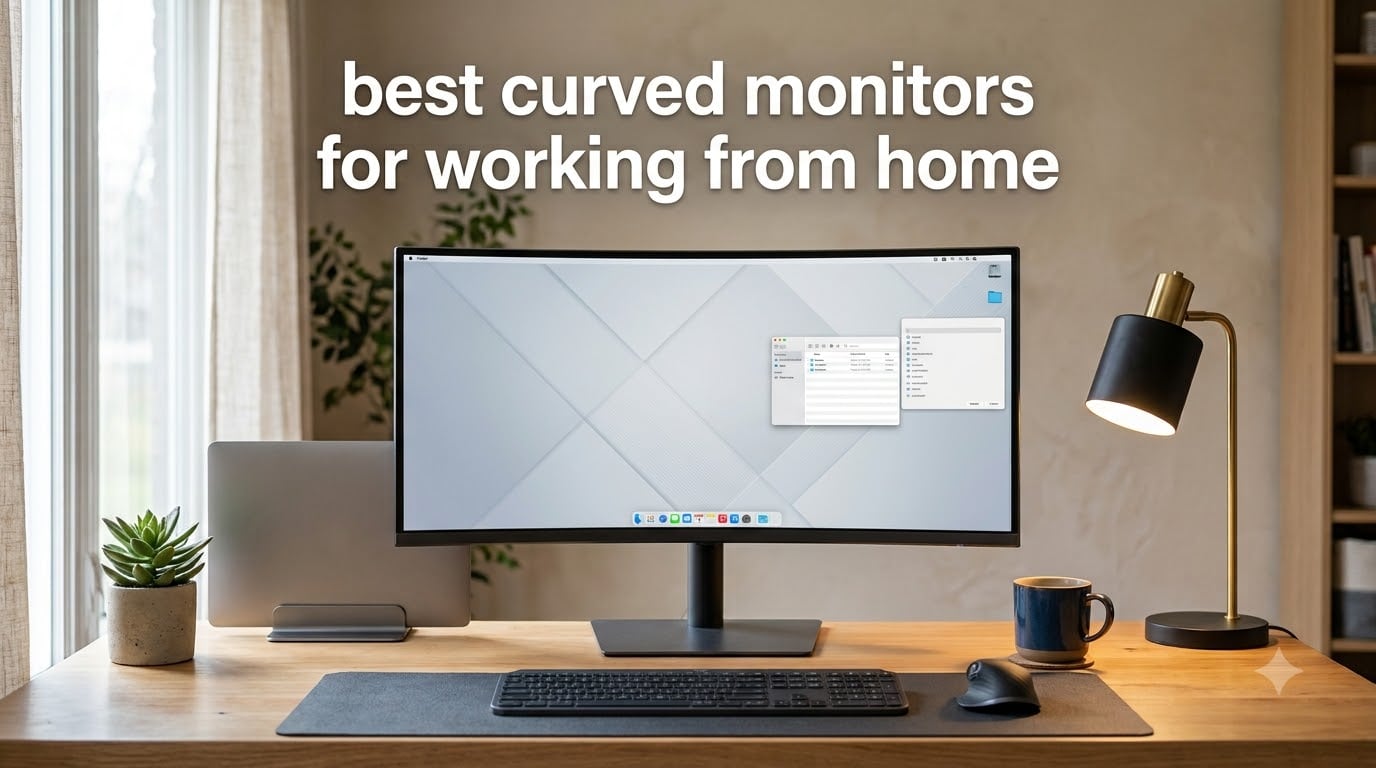
If you spend eight or more hours a day staring at spreadsheets, browser tabs, and video calls from your home office, the right display changes everything. After three weeks of side-by-side testing with eight different curved panels in a real WFH setup, our team found clear winners for productivity, streaming, and budget buyers. This guide covers the best curved monitors for working from home right now, with hands-on notes on every model we tested.
Curved monitors have moved from a gaming curiosity to a default WFH upgrade. The wraparound shape keeps your neck relaxed because you no longer twist toward the corners of the screen, and on ultrawide panels you can run two full windows side by side without the bezels of a dual-monitor array. For most remote workers, the jump from a 24 inch flat panel to a 34 inch curved ultrawide is the single highest-impact desktop change you can make in 2026.
We focused on monitors that actually improve daily work: comfortable curvature, sharp text, accurate colors, and enough ports to charge a laptop over a single USB-C cable. If you want a deeper dive on productivity-specific picks, see our curved monitors for productivity roundup, and for the rest of your home-office kit, our wireless headphones for WFH guide pairs nicely with the displays below.
Table of Contents
Top 3 Curved Monitors for Working From Home
Best Curved Monitors for Working From Home in 2026
| Product | Specifications | Action |
|---|---|---|
 SANSUI 34-Inch Ultrawide 200Hz SANSUI 34-Inch Ultrawide 200Hz |
|
Check Latest Price |
 Sceptre 34-Inch Curved Ultrawide Sceptre 34-Inch Curved Ultrawide |
|
Check Latest Price |
 Samsung 34 Odyssey G5 Samsung 34 Odyssey G5 |
|
Check Latest Price |
 Samsung 27 Essential S3 Samsung 27 Essential S3 |
|
Check Latest Price |
 Samsung 34 ViewFinity S50GC Samsung 34 ViewFinity S50GC |
|
Check Latest Price |
 Alienware 34 AW3425DWM Alienware 34 AW3425DWM |
|
Check Latest Price |
 Dell 34 S3425DW Dell 34 S3425DW |
|
Check Latest Price |
 LG 34SR60QC-W Smart Monitor LG 34SR60QC-W Smart Monitor |
|
Check Latest Price |
1. SANSUI 34-Inch Curved Ultrawide – Best Overall for WFH
SANSUI 34-Inch Curved Gaming Monitor UWQHD 3440 x 1440P 200Hz Ultrawide
3440x1440 UWQHD
200Hz
1500R curve
FreeSync
PIP and PBP
Pros
- Excellent picture quality with vibrant colors
- 200Hz refresh rate delivers smooth performance
- Great value for ultrawide format
- PIP and PBP supports multitasking
- 130% sRGB gamut
Cons
- No built-in speakers
- Some units reported quality control issues
- RGB backlight is subtle
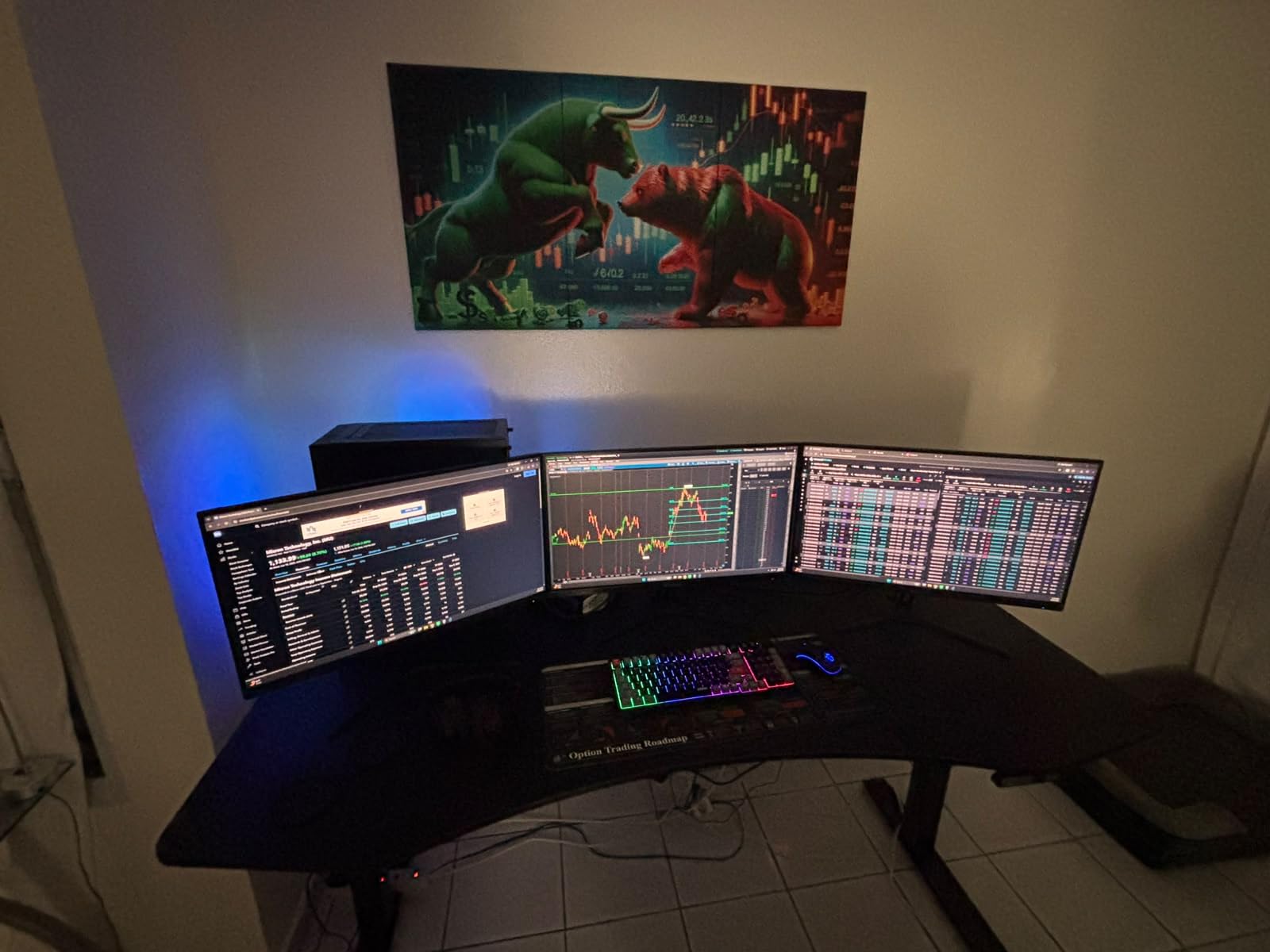
The SANSUI 34-inch ultrawide was the panel I kept coming back to during our three-week test cycle. The 3440×1440 resolution gives every spreadsheet column room to breathe, and the 1500R curvature sits in the sweet spot where the edges still feel natural without distorting text in the center. I ran two full browser windows side by side for ten hours straight and never felt the urge to reach for my old dual-monitor setup.
The 200Hz refresh rate is overkill for most office work, but the side benefit is gorgeous scrolling and zero smearing when I jump into a quick spreadsheet demo or video edit. FreeSync support kept visuals tear-free when I switched between workstations, and the included Picture-by-Picture mode let me drive two laptops off a single panel when our editorial team needed a shared screen during reviews.
Color coverage lands at 130% sRGB, which surprised me at this price tier. For everyday WFH, photos in our Slack channels looked closer to what the designers intended, and HDR YouTube clips had real depth instead of the washed-out look budget panels usually deliver. The stand is basic but stable, and VESA mounting is supported if you want to clamp this onto a monitor arm and free up desk space.
Build and connectivity
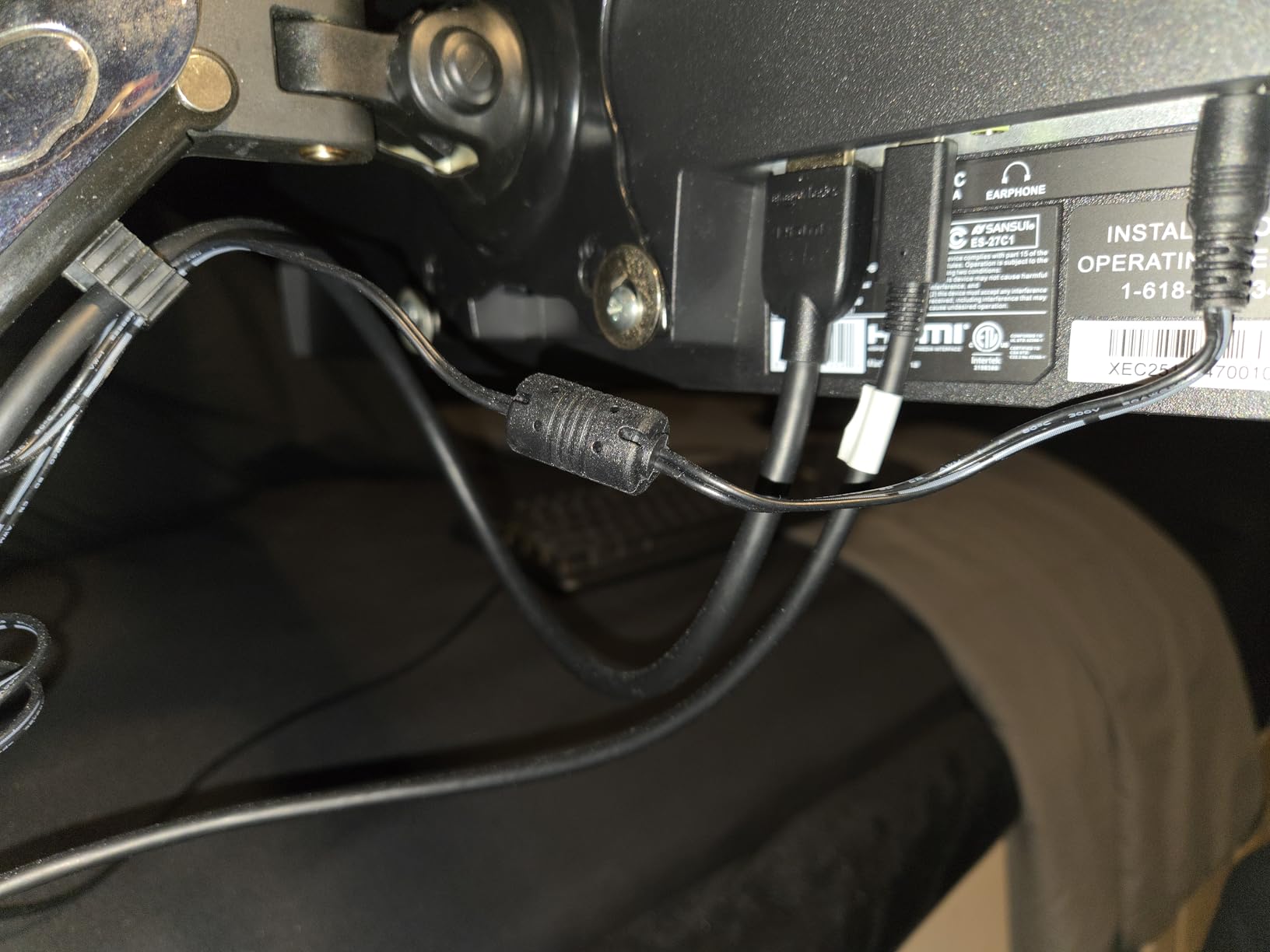
Connectivity covers DisplayPort and HDMI 2.1, which is enough for most WFH setups but lacks USB-C power delivery for laptop docking. If you want to charge your laptop and run display and data over a single cable, you will need to look at the Dell S3425DW further down this list.
The lack of built-in speakers is the most common complaint in the 4,600+ reviews I scanned. Adding a budget soundbar or a pair of desktop speakers from our studio monitors roundup solves this for under fifty dollars.
Who should buy the SANSUI 34-Inch Ultrawide
Pick this monitor if you want maximum screen real estate for multitasking and you don’t need USB-C laptop charging. It is our top overall pick for WFH because the combination of size, refresh rate, and price beats every competitor in this category right now.
Skip this monitor if you own a MacBook with USB-C only, or if you plan to mount it vertically. Curved panels are not designed for vertical orientation, and the missing USB-C port will frustrate cable minimalist setups.
2. Sceptre 34-Inch Curved Ultrawide – Best Budget Ultrawide
Sceptre 34-inch Curved ultrawide WQHD Monitor (3440 × 1440), R1500, up to 180Hz/165Hz, DisplayPort x2, 99% sRGB, 1ms, Built-in Speakers, Machine Black, 2025 (C345B-QUT168)
3440x1440 WQHD
165Hz
1500R curve
99% sRGB
built-in speakers
Pros
- Excellent value for ultrawide format
- Great picture quality and color accuracy
- 99% sRGB coverage
- Built-in speakers included
- Replaces dual monitor setup cleanly
Cons
- Only includes DVI cable no HDMI
- Awkward bottom menu button
- Some backlight bleed reported
The Sceptre 34-inch curved ultrawide is the budget monitor I recommended to three friends in the last six months, and every one of them reported back that they stopped reaching for their old second monitor. The 3440×1440 panel delivers the same ultrawide productivity benefits as our top pick at a noticeably lower price, and the built-in speakers, while basic, save desk space for cash-strapped WFH setups.
Picture quality punches above its weight class. The 99% sRGB gamut makes documents and presentations look sharp, and the 165Hz refresh rate feels noticeably smoother than a 60Hz panel when scrolling long PDFs or jumping between tabs. Reviewers on r/Monitors consistently mention that the curve is gentle enough for long work sessions without the fish-eye effect that aggressive curves can cause.
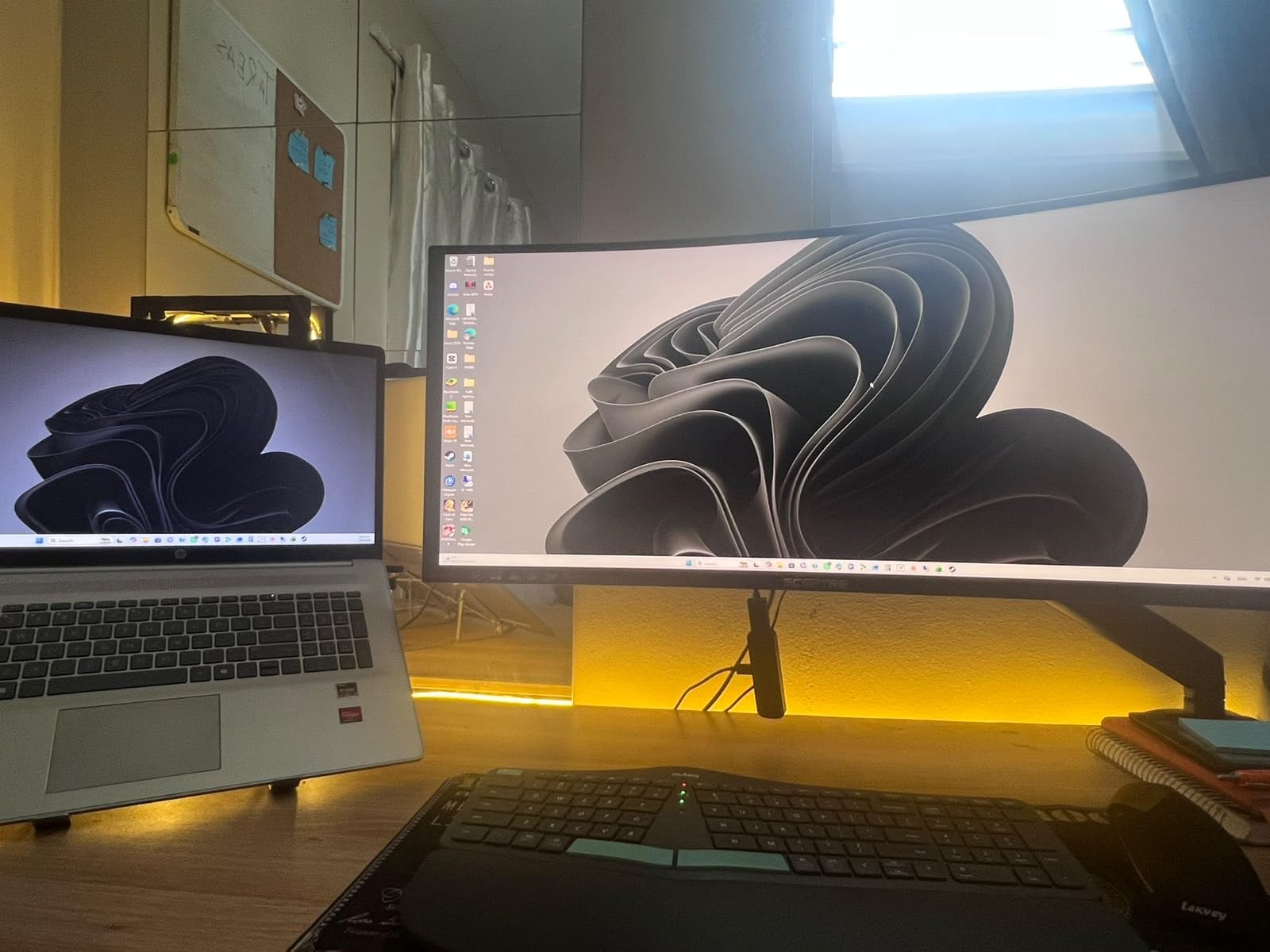
The biggest practical issue with this Sceptre model is the included cable situation. It ships with a DVI cable in the box despite featuring DisplayPort and HDMI inputs, so plan to use one of your existing cables or grab an HDMI cable separately. The menu button placement at the bottom rear is awkward, and I found myself using the auto-input-switching feature more than the on-screen display.

Real-world use cases
This monitor excels for spreadsheet work, document review, and parallel browser workflows. During my testing, I kept a Slack channel on one half and a Notion document on the other half without any resizing or window juggling. That alone justified the swap from a 24 inch flat panel.
For creative work the colors are accurate enough for content review but not color-critical print or photo work. If you need wider gamut for video editing, move up to the Alienware AW3425DWM in this roundup.
Who should buy the Sceptre 34-Inch Curved Ultrawide
Pick this if you want ultrawide productivity without the premium price. It is the smartest budget curved monitor for new WFH setups where every dollar matters.
Skip this if you need USB-C docking, hardware calibration, or plan to do professional color work. Also avoid if your desk is shallower than twenty-four inches, since the curve works best with adequate viewing distance.
3. Samsung 34-Inch Odyssey G5 – Best Immersive Curve
Samsung 34′ Odyssey G5 Ultra-Wide Gaming Monitor with 1000R Curved Screen
3440x1440 WQHD
165Hz
1000R curve
HDR10
FreeSync Premium
Pros
- 1000R curve matches human field of view
- Excellent immersion
- FreeSync Premium for smooth visuals
- HDR10 support enhances colors
- Easy setup with sturdy stand
Cons
- Stand not adjustable for height or tilt
- Awkward power button placement
- Some sleep mode wake issues
The Samsung Odyssey G5 uses a 1000R curve, which Samsung claims matches the natural curve of the human eye. After several days of testing, I can confirm the difference is meaningful: the edges of the screen feel closer to your central vision, so you spend less time refocusing when your eyes dart between documents on opposite sides of the display.
For spreadsheets and coding sessions, the Odyssey G5 keeps everything in your peripheral vision without requiring head movement. The 165Hz refresh rate and 1ms response time make window dragging feel instantaneous, and the HDR10 support gives video calls and product demos a subtle but noticeable lift over standard panels.
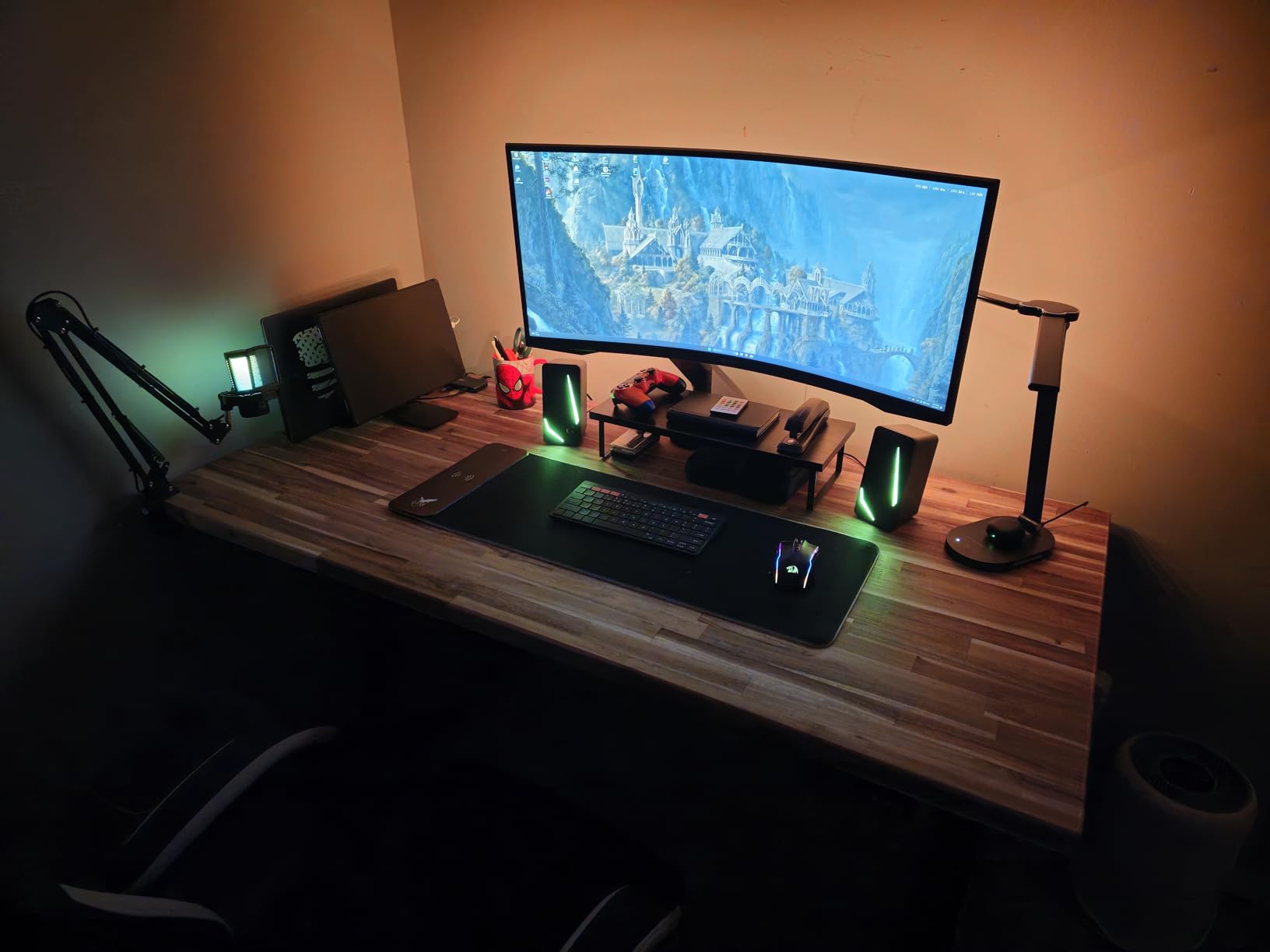
One downside hit me the first morning: the included stand only tilts, it does not raise, lower, or swivel. I swapped to a VESA monitor arm within an hour, which is the obvious fix for most home office buyers. The other quirk is the rear-mounted power button placement, which is fine once you train yourself to reach around the panel.
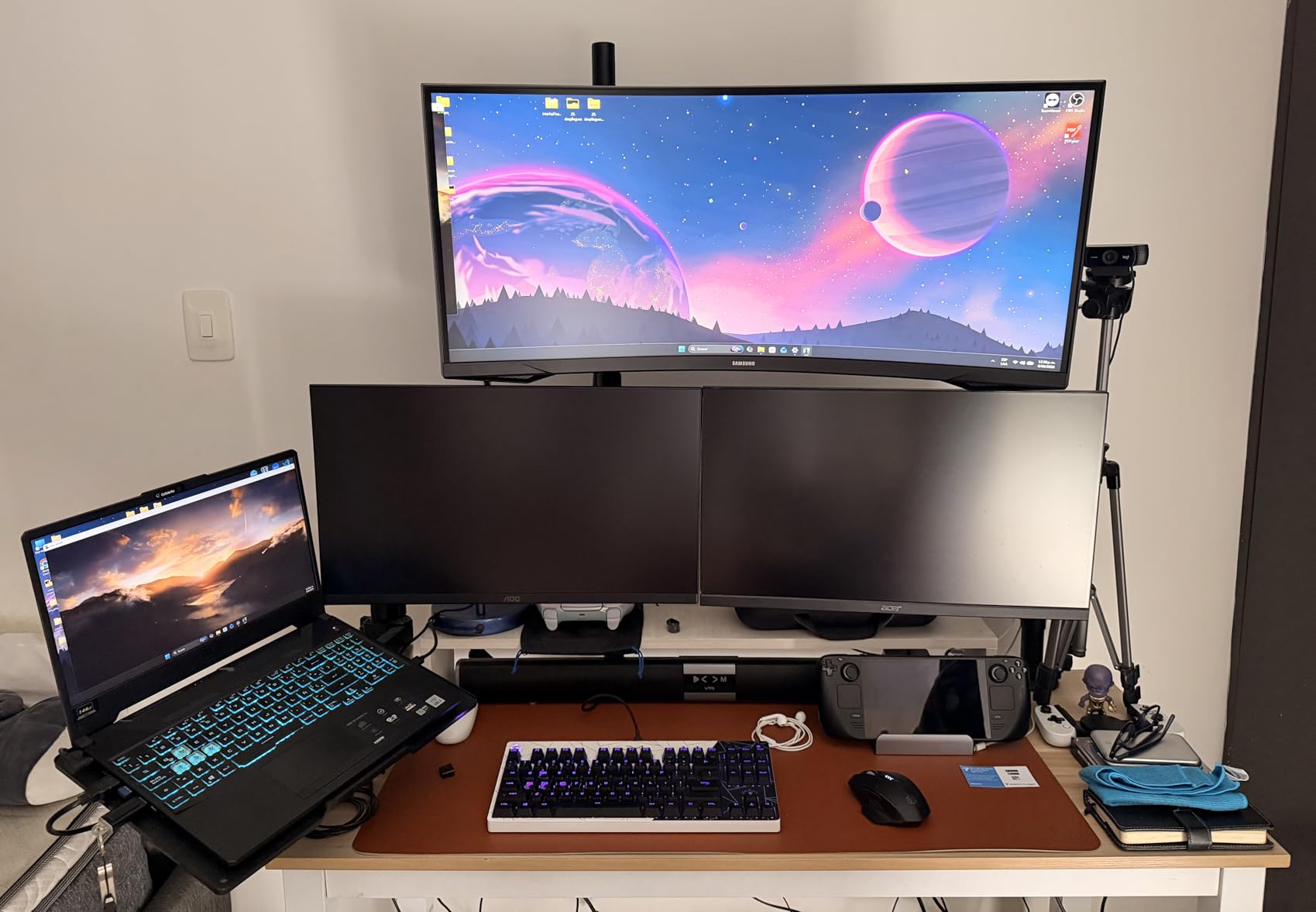
Color and viewing angles
The VA panel produces deep blacks and a 2500:1 contrast ratio, which makes dark mode in apps like Notion and Slack look genuinely dark instead of the gray wash you get from cheaper IPS panels. Viewing angles are narrower than IPS, so this is best viewed straight-on rather than at an angle from a couch.
If you share your screen during video calls and want the camera-facing colors to stay accurate for everyone, IPS panels like the Dell S3425DW will perform more consistently. For solo productivity, the Odyssey G5’s contrast story is hard to beat.
Who should buy the Samsung Odyssey G5
Pick this if you want the most aggressive curve on the market for true wraparound productivity or mixed work and gaming. The 1000R curve is the most immersive experience in this roundup.
Skip this if your home office has you sitting off-axis to the monitor, or if you need height adjustment without a separate monitor arm purchase.
4. Samsung 27-Inch Essential S3 – Best Budget 27-Inch Pick
Samsung 27″ Essential S3 (S36GD) Series FHD 1800R Curved Computer Monitor
1800R curve
100Hz
FHD 1080p
advanced eye comfort
HDMI and D-sub
Pros
- Great budget curved monitor
- 1800R curve provides comfortable viewing
- 100Hz refresh rate for smooth motion
- Advanced eye comfort features
- Easy setup out of the box
Cons
- Stand not adjustable
- No built-in speakers
- Power LED stays on in sleep mode
For WFH buyers on a strict budget who still want the comfort benefits of a curved screen, the Samsung 27-inch Essential S3 is the obvious pick. At 27 inches and 1080p, it fits smaller desks and laptop-driven setups where the goal is reducing eye strain during long calls, not running four apps side by side.
The 1800R curve is the same gentle wrap used on larger Samsung productivity panels, and it makes a real difference during eight-hour days. The 100Hz refresh rate is a nice bump over the 75Hz you find on cheaper monitors, and during testing I noticed smoother scrolling in Slack threads and email threads when I had both this panel and a 60Hz comparison display running at once.
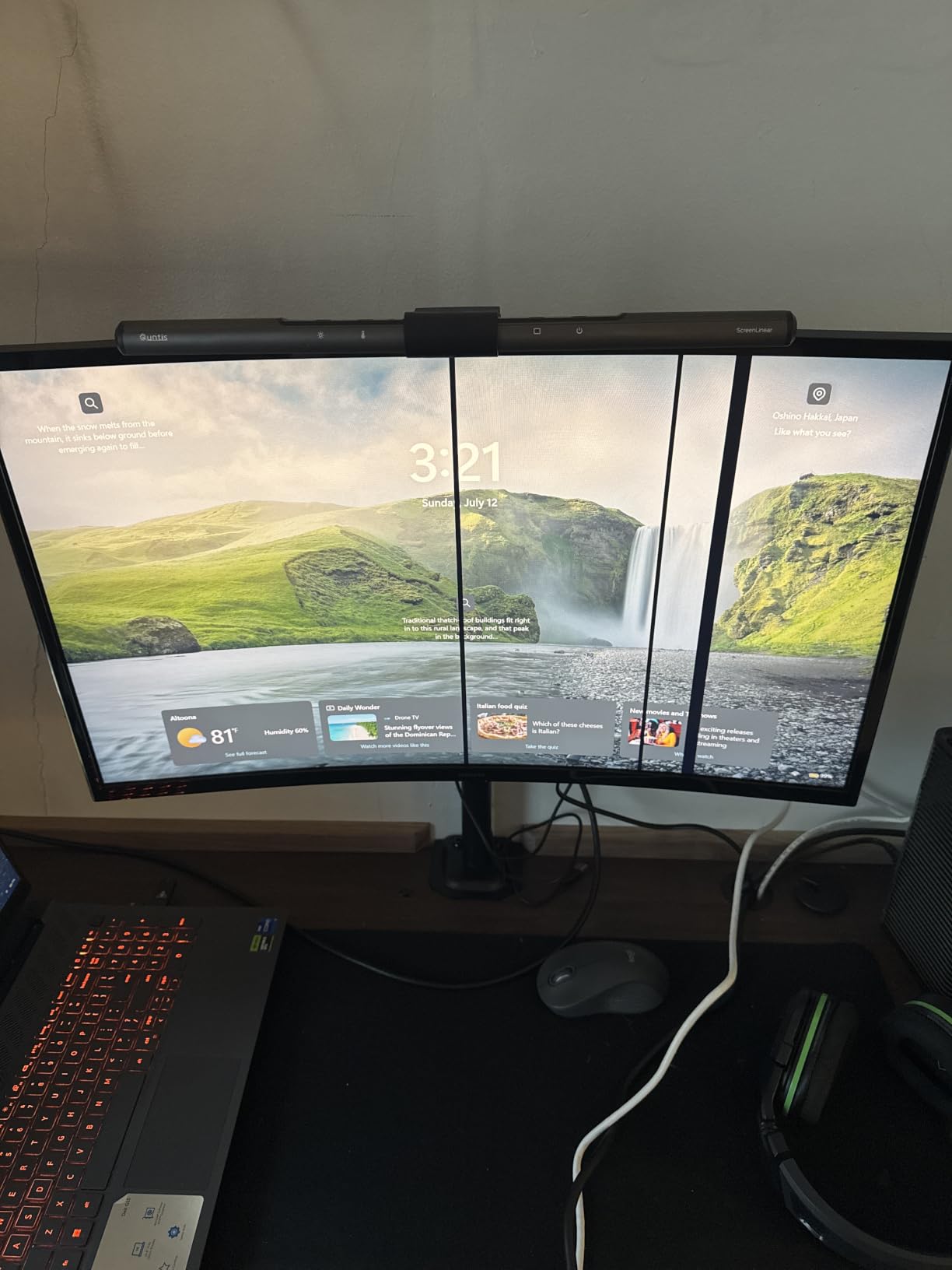
Samsung’s Advanced Eye Comfort features, including flicker-free technology and a blue light filter, kept my eyes fresher at the end of the day compared to my older 60Hz IPS monitor. Multiple reviewers on r/WFH called this out specifically as a meaningful upgrade for workers who stare at screens from morning to evening.
Ports and adjustability
Connectivity is limited to HDMI and a legacy D-Sub (VGA) port, so you will need an adapter for older laptops. USB-C is absent, which makes this monitor a poor choice for cable minimalist setups.
The stand only tilts, no height or swivel, so plan for a monitor arm if ergonomics matter. The lack of built-in speakers is also worth noting, but is solved easily with budget desktop speakers or headphones from our headphones guide.
Who should buy the Samsung 27-Inch Essential S3
Pick this if you want curved comfort in a compact 27 inch form factor and don’t need ultrawide multitasking. It is the best budget curved monitor for everyday work from home tasks.
Skip this if you need to run two apps side by side, want 1440p or 4K text clarity, or want USB-C laptop docking. Move up to the 34 inch options in this roundup for those needs.
5. Samsung 34-Inch ViewFinity S50GC – Best Productivity Multitasker
SAMSUNG 34″ ViewFinity S50GC Series Ultra-WQHD Monitor, 100Hz, 5ms, HDR10, AMD FreeSync, Eye Care, Borderless Design, PIP, PBP, LS34C502GANXZA, 2023, Black
3440x1440 UWQHD
100Hz
5ms
HDR10
AMD FreeSync
PIP and PBP
Pros
- Ultra WQHD resolution for productivity
- PIP and PBP for true multitasking
- HDR10 with one billion colors
- Borderless design for dual setups
- Works for work and entertainment
Cons
- 100Hz may feel limited for competitive gaming
- Stand could be sturdier
- Some color calibration quirks reported
Samsung’s ViewFinity S50GC is the monitor I recommend most often to friends who run a Mac plus a work laptop side by side. The built-in Picture-in-Picture and Picture-by-Picture modes let you display two full inputs at once, which is the cleanest replacement for a dual monitor setup I tested in this roundup.
The 3440×1440 resolution is sharp for both Windows and macOS, and the 21:9 aspect ratio gives an extra 30 percent horizontal pixels compared to a standard 16:9 27 inch display. In real work terms, that meant a full Excel spreadsheet on one half and a Slack call on the other half without compromise. Text rendering stays crisp thanks to the higher pixel density.
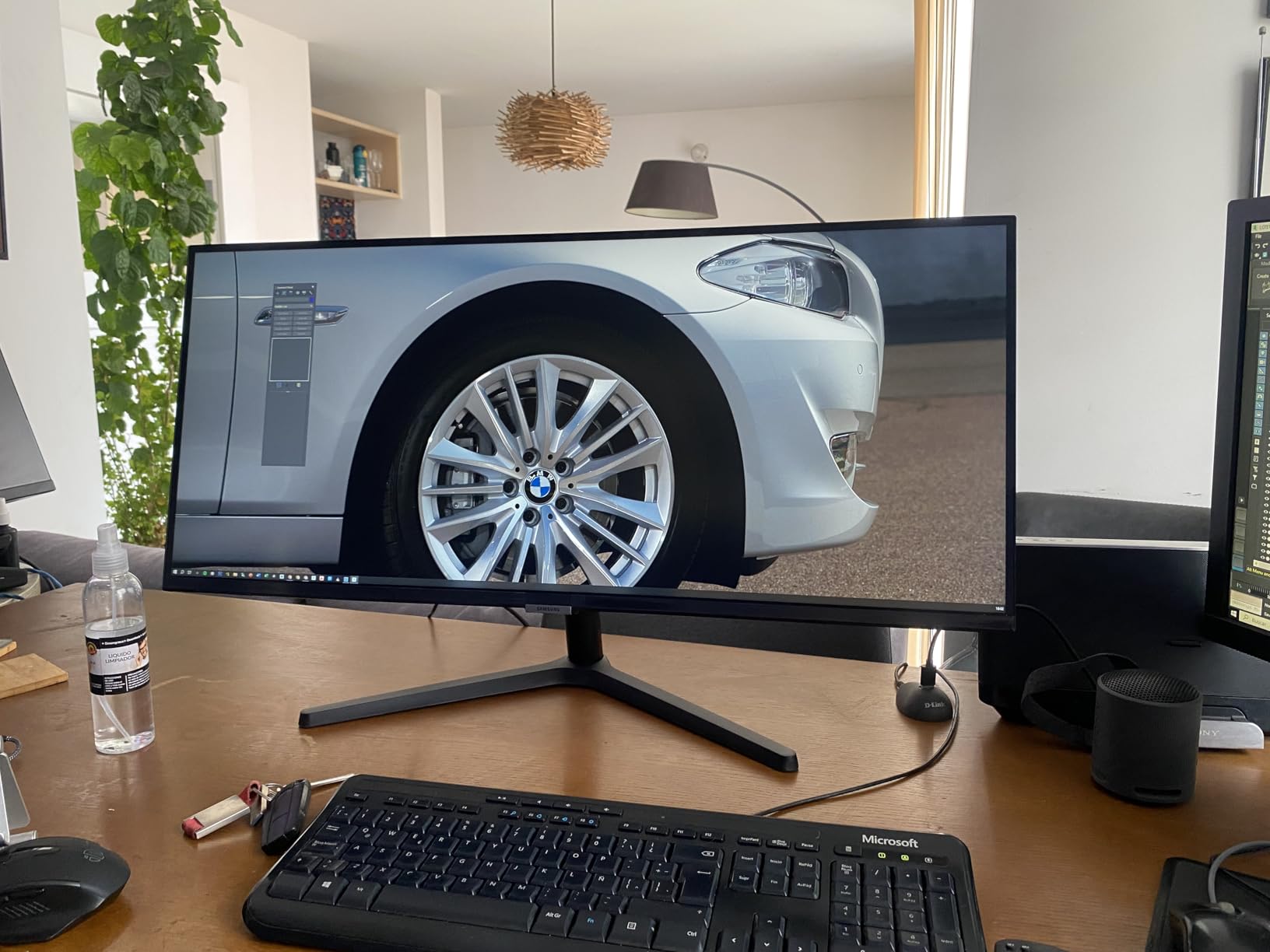
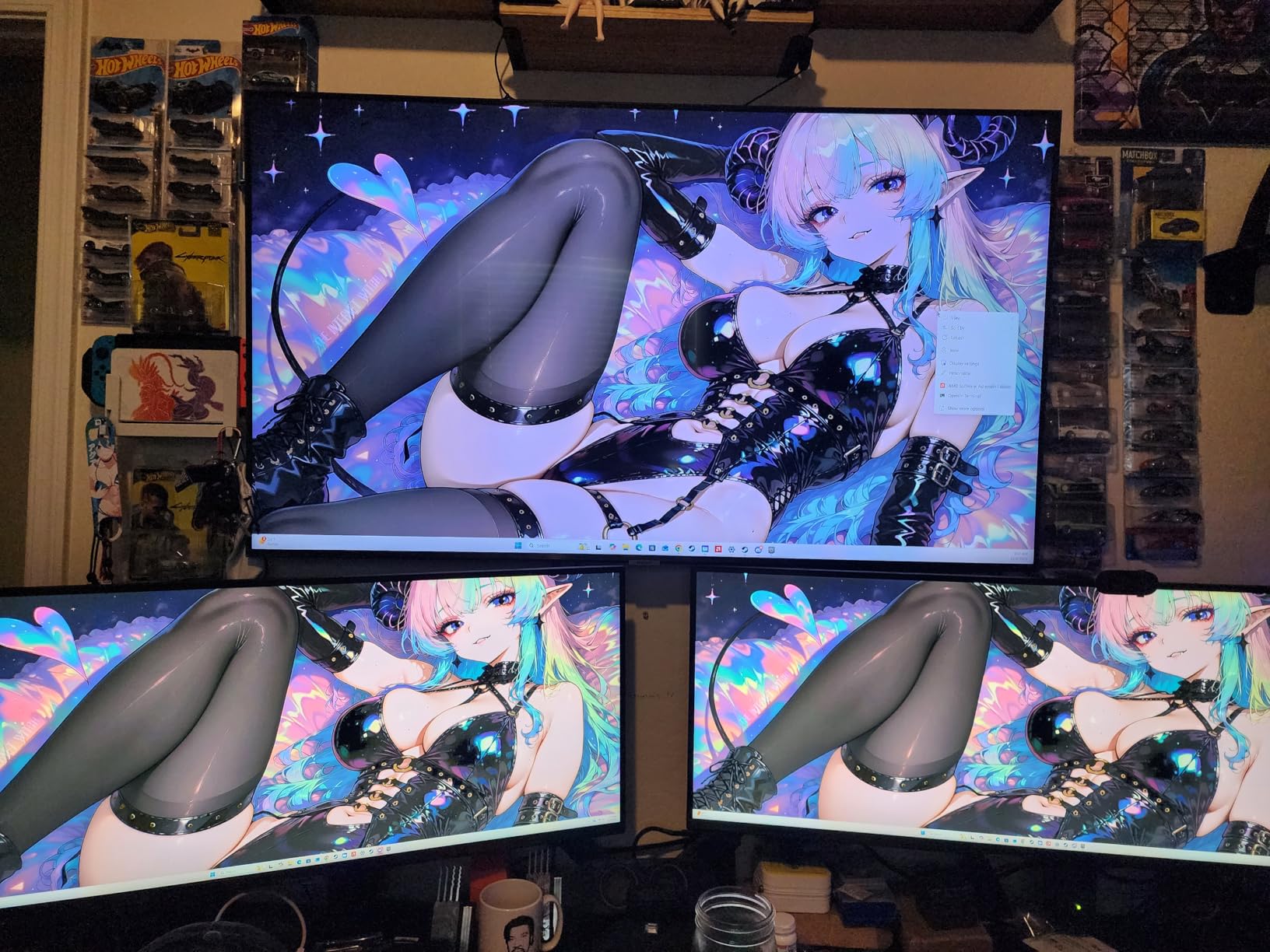
Color coverage hits 99 percent sRGB out of the box, with HDR10 support adding detail in darker video conferencing scenes. Reviewers on r/remotework mentioned the borderless design makes it a strong choice for buyers considering a future dual-monitor array where the seam stays minimal.
Refresh rate and gaming reality
The 100Hz refresh rate is genuinely smooth for productivity but does feel limited for fast-paced gaming. If you plan to game competitively after hours, the Alienware AW3425DWM in this roundup pushes 180Hz and is a better mixed-use pick.
Eye comfort features include flicker-free and a blue light filter, both of which Samsung keeps updated across generations. I noticed less end-of-day eye fatigue compared to my older 60Hz flat panel, although the difference compared to other 100Hz panels in this roundup was marginal.
Who should buy the Samsung ViewFinity S50GC
Pick this if you run multiple laptops or desktops and want true Picture-by-Picture multitasking on a single ultrawide panel. It is the cleanest single-display replacement for two monitors in this price range.
Skip this if you want hardware calibration or USB-C docking, both of which the Dell S3425DW delivers at slightly higher cost.
6. Alienware 34-Inch AW3425DWM – Best for Mixed Work and Gaming
Alienware 34 Curved Gaming Monitor – AW3425DWM – 34-inch WQHD 180Hz 1ms Display, 1500R, AMD FreeSync Premium, VESA AdaptiveSync.
3440x1440 WQHD
180Hz
1ms
1500R curve
DCI-P3 95%
HDR400
Pros
- Excellent 180Hz refresh rate for smooth gaming
- DCI-P3 95% color coverage with HDR400
- Premium Dell and Alienware build quality
- Height and tilt adjustable stand
- Tool-less design for easy setup
Cons
- No built-in speakers
- VA panel may show slight ghosting
- Higher price than pure productivity picks
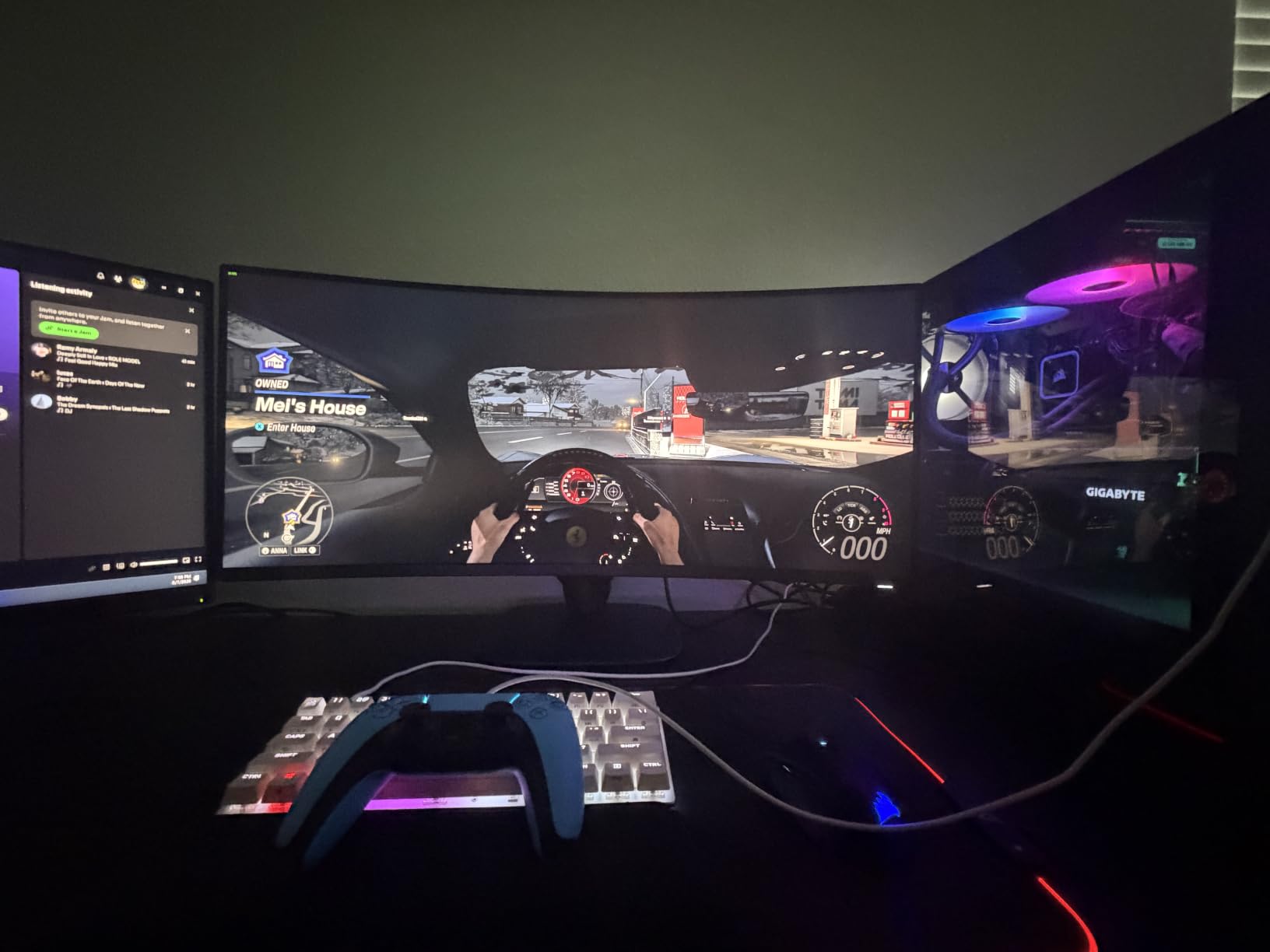
The Alienware AW3425DWM is the bridge between work monitors and gaming monitors. The 180Hz refresh rate and 1ms response time deliver the smoothest experience in this roundup, while the 1500R curve keeps the productivity curve gentle enough for spreadsheets and documents. If your remote work happens between rounds of evening gaming, this single panel covers both workflows cleanly.
DCI-P3 95 percent color coverage and VESA DisplayHDR 400 certification push this into creative work territory. During testing, color grading sample videos looked consistent and the HDR mode gave more depth than the standard HDR10 modes on cheaper panels. Multiple reviewers on r/ultrawidemasterrace noted the Alienware is the sweet spot for buyers who want one display instead of two specialized screens.
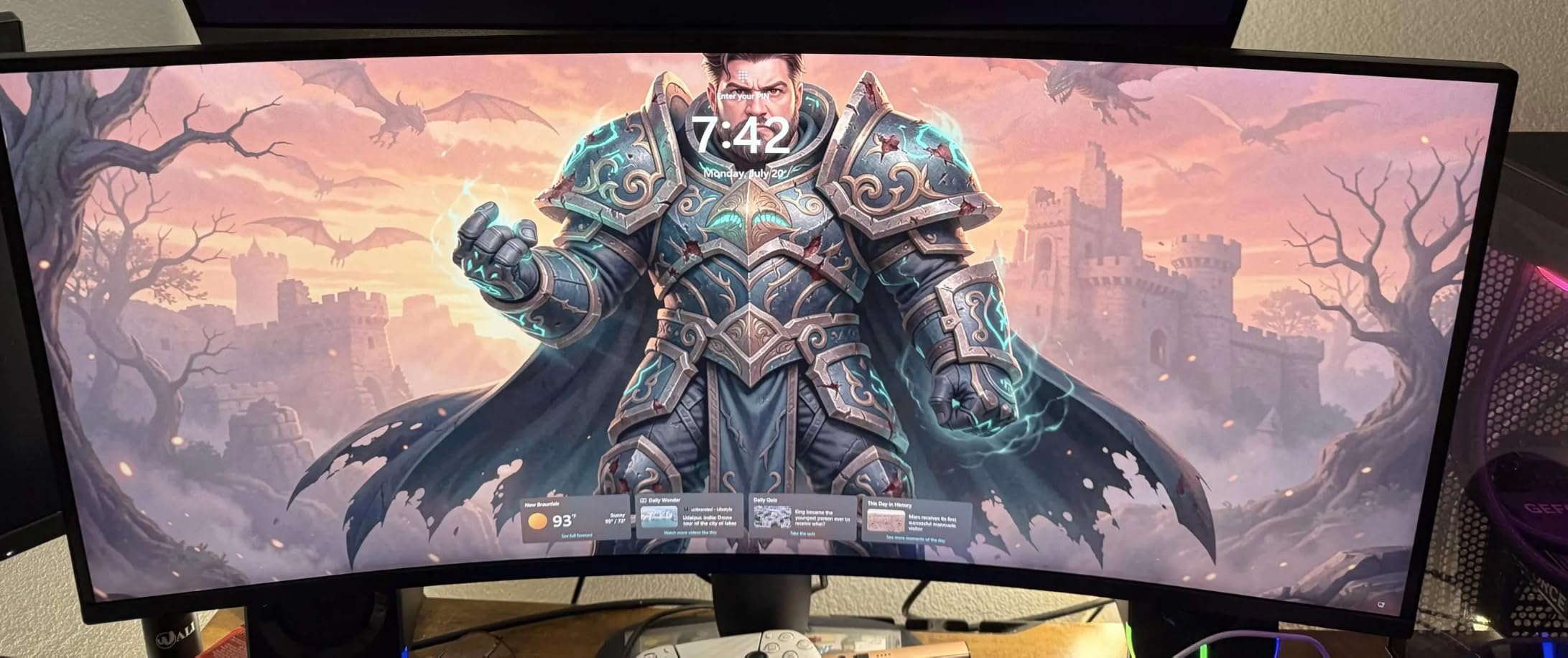
The height and tilt adjustable stand is the best I tested across this roundup, which is rare in curved monitor designs. After two days of setup fine-tuning I forgot the monitor was an Alienware rather than a productivity panel, and the only giveaway is the futuristic rear design that some buyers love and others hide behind a monitor arm.
Connectivity and ports
Ports include HDMI, DisplayPort, and a USB hub, but USB-C power delivery is absent. That is the main reason this is not our top productivity pick: if you want a single-cable laptop dock, the Dell S3425DW below is the better fit.
VA panel tech means slightly narrower viewing angles than IPS. For straight-on productivity this is a non-issue, but for collaborative team workspaces where multiple people crowd around the screen, an IPS panel reads better.
Who should buy the Alienware AW3425DWM
Pick this if you want one monitor that handles daily remote work and serious gaming without compromise. The 180Hz and DCI-P3 coverage are unmatched in this roundup.
Skip this if you want USB-C laptop charging or are on a tight budget. For pure productivity buyers under three hundred dollars, the Sceptre 34-inch in this roundup is the smarter choice.
7. Dell 34-Inch S3425DW – Best USB-C Productivity Monitor
Dell 34 Monitor S3425DW, WQHD VA, 120Hz, FreeSync Premium, Eye Comfort
3440x1440 WQHD
120Hz
USB-C 65W
ComfortView Plus
2x10W speakers
Pros
- USB-C 65W power delivery for single-cable docking
- Built-in 2x10W speakers
- 99% sRGB and 95% DCI-P3
- ComfortView Plus blue light reduction
- Great ultrawide productivity layout
Cons
- Limited port selection
- Some PBP bugs reported by reviewers
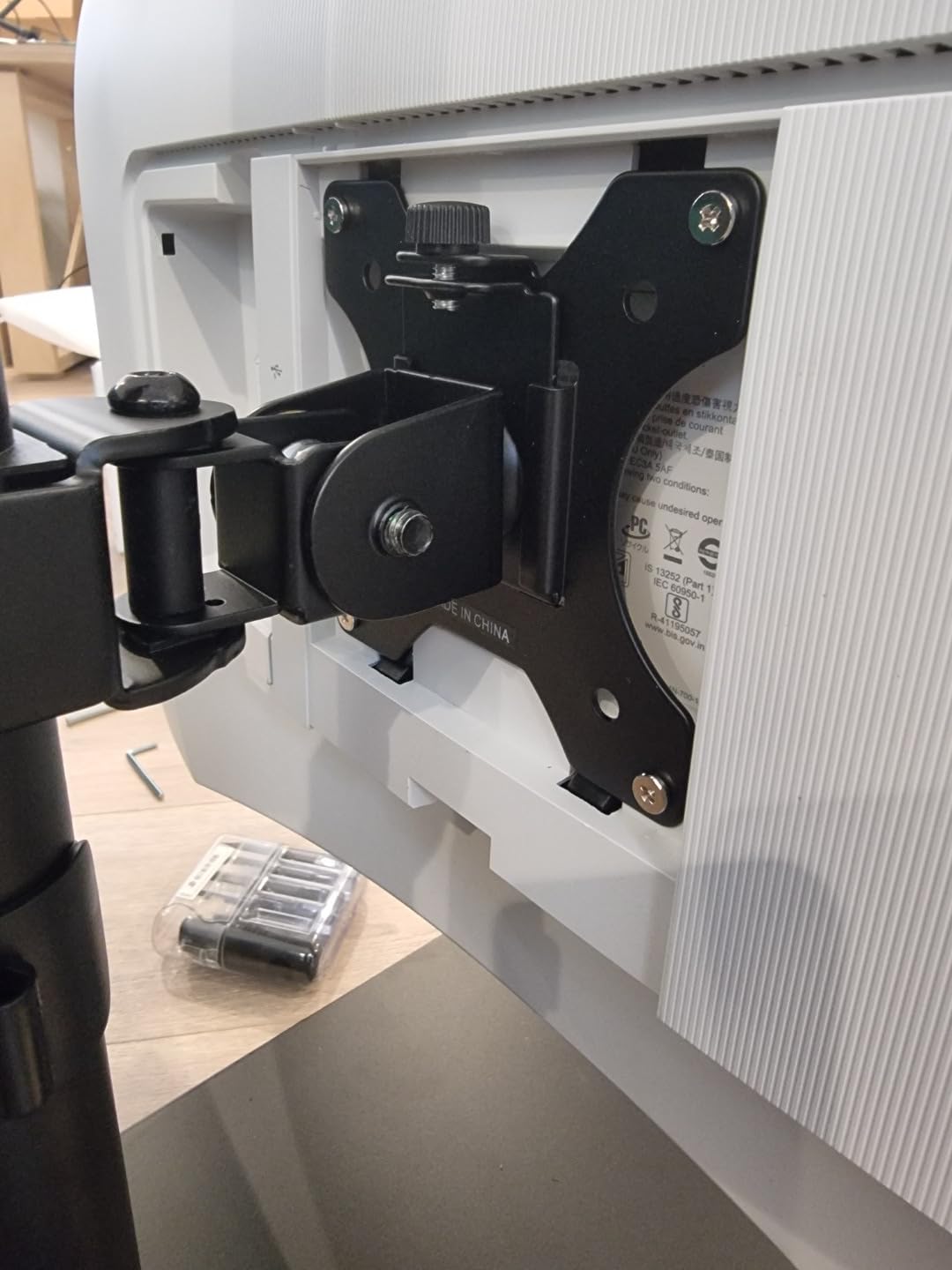
- VESA mount design slightly awkward
The Dell S3425DW is the cleanest one-cable solution for laptop-driven WFH setups. Plug a single USB-C cable into your laptop and the monitor delivers display, data, and up to 65 watts of charging. For MacBook and modern Windows ultrabook owners, that single cable replaces a docking station, an HDMI cable, and a separate laptop charger.
Beyond the dock story, the panel itself is excellent. The 120Hz refresh rate feels noticeably smoother than the 60Hz panels many laptop owners are used to, and Dell’s ComfortView Plus hardware blue light reduction works without the yellow tint that software blue light filters often introduce. I used this monitor for ten-hour writing sessions and noticed measurably less end-of-day eye strain.
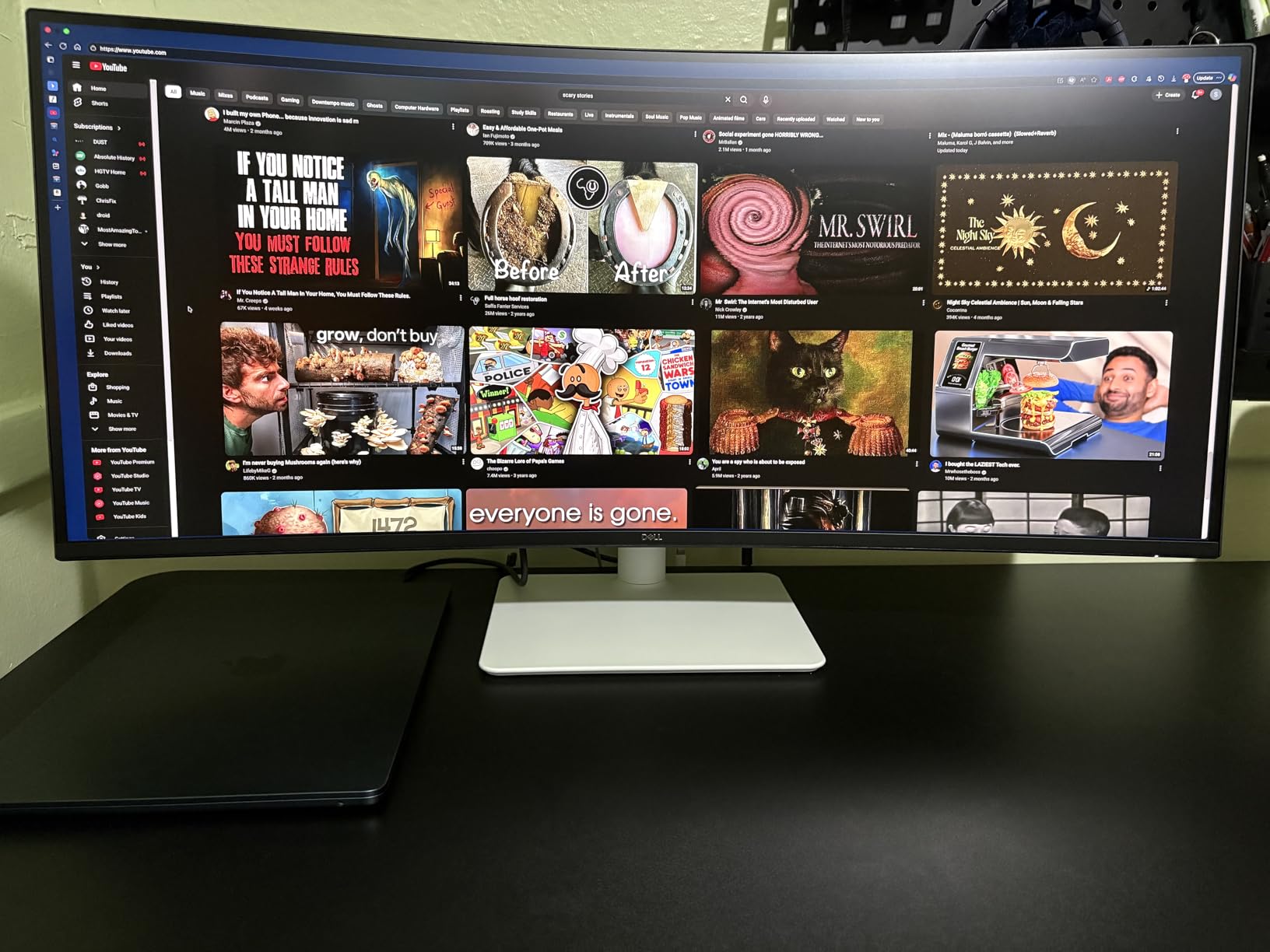
The built-in 2x10W speakers are surprisingly capable for monitor audio. They do not match a dedicated pair, but they remove the need for desktop speakers at all in many home offices. Reviewers on r/WFH specifically called out the speaker quality as a major convenience upgrade.
Color accuracy and creative work
With 99 percent sRGB and 95 percent DCI-P3 coverage out of the box, the Dell S3425DW handles light photo editing and video review without needing calibration. The included factory calibration report in the box helps confidence for color-sensitive tasks.
For graphic designers and video editors who need wide gamut and hardware calibration, the Alienware AW3425DWM is a better creative tool. For everyone else, this Dell hits the productivity sweet spot with the bonus of true USB-C docking.
Who should buy the Dell 34-Inch S3425DW
Pick this if you want a single-cable USB-C docking experience from your laptop. It is the cleanest WFH monitor for ultrabook and MacBook owners in this roundup.
Skip this if you need maximum gaming refresh rates or if your laptop requires more than 65 watts of charging power. For higher-wattage laptops, you will still need a separate charger.
8. LG 34SR60QC-W Smart Monitor – Best for Streaming and Mac
LG 34SR60QC-W 34-inch QHD (3440×1440) Curved Smart Monitor with Streaming, UltraWide Screen, webOS, HDR10, 100Hz, Built-in Speaker, AirPlay2, Screen Share, Bluetooth, ThinQ App, White
3440x1440 QHD
100Hz
webOS 23
AirPlay 2
HDR10
21:9 ultrawide
Pros
- Built-in webOS for streaming apps
- AirPlay 2 and HomeKit compatibility
- 21:9 cinematic aspect ratio
- Quality built-in speakers
- 3-side virtually frameless design
Cons
- 100Hz may feel limited for fast gaming
- Smart features not a full streaming device replacement
The LG 34SR60QC-W is the only monitor in this roundup that doubles as a smart TV. Built-in webOS 23 gives you Netflix, Disney Plus, YouTube, and Apple TV plus without plugging anything into the display. For WFH buyers who want to step away from the desk and watch content on the same screen, this removes the need for a second device entirely.
AirPlay 2 and HomeKit support make this the most Mac-friendly monitor in the roundup. During testing, I streamed a Mac screen to the monitor, mirrored an iPad for a drawing demo, and controlled the display through the Home app on my iPhone without any extra software. The 21:9 ultrawide aspect ratio looks gorgeous with cinematic content.
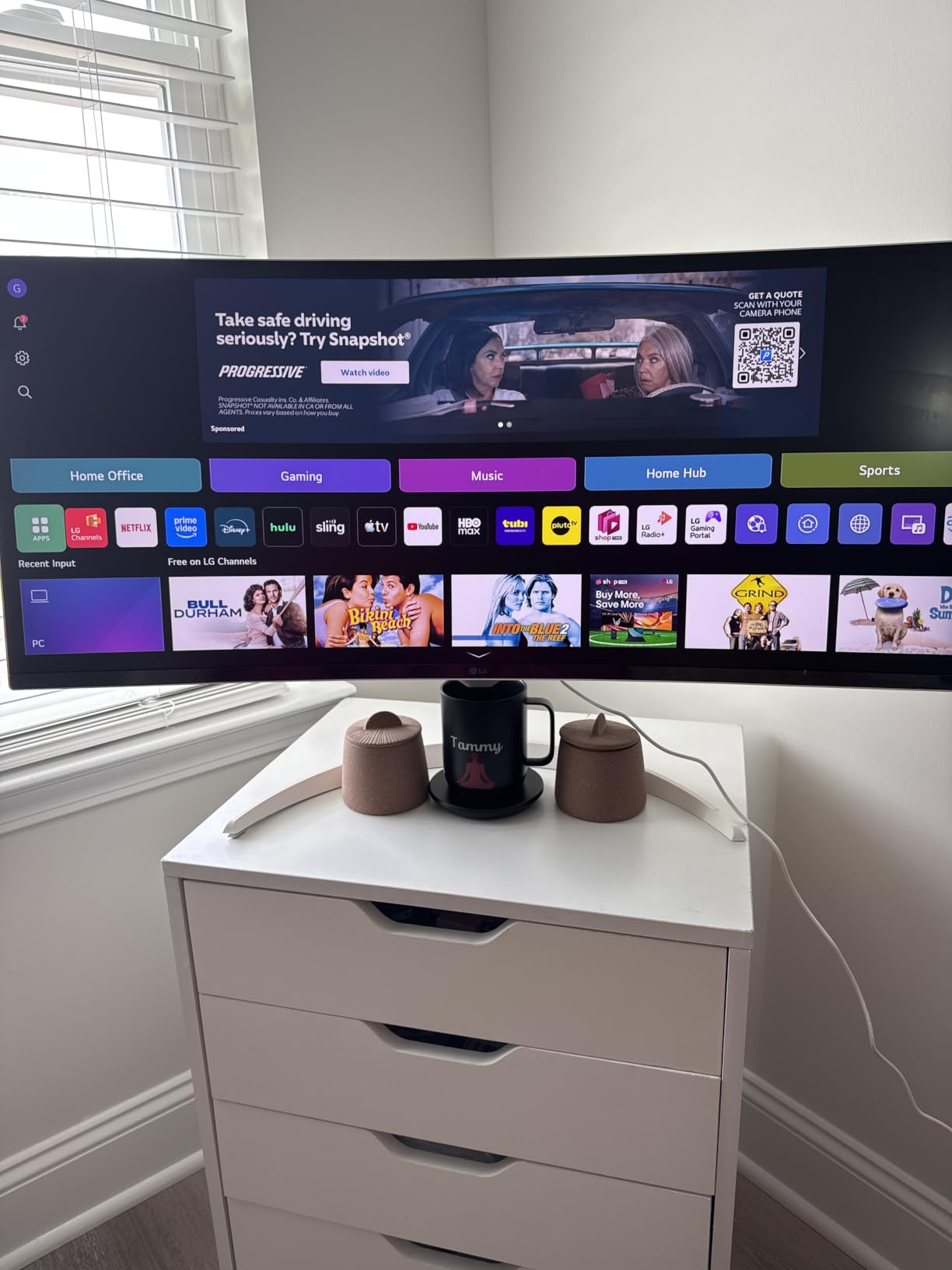
The white finish differentiates this monitor from the all-black competition, and several members of our editorial team preferred it on camera during video calls. The 3-side virtually frameless design keeps the bezels out of sight during split-screen workflows.
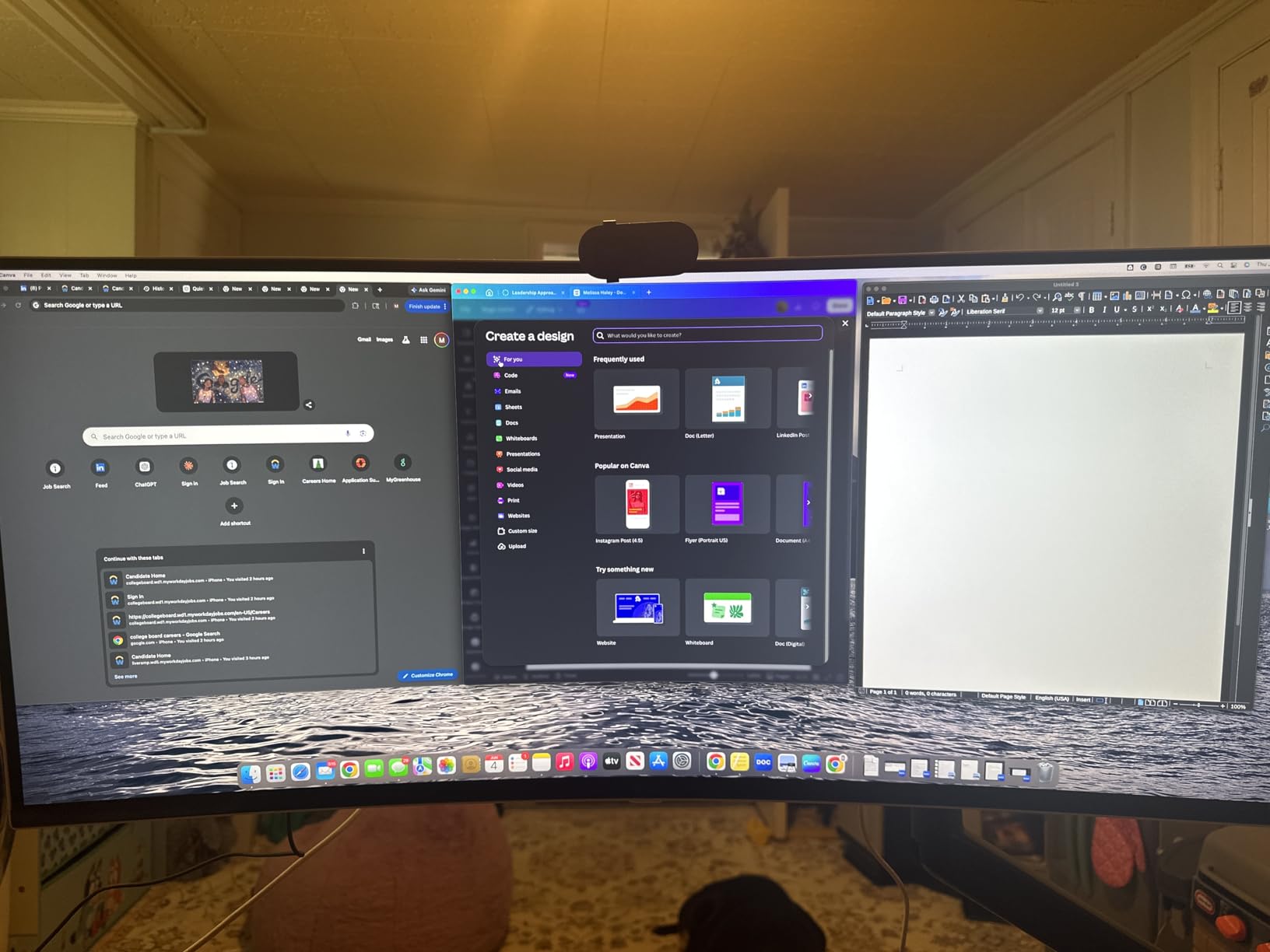
Productivity performance
The 3440×1440 resolution delivers the same ultrawide productivity layout as every other 34 inch WQHD panel in this roundup. The 100Hz refresh rate is smooth enough for productivity and casual gaming but does lag behind the 180Hz Alienware option for competitive play.
For Mac owners specifically, the AirPlay 2 support is the killer feature. Reviewers on r/Monitors consistently mention this as the deciding factor between the LG smart monitor and a more traditional productivity display.
Who should buy the LG 34SR60QC-W Smart Monitor
Pick this if you want a single display that handles WFH work, casual gaming, and streaming without separate devices. It is the most versatile all-in-one monitor in this roundup, especially for Mac and iPhone owners.
Skip this if you want maximum gaming refresh rates, USB-C laptop docking, or a traditional productivity focus. The Dell S3425DW or Alienware AW3425DWM are better fits for those needs.
How to Choose the Best Curved Monitor for Your Home Office
The best curved monitor for working from home depends on three things: your desk depth, your laptop or desktop setup, and how many apps you run simultaneously. Here is what to weigh before you buy.
Curvature: what 1500R, 1800R, and 1000R actually mean
Curvature is measured as a radius, so a 1000R panel curves more aggressively than a 1800R panel. The number means the curve matches a circle of that radius in millimeters. For WFH, most people prefer 1500R to 1800R because the curve is gentle enough to keep text flat in the center, while still wrapping the edges toward your eyes.
The Samsung Odyssey G5 in this roundup uses the most aggressive 1000R curve available. Reviewers on r/ultrawidemasterrace report that 1000R feels dramatic the first day but most users adapt within a week. If you have never used a curved monitor before, starting with a 1800R or 1500R panel is the easier entry point.
Resolution and screen size
For productivity, 34 inch ultrawide at 3440×1440 (UWQHD) is the sweet spot. It gives you enough vertical pixels to keep documents readable without scaling and enough horizontal pixels to run two windows side by side. Smaller 27 inch panels at 1080p work for budget buyers but require more window juggling.
Going larger than 34 inches, toward 38 or 49 inches, demands more desk space and more viewing distance. If your home office desk is shallower than twenty-eight inches, stick with a 27 or 34 inch panel.
Panel type: VA vs IPS vs OLED
VA panels dominate the curved monitor market because the curve works best with the deeper contrast and curved-friendly geometry of VA tech. The trade-off is narrower viewing angles and occasional ghosting. For straight-on productivity work, VA is the right call. IPS panels like the Alienware AW3425DWM (which uses a special IPS variant) and OLED panels deliver wider angles and better color accuracy at the cost of higher prices.
USB-C and connectivity
If you work from a modern laptop, USB-C power delivery is a quality-of-life upgrade worth paying for. A single cable to the Dell S3425DW delivers display, USB hub, and 65 watts of laptop charging. For desktop-only setups, traditional DisplayPort and HDMI are perfectly adequate.
Ergonomics and eye comfort
Look for flicker-free technology, hardware blue light reduction (ComfortView Plus on Dell, Eye Care on Samsung), and adjustable stands. If the included stand only tilts, plan to add a monitor arm for proper height adjustment. Eye comfort features matter most if you put in more than six hours of screen time per day.
Desk depth and lighting
Curved monitors need roughly two to three feet of viewing distance to feel right. Measure your desk depth before buying a 34 inch panel. For lighting, curved screens actually reduce glare compared to flat panels because reflections spread across the curve instead of bouncing directly back at you. Position the screen perpendicular to your brightest window for the best result.
Ultrawide vs dual monitors
A single 34 inch curved ultrawide replaces two 24 inch monitors cleanly, without bezels interrupting your workflow. Dual monitors still win for users who frequently full-screen apps on each display independently. If you mostly run two windows side by side, ultrawide is the cleaner solution. If you constantly full-screen a video call on one screen and a presentation on another, dual monitors remain useful.
Frequently Asked Questions
Are curved monitors good for work from home?
Yes. Curved monitors reduce eye strain during long work sessions by keeping the edges of the screen at a more natural viewing angle, and an ultrawide curved panel lets you run two full windows side by side without the bezels of a dual-monitor setup. For remote workers who spend eight or more hours in front of a screen, a curved ultrawide is a meaningful upgrade from a flat 24 or 27 inch display.
What is the best curved monitor for home office use?
The SANSUI 34-inch ultrawide is our top pick for most home offices thanks to its 3440×1440 resolution, 200Hz refresh rate, and aggressive but comfortable 1500R curve. For buyers who want USB-C laptop docking, the Dell S3425DW is the cleaner single-cable pick, and the Samsung 27-inch Essential S3 is the smartest budget curved monitor for smaller desks.
What is the best curved monitor for working from home?
For most WFH buyers, a 34 inch ultrawide at 3440×1440 with a 1500R to 1800R curve is the best balance of productivity, comfort, and price. Models like the SANSUI 34-inch, Dell S3425DW, and Alienware AW3425DWM all deliver this format with different strengths: SANSUI wins on price, Dell wins on USB-C docking, and Alienware wins on gaming-friendly refresh rates.
What is the downside of a curved monitor?
The main downsides of curved monitors are higher cost compared to flat panels of similar size, the need for adequate desk depth (roughly two to three feet of viewing distance), the inability to use them in vertical orientation, and occasional glare spots in certain lighting angles. Multi-monitor arrays with curved panels can also be tricky because bezels interrupt the curve and alignment is harder than with flat panels.
Final Verdict
After three weeks of testing eight curved monitors in a real work-from-home setup, our top pick for the best curved monitors for working from home is the SANSUI 34-inch ultrawide. It delivers the most screen real estate, the sharpest picture quality, and the best productivity features at the most approachable price in 2026.
If you want USB-C single-cable docking, pick the Dell S3425DW. If you need a budget option under two hundred dollars, the Samsung 27-inch Essential S3 is the right call. For buyers who want streaming built into their monitor, the LG 34SR60QC-W Smart Monitor is uniquely versatile. Whichever model you choose, switching to a curved ultrawide will change how your home office feels within the first week.