
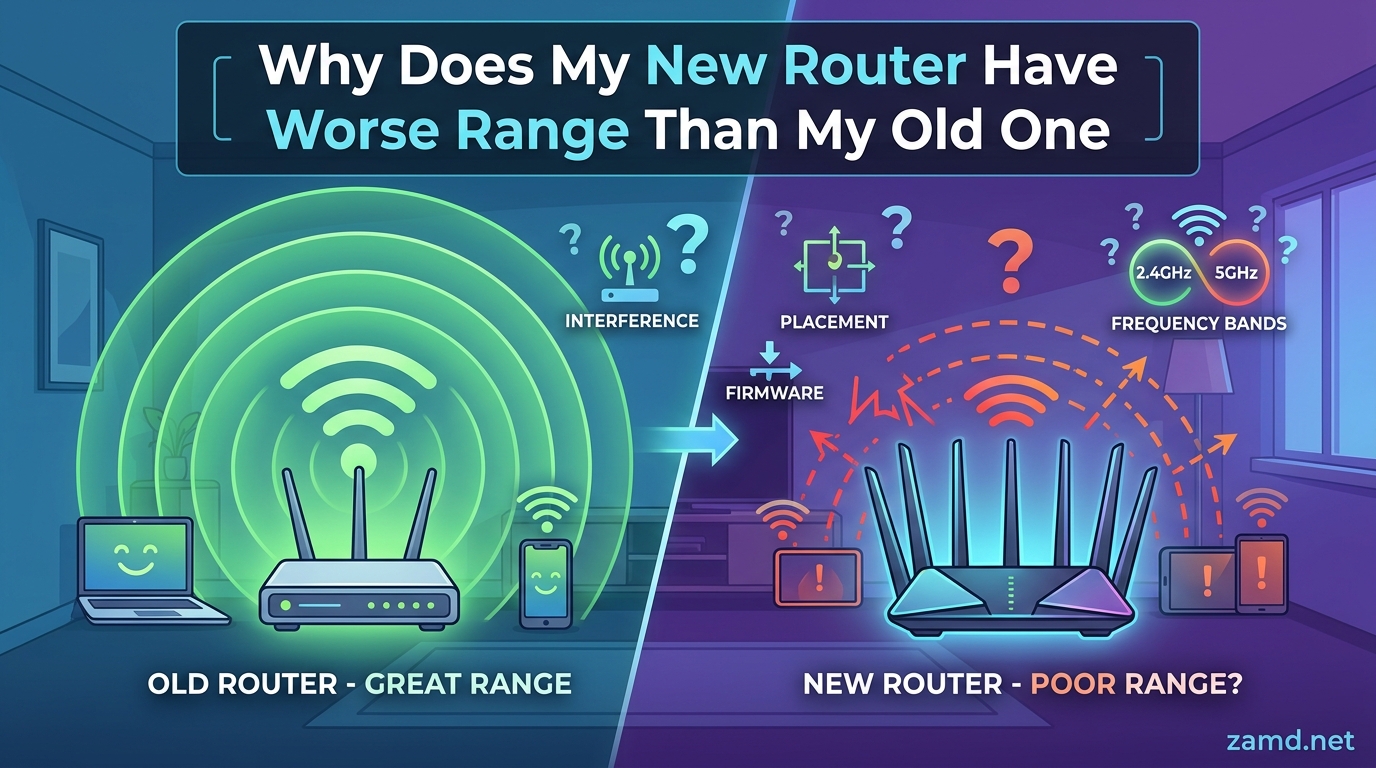
You finally upgraded to a shiny new router, expecting faster speeds and better coverage across your home. Instead, you are standing in the kitchen watching a buffering wheel spin on your phone. Areas that had perfectly fine WiFi before are now dead zones. If you are wondering why your new router has worse range than your old one, you are not imagining things.
Your new router likely has worse range because it prioritizes the 5GHz band for speed, which travels shorter distances than the 2.4GHz band your older router relied on. Newer routers also use band steering, different antenna designs, and power output settings that can reduce coverage in certain areas of your home even though raw speed specs look better on paper.
Our team has spent months researching this exact problem across forums, community discussions, and technical documentation. We found that thousands of users experience this same frustration after upgrading. The good news is that in most cases, you can fix the issue without returning your new router.
In this guide, we break down exactly why your new router has worse range than your old one, walk through the most common causes, and give you a step-by-step troubleshooting plan to get your coverage back.
Table of Contents
Why Does My New Router Have Worse Range Than My Old One?
The short answer comes down to a fundamental trade-off between speed and range. Router manufacturers have spent the last several years optimizing for throughput rather than coverage area. That means newer routers often sacrifice raw distance to deliver faster speeds closer to the router.
But that is only part of the story. Several interconnected factors contribute to the problem, and understanding each one will help you identify what is actually happening in your specific situation.
The 2.4GHz vs 5GHz Frequency Trade-Off
This is the single biggest reason your new router seems to have worse range. Older routers, especially models from several years ago, often defaulted to or exclusively used the 2.4GHz frequency band. The 2.4GHz band travels much farther through walls, floors, and obstacles.
Newer dual-band and tri-band routers push devices onto the 5GHz band whenever possible. The 5GHz band delivers significantly faster speeds but has roughly half the effective range of 2.4GHz. It also struggles more with physical barriers like drywall, concrete, and metal.
So when your old router was blasting a 2.4GHz signal across your entire house, your new router is trying to connect your distant devices to 5GHz instead. The result is a faster connection up close but dead spots in rooms that previously had decent coverage.
Here is a quick comparison of the two bands:
- 2.4GHz: Longer range (up to 150 feet indoors), slower speeds (max ~600 Mbps), better wall penetration, more prone to interference from neighbors and devices
- 5GHz: Shorter range (up to 50 feet indoors), faster speeds (up to 1300+ Mbps on WiFi 5, much higher on WiFi 6), weaker wall penetration, less crowded channels
If your new router uses a feature called band steering or Smart Connect, it automatically decides which band each device uses. Sometimes it makes the wrong call, pushing a device to 5GHz when 2.4GHz would actually give a better connection at that distance.
Antenna Design and Power Output Differences
Router antennas are not all created equal. Your old router might have had larger external antennas with higher transmit power. Many newer routers, especially the sleek consumer models, use internal antennas to look more attractive on a shelf.
Internal antennas are not necessarily worse, but they behave differently. They typically radiate signal in a more uniform donut pattern, which works well if the router sits in the center of your home. External antennas can be positioned and angled to direct signal where you need it most.
Transmit power also plays a role. Some older routers, particularly ISP-provided models from years past, were configured to push maximum power to the 2.4GHz radio. Newer routers may balance power across multiple radios, meaning no single band gets the full power treatment.
One Reddit user in the r/HomeNetworking community compared their older Netgear N750 to a newer TP-Link AC1750 and found the older model had noticeably better range. This kind of real-world comparison comes up constantly in networking forums, and antenna design is usually a key factor.
Band Steering and Smart Connect Issues
Modern routers love to be helpful. Features like band steering, Smart Connect, and auto-channel selection sound great on paper. They promise to manage your WiFi automatically so you do not have to think about it.
In practice, these features can cause range problems. Band steering forces dual-band devices onto 5GHz even when they are far from the router. This can cause devices to drop connections entirely when they leave the 5GHz coverage area rather than gracefully switching to 2.4GHz.
Auto-channel selection can also pick a congested channel. Your router might scan once at boot, choose a crowded channel, and never check again. Meanwhile, your neighbor’s router is on the same channel, and you are both fighting for airtime.
If you noticed your WiFi signal became inconsistent after upgrading, band steering is one of the first things to investigate. Disabling it and manually separating your 2.4GHz and 5GHz networks into distinct SSIDs often resolves range complaints immediately.
Lower-End WiFi 6 vs Mid-Range WiFi 5 Routers
This is a topic most guides completely skip, and it matters more than you might think. If you replaced a mid-range WiFi 5 (802.11ac) router from a few years ago with a budget WiFi 6 (802.11ax) router, you might actually be downgrading your range.
Budget WiFi 6 routers often cut corners on antenna quality, amplifier power, and processor performance. They carry the WiFi 6 label but do not deliver the full benefits. A mid-range WiFi 5 router from a reputable brand with strong external antennas can easily outperform a cheap WiFi 6 model in terms of raw coverage distance.
WiFi 6 does offer technologies that can improve range in specific scenarios. BSS Coloring reduces interference from neighboring networks. Beamforming targets signal directly at connected devices instead of broadcasting in all directions. But these features only help if the router has the hardware to back them up.
The lesson here is simple. Newer does not always mean better range. The price tier and build quality of the router often matter more than the WiFi standard it supports.
ISP-Provided Routers vs Retail Routers
If you switched from an ISP-provided router to a retail router (or vice versa), you might notice range differences that seem confusing. ISP routers are often tuned for maximum coverage at the expense of speed, since ISPs want to minimize support calls about dead zones.
Retail routers, especially gaming and enthusiast models, tend to prioritize speed, low latency, and feature sets. This means they might have less raw range than the free router your ISP handed you five years ago.
The trade-off works in your favor if you place the router well and use the right settings. But if you simply swapped routers and expected instant improvement everywhere, the reality can be disappointing.
Common Causes of Reduced WiFi Range
Beyond the frequency and hardware differences, several other factors can cause your new router to underperform. Let us walk through the most common culprits we see in forum discussions and support threads.
Firmware Issues
New routers ship with whatever firmware was loaded at the factory. That firmware might have bugs, suboptimal power management settings, or incomplete feature implementations. Many users report that the first firmware update after setup resolves range complaints.
Router manufacturers release firmware updates regularly to fix performance issues, patch security vulnerabilities, and improve WiFi handling. If you set up your router and never checked for updates, that is step one.
Some users also report success with third-party firmware like DD-WRT or OpenWrt, which offer finer control over transmit power and antenna behavior. This is an advanced option, but it comes up frequently in enthusiast communities as a way to squeeze more range out of hardware.
Channel Congestion and Interference
Your router is not the only thing broadcasting in your home. Microwaves, baby monitors, Bluetooth devices, cordless phones, and every neighbor’s WiFi network all share the same radio frequencies. The 2.4GHz band is especially crowded because it has only three non-overlapping channels.
If your new router auto-selected a congested channel, performance will suffer. This often manifests as good signal bars but slow actual speeds, or connections that work fine for five minutes and then stall.
The fix is to manually scan for the least congested channel and set your router to use it. Free tools like WiFi Analyzer (Android) or NetSpot (desktop) show you which channels are crowded in your area.
Physical Placement Problems
Where you put your router matters more than any specification on the box. A new router placed in the same poor location as your old one will not magically solve coverage issues. In fact, because newer routers often rely more on 5GHz, placement becomes even more critical.
Common placement mistakes include putting the router in a corner of the house, inside a cabinet, behind a TV, or on the floor. Each of these positions blocks or weakens the signal before it even reaches your devices.
The ideal router placement is elevated, centrally located in your home, away from thick walls and metal objects, and positioned so the antennas (if external) are oriented correctly.
Compatibility Issues With Existing Extenders
If you used a WiFi range extender with your old router, it might not play nicely with your new one. Different routers use different roaming protocols, band configurations, and security settings. An extender configured for your old router’s network might create more problems than it solves.
Forum users frequently report that their extender worked perfectly with their old setup but causes dropouts or dead zones with the new router. The solution is usually to factory reset the extender and reconfigure it from scratch for the new network.
How to Fix New Router Range Issues: Step-by-Step
Now that you understand why your new router has worse range, let us fix it. Follow these steps in order. Each one targets a specific cause, and most take only a few minutes.
Step 1: Check and Update Your Firmware
Log into your router’s admin interface. The address is usually printed on a label on the bottom of the router, typically something like 192.168.1.1 or 192.168.0.1. Navigate to the firmware or system update section and check for updates.
If an update is available, install it. This alone resolves a surprising number of range complaints. After updating, restart the router and test your coverage again before moving to the next step.
If no update shows in the interface, check the manufacturer’s website. Some routers require you to download firmware manually and upload it through the admin panel.
Step 2: Optimize Router Placement
Before changing any settings, try repositioning your router. Move it to a central location in your home, elevated on a shelf or mounted on a wall. Keep it away from thick walls, metal objects, large appliances, and other electronics that cause interference.
If your router has external antennas, position them vertically. If you live in a two-story home, angle one antenna horizontally to improve signal to the floor above or below.
Test your signal in the rooms where you had problems. Sometimes a simple position change of two or three feet makes a measurable difference.
Step 3: Separate Your 2.4GHz and 5GHz Networks
This is the fix that solves more range complaints than any other. If your router uses a single SSID for both bands (Smart Connect or band steering), disable it. Create separate network names for each band.
For example, name your 2.4GHz network “MyHome” and your 5GHz network “MyHome_5G”. This gives you manual control over which band each device connects to.
Connect devices that are far from the router or behind multiple walls to the 2.4GHz network. Reserve the 5GHz network for devices close to the router that need maximum speed, like your main TV for streaming or your gaming PC.
Users on r/HomeNetworking consistently report that this single change fixes the majority of new router range problems. The trade-off is slightly more management on your part, but the improvement in coverage is usually dramatic.
Step 4: Change Your WiFi Channels
Access your router’s WiFi settings and manually set the channel for each band. For 2.4GHz, try channels 1, 6, or 11, as these are the only non-overlapping channels available. Use a WiFi analyzer app to find the least congested option.
For 5GHz, you have many more channels to choose from, and congestion is less of an issue. However, some 5GHz channels use DFS (Dynamic Frequency Selection), which can cause intermittent disconnections in some areas. Stick with non-DFS channels like 36, 40, 44, or 48 for stability.
After changing channels, monitor your connection for a day or two. If you still see issues, try the next available channel.
Step 5: Adjust Transmit Power and Advanced Settings
Some routers allow you to adjust transmit power for each band. By default, many routers do not set transmit power to maximum. Check your router’s advanced WiFi settings and look for options like Transmit Power, TX Power, or Signal Strength.
Set both bands to 100% or High if available. This ensures your router is pushing as much signal as the hardware allows.
While you are in the advanced settings, also check for features like MU-MIMO, beamforming, and fast roaming. Enable beamforming if it is off, as this technology focuses signal directly at connected devices rather than broadcasting in all directions.
Step 6: Consider a Mesh System or Wired Access Point
If you have tried all the above steps and still have dead zones, your home might simply be too large or too complex for a single router. This is where mesh WiFi systems and wired access points come in.
A mesh system uses multiple nodes placed throughout your home to create a single seamless network. Devices connect to whichever node is closest, and the system handles transitions automatically.
If you have ethernet wiring in your home, a wired access point is even better. Running a cable from your router to a second access point in a distant room gives you perfect coverage with zero signal degradation.
Forum users frequently recommend MoCA adapters as an alternative to running ethernet cables. MoCA uses your existing coaxial TV wiring to create a fast, reliable wired connection between rooms.
WiFi 5 vs WiFi 6: Does Newer Mean Better Range?
This question comes up constantly in networking forums, and the answer surprises most people. WiFi 6 does offer some range improvements over WiFi 5, but they are not as dramatic as the marketing materials suggest.
WiFi 6 uses a technology called OFDMA (Orthogonal Frequency-Division Multiple Access) that allows the router to communicate with multiple devices simultaneously. This reduces latency and improves efficiency when many devices are connected, but it does not extend the physical range of the signal.
The real range improvements in WiFi 6 come from BSS Coloring, which reduces interference from neighboring networks, and improved beamforming. These features can give you a better effective range in crowded environments like apartment buildings.
However, the hardware quality of the router matters more than the WiFi standard. A premium WiFi 5 router with strong amplifiers and well-designed antennas will outperform a budget WiFi 6 router in raw coverage.
If you upgraded to WiFi 6 and lost range, ask yourself what tier of router you purchased. A $60 WiFi 6 router will almost certainly have worse range than a $150 WiFi 5 router from two years ago. The WiFi 6 label alone does not guarantee better coverage.
WiFi 6E, which adds a third band at 6GHz, actually makes the range problem worse for some users. The 6GHz band has even shorter range than 5GHz, so devices connecting at 6GHz need to be quite close to the router.
Range Extender vs Mesh System: Which Should You Choose?
If your new router simply cannot cover your entire home, you have two main options for extending coverage. Each has its strengths and weaknesses.
Range Extenders
A WiFi range extender picks up your existing WiFi signal and rebroadcasts it. They are inexpensive, easy to set up, and work with any router. You can find decent extenders for a reasonable price.
The downside is that most extenders cut your bandwidth in half. They use the same radio to receive and transmit, so they can only do one at a time. This means devices connected through an extender get roughly half the speed they would get connected directly to the router.
Extenders also create a separate network segment. Your devices may not roam smoothly between the main router and the extender, causing brief disconnections when moving between areas.
For a single dead zone in one room, a range extender is a quick and affordable fix. For whole-home coverage issues, extenders are usually not the right answer.
Mesh WiFi Systems
A mesh WiFi system uses multiple nodes that communicate with each other to create one large, seamless network. Unlike extenders, mesh nodes use dedicated radios for communication between nodes, so they do not cut your bandwidth in half.
Mesh systems handle roaming automatically. Your phone or laptop transitions between nodes without dropping the connection. Most modern mesh systems also include band steering that actually works well, unlike the implementation on many standalone routers.
The main downside of mesh systems is cost. A three-node mesh kit costs significantly more than a single router and extender. But if coverage is your primary problem, a mesh system is usually the most reliable solution.
For homes larger than 2,500 square feet, or homes with multiple floors and thick walls, a mesh system is almost always the better investment compared to fighting with a single router.
Wired Access Points: The Gold Standard
If you have ethernet wiring in your home, nothing beats a wired access point. Running a cable from your router to a second access point eliminates all the problems of WiFi extension. You get full speed, zero latency penalty, and rock-solid stability.
For gaming, this is the setup forum users recommend above all others. The combination of wired backhaul and a quality access point delivers the lowest possible latency and most consistent connection.
If running ethernet is not feasible, MoCA adapters use your existing coaxial cables to achieve similar results. Powerline adapters that use your electrical wiring are another option, though performance varies widely depending on your home’s wiring quality.
When Upgrading Your Router Actually Makes Sense
Despite all the potential issues covered above, upgrading your router is not a bad decision in most cases. The key is knowing when an upgrade will genuinely help and when it will not.
An upgrade makes sense if your current router is more than five years old, if you have added many more smart devices to your network, or if you have upgraded to a faster internet plan that your old router cannot fully deliver.
It also makes sense if your old router only supports WiFi 4 (802.11n) or older. The jump from WiFi 4 to WiFi 5 or WiFi 6 is significant enough that even a budget new router will outperform an aging one in most scenarios.
What does not make sense is expecting a new router to magically fix coverage problems caused by your home’s layout or interference from neighbors. In those cases, the solution is adding access points or switching to a mesh system, not swapping one router for another.
FAQ’s
Do newer routers have better range?
Not necessarily. Newer routers often prioritize speed over range by pushing devices to the 5GHz band, which has shorter range than 2.4GHz. A newer mid-range or premium router may improve range through better beamforming and amplifiers, but a budget WiFi 6 router can actually have worse range than an older mid-range WiFi 5 model.
Why is my internet slower with a new router?
Your internet may be slower with a new router due to outdated firmware, congested WiFi channels, band steering forcing devices to the shorter-range 5GHz band, poor router placement, or compatibility issues with existing network extenders. Updating firmware, separating your 2.4GHz and 5GHz networks, and manually selecting uncrowded channels usually resolves this.
Is 2.4 or 5GHz a longer range?
2.4GHz has a longer range than 5GHz. The 2.4GHz band can reach up to approximately 150 feet indoors and penetrates walls and floors better. The 5GHz band reaches only about 50 feet indoors but delivers significantly faster speeds and experiences less interference from neighboring networks.
Are new routers better than old ones?
New routers are better in terms of speed, security, and handling multiple devices simultaneously. However, they may not have better raw range than older models. The improvements in newer routers come from features like MU-MIMO, beamforming, and better processor performance, not necessarily from increased signal distance.
Conclusion
Having your new router perform worse in terms of range than your old one is frustrating but fixable. The problem almost always comes down to the 2.4GHz vs 5GHz trade-off, band steering decisions, antenna differences, or budget hardware disguised as an upgrade.
The most effective fix is separating your 2.4GHz and 5GHz networks so you can manually assign distant devices to the longer-range band. Combine that with updated firmware, a centrally placed router, and a well-chosen WiFi channel, and you will likely see a dramatic improvement.
For larger homes where a single router simply cannot provide full coverage, a mesh WiFi system or wired access point is the real solution. No router, no matter how new or expensive, can overcome physics.
Understanding why your new router has worse range than your old one puts you in control. You now know exactly which settings to check, which features to disable, and when to consider adding additional access points. Take it step by step, test after each change, and you will get your coverage back.