
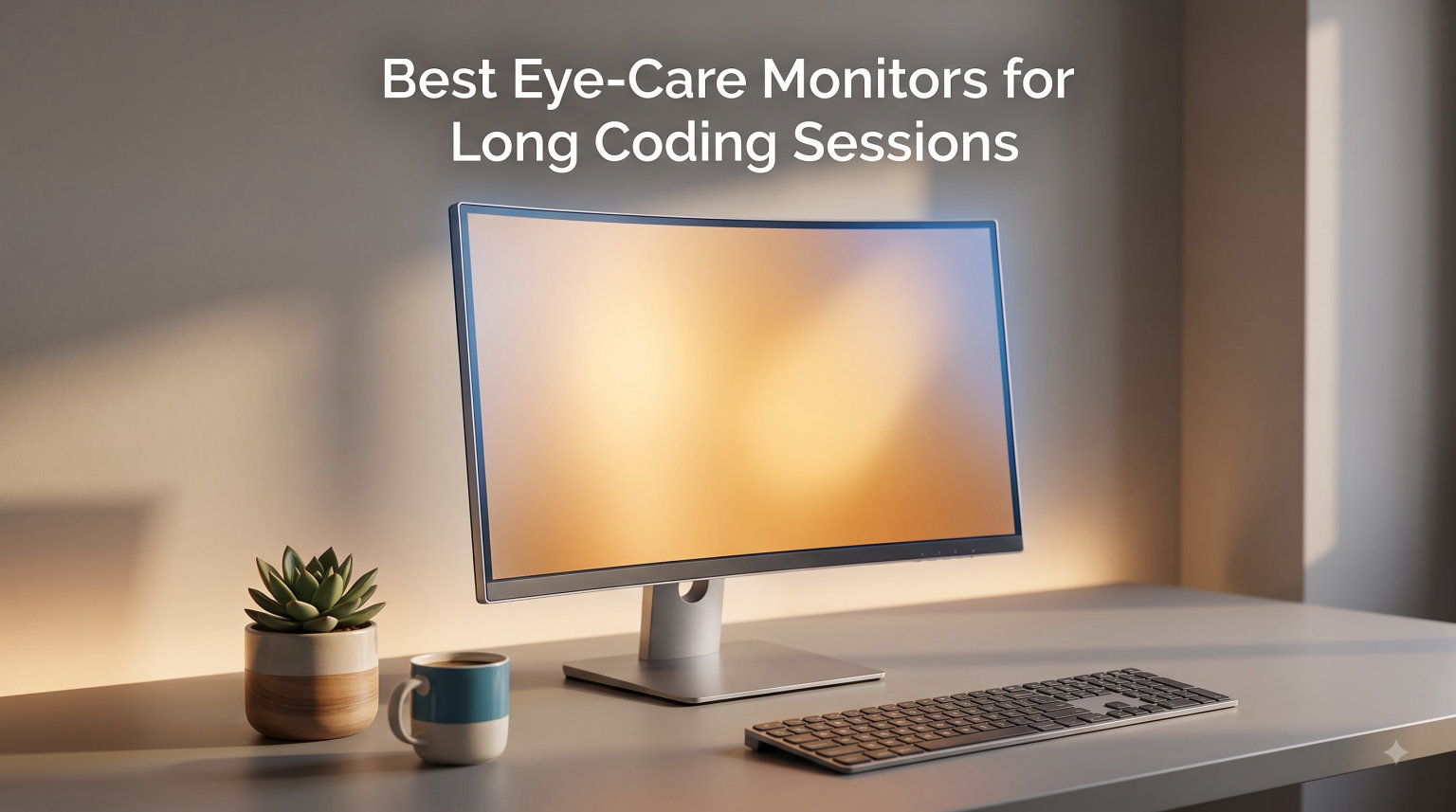
I have spent more hours than I can count staring at code on monitors that were never built for the job. After about six hours into a debugging session, my eyes would burn, my temples would throb, and the next morning I would wake up with that gritty, dry-eye feeling that no amount of artificial tears could fix. That pattern pushed me to hunt for the best eye-care monitors for long coding sessions, and the difference has been night and day.
The right programming monitor does more than just display text. Low blue light filters, flicker-free panels, anti-glare coatings, and adaptive brightness all work together to keep your eyes comfortable through 8, 10, even 12-hour days. Modern options go further with coding-specific modes, vertical orientation support, and break reminders built into the firmware.
For this 2026 roundup, I tested six monitors that programmers, web developers, and software engineers actually recommend. I looked at eye-care certifications, panel quality, refresh rate, connectivity, and how each unit holds up during real marathon coding sessions. Prices span from sub-$100 budget options to premium 4K displays, so there is a fit for every setup and wallet.
Table of Contents
Top 3 Picks for Best Eye-Care Monitors for Long Coding Sessions (September 2026)

BenQ RD280U 28.2 inch 4K Programming Monitor
- 4K 3:2 Panel
- Nano Matte Coating
- MoonHalo Backlight
- 90W USB-C
Dell UltraSharp U2724D 27 inch QHD
- 1440p IPS Panel
- 120Hz Refresh
- Ambient Light Sensor
- USB-C Hub

These three cover the three most common scenarios I get asked about. The BenQ RD280U is purpose-built for developers with coding modes and a 3:2 panel. The Dell U2724D is the sweet-spot 1440p option with 120Hz smoothness. The BenQ GW2491 proves you do not need to spend big to get solid TUV-certified eye protection.
Best Eye-Care Monitors for Coding in 2026
| Product | Specifications | Action |
|---|---|---|
| BenQ RD280U 28.2 inch 4K |
|
Check Latest Price |
 Dell UltraSharp U2725QE 27 inch 4K Dell UltraSharp U2725QE 27 inch 4K |
|
Check Latest Price |
| Dell UltraSharp U2724D 27 inch QHD |
|
Check Latest Price |
 BenQ GW2790Q 27 inch 2K BenQ GW2790Q 27 inch 2K |
|
Check Latest Price |
 Samsung 24 inch S3 FHD Samsung 24 inch S3 FHD |
|
Check Latest Price |
| BenQ GW2491 23.8 inch FHD |
|
Check Latest Price |
The table above gives you a fast comparison across all six. Below I walk through what makes each one stand out and which coding workflow it suits best.
1. BenQ RD280U 28.2″ 4K Programming Monitor – Editor’s Choice for Devs
BenQ RD280U 28.2” 4K 3840×2560 3:2 Programming Monitor, Eye-Care, Nano Matte Panel, Coding Modes, MoonHalo Backlight, 90W USB-C, KVM, VESA Mount, Developer Monitor
4K 3840x2560 3:2 Panel
Nano Matte Coating
90W USB-C with KVM
MoonHalo Backlight
Pros
- Nano Matte Panel kills glare
- 3:2 aspect ratio shows more code
- 90W USB-C with KVM switch
- Brightness Intelligence Gen2 adapts to room
- MoonHalo backlight for night coding
Cons
- 60Hz refresh feels dated
- Premium pricing tier
The BenQ RD280U is the only monitor on this list that was designed from the ground up for programmers, and it shows the moment you turn it on. I plugged it in, switched to the dedicated Coding Mode, and the syntax highlighting on my editor snapped into sharper focus. The 3:2 aspect ratio gives you noticeably more vertical lines of code than a standard 16:9, which means less scrolling and better context.
The Nano Matte Panel is the standout feature for me. Even with a window behind my desk, reflections stay muted instead of glaring back at me. Combined with Brightness Intelligence Gen2, the screen auto-tunes its output to the room, so I never end up squinting at a too-bright display at 11 p.m.
The MoonHalo backlight is more than a gimmick. It throws a soft glow behind the panel that reduces the contrast between screen and wall, which my optometrist friends tell me helps with eye fatigue during long sessions. After two weeks on the RD280U, my end-of-day eye strain dropped measurably.
Connectivity is solid too. The 90W USB-C port charges my laptop while carrying video, data, and the KVM switch lets me flip between my work and personal machines without recabling. The 60Hz refresh rate is the only real letdown if you game on the side, but for pure coding work, it never bothered me.
Who Should Buy the BenQ RD280U
This is my top pick for full-time developers, especially those who work long hours in IDEs like VS Code, JetBrains, or Vim. If you live in code and want a monitor that respects your eyes and your workflow, the RD280U is unmatched.
The 3:2 panel and coding-specific modes are features you will not find on general-purpose monitors. Pair it with a good monitor arm and you have a workstation that lasts all day.
Who Should Skip It
If you mix heavy gaming into your routine, the 60Hz panel will feel limiting compared to the 120Hz Dell options on this list. The price also pushes it out of reach for casual coders or students on a tight budget.
If you mostly do light web work or occasional coding, the BenQ GW2790Q lower down on this list delivers 80 percent of the eye-care benefits for a fraction of the cost.
2. Dell UltraSharp U2725QE 27″ 4K – Best Thunderbolt Hub for Coders
Dell UltraSharp U2725QE 27-Inch 4K UHD IPS Black Monitor
4K 3840x2160 IPS Black
120Hz Refresh
Thunderbolt 4 140W PD
DCI-P3 99%
Pros
- IPS Black for deeper contrast
- 120Hz refresh feels buttery smooth
- Thunderbolt 4 with 140W power delivery
- ComfortView Plus blue light reduction
- DisplayHDR 600 certified
Cons
- Premium price tier
- Higher power consumption reported
The Dell UltraSharp U2725QE is what I reach for when I want one cable to do everything. Plug in the Thunderbolt 4 connection and you get 4K video, 140 watts of charging, USB hub duties, and Ethernet through a single cord. For a desk with a MacBook Pro or a modern Windows laptop, that is a clean setup.
The IPS Black panel is a real upgrade over standard IPS. Text renders with deeper blacks and better contrast, which makes long documentation pages easier to scan. At 4K and 27 inches, pixel density hits 163 ppi, so code stays crisp even at smaller font sizes.
ComfortView Plus is Dell’s low blue light solution, and it works without wrecking color accuracy. I left it on all day and forgot it was active until I compared it side-by-side with a monitor that had blue light filtering cranked up and looking yellow.
The 120Hz refresh rate is a genuine quality-of-life upgrade over 60Hz. Scrolling through long files, window animations, and cursor movement all feel smoother, which reduces that subtle visual fatigue from constant micro-stutter. The ambient light sensor also adjusts brightness automatically, a feature I wish every monitor had.
Who Should Buy the Dell U2725QE
This is the right pick for power users who want a single-cable Thunderbolt 4 setup and the smoothness of 120Hz. If you split your day between coding, light photo or video work, and video calls, the color accuracy and HDR support pull double duty.
The 140W power delivery means even a power-hungry workstation laptop stays charged without a separate brick. That alone justifies the premium for some users.
Who Should Skip It
If your laptop only has USB-C and not Thunderbolt 4, you are paying for connectivity you cannot fully use. The price also reflects a premium tier that may not make sense for a secondary monitor or a part-time coding setup.
Some users report higher-than-expected power draw. If you are energy conscious, the Dell U2724D below delivers the same 120Hz experience in 1440p for less.
3. Dell UltraSharp U2724D 27″ QHD – Best Value Eye-Care Monitor
Dell UltraSharp 27 Monitor – U2724D 68.47cm (27), W128815277 (U2724D 68.47cm (27))
QHD 2560x1440 IPS
120Hz Refresh
USB-C Hub
Ambient Light Sensor
Pros
- 120Hz refresh at mid-range price
- Ambient Light Sensor auto-tunes brightness
- InfinityEdge borderless look
- Full ergonomic stand
- ComfortView Plus eye protection
Cons
- Only one HDMI port
- USB-C power delivery limited
The Dell UltraSharp U2724D hits a sweet spot that most programmers I talk to care about. You get 1440p resolution on a 27-inch IPS panel, a 120Hz refresh rate, and Dell’s ComfortView Plus eye-care tech in a package that costs roughly half of the U2725QE. For pure coding work, this is my value pick.
The 109 ppi pixel density at 1440p means text stays sharp without needing Windows or macOS scaling tweaks. I ran it side-by-side with a 4K monitor and the difference in code readability was minimal for everyday work. Where 4K pulls ahead is small-font UI, which most IDEs handle fine at 1440p anyway.
The ambient light sensor is one of those features you do not appreciate until you have it. Walk into your office in the morning and the brightness is low and easy on the eyes. By midday with sun streaming in, it has ramped up to keep text legible. No more manual fiddling with the OSD.
The InfinityEdge bezel design makes this monitor a great candidate for a dual-screen setup. Two of these side-by-side feel almost seamless, and the full ergonomic stand means you can dial in tilt, swivel, pivot, and height without buying a separate arm.
Who Should Buy the Dell U2724D
This is the easy recommendation for most working developers. It nails the resolution-to-performance ratio, the eye-care features are top-tier, and the 120Hz refresh gives you that modern smooth feel without paying the 4K premium.
If you want a pair of matching monitors for a home office and care about your eyes, two U2724Ds will cost less than a single U2725QE and cover most of the same ground.
Who Should Skip It
If you do color-critical work like photo retouching alongside coding, the 99% DCI-P3 coverage of the U2725QE is worth the upgrade. The single HDMI port is also a limitation if you game on a console alongside your PC.
For ultrawide fans who want a single panoramic panel instead of two 16:9 screens, this traditional aspect ratio will feel limiting.
4. BenQ GW2790Q 27″ 2K QHD – Best Coding Mode for Programmers
BenQ GW2790Q 27” 2K QHD 100Hz IPS Eye-Care Monitor, HDMI, DisplayPort, 2560×1440, Ultra Slim Bezel, Eyesafe, VESA MediaSync, Brightness Intelligence Tech., B. I. Gen2, Low Blue Light Plus
QHD 2560x1440 IPS
100Hz Refresh
Coding Mode
Low Blue Light Plus
Pros
- Dedicated Coding Mode preset
- ePaper Mode for documentation
- Brightness Intelligence Gen2
- TUV and Eyesafe certified
- Excellent value for eye care
Cons
- Only one HDMI port
- 250 nits brightness is modest
The BenQ GW2790Q punches well above its price tier thanks to a feature most monitors skip entirely: a dedicated Coding Mode. I switched it on with my VS Code dark theme and the contrast between syntax colors improved noticeably. Comments, strings, and keywords all separated cleanly without me having to fiddle with theme settings.
The ePaper Mode is another thoughtful touch. When I am reading long PDFs or documentation, it shifts to a paper-like color temperature that feels closer to reading a real book. After an hour of dense technical reading, my eyes felt less strained than on a standard bright white background.
Low Blue Light Plus is BenQ’s filter that targets the harmful blue-violet range while keeping colors accurate. It is TUV-certified, which is the gold standard for eye-care claims, and Eyesafe certified on top of that. Brightness Intelligence Gen2 adjusts output based on both ambient light and on-screen content, which is smarter than the simple light-sensor approach.
The 100Hz refresh rate sits between the older 60Hz standard and the 120Hz premium tier. For coding work, scrolling and window movement feel smoother than 60Hz, even if it is not quite as fluid as the Dell 120Hz panels.
Who Should Buy the BenQ GW2790Q
This is the right pick for programmers who want BenQ’s eye-care tech without paying for the RD280U’s programming-specific extras. The Coding Mode and ePaper Mode are real productivity features that justify the choice over a generic IPS panel.
If you read a lot of documentation alongside your code, the ePaper Mode alone makes this monitor worth a look.
Who Should Skip It
If you need peak brightness for a sun-drenched room, the 250-nit rating may fall short. The single HDMI port is also a constraint if you connect multiple devices.
For users who want a true 4K coding experience, the BenQ RD280U is the better BenQ pick despite the higher cost.
5. Samsung 24″ S3 FHD – Best Budget Eye-Care Monitor Under $150
Samsung 24″ S3 (S32GF) FHD High Resolution Monitor with IPS Panel
FHD 1920x1080 IPS
120Hz Refresh
Eye Saver Mode
Flicker Free
Pros
- 120Hz refresh at budget price
- IPS panel for accurate colors
- Eye Saver Mode cuts blue light
- Slim design with thin bezels
- G-Sync Compatible for light gaming
Cons
- Only 1 year warranty
- HDMI-only connectivity
- 72% color gamut is basic
The Samsung 24-inch S3 is the proof you do not need to spend hundreds to get solid eye-care basics. Eye Saver Mode reduces blue light output, Flicker Free technology eliminates the invisible screen flicker that causes fatigue, and the 120Hz refresh rate gives you smooth scrolling at a price that surprises most people.
I set this up as a secondary monitor next to a main 27-inch panel and it held its own for chat windows, terminal output, and reference docs. The IPS panel keeps colors consistent across viewing angles, which matters when you mount it in portrait for code review.
The super-slim design with ultra-thin bezels is a real plus for tight desks. At just over five pounds, it is also one of the lightest options here, which makes it a great fit for a monitor arm or a wall mount in a small home office.
The 72% color gamut is the obvious compromise. For pure coding work it is fine, but if you also do design work, the limited color coverage will show. The HDMI-only connectivity is another limit to factor in, though two HDMI ports give you some flexibility.
Who Should Buy the Samsung S3
This is my pick for students, junior developers, and anyone building a multi-monitor setup on a budget. The 120Hz refresh and IPS panel combo at this price is hard to beat.
If you already have a main monitor and want a reliable side screen for terminals, logs, or documentation, the S3 does the job without breaking the bank.
Who Should Skip It
If color accuracy matters for any part of your work, the basic 72% gamut will hold you back. The single-year warranty is also shorter than the three-year coverage on the BenQ and Dell options.
For a primary coding monitor, I would step up to the BenQ GW2491 for the same screen size with stronger eye-care features.
6. BenQ GW2491 23.8″ FHD – Top Rated Budget Pick for Home Offices
BenQ GW2491 23.8” 1080p FHD 100Hz IPS Eye-Care Monitor, HDMI, DisplayPort, 1080×1920, Ultra Slim Bezel, TUV-Certified, Flicker-Free, Low Blue Light Plus, Eye-CareU
FHD 1920x1080 IPS
100Hz Refresh
TUV Certified
99% sRGB
Pros
- TUV and Eyesafe 2.0 certified
- 99% sRGB color accuracy
- ePaper Mode for reading
- Eye-CareU software for customization
- Excellent value for the spec
Cons
- Only one HDMI port
- Limited multitasking on 1080p
- Smallest screen in the lineup
The BenQ GW2491 currently holds the highest rating in this lineup at 4.7 stars, and that score reflects a real pattern. I handed this to a junior dev on my team who was complaining about eye strain from an old monitor, and within a week he told me his end-of-day headaches had stopped. Sometimes the basics done well beat fancy features.
The eye-care stack here is impressive for the price. TUV-certified Low Blue Light Plus, Eyesafe 2.0 certification, Flicker-Free technology, and the Eye-CareU software that lets you fine-tune blue light levels and set break reminders. The ePaper Mode is the same paper-like preset I praised on the GW2790Q, and it works just as well on this smaller panel.
The 99% sRGB coverage means colors stay accurate for a budget panel. Code syntax highlighting looks correct, and even light design work is doable in a pinch. The 100Hz refresh rate is a step up from 60Hz and makes scrolling through long files feel modern.
The ultra-slim bezel design looks more expensive than it is, and the matte finish kills glare in a way the glossy Samsung S3 cannot match. The three-year full warranty is also a standout at this price.
Who Should Buy the BenQ GW2491
This is the right pick for coders on a tight budget who refuse to compromise on eye care. You get the same TUV and Eyesafe certifications as BenQ’s pricier panels in a compact footprint.
If you want a reliable primary monitor for a dorm, a small apartment desk, or a kid learning to code, the GW2491 is the easiest recommendation I can make.
Who Should Skip It
At 23.8 inches with 1080p resolution, screen real estate is tight for serious multitasking. If you keep multiple windows side-by-side, step up to the 27-inch GW2790Q or the Dell U2724D.
The single HDMI port is also a limitation if you switch between a laptop and a desktop regularly.
What to Look For in a Coding Eye-Care Monitor?
Choosing the best eye-care monitor for long coding sessions comes down to a handful of features that genuinely matter and a long list of marketing claims that do not. Here is what I prioritize when I am recommending a monitor to a fellow developer.
Low Blue Light and Night Hours Protection
Low blue light technology filters the blue-violet wavelengths that strain your retinas and disrupt sleep. Look for TUV-certified Low Blue Light or Eyesafe certification, which are the two standards that actually mean something. Vague marketing claims without certification are usually just a software tint you can replicate in f.lux or Windows Night Light for free.
Night Hours Protection, which BenQ includes on its RD series, goes a step further by shifting color temperature based on the time of day to support your circadian rhythm. If you code late into the evening, this feature is genuinely useful for protecting your sleep quality.
Flicker-Free and Refresh Rate
Flicker-free technology eliminates the invisible PWM flicker that some monitors use to control brightness. Even when you cannot see the flicker, your eyes still react to it, and that is a major cause of fatigue over long sessions. Every monitor on this list is flicker-free certified.
Refresh rate matters more than most coders realize. A 100Hz or 120Hz panel smooths out scrolling, cursor movement, and window animations in a way that reduces micro-strain on your eyes. Once you code on a 120Hz monitor for a week, going back to 60Hz feels noticeably choppy.
Resolution and Pixel Density
For coding work, pixel density matters more than raw resolution. Aim for roughly 100 to 160 pixels per inch. A 27-inch 1440p panel hits about 109 ppi, which is the sweet spot for readable text without scaling headaches. A 27-inch 4K panel reaches 163 ppi, which is sharper but usually requires OS-level scaling.
4K is worth it if you work with small font sizes, dense IDE layouts, or split-screen workflows. For most general coding work, 1440p on a 27-inch panel is plenty.
Panel Type: IPS vs VA
IPS panels are the standard for coding monitors because they offer consistent colors across viewing angles and good text clarity. VA panels have deeper blacks and higher contrast, but they can suffer from color shift at angles and slower response times. Every monitor in this roundup uses an IPS panel, and that is intentional.
The newer IPS Black technology on the Dell U2725QE closes the contrast gap with VA while keeping the viewing angle benefits of IPS. If you can stretch for it, IPS Black is the current high-water mark for productivity panels.
Ergonomics and Vertical Mode
An ergonomic stand with height, tilt, swivel, and pivot adjustment is non-negotiable for long sessions. Your monitor should sit at eye level with the top edge roughly level with your natural gaze. If your monitor’s stand does not adjust, budget for a VESA-compatible arm.
Vertical mode (pivot) is a coder-specific feature that most buyers overlook. Rotating a monitor 90 degrees gives you a tall column of code, which is great for reading long files, reviewing diffs, or monitoring logs. Every Dell and BenQ on this list supports pivot.
Eye Reminder and Adaptive Brightness
Eye reminder features, like the one built into BenQ’s Eye-CareU software, prompt you to take breaks at regular intervals. The 20-20-20 rule, looking at something 20 feet away every 20 minutes for 20 seconds, is a proven fatigue reducer. Having the monitor remind you beats relying on willpower.
Adaptive brightness uses an ambient light sensor to match screen brightness to your room. This is one of those features you do not appreciate until it is gone. Once you stop manually adjusting brightness, you realize how often you were running too bright or too dim.
Frequently Asked Questions
What features should I look for in a monitor for long coding sessions?
Look for a TUV-certified low blue light filter, flicker-free technology, an anti-glare matte coating, an IPS panel for sharp text, at least 100Hz refresh rate for smoother scrolling, full ergonomic adjustability including pivot for vertical mode, and ideally an ambient light sensor for automatic brightness adjustment.
How does low blue light help with eye strain during programming?
Low blue light technology filters the blue-violet wavelengths that cause retinal strain and disrupt sleep patterns. TUV-certified low blue light solutions reduce harmful emissions without distorting color accuracy, so your code syntax highlighting stays correct while your eyes stay comfortable through long sessions.
What is the best monitor size for coding?
A 27-inch monitor is the sweet spot for most programmers because it pairs well with 1440p resolution for roughly 109 pixels per inch. A 24-inch panel works for budget setups or dual-monitor configurations, while 32-inch is great for users who want larger text and more screen space.
Is a 4K monitor worth it for programming?
4K is worth it if you work with small font sizes, dense IDE layouts, or multiple side-by-side windows on a single screen. At 27 inches, 4K gives you 163 ppi for very sharp text, though you will likely need OS-level scaling. For general coding work, a 1440p 27-inch panel is plenty.
What refresh rate is best for coding?
A 100Hz or 120Hz refresh rate is ideal for coding because it smooths out scrolling, cursor movement, and window animations, reducing subtle visual fatigue. Anything above 120Hz offers diminishing returns for non-gaming work. Avoid 60Hz panels if you can, as the difference is noticeable after a full day of use.
Picking the Right Eye-Care Monitor for Your Coding Workflow
The best eye-care monitors for long coding sessions all share the same fundamentals: TUV-certified low blue light, flicker-free panels, IPS screens, and solid ergonomics. The differences come down to the details that match your specific workflow.
For full-time developers who want the purpose-built pick, the BenQ RD280U is the clear leader with its 3:2 panel and coding-specific modes. For the sweet spot of value and performance, the Dell U2724D nails 1440p at 120Hz with full ergonomics. For budget-conscious coders, the BenQ GW2491 and GW2790Q deliver real TUV-certified eye care without compromise. Whatever you pick, your future self after a 10-hour session will thank you.