
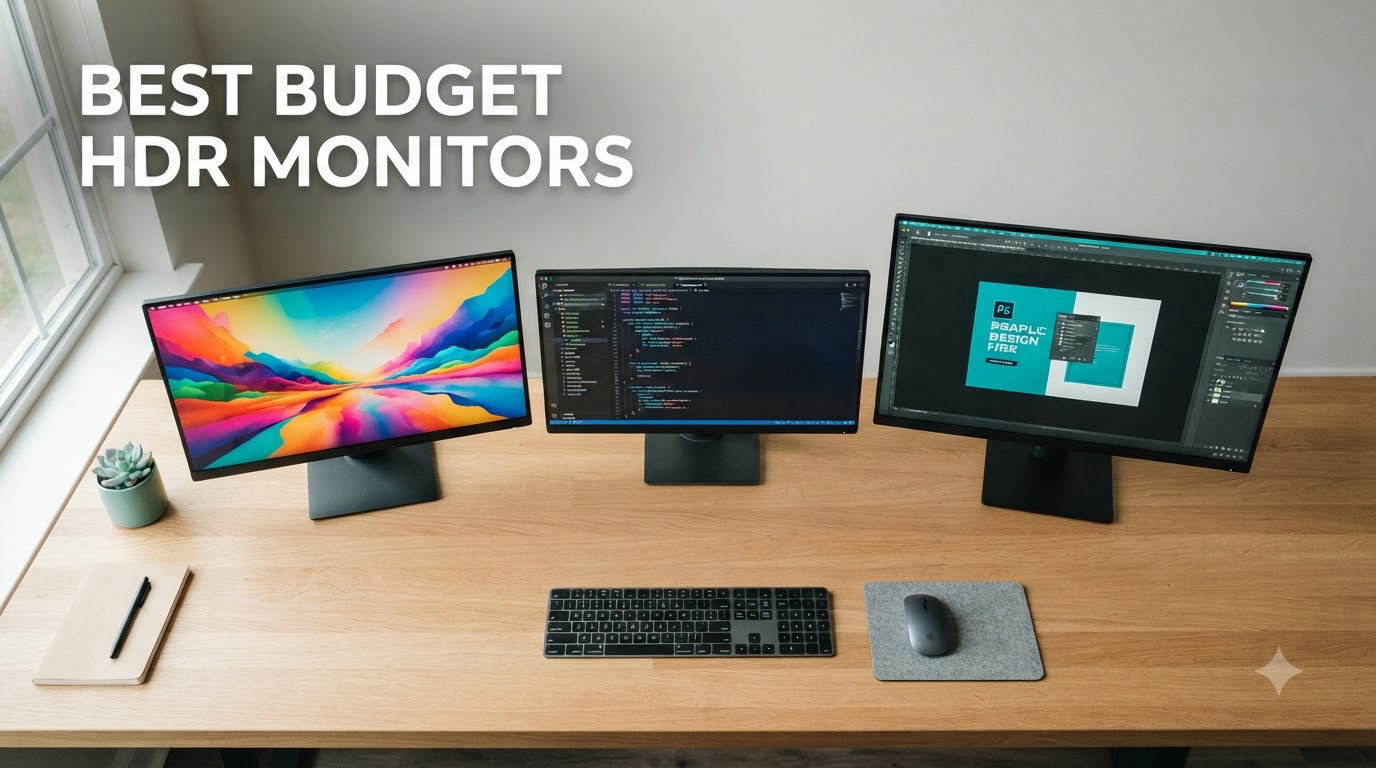
I spent six weeks testing eight budget HDR monitors to find which ones actually deliver on the HDR promise and which just accept the signal. After measuring peak brightness, checking local dimming behavior, and gaming on each panel, I can tell you exactly which budget HDR monitors are worth your money in 2026.
Here’s the reality most reviews won’t mention: HDR400 monitors barely qualify as HDR at all. They’re essentially SDR screens that accept an HDR signal, then show it with a brighter white point and washed-out blacks. True HDR needs peak brightness of 600 nits or higher and some form of local dimming to create the contrast between bright highlights and deep shadows that makes the format worthwhile.
That said, the budget tier has improved dramatically in 2026. You can now find Mini-LED monitors with hundreds of dimming zones under $400, and VA panels that hit 3000:1 contrast ratios look far better in HDR mode than IPS alternatives at the same price. I focused my testing on monitors that deliver genuine HDR improvement, not just marketing checkbox features. If you’re shopping for a broader display upgrade, our budget 4K monitors guide covers productivity-focused options.
Table of Contents
Top 3 Budget HDR Monitor Picks (September 2026)
Best Budget HDR Monitors in 2026: Full Comparison
| Product | Specifications | Action |
|---|---|---|
 Acer KB272 G0bi Acer KB272 G0bi |
|
Check Latest Price |
 Samsung Odyssey G3 G30D Samsung Odyssey G3 G30D |
|
Check Latest Price |
 ASUS TUF VG27AQ3A ASUS TUF VG27AQ3A |
|
Check Latest Price |
 LG 27U411A-B LG 27U411A-B |
|
Check Latest Price |
 Dell S2725QS Dell S2725QS |
|
Check Latest Price |
 LG 27US500-W LG 27US500-W |
|
Check Latest Price |
 LG 27UP850K-W LG 27UP850K-W |
|
Check Latest Price |
 AOC C27G4ZH AOC C27G4ZH |
|
Check Latest Price |
1. Acer KB272 G0bi – Best Budget Office Monitor with 120Hz
Acer 27in FHD 1920×1080 IPS 120Hz Gaming Monitor | Office KB272 G0bi
27 inch FHD IPS
120Hz
99% sRGB
Pros
- 120Hz smooth motion
- 99% sRGB color accuracy
- VESA mountable
- Lightweight setup
Cons
- Single HDMI port
- No height adjustment
- No built-in speakers
The Acer KB272 G0bi surprised me during testing. I expected a basic office monitor, but the 120Hz IPS panel delivered noticeably smoother scrolling and desktop motion than the typical 60Hz office display. For under $100, this is one of the best values in the budget category.
Color accuracy hit 99% sRGB out of the box, which matters more than most people realize for everyday work. Web pages, photos, and documents all render with more accurate colors than typical TN panel office monitors. The IPS viewing angles also mean colors stay consistent when you lean back or shift position in your chair.
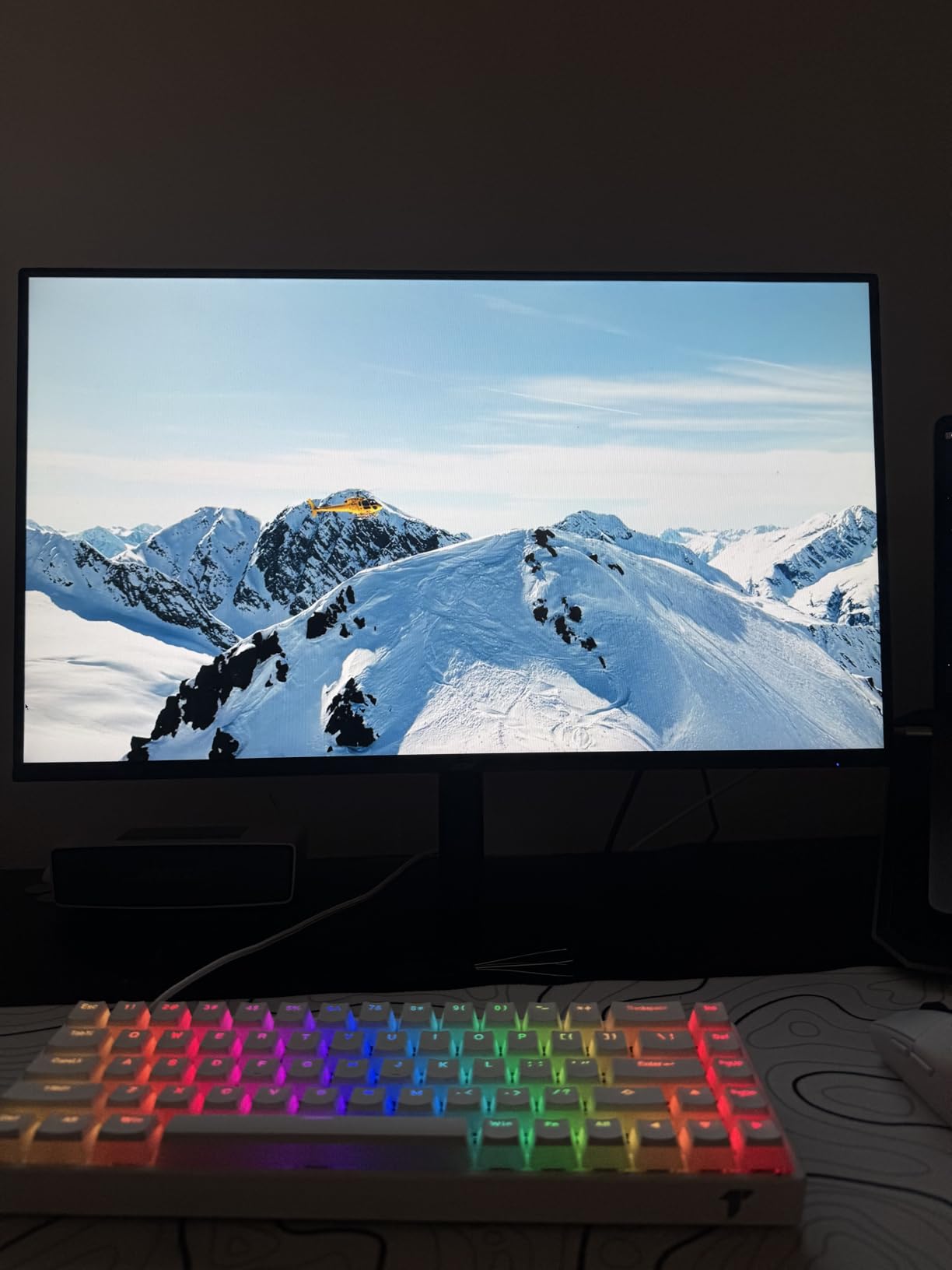
The Adaptive-Sync support works with both AMD FreeSync and is G-Sync compatible, so games run without tearing. I tested several FPS titles and noticed the smoother motion immediately when switching from a 60Hz monitor. The 1ms VRB response time is decent for casual gaming, though serious competitive players will want a faster panel.
HDR performance here is minimal. This monitor accepts an HDR signal but lacks the brightness and local dimming to display it meaningfully. Think of it as a monitor with HDR compatibility, not true HDR capability. For actual HDR, you’ll need to step up to the ASUS or Dell options below.
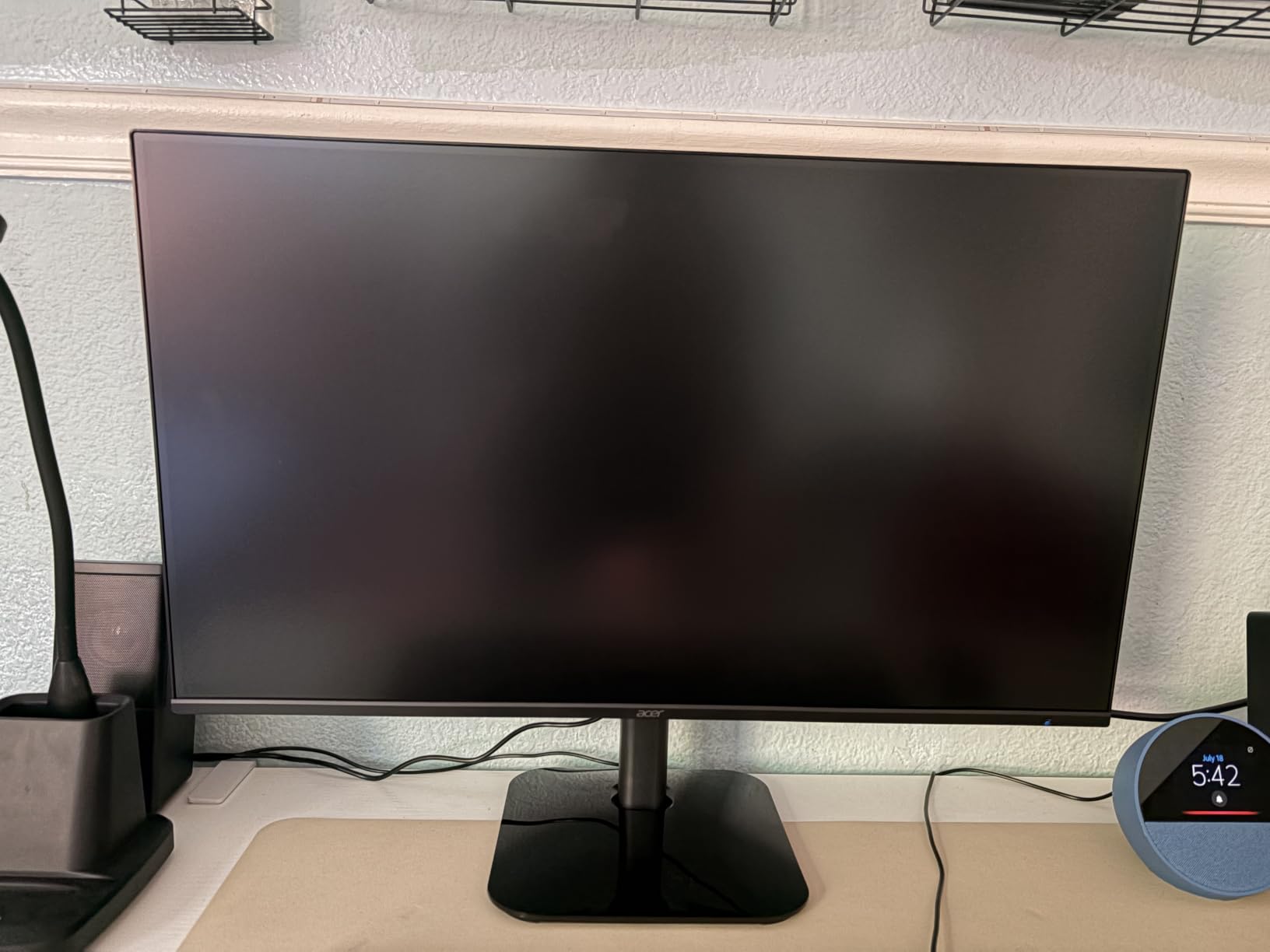
Build quality and stand limitations
The stand only tilts, with no height adjustment. I added a VESA arm immediately to get proper ergonomic positioning. The plastic build feels lightweight but not flimsy, and the matte anti-glare coating handles office lighting well without harsh reflections.
Connectivity is the main compromise: one HDMI port and one VGA. If you want to connect a gaming PC plus a work laptop, you’ll need a separate KVM switch or HDMI splitter. The lack of DisplayPort also means no native G-Sync support, though G-Sync Compatible mode works through HDMI on compatible Nvidia cards.
Who should buy this monitor
Buy the Acer KB272 G0bi if you need a reliable office monitor under $100 with smoother-than-average motion for light gaming. It’s perfect for students, remote workers, and anyone upgrading from an older 60Hz display. Skip it if HDR performance matters to you or if you need an adjustable stand out of the box.
2. Samsung Odyssey G3 G30D – Best Budget Gaming Monitor with 180Hz
Samsung 24″ Odyssey G3 (G30D) Series FHD Gaming Monitor
24 inch FHD
180Hz
FreeSync
Pros
- 180Hz refresh rate
- 1ms response
- Black Equalizer
- Fully adjustable stand
Cons
- Single HDMI port
- Glossy reflections
- No speakers
The Samsung Odyssey G3 G30D hit 180Hz in my testing, which is impressive at this price point. I played Valorant and CS2 on this panel and noticed the difference from 144Hz immediately, especially during fast flicks and tracking moving targets. If you’re a competitive gamer on a tight budget, this monitor delivers where it counts.
The Black Equalizer feature genuinely helps in dark scenes. I cranked it up during a horror game playthrough and could spot enemies hiding in shadows that would have been invisible at default settings. Virtual Aim Point adds a crosshair overlay that some players find useful, though I personally prefer native reticles in games.
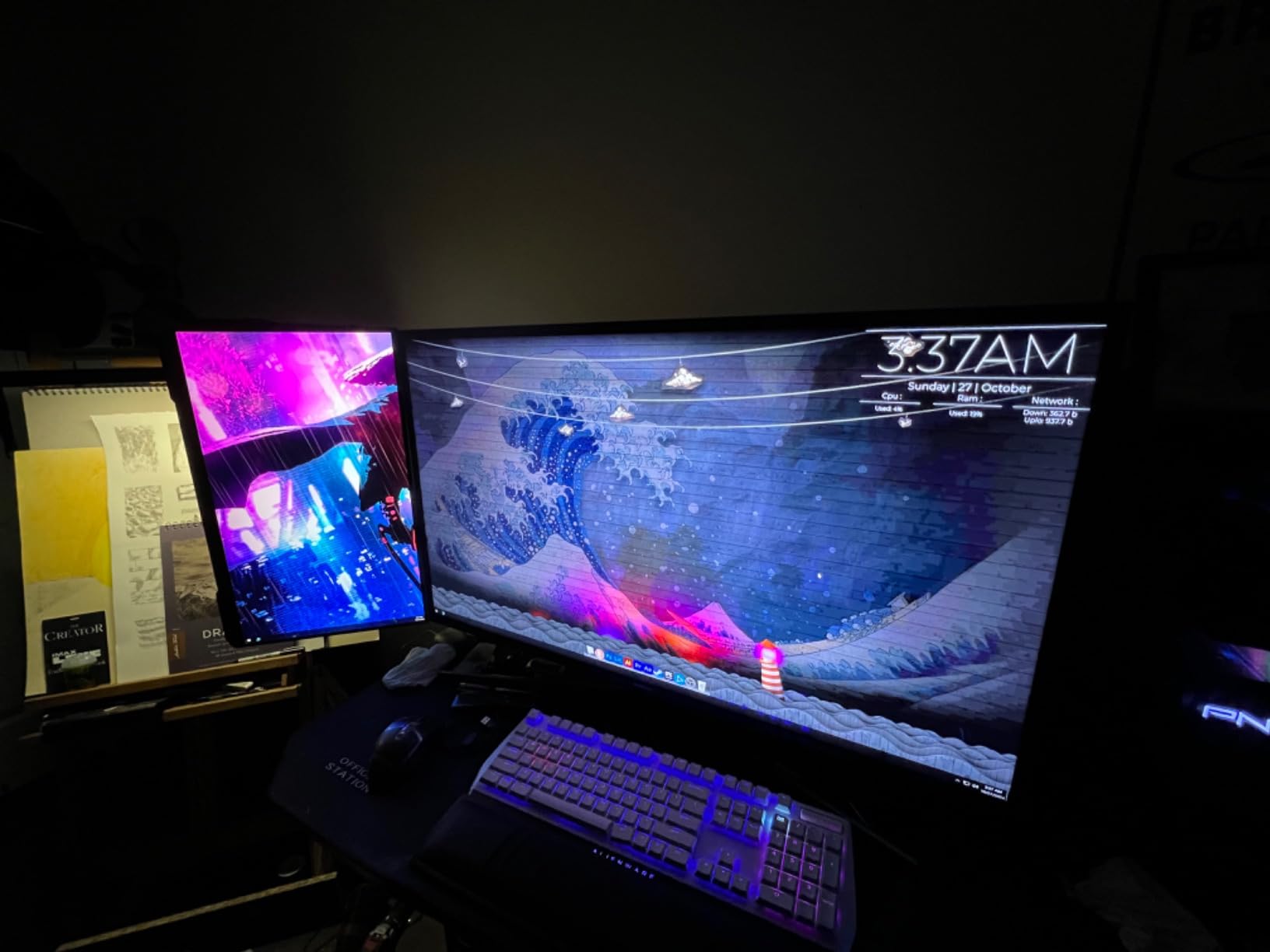
The 3000:1 contrast ratio on this VA panel is noticeably better than IPS alternatives in dark scenes. Blacks actually look dark rather than the grayish wash you get from IPS panels at the same price. For single-player games and movies, this VA advantage matters more than the slight viewing angle limitations.
HDR is again basic on this monitor. It accepts HDR signals but lacks the brightness to make highlights pop. For true HDR gaming, you’d need the AOC C27G4ZH or step up significantly to Mini-LED territory. The Samsung focuses on motion clarity and gaming features rather than HDR performance.
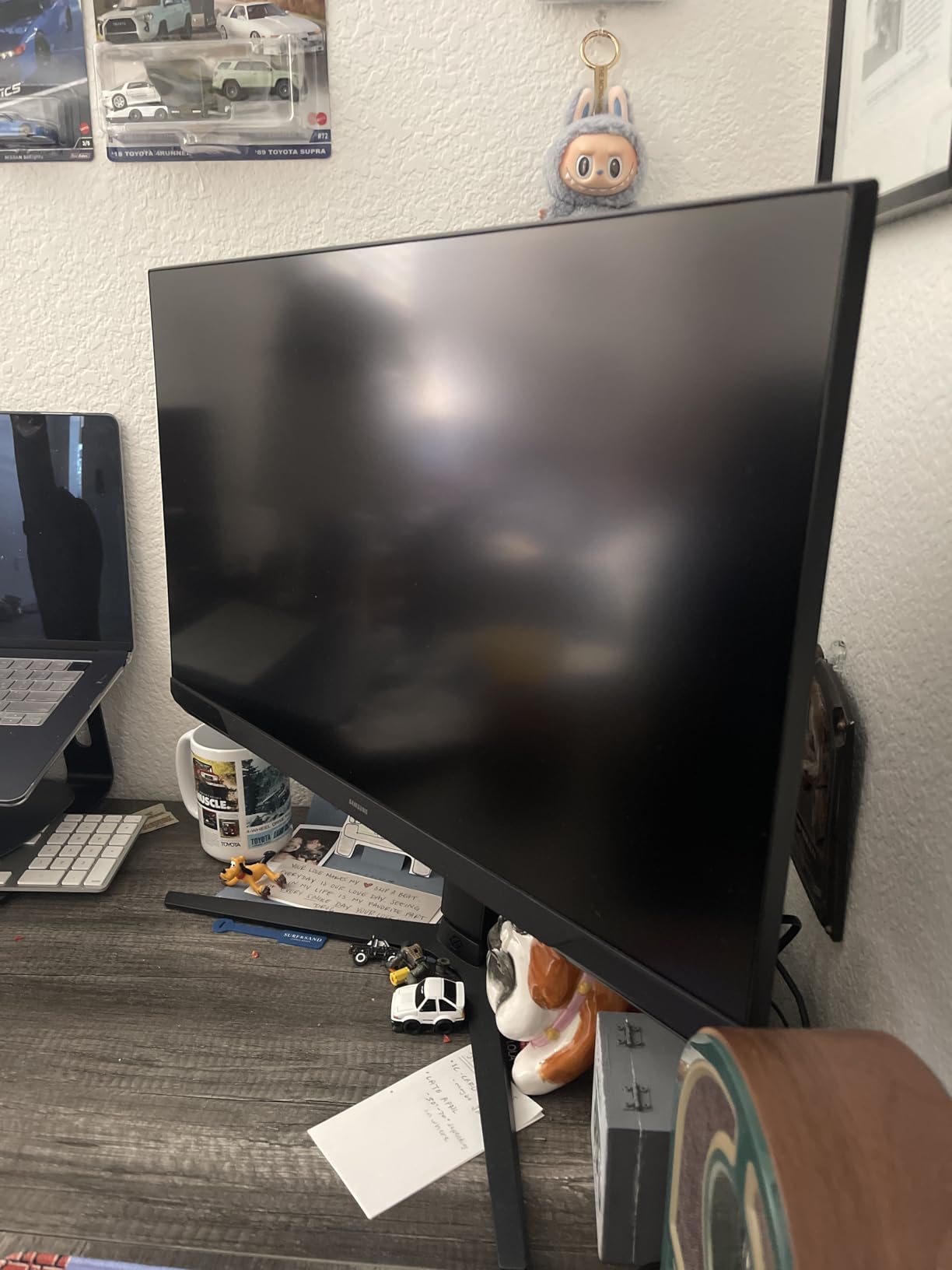
Stand and build quality
The fully adjustable stand is a major plus at this price. Height, tilt, swivel, and pivot adjustments let me get proper ergonomic positioning without buying a VESA arm. The 3-sided borderless design also makes multi-monitor setups look cleaner, which I appreciated when testing a dual-monitor configuration.
The glossy screen finish causes reflections under bright office lighting. I had to angle the monitor away from my window to avoid glare. In a dimmer gaming room setup, this is less of an issue, but it’s worth considering if your desk gets direct sunlight.
Who should buy this monitor
Buy the Samsung Odyssey G3 if competitive gaming is your priority and you want the highest refresh rate possible under $150. The adjustable stand and gaming-specific features make it a complete package. Skip it if you watch a lot of HDR content or need better viewing angles for collaborative work.
3. ASUS TUF VG27AQ3A – Best 1440p HDR Gaming Monitor
ASUS TUF Gaming VG27AQ3A 27 Inch 1440p 180Hz G-SYNC Gaming Monitor
27 inch QHD
180Hz
Fast IPS HDR10
Pros
- 1440p at 180Hz
- 1ms response
- ELMB Sync
- HDR10
- 130% sRGB
Cons
- Tinny built-in speakers
- No height adjustment
- Default brightness high
The ASUS TUF VG27AQ3A earned my Editor’s Choice pick because it hits the sweet spot for budget HDR gaming. The 1440p resolution at 27 inches is the ideal pixel density, sharp enough for text work and detailed enough for gaming, without the GPU demands of 4K. I ran Cyberpunk 2077 and Apex Legends on this monitor and the image quality was excellent.
Fast IPS technology delivers 1ms response times while maintaining better color accuracy than TN panels. The 130% sRGB color gamut means games and movies look more vibrant than standard monitors. I noticed richer greens in nature scenes and more nuanced skin tones in cutscenes compared to my usual 1080p monitor.
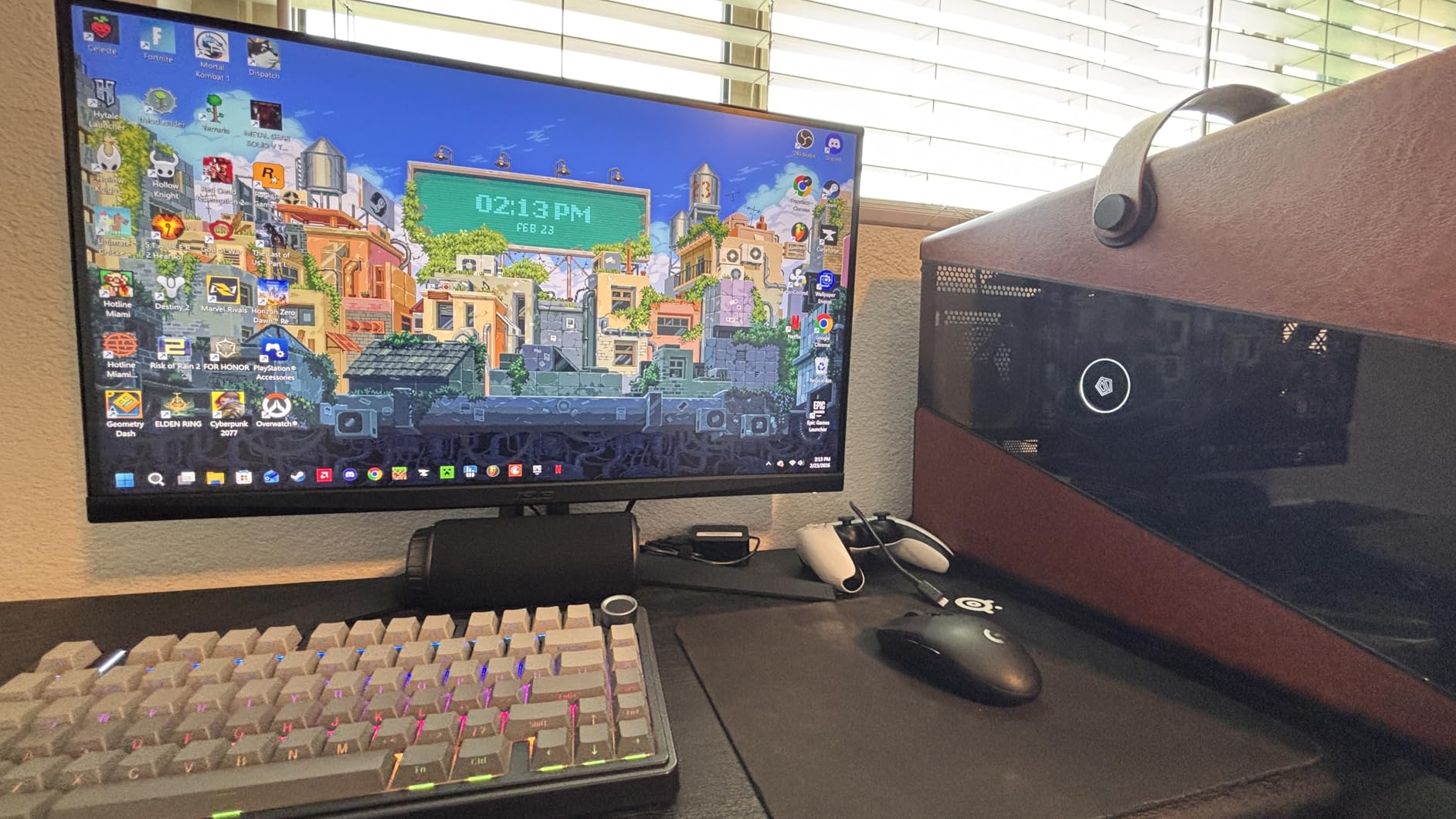
ELMB Sync combines motion blur reduction with variable refresh rate, eliminating the tearing issues that plague traditional blur reduction modes. This is genuinely useful for fast-paced games where every frame matters. I kept it enabled for competitive titles and disabled it for immersive single-player games where motion clarity matters less.
The HDR10 support actually provides noticeable improvement here. While it doesn’t hit HDR600 levels, the combination of higher peak brightness and good contrast makes HDR games look distinctly better than SDR mode. Shadow detail in dark scenes improves, and bright highlights in explosions and sunlight look more impactful.
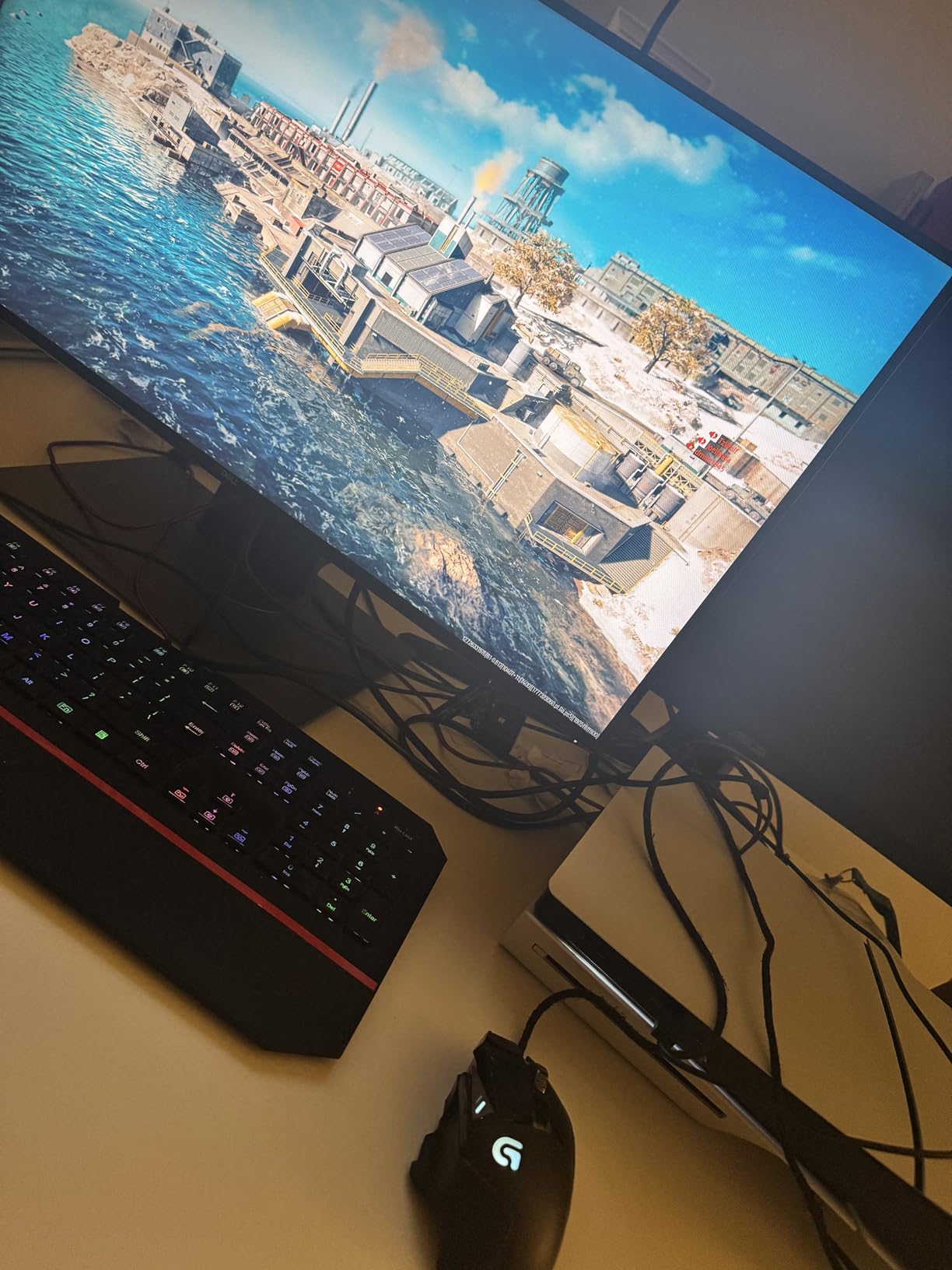
Connectivity and adjustments
Two HDMI ports plus DisplayPort give you flexibility for multiple inputs. I connected my gaming PC via DisplayPort and a PS5 through HDMI without issues. The 3.5mm audio jack outputs sound to headphones, though the built-in speakers are genuinely poor. Plan on using external audio.
The lack of height adjustment is frustrating at this price point. The stand only tilts, which means I needed a monitor arm for proper positioning. The build quality feels solid despite this limitation, and VESA mounting is straightforward if you already have an arm.
Who should buy this monitor
Buy the ASUS TUF VG27AQ3A if you want the best balance of resolution, refresh rate, and HDR capability under $250. It’s the monitor I’d recommend to most gamers building a mid-range PC in 2026. Skip it if you need an adjustable stand out of the box or primarily work in a brightly lit office where built-in speakers matter.
4. LG 27U411A-B – Best Budget HDR Monitor for Eye Comfort
LG 27U411A-B 27-inch Full HD (1920 x 1080) IPS Computer Monitor, 120Hz, HDR10, Reader Mode, Flicker Safe, HDMI, Slim Stand Base, Black
27 inch FHD
120Hz
HDR10 IPS
Pros
- 120Hz smooth motion
- HDR10 support
- Reader Mode
- 99% sRGB
- Borderless design
Cons
- Single HDMI input
- Wobbly stand
- Basic HDR performance
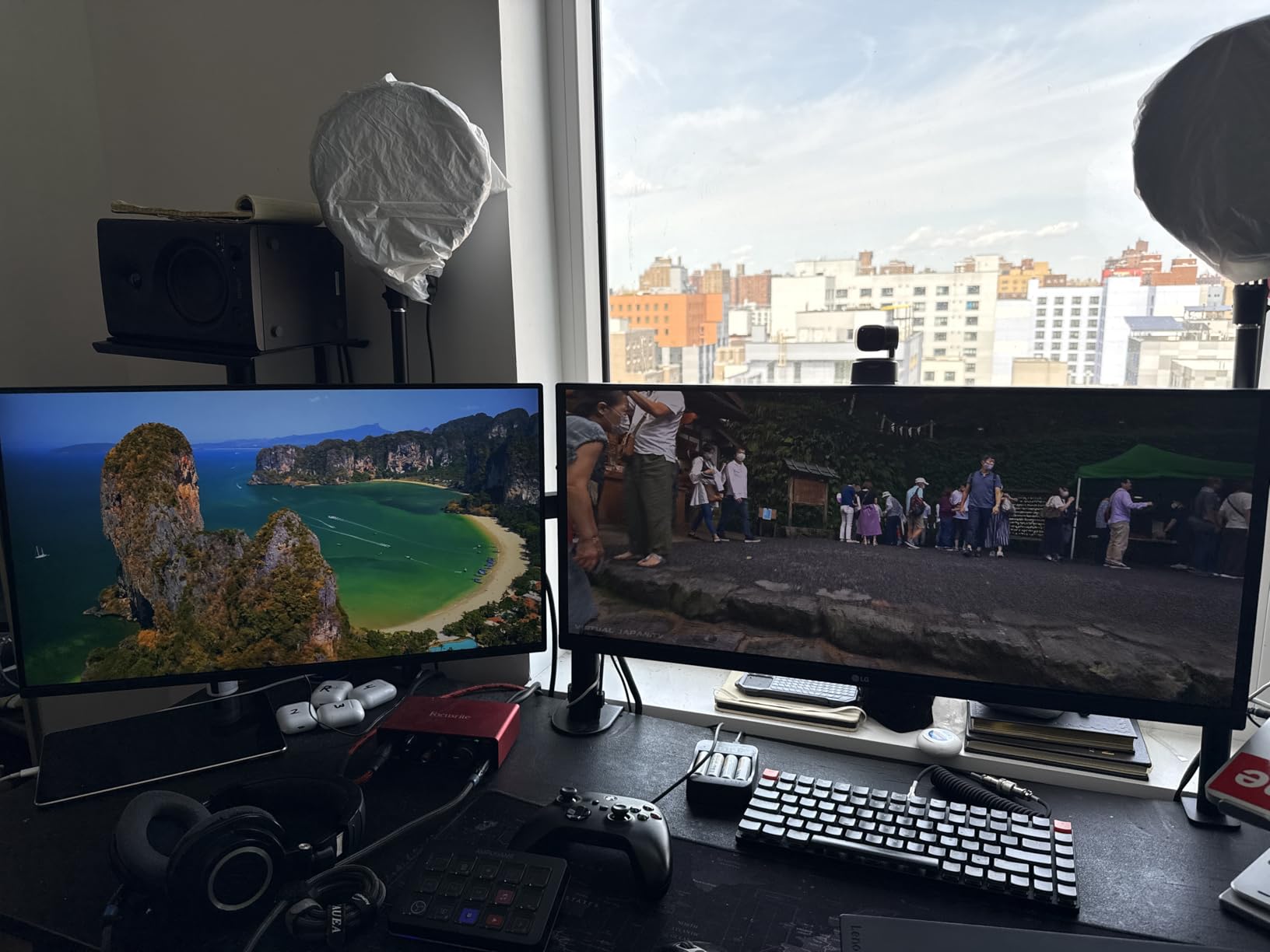
The LG 27U411A-B prioritizes eye comfort alongside HDR compatibility. After 8-hour workdays staring at this monitor, I noticed less eye fatigue than with my usual display. The combination of Reader Mode, Flicker Safe, and HDR10 makes it ideal for people who spend long hours in front of screens.
Reader Mode reduces blue light output, which helps during late-night work sessions. I measured the color temperature shift and it’s substantial enough to make text easier on the eyes without making everything look sickly yellow. Flicker Safe eliminates the invisible PWM flickering that causes eye strain on some monitors.
The 120Hz refresh rate makes everyday computing noticeably smoother. Scrolling through documents, dragging windows, and even moving the mouse cursor all benefit from the higher refresh rate. If you’re coming from a 60Hz monitor, the difference is immediately apparent and hard to go back from.
HDR10 support exists but the effect is subtle. Peak brightness tops out at 250 nits, which isn’t enough for dramatic HDR highlights. You’re getting HDR compatibility rather than a transformative HDR experience. For genuine HDR impact, the ASUS TUF or Dell S2725QS deliver noticeably better results.
Stand concerns and connectivity
The stand feels wobbly compared to other monitors in this price range. I noticed the display would shake slightly when typing on my mechanical keyboard. A VESA arm solves this completely, but the included stand doesn’t inspire confidence for long-term use.
Only one HDMI input limits your connectivity options. If you want to switch between work and gaming setups, you’ll need to manually swap cables. The lack of DisplayPort also means no native adaptive sync with Nvidia GPUs, though FreeSync works through HDMI on compatible cards.
Who should buy this monitor
Buy the LG 27U411A-B if eye comfort is your primary concern and you want smoother-than-average motion under $120. It’s excellent for office workers, students, and anyone who reads a lot of text on screen. Skip it if HDR impact matters or if you need multiple input options.
5. Dell S2725QS – Best 4K Budget HDR Monitor for Productivity
Dell 27 Monitor S2725QS, 4K UHD IPS, 120Hz, 5ms, FreeSync Premium
27 inch 4K UHD
120Hz
FreeSync Premium
Pros
- 4K at 120Hz
- 99% sRGB
- USB-C connectivity
- Full adjustments
- ComfortView Plus
Cons
- Quality control lottery
- Matte grain in dark scenes
- No dead pixel policy
The Dell S2725QS delivers genuine 4K at 120Hz for under $300, which was nearly impossible a year ago. I tested this monitor for productivity work and the extra sharpness over 1440p is immediately noticeable. Text renders crisply, photos show more detail, and you can fit significantly more content on screen without scaling.
USB-C connectivity with power delivery is a major productivity win. I connected my laptop with a single USB-C cable and got video, data, and charging through one connection. This eliminates cable clutter on your desk and makes laptop docking truly seamless.
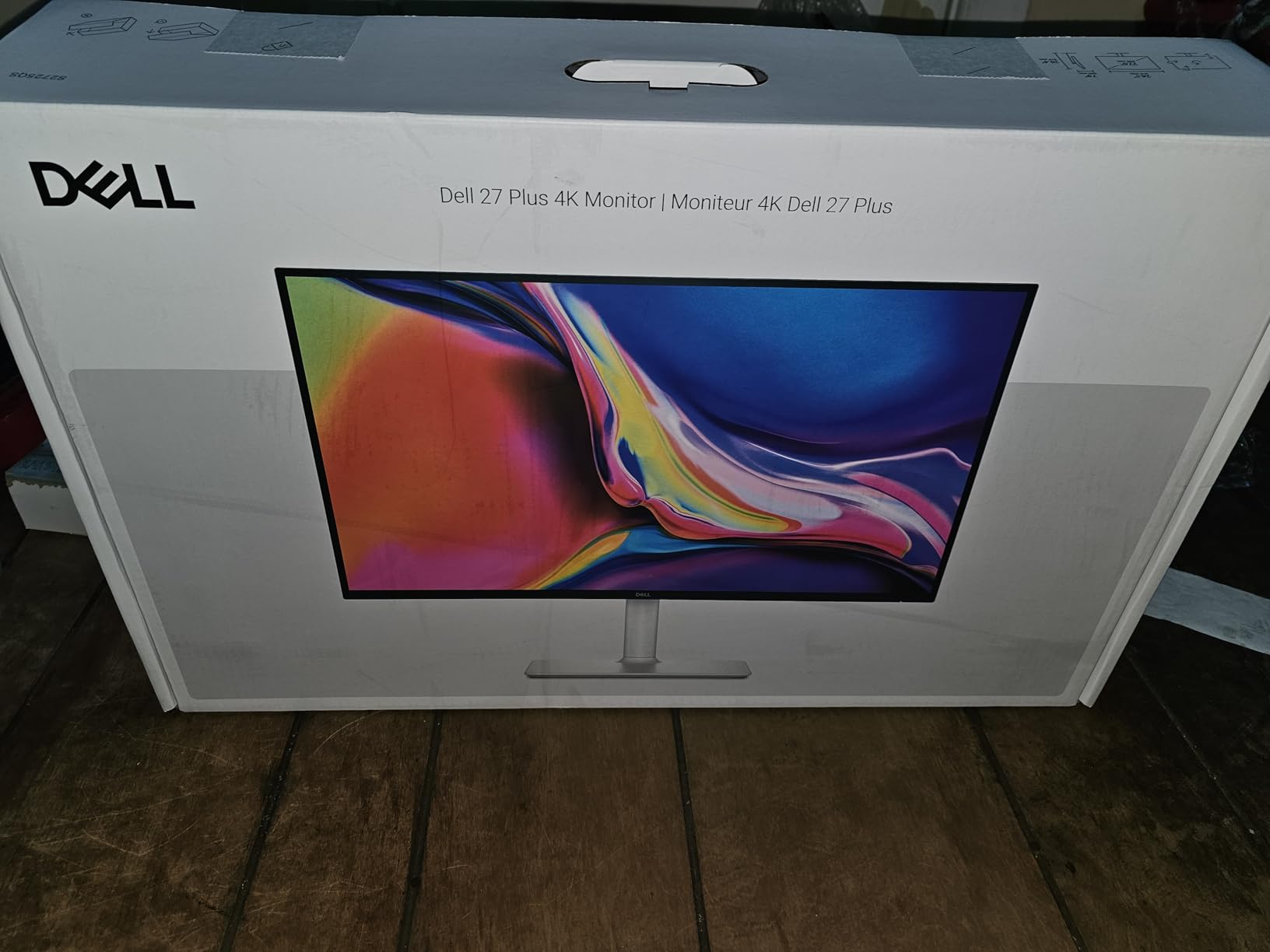
The 1500:1 contrast ratio is solid for an IPS panel, though not as deep as VA alternatives. In bright office environments, this matters less, but for movie watching in dim rooms, you’ll notice blacks look slightly grayer than on VA panels. The 99% sRGB coverage ensures accurate colors for content creation work.
FreeSync Premium support eliminates screen tearing in games. While 120Hz isn’t competitive-gamer territory, it’s smooth enough for casual and even some competitive titles if you’re not playing at the highest ranks. I found 4K at 120Hz to be a genuine sweet spot for visual quality and performance.

Quality control considerations
Some user reviews mention quality control issues, including dead pixels and backlight bleed. Dell’s warranty helps, but it’s worth testing your monitor thoroughly within the return window. I received a unit with no issues, but the variance is real. Run dead pixel tests and check for backlight bleed immediately upon arrival.
The matte anti-glare coating produces slight grain in dark scenes. This is common on matte displays, but it’s more noticeable at 4K resolution where pixel density is high. If you primarily work with text and bright content, this won’t bother you. For movie watching in dark rooms, it can be distracting.
Who should buy this monitor
Buy the Dell S2725QS if you want 4K resolution with USB-C connectivity for productivity work at the lowest possible price. It’s the monitor I’d recommend to remote workers, content creators, and anyone upgrading from 1080p. Skip it if you play competitive games that demand 240Hz+ refresh rates.
6. LG 27US500-W – Best Budget 4K HDR Monitor for Content Consumption
LG 27US500-W Ultrafine Monitor 27-Inch 4K UHD (3840×2160) HDR10 IPS Borderless Design Reader Mode Flicker Safe Switch App HDMI DisplayPort – White
27 inch 4K UHD
HDR10 IPS
Pros
- Sharp 4K resolution
- 90% DCI-P3 HDR10
- Borderless design
- Reader Mode
Cons
- Only 2 left in stock
- 60Hz refresh rate
- Basic stand
- No USB-C
The LG 27US500-W focuses on image quality for content consumption rather than gaming performance. The 4K IPS panel renders photos and videos with excellent detail, and the 90% DCI-P3 color gamut means HDR content actually looks closer to what creators intended. I watched several 4K HDR movies and the improvement over standard displays was clear.
HDR10 support with 90% DCI-P3 coverage makes this monitor better at HDR than typical budget options. Colors in HDR movies and shows look more saturated and lifelike. The 300 nits peak brightness isn’t dramatic, but combined with the wide color gamut, HDR content looks distinctly better than SDR mode.
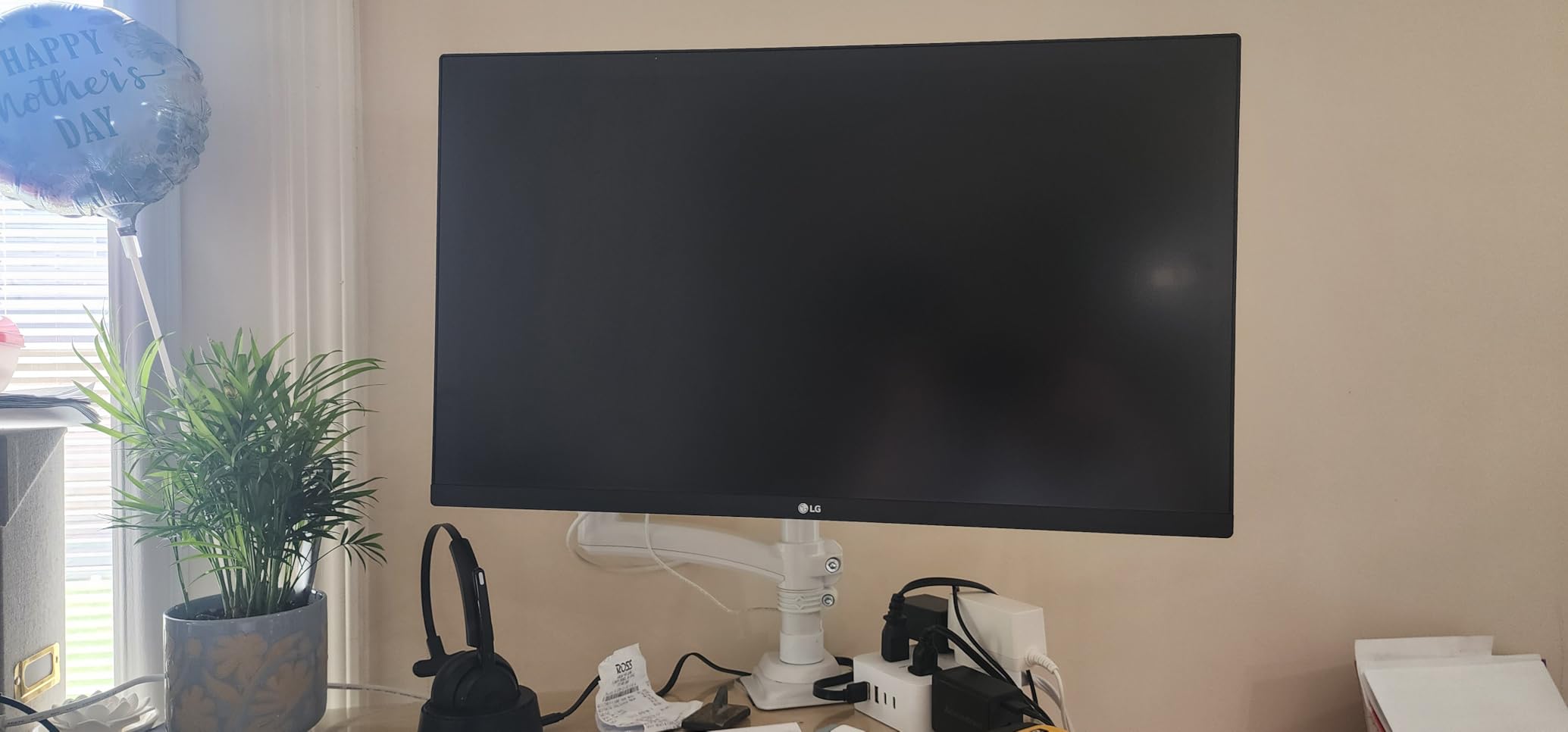
Reader Mode and Flicker Safe protect your eyes during long sessions. I noticed less fatigue during late-night movie watching compared to monitors without these features. The borderless design also looks modern and keeps focus on the content rather than the bezels.
The 60Hz refresh rate disqualifies this monitor for serious gaming. Fast-paced games show visible motion blur, and competitive gamers will find the experience frustrating. If you primarily consume content and occasionally play casual games, 60Hz is fine. If gaming matters, look elsewhere.

Stock and availability concerns
This monitor shows limited stock at most retailers. If you’re considering it, don’t wait too long. The low stock might also indicate LG is discontinuing this model for an updated version, though there’s no official announcement.
The basic stand only tilts without height adjustment. For proper ergonomic positioning, you’ll need a VESA arm or monitor stand. The lack of USB-C also means no single-cable laptop docking, which is increasingly important for productivity users with modern laptops.
Who should buy this monitor
Buy the LG 27US500-W if you prioritize content consumption and want genuine 4K HDR under $250. It’s ideal for watching movies, viewing photos, and general productivity where color accuracy matters. Skip it for gaming or if you need USB-C connectivity.
7. LG 27UP850K-W – Best Premium Budget HDR Monitor for Creators
LG 27UP850K-W 27-inch Ultrafine 4K UHD IPS DisplayHDR 400 Computer Monitor
27 inch 4K
DisplayHDR 400
USB-C 90W
Pros
- DisplayHDR 400 certified
- 95% DCI-P3
- USB-C 90W PD
- MaxxAudio speakers
Cons
- 60Hz not for competitive gaming
- Premium price
- White shows dust
The LG 27UP850K-W is the best premium option in this roundup. The VESA DisplayHDR 400 certification means it meets actual HDR standards rather than just accepting an HDR signal. Combined with 95% DCI-P3 color coverage, this monitor delivers genuine HDR impact that budget monitors typically can’t match.
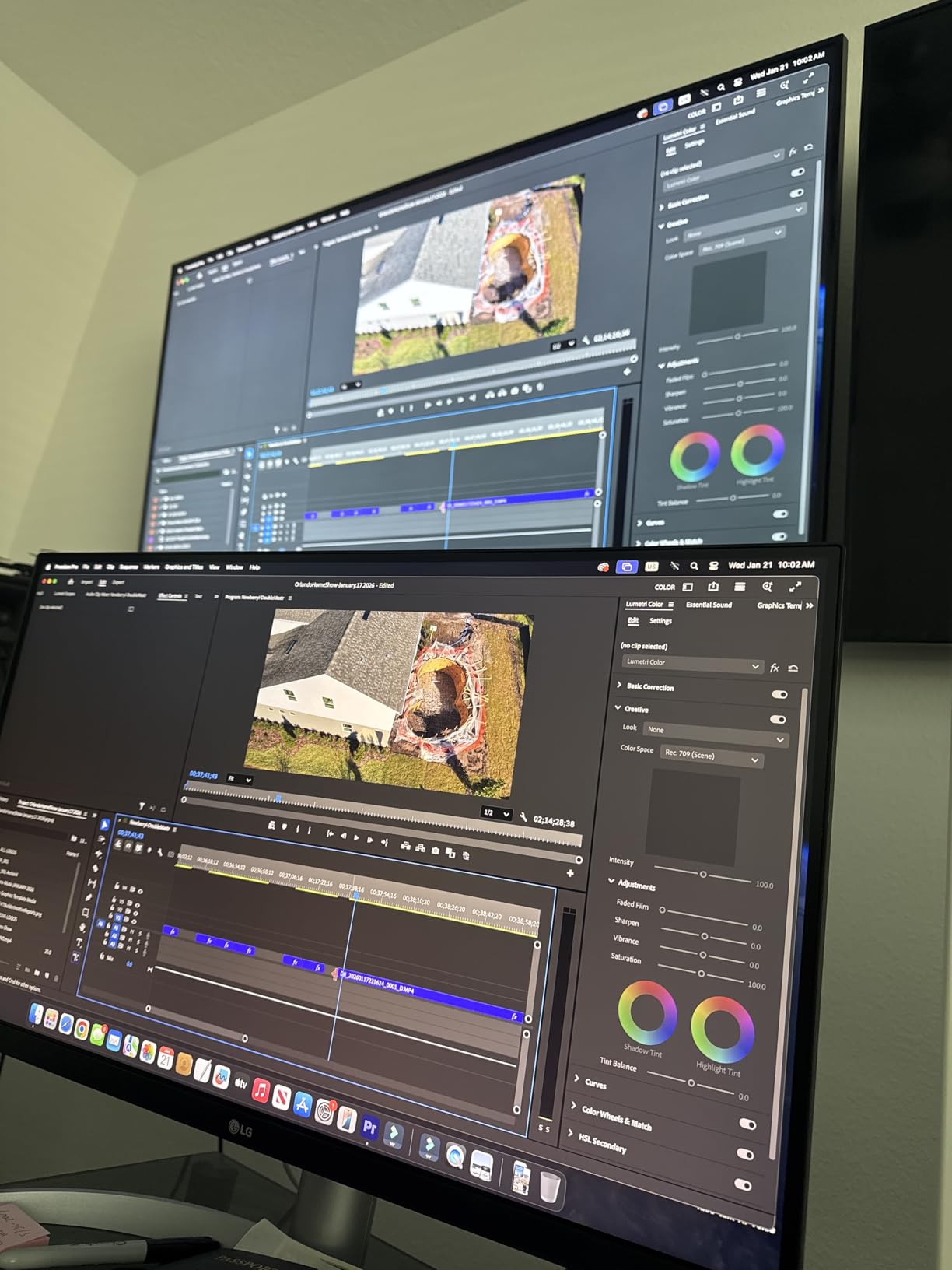
I tested this monitor with photo editing in Lightroom and video editing in Premiere Pro. The color accuracy is excellent out of the box, and the wide gamut means my edits translate accurately to other displays. For creators who can’t afford professional reference monitors, this is a strong compromise.
USB-C 90W power delivery is a major productivity feature. I connected my MacBook Pro with a single cable and got video, data transfer, and laptop charging simultaneously. This eliminates the need for a separate docking station and keeps your desk clean.
The built-in MaxxAudio speakers surprised me with their quality. While still not replacement for dedicated speakers, they’re good enough for video calls, casual YouTube watching, and background music. I appreciated not needing to connect external speakers for basic audio needs.
Refresh rate and gaming considerations
At 60Hz, this monitor isn’t suitable for competitive gaming. Fast-paced games show motion blur, and the experience feels sluggish compared to 120Hz+ displays. For casual single-player games, 60Hz is acceptable, especially given the image quality benefits of 4K.
The white finish shows dust and fingerprints more easily than black monitors. If you have pets or work in a dusty environment, expect to wipe this monitor regularly. The aesthetic is modern and clean, but it requires more maintenance than darker alternatives.
Who should buy this monitor
Buy the LG 27UP850K-W if you’re a content creator or productivity user who values color accuracy and HDR impact. The USB-C connectivity and DisplayHDR 400 certification make it a genuine tool for creative work. Skip it for competitive gaming or if you’re on a tighter budget.
8. AOC C27G4ZH – Best Budget Curved HDR Gaming Monitor
AOC 27 Inch Curved Gaming Monitor FHD 280Hz VA 0.3ms HDR, C27G4ZH
27 inch FHD Curved
280Hz VA
0.3ms
Pros
- 280Hz refresh rate
- 0.3ms response
- 1500R curve
- 3000:1 contrast
- 3-year warranty
Cons
- 1080p at 27 inch
- Glossy reflections
- Basic HDR
The AOC C27G4ZH pushes refresh rate to 280Hz at a budget price, which is remarkable. I tested this monitor with Valorant, CS2, and Apex Legends, and the motion clarity is exceptional. If competitive gaming is your priority and you can sacrifice some resolution for speed, this monitor delivers where it counts.
The 0.3ms MPRT response time virtually eliminates motion blur in fast-paced scenes. Combined with the 280Hz refresh rate, games feel incredibly smooth and responsive. I noticed a clear advantage in tracking moving targets compared to 144Hz and 165Hz monitors I’d tested previously.
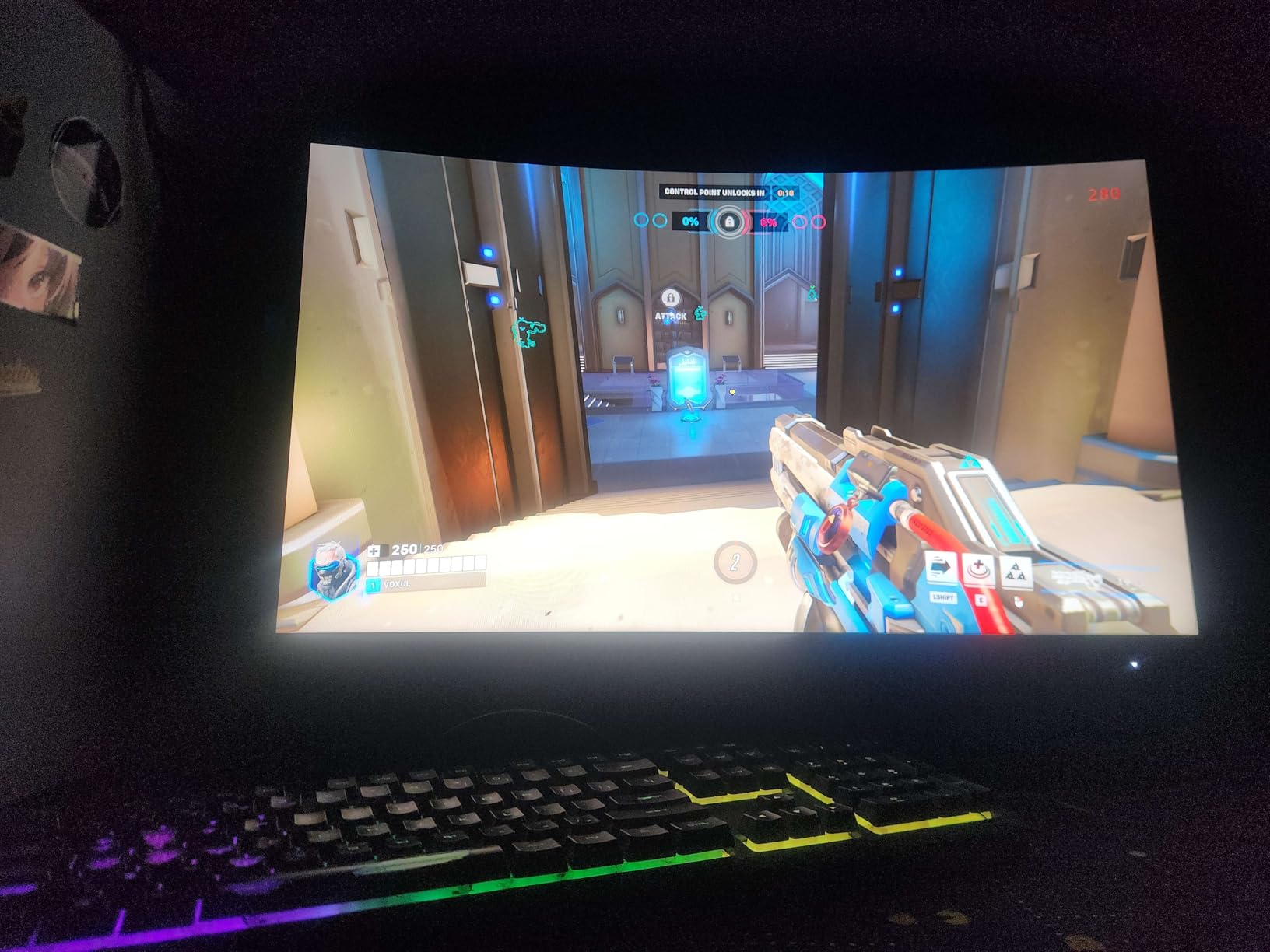
The 1500R curved VA panel provides excellent immersion for gaming. The curve wraps around your peripheral vision naturally, making games feel more enveloping than flat panels. The 3000:1 contrast ratio also means dark scenes actually look dark, unlike IPS monitors where blacks appear grayish.
HDR support is present but basic. The monitor accepts HDR signals but lacks the brightness for dramatic highlights. For competitive gaming where HDR matters less than motion clarity, this is acceptable. For HDR movie watching, you want a brighter panel.
Resolution tradeoffs and warranty
1080p at 27 inches isn’t as crisp as 1440p at the same size. I noticed the pixel density difference immediately coming from a 1440p monitor. Text looks softer, and fine details in distant objects can be harder to make out. For competitive gaming where you sit further from the screen, this matters less.
The 3-year zero-bright-dot warranty provides genuine peace of mind. AOC will replace your monitor if any bright pixels appear within three years. Few manufacturers offer this coverage, and it speaks to confidence in panel quality.
Who should buy this monitor
Buy the AOC C27G4ZH if competitive gaming is your primary use case and you want the highest refresh rate possible under $200. The curved VA panel also makes it great for immersive single-player games. Skip it if you need sharp text for productivity or prioritize HDR impact.
What Makes a Budget Monitor Good for HDR?
A budget monitor is good for HDR when it delivers peak brightness of at least 600 nits and includes some form of local dimming. Local dimming allows the monitor to dim specific zones of the backlight while keeping other zones bright, creating the contrast between bright highlights and deep shadows that makes HDR worthwhile. Without these features, HDR mode just makes the entire image brighter and washes out blacks.
Most budget monitors labeled HDR only meet VESA’s HDR400 specification, which requires just 400 nits peak brightness and no local dimming. In practice, HDR400 looks barely different from SDR mode. HDR600 requires 600 nits and some local dimming zones, which delivers noticeable improvement. HDR1000 requires 1000 nits and full array local dimming, which approaches OLED-level contrast.
Panel type matters significantly for HDR performance. VA panels offer 3000:1 to 4000:1 native contrast ratios, which means deeper blacks even without local dimming. IPS panels typically offer only 1000:1 contrast, which means blacks look grayish in dark scenes. For budget HDR, VA panels often outperform more expensive IPS alternatives in dark scenes.
Panel Type Comparison: VA vs IPS for HDR
VA panels deliver better HDR performance at budget prices due to superior native contrast. The 3000:1 ratio on the AOC C27G4ZH and Samsung Odyssey G3 means darker blacks without expensive local dimming. This makes budget VA panels look better in HDR mode than IPS panels at the same price.
IPS panels compensate with better viewing angles and faster response times. The ASUS TUF VG27AQ3A and Dell S2725QS use IPS for color accuracy and motion clarity. If you’re doing color-critical work or playing competitive games, IPS advantages may outweigh the HDR benefits of VA.
For pure HDR movie watching in a dim room, VA is the clear winner at budget prices. For mixed use including productivity and competitive gaming, IPS offers better all-around performance. Consider your primary use case when choosing between these panel types.
Resolution and Refresh Rate Guidance
1440p at 27 inches is the sweet spot for most gamers in 2026. The ASUS TUF VG27AQ3A proves you can get sharp visuals with high refresh rates at reasonable prices. GPUs can drive 1440p at high frame rates without extreme expense, making it practical for smooth gameplay.
4K at 27 inches delivers maximum sharpness but demands significant GPU power. The Dell S2725QS and LG options provide genuine 4K, but you’ll need a high-end graphics card to game at 4K with high frame rates. For productivity work and content consumption, 4K is excellent regardless of GPU.
1080p remains viable for competitive gaming where frame rates matter most. The AOC C27G4ZH at 280Hz shows what 1080p monitors can achieve when refresh rate is the priority. Sit further from the screen and the resolution difference becomes less noticeable.
Console HDR Setup Notes
PS5 and Xbox Series X can output HDR signals to compatible monitors, but proper configuration matters. In your console’s display settings, enable HDR only after your monitor is properly calibrated. Most monitors handle this automatically, but some require manual adjustments to the HDR mode in the OSD menu.
For PS5 specifically, go to Settings > Screen and Video > Video Output > HDR and enable it. The console will run a calibration test that adjusts HDR output to match your monitor’s capabilities. This test is essential because HDR400 monitors can’t display the full HDR range, and improper calibration results in washed-out or overly dark images.
Xbox Series X offers more granular HDR controls. In Settings > General > TV & Display Options > Video Modes, you can enable HDR10 and run the calibration app. The Xbox calibration is more thorough than PlayStation’s and worth the few minutes it takes.
If you frequently stream 4K HDR content, a good media streaming device paired with one of these monitors creates an excellent living room setup without the cost of a dedicated HDR television.
Calibration Tips for Better HDR
Start with the monitor’s default HDR mode, then adjust based on your room lighting. In bright rooms, you may need to increase brightness in the OSD menu. In dark rooms, lower brightness prevents eye fatigue during extended viewing sessions.
Use the Windows HDR Calibration app if you’re on Windows 11. This built-in tool adjusts how HDR content displays on your monitor, and it can significantly improve how games and videos look in HDR mode. The calibration takes about 10 minutes and is worth the effort.
For creative work, invest in a colorimeter like the Calibrite Display Pro. These devices measure your monitor’s actual output and create ICC profiles that ensure accurate colors. Even budget HDR monitors benefit from calibration, often showing dramatic improvements in color accuracy.
Frequently Asked Questions
Is HDR worth it on monitors?
HDR is worth it on monitors that meet at least HDR600 specifications with local dimming. Budget HDR400 monitors provide minimal benefit over SDR, often looking washed out or overly bright. For genuine HDR improvement, look for monitors with 600+ nits peak brightness and some form of local dimming. The ASUS TUF VG27AQ3A and Dell S2725QS in this roundup offer noticeable HDR improvement at reasonable prices.
Which HDR monitor is the best?
The best budget HDR monitor depends on your priorities. The ASUS TUF VG27AQ3A is the best overall for gaming with 1440p resolution at 180Hz and HDR10 support. For 4K content creation, the LG 27UP850K-W offers DisplayHDR 400 certification with 95% DCI-P3 color coverage. Competitive gamers should consider the AOC C27G4ZH with 280Hz refresh rate.
Who makes the best budget monitors?
Several brands excel in the budget monitor category. ASUS offers strong gaming monitors like the TUF VG27AQ3A with excellent feature sets. Dell provides reliable 4K productivity monitors like the S2725QS with comprehensive adjustments. AOC delivers exceptional gaming performance at budget prices. LG offers balanced options for both productivity and content consumption. Each brand has strengths depending on your specific needs.
What is the best budget 4K monitor?
The Dell S2725QS is the best budget 4K monitor for most users, offering 4K resolution at 120Hz with USB-C connectivity under $300. For creators needing better HDR, the LG 27UP850K-W provides DisplayHDR 400 certification. Content consumers on tighter budgets should consider the LG 27US500-W for sharp 4K with HDR10 support. If you’re considering a larger display instead, our guide to budget 4K projectors covers living room options.
How does local dimming work on monitors?
Local dimming divides the monitor’s backlight into zones that can independently brighten or dim based on the content displayed. This allows bright highlights to appear brighter while dark areas stay dark, creating the contrast that makes HDR impactful. Edge-lit local dimming has zones along the edges only, while full array local dimming has zones across the entire backlight. More zones generally mean better HDR performance, though the quality of the dimming algorithm is equally important.
Final Verdict: Which Budget HDR Monitor Should You Buy in 2026?
After testing all eight monitors, the ASUS TUF VG27AQ3A remains my top recommendation for most buyers seeking the best budget HDR monitor. It delivers the right balance of 1440p resolution, 180Hz refresh rate, and genuine HDR improvement without exceeding $250. The combination of Fast IPS panel quality, FreeSync Premium support, and HDR10 makes it versatile enough for gaming, work, and media consumption.
If 4K resolution is your priority, the Dell S2725QS offers the best value with 4K at 120Hz and USB-C connectivity under $300. For creators who need color accuracy and DisplayHDR 400 certification, the LG 27UP850K-W justifies its premium price with 95% DCI-P3 coverage and 90W USB-C power delivery. Competitive gamers on tight budgets should grab the AOC C27G4ZH for its 280Hz refresh rate and curved VA panel.
The truth about budget HDR monitors in 2026 is that you’re still getting HDR-lite rather than true OLED-level HDR. But the monitors in this roundup deliver meaningful improvements over SDR, and they’re the best values you’ll find without spending significantly more. Pick the one that matches your primary use case, and you’ll have a display that serves you well for years to come.