
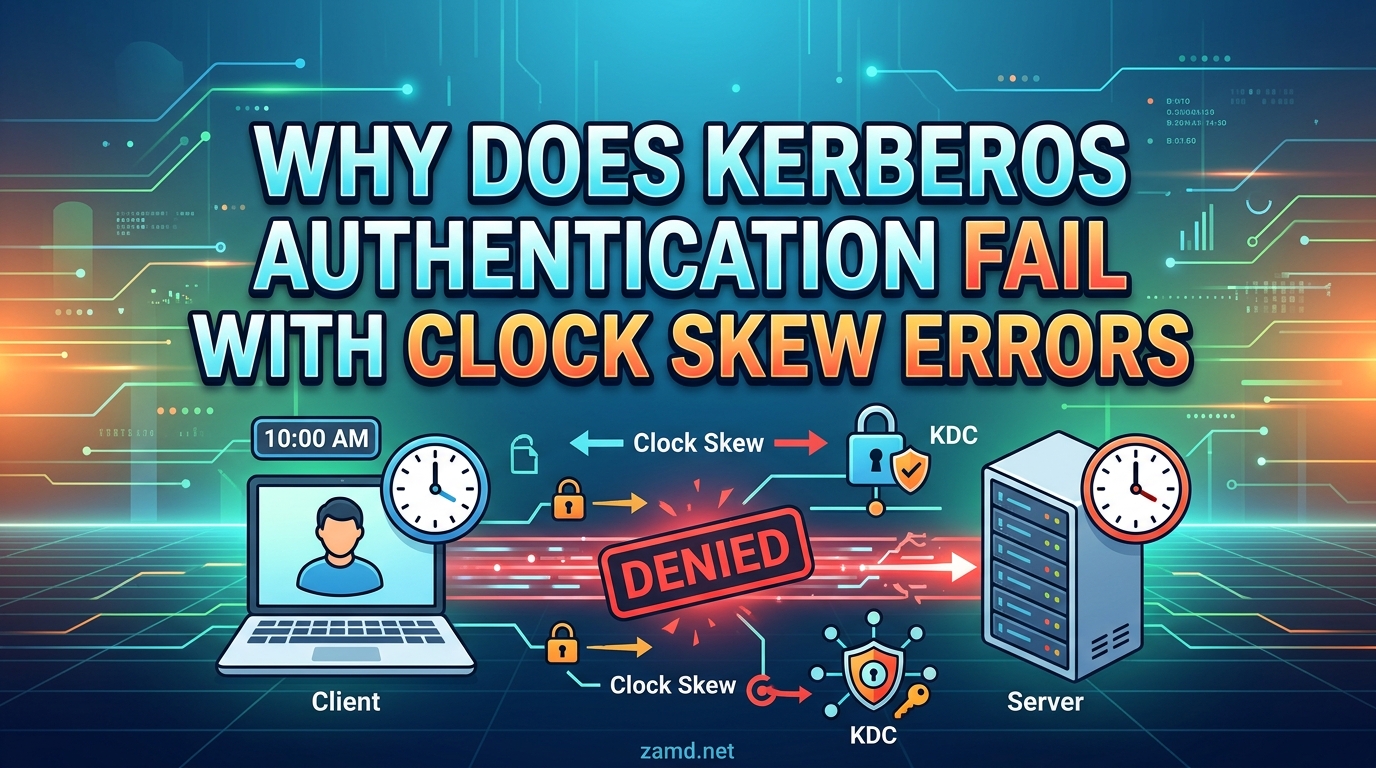
Kerberos authentication fails with clock skew errors when the time difference between the client machine and the Key Distribution Center (KDC) exceeds the protocol’s built-in 5-minute tolerance window. This triggers the error KRB_AP_ERR_SKEW, commonly displayed as “Clock skew too great,” blocking all Kerberos-based authentication until the clocks are resynchronized using NTP.
If you have ever run kinit and seen “Clock skew too great while getting initial credentials,” you already know how frustrating this can be. The good news is that the fix is almost always straightforward once you understand what is happening under the hood.
In this guide, our team breaks down exactly why Kerberos is so picky about time, how to diagnose the problem on any platform, and how to fix Kerberos clock skew errors on Linux, Windows, and macOS. We also cover edge cases that most guides skip entirely, including Docker containers, virtual machines, VPN laptops, and persistent skew issues where NTP is already running but Kerberos still fails.
Table of Contents
What Is Kerberos Clock Skew and Why Does It Cause Authentication Failures?
Kerberos clock skew is the difference between the system clock on a client machine and the system clock on the Key Distribution Center, which is typically your Active Directory domain controller. Kerberos is designed to reject any authentication attempt where this difference exceeds a configurable tolerance threshold, which defaults to 5 minutes.
When that threshold is exceeded, the KDC or application server returns error code 37, formally known as KRB_AP_ERR_SKEW. On Linux systems, this surfaces as the message “Clock skew too great” when you run kinit. On Windows, you may see Event ID 4 (Kerberos error) in the System event log, or the user simply cannot log in at all.
The error is not a bug or a misconfiguration in Kerberos itself. It is an intentional security mechanism. Kerberos deliberately rejects tickets with timestamps that fall outside the tolerance window because accepting them would open the door to replay attacks, where an attacker captures a valid ticket and resubmits it later.
Here is what typically causes the time difference in the first place:
- NTP is not configured or not running on the client or domain controller
- The NTP server itself is out of sync (the upstream time source is wrong)
- Firewall rules block NTP traffic on UDP port 123
- Virtual machines experience clock drift due to host scheduling or suspended states
- Laptops on VPN cannot reach the domain controller’s NTP server
- The hardware clock (RTC) is set incorrectly and overrides the system clock on reboot
Understanding which of these scenarios applies to your environment is half the battle. The rest is knowing how to fix it for your specific platform.
Why Is Kerberos So Time-Sensitive? (The Technical Reason)
Most troubleshooting guides skip this part, but understanding why Kerberos uses timestamps makes the fix feel a lot less arbitrary. The answer comes down to one thing: replay attack prevention.
Kerberos uses timestamps embedded in every authentication ticket as a primary defense against replay attacks. When a client sends an authentication request (called an AS-REQ) to the KDC, it includes a timestamp. The KDC compares that timestamp against its own clock. If the difference is more than 5 minutes, the request is rejected outright.
This design is specified in RFC 4120, the official Kerberos network authentication standard. The protocol relies on timestamps rather than nonces for replay cache in the KDC pre-authentication step. Without synchronized clocks, the KDC has no reliable way to determine whether a ticket was just generated or captured by an attacker hours ago.
Here is what happens step by step during a normal Kerberos authentication:
- The client generates a timestamp and encrypts it with its password-derived key
- The KDC decrypts the timestamp and compares it to its own clock
- If the difference is within 5 minutes, the KDC issues a Ticket Granting Ticket (TGT)
- The TGT contains its own validity period, usually 10 hours
- When the client presents the TGT to a service, the service also validates the timestamp
Every step in this chain depends on both sides agreeing on what time it is. If the client thinks it is 2:00 PM but the KDC thinks it is 2:07 PM, the KDC sees a timestamp that is 7 minutes old and assumes it is a replay attempt. The authentication fails with KRB_AP_ERR_SKEW.
This is why Kerberos is often described as a time-sensitive protocol. It is not being difficult for no reason. The entire security model collapses without synchronized clocks.
The 5-Minute Kerberos Time Tolerance Window Explained
The default Kerberos clock skew tolerance is 5 minutes. This means the client clock and the KDC clock can differ by up to 4 minutes and 59 seconds without causing an authentication failure. At 5 minutes or more, authentication is rejected.
This 5-minute window is defined in the Kerberos configuration file, typically located at /etc/krb5.conf on Linux systems. The setting is called clockskew and defaults to 300 seconds.
You can view or modify this setting in the [libdefaults] section of krb5.conf:
[libdefaults]

default_realm = EXAMPLE.COM

clockskew = 300
Some administrators are tempted to increase the clockskew value to avoid dealing with NTP synchronization issues. This is a bad idea. A larger tolerance window weakens the replay attack protection that Kerberos relies on. The 5-minute default exists because it strikes a balance between practical clock drift and security.
On Windows Active Directory environments, the 5-minute tolerance is enforced by the domain controller and cannot be easily changed without modifying Group Policy or registry settings. Microsoft’s recommendation is always to fix the time synchronization, not to increase the tolerance.
The real fix is always the same: make sure every machine in your environment syncs its clock to a reliable NTP source, ideally the domain controller itself.
How to Diagnose a Kerberos Clock Skew Error
Before you start changing NTP configurations, take a moment to confirm that clock skew is actually the problem. The diagnostic process is simple and takes less than a minute.
Follow these steps to diagnose the issue:
Step 1: Check your local system time.
On Linux, run timedatectl or date to see your current system time. Look at whether NTP synchronization is active and whether the time looks correct.
$ timedatectl

Local time: Thu 2026-06-25 14:03:22 UTC

NTP service: active

NTP synchronized: yes
On Windows, run w32tm /query /status in an elevated command prompt to check the time service state.
Step 2: Check the domain controller’s time.
Compare your local time against the domain controller. On Linux, you can query the DC directly with net time -S dc.example.com or by checking the NTP offset with chronyc tracking.
If you see an offset greater than 5 seconds, you are heading toward a clock skew problem. If the offset is greater than 300 seconds (5 minutes), you will see the Kerberos error immediately.
Step 3: Attempt Kerberos authentication.
Run kinit with your principal name and observe the output:
$ kinit [email protected]

Password for [email protected]:

kinit: krb5_get_init_creds: Clock skew too great
If you see “Clock skew too great,” the diagnosis is confirmed. The time difference between your machine and the KDC exceeds 5 minutes.
Step 4: Check existing Kerberos tickets.
Run klist to see if you have any valid tickets. If kinit failed, you likely have no tickets or expired ones. Note any timestamps in the output, as they can reveal how long the skew has been occurring.
Step 5: Check NTP synchronization status.
On RHEL and CentOS, run chronyc sources and chronyc tracking to verify NTP sources and offset. On Ubuntu, check timedatectl timesync-status for systemd-timesyncd details. On Windows, use w32tm /query /status and w32tm /query /source.
If NTP is running but the offset is still large, the problem is likely your NTP source, a firewall blocking UDP 123, or the NTP server itself being out of sync. We cover these scenarios in the troubleshooting section below.
How to Fix Kerberos Clock Skew on Linux (RHEL, Ubuntu, Debian)
The fix on Linux depends on which distribution you are running and which NTP daemon is available. Modern RHEL 8 and 9 use chronyd by default. Ubuntu uses systemd-timesyncd. Older systems may still use ntpd.
Fix Clock Skew on RHEL, CentOS, and Rocky Linux with chronyd
RHEL 8 and later ship with chronyd as the default NTP client. If chrony is not installed, install it first:
$ sudo dnf install chrony
Configure chrony to sync with your domain controller. Edit /etc/chrony.conf and set the server to your DC:
server dc.example.com iburst

makestep 1.0 3

rtcsync
The makestep 1.0 3 line tells chrony to immediately step the clock if the offset is more than 1 second, for the first 3 updates. This is important for fixing large clock skew quickly rather than slowly slewing the clock over time.
Enable and start the chrony service:
$ sudo systemctl enable chronyd

$ sudo systemctl restart chronyd
Verify that chrony is syncing correctly:
$ chronyc tracking

Reference ID : 192.168.1.10 (dc.example.com)

Stratum : 4

System time : 0.000123 seconds slow of NTP time

Last offset : +0.000456 seconds

RMS offset : 0.000789 seconds
If the offset is near zero, your clock is synchronized. Proceed to the verification section below to test Kerberos authentication.
Fix Clock Skew on Ubuntu and Debian with systemd-timesyncd
Ubuntu 20.04 and later use systemd-timesyncd for time synchronization. Check if it is running:
$ timedatectl

NTP service: active

NTP synchronized: no
If NTP synchronized shows “no,” configure it to use your domain controller as the NTP source. Edit /etc/systemd/timesyncd.conf:
[Time]

NTP=dc.example.com

FallbackNTP=pool.ntp.org
Restart the service:
$ sudo systemctl restart systemd-timesyncd

$ sudo timedatectl set-ntp true
Verify synchronization:
$ timedatectl timesync-status

Server: 192.168.1.10 (dc.example.com)

Poll interval: 34min 8s

Offset: 12ms
Emergency Manual Time Fix
If you need to fix the time immediately and cannot wait for NTP to converge, you can set the clock manually. This is useful in lab environments, CTF challenges, or emergency situations.
$ sudo date -s "$(ssh [email protected] date -u)"
Or use ntpdate for a one-time sync (note that ntpdate is deprecated but still available on many systems):
$ sudo ntpdate dc.example.com
After manually setting the time, always configure a proper NTP daemon to keep it synchronized going forward.
How to Fix Kerberos Clock Skew on Windows
Most online guides focus on Linux, but Windows Active Directory is the most common Kerberos deployment in the world. If your Windows client or member server is experiencing clock skew, here is how to fix it.
In an Active Directory environment, the PDC emulator domain controller should be the authoritative time source for the entire domain. All other domain controllers sync from it, and all member servers and clients sync from any domain controller.
Configure the PDC Emulator as Authoritative Time Source
On the PDC emulator, configure it to sync from an external reliable time source:
w32tm /config /manualpeerlist:"time.windows.com,0x1" /syncfromflags:manual /reliable:yes /update
Restart the time service:
net stop w32time

net start w32time
Fix Time Sync on Windows Clients and Member Servers
On a Windows client or member server that is experiencing clock skew, force it to resync from the domain hierarchy:
w32tm /config /syncfromflags:domhier /update

net stop w32time

net start w32time

w32tm /resync /force
Verify the time source and offset:
w32tm /query /status
Look for the “Last Successful Sync Time” and the source. If the source shows as “Local CMOS Clock” instead of a domain controller, the machine is not syncing from AD and will eventually drift.
If the Windows Time Service is corrupt or misconfigured, you can unregister and re-register it:
w32tm /unregister

w32tm /register

net start w32time

w32tm /config /syncfromflags:domhier /update

w32tm /resync /force
This resets the service to factory defaults and re-establishes domain-based time synchronization.
How to Fix Kerberos Clock Skew on macOS
macOS uses its own time synchronization service. Many developers use macOS as their workstation while authenticating against Active Directory or MIT Kerberos realms, so clock skew on Mac is a real issue.
Check the current time sync status:
$ sntp -d time.example.com
macOS does not use chronyd or systemd-timesyncd. Instead, it relies on the system time daemon, which you can configure through System Settings or the command line.
To set the NTP server via terminal:
$ sudo systemsetup -setnetworktimeserver dc.example.com

$ sudo systemsetup -setusingnetworktime on
Verify the configuration:
$ sudo systemsetup -getusingnetworktime

$ sudo systemsetup -getnetworktimeserver
For a one-time manual sync, use the sntp command:
$ sudo sntp -s dc.example.com
If macOS keeps reverting to an incorrect time, check whether the hardware clock (RTC) is set correctly in the boot arguments. macOS uses UTC internally, so a timezone mismatch on dual-boot machines can cause apparent clock skew.
Clock Skew in Virtual Machines and Docker Containers
Virtual machines and containers are particularly prone to clock drift, and most troubleshooting guides completely ignore this scenario. If you are running Kerberos clients in VMs or containers, this section is for you.
Virtual Machine Clock Drift
VMs can experience clock drift because the hypervisor schedules CPU time across multiple guests. Under heavy load, the VM’s clock can fall behind the host’s clock. If the drift exceeds 5 minutes, Kerberos authentication fails.
The fix is to install VMware Tools, Hyper-V Integration Services, or VirtualBox Guest Additions, depending on your hypervisor. These tools include a time synchronization feature that keeps the guest clock aligned with the host.
Additionally, always run NTP inside the VM. Do not rely solely on hypervisor-based time sync. Configure chronyd or systemd-timesyncd inside the VM exactly as you would on a physical machine.
For chrony specifically, add this line to /etc/chrony.conf to handle large drifts common in VMs:
makestep 10 3

maxupdateskew 100.0
This allows chrony to step the clock if the drift exceeds 10 seconds, for the first 3 updates after startup.
Docker Container Clock Skew
Docker containers share the kernel clock with the host system. If the host clock is wrong, every container inherits that wrong time. The fix is simple: synchronize the host clock with NTP.
However, there is a subtlety. If a container was started while the host clock was wrong, and you later fix the host clock, the container may still hold cached time data. Restart the container after fixing the host time:
$ sudo systemctl restart chronyd

$ docker restart my_container
In Kubernetes environments, the nodes should all sync to the same NTP source. If nodes drift relative to each other, pods on different nodes can produce Kerberos clock skew errors. Configure NTP at the node level, not inside individual pods.
Troubleshooting Persistent Clock Skew (NTP Running But Still Failing)
This is the most frustrating scenario. You have NTP configured and running, but Kerberos still throws “Clock skew too great.” Here is a systematic troubleshooting approach.
Check if the NTP Server Itself Is Out of Sync
The most common cause of persistent skew is that the NTP server your client points to is itself out of sync. This happens when the upstream time source for the domain controller is wrong.
On the domain controller, verify the NTP stratum and upstream source:
$ chronyc sources -v
Look at the “Stratum” column. A stratum of 16 means the server is unsynchronized. The domain controller should show a stratum of 3 or lower if it is properly synced to a reliable upstream source.
If the DC shows stratum 16, it is not syncing from anywhere. Fix the DC’s NTP configuration first, then have clients resync.
Check Firewall Rules for NTP Traffic (UDP 123)
NTP uses UDP port 123. If a firewall blocks this port, your NTP client cannot reach the server. The NTP daemon will appear to be running, but it will never actually synchronize.
On RHEL with firewalld:
$ sudo firewall-cmd --list-services

$ sudo firewall-cmd --add-service=ntp --permanent

$ sudo firewall-cmd --reload
On Ubuntu with UFW:
$ sudo ufw allow 123/udp
On Windows, check if UDP 123 is allowed through Windows Defender Firewall, especially on domain controller interfaces.
Distinguish Timezone Mismatch from Clock Skew
This is a subtle but important distinction. Timezone mismatch is not the same as clock skew. Kerberos timestamps use UTC internally, so two machines in different timezones will authenticate fine as long as their UTC clocks agree.
However, confusion arises when the timezone is misconfigured on one machine. If a machine is set to UTC but its timezone is actually EST, the displayed time will be off by 5 hours even though the underlying UTC clock might be correct. Verify with:
$ timedatectl

$ date -u
The date -u output shows UTC time. Compare this between the client and the domain controller. If UTC matches, the problem is a timezone display issue, not clock skew.
Handle Laptops on VPN
Laptops connected via VPN often cannot reach the domain controller’s NTP server because the VPN routing does not include the NTP port, or the NTP server is on an internal network segment that is not routable through the tunnel.
The fix is to configure a fallback NTP server. In systemd-timesyncd, add a FallbackNTP entry in /etc/systemd/timesyncd.conf:
[Time]

NTP=dc.example.com

FallbackNTP=pool.ntp.org
For chrony, add multiple server lines so the client can reach at least one reliable source when the primary is unreachable.
Check RTC (Hardware Clock) vs System Clock
The hardware clock (RTC) can override the system clock on reboot. If your RTC is set incorrectly, the machine may boot with the wrong time even though NTP was working perfectly before the reboot.
Sync the RTC to the system clock:
$ sudo hwclock --systohc
Then verify both clocks agree:
$ sudo hwclock --show

$ date
One more edge case: if you temporarily disabled NTP to set the time manually (using timedatectl set-ntp off), make sure to re-enable it afterward with timedatectl set-ntp on. Users on Ask Ubuntu report that forgetting to re-enable NTP after a manual fix is a common cause of recurring clock skew.
How to Verify the Fix and Test Kerberos Authentication
After applying any of the fixes above, verify that Kerberos authentication is working correctly. The verification process is the same across platforms.
Step 1: Confirm time synchronization.
Check that the offset between your machine and the KDC is near zero. Use chronyc tracking on Linux, w32tm /query /status on Windows, or sntp on macOS.
Step 2: Remove any cached Kerberos tickets.
Old tickets with bad timestamps can cause lingering issues. Clear them:
$ kdestroy
On Windows, purge tickets with:
klist purge
Step 3: Request a new Ticket Granting Ticket.
$ kinit [email protected]

Password for [email protected]:
If the command returns to the prompt without any error, authentication succeeded. No output from kinit is a good sign.
Step 4: List your tickets.
$ klist

Ticket cache: FILE:/tmp/krb5cc_1000

Default principal: [email protected]

Valid starting Expires Service principal

2026/06/25 14:05:00 2026/06/25 23:59:00 krbtgt/[email protected]
If you see a valid TGT with appropriate start and expiration times, your Kerberos clock skew error is fully resolved.
Preventing Clock Skew in Active Directory Environments
The best fix for Kerberos clock skew is preventing it from happening in the first place. In an Active Directory environment, this means establishing a proper time synchronization hierarchy.
Configure NTP on Your Domain Controllers
Your PDC emulator should sync from a reliable external time source. All other domain controllers should sync from the PDC emulator. All client machines should sync from domain controllers.
This hierarchy is created automatically when machines join the domain, but it can break if the PDC emulator is misconfigured or if domain controllers are demoted and promoted without updating the time source.
Run this on each domain controller to verify it is syncing from the correct source:
w32tm /query /source
The PDC emulator should show an external source. Other DCs should show the PDC emulator or another DC.
Monitor Time Synchronization
Set up monitoring to alert you when any machine drifts beyond a safe threshold. You can use a simple script that checks the NTP offset on each machine and alerts if it exceeds 60 seconds, giving you plenty of warning before the 5-minute Kerberos limit is reached.
For chrony-based systems, monitor the output of chronyc tracking and alert on the “System time” offset. For Windows, monitor the W32Time event log for warnings and errors.
Consider using Group Policy to enforce NTP settings across all domain-joined machines. This ensures consistency and prevents individual machines from drifting due to local configuration changes.
Handle VM and Container Provisioning
When provisioning new VMs or containers, always verify time synchronization before joining them to the domain. A freshly provisioned VM with a wrong clock will fail the domain join process itself, which is a Kerberos operation.
Include an NTP verification step in your provisioning scripts or infrastructure-as-code templates. This catches clock issues before they become authentication problems.
FAQs
Why does Kerberos authentication fail?
Kerberos authentication fails when the time difference between the client machine and the Key Distribution Center (KDC) exceeds the 5-minute tolerance window. Kerberos uses timestamps to prevent replay attacks, so any clock difference beyond 5 minutes causes the KDC to reject the authentication request with error KRB_AP_ERR_SKEW (Clock skew too great).
What is the clock skew issue in Kerberos?
Clock skew in Kerberos is the difference between the system clock on the client and the system clock on the KDC (domain controller). Kerberos enforces a maximum tolerance of 5 minutes (300 seconds) by default. If the clocks differ by more than 5 minutes, authentication fails with the error message ‘Clock skew too great’ (KRB_AP_ERR_SKEW, error code 37).
What causes Kerberos pre-authentication failed?
Kerberos pre-authentication fails for several reasons, with clock skew being the most common. Other causes include incorrect system time, wrong password, expired or deleted account, encryption type mismatch between client and KDC, or incorrect krb5.conf configuration. If the error specifically mentions ‘Clock skew too great,’ the cause is always a time synchronization problem.
Is Kerberos time sensitive?
Yes, Kerberos is highly time-sensitive by design. It uses timestamps embedded in authentication tickets to prevent replay attacks, as specified in RFC 4120. Both the client and the Key Distribution Center must agree on the time within a 5-minute window. This is why NTP time synchronization is mandatory in any environment using Kerberos authentication.
What is the maximum clock skew allowed by Kerberos?
The default maximum clock skew allowed by Kerberos is 5 minutes (300 seconds). This value is configurable in the krb5.conf file using the ‘clockskew’ setting in the [libdefaults] section. However, increasing this value beyond 5 minutes is not recommended because it weakens the protocol’s replay attack protection.
Does timezone difference cause Kerberos clock skew errors?
No, timezone differences do not cause Kerberos clock skew errors. Kerberos timestamps are based on UTC time internally, so machines in different timezones will authenticate correctly as long as their UTC clocks are synchronized within 5 minutes. However, a misconfigured timezone that causes the underlying UTC time to be wrong will trigger clock skew errors.
Conclusion
Kerberos clock skew errors are one of the most common authentication problems in Active Directory and mixed-OS environments, but they are also one of the easiest to fix once you understand the root cause. Kerberos requires synchronized clocks because it uses timestamps to prevent replay attacks, and any time difference beyond 5 minutes triggers the KRB_AP_ERR_SKEW error.
The fix always comes down to proper NTP synchronization. Configure chronyd on RHEL, systemd-timesyncd on Ubuntu, w32tm on Windows, or the system time daemon on macOS to sync from a reliable source, ideally your domain controller. For VMs and containers, verify time sync at both the host and guest levels.
If you are still seeing clock skew errors after configuring NTP, work through the troubleshooting steps: verify the NTP server itself is synced, check firewall rules on UDP 123, distinguish timezone mismatch from actual skew, handle VPN laptop scenarios with fallback servers, and make sure the hardware clock is not overriding the system clock on reboot.
With proper NTP configuration and monitoring, you can prevent Kerberos clock skew errors from disrupting authentication in your environment permanently.