
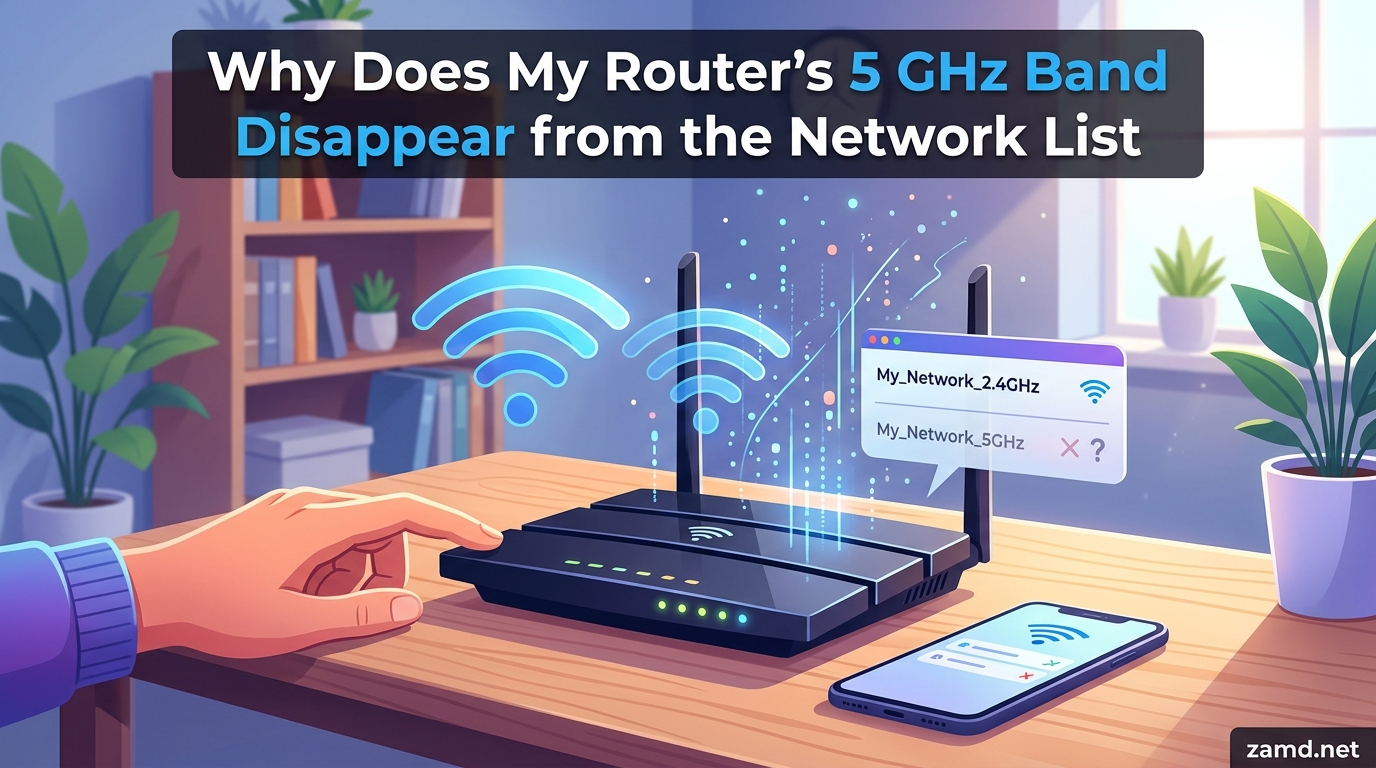
You sit down to stream a movie, open your WiFi settings, and notice something is wrong. The 5GHz network that usually delivers blistering speeds is simply gone. Your 2.4GHz network is still there, working fine, but the faster band has vanished without a trace.
If your router’s 5 GHz band disappears from the network list, the most common causes are DFS (Dynamic Frequency Selection) radar detection switching channels automatically, outdated or buggy firmware, channel conflicts with nearby networks, or the 5GHz radio being disabled in router settings. In most cases, power cycling the router, switching to a non-DFS channel, or updating firmware resolves the issue.
This problem affects many users, especially when the 5GHz band was working perfectly yesterday. This guide walks through every possible cause and the exact steps to fix each one, so you can stop guessing and start streaming again.
Table of Contents
Why Does My Router’s 5 GHz Band Disappear from the Network List: Common Causes
Before jumping into fixes, it helps to understand what is actually happening behind the scenes. The 5GHz band does not just randomly fail. Something specific triggered its disappearance, and identifying that trigger will save you hours of trial and error.
DFS Radar Detection (The Most Overlooked Cause)
Dynamic Frequency Selection, or DFS, is a regulatory requirement that forces routers operating on certain 5GHz channels (channels 52 through 144) to listen for radar signals. If your router detects radar from weather stations, airports, or military installations nearby, it must immediately stop transmitting on that channel.
When a DFS event triggers, your router either switches to a different channel or shuts down the 5GHz radio entirely. This can make the 5GHz network disappear from your device’s WiFi list for anywhere from 30 minutes to several hours while the router scans for a clear channel. Many users on Reddit and the TP-Link community forums have reported this exact pattern: the 5GHz band vanishes at roughly the same time each day, often corresponding to weather radar sweeps in their area.
If your router is set to “auto” channel selection on the 5GHz band, it may keep landing on DFS channels and experiencing repeated radar detections. Pinning your router to a non-DFS channel (36, 40, 44, 48, 149, 153, 157, or 161) eliminates this problem entirely.
Firmware Bugs and Outdated Software
Router firmware is essentially a mini operating system, and like any software, it has bugs. Manufacturers frequently release firmware updates that fix 5GHz stability issues, but those updates only help if you install them. A known firmware bug in certain TP-Link Archer models caused the 5GHz radio to crash after running for 48 to 72 hours, requiring a manual reboot to restore it.
ISP-provided gateway devices (like the Xfinity XB7 and XB8) are especially prone to this. Comcast and other ISPs push firmware updates automatically, and those updates sometimes introduce new bugs that break the 5GHz band. Users on the Xfinity subreddit frequently report that a 5GHz disappearance coincided with an overnight gateway update they never approved.
Channel Conflicts With Nearby Networks
If you live in an apartment building or a dense neighborhood, your neighbors’ routers may be crowding the 5GHz channels. When multiple routers compete for the same channel, signal quality degrades and some devices may stop detecting the network altogether. This is less common on 5GHz than 2.4GHz because the 5GHz band has far more channels available, but it still happens.
The fix here is to use a WiFi analyzer app on your phone to see which channels are crowded, then manually set your router to a less congested channel. Sticking with non-DFS channels in the lower range (36-48) or upper range (149-161) gives you the best chance of avoiding both radar and neighbor interference.
Overheating and Hardware Degradation
Routers generate heat, and the 5GHz radio chip runs hotter than the 2.4GHz chip because it operates at higher frequencies. If your router is stuffed inside a cabinet, sitting in direct sunlight, or buried under other electronics, the 5GHz radio can overheat and shut down as a protective measure. The 2.4GHz radio, running cooler, keeps working fine.
This thermal shutdown often explains why the 5GHz band disappears after the router has been running for several hours or days, then comes back after a power cycle gives the components time to cool. If this pattern sounds familiar, moving the router to a well-ventilated location may permanently solve the problem.
In some cases, repeated overheating damages the 5GHz radio permanently. If your 5GHz band never comes back no matter what you try, the hardware may have failed and the router needs replacement.
Smart Connect and Band Steering Confusion
Many modern routers feature “Smart Connect” or “band steering,” which combines the 2.4GHz and 5GHz bands under a single SSID (network name). The router then decides which band each device connects to. While this sounds convenient, it causes massive confusion for some devices.
Instead of seeing two separate networks, you see one SSID. Your phone might connect to 2.4GHz and never attempt the 5GHz band, making it appear as though the 5GHz network has disappeared. Disabling Smart Connect and splitting the bands into two named networks (for example, “MyNetwork” and “MyNetwork_5G”) gives you full visibility and control over which band each device uses.
Quick Fixes to Bring Your 5GHz Network Back
Before diving into advanced troubleshooting, try these quick fixes first. They resolve the problem in the majority of cases and take less than five minutes each.
1. Power Cycle Your Router
Unplug your router from the power outlet, wait at least 30 seconds, and plug it back in. This clears temporary memory, restarts all radio modules, and forces the router to re-scan for available channels. Wait two to three minutes for the router to fully boot before checking your WiFi list again.
This simple step fixes roughly half of all 5GHz disappearance cases, especially those caused by minor firmware glitches or temporary DFS events. If the 5GHz band comes back but disappears again within a few days, move on to the next steps.
2. Toggle the 5GHz Radio Off and On
Log into your router’s admin panel (usually by typing 192.168.1.1 or 192.168.0.1 into your browser). Navigate to the wireless settings section and look for an option to enable or disable the 5GHz band. Turn it off, save the settings, wait 10 seconds, then turn it back on and save again.
This forces the 5GHz radio to fully restart without rebooting the entire router. TP-Link community moderators recommend this as the first troubleshooting step for 5GHz disappearance, and it works because it clears the radio’s internal state without disrupting your 2.4GHz connection.
3. Switch to a Non-DFS Channel
In the same wireless settings section, find the channel selection option for the 5GHz band. If it is set to “Auto,” change it to a specific non-DFS channel. The safest choices are channels 36, 40, 44, 48, 149, 153, 157, or 161. These channels are exempt from DFS requirements, meaning your router will never need to shut down due to radar detection.
This single change has resolved the issue permanently for countless users who experienced recurring 5GHz disappearance. If your router was previously on a DFS channel (52-144), this is likely the root cause of the problem.
4. Separate Your SSIDs
If Smart Connect or band steering is enabled, disable it. Give your 2.4GHz and 5GHz networks separate names so you can see both in your WiFi list at all times. This does not fix the underlying issue if the 5GHz radio is failing, but it does make it immediately obvious whether the 5GHz band is broadcasting or not, rather than hiding the problem behind a single combined SSID.
Advanced Troubleshooting Steps
If the quick fixes did not work, the problem requires deeper investigation. These steps address firmware issues, device compatibility problems, and configuration errors that simple reboots cannot solve.
Update Your Router Firmware
Check your router manufacturer’s website for the latest firmware version. Log into the admin panel, navigate to the firmware or system update section, and check your current version against the latest release. If an update is available, install it.
Firmware updates frequently include fixes for 5GHz stability bugs. For example, Netgear released a patch for several Nighthawk models that addressed a specific issue where the 5GHz band would randomly disappear after several days of uptime. ASUS, TP-Link, and Linksys have all issued similar fixes over the years.
For ISP gateways, firmware updates happen automatically and you cannot control them. If an ISP update broke your 5GHz band, calling your provider and requesting a firmware rollback or replacement gateway is your best option.
Verify Your Device Supports 5GHz
Before blaming the router, confirm the device you are using actually supports 5GHz WiFi. Most laptops, phones, and tablets sold in the last decade support 5GHz, but older or budget devices may only have a 2.4GHz radio.
On Windows, open Device Manager, expand the Network Adapters section, and look for your WiFi adapter. If the adapter name includes “802.11ac,” “802.11n,” or “Dual Band,” it supports 5GHz. On Android, go to Settings, tap About Phone, and look at the WiFi specification. On an iPhone, check the technical specifications on Apple’s website for your model.
One common scenario reported on forums: a user’s phone connects to 5GHz fine, but their older laptop only sees 2.4GHz. In this case, the router is working correctly and the laptop simply lacks a 5GHz radio.
Device-Specific Fixes
Sometimes the router is fine, but a specific device stops detecting the 5GHz band. Here are targeted fixes for common platforms.
Windows 10 and 11: Open Device Manager, right-click your WiFi adapter, select Properties, go to the Advanced tab, and look for a “Band” or “Preferred Band” setting. Set it to “Prefer 5GHz.” Also check for driver updates from your laptop manufacturer’s website, as outdated WiFi drivers are a frequent cause of 5GHz detection failures on Windows.
Android: Go to Settings, then WiFi, tap the three-dot menu, select Advanced or WiFi Preferences, and look for a band preference option. Some Android versions hide 5GHz networks if signal strength is low. Forgetting the network and reconnecting can also help.
iOS (iPhone and iPad): Apple devices do not let you manually select bands. If your iPhone cannot see the 5GHz network, go to Settings, General, Reset, and choose Reset Network Settings. This clears all saved WiFi data and forces the device to rediscover available networks.
Disable Smart Connect and Band Steering
If you have not already done this in the quick fixes section, disable Smart Connect (TP-Link), Band Steering (Netgear), or One WiFi Name (Linksys). These features merge your 2.4GHz and 5GHz networks under a single SSID and let the router decide which band to assign.
While convenient in theory, band steering causes problems when the router incorrectly steers a device to 2.4GHz or fails to broadcast the 5GHz band properly. Splitting the networks into two separate SSIDs gives you visibility into which band is active and lets you manually connect to 5GHz on each device.
Understanding DFS: The Hidden Culprit
DFS deserves a deeper explanation because it is the single most common cause of recurring 5GHz disappearance, yet most troubleshooting guides barely mention it. Here is a breakdown of exactly how it works and why it causes so much frustration.
What Are DFS Channels?
The 5GHz WiFi spectrum is divided into channels, but not all channels are equal. Channels 36 through 48 are called UNII-1 bands and are free to use without any restrictions. Channels 52 through 144 are called UNII-2 and UNII-2 Extended bands, and these are subject to DFS regulations because they share spectrum with weather and military radar systems.
If your router is set to use a DFS channel, it must continuously monitor for radar signals. When it detects radar activity, FCC and international regulations require it to immediately vacate that channel. The router either moves to a different channel or, if no suitable channel is available, shuts down the 5GHz radio temporarily.
How Radar Detection Works in Practice
When a router detects radar, it typically takes 30 seconds to 30 minutes to find and switch to a new channel. During this time, all connected devices lose access to the 5GHz network. Some devices may take additional time to rediscover the network on its new channel.
This is why the 5GHz band disappears and reappears seemingly at random. If you live near an airport, weather station, or military facility, radar sweeps may happen multiple times per day at predictable intervals. Users near NOAA weather radar stations report 5GHz disappearances that align perfectly with scheduled radar rotations.
Which Channels to Use to Avoid DFS
To permanently avoid DFS issues, set your router to one of these non-DFS channels: 36, 40, 44, 48, 149, 153, 157, or 161. These channels are available worldwide without radar detection requirements. The only downside is that these channels can be more crowded in dense areas, since every router that avoids DFS ends up on the same few channels.
Channel 44 and channel 149 are generally the best choices, as they offer good separation from other common channels and are less likely to suffer from adjacent channel interference. Use a WiFi analyzer app to confirm which of these channels has the least traffic in your specific location.
How Long Does DFS Recovery Take?
When a DFS event occurs, the router must perform a Channel Availability Check before it can start transmitting on a new channel. This mandatory listening period lasts between 1 and 10 minutes depending on the channel and regulatory domain. After finding a clear channel, the router resumes broadcasting the 5GHz SSID and devices can reconnect.
If your router keeps landing on DFS channels through auto-selection, it may experience repeated DFS events throughout the day. Each time, the 5GHz band disappears for several minutes. Pinning to a non-DFS channel eliminates this cycle permanently.
ISP Gateway vs Third-Party Router: Does It Matter?
The type of router you use significantly affects how often you will encounter 5GHz issues. ISP-provided gateway devices have a much higher rate of 5GHz disappearance compared to standalone routers from manufacturers like ASUS, TP-Link, or Netgear.
Known ISP Gateway Issues
Xfinity’s XB7 and XB8 gateways have generated hundreds of complaints on Reddit and the Xfinity community forums about the 5GHz band disappearing completely. Users report that the 5GHz network works for weeks or months, then suddenly vanishes and never returns without a factory reset or gateway replacement.
The root cause is typically ISP-pushed firmware updates that introduce 5GHz bugs. Since users cannot control or roll back gateway firmware, the only options are to request a replacement gateway from the ISP or put the gateway into bridge mode and use your own router.
Bridge Mode With Your Own Router
If your ISP gateway keeps losing the 5GHz band, putting it into bridge mode disables the built-in WiFi and lets you connect your own standalone router. This gives you full control over firmware, channels, and settings. Standalone routers from reputable manufacturers receive more frequent and better-tested firmware updates than ISP gateways.
Bridge mode is available on most ISP gateways through the admin panel or by calling customer support. Once enabled, connect your router’s WAN port to a LAN port on the gateway, and configure your router as you normally would.
When to Contact Your ISP vs the Manufacturer
If you are using an ISP gateway, contact your ISP when the 5GHz band disappears after a factory reset fails to restore it. Request a replacement gateway, as persistent 5GHz failure usually indicates a hardware defect in the gateway unit.
If you are using your own router, contact the manufacturer’s support team. Most major brands (ASUS, Netgear, TP-Link, Linksys) offer chat or phone support and can help diagnose whether the issue is firmware-related or a hardware failure. If your router is under warranty, a persistent 5GHz failure may qualify for a replacement.
How to Prevent 5GHz from Disappearing Again
Once you have fixed the immediate problem, a few preventive measures can stop it from recurring.
Pin your 5GHz channel to a non-DFS option (36, 40, 44, 48, 149, 153, 157, or 161). This single step eliminates the most common cause of 5GHz disappearance. Keep your router firmware updated by checking for new releases every few months. Place your router in an open, well-ventilated location away from direct heat sources. Schedule a weekly reboot if your router supports it, which clears temporary memory and prevents firmware-related uptime bugs from accumulating.
FAQ’s
Why does my 5GHz Wi-Fi keep disappearing?
Your 5GHz Wi-Fi likely keeps disappearing due to DFS (Dynamic Frequency Selection) radar detection on channels 52 through 144, which forces the router to shut down or switch channels when radar signals are detected. Other common causes include firmware bugs, channel conflicts with neighboring networks, Smart Connect band steering issues, or the 5GHz radio overheating. Switching to a non-DFS channel like 36, 44, or 149 usually resolves the problem permanently.
Why is my 5GHz band not showing up?
Your 5GHz band may not show up because the 5GHz radio is disabled in router settings, your device does not support 5GHz WiFi, or the router is using a DFS channel that triggered a radar event. Check that 5GHz is enabled in your router admin panel, verify your device supports 802.11ac or dual-band WiFi, and switch the router to a non-DFS channel like 36 or 149.
Why does my 5G disappear?
Your 5GHz WiFi disappears because the router’s 5GHz radio either shut down or switched channels. The most frequent trigger is DFS radar detection, which legally requires the router to vacate certain channels when radar is present. Firmware bugs, overheating, and ISP-pushed updates on gateway devices can also cause the 5GHz radio to stop broadcasting temporarily or permanently.
How do I fix 5GHz WiFi not showing up on my device?
First, power cycle the router by unplugging it for 30 seconds. Then log into the router admin panel, confirm 5GHz is enabled, and switch to a non-DFS channel (36, 40, 44, 48, 149, 153, 157, or 161). Update your router firmware. On Windows, update your WiFi adapter driver and set the preferred band to 5GHz. On mobile devices, forget the network and reconnect, or reset network settings.
Conclusion
When your router’s 5 GHz band disappears from the network list, the cause is usually traceable to DFS radar detection, firmware bugs, channel conflicts, or a disabled 5GHz radio. Start with the quick fixes: power cycle the router, toggle the 5GHz radio, and switch to a non-DFS channel like 36 or 149. If the problem persists, update your firmware, verify device compatibility, and consider disabling Smart Connect to separate your SSIDs.
For ISP gateway users experiencing repeated 5GHz disappearance, bridge mode with your own router provides the most reliable long-term solution. If nothing works and the 5GHz band never returns, the radio hardware may have failed and replacement is the next step. Use the prevention tips above to keep your 5GHz network stable and visible on every device going forward.