
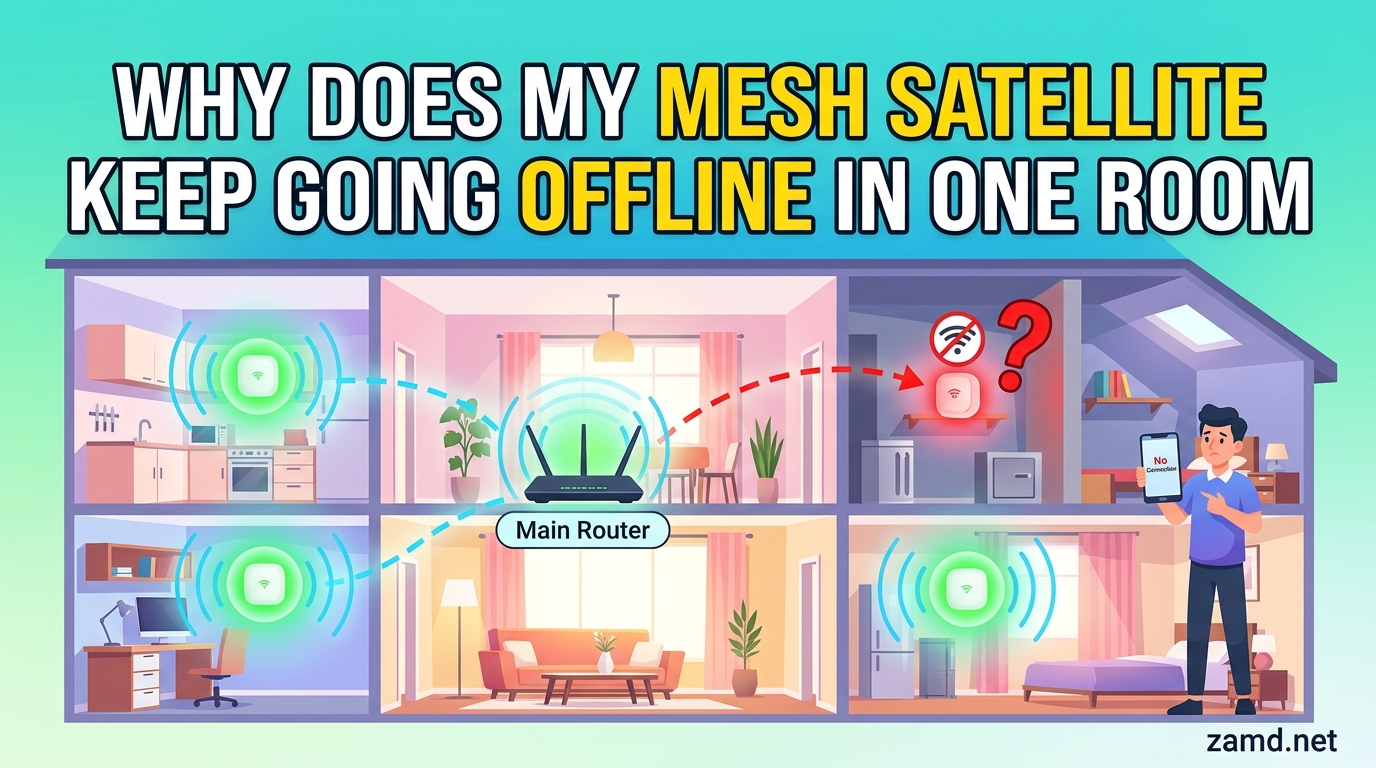
Your mesh satellite keeps going offline in one specific room because the wireless backhaul connection between that satellite and the main router (or its parent node) is too weak to maintain a stable link. Distance, walls, interference, and architectural materials in that particular area degrade the signal enough to cause repeated drops, while satellites in other rooms with clearer signal paths stay connected without issue.
If you are dealing with this problem, you already know how frustrating it is. One node works fine for a while, then drops. You unplug it, plug it back in, and it works for another few hours or days before going dark again. Meanwhile, the rest of your mesh network runs perfectly. This pattern of one node offline while others work is incredibly common, and the good news is that it is almost always fixable without buying new hardware.
I have spent years helping people troubleshoot mesh WiFi problems across every major brand, and the single-room offline issue follows predictable patterns. In this guide, I will walk you through exactly why does my mesh satellite keep going offline in one room, how to diagnose the specific cause in about 60 seconds, and what permanent fixes actually work. We will cover wireless backhaul problems, architectural blockers, double NAT conflicts, firmware bugs, power issues, and brand-specific steps for TP-Link Deco, Google Nest WiFi, Netgear Orbi, Amazon eero, and Linksys Velop.
By the end of this article, you will know whether your satellite is failing because of placement, interference, network configuration, or a hardware defect, and you will have a clear action plan to fix it permanently. Let us start with a quick diagnosis so you can identify your most likely cause right now.
Table of Contents
Quick Diagnosis: Identify Your Problem in 60 Seconds
Before diving into detailed troubleshooting, use this quick reference to match your symptoms to the most likely cause. Most single-room mesh satellite offline issues fall into one of the categories below. Find the symptom that best matches what you are experiencing.
If the satellite shows a solid red LED and never connects: The wireless backhaul is too weak. The node is either too far from the main router, or too many walls are in the way. Fix: move the node closer or switch to wired backhaul. Difficulty: Easy to medium.
If the satellite goes offline daily but works after power cycling: This is usually a firmware bug, DFS channel change, or minor DHCP lease renewal failure. Fix: update firmware, then check for double NAT. Difficulty: Medium.
If the satellite works for weeks then suddenly drops and never recovers: Power adapter degradation, overheating, or hardware failure. Fix: test with a different outlet and power adapter. Difficulty: Easy to diagnose, may need replacement.
If the mesh app shows the node as offline but your phone still connects to WiFi in that room: The node is broadcasting but has lost its backhaul connection to the main router. Fix: check backhaul signal strength and move the node closer. Difficulty: Easy.
If the satellite drops offline only at night: Neighboring WiFi networks switch to DFS channels or increase activity after dark, causing interference. Fix: lock your mesh to a non-DFS channel or switch to 5 GHz backhaul. Difficulty: Medium.
If the satellite goes offline after every power outage: The mesh topology is not rebuilding correctly after reconnection. Fix: change boot order (modem first, then gateway, then satellites) and consider wired backhaul. Difficulty: Easy.
If only one specific room loses the satellite while all others stay online: That room has unique physical barriers, distance issues, or interference sources. This is the core question we will solve throughout this guide. Difficulty: Varies by cause.
Why Does My Mesh Satellite Keep Going Offline in One Room? The Core Causes
When a mesh satellite goes offline in one room but not others, the problem is almost always related to the spatial conditions unique to that room. Mesh networks are designed so that each satellite communicates with the main router or another satellite using a wireless link called the backhaul. If the backhaul signal in one room is weaker than in other rooms, that satellite will struggle to maintain its connection.
Think of it like a chain. Your main router is the anchor. Each satellite is a link in the chain. The satellite in your living room might have a clear, short path to the router with only one drywall wall between them. But the satellite in your bedroom upstairs might have to push its signal through a ceiling, a bathroom, and a closet wall. The signal arrives weaker, and the connection becomes unstable.
Here are the five core reasons why this happens to one specific room:
1. Distance and signal path: The satellite in that room is physically farther from the main router or parent node than your other satellites. WiFi signal strength drops off rapidly with distance, especially on the 5 GHz band that most mesh systems use for backhaul.
2. Wall density and composition: Different walls attenuate WiFi differently. Standard drywall reduces signal modestly. But brick, concrete, plaster with metal lath, and walls with foil-backed insulation can block 50 to 80 percent of the signal.
3. Interference sources near that room: Microwaves, baby monitors, cordless phones, Bluetooth speakers, and neighboring WiFi networks all compete for the same 2.4 GHz and 5 GHz frequencies. If your problem room is near a kitchen or shares a wall with a neighbor’s router, interference could be the cause.
4. Architectural metal elements: Metal studs, radiant heat barriers, metal HVAC ducting, large mirrors, and even metal-backed insulation in walls act as effective WiFi shields. These materials can make a room essentially a Faraday cage.
5. Network configuration problems: Double NAT from an ISP modem-router combo, DHCP conflicts, outdated firmware, or incorrect node topology can cause one node to behave erratically. These issues sometimes affect only the weakest node first because it is already on the edge of connectivity.
Understanding which of these five causes applies to your situation is the key to choosing the right fix. Let me break each one down in detail so you can pinpoint your exact problem.
Root Cause #1: Weak Wireless Backhaul in That Specific Room
The wireless backhaul is the dedicated connection between your mesh satellite and the main router (or another satellite acting as its parent). This is the invisible link that carries all data from the internet to your satellite and back. When this link is weak, the satellite cannot maintain a stable connection and drops offline.
In simple terms, the backhaul is like a bridge between the router and the satellite. If the bridge is wide and strong (close distance, clear line of sight), traffic flows smoothly. If the bridge is narrow and rickety (long distance, walls in the way), traffic stalls and eventually the bridge collapses.
How Distance Kills the Backhaul Signal
WiFi signal strength decreases with the square of the distance from the source. This means that doubling the distance between your router and satellite does not cut the signal in half, it cuts it to roughly one quarter. Most mesh systems recommend placing satellites within 30 to 40 feet of the main router or parent node for optimal backhaul.
If your problem room is at the far end of your house or on a different floor, the distance alone may be enough to destabilize the connection. This is especially true on the 5 GHz band, which carries more data but has shorter range than 2.4 GHz. Most modern mesh systems use 5 GHz or a dedicated tri-band channel for backhaul because it offers higher speeds, but that higher frequency penetrates walls and distance far worse than 2.4 GHz.
Dual-Band vs Tri-Band: Why It Matters
Dual-band mesh systems use the same 5 GHz radio for both backhaul (node-to-node communication) and fronthaul (device-to-node communication). When a device is actively using WiFi on a dual-band satellite, it competes with the backhaul for bandwidth. This can cause the backhaul to weaken and the node to drop offline, especially if multiple devices connect to that satellite.
Tri-band mesh systems have a dedicated third radio band exclusively for backhaul. This means node-to-node communication never competes with your devices for bandwidth. If you are using a dual-band system in a problem room, upgrading to a tri-band mesh or adding a wired Ethernet backhaul can make a dramatic difference.
Here is a rough comparison of what happens to backhaul speed at different distances and through walls:
Dual-band, clear line of sight at 15 feet: Near full speed. Stable connection.
Dual-band, one drywall wall at 25 feet: About 60 to 70 percent speed. Generally stable.
Dual-band, two walls at 35 feet: About 30 to 40 percent speed. Intermittent drops likely.
Dual-band, ceiling plus two walls at 40+ feet: Below 20 percent speed. Frequent offline events.
Tri-band, same distances: Roughly 20 to 30 percent better backhaul retention at each tier due to dedicated radio. More stable overall.
How to Check Your Backhaul Signal Strength
Most mesh apps provide a connection quality or signal strength indicator for each satellite. Open your mesh app (Google Home for Nest WiFi, Deco app for TP-Link, Orbi app for Netgear, eero app for Amazon eero, Linksys app for Velop) and look for the satellite that keeps going offline. Check its connection quality rating.
If the app shows “weak” or “poor” connection quality, the backhaul is your problem. If it shows “good” or “great” but the node still drops, the issue is more likely firmware, double NAT, or interference.
The Room Swap Test
Here is a test I recommend to everyone experiencing this issue. Take the satellite that keeps going offline and swap it with one of your satellites that works fine. Place the problem satellite in a known-good location, and place the good satellite in the problem room.
If the problem satellite works fine in the new location and the good satellite starts dropping in the problem room, the issue is placement and environment, not hardware. If the problem satellite continues to drop even in the good location, you likely have a hardware defect in that specific unit.
Root Cause #2: Architectural and Environmental Blockers
This is one of the most under-discussed causes of mesh satellite problems, and it directly explains why only one specific room is affected. Different rooms in your home have different construction materials, and some of those materials are surprisingly effective at blocking WiFi.
Common WiFi-Blocking Materials
Metal studs: If your home was built or remodeled using metal framing instead of wood, those vertical steel studs act as a grid of WiFi reflectors. They do not completely block signal, but they scatter and weaken it significantly. If your problem room shares a wall with metal studs, the satellite in that room will struggle.
Radiant heat barriers: Many homes, especially in warm climates, have radiant barriers installed in the attic or walls. These are essentially sheets of aluminum foil designed to reflect heat. They also reflect WiFi. If your problem room is below a radiant barrier in the attic, the satellite’s signal to the main router (especially if the router is on another floor) has to pass through a metal shield.
Concrete and brick walls: Solid masonry walls attenuate WiFi far more than standard wood-frame drywall. An interior brick wall can reduce signal by 40 to 60 percent. An exterior concrete wall can block 70 to 90 percent. If the path between your router and the problem satellite passes through a brick fireplace wall or concrete foundation wall, that is likely your culprit.
Plaster with metal lath: Older homes (pre-1950s) often have plaster walls applied over metal lath rather than wood lath or drywall. The metal lath is a mesh of thin steel that acts as a highly effective WiFi barrier. If your problem room is in an older home with original plaster walls, the walls themselves may be the issue.
Foil-backed insulation: Some homes have foil-faced foam board insulation in exterior walls or around basements. This creates a metallic shield that reflects WiFi back into the room rather than letting it pass through to reach the satellite’s backhaul target.
Large mirrors: Mirrors are backed with a thin layer of silver or aluminum. A large wall mirror between your router and satellite can reflect a meaningful portion of the WiFi signal.
Aquariums and water features: Water absorbs WiFi energy very effectively. A large fish tank or aquarium placed between the router and satellite can degrade the signal significantly. If your problem room is near a kitchen, bathroom, or utility room with large water sources, the water could be contributing.
Night-Time Drops: Why Your Satellite Goes Offline After Dark
Many users on Reddit and community forums report that their mesh satellite works fine during the day but drops offline every night. This is a real phenomenon, and it has a specific cause.
At night, neighboring WiFi networks often become more active as households stream movies, play online games, and download updates. If your mesh system uses DFS (Dynamic Frequency Selection) channels on the 5 GHz band, it is required by regulations to scan for radar signals and switch channels if it detects them. Radar from airports, weather stations, and military installations is more likely to be detected at night due to atmospheric conditions, causing your mesh to hop to a different channel.
When the channel changes, the backhaul link between the router and satellite can briefly disconnect. If the satellite cannot re-establish the connection quickly enough, it drops offline. To fix this, go into your mesh app settings and manually lock the WiFi channel to a non-DFS channel (channels 36, 40, 44, or 48 on 5 GHz are typically non-DFS in most regions).
Other Interference Sources to Check
Beyond architectural materials, consider active interference sources near the problem room. Microwave ovens operate at approximately 2.45 GHz, which overlaps with the 2.4 GHz WiFi band. If the path from your router to the problem satellite passes near a microwave, turning on the microwave can cause a momentary connection drop. Over time, repeated drops can destabilize the backhaul enough for the node to go fully offline.
Bluetooth devices, Zigbee smart home hubs, baby monitors, wireless security cameras, and even USB 3.0 cables can generate interference in the 2.4 GHz band. If the problem room has a high concentration of wireless devices, that RF noise can weaken the satellite’s backhaul signal.
Root Cause #3: Double NAT and DHCP Conflicts
Double NAT is one of the most common and least understood causes of mesh satellite problems. If you have an ISP-provided modem-router combo (a single box that acts as both modem and router) and you connected your mesh system’s main node to it without putting either device in bridge mode, you have double NAT.
What Is Double NAT?
NAT (Network Address Translation) is the process by which a router translates between the single public IP address assigned by your ISP and the multiple private IP addresses used by devices on your home network. When you have two routers performing NAT (the ISP combo box and your mesh system), devices get confused about which router is managing their connection.
For most devices, double NAT causes occasional issues with online gaming, VPNs, and port forwarding. But for mesh satellites, it can cause persistent disconnections. The satellite receives conflicting DHCP lease information from two different routers, and when those leases renew at different intervals, the satellite’s backhaul connection can be disrupted.
How to Check for Double NAT
Here is a simple way to check. Connect a laptop to your mesh WiFi network. Open a web browser and go to a site like whatismyip.com or simply search “what is my IP” in Google. Note the IP address shown. Now open a command prompt (Windows) or terminal (Mac) and type ipconfig (Windows) or ifconfig (Mac). Look for your local IP address, typically something like 192.168.x.x or 10.0.x.x.
If your public IP and local IP are on completely different subnets (for example, public is 73.x.x.x and local is 192.168.1.x), that is normal. But if you log into your ISP modem-router combo and see it is also assigning local IP addresses in a range like 192.168.0.x while your mesh is assigning 192.168.1.x, you have double NAT. Both devices are acting as routers.
How to Fix Double NAT
You have two options, and both work well. Option 1: Put your ISP modem-router combo in bridge mode. This disables its routing functions and lets your mesh system handle all network management. Log into the ISP device’s admin panel (usually accessible at 192.168.0.1 or 192.168.1.1) and look for a “Bridge Mode” or “Passthrough” setting.
Option 2: Put your mesh system in AP (Access Point) mode. This lets the ISP device handle routing while your mesh acts purely as a WiFi access point. Most mesh apps have this option in their advanced settings. Note that AP mode disables some mesh features like parental controls and device prioritization, since those require router-level control.
I generally recommend Option 1 (bridging the ISP device) because it lets your mesh system function as designed. Many users on forums report that switching to bridge mode or AP mode permanently fixed their satellite offline issues.
DHCP Conflicts
Even without double NAT, DHCP conflicts can cause one satellite to drop. If two devices on your network accidentally receive the same IP address, network traffic gets misrouted and connections fail. Mesh systems usually handle DHCP internally, but if you have a separately managed switch, a poorly configured IoT device, or a static IP that overlaps with the DHCP range, conflicts can occur.
To fix this, check your mesh app for any IP conflict warnings. Ensure no devices on your network have manually assigned static IPs within the DHCP range your mesh system uses (typically 192.168.1.100 through 192.168.1.200).
Root Cause #4: Firmware Bugs and Outdated Software
Firmware is the internal software that runs your mesh system. Like any software, it can have bugs. Manufacturers regularly release firmware updates to fix connectivity issues, patch security vulnerabilities, and improve performance. But firmware updates can also introduce new problems.
How Firmware Causes Offline Nodes
A common pattern reported by users is that everything worked fine until a firmware update installed automatically, and then one satellite started dropping offline repeatedly. This happens because firmware updates can change how the mesh system handles backhaul connections, channel selection, and power management.
Conversely, running outdated firmware means you are missing bug fixes that could resolve your offline issue. If you have been ignoring firmware updates for months, the current version may have known bugs that cause satellite disconnections.
How to Check and Update Firmware
Open your mesh app and look for a firmware update option. Most apps display the current firmware version for each node and offer an update button. Update all nodes to the latest version. Make sure all satellites are online during the update process (if one is already offline, you may need to bring it back online first by moving it closer temporarily).
After updating, restart the entire mesh system using the correct power cycle sequence (described later in this guide). Give the system 15 to 20 minutes after the restart to fully stabilize and rebuild the mesh topology before testing.
When Firmware Updates Cause Problems
If your satellite started going offline immediately after a firmware update, the new firmware may have introduced a bug. Some mesh systems allow you to check for and install a previous firmware version, though this varies by brand. Check your manufacturer’s support forum for known issues with the latest firmware version.
If you cannot roll back the firmware, try a factory reset after the update. Sometimes the old network configuration does not play well with new firmware, and a clean setup resolves the incompatibility.
Root Cause #5: Power and Hardware Issues
Not all satellite offline problems are caused by wireless signal or network configuration. Sometimes the issue is as simple as power delivery or as serious as hardware failure. Before investing hours in software troubleshooting, rule out the physical power supply.
Testing the Power Outlet
Try plugging the satellite into a different outlet in the same room. If you are using a power strip, surge protector, or extension cord, plug directly into the wall instead. Power strips can develop loose internal connections over time, and some older surge protectors degrade after absorbing multiple voltage spikes.
If the satellite stays online when plugged directly into the wall but drops when using a power strip, replace the power strip. This sounds too simple to be the cause, but I have seen it resolve satellite offline issues more times than I can count.
Power Adapter Degradation
Mesh satellites use external power adapters (the small brick that plugs into the wall). These adapters can degrade over time, especially if they have been exposed to heat, vibration, or power surges. A failing adapter may deliver enough voltage to power the satellite initially but not enough to sustain it under load, causing intermittent drops.
If you have another satellite of the same model, try swapping power adapters. If the problem follows the adapter (the satellite works fine with the other adapter, and the good satellite starts dropping with the suspect adapter), you have found the issue. Contact the manufacturer for a replacement adapter.
Overheating
Mesh satellites generate heat during operation. If the satellite is placed in an enclosed space, on carpet, in direct sunlight, or near a heat source, it may overheat and shut down to protect itself. Check whether the satellite feels unusually hot to the touch.
Ensure the satellite has adequate ventilation. Place it on a hard, flat surface rather than carpet or fabric. Keep it away from heating vents, radiators, and direct sunlight. If overheating is the cause, moving the satellite to a better-ventilated spot will resolve the drops.
Hardware Failure
If you have tested power, placement, firmware, and network configuration, and the satellite still drops offline, the unit itself may be failing. Internal components like the WiFi radio, antenna connections, or processor can degrade over time. This is more common in units that are 3 to 5 years old or older.
The room swap test described earlier is your best diagnostic tool here. If the problem satellite drops offline regardless of where you place it, and a known-good satellite works fine in the problem room, the satellite hardware is likely defective and needs replacement.
Step-by-Step Fix: The Correct Reboot Sequence
Power cycling your mesh system in the correct order is the single most effective first step for resolving satellite offline issues. The order matters because mesh systems rebuild their topology in a specific sequence. If satellites boot before the main router has established its internet connection, they may fail to connect properly.
Follow these steps in order. Do not skip steps or rearrange them.
Step 1: Power off everything. Unplug all mesh satellites first. Then unplug the main mesh router. Then unplug your modem (if separate from the router). Everything should be completely powered off.
Step 2: Wait 30 seconds. This allows capacitors to fully discharge and clears any temporary state in the networking equipment. Do not rush this step.
Step 3: Power on the modem. Plug in just the modem. Wait 2 to 3 minutes for it to fully connect to your ISP and establish an internet connection. Most modems show a solid online or ready LED when fully connected.
Step 4: Power on the main mesh router. Plug in the main mesh node connected to the modem. Wait 2 to 3 minutes for it to boot fully, connect to the modem, and establish its internet connection. Check your mesh app to confirm the main router shows as online.
Step 5: Power on satellites one at a time. Plug in the satellite closest to the main router first. Wait 2 minutes for it to connect and show as online in your mesh app. Then plug in the next closest satellite. Continue until all satellites are powered on and connected.
Step 6: Wait 15 to 20 minutes. Mesh systems need time to optimize their topology, select the best channels, and establish stable backhaul connections. During this period, you may see satellites briefly show as offline or reconnecting. This is normal. Do not reboot again during this window.
Step 7: Verify stability. After the stabilization period, check your mesh app. All satellites should show as online with a connection quality rating. If the problem satellite shows good connection quality now, monitor it for 24 to 48 hours to see if the drops recur.
Why the Order Matters
When the main router boots before the modem has an internet connection, it may cache a failed connection state. When satellites then connect to the router, they inherit that failed state. By ensuring the modem connects first, then the router, then satellites, you ensure each device in the chain has a valid upstream connection before the next device tries to connect through it.
This is especially important after power outages. If everything powers on simultaneously, the race condition between modem, router, and satellite boot times can prevent proper mesh topology formation. This is why many users report satellite offline issues after power outages.
Permanent Fixes That Stop the Drops for Good
If the correct reboot sequence gets your satellite back online but it keeps dropping over the following days, you need a permanent fix. Here are the most effective long-term solutions, ranked from easiest to most involved.
Fix 1: Move the Satellite to a Midpoint Location (Easiest)
The most common permanent fix is simply moving the satellite closer to the main router. The ideal placement is roughly halfway between the router and the area where you need coverage. If the satellite was placed at the far end of the room or behind a large piece of furniture, moving it just 5 to 10 feet closer to the router can make a dramatic difference.
Elevate the satellite. Place it on a shelf, table, or counter rather than on the floor. WiFi signals radiate outward and slightly downward from the antenna, so a higher placement improves coverage and backhaul quality. Avoid placing the satellite inside cabinets, behind TVs, or next to large metal objects.
After moving the satellite, check the connection quality in your mesh app. If it improves from “weak” to “good” or “great,” you have found the right spot. Monitor for 48 hours to confirm stability.
Fix 2: Switch to Wired Ethernet Backhaul (Most Reliable)
If you cannot get a stable wireless backhaul no matter where you place the satellite, a wired Ethernet backhaul is the definitive solution. Running an Ethernet cable from your main router (or a network switch connected to the router) directly to the satellite eliminates all wireless backhaul issues.
A wired backhaul is immune to distance, walls, interference, and architectural blockers. It provides the full speed of your Ethernet connection (typically 1 Gbps) for backhaul, far exceeding what any wireless connection can deliver. Every major mesh brand supports wired backhaul. Simply connect an Ethernet cable between the satellite’s LAN port and the main router’s LAN port (or a switch).
The mesh system will automatically detect the wired connection and switch to using it for backhaul. Check your mesh app to confirm the connection type shows as “wired” or “Ethernet” for that satellite. The improvement in stability and speed is often dramatic.
Fix 3: Add a Relay Node Between the Router and Problem Satellite
If you cannot run Ethernet but the problem satellite is too far from the main router, consider adding an additional mesh node as a relay. Place the new node between the router and the problem satellite so the problem satellite connects to the relay node instead of trying to reach the router directly.
This shortens the backhaul distance for each hop. Instead of one long, weak wireless link, you have two shorter, stronger links. Most mesh systems support daisy-chaining nodes this way. Check your mesh app’s topology view to confirm that the problem satellite is connecting through the relay node rather than directly to the router.
Note that each wireless hop does reduce speed. On a dual-band system, you can lose up to half your speed per hop. On a tri-band system with a dedicated backhaul radio, the speed loss per hop is much less severe. This is why tri-band mesh systems handle daisy-chain topologies far better than dual-band systems.
Fix 4: Use a Powerline Adapter as a Wired Backhaul Alternative
If running Ethernet cables through your home is not practical, consider using a powerline adapter kit. Powerline adapters transmit network data through your home’s existing electrical wiring. You plug one adapter into an outlet near the main router and connect it via Ethernet. You plug the second adapter into an outlet near the problem satellite and connect it to the satellite via Ethernet.
Powerline adapter performance varies widely depending on the age and quality of your home’s electrical wiring, the distance between outlets, and whether the outlets are on the same circuit. In ideal conditions, you can get 200 to 500 Mbps. In poor conditions, you may get less than 50 Mbps. But even a slow, stable connection is better than an unstable wireless backhaul that keeps dropping.
Buy a powerline kit from a retailer with a good return policy so you can test it in your home. If the connection is stable and fast enough for your needs, keep it. If not, return it.
Fix 5: Lock Your WiFi Channels
If interference from neighboring networks is causing channel changes and backhaul drops, manually locking your mesh system to specific channels can help. In your mesh app or router admin panel, look for WiFi channel settings. On the 5 GHz band, avoid DFS channels (typically channels 52 through 144) if you are experiencing night-time drops.
Stick to non-DFS channels: 36, 40, 44, and 48 on 5 GHz. On 2.4 GHz, channels 1, 6, and 11 are the only non-overlapping options. Pick the channel with the least neighboring network activity. You can use a free WiFi analyzer app on your phone to scan for nearby networks and identify the least congested channel.
Not all mesh systems allow manual channel selection. Google Nest WiFi, for example, manages channels automatically with no manual override. TP-Link Deco, Netgear Orbi, and Linksys Velop generally offer more manual control. If your system does not allow channel locking, focus on the other fixes instead.
Fix 6: Disable Band Steering (If Applicable)
Band steering is a feature that automatically moves devices between 2.4 GHz and 5 GHz based on signal strength and load. While usually helpful, it can occasionally cause issues with backhaul stability, especially if the satellite is on the edge of 5 GHz range and the system keeps trying to steer the backhaul to the slower but longer-range 2.4 GHz band.
If your mesh system allows you to disable band steering or lock the backhaul to a specific band, try locking it to 5 GHz. This prevents the system from constantly switching bands, which can cause momentary disconnections that cascade into full offline events.
How to Test If Your Node Is Actually Broken vs Just Poorly Placed
One of the most common questions I hear is, “How do I know if my satellite is defective or just in a bad spot?” This matters because replacing hardware is expensive, and you do not want to buy a new satellite only to have the same problem in the same room.
The Definitive Swap Test
This is the single most reliable test. Take the satellite that keeps going offline (let us call it Satellite A) and swap its physical location with a satellite that has been working fine (Satellite B). Do not swap any cables, adapters, or settings. Just physically move the two units.
Result 1: Satellite A works fine in Satellite B’s old location, and Satellite B starts dropping in Satellite A’s old location. This means the problem is environmental, not hardware. The room is the problem. Focus on placement, backhaul, and the permanent fixes described above.
Result 2: Satellite A continues to drop offline even in the good location, while Satellite B works fine in the problem room. This means Satellite A has a hardware defect. Contact the manufacturer for warranty replacement or buy a new satellite.
Result 3: Satellite A drops in the good location and Satellite B also drops in the problem room. This means you have both a hardware issue with Satellite A and an environmental issue with the problem room. Replace Satellite A and also improve the room’s placement conditions.
The Stability Test
Once you have applied a fix (new placement, wired backhaul, firmware update, etc.), you need to verify the fix is permanent. Do not assume the problem is solved just because the satellite stays online for an hour. Here is a proper stability test protocol.
Day 1: After applying your fix, wait for the full 15 to 20 minute stabilization period. Then run a speed test on a device connected to the problem satellite. Note the download speed, upload speed, and latency. Check the mesh app for connection quality. Document everything.
Day 2: Run another speed test at approximately the same time. Compare results. Walk around the problem room with your phone and confirm you stay connected to the satellite (not roaming to a distant router). Check the mesh app to confirm the satellite still shows as online with good connection quality.
Day 3 and beyond: Continue daily checks for at least 5 to 7 days. If the satellite stays online with consistent connection quality for a full week, the fix is likely permanent. If it drops even once during the test period, the underlying cause has not been fully resolved.
Weekly spot checks: After the initial 7-day test, check the mesh app once a week for the next month. Intermittent issues can recur after days or weeks, so extended monitoring catches problems that a short test would miss.
How Long Before You Replace Hardware?
If you have tried every fix in this guide and the satellite still drops after 2 to 3 weeks of consistent troubleshooting, it is time to consider hardware replacement. Contact your manufacturer’s support team first. They can run remote diagnostics, check for known issues with your specific model, and potentially offer a warranty replacement.
The typical life expectancy of a mesh router is 3 to 5 years. WiFi standards evolve every few years (WiFi 5 to WiFi 6 to WiFi 6E to WiFi 7), and older hardware may not handle the increasing density of wireless devices in modern homes. If your mesh system is more than 4 years old and multiple satellites are having issues, upgrading to a newer system may be more cost-effective than replacing individual nodes.
Factory Reset: The Last Resort
If you have exhausted all other troubleshooting steps, a factory reset can resolve deep-seated configuration corruption that power cycling and firmware updates cannot fix. Factory reset wipes all settings from the satellite and returns it to its out-of-box state, forcing it to rejoin the mesh network from scratch.
When to Factory Reset
Factory reset is appropriate when:
The satellite has been working fine for months and suddenly started dropping offline after a firmware update, power outage, or network configuration change. Standard reboot sequences and firmware updates have not resolved the issue. You have confirmed the problem is not environmental (the swap test shows the problem follows the satellite).
When NOT to Factory Reset
Do not factory reset if the satellite drops offline due to weak backhaul or poor placement. A reset will not fix a signal strength problem, and you will have to set up the satellite again for no benefit. Always try placement and backhaul fixes first.
Brand-Specific Factory Reset Procedures
TP-Link Deco: Open the Deco app. Go to More, then System, then Deco. Select the satellite you want to reset and tap Remove. Wait for it to be removed from the network. Then press and hold the reset button on the bottom of the Deco unit for 10 seconds until the LED pulses red. Re-add it through the app.
Google Nest WiFi: Open the Google Home app. Select the Nest WiFi point you want to reset. Tap Settings, then Remove device, then Factory Reset. Confirm. The point will reset and you will need to set it up again through the app.
Netgear Orbi: With the Orbi satellite powered on, press and hold the reset button (usually a small pinhole on the bottom or back) for 10 seconds until the LED blinks amber. Wait for it to reboot. Open the Orbi app and re-add the satellite.
Amazon eero: Open the eero app. Tap the eero device you want to reset. Scroll down and tap Remove. Then press and hold the reset button on the back of the eero for 10 seconds until the LED flashes red. Re-add it through the app.
Linksys Velop: Open the Linksys app. Go to Menu, then Network Administration. Select the node to reset and tap Delete Node. Then press and hold the reset button on the bottom of the Velop node for 10 seconds until the light turns red. Re-add through the app.
What to Expect After a Factory Reset
After resetting, the satellite will need to go through the full setup process again. This includes connecting to the mesh network, establishing its backhaul link, and receiving current firmware. Give it 20 to 30 minutes after setup to fully stabilize. Check the mesh app to confirm it shows as online with good connection quality.
If the satellite stays online for 48 hours after a factory reset when it was previously dropping daily, the reset resolved a configuration corruption issue. If it starts dropping again within 24 hours, the underlying cause is hardware or environmental, and a reset alone will not fix it.
Brand-Specific Troubleshooting Tips
Different mesh brands have unique characteristics, app interfaces, and known issues. Here are brand-specific tips for the most popular mesh systems.
TP-Link Deco
Deco units are known for their strong value and reliable performance, but they can experience satellite drops when the backhaul connection is marginal. The Deco app provides a connection quality rating for each node. If a node shows “weak,” it needs to be moved closer or switched to wired backhaul.
A known Deco issue involves nodes attempting to connect directly to the main Deco instead of through the nearest parent node, even when daisy-chaining would provide a better connection. If your topology view shows a distant node connecting directly to the main Deco, try restarting that node to force it to select the optimal path.
Google Nest WiFi
Nest WiFi points are a frequent source of offline complaints, particularly in larger homes. The Google Home app provides limited diagnostic information compared to other brands, which can make troubleshooting frustrating. There is no manual channel selection option, so interference-related drops are harder to fix.
A common Nest WiFi issue is that points appear offline in the Google Home app but still broadcast WiFi. This happens when the point loses its cloud connection to Google’s servers while still maintaining its local backhaul. Restarting the point usually resolves this. If it recurs frequently, a factory reset is the next step.
Netgear Orbi
Orbi systems use a dedicated tri-band backhaul, which generally provides excellent stability. However, Orbi satellites can drop offline if the firmware is outdated or if there is a double NAT situation with an ISP modem-router combo. The Orbi app provides detailed satellite status information and allows firmware updates.
Orbi satellites have a distinct LED on the front that provides immediate status feedback. Solid blue means good connection, solid amber means fair connection (move closer), and solid red means poor connection (too far or blocked). Use the LED as a quick placement guide.
Amazon eero
eero systems are designed for simplicity and generally work well, but they can experience satellite drops related to firmware updates that install automatically. The eero app provides limited manual controls. If a satellite starts dropping after an automatic update, contact eero support for a firmware rollback option.
eero’s app shows connection quality for each node and provides a weekly performance report. Use this data to track whether your problem satellite is degrading over time.
Linksys Velop
Velop nodes are generally reliable but can experience drops when band steering moves the backhaul between 2.4 GHz and 5 GHz. The Linksys app allows you to view node connection details and run speed tests for each node. If band steering is causing issues, consider locking the backhaul to 5 GHz if your firmware supports it.
LED Indicator Quick Reference
While LED colors vary by brand, here is a general guide to what LED colors typically mean across most mesh systems:
Solid white or green: Node is online and connected with good backhaul.
Solid blue: Node is online with fair backhaul quality. Consider moving closer.
Solid amber or yellow: Node is online but backhaul is weak. Move closer to the parent node.
Solid red: Node has lost its backhaul connection and cannot reach the main router. Move it closer or check for interference.
Pulsing or blinking: Node is booting, updating firmware, or attempting to connect. Wait 5 to 10 minutes.
Off: Node has no power. Check the outlet and power adapter.
Always check your specific brand’s documentation for exact LED meanings, as colors and patterns can differ between manufacturers and models.
“Offline in App But WiFi Still Works” Explained
This is one of the most confusing symptoms users report. Your mesh app shows a satellite as offline, but your phone still connects to WiFi in that room. How is this possible?
The answer lies in the difference between the satellite’s local broadcast and its backhaul connection. The satellite continues to broadcast its WiFi SSID (network name) locally even when its backhaul link to the main router has dropped. Your phone sees the familiar WiFi network and connects to it. But because the backhaul is down, your phone has no actual internet access through that satellite.
You can test this by connecting to the WiFi in the problem room and trying to load a website. If the WiFi connects but pages will not load, the satellite is broadcasting but has no backhaul. The mesh app correctly identifies this as an offline state because the node cannot pass traffic to the internet.
This distinction matters because it tells you the satellite’s WiFi radio is working fine. The problem is specifically the backhaul connection. Focus your troubleshooting on signal strength, distance, interference, and channel selection rather than hardware replacement.
Frequently Asked Questions
Why does my mesh network keep disconnecting?
Your mesh network keeps disconnecting most often because of a weak wireless backhaul between the main router and one or more satellites, double NAT from an ISP modem-router combo, outdated firmware, or RF interference from neighboring networks and household devices. Start by power cycling in the correct order (modem, then router, then satellites), then check for double NAT and firmware updates.
Why is my internet working in one room but not the other?
Internet works in one room but not another because the mesh satellite in the affected room has a weak backhaul connection to the main router. Distance, walls, metal building materials, or interference sources unique to that room degrade the wireless link enough to cause drops. Moving the satellite closer to the router or switching to a wired Ethernet backhaul usually resolves this.
Why does my Google mesh node keep going offline?
Google Nest WiFi points commonly go offline due to weak backhaul signal, automatic firmware updates introducing bugs, or the node losing its cloud connection while still broadcasting WiFi locally. Try power cycling the point, checking its placement relative to the main router, and performing a factory reset through the Google Home app if the drops persist after a firmware update.
What is the life expectancy of a mesh router?
The typical life expectancy of a mesh router is 3 to 5 years. Hardware components like WiFi radios and power adapters degrade over time, and WiFi standards evolve every few years. If your mesh system is older than 4 years and multiple satellites are having connectivity issues, upgrading to a newer WiFi 6 or WiFi 7 system is often more cost-effective than replacing individual nodes.
Conclusion
Figuring out why does my mesh satellite keep going offline in one room comes down to understanding that the problem is almost always spatial. That specific room has conditions, whether distance, walls, interference, or architectural materials, that degrade the wireless backhaul enough to cause repeated drops while other rooms with clearer signal paths stay perfectly connected.
The troubleshooting path is straightforward. Start with the correct reboot sequence (modem, then router, then satellites). If that does not solve it permanently, check for double NAT and switch to bridge mode or AP mode. Update your firmware. Test the power outlet and adapter. Do the room swap test to determine if the problem is environmental or hardware-related.
For permanent fixes, move the satellite to a midpoint location, switch to wired Ethernet backhaul if possible, add a relay node if the distance is too great, or try a powerline adapter as a wireless alternative. Lock your WiFi channels if night-time drops are an issue, and consider upgrading to a tri-band system if you are still using a dual-band mesh in a larger home.
If none of these steps resolve the issue after 2 to 3 weeks of consistent troubleshooting, the satellite hardware itself may be failing. Contact your manufacturer for warranty support or consider replacing the unit. Most importantly, do not settle for daily power cycling as a permanent solution. A stable mesh network is achievable with the right diagnosis and fix.