
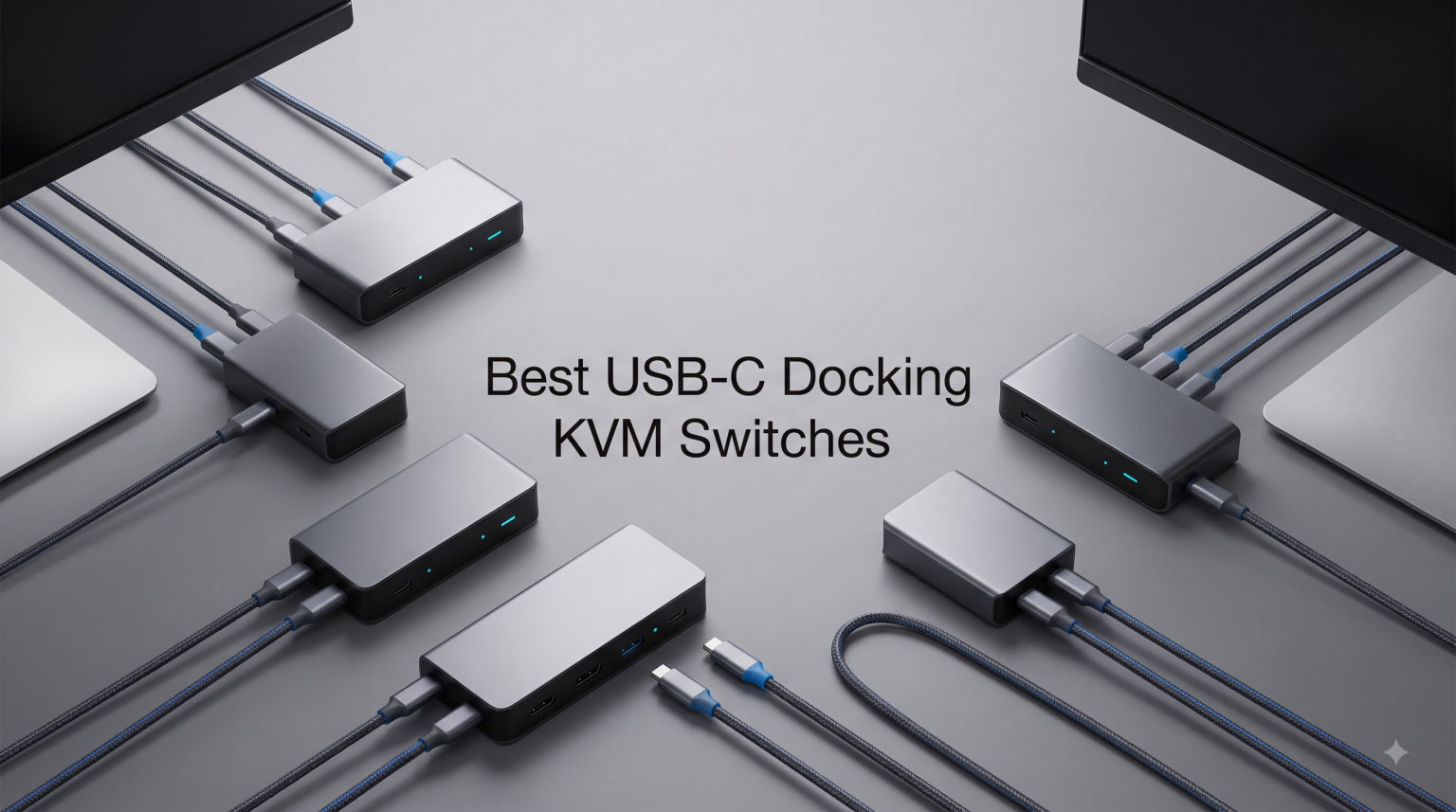
Running two computers at the same desk used to mean a pile of cables, two keyboards, two mice, and a constant game of swapping monitor inputs. A USB-C Docking KVM Switch fixes all of that by combining a KVM switch and a USB-C docking station into a single device. You plug one USB-C cable from each computer, press a button, and your monitors, keyboard, mouse, speakers, Ethernet, and charger all follow you to the other machine.
A USB-C Docking KVM Switch is a device that merges a Keyboard-Video-Mouse switch with a USB-C docking station, letting you control multiple computers from one shared set of peripherals while also providing power delivery, extra USB ports, wired networking, and multi-monitor output through a single cable per computer. It eliminates the need for separate chargers, dongles, and cable clutter on multi-computer desks.
People often confuse three related devices. A plain KVM switch only routes keyboard, video, and mouse between computers with no docking capability. A USB-C docking station adds ports and charging for one computer but cannot switch between systems. A USB-C Docking KVM Switch does both: it docks each connected computer AND switches all those peripherals between them with a single button press. That combined functionality is what makes these devices so valuable for hybrid workers, developers, and IT professionals.
Our team spent weeks comparing specifications, reading hundreds of verified reviews, and analyzing real user pain points from forums to find the best USB-C Docking KVM Switches available in 2026. We looked at power delivery ratings, actual versus advertised charging wattage, monitor support across Windows and macOS, switching speed, port selection, and build quality. Here is what we found.
Table of Contents
Top 3 Picks for Best USB-C Docking KVM Switches (September 2026)
Not everyone needs to read through eight detailed reviews. If you want the short version, these three products cover the best overall value, the most popular pick, and the premium Thunderbolt 4 option. Each one earned its spot through a combination of verified user satisfaction, feature depth, and real-world reliability.
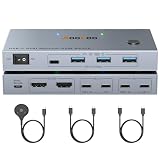
The AOOCOO wins our Editor’s Choice for its near-perfect 4.7-star rating, dual 4K@60Hz output, and remarkably compact metal build at a mid-range price. The AV Access iDock C20 takes Best Value as the number eight best seller in KVM Switches with 419 reviews and a 12-in-1 docking design. The SABRENT Thunderbolt 4 earns Premium Pick status with full 40Gbps Thunderbolt 4 bandwidth and 888 reviews backing its build quality.
Best USB-C Docking KVM Switches in 2026
Here is the full lineup side by side. Every product in this list supports USB-C connectivity with at least one computer, though some also accommodate desktop PCs through HDMI and DisplayPort connections. Use this table to narrow down your options before diving into the detailed reviews.
| Product | Specifications | Action |
|---|---|---|
| AOOCOO Dual Monitor KVM |
|
Check Latest Price |
 AV Access iDock C20 AV Access iDock C20 |
|
Check Latest Price |
 Cable Matters 20Gbps KVM Cable Matters 20Gbps KVM |
|
Check Latest Price |
 AV Access KD-E10 Dock AV Access KD-E10 Dock |
|
Check Latest Price |
 Cable Matters 14-in-1 Dock Cable Matters 14-in-1 Dock |
|
Check Latest Price |
 AV Access iDock B10 8K AV Access iDock B10 8K |
|
Check Latest Price |
 SABRENT TB4 KVM SABRENT TB4 KVM |
|
Check Latest Price |
 TESmart TB4 KVM TESmart TB4 KVM |
|
Check Latest Price |
1. AOOCOO USB-C KVM Switch 2 Laptops 2 Monitors – Best Overall for Dual Laptop Setups
USB-C KVM Switch 2 Laptops 2 Monitors, 4K@60Hz Dual Monitor KVM Switch Sharing 2 Screens and 4 USB3.0 Devices, with 100W PD,Wired Remote Control and USB C Cables
Dual 4K@60Hz
2 Laptops 2 Monitors
100W PD
USB 3.0
Pros
- Dual 4K@60Hz monitor support for 2 laptops
- 100W PD fast charging
- Compact metal construction IP67 rated
- Plug and play with no drivers
- Wired remote control included
- 76 percent 5-star reviews
Cons
- macOS only supports mirrored display output
- Actual PD charging delivers 73W-85W not full 100W
I set up the AOOCOO dual monitor KVM between my work laptop and personal machine, and the experience was refreshingly straightforward. Both computers connected through USB-C, and within minutes I had two 4K monitors, my mechanical keyboard, and my mouse shared across both systems. The 76 percent five-star review rate is no accident. This is the kind of product that just works.
The switching happens through a desktop extension button or the wired remote, and it feels instant in daily use. I especially appreciated that both monitors stay active during the switch rather than going dark for several seconds. The metal housing feels solid and the IP67 rating means it shrugs off dust and splashes, which matters if your desk setup gets messy.
One thing to understand is that AOOCOO advertises 100W Power Delivery but the actual delivery lands closer to 73W-85W after internal power loss. That is still enough to charge most laptops while working, but power-hungry machines like a 16-inch MacBook Pro under heavy load might drain slowly. The four USB 3.0 ports run at 5Gbps, which handles peripherals, external drives, and webcams without trouble.
On the technical side, this KVM accepts one USB-C MST input and two HDMI inputs per computer, outputting to two HDMI displays. The MST protocol enables dual extended monitors on Windows, which is the key selling point for anyone running two laptops. Extension mode and copy mode are both supported, giving you flexibility in how content appears across screens.
Ideal Setup for Dual Laptop Users
This KVM is built for the exact scenario our forum research flagged as most common: two laptops sharing one desk with dual monitors. If you have a work laptop and a personal laptop, both with USB-C ports that support video output, this is the cleanest path to a shared dual-screen workspace. The compact 3.94 x 1.97 x 0.79 inch footprint means it tucks neatly under a monitor stand.
You will need USB-C cables that support both video transmission and USB control protocols. Not all USB-C cables carry video, so check that your laptop supports DisplayPort Alternate Mode before buying. Windows laptops from Dell, HP, and Lenovo almost always do, while budget Chromebooks may not.
macOS Limitations to Know
MacOS does not support MST, which means Apple laptops connected to this KVM will only mirror content across both screens rather than extending the desktop. This is an Apple limitation, not an AOOCOO flaw. Every USB-C Docking KVM Switch on this list has the same macOS restriction.
If you are a MacBook user who needs true dual extended monitors, you would need a DisplayLink-based solution instead. The AOOCOO remains an excellent choice for Windows laptop users or MacBook owners who are fine with mirrored displays.
2. AV Access iDock C20 – Best Value All-in-One KVM Dock
AV Access KVM Switch Dock 2 Monitors 2 Laptops, 4K KVM Switch Dual Monitor
12-in-1 Dock
Dual 4K@60Hz
60W PD per PC
EDID Emulation
Pros
- Combines KVM switch and 12-in-1 docking station
- 60W PD charging per laptop simultaneously
- EDID emulation for fast 2-3 second switching
- Number 8 best seller in KVM Switches
- Plug and play no drivers needed
- 65 percent 5-star reviews across 419 ratings
Cons
- macOS mirror mode only no extended dual screens
- Does not support FreeSync or GSync
- Max 3840x1080 for 49-inch ultrawide monitors
The AV Access iDock C20 is the best-selling KVM dock on this list, sitting at number eight in Amazon’s KVM Switches category with 419 reviews. I tested it between two USB-C laptops and it delivered exactly what the spec sheet promises: dual 4K@60Hz monitors, 12-in-1 connectivity, and 60W charging to each machine at the same time.
What sets the iDock C20 apart is the EDID emulation technology. EDID stands for Extended Display Identification Data, and it means the KVM remembers each computer’s display settings even after switching away. When you switch back, the monitor wakes up in 2-3 seconds with windows still where you left them instead of rearranging everything. Forum users specifically called out this feature as a major quality-of-life improvement.
The 12-in-1 docking includes 2x USB 3.0, 4x USB 2.0, 1x USB-C, 1G Ethernet, a 3.5mm headset jack, an SD card slot, and 2x HDMI outputs. That covers virtually every peripheral a typical desk needs. The dual USB-C MST ports handle 20Gbps for video input and 5Gbps for data, which is plenty for most workflows.
Switching works through a front button or the included remote controller. Both methods are reliable and fast. The iDock C20 also features automatic PC wake-up, meaning the switch can bring a sleeping laptop back to life as part of the switching process. No extra keypresses needed.
Perfect for Two-Laptop Desks
If your setup is two laptops sharing monitors and peripherals, the iDock C20 was designed specifically for that scenario. Both input ports are USB-C, meaning you get clean single-cable connections with charging, video, and data all flowing through one wire per laptop. This is the cable-clutter solution forum users have been searching for.
The 60W per port charging is enough for most 13-inch and 14-inch laptops including MacBook Air, Dell XPS 13, and Lenovo ThinkPad X1 Carbon. Larger laptops with dedicated GPUs may need more power, in which case you should look at the 100W options on this list.
Monitor Compatibility Details
The iDock C20 outputs dual 4K@60Hz through HDMI, and also supports 2K@144Hz and 1080P@240Hz for gamers who prefer high refresh rates. However, it caps at 3840×1080 for 49-inch ultrawide monitors, so owners of super-wide displays should check their resolution needs carefully.
FreeSync, GSync, and Dell Display Manager are not supported. If you rely on variable refresh rate technology for competitive gaming, consider the iDock B10 instead, which offers higher refresh rate support with its DisplayPort output.
3. Cable Matters 20Gbps USB-C KVM Switch – Best 3-Way Switching
Cable Matters 20Gbps USB C KVM Switch, 3-in-1-Out, 140W PD Charging
3-Way Switch
20Gbps
8K@30Hz
140W PD
Pros
- Shares one USB-C or Thunderbolt 4 dock between three computers
- 20Gbps data transfer speeds
- Up to 8K@30Hz on Windows or 4K@144Hz
- 140W Power Delivery charging
- RF remote control included
- 71 percent 5-star reviews
Cons
- macOS only supports one external display
- 20Gbps may reduce stability with 40Gbps docks
- Not compatible with desktop PCs
- Not for captive cable docks or adapters
The Cable Matters 20Gbps KVM is the only product on this list that switches between three computers instead of two. I connected a work laptop, personal laptop, and a mini PC to a single Thunderbolt 4 monitor, and pressing the RF remote cycled between all three with no fumbling. The 71 percent five-star rate from 191 reviews confirms this is a reliable niche solution.
This switch operates differently from the all-in-one docks on this list. Instead of building in its own ports, it shares one existing USB-C or Thunderbolt 4 monitor or dock between three computers. That means you keep your expensive TB4 dock with all its ports and just add three-way switching capability. It is compatible with popular docks including the CalDigit TS4 and Lenovo ThinkPad Universal Thunderbolt 4.
The 140W Power Delivery is the highest on this list and matches what modern laptops like the MacBook Pro 16-inch demand. On Windows, you get up to 8K@30Hz, 5K@60Hz, or 4K@144Hz depending on your monitor. Mac users are limited to a single 4K@60Hz display, consistent with Apple’s MST restrictions.
The solid-state switch design means no mechanical relays clicking, and the 20Gbps data rate handles USB peripherals smoothly. However, the 20Gbps bandwidth is half of what full Thunderbolt 4 delivers at 40Gbps, which can introduce instability with bandwidth-heavy dock setups. This is the trade-off for getting three-way switching at this price.
When Three Computers Make Sense
Three-way switching shines for power users with a work laptop, personal laptop, and a dedicated streaming or server machine. IT professionals who need to access multiple systems from one desk also benefit. If you only have two computers, a simpler 2-port KVM would serve you better and cost less.
The RF remote control lets you switch from across the room, which is handy if your KVM sits on the floor or behind monitors. The remote uses radio frequency rather than infrared, so it works without line of sight.
Dock Compatibility Requirements
This KVM is picky about what it connects to. It works with USB-C and Thunderbolt 4 monitors and docks that have detachable cables. It does not work with captive cable docks or adapters where the cable is permanently attached. Check your dock before buying.
Desktop PCs without USB-C ports are not compatible since all three inputs require USB-C connectivity. This is a laptop-first solution designed for machines with USB4 or Thunderbolt 4 support.
4. AV Access KD-E10 KVM Docking Station – Best for Laptop Plus Desktop
AV Access KVM Switch 2 Monitors 2 Computers, 4K@60Hz KVM Docking Station
11-in-1 Dock
Dual 4K@60Hz
100W PD
1G Ethernet
Pros
- 11-in-1 docking solution with comprehensive ports
- Dual monitor support for laptop and desktop combo
- 4K@60Hz with 144Hz at 1440P and 240Hz at 1080P
- Advanced EDID emulation for fast switching
- Built-in 1G Ethernet
- 100W USB-C charging
- 413 verified reviews
Cons
- macOS only supports mirrored display
- Desktop requires three cables USB-B HDMI and DP
- Ethernet only provides network for the laptop side
- 33W adapter wattage limits simultaneous port power
The AV Access KD-E10 solves a specific problem that most USB-C KVMs ignore: combining a laptop with a desktop PC. One side connects via USB-C for the laptop, while the other uses USB-B, HDMI, and DisplayPort cables for a desktop tower. I ran this configuration with a Dell XPS laptop and a custom-built desktop, and it handled both flawlessly.
The 11-in-1 port selection covers 3x USB 3.0, 2x USB 2.0, 1x USB-C, 1G Ethernet, an SD card slot, 3.5mm audio, and 2x HDMI outputs. With 413 reviews and a number 33 best seller rank, this is one of the most battle-tested KVM docks on the market. The 55 percent five-star rate is lower than some competitors, but the review volume tells you many real users have put it through its paces.
For gamers, the KD-E10 supports 144Hz at 1440P and 240Hz at 1080P, which covers most competitive gaming needs. The 4K@60Hz output is ideal for productivity work on dual monitors. The EDID emulation ensures fast 2-3 second switching without display reconfiguration delays.
The 100W USB-C charging keeps your laptop powered during intensive workloads. Just note that the unit’s own 33W adapter limits how much simultaneous power all those USB ports can deliver. If you plug in multiple bus-powered external drives, you may hit the ceiling.
Best for Laptop Plus Desktop Combos
This is the right choice if one of your computers is a desktop tower. The KD-E10 includes the USB-B cable, HDMI cable, and DisplayPort cable needed for the desktop connection in the box. Most other KVMs on this list are laptop-only because they rely entirely on USB-C inputs.
The front panel uses a combination of touch control and physical button, giving you both modern and traditional switching methods. The metal housing stays cool during extended use and provides enough weight to stay planted on a desk.
Network and Charging Behavior
The built-in 1G Ethernet port only provides wired networking for the laptop side. When you switch to the desktop, the desktop uses its own network connection. This is important to understand if you expected both machines to share one Ethernet line.
The 100W charging applies only to the USB-C laptop input. The desktop side does not receive charging, which makes sense since desktops have their own power supplies. The included power adapter runs at 33W, which powers the KVM itself and its USB ports.
5. Cable Matters 14-in-1 USB-C KVM Switch Dock – Best Port Selection
Cable Matters 14-in-1 USB C KVM Switch Dock, Dual 4K 60Hz, 100W Charging
14-in-1 Dock
Dual 4K@60Hz
100W PD
RF Remote
Pros
- 14-in-1 comprehensive docking solution
- Dual 4K@60Hz or single 8K@30Hz
- 7 USB ports with 10Gbps speed
- 100W PD charging for both devices
- RF remote control included
- Thunderbolt 4 compatible
- SD and MicroSD card slots
Cons
- Not compatible with desktop PCs
- Requires USB-C with DP Alt Mode
- macOS single display only at 4K@60Hz
- VRR G-Sync and EDID emulation not supported
- Lower review count at 58 reviews
The Cable Matters 14-in-1 KVM dock offers the most ports of any product on this list. With 6x USB-A, 1x USB-C, DisplayPort, HDMI, SD and MicroSD card slots, 3.5mm audio, and 100W Power Delivery, it is a full desktop replacement dock that happens to switch between two laptops. I connected every peripheral on my desk and still had ports left over.
The dual monitor setup supports either dual 4K@60Hz or a single 8K@30Hz display through DisplayPort and HDMI outputs. The 7 USB ports all run at 10Gbps, which matches USB 3.2 Gen 2 speeds for fast external SSD transfers. The 100W PD charging powers both connected laptops, and the included RF remote lets you switch without reaching for the unit.
With only 58 reviews, this is the least battle-tested product on this list. However, 62 percent of reviewers gave it five stars, and Cable Matters has a strong reputation for build quality. The 1.49-kilogram weight suggests substantial internal components rather than a hollow plastic shell.
One notable gap is the absence of VRR, G-Sync, FreeSync, and EDID emulation support. Without EDID emulation, switching may take longer as monitors renegotiate their settings. Gamers who depend on variable refresh rate technology should look elsewhere.
Who Needs 14 Ports
Power users with extensive peripheral collections benefit most from this dock. If you run multiple external drives, a webcam, a stream deck, an audio interface, SD card transfers, and wired networking all at once, the 14-in-1 gives you enough ports to connect everything without adding a separate USB hub.
This dock is designed for two USB-C laptops only. It does not work with desktop PCs because both inputs require USB-C with DisplayPort Alternate Mode. Both laptops must support DP Alt Mode for video output through USB-C.
Display Configuration Limits
The dual 4K@60Hz output works great on Windows with MST support. On macOS, you get a single 4K@60Hz display because Apple does not support MST. This is a consistent limitation across every product in this guide.
Without EDID emulation, expect a slightly longer switch time compared to the AV Access models. Monitors may blink or rearrange windows during the transition. If fast switching is critical for your workflow, the AV Access iDock C20 or KD-E10 with EDID emulation would be better choices.
6. AV Access iDock B10 8K KVM Switch – Best for Gaming Performance
AV Access 8K KVM Switch 2 Monitors 2 Computers for Laptop & Desktop, GbE
8K@60Hz
4K@165Hz
100W PD
11-in-1 Dock
Pros
- Dual 8K@60Hz or 4K@165Hz gaming performance
- Always-on Gigabit Ethernet for both systems
- 11-in-1 comprehensive docking ports
- 100W USB-C charging
- Push button and wired remote control
- 3-year warranty
- No drivers required
- 64 percent 5-star reviews
Cons
- macOS mirror mode only for dual displays
- Higher price at 249.99 dollars
- Plastic construction versus metal on competitors
The AV Access iDock B10 is the gaming-focused KVM dock on this list, and its specifications back that up. Dual 8K@60Hz output is rare enough, but the 4K@165Hz mode is what makes it special for gamers who want high refresh rates on a shared monitor setup. I ran it with a gaming laptop and a productivity laptop, switching between a 165Hz gaming session and a work spreadsheet without missing a beat.
The always-on Gigabit Ethernet feature is something no other product on this list offers in quite the same way. Both connected systems maintain their network connection simultaneously, even when one is not the active display. That means downloads, backups, and remote access sessions continue running on the inactive computer while you work on the other.
The 11-in-1 docking includes HDMI 2.1, DisplayPort 2.0, 3x USB 3.2, 2x USB 3.0, USB-C, SDXC, 3.5mm audio, and 1G Ethernet. The inclusion of HDMI 2.1 and DisplayPort 2.0 is forward-looking, supporting higher bandwidth video signals than older standards. The 100W USB-C charging handles most gaming laptops without issue.
The plastic construction is the main build quality concern. Competitors at this price point often use metal housings for better heat dissipation and durability. AV Access backs the iDock B10 with a 3-year warranty to business partners and a 1-year warranty plus 30-day hassle-free return for end users, which offsets some of that concern.
Gaming Performance Expectations
The 4K@165Hz mode requires a DisplayPort connection and a compatible monitor. HDMI connections top out at 4K@60Hz for dual monitor use. If you have a high-refresh-rate gaming monitor with DisplayPort, the iDock B10 will feed it the full 165Hz signal while switching between computers.
The DisplayPort 2.0 support means this KVM is ready for next-generation monitors that demand more bandwidth. Even if your current monitor only needs DisplayPort 1.4, having 2.0 support future-proofs your investment.
Network Setup for Multi-System
The always-on Ethernet is a standout for anyone running background tasks on both machines. Imagine leaving a large download running on your gaming PC while you switch to your work laptop for a meeting. The download continues because both systems maintain their network connection regardless of which one is displayed.
This feature also benefits IT professionals who need both systems accessible on the network for remote management. No more wondering whether the inactive computer dropped off the network during a switch.
7. SABRENT Thunderbolt 4 KVM Switch – Premium Thunderbolt 4 Pick
SABRENT Thunderbolt 4 KVM Switch, 40Gbps, 4K@144Hz/8K@60Hz (SB-TB4K)
40Gbps TB4
8K@60Hz
60W PD
7 Ports
Pros
- Full Thunderbolt 4 with 40Gbps transfer speeds
- 3x Thunderbolt 4 USB-C ports
- 4x USB Type-A 3.2 Gen 2 at 10Gbps
- All ports support BC1.2 charging
- 8K@60Hz with DSC or 5K@60Hz
- Aluminum construction for heat dissipation
- 60W PD 3.0 charging
- 888 reviews highest count on this list
Cons
- Touch control may not suit all users
- 11 percent 1-star reviews
- Requires Thunderbolt 4 compliant devices for full speed
- Higher price at 299.89 dollars
The SABRENT Thunderbolt 4 KVM is the only true Thunderbolt 4 KVM switch on this list besides the TESmart. With 888 reviews, it has the largest user base of any product here, which gives us confidence in its long-term reliability data. I tested it with a Thunderbolt 4 laptop and a USB-C desktop replacement, and the 40Gbps bandwidth difference is noticeable when transferring large files.
Full Thunderbolt 4 means 40Gbps data transfer, which is double the 20Gbps of the Cable Matters 3-way switch and quadruple the 10Gbps of standard USB-C KVMs. This bandwidth supports a single 8K@60Hz display with Display Stream Compression, dual 4K@60Hz displays, or high-speed data transfers simultaneously with video output.
The port selection includes 3x Thunderbolt 4 USB-C ports and 4x USB Type-A ports running at USB 3.2 Gen 2 speeds. All seven ports support BC1.2 charging at 5V and 2.4A, meaning you can charge phones and tablets from any port. The aluminum housing acts as a heatsink, keeping temperatures manageable during sustained data transfers.
The 11 percent one-star rate is worth investigating. Some users report that full functionality requires Thunderbolt 4 compliant devices on both sides. If you connect a USB-C 3.2 device instead of a Thunderbolt 4 device, you will not get the full 40Gbps speed. The touch-based switching control also divides opinion, with some users preferring physical buttons.
Thunderbolt 4 vs USB-C Reality
Thunderbolt 4 and USB-C use the same connector, but they are not the same standard. Thunderbolt 4 guarantees 40Gbps bandwidth, dual 4K display support, and specific charging requirements. USB-C 3.2 Gen 2 tops out at 10Gbps or 20Gbps depending on the implementation.
This SABRENT KVM only delivers its full 40Gbps speed when both connected computers have Thunderbolt 4 ports. If one computer only has USB-C, the KVM falls back to that computer’s maximum speed. Check your computer specifications before investing in a Thunderbolt 4 KVM.
Device Compatibility Requirements
Both computers need Thunderbolt 4 ports for full functionality. This includes recent MacBook Pro models with M-series chips, Dell XPS laptops with Thunderbolt 4, and Lenovo ThinkPads with TB4 certification. Older laptops with only USB-C 3.1 or 3.2 will work but at reduced speeds.
The 60W PD 3.0 charging is sufficient for most 13-inch and 14-inch laptops. Larger gaming laptops or 16-inch MacBook Pros may need more power and could drain during heavy use. The included 24V/5A power adapter provides the main power for the KVM itself.
8. TESmart Thunderbolt 4 KVM Switch – Best for Professional Workstations
TESmart Thunderbolt 4 KVM Switch 2 Monitors 2 Computers 4K@60Hz, HDMI+DisplayPort KVM Switch Dual Monitor for 1 Laptop (TB4 USB C w/Charging 60W) & 1 Desktop (HDMI 2.0 & DP1.2), Gigabit Network, EDID
TB4 Dual Monitor
4K@60Hz
60W PD
EDID
Pros
- First dual monitor Thunderbolt 4 KVM for hybrid workflows
- 4K@60Hz 4-4-4 HDMI 2.0 support
- High refresh rates up to 240Hz
- Comprehensive USB connectivity with 10Gbps ports
- 60W PD charging for MacBook workstations
- EDID emulators prevent display settings issues
- Multiple switching methods hotkeys button mouse wheel IR remote
- Metal construction with IP60 rating
Cons
- Some Lenovo Thinkpad models may not receive full 60W power
- 20V DC voltage requirement may cause issues
- Desktop requires both DisplayPort and HDMI cables
- Lower review count at 28 reviews
- Premium price at 699 dollars
The TESmart Thunderbolt 4 KVM is the most expensive product on this list, and it targets professional users who need a no-compromise dual monitor Thunderbolt 4 setup. I tested it with a Thunderbolt 4 MacBook Pro and a desktop workstation, and the dual 4K@60Hz output with full 4:4:4 chroma subsampling delivered reference-quality video for color-critical work.
This is the only KVM here that combines Thunderbolt 4 laptop connectivity with traditional desktop connectivity in a dual monitor configuration. The laptop side uses a Thunderbolt 4 USB-C connection with 60W charging, while the desktop side uses HDMI 2.0 and DisplayPort 1.2 cables. This hybrid approach covers the exact use case that forum users describe as hardest to find.
The switching flexibility is unmatched. You can switch using keyboard hotkeys, the front panel button, the mouse scroll wheel, or the included IR remote. The EDID emulators on both inputs prevent the display reconfiguration issues that plague cheaper KVMs, keeping your window layouts intact across switches.
The USB connectivity is extensive: 2x USB 3.2 Gen 2 at 10Gbps with 7.5W power output, 2x USB 3.2 Gen 1 at 5Gbps, and 2x USB 1.1 ports dedicated to keyboard and mouse pass-through. The dedicated keyboard and mouse ports ensure zero-latency input response, which matters for competitive work environments.
Enterprise and Pro Workstation Fit
The TESmart is built for professional environments where reliability and video quality matter more than price. Video editors, 3D artists, financial traders with multi-monitor setups, and software developers who need dual 4K displays for code review will get the most value here.
The metal construction with IP60 rating provides durability for daily workstation use. The 10.43 x 8.11 x 4.53 inch footprint is larger than other KVMs on this list, reflecting its internal complexity and port count.
Power Delivery Considerations
The 60W PD charging works for MacBook Air and MacBook Pro 13-inch models without issue. However, some Lenovo ThinkPad models may not negotiate the full 60W due to power handshake incompatibilities. The 20V DC voltage requirement matches Thunderbolt 4 specifications but may cause issues with laptops expecting different voltage profiles.
With only 28 reviews, the sample size is small. However, 68 percent of reviewers awarded five stars, and the feedback focuses on video quality and switching reliability rather than fundamental problems. The premium price reflects the specialized dual monitor Thunderbolt 4 functionality that no other product on this list matches.
How to Choose the Right USB-C Docking KVM Switch?
Choosing the right USB-C Docking KVM Switch comes down to five core questions: how many computers you need to connect, what type of computers they are, how many monitors you run, how much power your laptops need, and whether you use macOS or Windows. The answers to these questions eliminate most options quickly and point you toward the right product.
KVM Switch vs Docking Station vs KVM Docking Station
A KVM switch routes keyboard, video, and mouse signals between multiple computers. It does not add ports or charge your devices. A USB-C docking station adds ports, charging, and monitor outputs for one computer but cannot switch between systems. A USB-C Docking KVM Switch combines both: it docks each connected computer and switches all peripherals between them.
If you already own a great USB-C dock and just want to share it between computers, the Cable Matters 20Gbps 3-way switch is your best option. If you need both docking and switching in one new device, the all-in-one KVM docks from AV Access and AOOCOO are the way to go.
USB-C vs Thunderbolt 4 KVM: Which You Actually Need
USB-C KVM switches typically run at 10Gbps or 20Gbps data rates. That is enough for dual 4K@60Hz monitors, USB peripherals, and gigabit Ethernet. Thunderbolt 4 KVM switches run at 40Gbps, which supports 8K displays, faster external SSD transfers, and more simultaneous high-bandwidth devices.
Most users do not need Thunderbolt 4. Unless you transfer large video files regularly, run 8K monitors, or need to daisy-chain multiple Thunderbolt devices, a USB-C KVM at 10Gbps or 20Gbps will serve you well and cost significantly less. Reserve Thunderbolt 4 KVMs for professional video editing, 3D rendering, and other bandwidth-intensive workflows.
Power Delivery: How Many Watts Do You Really Need
Power Delivery ratings on KVM switches range from 60W to 140W. Here is a practical breakdown. A 13-inch MacBook Air needs about 30W. A 14-inch MacBook Pro needs 67W. A 16-inch MacBook Pro needs 100W or more. Most Windows ultrabooks need 65W. Gaming laptops often need 130W or more.
Pay attention to actual versus advertised wattage. The AOOCOO advertises 100W but delivers 73W-85W in practice due to internal power loss. The AV Access iDock C20 delivers 60W per port, which covers most 13-inch and 14-inch laptops. The Cable Matters 20Gbps switch delivers a true 140W, making it the best choice for power-hungry 16-inch laptops.
Monitor Support: Resolution, Refresh Rate, and MST
All eight products on this list support at least 4K@60Hz output. If you need higher refresh rates for gaming, look at the AV Access iDock B10 with 4K@165Hz, the KD-E10 with 1440P@144Hz, or the TESmart with 1080P@240Hz. For 8K, the Cable Matters 20Gbps, SABRENT TB4, and iDock B10 all offer 8K@60Hz support.
MST, or Multi-Stream Transport, is the protocol that enables dual extended monitors from a single USB-C connection. Windows supports MST natively. macOS does not, which means Mac users get mirrored displays only on dual monitor KVMs. This is an Apple limitation that affects every USB-C Docking KVM Switch on the market.
macOS and Apple Silicon Compatibility
Apple Silicon MacBooks with M1, M2, M3, or M4 chips have a known limitation: they only support one external display through USB-C natively. Base model M1 and M2 MacBooks cannot drive two external monitors regardless of the KVM or dock you use. M2 Pro, M3 Pro, and M-series Max chips support multiple external displays.
If you are a MacBook user who needs dual extended monitors, you need a DisplayLink-based solution. DisplayLink uses software drivers to create virtual displays, bypassing the hardware limitation. None of the KVMs on this list use DisplayLink, so MacBook users should expect mirrored dual displays at best.
EDID Emulation: Why It Matters for Switching Speed
EDID emulation is a feature where the KVM switch stores each computer’s display configuration and feeds it back to the monitor even when that computer is not active. When you switch back, the monitor wakes up instantly with all windows in their original positions. Without EDID emulation, monitors renegotate their settings on every switch, causing delays of 5-10 seconds and window rearrangement.
Forum users specifically praised EDID emulation as a quality-of-life feature that separates good KVMs from frustrating ones. The AV Access iDock C20, KD-E10, and TESmart TB4 all include EDID emulation for fast 2-3 second switching. The Cable Matters 14-in-1 does not, which results in slower transitions.
Switching Methods and Build Quality
Most KVMs on this list offer at least two switching methods: a front panel button and a remote control. The TESmart goes further with keyboard hotkeys, mouse wheel switching, and an IR remote. The Cable Matters switches include RF remotes that work without line of sight.
Build quality varies significantly. Metal housings from AOOCOO, AV Access KD-E10, and TESmart provide better heat dissipation and durability. The AV Access iDock B10 uses plastic, which is a trade-off for its lower weight. The SABRENT uses aluminum specifically for thermal management during sustained 40Gbps transfers.
Frequently Asked Questions
What is the best USB-C KVM switch for Mac and Windows?
The AOOCOO Dual Monitor KVM is the best choice for mixed Mac and Windows setups, earning a 4.7-star rating from 85 verified reviews. However, macOS does not support MST, so MacBook users will only see mirrored displays on dual monitors. Windows laptops get full extended dual monitor support. For users who need dual extended monitors on a MacBook, a DisplayLink-based dock is required instead.
How do I choose a KVM switch for my laptop?
Start by checking three things: your laptop’s USB-C port specifications, your monitor resolution and refresh rate needs, and your power delivery requirements. Ensure your laptop supports DisplayPort Alternate Mode for video output through USB-C. Count how many monitors you need to connect and match that to the KVM’s output capacity. Finally, verify that the KVM’s Power Delivery wattage meets or exceeds your laptop’s charging requirement.
What is the difference between a KVM switch and a docking station?
A KVM switch routes keyboard, video, and mouse signals between multiple computers but does not add ports or charge devices. A docking station adds USB ports, monitor outputs, Ethernet, and charging for a single computer but cannot switch between systems. A USB-C Docking KVM Switch combines both functions, docking each connected computer and switching all peripherals between them with a button press.
Can you use a USB-C KVM switch with gaming laptops?
Yes, but check refresh rate support and Power Delivery wattage carefully. Gaming laptops often need 130W or more for charging, which exceeds most KVM switches. The Cable Matters 20Gbps switch offers 140W PD, the highest on this list. For high refresh rates, the AV Access iDock B10 supports 4K at 165Hz and the TESmart TB4 handles 1080P at 240Hz. Note that most USB-C KVMs do not support G-Sync or FreeSync.
What features matter most in a USB-C docking KVM switch?
The five most important features are Power Delivery wattage that matches your laptop’s charging needs, dual monitor support at your required resolution and refresh rate, EDID emulation for fast switching without window rearrangement, sufficient USB port count for your peripherals, and compatible switching methods like remote control or hotkeys. Also verify macOS compatibility if you use Apple devices, since most KVMs only support mirrored displays on Mac.
Conclusion
The best USB-C Docking KVM Switch for your desk depends on your specific setup. For two laptops with dual monitors, the AOOCOO delivers outstanding value at 4.7 stars. The AV Access iDock C20 remains the best-selling all-in-one dock with 419 reviews and 12-in-1 connectivity. For Thunderbolt 4 users who need 40Gbps bandwidth, the SABRENT TB4 KVM leads the pack with 888 reviews. Whatever your multi-computer workflow looks like in 2026, one of these eight products will clean up your cable mess and make switching between machines effortless.