
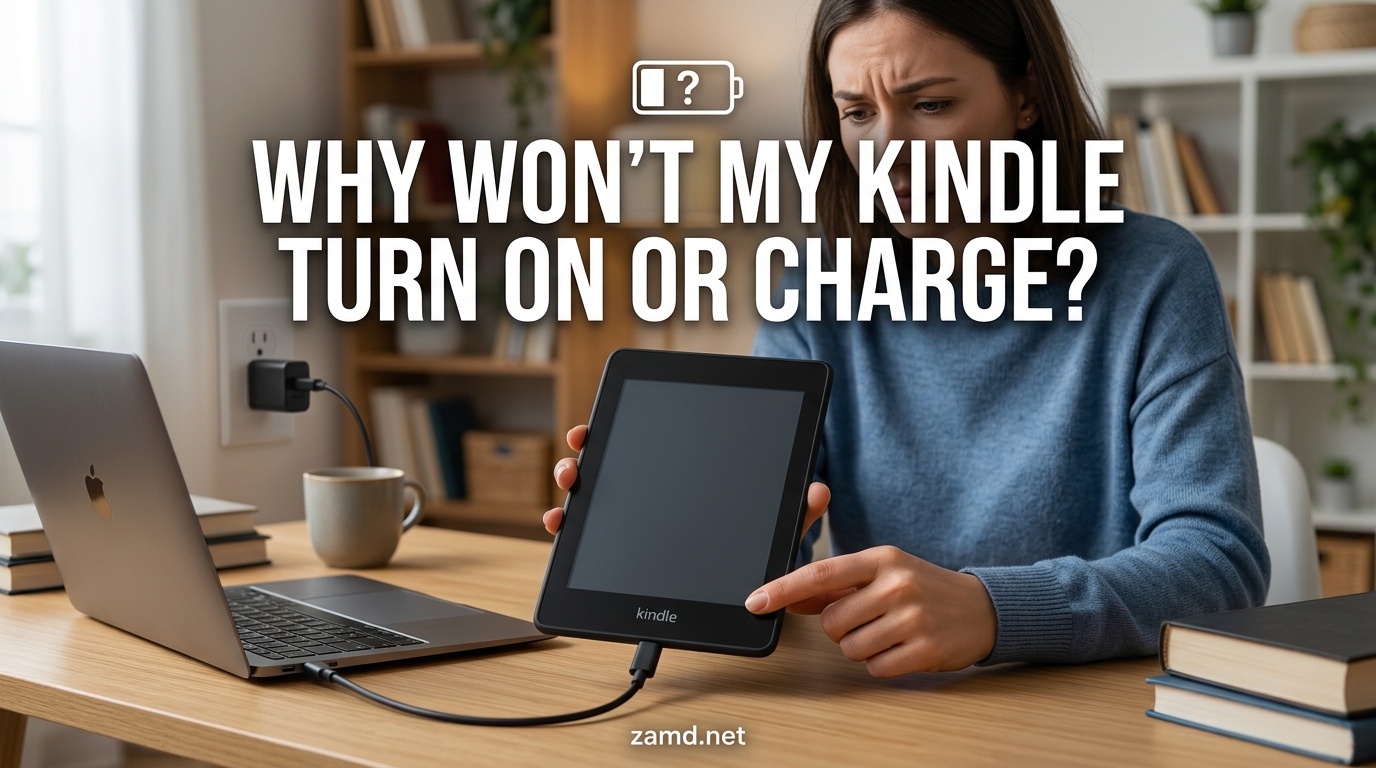
You pick up your Kindle after weeks (or months) of not using it, and nothing happens. The screen stays blank, the power light is off, and plugging it in seems to do nothing. If your Kindle won’t turn on or charge after the battery drained, you are not alone. This is one of the most common Kindle problems reported across forums and support communities.
The good news is that a completely dead Kindle is usually not broken. In most cases, the lithium-ion battery has entered a protective deep discharge state, and the device just needs the right recovery procedure to wake it back up. I have helped dozens of people revive seemingly dead Kindles using the same steps I am about to walk you through.
This guide covers every fix from a simple 40-second hard reset to advanced recovery methods like the hairdryer trick. I will also explain what the green and orange charging lights actually mean, how long you should wait before giving up, and the warning signs that your battery may be permanently damaged.
Table of Contents
Quick Fixes: Wake Your Dead Kindle in 60 Seconds
If your Kindle won’t turn on, try these steps in order before moving on to the detailed sections. Most people find their solution in the first two.
- Perform a hard reset: Press and hold the power button for a full 40 seconds (count slowly), then release and wait 5 seconds before pressing power once.
- Try a different charger and cable: Swap out both the USB cable and the wall adapter. Faulty cables are the second most common cause.
- Plug into a computer USB port: A PC connection delivers a lower, steadier charge that can sometimes recover a deeply discharged battery when a wall charger cannot.
- Leave it charging for at least 30 minutes: A fully drained Kindle needs time before the screen will respond. Check again after half an hour.
- For severe cases, charge for 24 to 48 hours: If the battery was deeply discharged, it can take up to two full days of continuous charging to recover.
Roughly 80 percent of dead Kindles come back to life with one of these five steps. If none of them work, keep reading for the detailed troubleshooting guide.
Why Your Kindle Won’t Turn On After Battery Drain
Understanding what is happening inside your device helps you pick the right fix. When a Kindle battery drains to zero and stays there, the lithium-ion cells inside drop below their minimum safe voltage threshold. This triggers what is called a deep discharge state.
Your Kindle has a built-in battery protection circuit designed to prevent permanent cell damage. When the voltage gets critically low, this circuit effectively shuts the battery down to protect it from over-discharge. The device will not boot or accept a normal charge until the protection circuit is reset.
This is why simply plugging in a wall charger sometimes does nothing. The battery’s protection IC needs a specific recovery sequence to acknowledge that it is safe to start charging again. A hard reset forces the power management system to restart and can reset this circuit.
Other causes include a frozen operating system (the battery is fine but the Kindle software crashed), a faulty charging cable or adapter, a damaged charging port, or in rare cases, a battery that has been permanently degraded from being left discharged too long.
How to Hard Reset a Kindle That Won’t Turn On
The hard reset is the single most effective fix for a Kindle that won’t turn on after battery drain. This procedure forces the power management system to fully restart, clearing any frozen software states and resetting the battery protection circuit. Here is exactly how to do it.
The 40-Second Hard Reset Procedure
This is the standard reset that works for all Kindle models, including the Paperwhite, Oasis, and basic models.
- Plug your Kindle into a wall charger first. Even a nearly dead battery can sometimes respond better when connected to power during the reset.
- Locate the power button. On most Kindles it is on the bottom edge next to the USB port. On the Oasis, it is on the back near the grip.
- Press and hold the power button. Do not just tap it. Hold it down continuously.
- Hold for a full 40 seconds. Count slowly to 40 or use a timer. Many people give up too early. The screen may flash during this time, which is normal.
- Release the button completely. Let go and do not touch anything for 5 seconds.
- Press the power button once briefly. Just a quick tap to turn it on normally.
- Wait up to 60 seconds for the screen to respond. A deeply discharged Kindle boots very slowly. The screen may show a tree logo or a loading bar before fully waking.
If the screen remains blank, try the reset a second time. Forum users report that some Kindles need two or three reset attempts before the protection circuit finally releases. I have personally seen a Kindle that took four tries before it responded.
Soft Reset (7-Second Hold)
If your Kindle is frozen but still has some charge, a shorter 7-second hold performs a soft restart instead of a full power cycle. Press and hold power for 7 seconds until the screen flashes, then release. This is enough to clear a crashed app or frozen screen without resetting the battery circuit.
Charging Troubleshooting: Cables, Adapters, and Time
If the hard reset did not work, the problem is likely on the charging side. A Kindle that appears dead may simply not be receiving power. Here is how to systematically check every link in the charging chain.
Check Your USB Cable
The USB cable is the most common culprit. Cables fail internally, and you cannot always see the damage from the outside. Try a different cable that you know works with another device. Use the original Amazon cable if you still have it, as some third-party cables do not carry enough current for charging a dead Kindle.
Look at the connector ends for lint, debris, or bent pins. Clean the port on your Kindle gently with a wooden toothpick or compressed air. A blocked port can prevent the charging contacts from making a solid connection.
Check Your Wall Adapter
The wall adapter matters more than people think. A Kindle needs at least 5 volts and 1 amp to charge properly. Old phone chargers or cheap adapters may deliver less than that, and a deeply discharged battery will refuse to charge from an underpowered source.
Use a dedicated 5W or higher USB wall adapter, ideally the one that came with your Kindle. If you have a tablet charger rated at 10W or 12W, that works even better and can speed up recovery of a dead battery.
Try a Computer USB Port
Forum users consistently report that connecting a dead Kindle to a computer USB port works when wall chargers fail. A PC port delivers a lower but more consistent current, around 500 milliamps. This gentler charge can sometimes coax a deeply discharged battery back to life when the higher current from a wall adapter triggers the protection circuit to reject it.
Plug your Kindle into a powered-on computer using a known-good cable. Leave it connected for at least 30 minutes before attempting a hard reset while still plugged in.
How Long Should You Charge a Dead Kindle?
This is the question I see asked most often in forums, and the answer surprises people. A normally drained Kindle needs about 2 to 4 hours to reach a full charge. But a deeply discharged Kindle can take significantly longer.
For a Kindle that has been dead for weeks or months, expect to charge it for a minimum of 4 to 6 hours before the screen responds. In severe cases, users report needing 24 to 48 hours of continuous charging before the battery recovers enough to boot the device.
Be patient and leave it plugged in overnight before assuming the worst. Check periodically for any sign of the charging light or screen activity.
Kindle Charging Light Indicator Meanings
The small LED next to the USB port is your best diagnostic tool. Understanding what each color and pattern means can tell you exactly what state your Kindle is in.
Amber or orange light (steady): Your Kindle is charging normally. The battery is accepting power. Leave it connected and wait for the screen to wake.
Amber or orange light (pulsing or flashing): Charging is in progress but the battery is at a very low level. This is common after a deep discharge. The light will become steady as the battery recovers.
Green light (steady): The battery is fully charged. If your Kindle still will not turn on despite a green light, perform a hard reset. The software may be frozen even though the battery is fine.
Green light flashing: On some models, this indicates the device is booting up or installing an update. Wait for it to stop flashing before touching any buttons.
No light at all: The Kindle is not receiving power. This points to a cable issue, adapter issue, wall outlet issue, or a damaged charging port. Try a different cable and adapter first, then inspect the port for damage or debris.
Light turns on briefly then goes off: The battery protection circuit may be cycling. This can happen with deeply discharged batteries. Leave it connected for an extended period, as the circuit may eventually allow a steady charge.
Advanced Recovery Methods
When the standard fixes do not work, these advanced methods have helped many Kindle owners recover their devices. I recommend trying them only after you have exhausted the basic troubleshooting steps.
The Hairdryer Trick
This method sounds strange, but it has worked for enough forum users that it is worth mentioning as a last resort. The idea is that gentle warmth can help the battery chemistry restart after deep discharge.
Hold a hairdryer on its lowest heat setting about 12 inches away from the back of the Kindle. Move it back and forth for 2 to 3 minutes. The device should feel warm but never hot to the touch. After warming, immediately plug it into a charger and perform a 40-second hard reset.
Warning: Never use high heat, never hold the dryer too close, and never leave the device unattended. Excessive heat can permanently damage the battery or cause a safety hazard. If the device gets hot to the touch, stop immediately.
Temperature Considerations
Speaking of temperature, extreme cold or heat can prevent a Kindle from charging properly. If your device has been sitting in a cold car or a hot garage, bring it to room temperature before attempting to charge it. Lithium-ion batteries should ideally be charged at temperatures between 32 and 95 degrees Fahrenheit.
A Kindle that is too cold may refuse to charge entirely. A Kindle that is too hot may charge slowly or shut down to protect itself. Let it sit indoors at a comfortable temperature for 30 minutes before trying again.
Multiple Reset Cycles
Some deeply discharged Kindles need several hard reset cycles spaced a few minutes apart. The battery protection circuit may partially reset on each attempt, allowing a small amount of charge to pass through each time. Try performing a 40-second reset, waiting 10 minutes, then repeating. Do this up to five times before moving on.
Signs Your Kindle Battery Is Permanently Damaged
Not every dead Kindle can be revived. If you have tried every method in this guide and left the device charging for 48 hours with no response, the battery may be permanently degraded. Here are the warning signs.
The Kindle charges but drains within hours instead of lasting weeks. This indicates the battery cells have lost significant capacity and can no longer hold a proper charge.
The device gets unusually warm during charging even after it has been connected for a long time. Excessive heat during charging can signal cell degradation or a failing protection circuit.
The Kindle boots but shuts down randomly at 20, 30, or 40 percent battery. This means the battery’s fuel gauge is miscalibrated due to cell wear, and the reported percentage is inaccurate.
You have tried multiple known-good cables, adapters, and USB ports, performed multiple hard resets, and charged for 48 hours with absolutely no response. At this point, the battery or charging circuit has likely failed permanently.
If any of these signs apply, your options are professional battery replacement, contacting Amazon support, or replacing the device. Amazon sometimes offers a discount on a replacement even if your Kindle is out of warranty, so it is always worth reaching out.
How to Prevent Future Battery Drain
Once your Kindle is alive again, a few simple habits will keep it from dying again.
Charge your Kindle to at least 50 percent before storing it for any extended period. A lithium-ion battery slowly self-discharges over time, and starting at half charge gives it weeks or months of buffer before hitting the critical threshold.
If you are not going to use your Kindle for a month or more, check on it every few weeks and top it off. A quick 15-minute charge every two weeks is enough to keep the battery healthy during storage.
Keep your Kindle in airplane mode when not actively downloading books. Wi-Fi and cellular connections drain the battery even when the screen is off. Airplane mode can extend standby time from days to weeks.
Why Won’t My Kindle Turn On or Charge After the Battery Drained: FAQ
How do I reset a Kindle that won’t turn on?
Press and hold the power button for a full 40 seconds, then release and wait 5 seconds before pressing the power button once briefly. This forces the power management system to restart and can reset the battery protection circuit. Some Kindles need two or three reset attempts before responding.
Why is my Kindle not charging or turning on?
The most common causes are a deeply discharged battery in protection mode, a faulty USB cable or wall adapter, a damaged charging port, a frozen operating system, or in rare cases permanent battery damage. Start by trying a different cable and adapter, then perform a 40-second hard reset.
How long should I charge a dead Kindle before it turns on?
A normally drained Kindle needs about 30 minutes of charging before the screen responds. A deeply discharged Kindle that has been dead for weeks or months may need 4 to 6 hours, and in severe cases up to 24 to 48 hours of continuous charging before the battery recovers enough to boot.
What does the orange light on my Kindle mean?
A steady amber or orange light means the Kindle is charging normally. A pulsing orange light means the battery is at a very low level and still charging. If the orange light stays on for many hours without the device turning on, try a hard reset while the Kindle is still plugged in.
What is the average lifespan of a Kindle?
A Kindle typically lasts 4 to 6 years with regular use. The battery is usually the first component to degrade, losing noticeable capacity after 2 to 3 years of daily use. With proper charging habits and avoiding deep discharge, you can extend the usable lifespan significantly.
Can a completely dead Kindle battery be fixed?
In most cases yes. A hard reset, extended charging period, and PC USB connection can recover most deeply discharged batteries. If none of these work after 48 hours of charging, the battery may be permanently damaged and require professional replacement or device replacement.
Final Thoughts
A Kindle that won’t turn on after battery drain is almost always recoverable. Start with the 40-second hard reset, try a different cable and adapter, plug into a computer if the wall charger fails, and give it plenty of time to charge. Patience is the real secret here. Many dead Kindles just need a long, uninterrupted charge to come back to life.
If you have tried everything in this guide for a full 48 hours with no response, reach out to Amazon support. They may offer a replacement discount even outside your warranty period. And going forward, charge your Kindle to 50 percent and keep it in airplane mode before storing it to prevent this problem from happening again.