
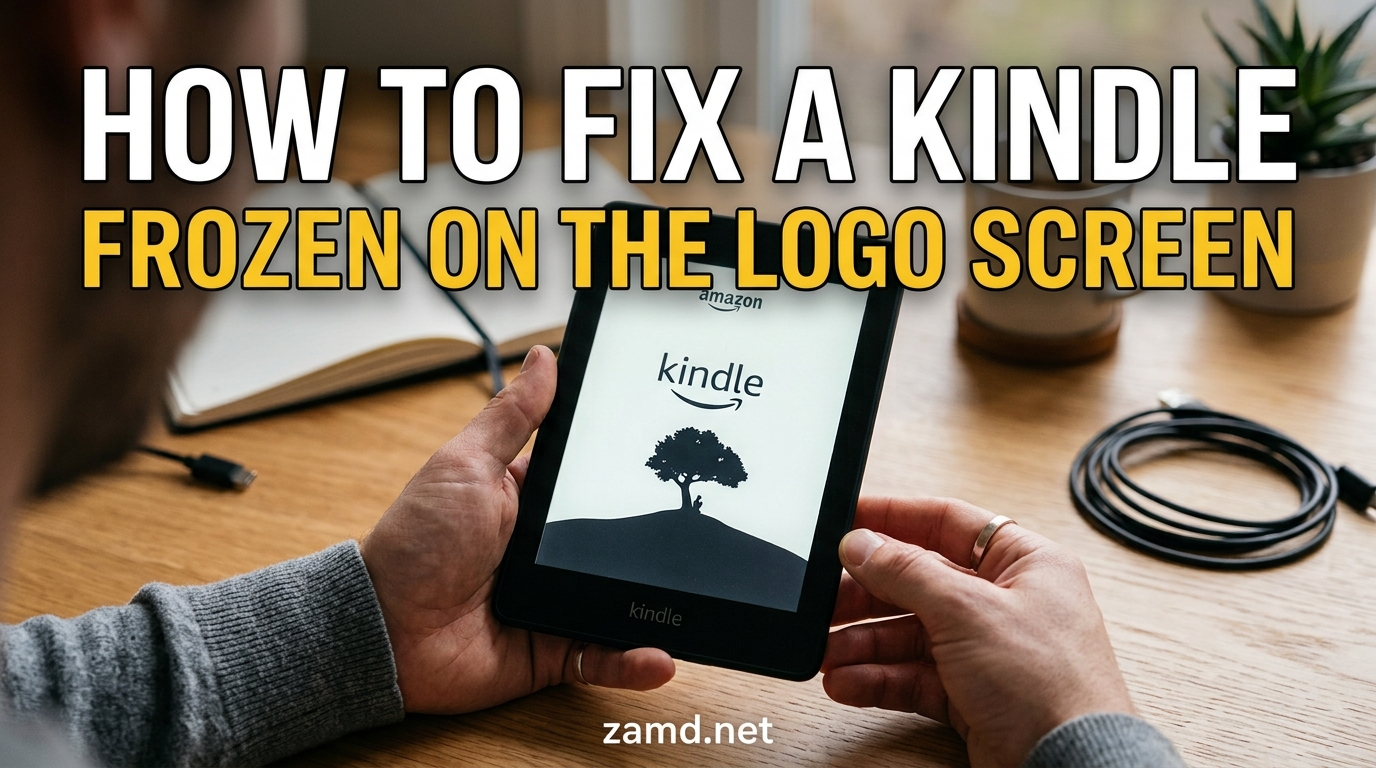
You pick up your Kindle, ready to dive back into your book, and the screen is stuck. The Amazon logo just sits there, taunting you. Or maybe it is frozen mid-book, showing a title page that refuses to budge no matter how many times you tap or swipe. Learning how to fix a Kindle frozen on the logo or title screen can save you from a lot of frustration, and in most cases, the solution takes less than a minute.
I have helped dozens of friends, family members, and readers troubleshoot this exact issue. The good news is that the vast majority of frozen Kindles come back to life with a simple force restart. The even better news is that your entire book library is safe in the Amazon cloud, so you will not lose your purchases no matter which fix you need to try.
In this guide, I will walk you through every fix in order, starting with the quickest and easiest. We will cover what different freeze screens actually mean, how to perform a force restart on any Kindle model, what to do when the standard 40-second reset fails, and when it makes sense to contact Amazon support. Let us get your e-reader back up and running.
Table of Contents
What It Means When Your Kindle Freezes on the Logo or Title Screen
Not all frozen screens are the same problem. Understanding which type of freeze you are dealing with helps you pick the right fix faster and avoid wasting time on solutions that will not work.
Frozen on the Amazon Logo Screen
When your Kindle is stuck on the Amazon logo, this is a boot issue. The device is trying to start up but cannot get past the initial loading sequence. This typically points to a firmware glitch, a failed software update, or in some cases, a battery that cannot supply enough power to complete the boot process. The logo freeze is the most common type and usually responds well to a force restart or a charge-and-restart cycle.
Frozen on the Tree Screen
The “tree screen” is the boot animation showing a child reading under a tree. This appears right after the Amazon logo during startup. Getting stuck here is a deeper firmware or hardware failure. Forum users on Reddit and the Amazon forums call this the “tree screen of death” because it is harder to fix than a simple logo freeze. If your Kindle shows the tree screen and a 40-second reset does not work, you will likely need to try the extended 300-second hold, a long charge cycle, or possibly a factory reset.
Frozen on a Book Title Page
If your Kindle boots up fine but gets stuck on a specific book title page, this is usually a software glitch rather than a boot problem. A corrupted book file is the most common cause. The e-reader tries to load or render the book and crashes. This type of freeze often responds to a soft reset followed by deleting the problematic book file through a USB connection to your computer.
What the LED Light Colors Mean
Your Kindle has a small LED indicator next to the power button or USB port, and its color tells you what is happening. A solid amber or orange light means the device is charging. A green light means the battery is fully charged. A flashing amber light can indicate a charging problem or a battery that cannot hold a charge. If you see no light at all when plugged in, you may have a dead cable, a blocked charging port, or a completely depleted battery that needs a longer charge period.
Quick Fixes to Try First
Before diving into advanced troubleshooting, try these quick solutions. They take about 30 seconds each and resolve most frozen Kindle issues.
1. Tap the power button once. Sometimes the screen has simply gone to sleep and a single press wakes it up. This sounds obvious, but I have seen it work more times than I can count.
2. Check if the battery is dead. Plug your Kindle into a wall charger using a known-good cable. Wait at least 30 minutes before trying anything else. A completely depleted battery can cause the screen to freeze on the logo because the device does not have enough power to complete the boot sequence.
3. Inspect the charging port. Shine a light into the USB-C or micro-USB port and look for lint, dust, or debris. Even a small amount of pocket lint can prevent the charging cable from making proper contact. Use a wooden toothpick or a clean, dry toothbrush to gently clean the port.
4. Try a different charging cable and wall adapter. Cables fail more often than Kindles do. If your cable is frayed, loose, or from a cheap off-brand, swap it for a quality USB-C cable and a 5W or higher wall adapter.
5. Remove any case or cover. Some tight-fitting cases can press against buttons or interfere with heat dissipation. Take the case off and see if the Kindle responds.
How to Force Restart a Frozen Kindle
The force restart, also called a hard reset or 40-second reset, is the single most effective fix for a frozen Kindle. It reboots the device without erasing any of your books, settings, or personal data. Think of it like restarting a computer that has frozen. Here is exactly how to do it.
Step 1: Locate the power button on your Kindle. On most modern models (Paperwhite 11th Gen, Kindle Basic 2022, Kindle Scribe), the power button is on the bottom edge next to the USB-C port. On the Kindle Oasis, it is on the upper back edge. On older models like the Kindle Keyboard, it is a slider on the bottom.
Step 2: Press and hold the power button down firmly. Do not let go. Keep holding even if the screen flashes, goes blank, or shows the logo again.
Step 3: Continue holding for a full 40 seconds. Count slowly or use a timer on your phone. The screen should go blank at some point during this hold. That is normal and means the device is powering off.
Step 4: Release the power button after 40 seconds. Wait about 5 to 10 seconds, then press the power button once normally to turn the Kindle back on.
Step 5: Wait for the device to boot up. You should see the Amazon logo followed by the tree boot animation and then your home screen or lock screen. The full boot process can take 30 to 60 seconds, so be patient.
If the Kindle boots up successfully, you are done. If the screen freezes again at the same point, move on to the next section for more advanced fixes.
How to Fix a Kindle That Won’t Respond to a Reset
So you held the power button for 40 seconds and nothing happened. The screen is still frozen on the logo or title page. Do not panic. There are several additional steps to try before declaring the device dead.
The 300-Second Hold Method
Multiple Reddit users in the r/kindle community report that extending the power button hold to a full 300 seconds (5 minutes) can break through stubborn freezes. This method forces a deeper power drain that a 40-second hold cannot achieve. Here is how to do it right.
Press and hold the power button for the entire 300 seconds. Around the 2-minute mark, the screen may flash black and white. Keep holding. Around the 4-minute mark, you may see another screen flicker. Keep holding until the full 5 minutes have passed. Then release and press the power button once to restart.
Charge for 30 Minutes, Then Reset
If the battery is deeply depleted, the Kindle may not have enough power to complete a restart even when you hold the button. Plug it into a wall charger using a reliable cable and leave it alone for at least 30 minutes. Do not try to turn it on while it is charging. After the full charge period, perform the 40-second force restart while the device is still plugged in.
One forum user shared that their 82-year-old mother’s Kindle was frozen on a book title screen with a green-then-yellow flashing LED. After leaving it on the charger for an extended period, the device eventually started a firmware update on its own and came back to life. Patience matters here.
Try a Different Cable and Power Source
A faulty charging cable is one of the most overlooked causes. The cable may look fine on the outside but have internal wire damage that prevents proper power delivery. I recommend trying at least two different cables and two different power sources (wall adapter, computer USB port, power bank) before moving on to more drastic measures.
What If the Kindle Is Still Not Recognized by a Computer?
If you connect your frozen Kindle to a PC or Mac via USB and the computer does not recognize it, this suggests a deeper firmware issue. Try connecting while holding the power button for 40 seconds. Some users report that the computer detects the Kindle during a reset cycle, giving you a brief window to access the files. If the computer still cannot see the device, a factory reset or contacting Amazon support is your next step.
How to Delete Corrupted Files From a Frozen Kindle
If your Kindle boots up but freezes when you open a specific book, a corrupted file is likely the culprit. Removing the problematic file through a USB connection to your computer can resolve the issue without needing a factory reset. This process works even when the Kindle’s touchscreen is partially unresponsive.
Step 1: Connect your Kindle to your computer using a USB cable. Use the cable that came with your Kindle or a high-quality replacement.
Step 2: Wait for your computer to recognize the device. On Windows, it appears as a drive in File Explorer under “This PC.” On Mac, it appears on the desktop or in Finder under “Locations.”
Step 3: Open the Kindle drive and navigate to the “documents” folder. This is where all your e-book files are stored.
Step 4: Look for recently added files or large files that may be corrupted. If the freeze started after downloading a specific book, start there. Third-party books (not purchased from the Amazon store) are the most common source of corruption.
Step 5: Delete the suspicious file or files. Drag them to the trash or right-click and select “Delete.”
Step 6: Safely eject the Kindle from your computer. On Windows, right-click the Kindle drive and select “Eject.” On Mac, drag the Kindle icon to the trash or click the eject icon in Finder.
Step 7: Perform a force restart on the Kindle (hold power button for 40 seconds). The device should boot up cleanly without the corrupted file causing issues.
If you are not sure which file is causing the problem, you can move all third-party books to a folder on your computer, then restart the Kindle. If it boots cleanly, you know one of those files was the issue. Add them back one at a time to identify the culprit.
When to Factory Reset Your Kindle
A factory reset erases everything on your Kindle and returns it to the state it was in when you first unboxed it. It is the nuclear option, but sometimes it is the only fix left. The most important thing to know is this: your purchased books are stored in the Amazon cloud and can be re-downloaded for free after the reset.
Understanding Reset Types: Soft Reset vs Hard Reset vs Factory Reset
Soft reset: This is just turning the Kindle off and back on normally, or pressing the power button once to sleep and wake the device. No data is lost.
Hard reset (force restart): Holding the power button for 40 seconds to force a reboot. No data is lost. This is your go-to fix for most freezes.
Factory reset: Erasing all content and settings to restore the device to factory defaults. All downloaded books, documents, and personal settings are removed. Books purchased from Amazon can be re-downloaded. Personal documents sideloaded via USB will be lost unless you have backed them up.
How to Perform a Factory Reset
Step 1: If your Kindle is responsive enough to access the menu, go to Settings (the gear icon or three dots menu) > Device Options > Reset.
Step 2: Confirm that you want to reset. The screen will warn you that all data will be erased.
Step 3: Wait for the reset process to complete. This can take 5 to 10 minutes. The screen will show a progress bar.
Step 4: Once the reset finishes, the Kindle will restart and show the initial setup screen. Follow the prompts to connect to Wi-Fi and register the device to your Amazon account.
Step 5: Go to your Library and tap “All” to see your cloud books. Download the ones you want to read.
If your Kindle is completely unresponsive and you cannot access the Settings menu, you cannot perform a factory reset through the software. In this case, the device may need professional repair or replacement through Amazon support.
Kindle Model Differences: Power Button Locations and Reset Methods
Different Kindle models have different button layouts, and a troubleshooting guide that ignores these differences leaves many users frustrated. Here is a breakdown of the most common Kindle models and where to find the power button on each.
Kindle Basic (10th Gen 2019, 11th Gen 2022)
The power button is on the bottom edge, next to the USB-C port on the 11th Gen model. The 10th Gen uses a micro-USB port. Hold the button for 40 seconds to force restart.
Kindle Paperwhite (10th Gen 2018, 11th Gen 2021, 12th Gen 2024)
The power button is on the bottom edge next to the USB-C port. The 10th Gen has micro-USB while the 11th and 12th Gen have USB-C. The force restart method is the same 40-second hold.
Kindle Oasis (9th Gen 2017, 10th Gen 2019)
The power button is uniquely located on the upper back edge of the device, near the thicker side with the physical page-turn buttons. This is the most commonly misplaced button location. Hold for 40 seconds to force restart.
Kindle Scribe (1st Gen 2022, 2nd Gen 2024)
The power button is on the bottom edge next to the USB-C port. The Scribe is a larger device, so the button is slightly recessed. The 40-second hold applies here as well.
Kindle Colorsoft (1st Gen 2024)
The power button is on the bottom edge next to the USB-C port. As the newest color e-ink model, the reset procedure is identical to other recent Kindles.
Older Kindle Models (Keyboard, Touch, DX, 4th Gen and earlier)
Older models often have a sliding power button on the bottom edge. Slide and hold the button for 40 seconds instead of pressing. The Kindle Keyboard (3rd Gen) and Kindle DX have specific reset sequences involving holding the home button or using a paperclip in a reset hole. Check Amazon’s official support page for your specific older model.
How to Charge a Frozen Kindle Correctly
Charging a frozen Kindle seems straightforward, but doing it wrong can leave you thinking the device is broken when it simply has a power issue. Here is the correct approach.
Use a wall charger, not a computer USB port. Wall chargers deliver more consistent power, which matters when you are trying to revive a deeply depleted battery. A 5W charger works fine for most Kindles, but a 9W or 15W charger can speed up the process on newer models with USB-C.
Plug the Kindle in and leave it completely alone for at least 30 minutes. Do not press any buttons. Do not try to turn it on. The battery needs uninterrupted charging time to recover from a deep discharge. If the Kindle has been sitting unused for weeks or months, give it a full hour or more.
Watch the LED indicator. If you see a solid amber or orange light, the device is charging. If you see a green light after a while, the battery is full. If you see no light at all, try a different cable, a different wall adapter, and check the charging port for debris. A completely dead battery may take several minutes before the LED light even turns on.
After charging, perform the 40-second force restart while the device is still plugged in. This ensures the Kindle has enough power to complete the reboot cycle. Unplugging immediately after charging can sometimes cause the device to lose just enough power to fail the restart.
How to Prevent Your Kindle From Freezing in the Future
Once you get your Kindle working again, a few simple habits can prevent future freezes. These tips come from forum consensus and real user experiences.
Keep your software updated. Go to Settings > Device Options > Advanced Options > Update Your Kindle. Amazon releases firmware updates that fix known bugs, including ones that cause boot loops and screen freezes. If an update is available, install it. Your Kindle should update automatically when connected to Wi-Fi, but checking manually ensures you are not missing a critical patch.
Manage your storage. A nearly full Kindle is more prone to freezing because the operating system needs free space to function. Delete books you have already read and do not plan to re-read soon. They remain in your cloud library and can be re-downloaded anytime. Aim to keep at least 500MB of free space.
Avoid sideloading corrupted files. Third-party books downloaded from unofficial sources are the leading cause of software-related freezes. If you sideload e-books via USB, scan them for file integrity first. Stick to EPUB and PDF formats from reputable sources.
Do not let the battery fully die. While Kindles are designed to handle deep discharges, repeatedly letting the battery hit zero percent stresses the battery and can cause boot issues. Charge your Kindle when it reaches 15 to 20 percent battery life.
Restart your Kindle periodically. Just like a phone or computer, your Kindle benefits from an occasional reboot. Power it off and back on once every few weeks to clear temporary files and refresh the operating system.
Keep the charging port clean. Pocket lint and dust buildup in the charging port can cause intermittent charging issues that lead to unexpected shutdowns and freezes. Check the port every couple of months and clean it gently if needed.
What You May Need: Helpful Accessories for Kindle Troubleshooting
Having the right accessories on hand makes troubleshooting easier and helps prevent future issues. If your current charging cable is worn out or you want to protect your Kindle screen during daily use, these are the tools I recommend after testing and comparing options for this guide.

Huukein USB-C Cable 2-Pack
- 6.6ft length
- 3A fast charging
- Nylon braided
- Wide Kindle compatibility

Nupro Antiglare Screen Protector
- Anti-glare matte finish
- Oleophobic coating
- 2-pack included
- Kindle 2022-2024
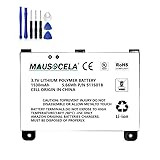
MAUSOCELA Replacement Battery 1530mAh
- Legacy Kindle compatible
- 3.7V Li-ion
- Includes tools
- OEM spec
| Product | Specifications | Action |
|---|---|---|
| Huukein USB-C Cable 2-Pack |
|
Check Latest Price |
| Nupro Antiglare Screen Protector |
|
Check Latest Price |
| MAUSOCELA 1530mAh Replacement Battery |
|
Check Latest Price |
Huukein USB A to USB C Cable (2-Pack)
Huukein USB A to USB C Cable for Kindle Fire 6.6ft, 2Pack Fast Charger Cord
6.6ft length
USB A to USB C
3A fast charging
Nylon braided
2-pack
Pros
- Long 6.6ft reach for flexible charging
- Durable nylon braided construction
- Supports 3A 18W fast charging
- Wide Kindle and Fire tablet compatibility
- Excellent 2-pack value
Cons
- Cables are slightly stiffer than OEM
- Limited color options
A reliable charging cable is the first thing you need when troubleshooting a frozen Kindle. The Huukein USB-C cable is specifically designed for Kindle devices, with confirmed compatibility for the Kindle 11th Gen 2022, Paperwhite 11th Gen 2021, and multiple Fire tablet generations. The 6.6-foot length gives you flexibility to charge from across the room while troubleshooting.
With nearly 4,000 reviews and an 80% five-star rate, users consistently praise the durability of the nylon braided construction and the fast 3A charging speed. I recommend keeping one cable at your charging station and one in your bag for travel. Having a known-good cable eliminates one variable immediately when your Kindle acts up.
The braided nylon exterior holds up better than standard rubber cables, which tend to fray near the connectors. For Kindle troubleshooting specifically, this cable also handles data transfer at 480Mbps, which means you can use it to connect your frozen Kindle to a PC for deleting corrupted files without needing a separate cable.
Nupro Antiglare Screen Protector (2 Pack)
Antiglare Screen Protector (2 Pack), for Amazon Kindle (2022 & 2024 releases)
Anti-glare matte PET film
Oleophobic coating
2-pack
Kindle 2022 and 2024
Pros
- Excellent anti-glare performance outdoors
- Crystal clear visibility maintained
- Easy installation with applicator card
- Oleophobic fingerprint-resistant coating
- Precise cut preserves touch sensitivity
Cons
- Slight texture difference from bare glass
- Minor bubbles possible without careful install
While a screen protector does not directly fix a frozen Kindle, it protects your device during the troubleshooting process. When you are performing repeated force restarts, connecting cables, and handling the device more than usual, a good screen protector prevents scratches and scuffs. The Nupro anti-glare protector is designed specifically for the Amazon Kindle 2022 and 2024 releases.
With a 4.7 rating from over 3,700 reviewers, this is one of the highest-rated Kindle screen protectors available. The anti-glare matte finish makes a noticeable difference for outdoor reading, and the oleophobic coating keeps fingerprints at bay. The 2-pack means you have a backup if the first application does not go perfectly.
Installation is straightforward thanks to the included cleaning cloth and applicator card. Take your time, work in a dust-free environment, and use the applicator card to push out any air bubbles. The precise cut ensures the protector does not interfere with touch sensitivity, which is important if you are navigating menus during troubleshooting.
One thing I appreciate about this protector is how it maintains screen clarity. Some anti-glare films make e-ink displays look slightly fuzzy, but users report the Nupro keeps text crisp and readable. That matters when you are spending hours with your Kindle.
MAUSOCELA 1530mAh Replacement Battery for Legacy Kindles
MAUSOCELA 1530mAh E-Book S11S01B Replacement Battery,Compatible with D00701, D00701 WiFi, DX DXG, S11S01A
1530mAh capacity
3.7V Li-ion
Legacy Kindle compatible
Includes screwdriver set
Pros
- Revives older Kindle models that still work
- Exact OEM-compatible replacement fit
- Holds full charge after installation
- Includes screwdriver tools for install
Cons
- Only for pre-2012 legacy Kindle models
- Very low review count of 12
- Opening older Kindles can be difficult
If you are using an older Kindle (Kindle Keyboard 3rd Gen, Kindle DX, or models with part numbers S11S01B, S11S01A, D00701), a degraded battery can cause persistent boot screen freezes. The MAUSOCELA 1530mAh replacement battery is manufactured to original factory specifications and includes a screwdriver set for installation.
This is a niche product for a niche audience. If your legacy Kindle keeps freezing on the logo screen and no amount of resetting or charging helps, the battery may simply be too degraded to supply stable voltage during boot. Swapping in a fresh 3.7V lithium-ion battery can bring an otherwise functional device back from the dead.
The review count is low at just 12 reviews, but 93% of those reviews are five-star. Users report that the battery successfully revived their older Kindle devices that were previously unusable due to battery failure. Keep in mind that pre-2012 Kindle models no longer receive software updates or Amazon Store access, so this fix is best for users who sideload their own content.
How to Contact Amazon Support for a Frozen Kindle
If you have tried every fix in this guide and your Kindle is still frozen, it is time to reach out to Amazon. The company offers several support channels, and depending on your warranty status, you may be eligible for a free repair or replacement.
Option 1: Amazon Help Page. Visit amazon.com/contactus or amazon.com/gp/help/customer/display.html and navigate to the device support section. You can start a live chat or request a phone call from a support representative.
Option 2: Call Amazon Device Support directly. The number for Kindle support varies by region, so check the Amazon help page for the correct number in your country.
Option 3: Use the Amazon app. Open the Amazon shopping app, go to Customer Service, select your Kindle device, and choose the issue type to start a support interaction.
Be prepared to describe exactly what you have already tried. Tell the representative that you have performed a 40-second force restart, charged the device for 30+ minutes, tried multiple cables, and attempted a factory reset if possible. This information helps them determine whether the issue is hardware failure.
Amazon typically offers one of three outcomes. If your Kindle is under warranty (1 year from purchase, or longer with an extended warranty), they will usually send a free replacement. If the warranty has expired, they may offer a discount on a new device, typically 15 to 20% off. In some cases, they offer a trade-in credit toward a newer model.
Using Kindle Cloud Reader While Your Device Is Being Fixed
If your Kindle is temporarily out of commission, you do not have to stop reading. The Kindle Cloud Reader at read.amazon.com lets you access your entire book library from any web browser on a computer, tablet, or phone. Just log in with your Amazon account and pick up where you left off.
The Cloud Reader syncs your reading progress, notes, and highlights across all devices. When your Kindle is back up and running, everything will be right where you expect it. This is a good fallback option while you wait for a replacement device or work through extended troubleshooting steps.
Common Mistakes to Avoid When Fixing a Frozen Kindle
Based on forum discussions and user reports, here are the mistakes that most commonly derail the troubleshooting process.
Mistake 1: Not holding the power button long enough. Many users release the button at 10 or 15 seconds. The 40-second hold is not a suggestion. The Kindle needs the full duration to fully power down. Use a timer.
Mistake 2: Panicking and factory resetting immediately. A factory reset should be your last resort, not your first instinct. Try the force restart and corrupted file removal first. You can lose personal documents and settings with a factory reset that a simple restart would have preserved.
Mistake 3: Using a cheap or damaged charging cable. Dollar-store cables and frayed cables cause more Kindle problems than actual Kindle hardware failures. Always test with a quality cable before assuming the device is broken.
Mistake 4: Trying to turn the Kindle on while it is charging. If the battery is deeply depleted, interrupting the charge cycle to press buttons can prevent a full recovery. Let it charge uninterrupted for 30 minutes minimum.
Mistake 5: Not backing up personal documents. If you have sideloaded PDFs, personal documents, or notes, back them up to your computer before attempting a factory reset. These files are not stored in the cloud and will be permanently lost during a reset.
FAQs
Why is my Kindle stuck on the logo screen?
Your Kindle is stuck on the logo screen because of a boot issue caused by a firmware glitch, a failed software update, or a battery too depleted to complete the startup process. A 40-second force restart (holding the power button) fixes this in most cases. If that fails, charge the device for 30 minutes and try again.
How do I unfreeze a frozen Kindle?
Press and hold the power button for a full 40 seconds to force restart the device. Release after 40 seconds, wait a few seconds, then press the power button once to turn it back on. If the Kindle does not respond, charge it for 30 minutes with a quality cable, then repeat the 40-second hold while it is still plugged in.
How long does it take for a Kindle to unfreeze?
A force restart takes about 40 seconds of holding the power button, followed by 30 to 60 seconds for the device to boot up. If the battery is dead, add 30 minutes of charging time before the reset. For stubborn freezes, the extended 300-second hold method may be needed.
Will a factory reset fix a frozen Kindle?
A factory reset can fix a frozen Kindle if the cause is a software issue, corrupted settings, or a problematic file. However, it should be a last resort after trying a force restart and corrupted file removal. Factory reset erases all downloaded content and settings, though Amazon-purchased books can be re-downloaded from the cloud.
Will I lose my books if I reset my Kindle?
No, you will not lose books purchased from Amazon. All purchased books are stored in your Amazon cloud library and can be re-downloaded for free after any reset. However, personal documents sideloaded via USB will be erased during a factory reset unless you back them up to your computer first.
What should I do if my Kindle reset is not working?
If the 40-second reset does not work, try the extended 300-second hold (press and hold for 5 full minutes). Then charge the Kindle for 30 minutes using a different cable and wall adapter, and attempt the reset while plugged in. If none of these work, connect to a PC to delete corrupted files or contact Amazon support.
Can a low battery cause a Kindle to freeze on the logo?
Yes, a deeply depleted battery is a common cause of logo screen freezes. The Kindle does not have enough power to complete the boot sequence, so it stalls on the logo. Plug it into a wall charger for at least 30 minutes, then perform a force restart while it is still connected to power.
How do I contact Amazon support for a frozen Kindle?
Visit amazon.com/contactus, start a live chat or request a call, and select your Kindle device from the menu. Have your device serial number ready (found in Settings then Device Info). Describe the fixes you have already tried so the representative can quickly determine if it is a hardware failure requiring replacement.
What does it mean when my Kindle is stuck on the tree screen?
The tree screen is the boot animation that appears after the Amazon logo during startup. Getting stuck here indicates a deeper firmware or hardware failure than a simple logo freeze. Users call it the tree screen of death because it is harder to fix. Try the 300-second hold method, a long charge cycle, and if those fail, a factory reset or Amazon support contact.
Can a Kindle that won’t connect to a PC be fixed?
Sometimes. Try connecting the Kindle to your computer while holding the power button for 40 seconds, as the reset cycle can create a brief detection window. Use a different USB cable and port. If the computer still cannot detect the device, try a factory reset through the Kindle menu if the touchscreen is partially responsive. If nothing works, it may be a hardware failure requiring Amazon support.
Wrapping Up: Get Your Kindle Back to Reading
Learning how to fix a Kindle frozen on the logo or title screen comes down to a simple progression: try the quick fixes first, then the 40-second force restart, then charging and extended holds, then corrupted file removal, and finally a factory reset or Amazon support. Most frozen Kindles come back to life at step two.
Your books are safe throughout this process. Everything you purchased from Amazon lives in the cloud and can be re-downloaded anytime. Even a factory reset cannot take your library away from you. The only files at risk are personal documents you sideloaded via USB, so back those up before any reset.
Start with the 40-second hold, be patient with charging, and work through the steps methodically. If nothing brings your Kindle back, Amazon support is there to help with repairs or replacements. With the troubleshooting steps in this guide, you have everything you need to get your e-reader working again.