
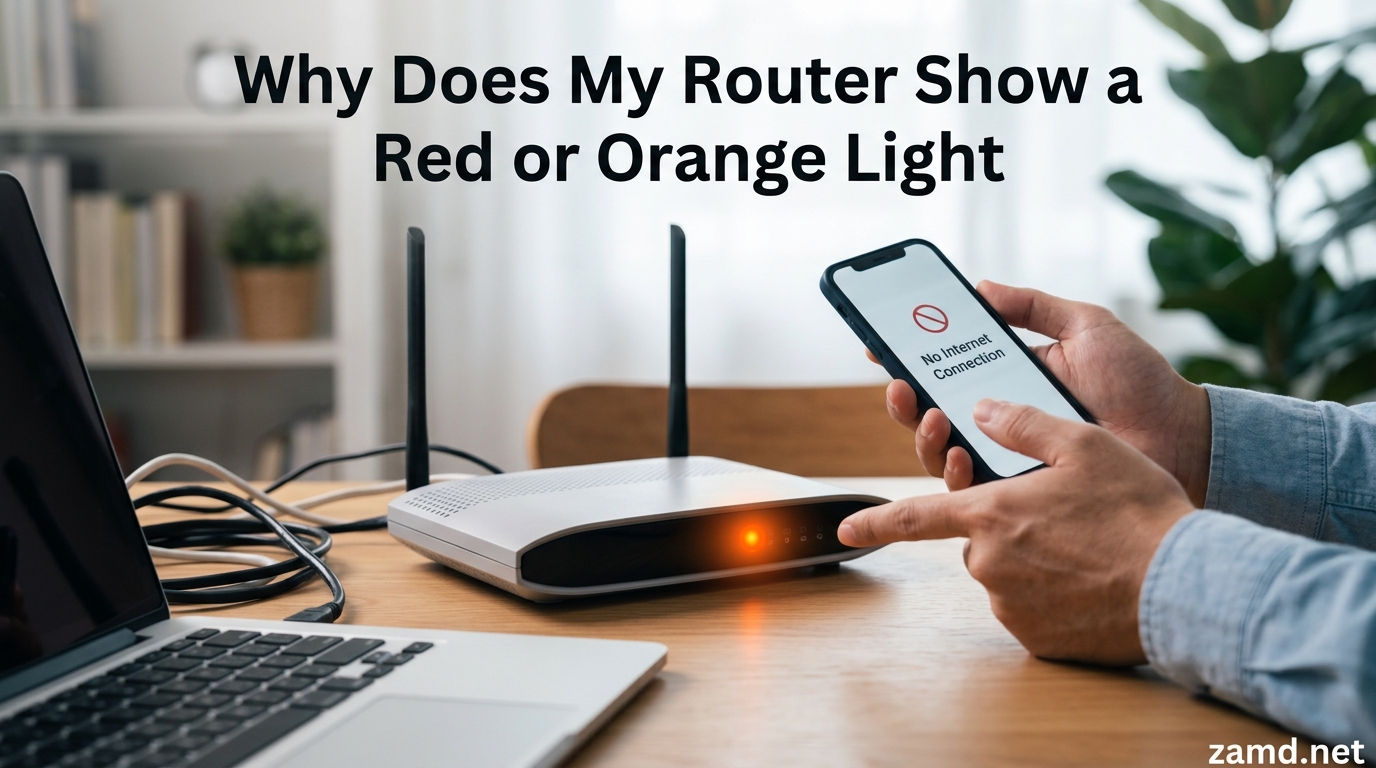
Seeing a red or orange light on your router is one of the most frustrating things that can happen when you just want to get online. You pick up your phone, notice the WiFi is connected, but nothing loads. Then you glance at the router and see that warning glow staring back at you.
If you are dealing with a router red light orange light fix situation right now, you are in the right place. I have spent years troubleshooting home networks, and I can tell you that most of these issues are fixable without a service call. The key is knowing what the light color actually means and following the right steps in the right order.
In this guide, I will walk you through exactly what red and orange router lights mean, why they happen, and how to fix them step by step. I will also cover brand-specific variations for Spectrum, TP-Link, Netgear, and others so you can find the exact solution for your device.
Table of Contents
What Does a Red or Orange Router Light Mean?
A red or orange light on your router means your device has detected an error affecting your internet connection or hardware functionality. The light is a diagnostic indicator built into every router to help you identify what went wrong.
Router manufacturers use LED color codes to communicate status. Green or white lights typically mean everything is working normally. Red and orange lights serve as warning signals that something needs your attention before your internet will work again.
The specific meaning depends on which light is lit. A red power light usually points to a hardware or power supply issue. A red or orange internet light (sometimes labeled WAN, online, or LOS) means your router cannot establish a connection to your internet service provider. The LOS light, which stands for Loss of Signal, specifically indicates that your router is not receiving a signal from the fiber or cable line.
Understanding these distinctions matters because each light points to a different part of your setup. Fixing a power issue requires different steps than fixing a connection issue.
Red vs Orange Light: What is the Difference?
Many people assume red and orange lights mean the same thing, but they actually indicate different severity levels. Knowing the difference helps you prioritize the right fix.
A solid red light is the more serious of the two. It typically signals a complete connection failure, hardware malfunction, or a critical error. When you see solid red, your router is telling you something fundamental has broken down. This could be a failed authentication with your ISP, a damaged cable, or even a failing power adapter.
A solid orange light usually means your router is trying to establish a connection but has not succeeded yet. It can also mean the connection is partially working but not fully stable. In some cases, an orange light appears during startup and resolves itself within a few minutes.
A blinking orange light often indicates that data is actively moving through the router but the internet connection is not fully established. Some routers blink orange during firmware updates, which is normal behavior that resolves on its own.
A blinking red light is different from solid red. It usually means the router is continuously attempting to reconnect but failing each time. This commonly happens during ISP outages or when your WAN configuration is incorrect.
Here is a quick reference to help you identify what your router is telling you:
- Solid red: Hardware failure, power issue, or total connection loss
- Blinking red: Repeated connection attempts failing, likely ISP outage
- Solid orange: Partial connection or startup in progress
- Blinking orange: Firmware update or data transfer without full connectivity
Common Causes of Router Red or Orange Lights
Before jumping into fixes, it helps to understand what actually causes these warning lights. Most issues fall into a handful of categories, and identifying which one applies to your situation makes troubleshooting much faster.
ISP outages are the most common cause. If your internet service provider is experiencing network problems in your area, your router has no signal to connect to. This results in a blinking red or solid orange internet light. You cannot fix this yourself, but you can confirm it by checking your ISP status page or using their outage map.
Loose or damaged cables account for a surprising number of router light issues. The ethernet cable between your modem and router, the WAN cable connecting to your wall outlet, or even the power adapter can work loose over time. A damaged fiber optic cable can also trigger the LOS red light on routers that use fiber connections.
Overheating is an often-overlooked cause that I see frequently. Routers generate heat during normal operation, and when ventilation is poor, the internal components can overheat. This causes erratic behavior including red power lights and connection drops. Routers stuck in enclosed spaces, stacked on other electronics, or placed in direct sunlight are especially vulnerable.
Outdated or corrupted firmware can cause a router to malfunction and display error lights. Firmware is the internal software that runs your router. When it becomes outdated or a firmware update fails partway through, the router may show a red or orange light and refuse to connect properly.
Surge protector issues are a hidden culprit that many people never consider. After a power outage, a surge protector can deliver inconsistent voltage to your router. This causes the router processor to malfunction even though power is flowing. I have seen cases where simply plugging the router directly into the wall instead of a surge strip resolved persistent orange light issues.
Router hardware failure is the last cause, and unfortunately the one that requires replacement. Capacitors inside routers degrade over time, especially in models more than four or five years old. If your router has been working fine for years and suddenly shows a red light that no troubleshooting fixes, the hardware itself may have failed.
How to Fix a Red or Orange Light on Your Router: Step-by-Step
Now let me walk you through the exact steps I use when troubleshooting a router red light orange light fix. I recommend going through these in order because the most common solutions come first.
Step 1: Power Cycle Your Router and Modem
Power cycling resolves the majority of router light issues. This is not the same as just pressing the restart button. A proper power cycle fully drains the electrical charge from your equipment and forces a fresh startup.
Unplug the power cable from both your router and your modem (if they are separate devices). Wait at least 30 seconds, though 60 seconds is better. This allows the capacitors inside to fully discharge and clears any temporary memory issues.
Plug the modem back in first and wait for its lights to stabilize. This usually takes one to two minutes. Then plug the router back in and wait another two minutes for it to fully boot up and attempt to reconnect.
If the light turns green or white, you are done. If it goes back to red or orange, move to the next step.
Step 2: Check All Physical Cables
Inspect every cable connected to your router and modem. Start with the power adapter and make sure it is firmly seated in both the router and the wall outlet or surge protector.
Next, check the ethernet cable running between your modem and router. This cable typically goes from the modem into the WAN port on your router. Unplug it and plug it back in, listening for a click. If you have a spare ethernet cable, swap it in to rule out a damaged wire.
If your router connects to the wall via a coaxial cable (cable internet) or fiber optic cable, check those connections too. For fiber connections, look for any visible damage or sharp bends in the cable. A damaged fiber line will trigger the LOS red light and requires a technician to repair.
Step 3: Check for an ISP Outage
Before spending more time troubleshooting, verify that the problem is not on your ISP end. Most internet service providers have an outage status page on their website or within their mobile app.
If you have a cellular data connection, visit your ISP outage page and enter your zip code. You can also call their support line, which usually has an automated outage checker.
If there is a confirmed outage in your area, there is nothing you can do except wait. The red light will resolve itself once the ISP restores service. Keep your router powered on so it reconnects automatically.
Step 4: Check for Overheating
Feel the top and sides of your router. If it is hot to the touch or uncomfortably warm, overheating may be causing the error light. Routers should feel barely warm during normal operation.
Turn the router off and let it cool for 15 to 20 minutes. While waiting, find a better location for it. Place the router on a hard, flat surface with at least two inches of clearance on all sides. Keep it away from other heat-generating devices like game consoles, cable boxes, or direct sunlight.
Never place a router inside a closed cabinet or on carpeted flooring. Both trap heat and restrict airflow. After cooling and relocating, power the router back on and check if the light has cleared.
Step 5: Update Your Router Firmware
If your router turns on but shows an orange or red internet light, outdated firmware may be the issue. Connect a computer to the router via ethernet or WiFi and open a web browser.
Type your router IP address into the browser. Common addresses are 192.168.1.1, 192.168.0.1, or 192.168.1.254. Enter your admin username and password (check the sticker on the bottom of your router if you do not know them).
Navigate to the firmware or system update section. This is usually under Settings, Advanced, or System Tools depending on your brand. If an update is available, install it and wait for the process to complete. Do not power off the router during a firmware update, as this can permanently damage the device.
Step 6: Perform a Factory Reset
If none of the previous steps worked, a factory reset is your last troubleshooting option. This erases all custom settings and returns the router to its original out-of-box state.
Find the small reset button on the back or bottom of your router. It is usually recessed inside a pinhole. Use a paperclip or pin to press and hold the button for 10 to 15 seconds.
Release the button when you see the router lights flash or turn off. Wait two to three minutes for the router to fully restart with factory settings. You will need to set up your WiFi network name and password again, so have those ready.
After the reset, check if the error light has cleared. If the router still shows red or orange after a factory reset and all previous steps, the issue is likely hardware failure or an ISP problem that requires professional attention.
Brand-Specific Router Light Meanings
Different router brands use slightly different light patterns to communicate status. Here is what red and orange lights mean for the most common brands.
Spectrum routers: A blinking red light on a Spectrum router usually means no internet connection due to an outage or service issue. A solid red light indicates a hardware problem. If your Spectrum router is blinking red, try power cycling first and then check the Spectrum outage map online.
TP-Link routers: A TP-Link router orange light on the internet icon typically means the WAN connection is not established. Check that your ethernet cable is firmly connected to the blue WAN port. If the TP-Link router orange light is blinking, the router may be trying to obtain an IP address through DHCP. Wait a few minutes and it may resolve on its own.
Netgear routers: A solid red or orange light on a Netgear router often points to a firmware issue. Netgear recommends power cycling first. If the light persists, try updating firmware through the Nighthawk app or the web interface at routerlogin.net.
Xfinity routers: Comcast Xfinity gateways show a red light when there is no internet connection. Check the Xfinity status center online or through the Xfinity app. If no outage is reported, restart the gateway using the Xfinity app for a clean remote reboot.
Huawei and ZTE routers: These brands commonly use the LOS (Loss of Signal) indicator. A red LOS light blinking on a Huawei or ZTE router means the fiber optic signal is lost. Check that the fiber cable is firmly inserted into the ONT terminal. If the LOS light stays red, contact your ISP to check the fiber line.
How to Prevent Router Red or Orange Lights
Preventing router issues is much easier than fixing them. A few simple habits can keep your router running reliably and reduce the chances of seeing those warning lights.
Keep your router ventilated. Place it in an open area with good airflow on all sides. Avoid stacking it on or under other electronics. If your router has feet or stands, use them to allow air circulation underneath.
Use a quality surge protector. Power surges and fluctuations can damage router components over time. A surge protector with adequate joule rating absorbs voltage spikes before they reach your router. However, if you live in an area with frequent power outages, check that your surge protector has not degraded after a major event. Surge protectors lose effectiveness after absorbing multiple surges.
Update firmware regularly. Check for firmware updates every few months. Many modern routers can install updates automatically if you enable that option in the settings. Updated firmware patches security vulnerabilities and fixes bugs that can cause connection issues.
Inspect cables periodically. Every few months, take a moment to check that all cables are firmly connected and undamaged. Replace any cables that show visible wear, kinks, or exposed wires.
Restart your router monthly. Even if it is working fine, a monthly restart clears temporary memory and refreshes the connection to your ISP. This simple habit prevents many of the issues that lead to red and orange lights.
When to Contact Your ISP or Replace Your Router
Sometimes troubleshooting is not enough, and you need to know when to call for help. Here are the signs that point to either contacting your ISP or replacing your router entirely.
Contact your ISP if you have confirmed the red light appeared after a known outage but has not cleared after several hours. Also call them if the LOS red light stays on after checking your fiber or cable connections, as this usually requires a technician visit.
Consider replacing your router if it is more than four years old and the red light keeps returning despite all troubleshooting steps. Other signs your router is dying include frequent disconnections, dramatically slower speeds than you used to get, and the router running unusually hot even in a well-ventilated location.
If your router is still under warranty, check with the manufacturer before buying a replacement. Most router brands offer one to two years of coverage. A failing router within the warranty period can often be replaced at no cost.
Frequently Asked Questions
How to fix orange light on router?
To fix an orange light on your router, start by power cycling both your modem and router for at least 30 seconds. Then check all cable connections, especially the ethernet cable into the WAN port. If the light persists, check for ISP outages in your area and update your router firmware through the admin panel.
How to tell if a router is dying?
Signs your router is dying include frequent disconnections, a red light that returns after troubleshooting, slower speeds than usual, overheating even in well-ventilated areas, and the device being more than four years old. If multiple signs appear together, replacement is usually the best option.
How do I get my router back online?
To get your router back online, power cycle the modem and router, verify all cables are securely connected, check for ISP outages, ensure the router is not overheating, and try a firmware update. If none of these work, perform a factory reset and reconfigure your network settings.
What does a solid red light on a router mean?
A solid red light on a router typically indicates a serious issue such as hardware failure, power supply problems, or a total loss of internet connection. It is more severe than an orange light and often requires hardware troubleshooting or contacting your ISP for resolution.
Why is my router blinking red after a power outage?
A router blinking red after a power outage usually means it is trying to reconnect to the internet but failing. This can be caused by ISP equipment still recovering, a surge protector delivering inconsistent voltage, or corrupted router settings. Try plugging the router directly into the wall outlet and power cycling it.
Can a router red light mean my WiFi is hacked?
A red light rarely means your WiFi is hacked, but a compromised network can cause unusual router behavior. Signs of a hacked WiFi network include unfamiliar devices on your network, changed DNS settings, and unexpectedly slow speeds. If you suspect hacking, change your admin password and WiFi password immediately.
Conclusion
A router red light orange light fix comes down to understanding what the light means and working through the right troubleshooting steps in order. Most issues are caused by ISP outages, loose cables, overheating, or outdated firmware, and the vast majority can be resolved with a proper power cycle.
Start with the simplest fixes first. Power cycle your equipment, check your cables, and verify there is no ISP outage in your area. If those do not work, move on to firmware updates and factory resets. And if your router is old, repeatedly fails, or runs hot no matter what you do, it may be time for a replacement.
Keep your router ventilated, use a quality surge protector, and restart it monthly to prevent future issues. Following these habits will keep your internet running smoothly and those warning lights off for good.