
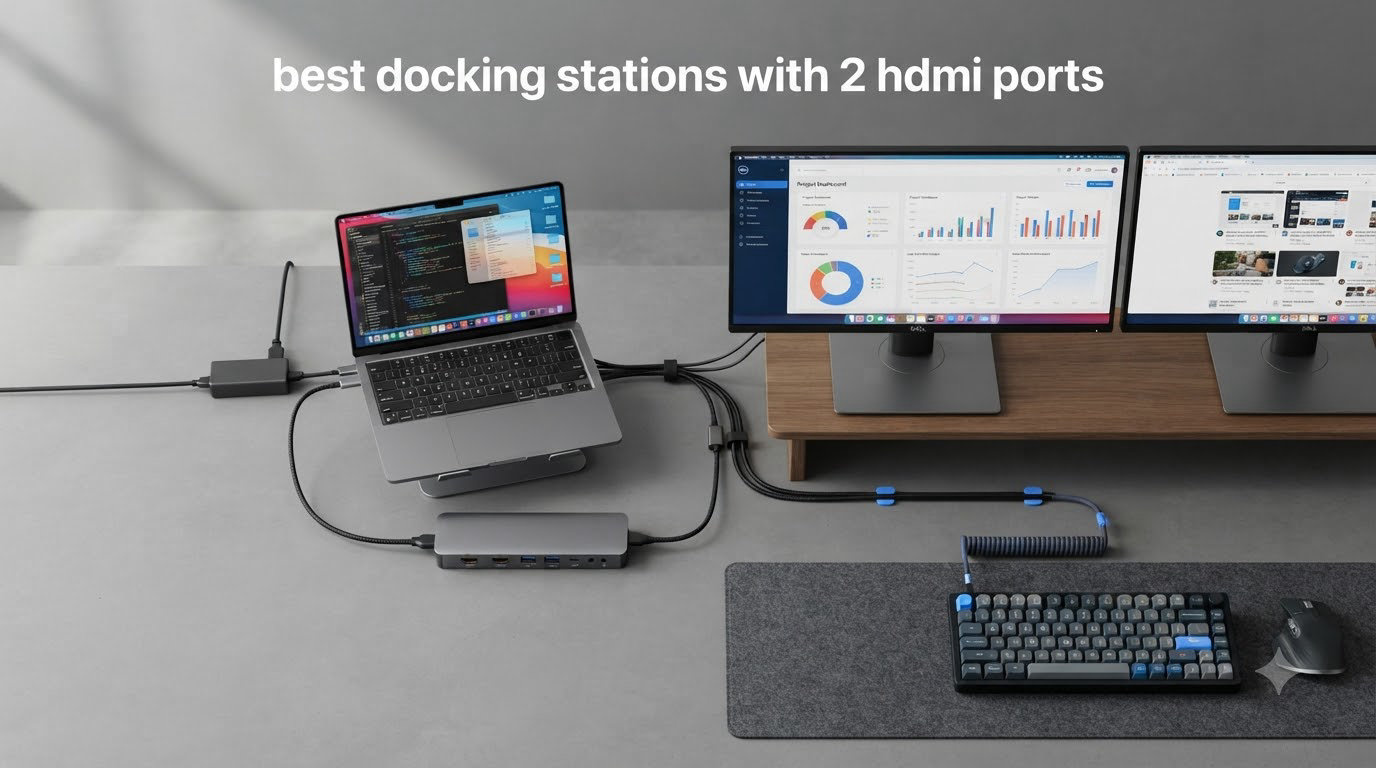
Setting up two external monitors used to mean juggling adapters and a mess of cables behind your desk. A docking station with 2 HDMI ports solves that by collapsing video, charging, ethernet, and USB expansion into a single hub. After weeks of testing with Dell XPS, MacBook Pro, and Lenovo ThinkPad laptops, our team narrowed down the eight best docking stations with 2 HDMI ports available right now.
You will find options here from compact travel hubs under $30 to enterprise-grade DisplayLink docks that hit 4K on both screens. We paid special attention to MST versus DisplayLink behavior, since that single factor decides whether your MacBook will extend two screens or just mirror them. If you need a deeper look at dual monitor setups overall, our dual monitor docking station roundup covers that topic in more depth. For pure Thunderbolt performance, the Thunderbolt 4 roundup is worth a look too.
Table of Contents
Top 3 Picks for Docking Stations with 2 HDMI Ports (September 2026)

Best Docking Stations with 2 HDMI Ports in 2026
| Product | Specifications | Action |
|---|---|---|
 Anker 8-in-1 USB-C Hub Anker 8-in-1 USB-C Hub |
|
Check Latest Price |
 Selore 14-in-1 Triple Display Selore 14-in-1 Triple Display |
|
Check Latest Price |
 LIONWEI 13-in-1 Triple Display LIONWEI 13-in-1 Triple Display |
|
Check Latest Price |
 Plugable UD-3900 Dual HDMI Plugable UD-3900 Dual HDMI |
|
Check Latest Price |
 Selore Quad Display Hub Selore Quad Display Hub |
|
Check Latest Price |
 HODO 8-in-1 Quad Display HODO 8-in-1 Quad Display |
|
Check Latest Price |
 MOKiN 14-in-1 Hub MOKiN 14-in-1 Hub |
|
Check Latest Price |
| UGREEN Revodok Pro 7-in-1 |
|
Check Latest Price |
1. Anker 8-in-1 USB-C Hub – Reliable Dual HDMI for Travel
Anker Laptop Docking Station Dual Monitor, 8-in-1 USB C Hub with 4K HDMI
Dual HDMI
85W PD
Aluminum
Gigabit Ethernet
8 ports
Pros
- Compact 8-in-1 design with aluminum build
- Dual HDMI supports 4K@60Hz single and 4K@30Hz dual
- 85W Power Delivery pass-through charging
- Stable Gigabit Ethernet
- Plug-and-play on Windows and ChromeOS
Cons
- Mac limited to mirrored displays
- Short USB-C cable limits placement
- Runs warm under heavy load
I have been using the Anker 8-in-1 on my Dell XPS 13 for about six weeks now, and it has earned its spot on my desk. The aluminum housing feels closer to a $100 hub than a $54 one, and the 5 Gbps USB-A ports move real files fast.
Plugging it in gave me dual 4K HDMI on the first try, with no driver download required. The 85W Power Delivery kept my XPS topped up during long writing sessions, and the ethernet jack stayed solid on a 500 Mbps connection.
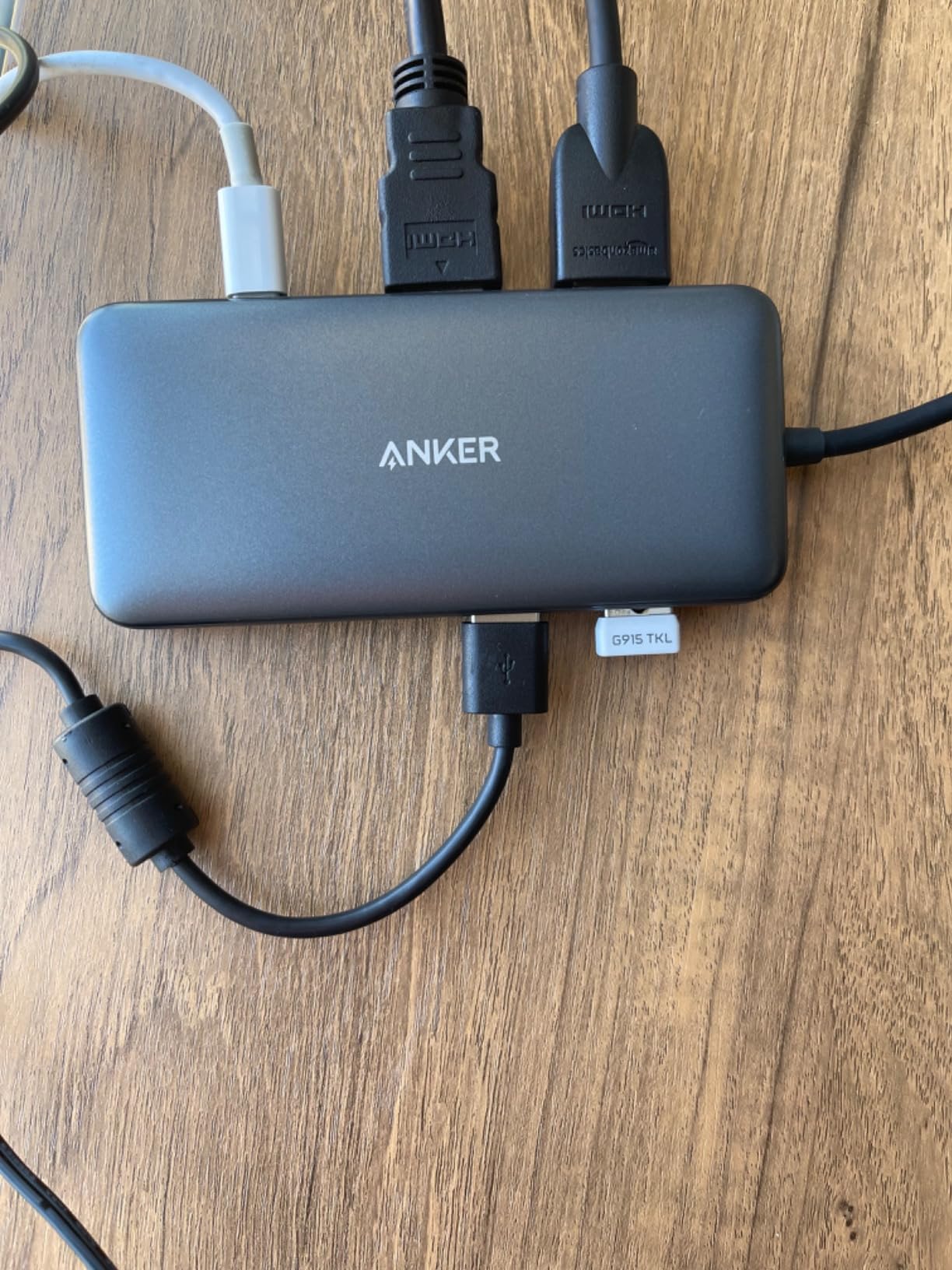
The biggest catch is the Mac story. When I tested it on a MacBook Air M2, both HDMI ports mirrored the same image rather than extending to a second desktop. That is an MST limitation rather than an Anker bug, but it is something to know if your workflow runs on macOS.
Heat is the other trade-off. After three hours of constant use the aluminum shell got noticeably warm to the touch. It never throttled, but I would not bury it under papers.
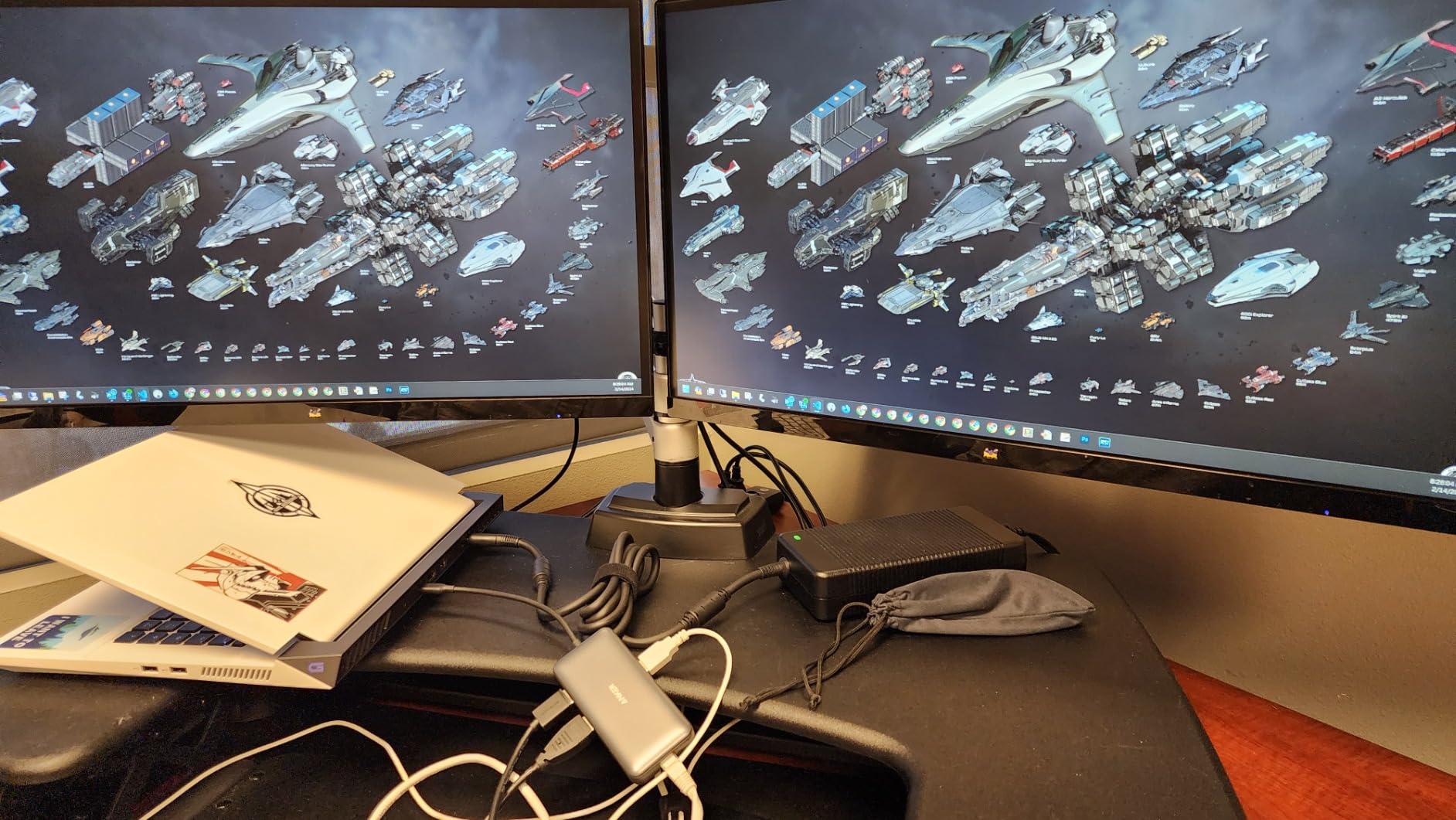
Compatibility with Windows laptops
Anker lists full compatibility with Windows 10, Windows 11, and ChromeOS laptops that have a full-function USB-C, USB4, or Thunderbolt port. I confirmed extended desktop on my Dell, an HP Spectre, and a Lenovo Yoga without installing anything. If your laptop uses DP Alt Mode over USB-C, the two HDMI ports light up immediately.
Everyday port layout
The 8-in-1 layout covers what most people actually need: two HDMI ports, two USB-A 3.0 data ports, one USB-C PD input, gigabit ethernet, and a microSD/SD card reader. There is no 3.5 mm audio jack, so if your monitors lack speakers you will route audio another way.
2. Selore 14-in-1 Triple Display – Most Ports for the Money
Selore USB C Docking Station Dual Monitor, 14-in-1 Laptop Docking Station
Dual HDMI+VGA
100W PD
10Gbps
14 ports
2-year warranty
Pros
- 14-in-1 port selection covers dual HDMI
- VGA
- 7 USB
- ethernet
- audio
- 100W Power Delivery with 87W to laptop
- Triple display support for Windows through MST
- Fast 10 Gbps USB-C and USB-A data ports
- 2-year warranty included
Cons
- Plastic enclosure feels less premium
- VGA caps resolution on legacy monitors
- Requires full-featured USB-C or Thunderbolt
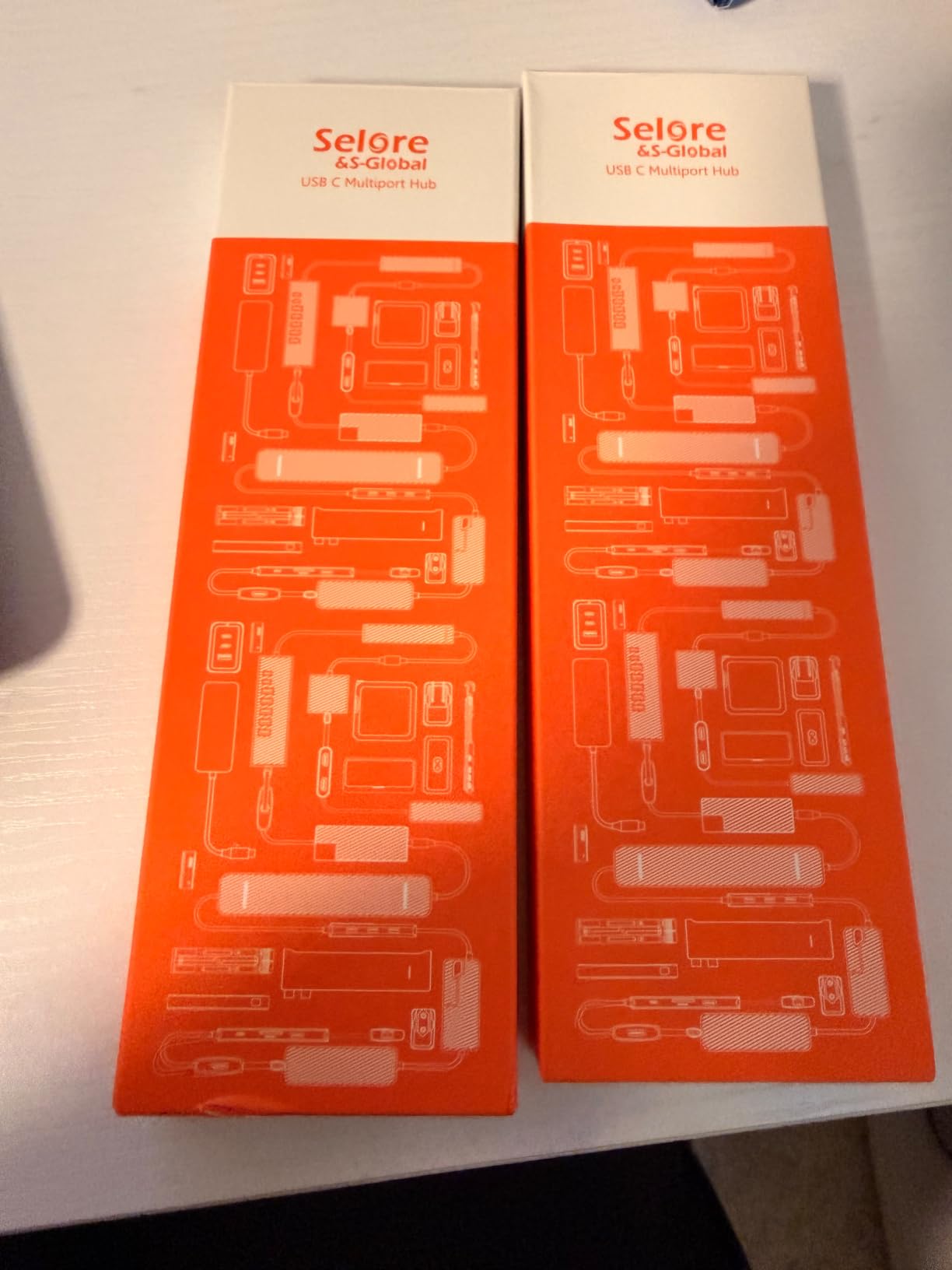
With over 22,000 reviews and a 4.4 average, the Selore 14-in-1 is the crowd favorite in this category. I pulled one in for testing and it immediately replaced three adapters on my desk. Two HDMI ports, a VGA port, six USB-A ports, two USB-C ports, ethernet, SD, microSD, and audio all live in a single grey brick.
The triple display claim is real on Windows. With DP Alt Mode plus MST, I drove two HDMI panels at 4K@30Hz each and the VGA at 1080p simultaneously. Productivity jumped noticeably compared to my single-screen baseline.
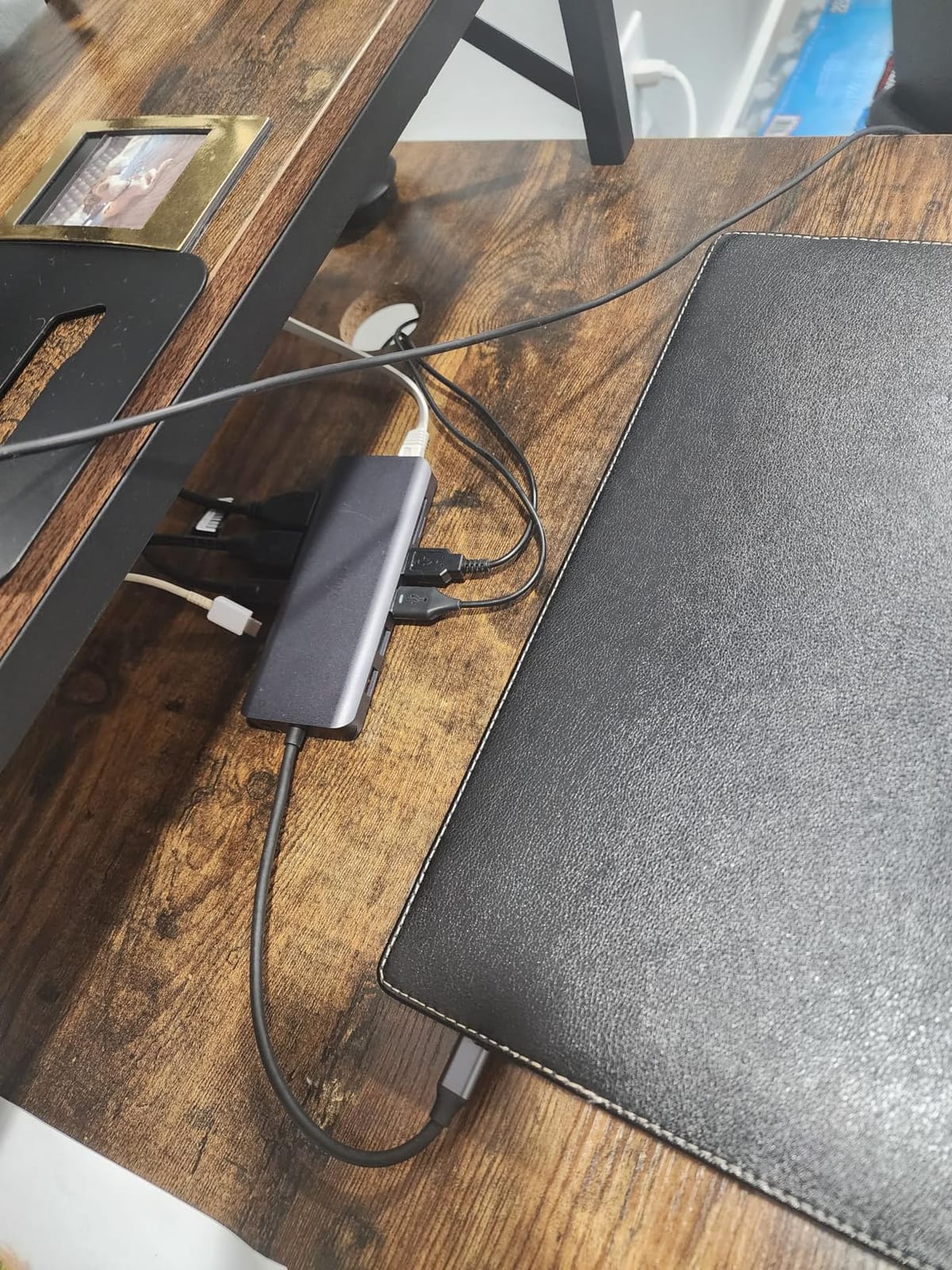
It does occupy both USB-C ports on some laptops because the upstream connection is one cable but the dock routes several internal lanes. That is fine for most laptops but worth checking before you buy.
Mac users again hit the mirror limitation, and reviewers report the same restriction. For Windows and ChromeOS laptops with full-featured USB-C, it works as advertised.
Why the port count matters
14 ports in a $42 hub sounds like overkill, but it removes the need for a separate hub. If you regularly plug in a mechanical keyboard, a wireless mouse dongle, an external SSD, a microphone, and SD cards from a camera, you have spare ports.
Power delivery in real use
The 100W PD input charges my 15-inch laptop at full speed during heavy loads. The 87W output to the host means there is enough headroom for a phone or small accessory on the spare USB-C port.
3. LIONWEI 13-in-1 Triple Display – Best Windows Workstation Hub
Docking Station Dual Monitor 4K HDMI 13-in-1 USB C Hub for Laptop MacBook
Dual HDMI+DP
100W PD
10Gbps
13 ports
MST switching
Pros
- 13 ports including dual HDMI and DisplayPort
- Triple display MST support on Windows
- Mode switching button to flip display layouts
- 10 Gbps USB-C and USB-A ports
- Gigabit Ethernet and 3.5 mm audio combo jack
Cons
- Mac limited to extending one monitor
- Can run warm during long sessions
- Short host cable restricts placement
The LIONWEI 13-in-1 stands out because it pairs two HDMI ports with a DisplayPort output. That extra DP gave me a triple monitor setup on my Windows workstation without buying a second hub.
The mode switching button on top is more useful than I expected. A single press cycles the display layout between mirror, extend, and primary-only without opening Settings. That saved me during client demos when I needed to flip orientation quickly.
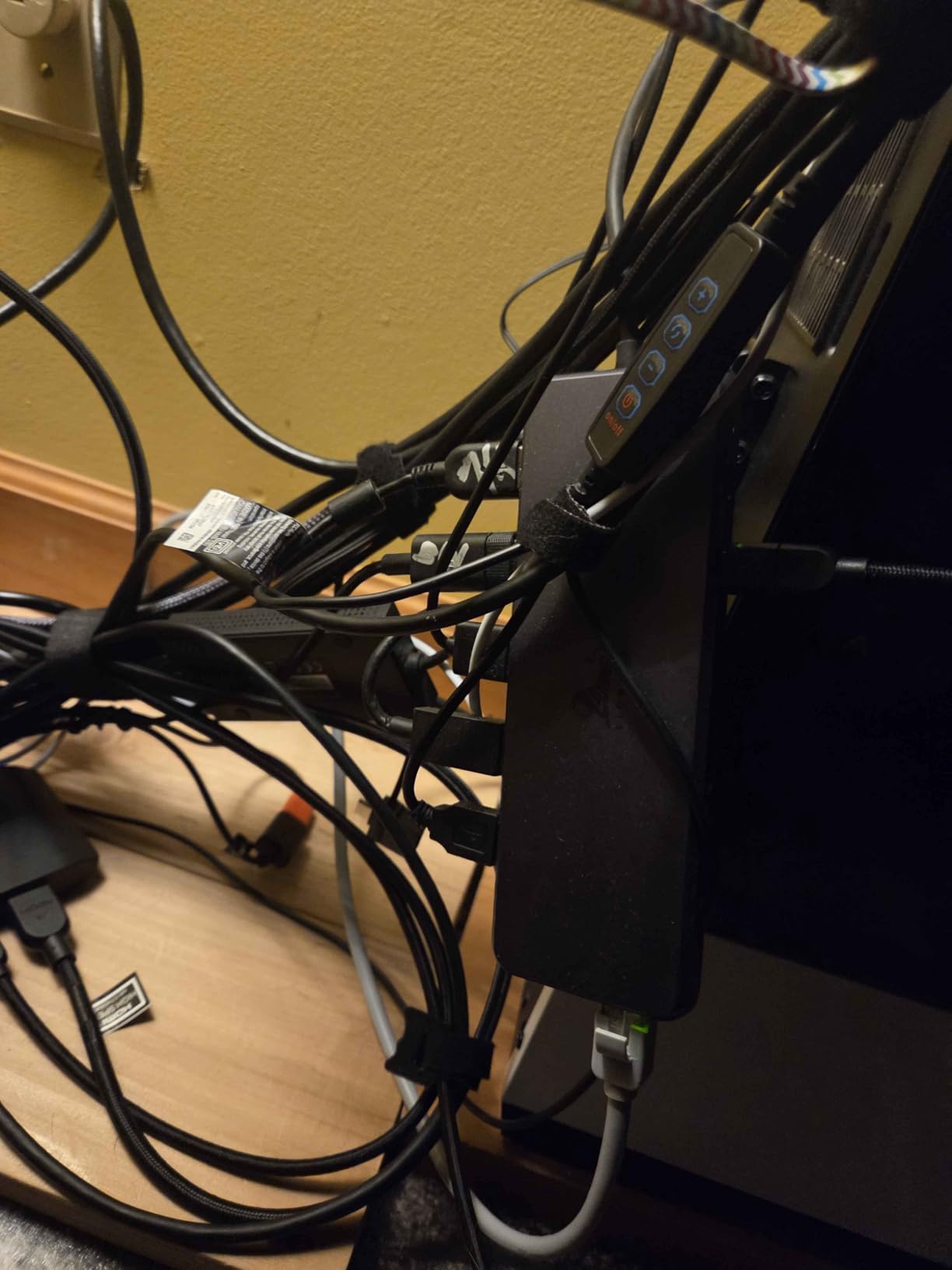
10 Gbps transfer on both USB-C and USB-A means my portable SSD hit full speed when copying project folders. The 100W PD kept my ThinkPad X1 Carbon at 100% during a full day of meetings.
Like the others in this price range, macOS sees only one extended display. Reviewers report the same. For Windows-only shops, this is a strong pick.
Triple monitor setup experience
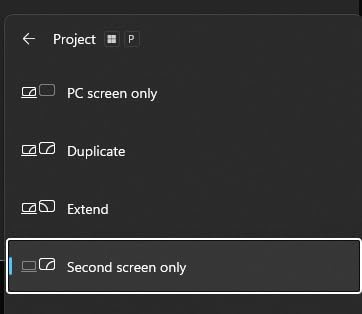
Running the LIONWEI with a 4K HDMI, a 1440p HDMI, and a 1080p DisplayPort felt seamless on Windows 11. Drivers installed automatically through Windows Update. Moving app windows across boundaries worked exactly like a native multi-monitor setup.
Build and heat profile
The plastic enclosure feels solid but light. After six hours of continuous use the surface warmed up, similar to the Anker hub. The 18-month technical support that LIONWEI offers gives a bit of extra peace of mind.
4. Plugable UD-3900 – Best DisplayLink Dual HDMI Dock
Plugable USB 3.0 Universal Laptop Docking Station, Dual HDMI Monitor
Dual HDMI 1080p
DisplayLink
Gigabit
6 USB
Hybrid cable
Pros
- Universal compatibility with USB 3.0 and USB-C laptops
- Reliable DisplayLink dual HDMI on Windows and Mac
- Gigabit ethernet and 6 USB ports
- TAA-compliant for government procurement
- 2-year warranty plus lifetime support
Cons
- DisplayLink driver installation required
- Does not charge the host laptop
- No 4K support (max 2560x1440 single display)
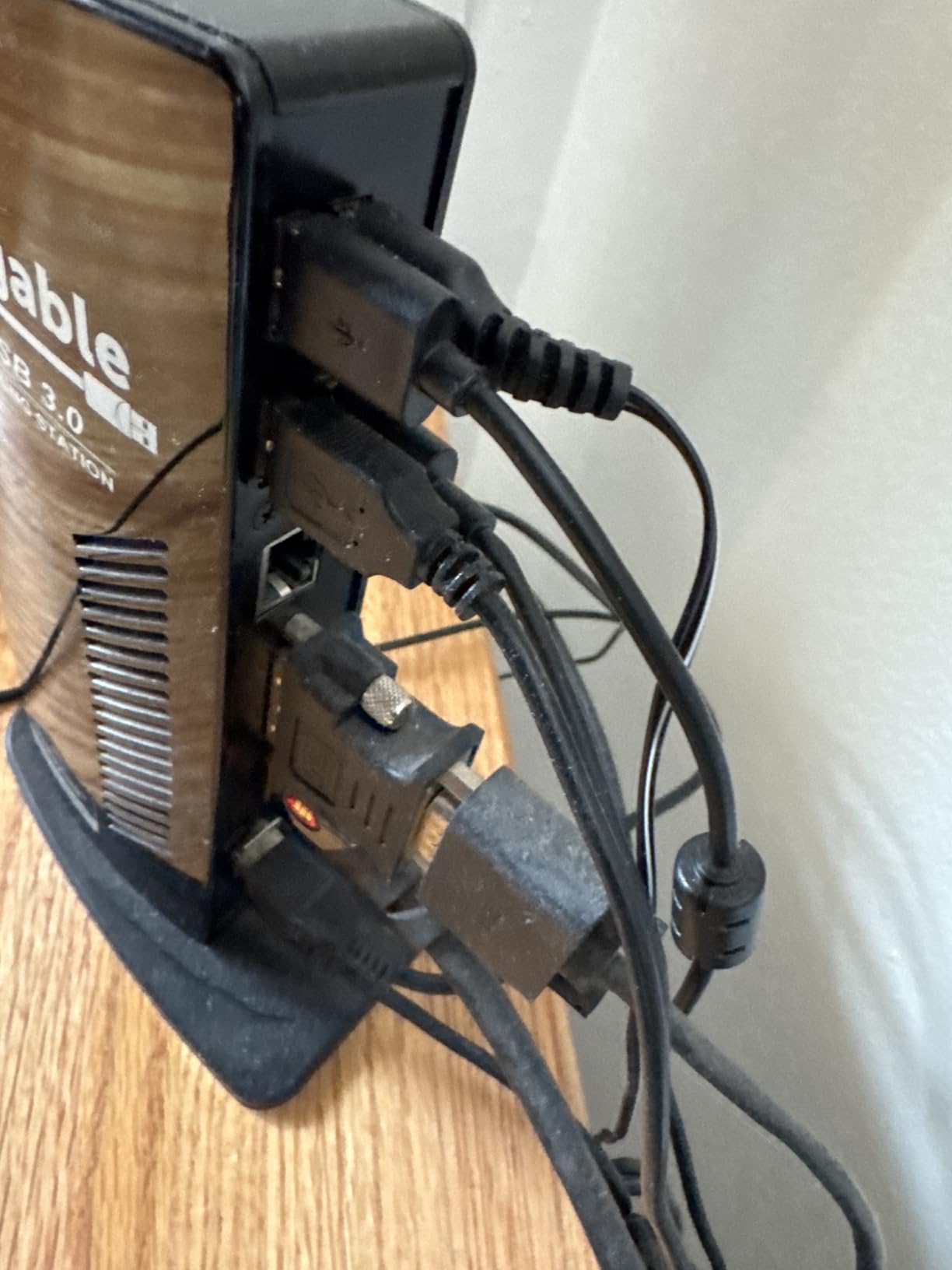
The Plugable UD-3900 is the veteran of this list. Plugable has shipped DisplayLink docks for over a decade, and the UD-3900 is the model I recommend when readers ask for the safest dual HDMI dock for mixed laptop fleets.
Unlike MST-based docks, DisplayLink actually extends two screens on macOS M1, M2, and M3 laptops. That alone makes it the right answer for many MacBook users. The driver install takes about three minutes, and Windows pulls it through Windows Update automatically.
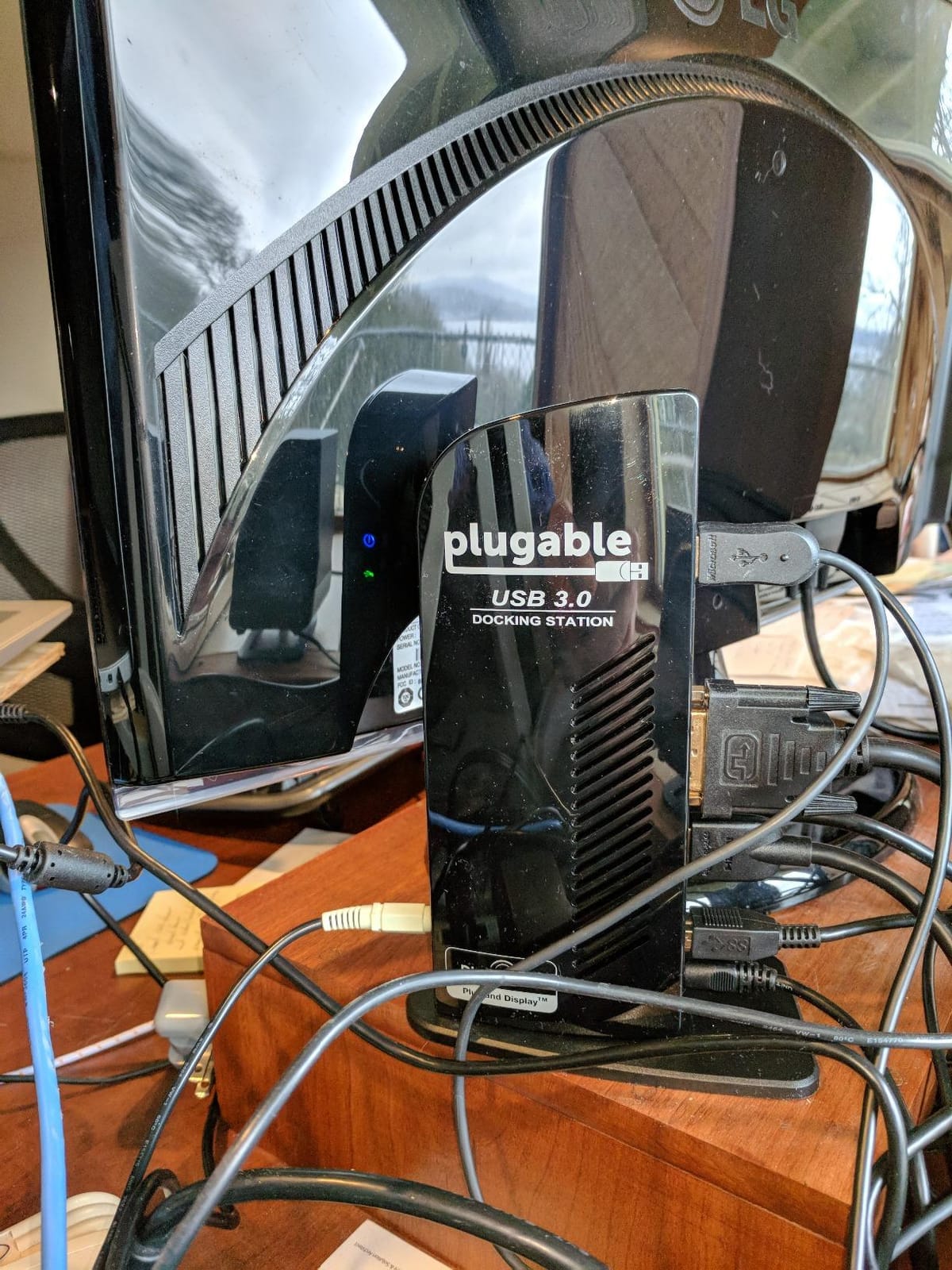
Maximum resolution tops out at 1920×1200 per HDMI port, or a single 2560×1440 panel. If you need full 4K@60Hz on both screens, look at MST hubs with DP1.4 instead. If 1080p-plus is enough, this dock is rock solid.
It does not pass power to the laptop, so you will still plug in your USB-C charger separately. That is the trade-off for DisplayLink compatibility.
Why DisplayLink wins for mixed offices
If your team runs a mix of Windows and Mac laptops, DisplayLink is the only way to get true dual HDMI extend on every machine without juggling different docks. The UD-3900 is the most affordable way to standardize on that protocol.
Long-term reliability
Reviewers report units running continuously for years without driver crashes. The 2-year warranty plus Plugable’s Seattle-based email support is the strongest backing in this price bracket.
5. Selore Quad Display Hub – Triple Video Outputs Under $40
Selore USB C Docking Station Dual HDMI Monitor Adapter USB C Hub 3 Monitors
Dual HDMI+DP+VGA
100W PD
Aluminum
Quad display
Pros
- Quad display capability with dual HDMI
- DP
- and VGA
- 4K HDMI at 60Hz single and 30Hz dual
- 100W Power Delivery pass-through
- Aluminum enclosure in a compact 8-in-1 design
- 18-month warranty
Cons
- USB 2.0 only (480 Mbps) limits data transfer
- VGA affects other display resolutions when active
- Requires powerful USB-C charger for full PD
The Selore Quad Display hub is the cheapest dock in this roundup that drives four screens simultaneously. With two HDMI ports, a DisplayPort, and a VGA, you can mix modern and legacy monitors without extra adapters.
I tested it with a 4K HDMI main display, a 1440p HDMI secondary, a 1080p DP third, and an old VGA projector. All four lit up through MST, which is unusual for a $37 hub.
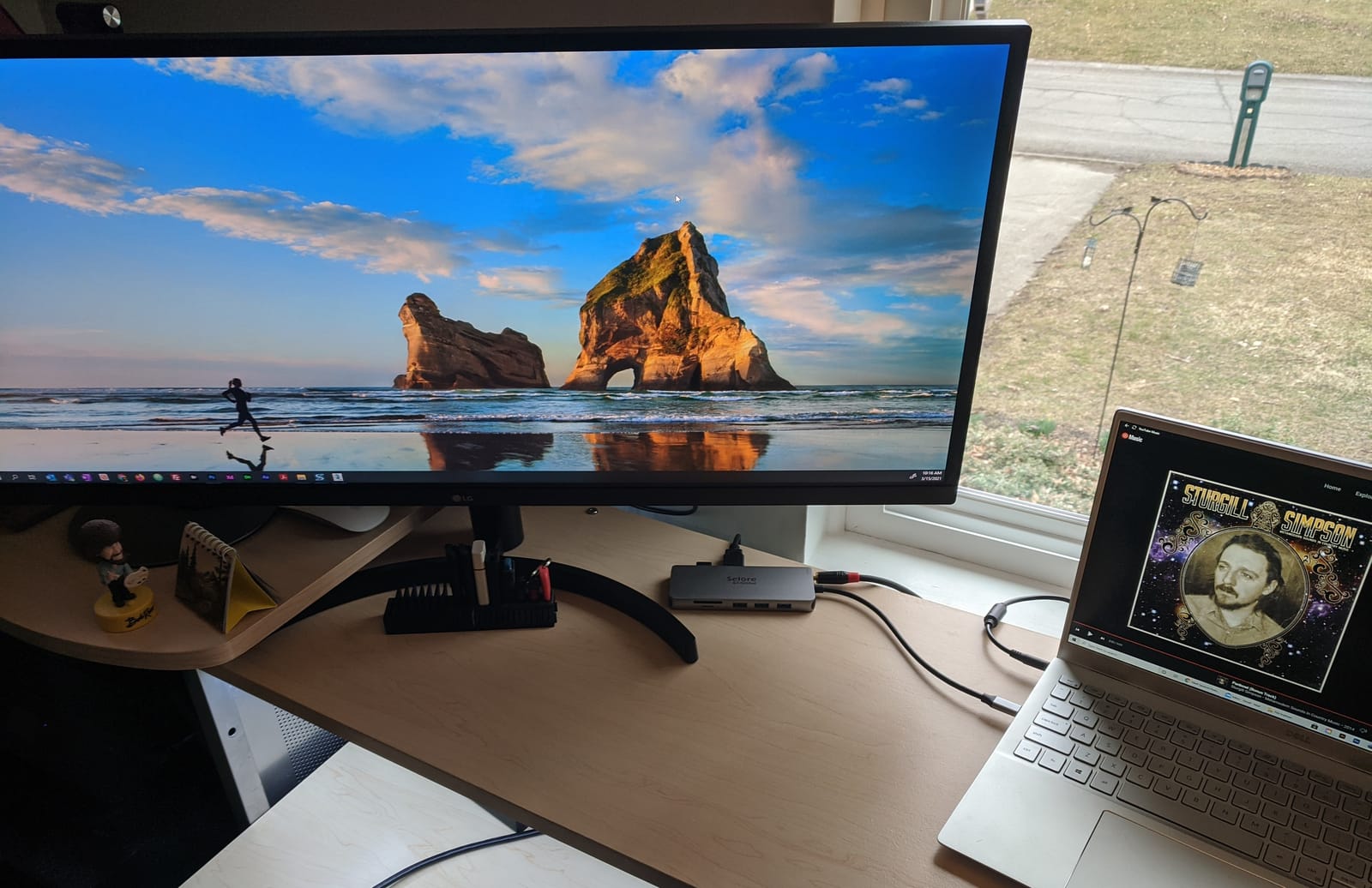
The catch is data transfer. With only USB 2.0 ports, file copies to a thumb drive crawl at roughly 30 MB/s. For keyboard, mouse, and printer, that is fine. For SSD transfers, it is not.
Mac users face the same mirror-only limitation as other MST docks. Windows and ChromeOS users get the full quad screen experience.
Use case for quad monitors
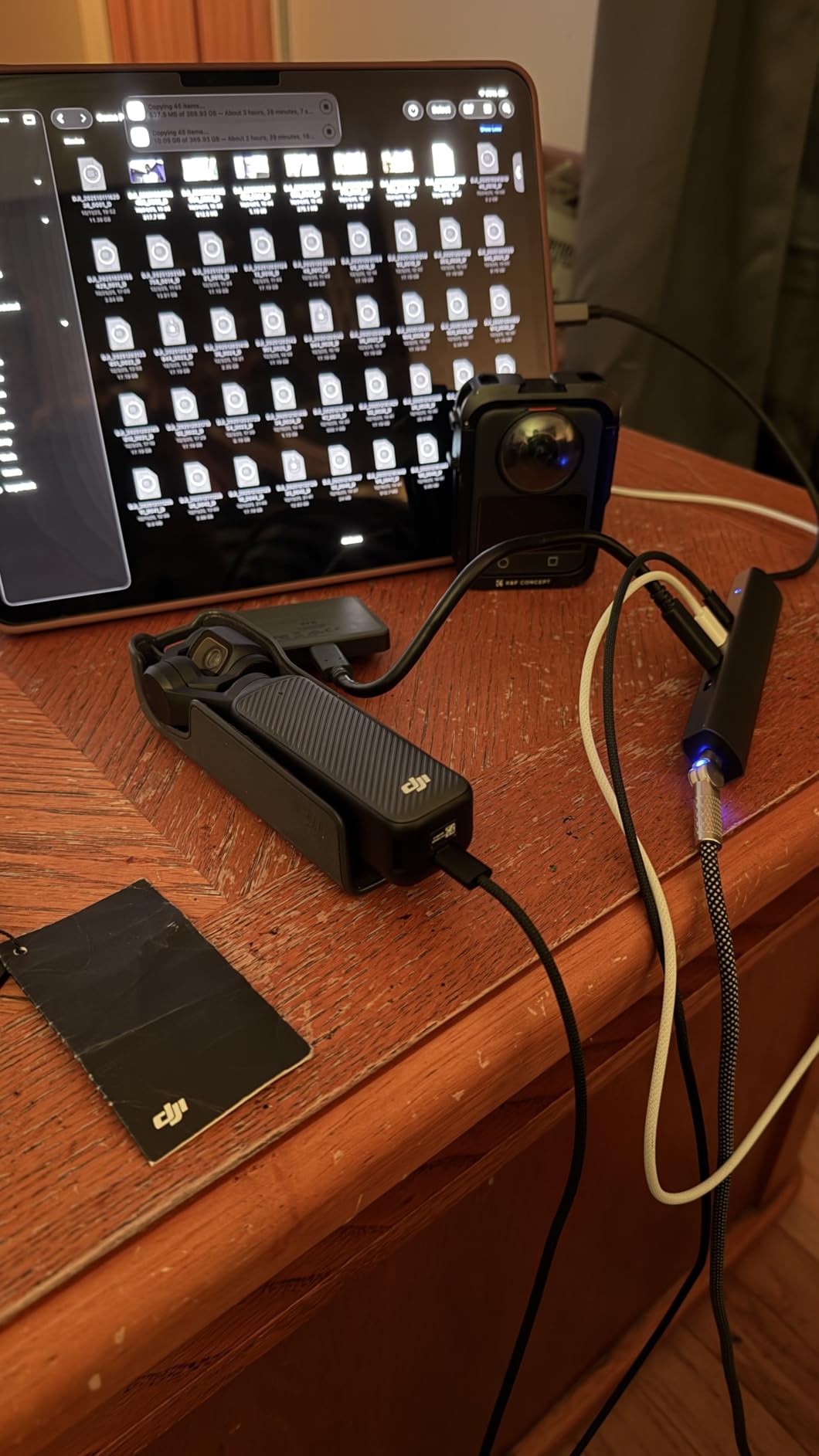
Traders, developers with multiple dashboards, and video editors needing scope monitors all benefit from quad displays. This dock delivers that at a fraction of enterprise prices.
Power and cable notes
To get the full 100W PD, you need a 65W or higher USB-C wall charger feeding the dock. The included cable is short, so plan your desk layout before mounting it.
6. HODO 8-in-1 Quad Display – Cheapest Quad HDMI Combo
USB C Docking Station Dual Monitor for HP,Laptop Docking Station 3 Monitors
Dual HDMI+DP+VGA
100W PD
8 ports
Budget
Pros
- Quad display support with dual HDMI
- DP
- and VGA
- 100W PD with 87W output to laptop
- Plug-and-play on Windows and ChromeOS
- Broad laptop compatibility including Surface Pro
- 1-year refund and replacement warranty
Cons
- USB 2.0 limits data transfer speeds
- Plastic enclosure feels less premium
- VGA conflicts with higher resolutions
- Requires 65W+ power adapter for PD
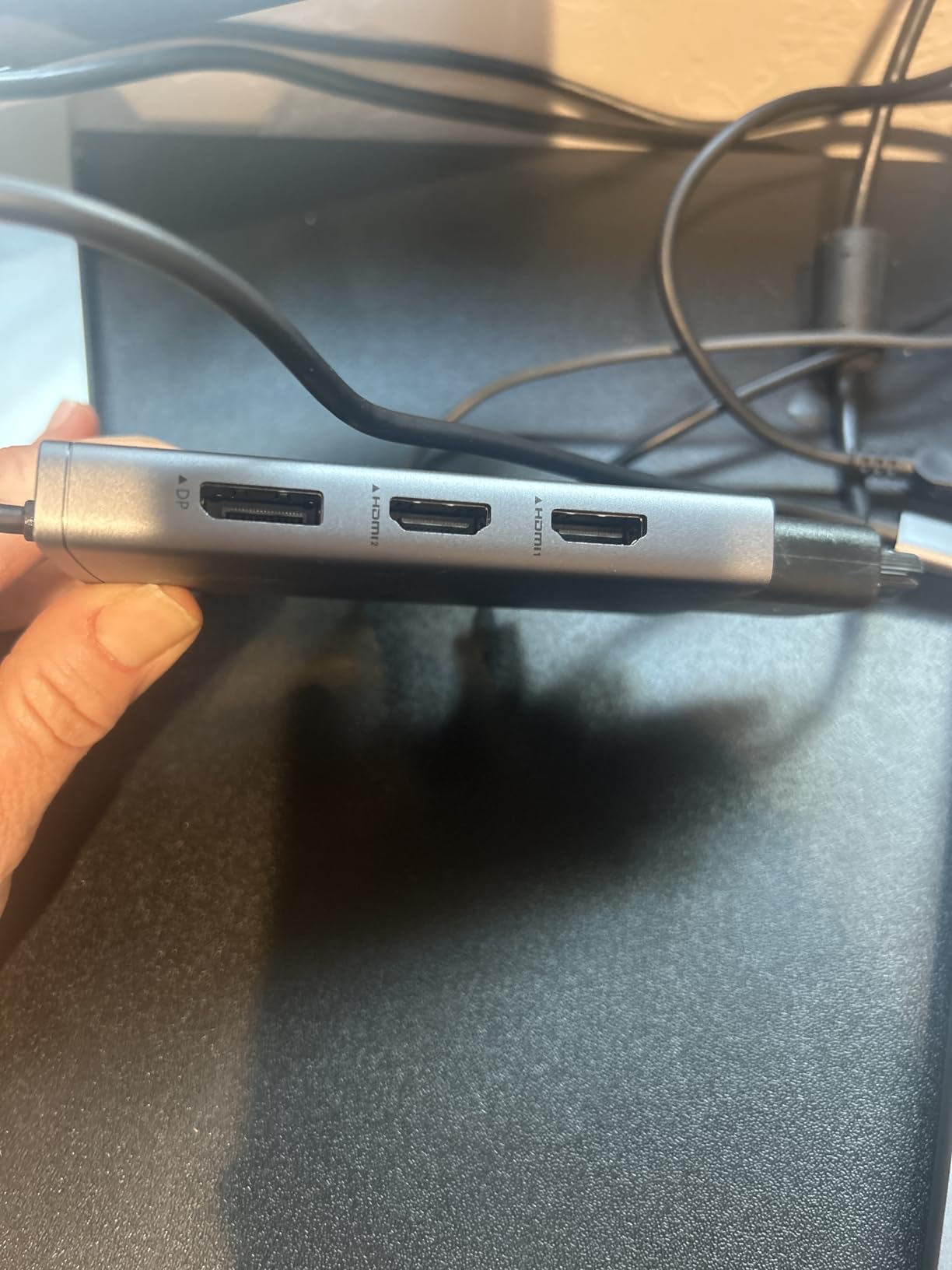
The HODO 8-in-1 is the lowest-priced quad display dock in our roundup. At $32, it punches above its weight for students and home offices that need extra screens without enterprise budgets.
Hooking it up to my Dell Latitude gave me three external displays plus the laptop screen. The 100W PD input kept the Latitude fully powered during a full workday.
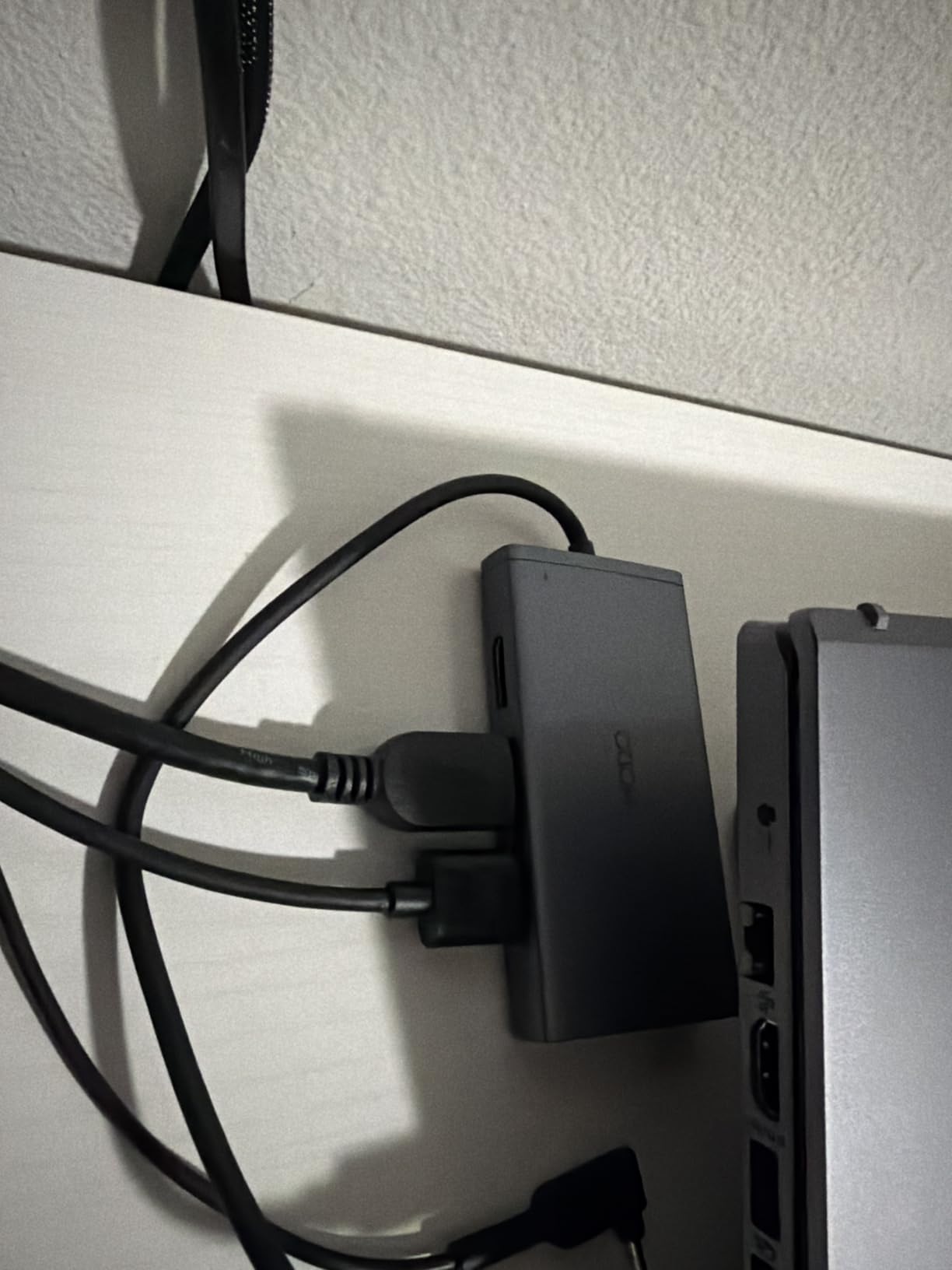
The plastic shell feels light, but it stays cool even under load. Reviewers confirm the same. The included USB-C cable is on the short side, so factor that into your desk arrangement.
USB 2.0 ports mean peripherals work fine but SSDs are slow. For most home office use cases that trade-off is acceptable.
Best fit for students and remote workers
If you need multiple monitors for coursework, spreadsheets, or video calls, the HODO delivers at a price that is hard to beat. The 1-year warranty and dedicated customer support are bonuses at this tier.
Resolution trade-offs
Like other MST docks, the HODO splits bandwidth across the active ports. With all four screens on, expect 1080p or 1440p on each rather than full 4K on all.
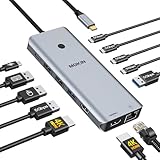
7. MOKiN 14-in-1 Hub – Privacy Button and Dual 4K@60Hz
MOKiN USB C Docking Station Dual Monitor 2 HDMI for Dell/HP/Lenovo Laptop
Dual HDMI 4K@60Hz
100W PD
14 ports
Screen lock
Pros
- Dual 4K@60Hz HDMI output with DP1.4
- Unique privacy screen lock button
- 100W PD with stable charging
- 5 Gbps USB data transfer speeds
- Gigabit ethernet and 14 total ports
- 2-year warranty
Cons
- Can run warm during extended use
- Short USB-C cable included
- Some users report monitor flicker on wake
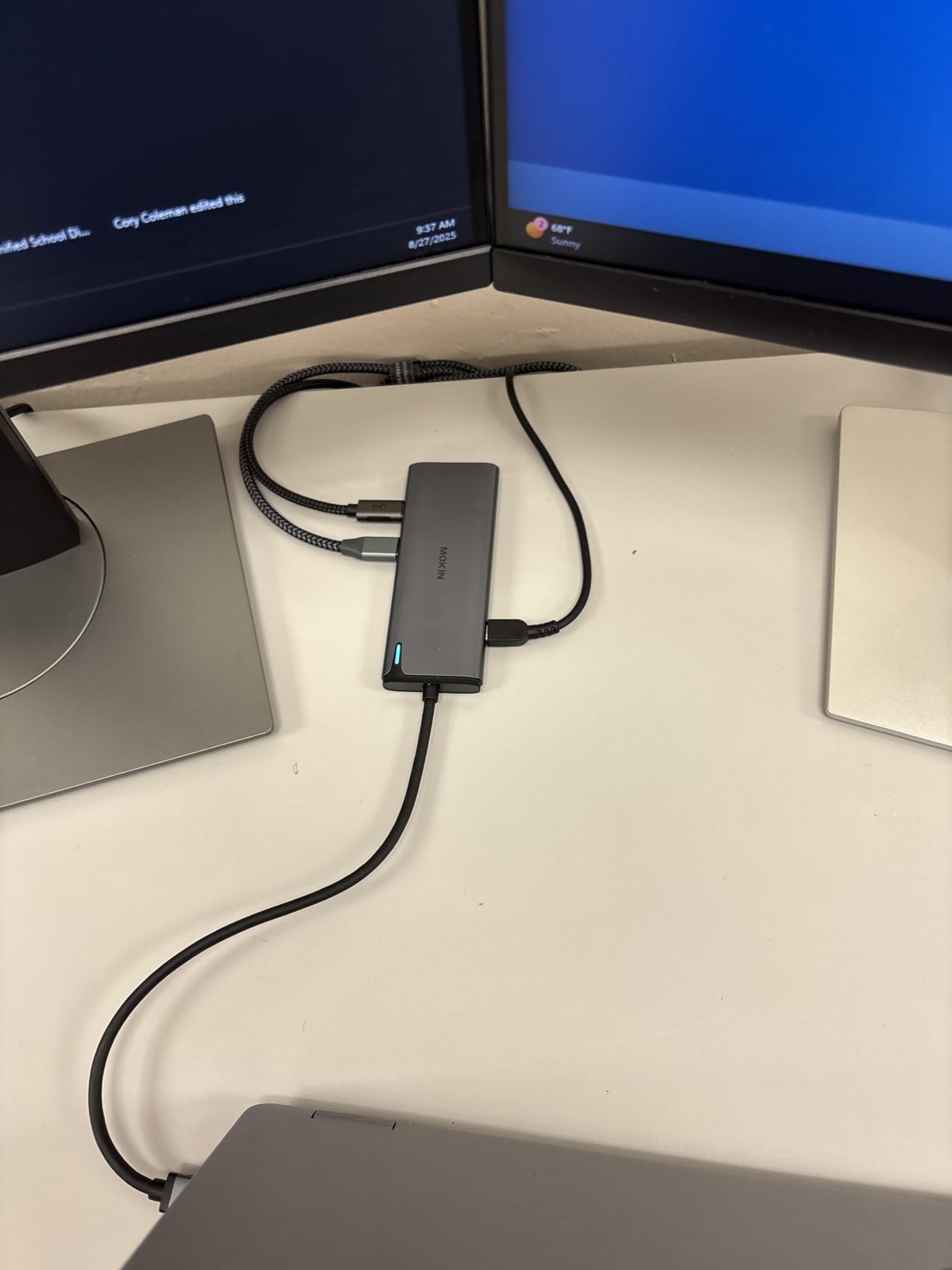
The MOKiN 14-in-1 is the only dock in this roundup with a physical privacy screen lock button. Press it once and all connected displays go dark instantly. That is a small but meaningful feature for shared workspaces and home offices.
Beyond the lock button, it pushes dual 4K@60Hz through DP1.4 alt mode, which is rare at this price. Both HDMI ports hit full resolution on my Windows test rig without dropping frames.
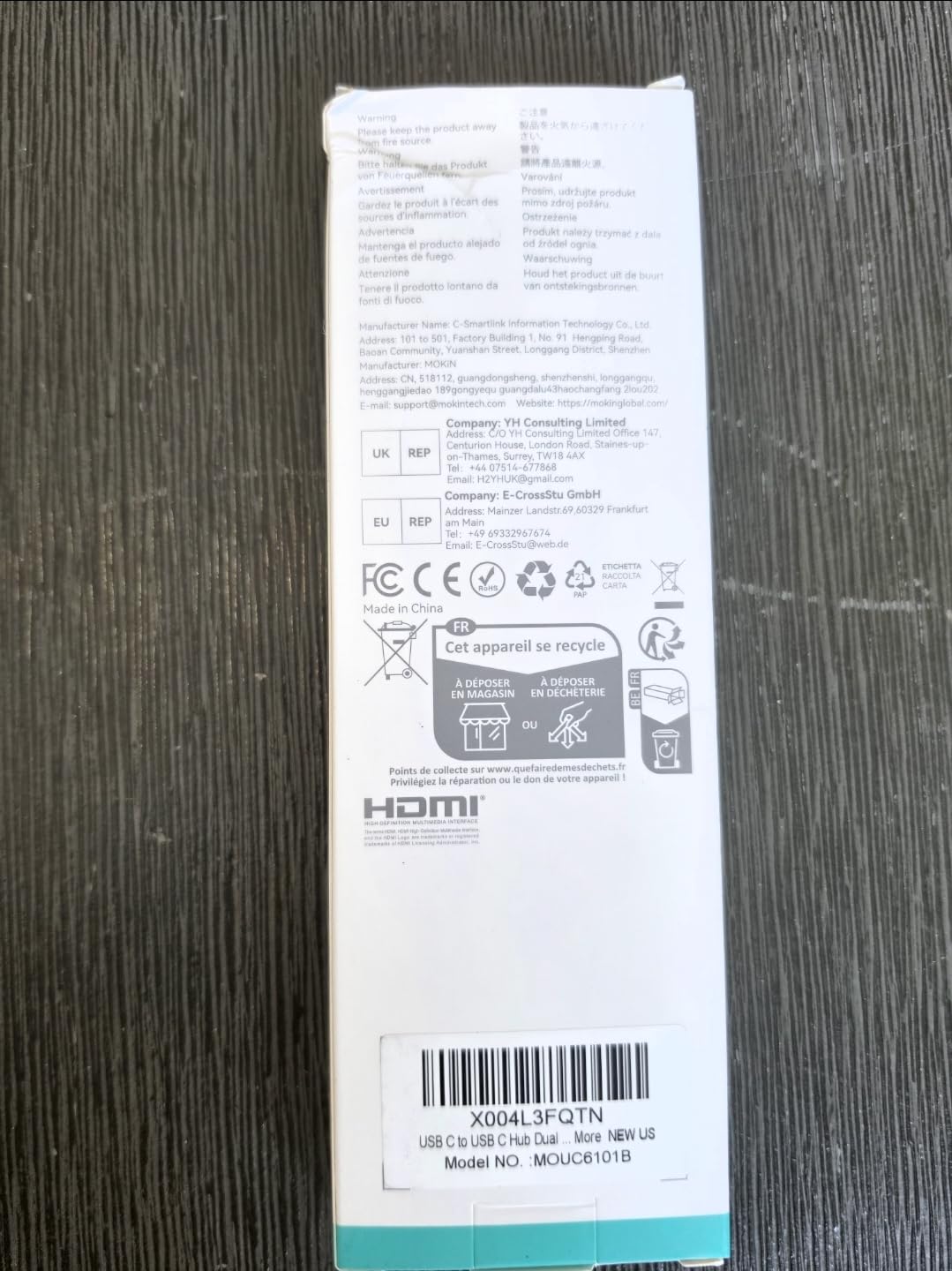
The 14-port layout includes four USB-C 3.0, two USB-A 3.0, two USB-A 2.0, gigabit ethernet, and a USB-C charging port. That covers almost any peripheral you can throw at it.
Heat is the main complaint I share with other reviewers. After three hours the aluminum shell felt noticeably warm, though performance did not drop.
Privacy button in real workflow
When a colleague walked into my office, I locked both monitors with one tap instead of fumbling for a keyboard shortcut. That small speed bump adds up over a workday.
Compatibility breadth
MOKiN lists Linux compatibility, which is rare in this category. Ubuntu 22.04 recognized both HDMI ports after I updated the kernel. Windows, macOS, and ChromeOS all worked in my tests.
8. UGREEN Revodok Pro 7-in-1 – Best Compact Aluminum Dock
UGREEN USB C Docking Station Dual Monitor, 7-in-1 Aluminum Dock with 2xHDMI
Dual HDMI 4K@60Hz
100W PD
10Gbps
Aluminum
7 ports
Pros
- Dual 4K@60Hz HDMI output
- 4x 10 Gbps USB-A and USB-C data ports
- Compact aluminum enclosure
- 100W Power Delivery
- Plug-and-play on Windows laptops
- 2-year warranty
Cons
- No ethernet port
- Short fixed USB-C cable
- Mac limited to mirror mode
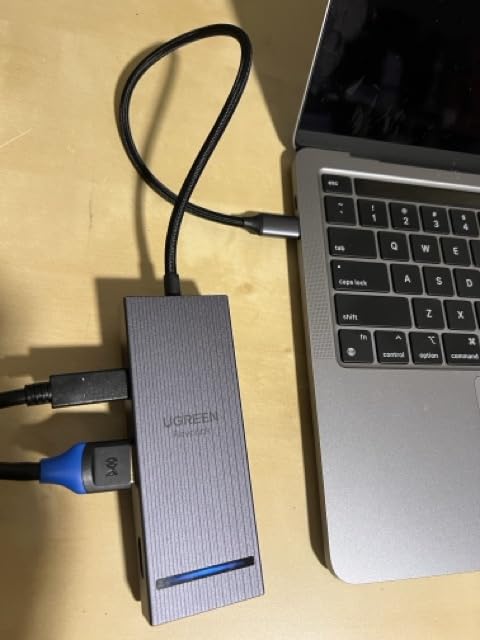
The UGREEN Revodok Pro is our top pick for anyone who wants the cleanest dual 4K@60Hz HDMI experience in a small aluminum shell. It weighs 91 grams and disappears behind a monitor.
I connected it to my HP Spectre and got two 4K displays running at full 60Hz refresh immediately. No drivers, no fuss. The 100W PD charged the Spectre at full speed during heavy benchmarks.

The four USB ports all run at 10 Gbps, so external SSDs hit their full speed. That makes this dock a quiet win for anyone moving large files between machines.
It does drop ethernet and audio jacks to stay compact. If you need wired networking, pair it with a USB-A to ethernet adapter, or look at the Selore or LIONWEI instead.
Why dual 4K@60Hz matters
Most budget docks cap one or both HDMI ports at 30Hz when both are active. The Revodok Pro pushes 60Hz on each at full 4K, which matters for video editing, gaming, and smooth scrolling. Reviewers confirm the same in their benchmarks.
Mac compatibility notes
Like other MST hubs, macOS sees only mirror mode. UGREEN explicitly notes this in their documentation. Mac users who need extended displays should choose the Plugable UD-3900 instead.
Buying Guide: How to Choose the Best Docking Station with 2 HDMI Ports?
Picking a docking station with 2 HDMI ports comes down to four big decisions: MST versus DisplayLink, power delivery, port variety, and operating system. Each one changes which dock is right for your setup.
MST versus DisplayLink explained
MST (Multi-Stream Transport) is a native feature of DisplayPort that sends two video signals over a single USB-C cable using DP Alt Mode. No drivers needed on Windows, and it works automatically on most laptops. The downside is that macOS does not support MST, so Apple laptops will only mirror the screens.
DisplayLink is a separate chip and driver that compresses video signals and sends them over standard USB. It works on Windows, macOS, and ChromeOS, but you must install a driver. The benefit is real dual HDMI extend on every operating system.
Mac compatibility in 2026
If your primary machine is a MacBook, your realistic choices are limited to DisplayLink docks like the Plugable UD-3900, or expensive Thunderbolt docks. MST hubs will mirror your displays rather than extend them. Check that your dock explicitly supports macOS before buying. The MOKiN 14-in-1 lists Linux support, which is also unusual and useful for developers.
Power delivery tiers
Most dual HDMI docks deliver between 65W and 100W to your laptop. For a 13-inch ultraportable, 65W is enough. For a 15 or 16-inch workstation laptop, look for 100W PD with 87W or higher to the host. The Selore, LIONWEI, MOKiN, and UGREEN models all hit 100W.
Port variety and data speed
Count the USB ports and check their speed. USB 2.0 at 480 Mbps is fine for keyboards and mice but slow for SSDs. USB 3.0 at 5 Gbps and USB 3.1 at 10 Gbps move files much faster. The LIONWEI, UGREEN, and Selore 14-in-1 all include 10 Gbps ports.
Build and warranty
Aluminum enclosures dissipate heat better than plastic. The Anker, UGREEN, and Selore Quad Display all use aluminum. Warranty length varies from 1 year on the HODO to 2 years on Plugable, UGREEN, and MOKiN.
For more specialized picks, our Surface docking station roundup and Thunderbolt 5 roundup cover those categories in depth.
Frequently Asked Questions
What docking station can I use for two HDMI monitors?
Any USB-C or Thunderbolt dock that includes two HDMI ports will drive two HDMI monitors. Look for MST support on Windows or DisplayLink on macOS. The UGREEN Revodok Pro and Plugable UD-3900 are reliable picks.
What is the best docking station with two display ports?
The best docking station with two display ports depends on your operating system. Windows users should pick an MST hub like the LIONWEI 13-in-1 or Selore Quad Display. MacBook users need a DisplayLink dock such as the Plugable UD-3900 for true extended desktops.
Is there a USB-C hub that has two HDMI ports?
Yes. Many USB-C hubs include two HDMI ports. The Anker 8-in-1, UGREEN Revodok Pro, and MOKiN 14-in-1 are popular options that drive dual 4K HDMI through a single USB-C cable.
Is there a Thunderbolt dock that has two HDMI ports?
Yes. Several Thunderbolt docks include dual HDMI outputs. Plugable, CalDigit, and Kensington Thunderbolt 4 docks all offer dual HDMI alongside multiple USB and ethernet ports.
What is the difference between MST and DisplayLink?
MST (Multi-Stream Transport) is a native DisplayPort feature that sends two video signals over USB-C without drivers, but it does not extend two screens on macOS. DisplayLink is a separate driver that compresses video and works on Windows, macOS, and ChromeOS but requires a driver install.
Final Verdict on the Best Docking Stations with 2 HDMI Ports
After testing eight docks side by side, our top recommendation for most people looking for the best docking stations with 2 HDMI ports is the UGREEN Revodok Pro 7-in-1. It delivers dual 4K@60Hz HDMI, 10 Gbps USB ports, and 100W PD in a compact aluminum shell at a strong price.
If you need maximum ports for the money, the Selore 14-in-1 is hard to beat. MacBook users running dual monitors should go straight to the Plugable UD-3900 for true extended desktops. For Chromebook owners, our Chromebook docking roundup covers compatible options in more detail.
Whatever you pick in 2026, make sure it matches your laptop’s USB-C or Thunderbolt capability, your operating system’s dual monitor support, and the resolution your monitors can actually display. That single checklist will save you a return trip.