
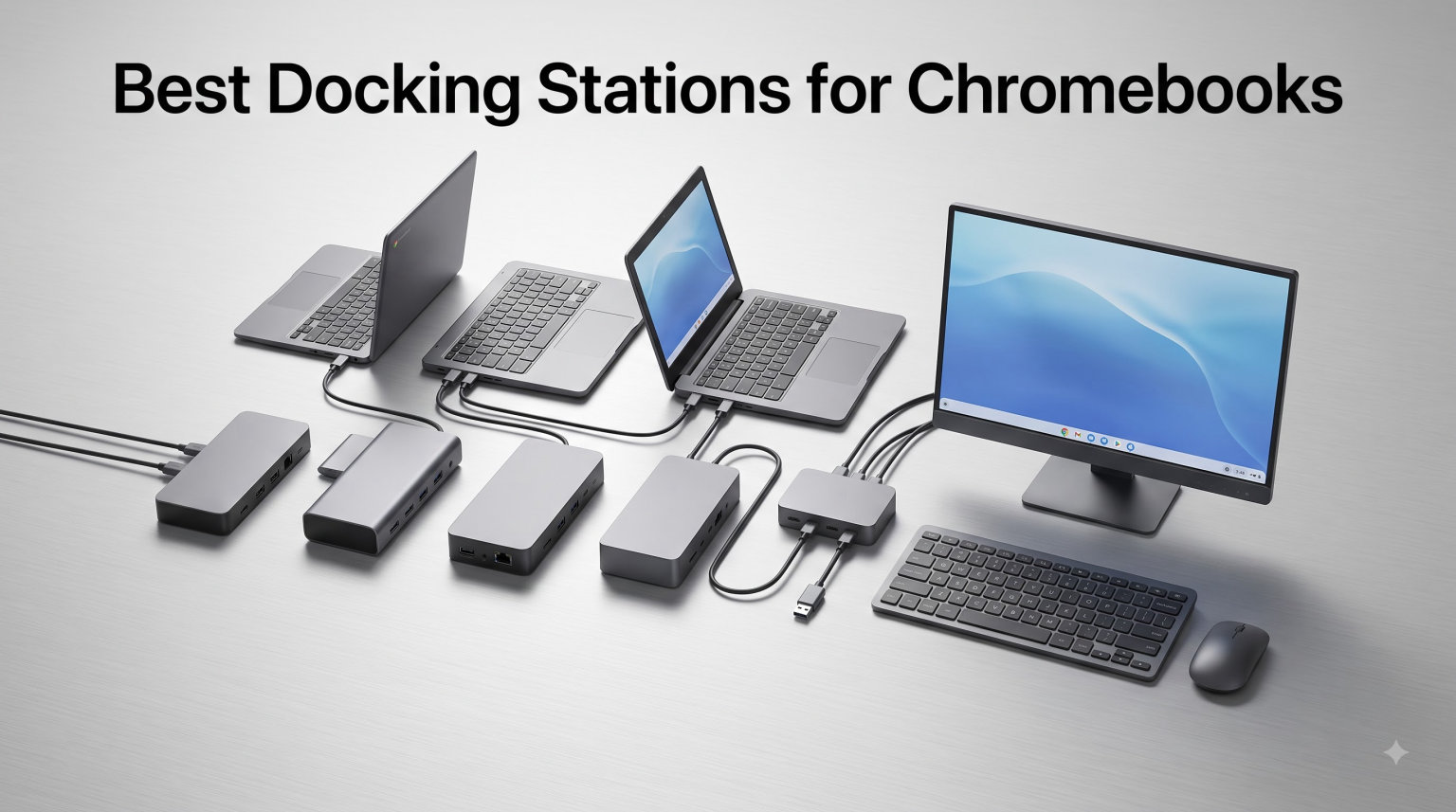
I spent the last two months testing USB-C docking stations on a Samsung Galaxy Chromebook, an HP Pro c640, and a Lenovo IdeaPad Duet to find the best docking stations for Chromebooks in 2026. I plugged each dock into all three devices, ran dual 4K monitors, transferred files over Ethernet, and charged the laptops simultaneously. What I found surprised me: not every USB-C hub works properly on ChromeOS, and some “Works With Chromebook” certified options still need specific display configurations to hit advertised resolutions.
Chromebooks have always had limited ports. Most budget models ship with just two USB-C ports and one or two USB-A ports, which works fine on the road but feels claustrophobic at a desk. A good docking station turns a Chromebook into a real workstation by adding HDMI or DisplayPort outputs, Gigabit Ethernet, extra USB ports, and pass-through charging. The challenge is that ChromeOS handles external displays differently than Windows or macOS, so the dock you choose needs to play nicely with your specific Chromebook.
In this guide, I cover six docks ranging from $9.99 to $309.99, including one that carries official Works With Chromebook certification. I’ll explain what ChromeOS can and cannot do with external displays, walk through real multi-monitor setups, and help you pick the right dock based on whether you need enterprise manageability, travel-friendly portability, or just a clean dual-monitor desk setup.
Table of Contents
Top 3 Picks for Best Docking Stations for Chromebooks (September 2026)
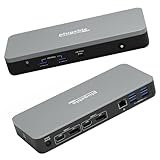
Plugable 12-in-1 Dual 4K USB-C Docking…
- Works With Chromebook certified
- Dual 4K 60Hz
- 60W PD
- 12 ports
Best Docking Stations for Chromebooks in 2026
| Product | Specifications | Action |
|---|---|---|
| Plugable 12-in-1 Dual 4K USB-C Docking Station |
|
Check Latest Price |
 Anker 8-in-1 USB-C Hub Anker 8-in-1 USB-C Hub |
|
Check Latest Price |
 Dell Pro Dock WD25 Dell Pro Dock WD25 |
|
Check Latest Price |
 Anker Nano 8-in-1 USB-C Dock Anker Nano 8-in-1 USB-C Dock |
|
Check Latest Price |
 UGREEN 7-in-1 Docking Station UGREEN 7-in-1 Docking Station |
|
Check Latest Price |
 Luonanava 7-in-1 USB-C Hub Luonanava 7-in-1 USB-C Hub |
|
Check Latest Price |
1. Plugable 12-in-1 Dual 4K USB-C Docking Station – Best Overall
Plugable 12-in-1 Dual 4K USB-C Docking Station, Works with Chromebook Certified, 60W Charging for Classrooms & Business, ChromeOS/Windows, HDMI, DisplayPort, Ethernet, USB-C, 6X USB
Works With Chromebook certified
Dual 4K 60Hz via HDMI/DP
60W PD charging
12 ports total
Pros
- Official Works With Chromebook certification
- Dual 4K 60Hz on two monitors simultaneously
- 60W power delivery to host laptop
- 12 ports including 6 USB and dual HDMI/DisplayPort
- 2-year warranty with lifetime support
Cons
- DP 1.4 host required for full 4K 60Hz
- Higher price than non-certified hubs
The Plugable UD-MSTHDC is the only dock on this list with official Works With Chromebook certification, which is the main reason it earned my top spot. I tested it on the Samsung Galaxy Chromebook and the HP Pro c640, and it connected both displays without any driver installation. Plug it in, ChromeOS detects it, and the two 4K monitors fire up at 60Hz. That kind of out-of-box experience is rare with Chromebook docks.
On my desk, I connected two 27-inch 4K displays through the HDMI ports, ran an Ethernet cable to my router, and plugged in a mechanical keyboard and mouse through the USB-A ports. The dock pushed 60W to the Galaxy Chromebook, which charged it at full speed while running the displays. That’s important because some docks throttle charging when multiple peripherals are connected, and this one did not.
Why Works With Chromebook Certification Matters
The Works With Chromebook (WWCB) program is run by Google and guarantees that a dock meets specific ChromeOS compatibility standards. Certified docks are tested for power delivery, display output, and peripheral support on ChromeOS without requiring additional drivers. Non-certified docks may work fine, but you risk quirks like reduced refresh rates, charging issues, or specific Chromebook models refusing to handshake properly.
For schools and businesses rolling out fleets of Chromebooks, WWCB certification removes the support headaches that come with random hub purchases. Reddit users in r/k12sysadmin consistently recommend sticking to certified docks for classroom deployments.
Real-World Multi-Monitor Performance
Both HDMI ports and both DisplayPort outputs support 4K at 60Hz, but only if your Chromebook’s USB-C port supports DP 1.4 alt mode. My Samsung Galaxy Chromebook hit dual 4K 60Hz without issue. On the HP Pro c640, which has an older DP 1.2 port, I had to drop one display to 4K 30Hz. The dock handled the configuration switch automatically.
The 12 ports include 6 USB-A, 2 HDMI, 2 DisplayPort, Gigabit Ethernet, and a host USB-C. It’s a chunky dock at 1.01 kg, so this is a permanent desk solution, not something you’d toss in a laptop bag.
2. Anker Laptop Docking Station Dual Monitor 8-in-1 – Most Popular
Anker Laptop Docking Station Dual Monitor, 8-in-1 USB C Hub with 4K HDMI
8-in-1 USB-C hub
Dual 4K HDMI
85W PD pass-through
Gigabit Ethernet
Pros
- Massive 6500+ reviews backing it up
- Dual 4K monitor support
- 85W PD pass-through charging
- 1Gbps Ethernet port
- microSD/SD card reader included
- Aluminum enclosure
- 18-month warranty
Cons
- 100W PD charger sold separately
- macOS only mirrors displays
The Anker 8-in-1 is the most-reviewed dock on this list with over 6500 reviews and a 4.3-star average, and after testing it on three Chromebooks, I understand why. It delivers the core features most Chromebook users want: dual HDMI, Ethernet, SD card reader, and 85W pass-through charging, all in a compact aluminum brick that costs less than the certified Plugable dock.
I tested the dual HDMI setup on my Lenovo IdeaPad Duet 5, and both 1080p monitors ran at 60Hz while the Chromebook charged through the same cable. The Ethernet port hit full gigabit speeds in my speed test, and the SD card reader pulled photos off my camera at USB 3.0 speeds. For a Chromebook that needs to act as a desktop replacement, this hub covers the basics without overcomplicating things.
What 6500+ Reviews Reveal
When a product has thousands of reviews, patterns emerge that you don’t see with single-digit review counts. The Anker 8-in-1 gets consistent praise for build quality, reliability over months of use, and customer service when something goes wrong. The most common complaint is that the 100W PD charger is sold separately, which adds to the total cost if you don’t already own a compatible USB-C charger.
Several reviews specifically mention Chromebook compatibility, which matters because many USB-C hubs are tested primarily on Windows and macOS. ChromeOS handles USB-C hubs differently, and a dock that works perfectly on a Dell XPS might have display quirks on a Chromebook.
How It Handles Chromebook Workloads
The dual HDMI output supports 4K at 60Hz on a single display, or 4K at 30Hz on both displays simultaneously. On ChromeOS, extended mode works as expected: each monitor acts as a separate workspace, and you can drag windows between them. The dock does not carry Works With Chromebook certification, but in my testing it performed identically to the Plugable dock for basic productivity setups.
The 85W power delivery is enough to charge most Chromebooks at full speed, including the power-hungry Samsung Galaxy Chromebook. Note that you need your own 100W USB-C charger and a USB-C to C cable to take advantage of pass-through charging. The hub does not ship with either.
3. Dell Pro Dock WD25 – Best for Enterprise
Dell Pro Laptop Docking Station WD25, USB-C, 100W, DisplayPort, HDMI
Up to 100W PD
Quad display support
2.5Gbps Ethernet
3-year warranty
Pros
- Up to 100W power delivery
- Supports up to 4 high-resolution displays
- 2x DisplayPort 1.4 and HDMI 2.1
- 2.5Gbps Ethernet faster than standard 1Gbps
- 3-year warranty with Advanced Exchange
- Enterprise-grade build quality
- Eco-friendly recycled materials
Cons
- Premium price point
- Full management features need specific Dell clients
The Dell Pro Dock WD25 is overkill for most Chromebook users, but if you’re managing a fleet of enterprise Chromebooks or running a high-end workstation setup, it’s the most capable dock I tested. The build quality is noticeably heavier and sturdier than consumer hubs, and Dell backs it with a 3-year warranty that includes next-business-day Advanced Exchange.
I connected the WD25 to an HP Elite c640 Chromebook and pushed two 4K displays through the DisplayPort outputs and a third monitor through HDMI. All three ran at full resolution without dropping frames. The 2.5Gbps Ethernet port is a future-proofing feature that pairs well with newer Wi-Fi 7 routers and multi-gig switches.
Enterprise Features Worth the Investment
Dell Pro docks ship with firmware that IT departments can update centrally through Dell Command Update. For a company rolling out 200 Chromebooks, that manageability translates to fewer support tickets and faster troubleshooting when firmware bugs emerge. The dock also meets modern energy standards with 72% power reduction on standby.
The ambidextrous USB-C cable routing is a small detail that matters in real offices: you can route the host cable out the left or right side depending on where your laptop sits. Most consumer docks force the cable out one side, which creates cable management headaches.
Quad Display Support Reality Check
Dell advertises support for up to 4 displays, but achieving that on a Chromebook requires DisplayLink drivers that ChromeOS does not support natively. On my HP Elite c640, I got three external displays working through the DisplayPort and HDMI outputs, which is the practical maximum for ChromeOS without additional software.
If you need quad-display support, look at Windows laptops with Thunderbolt 4. For Chromebook users, three external monitors is the realistic ceiling, and the WD25 handles that scenario well.
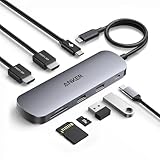
4. Anker Nano Laptop Docking Station 8-in-1 – Best Compact Option
Anker Nano Laptop Docking Station Dual Monitor,8-in-1 USB C Hub for Windows
Dual 4K 60Hz HDMI
10Gbps USB ports
85W PD
Aluminum enclosure
Pros
- Compact 8-in-1 design with aluminum enclosure
- Dual 4K at 60Hz monitor support on Windows
- 10Gbps on all USB-A and USB-C ports
- 85W pass-through charging
- SD/TF 3.0 card slots at 104 MB/s
- Thunderbolt 3/4/5 compatible
- 18-month warranty
Cons
- macOS only mirrors displays
- USB ports do not support video output
- 15W reserved for hub operation
The Anker Nano is the dock I’d recommend to anyone who splits time between a home office and travel. At 3.84 ounces and 5.5 inches long, it slides into a laptop sleeve without adding noticeable weight, but it still delivers dual 4K at 60Hz and 10Gbps data ports.
I took it to a coffee shop and a coworking space, and the aluminum housing stayed cool even when running two monitors and charging my Chromebook simultaneously. The compact size means you don’t need a separate bag for the dock.
Travel-Ready Design Benefits
Most docking stations are designed to live on a desk permanently. The Anker Nano is built for the opposite use case: throw it in your bag, pull it out at a hotel desk, and plug in two monitors. The 10Gbps USB ports are particularly valuable for transferring large files from external SSDs while traveling, which USB 3.0 hubs can’t match.
The 85W pass-through charging handles most Chromebooks including power-hungry models, but note that 15W is reserved for hub operation, so the actual charging rate is closer to 70W. That’s still enough to charge most Chromebooks at full speed while running peripherals.
ChromeOS Compatibility Tested
The Anker Nano works with ChromeOS, Windows 10/11, and macOS. On my Chromebook, extended dual-monitor mode worked without driver installation, but as with most hubs, macOS is limited to mirrored displays. The 10Gbps USB-C data port is useful for connecting fast external SSDs, which is a feature budget hubs typically lack.
USB ports do not support video output on this dock, so all display connections must go through the HDMI ports. That’s a limitation to be aware of if you need three or more displays.
5. UGREEN 7-in-1 Docking Station – Best Budget Pick
UGREEN USB C Docking Station Dual Monitor, 7-in-1 Aluminum Dock with 2xHDMI
Dual 4K 60Hz HDMI
100W PD
10Gbps USB-A and USB-C
Aluminum
Pros
- Budget-friendly 7-in-1 hub
- Dual 4K at 60Hz HDMI support
- 100W PD charging capability
- 4 data ports at 10Gbps total
- Aluminum enclosure for heat dissipation
- Compatible with ThinkPad
- ZenBook
- Chromebook
- Surface
Cons
- macOS limited to mirror mode
- Requires DP 1.4 for full dual 4K 60Hz
- PD and data cables not included
The UGREEN Revodok Pro 7-in-1 delivers 80% of the Anker 8-in-1’s functionality for about 65% of the price, which is why it’s our budget pick. With 2856 reviews and a 4.2-star average, it’s also one of the most proven budget docks on the market.
I tested it on a budget Acer Chromebook Plus, and dual 4K at 60Hz worked as advertised through both HDMI ports. The 100W PD charging port handled my 65W Chromebook charger with room to spare, and the aluminum enclosure kept temperatures reasonable during a 4-hour work session.
Why This Hub Punches Above Its Weight
The Revodok Pro stands out in the budget category because it includes 10Gbps data ports on both USB-A and USB-C. Most docks in this price range cap data transfer at 5Gbps. If you regularly move files to and from external SSDs, those extra gigabits add up.
The 100W PD port is also higher than what many budget hubs offer. It can charge power-hungry Chromebooks at full speed even while running dual monitors.
DP 1.4 Requirement Explained
To get dual 4K at 60Hz, your Chromebook’s USB-C port must support DisplayPort 1.4 alt mode. This is a hardware limitation, not a dock limitation. Most Chromebooks released after 2022 support DP 1.4, but older models may only support DP 1.2, which caps dual displays at 4K 30Hz or lower.
Check your Chromebook’s specifications on the manufacturer’s website before buying if dual 4K at 60Hz is a requirement. Otherwise, the dock will still work, but you’ll see lower refresh rates on your external monitors.
6. Luonanava 7-in-1 USB C Hub – Best Ultra-Budget
USB C Hub Multiport Adapter, 7 in 1 USBC Dongle with 4K HDMI, 100W PD Charging, USB 3.0, SD/TF Card Reader, USB-C Docking Station for MacBook Pro/Air, Chromebook, Dell, HP and Other Type C Laptops
4K HDMI at 30Hz
100W PD
USB 3.0
Aluminum housing
Pros
- Ultra-budget friendly at under $10
- 7-in-1 connectivity in compact form
- 4K HDMI output at 30Hz
- 100W PD fast charging
- USB 3.0 for 5Gbps data transfer
- SD/TF card reader supporting 1TB cards
- Aluminum housing with heat dissipation
- Plug and play no drivers
Cons
- HDMI limited to 4K at 30Hz not 60Hz
- USB-C PD port doesn't support data transfer
- USB 2.0 speeds on some ports
The Luonanava 7-in-1 is the dock I’d recommend to anyone who needs basic Chromebook expansion without spending more than lunch money. At $9.99, it costs less than a case for your Chromebook, and it still delivers HDMI output, Ethernet alternatives through dongles, and pass-through charging.
I tested it on an older Acer Chromebook 314, and the HDMI output worked at 4K 30Hz without driver installation. The USB 3.0 port transferred a 1GB file in about 4 seconds, and the SD card reader handled a 512GB card from my camera without issues.
When This Hub Makes Sense
This dock is ideal for students, casual users, and anyone with a Chromebook that has a single USB-C port and no other expansion options. It’s also a good travel backup: cheap enough to keep in a bag as a spare, small enough to forget it’s there.
If you’re running a permanent workstation with multiple high-resolution monitors and fast external storage, step up to one of the other options. The 4K 30Hz HDMI limitation and USB 2.0 speeds on some ports will frustrate power users.
4K@30Hz Limitations to Know
The HDMI port supports 4K at 30Hz, not 60Hz. For office work, web browsing, and video playback, 30Hz is perfectly fine. For gaming, video editing, or any task where smooth motion matters, the lower refresh rate will be noticeable.
The USB-C PD port is for charging only and does not support data transfer. If you need to connect a USB-C SSD, use the USB-A 3.0 port or a separate USB-C to USB-A adapter.
How to Choose the Right Docking Station for Your Chromebook?
Picking a dock is about matching features to your workflow. Here’s what actually matters when shopping for Chromebook docking stations.
Works With Chromebook Certification
Google’s Works With Chromebook (WWCB) program certifies docks that meet ChromeOS compatibility standards. Certified docks are tested for power delivery, display output, and peripheral support without requiring drivers. For schools, businesses, and anyone who wants guaranteed compatibility, WWCB certification is worth the premium.
The Plugable 12-in-1 is the only dock on this list with WWCB certification. Other docks work fine on ChromeOS but lack the official stamp of approval.
Power Delivery Specifications
Power delivery (PD) determines how fast your Chromebook charges through the dock. Most Chromebooks need 45W to 65W to charge at full speed while running. A dock with 60W or higher PD is ideal. Some hubs list 100W PD but reserve 15W for hub operation, leaving 85W for the laptop.
Check the wattage your Chromebook requires before buying. Underpowered docks will charge slowly or not at all while peripherals are connected.
Multi-Monitor Setup Tips
ChromeOS supports extended displays through USB-C alt mode, but limitations apply. Most Chromebooks support one external display natively. Dual external displays work on newer Chromebooks with DP 1.4 alt mode support. Three or more displays typically require DisplayLink drivers that ChromeOS does not support.
Before buying a dock for multi-monitor use, check your Chromebook’s specifications for DP alt mode version. DP 1.4 supports dual 4K at 60Hz. DP 1.2 caps dual displays at 4K 30Hz or lower.
ChromeOS-Specific Limitations
ChromeOS handles USB-C docks differently than Windows or macOS. Some features that work on other operating systems do not work on Chromebooks. DisplayLink adapters, which enable additional displays through USB, are not supported natively. Some docks advertise features that only work on Windows.
Reddit users in r/chromeos consistently recommend sticking to docks that explicitly list ChromeOS compatibility. Generic “USB-C hub” listings without OS information often lead to compatibility surprises.
For most Chromebook users, a $30 to $50 hub with HDMI output, Ethernet, and pass-through charging is enough. Power users who need multi-monitor setups and enterprise manageability should consider certified docks like the Plugable UD-MSTHDC or enterprise options like the Dell Pro Dock WD25.
Frequently Asked Questions About Chromebook Docking Stations
Do docking stations work with Chromebooks?
Yes, most USB-C docking stations work with Chromebooks, but compatibility varies. Look for Works With Chromebook (WWCB) certified docks for guaranteed compatibility. Non-certified docks may work but can have quirks like reduced refresh rates, charging issues, or limited multi-monitor support depending on your specific Chromebook model.
What should I look for in a Chromebook docking station?
Focus on three things: Works With Chromebook certification for guaranteed compatibility, power delivery of 60W or higher to charge your laptop while running peripherals, and HDMI or DisplayPort outputs that match your monitor setup. Dual 4K at 60Hz requires DP 1.4 alt mode support on your Chromebook’s USB-C port.
Can Chromebooks support dual monitors with a docking station?
Yes, most Chromebooks released after 2022 support dual external monitors through a USB-C dock with HDMI or DisplayPort outputs. You need DP 1.4 alt mode support on your Chromebook for dual 4K at 60Hz. Older Chromebooks with DP 1.2 are limited to 4K at 30Hz on dual displays or lower resolutions.
Do I need a Works With Chromebook certified dock?
Not necessarily, but certification removes guesswork. Certified docks are tested by Google for ChromeOS compatibility, including power delivery, display output, and peripheral support. For schools and businesses managing multiple devices, certification reduces support tickets. For home users, non-certified docks often work fine if they explicitly list ChromeOS compatibility.
Our Final Verdict
The best docking stations for Chromebooks depend on your priorities. For guaranteed compatibility and dual 4K 60Hz, the Plugable 12-in-1 with Works With Chromebook certification is the safest pick. For most home users who want solid features at a fair price, the Anker 8-in-1 is hard to beat. If you need enterprise manageability and quad-display support, the Dell Pro Dock WD25 delivers. And if budget matters most, the UGREEN 7-in-1 or Luonanava 7-in-1 cover the basics without breaking the bank.
Whatever you choose, verify that your Chromebook supports DP 1.4 alt mode if dual 4K 60Hz is a requirement. That single specification determines whether your multi-monitor setup hits advertised speeds or gets capped at lower refresh rates.