
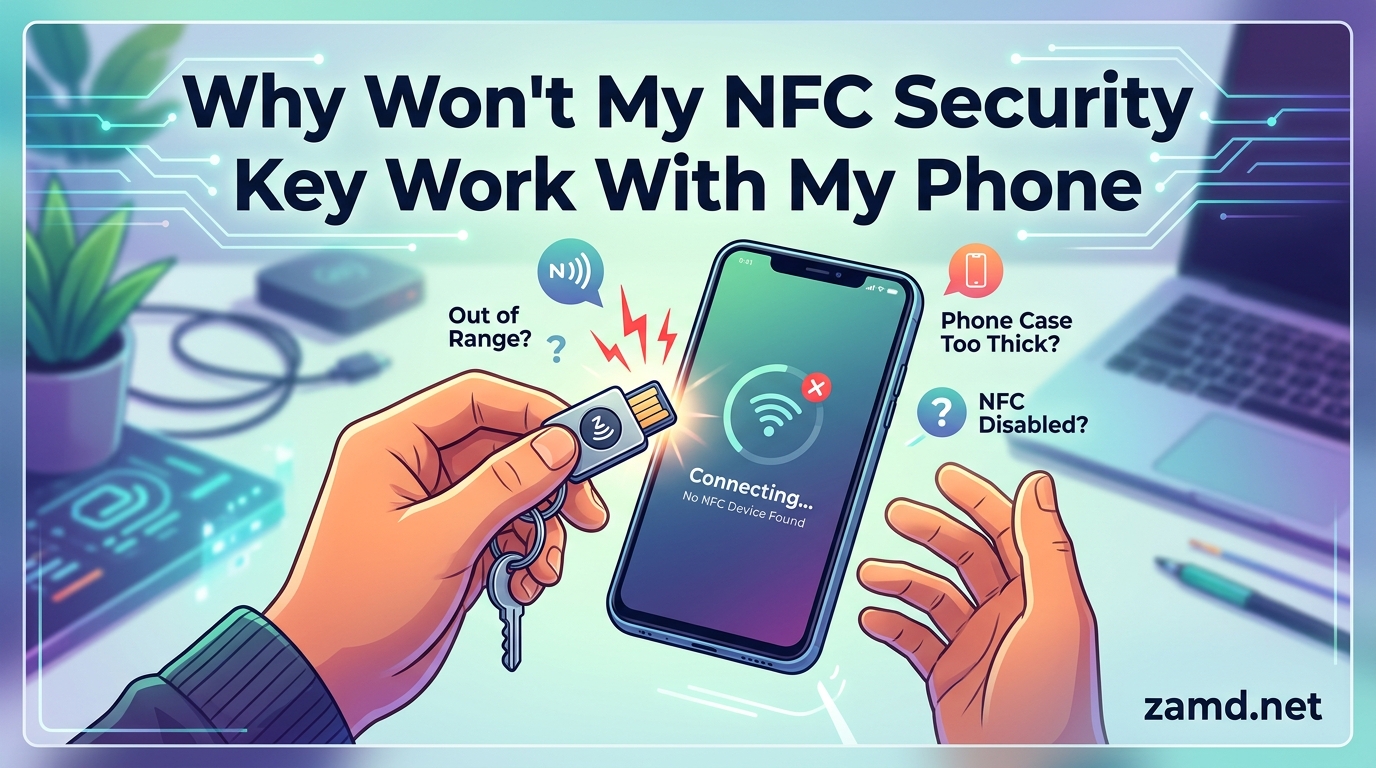
You set up your hardware security key, tapped it against your phone, and nothing happened. If your NFC security key is not working with your phone, you are not alone. This is one of the most common complaints from users switching to hardware-based two-factor authentication.
The good news is that most NFC security key problems have simple fixes. In this guide, I walk through every common cause, from disabled NFC settings to iOS 18 restrictions, and give you clear steps to get your key working again.
Table of Contents
Quick NFC Troubleshooting Checklist
Before diving into complex fixes, run through this 60-second checklist. These five steps solve the majority of NFC security key connection issues.
1. Confirm NFC is turned on. On Android, go to Settings, then Connections or Connected devices, and make sure the NFC toggle is switched on. On iPhone, NFC is always enabled for compatible keys, so skip this step if you are on iOS.
2. Remove your phone case. Metal cases, metal inserts, PopSockets, and thick rugged cases can block the NFC signal entirely. Take the case off and try tapping your key again.
3. Restart your phone. A simple reboot clears temporary NFC reader glitches. Many users report that restarting temporarily fixes detection issues after an OS update.
4. Find the correct NFC antenna spot. The NFC antenna is not in the same place on every phone. Tapping the middle of the back usually works on iPhones, while many Android phones have the antenna near the top third of the device.
5. Verify your phone actually has NFC hardware. Not all phones support NFC. If you do not see an NFC option anywhere in your settings, your phone may lack the necessary chip. Check your manufacturer’s spec sheet to confirm.
Why Won’t My NFC Security Key Work With My Phone: Top Causes Explained
If the quick checklist did not solve your problem, the issue likely falls into one of six categories below. I cover each one with specific fixes.
NFC Is Disabled or Not Supported
This is the most overlooked cause. On Android phones, NFC can be accidentally toggled off, or a software update may have reset your connection settings. Navigate to Settings, search for NFC, and confirm the toggle is on.
Some budget Android phones do not include NFC hardware at all. If you never see an NFC option in your settings menu, your phone likely does not support it. You can verify this by searching your exact phone model online with the word specifications.
If your phone supports NFC but the toggle keeps turning off, there may be a conflict with a power-saving mode. Some battery optimization profiles disable NFC to save power. Check your battery settings and add NFC to any allowed or exempt list.
Phone Case and Metal Interference
NFC operates at a very short range, typically under 4 centimeters. Any physical barrier between your security key and the phone’s NFC antenna can weaken or completely block the signal.
Metal cases are the worst offenders. Metal reflects and absorbs the NFC radio frequency, making communication impossible. MagSafe rings and magnetic mounts embedded in cases create the same problem because the magnet interferes with the signal.
Even non-metallic thick cases can cause issues. Rugged cases designed for drop protection often add enough distance between the key and antenna to prevent a connection. Try removing your case entirely and tapping the bare phone with your key.
If you need a case, look for NFC-friendly designs that leave the antenna area clear or use thin materials. Many manufacturers now label their cases as NFC-compatible.
NFC Antenna Positioning Issues
Even with NFC enabled and no case, tapping the wrong spot on your phone will produce no response. The NFC antenna is a specific coil built into the phone, and you need to place your security key directly over it.
Many users assume the antenna is centered, but this varies significantly between phone models. On some Samsung devices, the antenna sits near the camera module. On older Pixels, it is positioned in the upper-middle area of the back panel.
The fix is simple but requires patience. Hold your key flat against the back of your phone and slowly slide it around in small circles. Wait two to three seconds in each position before moving. When you hit the antenna spot, your phone should vibrate or show a prompt.
Software and OS Update Problems
Operating system updates are a frequent culprit. I have seen numerous reports from users whose NFC security keys worked perfectly until a system update, then stopped entirely.
iOS 18 introduced changes to how the system handles NFC security keys, and many users on Reddit and Apple Support Communities reported broken functionality after upgrading. If you recently updated iOS and your key stopped working, the update may be responsible.
On Android, Google Play Services handles NFC authentication. If Play Services is outdated or has corrupted cache data, NFC security key prompts may not appear. Go to Settings, Apps, Google Play Services, and clear the cache. Then check for updates in the Play Store.
Also check your security key itself for firmware updates. Yubico releases firmware updates through YubiKey Manager, their desktop tool. Connect your key via USB to a computer and run the manager to check for available updates.
PIN Requirement Blocking NFC Authentication
This is one of the most confusing issues users encounter. Some services require a PIN during FIDO2 authentication, and certain Android versions do not handle the NFC PIN prompt correctly.
Reddit users on r/yubikey have confirmed that when a website requires a PIN for NFC authentication on Android, the process often fails silently. The phone does not display the PIN entry prompt, so the authentication request times out.
If your NFC key works with some services but not others, check whether the failing service requires a PIN. Google accounts often work fine, while Microsoft and some enterprise services may require PIN verification during NFC authentication.
The workaround is to connect your key via USB instead of NFC. USB connections handle the PIN prompt reliably on both Android and desktop. Alternatively, check if the service offers a passwordless option that bypasses the PIN requirement.
Service and Account Compatibility
Not every online service supports NFC security keys on mobile. A service may accept hardware keys via USB but lack mobile NFC support entirely.
Google accounts have excellent NFC security key support on both Android and iOS. GitHub supports NFC authentication through mobile browsers. However, Microsoft accounts are more complicated, and users frequently report that NFC keys do not work with the Edge mobile app.
If your key works with some accounts but not others, the problem is likely service compatibility rather than hardware. Check the specific service’s documentation for mobile NFC support details.
NFC Antenna Positioning Guide for Popular Phones
Finding the right tap spot saves hours of frustration. Here is where the NFC antenna lives on popular phone models.
iPhone (iPhone 7 and newer): The NFC antenna is located in the upper-center area of the back panel. Hold your security key flat against the top third of the phone’s back, just below the camera module. iPhones give haptic feedback when the key is detected.
Samsung Galaxy S series: On most recent Galaxy S models (S21 through S24), the NFC antenna sits near the camera cluster. Tap your key against the upper portion of the back, around the camera bump area.
Samsung Galaxy Note and Z Fold series: The antenna is typically centered on the back panel. On Fold devices, use the main inner screen’s back when unfolded.
Google Pixel: Pixel phones generally have the NFC antenna in the upper-middle area of the back. Tap just above the center point, near the horizontal visor or camera bar.
OnePlus: Most OnePlus models position the NFC antenna in the center of the back panel. Tap directly in the middle.
For any phone not listed here, the slow-slide method works reliably. Place the key flat against the back and move it gradually from top to bottom. Stop when you feel a vibration or see a prompt appear on screen.
iOS-Specific NFC Security Key Issues
iPhone users face a unique set of NFC challenges. Apple tightly controls NFC access, which means some limitations are by design rather than bugs.
iOS 18 changes: Multiple users reported that iOS 18 broke NFC security key functionality that worked on iOS 17. Some users received replacement keys from Yubico that still failed, confirming the issue is software-related, not hardware. Apple has addressed some of these issues in point releases, so make sure you are running the latest iOS version available for your device.
Safari limitations: Safari on iOS supports WebAuthn and FIDO2 security keys, but the implementation can be inconsistent across websites. If a site does not trigger an NFC prompt in Safari, try using a different browser like Chrome for iOS as a test.
App restrictions: Third-party apps on iOS cannot freely access NFC. Each app needs specific entitlements to communicate with NFC devices. If you are trying to use a security key inside a specific app rather than a browser, the app itself may not support NFC authentication.
No NFC settings toggle: iPhones do not have a user-facing NFC toggle in Settings. NFC is always enabled for supported functions. If your key does not work, the problem is not a disabled setting but rather a compatibility or positioning issue.
Android-Specific NFC Security Key Issues
Android offers more flexibility with NFC but also more potential failure points due to manufacturer customizations.
Chrome vs Edge vs Firefox: Google Chrome on Android has the most reliable NFC security key support. Microsoft Edge users frequently report that NFC authentication does not work, particularly for Microsoft account logins. Firefox for Android has limited WebAuthn support that may not trigger NFC prompts.
Google Play Services: Android relies on Google Play Services’ FIDO2 API to handle security key communication. If Play Services is outdated, glitchy, or has corrupted data, NFC prompts will fail to appear. Clear the Play Services cache and update it through the Play Store.
Samsung-specific behavior: Samsung devices use Samsung Pass for some authentication flows, which can conflict with standard FIDO2 security key protocols. Samsung S21 FE users on Reddit report that NFC keys work for Google accounts but fail silently for Amazon and Microsoft logins.
USB OTG alternative: Most Android phones support USB On-The-Go, which means you can connect a USB security key directly using a USB-C adapter. This bypasses NFC entirely and is a reliable fallback when NFC refuses to cooperate.
App vs Browser: Why NFC Works in One But Not the Other
This distinction causes massive confusion. A security key that works perfectly in your mobile browser may fail completely inside a native app, and vice versa.
The reason is that mobile browsers and native apps handle WebAuthn differently. Mobile browsers like Chrome and Safari route security key authentication through the operating system’s built-in FIDO2 handler. Native apps must implement their own FIDO2 support, and many do not.
For example, if you open the Google app and try to sign in, the app may not support NFC keys even though signing in through Chrome on the same phone works fine. The same applies to Microsoft Edge, Amazon’s shopping app, and many banking apps.
If NFC works in your browser but not in a specific app, switch to the browser version of that service. Open Chrome or Safari, navigate to the website, and sign in there. Once authenticated, the web session usually carries over or can be linked to the app.
For services that only work through their app and you cannot use NFC, check if the app supports a USB-connected security key. Some apps that lack NFC support still accept hardware keys plugged in via USB-C.
Advanced Fixes When Nothing Else Works
If you have tried everything above and your NFC security key still will not connect, these advanced solutions address deeper issues.
Use a USB-C to USB-A adapter. If your security key has a USB-A connector and your phone only has USB-C, a USB-C to USB-A OTG adapter lets you plug the key directly into your phone. This completely bypasses NFC and is the most reliable workaround. Users on Microsoft’s support forums confirm this approach works for Microsoft Edge and other problematic apps.
Reset your security key. If your key was previously registered with a different account or has corrupted credentials, a factory reset may help. For YubiKey devices, use YubiKey Manager on a computer to reset the FIDO2 application slot. Be aware that this erases all FIDO2 credentials stored on the key, so you will need to re-register it with every service.
Run YubiKey Manager diagnostics. Connect your key to a computer via USB and open YubiKey Manager. The tool can verify that the key’s NFC interface is functioning correctly and check for firmware updates. If the key fails diagnostics on USB as well, it may be defective and require replacement.
Check for conflicting apps. Some apps that manage NFC tags or handle payment functions can interfere with security key communication. If you recently installed an NFC-related app, try uninstalling it and testing your security key again.
Contact support. If none of these fixes work, reach out to your security key manufacturer. Yubico offers direct support through their website and is known for responsive troubleshooting help. Have your key model, firmware version, and phone details ready when you contact them.
FAQ’s
Why is my YubiKey not working on my phone?
Your YubiKey may not work on your phone due to several common causes: NFC is turned off in your Android settings, your phone case is blocking the signal, you are tapping the wrong spot on your phone’s NFC antenna, a recent OS update broke compatibility, or the specific service requires a PIN that fails silently over NFC. Try removing your case, restarting your phone, and slowly sliding the key across the back until you find the antenna location.
Why won’t NFC work on my phone?
NFC may not work on your phone because NFC is disabled in settings, your phone lacks NFC hardware entirely, a software update introduced a bug, a thick or metal case is blocking the signal, or Google Play Services (on Android) has corrupted cache data. Start by checking for an NFC toggle in your settings, removing your case, and restarting your device.
How do I set up an NFC security key?
To set up an NFC security key, first enable NFC in your phone settings (Android only, as iPhone has NFC always on). Then sign in to your account (such as Google or GitHub), navigate to security settings, select add security key, and follow the prompts to tap your key against the back of your phone. The exact antenna position varies by phone model, so move the key slowly until you feel a vibration or see a prompt.
Why won’t my iPhone read my YubiKey?
Your iPhone may not read your YubiKey because you are not tapping the correct antenna location (upper-center back of the phone), iOS 18 introduced NFC changes that broke functionality for some users, the website or app you are using does not support NFC authentication on iOS, or a thick case is blocking the signal. Try removing your case, updating to the latest iOS version, and using Safari for web-based authentication.
Getting Your NFC Security Key Working
When your NFC security key is not working with your phone, the fix usually comes down to one of a few things: enabling NFC, removing a blocking case, finding the right antenna position, or switching from an app to a mobile browser.
I recommend working through the quick checklist first, then moving into the platform-specific sections for your device. Most users solve their problem within the first three steps.
If NFC simply will not cooperate with a specific service, remember that a USB-C connection is always available as a reliable fallback. The key still works, it just needs a different connection method for that particular app or website.