
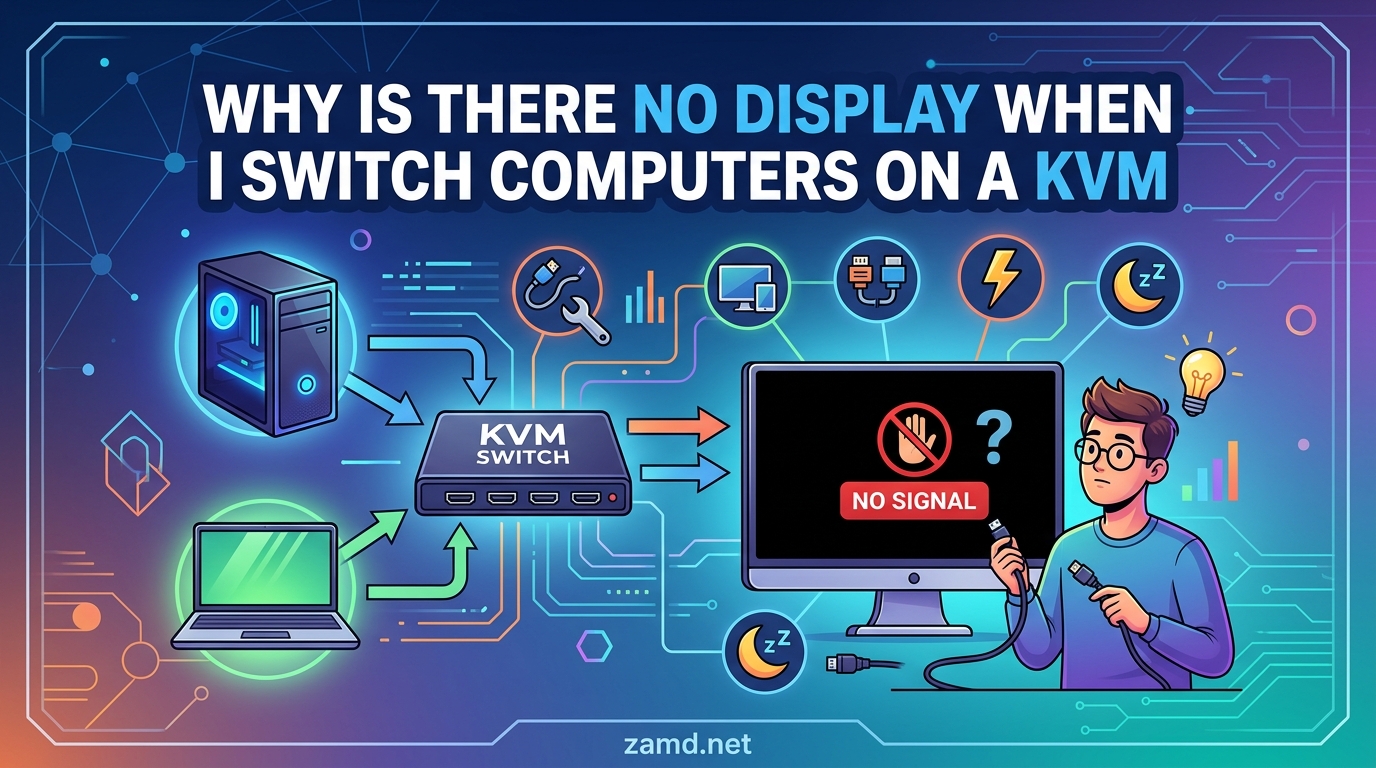
If your KVM switch shows no display when switching computers, the most common causes are EDID handshake failures, loose or low-quality cables, incorrect power-on sequence, outdated firmware, or bandwidth limitations in dual-monitor setups. Most of these issues are fixable without replacing your KVM switch.
I have spent years setting up multi-computer workstations, and the KVM switch no display problem is the single most common issue people run into. The good news is that about 90 percent of cases come down to a handful of identifiable causes.
In this guide, I will walk you through exactly why your KVM switch is showing a black screen, no signal, or blank display when you toggle between computers. You will get a quick diagnostic checklist, step-by-step fixes for each root cause, and clear guidance on when to stop troubleshooting and replace your switch. Whether you are running a single monitor with two PCs or a complex dual-monitor setup with mixed Windows and Linux machines, this guide covers your situation.
KVM switch troubleshooting can feel frustrating because the black screen gives you no error message to work with. But once you understand what happens inside the switch when you press that button, the fixes start making sense.
Table of Contents
Quick Diagnostic Checklist: 5 Things to Check First
Before diving into deep troubleshooting, run through this 5-step diagnostic checklist. These are the most common KVM switch no display fixes, and they take less than 10 minutes total.
Step 1: Power cycle the KVM switch. Unplug the KVM from power for at least 30 seconds, then plug it back in. If your KVM has been running for weeks or months, residual charge can build up and cause signal issues. Many users report that a full 30-minute unplug (to let all power dissipate) fixes intermittent black screen problems that nothing else solves.
Step 2: Reseat every cable. Unplug and firmly reconnect every video cable, USB cable, and power cable on both the computer side and the KVM side. A cable that looks connected can still have a loose pin or slightly lifted connector that causes a KVM switch no signal condition.
Step 3: Test each computer individually. Connect each computer directly to the monitor without the KVM in between. If one computer shows no display even without the KVM, the problem is not the switch. If both work fine directly but fail through the KVM, the switch or its cables are the culprit.
Step 4: Check the power-on sequence. Make sure the KVM switch is powered on and set to the target port before you boot or wake the computer. Incorrect boot order is a top cause of KVM switch black screen issues.
Step 5: Try a different cable. Swap the video cable between the problematic computer and the KVM with a known-good cable of the same type. Cable quality issues are invisible but extremely common.
If none of these quick fixes solve the problem, do not worry. The sections below cover each root cause in detail with specific solutions.
Common Causes of KVM Switch No Display When Switching Computers
Understanding the full list of potential causes helps you avoid wasting time on fixes that do not apply to your situation. Here is a breakdown of every common reason your KVM switch is not showing display after switching.
Cable and connection problems account for roughly 40 percent of KVM display issues. This includes loose connections, damaged cables, cables that are too long, and incompatible adapters.
EDID handshake failures make up about 25 percent of cases. When the KVM switches between computers, the monitor and the new computer need to negotiate resolution and refresh rate. If this handshake fails, you get a black screen.
Power and boot sequence issues cause about 15 percent of problems. The order in which you power on the KVM, computers, and monitor matters more than most people realize.
Firmware and driver conflicts account for another 10 percent. Outdated KVM firmware or GPU drivers can prevent proper signal handoff during switching.
Hardware failure or bandwidth limitations make up the remaining 10 percent. This includes failing KVM switches, overloaded dual-monitor setups, and degraded internal components.
Let us look at each category in detail.
Cable and Connection Issues
Cable problems are the number one cause of KVM switch no display when switching computers. They are also the easiest and cheapest to fix.
Loose Cables and Partial Connections
A video cable that is slightly loose can work fine on one computer but fail on another because of minor differences in port tension. HDMI and DisplayPort cables especially can appear seated while actually being lifted by a millimeter or two.
I recommend unplugging every cable and reconnecting it with a deliberate, firm push. For DisplayPort cables, you should feel the locking clip engage. For HDMI cables, there should be no wiggle room at all.
Check both ends of every cable. The connection at the KVM switch side is just as important as the connection at the computer side.
Cable Quality and Length Matter More Than You Think
Cheap cables are a frequent culprit behind KVM switch black screen issues. A cable that works fine in a direct monitor connection can fail when routed through a KVM because the switch adds signal attenuation.
As a general rule, keep video cables under 6 feet when connecting through a KVM. Every additional foot degrades signal quality, and KVM switches amplify that degradation.
One forum user resolved a persistent dual monitor KVM black screen simply by replacing two 10-foot HDMI cables with 3-foot premium cables. The shorter cables eliminated signal loss that was causing intermittent no display issues.
Look for cables that are certified for your resolution and refresh rate. A standard HDMI cable might handle 1080p at 60Hz fine but fail at 4K at 60Hz through a KVM switch due to bandwidth limitations.
Adapter Compatibility Problems
If you are using adapters to convert between DisplayPort, HDMI, DVI, or USB-C, those adapters can cause KVM switch no signal issues. Passive adapters are especially problematic because they rely on the source device to handle signal conversion.
Active adapters draw power and actively convert the signal, which makes them far more reliable in KVM setups. If you need to convert DisplayPort to HDMI or vice versa through a KVM, always use an active adapter.
USB-C to HDMI or DisplayPort adapters have their own set of compatibility issues. Some USB-C ports do not support video output at all, and others support only certain resolutions through adapters. Check your computer specifications to confirm the port supports DisplayPort Alternate Mode or Thunderbolt video output.
Cable Type Compatibility Notes
Different cable types interact with KVM switches differently. HDMI cables are the most forgiving but can still suffer from handshake issues. DisplayPort cables offer higher bandwidth but have stricter requirements for cable quality.
If you are mixing cable types in a dual-monitor KVM setup, try to use the same cable type for both monitors. Mixed cable types can confuse the EDID handshake process and cause one monitor to go black while the other works fine.
EDID Handshake Problems: The Silent Display Killer
EDID handshake failure is one of the most misunderstood causes of KVM switch no display when switching computers. It is also one of the hardest to diagnose because there is no error message. The screen simply goes black.
What Is EDID and Why Does It Matter?
EDID stands for Extended Display Identification Data. It is a short data block that your monitor sends to your computer telling it what resolutions, refresh rates, and features the monitor supports.
When you connect a computer directly to a monitor, the EDID exchange happens once and stays stable. But when you use a KVM switch, the computer loses its connection to the monitor every time you switch away. When you switch back, the computer and monitor need to re-establish the EDID handshake.
If the handshake fails, the computer does not know what resolution to output, and the monitor shows nothing. This is why your KVM switch works fine on one computer but shows a black screen on another. The timing of the handshake re-establishment varies between devices.
How to Tell If EDID Is Your Problem
EDID handshake failure has a few telltale signs. The display works when you first boot the computer but goes black after switching away and back. The display flickers or shows the wrong resolution after switching. The display takes several seconds to appear after switching, when it used to be instant.
If you see any of these patterns, EDID is almost certainly your issue. The good news is there are several effective fixes.
EDID Emulator KVM Switches vs Standard KVM Switches
This is where the market splits into two categories, and understanding the difference can save you hours of frustration.
Standard KVM switches physically disconnect the monitor from each computer when you switch. This forces a full EDID re-handshake every time, which is where most display problems originate.
EDID emulator KVM switches maintain a constant virtual connection between each computer and a simulated monitor. The computer always thinks it is connected to the display, even when you are switched to another computer. This eliminates the handshake problem entirely.
If you are buying a new KVM switch, look for one with built-in EDID emulation. It is the single biggest feature for preventing no display issues. Most mid-range and premium KVM switches now include EDID emulation.
Fixes for EDID Handshake Failures
If you already own a standard KVM switch without EDID emulation, you still have options. You can add an external EDID emulator between each computer and the KVM switch. These small devices cost under $30 and trick the computer into thinking the monitor is always connected.
Another fix is to set your computer to a fixed resolution rather than auto-detect. On Windows, go to Display Settings and manually set the resolution and refresh rate to match your monitor. On Linux, you can force a resolution through xrandr configuration.
Some KVM switches have a firmware setting to adjust the switching delay. A longer delay gives the EDID handshake more time to complete. Check your KVM switch documentation for this option.
Power-On Sequence and Boot Order
The order in which you power on your devices affects whether your KVM switch displays correctly. This is a frequently overlooked cause of KVM switch black screen issues.
Why Power-On Order Matters
When a computer boots, it queries the connected display for EDID information and configures its video output accordingly. If the KVM switch is not powered on, or if it is switched to a different port, the booting computer cannot reach the monitor and may default to no video output or a generic low resolution.
This is why many users experience a KVM switch no display problem on one computer but not another. The first computer was booted while the KVM was correctly configured, but the second was booted while the KVM was pointed elsewhere.
The Correct Boot Sequence
Follow this order every time you start your system:
1. Power on the KVM switch first. Wait for it to fully initialize, which usually takes 2 to 3 seconds.
2. Set the KVM switch to the port for the first computer you want to boot.
3. Power on the first computer. Wait for it to fully boot and display on the monitor.
4. Switch the KVM to the second port.
5. Power on the second computer. It will now detect the monitor through the KVM and configure video correctly.
One forum user discovered this fix by accident. They had been getting a black screen on their second computer every time, and it turned out they were booting both computers before powering on the KVM switch. Once they changed the order, the problem disappeared.
Sleep and Wake Issues
Power-on sequence problems do not just happen at boot. They also occur when computers wake from sleep mode. When a computer sleeps, it may drop the video signal. When it wakes, it needs to re-establish the EDID handshake through the KVM.
If your KVM switch shows no display after a computer wakes from sleep, try switching the KVM to a different port and back. This forces a new handshake cycle. On Windows, you can also disable link state power management in the power plan settings to prevent the video signal from dropping during sleep.
Firmware and Driver Updates
Outdated firmware on your KVM switch and outdated drivers on your computers can both cause display issues. Updates are often the difference between a working setup and constant black screens.
Why Updates Fix Display Problems
KVM switch manufacturers regularly release firmware updates that improve EDID handling, fix switching timing, and add compatibility with newer monitors and graphics cards. A KVM switch that worked fine for a year can suddenly develop no display issues after you upgrade your GPU or monitor.
GPU driver updates also play a role. New monitor drivers or Windows updates can change how the computer handles EDID handshakes, breaking compatibility with older KVM firmware.
How to Update KVM Firmware
The firmware update process varies by brand, but here is the general approach:
Step 1: Identify your KVM switch model number. This is usually printed on the bottom or back of the unit.
Step 2: Visit the manufacturer website and find the support or downloads section for your model.
Step 3: Download the latest firmware file and the update utility. Some brands like TESmart and AV Access provide a USB update tool.
Step 4: Connect the KVM switch to your computer via USB (not the video cables, just the USB update port).
Step 5: Run the firmware update utility and follow the on-screen instructions. Do not power off the KVM during the update.
If your KVM switch brand does not offer firmware updates, you may be out of luck on that front. Budget KVM switches from generic brands typically have no update path.
GPU Driver Considerations
GPU driver issues can mimic KVM problems. A Linux user on the Manjaro forum experienced a blank screen when switching KVM after a routine software update. The culprit turned out to be a GPU driver change, not the KVM switch itself.
On Windows, if you recently updated your GPU driver and started seeing KVM switch no display issues, try rolling back to the previous driver version. On Linux, you can switch between the proprietary and open-source GPU drivers to see which one handles KVM switching better.
NVIDIA GPUs are particularly sensitive to EDID timing on KVM switches. If you have an NVIDIA card and are experiencing black screen issues, check the NVIDIA Control Panel for any display detection settings that might interfere with KVM switching.
Dual Monitor KVM Black Screen Issues
Dual monitor KVM setups introduce a whole new layer of complexity. Problems that do not appear in single-monitor configurations become common when you add a second display.
Bandwidth Limitations
Every KVM switch has a maximum bandwidth it can handle. If you are running two 4K monitors at 60Hz through a KVM rated for 4K at 30Hz, you will get a black screen or signal drop on one or both monitors.
Check the specifications of your KVM switch carefully. The bandwidth rating should cover the combined resolution and refresh rate of both monitors. For dual 4K at 60Hz, you need a KVM that explicitly supports that configuration.
HDMI 2.0 supports 4K at 60Hz on a single connection, but not all KVM switches fully implement HDMI 2.0 bandwidth across all ports. DisplayPort 1.4 KVM switches generally handle dual high-resolution monitors better than HDMI models.
One Monitor Works, One Stays Black
This is one of the most frustrating KVM switch problems. You switch computers and one monitor comes up fine while the second stays black. The cause is almost always an EDID handshake failure on the second monitor or a bandwidth limitation.
If the second monitor is connected via a different cable type than the first, start there. Mixed HDMI and DisplayPort connections in a dual-monitor KVM can cause asymmetric handshake timing. Try using the same cable type for both monitors.
Some KVM switches handle the primary monitor EDID but not the secondary. An EDID emulator on the second monitor connection can resolve this issue.
Mixed Computer Setups
If you are running a dual-monitor KVM with a Windows PC and a Mac, or a Windows PC and a Linux machine, expect some additional troubleshooting. Different operating systems handle EDID handshakes differently, and what works for one computer may fail for another.
One user with a Mac Mini and a Windows PC needed to run both a DisplayPort cable and an HDMI cable from the KVM to the Mac for dual-monitor support, while the Windows PC used two DisplayPort connections. Matching the cable configuration to each computer specifications resolved the issue.
Linux-Specific KVM Troubleshooting
Linux users face unique KVM switch no display challenges that Windows users never encounter. The open-source community has documented several workarounds.
GPU Driver Conflicts on Linux
The most common Linux-specific issue is GPU driver changes breaking KVM compatibility. When a Linux distribution updates the kernel or GPU driver, the EDID handshake behavior can change without warning.
If your KVM switch blank screen started after a Linux update, try booting into an older kernel version from the GRUB menu. If the display works with the older kernel, the problem is driver-related.
For NVIDIA users on Linux, the proprietary driver sometimes handles EDID differently than the open-source Nouveau driver. Switching between them can resolve KVM display issues.
Forcing EDID on Linux
Linux gives you powerful tools to force display detection that Windows does not offer. You can use xrandr to manually configure display output and bypass the EDID handshake entirely.
You can also create a custom EDID file and load it at boot using the kernel parameters. This tells Linux exactly what monitor is connected regardless of what the KVM switch reports. While this is an advanced technique, it completely eliminates EDID handshake failures on Linux.
When to Replace Your KVM Switch vs Keep Troubleshooting
No competitor covers this topic, yet it is one of the most common questions in forums. Knowing when to stop fixing and start shopping saves you time and sanity.
Signs Your KVM Switch Is Failing Hardware-Wise
KVM switches do wear out. Internal components degrade over time, especially the switching relays that handle video signal routing. Here are the signs that your KVM switch has a hardware problem rather than a configuration issue.
The display worked fine for months or years and then started failing without any changes to your setup. The KVM switch makes a clicking or buzzing sound when switching. Some ports work consistently while others never do, even with known-good cables and computers. The display flickers or drops signal randomly even when you are not switching.
If you notice any of these patterns, the KVM switch itself is likely degraded or failing. No amount of cable swapping or firmware updates will fix worn-out hardware.
KVM Switch Lifespan: How Long Do They Last?
Most consumer-grade KVM switches last 3 to 5 years with daily use. Premium rackmount models can last 7 to 10 years. The lifespan depends heavily on how often you switch between computers and the quality of the internal components.
Switching relays are rated for a certain number of actuations, typically 50,000 to 100,000 cycles. If you switch computers 20 times per day, that is about 7,300 switches per year. A relay rated for 50,000 cycles would reach its design limit in about 7 years.
Heat is the other lifespan killer. KVM switches that run hot will degrade faster. Make sure your KVM has adequate ventilation and is not stacked under other heat-generating equipment.
Decision Guide: Repair or Replace?
Try to repair if the KVM switch is under 2 years old, the problem started after a system change like a new GPU or monitor update, or the issue is intermittent and seems cable-related.
Replace the KVM switch if it is over 4 years old, multiple troubleshooting steps have failed, the unit shows physical signs of wear like hot operation or buzzing sounds, or you need features your current KVM lacks like EDID emulation or higher bandwidth for 4K dual monitors.
When shopping for a replacement, prioritize EDID emulation, adequate bandwidth for your resolution, and a brand with firmware update support. Spending slightly more on a KVM with these features will save you from repeating this troubleshooting process.
Frequently Asked Questions
Why is my KVM switch not showing monitors?
Your KVM switch is not showing monitors because of an EDID handshake failure, loose or low-quality cables, incorrect power-on sequence, outdated firmware, or bandwidth limitations. Start by power cycling the KVM for 30 seconds, reseating all cables, and making sure the KVM is powered on before booting your computers.
What are common problems with KVM switches?
Common KVM switch problems include no display or black screen when switching, one monitor working while the second stays black, USB devices disconnecting during switches, screen flickering, signal drops, and failure to detect monitor resolution. Most of these trace back to EDID handshake failures, cable quality, or power sequencing issues.
Why is my PC turning on but getting no display?
If your PC powers on but shows no display through a KVM switch, the KVM may not be powered on or set to the correct port before the PC booted. The PC cannot detect the monitor through the KVM during boot if the switch is off or pointing to another port. Power cycle the KVM, set it to the correct port, then reboot the PC.
How to switch screens on KVM?
To switch screens on a KVM, press the physical button on the KVM switch unit corresponding to the target computer, or use the keyboard hotkey combination (commonly Scroll Lock + Scroll Lock, or Ctrl + Ctrl followed by the port number). Wait 2 to 5 seconds for the EDID handshake to complete and the display to appear.
Why does my KVM switch keep blacking out?
Your KVM switch keeps blacking out because of an EDID handshake failure during switching, a loose cable, insufficient bandwidth for your resolution, or a failing internal component. If the blackouts are intermittent and started recently, try a full 30-minute power disconnect. If they persist, check cable quality and consider an EDID emulator.
Why does my monitor go black when I switch monitors?
Your monitor goes black when you switch because the KVM momentarily disconnects the video signal, and the new computer needs time to re-establish the EDID handshake with the monitor. A brief 2 to 5 second blackout is normal. If the screen stays black, the handshake failed and you need to address cable quality, EDID emulation, or boot order.
Why does my KVM switch keep disconnecting and reconnecting?
Your KVM switch keeps disconnecting and reconnecting due to a loose USB cable, insufficient power supply, USB controller conflict, or failing KVM hardware. Try reseating all USB cables, using a powered USB hub between the KVM and computer, and updating KVM firmware. If the problem persists across multiple computers, the KVM switch hardware may be degraded.
Conclusion: Fixing KVM Switch No Display When Switching Computers
The KVM switch no display when switching computers problem is frustrating but rarely unfixable. Start with the quick diagnostic checklist, then work through cable quality, EDID handshake, boot sequence, and firmware updates in that order. Most issues resolve within the first two or three steps.
To prevent future problems, invest in a KVM switch with built-in EDID emulation, use short high-quality cables, follow the correct power-on sequence every time, and keep your firmware updated. These four habits eliminate about 95 percent of KVM display issues before they start.
If you have tried every fix in this guide and the black screen persists, your KVM switch may have reached the end of its lifespan. Use the decision guide above to determine whether repair or replacement is the right path for your situation.