
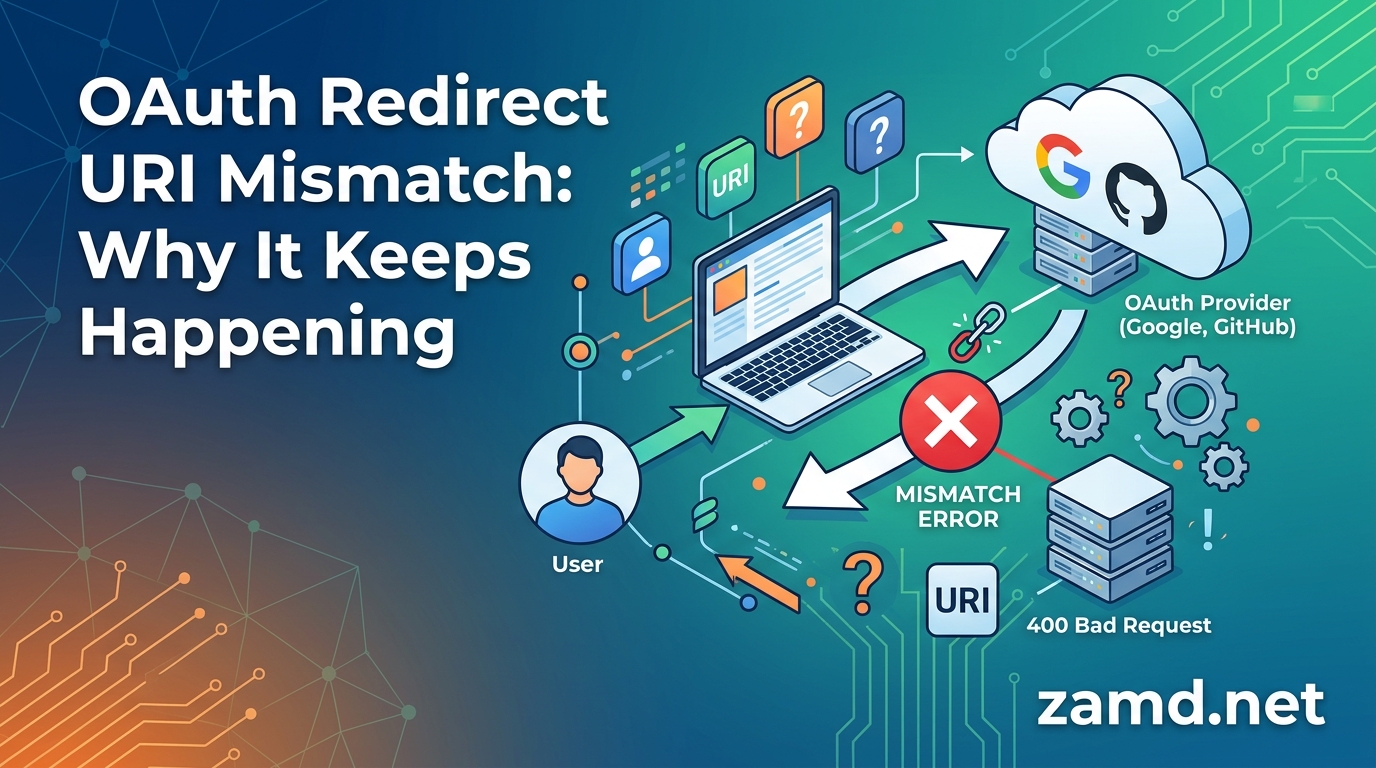
If you have ever spent an afternoon fixing an OAuth redirect URI mismatch error, confirmed everything looks correct, and then watched the exact same error resurface after your next deployment, you are not alone. Our team has debugged this error across Google OAuth, Azure Entra ID, and a dozen different frameworks, and we kept running into the same frustrating pattern: the fix works for a day or two, then silently breaks again.
The reason your OAuth redirect URI mismatch error keeps happening is almost never a single typo. It is usually a combination of environment drift between development and production, propagation delays in the OAuth provider’s console, and infrastructure components like reverse proxies that silently rewrite your redirect URIs behind the scenes.
This guide breaks down every root cause of the redirect_uri_mismatch error, explains why it recurs even after you think you have solved it, and gives you a permanent fix strategy. We cover Google OAuth, Azure / Microsoft Entra ID (AADSTS50011), and popular frameworks like NextAuth.js and Supabase so you can stop repeating the same debugging cycle.
Table of Contents
Quick Answer: Why It Keeps Happening
Your OAuth redirect URI mismatch error keeps coming back because of one or more of these recurring issues:
- Environment drift – Your development, staging, and production environments send different redirect URIs, but you only registered one of them in the OAuth provider console.
- Propagation delays – Changes you make in Google Cloud Console or the Azure portal can take 5 to 30 minutes to take effect, so you think your fix did not work and you undo it.
- Reverse proxies and load balancers – Nginx, Apache, AWS ALB, and Cloudflare can silently add trailing slashes, change HTTP to HTTPS, or strip ports from your redirect URI before it reaches the OAuth provider.
- CI/CD pipeline overrides – Environment variables set in your deployment pipeline override your local configuration, pointing the app at a different redirect URI than the one you registered.
- Browser caching – Your browser caches the old OAuth request, so even after fixing the console you see the stale error until you clear cache or use incognito mode.
The permanent fix is to treat your redirect URI as an environment-specific configuration value, register all valid URIs in the OAuth console, and add a startup check that logs the exact redirect URI your application sends so you can catch drift before users do.
What Is a Redirect URI Mismatch Error?
A redirect URI mismatch error occurs when the redirect_uri parameter your application sends to the OAuth authorization server does not exactly match any of the redirect URIs registered in your OAuth provider’s developer console. The authorization server compares these two strings using exact, character-by-character matching. If even a single character differs, the server rejects the request.
Depending on your provider, the error message looks slightly different. Google returns Error 400: redirect_uri_mismatch. Azure and Microsoft Entra ID return AADSTS50011: The reply URL specified in the request does not match the reply URLs configured for the application. GitHub returns a generic The redirect_uri MUST match the registered callback URL message. All of these mean the same thing: the URI you sent and the URI you registered are not identical strings.
OAuth providers enforce this strict matching for a critical security reason. The redirect URI is where the authorization server delivers the authorization code, which can be exchanged for an access token. If an attacker could specify any redirect URI, they could intercept authorization codes meant for your application. Exact string matching ensures sensitive credentials only go to endpoints you have explicitly verified.
Every Type of Redirect URI Mismatch (Root Causes)
Before we get into why the error keeps coming back, let us cover every type of mismatch that triggers it. We have seen each of these cause hours of debugging on real projects.
1. HTTP vs HTTPS Protocol Mismatch
This is the single most common cause. Your local development server runs on http://localhost:3000/callback, but your production app runs on https://myapp.com/callback. If you registered only the localhost URI and deployed without adding the HTTPS production URI, you get the mismatch error the moment your production build runs.
The reverse also happens. If you registered HTTPS in the console but your load balancer terminates SSL and forwards requests to your app over HTTP internally, the redirect URI your app constructs may use HTTP while the browser sends HTTPS.
2. www vs Non-www Domain Variation
https://www.myapp.com/callback and https://myapp.com/callback are two completely different strings as far as the OAuth provider is concerned. This mismatch is extremely easy to overlook because both URLs load the same page in a browser. The second-highest voted answer on the famous Stack Overflow thread about this error (with over 200 upvotes) is specifically about this www vs non-www issue.
3. Trailing Slash Inconsistency
https://myapp.com/callback is not the same as https://myapp.com/callback/. Many frameworks automatically append or strip trailing slashes, and reverse proxies often normalize them. If your OAuth library constructs the redirect URI without a trailing slash but your framework or proxy adds one, the strings no longer match.
4. Port Number Differences
During local development, your app might run on port 3000 today and port 3001 tomorrow if port 3000 is occupied. Each port change produces a new redirect URI that must be registered separately. The same applies to production services running on non-standard ports behind a proxy.
5. Case Sensitivity in the URI Path
The path portion of a redirect URI is case-sensitive. https://myapp.com/Auth/Callback will not match https://myapp.com/auth/callback. This trips up developers on Windows (where the filesystem is case-insensitive) and in frameworks that use different casing conventions for routes versus configuration.
6. localhost vs 127.0.0.1
These two addresses point to the same machine, but they are different strings. If your OAuth library constructs the redirect URI using 127.0.0.1 but you registered localhost in the console, you get a mismatch. Many developers discover this only after hours of debugging because both addresses work fine for everything except OAuth.
7. Query Parameters in the Redirect URI
Some applications append query parameters to the redirect URI at runtime. OAuth 2.0 does not allow wildcards in most providers, so https://myapp.com/callback?tenant=acme will not match a registered https://myapp.com/callback. The correct approach is to use the state parameter for passing application-specific data rather than encoding it in the redirect URI.
8. Partial Path Registration
Registering just the domain (https://myapp.com) instead of the full callback path (https://myapp.com/auth/callback) is a common beginner mistake. The redirect URI must include the complete path that your application expects for receiving the authorization response.
Why Does My OAuth Redirect URI Mismatch Error Keep Happening After I Fixed It?
This is the core question. You registered the correct URI, the error went away, and then it came back. Here is why that cycle repeats and how to break it permanently.
Environment Drift Between Dev, Staging, and Production
The number one reason the error keeps happening is environment drift. Your local development environment uses one redirect URI, your staging server uses another, and your production deployment uses a third. Each environment needs its own registered URI in the OAuth provider console.
The problem compounds when environment variables are managed inconsistently. You set REDIRECT_URI=http://localhost:3000/callback in your local .env file, but your CI/CD pipeline injects REDIRECT_URI=https://staging.myapp.com/callback during deployment. If you only registered the localhost URI, staging breaks immediately.
Propagation Delays in the OAuth Console
When you add or modify a redirect URI in Google Cloud Console or the Azure portal, the change does not take effect instantly. Multiple developers on Reddit and Stack Overflow report propagation delays ranging from 5 to 30 minutes. This creates a confusing debugging cycle: you add the correct URI, test immediately, still see the error, assume your fix was wrong, and start changing other things.
The fix here is patience combined with incognito testing. After making a change in the console, wait at least 10 minutes, then test in a fresh incognito window to avoid any cached OAuth state from your browser.
Reverse Proxies and Load Balancers Silently Rewriting URIs
This is the sneakiest cause of recurring mismatch errors. When your application sits behind Nginx, an AWS Application Load Balancer, Cloudflare, or any other reverse proxy, the proxy can modify the request in ways that change the redirect URI your app sees.
For example, Nginx with a trailing slash rewrite rule can turn /auth/callback into /auth/callback/. A load balancer that terminates SSL might cause your app to see HTTP instead of HTTPS. A CDN might strip or add port numbers. Your code constructs a redirect URI based on what it sees from the proxy, and that URI differs from what the browser originally requested.
The reform.app blog documented a real production incident in 2026 where exactly this happened. The application worked perfectly in development but failed in production because the load balancer altered the redirect URI. The team spent hours comparing strings before realizing the proxy was the culprit.
CI/CD Pipelines Overriding Configuration
Your deployment pipeline is another common source of URI drift. If your CI/CD system injects environment variables from a secrets manager (like AWS Secrets Manager or GCP Secret Manager), and those secrets contain an outdated redirect URI, every deployment silently overwrites your local fix.
We have seen teams fix the redirect URI in their code, push successfully, and then watch the error return on the next automated deployment because the pipeline’s stored environment variable still pointed to the old URI. The solution is to audit your secrets manager and CI/CD configuration every time you change a redirect URI.
Browser Caching of OAuth Requests
Browsers cache OAuth-related requests aggressively. Even after you fix the redirect URI in the provider console, your browser may replay a cached version of the old request. This is why the error sometimes appears in your regular browser but disappears in incognito mode.
Multiple developers on Reddit and Stack Overflow confirm that clearing browser cache or switching to incognito mode resolves the stale error after a console fix. If you want to verify whether your fix actually worked, always test in incognito first.
Multiple OAuth Client IDs
If your project has multiple OAuth client IDs (for example, separate web and installed application credentials), you might fix the redirect URI for one client ID while your application is actually using a different one. This happens frequently when a project is handed off between developers or when a team accidentally creates duplicate credentials in the console.
How to Diagnose the Exact URI Your App Sends
The fastest way to stop guessing is to capture the exact redirect URI your application sends to the OAuth provider. Here is the method our team uses every time.
Step 1: Open Browser Developer Tools
Open your application in the browser and press F12 to open Developer Tools. Switch to the Network tab. Make sure the tab is recording before you trigger the OAuth login flow.
Step 2: Trigger the OAuth Flow
Click your login button to start the OAuth authentication flow. Look for the request that goes to the OAuth provider’s authorization endpoint. This will be a request to accounts.google.com/o/oauth2/v2/auth for Google, or login.microsoftonline.com/ for Azure.
Step 3: Inspect the redirect_uri Parameter
Click on that request and look at the query parameters. You will see a redirect_uri parameter. This is the exact string your application is sending. Copy it character by character.
Step 4: Compare Character by Character
Go to your OAuth provider’s console and find the list of registered redirect URIs. Paste the captured URI next to each registered one and compare them character by character. Pay special attention to the protocol (http vs https), www vs non-www, trailing slashes, port numbers, and casing.
Step 5: Add the Exact URI or Fix Your App
If the captured URI is correct for your environment, add it to the console. If it is wrong (for example, it uses HTTP when it should use HTTPS), fix the configuration in your application that constructs the redirect URI.
Step-by-Step Fix: Google OAuth Redirect URI Mismatch
Here is the exact process for fixing the error in Google Cloud Console.
- Go to the Google Cloud Console at console.cloud.google.com.
- Select your project from the top navigation bar.
- Navigate to APIs and Services > Credentials in the left sidebar.
- Click on your OAuth 2.0 Client ID in the list.
- Scroll down to Authorized redirect URIs.
- Click Add URI and paste the exact redirect URI you captured from the browser developer tools.
- Add URIs for every environment (localhost, staging, production).
- Click Save.
- Wait 5 to 10 minutes for changes to propagate.
- Test in a fresh incognito window.
If you are using the Google Identity Services JavaScript library, you may need to use postmessage as your redirect URI instead of a URL. This is required for the popup-based Google Sign-In flow and is one of the most poorly documented gotchas in Google OAuth.
Step-by-Step Fix: Azure / Microsoft Entra ID (AADSTS50011)
For Azure or Microsoft Entra ID, the process is slightly different.
- Go to the Azure portal at portal.azure.com.
- Navigate to Microsoft Entra ID > App registrations.
- Select your application from the list.
- Click Authentication in the left sidebar.
- Under Platform configurations, find your web platform.
- Click Add URI and paste the exact redirect URI.
- Add URIs for all environments.
- Click Save.
- Wait up to 30 minutes for propagation.
- Clear browser cache or test in InPrivate browsing mode.
Microsoft specifically recommends clearing your browser’s password cache and using InPrivate browsing to rule out stale authentication state when troubleshooting AADSTS50011.
Framework-Specific Gotchas
Certain frameworks have their own quirks that cause recurring redirect URI mismatch errors. Here are the ones we encounter most frequently.
NextAuth.js (Next.js)
NextAuth.js relies on the NEXTAUTH_URL environment variable to construct redirect URIs. If NEXTAUTH_URL is not set correctly in production, NextAuth will generate a redirect URI based on the incoming request headers, which may not match what you registered in Google Cloud Console.
The fix is to explicitly set NEXTAUTH_URL to your production URL (for example, https://myapp.com) in your production environment variables. Do not rely on auto-detection in production. Also ensure the redirect URI registered in Google matches https://myapp.com/api/auth/callback/google exactly.
Supabase SSR (Google OAuth)
Supabase SSR handles OAuth redirects differently from traditional server-side flows. The redirect URI you register in Google Cloud Console should point to your Supabase project’s callback URL, not your application’s callback. The correct format is https://YOUR_PROJECT_REF.supabase.co/auth/v1/callback.
After Supabase receives the callback, it redirects to your application using the redirectTo parameter you specify in the sign-in call. Make sure that redirect destination is listed in Supabase’s allowed redirect URLs in the dashboard under Authentication > URL Configuration.
OmniAuth (Ruby on Rails)
OmniAuth constructs redirect URIs based on the request host. If your Rails app is accessed through multiple domains or behind a proxy, OmniAuth may use the wrong host. Set the full_host configuration option explicitly to force OmniAuth to use the correct base URL.
Flask with ngrok
If you are developing locally with Flask and ngrok, the ngrok URL changes every time you restart the tunnel (unless you have a paid plan with a reserved domain). This means you need to update the redirect URI in Google Cloud Console every time ngrok generates a new URL. Consider using a reserved ngrok domain or a tool like localtunnel with a stable subdomain.
How to Prevent the Error from Coming Back
Fixing the error once is not enough. Here is how to prevent it from recurring across deployments and environments.
Use Environment Variables for Every Redirect URI
Never hardcode a redirect URI in your application code. Store it in an environment variable and load different values for development, staging, and production. This ensures each environment sends the correct URI without code changes.
For teams using a secrets manager, store the redirect URI alongside other secrets and audit it whenever you deploy to a new domain or environment.
Register All Environment URIs Upfront
When setting up a new OAuth client, register every redirect URI you will ever need at the same time. Include localhost with common ports (3000, 8080, 5000), your staging domain, and your production domain. Adding them all at once prevents the cycle of discovering a missing URI at the worst possible moment.
Add a Startup Check That Logs the Redirect URI
Add a log statement at application startup that prints the exact redirect URI the app will use. This makes it immediately obvious when an environment variable is misconfigured or a CI/CD pipeline has injected the wrong value.
Configure Your Reverse Proxy Correctly
If your application sits behind Nginx or a load balancer, configure it to pass the correct headers. For Nginx, set proxy_set_header X-Forwarded-Proto $scheme; and proxy_set_header Host $host; so your application sees the original protocol and host. Many frameworks and OAuth libraries respect the X-Forwarded-Proto header to determine whether to use HTTP or HTTPS.
Test After Every Deployment
Run a quick OAuth login test after every deployment to catch URI drift before your users do. A simple automated test that attempts the OAuth flow and checks for a successful redirect can save hours of debugging.
Use the State Parameter Instead of Query Parameters
If you need to pass application-specific data through the OAuth flow, use the state parameter instead of appending query parameters to the redirect URI. Query parameters cause mismatches because most OAuth providers do not support wildcards, and the full URI including query string must be registered exactly.
FAQ’s
How to fix redirect URI mismatch?
To fix a redirect URI mismatch, capture the exact redirect_uri parameter your app sends using browser developer tools, then add that exact URI to your OAuth provider’s console under authorized redirect URIs. Wait 5-10 minutes for propagation, then test in an incognito window. Make sure to register URIs for every environment (localhost, staging, production).
What causes an invalid redirect URI error?
An invalid redirect URI error is caused by any mismatch between the redirect URI your application sends and the one registered with your OAuth provider. Common causes include HTTP vs HTTPS differences, www vs non-www domain variations, trailing slash inconsistencies, port number differences, case sensitivity in the path, and using localhost vs 127.0.0.1.
How to fix OAuth errors?
To fix OAuth errors, read the error message carefully as it often contains the exact URI that was sent versus expected. Compare the registered and sent URIs character by character, verify protocol and domain match, use browser developer tools to inspect the actual request, clear browser cache or use incognito mode, and wait for provider console changes to propagate.
What should be the redirect URI in OAuth2?
The redirect URI in OAuth2 should be the exact URL where your OAuth provider sends the authorization response after the user grants or denies permission. It must be registered in your provider’s console and must match exactly, including protocol, domain, port, path, and trailing slashes. For local development use http://localhost:PORT/callback, and for production always use HTTPS.
Conclusion
The OAuth redirect URI mismatch error keeps happening because of environment drift, propagation delays, reverse proxy interference, and CI/CD overrides, not because of a single typo you keep missing. By capturing the exact URI your app sends, registering URIs for every environment, using environment variables consistently, and configuring your reverse proxy headers correctly, you can break the cycle permanently.
Understanding why your OAuth redirect URI mismatch error keeps happening is the first step. The second step is building redirect URI management into your deployment process so the error never catches you off guard again.