
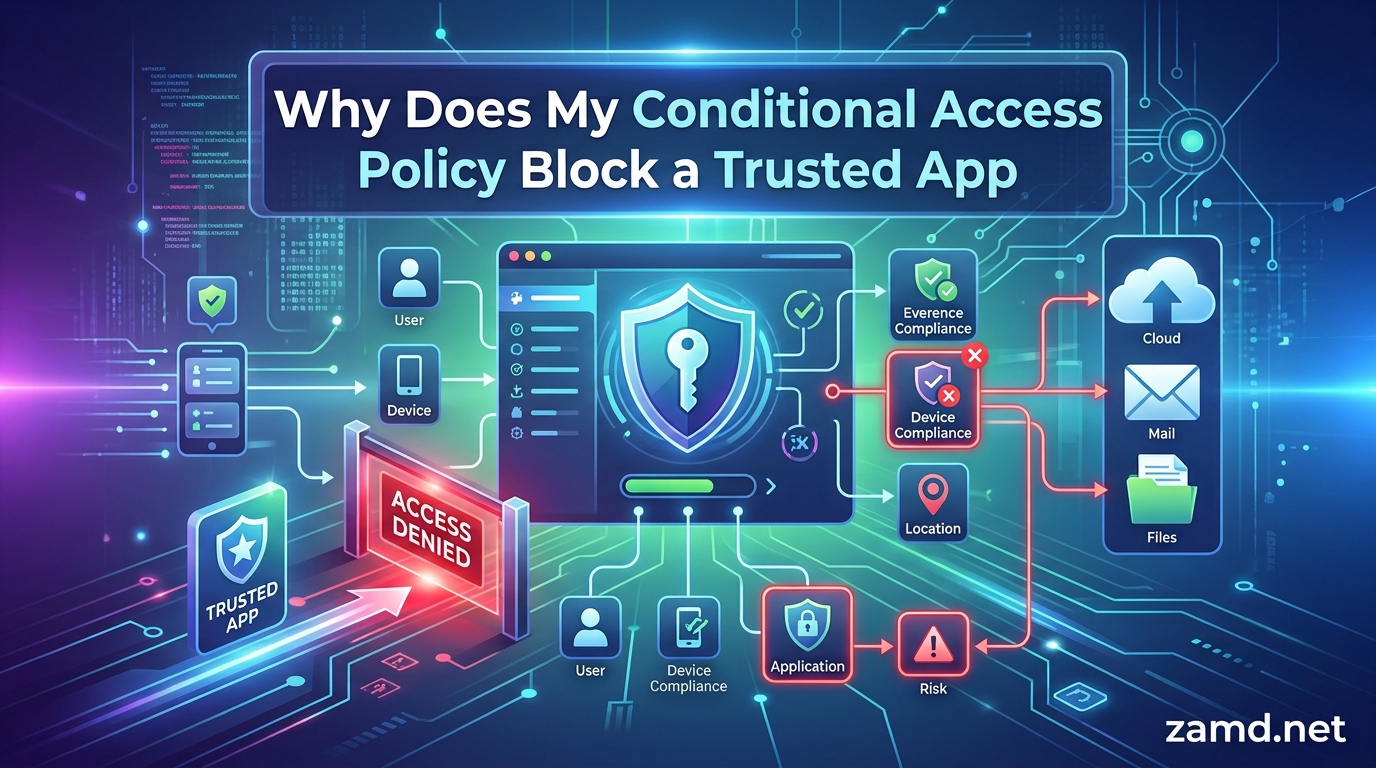
You just deployed a Conditional Access policy, and suddenly your users cannot sign in through an app they have been using for months. The app is trusted. The user is legitimate. The device was working fine yesterday. So why does my Conditional Access policy block a trusted app that should have no problem accessing your environment?
If you are dealing with this situation right now, you are not alone. This is one of the most common and frustrating issues IT administrators face when working with Microsoft Entra Conditional Access. I have helped dozens of organizations untangle this exact problem, and the root cause is almost always one of a handful of predictable scenarios.
Conditional Access is Microsoft Entra ID’s Zero Trust policy engine. It evaluates signals about a user’s sign-in context, including identity, device health, location, and risk level, to decide whether to allow, challenge, or block access to applications. When it works, it is invisible. When something goes wrong, it can lock out an entire department.
The challenge is that Conditional Access policies interact in ways that are not always obvious. A single policy with one misconfigured condition can override everything else in your environment. And unlike firewall rules where priority order matters, Conditional Access follows a simple but devastating rule: block always wins.
In this guide, I will walk you through exactly why your Conditional Access policy blocks a trusted app, how to diagnose the specific cause, and how to fix it without weakening your security posture. We will cover the What If tool, sign-in log analysis, grant controls, device compliance issues, and the ironic scenario where Conditional Access blocks Microsoft Authenticator itself.
Table of Contents
Quick Answer: Why Does My Conditional Access Policy Block a Trusted App?
Your Conditional Access policy blocks a trusted app because at least one active policy’s conditions match the sign-in attempt and that policy either explicitly blocks access or requires a grant control the app cannot satisfy. In Conditional Access, block always wins over grant, meaning a single matching block policy overrides every grant policy in your environment.
The three most common reasons are: the app does not support the required grant control (such as app protection policy), the device is not marked compliant in Intune despite appearing healthy, or the sign-in originates from a location not included in your named locations list. Less frequently, the issue stems from legacy authentication being used by the app or a user risk level that exceeds your policy threshold.
The fastest way to identify the exact cause is to check the user’s sign-in logs in the Microsoft Entra admin center. The logs will show which policy matched and why it resulted in a block or a failed grant control requirement.
How Conditional Access Policy Evaluation Works
To understand why your Conditional Access policy blocks a trusted app, you first need to understand how policy evaluation actually works under the hood. Once you grasp the evaluation logic, most blocking scenarios become predictable rather than mysterious.
Conditional Access uses an if-then model. Microsoft describes it as: if a user wants to access a resource, then they must complete an action. The “if” part is built from signals, and the “then” part is the decision your policy enforces.
The Signal-Decision-Enforcement Model
Every sign-in attempt triggers a chain of evaluation. Conditional Access collects signals from multiple sources, matches them against your active policies, and produces a decision. That decision is then enforced by the cloud app the user is trying to reach.
The signals Conditional Access evaluates include:
- User and group membership: Who is signing in and what groups do they belong to?
- Cloud app or resource: What application is the user trying to access?
- Device state and compliance: Is the device Entra-joined, Intune-enrolled, and compliant?
- Location and IP address: Where is the sign-in coming from? Is it in a trusted named location?
- Client app type: Is the app using modern authentication (browser, mobile app) or legacy authentication (ActiveSync, IMAP, POP, SMTP)?
- Device platform: Is the user on Windows, iOS, Android, macOS, or an unknown platform?
- Sign-in risk level: Has Identity Protection flagged this sign-in as low, medium, or high risk?
- User risk level: Is the user account itself considered compromised?
- Authentication strength: Did the user authenticate with a password, MFA, passwordless, or hardware token?
Each policy you create filters on a subset of these signals. When a user signs in, Conditional Access checks every active policy in your tenant and identifies which ones match the current sign-in context.
The Block Always Wins Rule
This is the single most important rule to understand, and it is the reason most trusted apps get blocked unexpectedly. In Conditional Access, there is no priority ordering between policies. All matching policies are evaluated simultaneously, and the results are combined.
If three policies match a sign-in attempt and two grant access while one blocks access, the user is blocked. The block decision always wins. There is no override, no exception, and no priority number you can assign to make a grant policy beat a block policy.
This is why adding a new policy to your environment can suddenly break apps that were working fine. The new policy does not need to target the app directly. It just needs to match the same sign-in context and include a block decision.
Grant Controls vs Block Decisions
Conditional Access decisions fall into three categories:
- Block: Access is denied entirely. No further authentication or remediation can change this outcome.
- Grant: Access is allowed, but the user may need to satisfy additional requirements such as MFA, device compliance, or using an approved client app. If the user cannot satisfy the requirement, access is effectively blocked even though the policy technically grants rather than blocks.
- Session: Access is allowed but with restrictions, such as limited sessions or app-enforced restrictions.
The subtle trap here is that a grant policy can also cause a block. If your policy requires an approved client app and the trusted app the user is trying to sign in with is not in the approved list, the user gets blocked even though the policy says “grant.” The grant is conditional, and if the condition cannot be met, access fails.
Report-Only Mode and Why It Matters
Before you enable a policy, you can run it in report-only mode. In this mode, the policy evaluates against sign-ins and logs what it would have done, but it does not enforce anything. This is the safest way to test new policies and identify which trusted apps would be affected before you turn enforcement on.
One of the most common scenarios I see is an organization moving a policy from report-only to “On” and then being surprised when apps stop working. Report-only mode tells you exactly what will happen, but only if you actually review the logs before flipping the switch.
Common Reasons a Trusted App Gets Blocked
Now let us get into the specific reasons why your Conditional Access policy blocks a trusted app. I have organized these from most common to least common based on what I see in real environments.
1. The App Does Not Support Required Grant Controls
This is the number one cause of trusted app blocks. Your policy requires either an approved client app or an app protection policy, and the app the user is trying to use does not support either one.
For example, you might have a policy requiring app protection policies for all mobile access to Exchange Online. The Outlook mobile app supports Intune app protection policies, so it works fine. But a third-party email app that does not integrate with Intune will be blocked, even if the user is on a trusted device.
This is not a bug. It is working exactly as designed. The problem is that the design does not align with your expectations for that specific app.
2. Device Compliance Desync Between Intune and Entra ID
Intune says the device is compliant. Conditional Access says it is not. This desync is incredibly common and causes no shortage of headaches.
The issue is that Conditional Access checks the compliance state recorded in Entra ID, not the compliance state shown in the Intune console. There can be a delay between when Intune evaluates compliance and when that state syncs to Entra ID. If a device falls out of compliance temporarily (for example, the user delayed a required update), the Intune console might already show compliant again while Entra ID has not received the update yet.
In other cases, the device is simply not enrolled in Intune at all, or the compliance policy has not been assigned to the user’s group. The device appears to work for other purposes but fails the compliance check for Conditional Access.
3. Sign-In From an Unrecognized Location
If you have location-based policies with named locations, any sign-in from an IP address outside your trusted locations list may trigger additional requirements or an outright block. This is especially common for remote workers, traveling employees, and users on cellular networks.
VPN users add another layer of complexity. If the VPN exit node IP is not in your named locations, the user appears to be signing in from an unknown location even though they are sitting at their desk in the office.
4. Legacy Authentication Being Used
Some older apps use legacy authentication protocols like ActiveSync, IMAP, POP, or basic authentication instead of modern authentication. If you have a policy blocking legacy authentication, and the app falls back to legacy auth for any reason, the user gets blocked.
This is actually one of the most important policies to have for security, since legacy authentication cannot enforce MFA. But it can catch you off guard when a trusted app suddenly starts using a legacy protocol after an update or configuration change.
5. User or Sign-In Risk Level Exceeds Policy Threshold
If you have risk-based policies enabled through Identity Protection, a user with an elevated risk level can be blocked regardless of what app they are using. Similarly, a sign-in flagged as high risk due to unfamiliar location, impossible travel, or leaked credentials can trigger a block.
This is another case where the block is working correctly for security reasons, but it feels wrong because the user and app are both trusted under normal circumstances.
6. Policy Scope Accidentally Includes the Trusted App
Conditional Access policies target cloud apps. If you select “All cloud apps” in your policy, it applies to every application in your tenant, including ones you did not intend to restrict. This is the most common configuration mistake I see.
For example, you might create a policy targeting “All cloud apps” that requires device compliance. This works great for Exchange and SharePoint but also blocks access to the Azure portal, Microsoft Graph, and even the registration service for Intune itself.
7. Overlapping Policies Creating Unexpected Conflicts
When multiple policies match the same sign-in, their effects combine. Two grant policies requiring different MFA methods can create a double-MFA prompt that confuses users and apps alike. More critically, one policy granting access and another blocking it always results in a block.
Policy sprawl is real. After a year of incremental additions, most environments have overlapping policies that interact in ways nobody on the team fully understands.
Understanding Grant Controls: Approved Client App vs App Protection Policy
The two grant controls that cause the most confusion and blocking issues are approved client app and app protection policy. Understanding the difference between them is the key to resolving many trusted app blocking scenarios.
What Is an Approved Client App?
The approved client app control restricts access to a predefined list of Microsoft first-party apps that support modern authentication. This list includes apps like Outlook mobile, Microsoft Teams, Microsoft Edge, Microsoft SharePoint, and Microsoft 365 apps for mobile.
The idea is simple: if you want to access corporate email or files from a mobile device, you must use one of these apps rather than the built-in mail client or a third-party app. The approved client app control does not require the device to be enrolled in Intune. It only checks that the app itself is on the approved list.
This control is useful for BYOD scenarios where you cannot require full device enrollment but still want to ensure users are accessing data through managed apps.
What Is an App Protection Policy?
App protection policies (also called MAM or Mobile Application Management) go further than approved client apps. They enforce data protection settings within the app itself, such as preventing copy-paste to unmanaged apps, requiring a PIN to open the app, and encrypting app data at rest.
When you require an app protection policy as a grant control, Conditional Access checks whether the app has an Intune app protection policy applied. If the app supports app protection policies but does not have one assigned, access is blocked.
The critical distinction is that not all approved client apps support app protection policies, and not all apps that support app protection policies are on the approved client app list.
Side-by-Side Comparison
| Aspect | Approved Client App | App Protection Policy |
|---|---|---|
| What it checks | Is the app on Microsoft’s approved list? | Does the app have an Intune app protection policy applied? |
| Device enrollment required | No | No (but app must support Intune SDK) |
| Data protection | Minimal (app-level only) | Extensive (PIN, encryption, copy-paste restrictions) |
| Typical use case | Restrict access to known good apps on personal devices | Protect corporate data within apps on unmanaged devices |
| Apps blocked by this | Third-party apps and built-in mail clients | Apps that do not include the Intune SDK |
| Best combined with | App protection policy for layered security | Approved client app for tighter app restriction |
Why Your Trusted App Fails One But Not the Other
If your trusted app works with the approved client app requirement but fails when you switch to requiring an app protection policy, the app likely does not include the Intune SDK. Many third-party business apps and internal line-of-business applications do not integrate with Intune at all.
This is a common frustration for organizations that develop custom apps or use specialized industry software. The app is trusted, the user is legitimate, the device is secure, but the app simply cannot satisfy the app protection policy requirement because it was never built to support it.
The solution in these cases is typically to exclude the specific app from the policy by targeting the policy to specific cloud apps rather than “All cloud apps,” or to create a separate policy with different requirements for apps that cannot support app protection policies.
Device Compliance and How It Affects App Access
Device compliance is one of the most powerful signals in Conditional Access, but it is also one of the most common sources of unexpected blocking. The issue almost always comes down to a disconnect between what Intune reports and what Conditional Access enforces.
How Device Compliance Works
Intune compliance policies evaluate devices against a set of rules you define. These rules can check for things like disk encryption, operating system version, jailbreak or root status, threat protection status, and required software versions. When a device meets all the rules, Intune marks it compliant.
Conditional Access can then use this compliance state as a grant control. If your policy requires a compliant device and the user’s device is not compliant, access is blocked.
The Intune-to-Entra Sync Problem
Here is where things get tricky. Conditional Access does not check Intune directly. It checks the compliance state stored in Entra ID. Intune periodically syncs compliance states to Entra ID, but this sync is not instantaneous.
If a device falls out of compliance temporarily (for example, a required OS update is pending) and then comes back into compliance, the Intune console might show compliant while Entra ID still has the stale non-compliant state. During this window, Conditional Access will block the user based on the outdated information.
The sync interval is typically 8 hours but can vary depending on device check-in frequency. In practice, this means a device can be blocked for several hours after it has already returned to compliance.
How to Verify the Real Compliance State
To check what Conditional Access actually sees, do not rely on the Intune console alone. Instead:
- Open the Microsoft Entra admin center.
- Navigate to Identity > Devices > All devices.
- Find the user’s device and check the Compliant column.
- Compare this value to what the Intune console shows.
- If they differ, force a device sync from the Intune side or wait for the next sync cycle.
You can also check the device object using Microsoft Graph API to see the exact compliance state Entra ID has recorded. This is the value that Conditional Access uses for its evaluation.
Common Compliance Failures That Block Trusted Apps
Some compliance checks fail silently and only become apparent when users report being blocked. Common culprits include:
- OS version requirements: A new minimum OS version policy catches devices that have not updated yet.
- Threat protection agent: Defender for Endpoint or a third-party MDM agent stops reporting, making the device non-compliant.
- Jailbreak or root detection: False positives on rooted or developer-mode devices.
- Encryption status: Device encryption is disabled temporarily during an update or repair.
- Compliance policy not assigned: The user’s group was not included in the compliance policy assignment.
Each of these will make Conditional Access block a trusted app even though the user and the app are both legitimate. The fix is to address the compliance failure or adjust the compliance policy if the requirement is too aggressive.
Named Locations and IP-Based Blocking
Location-based Conditional Access policies use IP addresses to determine where a sign-in originates. When configured correctly, named locations provide a smooth experience for users in known locations while adding protection for unfamiliar ones. When configured incorrectly, they block trusted apps for legitimate users.
How Named Locations Work
A named location is simply a list of IP address ranges that you define and label. You can mark a named location as “trusted” to exempt it from certain policy requirements. For example, you might create a trusted named location for your corporate office IP range and configure a policy that requires MFA for any sign-in outside that range.
Conditional Access compares the source IP of each sign-in against your named locations. If the IP does not match any named location, it is treated as an unknown or untrusted location, which can trigger additional requirements or a block.
The VPN Complication
VPN users are the most common victims of location-based blocking. When a user connects through a VPN, their source IP is the VPN exit node, not their actual location. If the VPN exit node IP is not in your named locations, the user appears to be signing in from an untrusted location.
This is a particular problem for cloud VPN services that rotate exit node IPs frequently. You might add the current exit node to your named locations, only to find that the service has moved to a different IP next week.
The solution is to add your VPN exit node IP ranges to a trusted named location, or to use Conditional Access with the trusted IP feature for VPN-connected users. Some organizations also configure split tunneling to ensure authentication traffic goes directly rather than through the VPN.
Cellular Networks and Dynamic IPs
Mobile users on cellular networks face a similar problem. Cellular providers use large pools of dynamic IP addresses, and the IP assigned to a user can change between sessions. You cannot practically add all cellular IP ranges to named locations.
For mobile users, the better approach is to rely on device compliance and app protection policies rather than location-based controls. Or configure location-based policies to require MFA rather than block outright, which allows legitimate users to verify their identity while still adding a layer of security for unknown locations.
Why Conditional Access Blocks Microsoft Authenticator Itself
This is one of the most ironic and frustrating scenarios in Conditional Access troubleshooting: your security policy blocks the very app users need to satisfy your security requirements. I have seen this happen in several organizations, and it always causes immediate panic.
The Bootstrapping Problem
The issue typically occurs during initial setup or when a user needs to re-register for MFA. The user downloads Microsoft Authenticator and tries to sign in to set up their MFA methods or create a passkey. But your Conditional Access policy requires MFA to access the registration portal, and the user cannot complete MFA because they have not set it up yet.
This is a chicken-and-egg problem. You need the Authenticator app to satisfy MFA, but you need MFA to access the service that configures the Authenticator app.
How to Fix Authenticator Blocking
The fix is to exclude the Microsoft Authenticator app and the authentication methods registration portal from your MFA-requiring policies. Specifically, you should exclude the following cloud apps from policies that require MFA or device compliance:
- Microsoft Azure Management (if admins need to configure MFA through the portal)
- Office 365 Exchange Online or Office 365 SharePoint Online (if these are needed for the registration flow)
More importantly, you should create an exclusion for the authentication methods registration experience. The cleanest approach is to:
- Create a security group for users who need to register MFA methods.
- Exclude this group from your MFA-requiring Conditional Access policies.
- Remove users from this group once they have successfully registered.
- Alternatively, use Temporary Access Pass in Entra ID, which allows users to register MFA methods without already having MFA configured.
Temporary Access Pass is the Microsoft-recommended solution for this bootstrapping problem. It generates a time-limited passcode that satisfies MFA requirements for registration purposes only.
Preventing Future Lockouts
Once you have resolved the immediate issue, take steps to prevent it from happening again. Document the registration process for new users, ensure break-glass accounts are excluded from all policies, and test the new user onboarding flow regularly to catch any policy changes that might break it.
Step-by-Step Troubleshooting Guide for Blocked Trusted Apps
When a user reports that a trusted app is being blocked by Conditional Access, you need a systematic approach to identify the cause and apply a fix. Follow these steps in order, and you will narrow down the problem quickly.
Step 1: Reproduce and Capture the Sign-In Attempt
Ask the user to attempt the sign-in again while you watch. Note the exact time of the attempt, the app they are using, the device they are on, and their location. Having the precise timestamp is critical for finding the right entry in the sign-in logs.
If you cannot reproduce with the user, gather as much context as possible: the app name, device type, whether they are on VPN, and any error messages they see.
Step 2: Check the Sign-In Logs
Open the Microsoft Entra admin center and navigate to Identity > Monitoring & health > Sign-in logs. Filter by the user and the time window of the sign-in attempt. Look for the failed sign-in event.
In the sign-in log entry, navigate to the Conditional Access tab. This tab shows every policy that evaluated the sign-in and the result of each one. You will see policies listed as “Success,” “Failure,” “Not applied,” or “Report-only.” The policy showing “Failure” is your culprit.
The log also shows the specific reason for the failure, such as “Block” or a grant control that was not satisfied. This tells you exactly what went wrong.
Step 3: Use the What If Tool for Deeper Analysis
If the sign-in logs do not give you enough detail, or if you want to test what would happen under different conditions, use the What If tool. Navigate to Protection > Conditional Access > What If and enter the same conditions as the blocked sign-in.
The What If tool will show you every policy that would match and the decision each would make. This is especially useful for understanding how multiple policies interact to produce the final result.
Step 4: Check Device Compliance State
If the blocking policy requires device compliance, verify the compliance state in both Intune and Entra ID. Check the Intune console first to see what Intune reports, then check Entra ID to see what Conditional Access sees.
If there is a discrepancy, force a sync from the device or wait for the next sync cycle. If the device is genuinely non-compliant, identify which compliance rule is failing and address it.
Step 5: Review the Grant Controls on the Matching Policy
Open the policy that caused the block and review its grant controls. Does it require an approved client app? An app protection policy? Device compliance? MFA? A specific authentication strength?
Then check whether the trusted app the user is trying to use can satisfy each of these requirements. If the app cannot satisfy a grant control, that is your blocking cause.
Step 6: Test Your Fix in Report-Only Mode
Before applying your fix, create a modified version of the policy in report-only mode. This lets you verify that your changes would have allowed the sign-in without risking unintended side effects on other users and apps.
Run the What If tool again with the modified policy conditions to confirm the result changes from block to grant.
Step 7: Apply the Fix and Monitor
Once you are confident in your fix, apply it to the live policy. Monitor the sign-in logs over the next 24 to 48 hours to confirm that the fix resolves the issue for the affected user and does not break anything else.
Document the change, including the reason for the block, the fix applied, and the expected behavior going forward. This documentation will save you hours the next time a similar issue arises.
Using the What If Tool to Diagnose Blocks
The What If tool is the single most powerful troubleshooting resource in Conditional Access. It simulates policy evaluation for any combination of user, app, device, location, and risk conditions without affecting any real sign-ins. If you learn only one tool for Conditional Access troubleshooting, make it this one.
How to Access the What If Tool
- Sign in to the Microsoft Entra admin center (entra.microsoft.com).
- Navigate to Protection > Conditional Access.
- Click on What If in the top menu.
- You will see a form where you can specify the conditions of a hypothetical sign-in.
What Inputs to Provide
The What If tool lets you specify the following parameters for your simulation:
- User: Select the specific user who is experiencing the block.
- Cloud app: Select the app that is being blocked.
- IP address: Enter the IP address the user is signing in from.
- Device platform: Select the platform (Windows, iOS, Android, macOS).
- Client app: Select the type of client app (browser, mobile apps, modern auth clients, legacy auth clients).
- Device state: Specify whether the device is Entra-joined, compliant, or both.
- Sign-in risk: Set the risk level (low, medium, high, none).
- User risk: Set the user risk level (low, medium, high, none).
- Service principal risk: For workload identity scenarios.
Fill in as many of these as you can to match the actual blocked sign-in. The more accurate your inputs, the more accurate the simulation results.
How to Read the Results
After clicking What If, the tool displays a list of all policies in your tenant and the result for each:
- Will apply: The policy matches the conditions you specified. Review what it does.
- Will not apply: The policy does not match the conditions. It is not involved in the block.
- Report-only: The policy matches but is in report-only mode, so it logs but does not enforce.
For policies that “will apply,” the tool shows the access controls (grant or block) and session controls that would be enforced. This is where you will see which policy is causing the block and what specific control is failing.
Common What If Result Patterns
If you see a policy with “Block” in the results, that is your blocking policy. The fix is to either modify the policy conditions so they no longer match the trusted app’s sign-in, or to exclude the user or app from the policy.
If you see a policy with “Grant” but the grant requires a control the app cannot satisfy, the app will still be blocked in practice. The What If tool shows the policy as granting, but the real-world result is a block because the user cannot complete the required grant action.
If you see multiple policies with conflicting results (one grants, one blocks), remember the block always wins rule. You need to modify or exclude the blocking policy.
Checking Sign-In Logs for Block Reasons
Sign-in logs are the ground truth for Conditional Access troubleshooting. They record every authentication attempt, including which policies matched and what decision each policy made. When a trusted app is blocked, the sign-in logs will tell you exactly why.
Where to Find Sign-In Logs
- Open the Microsoft Entra admin center.
- Go to Identity > Monitoring & health > Sign-in logs.
- Filter by the affected user’s name or UPN.
- Set the time range to cover the blocked sign-in attempt.
- Look for entries with a Status of “Interrupted” or “Failed.”
“Interrupted” status typically means the user was redirected to complete an additional requirement (like MFA) but did not complete it. “Failed” status usually means the sign-in was blocked outright by a policy.
Key Fields to Examine
Once you have found the relevant sign-in entry, click on it to open the details. The most important tabs are:
- Basic info: Shows the app, client app type, device, and IP address.
- Conditional Access: Shows every policy that evaluated the sign-in, with the result for each.
- Device: Shows whether the device was identified as Entra-joined and compliant.
- Location: Shows the geographic location derived from the IP address.
- Error details: If the sign-in failed, this section shows the specific error code and description.
The Conditional Access tab is where you will spend most of your time. It lists each policy with one of four results:
- Success: The policy matched and all grant controls were satisfied.
- Failure: The policy matched but grant controls were not satisfied or a block decision was applied.
- Not applied: The policy conditions did not match the sign-in.
- Report-only: The policy matched but is in report-only mode (no enforcement).
Clicking on any individual policy result shows additional detail about which specific conditions matched and which access controls were evaluated.
Using KQL to Analyze Sign-In Logs in Bulk
If you export sign-in logs to Log Analytics or use Microsoft Sentinel, you can query them with Kusto Query Language (KQL). This is useful for identifying patterns across many blocked sign-ins.
Here is a KQL query to find all Conditional Access blocks in the last 24 hours:
SigninLogs

| where TimeGenerated > ago(24h)

| where ResultType != 0

| extend CAFailureReason = tostring(Properties conditionalAccessProperties.conditionsNotSatisfied)

| project TimeGenerated, UserPrincipalName, AppDisplayName, ClientAppUsed, ConditionalAccessStatus, CAFailureReason

| order by TimeGenerated desc
This query surfaces blocked sign-ins along with the app name, client app type, and Conditional Access status. You can modify the filters to focus on a specific user, app, or time window.
Identifying the Blocking Policy
The sign-in log shows the policy display name for each policy that evaluated the sign-in. Note the name of the policy showing “Failure” and then navigate to that policy in the Conditional Access blade to review and modify it.
Sometimes you will see multiple policies showing “Failure.” In this case, each failing policy may contribute to the block. You need to address each one or determine which one is the primary blocker by reviewing the specific failure reasons.
How to Fix Common Blocking Scenarios
Let us walk through the most common blocking scenarios and their specific fixes. These are the patterns I see repeatedly in real environments, along with the configuration changes that resolve them.
Fix 1: Device Not Compliant Despite Being Healthy
Symptom: The user’s device shows compliant in Intune but Conditional Access still blocks access. The sign-in log shows the compliance grant control was not satisfied.
Fix: First, verify the compliance state in Entra ID by checking Identity > Devices > All devices. If Entra ID shows non-compliant, force a device sync. In Intune, you can trigger a sync from the device blade. For Windows devices, the user can also run dsregcmd /sync from an elevated command prompt. If the device is genuinely non-compliant, identify the failing compliance rule and resolve it. Common fixes include installing pending OS updates, enabling BitLocker or FileVault, or ensuring the threat protection agent is running.
Fix 2: Trusted App Not in Approved Client App List
Symptom: A third-party or line-of-business app is blocked because your policy requires an approved client app, and the app is not on Microsoft’s approved list.
Fix: You have two options. Option one is to exclude the specific cloud app from the policy by changing the policy’s cloud app assignment from “All cloud apps” to specific apps, leaving out the one that uses the unapproved client. Option two is to create a separate, less restrictive policy for the specific app that does not require an approved client app but still enforces other controls like MFA. Never disable the approved client app requirement globally, as this weakens security for all apps.
Fix 3: App Protection Policy Requirement Blocks Non-Intune Apps
Symptom: Apps that do not include the Intune SDK are blocked because your policy requires an app protection policy. These apps cannot satisfy the requirement no matter what you do.
Fix: Create an exclusion group for users who need to use these apps, or better yet, scope the policy to specific cloud apps rather than all apps. For internal line-of-business apps, consider integrating the Intune SDK so they can participate in app protection policies. If that is not feasible, create a separate policy for those apps that relies on device compliance instead of app protection policy.
Fix 4: Location-Based Block for Remote or Mobile Users
Symptom: Users signing in from home, cellular networks, or VPN connections are blocked because their IP is not in your trusted named locations.
Fix: Add VPN exit node IP ranges to a trusted named location. For cellular and home users, change the policy from “Block” to “Grant with MFA” so users can still access resources with additional verification. Alternatively, rely on device compliance rather than location for these users, since device compliance is location-agnostic and provides a strong security signal.
Fix 5: Legacy Authentication Block Catches a Trusted App
Symptom: A trusted app that previously worked is suddenly blocked after you enabled a legacy authentication block policy. Investigation reveals the app uses IMAP, POP, ActiveSync, or basic auth.
Fix: First, verify that the app truly cannot use modern authentication. Many apps support modern auth but default to legacy protocols. Check the app’s settings and enable modern authentication if possible. If the app genuinely cannot support modern auth, evaluate whether it should be allowed at all. For apps that must use legacy auth, create an exception policy scoped to just that app, and document it as a known security gap with a mitigation plan.
Fix 6: Overlapping Policy Conflict
Symptom: The What If tool shows multiple policies matching, and one of them blocks while others grant. Or two grant policies require incompatible controls, creating a situation where the user cannot satisfy both.
Fix: Consolidate overlapping policies where possible. Identify the blocking policy and either modify its conditions to exclude the affected app or user, or remove it if it is redundant. For double-MFA scenarios, ensure only one policy requires MFA per sign-in context, or use authentication strength to specify a single MFA requirement that satisfies all matching policies.
Common Policy Conflicts and How to Resolve Them
Policy conflicts are the silent killers of Conditional Access environments. They do not show up as errors. They show up as users being blocked with no obvious cause, because the blocking policy was never intended to affect that user or app.
The “All Cloud Apps” Trap
The single most common source of policy conflicts is the “All cloud apps” selection. When you create a policy targeting all cloud apps, it applies to every application in your tenant. This includes the Azure admin portal, Microsoft Graph, the Intune enrollment service, and the authentication methods registration service.
A policy requiring device compliance for all cloud apps can block admins from accessing the portal to fix the problem. It can block the Intune enrollment flow, preventing new devices from being enrolled. It can even block the service that processes Conditional Access policy changes themselves.
The fix is to scope policies to specific cloud apps whenever possible. Reserve “All cloud apps” for baseline policies like blocking legacy authentication or requiring MFA, and even then, exclude critical service apps like the Azure management portal.
The Report-Only to On Transition
Report-only mode is great for testing, but the results it shows are easy to ignore. I have seen multiple cases where organizations moved policies from report-only to “On” months after creating them and were surprised by the impact.
The problem is that between the time the policy was created in report-only mode and the time it was enabled, the environment may have changed significantly. New apps were added, new users joined, new devices were enrolled. The report-only logs from months ago no longer reflect current reality.
The fix is to always review the most recent report-only logs before enabling a policy. Run the What If tool against current users and apps. Test with a small pilot group first if there is any uncertainty.
The Double-MFA Problem
When two policies both require MFA and both match the same sign-in, users can see two consecutive MFA prompts. This is not technically a block, but it creates a terrible user experience and can cause app sign-ins to fail if the app does not handle the second prompt correctly.
The fix is to ensure only one policy per sign-in context requires MFA. If you need different MFA requirements for different scenarios (for example, phishing-resistant MFA for admins but standard MFA for regular users), use authentication strength controls within a single policy rather than creating multiple overlapping policies.
Resolving Conflicts Systematically
To resolve policy conflicts systematically, follow this process:
- List all active (non-report-only) Conditional Access policies in your tenant.
- For each policy, document the conditions (users, apps, locations, platforms) and the access controls (grant or block, with what requirements).
- Identify overlapping policies that match the same users, apps, or conditions.
- For each overlap, determine whether the policies can be consolidated or whether one needs to be scoped more narrowly.
- Test changes in report-only mode before applying them.
This process is tedious, but it is the only way to get a clean, predictable policy set. Most organizations with policy conflict issues have never gone through this exercise.
Best Practices to Prevent Future Blocks
Preventing trusted app blocks is much easier than fixing them after the fact. Follow these best practices to minimize blocking incidents while maintaining strong security.
Always Maintain a Break-Glass Account
A break-glass account is an emergency administrator account that is excluded from all Conditional Access policies. If your policies lock out every admin, the break-glass account is your way back in. This is not optional. Every organization should have at least one break-glass account.
Store the break-glass credentials securely (for example, in a physical safe or a privileged access management system). Monitor the account for any sign-in activity, since any use should be rare and intentional. Use long, randomly generated passwords and require MFA on the account through a separate method that is not dependent on Conditional Access policies.
Use Report-Only Mode for New Policies
Every new Conditional Access policy should start in report-only mode. Leave it there for at least one week to collect data on which users and apps it would affect. Review the report-only logs before enabling the policy.
For organizations with many users or complex environments, consider leaving policies in report-only mode for two to four weeks. This captures weekly patterns like users signing in from different locations on weekends or traveling employees connecting from new locations.
Implement Phased Rollouts
Never apply a new policy to all users at once. Start with a pilot group of IT team members, then expand to a small group of technical users, and finally roll out to the broader organization. This phased approach catches blocking issues before they affect the entire company.
Use security groups to control rollout. Create groups like “CA-Pilot,” “CA-Phase2,” and “CA-All-Users” and add users progressively. Communicate with each group before they are added so they know what to expect.
Document Every Policy
For each Conditional Access policy, maintain a document that explains the policy’s purpose, the conditions it targets, the controls it enforces, and any known limitations or exclusions. This documentation is invaluable when troubleshooting blocking issues months or years later.
Include in the documentation the date the policy was created, the person responsible for it, and the business justification. Review the documentation quarterly to identify policies that are no longer needed or that conflict with newer policies.
Use Exclusion Groups Strategically
Exclusion groups allow you to carve out exceptions without modifying the policy itself. Create groups for specific scenarios like “MFA-Registration-Exclusion” or “Legacy-App-Exception” and use them as exclusions in your policies.
The key is to manage exclusion groups actively. Add users temporarily and remove them when they no longer need the exception. Document why each user is in an exclusion group and when they should be removed. Unmanaged exclusion groups become a security gap over time.
Avoid “All Cloud Apps” Except for Baseline Policies
Scope policies to specific cloud apps whenever possible. This prevents unintended blocking of apps that were not considered when the policy was created. Reserve “All cloud apps” for baseline policies like blocking legacy authentication, and even then, exclude critical service apps.
If you must use “All cloud apps” for a grant control policy, test it thoroughly in report-only mode first. The What If tool is your best friend here, as it will show you every app that would be affected.
FAQ’s
Why does Conditional Access block a trusted app?
Conditional Access blocks a trusted app because at least one active policy matches the sign-in attempt and either explicitly blocks access or requires a grant control the app cannot satisfy. Since block always wins over grant in Conditional Access evaluation, even a single matching block policy will deny access regardless of other policies that would grant it. The most common causes are the app not supporting required grant controls, device compliance desync between Intune and Entra ID, or the sign-in originating from an unrecognized location.
How do I troubleshoot Conditional Access policy blocks?
Start by checking the sign-in logs in the Microsoft Entra admin center under Identity > Monitoring and health > Sign-in logs. Filter by the affected user and find the failed sign-in. The Conditional Access tab shows which policy caused the block and why. Then use the What If tool under Protection > Conditional Access > What If to simulate the sign-in and see all matching policies. Review the grant controls on the blocking policy and modify conditions or exclude the app as needed. Always test changes in report-only mode first.
What is the difference between approved client app and app protection policy?
An approved client app control checks whether the app is on Microsoft’s predefined list of supported first-party apps like Outlook mobile and Microsoft Teams. It does not require device enrollment. An app protection policy control checks whether the app has Intune app protection policies applied, which enforce data protection settings like PINs and encryption within the app. Not all approved client apps support app protection policies, and apps must include the Intune SDK to support app protection policy requirements.
What is the limitation of Conditional Access policy?
Conditional Access policies cannot prioritize one policy over another. All matching policies are evaluated simultaneously and block always wins over grant. There is no way to make a grant policy override a block policy. Additionally, Conditional Access evaluates compliance state from Entra ID rather than Intune directly, which can cause temporary desync issues where a device shows compliant in Intune but is still blocked. Conditional Access also requires Microsoft Entra ID P1 or P2 licensing.
How do I turn off Conditional Access policies?
To disable a Conditional Access policy, open the Microsoft Entra admin center, navigate to Protection > Conditional Access > Policies, find the policy you want to disable, and change its state from On to Off or Report-only. If you need to disable all policies in an emergency, use your break-glass account to access the admin center. Always use Report-only mode rather than Off when possible, as it continues logging policy evaluations without enforcing them, which helps you understand what will happen when you re-enable the policy.
How do I exclude Microsoft Authenticator from Conditional Access?
To exclude Microsoft Authenticator from Conditional Access blocking, create a security group for users who need to register MFA methods and exclude that group from your MFA-requiring policies. Alternatively, enable Temporary Access Pass in Entra ID, which generates a time-limited passcode that satisfies MFA requirements for registration purposes only. Remove users from the exclusion group once they have successfully registered their Authenticator app.
Why does my device show compliant in Intune but still gets blocked?
This is a common Intune-to-Entra ID sync issue. Conditional Access checks the compliance state stored in Entra ID, not Intune directly. There can be a delay of several hours between when Intune updates a device’s compliance state and when that change syncs to Entra ID. Check the device compliance state in Identity > Devices > All devices in the Entra admin center to see what Conditional Access actually evaluates. Force a sync from Intune if the states differ.
How do I use the What If tool for Conditional Access?
Navigate to Protection > Conditional Access > What If in the Microsoft Entra admin center. Enter the user, cloud app, IP address, device platform, client app type, and risk levels that match the sign-in you want to investigate. Click What If to see every policy in your tenant and whether it would apply, along with the specific access controls and session controls it would enforce. Policies showing Block are your blockers, while policies showing Grant may still cause a block if the required grant control cannot be satisfied by the app.
Conclusion
Understanding why your Conditional Access policy blocks a trusted app comes down to one fundamental principle: block always wins. If any active policy matches a sign-in attempt and produces a block decision, access is denied regardless of how many other policies would grant it. And even grant policies can effectively block access when they require controls the app cannot satisfy.
The systematic approach I recommend is to always start with the sign-in logs, use the What If tool to understand policy interactions, verify device compliance in both Intune and Entra ID, and test every fix in report-only mode before applying it. These four tools alone will resolve the vast majority of trusted app blocking scenarios.
The best long-term strategy is prevention: maintain a break-glass account, scope policies to specific apps rather than all apps, use report-only mode for testing, document every policy, and manage exclusion groups actively. A well-organized Conditional Access environment with clear documentation is dramatically easier to troubleshoot than one built through incremental additions over years.
If you are currently dealing with a trusted app block right now, follow the step-by-step troubleshooting guide above. Check the sign-in logs first. They will tell you exactly which policy is blocking the app and why. From there, the fix is usually straightforward.