
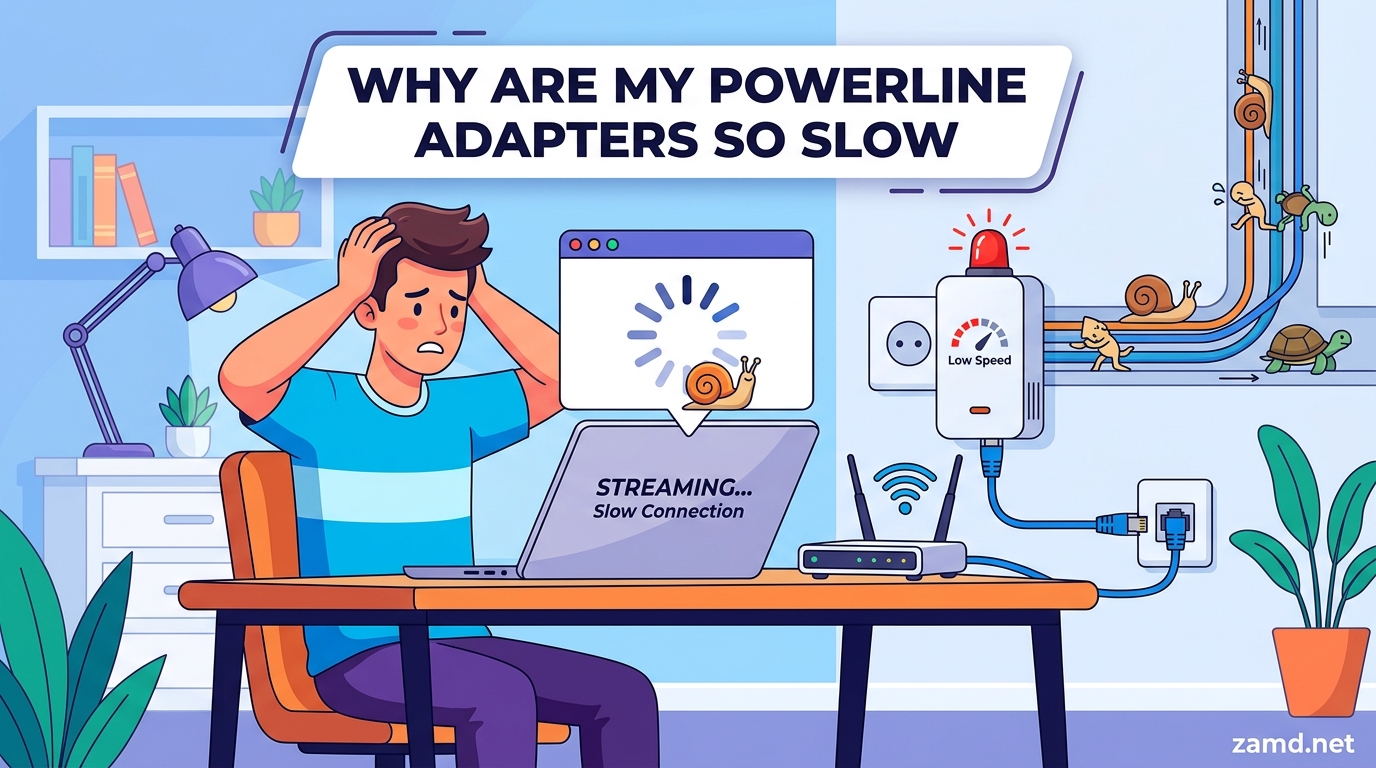
You pay for 500 Mbps fiber, plug in a 1200 Mbps powerline adapter, and your actual speed test reads 60 Mbps. Sound familiar? You are not alone. This is one of the most common frustrations in home networking, and the gap between expectation and reality is not a defect. It is how powerline technology works.
If you are wondering why are my powerline adapters so slow compared to my internet speed, the answer comes down to physics, electrical wiring, and marketing. Powerline adapters were never designed to match your raw internet speed. They transmit data through electrical wires that were built to carry power, not network packets. Every inch of that journey introduces signal loss, interference, and degradation.
In this guide, our team breaks down the real reasons behind slow powerline adapter performance, explains the throughput math that manufacturers do not advertise, and gives you a step-by-step troubleshooting plan. We have analyzed hundreds of user reports from Reddit, Tom’s Hardware, SuperUser, and TP-Link community forums to build a guide based on real experiences, not just theory.
Whether your powerline adapter is crawling at 2 Mbps or you are stuck at 80 Mbps on a gigabit plan, you will find the explanation and the fix here.
Table of Contents
Quick Answer: Why Powerline Adapters Are Always Slower Than Your Internet Speed
Powerline adapters are slow compared to your internet speed because they deliver only 30 to 35 percent of their advertised rate in real-world conditions. A 1200 Mbps powerline adapter typically delivers 300 to 400 Mbps in a best-case scenario, and often far less depending on your home’s wiring quality, electrical noise, and distance between adapters.
Your internet speed is the speed between your home and your ISP. Your powerline speed is the speed between two points inside your home, traveling through electrical wiring that was never designed for data transmission. These are two completely different measurements, and comparing them directly is where most confusion starts.
Here is the simple math: if your internet plan is 500 Mbps and your powerline link delivers 150 Mbps, the powerline adapter becomes the bottleneck. Your devices can only go as fast as the slowest link in the chain. In most homes, that slowest link is the powerline connection, not the internet line.
How Powerline Adapters Actually Work
Powerline adapters modulate network data onto radio frequency signals that travel through your existing electrical wiring. One adapter near your router converts the ethernet signal into a frequency that rides on top of the electrical current. A second adapter in another room picks up that signal and converts it back to ethernet.
Your electrical wiring acts as the physical medium, replacing a traditional ethernet cable. The problem is that electrical wiring is unshielded, shared with noisy appliances, and was installed decades before anyone imagined sending data through it.
Powerline Standards Explained
Three main standards govern powerline adapter technology. Each generation improved speed and noise handling, but none eliminated the fundamental limitations of electrical wiring.
HomePlug AV (200 Mbps) is the oldest standard still in use. It uses a single wire pair for data transmission, which limits both speed and noise resistance. If your adapters are this old, upgrading will help.
HomePlug AV2 (600 to 2000 Mbps rated) is the current dominant standard. AV2 introduced MIMO technology, which uses multiple wire paths (phase, neutral, and ground) to transmit data simultaneously. This dramatically improves throughput and noise resilience compared to older SISO (single-input, single-output) adapters.
G.hn is a newer standard used by brands like Devolo. It operates in a different frequency band and can sometimes outperform HomePlug AV2 in noisy electrical environments. G.hn and HomePlug AV2 are not cross-compatible, so you cannot mix them.
MIMO vs SISO: Why It Matters
SISO powerline adapters send data over a single wire pair, typically phase and neutral. MIMO adapters use multiple paths simultaneously, including the ground wire. This provides two major benefits: higher throughput and better resistance to electrical noise.
If your adapters are SISO-only (most older 200 Mbps and 500 Mbps models), upgrading to MIMO-capable AV2 adapters can double or triple your real-world speed without changing anything else in your home.
Half-Duplex: The Hidden Speed Killer
Powerline adapters operate in half-duplex mode. This means they can only send or receive data at one time, never both simultaneously. Ethernet cables and modern WiFi support full-duplex communication, where sending and receiving happen at the same time.
In practice, half-duplex operation means your effective throughput is roughly half of the theoretical link rate under bidirectional load. When you combine this with the 30 to 35 percent throughput ratio, the math becomes clear: a 1200 Mbps rated adapter in half-duplex mode has a practical ceiling well below what the box suggests.
The Main Causes of Slow Powerline Adapter Speed
Six primary factors determine how fast your powerline adapters perform. Understanding which ones apply to your home is the first step toward fixing slow speeds.
1. Advertised Speed vs Real Throughput (The 30-35% Rule)
This is the single biggest source of confusion. The number on the box (500 Mbps, 1200 Mbps, 2000 Mbps) is the raw physical layer rate, not the usable data throughput. Powerline adapters lose a massive portion of that rate to protocol overhead, error correction, retransmissions, and half-duplex operation.
The industry-accepted rule is that real-world throughput equals approximately 30 to 35 percent of the advertised rate under good conditions. Under average or poor conditions, that figure drops to 15 to 20 percent or lower.
Here is what that looks like in practice:
- 500 Mbps adapter: 100 to 175 Mbps real-world (good conditions), 50 to 80 Mbps typical
- 1200 Mbps adapter: 300 to 420 Mbps real-world (good conditions), 60 to 150 Mbps typical
- 2000 Mbps adapter: 500 to 700 Mbps real-world (good conditions), 100 to 250 Mbps typical
If you have a 1200 Mbps adapter delivering 80 Mbps, that is not defective. That is normal for homes with older wiring, multiple circuits, or moderate electrical noise.
2. Electrical Noise and Interference
Electrical noise is the enemy of powerline data transmission. Any device that uses a motor, a switching power supply, or a dimmer switch generates electromagnetic interference that corrupts the data signal traveling through your wiring.
The most common noise sources reported by users include:
- Phone and laptop USB chargers, especially cheap unbranded ones
- Refrigerators, washing machines, and other motor-driven appliances
- Fluorescent and LED light fixtures with electronic ballasts
- Dimmer switches on the same circuit
- Solar panel inverters
- Hair dryers, vacuum cleaners, and power tools
One forum user who happened to be an electrician traced their powerline speed drop from 600 Mbps to 5 Mbps to a single USB phone charger plugged into a nearby socket. Removing it instantly restored full speed. Another user found that their touch lamp was generating enough interference to halve throughput when turned on.
3. Wiring Quality and Age
Your home’s electrical wiring is the physical medium carrying your data. Older wiring with degraded insulation, corroded connections, or aluminum conductors introduces resistance and signal reflections that destroy data integrity.
Homes built before the 1990s often have wiring that was never optimized for high-frequency signals. A user with a 16th century building and mid-1980s wiring reported struggling across a 4-floor setup, which is an extreme case. But even homes from the early 2000s can have wiring that underperforms with modern AV2 adapters.
Conversely, new-build homes with fresh copper wiring and proper grounding often see powerline speeds at the higher end of the expected range. The wiring itself is the variable you cannot easily change.
4. Distance and Signal Degradation
Powerline signals degrade over distance, but the relevant distance is the electrical path, not the straight-line distance between rooms. Data travels from one adapter, through your wiring, to the consumer unit (breaker box), and back out to the other adapter. This path can be significantly longer than the physical distance between the two sockets.
As a general guideline, powerline adapters work best when the electrical path between them is under 100 meters (approximately 300 feet). Beyond 200 meters, signal degradation makes powerline impractical for most homes.
Signal degradation is not linear. Each junction, splice, and connection point in your wiring introduces signal loss. Older homes with decades of electrical modifications and additions tend to have more of these junctions.
5. Circuit Issues: Rings, Spurs, RCDs, and AFCI Breakers
Your home’s electrical circuits directly impact powerline performance. Powerline adapters communicate best when both units are on the same electrical circuit (the same ring or radial circuit connected to the same breaker).
Ring circuits (common in UK wiring) create a loop of wire from the consumer unit through multiple sockets and back. Powerline signals travel well within a single ring but degrade when crossing between rings, which requires traveling through the consumer unit busbar.
Spur sockets branch off from a ring or radial circuit. Adapters on a spur socket may see reduced performance because the spur acts as a signal dead-end, causing reflections.
RCD (Residual Current Device) and MCB (Miniature Circuit Breaker) protection can attenuate powerline signals, especially when adapters are on circuits protected by different RCDs. Some users report 30 to 50 percent speed drops crossing an RCD.
AFCI (Arc Fault Circuit Interrupter) breakers, common in North American homes built after 2014, are particularly problematic. AFCI breakers are designed to detect arc faults by monitoring high-frequency signals on the line. Since powerline data also uses high frequencies, AFCI breakers can partially block or severely attenuate powerline signals. Multiple users have reported powerline adapters being completely non-functional on AFCI-protected circuits.
6. Socket Placement: Wall vs Extension vs Surge Protector
Where you physically plug in your powerline adapter has an immediate, measurable impact on speed. The golden rule is always plug directly into a wall socket.
Extension leads and power strips add wire length, introduce additional connections, and often contain cheap conductors that degrade signal quality. One user went from 28 Mbps to 79 Mbps simply by moving their adapter from a power strip to a direct wall socket.
Surge protectors and UPS units are the worst offenders. They contain filtering circuitry designed to block voltage spikes, which also blocks the high-frequency data signals powerline adapters rely on. Plugging a powerline adapter into a surge protector can reduce speed by 80 percent or more.
Filtered outlets (sockets marked with a surge protection symbol) have the same problem. If your wall socket has built-in filtering, treat it like a surge protector and find a different socket.
Real-World Speed Expectations: What Should You Actually Get?
Based on hundreds of user reports and our analysis, here is a realistic speed expectations guide. These figures assume you are using the tpPLC utility or manufacturer’s tool to read the link rate, and running actual speed tests through a wired connection.
For a 1200 Mbps AV2 adapter pair in a typical suburban home (1990s to 2010s wiring, moderate noise, same or adjacent circuits):
- Best case (same circuit, low noise, short path): 250 to 400 Mbps
- Typical case (adjacent circuits, some noise): 80 to 150 Mbps
- Worst case (different rings, high noise, AFCI breakers): 10 to 50 Mbps
For a 2000 Mbps AV2 adapter pair in the same home:
- Best case: 400 to 600 Mbps
- Typical case: 120 to 250 Mbps
- Worst case: 20 to 80 Mbps
If your internet plan is 500 Mbps and your powerline link is delivering 100 to 150 Mbps, that is typical, not broken. Your powerline adapter is the bottleneck, and no amount of firmware updates will change the physics of your electrical wiring.
One user with Virgin fiber broadband (1000 Mbps) reported getting 156 Mbps through Devolo powerline adapters and asked if that was normal. The answer: yes, it is at the higher end of typical for cross-circuit installations. Another user with the same fiber plan reported only 50 Mbps through their powerline setup, which falls in the typical range for homes with multiple electrical rings or higher noise levels.
Is Powerline Actually Slower Than WiFi?
This is one of the most searched questions, and the honest answer is: it depends entirely on your home. Powerline is not inherently slower than WiFi, but in many real-world situations, it ends up being slower. Here is why.
Modern WiFi 6 routers can deliver 500 Mbps to 1 Gbps to nearby devices in the same room with a clean 5 GHz signal. If your router is close to your device with minimal walls in between, WiFi will almost always beat powerline.
However, WiFi degrades rapidly through walls, floors, and interference from neighboring networks. A device two rooms away from the router on a congested 2.4 GHz band might only get 20 to 40 Mbps via WiFi. In that scenario, a powerline adapter delivering 80 to 150 Mbps would be significantly faster.
Powerline wins when:
- Your device is far from the router with multiple walls in between
- Your WiFi spectrum is congested (apartments, dense neighborhoods)
- You need stable, low-jitter latency for gaming or video calls
- Your home has good single-circuit wiring
WiFi wins when:
- Your device is in the same room or one room away from the router
- You have a modern WiFi 6 or WiFi 6E router
- Your home has multiple electrical rings that fragment powerline signals
- You have AFCI breakers or heavily filtered circuits
For gaming specifically, powerline often provides more stable latency (lower jitter and packet loss) than WiFi, even if raw throughput is lower. A stable 80 Mbps powerline connection with 5 ms jitter will feel better for online gaming than a 200 Mbps WiFi connection that fluctuates between 20 ms and 80 ms latency.
Step-by-Step Troubleshooting: How to Speed Up Powerline Adapters
Follow these steps in order. Each one addresses a specific cause of slow powerline speed, and the easiest fixes come first.
Step 1: Plug Both Adapters Directly Into Wall Sockets
This is the single most impactful fix and it takes 30 seconds. Remove any extension leads, power strips, surge protectors, or UPS units between your powerline adapters and the wall socket. Plug both adapters directly into unfiltered wall outlets.
One user reported a speed jump from 28 Mbps to 79 Mbps from this single change. That is a 180 percent improvement from moving one plug.
Step 2: Identify and Eliminate Electrical Noise Sources
Walk around your home and unplug anything near your powerline adapters that could generate interference. Focus on:
- USB phone chargers (especially cheap unbranded ones)
- Any device with a motor (fans, hair dryers, vacuum cleaners)
- Devices with switching power supplies (most modern electronics)
- Dimmer switches (turn them fully on or fully off)
- Touch lamps and smart plugs on the same circuit
After unplugging everything, run a speed test. Then plug devices back in one at a time, testing after each one. When you see a speed drop, you have found your culprit.
Step 3: Verify Both Adapters Are on the Same Circuit
Check your breaker panel. Identify which breaker controls the socket where each adapter is plugged in. If they are on different breakers, your data signal has to travel through the breaker panel busbar, which introduces signal loss.
In homes with multiple RCDs, the signal may have to cross through two RCDs, which can attenuate it severely. Try moving one adapter to a socket controlled by the same breaker as the other adapter.
Step 4: Test Different Sockets and Rooms
Powerline speed varies dramatically from socket to socket, even within the same room. This is because each socket connects to the wiring at a different point, with different lengths of wire and different numbers of junctions.
Plug your adapter into every available socket in the target room and run a speed test at each one. You may find that one socket delivers 200 Mbps while another in the same room delivers only 30 Mbps.
Step 5: Check and Update Firmware
Outdated firmware can cause speed issues, especially if your adapters received a buggy update or are running factory firmware from years ago. Download the manufacturer’s utility:
- TP-Link: tpPLC utility (Windows and Mac)
- Devolo: devolo Cockpit
- Netgear: Powerline utility
Open the utility and check the link rate between your two adapters. This is the actual negotiated speed, not the advertised maximum. If the link rate is 200 Mbps but your speed test shows 80 Mbps, that ratio (40 percent) is normal. If the link rate itself is extremely low (under 50 Mbps), the problem is your wiring or environment, not the adapters.
Check for firmware updates through the utility and install them. Some users have reported speed improvements after firmware updates, though this is less common than environmental fixes.
Step 6: Check for AFCI Breaker Interference
If your home was built or renovated after 2014 in North America, check whether the circuits your adapters are on are protected by AFCI breakers. AFCI breakers are identifiable by a test button on the breaker itself, often labeled “AFCI” or “CAFCI.”
If AFCI breakers are blocking your powerline signal, you have limited options. You can try moving adapters to a non-AFCI circuit (such as a dedicated appliance circuit), or you may need to accept that powerline is not viable for those specific rooms.
How to Properly Test Your Powerline Speed
Many users test powerline speed incorrectly, leading to misleading results. To get an accurate measurement:
- Connect a computer directly to the remote powerline adapter using an ethernet cable (not WiFi).
- Close all background applications, cloud sync, and downloads on that computer.
- Run a speed test using a wired connection to your router on the same computer as a baseline.
- Then run the same test through the powerline connection.
- Use the manufacturer utility (tpPLC, devolo Cockpit) to read the actual link rate between adapters.
If your direct ethernet baseline is 500 Mbps and your powerline test shows 100 Mbps, the powerline link is the bottleneck. If both tests show 100 Mbps, the bottleneck might be your computer, your ethernet cable, or your internet connection.
When to Give Up on Powerline and Consider Alternatives
Sometimes, no amount of troubleshooting will fix powerline speed. If you have tried all six steps above and are still getting under 30 Mbps, or if your home has AFCI breakers on every circuit, it may be time to consider alternatives.
CAT6 ethernet cable remains the gold standard for home networking. One user replaced their powerline setup with a 12-meter CAT6 cable run and saw speeds jump from 70 Mbps to 700 Mbps instantly. If you own your home and can route a cable along baseboards or through an attic, this is always the best solution.
Mesh WiFi systems use multiple access points to blanket your home in WiFi coverage. A good mesh system with a dedicated wireless backhaul can deliver 300 to 500 Mbps to distant rooms, often outperforming powerline in homes with challenging wiring.
Powerline + WiFi hybrid setups can work well in some situations. One user achieved 120 Mbps by inserting a WiFi router between their powerline adapter and PC, effectively using the powerline as a backhaul and the router as a local access point. This does not increase raw powerline speed, but it can improve the connection to individual devices.
The honest truth: powerline adapters are a compromise solution. They work well in homes with favorable wiring and struggle in homes with old wiring, multiple circuits, AFCI breakers, or high electrical noise. If your situation falls into the unfavorable category, no adapter upgrade will fix it.
Common Powerline Speed Myths Debunked
Myth: A higher-rated adapter will always be faster. Reality: A 2000 Mbps adapter on poor wiring will deliver similar speeds to a 500 Mbps adapter on the same wiring. The wiring is the bottleneck, not the adapter rating.
Myth: Powerline adapters slow down your internet speed. Reality: Powerline adapters do not reduce your internet plan speed. They create a separate link inside your home that may be slower than your internet speed, but your ISP connection is unaffected.
Myth: Mixing brands will improve speed. Reality: Powerline adapters from different manufacturers can sometimes work together if they use the same standard, but performance is often worse than matched pairs. Stick to the same brand and model for both units.
Myth: More expensive adapters are always better. Reality: A mid-range AV2 MIMO adapter ($40 to $60) will perform identically to a premium adapter ($100+) on the same wiring. The premium features (pass-through sockets, WiFi integration, extra ethernet ports) add convenience, not speed.
FAQ’s
Why is my powerline adapter slower than my Wi-Fi?
Your powerline adapter is slower than your WiFi because powerline signals must travel through electrical wiring that was designed for power, not data. Electrical noise from appliances, distance between circuits, surge protectors, and old wiring all degrade the signal. WiFi uses dedicated radio frequencies that avoid these issues, especially on the 5 GHz band with a clear line of sight to the router.
Is a powerline adapter faster than Wi-Fi?
Powerline adapters can be faster than WiFi when your device is far from the router with multiple walls in between, or in apartments with heavy WiFi congestion. In the same room as the router with a modern WiFi 6 setup, WiFi will almost always outperform powerline. Powerline also provides more stable latency for gaming and video calls.
Why is my TP-Link powerline slower than Wi-Fi?
TP-Link powerline adapters suffer from the same wiring and noise limitations as any brand. If your TP-Link adapters are older SISO models, upgrading to AV2 MIMO units will help. Also check that both adapters are plugged directly into wall sockets (not surge protectors or extension leads) and are on the same electrical circuit. Use the tpPLC utility to check the actual link rate between your adapters.
How to improve the speed of a TP-Link wireless adapter?
To improve TP-Link powerline adapter speed: plug both units directly into wall sockets, remove surge protectors and extension leads, identify and unplug noise sources like USB chargers, verify both adapters are on the same electrical circuit, test different sockets, update firmware through the tpPLC utility, and avoid AFCI-protected circuits. These steps can improve speed by 50 to 200 percent depending on your starting conditions.
What is the actual real-world speed of powerline adapters?
Powerline adapters deliver approximately 30 to 35 percent of their advertised speed in good conditions and 15 to 20 percent in typical conditions. A 1200 Mbps adapter typically delivers 60 to 150 Mbps in average homes. A 2000 Mbps adapter typically delivers 100 to 250 Mbps. Speeds vary dramatically based on wiring quality, electrical noise, and circuit layout.
Do powerline adapters work in old houses with old wiring?
Powerline adapters can work in old houses, but performance is unpredictable. Older wiring with degraded insulation, aluminum conductors, or decades of electrical modifications introduces resistance and signal reflections. Some users in older homes report good speeds, while others get under 20 Mbps. The only way to know is to test with a pair of adapters in your specific home.
Why did my powerline speed suddenly drop after working fine for months?
A sudden speed drop is usually caused by a new noise source (a recently plugged-in charger or appliance), a change in your electrical circuit (a new breaker or appliance), capacitor aging inside the adapter, or a firmware issue. Unplug recently added devices near your adapters, check for firmware updates, and test different sockets. If the drop persists, one adapter may be failing internally.
Can powerline adapters work across different electrical circuits or floors?
Powerline adapters can work across different circuits and floors, but performance degrades significantly when signals cross through the breaker panel busbar or RCD protection. Adapters on the same circuit deliver the best speeds. For multi-story homes, try to place adapters on circuits that share the same phase at the breaker panel, and expect 30 to 50 percent lower speeds compared to same-circuit installations.