
Losing your only hardware security key means losing access to your most important accounts. If you have ever felt that pit in your stomach wondering what happens if your YubiKey disappears, you are not alone. Thousands of people on Reddit, PrivacyGuides, and security forums ask the same question every month: how do I avoid getting locked out?
In this guide, I will walk you through exactly how to set up a hardware security key as a backup for your accounts. You will learn the golden rule of security keys, step-by-step registration for every major platform, and proven storage strategies that real security professionals use.
By the end, you will have a complete backup key system that keeps you protected and never locked out.
Table of Contents
What Is a Hardware Security Key?
A hardware security key is a small physical device, usually USB or NFC, that proves your identity using cryptographic verification instead of a password. When you plug in or tap the key and enter your PIN, it authenticates you through a process that is nearly impossible to phish or intercept.
These keys rely on the FIDO2 and WebAuthn standards. Every time you register a key with a service like Google or Microsoft, the key generates a unique pair of cryptographic keys. The private key stays locked inside the physical device and can never be extracted, copied, or cloned.
That last point is critical and trips up a lot of people. Unlike software-based authenticators, you cannot back up or duplicate a hardware security key. Each key is a unique, physical object. This is exactly why backup keys are not optional but essential.
Popular options include the YubiKey 5 Series, Google Titan Security Key, and Thetis FIDO2 key. All of them work on the same underlying FIDO2 protocol, so the setup process is similar across brands.
Why You Need a Backup Security Key
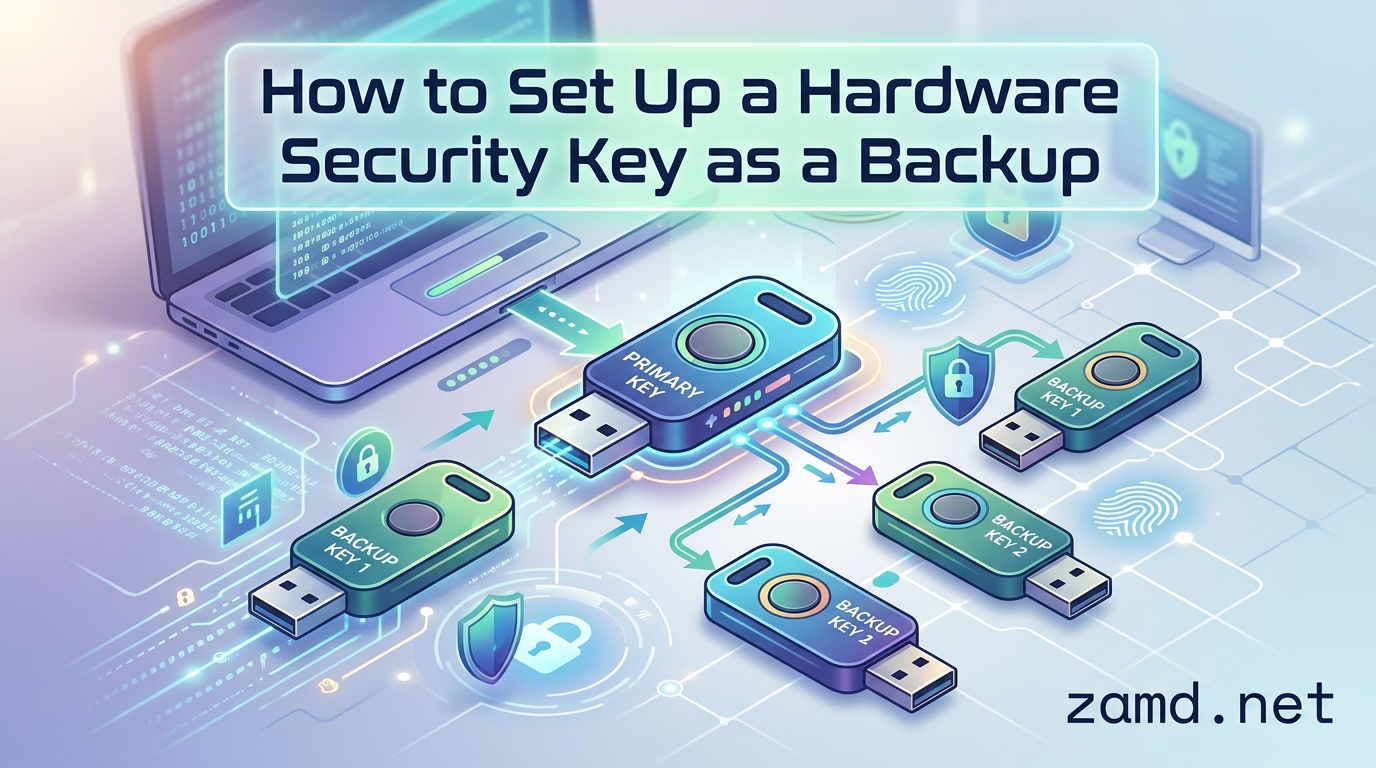
Here is the golden rule of hardware security keys: always register at least two or three keys on every account that supports them. One serves as your primary daily driver, one stays at home as a local backup, and a third goes offsite for emergencies.
If you only have one key and it gets lost, stolen, or damaged, you face a stressful recovery process. Some services let you fall back to backup codes or SMS verification. Others may require you to go through a lengthy identity verification process that can take days or weeks.
Apple actually requires you to register at least two security keys when you set up the feature on an Apple ID. They built this requirement in because they know a single point of failure is a recipe for lockouts.
I have seen real stories on r/yubikey where users lost their only key while traveling and could not access their email, banking, or work accounts for days. A backup key sitting in your desk drawer or safe deposit box prevents this nightmare entirely.
The cost of a second key is small. The cost of being locked out of your digital life is enormous. Always get a backup.
How to Set Up a Hardware Security Key as a Backup
Learning how to set up a hardware security key as a backup is straightforward once you understand the process. The key insight is that you register each physical key individually with every service. There is no cloning step. Each backup key goes through its own registration.
Follow these steps to get your primary and backup keys fully registered:
Step 1: Buy two or three FIDO2-compatible security keys from a reputable brand like Yubico or Google.
Step 2: Set a unique PIN on each key. You can use the same PIN or different ones, but make sure you remember them. Most keys allow a PIN between 4 and 63 characters.
Step 3: Log in to your account on the service you want to protect, such as your Google Account security settings.
Step 4: Navigate to the two-factor authentication or security key section in your account settings.
Step 5: Insert or tap your primary security key and follow the on-screen prompts to register it.
Step 6: Without removing the first registration, repeat the process with your backup security key. Insert or tap the second key and complete the registration.
Step 7: If you have a third offsite key, register it the same way.
Step 8: Test each key by logging out and signing back in with each one individually to confirm they all work.
That is it. The process is repetitive but simple. Each key gets its own credential tied to that specific physical device. When you lose one, the others are already registered and ready.
Managing Your Security Key PIN
Every FIDO2 security key has a PIN that you set during your first registration. This PIN adds a layer of protection in case someone finds your physical key. After 3 incorrect attempts, the key locks and must be reset.
You can change your PIN anytime through your operating system settings. On Windows 11, go to Settings, then Accounts, then Sign-in options, select Security Key, and choose Manage. On macOS, the process happens through the browser during authentication.
If you forget your PIN, there is no recovery option. You must reset the key, which erases all stored credentials. This is another reason why having multiple registered keys matters so much.
Registering Your Backup Key With Major Services
The registration process varies slightly depending on which platform you are using. Here is how to add a backup security key to the most common services.
Google Account
Go to your Google Account security page at myaccount.google.com. Navigate to the Security section, then find 2-Step Verification. Scroll to the Security Keys section and click Add Key. Insert your backup key and tap the gold contact when prompted. Google allows you to register multiple security keys and even lets you name each one for easy identification.
Microsoft Account
Sign in at account.microsoft.com and go to Security, then Advanced Security Options. Under Add a new way to prove who you are, select Security Key. Insert your backup key, enter your PIN when prompted, and touch the key to confirm. Microsoft also supports this for work and school accounts through Microsoft Entra.
Apple ID
On your iPhone running iOS 16.3 or later, open Settings, tap your name, then Password and Security. Select Security Keys and follow the prompts to add your backup key. Remember, Apple requires at least two keys to enable this feature. Keep at least one key in a safe place because Apple does not store copies.
Password Managers (1Password and Bitwarden)
Both 1Password and Bitwarden support hardware security keys as a second factor. In 1Password, go to your account settings, select Security, then Multifactor Authentication, and add a security key. In Bitwarden, navigate to Settings, then Security, then Two-step Login, and choose Security Key. Register each backup key separately so you always have multiple ways in.
GitHub, Dropbox, and Other Supported Services
Most major platforms that support FIDO2 follow a similar pattern. Look in the account security or two-factor authentication settings for an option to add a security key. The interface will walk you through inserting or tapping your backup key. If a service only allows one key, check whether they support passkeys as an additional recovery option.
Best Practices for Storing Your Backup Key
Where you keep your backup key matters just as much as registering it. If your backup sits right next to your primary key, a single theft or fire takes out both. Here are the storage strategies that security professionals actually recommend.
Keep Your Backup Key Offsite
Store your backup key somewhere other than where you keep your primary key. A home safe is fine for one key, but your second backup should live somewhere else entirely. This protects you against theft, fire, and natural disasters that could destroy everything in one location.
Use a Safe Deposit Box
A bank safe deposit box is one of the most secure offsite options. It provides physical security, climate control, and protection from home disasters. You only need access occasionally, like when your primary key is lost or damaged.
Leave One With a Trusted Person
Many users give a third backup key to a trusted family member or close friend. This gives you a recovery option that is both offsite and quickly accessible. Make sure the person understands what the key is and why it matters, and that they store it securely rather than in an unlocked drawer.
Label and Catalog Your Keys
Give each key a label so you know which is primary, which is home backup, and which is offsite. Keep a private record of which services each key is registered with. A password manager note works well for this. Never store PINs alongside the physical keys.
Rotate Your Offsite Key Periodically
Every few months, test your offsite backup key by logging in to one of your accounts with it. This confirms the key still works and you have not accidentally let any registrations expire. It also keeps your recovery muscle memory sharp.
What to Do If You Lose Your Primary Key
Do not panic if you lose your primary security key. Here is exactly what to do, step by step.
Step 1: Retrieve your backup security key from its storage location.
Step 2: Log in to each affected account using your backup key to confirm you still have access.
Step 3: Go to the security settings of each service and remove the lost primary key from your registered keys list.
Step 4: Register a new replacement key as your updated primary.
Step 5: Register the new key on every service where the lost key was used.
Step 6: Update your records to reflect the new key arrangement.
If you do not have a backup key and lose your only one, recovery becomes harder. You will need to use backup codes, SMS verification, or the account recovery process for each service. Some platforms require waiting periods of several days for security purposes.
This is why I cannot stress enough: set up your backup key before you need it. The 30-day window between losing a key and discovering the loss is when people get locked out permanently. Do not wait.
Security Key vs Authenticator App: Which Backup Is Better?
People often ask whether an authenticator app like Google Authenticator or Authy is a sufficient backup for a hardware key. The answer depends on your threat model, but here is how they compare.
Hardware security keys are the strongest form of two-factor authentication available. They are immune to phishing because the cryptographic exchange is bound to the specific website domain. A fake login page cannot trick a hardware key into authenticating. They also work without a phone, battery, or internet connection on the key itself.
Authenticator apps generate time-based one-time passwords, or TOTP codes. They are convenient and free, but the codes can be phished. If you enter a TOTP code on a fake website, an attacker can use it immediately. Software authenticators can also be compromised if your phone is infected.
SMS-based 2FA is the weakest option. SIM swapping attacks are well-documented, and SMS messages can be intercepted. Never rely on SMS as your only backup method.
The best approach combines multiple methods. Use a hardware security key as your primary authentication method, register a backup hardware key, and keep TOTP backup codes or an authenticator app as a tertiary fallback. This layered approach means you are never one failure away from a lockout.
Troubleshooting Common Security Key Issues
Sometimes things do not go smoothly during setup. Here are the most common problems and how to fix them.
Your Key Is Not Recognized When Plugged In
Try a different USB port, especially a direct port on the back of a desktop computer rather than a hub or front panel. If you are using a USB-C key, make sure the connection is snug. For NFC keys, hold the key against the back of your phone near the NFC antenna area for a few seconds.
You Get a PIN Lockout Error
After three incorrect PIN attempts, the FIDO2 PIN locks. You will need to reset the key, which wipes all stored credentials. After resetting, you must re-register the key on every service. This is why keeping a separate backup key registered is so important.
A Service Says Your Key Is Not Supported
Some services only support certain FIDO2 features. Check that your key supports the protocols the service requires. Yubico maintains a compatibility list for popular services. If a service does not support hardware keys at all, use TOTP as a fallback for that specific account.
Your Key Works on One Device But Not Another
Browser support for WebAuthn varies. Chrome, Firefox, and Edge all support hardware keys well. Safari on macOS supports them but sometimes requires specific OS versions. Make sure your browser and operating system are up to date.
FAQ’s
How do I set up a hardware security key?
To set up a hardware security key, buy a FIDO2-compatible key, set a PIN during your first registration, then go to your account security settings, find the security key or 2FA section, and follow the prompts to insert or tap your key. Repeat the process for each additional backup key.
Can a security key be used for multiple accounts?
Yes, a single hardware security key can be registered with as many accounts and services as you want. Each registration creates a unique cryptographic credential for that specific service. The key itself does not store your account data, so it works across unlimited services.
How do I create a backup YubiKey?
You cannot clone or duplicate a YubiKey. To create a backup, buy a second YubiKey and register it separately on each of your accounts. Go to the security settings of every service where your primary key is registered, select add security key, and complete registration with the second device.
How do I generate a security key?
You do not generate a hardware security key digitally. You purchase a physical device from a manufacturer like Yubico or Google. The cryptographic keys are generated internally during the manufacturing process and when you register the device with each service. The private key never leaves the physical device.
Final Thoughts on Setting Up Your Backup Security Key
Setting up a hardware security key as a backup is one of the highest-impact security steps you can take in 2026. The process is simple: buy two or three keys, register each one on every important account, and store them in separate physical locations.
Remember the golden rule. Never rely on a single hardware key. One primary, one home backup, and one offsite backup gives you triple redundancy against loss, theft, and disaster. The small upfront cost of extra keys is nothing compared to the stress of being locked out of your accounts.
Start today by registering a second key on your most critical account, whether that is your email, password manager, or work login. Then work through the rest of your services one by one. Your future self will thank you the day your primary key goes missing.