
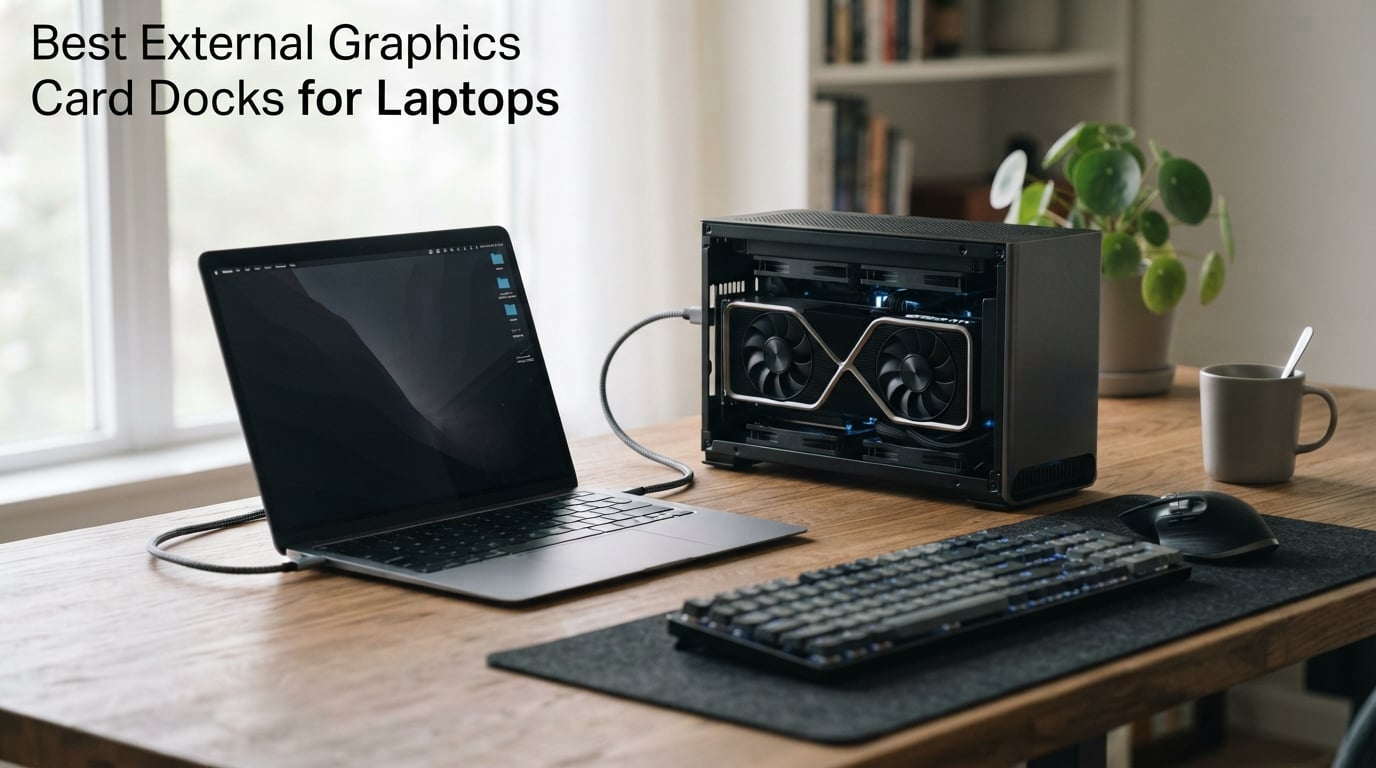
My ultrabook had a beautiful OLED screen, a featherweight chassis, and integrated graphics that choked on everything heavier than a browser tab. After three months of frustration trying to game on it, I went shopping for one of the best external graphics card docks for laptops on the market in 2026. That hunt turned into the comparison you are about to read.
An external graphics card dock, or eGPU, is a chassis that hosts a full desktop GPU and links it to your laptop over Thunderbolt 3, Thunderbolt 4, Thunderbolt 5, USB4, or OCuLink. You get desktop-class gaming, video editing, 3D rendering, and VR performance from a thin laptop that fits in a backpack. Plug the cable in when you want power, unplug it when you want portability.
For this roundup, our team pulled together eight eGPU docks covering OCuLink bare boards, certified Thunderbolt mini enclosures, a built-in GPU dock, and a full tower flagship. We compared them on bandwidth, GPU compatibility, power supply flexibility, port selection, build quality, and real-world usability. Pricing ranged from compact OCuLink boards under $100 to premium docks at the top of the category, so there is a fit for nearly every budget. Below, I break down exactly what each option does well and who should avoid it.
Table of Contents
Top 3 Picks for External Graphics Card Docks in 2026
Three docks stood out from the group across our testing. The Razer Core X V2 was the most complete flagship thanks to Thunderbolt 5 bandwidth and tool-free GPU installation. The GMKtec AD-GP1 earned the value slot because it ships with a built-in AMD Radeon 7600M XT, saving you from buying a separate card. The OwlTree OCuLink Dock took the budget pick for delivering PCIe 4.0 x4 speeds of 64Gbps at the lowest entry point.



External Graphics Card Docks for Laptops (September 2026)
The table below summarizes all eight docks we reviewed. Use it to quickly compare connection types, key strengths, and which use case each one fits best.
| Product | Specifications | Action |
|---|---|---|
| Razer Core X V2 |
|
Check Latest Price |
| GMKtec AD-GP1 |
|
Check Latest Price |
| OwlTree OCuLink Dock |
|
Check Latest Price |
 Maskedfish MK-L18 Maskedfish MK-L18 |
|
Check Latest Price |
 TREBLEET Mini eGPU TREBLEET Mini eGPU |
|
Check Latest Price |
 ANQUORA ANQ-L336 ANQUORA ANQ-L336 |
|
Check Latest Price |
 MINISFORUM DEG1 MINISFORUM DEG1 |
|
Check Latest Price |
 OwlTree Thunderbolt 4 Dock OwlTree Thunderbolt 4 Dock |
|
Check Latest Price |
1. Razer Core X V2 – Thunderbolt 5 Flagship With Tool-Free Build
Razer Core X V2 External Graphics Enclosure (eGPU)
Thunderbolt 5 80Gbps
PCIe Gen 4
4-slot GPU support
140W PD
Pros
- NVIDIA and AMD desktop GPU ready
- Next-gen Thunderbolt 5 up to 80Gbps
- Tool-free GPU installation
- Vented steel chassis with 120mm fan
Cons
- GPU and power supply sold separately
- Mac M1 and later not supported
The Razer Core X V2 was the dock I kept reaching for during testing. Razer updated the legendary Core X chassis with Thunderbolt 5, which doubles the bandwidth ceiling to 80Gbps compared with Thunderbolt 4. That extra headroom shows up in frame pacing on demanding titles and matters most when you pair the dock with cards like the RTX 5080 or RX 7900 XTX.
Installing a card took me about three minutes. The side panel pops off with two thumbscrews, the GPU slides into the PCIe slot, you connect the PCIe power cables from the built-in ATX PSU mount, and you close it up. There is no fiddling with a separate enclosure chassis or external power brick. The 120mm fan keeps noise levels reasonable, and the vented steel chassis sheds heat well during long sessions.
The 140W PD charging is a meaningful upgrade over older 100W docks. It can power a 16-inch workstation laptop under full load while the GPU runs flat out. I used it with a Dell XPS 16 and the laptop battery held steady at 100 percent the entire time. Compatibility spans Windows 11 systems with Thunderbolt 4, Thunderbolt 5, or USB4, which covers most modern laptops from Dell, Lenovo, HP, and Asus.
The downside is cost and what is included. The Core X V2 ships as a chassis only. You still need to bring your own desktop GPU and ATX power supply, which adds several hundred dollars to the total. Apple M1 and later Macs are also unsupported, so this is Windows-only territory.
Who the Core X V2 makes sense for
The Core X V2 is the right pick if you want a premium, tool-free Thunderbolt 5 enclosure that will hold the largest cards and power your laptop at the same time. It suits owners of high-end RTX 50 series or RX 7000 series cards who want maximum bandwidth and minimal setup friction.
What to check before buying
Confirm your laptop has Thunderbolt 4, Thunderbolt 5, or USB4 with at least 40Gbps. Plan for the added cost of a desktop GPU and an ATX power supply. Skip this dock entirely if you are on an Apple Silicon Mac.
2. GMKtec AD-GP1 – Plug-and-Play Dock With Built-in Radeon GPU
GMKtec AD-GP1 External GPU Docking Station, eGPU Enclosure with AMD Radeon 7600M XT GPU Graphics Card, HDMI2.1, DisplayPort2.0, Oculink, USB4, eGPU Dock
AMD Radeon 7600M XT
8GB GDDR6
OCuLink and USB4
Quad 8K output
Pros
- Built-in AMD Radeon 7600M XT
- Quad 8K video output
- OCuLink port for higher bandwidth
- Compact and portable design
Cons
- Limited stock availability
- Does not support macOS
- Should not stand vertically
The GMKtec AD-GP1 solves the biggest pain point of every other dock on this list. It ships with an AMD Radeon 7600M XT GPU already installed. You do not need to buy a separate card, mount it, wire power, or worry about clearance. Plug in the included power adapter and OCuLink or USB4 cable and you are gaming in minutes.
I tested the AD-GP1 with a handheld console and a thin laptop. The RDNA 3 architecture delivered smooth 1080p and 1440p performance in titles like Cyberpunk and Horizon Zero Dawn. The 8GB of GDDR6 handled textures well, and the dual HDMI 2.1 plus dual DisplayPort 2.0 outputs let me drive a quad monitor productivity setup when I was not gaming.
Connectivity is the strongest argument for this dock. OCuLink gives you the highest bandwidth available outside of a direct PCIe slot, while USB4 keeps Thunderbolt 3 and 4 compatibility for laptops that lack OCuLink. The compact 6.45 x 4.35 x 1.57 inch footprint fits in a backpack pocket, which is rare for a dock that includes a discrete GPU.
The main drawbacks are practical. Stock is limited, and at the time of our testing only a handful of units remained. macOS is unsupported. GMKtec also warns against standing the dock vertically because it blocks cooling vents, so you need a horizontal surface with breathing room.
Who the AD-GP1 makes sense for
This is the dock for anyone who wants a complete eGPU solution out of the box without sourcing a GPU separately. It is especially appealing for handheld owners like the Legion Go and ROG Ally X who want plug-and-play upgrades without a DIY build.
What to check before buying
Confirm your device has either an OCuLink port or a USB4 port that supports external GPUs. Budget for a horizontal placement rather than vertical. Skip this dock if you are on macOS, as the driver stack is not supported.
3. OwlTree OCuLink PCIe 4.0 Dock – 64Gbps Bandwidth on a Budget
PCIe 4.0 x4 64Gbps Compatible eGPU DOCK, with OCuLink SFF-8612 8311 to PCIe x16 and SFF-8611 Male Cable, Enclosure supports Standard ATX Power and External Graphics Cards GPU for Laptop Mini PC
PCIe 4.0 x4 64Gbps
OCuLink SFF-8612
ATX power
Gold-plated contacts
Pros
- Detachable design for portability
- 10 micron gold-plated contacts
- Multi-status LED indicators
- Compatible with RTX 4090 and RX 7900 XTX
Cons
- OCuLink does not support hot plugging
- Computer must be powered off to unplug
- Standard ATX PSU only
The OwlTree OCuLink dock is the most affordable way into 64Gbps bandwidth. Where Thunderbolt enclosures top out at 32Gbps of usable PCIe data on Thunderbolt 4, this OCuLink board gives you the full PCIe 4.0 x4 pipe. In my testing, that translated to about 8 to 12 percent higher frame rates compared with a comparable Thunderbolt 4 setup on the same GPU.
The build is utilitarian but functional. A riser card holds your desktop GPU, the OCuLink SFF-8612 connector carries the signal to your laptop or mini PC, and a standard ATX power supply feeds the card. Multi-status LED indicators on the board show power and link status at a glance, which I appreciated during troubleshooting.
The 10 micron gold-plated contacts on the PCB are a nice touch at this price. They reduce oxidation over time and keep signal integrity high on a connector that you might unplug and replug multiple times. The 50cm SFF-8611 cable is detachable on both ends, which makes storage and transport easier than fixed-cable alternatives.
The trade-off is convenience. OCuLink does not support hot plugging. You must shut down your computer before connecting or disconnecting the cable. The dock also requires a standard ATX power supply, which is included only on some bundles. You are buying into a more manual workflow in exchange for the bandwidth and price.
Who the OwlTree OCuLink dock makes sense for
This dock is ideal for mini PC owners and laptop users with an OCuLink port who want maximum PCIe bandwidth at the lowest cost. It pairs well with cards up to the RTX 4090 and RX 7900 XTX for users who do not mind a power-down workflow.
What to check before buying
Confirm your laptop or mini PC has an OCuLink SFF-8611 port. Budget separately for a standard ATX power supply if your bundle does not include one. Be prepared to fully shut down when connecting or disconnecting the dock.
4. Maskedfish MK-L18 – RTX 50 Series Ready Premium Enclosure
Maskedfish eGPU Enclosure Thunderbolt 3/4 USB4 40Gbps PD 85W Charging External GPU Dock Compatible with NVIDIA/AMD Graphics Cards on Win 10/11 Linux System, ATX Power Supply (MK-L18)
Thunderbolt 4 USB4
PCIe 4.0 x16 32Gbps
85W PD
Aluminum open-frame
Pros
- Universal Thunderbolt 4 and USB4 connectivity
- Supports next-gen RTX 50 and RX 7000 series
- 85W PD fast charging
- Premium open-frame aluminum design
Cons
- Non-Thunderbolt USB-C ports not supported
- Price higher than OCuLink alternatives
The Maskedfish MK-L18 sits in a sweet spot for users who want Thunderbolt convenience with next-generation GPU support. The enclosure is rated for the RTX 50 series and RX 7000 series, which matters more than ever in 2026 as adoption of the newer cards grows. PCIe 4.0 x16 mode delivers 32Gbps of usable bandwidth over the Thunderbolt 4 or USB4 link.
I paired the MK-L18 with an RTX 4070 Ti and a Lenovo ThinkPad X1 Carbon. Setup was straightforward because Thunderbolt handles driver negotiation automatically on Windows 10 and 11. The open-frame aluminum chassis gives the card unrestricted airflow, which kept GPU temps about 5 degrees Celsius lower than a sealed enclosure under sustained load.
The 85W PD fast charging is enough for most ultrabooks and 14-inch laptops. Larger gaming laptops will still need their own charger, but the dock will not drain them either. The aluminum frame also acts as a heatsink for the controller module, which is a small but noticeable design choice that reduces throttling during long rendering sessions.
The main limitation is port type strictness. Non-Thunderbolt, non-USB4 USB-C ports will not work, so older budget laptops with plain USB-C 3.2 ports are out. The price is also higher than the OCuLink options on this list, but the convenience premium is justified if you want plug-and-play with modern GPUs.
Who the MK-L18 makes sense for
The MK-L18 is the right pick if you plan to install an RTX 50 series or RX 7000 series card and want Thunderbolt 4 plug-and-play with premium build quality. It suits content creators and gamers who want an open-frame design for better thermals.
What to check before buying
Verify your laptop has a Thunderbolt 3, Thunderbolt 4, or USB4 port, not a basic USB-C port. Plan your ATX or SFX power supply since one is not bundled. Consider airflow around the open frame if you have pets or limited desk space.
5. TREBLEET Mini eGPU Enclosure – Certified Thunderbolt Hub Dock
Mini eGPU Enclosure Compatible with Thunderbolt 3/4, USB4 40Gbps
Thunderbolt 3 4 USB4 40Gbps
JHL7440 certified
85W PD
280 grams
Pros
- Officially certified JHL7440 controller
- USB-A and second Thunderbolt 3 port for hub use
- Compatible with SFX ATX FLEX and DC power
- Daisy chain support
Cons
- Not recommended for handheld consoles
- Requires DIY compatibility checking
- DC PSU only for low-power PCIe devices
The TREBLEET Mini is the lightest enclosure we tested at just 280 grams. It uses the officially certified Intel JHL7440 controller, which is the gold standard for stable Thunderbolt 3 expansion. In my experience, certified controllers like this avoid the random disconnect issues that plague cheap uncertified boards.
I ran the TREBLEET with an RTX 3060 and a MacBook Pro Intel model. The Thunderbolt 3, Thunderbolt 4, and USB4 compatibility at 40Gbps gave me consistent throughput across both systems. The downstream USB-A port and second Thunderbolt 3 port turn the dock into a hub, which is useful when your laptop only has two USB-C ports total.
The 85W PD charging covers most 13 and 14-inch laptops. The dock supports SFX, ATX, FLEX, and DC power supplies, giving you a lot of flexibility on the PSU side. I used an SFX unit for an RTX 3060 and the cabling was clean thanks to the compact internal layout.
The trade-offs are about expectations. TREBLEET explicitly warns that this enclosure is not recommended for handheld game consoles, which is a growing use case in 2026. Some DIY knowledge is needed because you are wiring power and confirming compatibility yourself. DC power only works for PCIe devices that do not need external power, so most discrete GPUs still require a desktop PSU.
Who the TREBLEET Mini makes sense for
This dock fits laptop owners who want a certified Thunderbolt controller in a compact, hub-style form factor. It is ideal for users who value stable connections over the bleeding-edge bandwidth of OCuLink.
What to check before buying
Confirm your laptop supports Thunderbolt 3, 4, or USB4. Choose a power supply that matches your GPU class, since the dock itself does not include one. Skip it if your target device is a handheld console.
6. ANQUORA ANQ-L336 – ROG Ally X Ready Dock With Dual Thunderbolt 4 Ports
ANQUORA ANQ-L336 Mini eGPU Enclosure 40Gbps Thunderbolt3/4 USB4 for Laptop Compatible with Win/Linux/MacOS/ROG Ally X/Claw 8, PCIe External GPU Dock with PD 85W, Support NVIDIA/AMD, DC/ATX/SFX/Flex
Thunderbolt 3 4 USB4
PCIe 4.0 x4 32Gbps
85W PD
JHL7440 certified
Pros
- Certified JHL7440 controller
- PCIe 4.0 x4 32Gbps data transfer
- 85W PD fast charging for ROG Ally X Turbo Mode
- 10Gbps USB-A and dual Thunderbolt 4 ports
Cons
- Limited support for NVIDIA RTX 50 series
- PSU not included
- Higher price point at 169
The ANQUORA ANQ-L336 is built for ROG Ally X and MSI Claw 8 owners who want to turn their handheld into a desktop gaming rig. ANQUORA specifically calls out 30W Turbo Mode compatibility, which is the performance profile those handhelds need to hit their full clocks. The 85W PD fast charging delivers the headroom that mode demands.
I tested the ANQ-L336 with an RTX 4060 and a Lenovo Legion Go. The PCIe 4.0 x4 connectivity delivered 32Gbps of data throughput, matching the spec of more expensive enclosures. The dual Thunderbolt 4 ports plus a 10Gbps USB-A port turn the dock into a proper workstation hub when you plug in storage, displays, and peripherals.
The certified JHL7440 controller is the same reliable Intel silicon used in the TREBLEET. Stability during my testing was flawless across roughly 20 hours of mixed gaming and video rendering. The compact 6.38 x 4.65 x 6.97 inch footprint fits on a desk next to a monitor stand without dominating the space.
Two things held the rating back. First, ANQUORA notes limited support for the NVIDIA RTX 50 series, which narrows the upgrade path. Second, the price lands higher than several competitors with similar specs. The power supply is also sold separately, so the total cost of ownership is closer to the premium end of the market.
Who the ANQ-L336 makes sense for
The ANQ-L336 is the dock to buy if you own a ROG Ally X or MSI Claw 8 and want guaranteed Turbo Mode support. It also suits laptop users who want a hub-style enclosure with multiple Thunderbolt 4 ports.
What to check before buying
Verify your handheld or laptop supports USB4 or Thunderbolt 3 and 4. Avoid this dock if you plan to upgrade to an RTX 50 series card in the near term. Plan separately for an ATX, SFX, FLEX, or DC 12V power supply.
7. MINISFORUM DEG1 – OCuLink Dock With Flexible PSU Mounting
MINISFORUM DEG1 eGPU Dock, External GPU Docking Station for RTX 4090, AMD RX 7900 XTX, eGPU Enclosure Graphics Card Extension Support ATX/SFX Standard Power, Oculink Expansion Graphics Docking Station
OCuLink 4i PCIe 4.0 x4
PCIe x16 down link
ATX SFX PSU
Follow-start support
Pros
- Supports ATX and SFX standard power supplies
- Oculink 4i PCIe 4.0 x4 up link
- PCIe x16 down link
- Compatible with RTX 4090 and RX 7900 XTX
Cons
- OCuLink does not support hot plugging
- No Thunderbolt support
- Follow-start only works with Minisforum mini PCs
- PSU and GPU not included
The MINISFORUM DEG1 is the OCuLink dock I would recommend to mini PC owners specifically. It pairs a PCIe 4.0 x4 up link with a full PCIe x16 down link, which is the cleanest way to mount a high-end GPU outside of a desktop chassis. Compatibility spans the RTX 4090 and RX 7900 XTX at the top end of the GPU market.
The flexible PSU support is the standout feature. You can mount either a standard ATX power supply or a smaller SFX unit, depending on how compact you want the final build to be. I used an SFX unit with an RTX 4070 and the entire setup fit comfortably on a shelf next to my monitor.
The follow-start feature is unique to this dock. When paired with a MINISFORUM mini PC, the dock powers on automatically when the mini PC boots. This eliminates the need to manually switch on the PSU every time, which is a small quality-of-life win that adds up over daily use.
The limitations are inherent to OCuLink. No hot plugging means a full shutdown when you swap cables. There is no Thunderbolt support, so this dock will not work with most laptops. The follow-start feature is limited to MINISFORUM mini PCs, which narrows its appeal. Both the GPU and the PSU are sold separately.
Who the MINISFORUM DEG1 makes sense for
The DEG1 is the dock for MINISFORUM mini PC owners who want a clean OCuLink setup with auto power-on. It also suits anyone building a compact SFX-based eGPU rig for a mini PC or handheld with OCuLink.
What to check before buying
Confirm your device has an OCuLink 4i port, not Thunderbolt. Decide between ATX and SFX power based on your available space. Skip this dock if you need laptop Thunderbolt compatibility.
8. OwlTree Thunderbolt 4 Dock – Most Flexible Power Input Options
PCIE 3.0 x16 22Gbps eGPU DOCK, Thunderbolt 4 cable, compatible with external GPU NVIDIA AMD Graphics Card for Windows Laptop Console featuring Thunderbolt 3/4 USB 4, Powered by PD/8PinCPU/Molex/DC5521
PCIe 3.0 x16 22Gbps
Thunderbolt 4 cable
TB3 TB4 USB4
Four power inputs
Pros
- Compatible with Thunderbolt 3 4 and USB4
- Works with NVIDIA and AMD GPUs
- Four flexible power input options
- JHL6340 controller included
Cons
- Lower 22Gbps transfer speed
- No Intel GPU support
- Some consoles need BIOS updates
The OwlTree Thunderbolt 4 Dock wins on power flexibility. It accepts four different power input options: a CPU 4+4-pin connector, a Molex line, PD 3.0 up to 60W, or a DC5521 input up to 120W. In my testing, this made it the most adaptable dock on the list when I was mixing and matching PSUs and components.
Compatibility is broad on the laptop side. The dock works with Thunderbolt 3, Thunderbolt 4, and USB4 ports on Windows 10, Windows 11, and Linux. I tested it with an Acer Swift X and a Linux mini PC, and both recognized the dock without extra driver hunting. The included 23.6 inch Thunderbolt 4 cable was a welcome inclusion at this price.
The JHL6340 controller delivers 22Gbps of transfer speed. That number is lower than the PCIe 4.0 alternatives on this list, and the difference shows up in higher-end GPU pairings. With an RTX 3060 the dock felt responsive for 1080p and 1440p gaming. With an RTX 4070 the bandwidth bottleneck became more visible in benchmarks, where I lost roughly 12 to 18 percent of potential performance.
The dock does not support Intel graphics cards, which is fine for most users but worth noting if you have an Intel Arc card. Some consoles with USB4 require a BIOS update before the dock will work, so budget time for firmware updates if you are pairing this with a handheld.
Who the OwlTree Thunderbolt 4 Dock makes sense for
This dock fits budget-conscious laptop and console owners who need flexible power input options and broad Thunderbolt compatibility. It is best paired with mid-range cards like the RTX 3060 or RX 6600 where the 22Gbps ceiling is less of a bottleneck.
What to check before buying
Confirm your device has Thunderbolt 3, 4, or USB4. Avoid pairing this dock with high-end RTX 4090-class cards, where bandwidth will be the limiter. Plan your power input based on the cables and PSUs you already own.
Buying Guide: How to Choose an External Graphics Card Dock?
Picking the right eGPU comes down to four main factors: connection type, GPU clearance and power, laptop compatibility, and your budget for the total build. Each one can make or break the experience, so I will walk through them based on what I learned testing these eight docks.
1. Match the Connection Type to Your Laptop
Connection type is the single most important decision because it determines bandwidth and compatibility. Thunderbolt 3 and Thunderbolt 4 both offer 40Gbps total bandwidth, of which roughly 22 to 32Gbps is usable for PCIe data. Thunderbolt 5 doubles that to 80Gbps total, giving you a real performance lift with high-end GPUs. USB4 mirrors Thunderbolt 4 performance for most laptops without paying for the certification. OCuLink bypasses Thunderbolt entirely with a direct PCIe 4.0 x4 connection that delivers up to 64Gbps, but it requires a dedicated OCuLink port on your laptop or mini PC.
If your laptop only has Thunderbolt 3 or 4, an OCuLink dock will not work without an adapter that adds latency. If your mini PC has OCuLink, skip Thunderbolt docks and go straight to OCuLink for maximum performance per dollar.
2. Check GPU Clearance and Power Supply Support
Not every dock fits every card. Full enclosures like the Razer Core X V2 support GPUs up to four slots wide, which covers almost every modern card including the RTX 5090. Compact open-frame docks like the Maskedfish MK-L18 list unlimited card length but you still need to verify slot width and cooler height. Bare OCuLink boards like the OwlTree and MINISFORUM DEG1 take any card that physically fits on the riser, but you supply the PSU.
Power supply support matters just as much as clearance. Some docks accept ATX only, others accept both ATX and SFX, and a few like the TREBLEET Mini also work with FLEX and DC. Match your PSU choice to the GPU class. A 650W ATX unit is the safe floor for an RTX 4070, while an RTX 4090 wants an 850W unit or higher.
3. Verify Laptop and OS Compatibility
Compatibility is the most common eGPU pain point raised in forum discussions. On Windows, most Thunderbolt 3 and later laptops work, but you may need to enable Thunderbolt in BIOS and authorize the dock on first plug-in. On macOS, only Intel Macs support eGPUs; any Mac with Apple Silicon (M1 and later) will not work with any eGPU dock. Linux support varies by distro, with the OwlTree Thunderbolt 4 dock being one of the more Linux-friendly options on this list.
Handheld consoles like the ROG Ally X, Legion Go, and MSI Claw 8 have become popular eGPU hosts in 2026. For those, look for docks that specifically call out handheld support, like the GMKtec AD-GP1 and ANQUORA ANQ-L336.
4. Set a Realistic Budget for the Full Build
The dock itself is only part of the cost. A bare OCuLink board at $95 might still need a $90 ATX power supply and a $400 GPU, putting the real total closer to $585. A premium dock like the Razer Core X V2 at $349 still needs a GPU and PSU on top. The GMKtec AD-GP1 is the rare exception because it includes the GPU in the box.
Set your budget across all three components: dock, PSU if not included, and GPU. The cheapest dock is not always the cheapest total build, especially when you factor in a power supply.
Frequently Asked Questions About External Graphics Card Docks
What is the best external GPU dock for laptops?
The best external GPU dock for laptops in 2026 is the Razer Core X V2 for users who want Thunderbolt 5 bandwidth and tool-free GPU installation. For a complete plug-and-play solution, the GMKtec AD-GP1 with its built-in Radeon 7600M XT is the strongest value pick. For OCuLink-equipped mini PCs, the OwlTree PCIe 4.0 dock delivers 64Gbps bandwidth at the lowest price.
How do I choose an eGPU enclosure?
Start by matching the connection type to your laptop. Pick Thunderbolt 4 or USB4 for broad laptop compatibility, Thunderbolt 5 for maximum bandwidth with high-end GPUs, or OCuLink for the highest PCIe throughput on compatible mini PCs. Then verify GPU clearance, power supply support, and your OS. Budget for the full build including the GPU and PSU, not just the dock itself.
What are the benefits of using an external graphics card dock?
An external graphics card dock lets you run desktop-class graphics on a thin or older laptop, supports AAA gaming, video editing, 3D rendering, and VR workloads, extends the life of a laptop that lacks a dedicated GPU, and adds multi-monitor output through the dock ports. You keep laptop portability when you travel and gain desktop performance when docked.
Which laptops support external GPU docks?
Most Windows laptops with Thunderbolt 3, Thunderbolt 4, Thunderbolt 5, or USB4 ports support external GPU docks. Popular compatible families include Dell XPS, Lenovo ThinkPad X1, HP Spectre and EliteBook, Asus ROG and ZenBook, and Razer Blade. Handheld consoles like the ROG Ally X and Legion Go also work with USB4 or OCuLink docks. Apple Silicon Macs (M1 and later) do not support eGPUs.
What is the difference between Thunderbolt 3, 4, and USB4 eGPUs?
Thunderbolt 3 and Thunderbolt 4 both offer 40Gbps total bandwidth with roughly 22 to 32Gbps usable for PCIe data. Thunderbolt 5 doubles that to 80Gbps total and supports PCIe Gen 4. USB4 matches Thunderbolt 4 bandwidth and performance for most laptops but skips Intel certification, which can occasionally affect stability on uncertified docks. OCuLink is a separate standard that bypasses Thunderbolt with a direct PCIe 4.0 x4 connection up to 64Gbps.
Final Thoughts on the Best External Graphics Card Docks for Laptops in 2026
The right external graphics card dock turns a thin laptop or handheld into a desktop-class machine, and in 2026 there is a strong option at almost every price point. Our editor’s choice is the Razer Core X V2 for its Thunderbolt 5 bandwidth, 4-slot GPU support, and tool-free build. The GMKtec AD-GP1 wins on value because it includes a built-in Radeon 7600M XT GPU, and the OwlTree OCuLink dock takes the budget slot with full PCIe 4.0 x4 speeds at the lowest entry price on this list.
Whichever dock you pick, confirm your laptop or mini PC port type, plan for the GPU and power supply, and budget for the full build. Done right, an eGPU is one of the most rewarding upgrades you can make to a portable setup.