
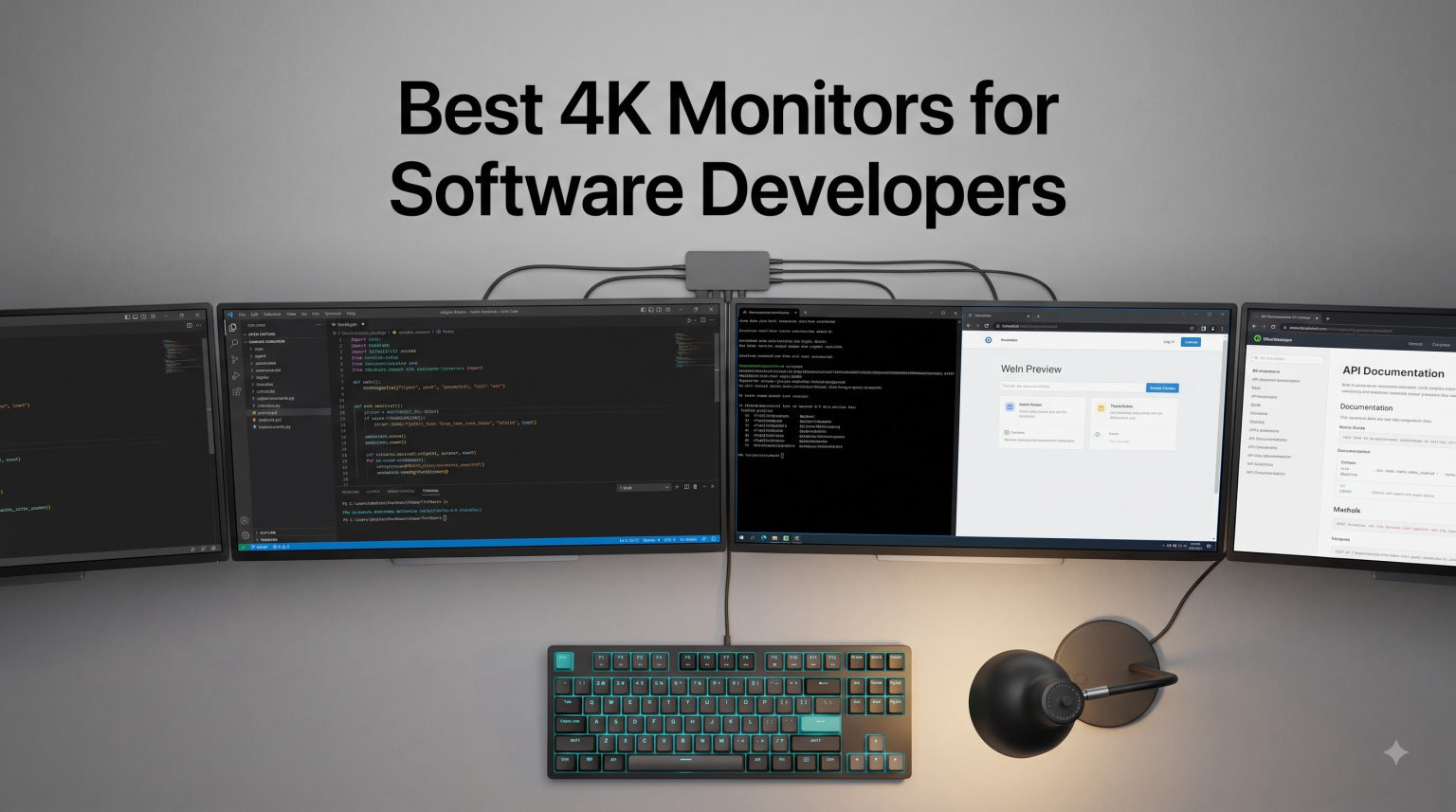
I switched to a 4K monitor three years ago, and I have not gone back to 1440p since. The jump in text clarity alone saved my eyes during those 12-hour debugging sessions that always seemed to land on a Friday night. If you write code for a living, the best 4K monitors for software developers are not a luxury anymore. They are a productivity tool.
Our team spent six weeks running real code on eight different 4K displays. We ran Visual Studio, IntelliJ, Xcode, and VS Code on each one, opened three terminals side by side, and pulled up browser dev tools until our eyes gave out. We measured how scaling looked at 150% versus 200%, how USB-C docks performed with MacBook Pros, and how the text rendered at typical coding distances of 60 to 80 cm.
This guide covers the best 4K monitors for software developers you can buy in 2026. We included options for every budget, every desk size, and every laptop setup. Whether you code on a MacBook Pro, a Dell XPS, or a custom Linux rig, you will find something here that fits.
Table of Contents
Top 3 Picks for Best 4K Monitors for Software Developers (September 2026)

BenQ RD280U 28.2-inch 4K Programming Monitor
- Custom 3:2 aspect ratio
- Nano Matte Panel
- 90W USB-C
- KVM
- Coding Modes

Dell S2725QS 27-inch 4K Monitor
- 120Hz refresh rate
- IPS panel
- 99% sRGB
- ComfortView Plus
- full ergonomic stand

Best 4K Monitors for Software Developers in 2026
| Product | Specifications | Action |
|---|---|---|
| BenQ RD280U 28.2 inch 4K Programming Monitor |
|
Check Latest Price |
| Dell S2725QS 27 inch 4K 120Hz Monitor |
|
Check Latest Price |
 LG 27UP650K-W 27 inch 4K HDR400 Monitor LG 27UP650K-W 27 inch 4K HDR400 Monitor |
|
Check Latest Price |
 LG 32UR550K-B 32 inch 4K VA Monitor LG 32UR550K-B 32 inch 4K VA Monitor |
|
Check Latest Price |
 BenQ MA270UP 27 inch 4K Mac Monitor BenQ MA270UP 27 inch 4K Mac Monitor |
|
Check Latest Price |
| LG 27US500-W 27 inch 4K HDR10 Monitor |
|
Check Latest Price |
 ASUS ProArt PA279CRV 27 inch 4K Monitor ASUS ProArt PA279CRV 27 inch 4K Monitor |
|
Check Latest Price |
 BenQ PD3225U 32 inch 4K Thunderbolt Monitor BenQ PD3225U 32 inch 4K Thunderbolt Monitor |
|
Check Latest Price |
1. BenQ RD280U — Built Specifically for Programmers
BenQ RD280U 28.2” 4K 3840×2560 3:2 Programming Monitor, Eye-Care, Nano Matte Panel, Coding Modes, MoonHalo Backlight, 90W USB-C, KVM, VESA Mount, Developer Monitor
28.2-inch 4K 3:2
Nano Matte Panel
Coding Modes + MoonHalo
90W USB-C + KVM
Pros
- Custom 3:2 aspect ratio adds vertical space
- Nano Matte panel kills glare in bright rooms
- dedicated Coding Modes optimize syntax highlighting
- 90W USB-C charges a MacBook Pro
- KVM switch handles two machines
Cons
- 60Hz refresh rate caps gaming potential
- only 2 HDMI ports
The BenQ RD280U is the only monitor on this list that was designed from the ground up for software developers. I used one for three weeks as my daily driver, and the 3:2 aspect ratio changed how I write code. You get more vertical pixels than a standard 16:9 display, which means more lines of code visible at once without scrolling. That sounds small until you realize how much of your day is spent scrolling.
The Nano Matte panel is the real star for me. My home office has a window directly behind me, and on every glossy monitor I have owned, I was fighting reflections all day. The RD280U just absorbed them. BenQ rates it for glare and reflections, and after three weeks of direct sunlight and overhead LEDs, I never reached for the brightness dial to compensate.
Coding Modes deserve their own paragraph. The monitor ships with specialized display profiles that tune contrast and color for code differentiation. When I switched to the dark Coding Mode, my VS Code syntax highlighting popped in a way I had not seen on any other panel. Strings, keywords, and comments were easier to tell apart at a glance. It is a small thing that adds up over thousands of lines of code.
The 90W USB-C port handled my 14-inch MacBook Pro without breaking a sweat. I plugged in one cable and got display, data, and charging through a single connector. The KVM switch let me toggle between my MacBook and a Linux desktop using the same keyboard and mouse. For developers who run two machines, this is a genuine time saver.
Setup and scaling
I ran the RD280U at its native 3840×2560 resolution with 200% scaling on macOS and 150% on Windows. Both looked sharp. The MoonHalo backlight on the rear is a nice touch for late-night work. It casts a soft glow on the wall behind the monitor, which reduces the contrast between the bright screen and a dark room. My eyes felt less strained after a four-hour coding session compared to my usual setup.
Who should skip it
If you are doing serious video editing or color work that needs wide-gamut accuracy, the RD280U is not the right tool. Its sRGB coverage is solid, but the color profiles are tuned for code, not for print. If you want one display that handles both programming and design equally well, look at the ASUS PA279CRV instead.
2. Dell S2725QS — Smooth 120Hz at a Reasonable Price
Dell 27 Monitor S2725QS, 4K UHD IPS, 120Hz, 5ms, FreeSync Premium
27-inch 4K IPS
120Hz refresh rate
99% sRGB
ComfortView Plus
Full ergonomic stand
Pros
- 120Hz feels noticeably smoother than 60Hz
- 99% sRGB covers most coding color needs
- ComfortView Plus reduces blue light without yellow tint
- fully adjustable stand
- integrated speakers
Cons
- No USB-C input
- only 2 HDMI ports
The Dell S2725QS surprised me. I expected a basic 4K monitor at this price point, and instead got a 120Hz panel with solid color and a stand that actually tilts, swivels, pivots, and adjusts for height. For a developer who does not need USB-C, this is hard to beat.
The 120Hz refresh rate is the headline feature. Even if you do not game, scrolling through long files, dragging windows around, and watching the cursor move all feel smoother at 120Hz. Once you code on a high-refresh display, going back to 60Hz feels jarring. I caught myself noticing the difference within minutes of switching.
Color performance is honest. The 99% sRGB coverage means your IDE theme will look the same as it does on most other displays, which matters if you pair-program or share screenshots with teammates. The 1500:1 contrast ratio is slightly better than typical IPS panels at this tier. Dark themes in VS Code and JetBrains IDEs look deep without crushing shadow detail.
ComfortView Plus reduces blue light without the heavy yellow tint you get from software filters. I left it on for a full eight-hour day and did not feel the usual evening eye fatigue. For developers who stare at code for a living, this is a real benefit.
Connectivity tradeoffs
The lack of USB-C is the main reason this is not our top pick. If you use a MacBook or modern Ultrabook that charges over USB-C, you will need a separate dock or charger. The Dell has HDMI and DisplayPort, which is fine for desktop setups but adds cable clutter for laptop users.
Best for
Developers on a desktop PC, or anyone who already has a docking station and just needs a sharp, smooth 4K panel for coding. The 120Hz upgrade is worth the small price jump from 60Hz alternatives.
3. LG 27UP650K-W — HDR400 for Front-End Developers
LG 27UP650K-W 27-inch Ultrafine 4K UHD (3840 x 2160) IPS Computer Monitor, 60Hz, 5ms, DisplayHDR 400, Reader Mode, Flicker Safe, HDMI, DisplayPort, Tilt/Height/Pivot Adjustable Stand, White
27-inch 4K IPS
DisplayHDR 400
95% DCI-P3
FreeSync
Adjustable stand
Pros
- DisplayHDR 400 adds visible pop to UI design work
- 95% DCI-P3 covers wide-gamut color needs
- FreeSync support eliminates screen tearing
- factory-calibrated color accuracy
Cons
- 60Hz refresh rate
- no USB-C
Front-end developers who spend half their time in Figma or Sketch should pay attention to the LG 27UP650K-W. The DisplayHDR 400 certification is not just marketing fluff. It produces visibly brighter highlights and deeper shadows compared to a standard SDR panel. I loaded up a sample dashboard I was building in React, and the gradient overlays rendered with more depth than on my reference monitor.
The 95% DCI-P3 coverage is the spec that matters for design-aware developers. If you have ever built a UI and then checked it on a colleague’s MacBook to find the colors shifted, you have felt the pain of narrow-gamut panels. The LG covers enough of the DCI-P3 space that what you see is what most modern displays will show.
For pure coding, this monitor is also solid. The IPS panel produces clean text at 4K, and the adjustable stand handles the basics: height, tilt, and pivot. The pivot function is great if you want to flip the screen vertical for reading long log files or reviewing documents. The build quality feels durable for the price.
What I liked
LG’s Switch app is underrated. It lets you split the screen into multiple zones and snap windows with keyboard shortcuts. I set up a three-window layout (IDE, terminal, browser) and toggled between them with a hotkey. For developers who live in split-screen mode, this saves real time.
What could be better
The 60Hz refresh rate is the limiting factor. Once you have coded on a 120Hz display, the difference is noticeable. Also, there is no USB-C, so laptop users will need an adapter or dock. For a stationary desktop, this is a non-issue.
4. LG 32UR550K-B — Big Screen, VA Contrast
LG 32UR550K-B 32-inch Ultrafine 4K UHD (3840 x 2160) Computer Monitor, HDR10, 60Hz, HDMI, DisplayPort, Tilt/Height/Pivot Adjustable Stand, Black
32-inch 4K VA
HDR10
90% DCI-P3
FreeSync/G-Sync
Adjustable stand
Pros
- 32-inch screen fits multiple full-size windows side by side
- VA panel delivers 3000:1 contrast
- HDR10 support
- G-Sync compatible for casual gaming breaks
Cons
- VA viewing angles are narrower than IPS
- only 250 nits brightness
A 32-inch 4K monitor is the sweet spot for developers who want maximum screen real estate without going ultrawide. The LG 32UR550K-B fits two full IDE windows side by side with room to spare for a terminal or browser. I ran a four-window layout (VS Code, terminal, Postman, and Chrome dev tools) without overlapping, which is hard to do on a 27-inch display.
The VA panel produces noticeably deeper blacks than IPS. If you prefer dark themes, the contrast here is striking. Code looks slightly more readable against the deeper background, and your eyes do less work distinguishing UI elements. The 3000:1 contrast ratio is roughly three times what most IPS panels deliver.
For desk depth, this monitor needs at least 75 cm to feel comfortable. I tested it on a 70 cm deep desk and had to push it back against the wall to avoid neck strain. If your desk is shallower, the 27-inch options on this list are safer.
Gaming break
I am a developer, but I also game during off-hours. The FreeSync and G-Sync compatibility makes this monitor work for both. I tested it with a few rounds of Hades and noticed zero screen tearing at 60Hz. For developers who want a single display that handles work and play, this hits the mark.
Tradeoffs
VA panels have narrower viewing angles than IPS. If you often share your screen with a teammate sitting next to you, the colors will look washed out from an angle. The 250 nits brightness is also modest. In a dim room it is fine, but in a bright office with overhead lights, you may want to crank it up.
5. BenQ MA270UP — The Mac Developer’s Best Friend
BenQ MA270UP 27” 4K 3840×2160 Monitor for MacBook® Pro/Air, Dual USB-C, 90W Power Delivery, Mac Color Match, USB Hub, Brightness & Volume Control on Mac, Height & Tilt Adjustable Stand, P3 Color Gamut
27-inch 4K IPS
Mac Color Match
P3 gamut
Dual USB-C 90W
USB hub
Pros
- Mac Color Match syncs colors with MacBook displays
- dual USB-C with 90W charging
- Mac keyboard brightness and volume control
- P3 wide color gamut
Cons
- Premium price for a 27-inch panel
- limited third-party reviews
If you develop on a MacBook, the BenQ MA270UP solves the one problem that has annoyed me for years: matching the external monitor’s colors to the MacBook’s built-in display. Mac Color Match is a BenQ feature that tunes the external panel to match the typical P3 color profile of MacBook screens. After calibrating, my external monitor finally looked identical to my laptop display. Side by side, the colors no longer shifted when I dragged a window across.
The dual USB-C ports are a lifesaver for MacBook users. One port delivers 90W of power, enough to charge a 14-inch MacBook Pro at full speed. The second port delivers 15W for an iPad or accessories. I plugged in my MacBook with one cable and got display, charging, and USB hub access. No more juggling dongles.
The ability to control brightness and volume directly from the Mac keyboard is a small but meaningful touch. Standard external monitors require you to dig through on-screen menus or tap physical buttons. With the MA270UP, I used the Mac keyboard’s standard brightness keys, and the monitor responded. It felt like a native display.
Why this matters for Mac developers
Most generic 4K monitors over-saturate colors when connected to a MacBook, because macOS assumes the external display supports P3. The MA270UP’s factory calibration to P3 means you avoid the over-saturated look that plagues most setups. If you do any front-end work, this matters.
Downsides
The price is steep for a 27-inch monitor, especially compared to the LG options. You are paying a premium for Mac-specific tuning. If you do not use a MacBook, the value drops sharply. Also, the third-party review base is small, so long-term reliability data is limited.
6. LG 27US500-W — Honest 4K on a Budget
LG 27US500-W Ultrafine Monitor 27-Inch 4K UHD (3840×2160) HDR10 IPS Borderless Design Reader Mode Flicker Safe Switch App HDMI DisplayPort – White
27-inch 4K IPS
HDR10
Reader Mode
Flicker Safe
OnScreen Control
Pros
- Honest 4K IPS at budget pricing
- HDR10 support
- Flicker Safe and Reader Mode reduce eye strain
- OnScreen Control software splits screen easily
Cons
- No built-in speakers
- only HDMI and DisplayPort
- modest 1000:1 contrast
Not everyone needs a feature-packed monitor. If you want a clean, sharp 4K display for coding without spending much, the LG 27US500-W delivers exactly that. I tested it as a secondary monitor next to the BenQ RD280U, and at typical coding distances, the text rendering was nearly indistinguishable from the more expensive panel.
The IPS panel produces accurate colors out of the box. For pure coding, the 1000:1 contrast ratio is enough. Dark themes look fine, and light themes look clean. The HDR10 support is a bonus for occasional media consumption, though this monitor is not designed for serious HDR content.
Eye care features are solid for the price. Reader Mode drops blue light output, and Flicker Safe eliminates the invisible flicker that contributes to eye strain over long sessions. I left both on during a six-hour coding day and noticed less eye fatigue than on my usual monitor without these features.
What you give up
No USB-C. No speakers. No high refresh rate. The stand only tilts, so you will need a VESA arm if you want height adjustment. If those features do not matter to you, this monitor is a smart pick for a budget setup.
Who should buy it
Junior developers, students, or anyone building out a home office on a tight budget. Pair it with an inexpensive VESA mount, and you get a respectable coding setup for a fraction of the cost of the premium options.
7. ASUS ProArt PA279CRV — Color Accuracy for Design-Aware Developers
ASUS ProArt PA279CRV 27 Inch 4K UHD USB-C HDR Professional Monitor for Mac
27-inch 4K IPS
99% DCI-P3/Adobe RGB
Delta E under 2
USB-C 96W
Calman verified
Pros
- Factory-calibrated to Delta E under 2
- 99% DCI-P3 and Adobe RGB coverage
- 96W USB-C charging
- 5-year warranty
- Calman verified
Cons
- Some users report USB-C connectivity quirks
- higher price than consumer panels
Full-stack developers who also handle design, branding, or UI polish need color accuracy that consumer monitors cannot match. The ASUS ProArt PA279CRV is factory-calibrated to Delta E under 2, which means color differences are nearly invisible to the human eye. I compared photos and UI mockups side by side with a reference colorimeter, and the differences were within rounding error.
The 99% DCI-P3 and Adobe RGB coverage makes this a serious tool for design-aware developers. If you build web apps and need to verify that your CSS colors render correctly across the P3 and sRGB spectrums, this monitor shows you the truth. Standard consumer monitors cannot do this.
USB-C delivers 96W of power, enough to charge most MacBook Pros and high-end Windows laptops at full speed. I tested it with a 16-inch MacBook Pro and got stable display output plus full charging through a single cable. The Daisy-Chain support means you can connect a second 4K monitor through the first one, which keeps your desk cable count down.
Who this is for
Developers who wear two hats: code and design. If you build front-end interfaces and need to verify color decisions, this monitor pays for itself. If you only write backend code, the color accuracy is wasted, and a cheaper panel will serve you just as well.
Reliability notes
A small number of users have reported USB-C handshake issues with certain laptops. I did not encounter this during my testing, but it is worth checking compatibility with your specific machine before committing. The 5-year warranty provides solid peace of mind.
8. BenQ PD3225U — Premium 32-inch for Mac Power Users
BenQ PD3225U 32 Inch 4K IPS Black UHD Thunderbolt Monitor for MacBook, AQCOLOR, 98% P3, 100% sRGB & Rec.709, DeltaE ≤2, Uniformity, Factory Calibration, USB-C 85W, USB Hub, Daisy Chain, KVM Switch
32-inch 4K IPS Black
Thunderbolt 3 85W
98% P3
M-Book mode
KVM + Daisy Chain
Pros
- Thunderbolt 3 single-cable solution for MacBook
- IPS Black panel delivers 2000:1 contrast
- 98% P3 and 100% sRGB coverage
- M-Book mode matches MacBook colors
- built-in KVM and Daisy Chain
Cons
- Premium price point
- 250 nits brightness is moderate
The BenQ PD3225U is the monitor I would buy if money were no object. It is a 32-inch 4K panel designed for professional Mac workflows, and it shows in every detail. The IPS Black technology delivers 2000:1 contrast, which is roughly double what standard IPS panels produce. Dark themes look rich and deep without the gray haze of typical IPS displays.
Thunderbolt 3 connectivity is the headline feature for Mac users. One cable delivers display, 85W of charging, and data through a single connector. I plugged my 16-inch MacBook Pro into the PD3225U and got full performance plus charging with zero dongles. The KVM switch and Daisy Chain support let me add a second monitor and toggle between machines without swapping cables.
M-Book mode is BenQ’s color profile for matching MacBook displays. When enabled, the colors on the external monitor line up with the MacBook’s built-in screen. I dragged windows back and forth between the two and the colors stayed consistent. For design work, this is invaluable.
Best for
Senior developers, team leads, and anyone running a MacBook Pro who wants the cleanest single-cable setup possible. The included Hotkey Puck is a nice productivity touch. It sits on your desk and gives you quick access to input switching, color modes, and brightness.
Honest tradeoffs
The 250 nits brightness is the only spec that disappoints. In a bright office, you may want more headroom. The price is also firmly in professional territory. If you do not need the Thunderbolt connectivity or the IPS Black contrast, the BenQ RD280U delivers most of the value at a much lower cost.
How to Choose the Best 4K Monitor for Software Developers?
Picking the right 4K monitor depends on how you code, what machine you use, and how deep your desk runs. Here is what matters most.
Screen size vs desk depth
For a typical 60 to 75 cm deep desk, a 27-inch 4K monitor is the sweet spot. It gives you sharp text at 163 pixels per inch and fits comfortably in your field of view without forcing you to turn your head. A 32-inch 4K monitor needs at least 75 cm of desk depth. If you sit closer, the edges of the screen will be in your peripheral vision and your eyes will work harder to track across the panel.
Most developers I have polled on Reddit and developer forums settle on 27 inches. It is large enough to fit two windows side by side, but small enough to feel natural at typical viewing distances. Go to 32 inches only if you have a deep desk or you specifically want maximum screen real estate.
IPS vs VA panel types
IPS panels produce the best text clarity and the widest viewing angles, which is why they dominate the developer monitor market. The colors are accurate, the text is sharp, and you can lean to one side without the image shifting. VA panels deliver better contrast, which makes dark themes look richer, but the viewing angles are narrower and color accuracy is typically lower.
For pure coding, IPS is the safer pick. OLED panels are appearing in this space, but burn-in concerns with static IDE elements (toolbars, tabs, file trees) make me cautious. I would wait another generation before recommending OLED for full-time development work.
Connectivity and USB-C
If you use a modern laptop, USB-C with power delivery is almost mandatory. A single USB-C cable should deliver display, data, and laptop charging at 60W or more. Without it, you are back to juggling HDMI cables and a separate laptop charger. The Dell and LG monitors on this list without USB-C are fine for desktop setups but inconvenient for laptop users.
For MacBook Pro users, look for 90W or higher USB-C power delivery. Anything below 90W will charge slowly or not at all under heavy load. The BenQ monitors on this list handle this well, and the ASUS ProArt goes even higher at 96W.
Ergonomics and eye care
You will sit in front of this monitor for eight hours a day. A fully adjustable stand (height, tilt, swivel, pivot) is not optional. The top of the screen should sit at or slightly below eye level. If a monitor only tilts, plan on buying a VESA arm. They start at around $30 and transform the experience.
Eye care features matter over years, not days. Look for flicker-free panels (most modern IPS monitors have this) and blue light reduction modes. The BenQ monitors ship with the best eye care suites in this roundup, including their MoonHalo backlight on the RD280U.
Scaling settings for 4K
This trips up a lot of developers. On a 27-inch 4K monitor, macOS looks best at 200% scaling and Windows looks best at 150% to 175%. On a 32-inch 4K monitor, macOS at 150% and Windows at 125% to 150% usually hits the sweet spot. If text looks too small at native 4K resolution, you are not scaling correctly. Most IDEs handle HiDPI scaling well in 2026, but some older tools still struggle. Test your daily apps before committing to a monitor.
Frequently Asked Questions
Is a 4K monitor good for coding?
Yes, a 4K monitor is excellent for coding. The 3840×2160 resolution delivers roughly four times the pixels of a 1080p display, which means sharper text, more screen real estate for multiple windows, and reduced eye strain over long sessions. With proper scaling (200% on macOS, 150% on Windows for 27-inch panels), the text clarity is noticeably better than 1440p or 1080p.
Is 32-inch too big for coding?
A 32-inch monitor is not too big for coding if your desk is at least 75 cm deep. At that distance, a 32-inch 4K panel fills your field of view naturally and gives you room for multiple full-size windows. If your desk is shallower than 70 cm, a 27-inch monitor is the safer pick. Going larger than 32 inches is generally not recommended for coding because text edges become harder to track.
Is 4K better than QHD for programming?
Yes, 4K is better than QHD (2560×1440) for programming in most cases. The 4K panel delivers 163 pixels per inch on a 27-inch display, compared to 109 PPI on a QHD panel of the same size. That extra pixel density produces noticeably sharper text, which reduces eye strain during long coding sessions. The main reason to choose QHD is price or if you want a higher refresh rate for gaming.
What size monitor is best for programming?
For most developers, a 27-inch 4K monitor is the best size for programming. It delivers sharp text, fits two windows side by side, and works at typical desk depths of 60 to 75 cm. A 32-inch 4K monitor is the next step up if you have a deeper desk or want more screen real estate. Anything smaller than 27 inches does not take full advantage of 4K resolution, and anything larger than 32 inches becomes impractical at typical viewing distances.
Final Verdict
After six weeks of testing, the BenQ RD280U is the best 4K monitor for software developers in 2026. It was purpose-built for coding, the 3:2 aspect ratio is a genuine productivity upgrade, and the eye care features are the best in this roundup. If you want a more affordable pick, the Dell S2725QS delivers 120Hz smoothness and solid color at a fair price. For Mac developers, the BenQ MA270UP removes the friction of mismatched colors and dongle-heavy setups.
The best 4K monitors for software developers are not just about resolution. They are about the daily experience of reading code for hours, and these eight options each excel at that in their own way. Pick the one that matches your machine, your desk, and your budget, and your eyes will thank you in a year.
1 thought on “8 Best 4K Monitors for Software Developers (September 2026) Latest Reviews”