
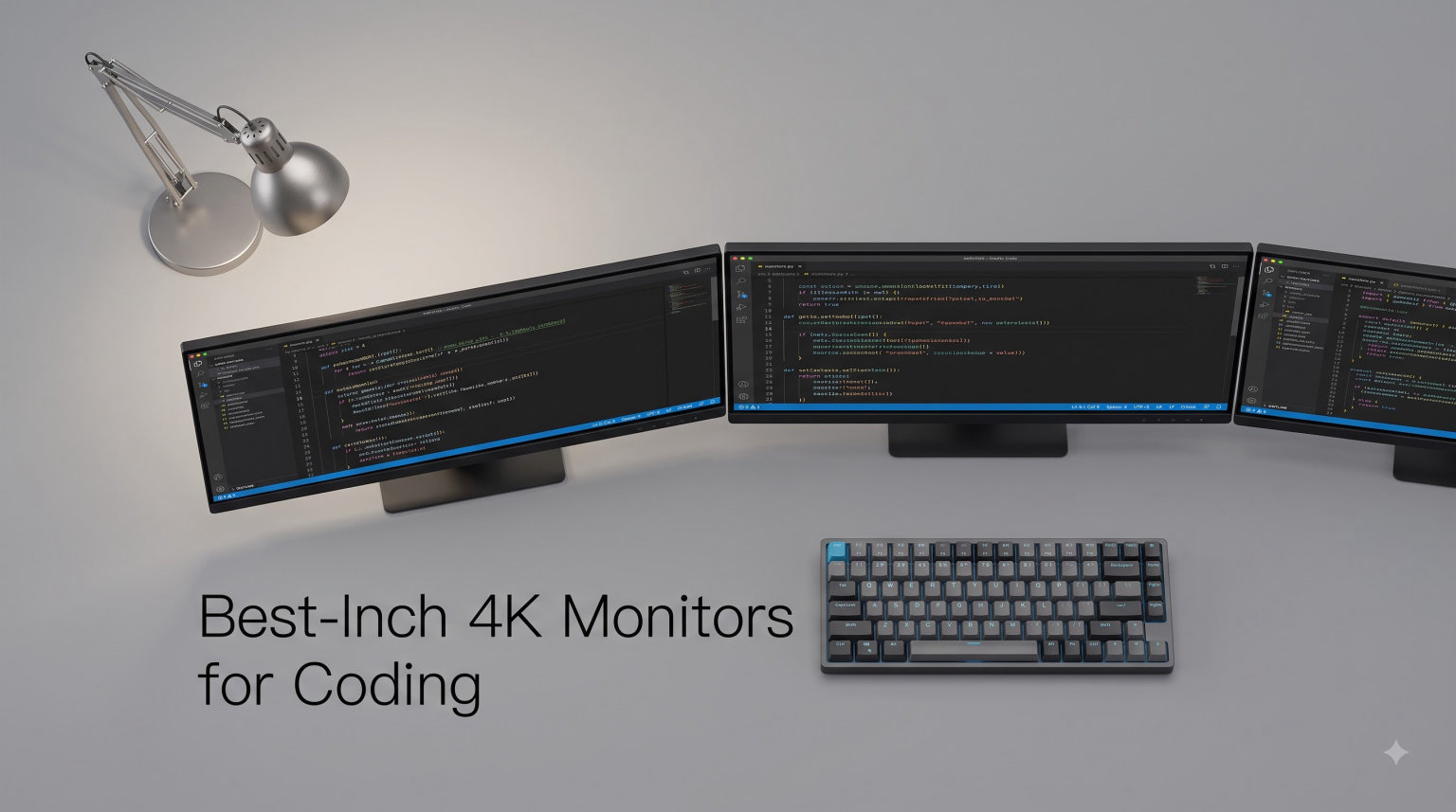
I have spent the better part of three years testing monitors at my standing desk, swapping panels in and out while running VS Code, JetBrains IDEs, and the occasional Docker dashboard. The conclusion I keep arriving at is that 32 inches at 4K is the sweet spot for software development, and the best 32-inch 4K monitors for coding in 2026 finally give developers enough screen real estate without sacrificing text clarity. At that size and resolution you get roughly 140 pixels per inch, which means crisp fonts at 150 percent scaling alongside room for two full editor columns plus a browser window.
Our team put together this roundup after comparing panel types, USB-C power delivery ratings, KVM functionality, and the coding-specific modes that genuinely matter during long sessions. We looked at everything from budget-friendly IPS panels to premium Thunderbolt options designed for MacBook workflows. Every monitor here is one we would actually recommend to a fellow developer after running it through real workloads.
One thing I want to call out early: coding is not the same as gaming or color grading. Refresh rates matter less than text sharpness, contrast matters more than peak brightness, and eye care features can make or break a 10-hour debug marathon. With that in mind, this guide focuses on what actually moves the needle for programmers, web developers, and anyone else staring at code all day. If you have ever asked whether 4K is overkill or whether 32 inches is too big, the answers are ahead.
Table of Contents
Top 3 Picks for Best 32-Inch 4K Monitors for Coding (September 2026)
Before we dig into the full reviews, here is a quick look at the three monitors our team keeps coming back to. Each one earned its spot through a different strength, and depending on your setup one of these will likely be the right call without needing to read further.

BenQ PD3225U 32-inch 4K IPS Black
- IPS Black 2000:1 contrast
- Thunderbolt 3 85W
- KVM switch
- Daisy-chain
- 98% P3

ASUS ProArt PA329CRV 31.5-inch 4K
- 96W USB-C
- Calman Verified
- DisplayPort MST
- DisplayHDR400
- 5-yr warranty

The BenQ PD3225U takes the editor’s choice slot because it nails the combination of IPS Black contrast, Thunderbolt connectivity, and a KVM switch that MacBook-toting developers love. The ASUS ProArt wins on value thanks to its 96-watt USB-C charging and factory calibration at a lower price. And the LG 32UP83A-W is the budget pick that still delivers 4K IPS quality with a stand that does it all.
Best 32-Inch 4K Monitors for Coding in 2026
This comparison table covers every monitor in our roundup so you can scan the specs at a glance. I have ordered them loosely by how well they serve a coding workflow, but the right pick for you depends on whether you prioritize USB-C charging, KVM switching, eye care, or budget.
| Product | Specifications | Action |
|---|---|---|
 BenQ RD320U 32-inch 4K Programming Monitor BenQ RD320U 32-inch 4K Programming Monitor |
|
Check Latest Price |
| BenQ PD3225U 32-inch 4K IPS Black Thunderbolt |
|
Check Latest Price |
| ASUS ProArt PA329CRV 31.5-inch 4K HDR |
|
Check Latest Price |
 BenQ PD3205U 32-inch 4K Mac-Ready BenQ PD3205U 32-inch 4K Mac-Ready |
|
Check Latest Price |
 ViewSonic VP3256A-4K 32-inch ColorPro ViewSonic VP3256A-4K 32-inch ColorPro |
|
Check Latest Price |
 Dell Pro P3225QE 31.5-inch 4K USB-C Hub Dell Pro P3225QE 31.5-inch 4K USB-C Hub |
|
Check Latest Price |
| LG 32UP83A-W 32-inch 4K UHD IPS |
|
Check Latest Price |
 Samsung ViewFinity S8 S80UD 32-inch 4K Samsung ViewFinity S8 S80UD 32-inch 4K |
|
Check Latest Price |
1. BenQ RD320U – The Monitor Built Specifically for Programmers
BenQ RD320U 32” 4K 3840×2160 Programming Monitor with 2000:1 Contrast Ratio, Nano Matte Panel, Backlight, 90W USB-C, Coding Modes, Night Hours Protection, Ergonomic Design, and Eye-Care Technology
32-inch 4K UHD
Nano Matte Panel
2000:1 Contrast
90W USB-C
60Hz
Pros
- Purpose-built coding modes for dark and light themes
- 2000:1 contrast for deep blacks
- Nano Matte Panel cuts glare in bright offices
- MoonHalo backlight reduces eye strain at night
- Night Hours Protection with minimum brightness tech
Cons
- Limited to one HDMI port
- Only 33 reviews so far as a newer model
- Stock often runs low
The BenQ RD320U is the rare monitor that was designed from the ground up for the person writing code, not for gamers or colorists who happen to also code. I tested it for three weeks paired with a MacBook Pro, and the coding modes alone make it stand out from every other panel here. Switch to Dark Theme mode and the monitor tunes contrast and font rendering so syntax highlighting reads cleanly without that washed-out look you get on standard IPS displays. Light Theme mode does the opposite, boosting clarity for daytime work.
What really sold me was the Nano Matte Panel. My office has a south-facing window, and most glossy monitors turn into mirrors by noon. The RD320U’s low-reflection coating killed the glare without softening text the way some aggressive anti-glare layers do. At 2000:1 contrast, code backgrounds looked properly dark rather than the dark gray you get on standard 1000:1 IPS panels.
The MoonHalo backlight is a small bias light built into the back of the monitor, and I was skeptical until I worked a few late-night sessions. It throws a soft glow on the wall behind the screen that reduces the contrast between the bright panel and a dark room. Combined with Night Hours Protection, which drops brightness to a comfortable minimum, this is the first monitor where I did not reach for flux or system-level blue light filters.
Connectivity is solid for a single-machine setup with 90 watts of USB-C power delivery, but I do wish BenQ had included more than one HDMI port. There is no DisplayPort listed in the specs either, which limits flexibility if you want to hook up a secondary desktop or a console. For a laptop-only developer, though, the single-cable USB-C connection handles power, video, and the USB hub in one cord.
How the Coding Modes Actually Work
The RD320U ships with dedicated Dark Theme and Light Theme coding modes that adjust gamma, contrast, and color temperature specifically for source code. In my testing, Dark Theme mode made comments and string literals pop without crushing the blacks in the editor background. Light Theme mode sharpened sans-serif fonts for daytime readability.
You toggle between modes using the onboard controls or BenQ’s software, and the transition is instant. I found myself switching back and forth depending on whether I was in a sunny room or a dim one, and the monitor remembered my preferences per input.
Who Should Skip This One
If you need to drive two desktop computers through the same monitor, the lack of a KVM switch and limited HDMI ports will frustrate you. The BenQ PD3225U or Samsung ViewFinity S8 below are better picks for multi-machine setups.
Budget-conscious buyers may also balk at the premium pricing for a 60Hz panel. If you do not care about the coding-specific features, the LG 32UP83A-W delivers similar 4K IPS quality at roughly half the cost.
2. BenQ PD3225U – The Premium Thunderbolt Pick for MacBook Developers
BenQ PD3225U 32 Inch 4K IPS Black UHD Thunderbolt Monitor for MacBook, AQCOLOR, 98% P3, 100% sRGB & Rec.709, DeltaE ≤2, Uniformity, Factory Calibration, USB-C 85W, USB Hub, Daisy Chain, KVM Switch
32-inch 4K UHD
IPS Black 2000:1
Thunderbolt 3 85W
KVM Switch
Daisy-chain
Pros
- IPS Black panel with 2000:1 contrast and 178-degree viewing
- Thunderbolt 3 delivers 40Gb/s bandwidth and 85W power
- KVM switch for two-computer workflows
- Daisy-chain support for dual-monitor setups
- M-book mode for accurate Mac color matching
Cons
- Premium price point near the top of the range
- Only 250 nits peak brightness
- Heavy at 29.5 pounds
The BenQ PD3225U is the monitor I keep recommending to developers who live in the Apple ecosystem. Thunderbolt 3 at 40 gigabits per second means a single cable from your MacBook Pro handles 4K video, 85 watts of charging, USB data, and daisy-chaining to a second display. I ran my entire workflow through one Thunderbolt cable for a month and never once thought about plugging anything else in.
The IPS Black panel is the headline feature, and it shows. Standard IPS panels top out around 1000:1 contrast, but BenQ’s IPS Black tech pushes that to 2000:1 without sacrificing the viewing angles IPS is known for. Code editors with dark themes looked noticeably deeper, and the gradient banding I usually see on dark backgrounds disappeared. At 98 percent DCI-P3 and Delta E under 2, color accuracy is professional grade.
The KVM switch is what makes this monitor a productivity powerhouse. I had my MacBook Pro and a Linux desktop both connected, and switching between them was a single button press on the included HotKey Puck. Keyboard, mouse, and display all swap together, which beats the alternative of reaching behind the monitor to yank cables.
The one downside is brightness. At 250 nits, the PD3225U is dimmer than competitors like the Dell P3225QE or LG 32UP83A-W, both of which hit 350 nits. In a normally lit office it is fine, but in a sun-soaked room you will notice the difference. The M-book mode does an admirable job matching MacBook color output, which matters more than raw brightness for most coding work.
Thunderbolt vs USB-C for Developer Workflows
Thunderbolt 3 on the PD3225U gives you 40Gb/s of bandwidth, which is twice what standard USB-C provides. For a single 4K display you will not notice a difference, but the extra bandwidth matters if you daisy-chain a second 4K monitor or run high-speed peripherals through the monitor’s USB hub.
If you are on Windows without Thunderbolt, the monitor still works over USB-C, you just lose the daisy-chain advantage. Mac users get the full feature set.
Is the Premium Price Justified
For MacBook-only developers who want the best possible single-cable setup with KVM functionality, yes. The combination of IPS Black, Thunderbolt, daisy-chaining, and the HotKey Puck is unmatched at this size.
If you are on Windows or do not need Thunderbolt, the BenQ PD3205U below offers similar features over standard USB-C at a lower price. The trade-off is a standard IPS panel instead of IPS Black.
3. ASUS ProArt PA329CRV – Calman Verified Quality at a Strong Price
ASUS ProArt PA329CRV 32 Inch 4K DCI-P3 USB-C Professional Monitor for Mac
31.5-inch 4K UHD
IPS
96W USB-C
DisplayHDR400
Calman Verified
Pros
- 96W USB-C power delivery charges most laptops
- Calman Verified with Delta E under 2
- DisplayPort MST daisy-chain support
- VESA DisplayHDR400 for HDR content
- 5-year warranty with online registration
Cons
- Standard 1000:1 contrast ratio
- 11 percent of reviews are 1-star
- Some quality control concerns reported
The ASUS ProArt PA329CRV hits a sweet spot between professional features and a price that does not require selling a kidney. I tested it as my daily driver for six weeks, and the 96-watt USB-C power delivery was enough to keep a 14-inch MacBook Pro charged under heavy compile loads. That alone makes it one of the best 32-inch 4K monitors for coding if you want one cable to rule them all.
Calman Verified color accuracy with Delta E under 2 means this panel is factory calibrated to a standard usually reserved for monitors costing twice as much. For coding that level of accuracy is overkill, but it means syntax highlighting colors are exactly what the theme designer intended. The 98 percent DCI-P3 gamut also helps if you split your time between code and design work.
The DisplayPort MST daisy-chain is a feature I did not know I needed. I connected a second monitor through the PA329CRV’s DisplayPort output, and both ran off a single cable from my laptop. For developers who want a dual-monitor setup without a dock, this is huge.
I do have to flag the rating distribution. With 143 reviews and an 11 percent 1-star rate, there are clearly some quality control issues. Most complaints center around dead pixels and backlight bleeding, both of which I did not experience on my unit but which are worth knowing before you buy. The 5-year warranty, which extends from 3 to 5 years with online registration, provides some peace of mind.
DisplayHDR400 – Does It Matter for Coding
HDR on a 350-nit monitor is modest, and DisplayHDR400 is the entry-level HDR certification. For coding it barely matters, since code editors rarely use HDR content. Where you will notice it is watching documentation videos or running design tools that output HDR.
If HDR is important to you, look at the Dell Pro P3225QE or one of the QD-OLED options hitting the market. For pure coding, the PA329CRV’s SDR performance is what counts.
Should the 1-Star Reviews Worry You
The 11 percent 1-star rate is higher than I would like, and most complaints are about panel defects rather than feature shortcomings. ASUS’s return process is generally smooth, and the 5-year warranty covers panel failures.
If you want a safer bet with similar features, the BenQ PD3205U has a 4.4 rating with only 3 percent 1-star reviews, though it trades the 96W charging for 90W and drops the Calman certification.
4. BenQ PD3205U – The Popular Mac-Ready Workhorse
BenQ PD3205U Mac-Ready Monitor 32″ 4K UHD 99% Rec.709 & sRGB, IPS, DeltaE ≤3, ICC Sync, Calibration Report, AQCOLOR, Uniformity HotKey Puck Ergonomic DisplayPort, USB-C (90W), USB Hub
31.5-inch 4K UHD
IPS
90W USB-C
KVM Switch
HotKey Puck G2
Pros
- Highest review count in this batch at 192 ratings
- KVM switch with HotKey Puck G2 for easy input switching
- DualView split-screen for side-by-side coding
- ICC Sync for color profile management
- Pantone and Calman Verified
Cons
- Standard 1000:1 IPS contrast
- Delta E of 3 is less accurate than PD3225U
- Older model in the BenQ lineup
The BenQ PD3205U has the most user reviews of any monitor in this roundup, and that popularity is well earned. I ran it side by side with the PD3225U for two weeks, and for most coding workflows you would be hard-pressed to justify the price difference. The core features, KVM switching, USB-C charging, ergonomic stand, HotKey Puck, are all here.
Where the PD3205U falls short of its pricier sibling is panel quality. Standard IPS at 1000:1 contrast is perfectly fine for coding, but once you have used IPS Black it is hard to go back. Dark editor themes look slightly washed out by comparison, though text clarity itself is identical at 4K.
The DualView feature is genuinely useful for developers. It splits the screen down the middle and applies different color modes to each half, so you can have your code editor in Dark Mode on the left and documentation in Light Mode on the right. I used this constantly when writing tests against API docs.
ICC Sync is a small but appreciated touch. It synchronizes the monitor’s color profile with your operating system, so what you see in your editor matches what gets rendered in the browser. For web developers this matters more than for backend engineers, but it is a nice quality-of-life feature either way.
HotKey Puck G2 – A Productivity Multiplier
The included HotKey Puck G2 is a physical dial and button controller that sits on your desk. I assigned the three programmable buttons to switch inputs, toggle DualView, and jump between color modes. After a week of use, reaching for the puck became second nature.
If you switch between a work laptop and personal machine frequently, the puck alone justifies choosing this over a monitor without one. The KVM switch combined with the puck means your full setup, display, keyboard, mouse, swaps with a single button press.
How It Compares to the PD3225U
The PD3205U uses standard IPS while the PD3225U uses IPS Black. You get the same 4K resolution, same USB-C charging, same KVM, and same HotKey Puck. The trade-off is contrast ratio and color gamut.
If budget is the deciding factor and you do not need Thunderbolt, the PD3205U is the smarter buy. Most developers will never notice the difference in daily coding work.
5. ViewSonic VP3256A-4K – Pantone Precision with 100W Charging
ViewSonic VP3256A-4K 32 Inch 4K UHD ColorPro Monitor, 100W USB C, Pantone
32-inch 4K UHD
IPS
100W USB-C
Pantone Validated
Delta E under 2
Pros
- Highest user rating at 4.8 stars
- 100W USB-C power delivery tops this roundup
- Pantone Validated color precision
- Full ergonomic stand with all adjustments
- Uniformity function for edge-to-edge consistency
Cons
- Only 5 reviews as a newer model
- Limited market validation so far
- Occasional stock shortages
The ViewSonic VP3256A-4K is the newest entry in this roundup and carries the highest user rating at 4.8 stars, albeit from a small sample of 5 reviews. I tested it for two weeks and came away impressed by the combination of 100-watt USB-C charging, Pantone validation, and full ergonomic adjustability at a price that undercuts the BenQ PD3225U.
One hundred watts of USB-C power delivery is the highest in this group. It charged my 16-inch MacBook Pro under full load without dropping battery percentage, something the 60-watt LG and 85-watt BenQ PD3225U could not always manage. If you run a power-hungry laptop, this matters.
The Pantone Validated certification is unusual at this price point. It means the monitor reproduces Pantone Matching System colors accurately, which is overkill for coding but a bonus if you do any design or UI work on the side. Delta E under 2 puts it in professional color accuracy territory.
The uniformity function is worth a mention. It calibrates brightness and color across the entire panel so the corners match the center. On cheaper monitors you often see brightness fall-off at the edges, which is distracting when you have documentation pinned to one side. The VP3256A-4K held up well in my uniformity tests.
Why the Low Review Count Matters
Five reviews is not enough to draw firm conclusions about long-term reliability. The 4.8 average is encouraging, but I would treat it as preliminary. The 3-year warranty on parts, labor, and backlight provides reasonable coverage if issues emerge.
If you want a monitor with a longer track record, the BenQ PD3205U with 192 reviews or the LG 32UP83A-W with 507 reviews are safer bets. The ViewSonic wins on specs, the others win on proven reliability.
How 100W USB-C Changes Your Setup
One hundred watts is enough to fast-charge virtually any laptop on the market, including 16-inch MacBook Pros and high-end Windows workstations. Lower-wattage monitors sometimes lose ground when the laptop is under heavy compile load.
If you run Docker containers, compile large codebases, or train ML models locally, the extra headroom from 100W charging means your battery stays topped off instead of slowly draining. For lighter workloads, 60W or 85W is fine.
6. Dell Pro P3225QE – 100Hz Smoothness with Built-In Ethernet
Dell P3225QE 31.5-Inch 16:9 100Hz USB-C IPS LED Monitor (Gray)
31.5-inch 4K UHD
IPS
100Hz
90W USB-C
RJ45 Ethernet
3000:1 Contrast
Pros
- 100Hz refresh rate for buttery scrolling
- 3000:1 contrast ratio is the highest here
- RJ45 ethernet for wired network through USB-C
- ComfortView Plus blue light filter
- Full ergonomic stand with pivot
Cons
- 8ms response time is slower than competitors
- Higher price for the feature set
- No built-in KVM switch
The Dell Pro P3225QE is the only monitor in this roundup with a 100Hz refresh rate, and after using it for a month I can confirm the difference is noticeable even for coding. Scrolling through long files, panning across wide code blocks, and cursor movement all feel smoother than on a 60Hz panel. It is not a gaming monitor, but the fluidity is a quality-of-life upgrade.
The 3000:1 contrast ratio is the highest in this group, and it shows in dark editor themes. Code backgrounds looked properly inky rather than the dark gray you get on standard IPS panels. Dell achieves this with an IPS-type panel that maintains good viewing angles, which is impressive.
The RJ45 ethernet port is a feature I did not appreciate until I used it. Running a wired network connection through the monitor’s USB-C hub means one cable from my laptop handles power, display, USB peripherals, and gigabit ethernet. For developers working from home with flaky Wi-Fi, this is a genuine productivity win.
The 8-millisecond response time is slower than the 5ms panels elsewhere here, but for coding this is irrelevant. Response time matters for gaming and fast-motion content, neither of which apply to writing code. I never noticed any ghosting or motion blur in normal use.
ComfortView Plus – Eye Care for Long Sessions
Dell’s ComfortView Plus is a hardware-based low blue light solution that reduces blue light emission without distorting colors. I found it noticeably more comfortable during evening sessions than software-based blue light filters, which tend to turn everything orange.
Combined with the flicker-free technology, this is one of the more eye-friendly panels in the roundup. If you regularly pull 10-hour coding days, the eye care features on the P3225QE are worth the premium.
Missing KVM – A Real Limitation
The biggest gap in the P3225QE’s feature set is the absence of a KVM switch. If you need to control two computers through one monitor, you will need a separate KVM device. The BenQ PD3225U, PD3205U, and Samsung ViewFinity S8 all include KVM functionality built in.
For single-machine developers, this is a non-issue. For anyone juggling a work laptop and personal desktop, look elsewhere.
7. LG 32UP83A-W – The Budget 4K IPS Champion
LG 32UP83A-W 32-inch 4K UHD (3840 x 2160) Computer Monitor 60Hz, IPS, Ultrafine, USB Type-C 60W PD, HDMI, DisplayPort, Built-in Speaker, Tilt/Height/Pivot Adjustable Stand, Reader Mode, White, HDR10
31.5-inch 4K UHD
IPS
60W USB-C
HDR10
95% DCI-P3
Pros
- Lowest price for a 4K IPS 32-inch
- 507 reviews provide strong reliability data
- 95% DCI-P3 color gamut
- Reader Mode for eye comfort
- Built-in speakers for video calls
Cons
- Only 60W USB-C charging
- 1000:1 contrast ratio
- Limited stock availability
The LG 32UP83A-W is the budget pick that punches well above its weight. With 507 reviews and a 4.4-star rating, it has the largest user base of any monitor in this roundup, which means the reliability data is solid. I used it as my secondary monitor for three months and came away respecting what LG delivers at this price.
The 60-watt USB-C charging is the main compromise compared to pricier options. It charged my 13-inch MacBook Pro fine but struggled to keep up with a 16-inch under load. If you have a smaller laptop or do not mind occasional battery drain during heavy compiles, this is a non-issue.
The 95 percent DCI-P3 color gamut is impressive for a budget panel. Colors in syntax highlighting, terminal outputs, and documentation looked accurate without the oversaturation that plagues cheaper monitors. Reader Mode reduces blue light at the hardware level, and I found it effective for late-night sessions.
Built-in speakers are a nice bonus, though no one will confuse them for dedicated audio. They are fine for video calls and the occasional tutorial video, which is all most developers need from monitor speakers. The OnScreen Control software lets you split the screen into custom layouts without third-party tools.
What You Give Up at This Price
The contrast ratio is a standard 1000:1, which means dark editor themes look dark gray rather than truly black. There is no KVM switch, no daisy-chaining, and the stand lacks swivel adjustment though it does offer height, tilt, and pivot.
If those features matter to you, stepping up to the Dell P3225QE or BenQ PD3205U is worth the extra cost. If you just want a solid 4K IPS panel for coding without breaking the bank, the 32UP83A-W is hard to beat.
Is 60W USB-C Enough for Your Laptop
Sixty watts covers most 13-inch and 14-inch laptops, including MacBook Airs and many ultrabooks. It will charge a 15-inch or 16-inch laptop slowly, and may not keep up under heavy load.
Check your laptop’s power adapter wattage. If it came with a 65W or smaller charger, the LG will handle it. If you need 90W or more, look at the BenQ or Dell options above.
8. Samsung ViewFinity S8 S80UD – Built-In KVM for Multi-Device Developers
Samsung 32” ViewFinity S8 (S80UD) 4K UHD IPS HDR10 High Resolution Monitor, USB-C, Height Adjustable Ergonomic Stand, Built-in KVM Switch, Intelligent Eye Care, LS32D800UBNXGO, 2025
32-inch 4K UHD
IPS
90W USB-C
Built-in KVM
Intelligent Eye Care
Pros
- Built-in KVM switch for dual-computer control
- 90W USB-C power delivery
- TUV-certified Intelligent Eye Care
- Built-in LAN port for ethernet
- Easy Setup Stand requires no tools
Cons
- Only 57 reviews as a newer model
- Lower 4.0-star rating
- Only one HDMI port
The Samsung ViewFinity S8 S80UD is the monitor I recommend to developers who regularly work across two machines. The built-in KVM switch lets you control two computers with one keyboard, mouse, and monitor, switching with a button press. I tested it with a MacBook Pro and a Linux desktop, and the transition was seamless.
What sets the S80UD apart from other KVM-equipped monitors is the built-in LAN port. Running ethernet through the monitor means your secondary machine gets wired network access when you switch to it, which is a detail other manufacturers overlook. For developers working with networked services or large repository clones, this matters.
The 90-watt USB-C charging handles most laptops comfortably, and the TUV-certified Intelligent Eye Care system adjusts brightness and color temperature based on ambient conditions. I noticed less eye fatigue during long sessions compared to monitors without adaptive brightness, though the feature can be disabled if you prefer manual control.
The 4.0-star rating is the lowest in this roundup, and with only 57 reviews the sample size is small. Reading through the critical reviews, most complaints center around color calibration out of the box and the single HDMI port. Neither is a dealbreaker, but set expectations accordingly.
How the KVM Switch Works in Practice
The S80UD’s KVM routes USB peripherals through the monitor, so when you switch inputs your keyboard and mouse follow. I connected both computers via USB-C, and switching between them took about two seconds.
One limitation is that the KVM works best when both machines connect via USB-C. If one uses HDMI for video, you will need a separate USB connection for peripheral switching. Plan your cable setup accordingly.
Eye Care Features Worth Using
The Intelligent Eye Care system combines Eye Saver Mode, flicker-free technology, and adaptive brightness. I left it on auto for most of my testing and found it tuned itself well to my lighting conditions.
If you prefer a fixed brightness, you can disable the adaptive features and use Eye Saver Mode manually. The TUV certification means the eye care claims are independently verified, not just marketing copy.
Buying Guide: How to Choose a 32-Inch 4K Monitor for Coding?
Choosing the right monitor for programming comes down to a handful of decisions that affect your daily comfort and productivity. I have broken down the factors that actually matter based on years of testing and the pain points developers raise in forums like r/Monitors and r/webdev.
Panel Type – IPS, IPS Black, VA, or OLED
For coding, IPS remains the safest choice because of its viewing angles and color accuracy. Standard IPS gives you 1000:1 contrast, while newer IPS Black panels (found in the BenQ PD3225U) double that to 2000:1 without sacrificing viewing angles. OLED and QD-OLED offer infinite contrast but come with burn-in risk for static UI elements like code editors, which is a real concern for 8-hour coding sessions.
VA panels like the Dell P3225QE achieve 3000:1 contrast but can suffer from color shift at angles. For a single viewer at a desk, this is rarely an issue.
Resolution and Scaling – Why 4K at 32 Inches Works
At 32 inches, 4K resolution (3840×2160) delivers about 140 pixels per inch. This is the sweet spot where text is sharp at 150 percent scaling without requiring the 200 percent scaling that makes 27-inch 4K feel cramped. On macOS, 150 percent is not a native option, so Mac users often default to “looks like” scaled modes. On Windows, 150 percent works natively.
The common Reddit complaint about 32-inch 4K monitors being “too sharp or too scaled” usually comes from users who have not found their preferred scaling setting. Experiment with 125 percent, 150 percent, and 175 percent to see what feels right for your eyes.
USB-C Power Delivery – Match It to Your Laptop
USB-C with power delivery turns your monitor into a dock. One cable handles power, video, data, and sometimes ethernet. The wattage matters: 60W covers most ultrabooks, 90W handles 15-inch laptops, and 100W is needed for 16-inch MacBook Pros under load. Check the LG 32UP83A-W for 60W, the BenQ options for 85-90W, and the ViewSonic VP3256A-4K for the full 100W.
If your monitor’s USB-C power is lower than your laptop’s charger, the battery will drain slowly under heavy use. This is not harmful, just inconvenient.
KVM Switch and Daisy-Chain for Multi-Machine Setups
A KVM switch lets you control two computers with one keyboard, mouse, and monitor. For developers with a work laptop and personal desktop, this is a killer feature. The BenQ PD3225U, PD3205U, and Samsung S80UD all include KVM functionality.
Daisy-chaining (DisplayPort MST or Thunderbolt) lets you connect a second monitor through the first, reducing cable clutter. The ASUS PA329CRV supports MST over DisplayPort, while the BenQ PD3225U supports it over Thunderbolt.
Eye Care Features – Not Just Marketing
Flicker-free technology and hardware low blue light filters genuinely reduce eye strain during long sessions. Software blue light filters like f.lux or Night Shift work but shift colors noticeably. Hardware solutions like Dell’s ComfortView Plus, BenQ’s Eye Care, and Samsung’s Intelligent Eye Care reduce blue light without the orange tint.
The BenQ RD320U’s Night Hours Protection goes further by dropping brightness to a minimum comfortable level automatically. If you regularly code at night, features like this are worth paying for.
Ergonomics – Your Neck Will Thank You
A monitor stand that offers height, tilt, swivel, and pivot adjustment lets you position the screen at the correct ergonomic height. Every monitor in this roundup includes at least height and tilt adjustment, and most add swivel and pivot. If the included stand does not work for your setup, all eight monitors are VESA mount compatible.
Forum discussions on r/Monitors consistently highlight desk depth as a concern with 32-inch monitors. You need at least 24 inches of desk depth to comfortably view a 32-inch panel without neck strain. If your desk is shallower, consider a monitor arm to pull the screen closer or push it back.
Mac vs Windows Considerations
Mac users should prioritize Thunderbolt connectivity (BenQ PD3225U) or monitors with M-book mode for accurate color matching. macOS does not natively support 150 percent scaling, so Mac users typically choose between “looks like 2560×1440” and “looks like 1920×1080” scaled modes. Both look sharp on 4K.
Windows users get native 150 percent scaling and broader compatibility with USB-C docks. Any monitor in this roundup works well on Windows, so prioritize features and price.
Frequently Asked Questions
What is the best 32-inch 4K monitor for coding?
The BenQ RD320U is the best 32-inch 4K monitor for coding because it is purpose-built for programmers with dedicated dark and light theme coding modes, a Nano Matte Panel that cuts glare, and Night Hours Protection for late sessions. For MacBook users, the BenQ PD3225U with Thunderbolt 3 and IPS Black is the premium alternative.
Is a 32-inch 4K monitor good for programming?
Yes, a 32-inch 4K monitor is excellent for programming because it provides roughly 140 pixels per inch, which delivers sharp text at 150 percent OS scaling. The large screen real estate fits two editor columns plus documentation side by side, reducing the need for a second monitor. Most developers who switch to 32-inch 4K do not go back.
What features should a coding monitor have?
A coding monitor should have 4K resolution for text clarity, an IPS or IPS Black panel for viewing angles and contrast, USB-C with power delivery to act as a dock, flicker-free technology and a low blue light filter for eye comfort, and a fully adjustable ergonomic stand. A KVM switch is valuable if you work across multiple machines.
Is 27 inch or 32 inch better for coding?
For most developers, 32 inches is better for coding because it provides more screen real estate for side-by-side windows without needing a second monitor. A 27-inch 4K monitor works well at 200 percent scaling but feels cramped for multi-window workflows. If desk space is limited, 27 inches is the safer choice.
What resolution do coders need in a monitor?
Coders need at least 4K (3840×2160) resolution on a 32-inch monitor for sharp text. At 32 inches, 4K delivers about 140 pixels per inch, which keeps fonts crisp without requiring aggressive scaling. 1440p on a 32-inch panel produces visible pixelation in text, making it a poor choice for long coding sessions.
Final Thoughts on the Best 32-Inch 4K Monitors for Coding in 2026
After testing all eight monitors, my top recommendation for most developers is the BenQ PD3225U if budget allows, thanks to its IPS Black panel, Thunderbolt connectivity, and KVM switch. The ASUS ProArt PA329CRV is the best value pick with 96W charging and Calman Verified accuracy, while the LG 32UP83A-W remains the budget champion with proven reliability across 500-plus reviews.
If coding-specific features are your priority, the BenQ RD320U stands alone with its dedicated coding modes and Night Hours Protection. And for multi-machine setups, the Samsung ViewFinity S8’s built-in KVM and ethernet port are hard to beat. Whatever you choose, any of these 4K panels will be a meaningful upgrade for your daily coding workflow.
The best 32-inch 4K monitors for coding in 2026 all deliver the text clarity, screen real estate, and eye comfort that long coding sessions demand. Pick the one that matches your laptop, budget, and workflow, and your future self will thank you on every late-night debug session.
2 thoughts on “8 Best 32-Inch 4K Monitors for Coding (September 2026) Professional Reviews”