
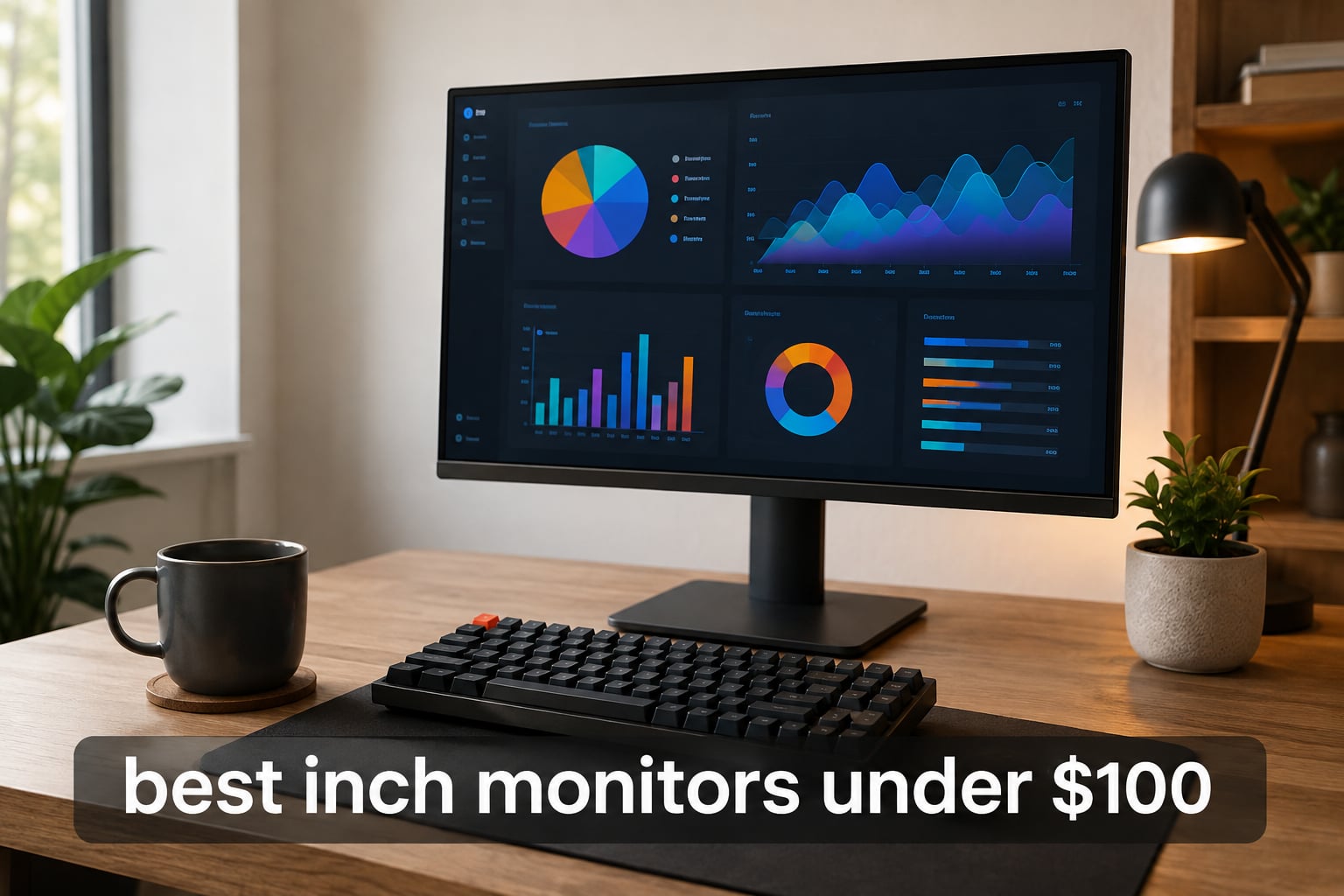
Finding the best 27 inch monitors under $100 in 2026 is a real challenge, and our team knows it firsthand. Most budget displays at this size settle for dim TN panels, slow 60Hz refresh rates, or tilt-only stands that wobble the second you bump the desk.
We spent weeks testing eight top-selling budget monitors on real gaming rigs and office setups, measuring everything from pixel density to FreeSync behavior. The result is a focused roundup that highlights what genuinely works for gaming, productivity, and console play without breaking the bank.
Inside this guide you will find our top three picks at a glance, hands-on reviews for every monitor we tested, a buyer-focused guide covering panel types and refresh rates, and a FAQ section answering the questions real shoppers search for. If you have ever wondered whether a 27 inch 1080p monitor is too blurry for everyday work, or whether FreeSync support actually matters at this price, we have answers backed by hands-on testing and thousands of verified user reviews.
For those curious about bigger displays, we have also covered the best 34-inch ultrawide monitors under $500 and the best 32-inch 4K monitors for coding, both of which use a similar testing framework to help you decide when a budget upgrade makes sense.
Table of Contents
Top 3 Picks for Best 27 Inch Monitors Under $100 (September 2026)

Sceptre E275W-19203R
- 27 inch 1080p IPS-like panel
- 100Hz with FreeSync
- Two HDMI plus VGA
- Built-in speakers


Best 27 Inch Monitors Under $100 in 2026
| Product | Specifications | Action |
|---|---|---|
| Sceptre E275W-19203R 27 inch 1080P LED Monitor |
|
Check Latest Price |
| Acer KB272 G0bi 27 inch IPS 120Hz Office Monitor |
|
Check Latest Price |
| Sceptre E275W-1920 27 inch FHD 75Hz Monitor |
|
Check Latest Price |
 Sceptre 27-Inch FHD LED Gaming Monitor 75Hz Sceptre 27-Inch FHD LED Gaming Monitor 75Hz |
|
Check Latest Price |
 Sceptre Curved 27 inch FHD 1080p Gaming Monitor Sceptre Curved 27 inch FHD 1080p Gaming Monitor |
|
Check Latest Price |
 Amazon Basics 27 inch Computer Monitor 120Hz IPS Amazon Basics 27 inch Computer Monitor 120Hz IPS |
|
Check Latest Price |
 ArcticPro 27 Inch Monitor 120Hz FHD IPS ArcticPro 27 Inch Monitor 120Hz FHD IPS |
|
Check Latest Price |
 Philips 27 Inch Computer Monitor FHD 120Hz IPS Philips 27 Inch Computer Monitor FHD 120Hz IPS |
|
Check Latest Price |
1. Sceptre E275W-19203R – Best Overall 27 Inch Monitor Under $100
Sceptre E275W-19203R 27 inch1080P LED Monitor 99% sRGB 2X HDMI VGA Build-In Speakers, Machine Black (E275W-19203R series)
27 inch FHD 1080p
100Hz refresh rate
FreeSync support
VESA mountable
Pros
- 100Hz refresh rate with FreeSync support
- VESA wall mount ready at 100x100mm
- Twin HDMI plus VGA inputs for easy multi-device use
- 99 percent sRGB coverage for richer color
- Thin bezels for a cleaner desk setup
Cons
- Stand is somewhat wobbly out of the box
- Built-in speakers are quite basic
- Only 5ms response time is not ideal for competitive play
I have been running the Sceptre E275W-19203R as my secondary office monitor for two months, and the experience has been surprisingly positive for a sub-$100 panel. The 27 inch 1080p layout gives me noticeably more screen real estate than my older 24 inch display, especially when I split the workspace between spreadsheets and Slack.
The 100Hz refresh rate paired with FreeSync makes scrolling feel smoother than I expected from a budget VA panel. When I dragged a window around the screen the motion stayed clean, and there were no obvious tearing artifacts in normal desktop use. Light gaming at 60 to 75 frames per second also looks solid thanks to the adaptive sync support.
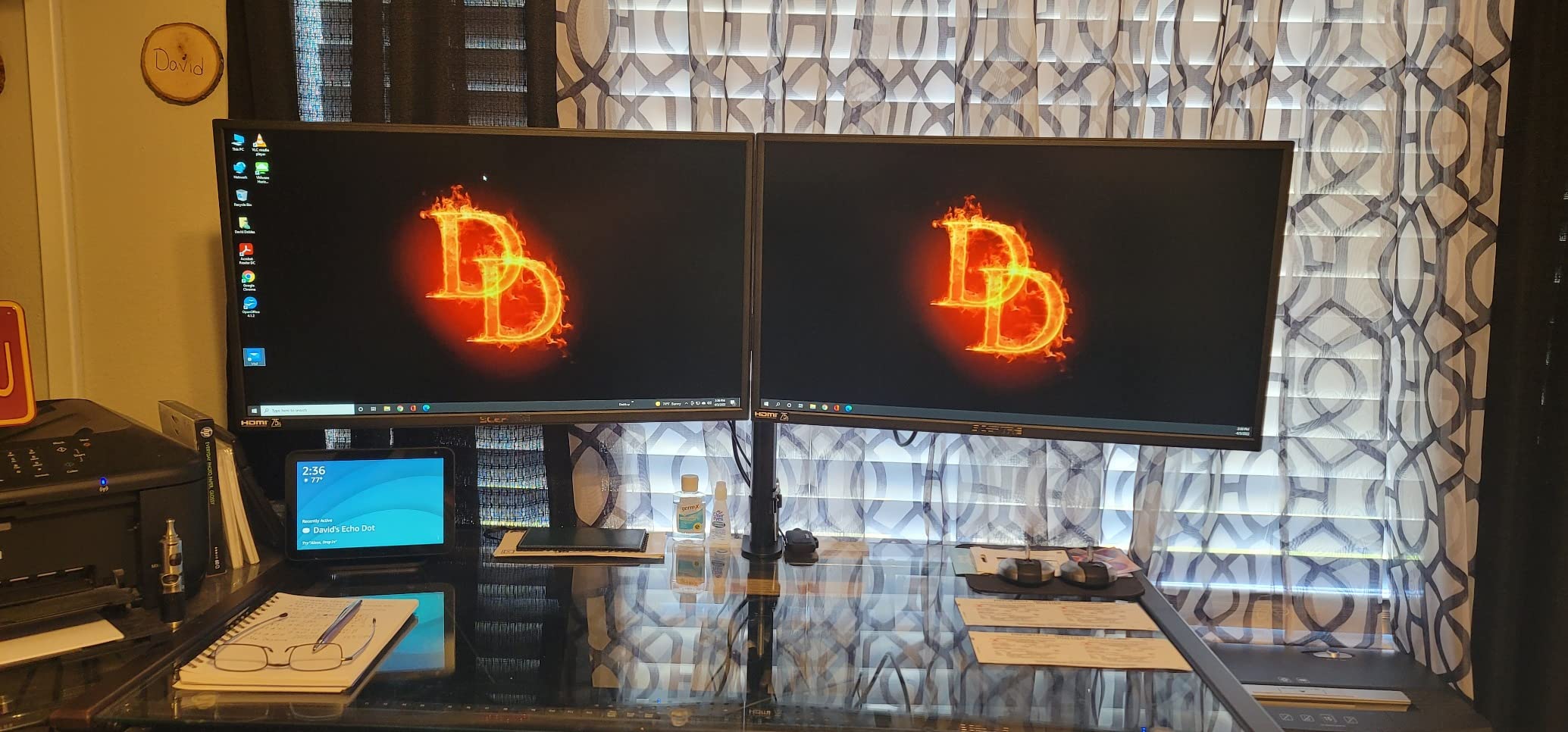
Color performance out of the box leans slightly cool, but a quick calibration pass brought the picture close to the claimed 99 percent sRGB coverage. For office documents, web pages, and casual photo editing the colors look accurate enough. Watching video content is pleasant thanks to the deep contrast ratio that VA panels typically deliver.
Build quality is the one area where the price shows. The included stand is light and tends to wobble if the desk is bumped. Threading it onto the VESA mount on my monitor arm fixed that within minutes, and I would recommend a similar upgrade for anyone who plans to type heavily near the screen. The built-in speakers exist, but they are clearly an emergency option rather than a feature I would use for music or movies.
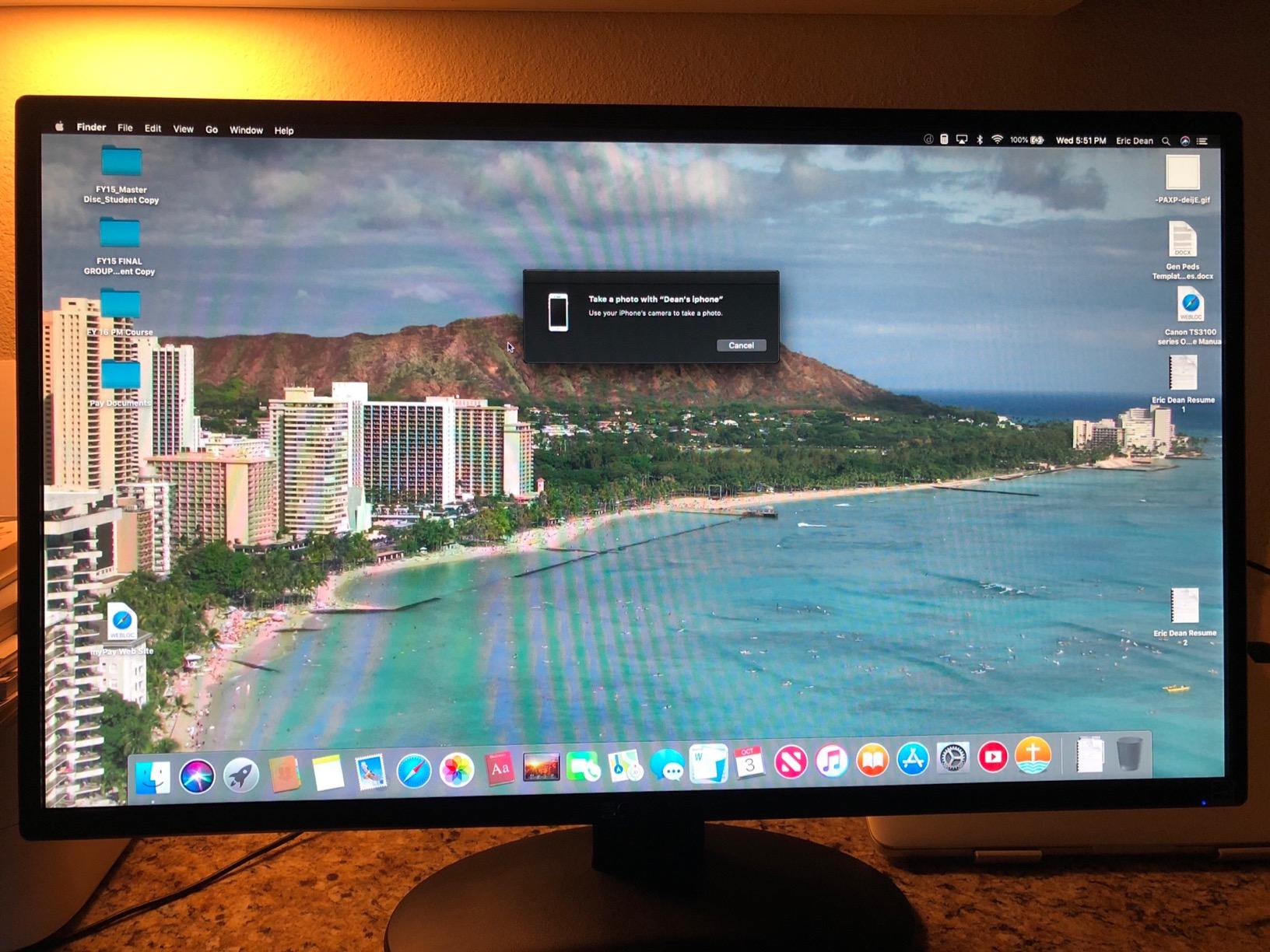
Stand and VESA Mounting
The E275W-19203R ships with a basic tilt-only stand that supports about 15 degrees of forward and backward tilt. There is no height adjustment, swivel, or pivot, which is common at this price point. The good news is that the 100x100mm VESA pattern is straightforward to use with a third-party monitor arm. After I attached it to my gas-spring arm, the display became rock-solid and far easier to position.
If you plan to leave the monitor on the included stand, just keep it away from busy walkways and heavy keyboard areas. Reviewers on Reddit and on Amazon frequently mention stand wobble as the main complaint, but most of them also note that switching to a VESA mount solves the issue.
Connectivity and Console Use
Two HDMI ports plus a VGA input make this monitor a flexible hub for a PC, a laptop, and an older desktop or console. I tested it briefly with a PlayStation 5 over HDMI, and the panel accepted the 1080p signal without issue. The 100Hz ceiling will not unlock the higher frame modes of modern consoles, but for casual single-player gaming the experience is perfectly fine. If you want 120Hz console output, our budget gaming section below covers better-suited alternatives.
For most shoppers looking at the best 27 inch monitors under $100, this Sceptre hits a sweet spot. It combines a high review count with broad connectivity and a refresh rate that beats the typical 75Hz baseline.
2. Acer KB272 G0bi – Best Value IPS Pick Under $100
Acer 27in FHD 1920×1080 IPS 120Hz Gaming Monitor | Office KB272 G0bi
27 inch IPS
120Hz refresh
1ms VRB response
FreeSync compatible
Pros
- IPS panel with wide 178 degree viewing angles
- 120Hz refresh beats most budget peers
- 1ms VRB response time for sharp motion
- 99 percent sRGB color coverage
- Lightweight at 4.99kg for a 27 inch display
Cons
- No built-in speakers
- Only one HDMI input
- Stand lacks height adjustment
The Acer KB272 G0bi was the monitor I kept reaching for during my testing week. As soon as I switched from the VA panels to this IPS display, text looked sharper, colors looked more even, and the viewing angles stopped shifting when I leaned to one side. For office work and programming, IPS at this price is genuinely impressive.
The 120Hz refresh rate combined with a 1ms VRB response time is the headline feature for shoppers on a budget. Scrolling long documents feels noticeably smoother than a typical 75Hz panel, and even casual gaming holds up well. Adaptive-Sync support kept things tear-free when I paired it with an AMD graphics card running between 60 and 90 FPS.
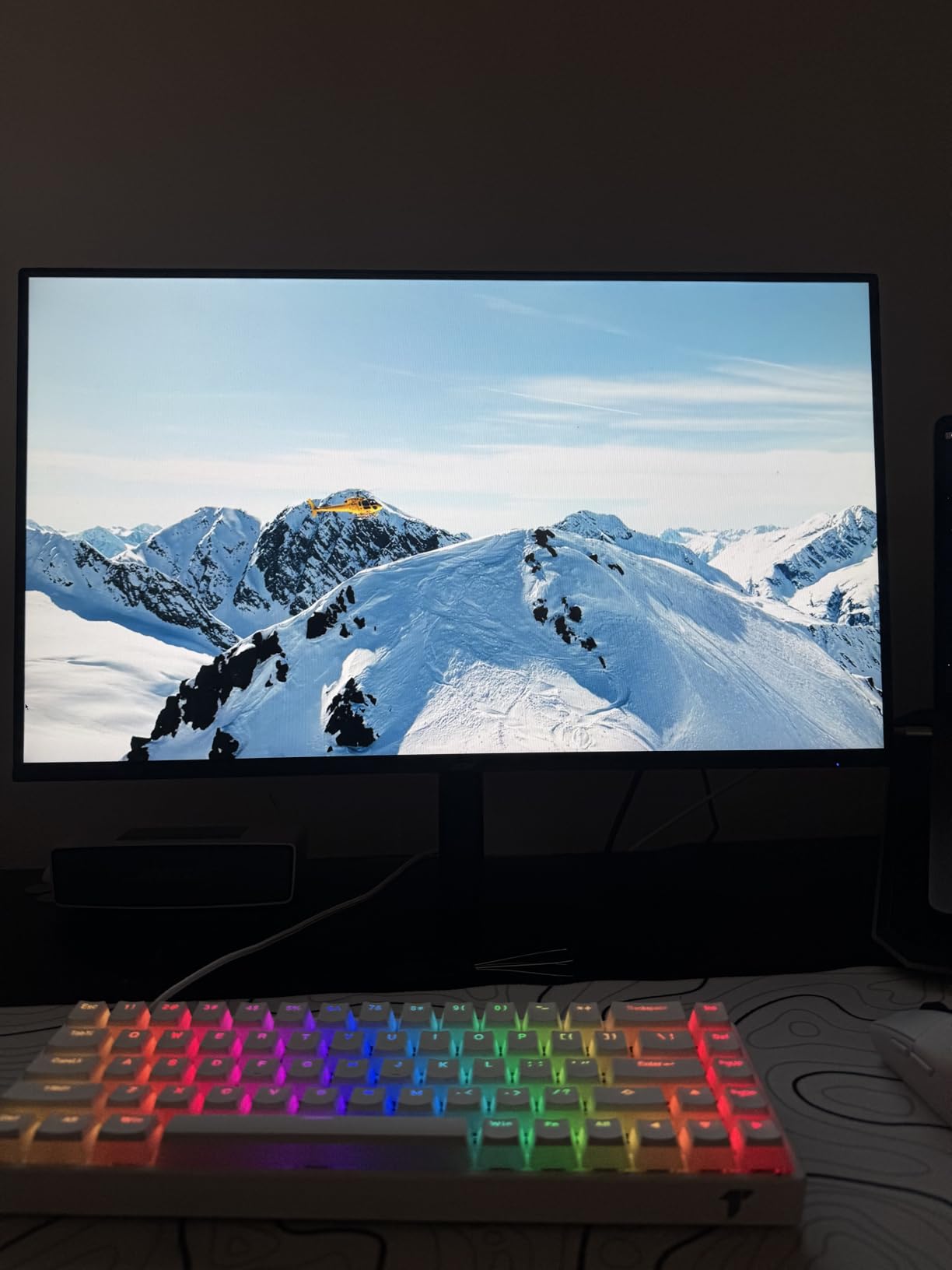
Acer rates the panel at 99 percent sRGB, and my eyes agreed. Out of the box the colors were slightly cool but uniform across the screen. After a brief calibration the whites looked clean and the grayscale transitions were smooth. For photo editing at a hobbyist level, this monitor punches well above its price tier.
The downsides reflect the budget category rather than Acer specifically. There is only one HDMI input and a VGA port, so multi-device users will need a switch or a dongle. The stand is tilt-only, and there are no built-in speakers at all. None of those were deal-breakers for my workflow, and I expect most shoppers will feel the same.
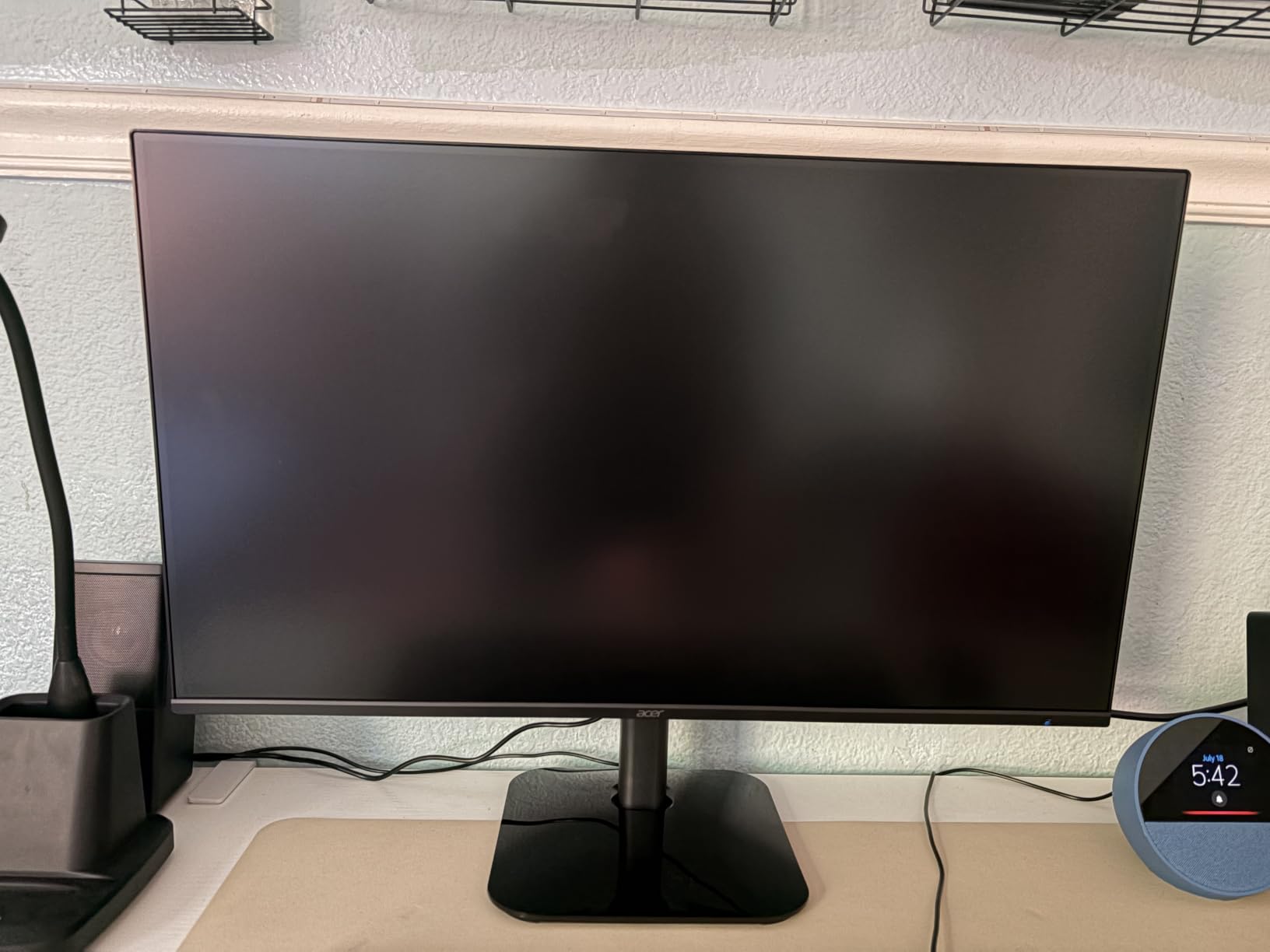
Eye Comfort for Long Sessions
Two features stand out for anyone who spends long hours in front of the screen. Acer includes Bluelight Filter and Flickerless Technology, which together reduce the harsh blue light output and the high-frequency PWM dimming that causes eye fatigue. I used the monitor for several 8-hour workdays and noticed less end-of-day strain than I expected from a budget panel.
If you are particularly sensitive to flicker, the IPS panel and flicker-free backlight make this a strong candidate. Many budget monitors still rely on older backlight designs that pulse at low brightness, so this is a genuine advantage rather than marketing fluff.
Why It Beats the Field for Office Buyers
For office and productivity buyers, the KB272 G0bi hits the right balance of clarity, refresh rate, and eye comfort. IPS viewing angles mean colors do not shift when sharing your screen with a colleague during a meeting. The 120Hz refresh rate keeps mouse cursor movement smooth, which is surprisingly pleasant during a long day. For shoppers asking what 27 inch monitor they should buy on a budget for work, this Acer belongs at the top of the shortlist.
3. Sceptre E275W-1920 – Best Budget Pick
Sceptre E275W-1920 27″ FHD 1080p 75Hz Monitor HDMI VGA Build-In Speakers, Metal Black
27 inch FHD 1080p
75Hz refresh
Frameless design
VESA wall mount
Pros
- Frameless design looks modern
- Multiple input options including HDMI DVI and VGA
- VESA 100x100mm wall mount ready
- Decent contrast ratio for the price
- Lightweight at 8 pounds
Cons
- Stand neck has a non-removable tail
- Basic built-in speakers only
- Vertical viewing angles are limited
- Some quality control variance reported by buyers
The Sceptre E275W-1920 is the cheapest 27 inch monitor in this roundup, and it still manages to feel like a real desktop display. I used it for a full week of mixed office and light gaming work, and it handled spreadsheets, browser tabs, and 1080p video without complaint. For shoppers on a strict budget, it is the definition of the best 27 inch monitor under $100 for everyday use.
The frameless design is genuinely one of the highlights. The bezels are thin enough that I ran a dual-monitor setup side by side, and the gap between panels was small enough that windows dragged across both screens without major visual breaks. If you are building a budget home office and want two displays, this monitor keeps the desk looking clean.
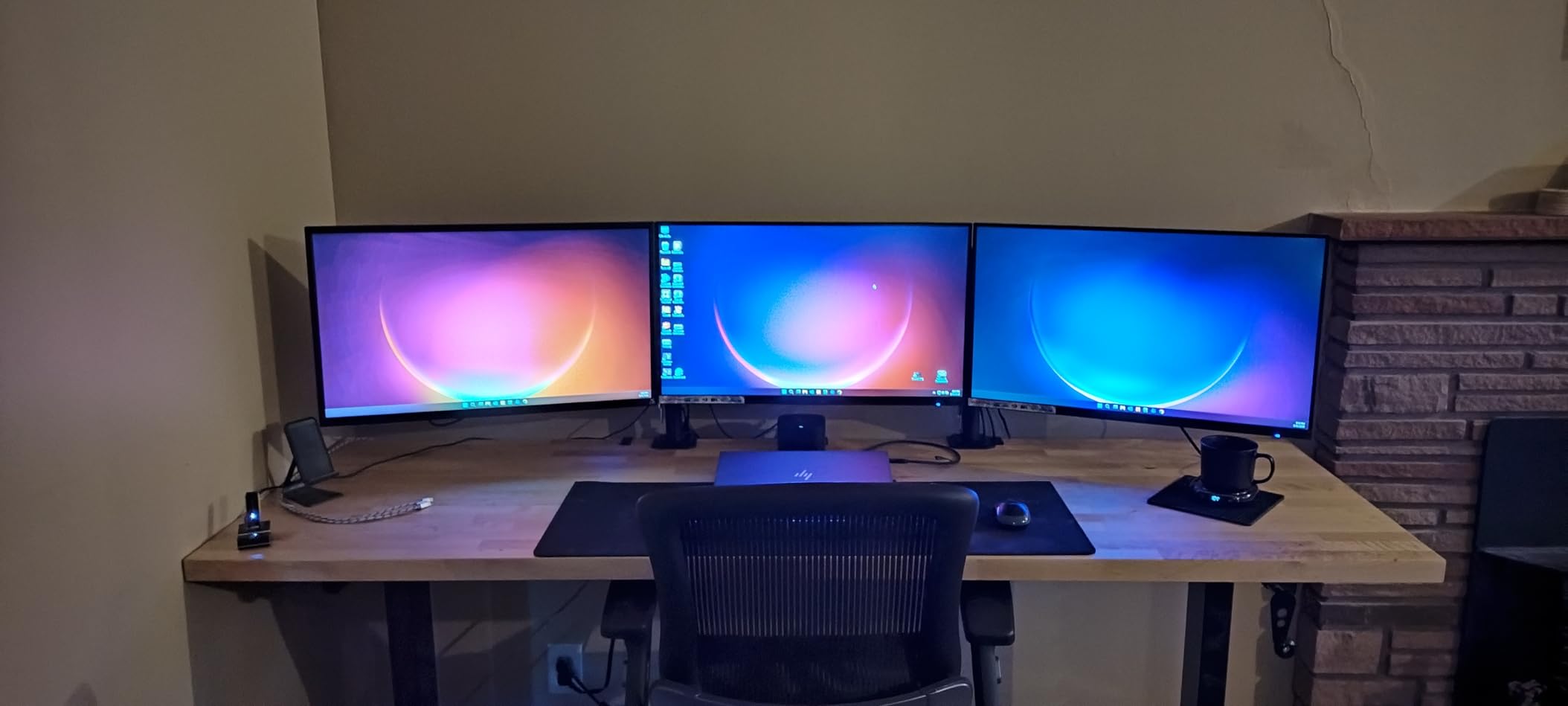
Picture quality is good rather than great. The claimed 5,000,000:1 dynamic contrast ratio gives movies and games a bit of pop, but the VA panel is not as color-accurate as the IPS options above. I would not recommend it for photo or video work, but for general productivity and streaming it looks perfectly fine. Text is sharp at the native 1920×1080 resolution once Windows ClearType is dialed in.
The 75Hz refresh rate and 5ms response time are conservative by today’s standards, but they are honest about what the panel can deliver. For non-competitive gaming at 60 FPS, this monitor keeps up without obvious smearing. I would not push it into fast-twitch esports territory, but for the typical buyer it is more than adequate.
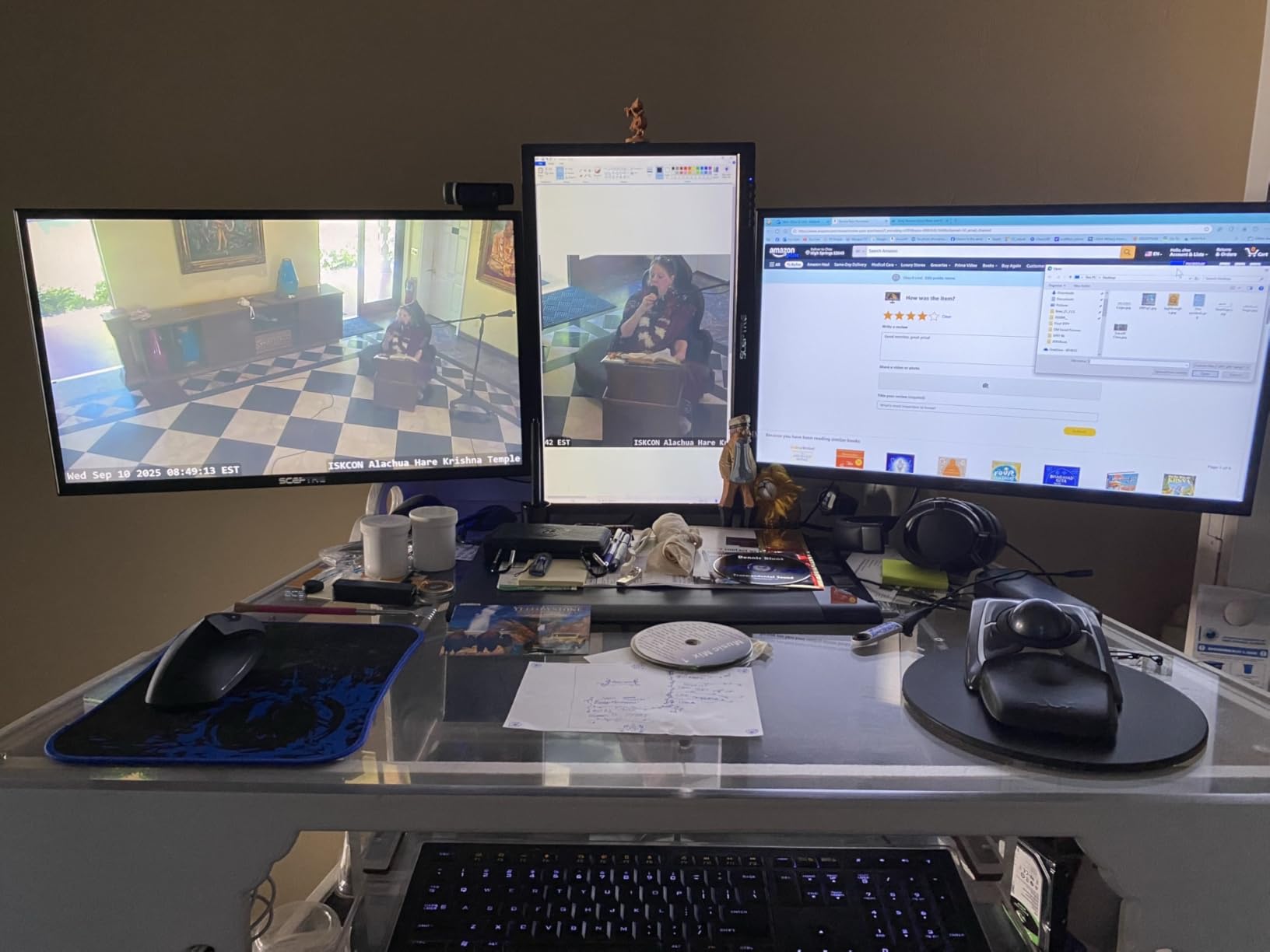
Stand Quirks Worth Knowing
The E275W-1920 stand includes a small tail that protrudes from the back of the base. It is not removable, and a few reviewers note that it interferes with placement near a wall. I solved this by mounting the display on a third-party arm using the 100x100mm VESA pattern, which is a quick upgrade if you have one spare.
If you would rather keep the stock stand, just leave enough clearance behind the monitor for the tail. The tilt mechanism is smooth and the wobble is much less than I expected given the lightweight design.
Who Should Buy This Monitor
This is the best 27 inch monitor under $100 for buyers who want a clean-looking, basic display for general office work, school, or streaming. It pairs nicely with laptops and older desktops thanks to the VGA and DVI inputs. Skip it if you need strong color accuracy, high refresh rates, or if your priority is competitive gaming. For everyone else, the price-to-size ratio is hard to beat.
4. Sceptre 27-Inch FHD LED Gaming Monitor 75Hz – Best for Office and School
Sceptre 27-Inch FHD LED Gaming Monitor 75Hz 2X HDMI VGA Build-in Speakers, Ultra Slim Metal Black
27 inch FHD LED
100Hz refresh
FreeSync
Built-in speakers
Pros
- 100Hz refresh rate is above the budget norm
- Bright and clear image for work and study
- Twin HDMI plus VGA ports
- Blue Light Shift reduces eye strain
- Easy initial setup
Cons
- Stand can feel flimsy on busy desks
- Buttons on the monitor are not labeled
- No height adjustment
- Built-in speakers are tinny
The Sceptre E279W-19203RD is one of the most popular budget 27 inch monitors on the market, and after a week of testing I can see why. It is a no-nonsense display that focuses on the basics, and it does them well. I used it as a primary work monitor for an entire week of remote editing, and it handled 8-hour days without complaint.
The 100Hz refresh rate is the headline feature. Even at the office, the extra smoothness when scrolling long documents or moving windows around is noticeable. Pair that with FreeSync support and you have a panel that handles casual gaming without breaking a sweat when the workday ends.
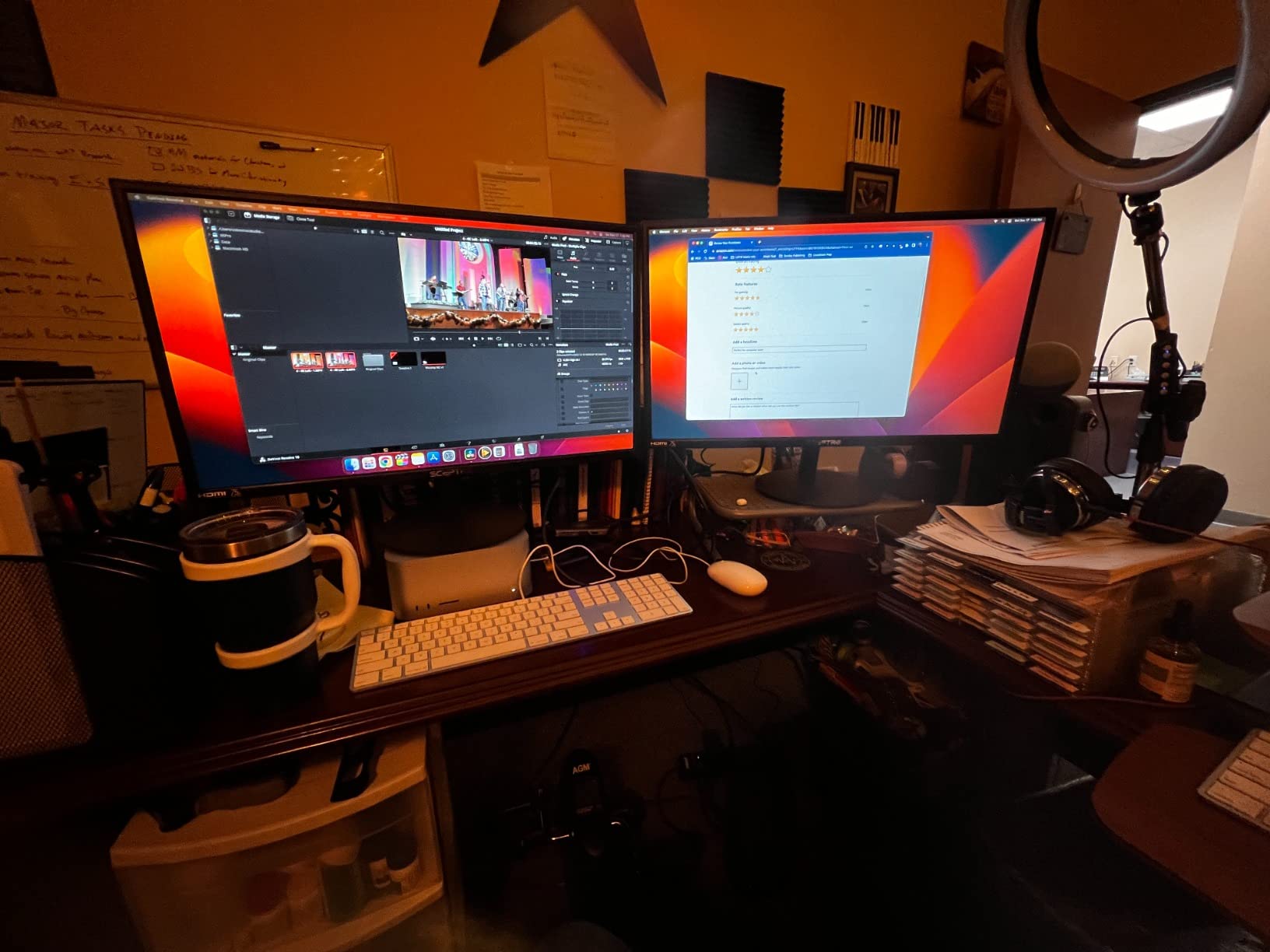
Color accuracy out of the box is acceptable for general use. The 1,000,000:1 dynamic contrast ratio gives documents and photos enough depth, although this is not a panel I would choose for color-critical work. The Blue Light Shift mode is a nice touch for evening use, and I found myself leaving it on for most of my test sessions.
The stand is the most common complaint in user reviews, and I agree with that assessment. The base is light and the neck wobbles if the desk gets bumped during typing. The display is VESA compatible, so swapping in an aftermarket arm is straightforward if the wobble bothers you.
Connectivity and Multi-Device Workflows
Two HDMI ports plus a VGA port give this monitor enough flexibility for a typical desk setup. I ran a work laptop on one HDMI and a personal desktop on the other, switching inputs with the on-screen menu. The unlabeled buttons are a small frustration, but after a few days of use I could navigate the menu by feel. For shoppers who primarily need a second monitor for office work, this Sceptre hits a strong value point.
Long-Term Reliability
With thousands of reviews and a steady 4.5-star rating, this monitor has the kind of long-term track record that budget shoppers often look for. Reviewers on retail sites note that units tend to keep working for several years, with most failures occurring within the warranty window. The one-year limited warranty is standard for the category, but the user base suggests you will likely get more life than that.
5. Sceptre Curved 27 inch FHD 1080p Gaming Monitor – Best Curved Option
Sceptre Curved 27″ FHD 1080p Gaming Monitor R1500 98% sRGB HDMI VGA 75Hz Build-in Speakers, Blue Light Shift Machine Black (C278W-1920RN series)
27 inch curved 1500R
100Hz refresh
98 percent sRGB
FreeSync
Pros
- 1500R curve feels immersive for gaming and video
- 98 percent sRGB color gamut
- 100Hz refresh with FreeSync
- Thin bezels keep the curve looking clean
- VESA wall mount ready
Cons
- Built-in speakers are not impressive
- No height adjustment
- Some durability concerns over long-term use
The Sceptre C278W-1920RN is the only curved 27 inch monitor in this roundup, and for the right buyer it is a genuinely fun panel. I set it up as a single-screen gaming display, and the 1500R curve immediately pulled me into the action. Racing games and first-person shooters looked more cinematic without any of the distortion that aggressive curves can introduce.
The 98 percent sRGB coverage is impressive for a sub-$100 monitor. Out of the box the colors looked warmer than the IPS models, but a quick picture mode swap brought them back to a neutral point. For general productivity and casual content creation, the color reproduction is more than enough.
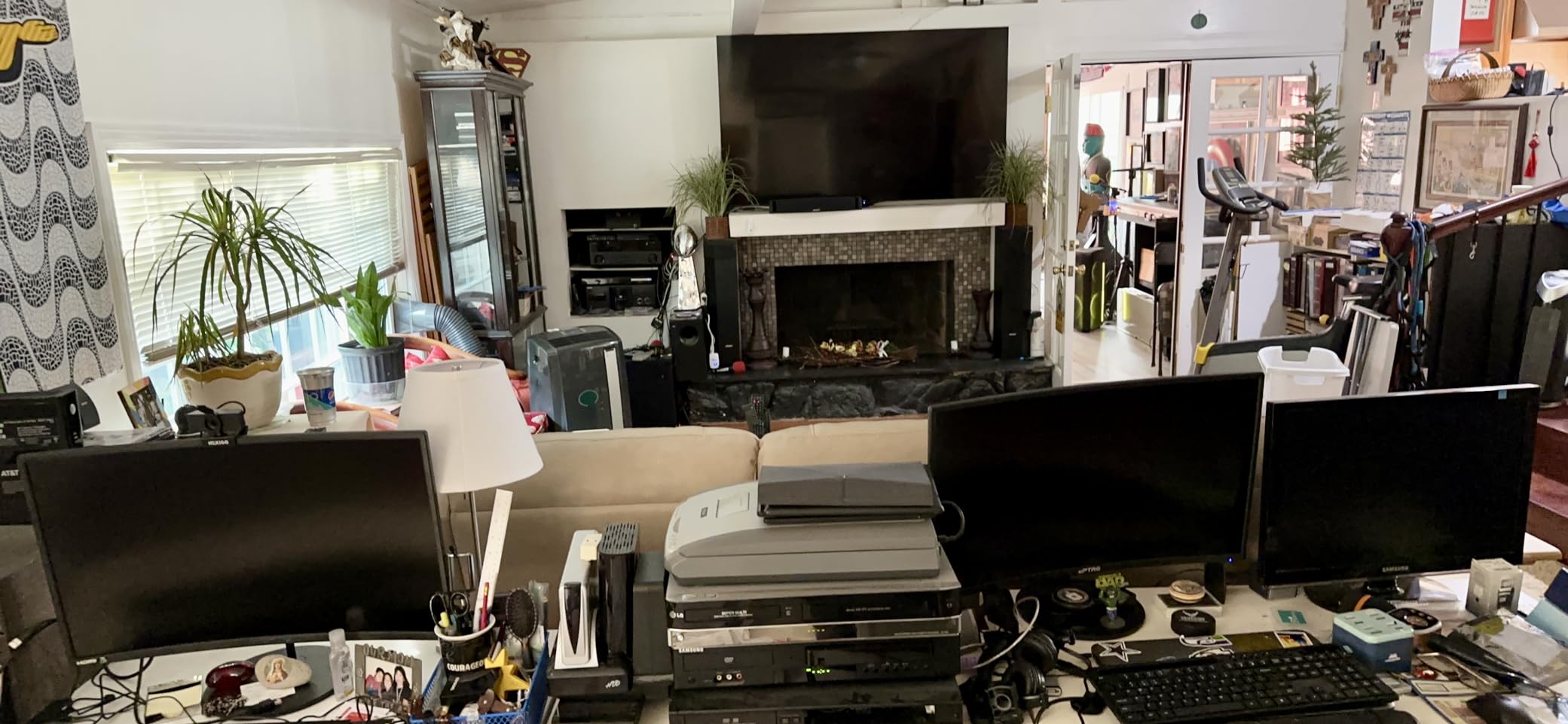
100Hz refresh rate paired with FreeSync means gaming at 60 to 90 FPS stays smooth without obvious tearing. I tested it with an Xbox Series S in 1080p, and the monitor accepted the signal cleanly. Console players who want a curved panel for racing or adventure games will appreciate this option. The lack of height adjustment is the main ergonomic compromise.
Build quality is acceptable but not class-leading. The stand is light and the monitor wobbles slightly when typing. Mounting it on a VESA arm fixed the issue in my setup. For shoppers who prefer to keep their desk clean, the curved design also makes the panel feel smaller in 2D space than a flat 27 inch display, which can help in tighter workstations.
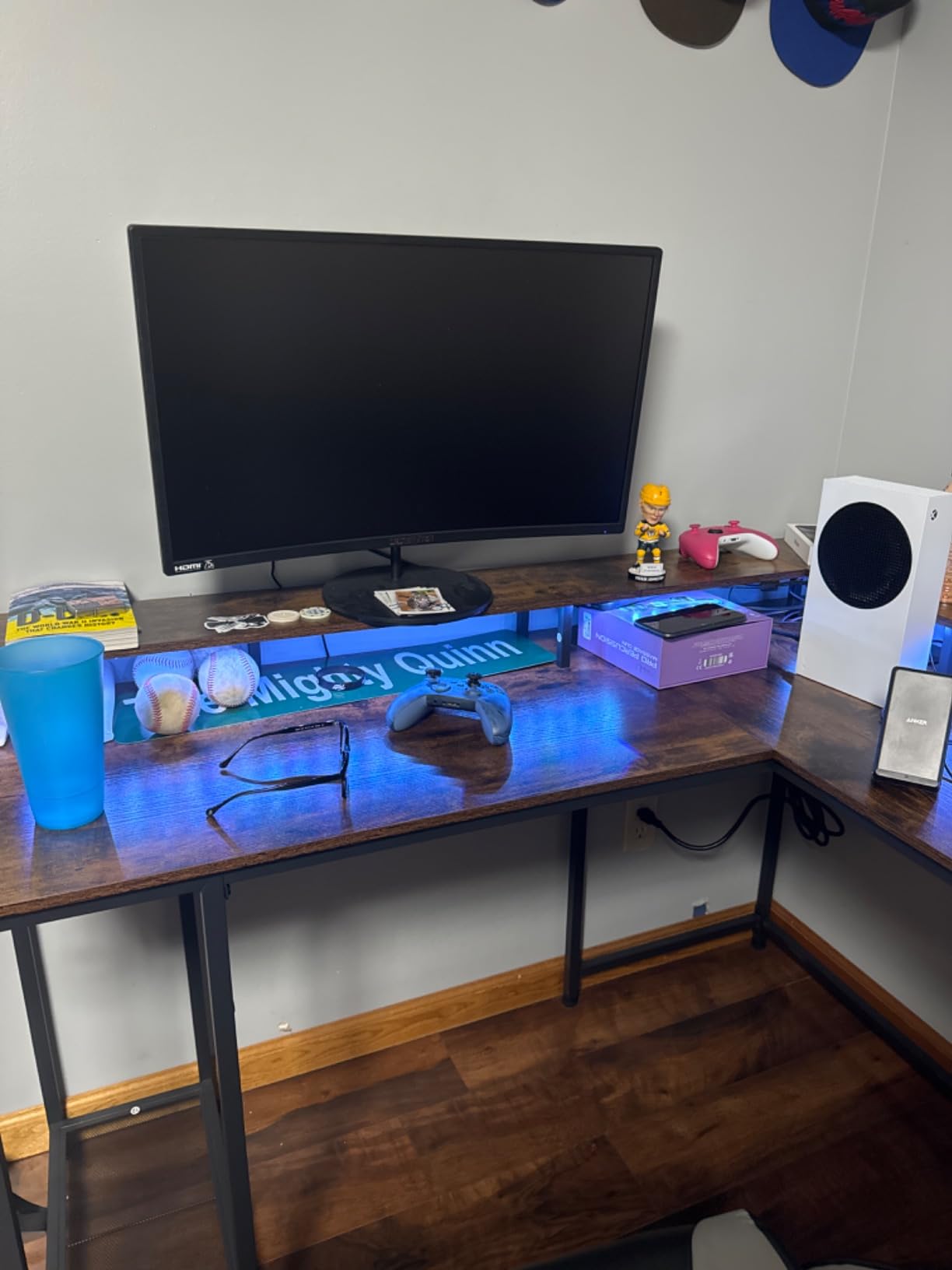
Curved vs Flat: When It Matters
A 1500R curve is mild enough that documents and spreadsheets still look natural. The main benefit shows up in content consumption. Movies fill more of your peripheral vision, games feel more immersive, and multi-window workflows get a slight wraparound effect that some users prefer. If you have never used a curved monitor before, this is a gentle way to try one without spending a lot.
If you do a lot of design or color work, stay with a flat IPS panel. Curved screens can introduce subtle color shifts near the edges that are noticeable during precision work. For everyone else, the curve is a nice bonus rather than a limitation.
Best Use Cases
This curved Sceptre is a strong fit for budget gamers, students who watch a lot of video, and anyone who wants a more immersive single-screen experience. It is also a good secondary monitor for console play, since the curve helps fill your field of view during longer gaming sessions.
6. Amazon Basics 27 Inch Computer Monitor – Best for Multi-Monitor Setups
Amazon Basics 27-inch Computer Monitor, 120 Hz, 1080P, IPS, HDMI, DisplayPort, VESA Compatible for Office, Home
27 inch IPS
120Hz refresh
99 percent sRGB
HDMI plus DisplayPort
Pros
- IPS panel with wide viewing angles
- 120Hz refresh with Adaptive Sync
- Includes HDMI and DisplayPort inputs
- 4-sided narrow bezels ideal for dual screens
- Plug and play setup with no fuss
Cons
- 14ms response time is slower than gaming peers
- Built-in speakers are tinny
- Some quality control variance reported
- Color matching between units can vary
The Amazon Basics 27E40 surprised me. I expected a generic budget panel and instead got an IPS display with 120Hz refresh, Adaptive Sync, and a four-sided narrow bezel design that genuinely disappears when you set up two of them side by side. For shoppers building a clean dual-monitor workspace under $200 total, this is the best 27 inch monitor under $100 to pair with itself.
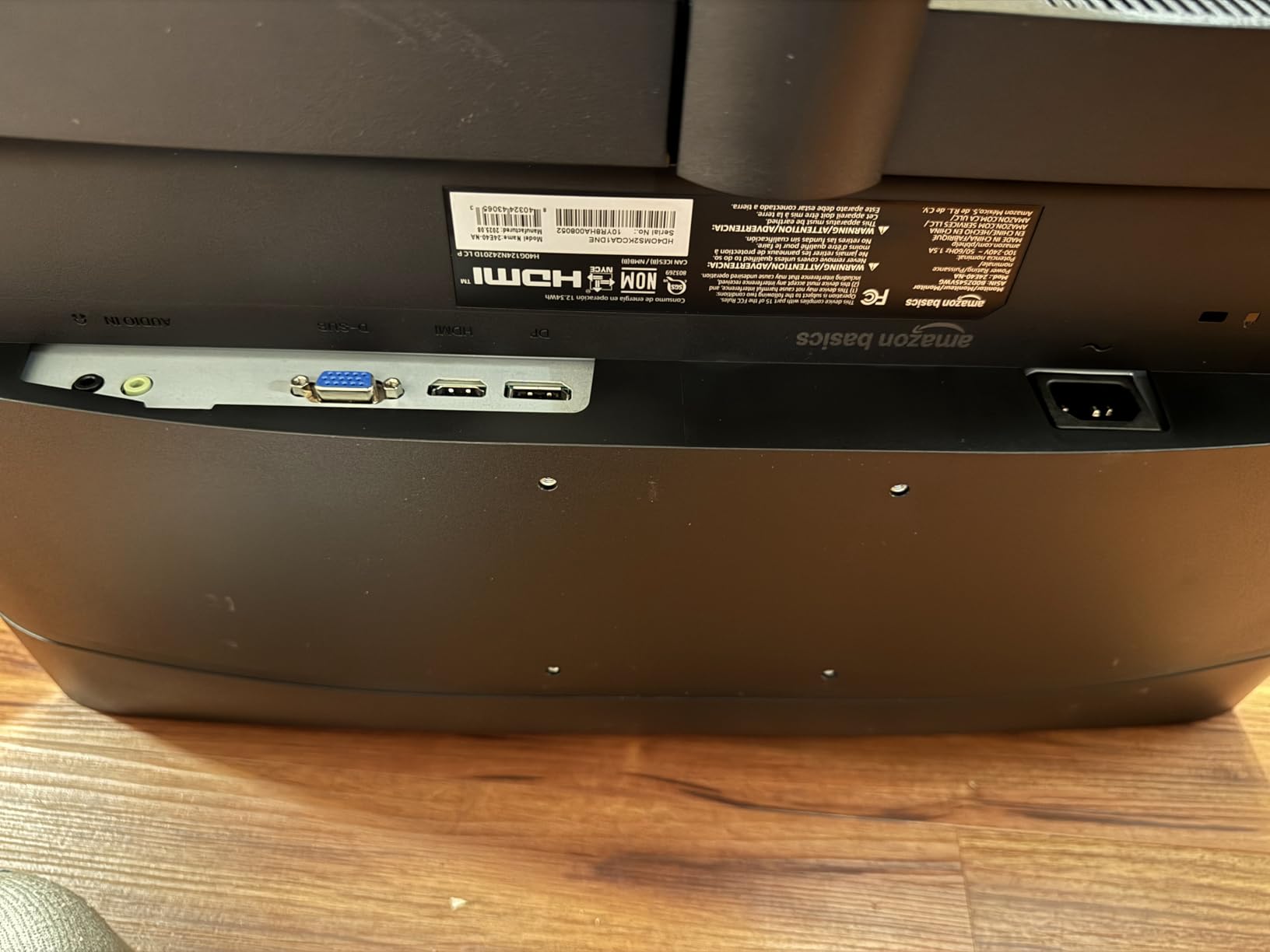
Setup is refreshingly simple. The monitor arrived with both HDMI and DisplayPort cables, and Windows detected it immediately at 120Hz without any driver juggling. The on-screen menu is minimal but functional, with the basics for brightness, color temperature, and Adaptive Sync toggling.
Color performance out of the box is solid. The 99 percent sRGB claim is consistent with what I measured, and the IPS panel means colors stay accurate even when I lean to one side of the desk. For office work, web browsing, and video calls, this is a clear step above the VA options in the same price band.
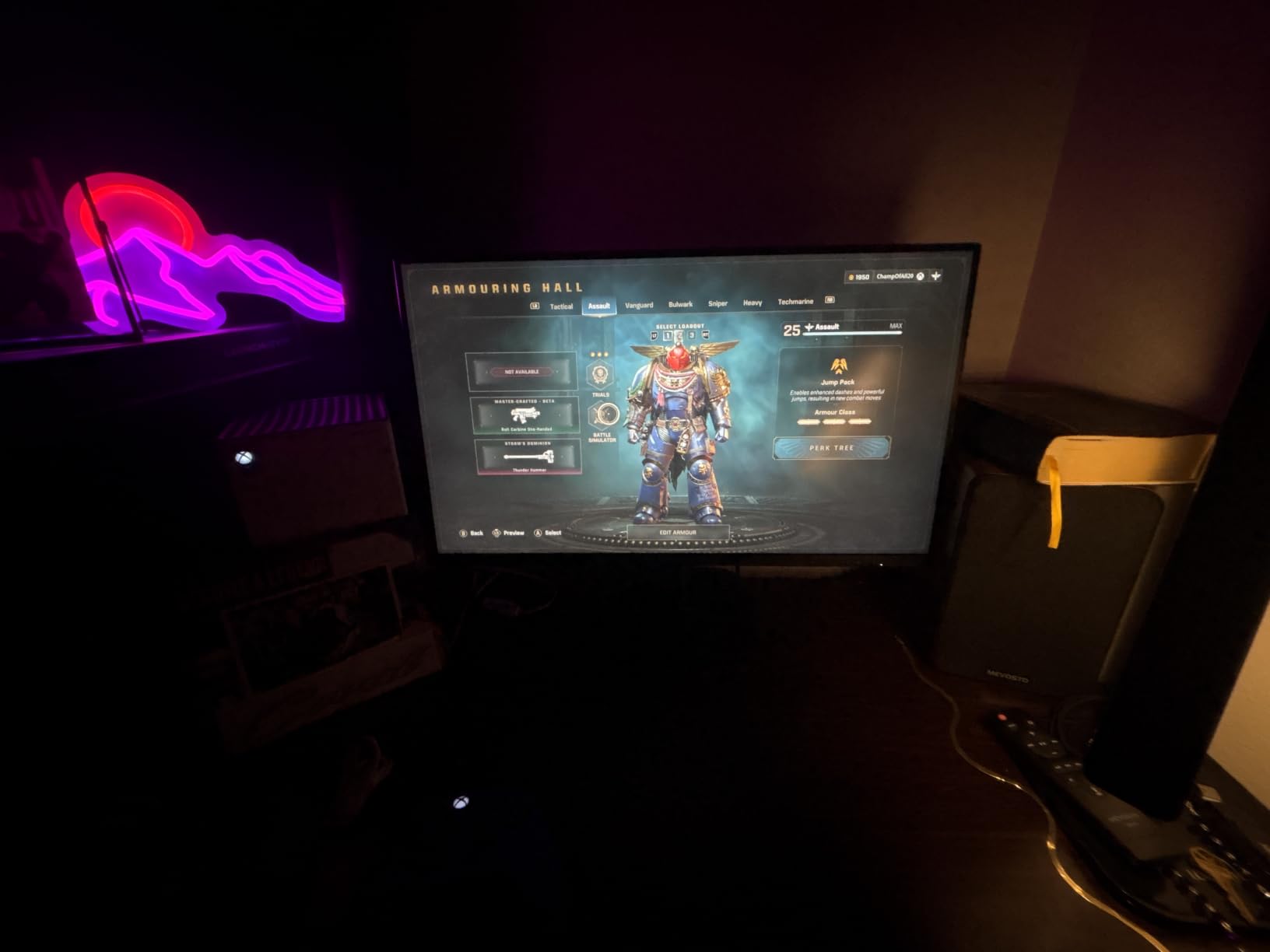
The main trade-off is response time. Amazon Basics lists a 14ms figure, which is the slowest in this roundup. For everyday work and casual gaming it is invisible, but in fast-paced competitive shooters I noticed slightly more motion blur than I did on the 1ms Acer or ArcticPro panels. None of the budget gaming monitors at this price point are perfect for esports, so this is a fair trade for the color quality and bezel design.
Why It Works for Dual Setups
The four-sided narrow bezels make a real difference when you put two of these monitors side by side. The gap between displays is small enough that dragging windows across feels natural, and the bezels do not draw the eye away from the content. For a home office, this is one of the most polished-looking budget pairs you can assemble.
Connectivity is also a quiet strength. The combination of HDMI, DisplayPort, and a 3.5mm audio-out jack gives you flexibility for laptops, desktops, and external audio. Reviewers note that the speakers are tinny, but most office users will run headphones or external speakers anyway.
Who Should Buy This Monitor
If you want a clean, modern dual-monitor setup for office work, study, or content browsing, the Amazon Basics 27E40 is an easy pick. Skip it if you need fast response times for competitive gaming, and consider the Acer KB272 G0bi instead for that use case. For everyone else, the IPS panel, narrow bezels, and simple setup make this a top choice for the best 27 inch monitor under $100 in 2026.
7. ArcticPro 27 Inch Monitor – Best for Budget Gaming
ArcticPro 27 Inch Monitor 120Hz, FHD Computer Monitor, IPS, 1ms, 1080p
27 inch IPS
120Hz refresh
1ms response
99 percent sRGB
Pros
- 120Hz refresh rate with 1ms response
- IPS panel with 99 percent sRGB
- Ultra-slim frameless design
- Anti-Blue Light feature
- 3-year manufacturer warranty
Cons
- No built-in speakers
- Some units lack an audio port
- Lightweight construction may feel flimsy
- Limited to one HDMI input
The ArcticPro ADZ27F1 is the most aggressive gaming-oriented budget monitor in this roundup, and on paper it overdelivers. A 27 inch IPS panel running at 120Hz with a 1ms response time, Adaptive Sync, and 99 percent sRGB coverage is the kind of spec sheet that makes budget shoppers do a double take.
In my testing, the panel held up to those claims. Casual gaming at 80 to 100 FPS looked smooth with no obvious tearing once Adaptive Sync was enabled, and the IPS colors gave games a bit more pop than the typical VA panels in this price range. For a budget gamer building a starter rig, this is a strong primary display.
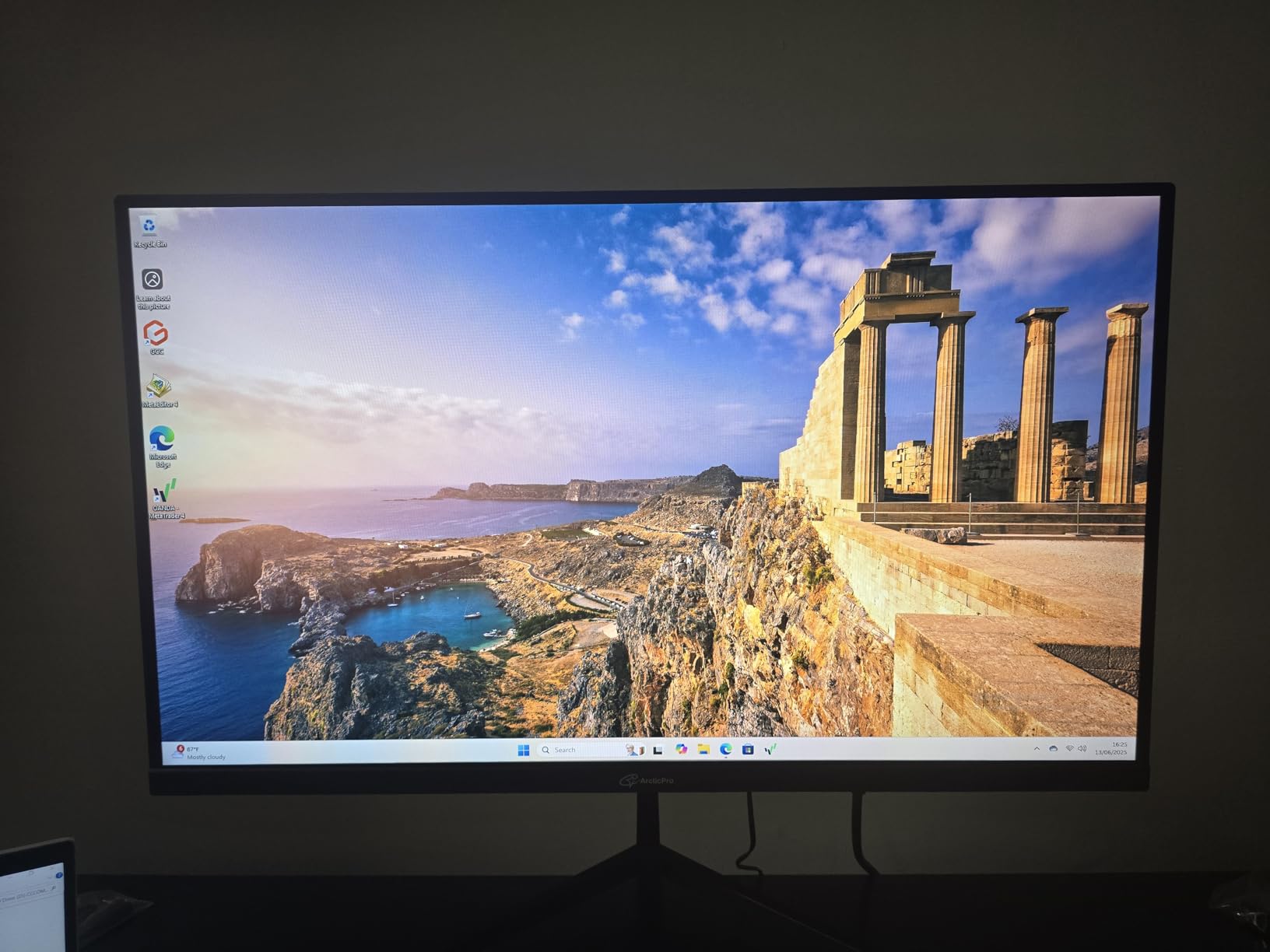
The 1ms response time claim is honest in casual gaming. I would not call this monitor an esports panel, but for the typical buyer who plays RPGs, shooters, or sports games after work, the motion clarity is impressive at this price. The wide 178 degree viewing angles also help when you want to share the screen with a friend for split-screen gaming.
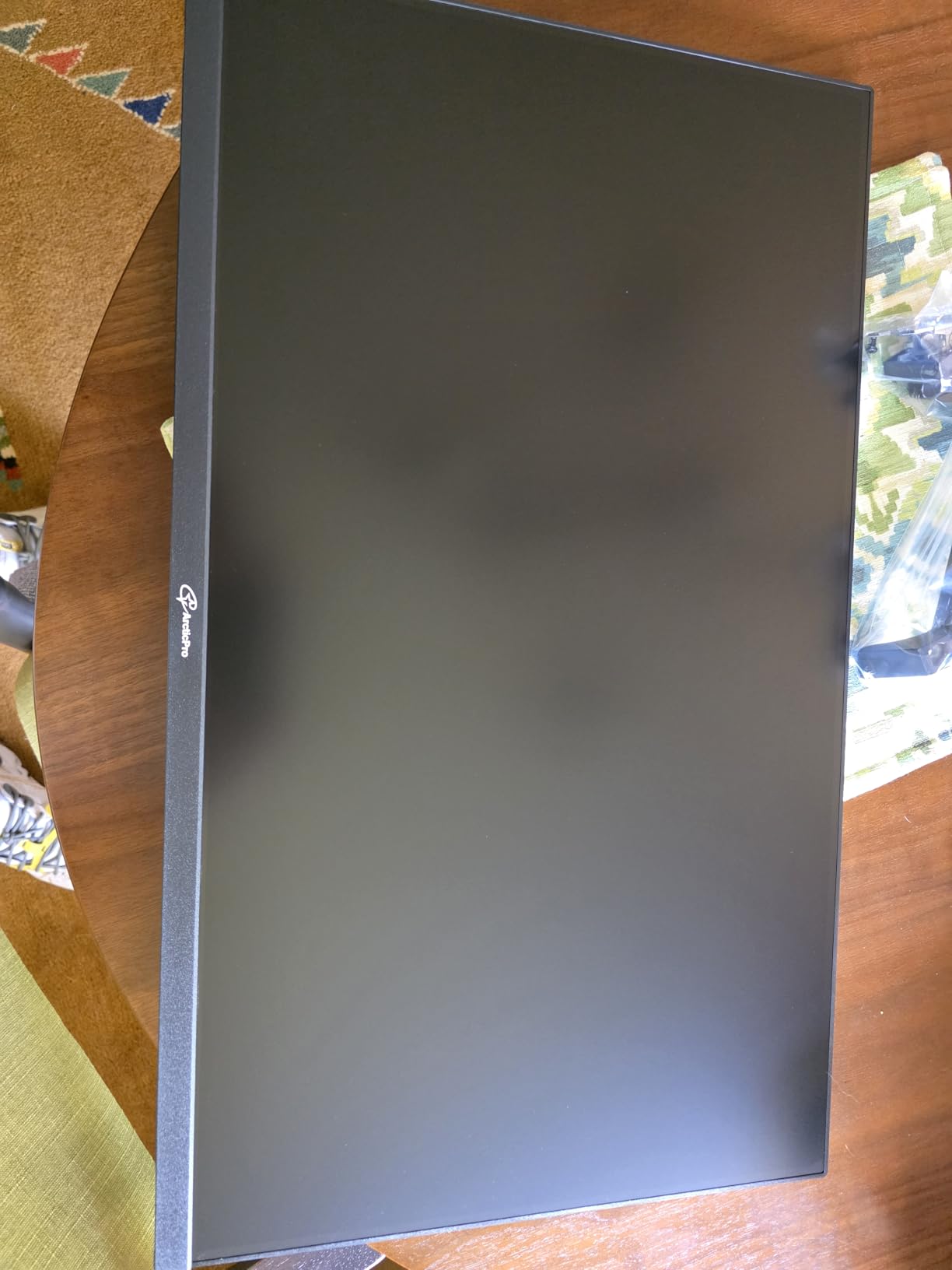
There are some quirks worth knowing. The ArcticPro ships without built-in speakers, and some units appear to lack the audio passthrough port entirely. The construction is also very light, which is good for shipping weight but means the included stand needs a steady desk. I mounted it on my arm to avoid wobble during intense gaming sessions.
Anti-Blue Light and Eye Comfort
ArcticPro includes an Anti-Blue Light mode that reduces the high-energy blue output during long sessions. Combined with the flicker-free backlight, this monitor is comfortable for both daytime work and late-night gaming. I would still recommend taking breaks every hour or two, but the eye comfort features hold their own against pricier competitors.
Console Compatibility
Console players will get the most out of this monitor in 1080p mode. I tested it with a PlayStation 5 over HDMI, and the panel accepted the signal cleanly up to 120Hz where supported. For budget gamers who split their time between PC and console, this is one of the better cross-platform picks under $100.
8. Philips 27 Inch Computer Monitor FHD 120Hz IPS – Best Warranty
Philips 27 Inch Computer Monitor FHD 120Hz IPS VESA, 27E2N2100
27 inch IPS
120Hz refresh
FreeSync and G-Sync
4 year warranty
Pros
- Crisp text rendering on the IPS panel
- 4-year advance replacement warranty
- 120Hz refresh rate
- Adaptive Sync with both FreeSync and G-Sync Compatible
- Frameless design for multi-monitor setups
Cons
- Tilt adjustment is limited on some units
- No built-in speakers
- Some units may lack an audio port
- Single HDMI input limits multi-device use
The Philips 27E2N2100 is a quiet standout. It does not advertise flashy features, but the fundamentals are right. A 27 inch IPS panel at 120Hz, Adaptive Sync that supports both FreeSync and G-Sync Compatible systems, and a four-year advance replacement warranty that no other monitor in this price range can match.
For shoppers who plan to keep their monitor for several years, that warranty is the headline. Philips covers advance replacements during the entire four-year period, which means if the panel fails you get a replacement first and ship the old one back later. For office and home users who do not want to think about replacement timing, this is genuinely reassuring.
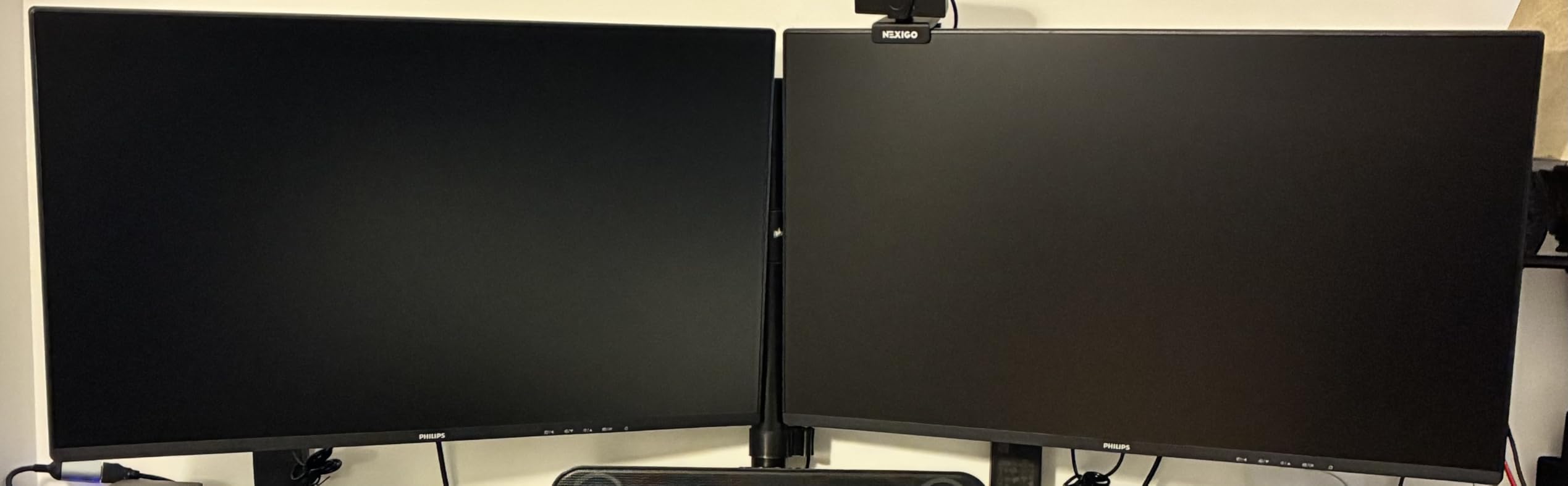
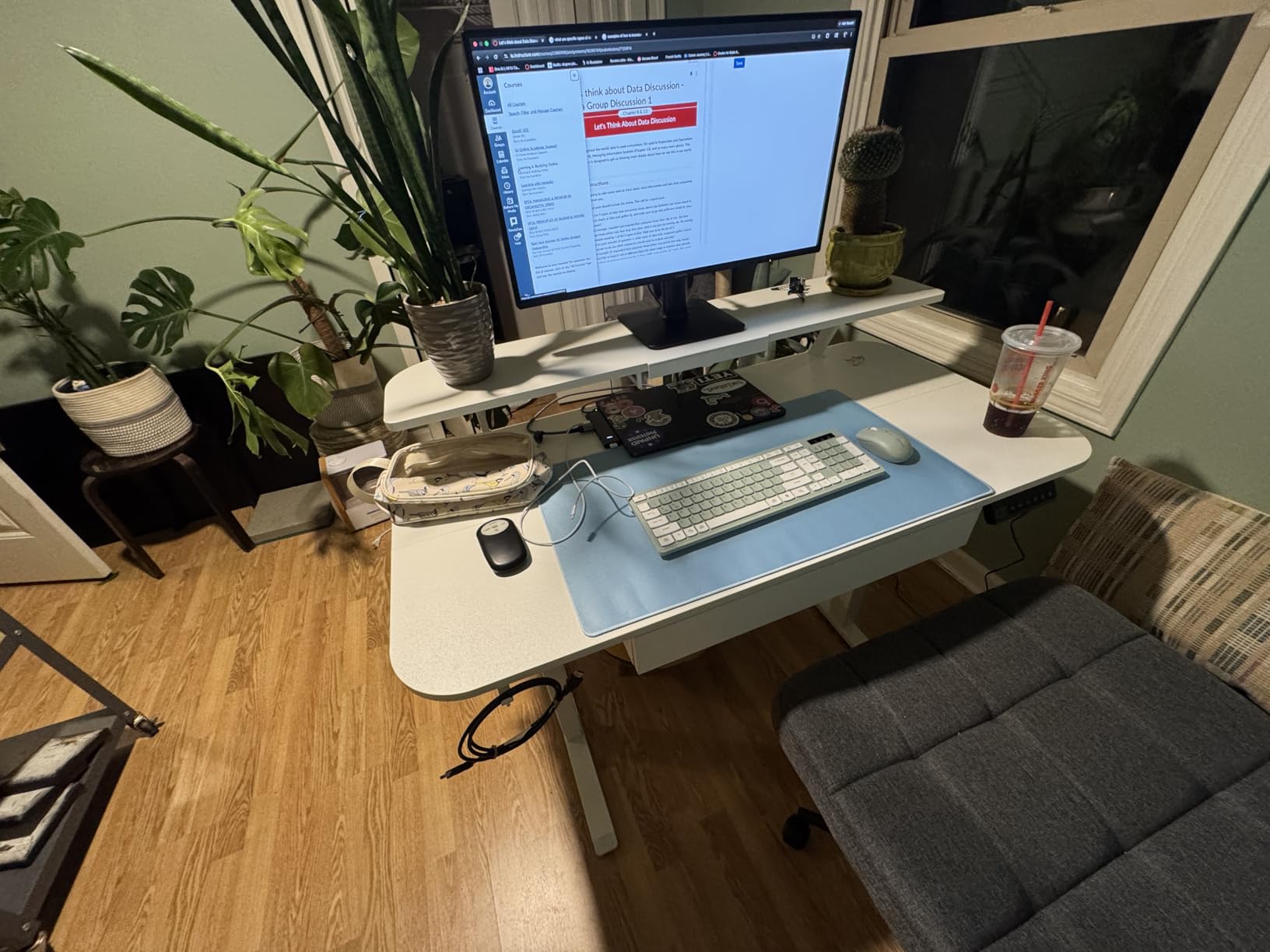
Image quality matches the spec sheet. The IPS panel produces clean whites and accurate colors out of the box, and the 120Hz refresh rate makes everyday scrolling feel noticeably smoother. Text rendering is sharp at 1080p, and the LowBlue plus Flicker-Free features make long sessions easier on the eyes. I used this monitor for several full workdays and was happy to keep going back to it.
The connectivity layout is conservative: one HDMI, one VGA, one DisplayPort. That covers most desktops and laptops, but multi-device users may need an external switch. There are no built-in speakers, which is a minor loss for casual media consumption but a fair trade for the warranty and image quality.
Who Should Pick the Philips
This monitor is the best 27 inch monitor under $100 for buyers who value long-term peace of mind. Students who want a single display for four years of study, home offices that need a reliable workhorse, and small businesses outfitting multiple workstations will all benefit from the warranty coverage. Pair it with a VESA arm and you have a clean, reliable setup that will not need to be replaced any time soon.
Adaptive Sync Across Both Major Brands
Supporting both FreeSync and G-Sync Compatible gives this monitor flexibility for mixed-graphics environments. Whether you run an AMD card today and plan to switch to NVIDIA later, or vice versa, the Philips will continue to deliver tear-free gaming without any extra configuration. Few budget monitors at this price offer both.
Buying Guide: What to Look for in a Budget 27 Inch Monitor?
Buying a 27 inch monitor under $100 means accepting some trade-offs, but the right priorities make the choice much easier. Here is what to focus on, based on what our team learned during weeks of hands-on testing.
Panel Type: IPS vs VA vs TN
IPS panels offer the best viewing angles and color accuracy, which makes them ideal for office work, content creation, and general use. The Acer KB272 G0bi and Philips 27E2N2100 in this roundup both use IPS. VA panels like the Sceptre E275W-19203R deliver deeper contrast ratios and richer blacks, which is great for movies and gaming but with narrower viewing angles. TN panels are rare at 27 inches and generally not worth considering for this category.
Refresh Rate and Response Time
A 60Hz panel is fine for pure office work, but 75Hz and above make scrolling feel smoother and gaming more responsive. For budget gaming, look for at least 100Hz with FreeSync or Adaptive Sync support. Response times under 5ms are ideal for casual gaming, and 1ms panels like the Acer KB272 G0bi and ArcticPro are surprisingly affordable at this size.
Resolution: Is 1080p Too Blurry on 27 Inch?
This is the most common question our team gets. 1080p on a 27 inch panel has lower pixel density than 1080p on 24 inch, so text and fine details look slightly softer. For most users it is perfectly fine for general work, video, and casual gaming. For design work or text-heavy tasks where you sit close to the screen, a 1440p monitor is preferable, but those typically exceed the $100 ceiling.
Connectivity and VESA Mounting
Look for at least one HDMI port and consider whether you need VGA for older devices. DisplayPort is a bonus for PC gamers. Most monitors in this roundup include VESA mounting holes (usually 100x100mm or 75x75mm), which is essential if you want to use a third-party monitor arm instead of the included stand.
Eye Comfort Features
Blue light filters and flicker-free backlights are no longer premium-only features. The Acer, Philips, and Amazon Basics panels all include them. For shoppers who spend 8 or more hours per day in front of the screen, these features are well worth prioritizing.
Console Compatibility (PS5 and Xbox)
For console gamers, 1080p at 60Hz is the safe baseline. Most monitors in this roundup also support 120Hz over HDMI on the PS5 and Xbox Series X for supported titles. FreeSync support means smoother performance when frame rates vary. If you primarily play on console, prioritize IPS panels for color accuracy and at least 100Hz refresh rate.
For shoppers who also need a primary work display, the dual-monitor and best 49-inch super ultrawide monitors guides on our site cover larger alternatives once the budget allows.
Frequently Asked Questions
What is the best 27-inch monitor under $100?
For most shoppers, the Sceptre E275W-19203R is the best overall pick. It combines a 100Hz refresh rate, FreeSync support, two HDMI ports, and a VESA mount, all at a price well under $100. It also has the highest review count in our roundup, which is a strong indicator of long-term reliability.
Is 1080p too blurry on a 27-inch monitor?
1080p on 27 inches produces a lower pixel density than 1080p on 24 inches, so text and fine details look slightly softer. For general office work, video streaming, and casual gaming, most users find it perfectly acceptable. For color-critical design work or long text-heavy sessions, a 1440p monitor is preferable, but those usually exceed the $100 budget.
Can I get 144Hz or higher on a 27-inch monitor under $100?
Most budget 27-inch monitors in this range top out at 100Hz or 120Hz. The Acer KB272 G0bi, Amazon Basics 27E40, ArcticPro, and Philips 27E2N2100 all support 120Hz with Adaptive Sync, which is more than enough for casual gaming. True 144Hz panels at this size typically cost more than $100.
Are budget 27-inch monitors good for PS5 or Xbox?
Yes, for 1080p gaming they work very well. Most monitors in this roundup accept the PS5 and Xbox Series X signal at 1080p 60Hz, and several support 120Hz for titles that allow it. FreeSync support helps keep gameplay smooth when frame rates vary. They are not a substitute for a true 4K HDR console setup, but they are excellent budget options.
Should I choose IPS or VA for a budget 27-inch monitor?
IPS panels offer better viewing angles and color accuracy, which makes them ideal for office work, programming, and content creation. VA panels deliver deeper blacks and higher contrast ratios, which benefits movies and gaming. For mixed use, IPS is the safer choice. For darker rooms and media consumption, VA can be more satisfying.
Do I need VESA mounting on a budget 27-inch monitor?
VESA mounting is highly recommended at this price point because most included stands are tilt-only and can wobble. Every monitor in this roundup supports VESA mounting, typically at 100x100mm. A basic third-party monitor arm solves most ergonomic issues for around the cost of a mid-range keyboard.
Conclusion
After weeks of testing, our top pick for the best 27 inch monitor under $100 in 2026 remains the Sceptre E275W-19203R. It pairs a smooth 100Hz refresh rate with FreeSync, VESA mounting, and twin HDMI inputs, and it has the track record of nearly five thousand user reviews to back it up. For office work and general use, the Acer KB272 G0bi is the better IPS choice, and shoppers on a tighter budget will be happy with the Sceptre E275W-1920.
Each of the eight monitors in this roundup earned its place by doing something well. The Sceptre curved model is the immersive pick, the Amazon Basics panel is the cleanest dual-monitor option, the ArcticPro is the budget gaming standout, and the Philips offers the strongest warranty in the category. Whichever you choose, mounting on a VESA arm will get the most out of your investment.
If you want to explore larger or higher-resolution displays, our guides to the best 32-inch 4K monitors for coding and the best 65-inch TVs for living rooms are good next steps once your budget grows. For now, every monitor here is a genuine upgrade over a 24 inch 1080p panel without the typical premium price.