
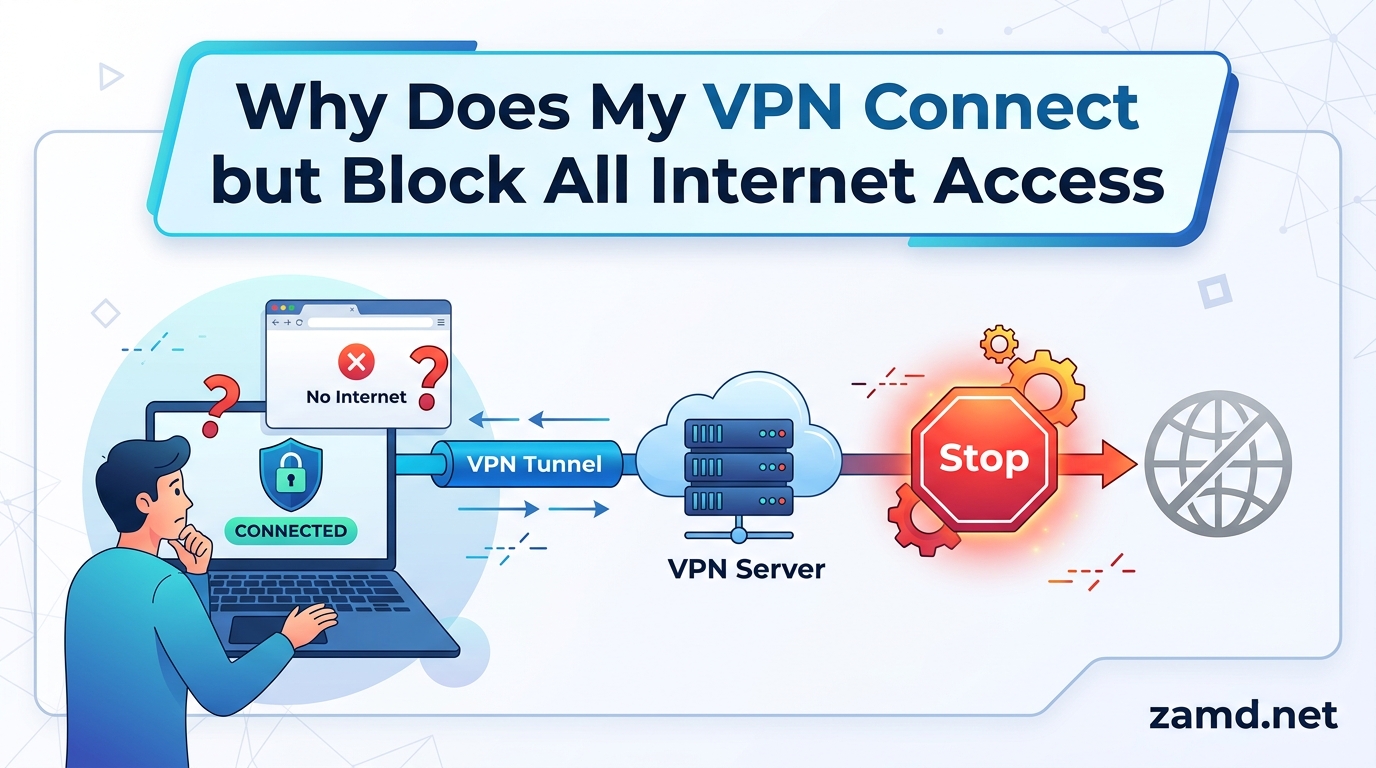
You fire up your VPN, watch it connect successfully, and then open your browser. Nothing loads. No websites, no apps, no email. The VPN says connected, but your internet is completely dead. If you are dealing with a VPN connected but no internet scenario, you are not alone. This is one of the most common VPN problems reported across tech support forums, and the good news is that it is almost always fixable.
When your VPN connects but blocks all internet access, the most common cause is a DNS configuration issue, followed by kill switch activation, VPN protocol conflicts, or firewall interference. The VPN tunnel is established, but your device cannot resolve domain names or route traffic properly through it.
In this guide, I will walk you through a diagnostic process to figure out exactly what is blocking your connection, then give you step-by-step fixes for each cause. Whether you are using a consumer VPN like NordVPN on Windows 11 or a corporate work VPN that suddenly stopped letting you browse, you will find your solution here.
Table of Contents
Quick Diagnostic Steps: Isolate the Problem Before You Fix It
Before trying random fixes, take two minutes to diagnose what is actually happening. This saves you from wasting time on solutions that do not apply to your situation. A VPN connected but no internet issue can come from several different sources, and the diagnostic steps below will tell you which one.
Step 1: Run a Ping Test
Open Command Prompt (Windows) or Terminal (Mac and Linux) and run this command: ping 8.8.8.8. If the ping succeeds, your VPN tunnel is working and traffic is flowing. The problem is DNS. If the ping fails, you have a routing or tunnel issue that goes deeper.
Next, try ping google.com. If pinging the IP address works but pinging the domain name fails, you have confirmed a DNS resolution problem. This is the most common diagnosis by far.
Step 2: Check the VPN App for Errors
Open your VPN application and look for any warning icons, error messages, or connection status indicators. Some VPNs show a connected state but display a small warning about DNS leaks, server issues, or authentication problems. These messages can point you directly to the cause.
Step 3: Test Internet Without the VPN
Disconnect your VPN entirely and try loading a website. If your internet works normally without the VPN, the issue is definitely VPN-related and not a problem with your ISP or network hardware. If the internet still does not work without the VPN, you may have a kill switch that is stuck on (more on that below).
Step 4: Test in Browser Safe Mode or Incognito
Sometimes a browser extension, proxy setting, or cached DNS entry is the real culprit. Open an incognito or private browsing window with all extensions disabled and try loading a site. If it works in incognito but not normally, a browser extension or proxy configuration is interfering with your VPN.
Why Does My VPN Connect but Block All Internet Access: Common Causes
After helping users troubleshoot this issue across forums and support channels, I have found that the causes fall into a predictable set of categories. Here are the most common reasons your VPN connects but blocks your internet:
- DNS misconfiguration: The VPN takes over DNS resolution but cannot reach its DNS servers, so no domain names load.
- Kill switch activation: A protective kill switch detects an instability and blocks all traffic as a safety measure.
- VPN protocol mismatch: The selected protocol is being blocked by your network, ISP, or firewall.
- Firewall or antivirus interference: Security software blocks the VPN tunnel traffic before it can reach the internet.
- IPv6 conflict: Your VPN handles IPv4 but leaks or conflicts on IPv6, causing resolution failures.
- Default gateway override: The VPN sets itself as the default gateway but cannot route general internet traffic.
- Proxy settings conflict: Leftover proxy configurations from other software redirect traffic into a dead end.
- Network adapter conflicts: The virtual VPN adapter conflicts with your physical network adapter after an update.
Let us now go through the fixes for each of these causes, starting with the most common one.
DNS Configuration Fixes for VPN Connected But No Internet
DNS issues account for the majority of VPN connected but no internet cases. When your VPN connects, it typically assigns its own DNS servers to handle domain name resolution through the encrypted tunnel. If those DNS servers are unreachable, misconfigured, or blocked by your network, every website fails to load even though the VPN tunnel itself is working fine.
One Reddit user described this exact scenario: “VPN will connect but internet pages will not load.” The fix turned out to be a DNS configuration issue that was resolved by switching to public DNS servers.
Flush Your DNS Cache First
Start by flushing your DNS cache. This clears out any corrupted or stale entries that might be interfering. On Windows, open Command Prompt as administrator and run:
ipconfig /flushdns
On macOS, open Terminal and run:
sudo dscacheutil -flushcache && sudo killall -HUP mDNSResponder
On Linux, the command depends on your distribution. For systemd-resolved systems, use sudo systemd-resolve --flush-caches. For systems using resolvconf, you may need to restart the service with sudo systemctl restart systemd-resolved.
Switch to Public DNS Servers
If flushing the cache does not help, manually set your DNS to a reliable public provider. Google DNS (8.8.8.8 and 8.8.4.4) and Cloudflare DNS (1.1.1.1 and 1.0.0.1) are the most common choices. On Windows, go to Settings, then Network and Internet, then Change Adapter Options. Right-click your VPN adapter, select Properties, and double-click Internet Protocol Version 4. Select “Use the following DNS server addresses” and enter the public DNS numbers.
Many VPN apps also let you configure custom DNS in their settings. Look for a DNS or advanced settings section in your VPN application and try switching from the default to Cloudflare or Google DNS.
Disable IPv6 to Prevent Conflicts
IPv6 is a frequent source of VPN connectivity problems. Many VPNs only route IPv4 traffic through the tunnel, which means IPv6 requests leak outside the VPN and fail to resolve. This creates a situation where the VPN is connected but no internet traffic gets through because the system is trying to use IPv6 for DNS resolution.
To disable IPv6 on Windows, go to your VPN adapter properties and uncheck “Internet Protocol Version 6 (TCP/IPv6).” On macOS, you can disable IPv6 through System Settings, Network, then Advanced. Many VPN apps also have an IPv6 leak protection toggle that effectively handles this for you.
Check for Proxy Settings Leftover
If you previously used a proxy service or another VPN, leftover proxy settings can redirect your traffic into a dead end. On Windows, go to Settings, then Network and Internet, then Proxy. Make sure “Use a proxy server” is turned off unless you specifically need it. On macOS, check System Settings, Network, then Proxies for the same thing.
VPN Protocol Problems: Switching Protocols to Restore Internet
The protocol your VPN uses determines how it creates the encrypted tunnel. Different protocols use different ports and encryption methods. If your network, ISP, or firewall blocks the specific port or protocol your VPN is using, the tunnel may partially connect but no data flows through. This is a very common cause of VPN connected but no internet issues.
A Reddit user on Windows 11 reported: “Tried two different VPNs with the same result.” This strongly suggests a protocol-level block at the network or ISP level, not a problem with any single VPN provider.
Understanding the Main VPN Protocols
Here are the four most common VPN protocols and when to use each:
OpenVPN UDP: The default for many VPNs. Fast and reliable on most networks, but some firewalls block UDP traffic on VPN ports. If you suspect this is your issue, switching to TCP often helps.
OpenVPN TCP: Slower than UDP but more compatible with restrictive networks. TCP runs on standard web ports, which makes it harder for networks to block. If you are on a corporate or public WiFi network, try this protocol.
WireGuard: The newest mainstream protocol. Faster and lighter than OpenVPN, but some older network configurations do not support it yet. If WireGuard is not working, fall back to OpenVPN TCP.
IKEv2/IPSec: Excellent for mobile devices because it reconnects quickly when switching between WiFi and cellular. However, some firewalls specifically block IPSec traffic.
How to Switch Protocols
In most VPN apps, you will find protocol settings under Settings, then Advanced or Connection. NordVPN, ExpressVPN, Surfshark, and ProtonVPN all let you choose between OpenVPN (UDP and TCP), WireGuard, and IKEv2. Try each protocol in order until your internet comes back.
When I troubleshoot VPN protocol problems, I recommend this sequence: try WireGuard first (fastest), then OpenVPN TCP (most compatible), then IKEv2 (mobile-friendly). If none of these work, the issue is likely not protocol-related.
Port 443 as a Workaround
Some restrictive networks only allow traffic on port 443 (the standard HTTPS port). If your VPN supports it, configure OpenVPN TCP to use port 443. This makes VPN traffic look like normal HTTPS web traffic, which most networks will not block. Check your VPN settings for a port configuration option.
Firewall and Security Software Interference with VPN Traffic
Firewall and antivirus software are designed to protect your computer, but they can be overly aggressive when it comes to VPN traffic. Security programs see the VPN tunnel as an unusual connection and may block it, resulting in a VPN connected but no internet situation.
Windows Defender Firewall
Windows Defender Firewall is the first place to check on Windows. Go to Settings, then Update and Security, then Windows Security, then Firewall and Network Protection. Click “Allow an app through firewall” and make sure your VPN application is checked for both private and public networks. If it is not listed, click “Allow another app” and add your VPN manually.
Third-Party Antivirus Conflicts
Third-party security suites like Norton, McAfee, Kaspersky, and Bitdefender frequently interfere with VPN connections. These programs have their own network filtering modules that can block VPN tunnel traffic. Try temporarily disabling your antivirus web shield or firewall module to test if it is the cause.
If disabling the antivirus fixes the issue, add your VPN application to the antivirus exclusion or exception list. Most security programs let you whitelist specific applications so they are not scanned or filtered. This is a better long-term solution than leaving your antivirus disabled.
Router Firewall Settings
Your router also has a firewall that can block VPN protocols. Log into your router admin panel (usually 192.168.1.1 or 192.168.0.1) and look for security or firewall settings. Check if VPN passthrough is enabled for IPSec, PPTP, and L2TP. If any of these are disabled, enable them and try connecting again.
Browser Extensions and Proxy Conflicts
Ad blockers, privacy extensions, and proxy manager extensions can all interfere with VPN traffic. If your VPN works in incognito mode but not in your normal browser, an extension is the problem. Disable extensions one by one to identify which one is causing the conflict. Pay special attention to proxy-related extensions like SwitchyOmega or FoxyProxy, as these directly modify network traffic routing.
Kill Switch and Network Protection Settings Blocking Internet
A VPN kill switch is a security feature that blocks all internet traffic if the VPN connection drops. Its purpose is to prevent your real IP address from leaking during a disconnection. However, kill switches can sometimes misfire and block all traffic even when the VPN appears to be connected.
This is one of the most confusing causes of VPN connected but no internet because the feature is working as designed, just in a situation where it should not be triggering.
How a Kill Switch Misfires
A kill switch monitors your VPN connection state. If it detects even a momentary instability in the tunnel, it activates and cuts off all internet access. The problem is that some VPN apps show a connected status even when the kill switch has already activated in the background. You see “connected” but nothing loads because the kill switch firewall rule is blocking everything.
One Reddit user reported: “When I turn off the VPN, I cannot connect to the internet at all. Kill switch was the issue.” This happens because some kill switch implementations leave their firewall rules in place even after the VPN is disconnected, effectively trapping your connection in a blocked state.
How to Disable the Kill Switch for Testing
To test whether the kill switch is your problem, open your VPN app settings and find the kill switch or network lock option. Disable it completely, then reconnect your VPN. If the internet works immediately after disabling the kill switch, you have found your culprit.
Once you confirm the kill switch is the issue, try these solutions. Update your VPN app to the latest version, as kill switch bugs are frequently patched. Try a different VPN protocol, since some kill switch implementations work better with certain protocols. And check if your VPN offers an “always-on” kill switch versus an “on-demand” one, as the always-on version is more likely to cause stuck blocks.
Recovering From a Stuck Kill Switch
If your internet stays blocked even after you disconnect the VPN and disable the kill switch, you need to reset your network configuration. On Windows, go to Settings, then Network and Internet, then Advanced Network Settings, then Network Reset. This removes and reinstalls all network adapters and resets all network settings to their defaults. You will need to reconnect to WiFi afterward.
On macOS, go to System Settings, then Network, and use the option to remove all VPN configurations and re-add them. You can also delete the network configuration file and restart to force a fresh setup.
Platform-Specific Solutions for VPN Blocking Internet
Different operating systems handle VPN connections differently. Here are platform-specific fixes for the most common VPN connected but no internet issues on each major operating system.
Windows 11: Post-Update Network Issues
Windows 11 has a well-documented issue where VPNs stop working after system updates. The update can reset network adapter settings, change firewall rules, or modify the default gateway configuration. If your VPN stopped working right after a Windows update, this is almost certainly the cause.
The most effective fix for Windows 11 VPN issues is the default gateway override. Open your VPN adapter properties, double-click Internet Protocol Version 4, click Advanced, and uncheck “Use default gateway on remote network.” This enables split tunneling, allowing your regular internet traffic to flow while VPN traffic goes through the tunnel. A Reddit user confirmed this fix: “Fixed by unchecking use this connection only for resources on this network in IPv4 routes.”
If that does not work, try a full network reset. Open Settings, then Network and Internet, then Advanced Network Settings, then Network Reset. Click “Reset now” and restart your computer. This clears all network adapters and settings, then reinstalls them fresh. After the reset, reconnect your VPN and test.
macOS: TUN/TAP Driver and Network Configuration
On macOS, VPN issues often stem from TUN/TAP driver conflicts or corrupted network configuration files. If you are using OpenVPN-based VPN clients like Tunnelblick or OpenVPN Connect, make sure the TUN/TAP driver is properly installed and up to date.
To reset your network configuration on macOS, go to System Settings, then Network. Remove your VPN configuration, delete the network interface if applicable, and re-add it from scratch. For stubborn issues, you can delete the network preferences file directly from the system library folder.
Android: Always-On VPN and Private DNS Conflicts
Android has two settings that frequently cause VPN connected but no internet issues. The first is the always-on VPN feature, which can lock your connection to a specific VPN app and block traffic if that app has issues. Go to Settings, then Network and Internet, then VPN, tap the gear icon next to your VPN, and toggle off “Always-on VPN” to test.
The second is Android Private DNS. If you have Private DNS set to a custom provider in your Android settings, it can conflict with your VPN app DNS resolution. Go to Settings, then Network and Internet, then Private DNS, and set it to “Off” or “Automatic” to see if that resolves the conflict.
iPhone and iPad: Configuration Profiles and Network Reset
On iOS, VPN issues are often caused by corrupted configuration profiles. Go to Settings, then General, then VPN and Device Management. Delete your existing VPN profile and re-add it. If you are using a VPN app rather than a manual profile, uninstall and reinstall the app.
For persistent issues on iOS, the nuclear option is Reset Network Settings. Go to Settings, then General, then Transfer or Reset iPhone, then Reset, then Reset Network Settings. This clears all saved WiFi passwords and VPN configurations, so have those handy before you proceed.
Corporate vs Consumer VPN: Why Work VPNs Block Internet
Work VPNs behave differently from consumer VPNs like NordVPN or ExpressVPN. If your company VPN connects but blocks all internet access, the cause and solution may be entirely different from what is described above.
Intentional Internet Blocking by Corporate Policy
Many corporate VPNs are configured to block general internet access on purpose. This is a security measure called full tunneling, where all your traffic goes through the corporate network and is subject to the company firewall and content filtering policies. A Security Stack Exchange user noted: “Some VPNs at work block internet access once you are connected to force traffic through corporate network only.”
If this is your situation, the block is intentional and cannot be bypassed without IT department involvement. You would need to ask your IT team whether split tunneling can be enabled for your account.
The Default Gateway Fix for Corporate VPN
If your corporate VPN used to allow internet access but suddenly stopped, the default gateway setting is likely the issue. Open your VPN connection properties on Windows, go to IPv4 settings, click Advanced, and uncheck “Use default gateway on remote network.” This enables split tunneling, where only corporate network traffic goes through the VPN and your regular internet traffic goes through your local connection.
A Microsoft Answers user reported: “Work VPN required for company projects. Was able to connect before weekend, now no internet over VPN.” This type of sudden change is typically caused by a Group Policy update from the IT department. Contact your IT team to confirm whether the policy changed.
Split Tunneling Configuration
Split tunneling VPN configurations route only specific traffic through the VPN tunnel. If your work VPN supports split tunneling, make sure it is configured correctly. The VPN should route only corporate network IP ranges through the tunnel, with everything else going through your regular internet connection. If the split tunneling rules are misconfigured, all traffic gets caught in the tunnel with no way out.
ISP Blocking vs VPN Issues: How to Tell the Difference
Sometimes the problem is not your VPN at all. Your ISP may be blocking or throttling VPN traffic, which can look exactly like a VPN connected but no internet issue. Here is how to tell the difference.
If your VPN works fine on some networks but fails on others, your ISP or network administrator is likely blocking VPN traffic. Try connecting on a different network, such as a mobile hotspot or a different WiFi network. If the VPN works there, your ISP is the problem.
ISP blocking is increasingly common, especially in countries with restrictive internet policies. Some ISPs block specific VPN protocols or throttle VPN traffic to the point where it appears connected but cannot transfer data. The workaround is to switch to OpenVPN TCP on port 443, which is very difficult for ISPs to block without breaking regular web traffic.
How to Prevent VPN From Blocking Internet in the Future
Once you fix your VPN connected but no internet issue, take these steps to prevent it from happening again.
Keep your VPN app updated. VPN providers regularly release fixes for connectivity bugs, kill switch issues, and protocol compatibility. Enable automatic updates in your VPN app settings.
Preconfigure custom DNS. Set your VPN and system to use Cloudflare 1.1.1.1 or Google 8.8.8.8 before you connect. This prevents DNS-related outages when the VPN provider DNS servers have issues.
Test after OS updates. Windows 11 and macOS updates frequently reset network settings. After any major system update, test your VPN connection immediately so you can catch and fix issues before they interrupt your work.
Enable split tunneling. If your VPN supports split tunneling, configure it to route only specific apps through the VPN. This way, even if the VPN tunnel has issues, your general internet traffic continues to work.
Have a backup protocol configured. If you primarily use WireGuard, know how to quickly switch to OpenVPN TCP as a fallback. Being able to switch protocols in under 30 seconds can save you during important work sessions.
When to Contact Your VPN Provider Support
If you have tried all the fixes above and your VPN still connects but blocks all internet access, it is time to contact support. Most VPN providers offer 24/7 live chat support, and their technicians can check server-side issues that you cannot see.
When you contact support, provide this information for the fastest resolution. Tell them which protocol you are using, what happens when you run a ping test to 8.8.8.8, whether the issue happens on all servers or just one, and what operating system you are on. This lets the technician skip the basic troubleshooting steps and focus on advanced diagnostics.
Sometimes the issue is server-specific. A single VPN server may be misconfigured or overloaded, causing the connected but no internet symptom. Try connecting to three different server locations before contacting support. If one server works and others do not, report the problematic server locations to support.
FAQ’s
Why does my VPN keep blocking my internet?
Your VPN keeps blocking internet access most likely due to a DNS configuration issue, an overly aggressive kill switch, or a VPN protocol that your current network is blocking. Try flushing your DNS cache, switching VPN protocols from UDP to TCP, and temporarily disabling the kill switch to identify which cause applies to your situation.
Why is my VPN connected but I cannot browse the internet?
When your VPN is connected but you cannot browse, the tunnel is established but DNS resolution or traffic routing is failing. Run a ping test to 8.8.8.8. If the ping works but websites still do not load, you have a DNS issue. Switch to Cloudflare DNS 1.1.1.1 or Google DNS 8.8.8.8 in your VPN settings or network adapter properties.
Can connect to VPN but cannot access network?
If you can connect to VPN but cannot access network resources, check whether your VPN is using split tunneling or full tunneling. For corporate VPNs, uncheck the default gateway on remote network setting in IPv4 properties. For consumer VPNs, try switching protocols or servers, and verify your firewall is not blocking VPN tunnel traffic.
Why won’t my VPN give me internet connection?
Your VPN will not give you an internet connection because of one of four issues: DNS misconfiguration, kill switch activation, protocol blocking by your network, or firewall interference. Start by disabling the kill switch, switching to OpenVPN TCP, flushing your DNS with ipconfig /flushdns, and checking that your firewall allows the VPN app through.
How to turn off ISP blocking?
You cannot directly turn off ISP blocking, but you can bypass it by switching your VPN to OpenVPN TCP on port 443, which disguises VPN traffic as regular HTTPS web traffic. If your ISP is blocking specific VPN protocols, WireGuard and IKEv2 are the most commonly blocked, so try OpenVPN TCP instead. Using port 443 makes it very difficult for ISPs to block your VPN without breaking all web traffic.
When I connect to VPN, I lose internet in Windows 11 – how to fix?
To fix losing internet when connecting to VPN on Windows 11, open your VPN adapter properties, go to IPv4 Advanced settings, and uncheck Use default gateway on remote network. Then flush DNS with ipconfig /flushdns, switch your VPN protocol to OpenVPN TCP, and disable IPv6 on the VPN adapter. If none of these work, run a full network reset in Windows 11 Advanced Network Settings.
Conclusion
Dealing with a VPN connected but no internet issue is frustrating, but the fix is usually straightforward once you identify the cause. Start with the diagnostic ping test to determine whether it is a DNS problem or a routing issue. Then work through the fixes in order: flush DNS and switch to public DNS servers, try a different VPN protocol, check your firewall and antivirus, and test the kill switch.
The most common fix I see work is simply switching from OpenVPN UDP to TCP and flushing the DNS cache. If that does not solve it, the default gateway override fix in Windows network adapter settings handles most remaining cases. For corporate VPN users, the split tunneling configuration is almost always the answer.
If you have tried everything in this guide and still cannot get internet access while connected to your VPN, contact your VPN provider support with your diagnostic results. Their technicians can identify server-side issues and account-level problems that no amount of local troubleshooting can fix.