
Losing your only security key is one of the most stressful things that can happen to your online accounts. I know because it happened to me on a Tuesday morning when my YubiKey fell out of my keychain somewhere between my car and my office. That tiny piece of metal was the only thing standing between me and total lockout from my Google account, my GitHub repositories, and half a dozen other services.
If you are reading this, you are probably in the same situation right now. You lost your security key, you cannot log in, and you need to know how to recover account access when you lose your only security key before it drives you crazy. The good news is that recovery is possible in most cases. The bad news is that some platforms make it significantly harder than others, and a few have no recovery path at all.
This guide walks you through every recovery method available, platform-specific instructions for Google, GitHub, and Apple, and the prevention steps you should take once you regain access. I have spent hours researching forum threads, official documentation, and real user experiences to give you the most complete picture possible.
Table of Contents
What Happens When You Lose Your Security Key
A security key is a physical or device-based authentication tool that provides the strongest form of two-factor authentication (2FA) available. Popular hardware keys include YubiKey, Google Titan, and Thetis FIDO U2F keys. These devices use FIDO2 and WebAuthn standards to verify your identity through a cryptographic challenge that cannot be replicated by passwords or SMS codes alone.
When you register a security key with an account, that key becomes one of your authentication factors. The system stores a public key on the server and keeps the private key on the physical device. Without the device, the cryptographic handshake fails, and the login attempt is rejected. This is what makes security keys so effective against phishing and account takeovers.
But this same strength becomes a weakness when the key is lost. Many platforms create a catch-22 situation: to remove a security key from your account, you need to authenticate with that key first. If you only registered one key and have no backup authentication method configured, you are stuck in a loop that feels impossible to break.
The real impact depends on which platform you are locked out of. Some services like Google offer multiple alternative verification paths. Others, like certain gaming platforms, have been known to lock users out for months. I have read Reddit threads from SWTOR players who lost access to their accounts for entire seasons because their security key was the only verification method on file.
Here is what typically happens when a security key is lost and no backup exists:
- The login page prompts you for your security key after you enter your password
- You cannot proceed past the 2FA challenge
- No alternative verification options appear because none were configured
- You cannot remove the key from settings because settings require authentication
- Support tickets may take 24 to 48 hours or longer for a response
Understanding this situation is the first step toward solving it. Let us walk through the recovery process step by step.
How to Recover Account Access When You Lose Your Only Security Key: Step-by-Step
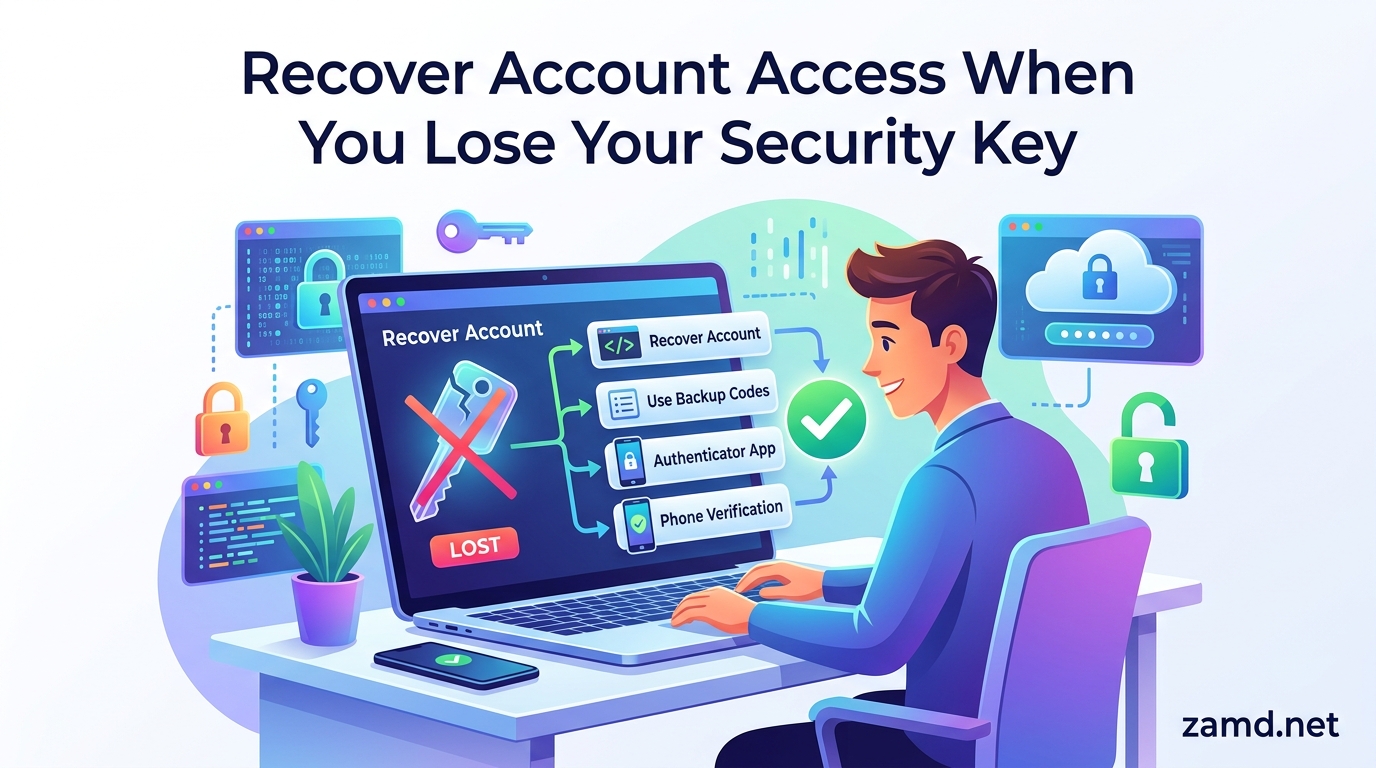
The recovery process follows a specific order of operations. You should try each method in sequence, moving to the next only if the previous one fails. I recommend working through this systematically rather than panicking and submitting multiple support tickets at once, which can actually slow down your recovery.
Step 1: Check for saved recovery codes. When you set up 2FA, most platforms generate a set of one-time backup codes. These are typically 8 to 10 character alphanumeric strings. Search your password manager, email inbox, cloud storage, and physical notes for codes saved during your initial 2FA setup. Look for files named something like “backup-codes.txt” or “recovery-codes.”
Step 2: Try alternative verification methods. Even if your security key was the primary 2FA method, you may have secondary options available. Look for “Try another way” or “More verification options” links on the login page. These can include SMS codes, email verification, authenticator app codes (TOTP), or push notifications to a trusted device.
Step 3: Use a trusted device that is already logged in. Check whether you still have an active session on any device. A phone, tablet, or secondary computer that has your account logged in can sometimes be used to add new authentication methods or generate new recovery codes from within the security settings.
Step 4: Submit an account recovery request. If none of the above works, you need to go through the platform’s official account recovery process. This typically involves answering security questions, providing identity verification documents, and waiting for a review period that can range from 24 hours to several weeks depending on the platform.
Step 5: Contact support directly. For platforms that offer live support, reaching out directly can sometimes bypass the automated recovery system. Be prepared to provide extensive proof of identity including account creation dates, recent activity, billing information, and sometimes government-issued ID.
Each of these steps has nuances depending on the platform you are locked out of. Let me break down the recovery methods in more detail.
Recovery Methods Available Without Your Security Key
Using Recovery Codes and Backup Codes
Recovery codes are your fastest path back into your account. These are one-time-use codes generated when you first set up two-factor authentication. Most platforms generate 8 to 12 codes, each usable once in place of your normal 2FA method. If you saved these codes (and you should have), entering one will let you bypass the security key prompt entirely.
Where to look for your saved recovery codes:
- Your password manager (1Password, Bitwarden, LastPass, Apple Passwords)
- A physical printout or handwritten note from when you set up 2FA
- Cloud storage services like Google Drive, Dropbox, or iCloud
- Your email inbox, searching for terms like “backup codes” or “recovery codes”
- A secure notes app on your phone
Once you use a recovery code to regain access, immediately generate a new set. Used codes cannot be reused, and you want to make sure you always have a fresh batch available.
Alternative Verification Methods
Many accounts have multiple 2FA methods registered even if the security key was the primary one. Alternative verification can include SMS text codes sent to your phone number, voice call verification, email-based codes, TOTP authenticator apps like Google Authenticator or Authy, and push notifications to trusted devices.
The key is to look for alternative options on the login screen before giving up. Google, Microsoft, and most major platforms display a “Try another way” link below the primary verification prompt. Clicking this reveals all available verification methods for your account.
Trusted Device Recovery
If you are already logged into your account on another device, you may be able to use that session to fix your authentication setup. A trusted device that has an active login session can access security settings, generate new recovery codes, register a replacement security key, or disable the lost key from the account entirely.
Check every device you own: your phone, work computer, home laptop, tablet, and even old devices you may have forgotten about. A session that has not expired could save you hours of recovery effort.
Identity Verification Through Support
When all else fails, platforms fall back to identity verification. This is the most time-consuming method but also the most reliable for severe lockout situations. The process varies by platform but generally requires you to prove you are the legitimate account owner through a combination of personal information, account history details, and sometimes government-issued identification.
Reddit users on r/Coinbase have reported successfully using driver’s license verification to remove security keys from their accounts. Apple uses a device-based trust system combined with recovery contacts. Google uses a combination of recent passwords, account creation details, and associated device history.
Platform-Specific Recovery Guides
Google Account Recovery Without a Security Key
Google offers the most robust recovery options of any major platform. When you reach the 2FA prompt and cannot use your security key, click “Try another way” to cycle through available methods. Google typically offers SMS verification, phone call verification, backup codes, and authenticator app codes as alternatives.
If none of those work, go to the Google Account Recovery page at accounts.google.com/signin/recovery. Enter your email address and follow the prompts. Google will ask questions about your account including recent passwords, when you created the account, and which Google services you use. Answer as accurately as possible, because Google uses an automated trust scoring system to evaluate your responses.
The recovery review period typically takes 48 hours to 72 hours. Google sends confirmation emails to your recovery email address throughout the process. Do not submit multiple recovery requests, as this can reset the review timer each time.
GitHub Account Recovery Without 2FA Codes
GitHub provides several recovery paths documented in their official authentication guide. The first option is using a saved recovery code from when you initially set up 2FA. Enter the code at the 2FA prompt to gain immediate access.
If you do not have recovery codes, GitHub allows authentication through a verified device, an SSH key, a personal access token, or a GitHub Mobile session. Any of these can be used to bypass the security key requirement and access your account settings to register a new key.
If all automated methods fail, you can submit an account recovery request through GitHub Support. The process requires you to provide your GitHub username, explain the situation, and verify account ownership. GitHub support typically responds within 24 to 48 hours and may ask for additional verification information before removing your old 2FA methods.
Apple Account Recovery With Security Keys
Apple introduced security key support for Apple Accounts starting with iOS 16.3. The system requires at least two security keys when you enable this feature, which is designed to prevent single-key lockout. However, if you enrolled with only one key or lost both, recovery becomes complex.
If you have another Apple device signed into your account, use that device to navigate to Settings, tap your name, go to Sign-In & Security, and remove the lost key. You can then register a replacement key.
If no devices are signed in, Apple’s standard account recovery process applies. Go to iforgot.apple.com and follow the instructions. You may need a recovery key (a 28-character code), access to a trusted phone number, or a recovery contact. The process can take several days because Apple deliberately builds in waiting periods for security.
One important note: as of the time of writing this guide, Apple users report there is no recovery option if you added security keys and are not logged into any device. This is a known limitation that Apple has not fully addressed. Always register at least two security keys with your Apple Account to avoid this situation.
Passkey Ecosystem Recovery
Passkeys work differently from hardware security keys, and understanding the difference matters for recovery. Hardware keys like YubiKey store credentials on a physical device that cannot be synced. Passkeys, by contrast, synchronize across your device ecosystem through services like iCloud Keychain, Google Password Manager, or Microsoft Authenticator.
If you lose a device with passkeys, the synced passkeys are still available on your other devices. This is a significant advantage over hardware keys. As long as you have at least one other device in the same ecosystem, you can continue using your passkeys without any recovery process at all.
The risk comes when you only have one device in an ecosystem. If you lose that device and have no other devices signed into the same account, your passkeys are gone. This is why enabling passkey sync across multiple devices is so important for preventing permanent lockout.
When Recovery Is Not Possible: The Worst Case
I want to be honest about something that most recovery guides gloss over: sometimes recovery is not possible. If you registered a single security key, never saved recovery codes, have no trusted devices, and your platform does not offer identity-based recovery, you may permanently lose access to your account.
This is more common than you might think. SWTOR (Star Wars: The Old Republic) players have reported being locked out for months because the game’s security key system has no self-service recovery path. Some Coinbase users describe the same frustration of being unable to remove a security key without possessing the key itself. Apple’s security key system, as mentioned above, has a known gap where no recovery exists without a signed-in device.
If you find yourself in this situation, here is what I recommend:
- Create a new account immediately and start rebuilding your digital presence
- Contact the platform’s support team through every available channel including email, phone, and social media
- Check whether the platform offers any ID-based verification you have not tried
- Look for community forums where other users have found workaround solutions
- File a complaint with consumer protection agencies if a platform refuses to provide any recovery path
This worst-case scenario is exactly why prevention matters so much. The next section covers what you should do right now to make sure this never happens to you again.
Prevention: How to Never Get Locked Out Again
Once you regain access to your account, take immediate action to prevent another lockout. These steps take less than 30 minutes total and can save you days or weeks of recovery effort in the future.
Register a backup security key. Every platform that supports security keys allows you to register multiple keys. Buy a second key and add it as a backup. Store it in a safe place separate from your primary key, like a fireproof safe or a trusted family member’s home. If your primary key is lost or stolen, the backup key gives you immediate access.
Save your recovery codes properly. When you set up 2FA, the platform generates recovery codes. Do not just glance at them and move on. Download them, print them, and store them in at least two secure locations. Consider a password manager with encrypted storage and a physical copy in a locked drawer.
Enable multiple 2FA methods. Never rely on a single authentication factor. If your platform supports it, enable a security key plus an authenticator app plus SMS as a fallback. Layering methods means that losing any one of them does not lock you out.
Keep a trusted device signed in. Having one device that stays logged into your account provides a safety net. You can use that device’s active session to add new 2FA methods or generate fresh recovery codes if your primary method fails.
Switch to passkeys where possible. Passkeys sync across devices, which means losing one device does not lock you out. If your accounts support passkeys, enabling them provides an automatic backup through your device ecosystem. Combine passkeys with a hardware key for maximum security and recoverability.
Document your recovery setup. Write down which 2FA methods you have enabled, where your recovery codes are stored, and what backup keys you own. Keep this documentation in a secure location. Future you will be grateful for this when something goes wrong.
FAQ’s
What happens if I lose access to my 2FA?
If you lose access to your 2FA, you will be unable to complete the login process for affected accounts. Recovery depends on your setup: if you saved backup codes, enabled alternative verification methods, or have a trusted device still logged in, you can regain access quickly. If none of these exist, you will need to go through the platform’s identity verification process, which can take 48 hours to several weeks.
What do I do if I lost my recovery key?
If you lost your recovery key, try alternative verification methods first by clicking Try another way on the login page. Check for a trusted device that is still logged into your account. If neither option works, submit an account recovery request through the platform’s official support page and be prepared to verify your identity with account details and government-issued ID.
How do I regain access to my account without a security key?
To regain access without a security key, follow this sequence: check for saved recovery or backup codes, try alternative verification methods like SMS or authenticator app, use a trusted device that is still logged in, submit an official account recovery request, and contact support directly with identity verification documents.
How do I get my verification code without my old device?
If you lost the device with your authenticator app, use saved recovery codes to log in. Check whether you have another device with the same authenticator account synced. For SMS-based verification, contact your carrier to restore your phone number on a new device. As a last resort, use the platform’s account recovery process to re-establish verification on a new device.
Can I bypass security key verification if I lost my key?
You cannot bypass security key verification directly, but you can use alternative paths to access your account. Recovery codes, trusted device sessions, and alternative 2FA methods like SMS or authenticator apps can all get you past the security key prompt. If no alternatives are configured, only the platform’s official account recovery process can remove the requirement.
How long does account recovery take when you lose your security key?
Account recovery times vary by platform. Google typically takes 48 to 72 hours. GitHub support usually responds within 24 to 48 hours. Apple’s recovery process can take several days to weeks due to built-in security waiting periods. Some platforms with limited recovery options may take months or offer no resolution at all without identity verification.
Conclusion
Learning how to recover account access when you lose your only security key can mean the difference between a temporary inconvenience and permanent lockout. The key takeaway is that recovery almost always requires having set up at least one fallback method before the loss occurred. Recovery codes, alternative verification, trusted devices, and platform-specific recovery processes are your lifelines.
If you are currently locked out, work through the step-by-step recovery process outlined above. Start with recovery codes, try alternative verification, check trusted devices, and then escalate to official account recovery. If you have already regained access, take the prevention steps seriously right now. Register a backup key, save your recovery codes in multiple secure locations, and enable multiple authentication methods.
Security keys are excellent for protecting your accounts, but only when paired with proper backup planning. Take 30 minutes today to make sure you never face this situation again.