
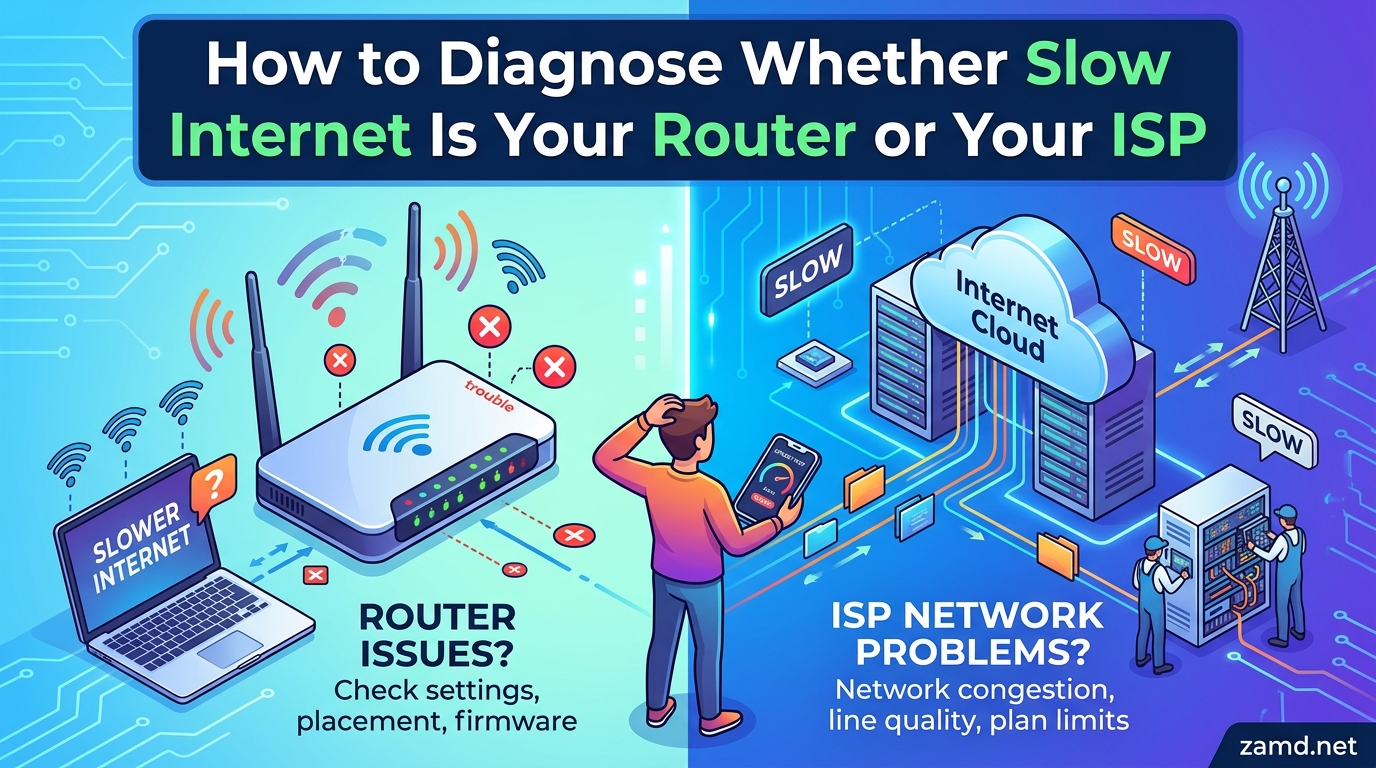
Nothing tests your patience quite like a sluggish internet connection. You are paying for a plan that promised blazing-fast speeds, yet your video calls freeze, your streams buffer endlessly, and downloads crawl at a fraction of what you expected. The frustration doubles because you cannot figure out who to blame. Is it your router quietly dying in the corner? Is your ISP not delivering what they promised? Or is something else entirely going on?
When your internet slows to a crawl, you have three possible culprits: your router, your modem, or your ISP. Each one requires a different fix, and replacing the wrong piece of equipment wastes time and money. I have seen people buy brand-new routers only to discover their ISP had a neighborhood outage. I have also seen people spend hours on hold with their ISP when a simple firmware update would have fixed everything.
The good news is that isolating the problem does not require an IT degree. You need about 20 minutes, an ethernet cable, and a systematic approach. This guide walks you through how to diagnose whether slow internet is your router or your ISP using a proven three-test method that network professionals rely on every day.
We will cover the exact speed test process, how to interpret your results with a clear decision tree, and what to do once you have identified the problem. Whether you are dealing with buffering during movie night, lag during gaming sessions, or freezing during work video calls, this troubleshooting process will help you pinpoint the cause with confidence.
Table of Contents
Quick Answer: How to Tell If It Is Your Router or Your ISP
To diagnose whether slow internet is your router or your ISP, follow this sequence:
- Find your plan’s advertised speed. Check your ISP bill or account page for the speed you are paying for.
- Connect a computer directly to your modem using an ethernet cable, bypassing the router entirely. Run a speed test using Ookla Speedtest or Fast.com.
- Connect the same computer to your router via ethernet cable and run another speed test.
- Disconnect the cable and run a WiFi speed test on the same computer.
- Compare all three results to your plan speed. If the modem test is slow, it is your ISP or modem. If the modem test is fast but the router test is slow, it is your router. If both wired tests are fast but WiFi is slow, it is a WiFi issue.
This three-tier testing approach isolates each component so you know exactly where the bottleneck lives. Let’s break down each step in detail.
Understand Your Equipment: Modem, Router, and Gateway Explained
Before running tests, you need to understand what each device does. This matters because people frequently confuse modems and routers, which leads to wrong conclusions during troubleshooting.
Your modem is the bridge between your home and your ISP. It translates the signal coming from your ISP (through a coaxial cable, phone line, or fiber optic line) into data your home network can use. If you have cable internet, you likely have a DOCSIS modem. If you have fiber internet, you have an ONT (Optical Network Terminal) instead of a traditional modem.
Your router takes the internet connection from your modem and distributes it across your home. It creates your WiFi network and provides ethernet ports for wired connections. The router manages traffic between all your devices, handles security, and assigns local IP addresses.
A gateway (sometimes called a modem-router combo) combines both functions into one box. Many ISPs provide gateways to simplify installation, but this can make troubleshooting trickier because you cannot test the modem and router separately. If you have a gateway, you may need to ask your ISP whether bridge mode is available so you can connect a separate router for testing.
Understanding these distinctions matters because the fix for a slow modem is completely different from the fix for a slow router. Calling your ISP to complain about your router when the problem is actually your aging modem will lead to a frustrating support experience.
Step 1: Know Your Internet Plan’s Advertised Speed
Every diagnostic process needs a baseline, and yours is the speed you are paying for. Most ISPs advertise speeds as “up to” a certain number, which means your actual speed may be somewhat lower under normal conditions. But you should still get reasonably close to that number.
Check your monthly bill, your ISP account portal, or your original service agreement. Look for two numbers: download speed (the bigger number, measured in Mbps or Gbps) and upload speed (the smaller number). Write both down. For example, if you pay for a 500 Mbps download and 20 Mbps upload plan, those are your targets.
One important note about ISP speed claims: the FCC recommends that providers deliver at least 80% of advertised speeds during peak hours. If your plan says 500 Mbps and you consistently see 50 Mbps, that is a problem worth investigating. If you see 450 Mbps on a wired connection, that is within a normal range.
Also check whether your plan has a data cap. Some ISPs throttle speeds after you hit a monthly data threshold, which can explain sudden slowdowns late in the billing cycle. This is not a router problem or a modem problem. It is a plan limitation, and only upgrading your plan or switching providers will fix it.
Step 2: Run a Wired Modem Speed Test
This is the single most important step in the entire diagnostic process. Testing directly to your modem bypasses your router entirely and tells you exactly what speed your ISP is delivering to your home.
Here is how to do it properly:
- Turn off your router and unplug it from your modem.
- Connect a laptop or desktop computer directly to your modem using a Cat5e or Cat6 ethernet cable. Do not use WiFi for this test.
- Restart your modem by unplugging it, waiting 30 seconds, and plugging it back in. Wait for all lights to stabilize.
- Restart your computer to ensure it picks up the direct modem connection.
- Open a browser and go to Ookla Speedtest (speedtest.net) or Fast.com.
- Run the test and record your download speed, upload speed, and ping.
- Run the test two more times and average the results for accuracy.
Use a computer with a gigabit ethernet port for this test. If your laptop only has a 100 Mbps ethernet port, you will never see speeds above 100 Mbps regardless of what your ISP delivers. Many modern laptops require a USB-to-ethernet adapter, which is fine as long as it supports gigabit speeds.
If you have a gateway (modem-router combo) and cannot bypass the router function, this test will not fully isolate your ISP’s speed. In that case, connect via ethernet to the gateway and be aware that the gateway’s router component could still be a factor. Consider asking your ISP to enable bridge mode for more accurate testing.
The wired modem test is your ground truth. Everything else in the diagnostic process is compared against this number. Take it seriously and make sure your connections are solid before recording results.
Step 3: Run a Wired Router Speed Test
Now we add the router back into the equation while keeping the test wired. This tells you whether your router is handling wired traffic efficiently or if it is introducing a bottleneck.
Follow these steps:
- Reconnect your router to your modem using an ethernet cable (usually the WAN or internet port on the router).
- Power on both devices and wait for them to fully boot up.
- Connect your computer to the router using a different ethernet cable, plugging into a LAN port on the router.
- Run the same speed test (Ookla Speedtest or Fast.com) three times.
- Record and average the results.
Compare your wired router test to your wired modem test. If both numbers are similar (within 5-10%), your router is handling wired traffic fine and is not the bottleneck. If the router test is significantly slower than the modem test, your router has a problem.
What counts as “significantly slower”? A drop of more than 15-20% between modem speed and router speed on a wired connection suggests a router issue. This could mean the router’s processor cannot keep up, the WAN port is faulty, or the firmware is outdated.
I have seen cases where users get 900 Mbps at the modem but only 200 Mbps through a router that is five years old. Older routers, especially budget models, often have WAN ports limited to 100 Mbps. If you have a gigabit internet plan but your router has a 10/100 WAN port, that is your bottleneck right there. No amount of troubleshooting will fix that without a router upgrade.
Also check the ethernet cable between your modem and router. A damaged cable or an old Cat5 cable can limit speeds. Always use Cat5e or Cat6 cables for any gigabit connection.
Step 4: Run a WiFi Speed Test
This final test checks your wireless performance. WiFi will always be slower than a wired connection, so do not panic if the numbers are lower than your wired results. The question is how much slower.
To get meaningful WiFi test results:
- Disconnect the ethernet cable from your computer.
- Stand about 10 feet from your router with clear line of sight.
- Run a speed test on the same device you used for wired tests.
- Move to the room where you normally experience slow internet and run another test.
- Move to the farthest point from the router and run one more test.
For WiFi, expect speeds to be 30-60% of your wired speed when you are close to the router with a clear line of sight. At distance or through walls, expect further reduction. If you are getting 500 Mbps on wired and 300 Mbps on WiFi near the router, that is completely normal for a modern WiFi 5 or WiFi 6 router on the 5 GHz band.
What is not normal is getting 500 Mbps wired but 20 Mbps on WiFi while standing next to the router. That indicates a router WiFi problem, interference from other devices, or a router that is too old to handle modern WiFi standards.
Run WiFi tests on the 5 GHz band if your router supports dual-band. The 5 GHz band delivers much faster speeds at shorter range, while the 2.4 GHz band provides slower speeds but better range. If your device connects to 2.4 GHz by default, manually switch to 5 GHz for a fairer comparison to your wired results.
Test on multiple devices too. If your phone gets 200 Mbps on WiFi but your laptop gets 20 Mbps, the issue might be the laptop’s WiFi adapter, not your router. Device-specific problems are common and often mistaken for router problems.
Decision Tree: How to Interpret Your Speed Test Results
Now that you have three sets of numbers, here is how to read them. This decision tree covers every possible outcome:
If your wired modem test is much slower than your plan speed: The problem is your ISP, your modem, or the line connecting your home. Skip router troubleshooting entirely. Move to the ISP troubleshooting section below.
If your wired modem test matches your plan speed but your wired router test is much slower: Your router is the bottleneck. The router’s hardware, firmware, or configuration is limiting your speed. Move to the router troubleshooting section.
If both wired tests match your plan speed but WiFi is much slower: You have a WiFi-specific problem. This could be interference, distance, router placement, or an aging router with outdated WiFi standards. Move to the WiFi troubleshooting section.
If all three tests match your plan speed: Congratulations, your network is working correctly. If you still experience slowdowns, the issue may be device-specific (a slow computer, too many background apps), server-side (the website or service you are accessing is slow), or temporary (network congestion during peak hours).
If your speeds fluctuate wildly between tests: This points to intermittent issues. It could be a loose cable, a modem that is overheating, or ISP-level congestion that comes and goes. Run tests at different times of day to identify patterns.
If speeds are fine on one device but slow on another: The problem is with the specific device, not your network. Check for background downloads, malware, outdated network drivers, or a failing WiFi adapter on the slow device.
Keep a record of your test results, including the time of day and which device you used. This documentation is invaluable if you need to call your ISP for support. It also helps you track whether the problem is getting better or worse over time.
How to Fix ISP or Modem Problems
If your wired modem test revealed slow speeds, the issue is outside your router. Here is what to do, in order of effort and effectiveness:
Power Cycle Your Modem
Unplug your modem, wait at least 30 seconds (60 seconds is better), and plug it back in. This forces the modem to re-establish its connection with your ISP and clear any temporary glitches. Wait for all the lights to stabilize before running another speed test. This simple fix resolves a surprising number of issues.
Check All Physical Connections
Inspect the coaxial cable (or fiber connection) coming into your modem. Make sure it is finger-tight, not kinked, and not damaged. Check the ethernet cable between your modem and router. A loose or corroded coaxial connection can cause significant speed drops. If you see any damage, contact your ISP for a replacement cable.
Check for ISP Outages in Your Area
Before spending more time troubleshooting, check whether your ISP has a known outage. Visit your ISP’s website or app, which usually has an outage map or status checker. You can also check sites like Downdetector.com, which aggregates user reports of ISP problems. If there is an outage in your area, the fix is simply waiting.
Verify Your Modem Is Not the Bottleneck
This is a step many people skip. If you have cable internet and a modem older than DOCSIS 3.1, you may not be getting full speeds on plans above 200 Mbps. DOCSIS 3.0 modems can technically handle gigabit speeds, but real-world performance often falls short, especially during peak hours.
Check your modem’s model number (usually on a sticker on the bottom or back) and search online for its DOCSIS version and rated speed. If your modem’s rated speed is lower than your plan speed, you need a new modem. Your ISP can tell you which modems are compatible with your plan.
If you rent your modem from your ISP, call and ask whether they can send you a newer model. Many ISPs upgrade equipment for free if you ask, but they rarely volunteer this information.
Look for Signs of ISP Throttling
Some ISPs throttle speeds for specific types of traffic, particularly during peak hours or after you hit a data cap. If your speeds are consistently slow during evenings but fine during off-peak hours, congestion or throttling may be the cause.
A VPN can help you determine if throttling is happening. If your speeds improve when using a VPN (which hides the type of traffic from your ISP), throttling is likely. If speeds stay the same, the issue is more likely congestion or a line problem.
Call Your ISP: What to Say
If you have tried everything above and speeds are still slow, it is time to call your ISP. Be prepared before you pick up the phone. Here is what to tell them:
“I have run wired speed tests directly to my modem and I am getting [X Mbps] when my plan is for [Y Mbps]. I have already power-cycled my modem, checked all cable connections, and confirmed there are no outages in my area. The slow speeds persist on multiple devices tested directly to the modem.”
Having specific numbers and showing you have already done basic troubleshooting prevents the support agent from wasting your time with scripted steps. Ask them to check for line issues, node congestion, and signal levels on their end. If the problem persists, request a technician visit to inspect the physical line to your home.
How to Fix Router Problems
If your wired router test was significantly slower than your modem test, your router needs attention. Work through these steps in order:
Power Cycle Your Router
Just like with the modem, a simple reboot fixes many router issues. Unplug the router, wait 30-60 seconds, and plug it back in. Wait for all lights to stabilize before testing again. Routers benefit from periodic reboots. I recommend restarting your router once a month as preventive maintenance.
Check Your Ethernet Cables
Swap the ethernet cable between your modem and router with a known-good Cat5e or Cat6 cable. Cables degrade over time, and a damaged cable can silently limit speeds without any visible signs. This is one of the cheapest fixes you can try, so do not skip it.
Also check which port you are using. The cable from your modem should connect to the router’s WAN or internet port (usually a different color from the LAN ports). Devices should connect to the LAN ports. Mixing these up will cause connectivity problems.
Update Your Router Firmware
Outdated firmware can cause performance issues, security vulnerabilities, and bugs that slow down your connection. Check your router manufacturer’s website or app for firmware updates. Many modern routers update automatically, but older models require manual updates through the admin panel.
To check for updates, open your router’s admin panel by typing its IP address (usually 192.168.1.1 or 192.168.0.1) into a browser. Navigate to the firmware or system update section and install any available updates. Do not unplug the router during the update process.
Check for Bandwidth Hogs
A single device consuming most of your bandwidth can make the entire network feel slow. Log into your router’s admin panel and look at the list of connected devices. Some routers show real-time bandwidth usage per device.
Look for unexpected devices on your network (possible unauthorized access) or known devices consuming unusual amounts of data. Background cloud backups, large game downloads, or streaming on multiple devices simultaneously can saturate your connection.
If your router supports QoS (Quality of Service) settings, configure it to prioritize traffic for important activities like video calls or gaming. QoS lets you tell your router which types of traffic matter most so they get priority when bandwidth is limited.
Check for Overheating
Routers generate heat, and overheating causes thermal throttling that reduces performance. Feel the top and sides of your router. If it is hot to the touch, it needs better ventilation. Move it to an open location away from other heat-generating devices, direct sunlight, and enclosed spaces.
Overheating routers also tend to drop connections and reboot randomly. If your router resets itself without warning, heat is a likely culprit. Some users add small USB fans near their routers to improve airflow, though proper placement is usually sufficient.
Factory Reset Your Router
If nothing else works, a factory reset can resolve deep configuration issues that power cycling and firmware updates cannot fix. This step erases all settings, so write down your WiFi network name, password, and any custom configurations before proceeding.
Use a paperclip to press and hold the reset button on the back of the router for 10-15 seconds. The router will restart with factory default settings. You will need to reconfigure your network from scratch, including setting up a new WiFi name and password.
Factory reset is a last resort. Try every other step first. But if your router has been running for years with countless configuration changes, a clean slate can work wonders.
Evaluate Your Router’s Age
Routers have a practical lifespan of about 4-5 years. Technology advances quickly, and a router that was fast in 2021 may struggle with the demands of a 2026 home network. Multiple smart home devices, 4K streaming, and increasing numbers of connected devices push older hardware to its limits.
If your router is more than four years old and you have exhausted all troubleshooting steps, it may simply be time for an upgrade. Look for a WiFi 6 or WiFi 6E router that can handle your current internet plan speed. If you have a gigabit plan, make sure the router has a gigabit WAN port and can route at gigabit speeds.
Forum users consistently report that replacing an ISP-provided router with a quality personal router dramatically improves both wired and wireless speeds. ISP-provided equipment is often basic and underpowered compared to what you can buy yourself.
How to Fix WiFi Problems
If your wired tests are fine but WiFi is slow, the issue is with your wireless setup. WiFi problems are the most common type of slow internet complaint, and they are usually fixable without buying new equipment.
Optimize Router Placement
Router placement matters more than almost anything else for WiFi performance. Your router should be in a central, elevated location in your home. Avoid placing it on the floor, inside cabinets, behind TVs, or near thick walls and metal objects.
WiFi signals radiate outward and downward from the router. A router on the ground floor in a corner of the house will provide weak coverage to upper floors and distant rooms. Moving the router to a central location can improve speeds dramatically without any cost.
Reduce WiFi Interference
Many household devices interfere with WiFi signals. Microwaves, baby monitors, Bluetooth devices, cordless phones, and even your neighbors’ WiFi networks can cause interference and slowdowns. The 2.4 GHz band is especially crowded.
Switch to the 5 GHz band for devices that are close to the router. The 5 GHz band offers faster speeds and experiences less interference, though it has shorter range. Use the 2.4 GHz band only for devices that are far from the router or do not need high speeds.
Consider a Mesh Network for Larger Homes
If you have a large home or one with thick walls, a single router may not provide adequate coverage. Dead zones where WiFi barely works are a sign that you need better coverage, not necessarily a faster router.
A mesh network system uses multiple nodes placed throughout your home to create a single, seamless WiFi network. Each node extends the coverage area, eliminating dead zones and providing consistent speeds in every room. Mesh systems are particularly effective in multi-story homes.
When diagnosing mesh network issues, test near each node individually. A single failing node can slow down the entire mesh. Most mesh systems have companion apps that show the status of each node and can help you identify problematic units.
Using Your Router Admin Panel to Diagnose Issues
Your router’s admin panel is a powerful diagnostic tool that most people never explore. It provides detailed information about your network that can reveal problems invisible to speed tests alone.
To access the admin panel, type your router’s IP address into a browser. Common addresses are 192.168.1.1, 192.168.0.1, or 10.0.0.1. You will need your admin username and password, which may be printed on the router itself or set during initial configuration.
Once logged in, here is what to check:
Connected Devices List: Review every device connected to your network. Look for unknown devices that might be using your bandwidth without permission. If your neighbor is streaming 4K movies on your WiFi, that explains your slowdowns. Change your WiFi password if you find unauthorized devices.
QoS Settings: Quality of Service lets you prioritize certain types of traffic. If video calls are stuttering while someone downloads a large game in another room, QoS can fix this. Set video conferencing and gaming traffic to high priority and large downloads to low priority.
System Logs: Many routers keep logs of errors, disconnections, and unusual events. Look for repeated disconnection events, DHCP conflicts, or error messages. A pattern of drops at specific times can indicate interference from a device that operates on a schedule, like a baby monitor or smart appliance.
Channel Selection: If your router is on a crowded WiFi channel, switching to a less congested channel can improve speeds. Some routers auto-select channels, but not all do this well. Use a WiFi analyzer app on your phone to find the least congested channel in your area.
Guest Network: If you have many smart home devices or frequent guests, moving them to a separate guest network can reduce congestion on your main network. This keeps your primary devices on a cleaner, less crowded network.
Advanced Diagnostic Tools: Ping, Traceroute, and Packet Loss
For users who want to go deeper, command-line tools can reveal issues that speed tests miss. These tools are available on Windows, Mac, and Linux without any additional software.
Ping Test
A ping test measures how long it takes for data to travel to a server and back. Lower ping means a more responsive connection, which matters for gaming and video calls. To run a ping test, open Command Prompt (Windows) or Terminal (Mac) and type: ping google.com -n 20 (Windows) or ping -c 20 google.com (Mac).
Healthy ping times are under 20ms to nearby servers for most home internet connections. If you see consistent ping times above 100ms or intermittent spikes, there may be a routing issue between your home and the server. Very high ping combined with slow speeds suggests an ISP-level problem.
Traceroute
Traceroute shows every hop your data takes between your computer and a destination server. This can pinpoint exactly where slowdowns occur. Run it by typing tracert google.com (Windows) or traceroute google.com (Mac) in your command line.
If the first few hops are fast but speeds drop dramatically at a specific hop, the slowdown is happening at that point in the network. Hops within your ISP’s network that are slow suggest an ISP problem. A slow hop right after your router suggests a router or local network issue.
Packet Loss Analysis
Packet loss occurs when data packets fail to reach their destination. Even a small amount of packet loss (1-2%) can cause noticeable lag, especially for real-time applications like gaming and video calls. The ping test above will show packet loss as a percentage.
If you see packet loss on a wired connection, the issue is likely with your ISP’s line or your modem. If packet loss only occurs on WiFi, interference or distance is the cause. Persistent packet loss above 5% on a wired connection warrants a call to your ISP, as it often indicates a physical line problem.
How to Tell If Your ISP Is Throttling Your Internet
ISP throttling is a real phenomenon, and it can be difficult to distinguish from normal network congestion. Here are the signs to watch for:
Consistent slowdowns at specific times: If your speeds drop every evening between 7 PM and 11 PM but recover overnight, your ISP may be managing traffic during peak hours. This is common in areas with limited infrastructure capacity.
Slowdowns on specific types of traffic: Some ISPs prioritize certain types of traffic over others. If video streaming is slow but general browsing is fast, or if certain websites load slowly while others are fine, your ISP may be selectively throttling.
Speeds improve with a VPN: A VPN encrypts your traffic so your ISP cannot see what type of data you are sending. If your speeds improve significantly when using a VPN, your ISP was likely throttling specific types of traffic.
Speeds improve after resetting your modem: If speeds are slow right after you start a large download or stream in 4K, but improve after a modem reset, your ISP may be applying temporary rate limiting that resets with a new connection.
To confirm throttling, run speed tests with and without a VPN at different times of day. Document the results. If you find clear evidence of throttling, you can file a complaint with the FCC or your state’s public utilities commission, or consider switching to a different ISP in your area.
ISP-Rented Router vs Personal Router: Does It Matter?
This is one of the most frequently asked questions in home networking forums, and the answer is almost always yes, it matters. ISP-provided routers are typically basic models chosen for cost rather than performance.
ISP routers often have weaker processors, fewer antennas, limited WiFi range, and outdated WiFi standards compared to routers you can buy yourself. They also tend to receive fewer firmware updates, which means security patches and performance improvements come slowly if at all.
Users across multiple forums report similar experiences: switching from an ISP-provided router to a quality personal router (especially WiFi 6 models) dramatically improves both range and speed. This is not surprising, given that ISP routers are often rebranded budget models.
The monthly rental fee for ISP equipment also adds up. If you are paying $10-15 per month for an ISP router, buying your own pays for itself within a year or two. Just make sure any router you buy is compatible with your ISP and internet type (cable, fiber, DSL).
For diagnosis purposes, having a separate modem and router makes troubleshooting much easier. If your ISP provides a gateway (combined unit), consider asking them to put it in bridge mode and connecting your own router. This gives you the diagnostic flexibility of separate devices along with better performance.
Common Mistakes People Make When Troubleshooting Slow Internet
Even with a systematic approach, certain pitfalls trip people up repeatedly. Avoid these common mistakes:
Testing only on WiFi. This is the number one error. WiFi speeds are affected by dozens of factors unrelated to your actual internet connection. Always start with a wired test to establish what your ISP is actually delivering.
Testing on a slow device. An old laptop with a failing hard drive or outdated network adapter will show slow speeds even on a fast network. Test on a modern device with a gigabit ethernet port for accurate results.
Running only one speed test. Single test results can be misleading due to temporary fluctuations. Run each test three times and average the results. Also try different test servers, as distance to the server affects results.
Ignoring the time of day. Network congestion is real and varies by time. If you only test at 9 PM on a Sunday, you are testing during peak hours. Run tests at different times to get a full picture.
Blaming the ISP without testing directly to the modem. ISPs get blamed for router problems constantly. If you call your ISP without first testing directly to your modem, you will likely waste time and may end up buying equipment you do not need.
Forgetting about background apps. Cloud backups, automatic game updates, Windows updates, and other background processes consume bandwidth silently. Check for active downloads before running speed tests.
Overlooking smart home devices. Security cameras, video doorbells, and smart TVs can consume significant bandwidth, especially if multiple devices stream simultaneously. A network full of smart home devices on an older router can feel slow even when the internet connection itself is fast.
FAQ’s
How do I know if my internet is slow or it’s my router?
Run a speed test on a device connected directly to your modem via ethernet cable, bypassing the router. If speeds match your plan, your router may be the issue. If speeds are still slow at the modem, the problem is likely your ISP or modem. Test at the modem first, then through the router, then on WiFi to isolate the cause.
How to tell if a router or ISP problem?
Connect a laptop directly to your modem via ethernet and run a speed test. If wired speeds are good but WiFi is slow, it is your router. If both wired and WiFi speeds are slow, the issue is your modem, line, or ISP. This is the fastest way to determine if it is your router or your ISP causing slow internet.
How do I figure out what is slowing down my internet?
Start by knowing your plan’s advertised speed, then run three speed tests: one wired to your modem, one wired through your router, and one on WiFi. Compare results to determine if the issue is your router, modem, or ISP. Also check for background downloads, smart home devices consuming bandwidth, and ISP outages in your area.
How do I test if my internet is slow?
Use a speed test tool like Ookla Speedtest or Fast.com. First check your plan’s advertised speed, then run tests on a wired connection to your modem, a wired connection to your router, and on WiFi. Compare results to your plan’s speed. Run each test three times for accuracy and test at different times of day.
Why is my WiFi slow but ethernet fast?
This is normal and expected. WiFi speeds are always lower than wired speeds due to signal attenuation, interference, and protocol overhead. If WiFi is at least 30 to 60 percent of your wired speed when close to the router, your network is working correctly. If WiFi drops below 20 percent of wired speed near the router, check for interference, router age, or band selection.
How often should you restart your router?
Restart your router once a month as preventive maintenance. A periodic reboot clears the router’s memory, resolves minor software glitches, and refreshes the connection with your ISP. If your router requires frequent restarts to maintain speed, it may be overheating or failing and should be evaluated for replacement.
Can a bad ethernet cable cause slow internet?
Yes. A damaged, old, or low-quality ethernet cable can limit speeds significantly. Cat5 cables max out at 100 Mbps, while Cat5e and Cat6 support gigabit speeds. If you have a gigabit plan but see speeds around 100 Mbps on wired, check your cable type. Swap cables to rule this out as a cause.
Should I use my ISP’s router or buy my own?
Buying your own router is almost always better. ISP-provided routers are typically budget models with weaker processors, limited range, and fewer features. A personal WiFi 6 router will provide better speeds and coverage. Buying your own also eliminates the monthly rental fee, which pays for itself within one to two years.
Conclusion: Take Control of Your Internet Speed
Diagnosing whether slow internet is your router or your ISP does not require specialized knowledge or expensive tools. The three-test method (wired modem, wired router, WiFi) gives you clear, actionable data that tells you exactly where the problem lives. Once you have those numbers, the decision tree points you to the right fix.
The most important takeaway is to always test with a wired ethernet connection to your modem before doing anything else. This single step eliminates guesswork and prevents the most common diagnostic mistake: blaming your ISP for a router problem or vice versa. Armed with your test results, you can either fix the issue yourself or call your ISP with concrete evidence that the problem is on their end.
Remember that routers have a practical lifespan of 4-5 years, ethernet cables degrade over time, and ISP-provided equipment is rarely top-tier. If you have methodically worked through every troubleshooting step and your speeds are still below what you pay for, a router upgrade or a firm conversation with your ISP may be your next move. You now know exactly how to diagnose whether slow internet is your router or your ISP, and that knowledge puts you in control.